by Raja Sreenivasan | Apr 2, 2019 | BizTalk Community Blogs via Syndication
Introduction
BizTalk360 already has the capability to integrate with New Relic, in which user can get insights on real-time performance data .
Application Performance Management or Application Performance Monitoring (APM) is an essential tool to help managing and monitoring the performance of an application.In today’s market a wide range of tools is available to optimize and monitor the performance of an application. AppDynamics is a well-known top application performance monitoring tool when it comes to APM. Knowing the importance of Application Performance Monitoring, BizTalk360 provides integration with AppDynamics from the v8.9.6.
Why do we integrate AppDynamics in BizTalk360?
For large organizations spend quite good investment when comes for complex network for optimization and monitor the performance of apps and related issues.AppDynamics is widely used by companies as an enterprise-wide monitoring solution and it has the capability to provide deep performance analytics of your configured environment .Considering the importance of monitoring the performance of BizTalk Server environment in a single place, few of our customer requested us to integrate AppDynamics in BizTalk360.
If you are already using AppDynamics, you can view the performance metrics of the BizTalk server environment across multiple widgets in AppDynamics dashboard from the BizTalk360 v8.9.6.
BizTalk360 Analytical Data in AppDynamics
Initially, BizTalk360 will provide capabilities to push BizTalk Server Analytics information to the AppDynamics. Some of the important BizTalk environment performance metrics categories are
- BizTalk Server Health
- Host Performance
- Messaging
- SQL Server
- Throttling
All metrics have different counters, which are constantly being collected and pushed over to the AppDynamics Controller.
BizTalk Server Health Metrics has
- CPU Usage
- Memory Usage
- Disk Free Space
- Average Disk Queue Length
Message Performance
- Documents Receive/Second
- Documents Processed/Second
- Inbound Latency (Sec)
- Outbound Latency (Sec)
- Outbound Adapter Latency (Sec)
Host Performance
- Host Instance performance by CPU and Memory
Throttling Performance
- Message delivery Throttling State
- Message Publishing Throttling State
- Message Delivery Outgoing Rate
- Message Delivery Incoming Rate
- Active Instance Count
How does BizTalk360 connect with AppDynamics
Every monitoring tool has a different core architecture. When looking on the surface, they might look similar, but when we look in detail of it, it becomes clear how different all the monitoring tools works.
AppDynamics supports different development languages, while we are using .NET because BizTalk360 is build on top of .NET framework.
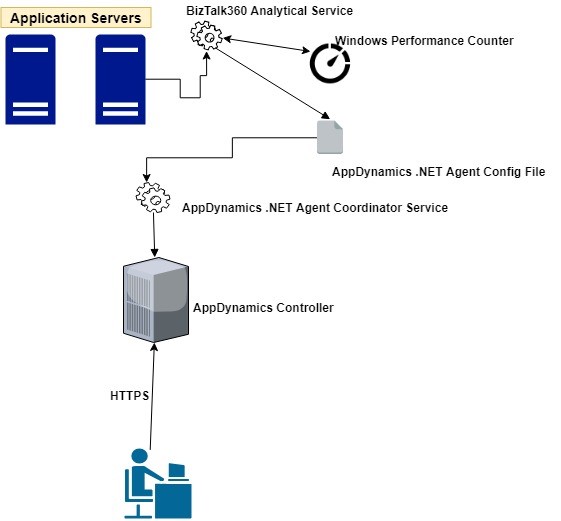
AppDynamics provides a piece of software called Agent which is installed on the server to which application needs to be monitored. The Agent collects metrics and sends them to a server called the Controller. The controller processes the metrics and presents them via Web Browser.
The BizTalk360 Analytics service includes a sub-service called “AppDynamics” which is responsible to constantly push BizTalk Server performance data to Agent. The AppDynamics sub service executes every 70 seconds and checks for the data in the performance data service(another BizTalk360 Analytical sub service). The Controller, which processes the data, makes the data available through a web browser to the user.
BizTalk360 collects the BizTalk Server Analytical data and the AppDynamics agent constantly picks up these data with the help of Windows performance counter data and sends it over to the controller. In AppDynamics, this data is available under the custom metric in the Metrics browser of each application.
Configuration of the AppDynamics Agent
For configuring the AppDynamics agent, you need to download and install the .NET Agent (32/64 bit) in the Application server (where the BizTalk360 Analytics Service is running) . Once the installation is successful, the .NET agent creates the coordinator service and configuration file which consists of the controller and application details.
The default location of the machine agent configuration file is located at:
For Windows Server 2008 or later: %ProgramData%AppDynamicsDotNetAgent
BizTalk360 collects all the BizTalk Server analytical data assigns it to Windows performance counters, and updates the performance counters in the AppDynamics config file as below .

The data will be collected by the .NET Agent coordinator service and passes it to the respective controller as custom metric mentioned in the agent configuration file.
To get the latest performance metrics/counters user need to restart BizTalk360 Analytics service, by doing this the new counters will be updated in AppDynamic config file. Agent then collects the newly introduced performance counter values and start updating in the respective application metric browser configured in AppDynamics.
Series of steps to be covered after configuring AppDynamics .NET Agent
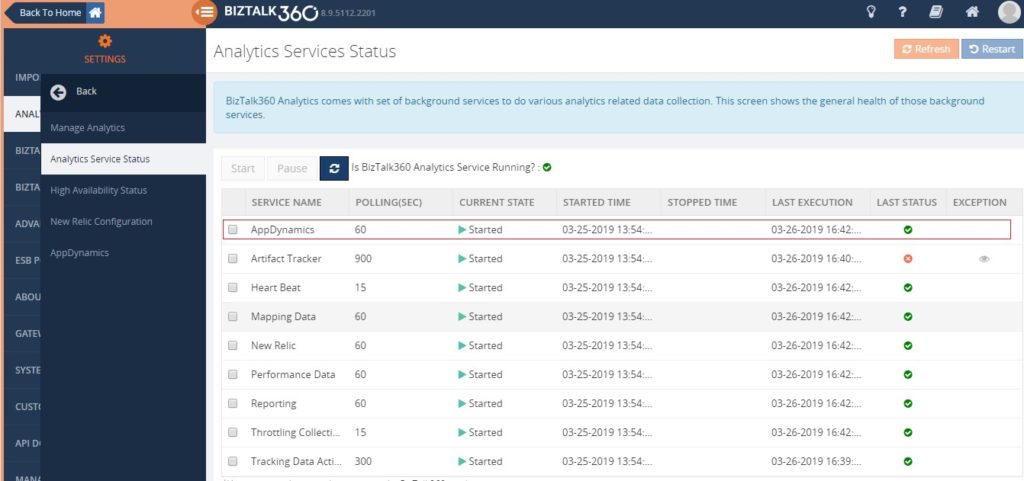
- By default when you install/upgrade BizTalk360 AppDynamics sub service will be in the paused state. You need to manually start the service by navigating to BizTalk360 Settings->Analytics health ->Analytics Service Status->AppDynamics .
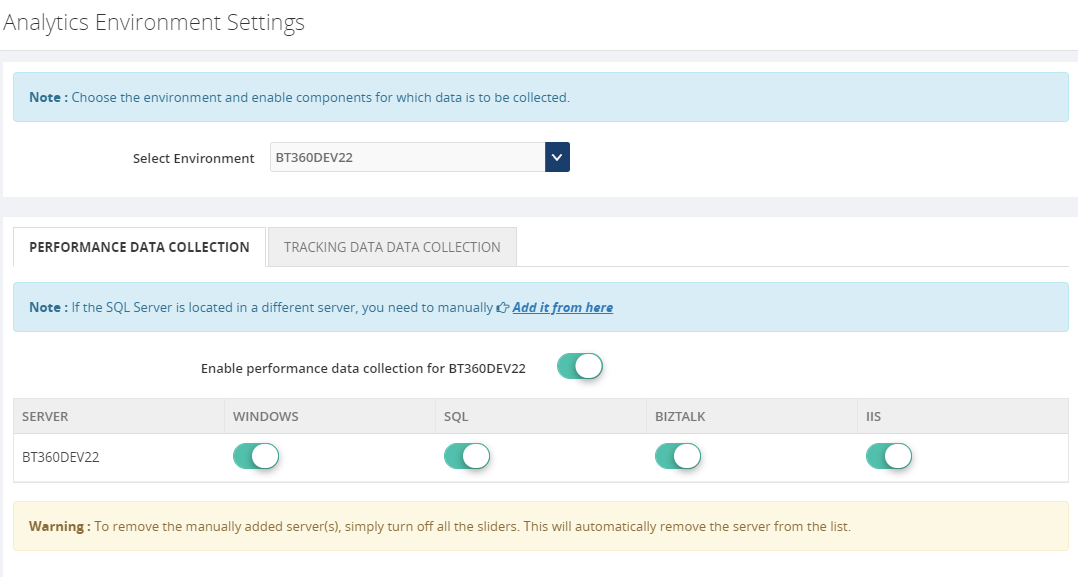
- Ensure performance data collection is enabled in Manage Analytics of BizTalk360 setting side for collecting the analytics data.
Custom Metrics in AppDynamics
Once the AppDynamics agent coordinator service starts pushing data, all the metrics will be available under the metric browser of the respective application in AppDynamics.
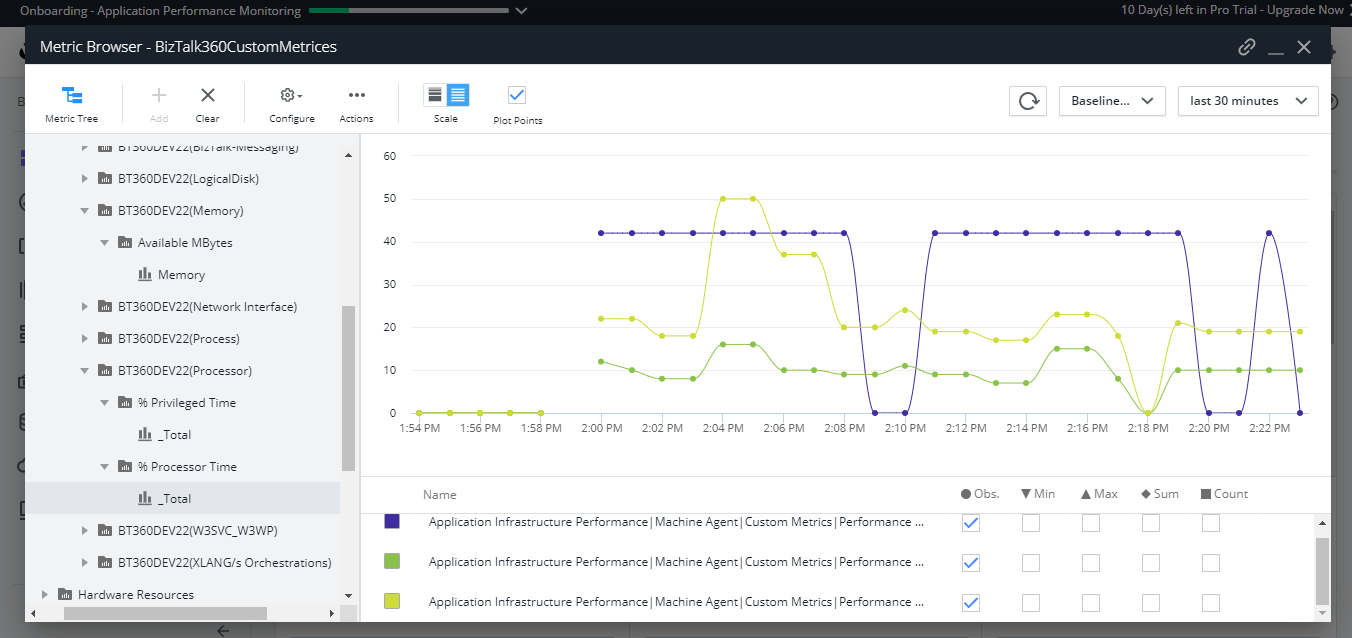
- Once the data is populated, you can create dashboards which consist of different metrics data as shown below.
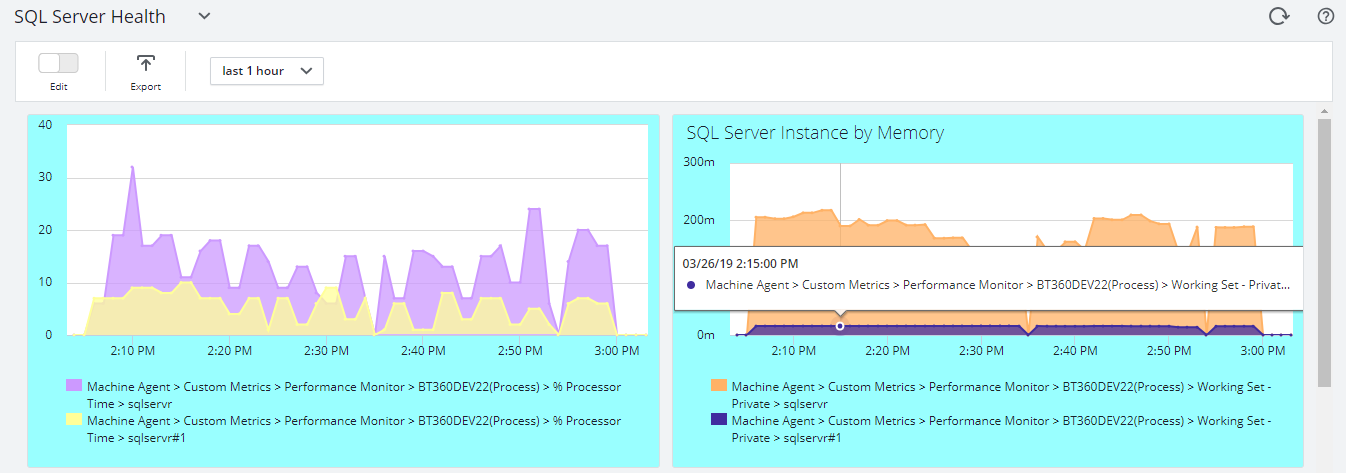
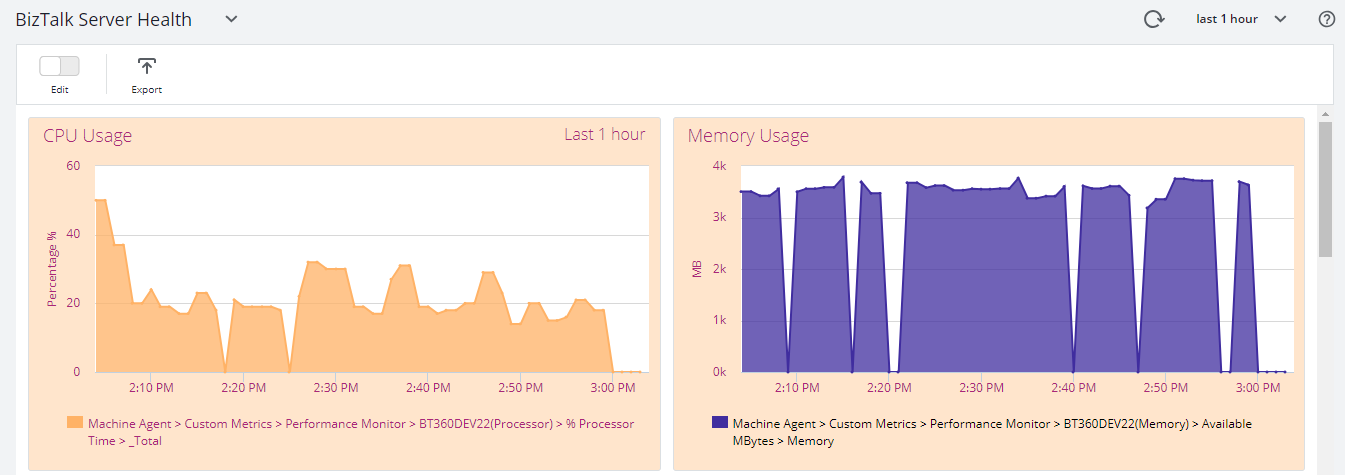
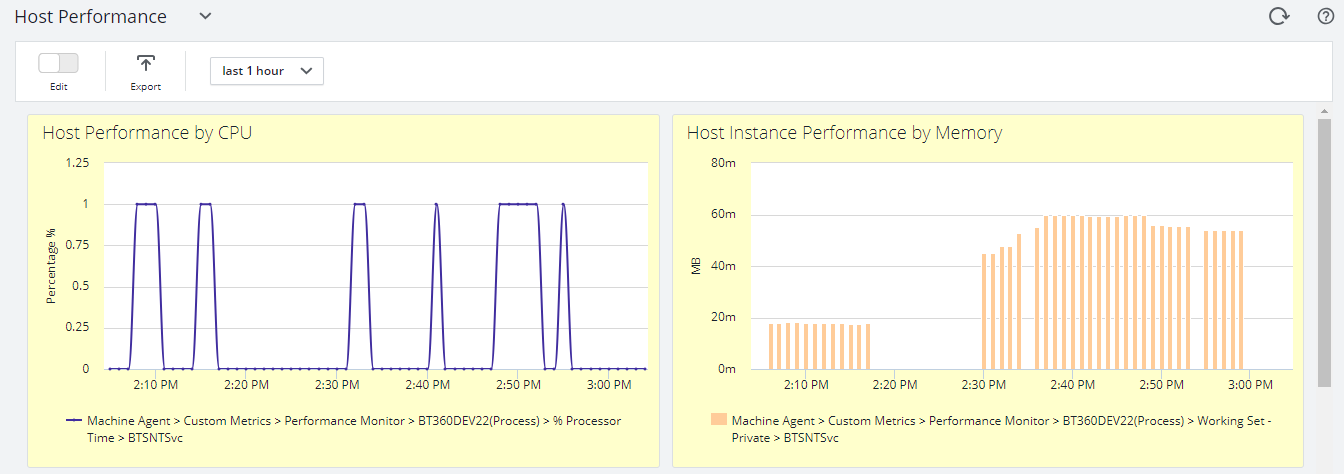
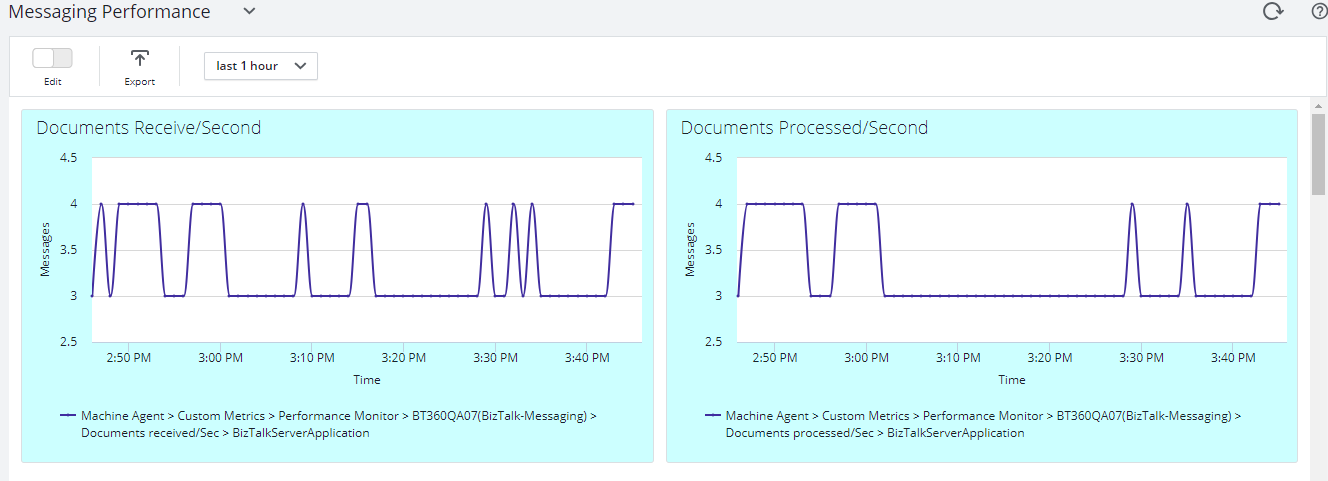
BizTalk Server High Availability
To maximize the uptime of the BizTalk Server solution it is important to monitor the availability of BizTalk Server environment. By enabling the performance counter in Analytics section, the BizTalk360 Analytics service will start to push data to AppDynamics with the help of the Agent coordinator. All the data are segregated based on server name and their corresponding metrics and counters.
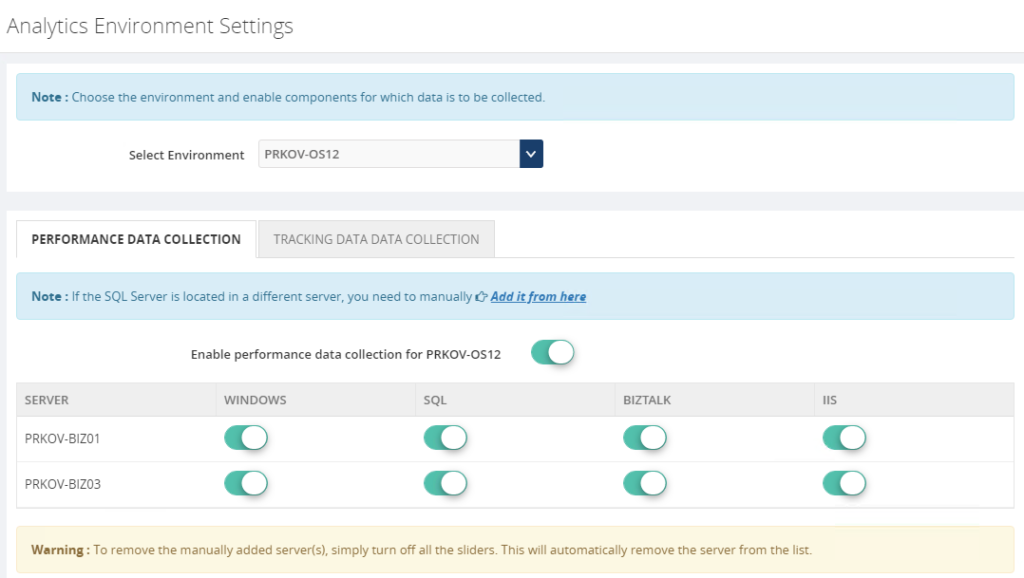
Multiple Environments
You can configure and manage multiple BizTalk environments in BizTalk360. For adding multiple BizTalk Environments please refer this link.
For collecting the performance value of configured environments just enable performance data collection for each server by selecting the respective server name from the dropdown as below .
Environment1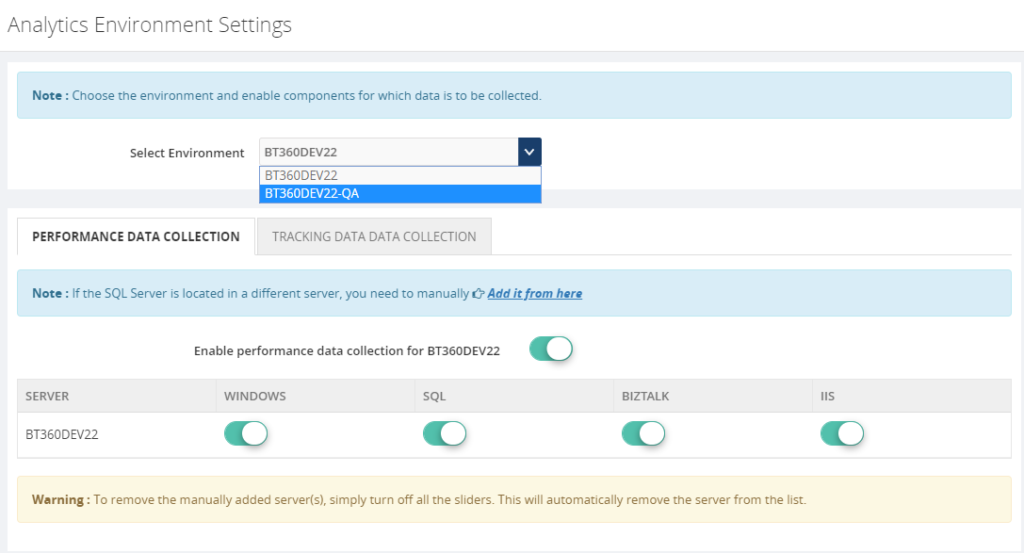
Environment2
Once the Analytical service starts collecting the performance data and pushing it to Agent coordinator , the same you can monitor in AppDynamics dashboard for both the environments.
BizTalk360 High Availability
BizTalk360’s monitoring services and user interface can be installed in more than one places which makes the BizTalk360 as Highly available. It’s predominant to monitor the BizTalk Server and maximize the up-time of BizTalk360. By default, the BizTalk360 high availability services will be available as active and passive on the installed servers and make sure the BizTalk360 is healthy(always up).
To make AppDynamics data collection as highly available you have to install the AppDynamics .NET Agent on the machines where BizTalk360 Analytics services are installed. So when ever the analytics service changes its availability (active/passive) it will collect the data and push to AppDynamics.
Conclusion
With its latest release v8.9.6, we will be bringing the capability to push the BizTalk Server analytical performance data to AppDynamics for optimizing and monitoring BizTalk Server. If you have any feedback or suggestion, please write to us at [email protected]. You can get started to use AppDynamics integration by downloading the 30-day free trial of BizTalk360.
The post APM (Application Performance Monitoring/Management) Integration in BizTalk360 appeared first on BizTalk360.

by Gautam | Mar 31, 2019 | BizTalk Community Blogs via Syndication
Do you feel difficult to keep up to date on all the frequent updates and announcements in the Microsoft Integration platform?
Integration weekly update can be your solution. It’s a weekly update on the topics related to Integration – enterprise integration, robust & scalable messaging capabilities and Citizen Integration capabilities empowered by Microsoft platform to deliver value to the business.
If you want to receive these updates weekly, then don’t forget to Subscribe!
Microsoft Announcements and Updates
Community Blog Posts
Videos
Podcasts
How get started with iPaaS design & development in Azure?
- Robust Cloud Integration with Azure
- Microsoft Azure for Developers: What to Use When
- Azure Logic Apps: Getting Started
- Azure Logic Apps: Fundamentals
- Microsoft Azure Developer: Creating Enterprise Logic Apps
- Microsoft Azure API Management Essentials
- Azure Functions Fundamentals
- Cloud Design Patterns for Azure: Availability and Resilience
- Architecting for High Availability in Microsoft Azure
Feedback
Hope this would be helpful. Please feel free to reach out to me with your feedback and questions.

by Yuvaranjani Kalichamy | Mar 28, 2019 | BizTalk Community Blogs via Syndication
We are very excited to blog about a new feature called BizTalk360 activity Auditing which will be available from BizTalk360 upcoming release v9.0.
When we work on cutting edge technology, security is one of the important factors we always need to consider. Keeping that in mind we implemented, amongst others, Governance and Auditing which actually audits BizTalk level activities done at (Application, Service Instances, Host Instances, Server, ESB Messages, Business Rules ) from BizTalk360.
Many customers requested as it could be great if BizTalk360 activities such as Alarm, User access policy, Artifacts Mapping activities, Secure SQL Queries executions, Licensing changes, etc. would also be audited. So, from v9.0 we have leveraged the auditing for BizTalk360 activities too. Considering the business value and time we are implementing Alarm Auditing, Artifact Mapping and Secure SQL Query auditing for this release.
Alarm Auditing
The Monitoring capability is one of the key features available in BizTalk360. The first and foremost step for monitoring is creating an alarm, which actually plays a crucial role in monitoring. Many users may have permission for managing the alarms. Which means whoever have permission for manage alarm they can easily create, modify and delete an alarm.
For instance, if you have 100 plus alarms configured in your environment and multiple users are using it. It would be very difficult to check who has worked on which alarm.
Considering that we have implemented BizTalk360 alarm activities auditing. Alarm activities such as alarm creation, deletion, modification, status changes (Enable/Disable) and reset alarm count will be audited.
Create: Alarm creation will include Quick alarm configuration and copying of alarms.
Update: Updating an alarm can be done by editing the alarm configuration, but you can also change the status (Enable/Disable) of the alarm. Both the activities will be captured under BizTalk360 Alarm Auditing. While updating the status of the alarm, a confirmation popup will appear in which you can provide the reason for the action. This way, you can administer why the action has been performed.
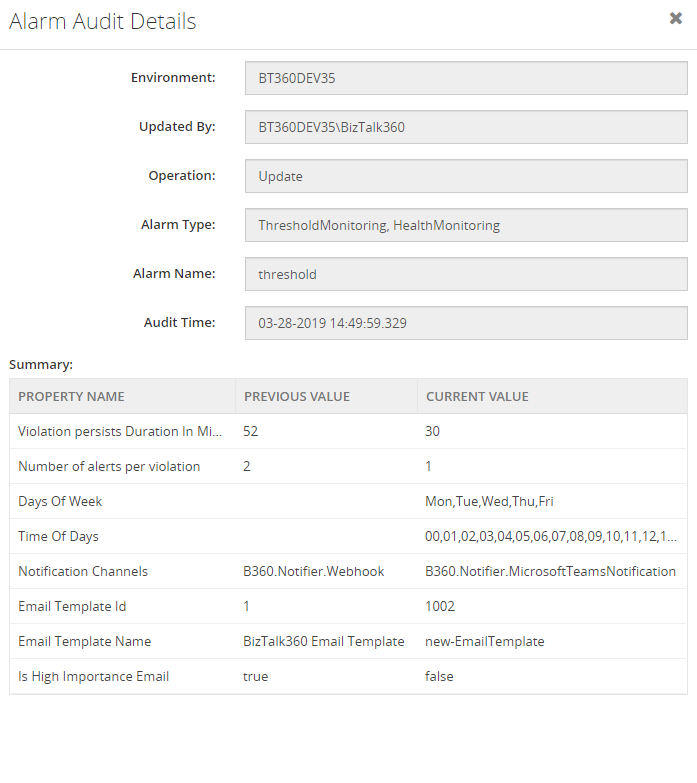
In the Audit details, you can see the summary which contains the property name, the previous value and the current value of the modified property.
Reset: An Alarm reset can also be done in two ways. It can be a manual action and it can also be an auto reset by the system. Both the actions will be captured under alarm auditing.
Manual Reset: For threshold monitoring, when the alerts per violation reach its limit, the alert needs to be reset, otherwise notification will not be triggered again. So, you can reset it manually in the Manage Alarm section.
Auto Reset: For threshold monitoring, users also have an option to automatically have alerts being reset. When the alert violation reaches its limit, after the alert reset timeout (minutes provided in alert reset), the system will automatically reset the alert. That action will also be captured under Alarm Auditing.
Delete: On Alarm deletion, we have newly introduced an optional text box in the confirmation popup to provide the reason for the deletion which will be audited in BizTalk360 Alarm Auditing.
All the audit details will be available in the BizTalk360 Governance – Audit section. Super Users and Normal Users (who have permission for the Governance – Audit section) can get into BizTalk360 Audit details.
The same details can also be seen in Live Feed, just by enabling the Live Feed in BizTalk360 settings section.
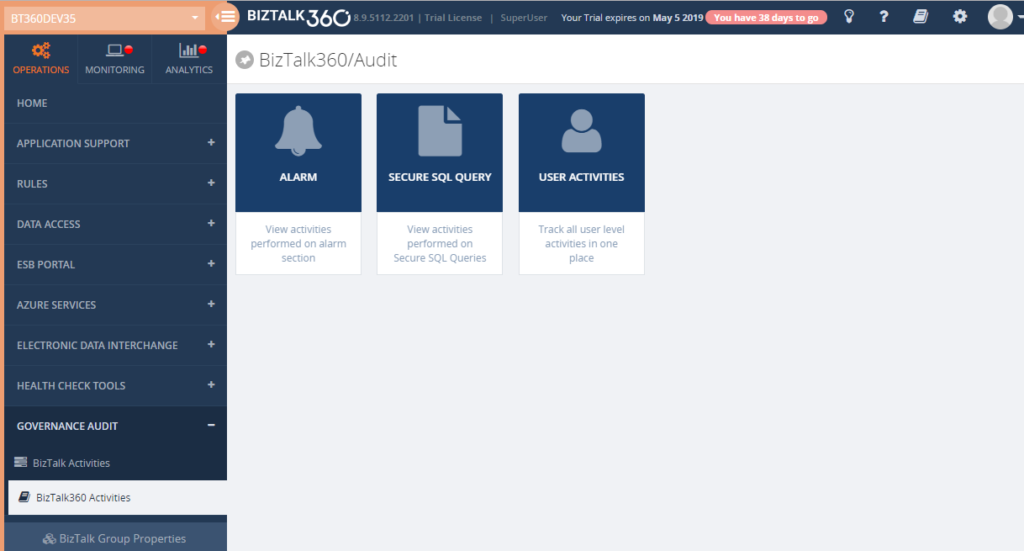
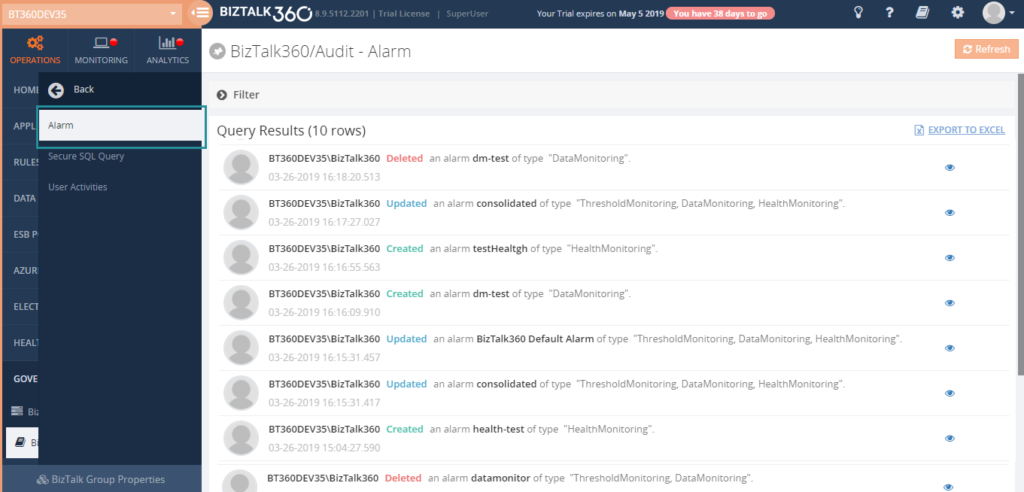
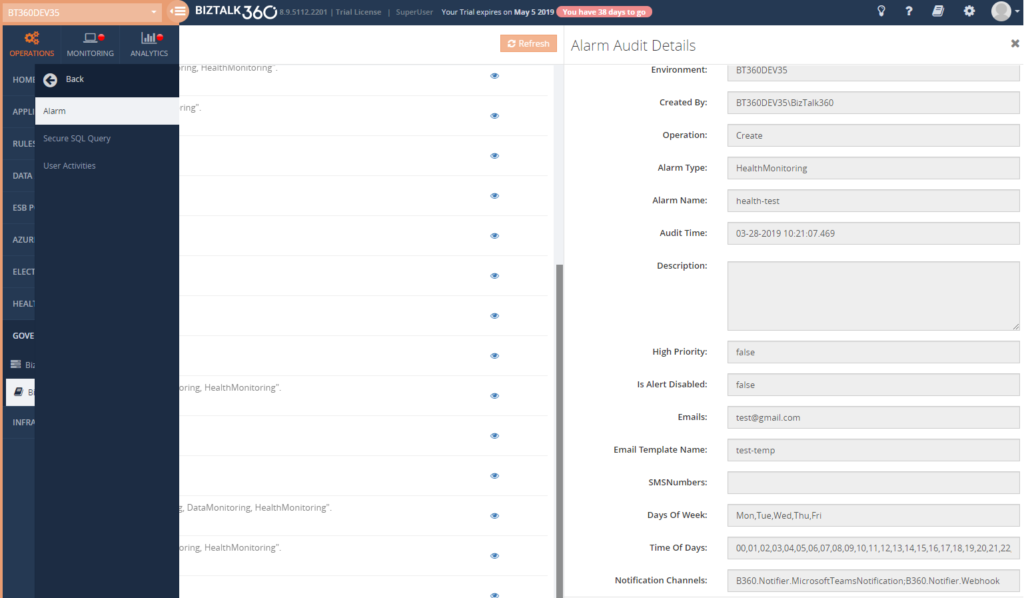
Every auditing record contains a detailed view to know the exact configuration and updated values. This contains the user, environment details and the Date/Time. Also, in the case of an update, the current and previous value will be listed.
Below screen shows you the auditing details for an Alarm Update. There you can see the updated values alone. You can also compare the previous values with the current value and if you want to revert back the changes what you have before, you can use the auditing for your reference.
These actions will also be available under the User Activities.

Secure SQL Query Auditing
BizTalk360 offers the Secure SQL Queries functionality as a secure platform to store predefined queries and provide access to BizTalk members to execute the queries. BizTalk360, by default, comes pre-loaded with a set of queries and allows the users (with permissions) to build secure SQL queries that are appropriate to the organization’s business.
The query result may contain important business data. So, some of our customers requested us as it would be good to know who executed the query and which parameter values are passed while execution. That’s why we have implemented Secure SQL Query Auditing which includes any new query creation, modifying the existing query, deleting the query and, most importantly, query execution.
Auditing every execution of queries will come under the Platinum tier since it is more sensitive to audit. Users who have access to the Secure SQL Query section, can view the Secure SQL Query Auditing under BizTalk360 Activities.
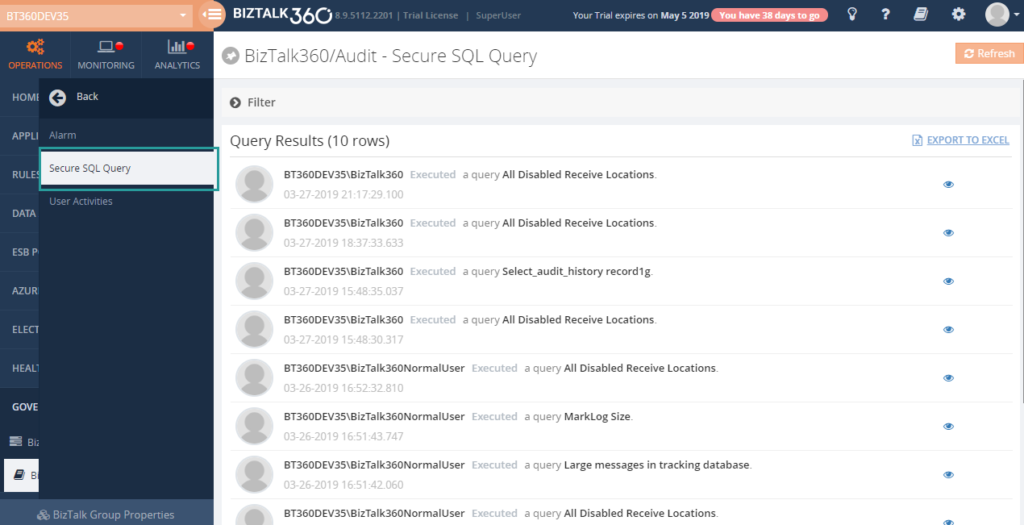
In Governance and Audit, Secure SQL Query section, you can see the list of SQL activities and you have a detailed view of every audited activity. In the detail view, you can see the database name, query name, SQL Server instance name and query which is created, executed or modified.
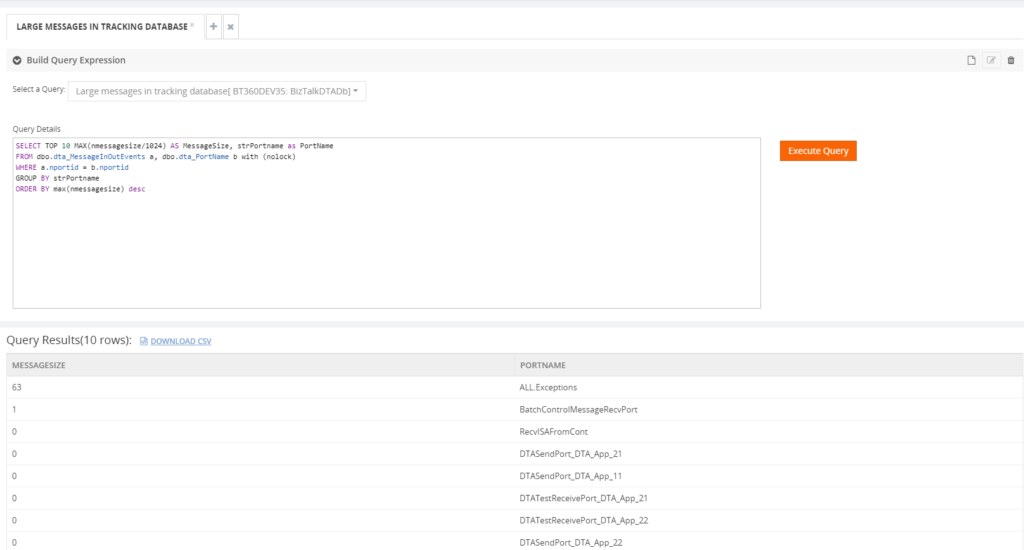
For example, I have executed the query ‘Large Messages in Tracking database’.
This action will be audited under Governance – Audit section with all the details.
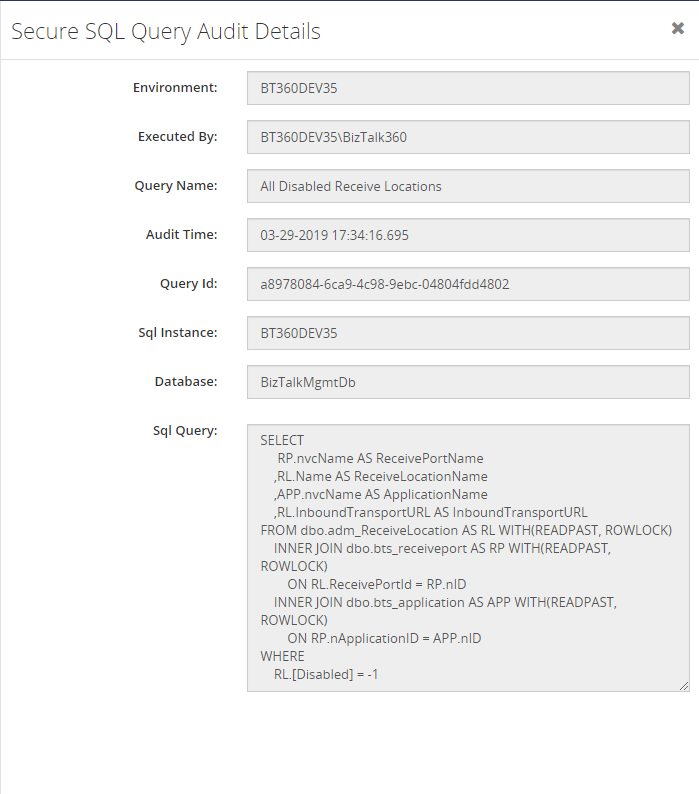
In this detail view, you can see which query has been executed and what are all the parameters passed to the query, when the query has been executed and who has done this operation.
Modified values will look like shown below.
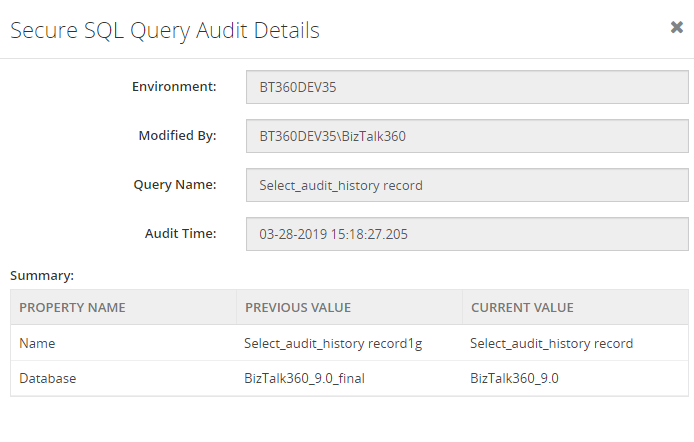
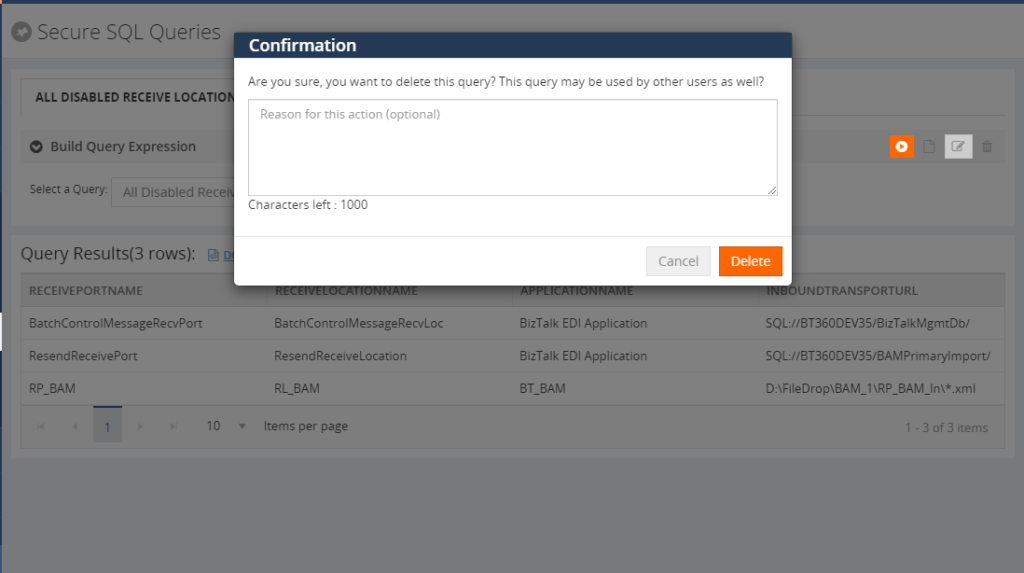
For query deletion, BizTalk360 will ask you for the confirmation with an optional text box to provide the reason for query deletion. It may be useful for future reference for the admin about the action.
Artifacts Mapping Auditing
For a healthy BizTalk Environment, it’s important to keep an eye on every artifact (Service Instances, Receive Locations, Send Ports, Send Port Groups, Orchestrations, Host Instances). Having a huge number of artifacts in the BizTalk environment, it is really difficult to monitor it manually by checking whether the host instance is started or not, Receive Locations are enabled or not, etc. To overcome these problems, BizTalk360 provides you with a feature called BizTalk360 Monitoring, that allows you to set up the monitoring for any desired state for your artifacts.
So, bringing auditing for Artifact mappings, would be helpful to the user to know the monitoring setup whenever they want.
For instance, when a user accidentally changes the mapping configuration, then it could lead to false alerts or it is irrelevant to your production environment. In this scenario, you should need auditing for these setups and what is the previous expected state of the artifacts. So, that is what you can recover immediately and also some of our customers requested us to bring this functionality.
Based on Customer feedback and their business needs, we are working on this feature for v9.0.
Also, a user who changes the expected state of the artifacts, will have an option to provide the reason for changing the state. So that admin/other users can know why they are changing the state.
Purging
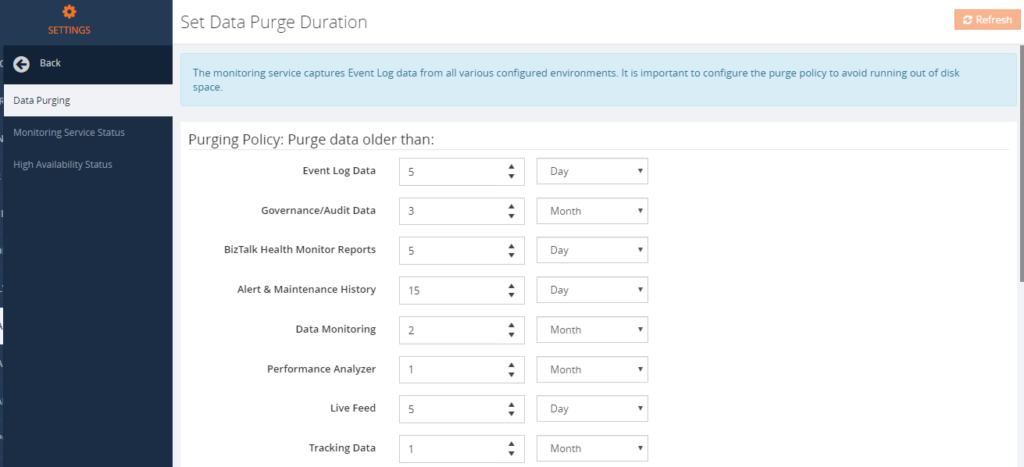
Auditing data will persist in the BizTalk360 database based on the purge policy setup.
To avoid running out of disk space, purging needs to be done for older data. In BizTalk360, we are providing a configurable purging policy to purge the data in Governance/Audit. Administrators/Super Users can set up the Purge duration under Settings.
User Access Policy
Super users will have permissions to all the sections and users who have access to the Governance – Audit section, can view the BizTalk360 Activity Auditing.
For Alarm Auditing – normal users/ NT group users who have access to the “Managing Alarms” section, can view the alarm auditing section under BizTalk360 Activity Auditing.
For Secure SQL Query Auditing – Normal Users/ NT group users who have access to the “Secure SQL Query” section, can view the Secure SQL Query auditing under BizTalk360 Activity Auditing.
For Artifacts Mapping Activity Auditing – Normal Users/NT group users who have access to the “Manage Alarms” section, can view the artifacts mapping activity auditing section.
The post BizTalk360 Activity Auditing appeared first on BizTalk360.

by Sandro Pereira | Mar 26, 2019 | BizTalk Community Blogs via Syndication
I’m super excited for presenting from the first time in Spain, I been presented in several places all over Europe and North America, but I never had a chance to go to my neighbor country to present a session. I think two years ago I promise to the organizers of this event that I would join them if they want, last year was impossible for me because my son was born more or less in the same period, but this year I’ll fulfill the promise I made and I will be there showing real case scenarios about Logic Apps and Microsoft Flow on a talk with the following title: “Real case implementations using Azure Logic Apps and/or Microsoft Flows”

Abstract
We know that all business problem can be solved with a variety of technologies and different solutions. However, sometimes developing that type of solutions has traditionally been too costly and time-consuming for many of the need’s teams and departments face, especially those projects that are internally for organizations to use or for a short time period. As a result, many of these projects or solutions will be on the shelf or in the imaginary of the collaborators.
In this session, I will show you real live scenarios on how we at DevScope are using Microsoft Integration features like Logic Apps, API Management, API’s and Microsoft Flows. Using also a variety of related Azure technologies like PowerApps and Power BI to:
- First, improve our internal processes like expenses reports, time reports and so on;
- And, secondly, how the first step helps us out to extend our product and our business by exporting these same approaches and concepts to our clients
This will be a lightweight talk addressing some real scenarios and show these in action
Global Integration Bootcamp 2019 Madrid Agenda
- 8:45 – 09:00 – Welcome reception
- 09:00 – 09:30 – “Industry 4.0: Remote and Predictive Maintenance with IoT” by Félix Mondelo and Osman Hawari
- 09:30 – 10:15 – “Azure API Management y su aplicación práctica” by Luis Ruiz Pavón
- 10:15 – 11:00 – “Event Grid, Colega, ¿Qué pasa en mi nube?” by Nacho Fanjul
- 11:00 – 11:45 – Coffee Break
- 11:45 – 12:00 – “Geoposicionando tus datos con Azure Maps y Cognitive service” by Sergio Hernández y Alberto Díaz
- 12:00 – 12:45 – “Real case implementations using Azure Logic Apps and/or Microsoft Flows” by Sandro Pereira
- 12:45 – 13:30 – “TU y Cognitive Services” by Javier Menéndez Pallo
- 13:30 – 14:15 – “Intercambiando Mensajes con NServiceBus” by José Luque Ballesteros
- 14:15 – 15:00 – “Arquitecturas basadas en Microservicios” by Francisco Nieto
This is a free event with very limited seats that you will not want to miss, register now!
We are waiting for you.
The post Global Integration Bootcamp 2019 Madrid | May 30, 2019 | Real case implementations using Azure Logic Apps and/or Microsoft Flows appeared first on SANDRO PEREIRA BIZTALK BLOG.
by Gautam | Mar 24, 2019 | BizTalk Community Blogs via Syndication
Do you feel difficult to keep up to date on all the frequent updates and announcements in the Microsoft Integration platform?
Integration weekly update can be your solution. It’s a weekly update on the topics related to Integration – enterprise integration, robust & scalable messaging capabilities and Citizen Integration capabilities empowered by Microsoft platform to deliver value to the business.
If you want to receive these updates weekly, then don’t forget to Subscribe!
Microsoft Announcements and Updates
Community Blog Posts
Videos
Podcasts
How get started with iPaaS design & development in Azure?
- Robust Cloud Integration with Azure
- Microsoft Azure for Developers: What to Use When
- Azure Logic Apps: Getting Started
- Azure Logic Apps: Fundamentals
- Microsoft Azure Developer: Creating Enterprise Logic Apps
- Microsoft Azure API Management Essentials
- Azure Functions Fundamentals
- Cloud Design Patterns for Azure: Availability and Resilience
- Architecting for High Availability in Microsoft Azure
Feedback
Hope this would be helpful. Please feel free to reach out to me with your feedback and questions.

by Praveena Jayanarayanan | Mar 21, 2019 | BizTalk Community Blogs via Syndication
It’s almost time to upgrade your BizTalk360 application! We have our new release coming up, BizTalk360 v9.0 with exciting new features and enhancements, as always. For any product to be successful, it is important that the customer feedback is well addressed and acted upon. The product grows based on the customer suggestions to cater their business requirements.
We always make sure the product features meet the customer expectations.
In this blog, I would like to explain about one such enhancement which was requested by many customers.
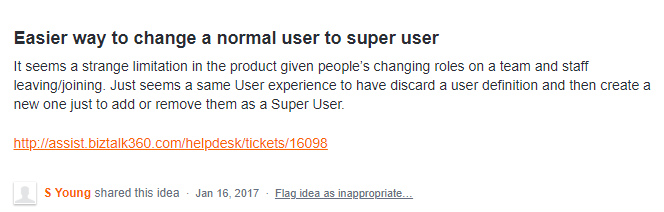
In the new version BizTalk360 v9.0, you can switch between the user types. Let’s get into the complete details.
Current challenge with User Access policies
Consider a scenario where you have created few normal users and super users in your organization to access BizTalk360. What happens if the person configured as the super user leaves the organization? There would be a situation where a Normal user needs to be given rights as a Super user. In such case, there was no option to convert the user and we will have to delete the user and recreate it again with the necessary permissions. This would be a time-consuming process.
Switch User types
We very well understood the difficulty of the customer and hence decided to enhance this feature in our upcoming release to provide an option to switch between the user types.
Let’s look at this feature in detail.
Normal user to super user
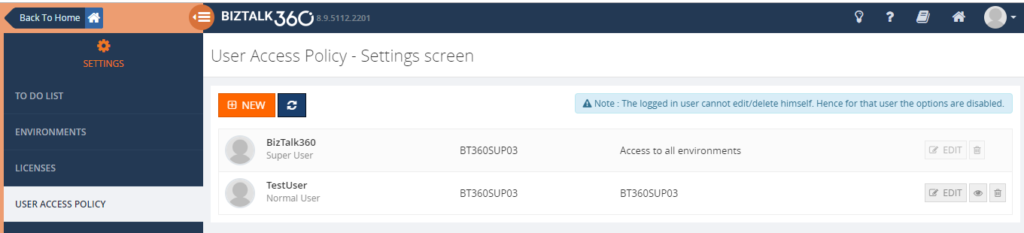
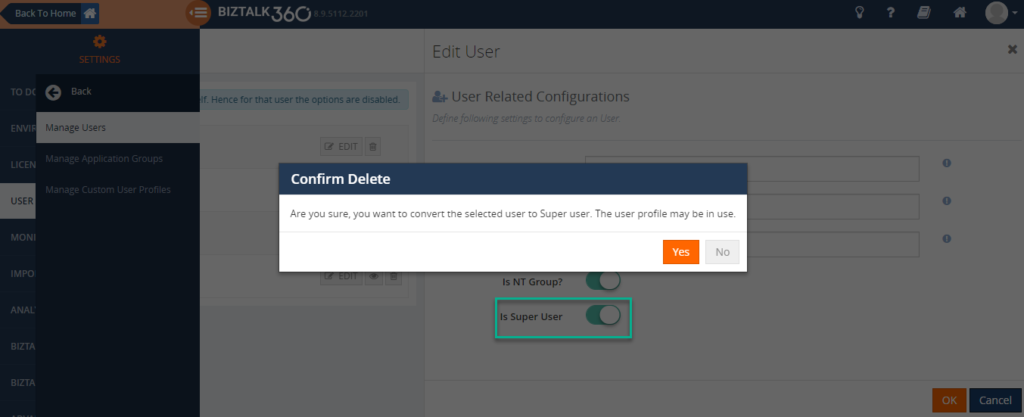
There might arise a situation wherein a normal, user with limited access to BizTalk360, must be made as the Super user for various reasons. In this scenario, deleting the normal user and creating it again would be cumbersome task. To ease this task and make BizTalk360 more user friendly, we have now added the capability to convert the Normal user to a Super user. In the User Interface, by editing the custom user, it can be converted to a Super user, simply by enabling the ‘Is Super User’ toggle button. A confirmation message would appear to confirm the action of conversion.
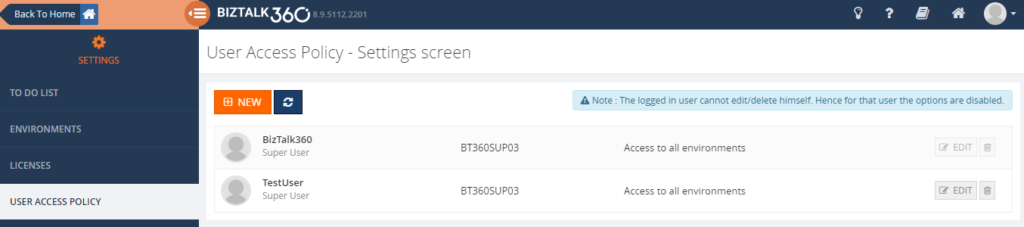
After the conversion happened, the user will now be a Super User and have access to all the environments.
Super user to normal user
Now what if you need to convert a Super user to a Normal user. In that scenario, you have to decide on the permissions for the normal user. This has been taken care of during the conversion. Once the user confirms on the conversion to the normal user, the capability to add permissions will be displayed and the user can select the access permissions.
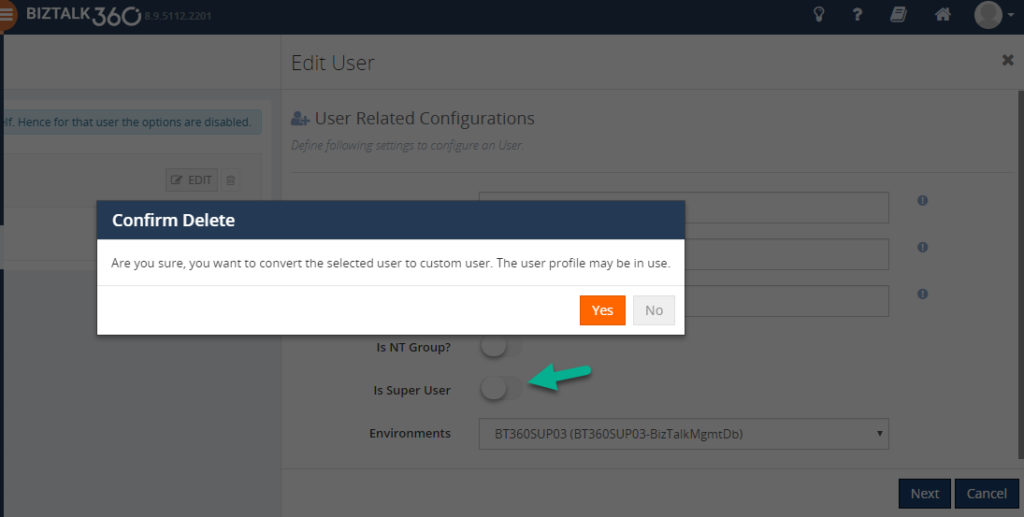
As the conversion happens in a single step, this will definitely ease the work for the user. By editing the user, the user type can be switched. Now there is no need to worry if there is role change happening for the people in the organisation, or if someone is leaving/joining the company. You can switch between the user types in just a single click.
Edit/Delete option disabled for logged in user
There might arise a question as to what happens if a user who is logged in to BizTalk360 tries to edit /delete himself. It might not be required for a user to be able to edit/delete his own permissions. This might not be a valid scenario. The environment details would be mapped with the logged in user to access the BizTalk artifacts. When that user tries to edit/delete his permissions, an exception would be thrown in this case, as the environment details would not be available for that user. To avoid this exception, the edit/delete option is disabled by default for the logged in users. This information is shown in the UI as per the below screenshot. The logged in user would be able to edit and delete the other users.
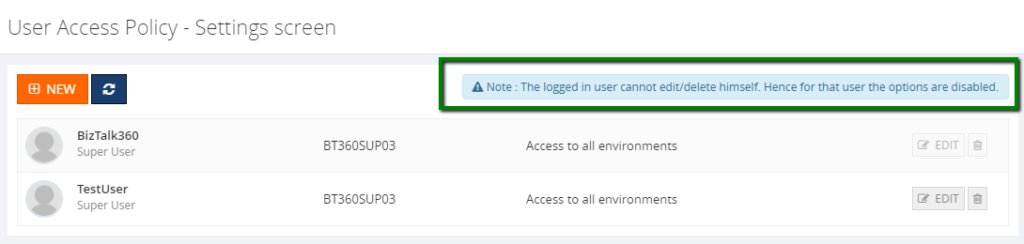
Conclusion
At BizTalk360, we always introduce the features that make the product more user friendly and that results in customer satisfaction. There are lot more features and enhancements coming up in BizTalk360 v9.0. What are you waiting for? Once the new version is released, upgrade to the latest version and enjoy the new features. We are happy to hear your suggestions and feedback which you put in our feedback portal. Happy monitoring with BizTalk360!
The post User Access Policy – Switch user types appeared first on BizTalk360.

by Saranya Ramakrishnan | Mar 20, 2019 | BizTalk Community Blogs via Syndication
BizTalk360 enhances the complex administrative tasks into a modern easier task. We always aim to constantly improve our product based on our customer’s feedback and their business needs. We have recently released V8.9.5. The upcoming version 9.0 features are typically chosen from our customer feedback based on the impact and the number of requests.
You asked and we are implementing the below features for v9.0.
Alarm Auditing
When we work on cutting edge technology, security is one of the important factors we always need to consider. Keeping that in mind, earlier we implemented Governance and Auditing which actually audits BizTalk level activities from BizTalk360. You can think of actions on BizTalk Applications, Service Instances, Host Instances, BizTalk and SQL Servers, ESB Messages and Business Rules.
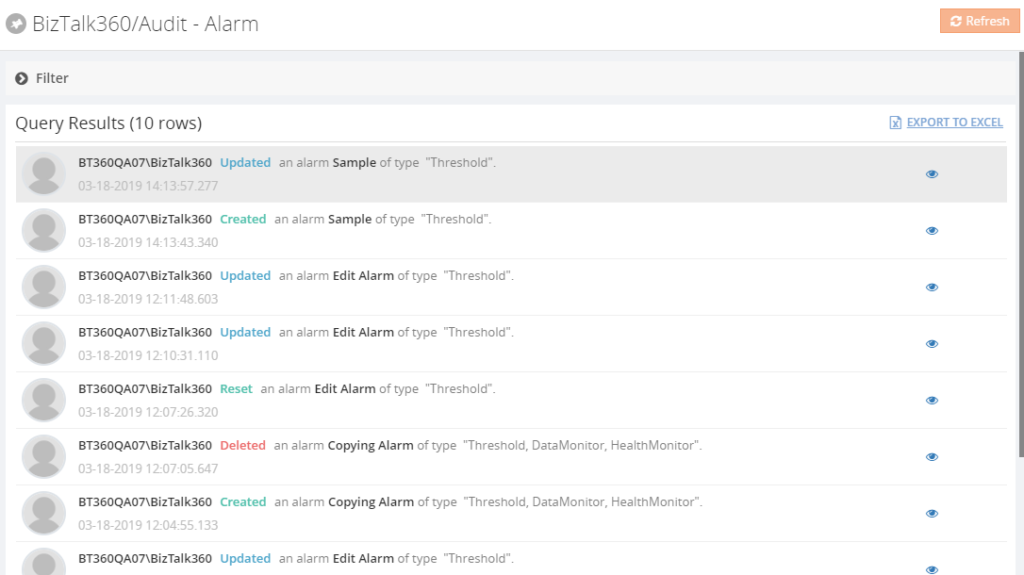
Many customers requested us that it could be great if Biztalk360 activities such as Alarms, User access policy activities also audited. So, for this release we have implemented Alarm activities. Alarm operations such as new alarm creation, deleting an alarm, changing the alarm status (Enable/Disable), editing alarm details will be audited with the existing and new values, along with the user details. With this, the administrator will get clear picture of all the alarm activities.
Also, we have taken Secure SQL Query auditing. If any query has been created or modified this will be audited. We also implemented auditing of the ‘Execute’ operation. So, with this administrator can easily look for, who has executed which query and which parameter value are passed for the query execution in detail.
SMTP Notification Channel
In BizTalk360 version 8.0, we introduced Notification Channels. With this , it’s easy to send alerts to any external systems like your ticketing system, internal databases, calling REST endpoints or executing PowerShell scripts.
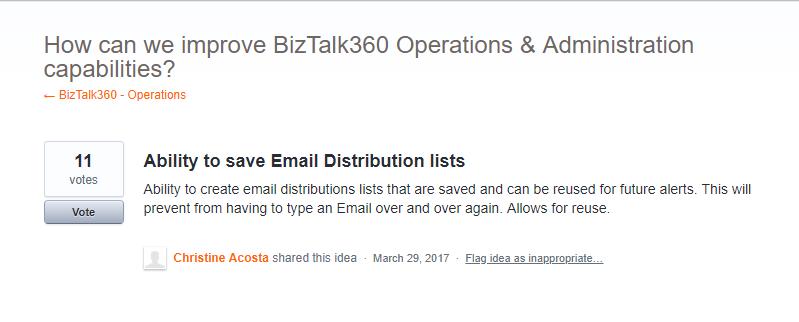
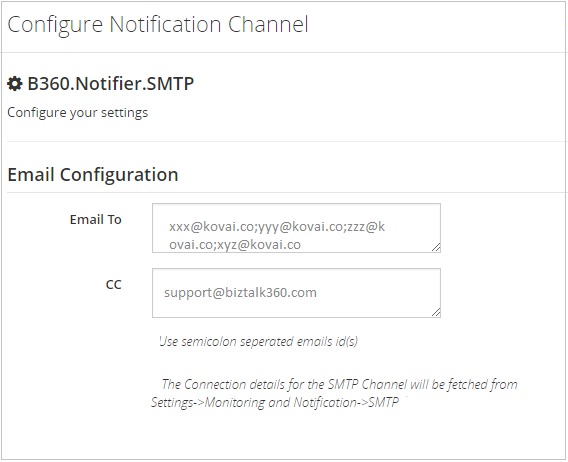
To add more value to this, we are bringing the SMTP Notification Channel which provides an ability to create an email distribution lists by grouping email ids based on the business needs. The monitoring service will generate a notification to a group of people by simply configuring the recipient address (To, CC) in the channel. Once the SMTP notification channel is configured it can be used in all the alarms just, by enabling the channel. This will prevent the user to type email ids over and over again.
UnMapped Artifacts List
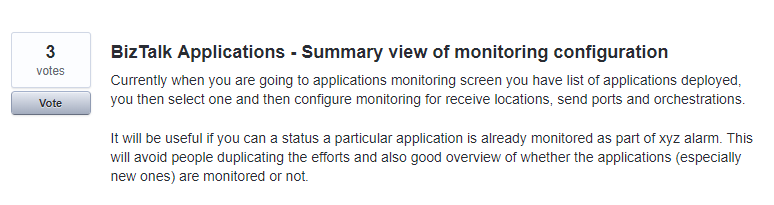
When the artifacts are mapped for monitoring, BizTalk360 will take care of it and intimates users when any violation occurs. But, what happens if you missed to map some artifacts for monitoring? You will not get any notification for this, right?! Of course, we don’t want you to miss artifacts for monitoring.
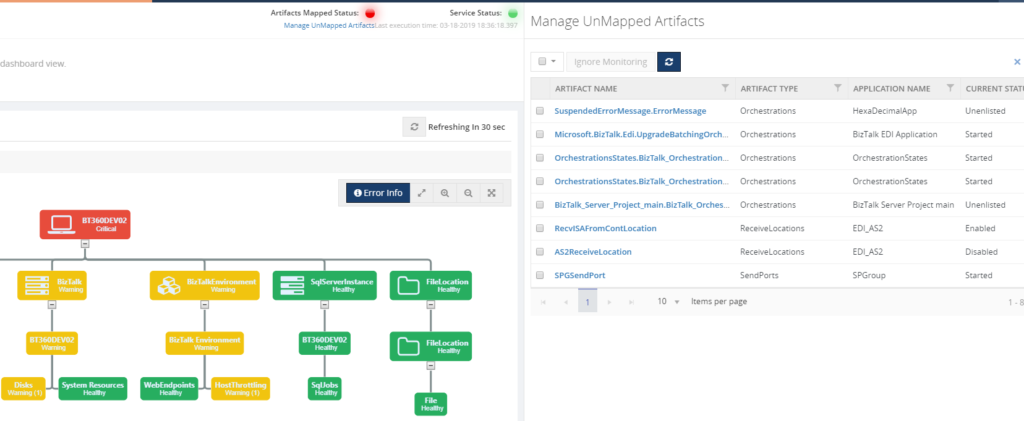
This problem will be solved in v9.0, you will get a summarized list in the Monitoring Dashboard. This list contains the status of the artifacts which has been mapped for monitoring and also the unmapped artifacts list. For instance, if any new artifacts have been added in your BizTalk environment, we will bring that to your notice and you can easily map the artifacts for monitoring. Also, we will forward the list of unmapped artifacts to the system administrator based on the configured interval time.
Switch User Roles
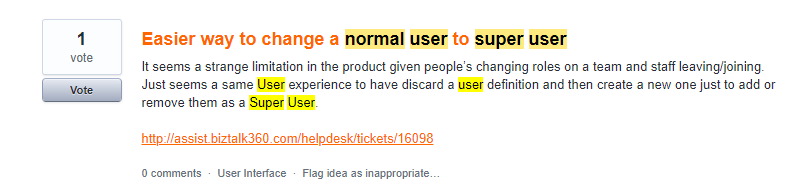
As of now in BizTalk360, once a user profile is created, the user roles (Super, Normal) cannot be modified at any point. To change the user roles, the profile needs to be deleted and recreated again which is a time-consuming process. This will be solved just by editing and changing the user roles. So Super Users can quickly be converted to Normal users and vice versa in a single step.
Copy to Clipboard
Our business data is highly valuable. The information uses contains decision-making and problem-solving. From v9.0 we are providing an option to copy your information’s in a single click from the BizTalk360 UI to the Windows Clipboard.
Apart from these new features, we are working on improvements in the following sections.
Monitoring Dashboard
The BizTalk360 ‘Monitoring Dashboard‘ becomes the one-stop point for support people to view the health status of BizTalk environment. We have planned to do some changes on monitoring dashboard UI which helps you to see the summarized dashboard in much enriched view.
AutoCorrect reset
In BizTalk360 we have the Auto Healing functionality with which, if your artifacts go down, the system will try to auto heal the violation. The system will retry the auto healing process for a configured number of times. Once retry limit is reached the auto healing process will be stopped.
In v8.9.5 we introduced the auto reset option for the auto healing process, in which, after the configured interval time, the retry count will be reset to 0 and starting the auto healing process again. We kept the “interval time to reset the retry count” to 0. This means that the retry limit will never reset, unless the user goes and manually change the interval time. This is quite a tedious process when you have huge number of artifacts mapped for auto healing.
This problem will be solved as we will provide an option to define the default interval time globally. So once you update the interval time it will be used for all the artifacts.
Conclusion
Considering the feedback from our customers, BizTalk360 will continues to provide more useful features. Now we would like you to hear from you, so please take some time to fill this questionnaire to help us prioritize the next upcoming feature tasks. Stay tuned for next version v9.0.
Why not give BizTalk360 a try! It takes about 10 minutes to install on your BizTalk environments and you can witness and check the security and productivity of your own BizTalk Environments. Get started with the
The post What is coming in v9.0 appeared first on BizTalk360.

by Gautam | Mar 17, 2019 | BizTalk Community Blogs via Syndication
Do you feel difficult to keep up to date on all the frequent updates and announcements in the Microsoft Integration platform?
Integration weekly update can be your solution. It’s a weekly update on the topics related to Integration – enterprise integration, robust & scalable messaging capabilities and Citizen Integration capabilities empowered by Microsoft platform to deliver value to the business.
If you want to receive these updates weekly, then don’t forget to Subscribe!
Microsoft Announcements and Updates
Community Blog Posts
Videos
Podcasts
How get started with iPaaS design & development in Azure?
- Robust Cloud Integration with Azure
- Microsoft Azure for Developers: What to Use When
- Azure Logic Apps: Getting Started
- Azure Logic Apps: Fundamentals
- Microsoft Azure Developer: Creating Enterprise Logic Apps
- Microsoft Azure API Management Essentials
- Azure Functions Fundamentals
- Cloud Design Patterns for Azure: Availability and Resilience
- Architecting for High Availability in Microsoft Azure
Feedback
Hope this would be helpful. Please feel free to reach out to me with your feedback and questions.

by Sandro Pereira | Mar 14, 2019 | BizTalk Community Blogs via Syndication
I think in the past I told that do not try to configure anything in BizTalk Server if you are tired. My advice, go to sleep for one hour and come back… unless the client is eager and demands or request things to be done… then the error happens. This was one of these errors in which I usually say that the problem was between the chair and the keyboard. This week I returned to work, after my little honeymoon leave, that I spent part of it working and another part of it with my little kid a little sick (I need to compensate my wife with a proper vacation for being so understanding). So, as you can imagine I return a little tired and the first day was one of those days that I had several clients requiring my presence for several small things at the same time.
One of them was configuring correctly, according to best practices and security the IIS application pools that were being used to run Web Sites with some orchestrations exposed as Web Services that initial was running with BizTalk Server Administration account.
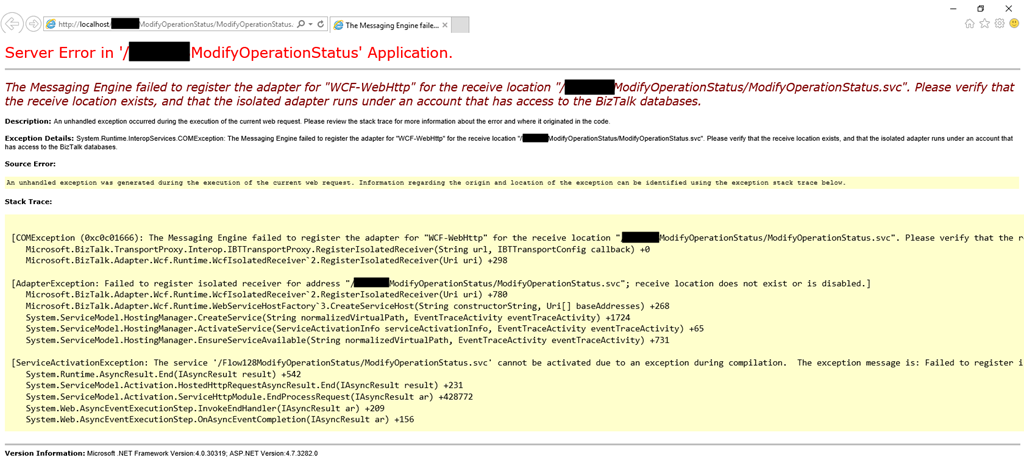
Once I finished configuring the applications pools, I started receiving the following error:
The Messaging Engine failed to register the adapter for “WCF-WebHttp” for the receive location “/ModifyOperationStatus/ModifyOperationStatus.svc”. Please verify that the receive location exists, and that the isolated adapter runs under an account that has access to the BizTalk databases~
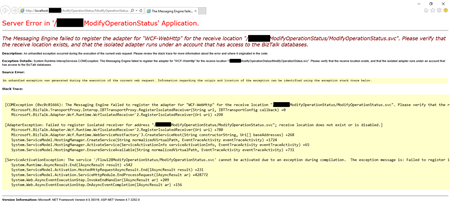
Cause
Usually, this can happen for two reasons:
- There isn’t a receive location created and enabled listening to this web service;
- Or this is a permission issue! And is typically related by the fact that the account or service account specified on the application pool that the web service is running is not… a member of the BizTalk Isolated Host Users group.
In my case, and because the names of the service accounts were very identical, I improperly configured the application pool to run with the service account that was a member of the BizTalk Host Users group (btsapphostsrv) instead of the service account member of the BizTalk Isolated Host Users group (btsiapphostsrv).
Solution
To solve this issue, you first should check and double-check if the IIS Application Pool Identities are correctly configured.
If yes, guarantee that the user or service account is part of the BizTalk Isolated Host Users group. If not:
- Make sure you add that user or service account into the BizTalk Isolated Host Users group.
- Or change the IIS Application Pool Identity for an account that is already a member of the BizTalk Isolated Host Users Group.
And then make sure that there is a receive location configured and to listen to this web service and if it is enabled.
In my case, changing to the BizTalk Isolated Host Instance Account that is, of course, a member of BizTalk Isolated Host Users group solved my issue.
The post BizTalk Server WCF-* Adapter: Please verify that the receive location exists, and that the isolated adapter runs under an account that has access to the BizTalk databases. appeared first on SANDRO PEREIRA BIZTALK BLOG.

by Praveena Jayanarayanan | Mar 14, 2019 | BizTalk Community Blogs via Syndication
As the BizTalk360 technical support team, we receive support tickets from our customers through various channels. 2018 was, of course, a great year for the support team. We were not only involved in resolving the support tickets, but we were also involved in the Customer Relationship calls, Best Practice Installation and Configuration sessions and even some of the demos to the customers.
This makes us understand the customers’ expectations better and help in improving the product to cater to the needs of the customer. As the saying goes, ‘Every ending has a new beginning’, the end of 2018 has brought us new lessons and experiences with various customers and new processes. Every support case has a lesson in it, be it the customer scenario, their infrastructure settings or our way of troubleshooting the case, our responses. We make sure that we improve our support, thereby making our customers happy and working more efficiently.
We are happy to share the stats of the support cases handled by us in 2018. This is the result of our continuous hard work and dedication which has resulted in some really positive numbers in BizTalk360 Customer Support. Here are some statistics that we are happy to share. These statistics are taken from data provided by our customer support platform – Freshdesk.
- 14.626 customer queries addressed in 2018
- Tickets ranging across technical support, licensing and sales enquiries
- The busiest month for the team was the month of October 2018. We received about 2132 support tickets.

- We managed to respond to 97% of the tickets and resolve 87% of the tickets within the SLA
- We resolved 76% of the tickets with just one response to the customer
- We received support tickets on
- Email
- Support Portal
- Feedback Portal
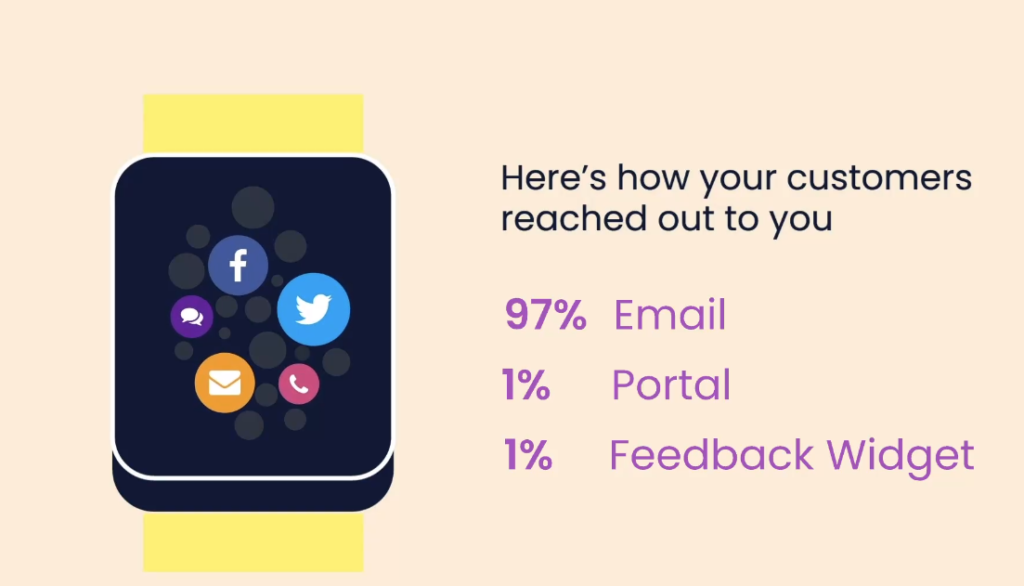
We make sure customer satisfaction is achieved and this can clearly be seen in the numbers for the SLA. Below are the rating and appreciation given by the customers.

Knowledge Sharing
Of course, in the software industry, it is all about teamwork and knowledge sharing. Yes, teamwork is involved in solving each and every support case. One member might analyse the case, the other may test it if required. In 2018, we have started the ‘Support Deliberation’ meetings for knowledge sharing. As an engineering team, not all the members will be involved in product support. Hence it is important that the support team members share their knowledge of the handled support cases, to the team. This will give insight to the team about the various customer scenarios that need to be known so that we can check for the same in our development and testing phases.
Introduction to DevOps practice
This is one of the major changes that happened during 2018. We involved ourselves in the development activities too, the next step in improvising the product to cater to the needs of the customers. The complete process is explained here. From the task planning to post-release validation, we follow all different steps in the process.
Best Practice Installation and Configuration sessions
This is a new initiative taken by the Client Relationship team to help our customers with the installation of BizTalk360 and provide them help in the basic configuration steps that are required for BizTalk360 to start monitoring your BizTalk environment.
This is a two-hour session where BizTalk360 is installed, important configurations are done and an overview of some of the important features of BizTalk360 is given. We also explain to them about some of the best practices that need to be followed in the alarm configuration, Advanced Event viewer setup, Data purging which may, in turn, affect the performance of the application. The knowledge our customers will obtain during this session will help them to get the most out of the product so that they can monitor their BizTalk environment efficiently.
In 2019
We have shifted from Agile to Kanban to record all our activities. We continuously strive to improve ourselves for providing better support thereby trying to resolve customer’s queries on time.
The most awaited event in the Microsoft Integration space, Integrate2019 is on the way. We have this event in two locations this year. The dates and venues are finalized, and the early bird offer ends by March 31st, 2019. You can check for the details here.
Conclusion
>>Which feature would you like to see coming in BizTalk360 in upcoming releases? <<
We would like to request you, our customers, so please take the time to fill this questionnaire. This helps us to prioritize the next upcoming feature tasks and will let us know what your main pain points are. In case of any queries, you can always write to [email protected], so that we can immediately get your queries answered and resolve the issues. Happy monitoring with BizTalk360!
The post BizTalk360 Technical Support – A look back in 2018 appeared first on BizTalk360.