by community-syndication | Jan 11, 2010 | BizTalk Community Blogs via Syndication
By now you may have read about the exciting new capabilities in Windows Server AppFabric. In this post we will dive deeper into the features that enable monitoring and troubleshooting of your WCF and WF applications. The monitoring capabilities for WCF and WF applications in AppFabric are built using the monitoring enhancements in .NET Framework 4. The WCF and WF runtime have been instrumented to emit tracing and tracking events to a high performant Event Tracing for Windows (ETW) session. ETW allows turning on monitoring by default, since it has minimal impact on the application performance.
The AppFabric monitoring infrastructure is built using the following events that are emitted from the runtime:
%u00b7 Analytic Tracing Events: Analytic traces are targeted traces that get emitted from the WCF runtime, at key execution points such as operation completion, service error
%u00b7 Workflow Tracking Events: Workflow tracking events are emitted during the execution of a workflow instance. These events provide visibility into the workflow execution such as when a workflow instance starts or encounters an error
%u00b7 Message Flow Tracing: Turning on message flow tracings allows correlation of traces between different services. This allows reconstruction of end to end message flows between services deployed on a single machine or distributed across machines
Now that we have briefly discussed the events that are leveraged by Windows Server AppFabric monitoring let us understand how these events enable monitoring and troubleshooting. AppFabric monitoring includes an Event Collector service that listens for the tracing and tracking events. The Event Collector service collects these events and stores them to a monitoring database. The AppFabric tooling queries the monitoring databases to display monitoring and troubleshooting data. The figure below is a high level view of monitoring components:
The verbosity of events emitted is controlled by the monitoring level in AppFabric. The monitoring level can be changed depending on the situation such as if the service encounters errors; the verbosity of events can be increased to help troubleshooting. The monitoring levels in AppFabric are:
%u00b7 ErrorsOnly: Events are collected only if service encounters an error
%u00b7 HealthMonitoring: The default level that allows AppFabric tooling display health of WCF and WF applications
%u00b7 End To End Monitoring: Enables message flow tracing to correlate events between services.
%u00b7 Troubleshooting: The most verbose level to diagnose issues with your WCF and WF service.
A future post will talk about AppFabric configuration and how the monitoring levels can be changed for a WCF or WF application.
We will show an example of troubleshooting a WF service deployed in AppFabric. We will use a simple WF service, from the WF tracking samples. The sample workflow is a simple workflow that computes reciprocal of the input. An error is simulated using an input of zero. Deploy the application to AppFabric as mentioned in the post.
We will use AppFabric tooling to troubleshoot the service once the error has been simulated. To monitor the health of an application a user will usually open the AppFabric Dashboard. The dashboard shows metrics related to the deployed WCF and WF services. In this case, the service encountered an error; hence the failed WCF call and the failed WF instance have been highlighted.
When a WF service executes you see WF tracking events corresponding to the WF execution and WCF events corresponding to the execution of the messaging activities. When the service invocation fails you will get both a WCF exception event, corresponding to failure in execution of messaging activity (Receive activity) and a WF instance failure event. If you click on the exception in WCF Call History, you will get the details of the exception.
For the workflow instance you may want to know which activity failed. Click on the failures in the WF Instance History in the dashboard. Right click on the aborted WF and view the tracked events for the WF
The source of the error is the Assign activity. The exception stack can be found out by clicking on the Errors tab in the details pane.
This shows you how the analytic tracing and WF tracking helps troubleshoot a WCF or WF service. To correlate traces from WCF and WF events you will need to change the monitoring level of the application to End-to-End Monitoring. This uses the message flow feature mentioned earlier to add an end to end activity id to the trace events to navigate between WCF and WF events originating as a part of a request.
We have seen how the monitoring infrastructure enhancements and Windows Server AppFabric tooling make it easier to monitor and troubleshoot your WCF and WF applications. To summarize
%u00b7 The .NET Framework 4 emits high performant tracing and tracking events to ETW which can be enabled with minimal impact on the application
%u00b7 Windows Server AppFabric tooling helps you visualize the events to gauge the health or troubleshoot problems with your application
%u00b7 Windows Server AppFabric configuration gives you control on the verbosity of the events through monitoring levels
by community-syndication | Jan 11, 2010 | BizTalk Community Blogs via Syndication
Welcome to #8 in my series of ESB Toolkit How To Videos. If you haven’t already seen the previous videos, I encourage you to do so. The previous ones can be found here
- Basic Itinerary Routing and UDDI Integration
- Composite Itinerary and Dynamic Mapping
- Itinerary Resolution in the Bus
- Dynamic Itinerary Resolution in the Bus
- Including Custom Orchestrations in the Itinerary Designer
- Performance Metrics using Built in BAM
- Creating a WSS (SharePoint) Adapter Provider
In the past we have spoken about the concept of an Internet Service Bus (ISB) which extends the capabilities of the Enterprise Service Bus (ESB) out into the cloud. With the arrival of Windows Azure AppFabric, we are beginning to see the realization of this ISB vision. More and more organizations are using cloud based services to solve integration problems across organizational boundaries, firewalls, DMZs etc. I do believe we are rapidly approaching a world with an onsite ESB will power SOA connectivity within an organizations firewall while an ISB will extend this same functionality out onto the web and into other organizations ESBs.
Now, a number of other bloggers have already written some great posts about how to connect BizTalk up to Azure based services. If you haven’t already seen them, I strongly recommend you check out Richard’s blog and Brian’s recent blog to see how to setup this integration. Those of you who have seen the blog before know that I like to focus on the ESB Toolkit. Therefore, I’m not just going to replicate Richard’s and Brian’s work, instead I’m going to show you how to create an itinerary and resolver that can dynamically route a message to a service hosted in the Azure AppFabric using the services in the ESB Toolkit. In Richard and Brian’s blogs, they show you how to use static ports in BizTalk to achieve this. With the ESB toolkit, we really like to take advantage of dynamic ports to create reusable Off-Ramps. So what I’ll show you today is how to configure an ESB itinerary to use the reusable Off-Ramp instead of a static BizTalk port.
Amazingly, all it takes to route a message from the ESB to an Azure service is to proper configure your resolver. You don’t need to create a new type of On-Ramp or configure any new component. The ESB is ready to integrate with Azure based services right out of the box as long as you can provide the proper configuration information in your resolver. In the video, I show you which properties to configure in the resolver and how to find out what data to use in these properties.
Click here for the video
Cheers and keep on BizTalk
Peter
by community-syndication | Jan 11, 2010 | BizTalk Community Blogs via Syndication
This is part two of a twelve part series that introduces the features of WCF WebHttp Services in .NET 4. In this post we will cover:
- Using the HttpClient from the WCF REST Starter Kit Preview 2
- Browsing the Automatic Help Page of a WCF WebHttp Service
Over the course of this blog post series, we are building a web service called TeamTask. TeamTask allows a team to track tasks assigned to members of the team. Because the code in a given blog post builds upon the code from the previous posts, the posts are intended to be read in-order.
Downloading the TeamTask Code
At the end of this blog post, you’ll find a link that will allow you to download the code for the current TeamTask Service as a compressed file. After extracting, you’ll find that it contains “Before” and “After” versions of the TeamTask solution. If you would like to follow along with the steps outlined in this post, download the code and open the “Before” solution in Visual Studio 2010. If you aren’t sure about a step, refer to the “After” version of the TeamTask solution.
Note: If you try running the sample code and see a Visual Studio Project Sample Loading Error that begins with “Assembly could not be loaded and will be ignored”, see here for troubleshooting.
Getting Visual Studio 2010
To follow along with this blog post series, you will need to have Microsoft Visual Studio 2010 and the full .NET 4 Framework installed on your machine. (The client profile of the .NET 4 Framework is not sufficient.) At the time of this posting, the Microsoft Visual Studio 2010 Ultimate Beta 2 is available for free download and there are numerous resources available regarding how to download and install, including this Channel 9 video.
Step 1: Creating the TeamTask.Client Project
At the end of part one of the this blog series we had created the TeamTask service and exposed two HTTP GET operations: one for retrieving a list of tasks and another for retrieving a single user.
We’ll now add a simple console project to our solution to use for our client.
-
If you haven’t already done so, download and open the “Before” solution of the code attached to this blog post.
-
In the “Solution Explorer” window (Ctrl + W, S), right click on the TeamTask solution and select “Add”->”New Project”. This will open the “New Project” dialog window.
-
On the left-hand side of the “New Project” dialog window select “Installed Templates” and then select “Visual C#”->”Windows” from the tree-view control. Choose the “Console Application” project template.
-
For the project name enter “TeamTask.Client” and then click “Ok”. This will create the TeamTask.Client project in the solution.
Step 2: Adding the HttpClient to the TeamTask.Client Project
There are numerous ways to consume a WCF WebHttp Service like the TeamTask service. You could use the WCF WebChannelFactory, the HttpWebRequest class, or even the WebClient class. However, we recommend using the HttpClient.
The HttpClient is part of a client-side library that was included with the WCF REST Starter Kit Preview 2. In order to use the HttpClient we’ll download the WCF REST Starter Kit Preview 2 and include the Microsoft.Http.dll and Microsoft.Http.Extensions.dll libraries in our client project.
We’ll also need to change the target framework for the TeamTask.Client project because the default for console applications is “.NET Framework 4 Client Profile” but the HttpClient has dependencies on assemblies in the full .NET 4 profile.
- In the browser of your choice, navigate to WCF REST Starter Kit Preview 2 download page.
-
Click on the WCF REST Starter Kit Preview 2.msi download link and follow the prompts to install the WCF REST Starter Kit Preview 2.
-
In the “Solution Explorer” window, right click on the TeamTask.Client project and select “Add Reference”. In the “Add Reference” window, select the “Browse” tab and select the Microsoft.Http.dll and Microsoft.Http.Extensions.dll libraries under:
%ProgramFiles%\Microsoft WCF REST\WCF REST Starter Kit Preview 2\Assemblies
-
In the “Solution Explorer” window, right click on the TeamTask.Client project and select “Properties”. On the “Applications” tab of the “Properties” editor, change the target framework from “.NET Framework 4 Client Profile” to “.NET Framework 4”.
|
Helpful Tip: If you would like to learn more about the HttpClient, there is a useful two-part screencast on Channel 9: part 1 & part 2.
|
Step 3: Writing Tasks to the Console
To demonstrate how easy it is to use the HttpClient to get data from our TeamTask service, we’ll retrieve a list of tasks from the service and write out the list to the console. Later, we’ll see more advance methods for handling request and response content with the HttpClient.
-
Open the Program.cs file from the TeamTask.Client project in the code editor and copy the code below into the Main() method. You’ll also need to add “using Microsoft.Http;” to the code file.
using (HttpClient client = new HttpClient(“http://localhost:8080/TeamTask/”))
{
// Getting the response as a string
Console.WriteLine(“The tasks owned by user3:”);
using(HttpResponseMessage response = client.Get(“Tasks?owner=user3”))
{
response.EnsureStatusIsSuccessful();
Console.WriteLine(response.Content.ReadAsString());
}
Console.ReadKey();
}
The HttpClient has a constructor overload that takes a base address. This allows you to use relative URIs with all of the requests made with that given instance of the HttpClient. This can be very convenient when you’ll only be making requests to a single domain.
Also, the Microsoft.Http.Extensions.dll contains extension methods for the common HTTP methods GET, PUT, POST, DELETE and HEAD. These extension methods use the more general Send() method of the HttpClient. The Get() method used in the code above is one of these extension methods.
Lastly, the HttpClient does not throw an exception for non-successful requests (HTTP status codes other than 2xx). If you want to throw an exception if the request was not successful, you need to call the EnsureStatusIsSuccessful() method.
-
Start without debugging (Ctrl+F5) to start the TeamTask service. Note: If you have build errors because the “Microsoft.Http” namespace doesn’t exist, make sure you have updated the TeamTask.Client project target framework version to use the full profile as explained in Step 2 above.
-
Start the client by right clicking on the TeamTask.Client project in the “Solution Explorer” window and selecting “Debug”->”Start New Instance”. The console should contain the following output:
-
While this output is correct, the lack of formatting makes the XML difficult to read. For XML content, a simple trick you can use to get better formatting is to use the ReadAsXElement() extension method for the HttpContent class. Add “using System.Xml.Linq;” to the code file and then change the call to ReadAsString() like so:
Console.WriteLine(response.Content.ReadAsXElement().ToString());
-
Again, start without debugging (Ctrl+F5) to get the TeamTask service running and then start the client by right clicking on the TeamTask.Client project in the “Solution Explorer” window and selecting “Debug”->”Start New Instance”. The console should contain the following output:
Step 4: Iterating over the Tasks Using LINQ to XML
In the previous step, we used the ReadAsXElement() extension method to easily format our XML content. However, working with the response content as an XElement tree allows us to do much more. We’ll use the ReadAsXElement() extension method and LINQ to write just the task titles to the console.
-
Copy the following code into the Main() method within the HttpClient “using” block:
// Getting the titles using LINQ to XML
Console.WriteLine(“The titles of the current tasks:”);
XNamespace ns =
“http://schemas.datacontract.org/2004/07/TeamTask.Model”;
using(HttpResponseMessage response = client.Get(“Tasks”))
{
response.EnsureStatusIsSuccessful();
XElement tasks = response.Content.ReadAsXElement();
var taskTitles = tasks.Descendants(ns + “Title”)
.Select(element => element.Value);
Console.WriteLine(string.Join(“, “, taskTitles));
}
Console.ReadKey();
If you are familiar with the LINQ to XML APIs, then the above code should be easy to understand. The only thing to be aware of is that the XML returned from the TeamTask service will have a default XML namespace, and in order to use the Descendants() method to filter all but the “Title” elements, the XNamespace has to be supplied.
-
Start without debugging (Ctrl+F5) to get the TeamTask service running and then start the client by right clicking on the TeamTask.Client project in the “Solution Explorer” window and selecting “Debug”->”Start New Instance”. The console should contain the following output:
Step 5: Retrieving Tasks as Task Instances
Working with the response content as XML is useful, but being able to work with response content as strongly-typed CLR instances would be even better. Of course, to work with the response content as strongly-typed instances, you would need to have the relevant class definitions available to your client project.
For the sake of simplicity, we’ll simply add a reference to the TeamTask.Service project from our TeamTask.Client project in order to use the Task class. However, referencing the service assembly like this might not always be an option.
There are a couple of methods you could use to create classes for the HTTP message content. The most obvious method would be to hand-code the classes, but this is a painful and error-prone process. It would be preferable to generate the classes from a schema using a tool such as xsd.exe. As we’ll see in step 6 below, WCF WebHttp Services provides an automatic help page that makes it easy to distribute such schema for the types used in your service.
-
In the “Solution Explorer” window, right click on the TeamTask.Client project and select “Add Reference”. In the “Add Reference” window, select the “Projects” tab and choose the TeamTask.Service project.
-
Open the Program.cs file in the code editor if it isn’t already open.
-
Add “using TeamTask.Model;” to the code file.
-
We’ll use the ReadAsDataContract() extension method in the Microsoft.Http.Extensions.dll, but it has a dependency on the System.Runtime.Serialization assembly, which we need to add to our project. In the “Solution Explorer” window, right click on the TeamTask.Client project and select “Add Reference”. In the “Add Reference” window, select the “.NET” tab and choose the System.Runtime.Serialization assembly.
-
Add “using System.Runtime.Serialization;” to the Program.cs file.
-
Copy the following code into the Main() method within the HttpClient “using” block:
// Getting the response as a strongly-typed List<Task>
Console.WriteLine(“The task owners:”);
using(HttpResponseMessage response = client.Get(“Tasks”))
{
response.EnsureStatusIsSuccessful();
List<Task> tasks = response.Content.ReadAsDataContract<List<Task>>();
var taskOwners = tasks.Select(task => task.OwnerUserName);
Console.WriteLine(string.Join(“, “, taskOwners));
}
Console.ReadKey();
-
Start without debugging (Ctrl+F5) to get the TeamTask service running and then start the client by right clicking on the TeamTask.Client project in the “Solution Explorer” window and selecting “Debug”->”Start New Instance”. The console should contain the following output:
|
Helpful Tip: The WCF REST Starter Kit Preview 2 includes a useful Visual Studio 2008 Add-in called Paste as Xml Types that makes generating types from an XML schema as easy as copying and pasting. Unfortunately, the add-in will not work in Visual Studio 2010. But look for a similar Add-in for Visual Studio 2010 on the Visual Studio Gallery in the future.
|
Step 6: Using the Automatic Help Page in WCF WebHttp Services
Writing the client code like we have been in this blog post so far has been easy because we wrote the TeamTask service and we know what the valid URIs for the service look like and what kind of response content we should receive. But of course this isn’t always the case.
If your are developing a client for a web service like TeamTask service and you didn’t implement the service, how are you supposed to know how to use the service? Likewise, if you are developing a web service like the TeamTask service but are allowing other developers to implement clients for the service, how are you supposed to communicate how to use the service?
The answer is the new automatic help page that is provided with WCF WebHttp Services in .NET 4. The best way to get a sense of the automatic help page is to see it for yourself.
-
Start without debugging (Ctrl+F5) to start the TeamTask service.
-
When the automatic help page is enabled (it is enabled by default with the online project template), it can be found at the URI “/help” relative to your service’s base address. So in the browser of your choice, navigate to http://localhost:8080/TeamTask/help. In Internet Explorer, the help page will be displayed as shown below:
The automatic help page provides a list of the valid URIs, the HTTP methods that can be used with a given URI and a default description of the operation. We’ll see how to set the descriptions to something more useful in the next step.
-
Notice that the HTTP methods listed in the automatic help page happen to be hyperlinks. Follow the GET hyperlink for the “Tasks” URI. In Internet Explorer, the following page will be displayed:
This page offers a lot of useful information about the given operation, including the URI, HTTP method, the request and response formats (XML and JSON), examples in both XML and JSON, and even the XML schema. This page provides client developers with all of the information they need to be successful.
Step 7: Providing Descriptions for the TeamTask Operations
As we saw in step six, the main help page at the relative “/help” URI provides a list of operations that the service exposes. For each of theses operations, there is a description field, which is just the absolute URI for the operation by default. Providing client developers with more useful descriptions is as easy as adding [Description] attributes to the operations of the service.
-
Open the TeamTaskService.cs file in the code editor if it isn’t already open.
-
Add “using System.ComponentModel;” to the code file.
-
Add a [Description] attribute to the GetTasks() method like so:
[Description(“Returns the tasks that are owned by the team.”)]
[WebGet(UriTemplate = “Tasks?skip={skip}&top={top}&owner={userName}”)]
public List<Task> GetTasks(int skip, int top, string userName)
-
Add a [Description] attribute to the GetUser() method like so:
[Description(“Returns the details of a user on the team.”)]
[WebGet(UriTemplate = “Users/{userName}”)]
public User GetUser(string userName)
-
Start without debugging (Ctrl+F5) to start the TeamTask service. In the browser of your choice, navigate to http://localhost:8080/TeamTask/help. In Internet Explorer, the help page will be displayed as shown below:
Notice that the description fields for the operations now reflect the values from the operation attributes.
Next Steps: Updating State in WCF WebHttp Services
We’ve got our TeamTask service up and running and we’ve also created a client that can retrieve data from the TeamTask service. However, with a service like the TeamTask service, static server state isn’t very interesting. In part three of this blog post series, we’ll add a new operation to the TeamTask service that will allow clients to update tasks.
Randall Tombaugh
Developer, WCF WebHttp Services
by community-syndication | Jan 11, 2010 | BizTalk Community Blogs via Syndication
Come on, admit it. You’ve been thinking for months that it’s time to take the dive and learn WCF better, but something always gets in the way.
Well, to make learning WCF easier than ever, we’re rolling out some new installments in the “Introduction to Window Communication Foundation” series of tutorials.
We’ve recently added three new articles, and more will be rolling out the next few weeks:
Hosting Windows Communication Foundation Services
Self Hosting Windows Communication Foundation Services
Creating and Maintaining Service and Data Contracts
Each tutorial provides just enough background information to get you started and then walks you through building a sample application so you can get some hands-on experience. And there are completed code samples in C# and VB that you can download.
It should take less than an hour to go through a tutorial. So why not schedule in some self-training time over the next few weeks. Grab a cup of coffee, roll up your sleeves and learn WCF!
And please email me at [email protected] if you have ideas for other tutorials you’d like to see.
by community-syndication | Jan 11, 2010 | BizTalk Community Blogs via Syndication
Connecting to Team Foundation Server 2010 beta 2 from Visual Studio 2008 is easy: from Team Explorer, type the full URL in the “add server” dialog, e.g.:
http://mytfsserver:8080/tfs/defaultcollection
Please ensure you’ve (re-)installed Visual Studio 2008 SP1. If you installed Team Foundation Client after applying SP1, reinstall SP1.

by community-syndication | Jan 10, 2010 | BizTalk Community Blogs via Syndication
[In addition to blogging, I am also now using Twitter for quick updates and to share links. Follow me at: twitter.com/scottgu]
This is the first in a series of blog posts I’m doing on the upcoming ASP.NET MVC 2 release. This blog post covers the new strongly-typed HTML helpers added with ASP.NET MVC 2.
Existing HTML Helper Methods
ASP.NET MVC 1 shipped with a set of HTML helper methods that can be used within view templates to help with the generation of HTML UI. For example, to output a textbox you could write code (within your .aspx view template) using the Html.TextBox() helper method below:
The first parameter to the helper method above supplies the name/id for the textbox, and the second parameter specifies the value it should have. The helper method above would then render HTML like below back to a browser:

New Strongly-Typed HTML Helper Methods
One of the common feature asks people had for ASP.NET MVC 2 was for us to also support strongly-typed HTML helpers that use lambda expressions when referencing models/viewmodels passed to a view template. This enables better compile-time checking of views (so that bugs can be found at build-time as opposed to runtime), and also enables better code intellisense support within view templates.
New strongly-typed HTML helper methods are now built-into ASP.NET MVC 2. These methods use a "Html.HelperNameFor()” naming convention. For example: Html.TextBoxFor(), Html.CheckBoxFor(), Html.TextAreaFor(), etc. They support using a lambda expression to specify both the name/id of the element, as well as the value to render for it.
For example, using ASP.NET MVC 2 we can now use the new Html.TextBoxFor() helper in addition to the Html.TextBox() helper above:

Notice above how we do not need to specify the “ProductName” string parameter anymore – lambda expressions are flexible enough that we can retrieve both the name of the property/field on our model object in addition to its value.
Because the HTML helpers are strongly-typed, we also get full intellisense support for them within Visual Studio when writing the lambda expression:
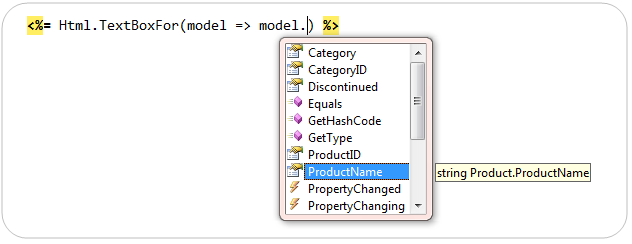
The HTML rendered is the same as the late-bound version of our HTML helper shown previously:
List of Strongly-Typed HTML Helper Methods built-into ASP.NET MVC 2
ASP.NET MVC 2 has built-in support for the following strongly-typed HTML helpers:
HTML Element Helpers:
- Html.TextBoxFor()
- Html.TextAreaFor()
- Html.DropDownListFor()
- Html.CheckboxFor()
- Html.RadioButtonFor()
- Html.ListBoxFor()
- Html.PasswordFor()
- Html.HiddenFor()
- Html.LabelFor()
Other Helpers:
- Html.EditorFor()
- Html.DisplayFor()
- Html.DisplayTextFor()
- Html.ValidationMessageFor()
I’ll be covering the new Html.EditorFor() and Html.DisplayFor() helper methods in a later blog post in this series when I cover the improved auto-scaffold functionality in ASP.NET MVC 2. We’ll also be using the Html.ValidationMessageFor() helper in my next blog post in this series which covers the improved validation support within ASP.NET MVC 2.
Strongly-Typed HTML Helpers within Scaffolding
VS 2008 and VS 2010 both by default now use the new strongly-typed HTML helpers when “scaffolding” new strongly-typed view tempates using the “Add View” command.
For example, let’s assume we had a simple “ProductsController” class like below that has an “Edit” action method that renders an edit form for a “Product” model class:

We can right-click within the Edit action method using Visual Studio and choose the “Add View” context menu command to create a view template. We’ll choose to create an “Edit” template that is scaffolded using a Product object:

With ASP.NET MVC 2, the view template that is created by default now uses the new strongly typed HTML helper methods to reference the Product model object:

Summary
The strongly-typed HTML helpers included with ASP.NET MVC 2 provide a nice way to get better type-safety within your view templates. This enables better compile-time checking of your views (allowing you to find errors at build-time instead of at runtime), and also supports richer intellisense when editing your view templates within Visual Studio.
Hope this helps,
Scott
by community-syndication | Jan 10, 2010 | BizTalk Community Blogs via Syndication
[In addition to blogging, I am also now using Twitter for quick updates and to share links. Follow me at: twitter.com/scottgu]
Over the last six months the ASP.NET team has been steadily releasing preview, then beta, and now release candidate builds of ASP.NET MVC 2.
Given that the final release is not too far away, I thought it was a good time to start a new multi-part ASP.NET MVC 2 blog series that discusses the new features and how best to take advantage of them.
ASP.NET MVC 2
We shipped ASP.NET MVC 1.0 last March. Since then, almost 1 million developers have downloaded and used the final release, and its popularity has steadily grown month over month.
ASP.NET MVC 2 is the next significant update of ASP.NET MVC. It is a compatible update to ASP.NET MVC 1 – so all the knowledge, skills, code, and extensions you already have with ASP.NET MVC continue to work and apply going forward. Like the first release, we are also shipping the source code for ASP.NET MVC 2 under an OSI-compliant open-source license.
ASP.NET MVC 2 Features
ASP.NET MVC 2 adds a bunch of new capabilities and features. I’ll cover them in a lot more depth with this blog series. Some of them include:
- New Strongly Typed HTML Helpers (posted: Jan 10th, 2010)
- Enhanced Model Validation support across both server and client (post coming soon)
- Auto-Scaffold UI Helpers with Template Customization (post coming soon)
- Support for partitioning large applications into “Areas” (post coming soon)
- Asynchronous Controllers support (post coming soon)
- Support for rendering sub-sections of a page/site using Html.RenderAction (post coming soon)
- Lots of new helper functions, utilities, and API enhancements (post coming soon)
- Improved Visual Studio tooling support (post coming soon)
How to download ASP.NET MVC 2
ASP.NET MVC 2 is designed to work with both VS 2008 / .NET 3.5, as well as with VS 2010 / .NET 4. Supporting both versions means that you can start using it today without having to wait to upgrade to VS2010 / .NET 4.
Click here to download the ASP.NET MVC 2 release candidate for .NET 3.5 and VS 2008. It can be installed side-by-side with ASP.NET MVC 1.0 on the same machine.
ASP.NET MVC 2 is a built-in component of VS 2010 / .NET 4 – which means you will not have to download or install anything to get it once you install any version of Visual Studio 2010. The current public VS 2010 Beta 2 release includes the ASP.NET MVC 2 Preview 2 release. The upcoming VS 2010 Release Candidate that will be available for download next month will have a more recent ASP.NET MVC 2 RC built-in.
ASP.NET Web Forms + ASP.NET MVC
We are always careful to make clear that ASP.NET MVC is an option with ASP.NET. ASP.NET Web Forms continues to be the most widely used approach when building applications with ASP.NET, and the new ASP.NET 4 release contains significant improvements for ASP.NET Web Forms development (clean client IDs and CSS based control markup, better viewstate management, new data and charting controls, URL routing, SEO improvements, and much more). You can learn more about these improvements within my ongoing VS 2010 and .NET 4 blog series.
We’ll be improving and enhancing both the ASP.NET Web Forms and ASP.NET MVC programming models even further in future releases. Developers can and should choose to use whichever model feels most comfortable and natural to them. We’ll be publishing new videos and guidance on the www.asp.net shortly that helps provide additional guidance about each and how to pick the one that feels most comfortable to you.
Hope this helps,
Scott
by community-syndication | Jan 10, 2010 | BizTalk Community Blogs via Syndication
Peter Ward (Wardy IT) will be running some free SQL 2008 R2 seminars at the end of January. Email from Peter:
I just wanted to let you know about the SQL Server 2008 R2 Hot Lap which WARDY IT Solutions will be running in Melbourne, Brisbane and Sydney at the end of January.
The SQL Server 2008 R2 Hot Lap will be the first SQL Server 2008 R2 workshops held in Australia. They are a %u00bd day catered workshop and they are free to attend.
A Hot Lap is a quick and concise way of finding out what is new in SQL Server 2008 R2 and how these changes will improve database operations, developer efficiency and enable self-service Business Intelligence solutions.
Dates
27/01/2010 – Melbourne – 1:00pm – 5:00pm
28/01/2010 – Brisbane – 8:00am – 12:00pm
29/01/2010 – Sydney – 8:00am – 12:00pm
Email: [email protected]
by community-syndication | Jan 10, 2010 | BizTalk Community Blogs via Syndication
While further investigating SharePoint-BizTalk integration capabilities I ran into a file overwrite mode called “Rename” which I thought was rather unique. I have never seen something like this in the FILE or FTP adapters so I figured that I would post something on it.
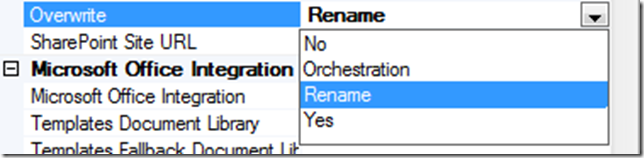
The WSS Adapter has an Overwrite property that allows you select one of the following modes:
The Yes and No values are pretty self explanatory. Orchestration allows you to determine which mode you want to set within an Orchestration at run time.
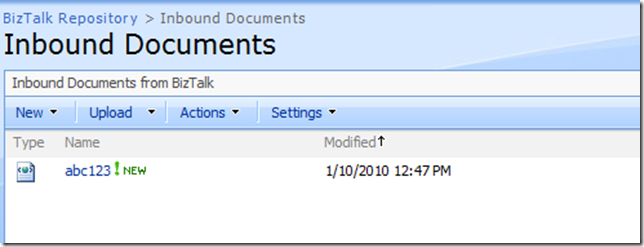
When you select the Rename value, BizTalk will use the static file name that you have configured in the Send Port configuration or the actual file name of the source document. If the document library does not contain a file with this name already, it will be added with the correct filename.
Where it gets interesting is when you try to insert a file with the same file name as one that already exists in the same document library. When this situation occurs the first portion of the file name will remain intact, however a unique identifier will be added to the end of the filename. BizTalk will not raise a warning or error indicating that this event has occurred.
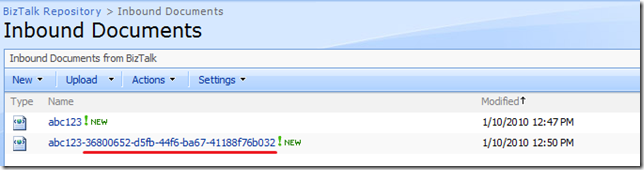
So when would I use this? I think this feature could be used in one of those “exception to the rule cases” where the business has indicated that “there will never be a duplicate file uploaded into this document library” but it actually happens. It is also helpful when the view of the document library has been configured in such a way that the documents are sorted by file name. This way it makes it easier to identify one of these cases as opposed to just using a Message ID where the document could end up being displayed in a very random fashion.
by community-syndication | Jan 10, 2010 | BizTalk Community Blogs via Syndication
This post describes the installation process for the BizTalk Benchmark Wizard application. For more information read part 1.
The complete installation will include the following components:
- BizTalk Benchmark wizard – The client tool from which you will run the tests
- Three Hosts – BBW_RxHost, BBW_PxHost, BBW_TxHost
- Three Host Instances
- Two Adapter handlers for NetTcp
- One BizTalk Application
- Two Receive Ports
- Two Send Hosts
- One Orchestration
The installation process
Download the bits from Codeplex, and proceed with the normal installation. As the setup completes, your first step would be to install the BizTalk artifacts. These artifacts are the BizTalk components and bindings which makes up the testing scenarios. This is a two step process as you need to set up the hosts before you import the bindings.
BizTalk environment
You can run the scenarios on either a single-server installation or a two server installation. Regardless of the number of BizTalk servers in you group, you should not run it with more than two “active” servers, as it will otherwise not be covered by the benchmark values.
1. Setup Hosts, Instances and Adapter handlers
The hosts, instances and handlers are created through running a script. You need to run the script file using “cscript” as shown below, and I apologize in advance to the poor error messages you might run into.
1. Open an command prompt window and navigate to [Installation folder]\Artefacts\BizTalk. By default, the installation folder is “C:\Program Files\Blogical\BizTalk Benchmark Wizard”.
2. In the BizTalk folder you’ll find a InstallHosts.vbs file. Execute it using the following parameters:
NTGroupName – The name of the Windows NT group.
UserName – The name of the user account running the service instances.
Password – The password of the user account running the service instances.
Receive Host – The name of the server where you want to run the receive host instance.
Send Host – The name of the server where you want to run the sen host instance.
Processing Host – The name of the server where you want to run the process host instance.
If you have a single box installation, your script command might look like this:
cscript InstallHosts.vbs "BizTalk Application Users" “\MyUser” “MyPassword” “BtsServer1” “BtsServer1” “BtsServer1”
If you have a multi server installation, your script command might look like this:
cscript InstallHosts.vbs "MyDomain\BizTalk Application Users" “MyDomain\MyUser” “MyPassword” “BtsServer1” “BtsServer2” “BtsServer2”
Running this script will create:
- Three hosts (BBW_RxHost, BBW_TxHost and BBW_PxHost)
- Three host instances
- One send and one receive adapter handler for the WCF NetTcp adapter.
2. Import BizTalk MSI
1. Open the BizTalk Administration Console, point to the “Applications” node and import the BizTalk Benchmark Wizard.msi found in the same folder as the scripts above.
2. Finally, run the BizTalk Benchmark Wizard.msi on all BizTalk servers to add the assemblies to the Global Assembly Cache (GAC).
Done, click [Start]-> [All Programs]->[BizTalk Application Wizard] – [BizTalk Application Wizard] to start the application.
Good luck!



