by community-syndication | Apr 7, 2010 | BizTalk Community Blogs via Syndication
Hey – I know I haven’t been blogging much. One of the reasons is I’ve really busy working on courseware for Microsoft on Windows Server AppFabric. If you are in Europe and interested in AppFabric – you should come to Brussels in June – Codit sign
up today! Expect more blogging soon. I’ll also be in Las Vegas next week as part
of the Visual
Studio 2010 Launch – come by and say hi – I’ll give you a cool t-shirt! (can’t
talk about it until Monday ;-)) 
Check out my new book on REST.
by community-syndication | Apr 7, 2010 | BizTalk Community Blogs via Syndication
CODit invited ‘the legendary’ Jon Flanders to Belgium for a deep-dive AppFabric and .Net 4.0 workflow training. This training is open for customers and partners all over EMEA. The training has limited seats available and registrations are on a ‘first come / first served’ schedule.
This training will be a level-300 training and will be organized on June 15-18, 2010.
This is the agenda of the 4 days training:
Day 1
- Introduction to Windows Server AppFabric Monitoring and Hosting
- Introduction to Windows Workflow Foundation 4.0
- Building Declarative Services using WF 4.0 and WCF
Day 2
- Hosting Services with Windows Server AppFabric
- Configuring Windows Server AppFabric Services
- Windows Server AppFabric Management
Day 3
- Monitoring Services using Windows Server AppFabric
- Making your services robust and manageable
- Advanced Workflow Topics
Day 4
- Introduction to Windows Server AppFabric Caching
- What’s new in WCF 4.0
- Introduction to Windows Azure AppFabric
For more details and subscription, please visit the training page: http://www.codit.eu/deepdiveintoappfabric
by community-syndication | Apr 7, 2010 | BizTalk Community Blogs via Syndication
I only use WinDBG every once in a while, but, when I need it, I really need it and need it now. Kevin Dente pointed out earlier today that apparently, the latest versions of WinDBG was not available as a standalone installer, but only as part of the Windows Driver Kit ISO download.
That’s right. You […]

by community-syndication | Apr 7, 2010 | BizTalk Community Blogs via Syndication
SQL Server 2005 introduced query notifications which allow applications to subscribe to the database and receive notifications from the database based on the changes in the result set of the query on which the application is subscribed. This can change the behavior and performance of the application as the application does not have to query […]

by community-syndication | Apr 7, 2010 | BizTalk Community Blogs via Syndication
[In addition to blogging, I am also now using Twitter for quick updates and to share links. Follow me at: twitter.com/scottgu]
This is the nineteenth in a series of blog posts I’m doing on the upcoming VS 2010 and .NET 4 release.
Today’s post covers a small, but very useful, new syntax feature being introduced with ASP.NET 4 – which is the ability to automatically HTML encode output within code nuggets. This helps protect your applications and sites against cross-site script injection (XSS) and HTML injection attacks, and enables you to do so using a nice concise syntax.
HTML Encoding
Cross-site script injection (XSS) and HTML encoding attacks are two of the most common security issues that plague web-sites and applications. They occur when hackers find a way to inject client-side script or HTML markup into web-pages that are then viewed by other visitors to a site. This can be used to both vandalize a site, as well as enable hackers to run client-script code that steals cookie data and/or exploits a user’s identity on a site to do bad things.
One way to help mitigate against cross-site scripting attacks is to make sure that rendered output is HTML encoded within a page. This helps ensures that any content that might have been input/modified by an end-user cannot be output back onto a page containing tags like <script> or <img> elements.
How to HTML Encode Content Today
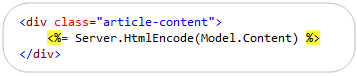
ASP.NET applications (especially those using ASP.NET MVC) often rely on using <%= %> code-nugget expressions to render output. Developers today often use the Server.HtmlEncode() or HttpUtility.Encode() helper methods within these expressions to HTML encode the output before it is rendered. This can be done using code like below:
While this works fine, there are two downsides of it:
- It is a little verbose
- Developers often forget to call the Server.HtmlEncode method – and there is no easy way to verify its usage across an app
New <%: %> Code Nugget Syntax
With ASP.NET 4 we are introducing a new code expression syntax (<%: %>) that renders output like <%= %> blocks do – but which also automatically HTML encodes it before doing so. This eliminates the need to explicitly HTML encode content like we did in the example above. Instead, you can just write the more concise code below to accomplish the exact same thing:

We chose the <%: %> syntax so that it would be easy to quickly replace existing instances of <%= %> code blocks. It also enables you to easily search your code-base for <%= %> elements to find and verify any cases where you are not using HTML encoding within your application to ensure that you have the correct behavior.
Avoiding Double Encoding
While HTML encoding content is often a good best practice, there are times when the content you are outputting is meant to be HTML or is already encoded – in which case you don’t want to HTML encode it again.
ASP.NET 4 introduces a new IHtmlString interface (along with a concrete implementation: HtmlString) that you can implement on types to indicate that its value is already properly encoded (or otherwise examined) for displaying as HTML, and that therefore the value should not be HTML-encoded again. The <%: %> code-nugget syntax checks for the presence of the IHtmlString interface and will not HTML encode the output of the code expression if its value implements this interface. This allows developers to avoid having to decide on a per-case basis whether to use <%= %> or <%: %> code-nuggets. Instead you can always use <%: %> code nuggets, and then have any properties or data-types that are already HTML encoded implement the IHtmlString interface.
Using ASP.NET MVC HTML Helper Methods with <%: %>
For a practical example of where this HTML encoding escape mechanism is useful, consider scenarios where you use HTML helper methods with ASP.NET MVC. These helper methods typically return HTML. For example: the Html.TextBox() helper method returns markup like <input type=”text”/>. With ASP.NET MVC 2 these helper methods now by default return HtmlString types – which indicates that the returned string content is safe for rendering and should not be encoded by <%: %> nuggets.
This allows you to use these methods within both <%= %> code nugget blocks:

As well as within <%: %> code nugget blocks:

In both cases above the HTML content returned from the helper method will be rendered to the client as HTML – and the <%: %> code nugget will avoid double-encoding it.
This enables you to default to always using <%: %> code nuggets instead of <%= %> code blocks within your applications. If you want to be really hardcore you can even create a build rule that searches your application looking for <%= %> usages and flags any cases it finds as an error to enforce that HTML encoding always takes place.
Scaffolding ASP.NET MVC 2 Views
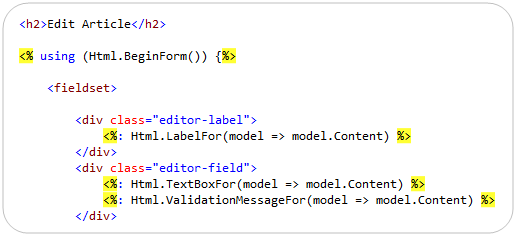
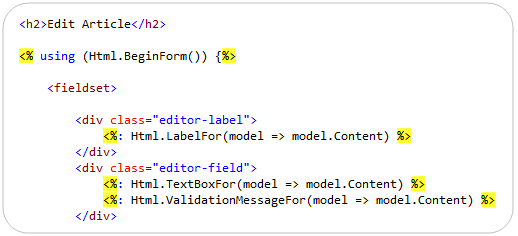
When you use VS 2010 (or the free Visual Web Developer 2010 Express) you’ll find that the views that are scaffolded using the “Add View” dialog now by default always use <%: %> blocks when outputting any content. For example, below I’ve scaffolded a simple “Edit” view for an article object. Note the three usages of <%: %> code nuggets for the label, textbox, and validation message (all output with HTML helper methods):
Summary
The new <%: %> syntax provides a concise way to automatically HTML encode content and then render it as output. It allows you to make your code a little less verbose, and to easily check/verify that you are always HTML encoding content throughout your site. This can help protect your applications against cross-site script injection (XSS) and HTML injection attacks.
Hope this helps,
Scott

by community-syndication | Apr 6, 2010 | BizTalk Community Blogs via Syndication
A few days back, the Software Engineering Institute (SEI) at Carnegie Mellon released a new paper called Testing in Service-Oriented Environments. This report contained 65 different SOA testing tips and I found it to be quite insightful. I figured that I’d highlight the salient points here, and solicit feedback for other perspectives on this topic.
The […]

by community-syndication | Apr 6, 2010 | BizTalk Community Blogs via Syndication
[In addition to blogging, I am also now using Twitter for quick updates and to share links. Follow me at: twitter.com/scottgu]
This is the eighteenth in a series of blog posts I’m doing on the upcoming VS 2010 and .NET 4 release.
A few days ago I blogged about two new language features coming with C# 4.0: optional parameters and named arguments.
Today I’m going to post about a few of my favorite new features being added to VB with VS 2010: Auto-Implemented Properties, Collection Initializers, and Implicit Line Continuation support.
Auto-Implemented Properties
Prior to VB 2010, implementing properties within a class using VB required you to explicitly declare the property as well as implement a backing field variable to store its value.
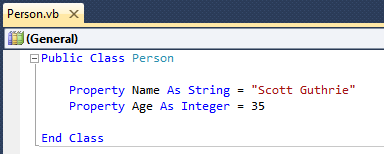
For example, the code below demonstrates how to implement a “Person” class using VB 2008 that exposes two public properties – “Name” and “Age”:
While explicitly declaring properties like above provides maximum flexibility, I’ve always found writing this type of boiler-plate get/set code tedious when you are simply storing/retrieving the value from a field. You can use VS code snippets to help automate the generation of it – but it still generates a lot of code that feels redundant. C# 2008 introduced a cool new feature called automatic properties that helps cut down the code quite a bit for the common case where properties are simply backed by a field. VB 2010 also now supports this same feature.
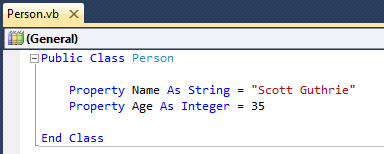
Using the auto-implemented properties feature of VB 2010 we can now implement our Person class using just the code below:

When you declare an auto-implemented property, the VB compiler automatically creates a private field to store the property value as well as generates the associated Get/Set methods for you. As you can see above – the code is much more concise and easier to read.
The syntax supports optionally initializing the properties with default values as well if you want to:
You can learn more about VB 2010’s automatic property support from this MSDN page.
Collection Initializers
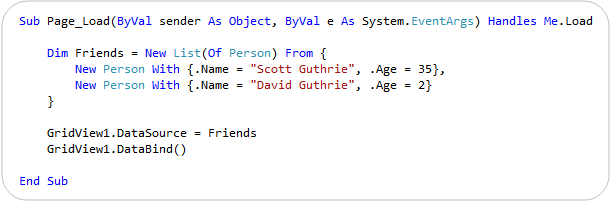
VB 2010 also now supports using collection initializers to easily create a collection and populate it with an initial set of values. You identify a collection initializer by declaring a collection variable and then use the From keyword followed by braces { } that contain the list of initial values to add to the collection.
Below is a code example where I am using the new collection initializer feature to populate a “Friends” list of Person objects with two people, and then bind it to a GridView control to display on a page:
You can learn more about VB 2010’s collection initializer support from this MSDN page.
Implicit Line Continuation Support
Traditionally, when a statement in VB has been split up across multiple lines, you had to use a line-continuation underscore character (_) to indicate that the statement wasn’t complete.
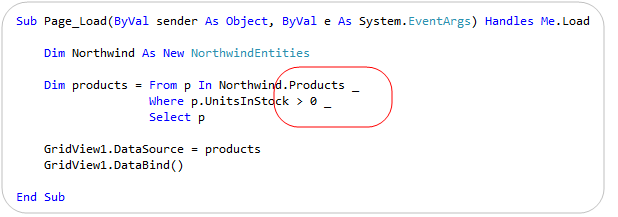
For example, with VB 2008 the below LINQ query needs to append a “_” at the end of each line to indicate that the query is not complete yet:

The VB 2010 compiler and code editor now adds support for what is called “implicit line continuation support” – which means that it is smarter about auto-detecting line continuation scenarios, and as a result no longer needs you to explicitly indicate that the statement continues in many, many scenarios. This means that with VB 2010 we can now write the above code with no “_” at all:
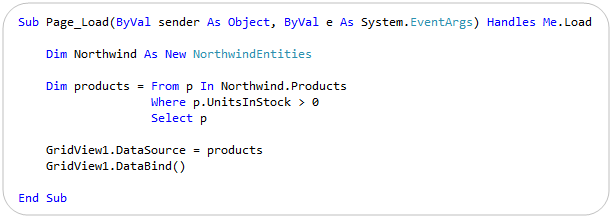
The implicit line continuation feature also works well when editing XML Literals within VB (which is pretty cool).
You can learn more about VB 2010’s Implicit Line Continuation support and many of the scenarios it supports from this MSDN page (scroll down to the “Implicit Line Continuation” section to find details).
Summary
The above three VB language features are but a few of the new language and code editor features coming with VB 2010. Visit this site to learn more about some of the other VB language features coming with the release.
Also subscribe to the VB team’s blog to learn more and stay up-to-date with the posts they the team regularly publishes.
Hope this helps,
Scott

by community-syndication | Apr 6, 2010 | BizTalk Community Blogs via Syndication
Three days back I went to the BizTalk forums and noticed my MVP tag was removed. I thought of some bug in the forum as the tag was entered after 45-50 days after getting my award so I couldn’t believe that something was wrong with my account. Then I went to my MVP profile and […]
by community-syndication | Apr 5, 2010 | BizTalk Community Blogs via Syndication
Last week I had the pleasure of presenting two sessions at Microsoft’s Dutch DevDays at Den Hague. On Tuesday I presented a sessions about how to implement real world RESTFul services patterns using WCF, WCF Data Services and ASP.NET MVC2. During that…(read more)
by community-syndication | Apr 5, 2010 | BizTalk Community Blogs via Syndication
In true SharePoint fashion, I’ve updated the common lightup.xml file for SharePoint
2010.
Some things that are missing from below is an Admin link – I’ll update shortly as
I’ve got to get back to a lab I’m finishing writing.
(note I’ve added ~sitecollection below, as all the samples I’ve seen leave this out)
Enjoy and happy Easter all.
<?xml version="1.0" encoding="utf-8" ?>
<Elements xmlns="http://schemas.microsoft.com/sharepoint/">
  <!--
Document Library Toolbar New Menu Dropdown -->
<CustomAction Id="UserInterfaceLightUp.DocLibNewToolbar"
RegistrationType="List"
RegistrationId="101"
GroupId="NewMenu"
Rights="ManagePermissions"
Location="Microsoft.SharePoint.StandardMenu"
Sequence="1000"
    Title="MY
DOCLIB NEW MENU TOOLBAR BUTTON">
<UrlAction Url="~sitecollection/_layouts/ContosoLegalFunctionality/LightupHello.aspx?NewMenu"/>
</CustomAction>
  <!--
Document Library Toolbar Upload Menu Dropdown -->
<CustomAction Id="UserInterfaceLightUp.DocLibUploadToolbar"
RegistrationType="List"
RegistrationId="101"
GroupId="UploadMenu"
Rights="ManagePermissions"
Location="Microsoft.SharePoint.StandardMenu"
Sequence="1000"
    Title="MY
DOCLIB UPLOAD MENU TOOLBAR BUTTON">
<UrlAction Url="~sitecollection/_layouts/ContosoLegalFunctionality/LightupHello.aspx?UploadMenu"/>
</CustomAction>
  <!--
Document Library Toolbar Actions Menu Dropdown -->
<CustomAction Id="UserInterfaceLightUp.DocLibActionsToolbar"
RegistrationType="List"
RegistrationId="101"
GroupId="ActionsMenu"
Location="Microsoft.SharePoint.StandardMenu"
Sequence="1000"
    Title="MY
DOCLIB ACTIONS MENU TOOLBAR BUTTON">
<UrlAction Url="~sitecollection/_layouts/ContosoLegalFunctionality/LightupHello.aspx?ActionsMenu"/>
</CustomAction>
  <!--
Document Library Toolbar Settings Menu Dropdown -->
<CustomAction Id="UserInterfaceLightUp.DocLibSettingsToolbar"
RegistrationType="List"
RegistrationId="101"
GroupId="SettingsMenu"
Location="Microsoft.SharePoint.StandardMenu"
Sequence="1000"
    Title="MY
DOCLIB SETTINGS MENU TOOLBAR BUTTON">
<UrlAction Url="~sitecollection/_layouts/ContosoLegalFunctionality/LightupHello.aspx?SettingsMenu"/>
</CustomAction>
  <!--
Site Actions Dropdown -->
<CustomAction Id="UserInterfaceLightUp.SiteActionsToolbar"
GroupId="SiteActions"
Location="Microsoft.SharePoint.StandardMenu"
Sequence="1000"
    Title="MY
SITE ACTIONS BUTTON">
<UrlAction Url="~sitecollection/_layouts/ContosoLegalFunctionality/LightupHello.aspx?SiteActions"/>
</CustomAction>
  <!--
Per Item Dropdown (ECB)-->
<CustomAction
Id="UserInterfaceLightUp.ECBItemToolbar"
RegistrationType="List"
RegistrationId="101"
Location="EditControlBlock"
Sequence="106"
    Title="MY
ECB ITEM">
<UrlAction Url="~sitecollection/_layouts/ContosoLegalFunctionality/LightupHello.aspx?ECBItem"/>
</CustomAction>
  <!--
Display Form Toolbar -->
<CustomAction
Id="UserInterfaceLightUp.DisplayFormToolbar"
RegistrationType="List"
RegistrationId="101"
Location="DisplayFormToolbar"
Sequence="106"
    Title="MY
DISPLAY FORM TOOLBAR">
<UrlAction Url="~sitecollection/_layouts/ContosoLegalFunctionality/LightupHello.aspx?DisplayFormToolbar"/>
</CustomAction>
  <!--
Edit Form Toolbar -->
<CustomAction
Id="UserInterfaceLightUp.EditFormToolbar"
RegistrationType="List"
RegistrationId="101"
Location="EditFormToolbar"
Sequence="106"
    Title="MY
EDIT FORM TOOLBAR">
<UrlAction Url="~sitecollection/_layouts/ContosoLegalFunctionality/LightupHello.aspx?EditFormToolbar"/>
</CustomAction>
  <!--
Site Settings -->
<CustomAction
Id="UserInterfaceLightUp.SiteSettings"
GroupId="Customization"
Location="Microsoft.SharePoint.SiteSettings"
Sequence="106"
    Title="MY
SITE SETTINGS LINK">
<UrlAction Url="~sitecollection/_layouts/ContosoLegalFunctionality/LightupHello.aspx?Customization"/>
</CustomAction>
  <!--
Content Type Settings -->
<CustomAction
Id="UserInterfaceLightUp.ContentTypeSettings"
GroupId="General"
Location="Microsoft.SharePoint.ContentTypeSettings"
Sequence="106"
    Title="MY
CONTENT TYPE SETTINGS LINK">
<UrlAction Url="~sitecollection/_layouts/ContosoLegalFunctionality/LightupHello.aspx?General"/>
</CustomAction>
</Elements>
.csharpcode, .csharpcode pre
{
font-size: small;
color: black;
font-family: consolas, “Courier New”, courier, monospace;
background-color: #ffffff;
/*white-space: pre;*/
}
.csharpcode pre { margin: 0em; }
.csharpcode .rem { color: #008000; }
.csharpcode .kwrd { color: #0000ff; }
.csharpcode .str { color: #006080; }
.csharpcode .op { color: #0000c0; }
.csharpcode .preproc { color: #cc6633; }
.csharpcode .asp { background-color: #ffff00; }
.csharpcode .html { color: #800000; }
.csharpcode .attr { color: #ff0000; }
.csharpcode .alt
{
background-color: #f4f4f4;
width: 100%;
margin: 0em;
}
.csharpcode .lnum { color: #606060; }