by community-syndication | Apr 21, 2010 | BizTalk Community Blogs via Syndication
This is the twenty-first in a series of blog posts I’m doing on the VS 2010 and .NET 4 release. Today’s blog post covers a few of the nice usability improvements coming with the VS 2010 debugger.
The VS 2010 debugger has a ton of great new capabilities. Features like Intellitrace (aka historical debugging), the new parallel/multithreaded debugging capabilities, and dump debuging support typically get a ton of (well deserved) buzz and attention when people talk about the debugging improvements with this release. I’ll be doing blog posts in the future that demonstrate how to take advantage of them as well.
With today’s post, though, I thought I’d start off by covering a few small, but nice, debugger usability improvements that were also included with the VS 2010 release, and which I think you’ll find useful.
Breakpoint Labels
VS 2010 includes new support for better managing debugger breakpoints. One particularly useful feature is called “Breakpoint Labels” – it enables much better grouping and filtering of breakpoints within a project or across a solution.
With previous releases of Visual Studio you had to manage each debugger breakpoint as a separate item. Managing each breakpoint separately can be a pain with large projects and for cases when you want to maintain “logical groups” of breakpoints that you turn on/off depending on what you are debugging. Using the new VS 2010 “breakpoint labeling” feature you can now name these “groups” of breakpoints and manage them as a unit.
Grouping Multiple Breakpoints Together using a Label
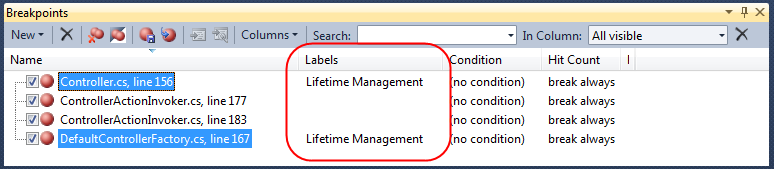
Below is a screen-shot of the breakpoints window within Visual Studio 2010. This lists all of the breakpoints defined within my solution (which in this case is the ASP.NET MVC 2 code base):
The first and last breakpoint in the list above breaks into the debugger when a Controller instance is created or released by the ASP.NET MVC Framework.
Using VS 2010, I can now select these two breakpoints, right-click, and then select the new “Edit labels” menu command to give them a common label/name (making them easier to find and manage):

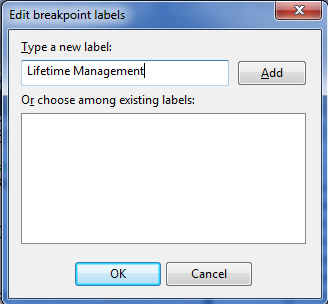
Below is the dialog that appears when I select the “Edit labels” command. We can use it to create a new string label for our breakpoints or select an existing one we have already defined. In this case we’ll create a new label called “Lifetime Management” to describe what these two breakpoints cover:

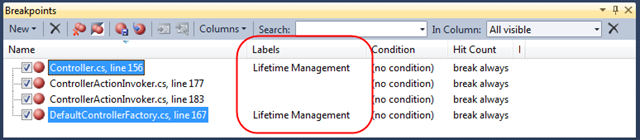
When we press the OK button our two selected breakpoints will be grouped under the newly created “Lifetime Management” label:
Filtering/Sorting Breakpoints by Label
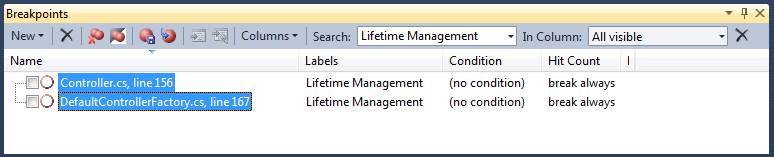
We can use the “Search” combobox to quickly filter/sort breakpoints by label. Below we are only showing those breakpoints with the “Lifetime Management” label:

Toggling Breakpoints On/Off by Label
We can also toggle sets of breakpoints on/off by label group. We can simply filter by the label group, do a Ctrl-A to select all the breakpoints, and then enable/disable all of them with a single click:
Importing/Exporting Breakpoints
VS 2010 now supports importing/exporting breakpoints to XML files – which you can then pass off to another developer, attach to a bug report, or simply re-load later.
To export only a subset of breakpoints, you can filter by a particular label and then click the “Export breakpoint” button in the Breakpoints window:

Above I’ve filtered my breakpoint list to only export two particular breakpoints (specific to a bug that I’m chasing down). I can export these breakpoints to an XML file and then attach it to a bug report or email – which will enable another developer to easily setup the debugger in the correct state to investigate it on a separate machine.
Pinned DataTips
Visual Studio 2010 also includes some nice new “DataTip pinning” features that enable you to better see and track variable and expression values when in the debugger.
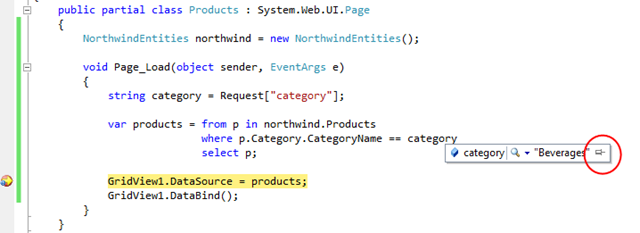
Simply hover over a variable or expression within the debugger to expose its DataTip (which is a tooltip that displays its value) – and then click the new “pin” button on it to make the DataTip always visible:

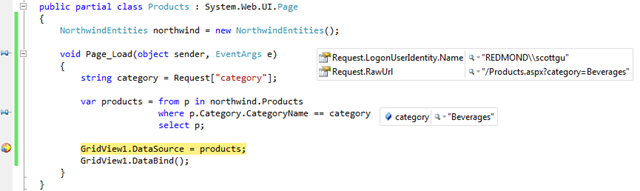
You can “pin” any number of DataTips you want onto the screen. In addition to pinning top-level variables, you can also drill into the sub-properties on variables and pin them as well.
Below I’ve “pinned” three variables: “category”, “Request.RawUrl” and “Request.LogonUserIdentity.Name”. Note that these last two variable are sub-properties of the “Request” object.

Associating Comments with Pinned DataTips
Hovering over a pinned DataTip exposes some additional UI within the debugger:
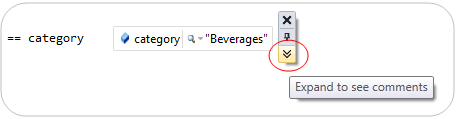
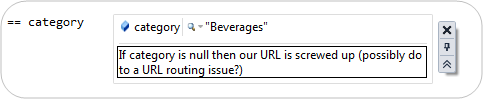
Clicking the comment button at the bottom of this UI expands the DataTip – and allows you to optionally add a comment with it:
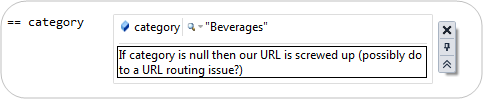
This makes it really easy to attach and track debugging notes:

Pinned DataTips are usable across both Debug Sessions and Visual Studio Sessions
Pinned DataTips can be used across multiple debugger sessions. This means that if you stop the debugger, make a code change, and then recompile and start a new debug session – any pinned DataTips will still be there, along with any comments you associate with them.
Pinned DataTips can also be used across multiple Visual Studio sessions. This means that if you close your project, shutdown Visual Studio, and then later open the project up again – any pinned DataTips will still be there, along with any comments you associate with them.
See the Value from Last Debug Session (Great Code Editor Feature)
How many times have you ever stopped the debugger only to go back to your code and say:
$#@! – what was the value of that variable again???
One of the nice things about pinned DataTips is that they keep track of their “last value from debug session” – and you can look these values up within the VB/C# code editor even when the debugger is no longer running.
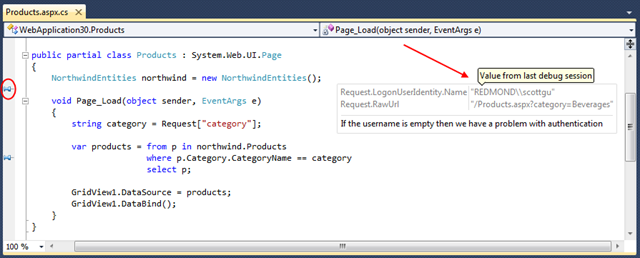
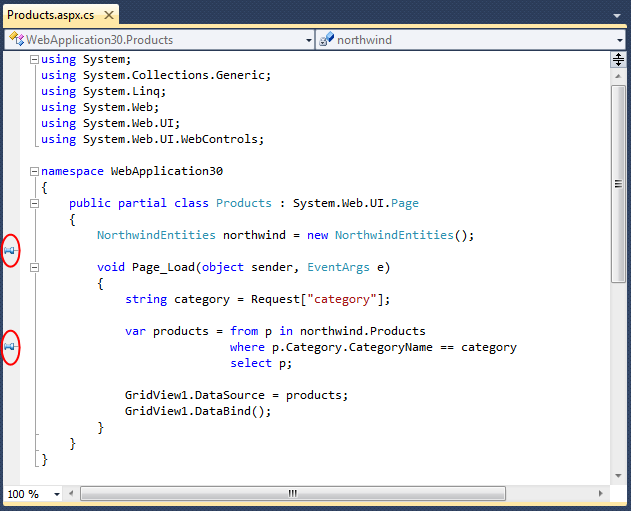
DataTips are by default hidden when you are in the code editor and the debugger isn’t running. On the left-hand margin of the code editor, though, you’ll find a push-pin for each pinned DataTip that you’ve previously setup:
Hovering your mouse over a pinned DataTip will cause it to display on the screen. Below you can see what happens when I hover over the first pin in the editor – it displays our debug session’s last values for the “Request” object DataTip along with the comment we associated with them:
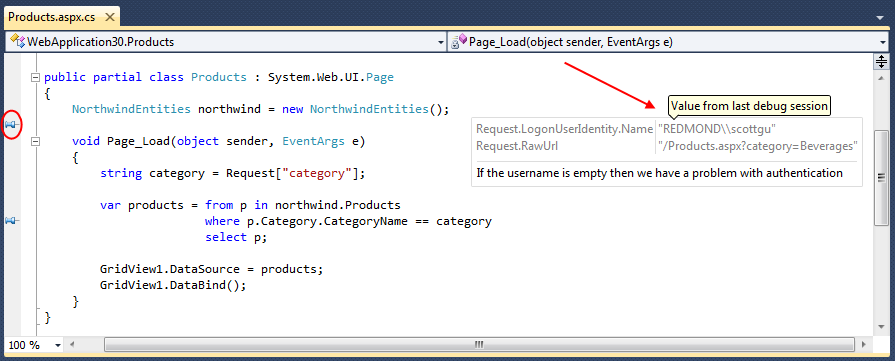
This makes it much easier to keep track of state and conditions as you toggle between code editing mode and debugging mode on your projects.
Importing/Exporting Pinned DataTips
As I mentioned earlier in this post, pinned DataTips are by default saved across Visual Studio sessions (you don’t need to do anything to enable this).
VS 2010 also now supports importing/exporting pinned DataTips to XML files – which you can then pass off to other developers, attach to a bug report, or simply re-load later.

Combined with the new support for importing/exporting breakpoints, this makes it much easier for multiple developers to share debugger configurations and collaborate across debug sessions.
Summary
Visual Studio 2010 includes a bunch of great new debugger features – both big and small.
Today’s post shared some of the nice debugger usability improvements. All of the features above are supported with the Visual Studio 2010 Professional edition (the Pinned DataTip features are also supported in the free Visual Studio 2010 Express Editions)
I’ll be covering some of the “big big” new debugging features like Intellitrace, parallel/multithreaded debugging, and dump file analysis in future blog posts.
Hope this helps,
Scott
P.S. In addition to blogging, I am also now using Twitter for quick updates and to share links. Follow me at: twitter.com/scottgu
by community-syndication | Apr 21, 2010 | BizTalk Community Blogs via Syndication
Well folks we are partnering with Education leaders in the APAC region Excom to
deliver to you our Breeze SharePoint 2010 Bootcamp.
I’ve recently come out of that code cavethe place which I’m sure a lot of us know
all too well. I discovered peopleand conversations again 🙂
We’ve put together 13 modules of original material and labs to match based on real
world examples. For e.g. Integrating with Oracle EB from SharePoint 2010 via the BizTalk
Adapter Pack (being a BTS MVP I couldn’t resist that one).
I ran a course in Melbourne the week before last and it was a solid week which the
students loved with the average score for the course being 8.2 (with
9 being the top)
Our next city is Sydney this coming month and I’ve managed to grab a couple
of seats for you.
To Register in a city near you – click
here
by community-syndication | Apr 21, 2010 | BizTalk Community Blogs via Syndication
BizTalk projects are largely dependent upon SQL Server. Microsoft has notified partners and resellers that the cost of SQL Server will rise post the release of SQL Server 2008 R2. You may want to place your SQL Server and BizTalk server license orders now before the jump.
From Microsoft:
“Microsoft recently announced that there will an increase in the pricing of the processor licensing of SQL Server 2008 R2 when it launches in the first half of calendar year 2010. There will be a 15% increase in the processor pricing of SQL Server 2008 Enterprise Edition and a 25% increase in the processor pricing of SQL Server 2008 Standard. There will be no change to the Server/CAL licensing model of SQL Server.
We are adjusting our prices for Standard and Enterprise based on the added value of features we are adding including, but not limited to, Master Data Services, StreamInsight, PowerPivot, and data compression. Microsoft SQL Server continues to be the only major database vendor who does not alter price per core for multi-core processors. As processing power and capabilities of hardware increase, licensing SQL Server per processor continues to be a good option for many application scenarios, where SQL Server is up to a third the cost of Oracle.
SQL Server 2008 pricing has remained flat since 2005, with new features and functionalities included out of the box for no additional charge.”
by community-syndication | Apr 21, 2010 | BizTalk Community Blogs via Syndication
This blog post is about using LINQ to XML when the XML document has multiple namespaces defined. I’m using the Twitter API as example. The sample XML <?xml version="1.0"…
Daniel Berg’s blog about ASP.NET, EPiServer, SharePoint, BizTalk
by community-syndication | Apr 21, 2010 | BizTalk Community Blogs via Syndication
In this post I will talk about setting up a trace for the WCF-Adapter. This post should be a good addition to some previous posts I made about the WCF-Adapter.
Communicating with SAP through WCF : Send and Receive Ports
Communicating with SAP through WCF : Generate SAP schemas
1. Tracing within the Adapter
Add the following to the configuration section of your BizTalk configuration file, BTSNTvc.exe.config which is present under <system drive>:\Program Files\Microsoft BizTalk Server 2006:
<system.diagnostics>
<sources>
<source name=“Microsoft.ServiceModel.Channels“ switchValue=“Warning“>
<listeners>
<add name=“eventlog“ />
</listeners>
</source>
<source name=“Microsoft.Adapters.SAP“ switchValue=“Warning“>
<listeners>
<add name=“eventlog“ />
</listeners>
</source>
</sources>
<sharedListeners>
<add name=“eventlog“ type=“System.Diagnostics.EventLogTraceListener“ initializeData=“APPLICATION_NAME“/>
</sharedListeners>
<trace autoflush=“false“ />
</system.diagnostics>
This will enable Warning level tracing (Errors + Warnings). Replace APPLICATION_NAME with the name of your application as you want it to appear in the event viewer. Now you can see the errors and warnings – even the ones that were thrown to SAP.
If not possible to write to event log or if too bulky, then alternatively, you can put the following instead of the listeners “event log” if you want to log to a file. You will then need the tracing viewer (see below):
<add name=”xml” type=”System.Diagnostics.XmlWriterTraceListener”
traceOutputOptions=”LogicalOperationStack”
initializeData=”C:\log\WCF\AdapterTrace.svclog” />
ATTENTION: Trace files can become huge. Remember to stop tracing once issues have been solved.
2. Tracing the Adapter and the LOB Application
To diagnose issues that you suspect are related to the LOB application, you must enable tracing for communication between the adapter and the LOB application. Adapters also depend on LOB tracing (client/server side) to access this information. The SAP adapter enables adapter clients to turn on tracing within the SAP system by specifying the “RfcSdkTrace” parameter in the connection URI. You must specify this parameter to enable the RFC SDK to trace information flow within the SAP system. For more information about the connection URI, see The SAP System Connection URI.
This parameter is specified in the SAP binding URI of the BizTalk WCF adapter:
Additionally, you can also create an RFC_TRACE environment variable that sets the level of tracing for the RFC SDK. RFC_TRACE is an environment variable defined by SAP and is used by the RFC SDK. If this variable is not defined or is set to 0, the RFC SDK tracing level is bare minimum. If the variable is set to 1 or 2, the tracing level is more detailed.
RFC_TRACE = 2
RFC_TRACE_DIR = C:\log\LOB
Note: Irrespective of whether the RFC_TRACE environment variable is set, the RFC SDK tracing is enabled only if setting the “RfcSdkTrace” parameter to true in the connection URI (see in STEP 2). The value of this environment variable solely governs the level of RFC SDK tracing. If RfcSdkTrace is set to true, the message traces between the adapter and the SAP system are copied to the “system32” folder on your computer. To save the RFC SDK traces to some other location, you can set the RFC_TRACE_DIR environment variable. For more information about these environment variables refer to the SAP documentation.
3. Viewing the Traces
You can use the Windows Communication Foundation (WCF) Service Trace Viewer tool to view the traces. For more information about the tool, see “Using Service Trace Viewer for Viewing Correlated Traces and Troubles” at http://go.microsoft.com/fwlink/?LinkId=91243 .
Enjoy!
Glenn Colpaert
by community-syndication | Apr 21, 2010 | BizTalk Community Blogs via Syndication
[Source: http://geekswithblogs.net/EltonStoneman]
Overview
Ignoring the fashion, I still make a lot of use of DALs – typically when inheriting a codebase with an established database schema which is full of tried and trusted stored procedures. In the DAL a collection of base classes have all the scaffolding, so the usual pattern is to create a wrapper class for each stored procedure, giving typesafe access to parameter values and output. DAL calls then looks like instantiate wrapper-populate parameters-execute call:
using (var sp = new uspGetManagerEmployees())
{
sp.ManagerID = 16;
using (var reader = sp.Execute())
{
//map entities from the output
}
}
Or rolling it all into a fluent DAL call – which is nicer to read and implicitly disposes the resources:
var employees = Fluently.Load<List<Employee>>()
.With<EmployeeMap>()
.From<uspGetManagerEmployees>
(
i => i.ManagerID = 16,
x => x.Execute()
);
This is fine, the wrapper classes are very simple to handwrite or generate. But as the codebase grows, you end up with a proliferation of very small wrapper classes:
The wrappers don’t add much other than encapsulating the stored procedure call and giving you typesafety for the parameters. With the dynamic extension in .NET 4.0 you have the option to build a single wrapper class, and get rid of the one-to-one stored procedure to wrapper class mapping.
In the dynamic version, the call looks like this:
dynamic getUser = new DynamicSqlStoredProcedure(“uspGetManagerEmployees”, Database.AdventureWorks);
getUser.ManagerID = 16;
var employees = Fluently.Load<List<Employee>>()
.With<EmployeeMap>()
.From(getUser);
The important difference is that the ManagerId property doesn’t exist in the DynamicSqlStoredProcedure class. Declaring the getUser object with the dynamic keyword allows you to dynamically add properties, and the DynamicSqlStoredProcedure class intercepts when properties are added and builds them as stored procedure parameters. When getUser.ManagerId = 16 is executed, the base class adds a parameter call (using the convention that parameter name is the property name prefixed by “@”), specifying the correct SQL Server data type (mapping it from the type of the value the property is set to), and setting the parameter value.
Code Sample
This is worked through in a sample project on github – Dynamic Stored Procedure Sample – which also includes a static version of the wrapper for comparison. (I’ll upload this to the MSDN Code Gallery once my account has been resurrected). Points worth noting are:
- DynamicSP.Data – database-independent DAL that has all the data plumbing code.
- DynamicSP.Data.SqlServer – SQL Server DAL, thin layer on top of the generic DAL which adds SQL Server specific classes. Includes the DynamicSqlStoredProcedure base class.
- DynamicSqlStoredProcedure.TrySetMember. Invoked when a dynamic member is added. Assumes the property is a parameter named after the SP parameter name and infers the SqlDbType from the framework type. Adds a parameter to the internal stored procedure wrapper and sets its value.
- uspGetManagerEmployees – the static version of the wrapper.
- uspGetManagerEmployeesTest – test fixture which shows usage of the static and dynamic stored procedure wrappers.
The sample uses stored procedures from the AdventureWorks database in the SQL Server 2008 Sample Databases.
Discussion
For this scenario, the dynamic option is very favourable. Assuming your DAL is itself wrapped by a higher layer, the stored procedure wrapper classes have very little reuse. Even if you’re codegening the classes and test fixtures, it’s still additional effort for very little value. The main consideration with dynamic classes is that the compiler ignores all the members you use, and evaluation only happens at runtime. In this case where scope is strictly limited that’s not an issue – but you’re relying on automated tests rather than the compiler to find errors, but that should just encourage better test coverage. Also you can codegen the dynamic calls at a higher level.
Performance may be a consideration, as there is a first-time-use overhead when the dynamic members of an object are bound. For a single run, the dynamic wrapper took 0.2 seconds longer than the static wrapper. The framework does a good job of caching the effort though, so for 1,000 calls the dynamc version still only takes 0.2 seconds longer than the static:
You don’t get IntelliSense on dynamic objects, even for the declared members of the base class, and if you’ve been using class names as keys for configuration settings, you’ll lose that option if you move to dynamics. The approach may make code more difficult to read, as you can’t navigate through dynamic members, but you do still get full debugging support.
by community-syndication | Apr 20, 2010 | BizTalk Community Blogs via Syndication
You may think I am crazy In fact, it seems so unbelievable I don’t quite believe it myself, but I experienced it, and can’t shrug it off. So, on the off chance that someone else might run into this, I am writing down the experience since I couldn’t find a single reference to it when I searched for a solution (which by all means in turn means it’s unlikely that it has happened to all that many people before).
On one environment I was testing MSMQ connectivity. From my brand new BizTalk Server 2009, windows Server 2008 64-bit, environment I wanted to connect to a Windows Server 2003 remote transactional MSMQ queue. Since I wasn’t doing anything remotely service oriented, quite the opposite – it was all about file transfers, I decided to use the “old” MSMQ adapter.
This didn’t work, and failed with the error message:
The adapter "MSMQ" raised an error message.
Details "The type initializer for '<Module>' threw an exception.".
Ok. So faced with this what do I do? I start local. I created a local private transactional queue, a FILE receive and a MSMQ send – to get a message into the queue. This worked fine.
I then wanted to read the message out from the queue and write it back to disk. This did not work, but failed with the same error message.
I created a second queue, non-transactional, and put a message in there and tried to read it from that, to peel away the transactional aspect. Same non-helpful exception.
I was somewhat at a loss. As I expressed my disgust a colleague asked why I didn’t use the WCF-NetMsmq, and though I had no intention of using it in the final solution that brought on the idea of trying that instead. So I configured a port for that and enabled it.
When I did, I got back the message from the queue. However as I looked in the Event Log I saw error messages from that adapter and looked to see that I had configured it incorrectly – I had continued to put the queue name as xxx\private$\yyy (in the WCF-NetMsmq adapter you don’t use the $). What had happened? I had not gotten the messages with my WCF-NetMsmq port.
As I enabled the WCF-NetMsmq the old MSMQ ports had sprung to life and begun working!
I could now get messages from the local transactional as well as non-transactional queue.
And when I tried the remote queue I now got another, much more helpful, error message:
The adapter "MSMQ" raised an error message.
Details "This operation is not supported by the remote Message Queuing service.
For example, MQReceiveMessageByLookupId is not supported by MSMQ 1.0/2.0,
or remote receive of the large mesasage cannot be done by the client below v3.5
As it turns out, I can’t make the connection I wanted, as remote transactional queues are not supported by the BizTalk MSMQ adapter in this scenario, on accounts of it not being available in Message queuing 3.0 (which, if you remember, my target system is running since it’s Windows Server 2003). References are here:
%u00b7 http://msdn.microsoft.com/en-us/library/aa562010(BTS.10).aspx
%u00b7 http://blogs.msdn.com/johnbreakwell/archive/2007/12/11/how-do-i-get-transactional-remote-receives.aspx
%u00b7 http://blogs.msdn.com/johnbreakwell/archive/2008/05/21/remote-transactional-reads-only-work-in-msmq-4-0.aspx
But the real point here is not that, but the strange exception I got up front. Repro you ask? Couldn’t get it to happen on any other environment, in fact, on the ones I tried the MSMQ adapter just works. No weird exceptions.
by community-syndication | Apr 20, 2010 | BizTalk Community Blogs via Syndication
In his MiX 2010 keynote, Doug Purdy announced a new service that exposes data in SQL Azure to web based clients using the OData protocol.
The new service is exciting for two reasons:
1) It can be used to publish SQL Azure data with no code, and
2) It uses AppFabric Access Control (ACS) exclusively for authentication and authorization.
You can learn more about it from the following blog posts:
%u00b7 How to Use OData for SQL Azure with AppFabric Access Control explains how to configure a SQL Azure database for publication and how to build clients that can access it.
%u00b7 Silverlight Clients and AppFabric Access Control provides more detail on using Silverlight clients with ACS.
%u00b7 Silverlight Samples for OData Over SQL Azure describes some code samples that you can use to get started with the new service, or with any service protected by ACS using Silverlight clients.
Thanks,
The Windows Azure platform AppFabric Team
by community-syndication | Apr 20, 2010 | BizTalk Community Blogs via Syndication
In this post I like to share how virtual machines can be build inside Windows 2008 R2. I recently did a clean Windows 2008 R2 clean install on my laptop. It is a HP EliteBook 8730QW, Intel Centrino Dual Core, 4Gb, 250 Gb Machine x64 based and fit for Windows 2008 R2 (including Hyper V). Installing and configuration of Windows 2008 R2 is straight forward and first thing to take into account is to enable wireless (notebook supports WiFi Link 5300), done by adding feature Wireless LAN Service. Soon as this is done, wireless connection can be setup. Then updating Windows 2008 R2 and downloading some drivers is possible. Then the Server Role Hyper-V in Server Manager can be added.
Important in virtual machines is network and/or access to the internet. Therefore you will need to set up a virtual network that is necessary to have access from your virtual machine to the internet. This took me a while to figure out, but the following steps are required to make it happen.
The first thing to do is to create a new internal virtual network switch:
- Open the Hyper-V Manager.
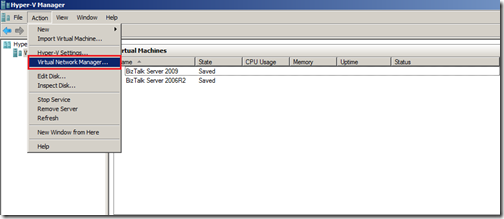
- Select Virtual Network Manager… from the action pane.
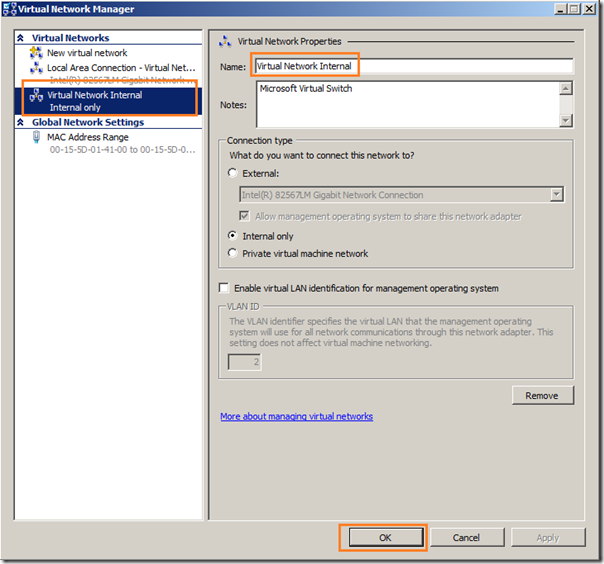
- Select New virtual network and choose to Add an Internal network.
- Give the new virtual network the name you want hit OK.
Now to setup Internet Connection Sharing:
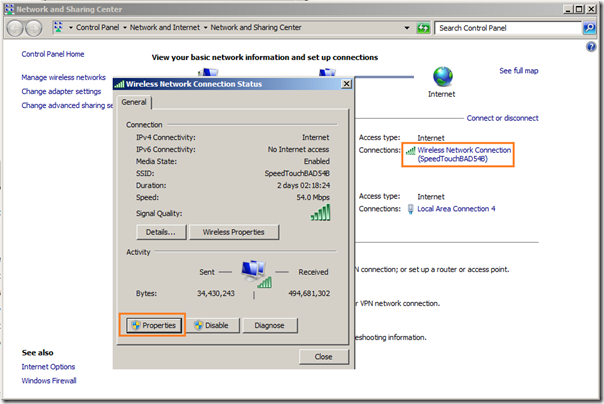
- Open the Control Panel and open Network and Sharing Center.
- Select Manage network connections from the list on the left.
- Locate the icon for your wireless network adapter, right click on it and select Properties.
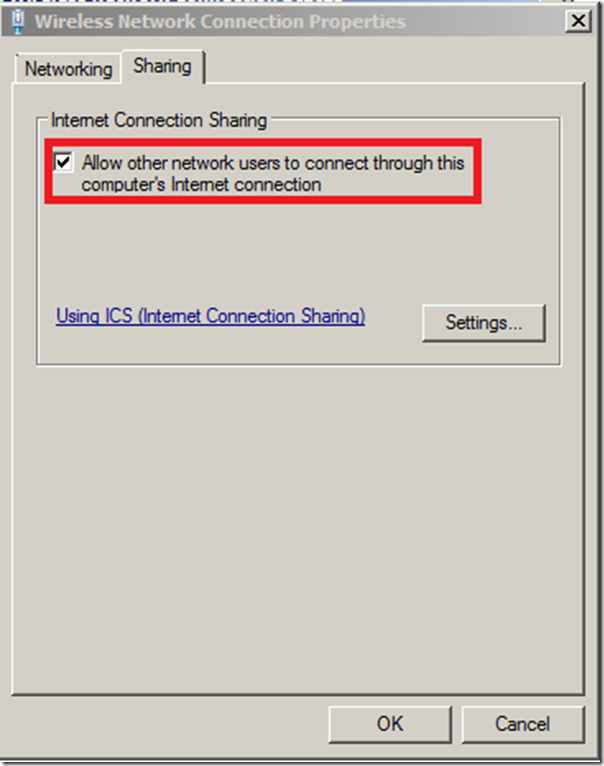
- Change to the Sharing tab.
- Check Allow other network users to connect through this computer’s Internet connection.
- If you have multiple network adapters you will need to select the specific entry for the internal virtual network switch.
- Click OK.
It is important to take these steps. By creating virtual internal network and performing these steps you will get access to internet also inside your virtual machines.
Having this setup you can now create your own virtual machine by following steps below (going through a wizard basically).
- Select New… Virtual Machine from the action pane.
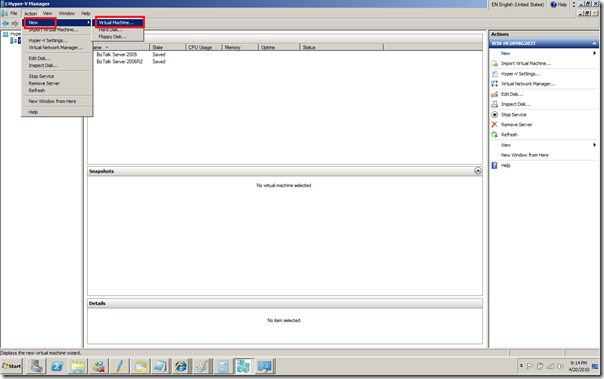
- Specify Name and Location and Click Next.
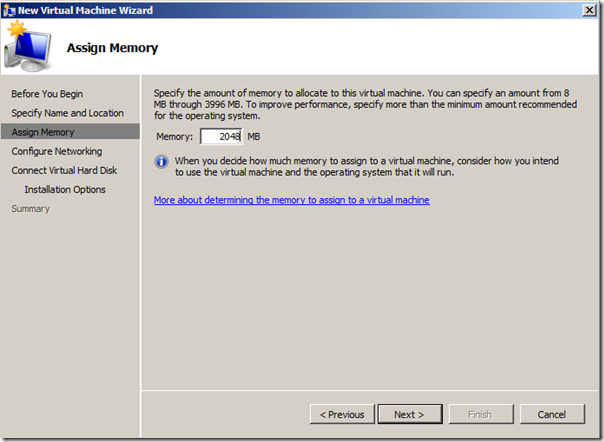
- Assign Memory and Click Next.
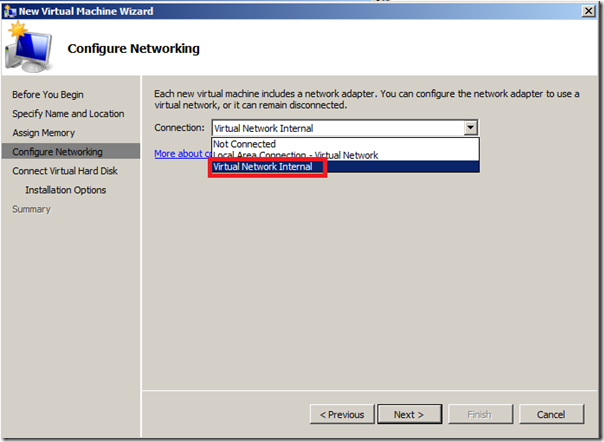
- Configure Network by selecting correct connection and Click Next.
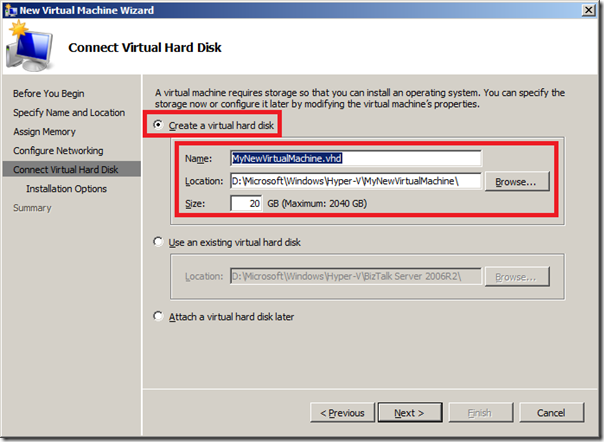
- Connect Virtual Hard disk choose Create a virtual hard disk and Click Next.
- Install Options, select option install an operating system form image file (.iso).
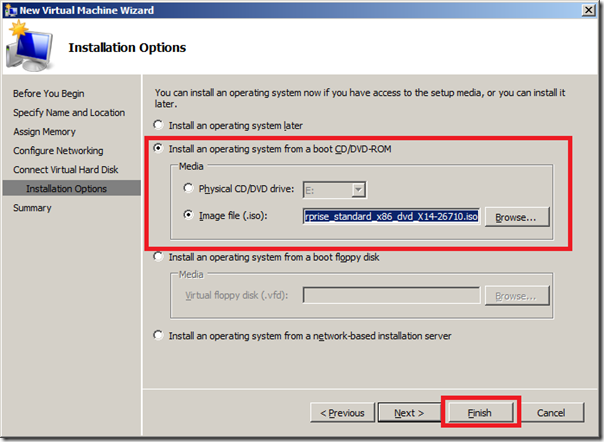
- Last page is summary page where you click finish.
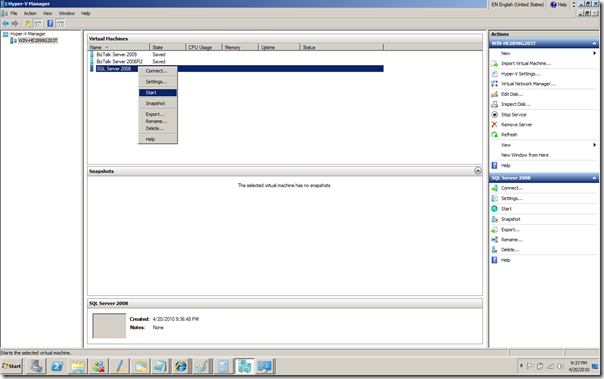
You then have to point to your machine, right click and click start (I was building a new machine anyway, and that one is called SQL Server 2008).

Virtual machine will start spinning up and connection to machine will be established and installation of OS in this case will start.
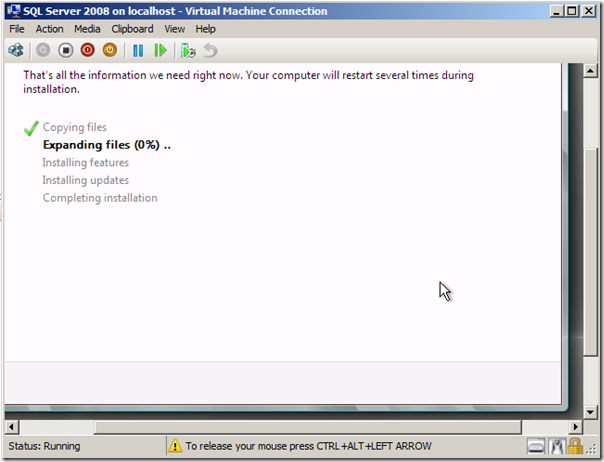
Steps followed here are the same as virtual machine I build for BizTalk 2009 environment. Start installing OS, which is Windows 2008 Enterprise Edition. Then updating, service packs, SQL Server 2008 Enterprise Edition, updating, service packs, Visual Studio, updating service packs, BizTalk Server 2009, updating, service packs and hotfix.
Following steps are important to have your virtual machine work properly and have access to internet to have you OS updated, and so on. As soon as you login on Windows 2008 OS, you will notice that internet or network access not available of present. If you look in device manager you will see as depicted below.
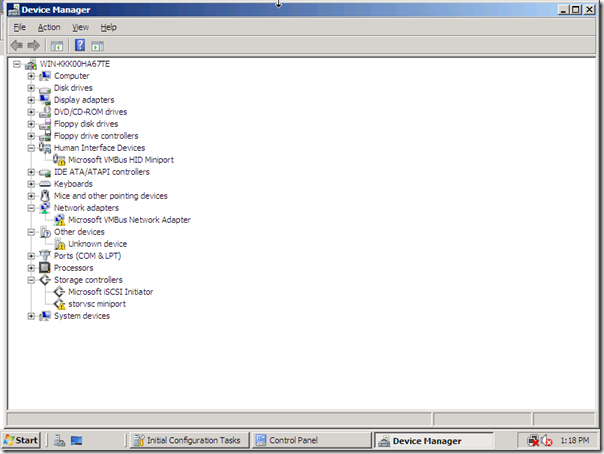
As you can see network access icon has a red cross. At first I was baffled and could not figure out what was going on and posted a question on forums. I was experiencing this error: The network adapter "Microsoft VMBus Network Adapter" is experiencing driver or hardware related issues. Later I looked in the event viewer and saw this message:
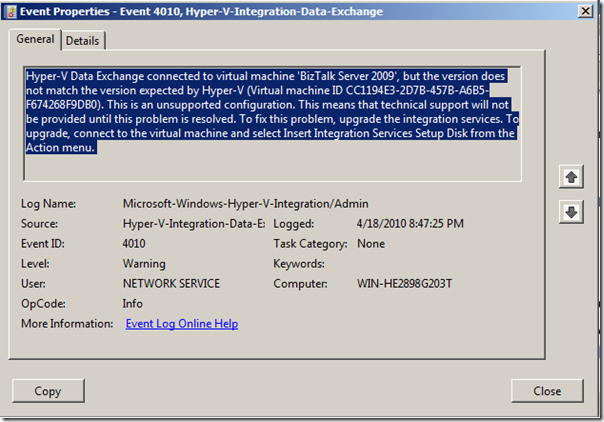
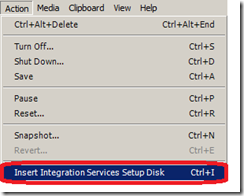
And then it hit me I had to perform this in action menu as depicted below:
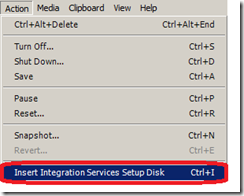
That is what I did and you will the following happening as in picture below:
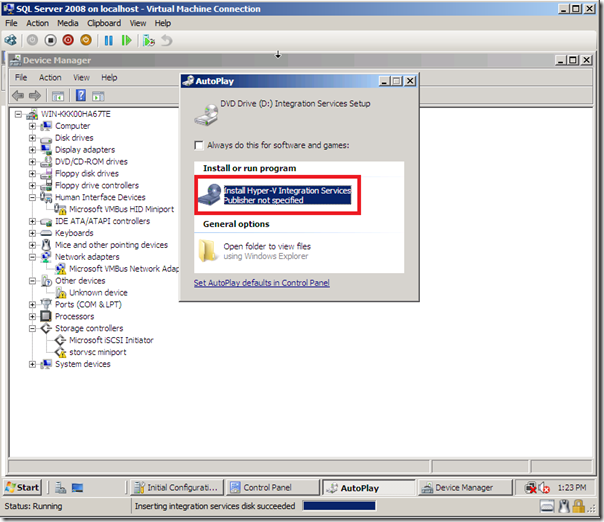
I installed these Hyper-V Integration Services. You will get following warning, which you will need to confirm. This is an important step! Click Yes to restart.
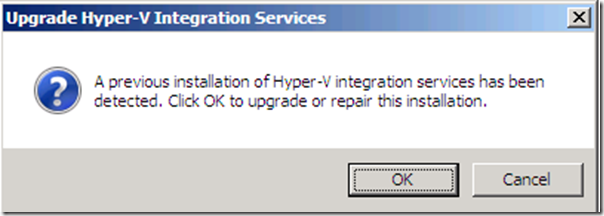
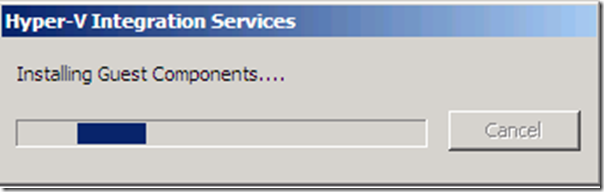
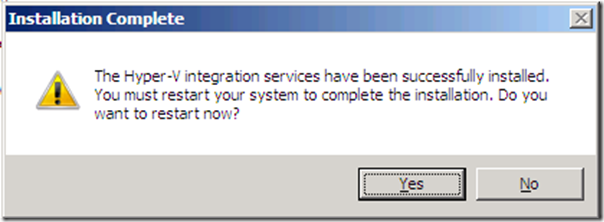
A result of these steps is that your environment has been upgraded and HAL layer is updated, and so on. You will see when you log in again, all device exclamation marks are gone and internet/network access is there. Also you do not have to use CTRL + ALT + LEFT ARROW any more to leave virtual machine.

Another possibility with Hyper-V is importing or using vhd file that you have created in the past with VPC. I copied a BizTalk 2006 R2 vhd file from my portable hard drive and copied on my laptop. I went through the same steps as with creating a new virtual machine, but instead of creating a new hard disk when reaching Connect Virtual Hard disk you choose use an existing hard disk and then proceed. Steps to undertake here to make your machine function properly and have connection to internet is to start machine after it is setup, virtual machine spins up as described before and OS will start. Login and inside machine you will have to uninstall the Virtual Machine Additions.
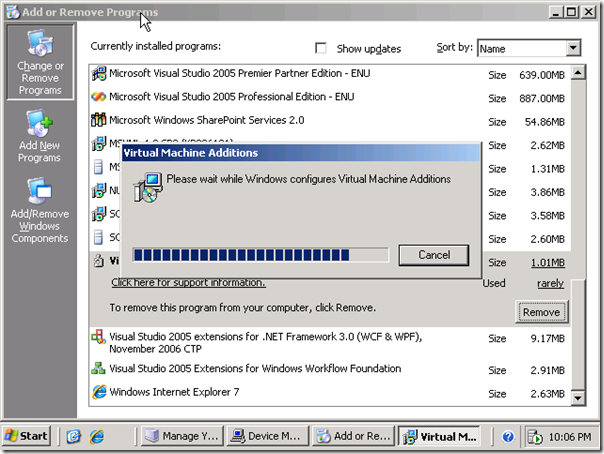
Reboot and next step is to action menu and select Insert Integration Services Setup Disk.
You will see message as displayed below and click OK.
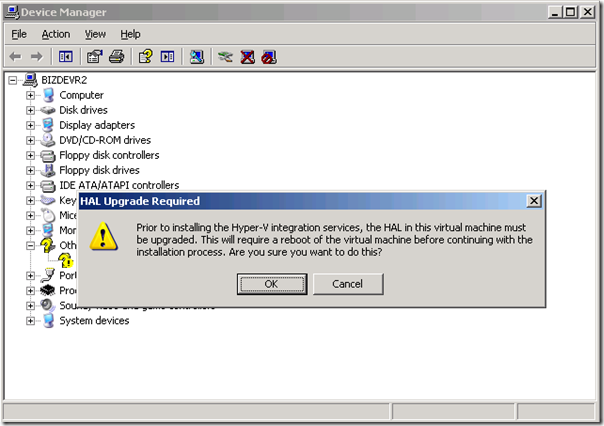
A new reboot will be required afterwards, but then your environment is setup properly with connection to the internet. Performing the necessary steps explained in this post can help to build virtual machines for new BizTalk Versions or use already build environments from VPC.
I foresee in the future that laptops for BizTalk Developer/Consultants will be equipped with Windows 2008 R2 Server, with enough power onboard like 8 to 16 Gb of memory, quad of more cores CPU and Solid State Disks. This will bring tremendous power to developers/consultants in future as they will need to support, have experience with BizTalk 2006 R2, 2009 and 2010 versions of BizTalk. Having this kind of hardware available will make your life easier in that aspect.
Technorati: BizTalk BizTalk Server 2009hyper v
by community-syndication | Apr 20, 2010 | BizTalk Community Blogs via Syndication
Orchestration debugger can be a life-saver when looking for troublesome processing. This is one of the great things BizTalk can do while working with the development environment. This tool should be used with extreme care in a production environment. It can block processing. BizTalk will show lots of activity with little output. Recently a customer had a problem resulting in thousands of suspended artifacts. It turns out one orchestration was in “In Breakpoint” mode. This shows in the console when viewing orchestrations. In this case it was one in thousands.
This leads to some good advice. When deploying applications along with making sure tracking is turned off for all artifacts (pipelines are on by default), turn off the ability to set breakpoints.
If the “Track Events” section checkbox for “Shape start and end” is disabled then orchestration breakpoints cannot be set. If a breakpoint has been set right click on the orchestration and clear all breakpoints. This sounds like a no brainer, but not when looking for one orchestration in thousands. No errors are provided. BizTalk does not stop working. The behavior is somewhat unpredictable because it depends on the orchestration and the application design as to the behavior.