by community-syndication | Apr 24, 2010 | BizTalk Community Blogs via Syndication
Hi all
As many of you know, I am writing this book on
BizTalk along side some great names of the community.
Anyway, I was just writing about the Scope shape for orchestrations and decided to
go through the documentation of this to see if I missed something. And indeed there
was a small detail I missed, which you can find at http://msdn.microsoft.com/en-us/library/aa560150(BTS.10).aspx –
it states that “You can nest scopes up to 44 levels deep.”
I thought that was a funny number and decided to test it.
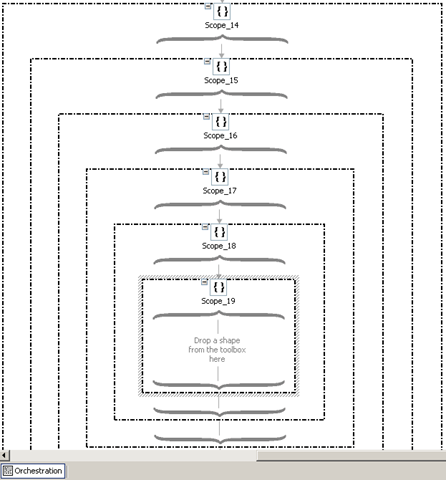
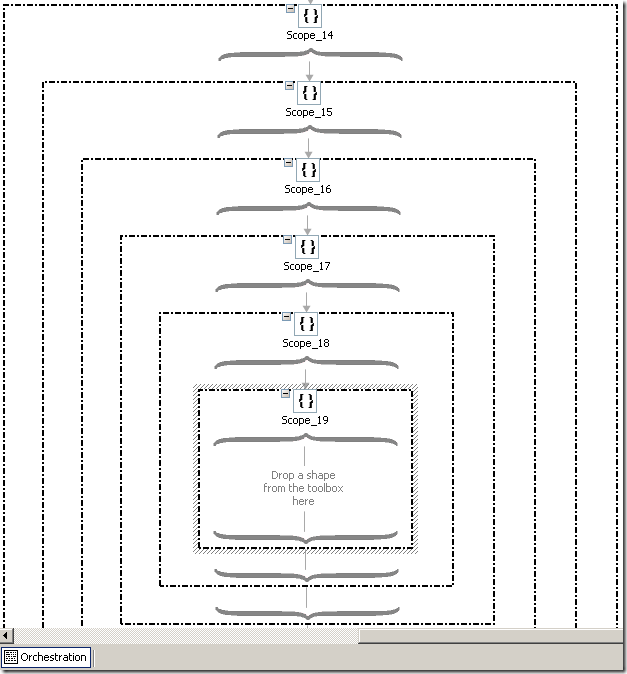
So I started adding Scope shapes and at 19 nested Scope shapes I had this:
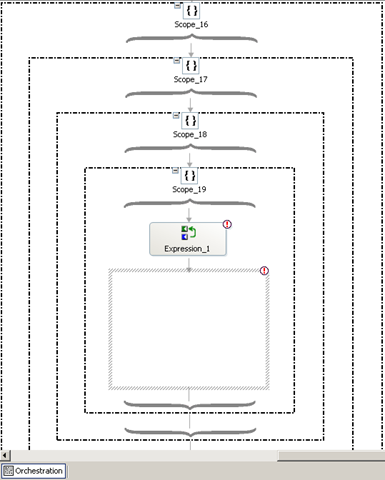
which looks just fine. BUT, after adding an expression shape to the content of the
19’th Scope shape and adding the 20’th Scope shape I get this:
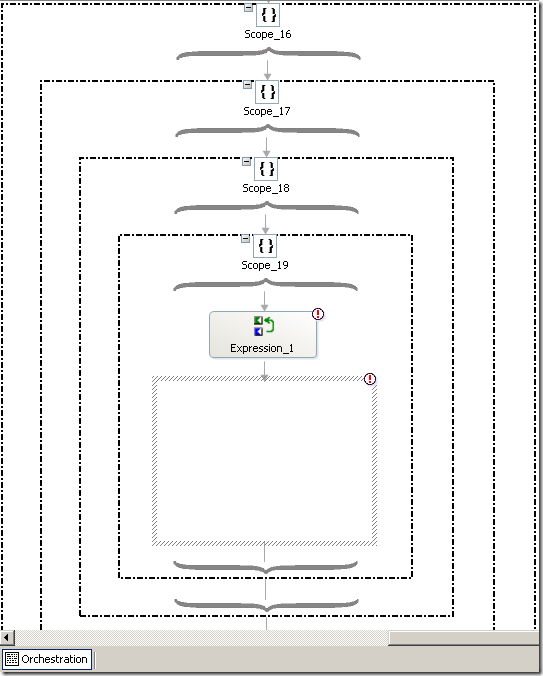
which is not fine.
So basically, the orchestration designer will not show you the Scopes at level 20
or deeper. You can still add them, though – and it compiles just fine even at 47 levels
of Scope shapes, actually – haven’t bothered trying more levels than that.
Now, some of you (all of you?) may sit and wonder: Come on, how probable is it that
anyone will do that? An I completely agree – if you get above 10 levels of nested
Scope shapes you are most definitely going in the wrong direction 🙂 I just wanted
to see if the documentation was correct on this.
I hope this will help someone, but it probably won’t 🙂
—
eliasen
by community-syndication | Apr 23, 2010 | BizTalk Community Blogs via Syndication
I’ve just spent the past couple of days looking into the ’upgrade’ process and I’ve
come out the other side. Here’s a quick jot down of what I encountered
-
Environment: Single WFE (Win2K8 R2 x64) and a separate SQL 2008 x64
‘backend’. Currently running SP2010 Beta2 with content databases around 13GB
-
I haven’t uninstalled any of the existing SP2010 beta 2 bits – this is a VM and I
have a handy backup, so in case of emergency break glass was my plan b.
-
Launched Setup.bat – up came the intro screen and I selected Install
PreReqs. In my case the prereqs failed their first installed with it grumbling
about the IIS Web Role not present (but this was an existing SP2010 server, so obviously
the Web Role was present and correctly running).
Ran the PreReqs again and all was fine 🙂
-
Setup.exe – launched the product, provided a license key and we ran
all the way through no problems. Interestingly thRege installer didn’t mention anything
like “I found a previous version of SharePoint do you want to ”
-
Configuration Wizard – this is where my trouble started.
-
As the Wizard was launching, it appeared not to be able to recognise the
fact that we were already in a farm. It was like we were running on a machine, where
the DB Server wasn’t accessible.
I ’removed’ the Server from the Farm (which were the only options in the Wizard for
me)
-
Re-ran the Wizard Take#2, supplied the details at the beginning,
Server Farm etc etc and sent it on it’s way.
-
The Wizard ran up to step 3 of 10 (where it configures the Farm DB
+ creates the SharePoint Web Services IIS Site) and then FAILED.
What I noticed that the FarmDB was created successfully, but the IIS side was failing.
(The error logs spoke about a socket based error – which I think was unrelated)
-
Tweaking, rerunning the Wizard didn’t fix thingsso here’s my fix.
-
I also uninstalled SP2010 RTM a few times and reinstalled, but same error
-
The fix –
-
Delete the \14 hive
-
Delete the Registry Key (and all under it) HKLM\Software\Microsoft\Shared
Tools\Web Server Extensions
-
Uninstall/reinstall the IIS Web Role on the Server
-
Repair the SharePoint install from rerunning Setup.exe –
repair option. (you might be able to leave this step out, but I deleted the
Web Server Extensions key after I installed SP2010, so I needed it to be rewritten)
-
Run Config Wizard
-
Upgrade any Content DBs you want to mount – through stsadm
-o addcontentdb or Mount-ContentDB (powershell)
>
I’m sure you’ll be able to shorten this list of steps when you upgrade, but I’ve got
to get on and configure this environment.
Have fun,
Mick.

by community-syndication | Apr 23, 2010 | BizTalk Community Blogs via Syndication
If you are using SharePoint 2010 RTM and get the following error:
Access denied by Business Data Connectivity.

It likely is because by default on installation the BCS service doesn’t have any permissions
enabled at all.
If you go to your central administration site and manage the BCS service and look
at Metadata Store permissions you’ll see that it is empty

Obviously in a production environment you want to be very deliberate about setting
the permissions, but when you are developing you just want your code to work 🙂
Here’s a PowerShell script that will set the permissions on the Metadata store (and
all BCS models deployed after you run the script) to all windows users. Again,
not something I recommend for a production machine – but something that is fine for
your development machine.
 1: $adminURL="HKLM:\SOFTWARE\Microsoft\Shared
Tools\Web Server Extensions\14.0\WSS\"
 2: $key
= Get-Item $adminURL
 3: $adminurl
= $key.GetValue(">CentralAdministrationURL")
 4: Write-Host
">Central admin site "+ $adminurl
 5: Add-pssnapin
Microsoft.SharePoint.PowerShell -ErrorAction SilentlyContinue
6:
 7: Write-Host
Updating BCS persmissions
 8: $obj
= Get-SPBusinessDataCatalogMetadataObject -BdcObjectType Catalog -ServiceContext $adminurl
 9: $right
= (1+2+0x10+4)
 10: $claim
= New-SPClaimsPrincipal -Identity 'c:0!.s|windows' -IdentityType
EncodedClaim
 11: Grant-SPBusinessDataCatalogMetadataObject
-Identity $obj -Principal $claim -Right $right
 12: Copy-SPBusinessDataCatalogAclToChildren
-MetadataObject $obj
 13: Write-Host
Complete

Check out my new book on REST.

by community-syndication | Apr 23, 2010 | BizTalk Community Blogs via Syndication
Do you enjoy trying to find free conference rooms for meetings? If you do, you’re probably a psycho who eats puppies. I work at the headquarter campus of a large company with dozens upon dozens of buildings. Apparently the sole function of my company is to hold meetings since it’s easier to find Hoffa’s body […]
by community-syndication | Apr 23, 2010 | BizTalk Community Blogs via Syndication
by community-syndication | Apr 23, 2010 | BizTalk Community Blogs via Syndication
A recent bug found in BTARN processing can cause stray text to appear in response messages. The issue is a temporary variable not being cleared. Here is a sample from a recent case.
<ActionIdentity>
<GlobalBusinessActionCode>Formally confirms the status of line item(s) in a Purchase Order. A Purchase Order line item may have one of the following states: accepted, rejected, or pending.</GlobalBusinessActionCode>
<InstanceIdentifier>md.o1loqohc.efs41f.</InstanceIdentifier>
<VersionIdentifier>V02.00</VersionIdentifier>
</ActionIdentity>
The Business Document Description is written to a temporary variable. It is only overwritten if “/ServiceHeader/ProcessControl/TransactionControl/ActionControl/ActionIdentity/description/FreeFormText” is populated. Since this is an optional value the temporary variable was not properly cleared leading to the stray text. A hot fix is available to rid the world of this menace.
A replacement S/MIME component is now available to remedy those cases with unexplained service validation errors. The error appears to be random, however in high volume processing the right circumstances happen frequently enough to generate a couple of failures a day. The “exsmime.dll” has to be updated to remedy the problem. The fix was to be included in BizTalk R2 SP1. Early releases of SP1 may not have the latest version, 8.2.254.0. The problem also exists in BizTalk 09.
by community-syndication | Apr 23, 2010 | BizTalk Community Blogs via Syndication
The Benchmark Wizard was release earlier this year, and even though we got lots of good feedback we’ve also got requests for some changes.
If you haven’t yet heard about this tool, the purpose of it is to verify your BizTalk environment performs as expected. There are two different scenarios you can run, a Messaging and an Orchestration scenario. Each of the scenarios has been tested on various environments and configuration. The result of these tests has provided the tool with a set of KPI’s, which your test result will be benchmarked against. For more information about the Benchmark Wizard:
Benchmark your BizTalk Server (Part 1) – Overview
Benchmark your BizTalk Server (Part 2) – How to install
Benchmark your BizTalk Server (Part 3) – Drill down and analyse
The most common feedback is related to the fact that it was very difficult to meet the KPI’s. A reason for this is that the original tests where executed while global tracking was disabled. This was unfortunate as the DTA tracking has ~30% overhead. We have done a re-run of all the tests, and updated the KPI’s for the new version (shown at the bottom of this page).
Further more, there seams to be a question of how to interpret the result. What does “Succeeded” mean? Does it reflect the best possible result or good enough? To make this more clear, we’ve implemented the “stop light approach”, where if you’ve Succeeded you should be proud of yourself and make a blog post, while an Acceptable result is nothing to be ashamed of.
There has also been some other fixes such as the resetting all the counters when you re-run the test, and fixing the CPU counters to show correct values.
Special thanks to Microsoft and Ewan Fairweather for letting me use their test lab!
Download BizTalk Benchmark Wizard from CodePlex
Scenario KPI’s: Messaging Single and Multi Message Box
|
# of Bts Srv
|
#CPU/Bts Srv
|
# SQL Srv
|
#CPU/SQL Srv
|
Msgs/Sec
|
Msgs/Sec
|
| 1 |
1 Quad |
(1) |
(1) |
160 |
200 |
| 1 |
1 Quad |
1 |
1 Quad |
280 |
350 |
| 1 |
1 Quad |
1 |
2 Quad |
390 |
490 |
| 1 |
1 Quad |
1 |
2 Quad |
560 |
700 |
| 2 |
1 Quad |
1 |
2 Quad |
620 |
770 |
| 2 |
2 Quad |
1 |
2 Quad |
730 |
910 |
| 2 |
2 Quad |
1 |
4 Quad |
780 |
980 |
Scenario KPI’s: Orchestration Single Message Box
|
# of Bts Srv
|
#CPU/Bts Srv
|
# SQL Srv
|
#CPU/SQL Srv
|
Msgs/Sec
|
Msgs/Sec
|
| 1 |
1 Quad |
(1) |
(1) |
110 |
140 |
| 1 |
1 Quad |
1 |
1 Quad |
170 |
210 |
| 1 |
1 Quad |
1 |
2 Quad |
190 |
240 |
| 1 |
1 Quad |
1 |
2 Quad |
220 |
270 |
| 2 |
1 Quad |
1 |
2 Quad |
230 |
290 |
| 2 |
2 Quad |
1 |
2 Quad |
260 |
320 |
| 2 |
2 Quad |
1 |
4 Quad |
300 |
370 |
Test environment:
| Type |
Model |
CPU Type |
# of CPUs |
# of Cores/CPU |
Architecture |
RAM |
Local Disks |
OS |
Software |
| Database |
DL785 |
Intel Xeon |
8 x 2.4 Ghz |
4 |
x64 |
130 GB |
2 x 72gb* |
Win2k8 SP2 EE 64bit |
SQL Server 2008 SP1 |
| BTS Receive host |
R805 |
Intel Xeon |
2 x 2.33 Ghz |
4 |
x64 |
8 GB |
2 x 72gb 10k SAS |
Win2k8 SP2 EE 64bit |
BizTalk Server 2009 |
| BTS Send host |
R805 |
Intel Xeon |
2 x 2.33 Ghz |
4 |
x64 |
8 GB |
2 x 72gb 10k SAS |
Win2k8 SP2 EE 64bit |
BizTalk Server 2009 |
| Load server |
R805 |
Intel Xeon |
2 x 2.33 Ghz |
4 |
x64 |
8 GB |
2 x 72gb 10k SAS |
Win2k8 SP2 EE 64bit |
BizTalk Benchmark Wizard |
| Back-end server |
R805 |
Intel Xeon |
2 x 2.33 Ghz |
4 |
x64 |
8 GB |
2 x 72gb 10k SAS |
Win2k8 SP2 EE 64bit |
Indigo Service |
* Storage: EMC Clarion CX-240 ( 5 solid state drives )
Configuration:
by community-syndication | Apr 23, 2010 | BizTalk Community Blogs via Syndication
I have been playing around with Azure since it was first released at the PDC. I have since then done several demos for Microsoft and my employer Logica. The demos have been pretty much the same demo over and over, why I stopped the project rather than deleting it.
To be fair, it’s pretty clear stated that this will continues to accrue charges, but if you’re doing demos like I have, -Make sure to delete it!!!
I got billed ~$700 since Feburuary.
by Richard | Apr 23, 2010 | BizTalk Community Blogs via Syndication
I’ve doing a lot of EDI related work in BizTalk lately and I have to say that I’ve really enjoyed it! EDI takes a while to get used to (see example below), but once one started to understand it I’ve found it to be a real nice, strict standard – with some cool features built into BizTalk!
UNB+IATB:1+6XPPC+LHPPC+940101:0950+1'
UNH+1+PAORES:93:1:IA'
MSG+1:45'
IFT+3+XYZCOMPANY AVAILABILITY'
ERC+A7V:1:AMD'
IFT+3+NO MORE FLIGHTS'
ODI'
TVL+240493:1000::1220+FRA+JFK+DL+400+C'
...
There are however some things that doesn’t work as expected …
Promoting values
According to the MSDN documentation.aspx) the EDI Disassembler by default promotes the following EDI fields: UNB2.1, UNB2.3, UNB3.1, UNB11; UNG1, UNG2.1, UNG3.1; UNH2.1, UNH2.2, UNH2.3.
There are however situation where one would like other values promoted.
I my case I wanted the C002/1001 value in the BGM segment. This is a value identifying the purpose of the document and I needed to route the incoming message based on the value.
The short version is that creating a property schema, promoting the field in the schema and having the EDI Disassembler promoting the value will not work (as with the XML Disassembler). To do this you’ll need to use a custom pipeline component to promote the value. Rikard Alard seem to have come to the same conclusion here.
Promote pipeline component to use
If you don’t want to spend time on writing your own pipeline component to do this yourself you can find a nice “promote component” on CodePlex here by Jan Eliasen.
If you however expect to receive lots and lots of big messages you might want to look into changing the component to use XPathReader and custom stream implementations in the Microsoft.BizTalk.Streaming.dll. You can find more detailed information on how to do that in this MSDN article.aspx).

by community-syndication | Apr 22, 2010 | BizTalk Community Blogs via Syndication
Microsoft have released a hotfix for information messages in the BizTalk Server 2009 event log that read something like “Communication with MessageBox <message box database name> on SQL Instance <SQL server instance name> has been re-established”, with event ID 6999 followed by a “Communication with all MessageBoxes has now been re-established” information entry with event […]