by community-syndication | Jun 20, 2010 | BizTalk Community Blogs via Syndication
I’ve been creating a lot of Native Activities lately and to do it I would add a new item to my project using the Code Activity template. I kept wishing for a Native Activity template so now I’ve created one.
Read more at Ron Jacobs Blog

by community-syndication | Jun 20, 2010 | BizTalk Community Blogs via Syndication
MockingBird v2 has almost reached RTM. Just a few more days to make some final touches and it will be ready. The team has been discussing how to take it further and one thing that’s been on my mind for a long time is the topic of mock BizTalk adapters. What I would like to […]
by community-syndication | Jun 20, 2010 | BizTalk Community Blogs via Syndication
I have been doing some work and research with ASP.NET MVC 2.0. My first interest was to try to figure out how to get Dependency Injection working with ASP.NET. I started doing investigating how to link in Springframework.net. This direction led me down a track that required some manual configuration. This is when i found […]
by community-syndication | Jun 19, 2010 | BizTalk Community Blogs via Syndication
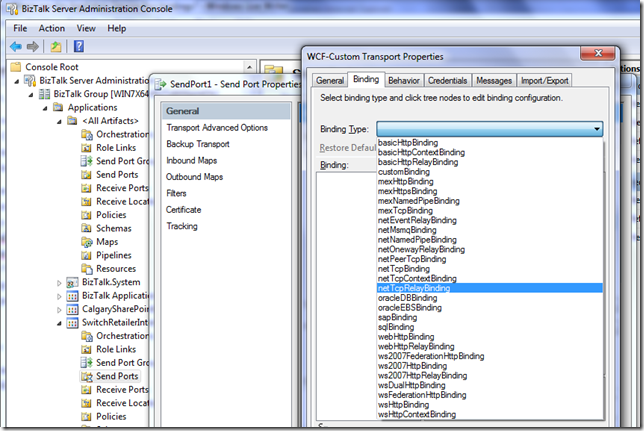
After installing the Windows Azure platform AppFabric SDK V1.0 – April Update I was expecting all of the AppFabric Service Bus relay bindings to be available inside of the BizTalk Admin Console but they were not. I could run the AppFabric Echo .Net Sample without any issues. After re-installing both the AppFabric SDK and BizTalk 2010 Beta I was still unable to find these bindings in the Admin console. I checked the machine.config files (both 32 bit and 64bit) and both files were updated. The problem with this is that I checked the .Net 2.0 config files.
After stumbling across Wade Wegner’s blog, the picture became much clearer. Wade explains “I soon realized that the issue was the machine.config file. When you install the Azure AppFabric SDK the relevant WCF extensions are added to the .NET Framework 2.0 machine.config file, which is shared by .NET Framework 3.0 and 3.5. However, .NET Framework 4.0 has its own machine.config file, and the SDK will not update the WCF extensions.”
To resolve the issue you need to run a utility called: RelayConfigurationInstaller.exe which can be found in C:\Program Files (x86)\Windows Azure platform AppFabric SDK\V1.0\Assemblies (64 bit machine) or C:\Program Files\Windows Azure platform AppFabric SDK\V1.0\Assemblies (32 bit machine) and provide an input file that includes
<?xml version ="1.0"?>
<configuration>
<startup>
<requiredRuntime safemode="true"
imageVersion="v4.0.30319"
version="v4.0.30319"/>
</startup>
</configuration>
The name of this file should be called RelayConfigurationInstaller.exe.config.
example:
C:\Program Files (x86)\Windows Azure platform AppFabric SDK\V1.0\Assemblies>RelayConfigurationInstaller.exe /i
After this command was run successfully, I could now see the “Cloud Bindings” including the NetTcpRelayBinding
by community-syndication | Jun 18, 2010 | BizTalk Community Blogs via Syndication
A recent friend asked me why he would be getting this error, and while debugging a splitting process, I came across this same error: hence this blog entry.
(not all of the time, but most of the time) What is going on is that the EDI data is being parsed by the EDI pipeline and resolving to a party, and I wanted to take a copy of that message and drop it to a folder so I can look at the claim to see what is really going on.
However when I assigned the data to the new message I simply sent it to the EDI assembler and assumed that it would create the EDI document and I could pass it along to the BA and they could tell me what needs to happen, yada yada yada.
All of the sudden I started getting these messages: Invalid character in data element.
What is actually going on is that when data is coming in, it is resolving to a particular party, but when going out, it does not have a party associated with it, so it defaults to the global party. The global party does not have a lot of the configuration options that are available to a defined party. One of those options are to allow decimals in EDI documents.
Here is what is in a defined party to get decimals to go in:
However, for the global party, the setting is not available.
This means that all data for a global party must be implicit decimal.
Change the following property to allow outbound decimals:
And in the orchestration, when you create the new message, make sure your code looks like this:
NewEDIMsg.MessagePart=EDIMsg.MessagePart;
NewEDIMsg(EDI.DestinationPartyName)=EDIMsg(MessageTracking.PartyName);
by community-syndication | Jun 18, 2010 | BizTalk Community Blogs via Syndication
Tomorrow is WCF day in New York city!!!!! My good friend and Tellago’s CTO Don Demsak will be doing a session WCF Data and RIA Services at the WCF fire-starter event to be hosted at the Microsoft offices in New York city. Don has a encyclopedic knowledge…(read more)
by community-syndication | Jun 18, 2010 | BizTalk Community Blogs via Syndication
Nearly a year ago I created a CancellationScope Activity sample and posted it on CodeGallery for .NET 4 Beta 1. I went back yesterday and updated it for .NET 4 RTM – the sample has some interesting points to demonstrate.
It shows how the CancellationScope Activity works but it also shows
- How to create a custom activity that causes the workflow to go idle for testing purposes
- How to create a unit test that verifies the behavior of a console application by simply verifying the text output to the console.
You can download the sample from http://code.msdn.microsoft.com/wf4CancellationScope
Read more at Ron Jacobs Blog
by community-syndication | Jun 17, 2010 | BizTalk Community Blogs via Syndication
With the sudden proliferation of cloud-based services it no longer seems like much of a novelty to have an elastic infrastructure capable of on-demand scaling provisioning of virtual resources. Instead it has become something almost taken for granted, and it may even be expected that this can be easily provided given enough on-premise machines. New terms, however misleading, have even been coined to describe such an internal elastic architecture, and software custom tailored to the challenge has already been developed many times over, with even more offerings still in development.
However, working in technology education layers an additional set of requirements on this common expectation. Customers themselves must be able to trigger the provisioning of virtual resources, and access them directly from out in the wild wild web. What I am describing, albeit rather cryptically, are Virtual Labs.
The concept of a Virtual Lab is that a student can access a web page, and after a short period of boot-up time, be connected directly into a virtual machine that is set up and ready to provide a hands-on learning experience. These activities are typically limited in duration and do not provide persistence of a student’s work between sessions. This is less than ideal for typical classroom learning where a student will be using a single machine all week, but makes perfect sense for self-paced learning offerings wherein the student may spend many weeks working through the same material and computing resources cannot be tied up for the entire duration.
Right now QuickLearn is working to deliver some of its core .NET, SharePoint 2010 and BizTalk Server 2010 training offerings in a self-paced format. As part of this effort, it was decided that the lab activities for these new courses should be provided as Virtual Labs available from anywhere and on any device or platform containing a capable RDP client. An additional requirement was that we must be able to use existing VHD files for the classes, without having to rebuild anything or re-install software.
After existing solutions were evaluated (including Microsoft’s Virtual Machine Manager Self-Service Portal), it was decided that the solution should be built internally. Development was completed at the beginning of this week, and the resulting experience was even better than I had initially imagined.
(click for a larger view)
The solution ended up ultimately consisting of four separate components. The first was QuickLearn’s online player application. This provides the interface through which a student can initiate a Virtual Lab. Once the student decides to begin a virtual lab, a request is sent to a Virtual Lab Service. The Virtual Lab Service is a WCF service that is responsible for managing a pool of Hyper-V servers, and routing control messages to start / stop virtual machines. It is also responsible for providing the client with updates about the status of their request. Once the Virtual Lab Service receives the request, WMI is used to spin-up the requested instance (from a known save state). Within each instance, an application is running that will call back to the Virtual Lab Service when it realizes that the machine is back online. Once the Virtual Lab Service knows that the machine is online, it provides the client with connection details for accessing the Virtual Machine. Throughout all of this there is a processing loop that ensures VMs are properly destroyed whenever the time allocated for a given lab has expired.
Since RDP is being used for connectivity, the student can be offered an embedded connection within their browser (given that they are using Internet Explorer). If their browser will not support an embedded connection, they are provided connection details and instructions to connect directly to the image. One really interesting implication of this is that students running Windows 7 will be able to access newer Virtual Labs with true multi-monitor support.
The implications of using Hyper-V on the back-end is that we are able to share machines with up to three students and still provide a killer experience with multiple cores and up to 4GB of RAM per instance.
Overall, the development was more or less straight-forward, only requiring ~30 human-hours of time, and the reward for students will be incredible.
by community-syndication | Jun 17, 2010 | BizTalk Community Blogs via Syndication
In .NET 3.5, we created the REST Starter Kit as a way to get you up and running with RESTful services. Now that .NET 4 is out, people are asking how to do things like API Key Verification in .NET 4. In this episode, I’ll walk you through a sample based on my blog post on the subject.
by community-syndication | Jun 17, 2010 | BizTalk Community Blogs via Syndication
In this episode, Michael McKeown describes the security model used in Windows Server AppFabric, which spans Windows Security Groups and SQL Server Database Roles.

