by community-syndication | Sep 15, 2010 | BizTalk Community Blogs via Syndication
Note: The following steps do not represent a supportable configuration by Microsoft and extreme caution should be used when following these steps. To my knowledge, these steps are complete, but it is possible that I missed something. These steps have been tested in a Send Port Subscription scenario. Use these instructions at your own risk.
At the organization that I work for, we are rolling out SharePoint 2010. We currently run BizTalk 2009 and at this point in time, the BizTalk 2009 SharePoint Adapter Web Service isn’t supported with SharePoint 2010. BizTalk 2010 has been updated to support SharePoint 2010. We really have no choice but to head in this direction since upgrading to BizTalk 2010 just isn’t an option at this point in time.
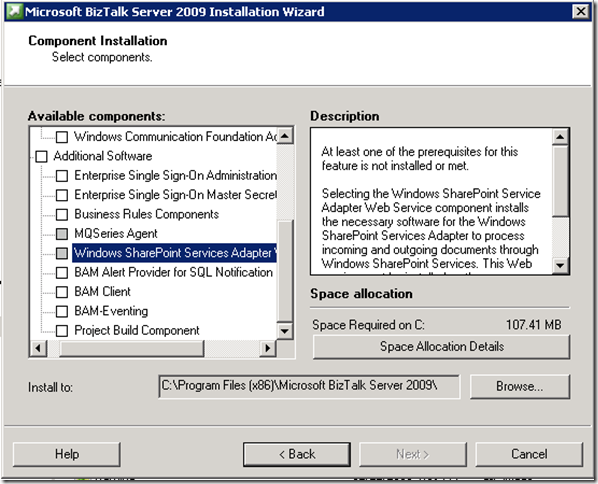
When you launch the BizTalk 2009 installation on a SharePoint 2010 Server you will not be able to install the Windows SharePoint Services Adapter Web Service as it is not able to detect the pre-requisite Windows SharePoint Services v 3.0 files.
Mick Badran has a post that helped me out tremendously. However, I found that I had to take a few additional steps so I will recap exactly what we did in order for us to get this to function in our environment.
We had an existing MOSS 2007 server that had the BizTalk Adapter Web Service installed and functioning correctly. Since you cannot use the BizTalk installation wizard to install this Web Service, we decided to reverse engineer what was deployed on MOSS 2007 and manually deploy on SharePoint 2010.
- Copy the c:\program files\Microsoft BizTalk 2009 folder from your MOSS 2007 Server to your SharePoint 2010 Server
- Create the BTSharePointAdapterWS Web Application in IIS Manager and set the physical path to C:\Program Files (x86)\Microsoft BizTalk Server 2009\Business Activity Services\BTSharePointV3AdapterWS
Note: This path represents a 64 bit installation.
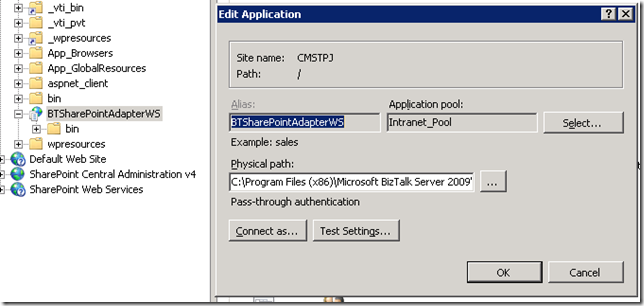
- We leveraged the existing App Pool that the SharePoint Site was using
- Modify the web.config to set the appropriate SharePoint Enabled Hosts, if required. For us, we use AD Groups and had to change to reflect our “DEV” AD group
- Rebind the Microsoft.SharePoint.dll to point to version 14.
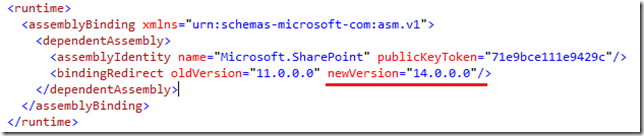
- We removed the Document Tag so that we could browse the WSDL properly. See this post for more info.

- We then exported two keys from the Registry on our MOSS 2007 Server and import them on your SharePoint 2010 Server:
- [HKEY_LOCAL_MACHINE\SOFTWARE\Microsoft\BizTalk Server]
- [HKEY_LOCAL_MACHINE\SOFTWARE\Wow6432Node\Microsoft\BizTalk Server]
- At this point we thought we were done and attempted to push a message from BizTalk 2009 to SharePoint 2010 but discovered the following message in event viewer:
Event Type: Warning
Event Source: BizTalk Server 2009
Event Category: (1)
Event ID: 5743
Date: 9/10/2010
Time: 1:37:51 PM
User: N/A
Computer: SERVER
Description:
The adapter failed to transmit message going to send port "SendPort1" with URL "wss://SERVER:80/DropOffLibrary". It will be retransmitted after the retry interval specified for this Send Port. Details:"System.Web.Services.Protocols.SoapException: Server was unable to process request. —> System.IO.FileNotFoundException: Could not load file or assembly ‘Microsoft.BizTalk.KwTpm.OfficeImporters2, Version=3.0.1.0, Culture=neutral, PublicKeyToken=31bf3856ad364e35’ or one of its dependencies. The system cannot find the file specified.
File name: ‘Microsoft.BizTalk.KwTpm.OfficeImporters2, Version=3.0.1.0, Culture=neutral, PublicKeyToken=31bf3856ad364e35’
at Microsoft.BizTalk.KwTpm.WssAdapter.BTSharePointAdapterWS..ctor()
WRN: Assembly binding logging is turned OFF.
To enable assembly bind failure logging, set the registry value [HKLM\Software\Microsoft\Fusion!EnableLog] (DWORD) to 1.
Note: There is some performance penalty associated with assembly bind failure logging.
To turn this feature off, remove the registry value [HKLM\Software\Microsoft\Fusion!EnableLog].
— End of inner exception stack trace —
This error was triggered by the Windows SharePoint Services receive location or send port with URI wss://SERVER:80/DropOffLibrary.
Windows SharePoint Services adapter event ID: 12462".
For more information, see Help and Support Center at http://go.microsoft.com/fwlink/events.asp.
Once again it was back to the MOSS 2007 server and more specifically, a trip to the GAC where we discovered the following BizTalk Dlls. This list included the Microsoft.BizTalk.KwTpm.OfficeImporters2.dll that was mentioned in the event viewer. We then pulled these dlls off of the installation CD and gac’d them on the SharePoint 2010 server using gacutil.

After Gac’ing these assemblies we had success pushing messages from BizTalk 2009 to SharePoint 2010.
Note: There is another option which I have not tried that Kirk Hofer discusses here. It involves installing WSS v3.0 SP2, but not configuring it, so that the BizTalk install Wizard thinks it is installed. Our SharePoint team was not crazy about having these other dlls on their fresh SharePoint 2010 server so we were unable to proceed with this approach.
by community-syndication | Sep 15, 2010 | BizTalk Community Blogs via Syndication
When we asked you what you wanted to see on endpoint.tv, one of the top three most requested topics was How to Unit Test Workflows.
On this episode, I’ll show you how to test
- Simple activities using WorkflowInvoker
- Complex activities with bookmarks and WorkflowApplication
- WorkflowServices with Extensions
Links from this episode
- Workflow Test Helper (MSDN Code Gallery)
- How to Unit Test Activities
- How to Unit Test Activities with Bookmarks
- How to Unit Test Workflow Services
Ron Jacobs
blog http://blogs.msdn.com/rjacobs
twitter @ronljacobs
What do you want to see on endpoint.tv?

by community-syndication | Sep 14, 2010 | BizTalk Community Blogs via Syndication
Last week I had the pleasure of presenting two sessions at the Heartland Developer’s Conference (HDC). I love this show and meeting people from the central region, as well as catching up with colleagues. It’s always a great time and this year was no different.
For those who attended, you can find the samples I used at the links below. Thanks for coming, I hope you enjoyed the show as much as I did.
WF 4 from hello world to real world
Choosing service technology

by community-syndication | Sep 14, 2010 | BizTalk Community Blogs via Syndication
Following in the great tradition of other learn through example LINQ example pages, such as 101 LINQ Samples, here’s the first in a series of posts on StreamInsight query examples. This will first show up on this blog, then get migrated over to a centralized site on the StreamInsight developer center. We’ve got a fairly hefty queue we’re working through, but if there are specific examples or query patterns of interest, please post them in the comments.
Each query pattern will consist of a description of the input set (.csv file samples for most of these, for ease of use), the full query and the output result. For more complicated query structures the query pattern will also be described visually, using a Visio stencil (to be described in future posts).
The full application framework that I use to run all of these queries, associate with the data sources, etc, is available here. Illustration of the techniques in this codebase will be left for a future post.
In this post:
- Filtering
- How do I filter a stream, keeping only specific events?
- How do I filter on multiple conditions?
- Windows and Aggregates
[Where] – How do I filter a stream, keeping only specific events?
var filterQuery = from e in inputStream
    where e.Value > 20
    select e;
[Input] Result:
SimpleFilter,Point,12:00:02.000,1001,77
SimpleFilter,Point,12:00:03.000,1001,44
SimpleFilter,Point,12:00:04.000,1001,22
SimpleFilter,Point,12:00:05.000,1001,51
SimpleFilter,Point,12:00:06.000,1001,46
SimpleFilter,Point,12:00:07.000,1001,71
SimpleFilter,Point,12:00:08.000,1001,37
SimpleFilter,Point,12:00:09.000,1001,45
|
How do I filter on multiple conditions?
var filterQuery = from e in inputStream
where e.Value > 70 && e.SensorId == 1001
select e;
[Input] Result:
MediumFilter,Point,12:00:01.001,1001,77
MediumFilter,Point,12:00:03.010,1001,72
MediumFilter,Point,12:00:12.082,1001,73
MediumFilter,Point,12:00:14.145,1001,75
MediumFilter,Point,12:00:14.154,1001,71
MediumFilter,Point,12:00:15.163,1001,74
MediumFilter,Point,12:00:15.172,1001,73
|
How can I calculate aggregates, such as averages, over a set of events?
All aggregates, such as averages, min, max, etc are calculated over a set of events. Sets of events in StreamInsight are defined as those events falling into a window. Windows operate over a period of time (hopping, tumbling and sliding), or over a specific number of events (count).
How can I calculate the average of all events in the last 5 seconds?
var query = from window in inputStream.TumblingWindow(
    TimeSpan.FromSeconds(5),
    HoppingWindowOutputPolicy.ClipToWindowEnd)
select new
{
    Average = window.Avg(e => e.Value)
};
[Input] Result:
SimpleTumblingWindow,Point,12:00:00.000,32.2
SimpleTumblingWindow,Point,12:00:05.000,50
|
How can I calculate the average of all events in the past 5 seconds, every 2 seconds?
var query = from window in inputStream.HoppingWindow(
                TimeSpan.FromSeconds(5), TimeSpan.FromSeconds(2),
                HoppingWindowOutputPolicy.ClipToWindowEnd)
            select new
            {
                Average = window.Avg(e => e.Value)
            };
[Input] Result:
SimpleHoppingWindow,Point,11:59:56.000,14
SimpleHoppingWindow,Point,11:59:58.000,31.66666
SimpleHoppingWindow,Point,12:00:00.000,32.2
SimpleHoppingWindow,Point,12:00:02.000,48
SimpleHoppingWindow,Point,12:00:04.000,45.4
SimpleHoppingWindow,Point,12:00:06.000,49.75
SimpleHoppingWindow,Point,12:00:08.000,41
|
How can I calculate the average of all events in the past 5 seconds, every time a new event arrives?
var query = from window in inputStream.HoppingWindow(
    TimeSpan.FromSeconds(5), TimeSpan.FromSeconds(2),
    HoppingWindowOutputPolicy.ClipToWindowEnd)
select new
{
    Average = window.Avg(e => e.Value)
};
[Input] Result:
SimpleSlidingWindow,Point,12:00:00.000,14
SimpleSlidingWindow,Point,12:00:01.000,9
SimpleSlidingWindow,Point,12:00:02.000,31.66
SimpleSlidingWindow,Point,12:00:03.000,34.75
SimpleSlidingWindow,Point,12:00:04.000,32.2
SimpleSlidingWindow,Point,12:00:05.000,39.6
SimpleSlidingWindow,Point,12:00:06.000,48
SimpleSlidingWindow,Point,12:00:07.000,46.8
SimpleSlidingWindow,Point,12:00:08.000,45.4
SimpleSlidingWindow,Point,12:00:09.000,50
SimpleSlidingWindow,Point,12:00:10.000,49.75
SimpleSlidingWindow,Point,12:00:11.000,51
SimpleSlidingWindow,Point,12:00:12.000,41
SimpleSlidingWindow,Point,12:00:13.000,45
|
How can I calculate the average of the past 5 events?
Aggregates over a set number of events are produced using Count windows. As of StreamInsight v1, Count Windows cannot use the built-in aggregate functions (Count, Avg, Min, Max), but must instead use user-defined aggregates. The code sample below shows the use of a simple averaging function with a count window with the user defined aggregate.
var query = from window in inputStream.CountByStartTimeWindow(
            5, CountWindowOutputPolicy.PointAlignToWindowEnd)
        select new
        {
            Average = window.UserDefinedAverage(e => e.Value)
        };

 public class SimpleAggregate : CepAggregate<double, double>
{
    public override double GenerateOutput(IEnumerable<double> payloads)
    {
        return payloads.Average();
    }
}

public static class MyExtensions
{
    [CepUserDefinedAggregate(typeof(SimpleAggregate))]
    public static double UserDefinedAverage<InputT>(this CepWindow<InputT> window,
        Expression<Func<InputT, double>> map)
    {
        throw CepUtility.DoNotCall();
    }

}
[Input] Result:
SimpleCountWindow,Point,12:00:04.000,32.2
SimpleCountWindow,Point,12:00:05.000,39.6
SimpleCountWindow,Point,12:00:06.000,48
SimpleCountWindow,Point,12:00:07.000,46.8
SimpleCountWindow,Point,12:00:08.000,45.4
SimpleCountWindow,Point,12:00:09.000,50
|
How do I measure the rate of arriving events every two seconds?
var query = from window in inputStream.TumblingWindow(
    TimeSpan.FromSeconds(2),
    HoppingWindowOutputPolicy.ClipToWindowEnd)
select new
{
    Count = window.Count()
};
[Input] Result:
SimpleEventCount,Point,12:00:00.000,54
SimpleEventCount,Point,12:00:02.000,54
SimpleEventCount,Point,12:00:04.000,54
SimpleEventCount,Point,12:00:06.000,54
SimpleEventCount,Point,12:00:08.000,54
SimpleEventCount,Point,12:00:10.000,54
SimpleEventCount,Point,12:00:12.000,54
SimpleEventCount,Point,12:00:14.000,54
SimpleEventCount,Point,12:00:16.000,54
|
How can I calculate the average of each group of events in the last 10 seconds?
For this example, we’ll calculate the average of each sensor every 10 seconds. We do this by first grouping the events by the sensor ID, then performing the same aggregation operation from the average without grouping (with the addition of the group key – in this case, the sensor ID).
var query = from e in inputStream
group e by e.SensorId into sensorGroups
from window in sensorGroups.TumblingWindow(
    TimeSpan.FromSeconds(10),
    HoppingWindowOutputPolicy.ClipToWindowEnd)
select new
{
    SensorId = sensorGroups.Key,
    Average = window.Avg(e => e.Value)
};
[Input] Result:
GroupedTumblingWindow,Point,12:00:00.000,42.1,1001
GroupedTumblingWindow,Point,12:00:00.000,34.6,1002
GroupedTumblingWindow,Point,12:00:00.000,39.7,1003
GroupedTumblingWindow,Point,12:00:00.000,50.9,1004
GroupedTumblingWindow,Point,12:00:00.000,30.7,1005
GroupedTumblingWindow,Point,12:00:00.000,38.3,1006
GroupedTumblingWindow,Point,12:00:00.000,36.8,1007
GroupedTumblingWindow,Point,12:00:00.000,41.7,1008
GroupedTumblingWindow,Point,12:00:00.000,34.4,1009
GroupedTumblingWindow,Point,12:00:10.000,46.375,1001
GroupedTumblingWindow,Point,12:00:10.000,40.2,1002
GroupedTumblingWindow,Point,12:00:10.000,36.1,1003
GroupedTumblingWindow,Point,12:00:10.000,37.3,1004
GroupedTumblingWindow,Point,12:00:10.000,31.8,1005
GroupedTumblingWindow,Point,12:00:10.000,41.4,1006
GroupedTumblingWindow,Point,12:00:10.000,40.3,1007
GroupedTumblingWindow,Point,12:00:10.000,43.5,1008
GroupedTumblingWindow,Point,12:00:10.000,43.3,1009
|
How can I calculate the average of each group of events in the last 20 seconds, every 10 seconds?
var query = from e in inputStream
group e by e.SensorId into sensorGroups
from window in sensorGroups.TumblingWindow(
    TimeSpan.FromSeconds(10),
    HoppingWindowOutputPolicy.ClipToWindowEnd)
select new
{
    SensorId = sensorGroups.Key,
    Average = window.Avg(e => e.Value)
};
[Input] Result:
GroupedHoppingWindow,Point,11:59:50.000,42.1,1001
GroupedHoppingWindow,Point,11:59:50.000,34.6,1002
GroupedHoppingWindow,Point,11:59:50.000,39.7,1003
GroupedHoppingWindow,Point,11:59:50.000,50.9,1004
GroupedHoppingWindow,Point,11:59:50.000,30.7,1005
GroupedHoppingWindow,Point,11:59:50.000,38.3,1006
GroupedHoppingWindow,Point,11:59:50.000,36.8,1007
GroupedHoppingWindow,Point,11:59:50.000,41.7,1008
GroupedHoppingWindow,Point,11:59:50.000,34.4,1009
GroupedHoppingWindow,Point,12:00:00.000,44,1001
GroupedHoppingWindow,Point,12:00:00.000,37.0,1002
GroupedHoppingWindow,Point,12:00:00.000,38.1,1003
GroupedHoppingWindow,Point,12:00:00.000,44.8,1004
GroupedHoppingWindow,Point,12:00:00.000,31.2,1005
GroupedHoppingWindow,Point,12:00:00.000,39.7,1006
GroupedHoppingWindow,Point,12:00:00.000,38.4,1007
GroupedHoppingWindow,Point,12:00:00.000,42.5,1008
GroupedHoppingWindow,Point,12:00:00.000,38.4,1009
GroupedHoppingWindow,Point,12:00:10.000,46.3,1001
GroupedHoppingWindow,Point,12:00:10.000,40.2,1002
GroupedHoppingWindow,Point,12:00:10.000,36.1,1003
GroupedHoppingWindow,Point,12:00:10.000,37.3,1004
GroupedHoppingWindow,Point,12:00:10.000,31.8,1005
GroupedHoppingWindow,Point,12:00:10.000,41.4,1006
GroupedHoppingWindow,Point,12:00:10.000,40.3,1007
GroupedHoppingWindow,Point,12:00:10.000,43.5,1008
GroupedHoppingWindow,Point,12:00:10.000,43.3,1009
|
How can I calculate the average of each group of events in the past 10 seconds, every time a new event in that group arrives?
var query = from e in inputStream
    .AlterEventDuration(e => TimeSpan.FromSeconds(10))
group e by e.SensorId into sensorGroups
from window in sensorGroups
    .SnapshotWindow(SnapshotWindowOutputPolicy.Clip)
select new
{
    SensorId = sensorGroups.Key,
    Average = window.Avg(e => e.Value)
};
[Input] Result:
<snip>
GroupedSlidingWindow,Point,12:00:17.017,39.3,1008
GroupedSlidingWindow,Point,12:00:17.018,39.4,1009
GroupedSlidingWindow,Point,12:00:17.019,43,1001
GroupedSlidingWindow,Point,12:00:17.020,43.1,1002
GroupedSlidingWindow,Point,12:00:17.021,37.8,1003
GroupedSlidingWindow,Point,12:00:17.022,41.8,1004
GroupedSlidingWindow,Point,12:00:17.023,33.7,1005
GroupedSlidingWindow,Point,12:00:17.024,39.2,1006
GroupedSlidingWindow,Point,12:00:17.025,40.3,1007
GroupedSlidingWindow,Point,12:00:17.026,38.9,1008
GroupedSlidingWindow,Point,12:00:17.027,40.8,1009
<snip>
|
How can I find the events with the largest value every 10 seconds?
var query = (from window in inputStream.TumblingWindow(
    TimeSpan.FromSeconds(10),
    HoppingWindowOutputPolicy.ClipToWindowEnd)
from e in window
orderby e.Value descending
select e).Take(1);
[Input] Result:
TopK_TumblingDescending,Point,12:00:00.000,1006,80
TopK_TumblingDescending,Point,12:00:00.000,1007,80
TopK_TumblingDescending,Point,12:00:00.000,1009,80
TopK_TumblingDescending,Point,12:00:10.000,1007,81
|
Note that for the first group of events, the are three events with the same maximum value (80) in the same window of time. Thusly, all of the events with that maximum value are returned.
How can I find the events with the two smallest values in the last 10 seconds, every 5 seconds?
var query = (from window in inputStream.HoppingWindow(
   TimeSpan.FromSeconds(10), TimeSpan.FromSeconds(5),
   HoppingWindowOutputPolicy.ClipToWindowEnd)
from e in window
orderby e.Value ascending
select e).Take(2);
[Input] Result:
TopK_HoppingAscending,Point,11:59:55.000,1004,2
TopK_HoppingAscending,Point,11:59:55.000,1007,1
TopK_HoppingAscending,Point,11:59:55.000,1008,2
TopK_HoppingAscending,Point,12:00:00.000,1001,1
TopK_HoppingAscending,Point,12:00:00.000,1001,1
TopK_HoppingAscending,Point,12:00:00.000,1003,1
TopK_HoppingAscending,Point,12:00:00.000,1007,1
TopK_HoppingAscending,Point,12:00:05.000,1001,1
TopK_HoppingAscending,Point,12:00:05.000,1001,1
TopK_HoppingAscending,Point,12:00:05.000,1003,1
TopK_HoppingAscending,Point,12:00:10.000,1004,2
TopK_HoppingAscending,Point,12:00:10.000,1004,2
TopK_HoppingAscending,Point,12:00:10.000,1006,2
TopK_HoppingAscending,Point,12:00:10.000,1007,2
TopK_HoppingAscending,Point,12:00:15.000,1004,2
TopK_HoppingAscending,Point,12:00:15.000,1007,2
|
Note the same effect herein – multiple events having identical minimum values in the window.
How can I find the group of events with the highest average value in the last 10 seconds?
This query is performed in two stages. In the first query we determine the average value of each sensor over the past 10 seconds (using a group by, a tumbling window and an Avg()). Then we take the output of that aggregate and perform a snapshot on top of that (against each set of events from the first query), sort it and take the top value.
var avg = from e in inputStream
    group e by e.SensorId into sensorGroups
    from window in sensorGroups.TumblingWindow(
        TimeSpan.FromSeconds(10),
        HoppingWindowOutputPolicy.ClipToWindowEnd)
    select new
    {
        SensorId = sensorGroups.Key,
        Average = window.Avg(e => e.Value)
    };

var query = (from win in avg
        .SnapshotWindow(SnapshotWindowOutputPolicy.Clip)
    from e in win
    orderby e.Average descending
    select e).Take(1);
[Input] Results:
TopK_GroupTumblingDescending,Point,12:00:00.000,50.9,1004
TopK_GroupTumblingDescending,Point,12:00:10.000,46.3,1001
|
How can I find the group of events with the highest maximum value in the last 10 seconds, every 5 seconds?
var avg = from e in inputStream
    group e by e.SensorId into sensorGroups
    from window in sensorGroups.HoppingWindow(
        TimeSpan.FromSeconds(10), TimeSpan.FromSeconds(5),
        HoppingWindowOutputPolicy.ClipToWindowEnd)
    select new
    {
        SensorId = sensorGroups.Key,
        Maximum = window.Max(e => e.Value),
        Minimum = window.Min(e => e.Value)
    };

var query = (from win in avg
        .SnapshotWindow(SnapshotWindowOutputPolicy.Clip)
    from e in win
    orderby e.Maximum descending
    select e).Take(1);
[Input] Result:
TopK_GroupHoppingDescending,Point,11:59:55.000,80,6,1006
TopK_GroupHoppingDescending,Point,11:59:55.000,80,1,1007
TopK_GroupHoppingDescending,Point,11:59:55.000,80,4,1009
TopK_GroupHoppingDescending,Point,12:00:00.000,80,6,1006
TopK_GroupHoppingDescending,Point,12:00:00.000,80,6,1006
TopK_GroupHoppingDescending,Point,12:00:00.000,80,1,1007
TopK_GroupHoppingDescending,Point,12:00:00.000,80,1,1007
TopK_GroupHoppingDescending,Point,12:00:00.000,80,2,1009
TopK_GroupHoppingDescending,Point,12:00:00.000,80,4,1009
TopK_GroupHoppingDescending,Point,12:00:05.000,80,2,1006
TopK_GroupHoppingDescending,Point,12:00:05.000,80,6,1006
TopK_GroupHoppingDescending,Point,12:00:05.000,80,1,1007
TopK_GroupHoppingDescending,Point,12:00:05.000,80,2,1009
TopK_GroupHoppingDescending,Point,12:00:10.000,81,2,1007
TopK_GroupHoppingDescending,Point,12:00:15.000,81,2,1007
TopK_GroupHoppingDescending,Point,12:00:15.000,81,2,1007
TopK_GroupHoppingDescending,Point,12:00:20.000,81,2,1007
|
Again, note the StreamInsight engine delivering the values corresponding to the top maximum value (80 or 81).
How can I detect if two events with the same ID value are received within a specific time frame, such as a 5 minute window?
To implement this query, we use a sliding window to look at arriving events in a 5 minute window, grouped by their ID value. We then count the number of events in the window with that ID, and filter for groups that have less than 2 events.
var eventCount = from e in inputStream.AlterEventDuration(e => TimeSpan.FromMinutes(5))
     group e by e.SensorId into sensorGroups
     from win in sensorGroups.SnapshotWindow(SnapshotWindowOutputPolicy.Clip)
     select new
     {
         SensorId = sensorGroups.Key,
         Count = win.Count()
     };

var query = from e in eventCount
where e.Count >= 2
select e;
[Input] Result:
DetectMultipleInWindow,Point,12:05:16.206,4,1008
DetectMultipleInWindow,Point,12:05:16.207,4,1009
DetectMultipleInWindow,Point,12:05:16.208,3,1001
DetectMultipleInWindow,Point,12:05:16.209,3,1002
<snip>
|
by community-syndication | Sep 14, 2010 | BizTalk Community Blogs via Syndication
The next update to the Windows Azure AppFabric LABS environment is scheduled for September 16, 2010 (Thursday). Users will have NO access to the AppFabric LABS portal and services during the scheduled maintenance down time.
When:
START: September 16, 2010, 10am PST
END: September 16, 2010, 6pm PST
Impact Alert:
The AppFabric LABS environment (Service Bus, Access Control and portal) will be unavailable during this period. Additional impacts are described below.
Action Required:
Existing accounts and Service Namespaces will be available after the services are deployed.
However, ACS Identity Providers, Rule Groups, Relying Parties, Service Keys, and Service Identities will NOT be persisted and restored after the maintenance. Users will need independently back up their data if they wish to restore them after the Windows Azure AppFabric LABS September Release.
Thanks for working in LABS and giving us valuable feedback. Once the update becomes available, we’ll post the details via this blog.
Stay tuned for the upcoming LABS release!
The Windows Azure AppFabric Team
by community-syndication | Sep 14, 2010 | BizTalk Community Blogs via Syndication
If you are learning about Windows Identity Foundation, you should install these components in the following order:
WIF runtime
WIF SDK
Identity Developer Training Kit
Note that there is a version of the SDK and Training Kit for Visual Studio 2008 SP1 (.NET 3.5) and one for Visual Studio 2010 (.NET 4.0.)
Note: Side by side installation of the WIF […]
by community-syndication | Sep 14, 2010 | BizTalk Community Blogs via Syndication
Centralized configuration is one of the most attractive features of SO-Aware . The ability of managing WCF bindings and behaviors from a central location without imposing the scalability limitations of a message broker, addresses some of the key challenges…(read more)
by community-syndication | Sep 13, 2010 | BizTalk Community Blogs via Syndication
Testing WorkflowServices is harder because you have to host the service somehow. There are several options you can use.
- You can host the service in IIS/AppFabric by configuring your project to use IIS
- You can try to insure that the local ASP.NET Development Server is started before testing (See my post on the Canonical REST Entity Service for an example).
- You can self-host the service
Unless your solution forces you to option 1 or 2 for some reason I recommend self-hosting for unit testing of services. The best solution is to use named pipes for your protocol because this avoids issues with URL ACLs for HTTP and Firewalls for TCP.
In this post I’m going to show you how I tested an example WorkflowService that illustrates how you can use the AddDefaultExtensionProvider method to insure that an extension exists when your activity needs it.
Watch endpoint.tv – How To Unit Test Workflows
Download Workflow Test Helper (including this sample code) from MSDN Code Gallery
Download WF4 WorkflowService Extension Example
For a simple example I created an activity that stores an integer and then returns a string that reports the number that was stored into the extension and the average of the collection. Here is a screenshot of the UI with the string returned from the activity.
When you have an activity that requires an extension you can provide a default mechanism for creating the extension if it does not already exist in the extensions collection by overriding Activity.CacheMetadata
public sealed class GetAverage : CodeActivity<string>

{

    public InArgument<int> Number { get; set; }


    protected override void CacheMetadata(CodeActivityMetadata metadata)

    {

        // This activity requires the average extension

        metadata.RequireExtension(typeof(AverageExtension));


        // This lambda will create one if it is not already added

        metadata.AddDefaultExtensionProvider(() => new AverageExtension());


        base.CacheMetadata(metadata);

    }


    protected override string Execute(CodeActivityContext context)

    {

        // Get the average extension

        var average = context.GetExtension<AverageExtension>() as AverageExtension;


        if (average == null)

            throw new InvalidOperationException("Cannot access AverageExtension");


        var number = Number.Get(context);


        // Store this number

        average.StoreNumber(number);


        return string.Format("Stored {0}, Average:{1}", number, average.GetAverage());

    }

}
Testing The Workflow Service
Once again, using WorkflowTestHelper makes it easy to test a WorkflowService. Step by step, here is how you do it.
- Add a reference to the binaries from WorkflowTestHelper to your test project
- Enable Deployment for VS Unit Tests
- Add the DeploymentItem attribute for the WorkflowService. The path is relative to the path of the solution (.sln) file
- Use the WorkflowServiceTestHost class to host the test
In the code below I’m using the ServiceClient proxy class from the web project to communicate with the workflow service
private readonly Binding _binding = new NetNamedPipeBinding();


/// <summary>

///   The endpoint address to be used by the test host

/// </summary>

private readonly EndpointAddress _serviceAddress = new EndpointAddress("net.pipe://localhost/TestService");


/// <summary>

/// Tests the GetAverage Activity by invoking it in a WorkflowService multiple times

/// </summary>

[TestMethod()]

[DeploymentItem("Service1.xamlx")]

public void ShouldInvokeAverageExtension()

{

    const string expected1 = "Stored 33, Average:33";

    const string expected2 = "Stored 44, Average:38.5";

    const string expected3 = "Stored 55, Average:44";


    string result1;

    string result2;

    string result3;


    // Self-Host Service1.xamlx using Named Pipes

    using (var testHost = WorkflowServiceTestHost.Open("Service1.xamlx", _serviceAddress.Uri))

    {

        // Use the generated proxy with named pipes

        var proxy = new ServiceClient(_binding, _serviceAddress);


        try

        {

            result1 = proxy.GetData(33);

            result2 = proxy.GetData(44);

            result3 = proxy.GetData(55);

            proxy.Close();

        }

        catch (Exception)

        {

            proxy.Abort();

            throw;

        }


        Assert.AreEqual(expected1, result1);

        Assert.AreEqual(expected2, result2);

        Assert.AreEqual(expected3, result3);

    }

}
So Get Busy Testing
I’m always surprised by how many people do little or no testing of their code. You can probably tell that I’m a big fan of testing and going even further I’m a proponent of Test Driven Development (or Test-First if you prefer). When I started working with WF4 I realized how difficult this can be. We still have a way to go to make it even better and I’ve got some more surprises in store for you so stay tuned…
by community-syndication | Sep 13, 2010 | BizTalk Community Blogs via Syndication
Since I am coming from the BizTalk world, I feel very comfortable in implementing Workflows, using the Microsoft Workflow 4.0 runtime. The engine comes with a lot of similar activities and capabilities as the XLANG engine provides us for more than 6 years already.
One of the typical patterns that involve long-running processes is correlation and more in specific; convoys. Each time different messages or calls have to be related together in order to achieve something, we are using convoys. Convoy processing is a typical design pattern.
There are two types of convoys, which I will demonstrate both:
- Sequential convoy – Items that are in a order, one after another (often messages of the same type)
- Parallel convoy – Items that are received in any order, but that all need to be received, before processing continues
The main difference in the two types of convoys is the order of receipt of the items.
This blog post shows two scenarios in an online travel website, where users can rate hotels and where hotels can be added, by consuming workflow services from any mash-up application.
The source code of my example can be found here.
Correlation
The concept of correlation is when various messages or calls need to be linked to the same instance of a long-running workflow. These calls are typically related, based on content in the message, or based on context of the call (endpoint, for example).
An example would be where a workflow creates a user task on sharepoint and waits until the task is completed. Multiple instances of that workflow can run in the same time and tasks can be completed in a different order than they were created. Therefore, we need to make sure that the task completion event is sent to the correct instance of the workflow that created the task. This is called correlation.
Setting up correlation in workflow is done by defining a variable of type System.ServiceModel.Activities.CorrelationHandle This variable needs to be scoped to make sure it is available for all receive and send activities that need to participate in the correlation.
Correlations are initialized or followed on the messaging activities.
Sequential convoy
The first scenario is a workflow service that processes the user rates that is given for a certain hotel. A requirement for the web site is that the rating for a hotel should only be published when at least 5 user ratings have been received for that specific hotel. This is needed to prevent influences of one specific rating.
This is why we implement a sequential convoy.
Receive web service operation and correlation
For this, we have a sequential workflow that exposes a web operation: SubmitHotelReview. This operation accepts a message of type HotelReview (a datacontract class with some basic parameters). All calls to this workflow service will be correlated to the same instance, based on the hotel ID.
The most important settings of the Receive activity are shown in the following table.
| Correlations |
|
| CorelatesOn |
Xpath query key 1 : sm:body()/xg0:HotelReview/xg0:HotelId |
| CorrelatesWith |
hotelCorrelationHandle |
| CorrelationInitializers |
no specific changes here (only the request/response handle is initialized here) |
| Misc |
|
| OperationName |
SubmitHotelReview |
| ServiceContractName |
{http://blog.codit.eu/workflow/convoys/}IHotelReviewService |
| CanCreateInstance |
Checked (True) |
A common mistake is to also specify an entry in the CorrelationInitializers property to initialize the content-based correlation handle (hotel id). But doing this, would result in the following exception: An instance key of value {Guid}’ already exists. This could be because there are multiple MessageQuerySets defined that evaluate to the same CorrelationKey. The reason for this is that the correlationkey would be initialized twice, which results in this exception.
Looping condition for sequential convoy
To have the sequential convoy implemented, we need to correlate all receives together and therefore we can add a loop, using the DoWhile activity. Here we just add the receive activity in the ‘Do-body’ and define a condition, making sure we continue processing (publishing the hotel rates), once five reviews have been received.
The entire workflow service is displayed in the following screenshot. (click to enlarge)
Parallel convoy
The second scenario is a workflow service that adds new hotel information to the web site. Data for these hotels is coming from two different sources. One consumer of our workflow service will pas in the general hotel information, where another consumer application will provide pricing information for a hotel. The sequence of these events is unknown and can differ from one hotel to the other.
This is why we implement a parallel convoy.
Receive web service operations and correlation
For this, we have a sequential workflow that exposes two web operations: SubmitGeneralInformation and SubmitPricingInformation. Both receive activities correlate on the same correlation handle that is correlating on the HotelId.
The settings of the receive activities are similar to the settings listed in the sequential convoy sample.
Parallel activity for multiple receives
To make sure we can accept both pricing and general information, we add the receives in a parallel shape, which will make sure we will only continue the flow if all branches have been successfully completed (and thus all messages have been received).
The entire workflow service is displayed in the following screenshot. (click to enlarge)
Conclusion
Implementing convoys in Workflow 4.0 is rather straightforward and does not require very complex tricks or configuration. The magic is all in the correlation handling.
In comparison with BizTalk, I really like the sequential convoy implementation, since we now only have the need for one single Receive activity, where in BizTalk the initializing and the following receives need to be two different shapes.
Something I curious about is if there would also be the concept of zombie messages that are typical in the convoy scenarios. (when a message is being received at the exact same time as the looping condition of the sequential convoy completes.)
Sam Vanhoutte, CODit

by community-syndication | Sep 13, 2010 | BizTalk Community Blogs via Syndication
Last week my long-suffering blog reader, Bloglines, pulled the plug. I’ve since moved over to Google Reader and like it more than the last time I tried it. Coinciding with Bloglines’ death, a few blog posts cropped up talking about the state of RSS (readers) and the evolved information gathering habits of the consumer. I […]