by community-syndication | Jan 7, 2011 | BizTalk Community Blogs via Syndication
The WorkflowApplication is a great way to execute your workflows in process. Usually the fact that the WorkflowApplication is asynchronous is a great thing but there are cases when a little more synchronous execution is nice. For example executing a workflow and updating the state of the user interface is much simpler when the WorkflowApplication.Run() doesn’t finish until all work is done.
The key to creating a synchronous WorkflowApplication is using its SynchronizationContext. Normally you set this to SynchronizationContext.Current so everything executes on the current UI thread. However this is still an asynchronous call and the Run doesn’t block.
Take this very simple workflow and its execution output.
var workflow = new Sequence()
{
Activities = {
new WriteLine(){ Text="Workflow is running"}
}
};
var app = new WorkflowApplication(workflow);
Console.WriteLine("Before WorkflowApplication.Run()");
app.Run();
Console.WriteLine("After WorkflowApplication.Run()");
As you can see the Run() didn’t block and the message after the Run() was printed before the message from the workflow.
Executing the workflow synchronously
Making this workflow execute in a synchronous fashion is easy and requires only a very small change by setting the SynchronizationContext to a custom implementation.
var workflow = new Sequence()
{
Activities = {
new WriteLine(){ Text="Workflow is running"}
}
};
var app = new WorkflowApplication(workflow);
app.SynchronizationContext = new SynchronousSynchronizationContext();
Console.WriteLine("Before WorkflowApplication.Run()");
app.Run();
Console.WriteLine("After WorkflowApplication.Run()");
The SynchronousSynchronizationContext used is real simple. The workflow internals always call the Post() method to execute work, so all we need to do is just execute the delegate passed with the state passed.
class SynchronousSynchronizationContext : SynchronizationContext
{
public override void Post(SendOrPostCallback d, object state)
{
d(state);
}
}
Executing an asynchronous workflow
Using this same SynchronousSynchronizationContext with an asynchronous workflow works just fine. If I add the following simple bookmarked activity to the workflow and execute it I get the following result:
The code to execute the workflow is as follows
var workflow = new Sequence()
{
Activities = {
new WriteLine(){ Text="Workflow has started"},
new MyBookmarkedActivity(),
new WriteLine(){ Text="Workflow is done"}
}
};
var app = new WorkflowApplication(workflow);
app.SynchronizationContext = new SynchronousSynchronizationContext();
app.Idle = e => Console.WriteLine("WorkflowApplication.Idle called");
Console.WriteLine("Before WorkflowApplication.Run()");
app.Run();
Console.WriteLine("After WorkflowApplication.Run()");
Console.WriteLine();
Console.WriteLine("Before WorkflowApplication.ResumeBookmark()");
Console.WriteLine("ResumeBookmark: {0}", app.ResumeBookmark("MyBookmark", null));
Console.WriteLine("After WorkflowApplication.ResumeBookmark()");
And the bookmarked activity is as follows:
class MyBookmarkedActivity : NativeActivity
{
protected override bool CanInduceIdle
{
get { return true; }
}
protected override void Execute(NativeActivityContext context)
{
Console.WriteLine("Creating bookmark");
context.CreateBookmark("MyBookmark", BookmarkResumed);
}
private void BookmarkResumed(NativeActivityContext context, Bookmark bookmark, object value)
{
Console.WriteLine("Bookmark resumed");
}
}
Conclusion
A simple yet effective addition to the workflow runtime for that special case where the asynchronous behavior is not quite what you want but the WorkflowInvoker is not flexible enough
Enjoy!
www.TheProblemSolver.nl
Wiki.WindowsWorkflowFoundation.eu
by community-syndication | Jan 6, 2011 | BizTalk Community Blogs via Syndication
If we have to get data from the SQL database, the standard way is to use a receive port with SQL adapter.
SQL receive adapter is a solicit-response adapter. It periodically polls the SQL database with queries. That’s only way it can work. Sometimes it is undesirable. With new WCF-SQL adapter we can use the lightweight approach but still with the same principle, the WCF-SQL adapter periodically solicits the database with queries to check for the new records.
Imagine the situation when the new records can appear in very broad time limits, some – in a second interval, others – in the several minutes interval. Our requirement is to process the new records ASAP. That means the polling interval should be near the shortest interval between the new records, a second interval. As a result the most of the poll queries would return nothing and would load the database without good reason. If the database is working under heavy payload, it is very undesirable.
Do we have other choices? Sure. We can change the polling to the “eventing”.
The good news is the SQL server could issue the event in case of new records with triggers. Got a new record -the trigger event is fired. No new records – no the trigger events – no excessive load to the database.
The bad news is the SQL Server doesn’t have intrinsic methods to send the event data outside. For example, we would rather use the adapters that do listen for the data and do not solicit. There are several such adapters-listeners as File, Ftp, SOAP, WCF, and Msmq. But the SQL Server doesn’t have methods to create and save files, to consume the Web-services, to create and send messages in the queue, does it?
Can we use the File, FTP, Msmq, WCF adapters to get data from SQL code?
Yes, we can. The SQL Server 2005 and 2008 have the possibility to use .NET code inside SQL code. See the
SQL Integration.
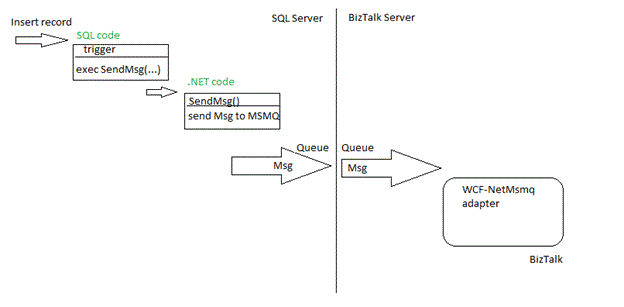
How it works for the Msmq, for example:
%u00b7 New record is created, trigger is fired
%u00b7 Trigger calls the CLR stored procedure and passes the message parameters to it
%u00b7 The CLR stored procedure creates message and sends it to the outgoing queue in the SQL Server computer.
%u00b7 Msmq service transfers message to the queue in the BizTalk Server computer.
%u00b7 WCF-NetMsmq adapter receives the message from this queue.
For the File adapter the idea is the same, the CLR stored procedure creates and stores the file with message, and then the File adapter picks up this file.
Using WCF-NetMsmq adapter to get data from SQL
I am describing the full set of the deployment and development steps for the case with the WCF-NetMsmq adapter.
Development:
1. Create the .NET code: project, class and method to create and send the message to the MSMQ queue.
2. Create the SQL code in triggers to call the .NET code.
Installation and Deployment:
1. SQL Server:
a. Register the CLR assembly with .NET (CLR) code
b. Install the MSMQ Services
2. BizTalk Server:
a. Install the MSMQ Services
b. Create the MSMQ queue
c. Create the WCF-NetMsmq receive port.
The detailed description is below.
Code
.NET code
using System.Xml;
using System.Xml.Linq;
using System.Xml.Serialization;
//namespace MyCompany.MySolution.MyProject – doesn’t work. The assembly name is MyCompany.MySolution.MyProject
// I gave up with the compound namespace. Seems the CLR Integration cannot work with it L. Maybe I’m wrong.
public class Event
{
static public XElement CreateMsg(int par1, int par2, int par3)
{
XNamespace ns = “http://schemas.microsoft.com/Sql/2008/05/TypedPolling/my_storedProc”;
XElement xdoc =
new XElement(ns + “TypedPolling”,
new XElement(ns + “TypedPollingResultSet0”,
new XElement(ns + “TypedPollingResultSet0”,
new XElement(ns + “par1”, par1),
new XElement(ns + “par2”, par2),
new XElement(ns + “par3”, par3),
)
)
);
return xdoc;
}
}
////////////////////////////////////////////////////////////////////////
using System.ServiceModel;
using System.ServiceModel.Channels;
using System.Transactions;
using System.Data;
using System.Data.Sql;
using System.Data.SqlTypes;
public class MsmqHelper
{
[Microsoft.SqlServer.Server.SqlProcedure]
// msmqAddress as “net.msmq://localhost/private/myapp.myqueue”;
public static void SendMsg(string msmqAddress, string action, int par1, int par2, int par3)
{
using (TransactionScope scope = new TransactionScope(TransactionScopeOption.Suppress))
{
NetMsmqBinding binding = new NetMsmqBinding(NetMsmqSecurityMode.None);
binding.ExactlyOnce = true;
EndpointAddress address = new EndpointAddress(msmqAddress);
using (ChannelFactory<IOutputChannel> factory = new ChannelFactory<IOutputChannel>(binding, address))
{
IOutputChannel channel = factory.CreateChannel();
try
{
XElement xe = Event.CreateMsg(par1, par2, par3);
XmlReader xr = xe.CreateReader();
Message msg = Message.CreateMessage(MessageVersion.Default, action, xr);
channel.Send(msg);
//SqlContext.Pipe.Send(); // to test
}
catch (Exception ex)
{
}
}
scope.Complete();
}
}
SQL code in triggers
— sp_SendMsg was registered as a name of the MsmqHelper.SendMsg()
EXEC sp_SendMsg‘net.msmq://biztalk_server_name/private/myapp.myqueue’, ‘Create’, @par1, @par2, @par3
Installation and Deployment
On the SQL Server
Registering the CLR assembly
1. Prerequisites: .NET 3.5 SP1 Framework. It could be the issue for the production SQL Server!
3. Copy files:
>copy “\Windows\Microsoft.net\Framework\v3.0\Windows Communication Foundation\Microsoft.Transactions.Bridge.dll” “\Program Files\Reference Assemblies\Microsoft\Framework\v3.0 \Microsoft.Transactions.Bridge.dll”
If your machine is a 64-bit, run two commands:
>copy “\Windows\Microsoft.net\Framework\v3.0\Windows Communication Foundation\Microsoft.Transactions.Bridge.dll” “\Program Files (x86)\Reference Assemblies\Microsoft\Framework\v3.0 \Microsoft.Transactions.Bridge.dll”
>copy “\Windows\Microsoft.net\Framework64\v3.0\Windows Communication Foundation\Microsoft.Transactions.Bridge.dll” “\Program Files\Reference Assemblies\Microsoft\Framework\v3.0 \Microsoft.Transactions.Bridge.dll”
4. Execute the SQL code to register the .NET assemblies:
— For x64 OS:
CREATE ASSEMBLY SMdiagnostics AUTHORIZATION dbo FROM ‘C:\Windows\Microsoft.NET\Framework\v3.0\Windows Communication Foundation\SMdiagnostics.dll’WITH permission_set = unsafe
CREATE ASSEMBLY [System.Web] AUTHORIZATION dbo FROM ‘C:\Windows\Microsoft.NET\Framework64\v2.0.50727\System.Web.dll’ WITH permission_set = unsafe
CREATE ASSEMBLY [System.Messaging] AUTHORIZATION dbo FROM ‘C:\Windows\Microsoft.NET\Framework\v2.0.50727\System.Messaging.dll’ WITH permission_set = unsafe
CREATE ASSEMBLY [System.ServiceModel] AUTHORIZATION dbo FROM ‘C:\Program Files (x86)\Reference Assemblies\Microsoft\Framework\v3.0\System.ServiceModel.dll’WITH permission_set = unsafe
CREATE ASSEMBLY [System.Xml.Linq] AUTHORIZATION dbo FROM ‘C:\Program Files\Reference Assemblies\Microsoft\Framework\v3.5\System.Xml.Linq.dll’WITH permission_set = unsafe
— For x32 OS:
–CREATE ASSEMBLY SMdiagnostics AUTHORIZATION dbo FROM ‘C:\Windows\Microsoft.NET\Framework\v3.0\Windows Communication Foundation\SMdiagnostics.dll’WITH permission_set = unsafe
–CREATE ASSEMBLY [System.Web] AUTHORIZATION dbo FROM ‘C:\Windows\Microsoft.NET\Framework\v2.0.50727\System.Web.dll’WITH permission_set = unsafe
–CREATE ASSEMBLY [System.Messaging] AUTHORIZATION dbo FROM ‘C:\Windows\Microsoft.NET\Framework\v2.0.50727\System.Messaging.dll’WITH permission_set = unsafe
–CREATE ASSEMBLY [System.ServiceModel] AUTHORIZATION dbo FROM ‘C:\Program Files\Reference Assemblies\Microsoft\Framework\v3.0\System.ServiceModel.dll’WITH permission_set = unsafe
5. Register the assembly with the external stored procedure:
CREATE ASSEMBLY [HelperClass] AUTHORIZATION dbo FROM ’<FilePath>MyCompany.MySolution.MyProject.dll’WITH permission_set = unsafe
where the <FilePath> – the path of the file on this machine!
6.Create the external stored procedure
CREATE PROCEDURE sp_SendMsg
(
@msmqAddress nvarchar(100),
@Action NVARCHAR(50),
@par1 int,
@par2 int,
@par3 int
)
AS EXTERNAL NAME HelperClear.MsmqHelper.SendMsg
Installing the MSMQ Services
1. Check if the MSMQ service is NOT installed.
To check:
Start / Administrative Tools / Computer Management,
on the left pane open the “Services and Applications”,
search to the “Message Queuing”. If you cannot see it, follow next steps.
2. Start / Control Panel / Programs and Features
3. Click “Turn Windows Features on or off”
4. Click Features, click “Add Features”
5. Scroll down the feature list; open the “Message Queuing” / “Message Queuing Services”; and check the “Message Queuing Server” option
6. Click Next; Click Install; wait to the successful finish of the installation
Creating the MSMQ queue
We don’t need to create the queue on the “sender” side.
On the BizTalk Server
Installing the MSMQ Services
The same is as for the SQL Server.
Creating the MSMQ queue
1. Start / Administrative Tools / Computer Management,
on the left pane open the “Services and Applications”,
open the “Message Queuing”, and open the “Private Queues”.
2. Right-click the “Private Queues”; choose New; choose “Private Queue”.
3. Type the Queue name as ’myapp.myqueue’; check the “Transactional” option.
Creating the WCF-NetMsmq receive port
I will not go through this step in all details. It is straightforward.
URI for this receive location should be ‘net.msmq://localhost/private/myapp.myqueue’.
Notes
%u00b7 The biggest problem is usually on the step the “Registering the CLR assembly”. It is hard to predict where are the assemblies from the assembly list, what version should be used, x86 or x64. It is pity of such “rude” integration of the SQL with .NET.
%u00b7 In couple cases the new WCF-NetMsmq port was not able to work with the queue. Try to replace the WCF- NetMsmq port with the WCF-Custom port with netMsmqBinding. It was working fine for me.
%u00b7 To test how messages go through the queue you can turn on the Journal /Enabled option for the queue. I used the QueueExplorer utility to look to the messages in Journal. The Computer Management can also show the messages but it shows only small part of the message body and in the weird format. The QueueExplorer can do the better job; it shows the whole body and Xml messages are in good color format.
by community-syndication | Jan 6, 2011 | BizTalk Community Blogs via Syndication
Recently I had to integrate with Oracle db using the BizTalk 2006 Oracle adapter (Note: just our vanilla Oracle adapter, not the WCF one). I experience huge challenge setting it up on a Windows 2003 64 bit machine. It’s mainly around getting the correct Oracle drivers, using the 64 bit version of ODBC data source interface, giving permission to certain folders, etc.
We had to do this on a production server on limited window, so its crucial to get the steps spot on. Here are the steps that?s required.
- Download Oracle Data Access Component
- Install Oracle Data Access Component
- Create/Configure tnsnames.ora file will connection details
- Create a System DSN and test the connection
- Install Oracle Adapter
- Configure Oracle Adapter
- Give permission to Oracle Installation folder
- Restart Host Instances
- Configure a Receive Port/Receive Location
The first step in configuring the BizTalk 2006 Oracle adapter is to make sure the underlying Oracle ODAC components are correctly configured. You can download the required files from the following location
http://www.oracle.com/technetwork/database/windows/downloads/utilsoft-087491.html
The page will display various links, with various flavours. The one we are interested in (the one we tested successfully) is
Download the Oracle Universal Installer version – ODAC112012.zip
The key thing to look out for in the list is the “Oracle ODBC Driver 11.2.0.1.0”
The other important bit here is not to confuse too much with the 64 bit and 32 bit versions. You only need 32 bit version of the ODAC installer.
Once you have downloaded the ODAC112012.zip (around 270mb), extract the content and identify setup.exe file. Double click the file to start the installation process.
On the first screen select the option “Oracle Data Access Components for Oracle Client 11.2.0.1.2”
In the next screen you need to specify the path, by default it puts the current user name at the end. Just replace the username with “Oracle”
In the component selection screen, select only the following components
- Oracle Data Provider for .NET 11.2.0.1.2, and
- Oracle Instant Client 11.2.0.1.0
Note: While unselecting you need to do it from bottom up, else you will get error about dependencies.
Once the Oracle ODAC components are successfully installed, you need to configure the tnsnames.ora file (found under your install folder d:\app\Oracle\Network\admin) with the environment specific connection string. Example:
ORACLEWEB =
(DESCRIPTION =
(ADDRESS = (PROTOCOL = TCP)(HOST = yourservername)(PORT = 1523))
(CONNECT_DATA =
(SERVER = DEDICATED)
(SERVICE_NAME = FILEMFU1)
)
)
Oracle DBA’s should be able to provide these details.
Next we need to create a system DSN to connect to the oracle database. On a 64 bit system it?s important to use the 64bit or Wow64 enabled ODBC datasources interface instead of using the standard one present under Administrative Tools\DataSources ODBC.
In order to do that, open the odbccad32 application found under the following location C:\WINDOWS\SysWOW64\odbcad32.exe
Navigate to System DSN tab and click “Add” button. Then Select “Oracle in OraClient11g_home1” and click finish
In the next screen, Set
Data Source Name = ORACLEWEB
TNS Service Name = ORACLEWEB (This should correspond to the name provided in the tnsnames.ora file)
UserID = <<environment specifi>>
Then click the “Test Connection” button, provide password and make sure the connection is successful.
Once establishing the successful oracle connection from the BizTalk machine, the next step is to install the BizTalk 2006 Oracle adapter. The installer files are present in a separate CD called “Microsoft BizTalk Server Adapters for Enterprise”, if you can?t find the CD you can download it from MSDN using the subscription account.
Once downloaded, open the setup.exe file and select “Install Microsoft BizTalk adapters for Enterprise Application” link.
In the next screen, only select the “Oralce? Database” (not the Oracle? E-Business Suite) and make all other options disabled.
Follow the rest of wizard with standard steps and finish the installation.
Once the oracle adapter setup is completed, open up BizTalk Administration console and navigate to Platform Settings\Adapters, right click and select “New”
In the new window, enter “OralceDB” for name and select “Oracle? Database” from the drop down box as shown below:
Click OK.
Navigate to the oracle ODAC installation folder ex: “D:\app\Oracle” in the windows explorer. Right-click and select Security. Add the service account user name under which the host instance is running and provide full control
Make sure you restart the required host instances. Note: There is no requirement to create a 32 bit host/host instances.
You can test the configuration by creating a new Receive Port, Receive Location.
Open “BizTalk Application 1” and
- Navigate to Receive Port, right click and select “New – One-Way Receive Port”, Name it “Oracle Test”.
- Select “Receive Location” tab and click “New”, Name it “Oracle Test”
- Select “Oracle DB” from the Type combo box and click “Configure”. You need to configure 5 main values
- Path: Point to “D:\app\Oracle\product\11.2.0\client_1\bin”
- Service Name: System DSN name configured earlier
- User Name:
- Password:
- Poll SQL Statement
As shown below:
Click ?Apply? and then ?OK?. Click the ?Configure? button again and this time click on the ?Manage Events? option, which will pop up a new window. On LHS navigate to ?Native SQL?.
Note: If you are able to see the LHS expand as shown below, then it a sign showing everything configured correctly.
Click “OK” all the way through, and enable the “Receive Location”. After a while you should see some messages coming into BizTalk server and gets suspended (since there are no subscribers). But this will just prove the oracle configuration is successful.
by community-syndication | Jan 5, 2011 | BizTalk Community Blogs via Syndication
This blog post is for those folks comfortable with creating a data stream from an IEnumerable, IObservable or StreamInsight adapter data source. If you’d like more details on creating those, have a look at this blog post, which covers creating an IEnumerable ’canned’ data source then wrapping a LINQPad context around it.
Creating a data context is very straightforward:
- Create a new C# class library project in Visual Studio 2010 called SampleContext.
- Ensure that the Framework type is set to .NET Framework 4 (and NOT .NET Framework 4 Client Profile)
- Add a reference to Microsoft.ComplexEventProcessing.dll
- Add a reference to Microsoft.ComplexEventProcessing.Observable.dll
- This is required for the IObservable<T>.ToPointStream extension method.
- Add a reference to Microsoft.ComplexEventProcessing.Adapters.dll
- Optional – this is only required if you have an adapter embedded inside of your context
- Add a reference to System.Reactive.dll
- Optional – this is only required for creating different types of IObservable streams.
- Note: System.Reactive.dll is part of the Reactive Extensions framework, which needs to be downloaded separately.
- Derive a class from StreamInsightContext in the StreamInsightLinqPad.Samples assembly (available as part of the LINQPad driver for StreamInsight download).
- Expose your stream as a property of the class.
|
Download the sample project here. |
That’s it! Here’s what this looks like in practice. First we establish the basic class
- using System;
- using System.Collections.Generic;
- using System.Linq;
- using System.Text;
- using StreamInsightLinqPad.Samples;
- using Microsoft.ComplexEventProcessing;
- using Microsoft.ComplexEventProcessing.Linq;
- using StreamInsight.Samples.Adapters.DataGenerator;
-
- /// <summary>
- /// Define a sample LINQPad context for StreamInsight
- /// </summary>
- public class SampleContext : StreamInsightContext
- {
- public SampleContext(Server server)
- : base(server)
- { }
- }
Now we’ll go ahead and expose three types of streams. The first will be one generated from an IEnumerable.
- SimpleEvent[] events = new SimpleEvent[]
- {
- new SimpleEvent { Timestamp = new DateTime(2011, 1, 5, 12, 0, 0), ID = 5, Message = "Test" },
- new SimpleEvent { Timestamp = new DateTime(2011, 1, 5, 13, 0, 0), ID = 6, Message = "Test2" },
- new SimpleEvent { Timestamp = new DateTime(2011, 1, 5, 14, 0, 0), ID = 7, Message = "Test3" },
- new SimpleEvent { Timestamp = new DateTime(2011, 1, 5, 15, 0, 0), ID = 5, Message = "Test4" },
- };
- /// <summary>
- /// Expose a stream created from an IEnumerable
- /// </summary>
- public CepStream<SimpleEvent> SimpleStream
- {
- get
- {
- return events.ToPointStream(this.Application, t =>
- PointEvent.CreateInsert<SimpleEvent>(t.Timestamp, t),
- AdvanceTimeSettings.IncreasingStartTime);
- }
- }
Next, we’ll use IObservable (created via Observer.Interval) to generate a “live” stream of events:
- /// <summary>
- /// Expose a stream created from an IObservable
- /// </summary>
- public CepStream<SimpleEvent> ObservableStream
- {
- get
- {
- var rand = new Random();
-
- // Create a simple observable that returns a random event every
- // 250 ms
- var interval = Observable.Interval(TimeSpan.FromMilliseconds(250))
- .Select(i => new SimpleEvent
- {
- ID = rand.Next(10),
- Timestamp = DateTime.UtcNow,
- Message = "Observable message!"
- });
- return interval.ToPointStream(Application, s =>
- PointEvent.CreateInsert(s.Timestamp, s),
- AdvanceTimeSettings.IncreasingStartTime,
- null);
- }
- }
Finally, we’ll leverage the DataGenerator sample adapter (from http://streaminsight.codeplex.com/) to demonstrate creating a LINQPad stream from an adapter.
- /// <summary>
- /// Expose a stream created from an adapter instance
- /// </summary>
- public CepStream<GeneratedEvent> AdapterStream
- {
- get
- {
- var generatorConfig = new GeneratorConfig()
- {
- CtiFrequency = 1,
- DeviceCount = 3,
- EventInterval = 250,
- EventIntervalVariance = 10,
- MaxValue = 100
- };
-
- var inputStream = CepStream<GeneratedEvent>.Create(Application,
- "inputStream", typeof(GeneratorFactory), generatorConfig,
- EventShape.Point);
- return inputStream;
- }
- }
To test, we’ll need to configure LINQPad with our assembly as a data context. To do this:
- Add Connection, then select Microsoft StreamInsight from the list of drivers.
- Select Custom Context from the Context Kind dropdown.
- Click on the ellipsis for Assembly Path (…), then browse to the directory containing SampleContext.dll.
- Click OK to finish selecting the new context.
The context streams should now be visible in LINQPad, similar to the screenshot below. Create a new Query, and select C# Statements as the Language, and StreamInsight: SampleContext as the database.
Let’s dump our streams, using this LINQ code:
- // Dump out the enumerable stream.Since this is an IEnumerable, it
- // will eventually complete and return
- SimpleStream.ToEnumerable().Dump("Enumerable stream");
-
- // Dump out the observable stream.As this is an IObservable without
- // an end condition, we will have to stop the query (as it will not
- // stop on its own)
- ObservableStream.ToObservable().Dump("Observable stream");
This will show us our enumerable and observable streams:
Finally, let’s dump out some data from our adapter stream:
- // Dump out the adapter stream.As this is an adapter without
- // an end condition, we will have to stop the query (as it will not
- // stop on its own)
- AdapterStream.ToObservable().Dump("Adapter stream");
Resulting in:
|
Note – I had to make one change to the adapter code to make it work with ToObservable. The GeneratedEvent definition doesn’t define a default constructor (which is needed by ToObservable). In GeneratedEvent.cs, on line 23 I added the code:
- public GeneratedEvent()
- { }
|
That’s it – a LINQPad data context in a nutshell.

