Microsoft Integration, Azure, Power Platform, Office 365 and much more Stencils Pack it’s a Visio package that contains fully resizable Visio shapes (symbols/icons) that will help you to visually represent On-premise, Cloud or Hybrid Integration and Enterprise architectures scenarios (BizTalk Server, API Management, Logic Apps, Service Bus, Event Hub…), solutions diagrams and features or systems that use Microsoft Azure and related cloud and on-premises technologies in Visio 2016/2013:
BizTalk Server
Microsoft Azure
Integration
Integration Service Environments (ISE)
Logic Apps and Azure App Service in general (API Apps, Web Apps, and Mobile Apps)
Azure API Management
Messaging: Event Hubs, Event Grid, Service Bus, …
Azure IoT and Docker
AI, Machine Learning, Stream Analytics, Data Factory, Data Pipelines
SQL Server, DocumentDB, CosmosDB, MySQL, …
and so on
Microsoft Power Platform
Microsoft Flow
PowerApps
Power BI
Office365, SharePoint,…
DevOps and PowerShell
Security and Governance
And much more…
… and now non-related Microsoft technologies like:
SAP Stencils
The Microsoft Integration Stencils Pack is composed of 23 files:
Microsoft Integration Stencils v4.0.2
MIS Additional or Support Stencils v4.0.0
MIS AI Stencils v4.0.0
MIS Apps and Systems Logo Stencils v4.0.0
MIS Azure Additional or Support Stencils v4.0.0
MIS Azure Others Stencils v4.0.0
MIS Azure Stencils v4.0.2
MIS Buildings Stencils v4.0.0
MIS Databases Stencils v4.0.0
MIS Deprecated Stencils v4.0.0
MIS Developer Stencils v4.0.0
MIS Devices Stencils v4.0.0
MIS Files Stencilsv4.0.0
MIS Generic Stencils v4.0.0
MIS Infrastructure Stencils v4.0.0
MIS Integration Patterns Stencils v4.0.0
MIS IoT Devices Stencils v4.0.0
MIS Office365 v4.1.0
MIS Power BI Stencils v4.0.0
MIS PowerApps and Flows Stencils v4.0.0
MIS SAP Stencils v4.0.0
MIS Security and Governance
MIS Servers (HEX) Stencils v4.0.0
MIS Users and Roles Stencils v4.0.0
That you can use and resize without losing quality, in particular, the new shapes.
What’s new in this version?
I’m doing some changes in the project in terms of organization and resources but instead of taking too much time doing it from top to bottom, I will be releasing small versions until the job is done. In this version the changes and additions are:
New shapes: near 50 new shapes have been added:
3 related to Microsoft Intune – a requested from a community member;
47 related to Security and Governance;
New category: I add a new file to the project called: Security and Governance with 47 shapes;
SVG Files: I’m starting to provide also the SVG files, from all these resources. At the moment these new shapes that were released in this version are now available in SVG Files on GitHub
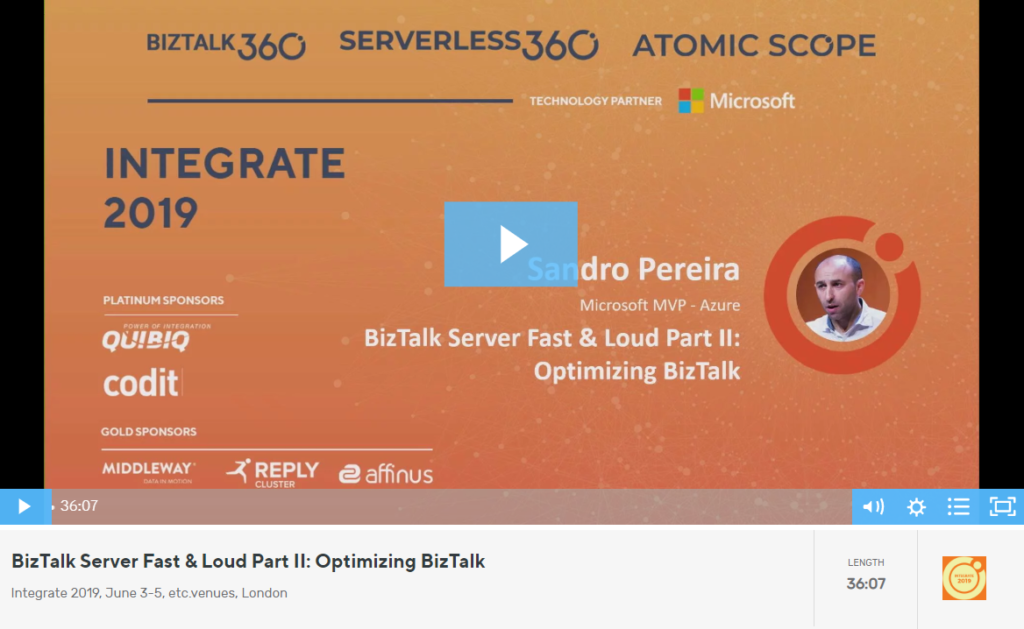
Last time I spoke both at Integrate UK and Integrate USA were in 2017, that in fact was the last time this event also happened in the USA, in which my session was on this same topic, part one of this topic: BizTalk Server Fast & Loud. And in reality, it was merely a happy coincidence, to do these two events again two years later and have decided to do the second part of this previous lecture, because by the time I chose the topic I didn’t know that I would return to the US… but it was a happy coincidence that fit very well!
And the reason I decide this second part was because I had received so much amazing feedback about my BizTalk Server Fast & Loud session two years ago. I can confess that in the beginning, I was a bit nervous to do this sequel, mainly because I want to keep the same good level of the previous one, avoiding what usually happens with the sequels in the movies, as a new part is released the quality goes down… but in the end I think I did a good job, that was confirmed by the awesome feedback provided by the attendees of both events. Personally, I love this session more than the previous one. But if you were not there two years ago, do not watch this talk without seeing the first part of this session here: BizTalk Server Fast & Loud.
About my session
Session Name: BizTalk Server Fast & Loud Part II: Optimizing BizTalk
Session Overview: Following the success of one of Sandro’s previous presentations at Integrate, Sandro decided to go deep on this hardcore BizTalk topic: Optimizing your BizTalk Server. This session will allow you to gain a better view on how to optimize BizTalk Server for better performance in all phases: your team’s proactivity, your code, your environment, and your goals. Once again, this is a very extensive and complex topic and there is no magic formula you can apply to solve all your problems. This presentation will aim to guide you through some of the most important steps, operations, tasks and best practices that you need to do or be aware of, in order to boost the performance of your BizTalk Server projects and that you can adjust or follow according to your needs.
Like previous years, the event in London is recorded, so if for any reason you could not be present at these events, or if you want to review it again, you can now do it here:
I am currently doing many hybrid integrations, leveraging the capabilities of BizTalk Server and Logic Apps to meet the needs/requirements of my clients/projects. Some of these projects began initially to be completely on-premises, but as the projects grew and new needs emerged, the need to use some cloud services appeared like Power BI, Office365 (Teams, Outlook) and so on, became a reality. And these features are much easier to implement and have more productivity on Azure Logic Apps instead of BizTalk Server as there are already native connectors there.
And you have known that in reality there are several ways to implement this two bidirectionality communication between Logic App and BizTalk Server :
Sending messages from BizTalk Server to Azure Logic Apps
and receiving messages from Azure Logic Apps to BizTalk Server
like using HTTP requests or Azure Service Bus, and by doing so you can create robust and smart hybrid integrations. You may have to use one of these alternative implementations if you are using older versions of BizTalk Server.
The good news is that BizTalk Server 2016 has a better and more user-friendly way to make these hybrid connections. Instead of using HTTP requests, with BizTalk Server 2016 you can use the Logic Apps adapter to receive messages from an Azure Logic App or send messages to an Azure Logic App.
This whitepaper will give you a detailed understanding of the following:
Requirements to install Logic App adapter
Microsoft BizTalk Server Adapter for Logic Apps
On-premises data gateway
How to install and configure the Logic App Adapter
Where I can download it
The whitepaper is completely free and you can download it here:
I would like to take this opportunity also to once again say thanks to Lex Hegt for helping me reviewing this whitepaper especially for the incredible work of him correcting my horrible English and in this way make the document and my thoughts being readable.
I hope you enjoy reading this paper and any comments or suggestions are welcome.
You can also find, download and enjoy several other free whitepapers of my own here:
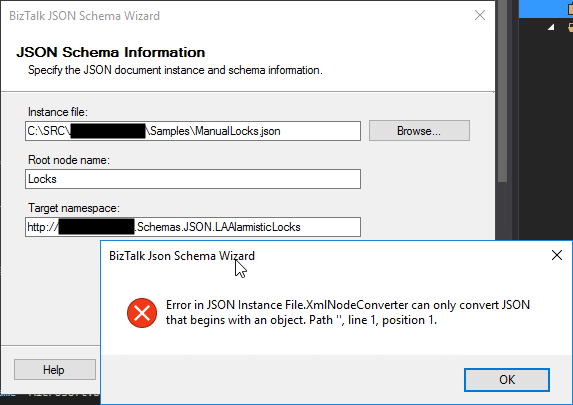
This week while trying to use the BizTalk Server 2016 JSON Schema Wizard to generate an XML schema from a specific JSON file to be sent to a Logic App I got the following error:
Error in JSON Instance File.XMLNodeConverter can only convert JSON that begins with an object. Path ‘’, line 1, position 1.
Basically, I’m trying to send a list of “objects” that in my case are Locks, to be processed.
Cause
The cause of this “problem” is that a JSON array of objects, it may not make sense in a BizTalk Server XML world as Morten la Cour very well written in this forum. At that sentence, I will add: “at it his being done today”. Because with a few improvements could be smarter and support this type of messages.
Why? The BizTalk
JSON Schema Wizard is a simple and “stupid” converter, it will ask only for you
to provide a root node and a namespace that it will add to the XML Schema and
the XML JSON representation because it will require that information to be able
to uniquely identify this type of message.
But it will not understand what is a “not identified” object array because it needs to give it a Record name in the XML equivalent.
So, that means
that it will not support JSON arrays?
No, it will support JSON arrays if you provide a field name to that array, i.e., instead of having:
[
…
]
You should have:
{
   "field name": [
   …
   ]
}
Solution
If you don’t have the control over that JSON message,
you may need to create a custom pipeline component to add or remove this field
name that will identify the array in the XML equivalent message.
If you have control over the structure of the JSON
message the simple way is to modify the structure of the message to include a
field name to identify the array. Lucky it was my case, so I modify the
original structure descrived above to be:
You may all remember Richard Seroter BizTalk SendPort Duplicator tool and how he descrived that frequently during development, and even in production, we have a need to create new BizTalk ports that are virtually identical to an existing one where we just need to change some small configurations like:
Address/URI;
Send Port Filter criteria;
Different pipelines or pipeline components configuration;
And so on.
And by default, the only options we have are:
Export the application binding files, manually clean the file and change the values; And then import the Binding file again;
Or manually recreate the entire port again;
Both options are time-consuming and need a lot of manually work.
And Richard Seroter was, and still is, an amazing lifesaving tool that allows you to duplicate send ports easily, so why a new tool?
“BizTalk Port Multiplier Tool” it has all Richard tool functionalities but is more than a Send Port Duplicator, and that is the reason I decided to create a new tool.
“BizTalk Port Multiplier Tool” is a simple tool that aims to simplify port “cloning” process by allowing you to easily “clone or duplicate” any existing port: Receive Port or Send Port.
Send Ports are easy, you only need to give a different name to the port, and you can clone it;
Receive Ports are tricky because they may contain several Receive Locations and the URI needs to be unique;
This tool will extend default BizTalk Server capabilities transforming the tedious and sometimes complicate port creation based on an existing one a little simple and easy allowing you to:
Create a new Receive Port based on an existing one;
It will also export the binding file from that new Receive Port;
Create a new Send Port based on an existing one;
It will also export the binding file from that new Send Port;
Generate different binding files for each environment
Why do I need to “clone” a Receive Port?
Sometimes you also need to create a receive port with similar configurations of an existing one, also changing only few configurations or simple the URI and instead of manually recreating you can have 90% of the process done automatically.
Sometimes is practical, sometimes or in some scenarios it may not work but in most of the cases it will. So it is basically a best-effort operation and not an exact clone because they may have several Receive Locations and the Address/URI needs to be unique. So, you then need to go to each receive location and reconfigure them.
Download
Credits also to my team member at DevScope, Pedro Almeida that collaborated in the development of this tool.
Following my commitment with the attendees at Integrate 2019 London and US that shared with me the same headaches and concerns, and following my series of posts about “BizTalk Bindings Exportation” published on BizTalk360 blog. I’m happy to announce the birth of a new BizTalk Server tool: BizTalk Bindings Exporter Tool.
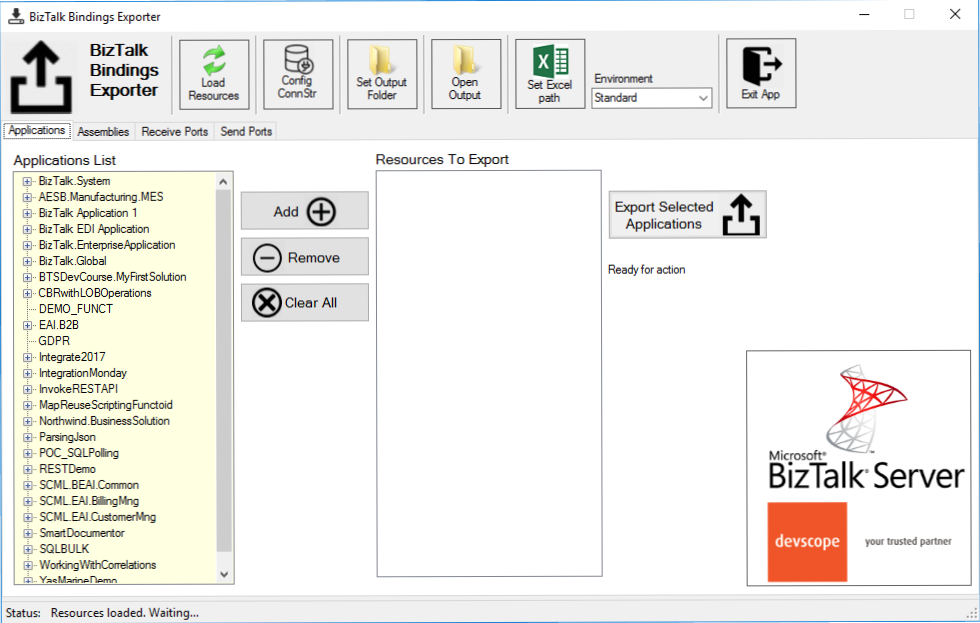
“BizTalk Binding Exporter Tool” is a simple tool which will suppress the absence of advanced binding file generation capabilities in the BizTalk Server Administration Console allowing you to generate and export a binding file from BizTalk Applications in an intuitive and easy way.
Exporting a BizTalk Server Application binding is, at first sight, a simple and quick task that can be done using the BizTalk Server Administration Console:
Click Start, click All Programs, click Microsoft BizTalk Server 20xx, and then click BizTalk Server Administration
In the console tree, expand BizTalk Server Administration, expand the BizTalk Group, and then expand Applications
Right-click the application whose bindings you want to export, point to Export, and then click Bindings…
On the Export Bindings page, in Export to file, type the absolute path of the .xml file to which to export the bindings
Ensure that Export all bindings from the current application option is selected, and then click OK
But even in simple tasks, we may encounter challenges that require us to perform some monotonous and boring manual operations that consume some of our precious time and are always subject to failures. Because out-of-the-box BizTalk Administration Console doesn’t allow you to:
Export a Binding file of a specif Receive Port or list of Receive Ports;
Export a Binding file of a specif Send Port or list of Send Ports;
Export a Binding file of a specif Assembly or list of Assemblies;
And these are just a few scenarios. You can only fully Export the binding files of an entire application which will lead you sometimes an extensive and fallible manual work to clean the binding files.
Normally the binding exportation starts in development, but we also will need to generate the same bindings for other environments like production and for that we normally need to open the binding file and replace/fix the differences for each different environment… which is normally a tedious operation. What we need to replace is mainly:
the URI’s: it should be fixed, but it is not mandatory. If you know what you are doing, you can fix them directly on the environment after you import the Binding.
the host instances: not mandatory, if you have the same host and host instances names across all your different environments (as best practices will tell you to do).
the NT Group Name associated in the Services (Orchestrations): according to securities best practices you shouldn’t use the same BizTalk Groups in different environments, so in this case, if you follow this best practices, you need to change these parameters in your binding file.
Normally, everyone changes the URI’s but neglecting the other parameters may be causing problems during the Binding import.
Once again, this tool will extend default BizTalk Server capabilities transforming the tedious and sometimes complicate binding generation a little simple and easy.
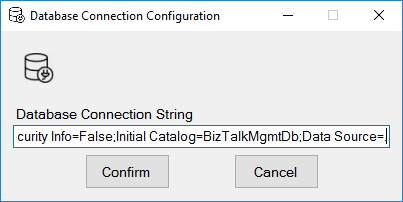
You just need to specify the connection string to the BizTalk Management database (BizTalkMgmtDb)
And this tool allows you to generate and export binding files with the following capabilities:
Export binding(s) file(s) for an entire Application or a list of Applications;
Export binding(s) file(s) from a specify Assembly or list of Assemblies;
Export binding(s) file(s) from a Receive Port or list of Receive Ports;
Export binding(s) file(s) from a Send Port or list of Send Ports;
Or Generate different binding files for each environment if you create an Excel File with the mapping for each environment ;
Credits also to my team member at DevScope, Pedro Almeida that collaborated in the development of this tool.
Recently on Serveless360, a community blog that I contribute, I explain how you able to expose an Azure Logic App as an API using Azure API Management (APIM) you can see more details about it here: How to Expose and protect Logic App using Azure API Management (Part 1) – Exposing the Logic App. Today’s question is: Can we do the same with Microsoft Flow? Can we expose a Microsoft Flow that exposes an HTTP endpoint as an API on APIM?
And the short answer is… yes yes! It not as easier as Logic Apps because you don’t have a direct and seamless way to do it, but it can manually be done. And the goal of this blog post is explained to you how to accomplish that.
What is Azure API Management?
Is not the goal of this blog post but for you to be contextualized, if you are not familiar with APIM, in a simple way, Azure API Management is a fully managed service that enables customers to publish, secure, transform, maintain, and monitor APIs.
And it will allow you in a matter of a few clicks in the Azure Portal, most of the times, for you to create an API façade that acts as a “front door” through which external and internal applications can access data or business logic implemented by your custom-built backend services, running on Azure, for example, Logic Apps, App Services, or other many services or running on-premises in your organization. The APIM then will be able to handle all the tasks involved in mediating API calls, like request authentication and authorization, rate limit and quota enforcement, request and response transformation, logging and tracing, and/or API version management.
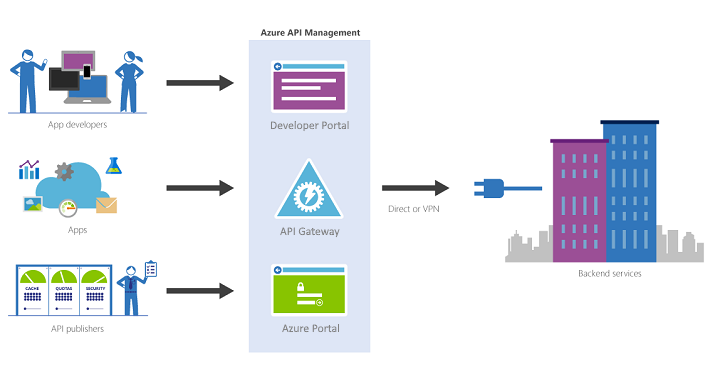
APIM is made up of the following components:
The API gateway is the endpoint that:
Accepts API calls and routes them to your backends.
Verifies API keys, JWT tokens, certificates, and other credentials.
Enforces usage quotas and rate limits.
Transforms your API on the fly without code modifications.
Caches backend responses were set up.
Logs call metadata for analytics purposes.
The Azure portal (old Publisher Portal) is the administrative interface where you set up your API program. Use it to:
Define or import API schema.
Package APIs into products.
Set up policies like quotas or transformations on the APIs.
Get insights from analytics.
Manage users.
The Developer portal serves as the main web presence for developers, where they can:
Read API documentation.
Try out an API via the interactive console.
Create an account and subscribe to get API keys.
Access analytics on their usage.
Note: in this blog post, I will not explain how you create an API Management resource on Azure.
Exposing a Microsoft Flow on Azure API Management
Triggered using an HTTP based trigger
The important thing, it needs to be triggered using an HTTP based trigger like the Request trigger.
Like Logic Apps, you can only expose a Microsoft Flow that is triggered using an HTTP based trigger like the Request trigger. Basically, that exposes an HTTP endpoint, on your APIM.
Exposing Microsoft Flow on Azure API Management
I told earlier that exposing a Microsoft Flow, it is not as easier as Logic Apps because you don’t have a direct and seamless way to do it.
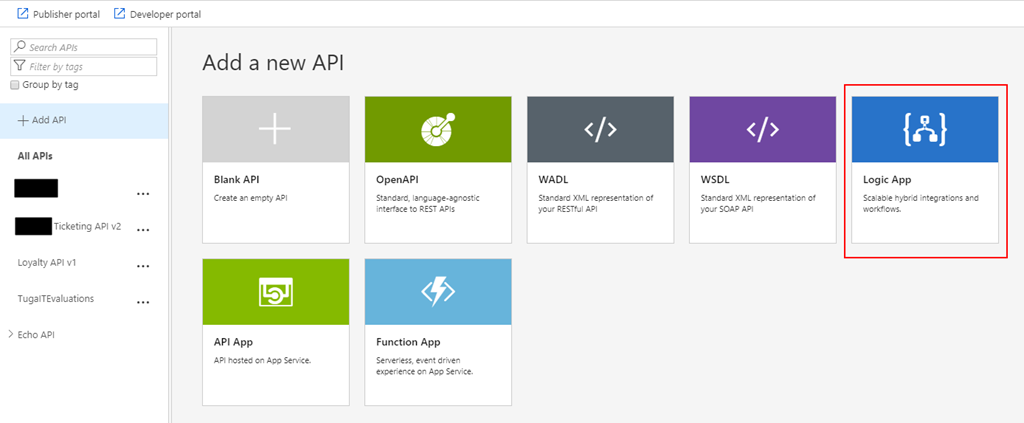
The Microsoft APIM team has done a very good job and they created an intuitive and quite easy experience that quickly allows developers or administrators to add new APIs to APIM based on an Azure Logic Apps, if you try to add a new API you will get a “wizard” that you can actually choose to import a Logic App, and it will do everything for you:
So, for us to replicate the “Add Logic App” wizard and accomplish the goal of exposing a Flow on APIM we need to:
First, we need to access to our Flow by accessing the Flow portal: https://flow.microsoft.com/ and sign in with your account
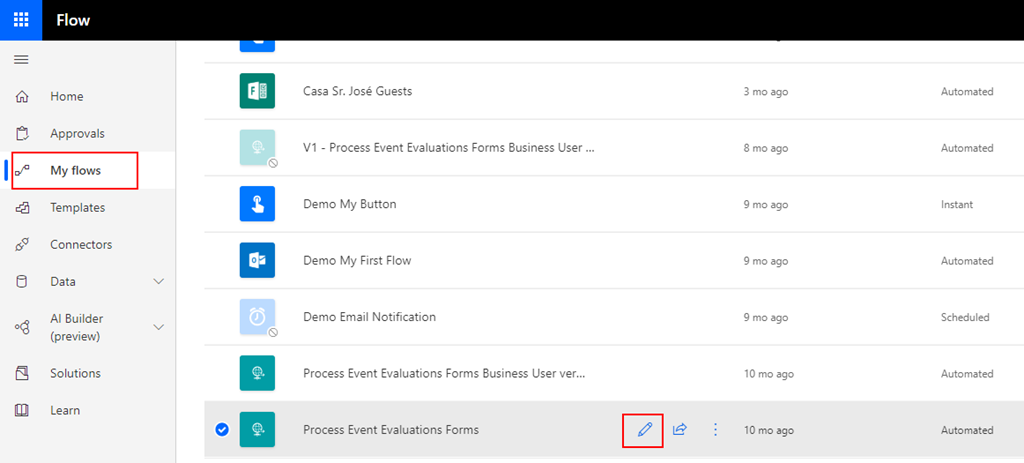
In flow.microsoft.com, select My flows in the top navigation bar, and from the list of Flows, choose the flow you want to expose on APIM and select the Edit button.
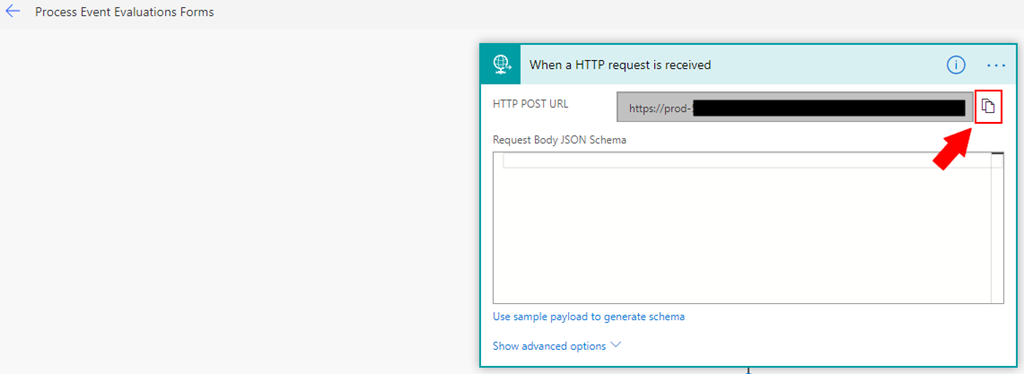
On the Flow Designer (or editor) click on top of the HTTP trigger to expand it and copy the HTTP POST URL property
We will need that URL in order to expose it in APIM.
Now that we have our Flow URL we can go ahead and start configuring our APIM:
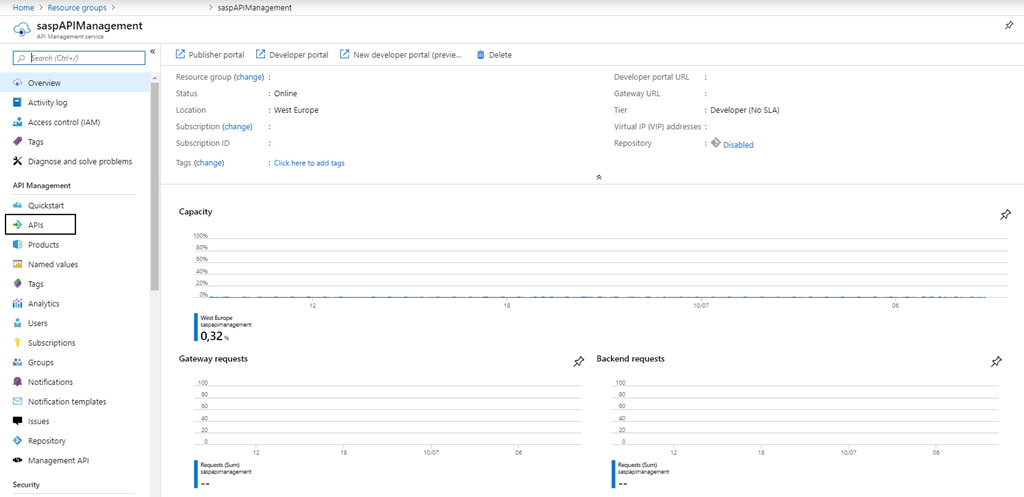
Access to your APIM on the Azure Portal (old Publisher Portal that is now built-in inside the Azure Portal;
And on the left menu, under API Management section, click the API option
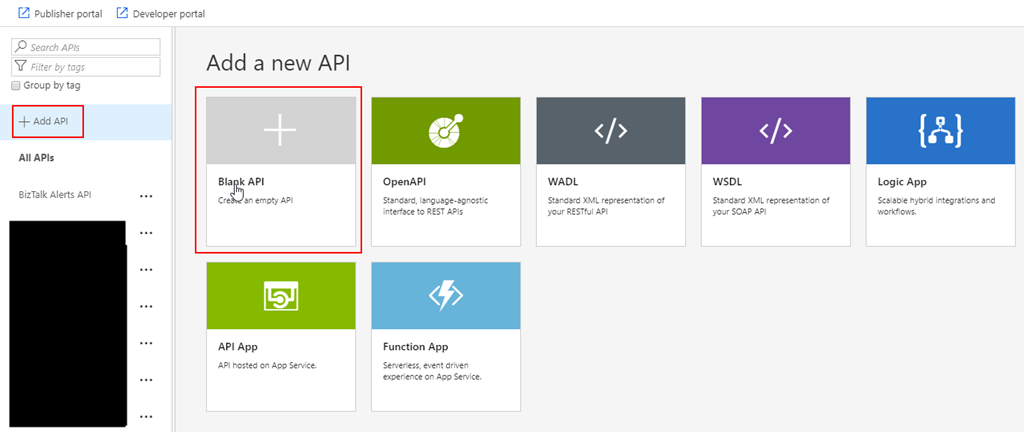
By doing that under the All APIs section you will see the list of all APIs that you are already available, and on the main panel you will find several different options to add a new API to your list:
From scratch – Blank API;
Export based on an OpenAPI, WADL or WSDL specification;
Or based on an Azure Service:
Logic App
API App
Or a Function App
In our case, we will be creating from the scratch, so go and press Blank API option
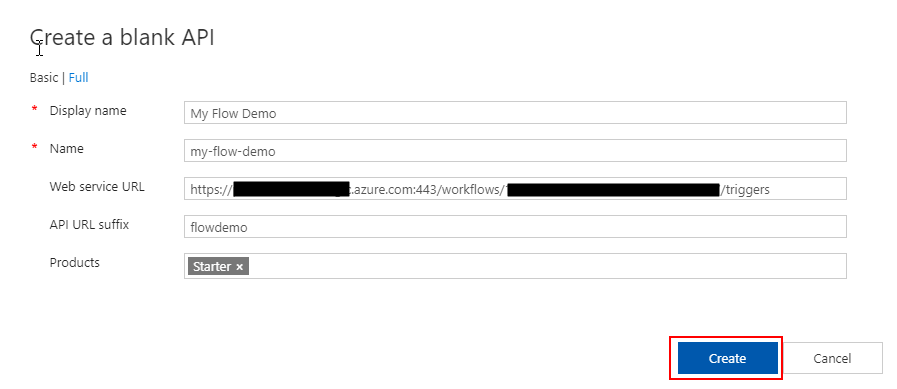
And then let’s fill the creation form like this:
On the Display name property give your API a name. I will call it “My Flow Demo”
On the Name property, you may change the “internal” name. I will suggest leaving like that: “my-flow-demo”
On the Web service URL property, paste the HTTP POST URL that we get from the Flow but only until the “triggers” word – Do not place the full
You can put the full URL, but in this post, we will try to emulate almost all the steps that the APIM Logic App wizard does
On the API URL suffix property, give a prefix to your API, for example: flowdemo
On the Products property, you can bind this API to a product at this time or leave it blank. I will set mine as “Started”
And finally, press Create
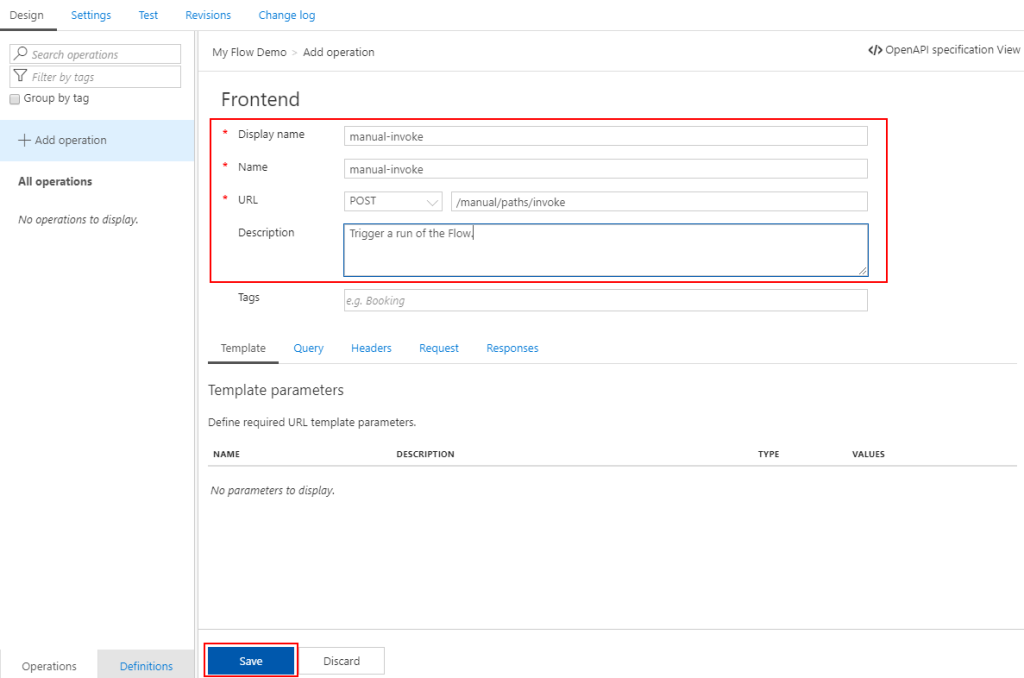
What we need to do now is create our “manual-invoke” operation, to do that we need to do:
Under our “My Flow Demo” API Design section, click + Add operation button
And:
On the Display name property give a name to the operation, I will call it “manual-invoke
By the way, it doesn’t need to call this name, once again, we will use it just to emulate the API Logic App wizard behavior
On the Name property, leave the default value: “manual-invoke”
On the URL property:
Set the operation to POST
And set the URL like “/manual/paths/invoke”
On the Description property, you may give a proper description for the operation, in our case, let’s put: Trigger a run of the Flow.
Leave the rest of the configurations, we will deal with them later and go ahead and press Save
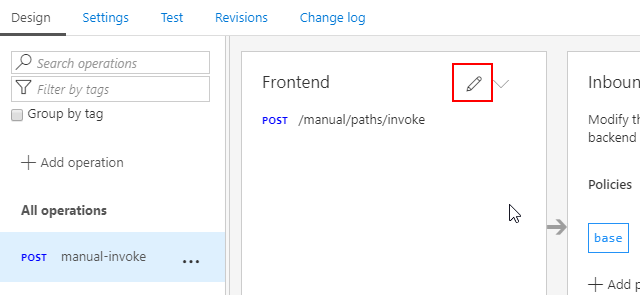
Now that we have the basic outline of our operation let’s go ahead and configure it properly. To do that we need to:
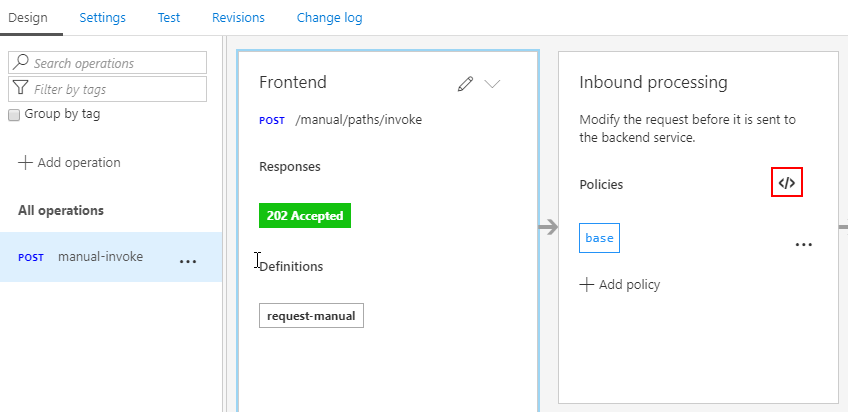
Select the “manual-invoke” operation and then click on the Frontend edit button
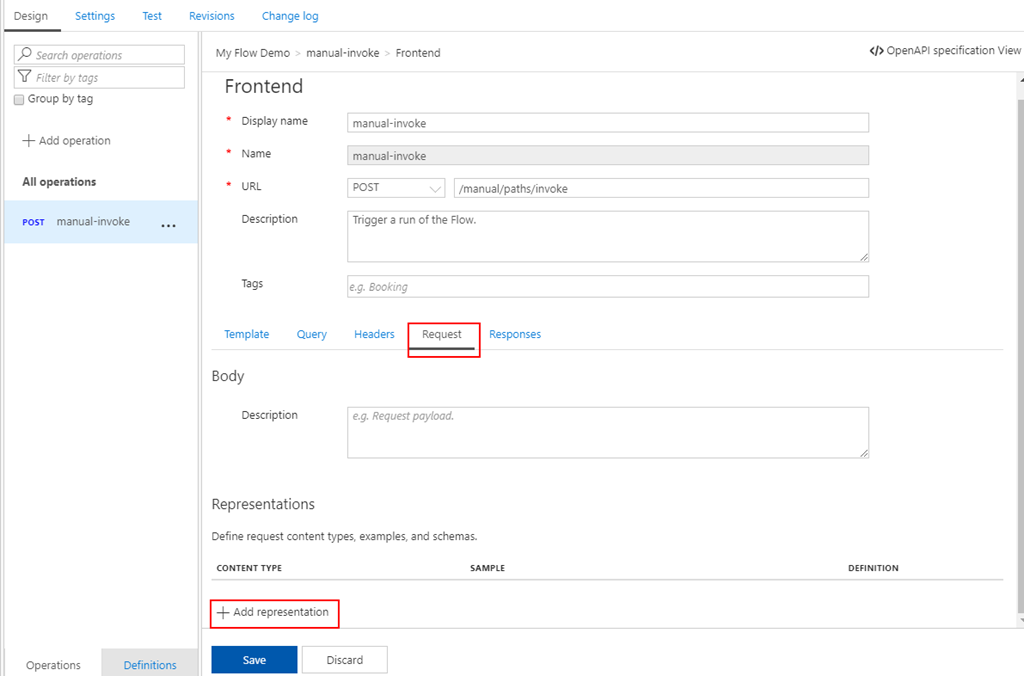
And from the Frontend panel, select the Request option and them + Add representation button
Set the Content type as “application/json”
Provide a sample request on the Sample property
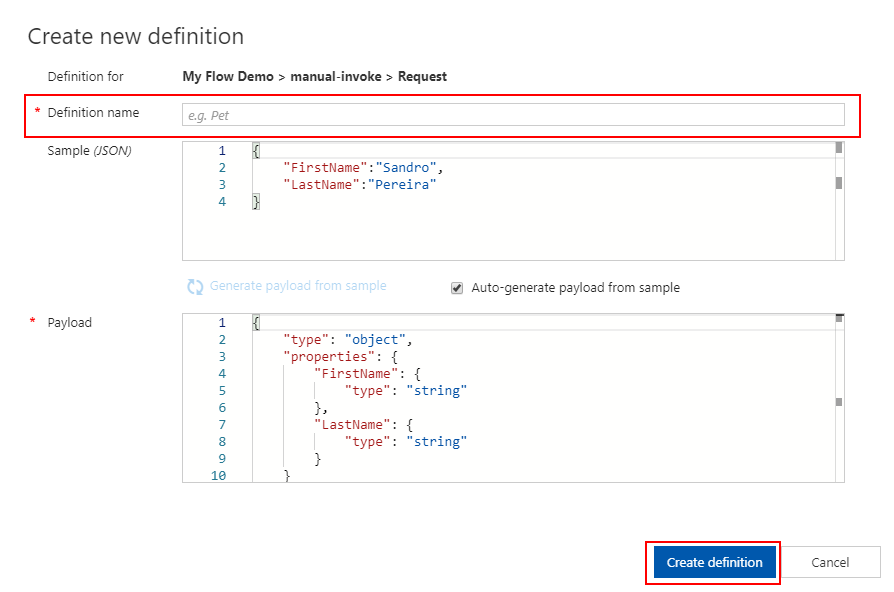
And in the Definition property, select + New definition
This will take your provide sample and generate the schema for you
Just give a definition a name on the Definition name property: request-manual
And then click Create definition button
Go ahead and press Save once again
Now let’s do the same for the Response. Once again, click on the Frontend edit button
And from the Frontend panel, select the Responses option and them + Add response button
Because my Flow doesn’t return any message back, instead of selecting the normal 200 OK HTTP Status, I will change that to be a 202 Accepted instead. So, on the response type select from the dropdown the 202 Accepted status and then press Save.
Now that we have our Request and Response defined, the only thing we need to configure our policy properly, remember that in the API URL, we didn’t configure the entire URL. To do that we need to:
Select the “manual-invoke” operation and then click on the Inbound processing Policies code editor button
And in the Inbound policy we need to rewrite the URI, here is a sample of the policy you need to implement
Note: The only thing we didn’t do that the APIM Logic App wizard does is to create a key/value containing the “sig” property of the URL
Now we are all set to test our API.
Testing the Microsoft Flow exposed in Azure API Management
After all the above steps, the next step is for us to test the Logic App expose as an API on APIM before we give access to our developers, teams, or partners. And the easier way to do that is directly on the Azure Portal.
To do that you need to:
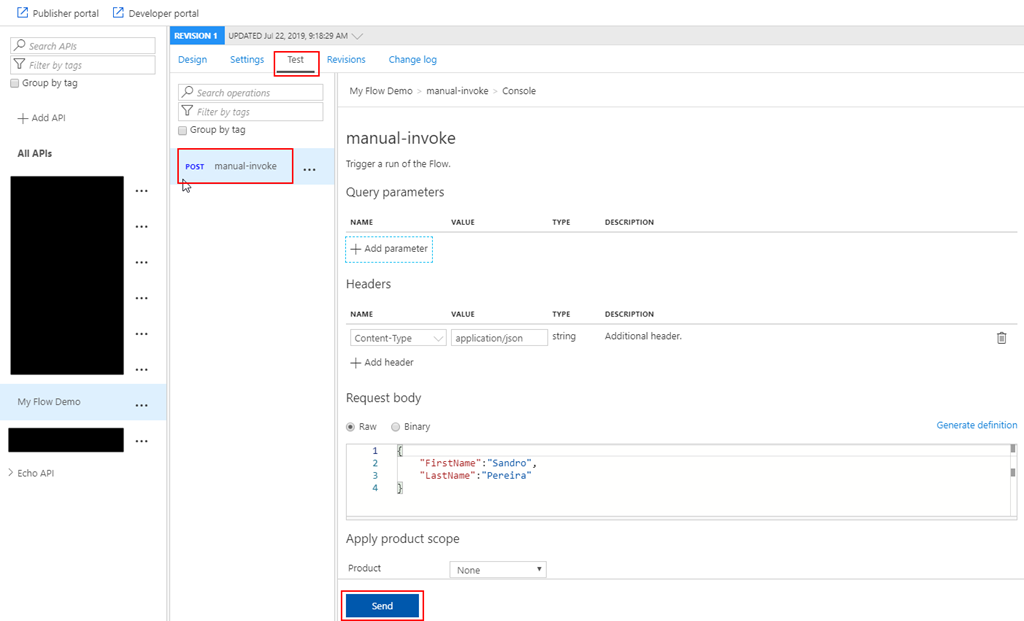
Under the API top options menu, select Test option, and in this case, there is only one operation, so automatically is selected;
On the Request body section, select Raw option and insert a valid and expected request to be sent to your Microsoft Flow;
And finally, press Send.
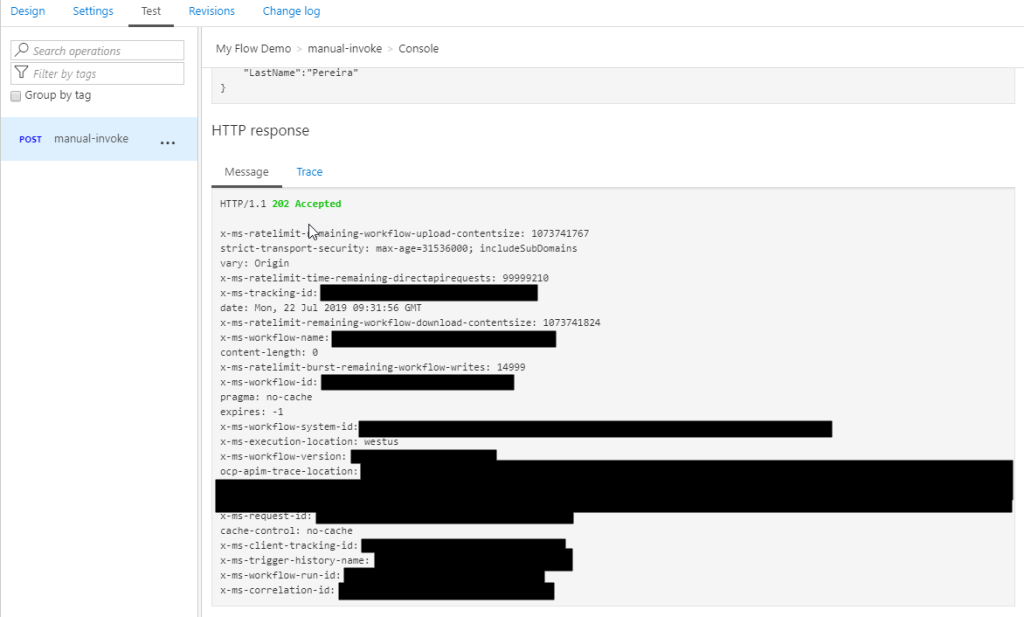
And after that, you will see an expected response from the Microsoft Flow.
And we can check that the Flow was executed.
It failed because the payload is incorrect but other that everything is ok. We successfully exposed and trigger the Microsoft Flow from Azure API Management.
Due to personal requests from some members of the community, I decided to release another minor version of my stencils pack that will include the following features:
New shapes: new shapes were added to existing modules like:
Logic App Inline Code (square – original that you can find in Logic App design)
Logic App Inline Code JS (square – original that you can find in Logic App design)
Logic App Inline Code (Custom shape version 1)
Logic App Inline Code (Custom shape version 2)
Secure Message Input
Secure Message Output
Microsoft Integration, Azure, Power Platform, Office 365 and much more Stencils Pack it’s a Visio package that contains fully resizable Visio shapes (symbols/icons) that will help you to visually represent On-premise, Cloud or Hybrid Integration and Enterprise architectures scenarios (BizTalk Server, API Management, Logic Apps, Service Bus, Event Hub…), solutions diagrams and features or systems that use Microsoft Azure and related cloud and on-premises technologies in Visio 2016/2013:
BizTalk Server
Microsoft Azure
Integration
Integration Service Environments (ISE)
Azure App Service (API Apps, Web Apps, Mobile Apps, and Logic Apps)
Event Hubs, Event Grid, Service Bus, …
API Management
IoT, and Docker
Machine Learning, Stream Analytics, Data Factory, Data Pipelines
and so on
Microsoft Power Platform
Microsoft Flow
PowerApps
Power BI
PowerShell
Infrastructure, IaaS
Office 365
And many more…
… and now non-related Microsoft technologies like:
On 1st January 2011, I was awarded for the first time Microsoft Most Value Professional (MVP), back them as a BizTalk Server MVP, joining an amazing worldwide group of technicians and community leaders who actively share their high quality and real-world expertise with other users and Microsoft. And since then I was re-award in:
2012, again as BizTalk Server MVP;
From 2013 to 2015, I was rebranded as Microsoft Integration MVP;
In 2017, Integration become part of Azure category, so I was awarded for the first time as Azure MVP
And in the middle of 2017, I was Award in two categories, Azure and Visio MVP;
In 2018, I was rewarded Azure MVP
And today, still with all the same pride, honor and enthusiasm than the first time, I’m delighted to share with you that in July 1st I was renewed as a Microsoft Azure MVP (Microsoft Most Valuable Professional) for one more year.
It is with great pride we announce that Sandro Pereira has been awarded as a Microsoft® Most Valuable Professional (MVP) for 7/1/2019 – 7/1/2020. The Microsoft MVP Award is an annual award that recognizes exceptional technology community leaders worldwide who actively share their high quality, real world expertise with users and Microsoft. All of us at Microsoft recognize and appreciate Sandro’s extraordinary contributions and want to take this opportunity to share our appreciation with you.
With just over 3,000 awardees worldwide, Microsoft MVPs represent a highly select group of experts. MVPs share a deep commitment to community and a willingness to help others. They represent the diversity of today’s technical communities. MVPs are present in over 90 countries, in more than 40 languages, and across numerous Microsoft technologies. MVPs share a passion for technology, a willingness to help others, and a commitment to community. These are the qualities that make MVPs exceptional community leaders. MVPs’ efforts enhance people’s lives and contribute to our industry’s success in many ways. By sharing their knowledge and experiences, and providing objective feedback, they help people solve problems and discover new capabilities every day. MVPs are technology’s best and brightest, and we are honored to welcome Sandro as one of them.
This is my 9th straight year on the MVP Program, an amazing journey, and experience that, again, started in 2011, and that gave me the opportunity, and still does, to travel the world for speaking engagement, share the knowledge, and to meet the most amazing and skilled people in our industry.
As usual, I would like to thank all of you! And special to my wife Fernanda and my three kids: Leonor, Laura, and José. And to all members of my beautiful family. THANKS for all the support during these last years! You guys are my inspiration!
And a special thanks to my MVP Lead Cristina Herrero for all the support, to Microsoft Integration Team and Azure Teams, to all my fellow Microsoft Azure (Integration) MVP’s and to DevScope (my company) and all my coworkers (no names here because all of them are amazing professionals)
It’s a big honor to be in the program and I’m looking forward to another great year!
Microsoft Integration, Azure, Power Platform, Office 365 and much more Stencils Pack it’s a Visio package that contains fully resizable Visio shapes (symbols/icons) that will help you to visually represent On-premise, Cloud or Hybrid Integration and Enterprise architectures scenarios (BizTalk Server, API Management, Logic Apps, Service Bus, Event Hub…), solutions diagrams and features or systems that use Microsoft Azure and related cloud and on-premises technologies in Visio 2016/2013:
BizTalk Server
Microsoft Azure
Integration
Integration Service Environments (ISE)
Azure App Service (API Apps, Web Apps, Mobile Apps, and Logic Apps)
Event Hubs, Event Grid, Service Bus, …
API Management
IoT, and Docker
Machine Learning, Stream Analytics, Data Factory, Data Pipelines
and so on
Microsoft Power Platform
Microsoft Flow
PowerApps
Power BI
PowerShell
Infrastructure, IaaS
Office 365
And many more…
… and now non-related Microsoft technologies like:
SAP Stencils
What’s new in this version?
New shapes: new shapes were added to existing modules like:




 Microsoft Integration, Azure, Power Platform, Office 365 and much more Stencils Pack for Visio