When you deploy a new BizTalk Server solution to a different environment, and if for some reason, you don’t use or cannot use CI/CD (Continuous integration and continuous delivery):
Your environment is too small to justify using CI/CD;
The client doesn’t provide access to Visual Studio Team Services (VSTS);
Don’t like to use BTDF (Deployment Framework for BizTalk);
Not using custom tools like BizTalk Bindings Exporter tool;
Then one of the most common tasks you need to do is to change all the URI from all the ports, Receive Ports and Send Ports, from the binding files.
Of course, you can do it in many different ways, for example:
Before import to the new environment, open notepad or any other editor, and manually replace all the Inbound Transport URL and Outbound Transport URL;
Import AS IS and on the Administration Console, manually change these parameters;
Or script this process;
This is not always a quick and easy job. Luckily for us, these tasks can be automated, leading them to become simpler, faster, and avoid fewer errors.
This script that I will be showing you can be very useful, for example, in scenarios that during the lifecycle of existing applications, one system got updated or migrated to a different version or server (or both), and we need to update the URI or part of it on a range of the Receive Locations according to the new configuration/specification.
PowerShell script overview
With this PowerShell sample, we will be able to set or update the URI (address) or part of the URI on a list of BizTalk Server Receive Locations deployed in your BizTalk Server environment.
foreach($receivePort in $catalog.ReceivePorts)
{
# For each receive location in your environment
foreach($recLocation in $receivePort.ReceiveLocations)
{
# In this case ...
if($rcvLocations.Contains($recLocation.Name))
{
[string] $address = $recLocation.Address
$address = $address.Replace("DEV-SERVER-NAME","PRO_SERVER-NAME")
# Sample of additional custom changes
if($address.Contains("PREFIX"))
{
$address = $address.Replace("DATABASE","DATABASE-WITH-PREFIX-A")
}
else
{
$address = $address.Replace("DATABASE","DATABASE-WITH-PREFIX-B")
}
$recLocation.Address = $address
}
}
}
This script was tested in BizTalk Server 2016.
Download
THIS POWERSHELL SCRIPT IS PROVIDED “AS IS”, WITHOUT WARRANTY OF ANY KIND.
With security be every day more important, this also brings additional problems (good problems) to BizTalk Server Administrators during the deployment of new BizTalk Server Applications or even during the lifecycle of existing applications:
What a few years ago was anonymous, because they were internal services, they are now authenticated.
Nowadays, many organizations implement a combination of Minimum Password Age policy also enforcing a Password History policy that requires to reset the password, even for services accounts, from time to time and avoid reusing the same password.
These tasks lead to BizTalk Server Administrators to manually set the user credentials in a range of ports (send and receive). This is not always a quick and easy job.
Luckily for us, these tasks can be automated, leading them to become simpler, faster, and avoid fewer errors.
PowerShell script overview
With this PowerShell sample, we will be able to set or update the Authentication Credential on a list of BizTalk Server Receive Locations deployed in your BizTalk Server environment.
foreach($receivePort in $catalog.ReceivePorts)
{
# For each receive location in your environment
foreach($recLocation in $receivePort.ReceiveLocations)
{
# In this case ...
if($rcvLocations.Contains($recLocation.Name))
{
$bindingConfiguration = $recLocation.TransportTypeData
if($bindingConfiguration.CustomProps.Password.vt -eq "1")
{
$bindingConfiguration.CustomProps.Password.InnerText = "my_password"
$bindingConfiguration.CustomProps.Password.vt = "8"
}
else
{
$passwordElement = $bindingConfiguration.CreateElement("Password")
$passwordElement.SetAttribute("vt", "8")
$passwordElement.InnerText = "my_password"
$bindingConfiguration.CustomProps.InsertAfter($passwordElement, $bindingConfiguration.CustomProps.SuspendMessageOnFailure)
}
if($bindingConfiguration.CustomProps.UserName.vt -eq "8")
{
$bindingConfiguration.CustomProps.UserName.InnerText = "my_username"
}
$transportConfigData = $bindingConfiguration.InnerXml
$recLocation.TransportTypeData = $transportConfigData
}
}
}
This script was tested in BizTalk Server 2016.
Download
THIS POWERSHELL SCRIPT IS PROVIDED “AS IS”, WITHOUT WARRANTY OF ANY KIND.
It was only 3 days ago that I released a major version. Still, with all of this new stuff and announcements on Ignite 2020, I just decide to make a minor update to my stencil package, especially because all the logos of Power Platform components have changed.
What’s new in this version?
These are the list of changes and additions present in this major release:
New shapes: There are new shapes on the following Visio Stencils files (.vssx):
MIS Power Platform Stencils: the picture above is presenting the new logo icons of Power BI, Power Apps, Power Automate, and Power Virtual Agents.
MIS Azure Stencils and MIS Azure Additional or Support Stencils: there were a few new icons add to the stencils, most of them related to Azure Arc and Storage Account and some icon updates.
MIS Office, Office 365, and Dynamics 365: New shapes added to this stencil with more Office 365 products.
Automation: minor fixes on the automation scripts
SVG files: new SVG files added.
Microsoft Integration, Azure, Power Platform, Office 365 and much more Stencils Pack
Microsoft Integration, Azure, Power Platform, Office 365 and much more Stencils Pack it’s a Visio package that contains fully resizable Visio shapes (symbols/icons) that will help you to visually represent On-premise, Cloud or Hybrid Integration and Enterprise architectures scenarios (BizTalk Server, API Management, Logic Apps, Service Bus, Event Hub…), solutions diagrams and features or systems that use Microsoft Azure and related cloud and on-premises technologies in Visio 2016/2013:
BizTalk Server
Microsoft Azure
Integration
Integration Service Environments (ISE)
Logic Apps and Azure App Service in general (API Apps, Web Apps, and Mobile Apps)
Azure API Management
Messaging: Event Hubs, Event Grid, Service Bus, …
Azure IoT and Docker
AI, Machine Learning, Stream Analytics, Data Factory, Data Pipelines
SQL Server, DocumentDB, CosmosDB, MySQL, …
and so on
Microsoft Power Platform
Microsoft Flow
PowerApps
Power BI
Office365, SharePoint,…
DevOps and PowerShell
Security and Governance
And much more…
… and now non-related Microsoft technologies like:
SAP Stencils
The Microsoft Integration Stencils Pack is composed of 27 files:
Microsoft Integration Stencils
MIS Additional or Support Stencils
MIS AI and Machine Learning Stencils
MIS Apps and Systems Logo Stencils
MIS Azure Additional or Support Stencils
MIS Azure Black and Gray
MIS Azure Old Versions
MIS Azure Stencils
MIS Black and Cyan
MIS Buildings Stencils
MIS Databases and Analytics Stencils
MIS Deprecated Stencils
MIS Developer Stencils
MIS Devices Stencils
MIS Files and Message Types Stencils
MIS Generic Stencils
MIS Infrastructure and Networking Stencils
MIS Integration Fun
MIS Integration Patterns Stencils
MIS IoT Stencils
MIS Office, Office 365 and Dynamics 365
MIS Power BI Stencils
MIS Power Platform Stencils
MIS SAP Stencils
MIS Security and Governance
MIS Servers (Hexagonal) Stencils
MIS Users and Roles Stencils
Organisational Stencils
That you can use and resize without losing quality, in particular, the new shapes.
Well, the thing is, you cannot say to me, “…these stencils look fantastic, but are currently unusable or worthless because…” my brain enters in a crazy mode, and I can only free myself when all the work is finished successfully and that these resources are handy :).
Jokes apart, I use these resources for a long time, I create these for myself, but I knew that they were not perfects. The major problem was that fixing that amount of icons was a time-consuming task. However, with the number of people using these stencils increasing and reporting those problems, I decided to resolve them once and for all.
Today I can announce that I close all the open issues reported on the git repository of this package.
What’s new in this version?
These are the list of changes and additions present in this major release:
Restructure of Visio Stencils files (.vssx) names: the package is now composed of 26 Visio Stencils files.
Some of them were renamed: PowerApps and Flow is now Power Platform; Files is now Files and Message Types Stencils, …
Some were merged: Power BI was merged in the new Power Platform Visio Stencil file; Azure Others was merged in the Azure Additional or Support Stencils, Office365 is now Office, Office 365 and Dynamics 365…
New Visio Stencils files: MIS Black and Cyan and MIS Azure Black and Gray;
New Organisational Stencils file add by Jacob Mansfield;
New shapes: New shapes were added on the majority of the Visio Stencils files (.vssx). Probably the one that was most affected was Azure Stencils and Office, Office 365 and Dynamics 365;
Text annotationsand connector points: The issues regarding text annotations (legend appear in the center of the icon instead of bellow) and connector points (lack of proper connect points) are now solved in all the Visio Stencils files (.vssx). This was a massive work!
Order of the icons: all the icons appear in alphabetic order inside the Visio Stencil file, with the exception in some cases of the first ones that in some case contains the main shape of the context, like in Microsoft Integration Stencils, the first icon is BizTalk Server Logo.
Automation: add 3 PowerShell script to this package for you to:
Standardize all SVG filenames available in all subfolders by:
Not using spaces. Some software will not recognize file names with spaces, and file names with spaces must be enclosed in quotes when using the command line. Having spaces in URL’s are also not a good experience and should be avoided. For all these reasons I decided to remove all spaces and replace it will ‘-‘ (dash);
Names are in Camel case, where the first letter of each section of text is capitalized (of course respecting the line above), e.g., File-Name.svg
Having extension in lowercase, e.g., *.svg
List all the detected duplicate files.
Automatically install (configure) all the Visio files (*.vssx), so that next time you open Visio, they will be there available;
And also the possibility to download the most recent version from GitHub and install it locally;
Standardize shape sizes: standardize the shapes sizes in all to be more or less all of the same sizes Visio Stencils files.
Fixed some minor stencils layouts;
SVG files: new SVG files added.
These changes were a massive job that stole all my free time apart from my work and family time, from the past three weeks! So I hope you appreciate it!
Microsoft Integration, Azure, Power Platform, Office 365 and much more Stencils Pack
Microsoft Integration, Azure, Power Platform, Office 365 and much more Stencils Pack it’s a Visio package that contains fully resizable Visio shapes (symbols/icons) that will help you to visually represent On-premise, Cloud or Hybrid Integration and Enterprise architectures scenarios (BizTalk Server, API Management, Logic Apps, Service Bus, Event Hub…), solutions diagrams and features or systems that use Microsoft Azure and related cloud and on-premises technologies in Visio 2016/2013:
BizTalk Server
Microsoft Azure
Integration
Integration Service Environments (ISE)
Logic Apps and Azure App Service in general (API Apps, Web Apps, and Mobile Apps)
Azure API Management
Messaging: Event Hubs, Event Grid, Service Bus, …
Azure IoT and Docker
AI, Machine Learning, Stream Analytics, Data Factory, Data Pipelines
SQL Server, DocumentDB, CosmosDB, MySQL, …
and so on
Microsoft Power Platform
Microsoft Flow
PowerApps
Power BI
Office365, SharePoint,…
DevOps and PowerShell
Security and Governance
And much more…
… and now non-related Microsoft technologies like:
SAP Stencils
The Microsoft Integration Stencils Pack is composed of 27 files:
Microsoft Integration Stencils
MIS Additional or Support Stencils
MIS AI and Machine Learning Stencils
MIS Apps and Systems Logo Stencils
MIS Azure Additional or Support Stencils
MIS Azure Black and Gray
MIS Azure Old Versions
MIS Azure Stencils
MIS Black and Cyan
MIS Buildings Stencils
MIS Databases and Analytics Stencils
MIS Deprecated Stencils
MIS Developer Stencils
MIS Devices Stencils
MIS Files and Message Types Stencils
MIS Generic Stencils
MIS Infrastructure and Networking Stencils
MIS Integration Fun
MIS Integration Patterns Stencils
MIS IoT Stencils
MIS Office, Office 365 and Dynamics 365
MIS Power BI Stencils
MIS Power Platform Stencils
MIS SAP Stencils
MIS Security and Governance
MIS Servers (Hexagonal) Stencils
MIS Users and Roles Stencils
Organisational Stencils
That you can use and resize without losing quality, in particular, the new shapes.
And now, I am trying to add more functionalities like:
Automatically install (configure) all the Visio files (*.vssx), so that next time you open Visio, they will be there available;
And also the possibility to download the most recent version from GitHub and install it locally;
Well, the first task is quite simple, you just need to locate all the *.vssx files and copy to the folder “C:Usersyou_userDocumentsMy Shapes” (that is the default folder for the Visio custom shapes)
The second part is a little trick. I found many resources while searching on the internet, but none was what I intended to do. Some were quite nice, but we could easily reach the API Rate limit that is 60 requests per hour for unauthenticated requests or 5000 requests per hour if you use Basic Authentication or OAuth. Or it simply didn’t unzip properly.
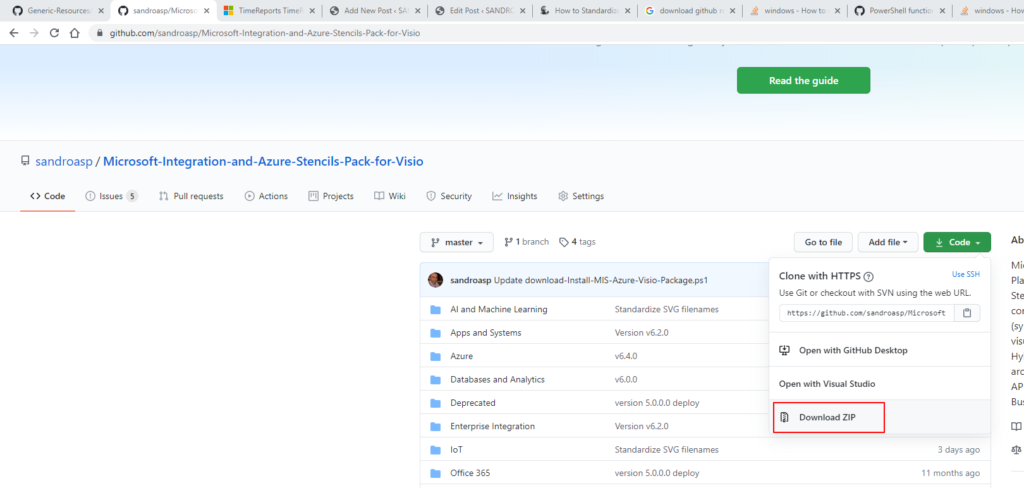
I want to archive a simple way to download a full GitHub repository and unzip it locally. Simple as going in the browser and select Code > Download ZIP, that’s it!
Since I was doing all this work, I also decide to make it available a generic PowerShell function that will allow you to download any GitHub Repository.
######################################################################
# #
# Download and Unzip GitHub Repository #
# Author: Sandro Pereira #
# #
######################################################################
function DownloadGitHubRepository
{
param(
[Parameter(Mandatory=$True)]
[string] $Name,
[Parameter(Mandatory=$True)]
[string] $Author,
[Parameter(Mandatory=$False)]
[string] $Branch = "master",
[Parameter(Mandatory=$False)]
[string] $Location = "c:temp"
)
# Force to create a zip file
$ZipFile = "$location$Name.zip"
New-Item $ZipFile -ItemType File -Force
#$RepositoryZipUrl = "https://github.com/sandroasp/Microsoft-Integration-and-Azure-Stencils-Pack-for-Visio/archive/master.zip"
$RepositoryZipUrl = "https://api.github.com/repos/$Author/$Name/zipball/$Branch"
# download the zip
Write-Host 'Starting downloading the GitHub Repository'
Invoke-RestMethod -Uri $RepositoryZipUrl -OutFile $ZipFile
Write-Host 'Download finished'
#Extract Zip File
Write-Host 'Starting unzipping the GitHub Repository locally'
Expand-Archive -Path $ZipFile -DestinationPath $location -Force
Write-Host 'Unzip finished'
# remove the zip file
Remove-Item -Path $ZipFile -Force
}
Download
THIS POWERSHELL IS PROVIDED “AS IS”, WITHOUT WARRANTY OF ANY KIND.
How to easily manage and organize all these files;
How to detect duplicates;
To solve part of the first topic, I decide to manually create a folder called “SVG” for each group of stencils that exist in this package: Azure, Enterprise Integration, IoT, AI and Machine Learning, Databases and Analytics and so on.
And to solve the second part of the first topic and at the same time, the second challenge, I decided to automate the process by building a simple PowerShell script that allows me to:
Standardize all SVG filenames available in all subfolders by:
Not using spaces. Some software will not recognize file names with spaces, and file names with spaces must be enclosed in quotes when using the command line. Having spaces in URL’s are also not a good experience and should be avoided. For all these reasons I decided to remove all spaces and replace it will ‘-‘ (dash);
Names are in Camel case, where the first letter of each section of text is capitalized (of course respecting the line above), e.g., File-Name.svg
Having extension in lowercase, e.g., *.svg
List all the detected duplicate files.
I didn’t want to delete the duplicate files automatically because I want to be able to validate and decide if that indeed they are the same file or with is the most recent version of the representation.
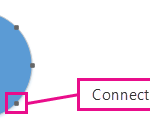
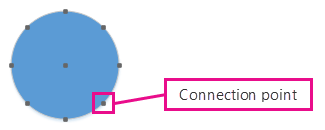
A connection point is a special point on a shape that you can “glue” connectors and other shapes to. When you glue a connector or shape to a connection point, they stay connected, even if one of the shapes is moved.
Connection points become visible when you try to connect one shape to another. You see a shape’s connection points when you hover near the shape with the Connector Tool or drag the endpoint of any connector or line near a shape that has connection points.
Add a connection points on Visio Stencils
if the shape you want to glue a connector to does not have a connection point where you want it, you can add one.
Select the shape.
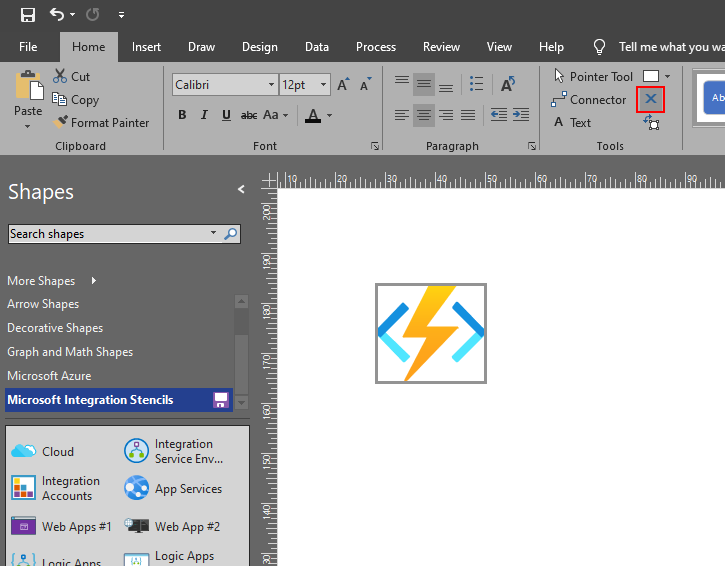
On the Home tab, in the Tools group, click the Connection Point tool .
If connection points are not visible, on the View tab, in the Visual Aids group, select the Connection Points checkbox.
Press Ctrl and click where you want to add a connection point. The new connection point is automatically selected after you place it.
On the Home tab, in the Tools group, click Pointer Tool to resume normal editing.
Tips and Tricks – Fix or Add connector points on Visio Stencils (Video)
I don’t consider myself a master of Visio, although I use it a lot to make my solution diagrams or system architectures and have already been considered Visio MVP for a year for my contributions to this product. As you may know, I create several years ago a Microsoft Integration, Azure, BAPI, Office 365 and much more Stencils Pack for Visio that I maintain until today (the last update was 4 days ago). And one of the tops complain is about text annotations: be able as a standard behavior to add text annotation bellow the shapes rather than on top that is the default of most shapes present in this package.
Well, luckly there is, the only problem is that there are so many items to change in this collection that this will take some time to finish, nevertheless I already start to work on this and the first set is already fixed.
This blog and video will show you how to fix this issue and maybe you can join me and contribute on this GitHub project and help me speed up this process of fixing this issue.
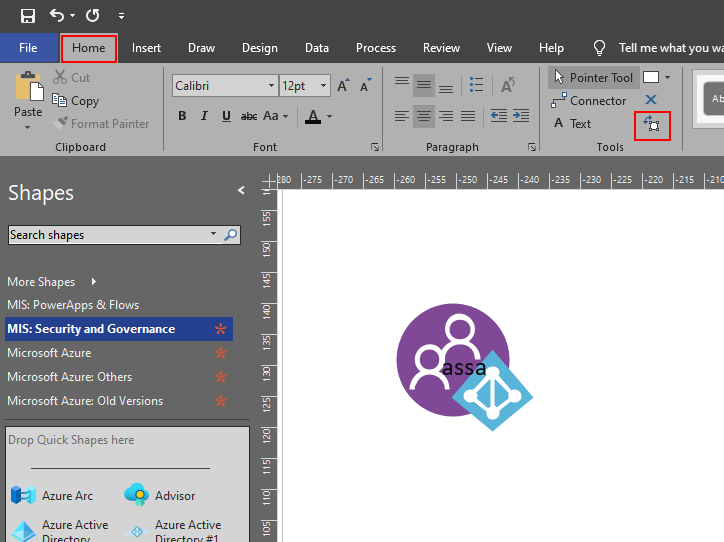
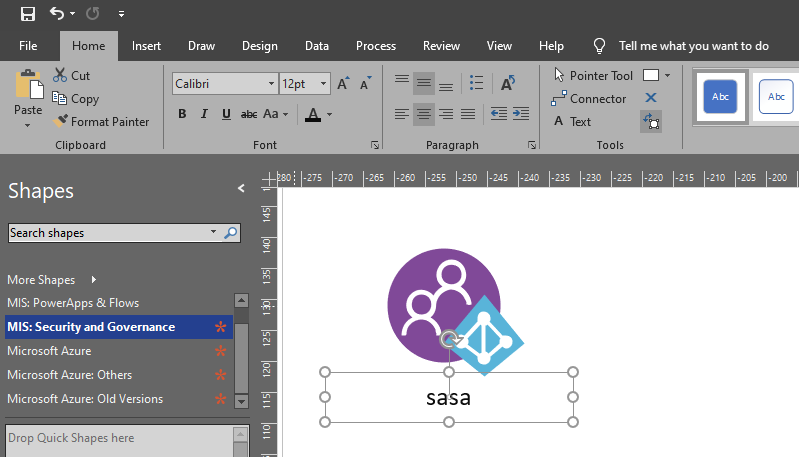
Fix Text annotations on Visio Stencils
Click on the shape that you want and type something. if the text is on top of the shape follow this steps:
On the Home tab, in the Tools group, click the Text Block tool .
Drag and resize the text block and put it in the desired position, normally bellow the shape.
On the Home tab, in the Tools group, click the Pointer Tool .
After you switch back to the Pointer Tool, the text keeps the same position relative to the shape. If you use the Pointer Tool to drag the text, the shape will also move, even if the text is no longer on the shape.
Tip and tricks – Fix Text annotations on Visio Stencils (video)
It came to my attention that there were some Azure icons missing on this package like Azure Synapse Analytics, so I decide to make a refresh on this package and add some missing and new icons available on the Azure Portal.
What’s new in this version?
32 new icons added on the following files:
Microsoft Azure (MIS Azure Stencils.vssx): This package contains stencils of Azure Services (original icons) that are available thru the Azure Portal.
Microsoft Azure: Others (MIS Azure Others Stencils.vssx): This package contains other less important (or secondary features) and related stencils.
MIS: Security and Governance (MIS Security and Governance.vssx): This package contains stencils that will represent Security and Governance.
Continuing the process of improving the user experience regarding text annotations and connector points.
Microsoft Integration, Azure, Power Platform, Office 365 and much more Stencils Pack
Microsoft Integration, Azure, Power Platform, Office 365 and much more Stencils Pack it’s a Visio package that contains fully resizable Visio shapes (symbols/icons) that will help you to visually represent On-premise, Cloud or Hybrid Integration and Enterprise architectures scenarios (BizTalk Server, API Management, Logic Apps, Service Bus, Event Hub…), solutions diagrams and features or systems that use Microsoft Azure and related cloud and on-premises technologies in Visio 2016/2013:
BizTalk Server
Microsoft Azure
Integration
Integration Service Environments (ISE)
Logic Apps and Azure App Service in general (API Apps, Web Apps, and Mobile Apps)
Azure API Management
Messaging: Event Hubs, Event Grid, Service Bus, …
Azure IoT and Docker
AI, Machine Learning, Stream Analytics, Data Factory, Data Pipelines
SQL Server, DocumentDB, CosmosDB, MySQL, …
and so on
Microsoft Power Platform
Microsoft Flow
PowerApps
Power BI
Office365, SharePoint,…
DevOps and PowerShell
Security and Governance
And much more…
… and now non-related Microsoft technologies like:
SAP Stencils
The Microsoft Integration Stencils Pack is composed of 27 files:
Microsoft Integration Stencils
MIS Additional or Support Stencils
MIS AI and Machine Learning Stencils
MIS Apps and Systems Logo Stencils
MIS Azure Additional or Support Stencils
MIS Azure Mono Color
MIS Azure Old Versions
MIS Azure Others Stencils
MIS Azure Stencils
MIS Buildings Stencils
MIS Databases and Analytics Stencils
MIS Deprecated Stencils
MIS Developer Stencils
MIS Devices Stencils
MIS Files Stencils
MIS Generic Stencils
MIS Infrastructure Stencils
MIS Integration Fun
MIS Integration Patterns Stencils
MIS IoT Devices Stencils
MIS Office365
MIS Power BI Stencils
MIS PowerApps and Flows Stencils
MIS SAP Stencils
MIS Security and Governance
MIS Servers (HEX) Stencils
MIS Users and Roles Stencils
That you can use and resize without losing quality, in particular, the new shapes.
Once again, it is time to get back to one of my favorite topics, error and warnings, cause, and solutions blog post. This time with a different error regarding one of the most critical components in BizTalk Server: Microsoft Distributed Transaction Coordinator (MSDTC).
Last week a client call me that their production environment was entirely down; nothing was working. I accessed the server and realized that all services were stopped, and we were not able to start them. Long story short, and after I made the common question: “Did someone made any changes on the environment?”, to which I received the usual response: “No, we didn’t”. They had made some changes on the network level blocking port communication between BizTalk Server and SQL Server that supports BizTalk Server.
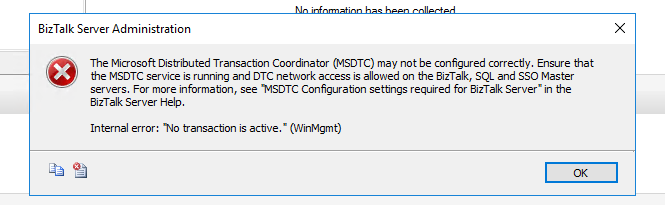
After I asked them to restore the previous settings and open all communication between BizTalk Server and SQL Server, I could start the BizTalk Services on the machine. However, when I open the BizTalk Server Administration Console to see if everything was working correctly, I got the following error while refreshing the BizTalk Group:
TITLE: BizTalk Server Administration —————————— The Microsoft Distributed Transaction Coordinator (MSDTC) may not be configured correctly. Ensure that the MSDTC service is running and DTC network access is allowed on the BizTalk, SQL and SSO Master servers. For more information, see “MSDTC Configuration settings required for BizTalk Server” in the BizTalk Server Help.
Internal error: “No transaction is active.” (WinMgmt) —————————— BUTTONS: OK ——————————
Cause
Without a doubt that this error is still related to communication restrictions between the BizTalk Server machine and the SQL Server machine that hosts BizTalk Server databases, and especially with MSDTC ports. So I ask them if they disable all restrictions between the machines: from BizTalk to SQL Server and also from SQL Server to BizTalk Server because, for example, RPC ports need to be bi-directional, so if you have firewalls or network port restrictions you need to allow inbound and outbound exclusions for these ports.
And the reason for this error was that they only had disabled network restrictions from BizTalk Server to SQL Server, not the other way.
Solution
Once they disabled all network restrictions from SQL Server to BizTalk Server, this problem was solved.
Note: if you want to implement communication port restrictions between BizTalk Server and SQL Server, be sure that you are following the right procedures and ensuring that the required ports are open on the firewalls so that the BizTalk Server components can communicate with each other.


Update URI on BizTalk Server Receive Locations with PowerShell







 .
.
 to resume normal editing.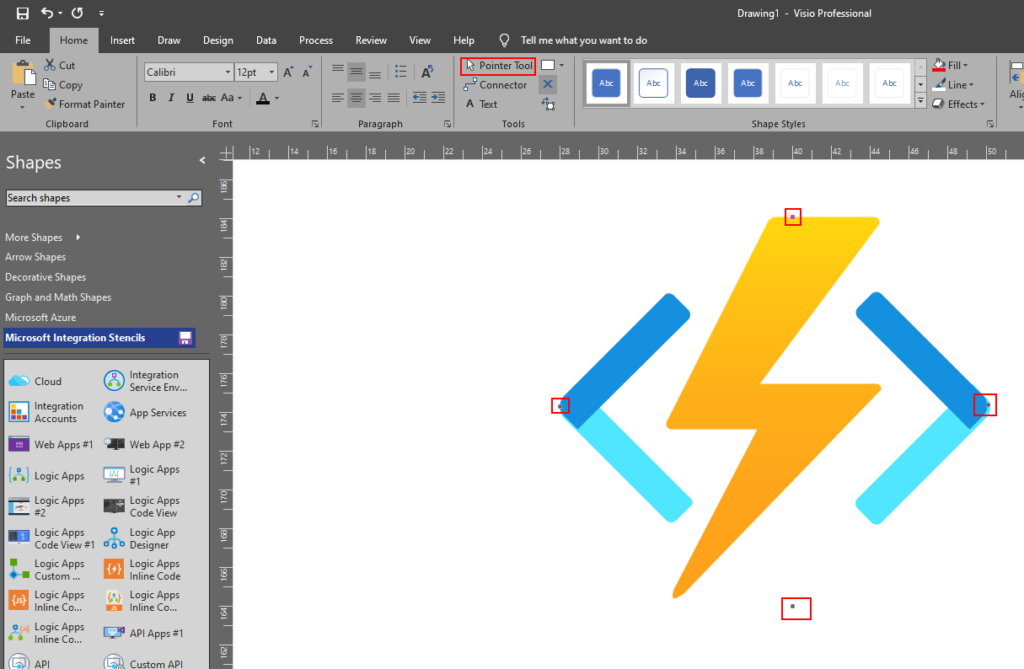
 .
.
 .
.