Last week I wrote the first part of this small blog season on monitoring the status of your Azure API Connections. In the first part, I described how you could easily create a simple PowerShell script to have a simple report of the status of all your existing Azure API Connections. I knew since the beginning that that solution wasn’t the ideal one, it was good enough to run it from time to time manually on-demand, but that is not the situation you want to be in. So, today we will go to address the first solution that came into my mind and, in fact, was also suggested both by Mike and Nino:
Using an Azure Function App to check the Azure API Connections status
I endup also added a schedule Logic App to trigger that Function App because I want to notify the internal support team if any findings (broken API Connections) were detected.
Solution 2: Using Function App and Logic App
The first question that appeared in this solution was: what kind of runtime stack to use on your Function App: .NET or PowerShell Core?
I decided to use PowerShell Core because I already have all the PowerShell working from the previous solution, so for me made all sense to use this instead of having to recreate all this logic with .NET.
Create Function App
If you don’t have yet a Function App with the PowerShell Core runtime stack created, the first step is to create one, and for that, you need to:
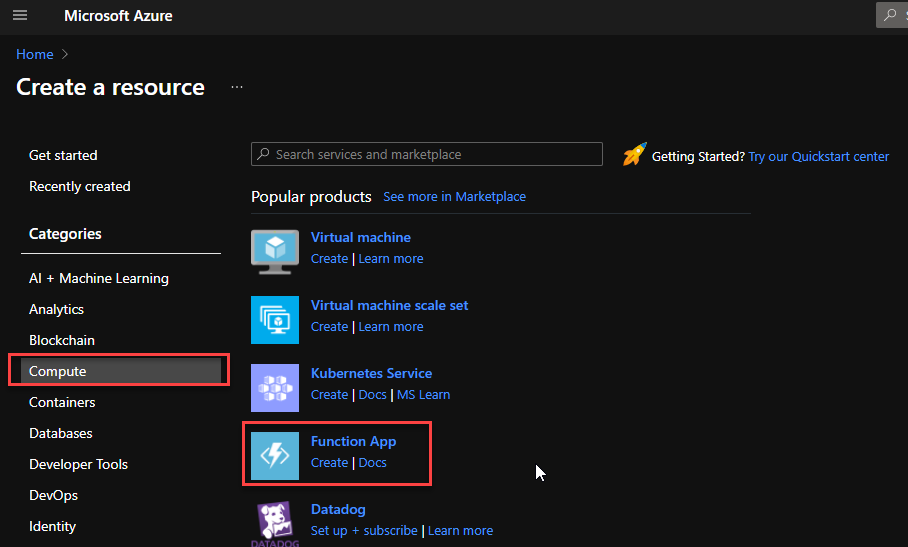
From the Azure portal menu or the Home page, select Create a resource.
In the Create a resource page, select Compute > Function App.
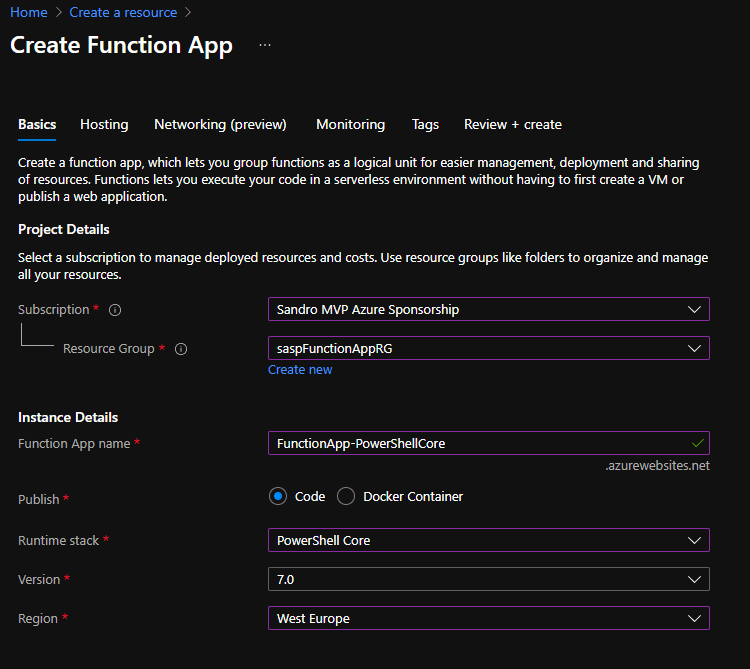
On the Create Function App Basics page, use the following function app settings:
Subscription: Select the subscription under which this new function app is created.
Resource Group: Select an existing Resource Group or create a new one in which your function app will be created.
Function App name: Name that identifies your new function app.
Publish: Select Code.
Runtime stack: Select the option PowerShell Core
Version: Choose the version of your installed runtime, in this case, 7.0
Region: Choose a region near you or near other services your functions access.
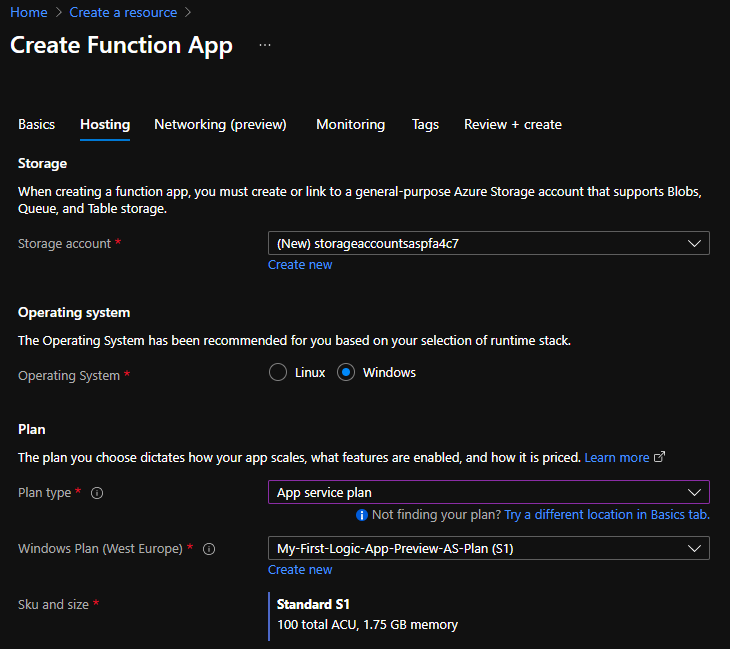
Select Next : Hosting. On the Hosting page, enter the following settings:
Storage Account: Create a storage account used by your function app or select an existing one
Operating system: I choose to use Windows since I’m feeling more comfortable with it.
Plan: Hosting plan that defines how resources are allocated to your function app. In this case, you need to select the App Service plan.
Note: I initially tried to use the Consumption plan, but I couldn’t import and use the Azure modules with the consumption plan. I think they are not supported in that type of plan.
Windows Plan: Select an existing plan or create a new one.
Sku and size: I use the Standard S1
YYou can customize the other option according to your intentions or leave the default values. For this demo, we will now select Review + create to review the app configuration selections.
On the Review + create page, review your settings, and then select Create to provision and deploy the function app.
Create HTTP trigger function
The next step is to create an HTTP trigger Function:
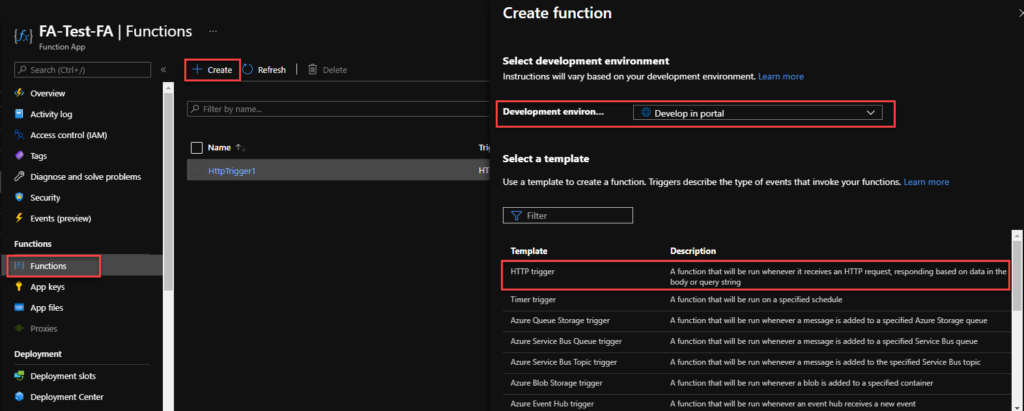
From the left menu of the Function App window, select Functions, then select Create from the top menu.
From the Create Function window, leave the Development environment property as Develop in portal and select the HTTP trigger template.
Under Template details use HttpTrigger1 (or provide a better name) for New Function, and choose Function from the Authorization level drop-down list, and then select Create.
On the HttpTrigger1 window, select Code + Test, then on the run.ps1 file add the following code:
Now that we have created our function, we need to provide permission for this function to access and read from your subscription or different resource groups. I choose to provide permissions at the resource level. And for that, you need to:
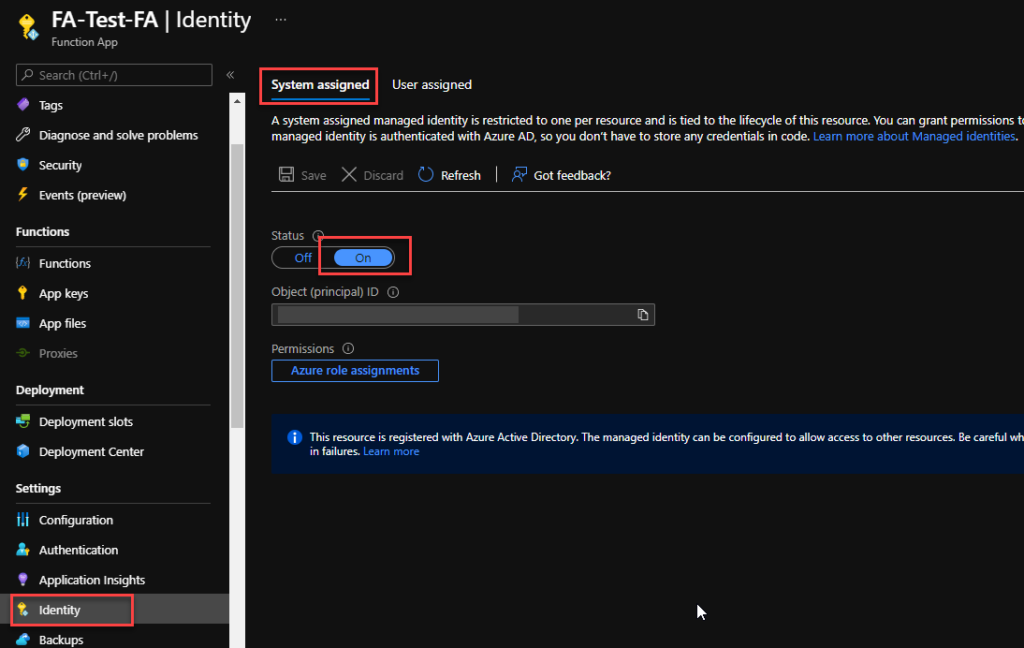
From the left menu of the Function App window, select the Identity option, then select the System assigned tab from the top menu.
On the Status, select On and click Save. This will create an Object (principal) ID.
Click on the Azure role assignments button, and on the Azure role assignments window, click Add role assignment (Preview).
On the Add role assignment (Preview) page, set the following settings:
Scope: Select Resource Group from the combo box list.
Subscription: Select the subscription under the resource group you want to monitor is.
Resource group: Select the resource group you want to monitor.
Role: Select the Reader role.
Click Save.
Repeat the same steps for all the resource groups you want to monitor.
Create a Logic App
Finally, we need to create a scheduling Logic App to trigger the monitoring Function and notify if any API Connection is broken. To simplify the solution, we will be using the Azure Portal to create also the Logic App.
From the Azure portal menu or the Home page, select Create a resource.
In the Create a resource page, select Integration > Logic App.
On the Create Logic App Basics page, use the following Logic app settings:
Subscription: Select the subscription under which this new Logic app is created.
Resource Group: Select an existing Resource Group or create a new one in which your Logic app will be created.
Type: The logic app resource type and billing model to use for your resource, in this case we will be using Consumption
Consumption: This logic app resource type runs in global, multi-tenant Azure Logic Apps and uses the Consumption billing model.
Standard: This logic app resource type runs in single-tenant Azure Logic Apps and uses the Standard billing model.
Logic App name: Your logic app resource name, which must be unique across regions.
Region: The Azure datacenter region where to store your app’s information. Choose a region near you or near other services your Logic app access.
Enable log analytics: Change this option only when you want to enable diagnostic logging. The default value in No.
When you’re ready, select Review + Create. On the validation page, confirm the details that you provided, and select Create.
After Azure successfully deploys your app, select Go to resource. Or, find and select your logic app resource by typing the name in the Azure search box.
Under Templates, select Blank Logic App. After you select the template, the designer now shows an empty workflow surface.
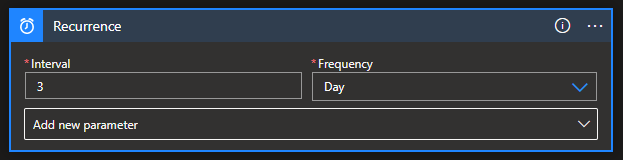
In the workflow designer, under the search box, select Built-In. From the Triggers list, select the Schedule trigger, Recurrence.
In the trigger details, provide the following information:
Interval: 1
Frequency: Day
Under the Recurrence trigger, select New step.
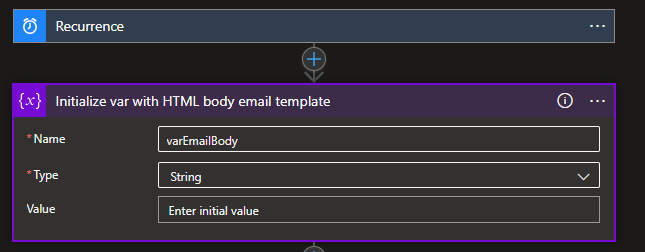
In the search box, enter Variables, and from the result panel select the Variables, Initialize variable action and provide the following information:
Name: varEmailBody
Type: String
Value: leave it empty
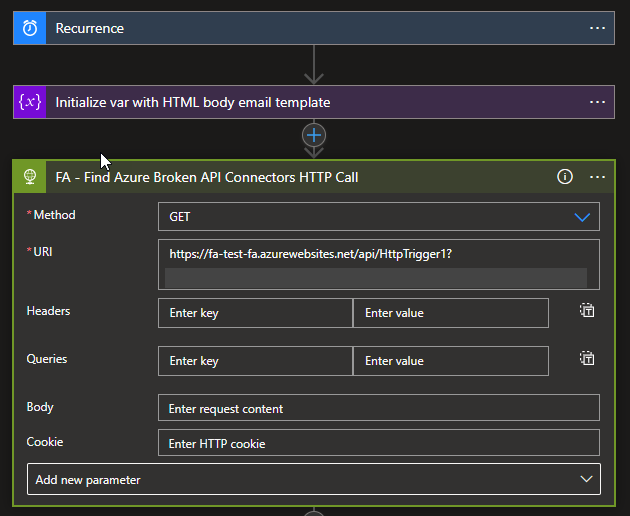
Select New step. In the search box, enter HTTP, and from the result panel select the HTTP, HTTP action and provide the following information:
Method: GET
URI: specify the endpoint of your Function that we created earlier on this blog post.
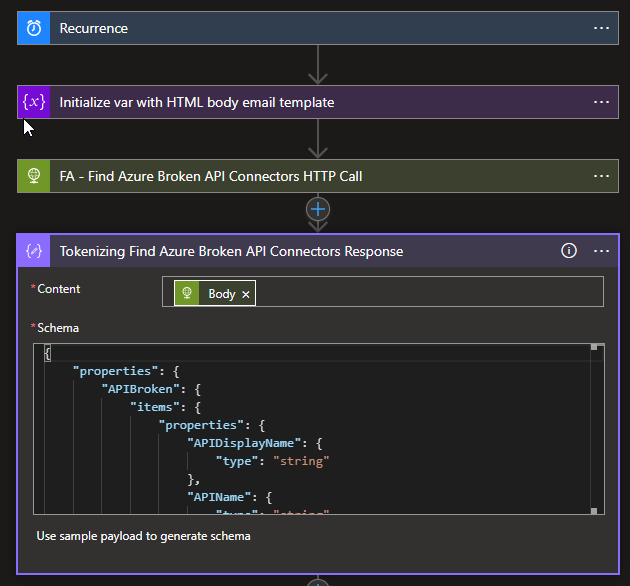
Select New step. In the search box, enter Data Operations, and from the result panel select the Data Operations, Parse Json action and provide the following information:
Method: body of the HTTP action
Use the following sample payload to generate the schema
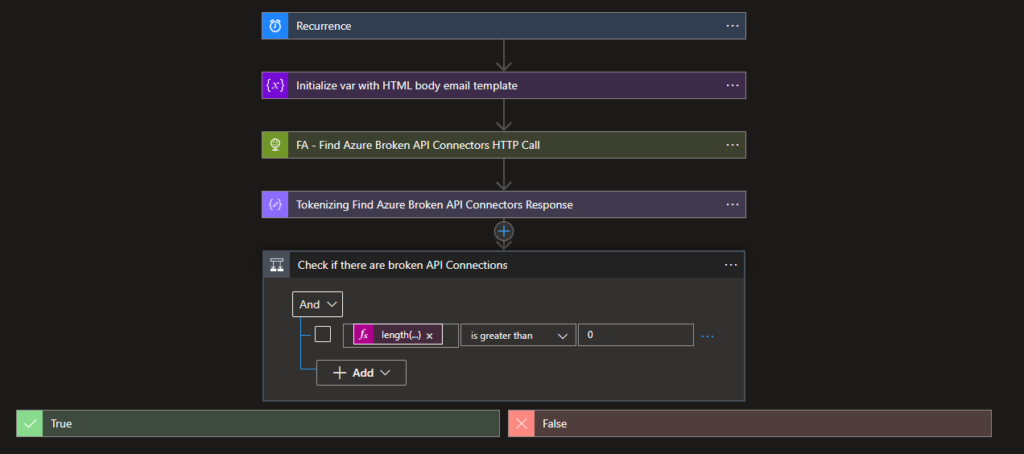
Select New step. under the search box, select Built-In. From the Triggers list, select the Control, Condition action and provide the following condition:
length(body(‘Tokenizing_Find_Azure_Broken_API_Connectors_Response’)?[‘APIBroken’]) is greater than 0
Leave the False branch empty
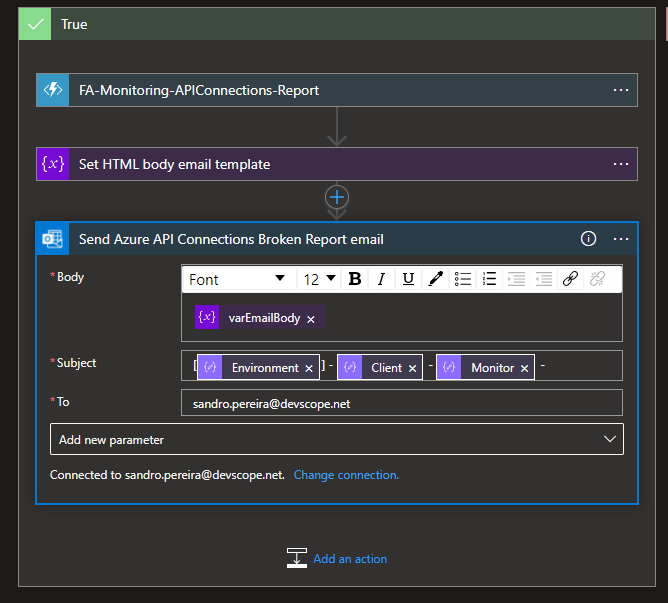
On the True branch I end up adding the following action to notify the support team:
Choose an Azure function: I’m calling and Azure Function to transform the list of broken API’s in a HTML table.
Set variable: I’m setting the varEmailBody with my default HTML email body Template and add the HTML table that the Azure Function returned
Send an email (v2) – Office 365 Outlook: To send the email to the support team
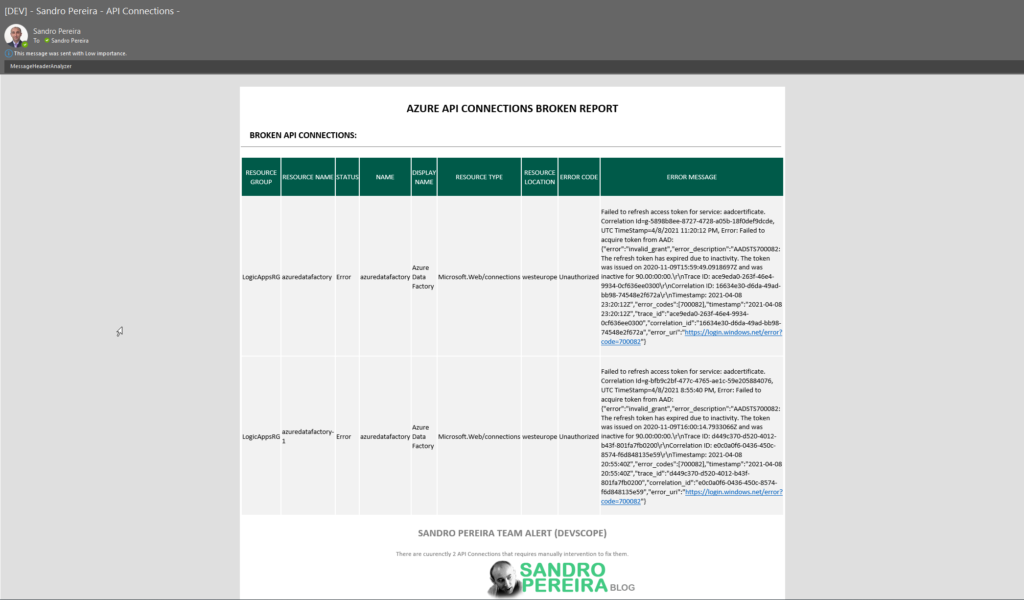
The result, once you try to execute the Logic App, will be a fancy HTML email:
This approach is an elegant solution and relatively easier to build, nevertheless it has a significant disadvantage:
Az modules are not supported on a Consumption plan. At least I couldn’t make it work. So that means I need to use an App Service plan, which means I will have an additional cost or more costs associated with this solution, more or less 36.94€/month.
This could be almost if not free if we use a Consumption plan.
Sometimes I like to use my friends to have a different point of view of things, which is one of these cases. I have been discussing during this week with Mike Stephenson and Nino Crudele how we can easily manage and monitor our current Azure Logic App Connectors present on our Azure integration solutions.
One of the reasons why this is so important is because some of the connectors like for example, Office 365 connectors: Team Connector, Office 365 Outlook, and so on, can stop working for the simple reason that the access token has expired due to inactivity and without notice, your processes stop working also and it was precisely what happened in one of my clients. We noticed that the API Connections were expired because we were troubleshooting another issue.
Recently Mike wrote about his great solution here: Monitoring the status of API Connections for Logic Apps. But you can archive that goal using different approaches. Of course, you will find advantages and disadvantages in all of them.
I decided to create this series of 3 blog posts to present 3 different approaches by starting with the simplest one:
Solution 1: Using a simple PowerShell Script
The first thing I did while thinking about the problem was, yep, let’s create a PowerShell script to see what is possible or not. And so, my first approach was creating a simple PowerShell script that goes to all resources I have on my subscription and doing a simple report of the current status of the existing API connections.
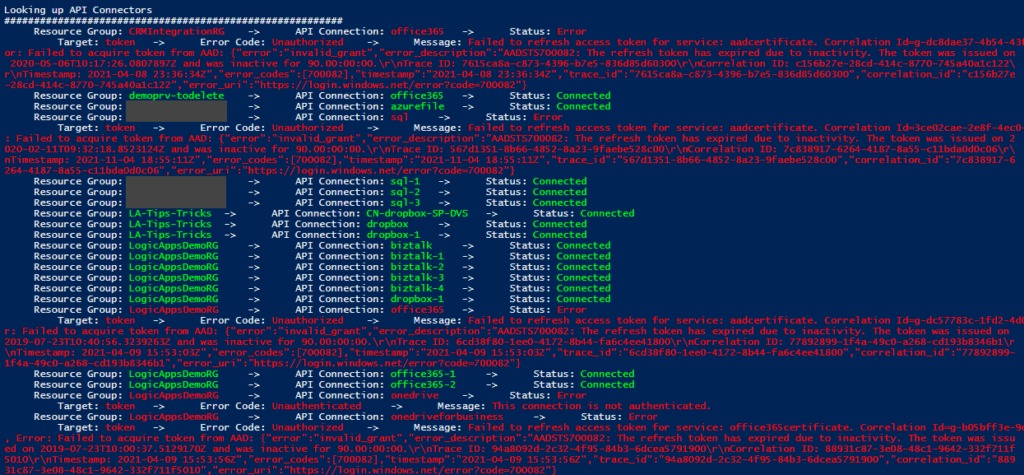
It is for sure not the most elegant and best PowerShell script, but for a proof of concept works well, and it will provide a simple and color report of how your existing API Connections are:
##############################################################
# Get list of API Connectors available on the Resource Group
##############################################################
Write-Host 'Looking up API Connectors'
Write-Host '#########################################################'
$resourceName = ''
$resources = Get-AzResource -ResourceType Microsoft.Web/connections
$resources | ForEach-Object {
$logicAppUrl = $_.ResourceId + '?api-version=2018-07-01-preview'
# Get Logic App Content
$resourceJsonResult = az rest --method get --uri $logicAppUrl
$resourceJson = $resourceJsonResult | ConvertFrom-Json
$resourceName = $_.Name
$resourceGroupName = $_.ResourceGroupName
# Check Logic App Connectors
$apiConnectionStatus = $resourceJson.properties.overallStatus
if($apiConnectionStatus -eq 'Error')
{
Write-Host "`t Resource Group: " -NoNewline; Write-Host $resourceGroupName -ForegroundColor Red -NoNewline; Write-Host "`t -> `t API Connection: " -NoNewline; Write-Host $resourceName -ForegroundColor Red -NoNewline; Write-Host "`t -> `t Status: " -NoNewline; Write-Host $apiConnectionStatus -ForegroundColor Red;
Write-Host "`t`t Target: " -NoNewline; Write-Host $resourceJson.properties.statuses.target -ForegroundColor Red -NoNewline;
Write-Host "`t -> `t Error Code: " -NoNewline; Write-Host $resourceJson.properties.statuses.error.code -ForegroundColor Red -NoNewline; Write-Host "`t -> `t Message: " -NoNewline; Write-Host $resourceJson.properties.statuses.error.message -ForegroundColor Red;
}
else
{
Write-Host "`t Resource Group: " -NoNewline; Write-Host $resourceGroupName -ForegroundColor Green -NoNewline; Write-Host "`t -> `t API Connection: " -NoNewline; Write-Host $resourceName -ForegroundColor Green -NoNewline; Write-Host "`t -> `t Status: " -NoNewline; Write-Host $apiConnectionStatus -ForegroundColor Green;
}
}
The result will be something like:
You will see on the picture above many samples that The refresh token has expired due to inactivity. Witch is normal because most processes I have under my subscription are samples or POC, and I only execute them from time to time, most of the time when I have speaking engagements or meetings with clients. However, there are real scenarios like my client case that we are using a Team Connector to notify us on the team channel when a significant issue appears. And this is something that should not happen often. Luckily it was our case, and due to inactivity, the API connection got broken. Still, unfortunately for us, we were not notified on the Teams channel when the issue appeared in production.
It was not a big issue because it was not a critical operation. The Logic App didn’t fail because it is configured not to fail on these notifications. Could we have a better logging system? Yes, we could, but we don’t have it at the moment. But with or without logging, you will only be aware of the issue when the error happens. And you don’t want to be in that position. So it is always better for you to be proactive and prevent these issues from occurring.
The main issue with this approach is that this script is good enough to run it from time to time manually on-demand, but this again is not the situation you want to be in. So, in the following parts, I will address 2 approaches where and how you can set up this to be a scheduled process using Azure features.
Download
THIS POWERSHELL SCRIPT IS PROVIDED “AS IS”, WITHOUT WARRANTY OF ANY KIND.
You can download API Connections Status Report from GitHub here:
Completing the enormous saga, aka nightmare, to install BAM in one of my latest BizTalk Server installations and once I thought I solve all the issues… BAM strikes again! Now complaining about the following error:
Exception Message=”Microsoft (R) Business Activity Monitoring Utility Version 3.13.717.0 Copyright (C) Microsoft Corporation. All rights reserved.
ERROR: Failed to set up BAM database(s). Database ‘BAMAnalysis’ has compatibility level larger than 1103 with StorageEngineUsed set to InMemory. Tabular databases with compatibility level at 1200 or above must use StorageEngineUsed set to TabularMetadata.
My team didn’t follow the SQL Server installation, we just send to another team the requirements necessary for BizTalk Server and the installation guide, so we were a little surprised by this error.
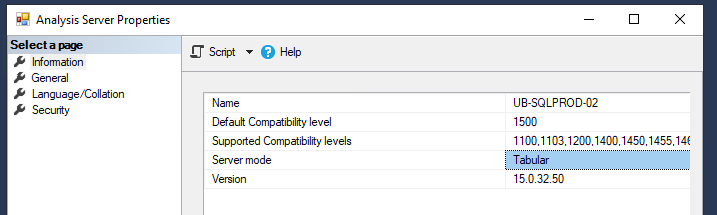
And despite I never had seen this error before, the reason was quite simple: This error is caused by the SQL Server Analysis Services (SSAS) instance being installed using the tabular mode, and BizTalk Server needs a multi-dimensional mode SSAS instance.
Solution
You have at least two solutions on the table to solve this issue.
Solution 1: Uninstall and re-install SQL Server Analysis Services (SSAS)
The trick here is to be able to know how to uninstall SSAS and to do that you need to:
Open Command Prompt as Administrator model on the SQL Server and execute the following command
Action performed. In here we are going to uninstall
Feature we are going to remove. AS indicates Analysis Services instance
The name of our AS instance
After that, you just need to add new features to the existing installation, in this case, a multi-dimensional mode SSAS instance.
Solution 2: Modify the msmdsrv.ini file
An alternative way is to modify the msmdsrv.ini file. Administrators can modify default server configuration properties of an SQL Server Analysis Services (SSAS) instance by using SQL Server Management Studio. However, properties pages in SQL Server Management Studio show a subset of the properties most likely to be modified. For SSAS, all properties are in the msmdsrv.ini file.
The default installation, msmdsrv.ini can be found in the C:Program FilesMicrosoft SQL ServerMSAS15.MSSQLSERVEROLAPConfig folder
Of course, this depend on the version you are using.
On the msmdsrv.ini file:
Configure the DeploymentMode property to be 0 (zero) and save the file
After that, restart the SSAS instance and these will change from a tabular instance to a multi-dimensional instance
Nevertheless, while trying to configure BAM features, I was getting the following error message:
Could not load file or assembly ‘Microsoft.SqlServer.SQLTask, Version=13.0.0.0?,Culture=neutral, PublicKeyToken=89845dcd8080cc91’ or one of its dependencies. The system cannot find the file specified.
Once I solve that one, I endup getting another one:
Could not load file or assembly ‘Microsoft.SqlServer.Management.IntegrationServices, Version=13.0.0.0?,Culture=neutral, PublicKeyToken=89845dcd8080cc91’ or one of its dependencies. The system cannot find the file specified.
And another one:
Could not load file or assembly ‘Microsoft.AnalysisServices, Version=13.0.0.0?,Culture=neutral, PublicKeyToken=89845dcd8080cc91’ or one of its dependencies. The system cannot find the file specified.
And another one:
Could not load file or assembly ‘Microsoft.AnalysisServices.Core, Version=13.0.0.0?,Culture=neutral, PublicKeyToken=89845dcd8080cc91’ or one of its dependencies. The system cannot find the file specified.
And another one:
Could not load file or assembly ‘Microsoft.AnalysisServices.AdomdClient, Version=13.0.0.0?,Culture=neutral, PublicKeyToken=89845dcd8080cc91’ or one of its dependencies. The system cannot find the file specified.
This was a kind of a nightmare of errors after errors!
Cause
This is something that always annoyed me since Microsoft decided to separate the SSMS from the default installation. So, on one hand, it is great that clients can update to a recent version of the tool. Still, on the other hand, it complicates specific previous simple tasks like performing the configuration of BizTalk Server features in special BAM features.
By design, the latest SSMS only includes the latest version of SSIS assemblies.
I have been using this SSMS 18.4 version in almost all my BizTalk Server installations. But also, in most of my recent installations, my clients didn’t want me to install BAM because they were not using this feature. The reason I use SSMS 18.4 version is because it was the latest version available before BizTalk Server 2020 was released.
I have tried to uninstall this SSMS version and install a previous one – 17.9.1 – to solve this issue, but by doing that, I got a ton of other problems with the based features of BizTalk Server like SSO and Runtime. So I decide to keep using SSMS 18.4.
Trying to find the correct version of the SSMS may be an inglorious Task.
I saw comments and suggestions to solve this issue that I would do in a BizTalk Server environment like:
Installing SSIS on the BizTalk Server machine and re-run BizTalk configuration
Installing SSDT (SQL Server Data Tools) full ISO on the BizTalk Server machine and re-run BizTalk configuration
or by installing the Client Tools SDK from SQL Server installation media on BizTalk machine and re-run BizTalk configuration – this was, in fact, a possible alternative
But again, this issue is related without a doubt with problems related to assemblies reference mismatch.
Solution
You have several solutions on the table to solve this issue. I endup deciding that the simple and fast way was to do Assembly redirect at the machine level.
To solve this problem by using Assembly Binding Redirection in the machine configuration file (Machine.config) you should change both:
I usually use a range of different usernames to define as the administrator of my Azure Virtual Machines, and I have others that clients shared with me. So, you may be thinking, why are you accessing the Azure VM’s using the administration account and not an AD account? Typically, these are standalone development environments where I need permissions as administrator, so sometimes, this is the quick and easy way. We may argue if this is the best practice or not, but it is without a dought the fastest and easy way.
And today, one of my team members called me asking what was the password of user ABC (not the real username name) to access one of our Azure BizTalk Server Development VM’s because he was trying all possible variants and it was not able to log in. Unfortunately, I don’t remember all the VM administrator usernames I use to create our internal VM, so the first question I asked was not about the password but if he was using the correct username to access the machine. He was not sure about it neither.
So, the main question is: How can you quickly find the Azure VM administrator username of a specific machine?
There maybe be many ways to find this information. I will highlight here two of them that I normally use.
Option 1: Using the Azure Portal
Go to Virtual Machines services on your Azure portal.
Select the Virtual Machine that you want to find the username.
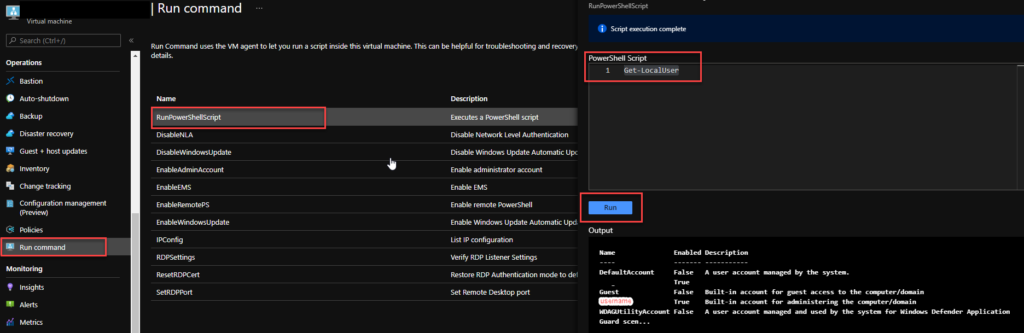
On the Virtual Machine property page, from the option tree, click on the Run command option from the Operations section.
On the Run command page, select RunPowerShellScript and them type Get-LocalUser on the PowerShell Script panel and click Run
The output will be a list of local user present on the machine mentioning what is the administrator.
Option 2: Using PowerShell
Another easy option is using a simple PowerShell script:
We published a REST web service in BizTalk Server a long time ago that exposes a BizTalk Server Orchestration. Basically, we receive a JSON payload, convert it to XML on the receive pipeline, and apply some logic. If everything goes well, we had this message in a queue to be processed and delivered to an internal system. And this has been working fine until recently the business reported that a few cases were getting stuck on the source system with the following error message:
413 Request Entity Too Large
The above picture was a test we did using Postman with a sample message that was failing on the source system to validate if the problem was related to BizTalk Server. And in this case, it was.
You should always try and validate if the error is a BizTalk Server issue or not, and only then try to solve the problem. Because most of the time, the business tries to blame the middleware system and a lot of times are other components that are failing.
Cause
Based on the HTTP status 413 and error description is easy to understand that the server is refusing to process a request because the request payload is larger than the server is willing or able to process.
The most complex part is understanding where and what properties to change to solve these issues. Some solutions that you will find on the internet will tell you that the quickest and easy solution is to increase the upload size limit on IIS: uploadReadAheadSize property.
Others will tell you to put a maxRequestLength in the system.web to allow, for example, 2MB message size. Or add a binding section on the config and set maxReceivedMessageSize and readerQuotas.
And all of these options, at some point, make sense. The service is running in IIS as a web application and indeed has a web.config, So, that should be, in theory, the first place to look and tunning. But none of these solutions will solve the problem.
Note: This doesn’t mean that for specific scenarios, these will be helpful.
Solution
To solve once and for all this issue you need to:
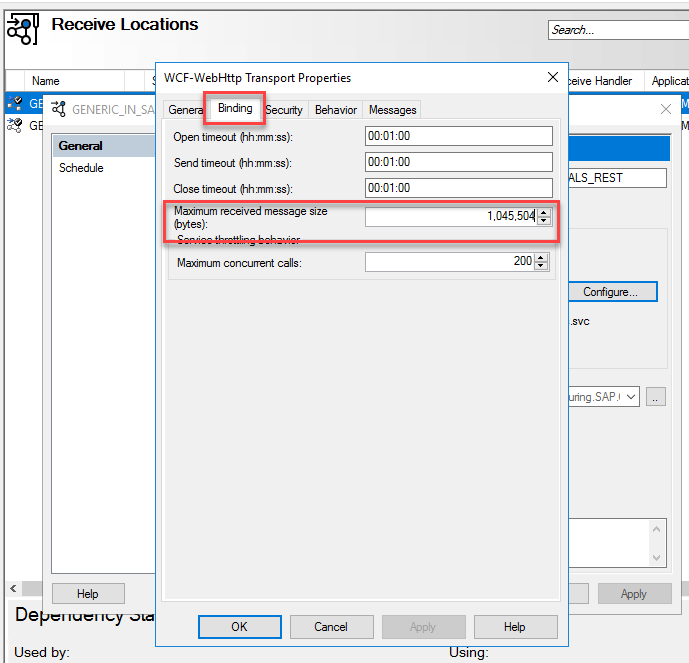
On the BizTalk Server Administration Console, access to the WCF-WebHTTP Received Location bindeed to this service that is having issues.
On the Receive Location properties window, select Configure..
On the WCF-WebHTTP Transport Properties, select the Binding tab
And incrise the Maximum received message size (bytes) property
This time, while trying to configure a simple feature that usually doesn’t require too much effort, just selecting the checkbox, I got a different error message:
[2021-10-18 23:53:24:0397 Error EDIAS2Config] Failed to deploy BAM activity definitions. Please make sure that all BAM related Data Transformation Services (DTS) packages are removed along with the BAM databases. (Microsoft.BizTalk.Configuration.EDIAS2.Utility) Failed to execute process: C:Program Files (x86)Microsoft BizTalk ServerTrackingbm.exe. (Microsoft.BizTalk.Configuration.EDIAS2.Utility) Microsoft (R) Business Activity Monitoring Utility Version 3.13.717.0
Copyright (C) Microsoft Corporation. All rights reserved.
Using ‘BAMPrimaryImport’ BAM Primary Import database on server ‘SERVER-NAME’…
Deploying Activity… Done.
ERROR: The BAM deployment failed.
The alerts were not deployed.
Cannot start service BAMAlerts on computer ‘.’.
The service did not start due to a logon failure
(Microsoft.BizTalk.Configuration.EDIAS2.Utility)
Once again, for you to have a better perspective, we didn’t perform a full configuration in one shot because of issues happening during the configuration process. In this case, we took the approach of configuring feature by feature step-by-step. And this wasn’t the first time we were trying to configure this feature.
Cause
This isn’t the same issue that I reported in the previous post, but they are related since the origin of the problem was the same. There was a domain policy that disabled the user’s right to log on as a service, causing the services to stay stopped if, for some reason, you restart the services.
And that was one of the main reasons for this installation to become a nightmare. In this particular case, the BAMAlerts service was stopped, which was causing this error.
Also, because this wasn’t the first try to install this feature, you need to ensure that you have removed BAM artifacts that were probably created successfully. Avoid other types of errors once you give it another try to configure that feature.
Solution
You have several actions to perform to solve once and for all this issue:
Ensure you have removed all the EDI/AS2 BAM resources by accessing the tracking folder using the command line console in administration mode:
Usually, the path is: C:Program Files (x86)Microsoft BizTalk ServerTracking
After that, make sure that all BizTalk Server services, including Enterprise Single Sign-On and BAMAlerts is running
And then give another try configuring this feature.
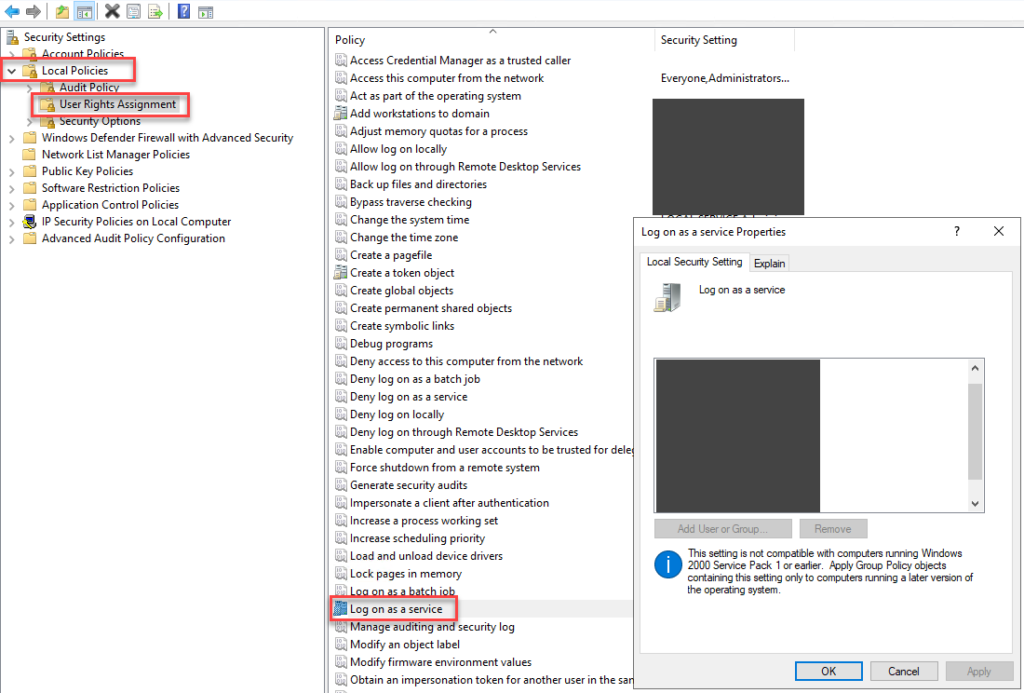
Now, that will solve the issue momentarily. Nevertheless, to put in a correct configuration, you need to ask the security team to Restore user’s right to log on as a service for the BizTalk Services on the BizTalk Server machine.
In a normal situation, you could fix that by:
Sign in with administrator privileges to the computer from which you want to provide Log on as Service permission to accounts.
Go to Administrative Tools, click Local Security Policy.
Expand Local Policy, click User Rights Assignment. In the right pane, right-click Log on as a service and select Properties.
Click Add User or Group option to add the new user.
In the Select Users or Groups dialogue, find the user you wish to add and click OK.
Click OK in the Log on as a service Properties to save the changes.
If the right to log on as a service is revoked for the user account, restore it on a domain controller or a member server (standalone) depending on your situation.
This could be a valid error message if it weren’t for the simple little detail that we are dealing with a High-availability multi-server BizTalk Server installation. That means that the SQL Server was installed in another machine(s)… and yes, Microsoft SQL Server Integration Services was installed on the SQL Server as Analysis Service and all the pre-requirements of BizTalk Server 2020.
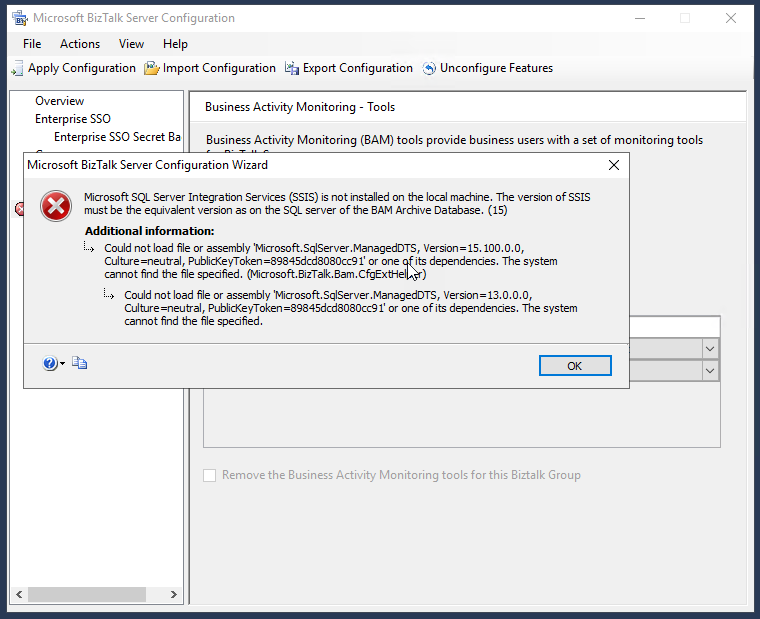
And again, yes. SQL Server Management Studio (SSMS) 18.4 was installed on the BizTalk Server box. So why the hell that when I was trying to configure BAM features, I was getting the following error message:
BizTalk Server 2020 BAM Configuration: Microsoft SQL Server Integration Services (SSIS) is not installed on the local machine. The version of SSIS must be the equivalent version as on the SQL server of the BAM Archive Database. (15)
Could not load file or assembly ‘Microsoft.SqlServer.ManagedDTS, Version=13.0.0.0′,Culture=neutral, PublicKeyToken=89845dcd8080cc91’ or one of its dependencies. The system cannot find the file specified.
Cause
This is something that always annoyed me since Microsoft decided to separate the SSMS from the default installation. So, on one hand, it is great that clients can update to a recent version of the tool. Still, on the other hand, it complicates specific previous simple tasks like performing the configuration of BizTalk Server features in special BAM features.
By design, the latest SSMS only includes the latest version of SSIS assemblies.
I have been using this SSMS 18.4 version in almost all my BizTalk Server installations. But also, in most of my recent installations, my clients didn’t want me to install BAM because they were not using this feature. The reason I use SSMS 18.4 version is because it was the latest version available before BizTalk Server 2020 was released.
I have tried to uninstall this SSMS version and install a previous one – 17.9.1 – to solve this issue, but by doing that, I got a ton of other problems with the based features of BizTalk Server like SSO and Runtime. So I decide to keep using SSMS 18.4.
Trying to find the correct version of the SSMS may be an inglorious Task.
I saw comments and suggestions to solve this issue that I would do in a BizTalk Server environment like:
Installing SSIS on the BizTalk Server machine and re-run BizTalk configuration
Installing SSDT (SQL Server Data Tools) full ISO on the BizTalk Server machine and re-run BizTalk configuration
or by installing the Client Tools SDK from SQL Server installation media on BizTalk machine and re-run BizTalk configuration – this was, in fact, a possible alternative
But again, this issue is related without a doubt with problems related to assemblies reference mismatch.
Solution
You have several solutions on the table to solve this issue.
Solution 1: Install side-by-side SSMS 17.9.1
Note: do not uninstall SSMS version 18.4. Leave both side-by-side.
I know this is a little ridiculous, but it solves the problem.
Solution 2: Assembly redirect at the machine level (machine.config)
To solve this problem by using Assembly Binding Redirection in the machine configuration file (Machine.config) you should change both:
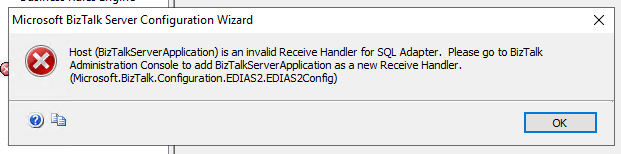
I have to say that I saw bizarre error messages during these long years as a consultant, but this one gained direct entry into my TOP 10 for a straightforward fact: there isn’t a SQL Adapter on BizTalk Server 2020. The adapter was deprecated since BizTalk Server 2006 R2, and they decided to remove it in this last version of the product. So, when I saw this error message appearing on the BizTalk Server Configuration Console:
Host (BizTalkServerApplication) is an invalid Receive Handler for SQL Adapter. Please go to BizTalk Administration Console to add BizTalkServerApplication as a new Receive Handler (Microsoft.BizTalk.Configuration.EDIAS2Config)
Humm… what? Humm…
I have done hundreds of installations during more than 15 years working in BizTalk Server, and many of these installations were BizTalk Server 2020, but I never faced this issue before.
On a small note, because of issues happening during the configuration process, I didn’t perform a full configuration in one shot. In this case, we took the approach of configuring feature by feature, step-by-step.
Cause
BizTalk Server 2020 Cumulative Update 2 and then try again to configure this feature. But I soon realized that this wasn’t the issue, neither the solution since the problem continues to happen. But, again, I have done several BizTalk Server 2020 installations since this last version was released and never got this error. And some of them were almost immediately when 2020 was announced and available.
I was almost ready to install the old and deprecated SQL Adapter in BizTalk Server 2020 to see if that solved the issue when I decided to have a look at the services and see if all the services were running. Shocking surprise Enterprise Single Sign-On Service wasn’t running… So again, this time I decided to start the SSO service and then try again to configure this feature… and everything worked. I was able to configure this feature in BizTalk Server 2020.
Yes, for sure you need the Enterprise Single Sign-On (ENTSSO) Service running to perform the BizTalk Server configuration. This is the first step of the BizTalk Server configuration, and without it, you cannot configure the rest of the features. However, clearly this problem, or in this case, the error message description presented to the user making the configuration, is what I call a problem between the chair and the keyboard. Someone forgot to fix these validations or update the validations made by the BizTalk Server Configuration Console.
Solution
The solution is simple:
Ensure that Enterprise Single Sign-On (ENTSSO) Service is running before you perform any configuration in BizTalk Server because all the features will rely on it.
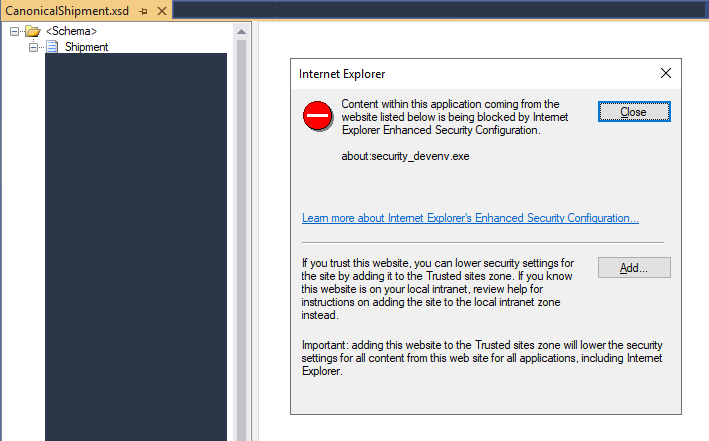
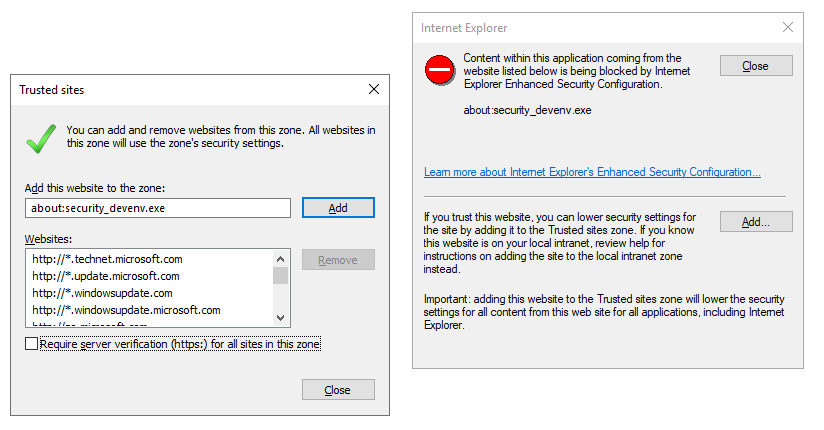
I have been working on a new BizTalk Server project on a new client for a few weeks. Now that we are beginning the development phase, I was getting annoying with an Internet Explorer security blocking windows every time I try to open a schema document on Visual Studio with the BizTalk Server Schema Editor:
Internet Explorer
Content within this application coming from the website listed below is being blocked by Internet Explorer Enhanced Security Configuration:
about:security_devenv.exe
To be honest, I initially ignored this issue and immediately clicked on the Close button, and everything would work as usual. But starting to work every day on the project and facing this issue every time I tried to open a Schema was simple to annoying.
Cause
We don’t need the IE to develop BizTalk Schemas, but the XSD viewer, in fact, opens an IE embedded inside Visual Studio. And that is the reason for this issue.
I typically don’t get this “warning” message because I usually turn off Internet Explorer Enhanced Security Configuration on my BizTalk Servers.
Solution
The solution is simple:
You can turn off Internet Explorer Enhanced Security Configuration by:
Start by running the Server Manager, if it is not already open, from either:
On the Windows taskbar, click the Server Manager button
On the Start screen, click Server Manager
In the Server Manager Dashboard, from the scope pane (on the left side) click on Local Server
In the Server Properties for the Local Server, you’ll see the option for IE Enhanced Security Configuration. Click On to change the option
A dialog box appears, letting Internet Explorer Enhanced Security Configuration be enabled/disabled separately for normal users and administrators; turn off both. After disabling both options, click OK
Click the Refresh button at the top of the Server Manager and the IE Enhanced Security Configuration should now show as Off
Or, if don’t want to turn off Internet Explorer Enhanced Security Configuration , you can on the blocking pop-up window click on Add
On the Trusted sites window, make sure Require server verification (https:) for all sites in this zone is not marked and then click Add
After one of these two options/settings that annoying blocking behavior inside Visual Studio will be gone.