by community-syndication | Oct 20, 2012 | BizTalk Community Blogs via Syndication
What are Service Bus Sessions?
Service Bus Sessions are actually a rather broad subject as there are a few different scenarios in which they can be used. At its simplest description I consider Service Bus Sessions to be a way to relate messages together. More specifically here are a few ways in which they can be used:
- To address the Maximum message size constraint. Service Bus Queues can support messages that have a size of 256 KB or smaller. Using Sessions allow us to break a larger message down into smaller messages and then send them over the wire. A consumer, or receiver, can then receive all of these message “chunks” and aggregate them together.
- To support receiving a related set of messages in First In First Out (FIFO) fashion
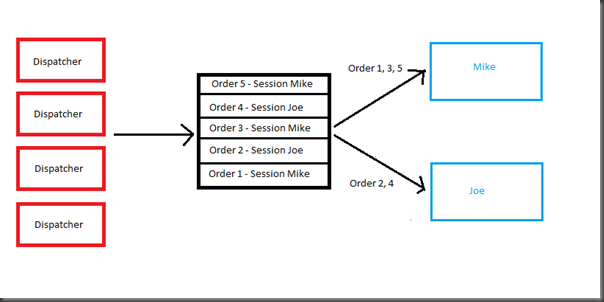
- Allows for affinity between a consumer and a Service Bus Queue in competing consumer scenarios. Imagine having 3 consuming clients all trying to receive messages from the same Service Bus Queue. Under normal circumstances you cannot be assured that one receiver will receive all messages within a message set. One can expect the messages to be distributed amongst the clients as each consumer “competes” for the right to process a particular message. In this scenario, once a receiver has started to process a message within a session, that consumer will process all messages within that session barring some sort of application crash.
- In some scenarios, using a Service Bus Session allows for routing of messages. Within a receiver, you can specify an explicit Session that you are interested in. So in some ways a Session can be used almost like a filter. I am not suggesting that this approach be used instead of Service Bus Topics/Subscriptions, but there may be a specific business requirement to do this.
Why are Service Bus Sessions important in BizTalk processing?
BizTalk deals with a variety of different messaging scenarios in many different industry verticals. Supporting Service Bus Sessions is just another tool in the the BizTalk toolbox for supporting new requirements. A scenario that I came up with is dispatching messages. For instance if we wanted to load up a field worker with all of his orders, wouldn’t it be nice to have all of his orders sent to him as a batch? As opposed to him receiving some of his orders only to receive more orders later on. For instance he may have driven by one of his customers already because the messages that he receive were out of order and other field workers were also receiving their orders which delayed him in receiving all of his.
Putting it together – Modifying Service Bus Queue
A pre-requisite for this type of messaging scenario to work is configuring our Service Bus Queue to support Sessions. This can be enabled in a couple different ways:
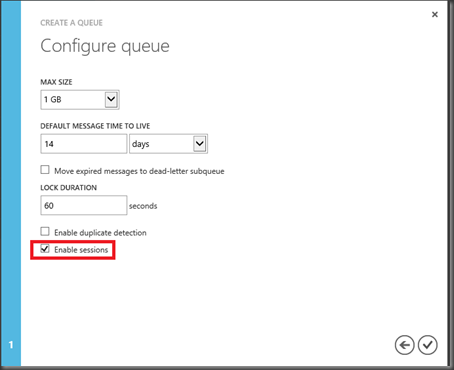
- When creating a queue from within the Azure Portal, we can check the Enable sessions checkbox.
- When using the QueueDescription class we can set the RequiresSession property to true.
NamespaceManager namespaceClient = new NamespaceManager(serviceUri, credentials);
if (!namespaceClient.QueueExists(Sender.QueueName))
{
QueueDescription queueDescription = new QueueDescription(Sender.QueueName)
{
RequiresSession = true
};
namespaceClient.CreateQueue(queueDescription);
}
BizTalk Configuration
In order to keep the solution very simple, we will create:
- Two Receive Ports
- A Receive Location for each Receive Port. The purpose of these Receive Locations is to simply inject messages into BizTalk so that we can set the SessionID property on the Send Ports.
- 2 Send Ports
- Each Send Port will have a filter for the corresponding Receive Port. Within each Send Port we will configure a SessionID .
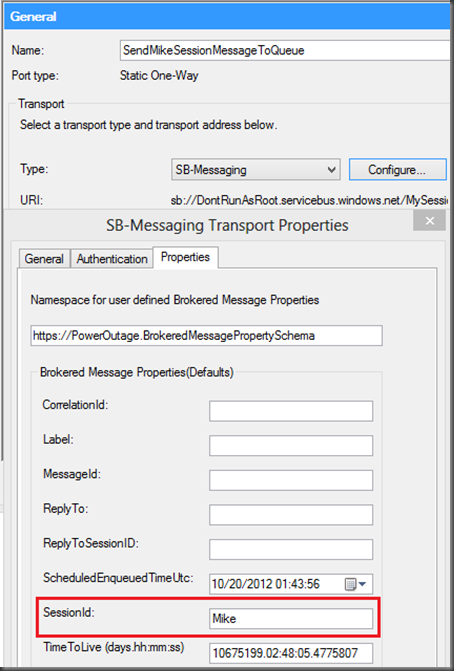
The other Send Port will use the same URI, however it will have a different SessionID value which will be Joe.
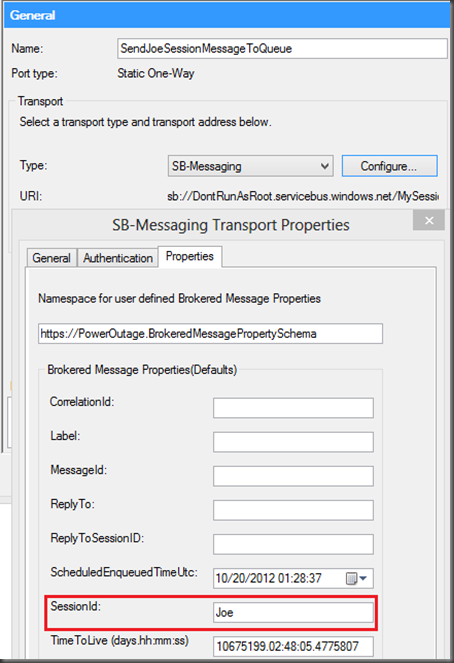
Service Bus Queue Client
The code below will make a connection to our session-ful Service Bus Queue and retrieve all messages that have a SessionId of Mike.
using System;
using System.Collections.Generic;
using System.Linq;
using System.Text;
using System.Threading.Tasks;
using Microsoft.ServiceBus;
using Microsoft.ServiceBus.Messaging;
using System.Runtime.Serialization;
using BrokeredMessageToBizTalk;
namespace RetrieveServiceBusSession
{
class Receiver
{
const string QueueName = “<your_sessionful_queue>”;
static string ServiceNamespace = “<your_namespace>”;
static string IssuerName = “<your_issuerName>”;
static string IssuerKey = “<your_IssuerKey>”;
static void Main(string[] args)
{
TokenProvider credentials = TokenProvider.CreateSharedSecretTokenProvider(Receiver.IssuerName, Receiver.IssuerKey);
Uri serviceUri = ServiceBusEnvironment.CreateServiceUri(“sb”, Receiver.ServiceNamespace, string.Empty);
MessagingFactory factory = null;
factory = MessagingFactory.Create(serviceUri, credentials);
QueueClient sessionQueueClient = factory.CreateQueueClient(Receiver.QueueName);
//Create sessionQueueClient and subscribe to SessionIDs that have a value of “Mike”
MessageSession sessionReceiver = sessionQueueClient.AcceptMessageSession(“Mike”, TimeSpan.FromSeconds(60));
BrokeredMessage receivedMessage;
while ((receivedMessage = sessionReceiver.Receive(TimeSpan.FromSeconds(60))) != null)
{
var data = receivedMessage.GetBody<PowerOut>(new DataContractSerializer(typeof(PowerOut)));
Console.WriteLine(String.Format(“Customer Name: {0}”, data.CustomerName));
Console.WriteLine(“SessionID: {0}”, receivedMessage.SessionId);
//remove message from Topic
receivedMessage.Complete();
}
Console.WriteLine(“All received on this session…press enter to exit”);
Console.Read();
}
}
}
The code itself is very similar to that of some of my previous blog posts on ServiceBus integration. The main difference is instantiating a MessionSession object.
MessageSession sessionReceiver = sessionQueueClient.AcceptMessageSession(“Mike”, TimeSpan.FromSeconds(60));
Within this line of we are indicating that we want to receive messages that belong to the Mike Session. We can also provide a TimeSpan as an argument to specify the duration in which we want to receive from this Session. Setting this value is more useful when we are looking for any available Session as it allows all messages within a Session to be processed before moving onto the next Session.
Testing
I have two sets of messages here. Two of the messages will be routed through the Joe Send Port and subsequently the SessionID for these two messages will be set to Joe. The other two messages will be routed through the Mike Send Port and subsequently will have its SessionID property set to Mike.
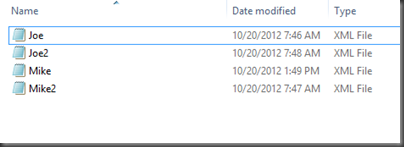
As mentioned previously, both Send Ports are configured to send to the same Service Bus Queue. When we do run our client application, the expectation is that messages belonging to the Mike Session will be retrieved. The Joe Messages will remain in the Queue until another receiver pulls them down or the the Time To Live (TTL) threshold has been exceeded.
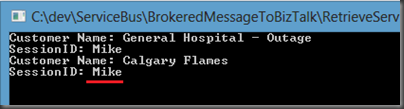
When we start our Consumer application we do discover that the “Mike” messages are processed.
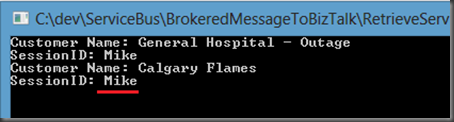
So what happened to the other messages?
The “Joe” messages are still in our Queue. If we navigate to our Windows Azure Portal, we will discover that our Queue Length is set to 2.
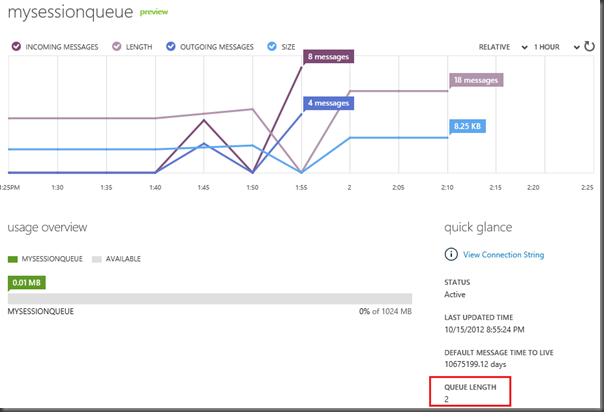
So how do we get these messages out?
We have a couple options, we can create another MessageSession instance and retrieve all Messages belonging to the Mike Session or we can not specify a Session and our client will look for the next available Session which in this case will be the Mike Session.
Let’s go with the second option and retrieve the next available session. In order to do so we need to change the following line of code from
MessageSession sessionReceiver = sessionQueueClient.AcceptMessageSession(“Mike”, TimeSpan.FromSeconds(60));
to
MessageSession sessionReceiver = sessionQueueClient.AcceptMessageSession(TimeSpan.FromSeconds(60));
We essentially are no longer specifying a specific Session that we are interested in and are now interested in any Session.
I will now process another 4 files; 2 will belong to the Joe Session and 2 will belong to the Mike Session. What we expect to happen is that all 4 Joe messages will be processed since it is the next available Session.
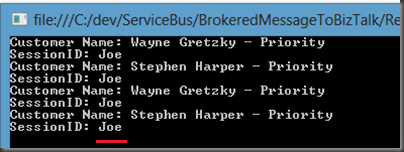
So this proves that we have In Order Delivery occurring at the Session level. Initially our Mike Session was processed which left our Joe messages outstanding. We then loaded 4 more messages to the Queue and since the Joe messages were first in, they were processed first. Our remaining 2 messages that now belong to Mike can be retrieved by starting up our Client Application once again.
Note:
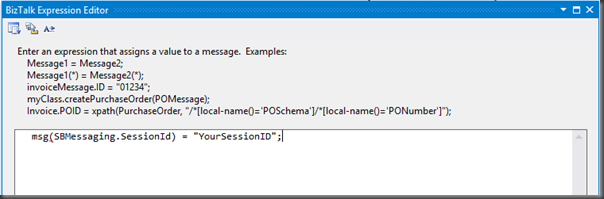
Within my BizTalk Send Ports I statically configured my SessionID. This isn’t very practical in the “Real World” but it was easy to demonstrate for the purpose of this blog post. Much like other BizTalk context properties the SessionID property is available and can be set dynamically within an Orchestration Message Assignment shape or a Pipeline Component.
Conclusion
Overall I found this functionality pretty neat. I do think that it is another capability that we can leverage to support more granular control over message processing. I do like the opportunity to group messages together and treat them as a batch. This also works when dealing with message size limitations as we can stich a bunch of smaller messages together that collective make up a large message.
by community-syndication | Oct 18, 2012 | BizTalk Community Blogs via Syndication
| I worked on a white paper which has just been published on MSDN |
J’ai travaill%u00e9 sur un livre blanc qui vient d’%u00eatre publi%u00e9 sur MSDN |
Leveraging a Hadoop cluster from SQL Server Integration Services (SSIS)
| I’d like to point out that the paper comes with sample code (thanks R%u00e9mi!) that can also be used besides Hadoop as it enables data movement to and from Windows Azure Blob storage from SQL Server’s ETL: SSIS. |
J’en profite pour pr%u00e9ciser que le livre blanc est fourni avec du code exemple (merci R%u00e9mi!) qui peut %u00eatre utilis%u00e9 ind%u00e9pendamment d’Hadoop puisqu’il permet de copier des donn%u00e9es vers et depuis les blobs Azure depuis l’ETL de SQL Server: SSIS. |
| The code samples are available at the following URLs: |
Les URLs des exemples de code sont les suivantes: |
SSIS Packages Sample for Hadoop and Windows Azure
HadoopOnAzure REST API Wrapper Sample
Azure Blob Storage Components for SSIS Sample
Benjamin
Blog Post by: Benjamin GUINEBERTIERE
by community-syndication | Oct 18, 2012 | BizTalk Community Blogs via Syndication
Normal
0
false
false
false
EN-AU
X-NONE
X-NONE
MicrosoftInternetExplorer4
/* Style Definitions */
table.MsoNormalTable
{mso-style-name:”Table Normal”;
mso-tstyle-rowband-size:0;
mso-tstyle-colband-size:0;
mso-style-noshow:yes;
mso-style-priority:99;
mso-style-parent:””;
mso-padding-alt:0cm 5.4pt 0cm 5.4pt;
mso-para-margin-top:0cm;
mso-para-margin-right:0cm;
mso-para-margin-bottom:10.0pt;
mso-para-margin-left:0cm;
line-height:115%;
mso-pagination:widow-orphan;
font-size:11.0pt;
font-family:”Calibri”,”sans-serif”;
mso-ascii-font-family:Calibri;
mso-ascii-theme-font:minor-latin;
mso-hansi-font-family:Calibri;
mso-hansi-theme-font:minor-latin;
mso-bidi-font-family:”Times New Roman”;
mso-bidi-theme-font:minor-bidi;
mso-fareast-language:EN-US;}
I am so pleased to announce the new MVP Category.
Microsoft Integration MVP
I have always been doing integration, for the last 12 years I’ve been doing integration, it’s just something about being able to reach out to other business systems and not just make them talk to each other make the connections between them dance. Lay down the right architecture and make it work.
The technology I used also varied, be it WCF, BizTalk,
Azure, SQL Azure, Azure XYZ. , SharePoint, SQL Server or anything else, when you do integration you
previously had to choose which MVP to be
Now thanks to Microsoft you don’t need to choose anymore.
I could not be happier with the name as it correctly
reflects exactly what we do, I will write posts and articles on any of these
topics all under the banner of integration, and all on the Microsoft technology
stack. Bring it on I say.
by community-syndication | Oct 17, 2012 | BizTalk Community Blogs via Syndication
Have you heard that the Microsoft Surface is now available for pre-order?
Be one of the first to score the hottest Windows tablet! Register for any 5-day class before November 1st and when you attend you will receive a free Microsoft Surface from QuickLearn.
Visit QuickLearn’s Course Calendar and select your next course!
Take advantage of this offer while registering by using the promotion code: SURFACE.
This offer is only valid for 5-day courses from Kirkland, WA with a retail value of $2,995 or higher booked between October 17th and November 1st, 2012. Not valid when combined with any other offer or discount. Offer is for 32 GB Surface with Windows RT ($499 value). Does not include cover or accessories.
See the ads
by community-syndication | Oct 17, 2012 | BizTalk Community Blogs via Syndication
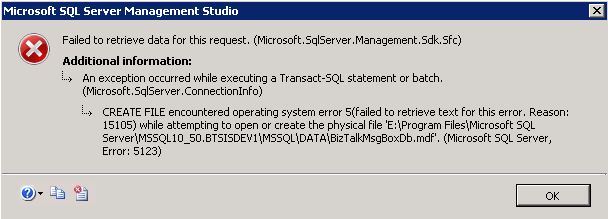
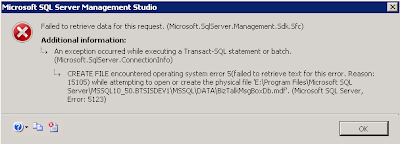
When trying to reattach a database I kept getting following error:
In the SQL log I could find below error. The same error was given when trying to attach the DB with a T-SQL statement.
Msg 5120, Level 16, State 101, Line 3 Unable to open the physical file “E:\Program Files\Microsoft SQL Server\MSSQL10_50.BTSISDEV1\MSSQL\DATA\BizTalkMsgBoxDb.mdf”. Operating system error 5: “5(failed to retrieve text for this error. Reason: 15105)”.
After several attempts on how to solve this I finally found the solution.
Turned out, all I needed to do was run the SQL Server Management Studio as an Administrator.
How can it be that simple, yet has me looking for a solution for over an hour :).