by Senthil Palanisamy | Aug 2, 2018 | BizTalk Community Blogs via Syndication
Introduction
Most of users prefer to install BizTalk360 in a standalone sever. Importantly, this approach does not overload the BizTalk environment or the BizTalk360 instance. Quite often, BizTalk360 database is configured in the same SQL Server instance as where BizTalk databases resides. In this case, configuring database in a separate SQL Server Instance for better performance and disk usage. Considering this fact, customers are acquiring a dedicated SQL Server for the BizTalk360 database. Meanwhile, few customers are using SQL Server Express edition, when they don’t prefer to buy a separate license for SQL Server. This article covers things that need to be considered when BizTalk360 with SQL Server Express Edition.
Customer Scenario
BizTalk360 is installed on a standalone server with all components, which are:
- The database
- The web portal
- The monitoring
- The analytics services
The customer has installed SQL Server 2017 Express edition
SQL Server Express Edition
Let us see features and limitations of SQL Server Express edition.
Features
- There is no requirement of license for using it, as it is free for distribution
- It is an easy to use version, designed for building simple data driven applications
- Applications develop faster through the deep integration with Visual Web Developer, Visual Studio, and so on
- Easy to create and share reports that answer complex questions through basic reporting services
- Provides backup and restore functionality and compatibility with all its versions
Limitations
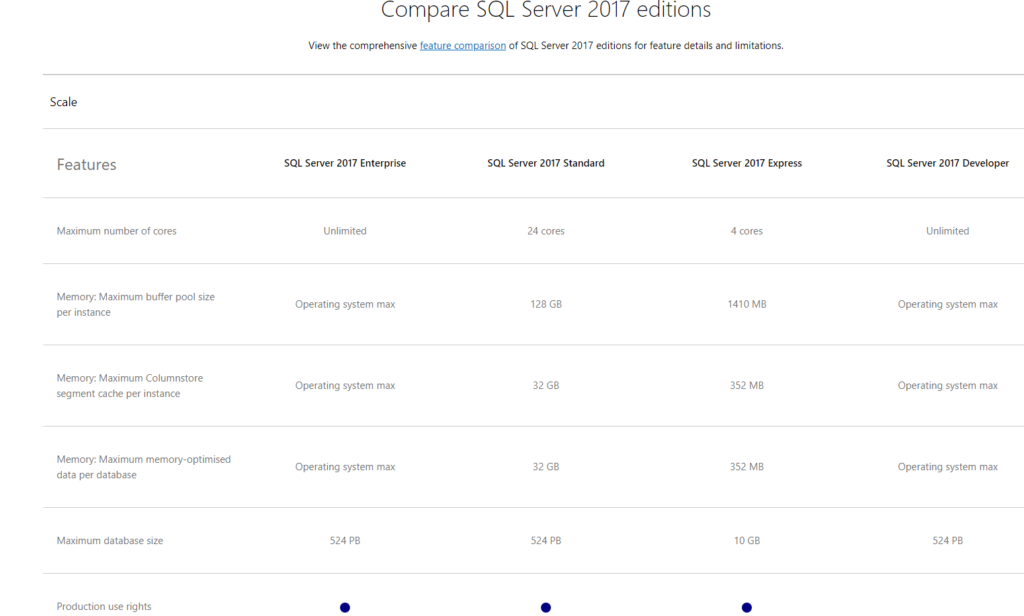
- SQL Server Express can be installed on a server with many CPUs. But, it can use only one CPU at a time and 4GB database size limit was there for SQL2005/2008 but after 2008R2 it has been increased to up to 10GB for each database. For this limit, only the size of the Data file is considered. The size of the Log file is not relevant
- Can use a maximum of 1GB memory for temporarily storing the data while it is being transferred from one place to the other
- The performance analysis tool, Profiles, is not included with the SQL Server Express edition
- The functionality to create and attach a schedule to a job (Job Scheduler) is not available with the express edition
- You cannot import or export the data with the SQL server express as this feature is also not available
BizTalk360 as Lightweight
Under this circumstance, user must take care few considerations in BizTalk360 to keep the size of database within the value supported by SQL Express Edition. For better performance of data processing, make sure you keep the database as light as possible.
The following configuration will help to maintain BizTalk360 database as lightweight:
- Event Log
- Analytics
- Data Purging
Event Log
In a BizTalk environment it’s important to monitor the Event Log to avoid any activities blocked at the back-end. A BizTalk Administrator’s main job is to keep BizTalk System Resources, Disk Usage and Database processes 100% healthy!
BizTalk360 collects Event Log data based on configured Event Logs and Event Log Sources. With this collected data, the BizTalk360 Monitoring service will send notifications based on configuration (Threshold and Data Monitoring). From the Operations section, Event Log data access functionality is also available with all kind of filtering capabilities. In BizTalk Reporting Analytics, the Event Log widget is populating the report with “Top 10” Event Log sources.
Event Log data collection will need more space based on the configured number of sources and the number of physical BizTalk Servers and SQL Servers in an environment. We can see the possibility to reduce the amount of event log data collection by:
- Configure just the important Event Log type and sources you want to monitor
- Enable Event Log data collection only at the physical server level (BizTalk/SQL) for which Event Log monitoring is important
Analytics
In a BizTalk production environment most of the users are using the BizTalk360 Analytics capabilities. The ‘Analytics’ section has the Performance Analyser functionality, the Messaging Patterns and the Throttling Analyser. The BizTalk360 services are also collecting data to generate the graphical widgets which are shown in multiple dashboards. Both Throttling and Performance data are collected every 15 secs. In a complex BizTalk environment data collection is at considerable size.
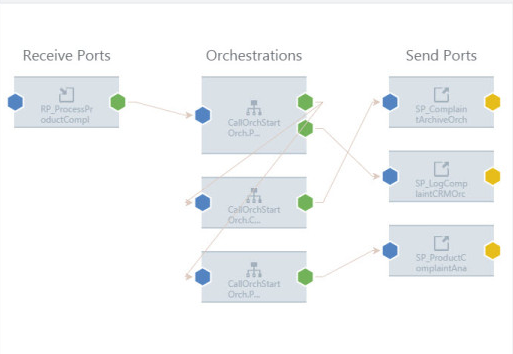
BizTalk Artifacts tracking is enabled at port level and at pipeline level. BizTalk360 uses its Analytics service to determine Message Patterns are by querying tracking data which is collected from the BizTalkDTADb. Similarly, tracking data is used to visualize messaging performance by port and by pipeline.
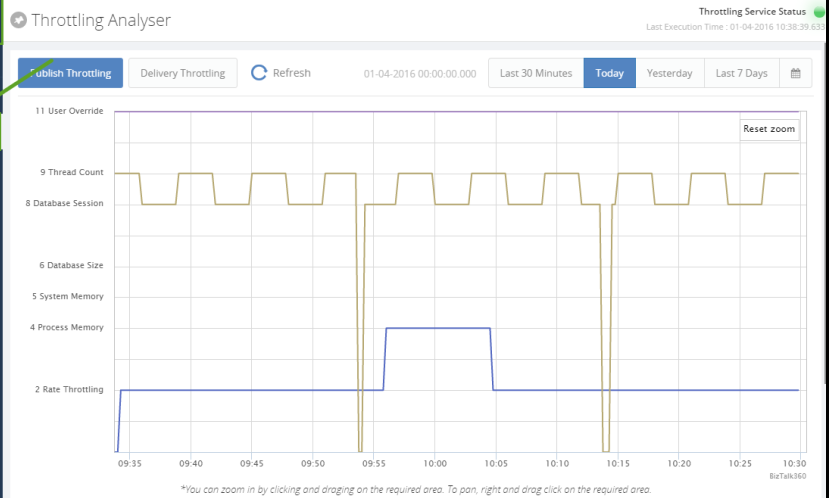
The Analytics service is responsible for collecting the Throttling Performance Counter data from all the BizTalk servers in the environment. The BizTalk360 Throttling Analyser helps to simplify the complexity in understanding BizTalk throttling mechanism and provide a simple dashboard view.
Users can observe the ways to optimize the data collection;
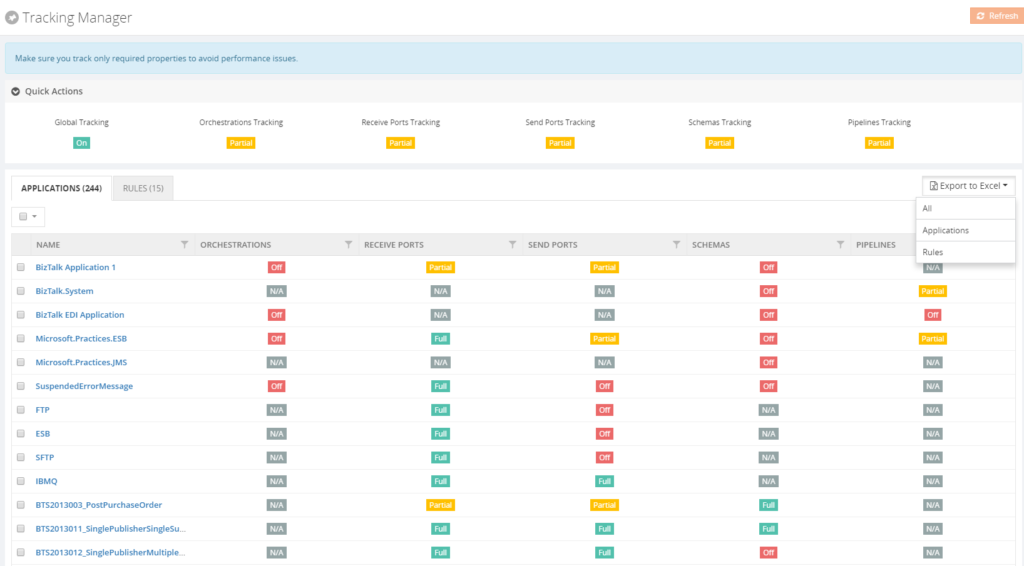
- Disable unnecessary tracking (Port and Pipeline). When possible, try to limit to Event tracking and prevent using Message body and context tracking, it will also boost performance of the BizTalk Tracking database
- Configure requirement performance counters in an environment to boost the data collection
To be able to get a good overview of all the Tracking settings within your BizTalk environment and to configure these settings in one consolidated screen, you can use the Advanced Tracking Manager.
Data Purging
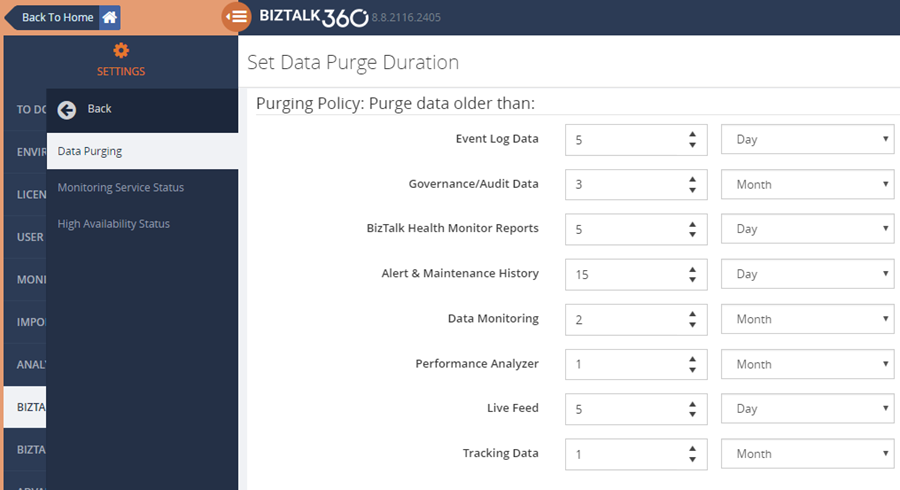
BizTalk360 comes out of the box with the ability to set purging duration. The background Monitoring service has the capability to purge older data automatically after a specified period. Data purging is configurable for different activities in which can be found under BizTalk360 Settings > Data Purging. Through this feature, you can control the size of data of the BizTalk360 database.
Compromising Performance and Storage?
We have seen about the performance and the size of data with several features in BizTalk360. Using SQL Express edition with 4 CPU Cores, 1410 MB of buffer pool size and storage of 10 GB in a BizTalk Production environment is critical. A BizTalk/Database administrator must monitor the size of the database by setting purging policies to a minimum period for data persistence.
Conclusion
Consider using SQL Express edition with BizTalk360 based on case by case as we discussed.
- Using SQL Express Edition in a critical production environment is not suggested as it compromises performance and data storage. For those BizTalk environments with more than one BizTalk servers, we advise to use a higher edition of SQL Server
- In Non-Production environments install different BizTalk360 instances by considering
- Enable important Event Log source to data collection.
- Another key point is configure single BizTalk environment in a BizTalk360 Instance.
- Periodically check the size of database and optimize the collected data.
Author: Senthil Palanisamy
Senthil Palanisamy is the Technical Lead at BizTalk360 having 12 years of experience in Microsoft Technologies. Worked various products across domains like Health Care, Energy and Retail. View all posts by Senthil Palanisamy
by Bill Chesnut | Jul 31, 2018 | BizTalk Community Blogs via Syndication
By Bill Chesnut
This is the first post in a multi part series on the features of Azure API Management.
When companies embark on a migration to Azure, they tend to have lots of legacy application, when they start using Azure API Management (APIM), they also want to expose some of these legacy applications, that is where the SOAP pass-through feature of APIM helps out. This feature allow you to publish these SOAP services in APIM.
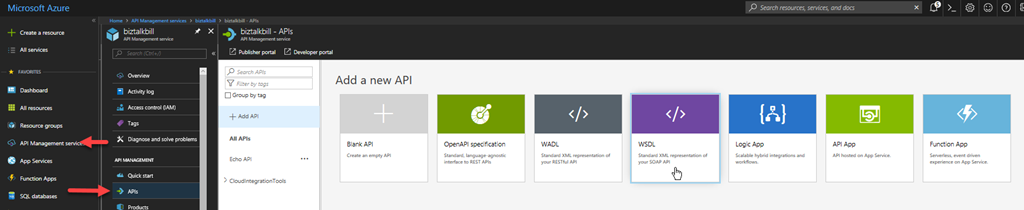
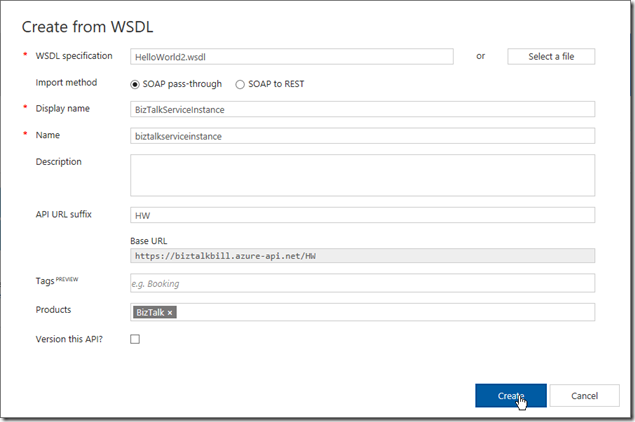
For this blog post I am going to demonstrate how you publish a BizTalk SOAP service in APIM. With APIM you can publish SOAP services by importing the WSDL (this can be either via the URL or by uploading the WSDL file), In APIM Click the “API” menu item on the left, then Click “WSDL”
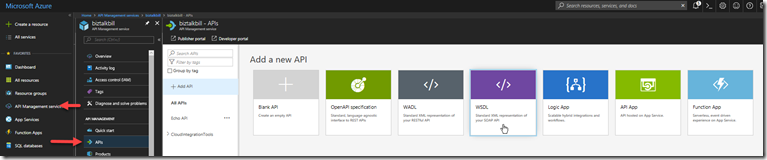
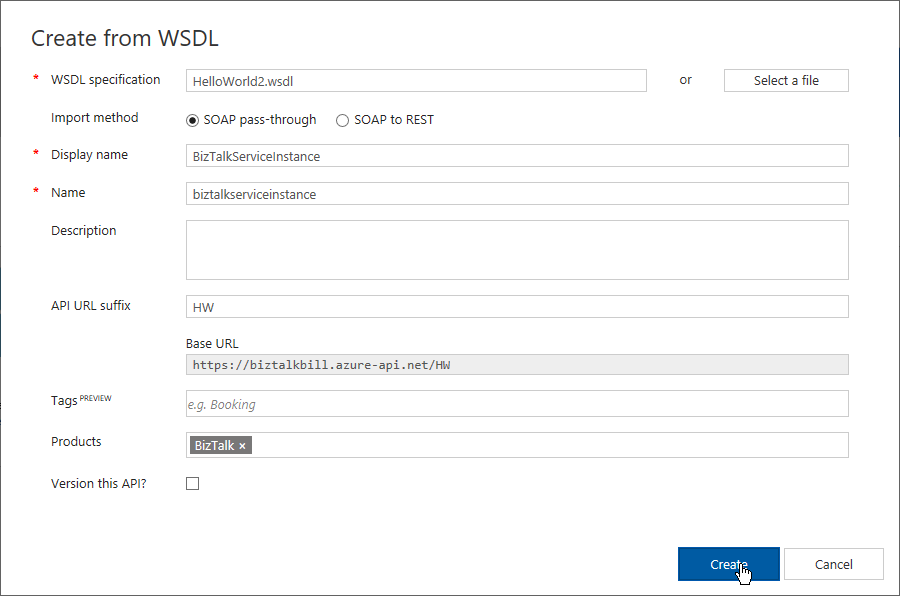
In this demonstration I am going to use an uploaded file, this is the WSDL from a BizTalk orchestration exposed as a WCF Request/Response Service, it only has a single operation ‘submit”. I am using an uploaded file because the BizTalk server is hosted in an Azure Virtual Machine and I have changed the URL to reflect the DNS name of the Virtual Machine. I could have also changed the name in APIM after the WSDL was imported. Configure as shown and click “Create”
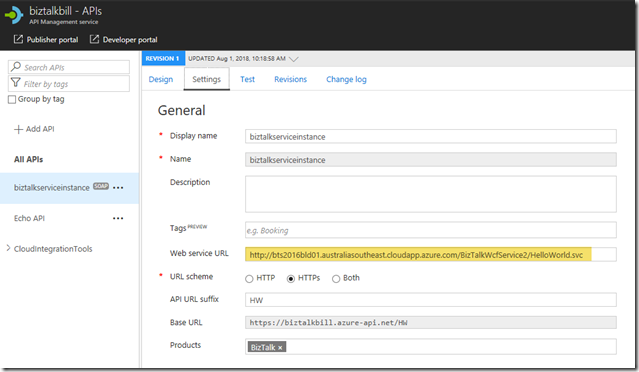
Once the WSDL import is complete, we can now see the API and it’s operations, now let click “Settings” to look at the API settings, this is where we can change the URL to the BizTalk Server hosting our SOAP Service, instead of inside the WSDL file as I have done.
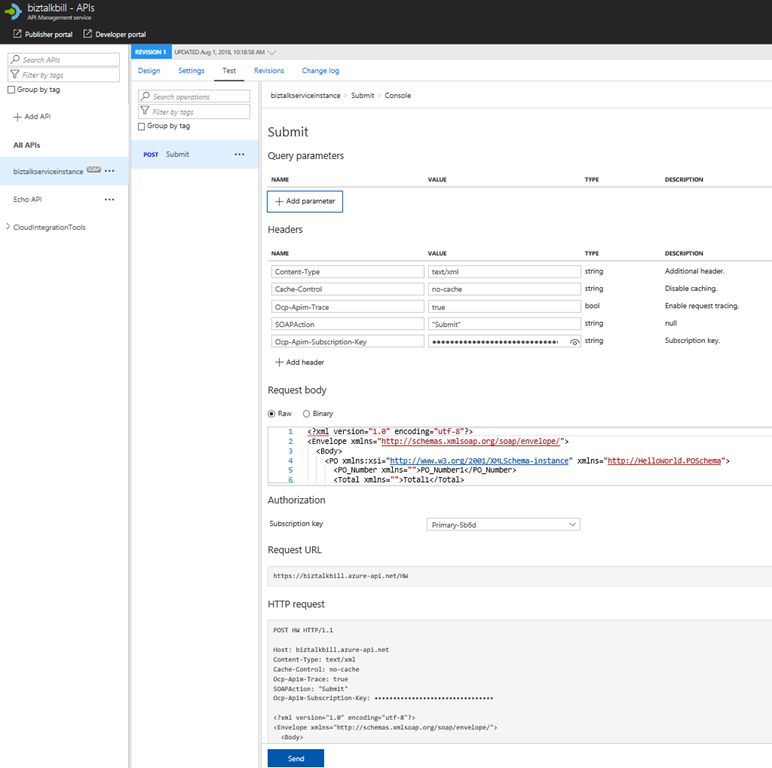
Now lets click the “Test” tab, this is where we can test our API Operation, before we release them to our consumers
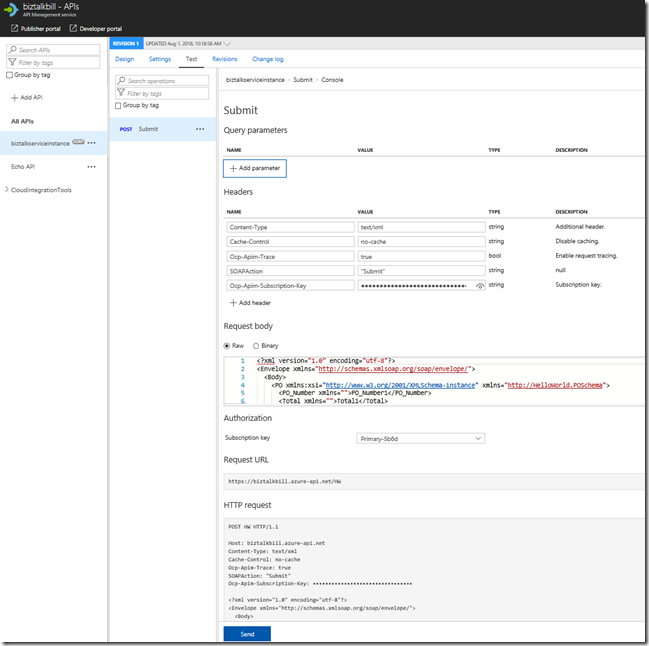
APIM Fills in all the details to test the API, notice that the payload for the API is XML, this is because we chose SOAP pass-through, SOAP services are XML based. Click “Send”
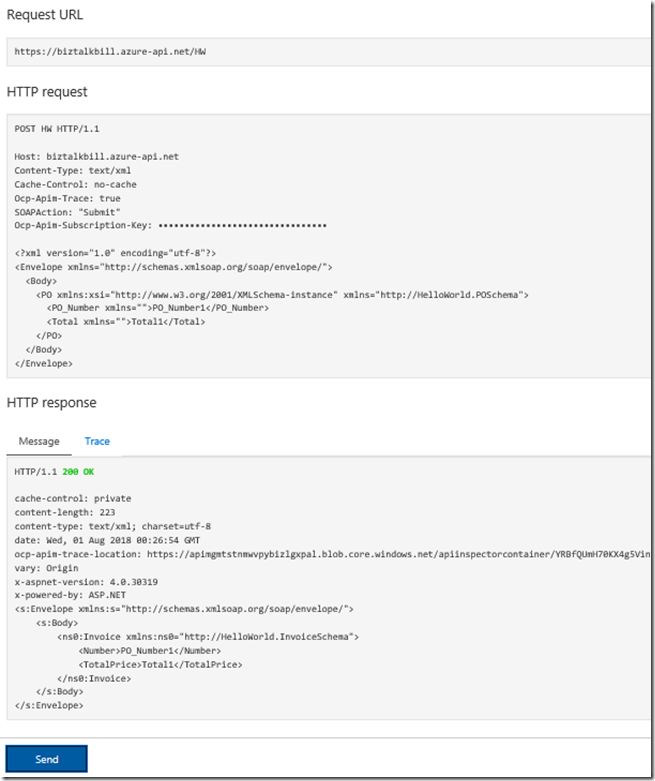
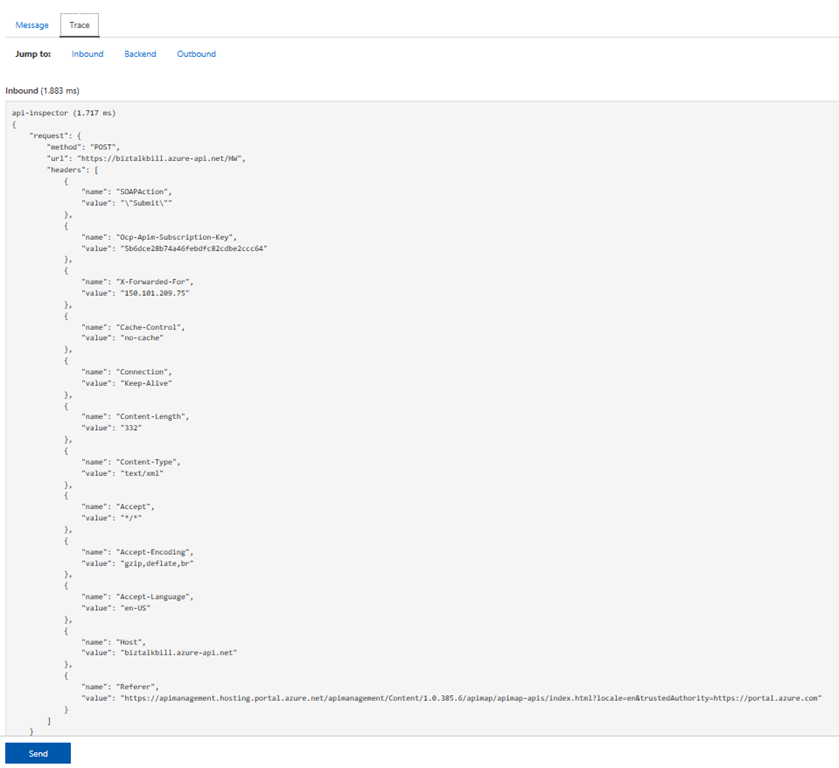
You can now see the results of our call to the BizTalk hosted SOAP Service, the results are in XML, now lets click the “Trace” tab, this will give us everything that has taken place in APIM as part of our call to the BizTalk SOAP service. Scroll down to see the full Trace.
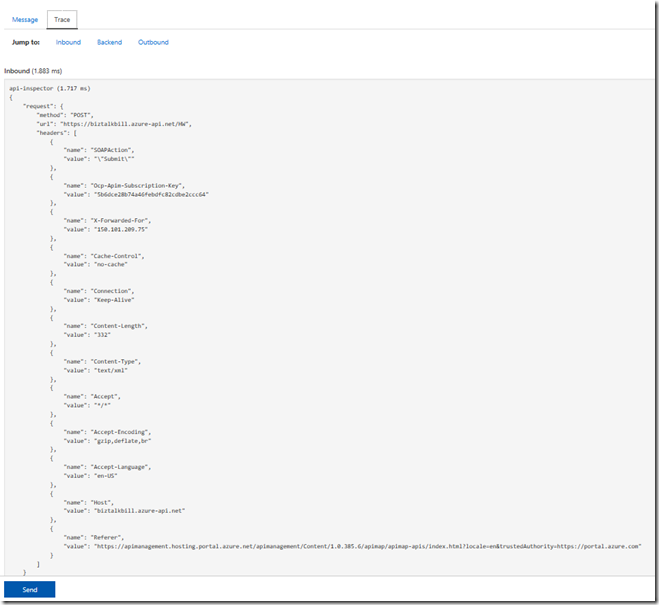
Hopefully this has given you a quick demonstration on how to expose your SOAP Services with APIM.
Cross Posted on http://www.sixpivot.com.au
by Praveena Jayanarayanan | Jul 31, 2018 | BizTalk Community Blogs via Syndication
Using BizTalk360 Analytics, you can visualize a lot of interesting facts about your BizTalk environment, like number of messages processed, failure rate at message type level, BizTalk server CPU/Memory performances, BizTalk process (host instances, SSO, rules engine, EDI etc), CPU/memory utilization and lots more.
In a data-driven business setup, there will be scenarios where critical executive decisions are made based on the performance reports of various components of the listed servers in their environment. BizTalk360 aims to offer an out of the box tool with similar capabilities as the Performance Monitor tool in Windows servers. BizTalk360 Analytics offers visual display of the most important performance counters that are consolidated and arranged on a single screen so that the information can be monitored in a glance. Custom reports can be built in minutes with the metrics that really count for your business, and they’re easy to share with other users in the system. In addition, dashboards can give you a summary of many reports on a single page using drag-and-drop widgets for fast, easy customization.
In every new release of BizTalk360, we include new features and enhancements to make the product more usable for the customers and adding value for them as per the below quotes,
“Excellent organisations consistently add value for the customers by understanding, anticipating and fulfilling needs, expectations and opportunities”
Let’s see what we have brought for the Analytics module in BizTalk360 v8.8:
- Zoom In and Out option for the Message Patterns
- Renaming option for the Message Pattern title
- Restart option for the Analytics and Monitoring Windows services
In this article, we are having a look at all these improvements.
Zoom In and Out option for the message patterns
In a typical BizTalk environment, there will be different message flows happening. It could be a simple one-way messaging or more complex message pattern with an orchestration connecting different ports. The unique message patterns are captured and displayed in BizTalk360 with a graphical representation. With messaging patterns, you can get to know how many messages passed through a particular port and the average time of execution for the messages across a time period.
The difficulty here lies in viewing the complex patterns within small screen resolution. For this reason, we have included the zoom in/out feature for the message patterns in the full screen mode.
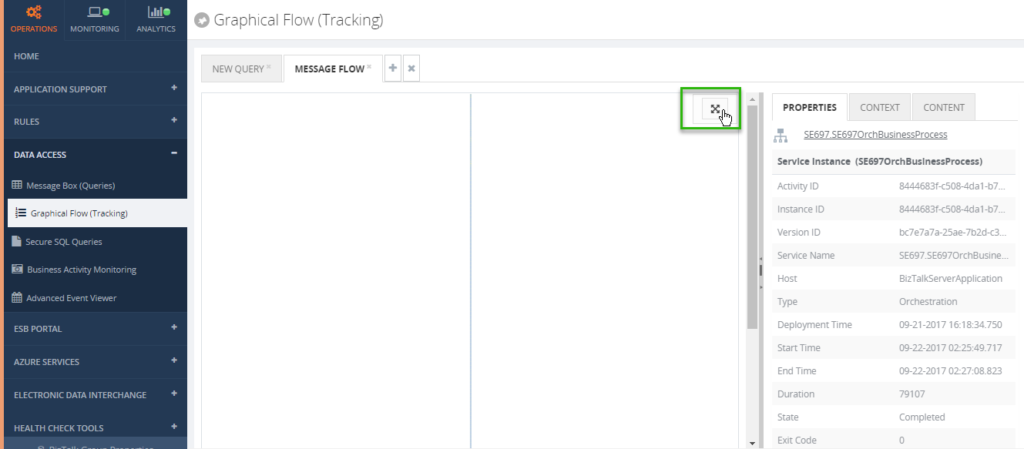
This option comes into picture when the message pattern is opened in full screen mode and you can zoom in /out using either the mouse or the icons present. In the full screen mode, the properties of the ports are not displayed. To view the properties, this mode needs to be exited.
Renaming option for the Message Pattern title
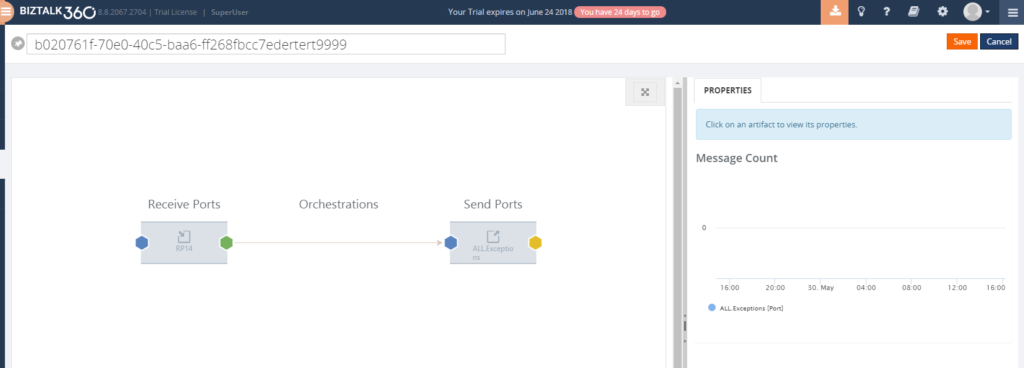
Once a message pattern is recognized by BizTalk360, the message flow is saved with a GUID as its title. This would be difficult to remember and not user friendly. Hence, we had the edit option in a separate screen, enabling the user to provide a descriptive name and detailed description for the message pattern.
Based on the few requests from the customers however, there is an extra capability added to rename the message pattern title from the details screen itself. In this case, the users can directly rename the title in the details section where the message flow is seen instead of going to a separate screen.
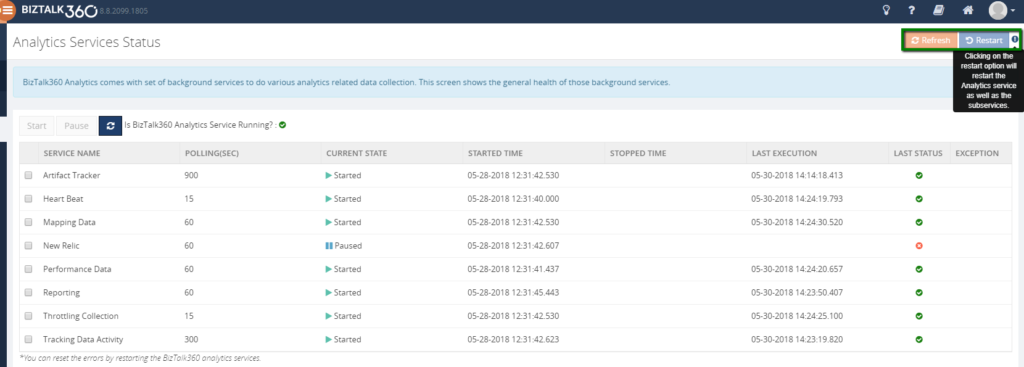
Restart option for Analytics and Monitoring Windows services
Sometimes an exception occurs during monitoring or in the analytics section. Once that exception is resolved, it is recommended to restart these services to reset the errors in the corresponding sub services.
In this scenario, the user would need to login to the server where the service is installed and then restart it. If the service is installed in more than one server, then they would need to login to all the servers for restarting the services.
To make life a little bit easier, we have added the restart option in BizTalk360 application. When this option is clicked, the service installed in multiple servers will get restarted.
Other improvements
There are other bug fixes as well, in the Analytics section included as part of the BizTalk360 v8.8 release, which include:
- Improving the performance by deleting the temporary tables created
- In BizTalk360 Analytics section, for displaying the data for the messaging patterns, we directly query the MessageBox database and the Tracking database and store them in the temporary table in TempDB. Depending on the volume of data, these temporary tables may cause performance hinge in BizTalk360. Based on the auto growth settings in the SQL server, the TempDb will grow and results in SQL Exception for few widgets. The code is modified to delete the temporary tables after fetching data. Hence, data growth is controlled and there will not be any performance glitch.
- The edit icon for the date time range in the Analytics widget has been removed as there is already a link present
- The custom widgets in the Analytics section is designed to display the data based on the date time range, which is last 24 hours, 7 days and 30 days. You also have the option to set the custom date time range. The datetime range in the custom widget data already has the link to edit the date. There was an additional edit link present in these widgets which we thought would be unnecessary as it may not be used. Hence this link was removed to make the widgets more user friendly.
- Displaying the data for available memory in the widget
- Widgets in the Analytics Dashboard are designed to provide the user with a graphical data. There are three different types of widgets that can be used,
- Default/Basic Widgets
- Static Widgets
- Custom Widgets
- You can create and customize the different types of widgets only under the Operations Dashboard and Analytics Dashboard. The process to perform these operations remains the same.
Sometimes there may be inconsistent occurrence of certain issues which may be difficult to be identified. One such issue was that “When the Available memory % counter for SQL server was added to the custom widget and when the widget was refreshed, the data for memory % was not getting displayed in the graph”. The root cause for this case was identified and fixed in BizTalk360 v8.8.
Please refer the release notes link below for the complete list of enhancements and bug fixes in v8.8:
https://docs.biztalk360.com/v1.0/docs/v8821162405
Conclusion
Why not give BizTalk360 a try! It takes about 10 minutes to install on your BizTalk environments and you can witness and check the security and productivity features of BizTalk360, within your own BizTalk Environments. Get started with the free 30 days trial. If you are already using BizTalk360 you can download the latest version directly from the product and upgrade, it to enjoy the new features.
Author: Praveena Jayanarayanan
I am working as Senior Support Engineer at BizTalk360. I always believe in team work leading to success because “We all cannot do everything or solve every issue. ‘It’s impossible’. However, if we each simply do our part, make our own contribution, regardless of how small we may think it is…. together it adds up and great things get accomplished.” View all posts by Praveena Jayanarayanan
by Gautam | Jul 30, 2018 | BizTalk Community Blogs via Syndication
Do you feel difficult to keep up to date on all the frequent updates and announcements in the Microsoft Integration platform?
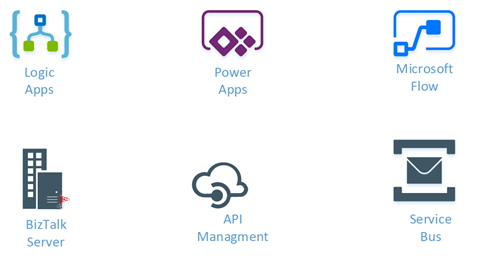
Integration weekly update can be your solution. It’s a weekly update on the topics related to Integration – enterprise integration, robust & scalable messaging capabilities and Citizen Integration capabilities empowered by Microsoft platform to deliver value to the business.
If you want to receive these updates weekly, then don’t forget to Subscribe!
Feedback
Hope this would be helpful. Please feel free to reach out to me with your feedback and questions.
by Sandro Pereira | Jul 27, 2018 | BizTalk Community Blogs via Syndication
In the last post, we try to demystify the reason and cause of the error: Invalid type name. The root node type has to be a valid C# identifier when you are working with a schema with a single root node.
In this second part of the post, we will address what happens If we are working with a schema with multiple root nodes, and two or more root nodes contains hyphens (-) or any other punctuation characters?
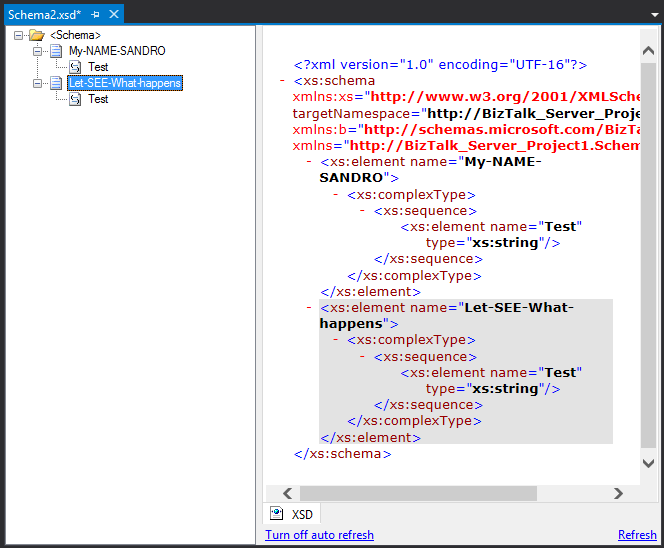
Let’s take the following example, where we have:
- The root node “My-NAME-SANDRO” with the “RootNode TypeName” property set as “My-NAME-SANDRO”
- And the root node “Let-SEE-What-happens” with the “RootNode TypeName” property set as “Let-SEE-What-happens”
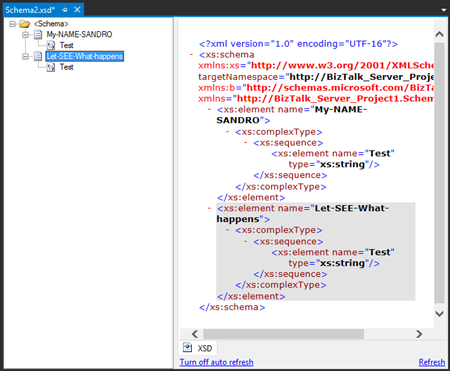
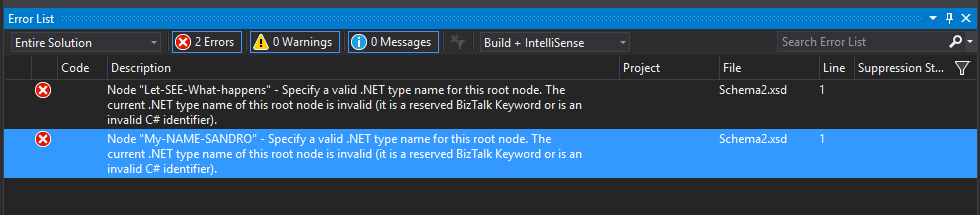
If we try to build our BizTalk Server solution within Visual Studio it will fail with the following errors:
| Severity |
Code |
Description |
Project |
File |
Line |
Suppression State |
| Error |
|
Node “My-NAME-SANDRO” – Specify a valid .NET type name for this root node. The current .NET type name of this root node is invalid (it is a reserved BizTalk Keyword or is an invalid C# identifier). |
|
c:users…documentsvisual studio 2015ProjectsBizTalk Server Project1BizTalk Server Project1Schema2.xsd |
1 |
|
| Error |
|
Node “Let-SEE-What-happens” – Specify a valid .NET type name for this root node. The current .NET type name of this root node is invalid (it is a reserved BizTalk Keyword or is an invalid C# identifier). |
|
c:users…documentsvisual studio 2015ProjectsBizTalk Server Project1BizTalk Server Project1Schema2.xsd |
1 |
|
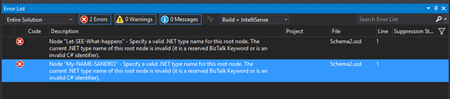
Cause
Official Microsoft documentation state that The Type Name property of this schema file is not valid. Because the value of the Type Name property is used as the name of an automatically generated C# class name, it must be a valid C# identifier and cannot be a reserved BizTalk keyword.
And in this case – when working with multiple root nodes in a single schema – it is not allowed the use of hyphens or other punctuations like “.”, “!” and so on, with the exception for the underscore (_).
We saw in the previous post that we could work around this “limitation” in schemas with a single root node by open the Schema with XML (Text) Editor and fix the “rootTypeName” for the value you want. In this case, it will not work.
Solution
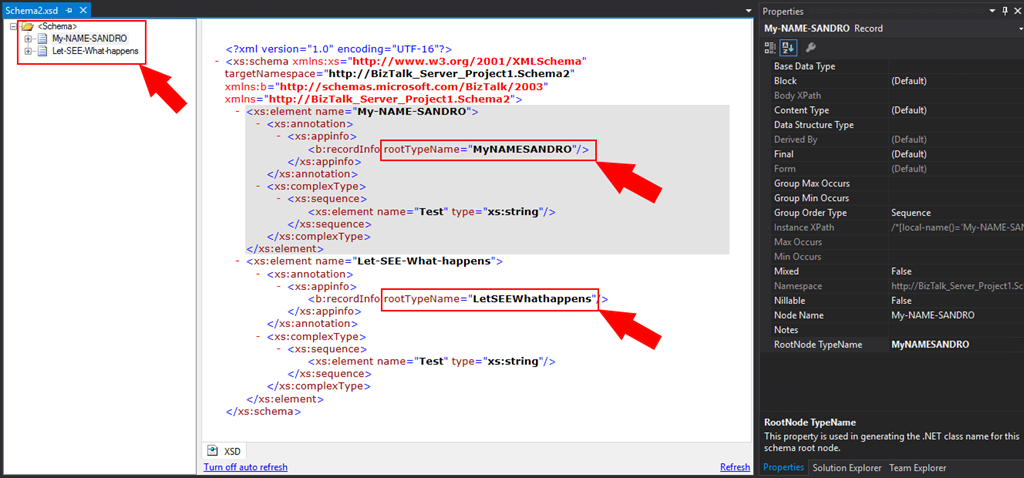
As hyphens, or any other punctuation characters, are not allowed, the only solution you have is to change it from the “RootNode TypeName” property. For example:
- For the node “My-NANE-SANDRO” the “RootNode TypeName” value can be “MyNAMESANDRO” or “My_NAME_SANDRO” instead of “My-NAME-SANDRO”
- And for the node “Let-SEE-What-happens” the “RootNode TypeName” value can be “LetSEEWhathappens” or “Let_SEE_What_happens” instead of “My-NAME-SANDRO
By removing all hyphens, or any other punctuation characters, from this property in all schemas you will guarantee that you will not face this issue again at least in this project.
Conclusion
As a best practice you should use hyphens, or any other punctuation characters in the “RootNode TypeName”, nevertheless:
- The use of hyphens or any other punctuation characters is allowed in schemas with a single root node;
- The use of hyphens or any other punctuation characters is not allowed in schemas with multiple single root node;
And by the way, can my root node name still contain hyphens or any other punctuation characters?
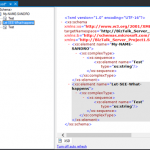
Yes, it can. In all scenarios as long the root “RootNode TypeName” property doesn’t contain any of them as you will see in the picture below:
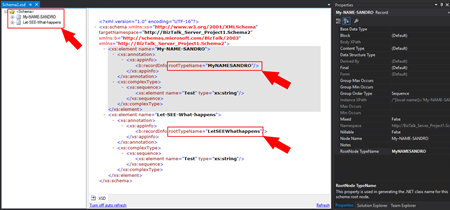
Author: Sandro Pereira
Sandro Pereira lives in Portugal and works as a consultant at DevScope. In the past years, he has been working on implementing Integration scenarios both on-premises and cloud for various clients, each with different scenarios from a technical point of view, size, and criticality, using Microsoft Azure, Microsoft BizTalk Server and different technologies like AS2, EDI, RosettaNet, SAP, TIBCO etc. He is a regular blogger, international speaker, and technical reviewer of several BizTalk books all focused on Integration. He is also the author of the book “BizTalk Mapping Patterns & Best Practices”. He has been awarded MVP since 2011 for his contributions to the integration community. View all posts by Sandro Pereira
by Sandro Pereira | Jul 26, 2018 | BizTalk Community Blogs via Syndication
A few days ago, while trying to compile a BizTalk Server solution I got the following error: Invalid type name. The root node type has to be a valid C# identifier. I end up solving this problem but while I was preparing this post the reason I realize that the cause and respective solution that I thought to be behind this error was, in fact, incomplete and not accurate.
Most of the documentation available state that:
- The .Net framework doesn’t allow the “-” within TypeNames because the “-” is reserved.
- The use of a hyphen (-) in RootNode TypeName is not allowed.
And that statement is incorrect or at least incomplete!
1) What happens if I create a root node with hyphens (-)?
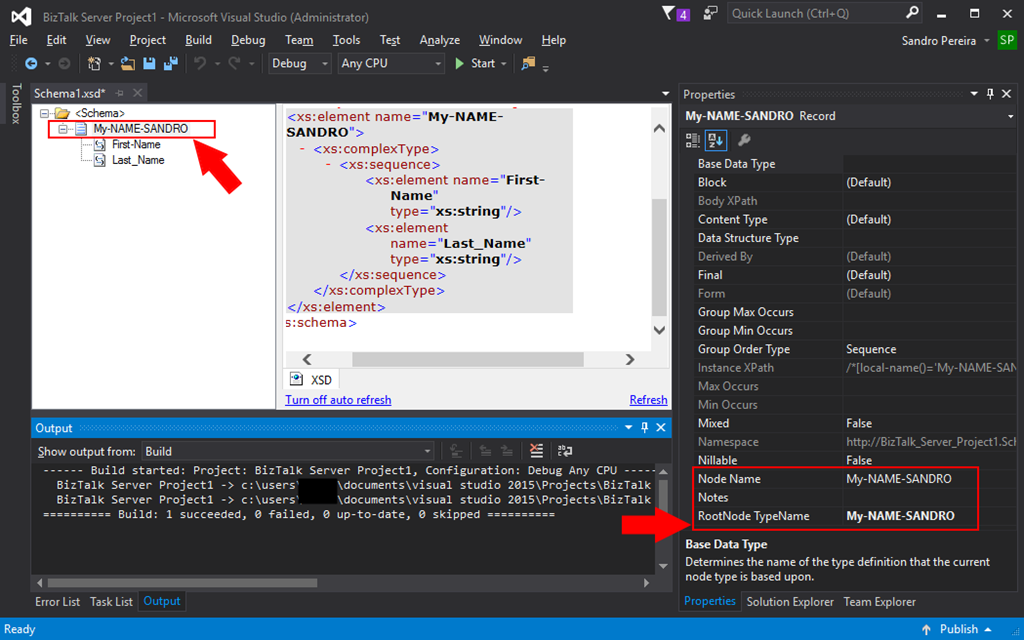
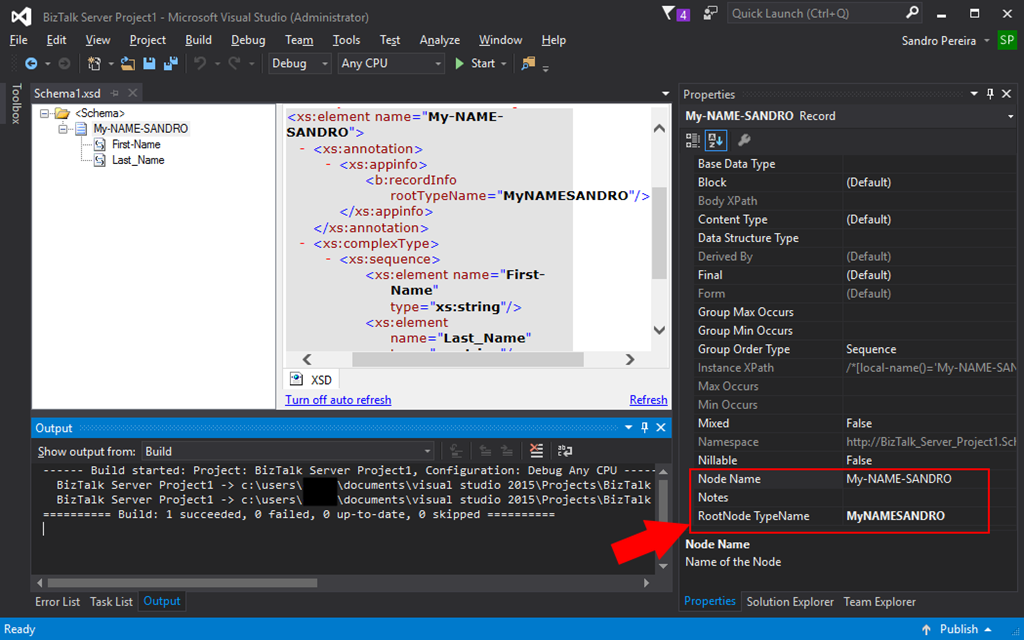
If we create a root node with hyphens, let’s say “My-NAME-SANDRO”, by default the:
- The “NodeName” property will be set as “My-NAME-SANDRO”;
- And the “RootName TypeName” property will also be set as “My-NAME-SANDRO”;
And as you can see in the picture below, you will be able to create a schema with a one or more hyphens (-) on the root node name and type name, in fact, they should be the same if you only have one root node in the schema.
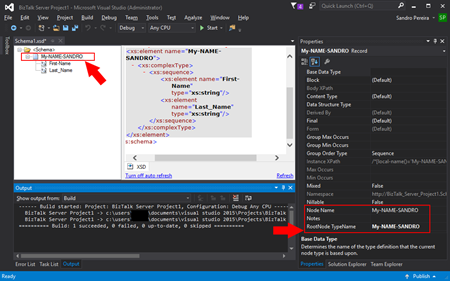
And again, as you see in the picture you will be able to build and deploy it with success.
But, let’s play a little in order to demystify this Invalid type error that sometimes happens.
2) What happens if we try to change the “RootNode TypeName” property to other value like “MyNAMESANDRO” – without any hyphens (-)?
Nothing will happen, we will still be able to compile and successfully deploy our schema.
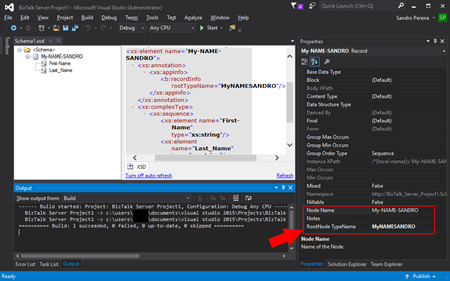
In fact, this is the best approach.
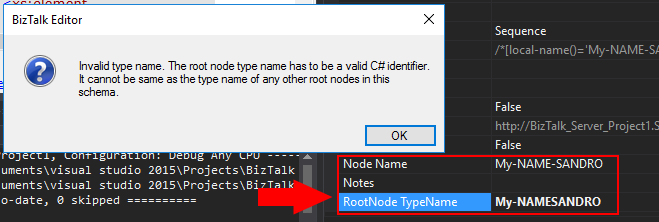
3) Now, what happens if we try to change the “RootNode TypeName” property to other value like “My-NAMESANDRO” – with hyphens (-)?
Note, that we are changing to a “RootNode TypeName” property to a different value than the “Node Name” but this time including one or more hyphens (-).
If we try to do that we will receive the following error:
Invalid type name. The root node type name has to be a valid C# identifier. It cannot be same as the type name of any other root nodes in this schema
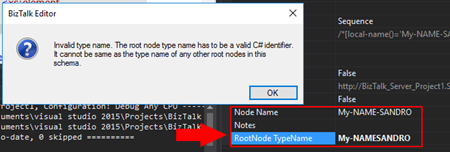
Cause
Official Microsoft documentation state that the Type Name property of this schema file is not valid. Because the value of the Type Name property is used as the name of an automatically generated C# class name, it must be a valid C# identifier and cannot be a reserved BizTalk keyword.
In fact, it will not allow, any hyphens or other punctuations like “.”, “!” and so on with the exception of the underscore (_)… directly from the BizTalk Editor – we will get that sorted out (properly cleared) later.
Solution
As hyphen, or any other punctuation characters, are “not allowed”, you should “removed it” from the “RootNode TypeName” property. For example:
- For the node “My-NANE-SANDRO” the “RootNode TypeName” value can be “MyNAMESANDRO” or “My_NAME-SANDRO” instead of “My-NAMESANDRO” or event “My-NAME_SANDRO”
By removing all hyphens, or any other punctuation characters, from this property in all schemas you will guarantee that you will not face this issue again at least in this project.
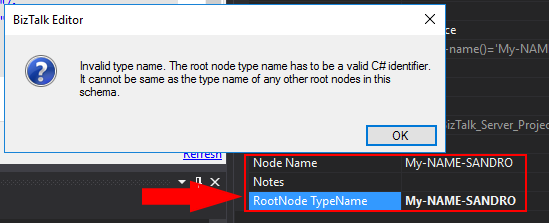
4) I change to “MyNAMESANDRO”, what happens if we try to roll back and change the “RootNode TypeName” property again to the original “My-NAME-SANDRO”?
Here’s where the story becomes funny, it will fail!
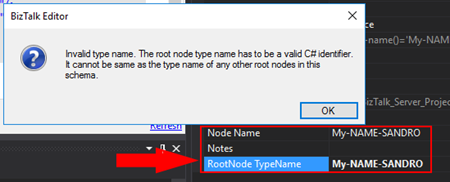
Humm… what? How that’s possible if in point 1 we saw that if the root node name and type name is the same it should work, and it did work before?
Cause
Again, official Microsoft documentation state that the Type Name property of this schema file is not valid. Because the value of the Type Name property is used as the name of an automatically generated C# class name, it must be a valid C# identifier and cannot be a reserved BizTalk keyword.
In fact, once you change the name for something else without hyphens or any other punctuation characters, you cannot rollback to the origin (or default) RootName TypeName “My-NAME-SANDRO”.
Solution
The same solution here, as a hyphen, or any other punctuation characters, are “not allowed”, you should “removed it” from the “RootNode TypeName” property. For example:
- For the node “My-NANE-SANDRO” the “RootNode TypeName” value can be “MyNAMESANDRO” instead of “My-NAMESANDRO” or event “My-NAME_SANDRO”
However, if you want to rollback to the default RootNode TypeName value, you need to delete the root node and recreate from the scratch, at least directly from the BizTalk Schema Editor.
What is actually the Cause
I think at some point in the past this was a limitation, or maybe a limitation in certain scenarios (we will check this on Part II later on in a different blog) but not really at the moment or in this case: a schema with a single root node.
So, if it worked in the first approach – point 1 – why doesn’t work in the other approaches – point 3 and 4?
Well, in this case, this is just a BizTalk Schema Editor limitation or bug, but let’s call it a limitation.
What is actually the Solution
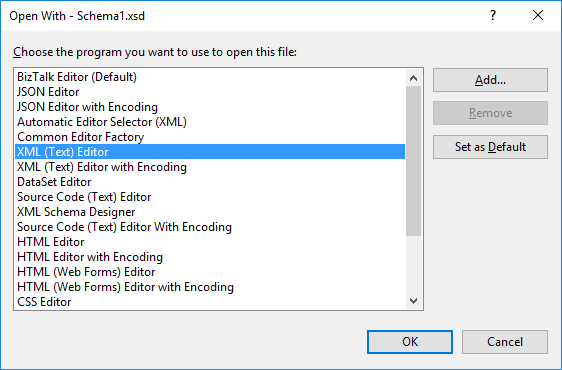
To solve point 3 and 4 you just need to open the Schema with XML (Text) Editor:
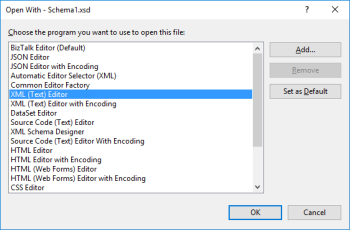
And fix the “rootTypeName” for the value you want: “My-NAMESANDRO” or back to “My-NAME-SANDRO”
<?xml version="1.0" encoding="utf-16"?>
<xs:schema xmlns="http://BizTalk_Server_Project1.Schema1" xmlns:b="http://schemas.microsoft.com/BizTalk/2003" targetNamespace="http://BizTalk_Server_Project1.Schema1" xmlns:xs="http://www.w3.org/2001/XMLSchema">
  <xs:element name="My-NAME-SANDRO">
    <xs:annotation>
      <xs:appinfo>
        <b:recordInfo rootTypeName="My-NAMESANDRO" />
      </xs:appinfo>
    </xs:annotation>
    <xs:complexType>
      <xs:sequence>
        <xs:element name="First-Name" type="xs:string" />
        <xs:element name="Last_Name" type="xs:string" />
      </xs:sequence>
    </xs:complexType>
  </xs:element>
</xs:schema>
Save it, you now can open it again with BizTalk Schema Editor, compile it and deploy it with any problem.
Keep posted for Part II of this blog post.
Author: Sandro Pereira
Sandro Pereira lives in Portugal and works as a consultant at DevScope. In the past years, he has been working on implementing Integration scenarios both on-premises and cloud for various clients, each with different scenarios from a technical point of view, size, and criticality, using Microsoft Azure, Microsoft BizTalk Server and different technologies like AS2, EDI, RosettaNet, SAP, TIBCO etc. He is a regular blogger, international speaker, and technical reviewer of several BizTalk books all focused on Integration. He is also the author of the book “BizTalk Mapping Patterns & Best Practices”. He has been awarded MVP since 2011 for his contributions to the integration community. View all posts by Sandro Pereira
by Sandro Pereira | Jul 26, 2018 | BizTalk Community Blogs via Syndication
With all these new security features present on the latest Microsoft operating systems, don’t get me wrong they are good, sometimes our life as BizTalk Developers seems like it’s reversing and becoming a nightmare, especially if you are a consultant working with multiple different clients, environments, and projects.
Most of the times I start developing a new project at a new client, the first time I try to deploy a solution I get an “Error 87 Access is denied. (Exception from HRESULT: 0x80070005 (E_ACCESSDENIED))…” error message.
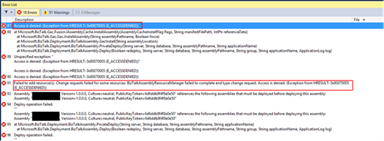
There are several possible causes for you to get such Access Denied errors when deploying BizTalk solutions directly from Visual Studio. Most common is that you don’t have the right BizTalk privileges to deploy artifacts, or in other words, you are not a local Administrator.
But most of the time is simpler than that and indeed is related with these additional securities setting present in recent Windows Server versions. For you to be able to successfully deploy a BizTalk Server solution directly from Visual Studio, you must run Visual Studio as an Administrator, or with elevated permissions, because BizTalk assemblies need to be deployed into the GAC. What normally happens, is that if you have User Account Control (UAC) activated, or sometimes even deactivated, there are some additional securities setting present in recent Windows Server versions that, by default, doesn’t run Visual Studio with elevated permissions.
The quick solution is for you to run Visual Studio as an Administrator by simply run below step:
- Right-click under Visual Studio and choose “Run as administrator” option.
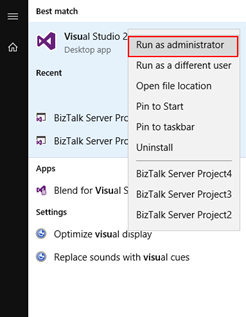
The problem with this approach is that you need to remember yourself to do it every time you want to run Visual Studio, otherwise the next time you try to deploy the solution it will fail again with the same error.
How to properly address this problem?
Actually, this problem can be simply addressed by:
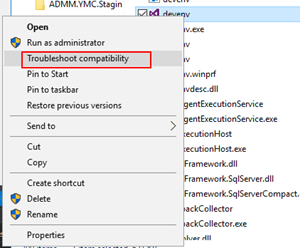
- Access the devenv.exe file on the file system, which is by default installed in: “C:Program Files (x86)Microsoft Visual Studio 14.0Common7IDE”
- Right-click devenv.exe and select “Troubleshoot compatibility”
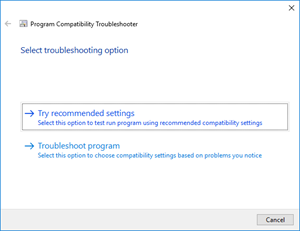
- On the “Select troubleshooting option” page, select “Troubleshoot compatibility” option
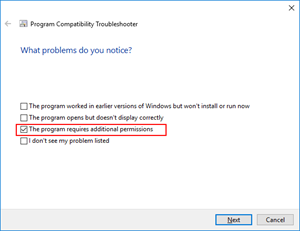
- On the “What problems do you notice?” page, select the “The program requires additional permissions” option and then click “Next”
- On the “Test compatibility settings for the program” page, click “Test the program…”, wait for the program to launch and then click “Next”
- Select “Yes, save these settings for this program”
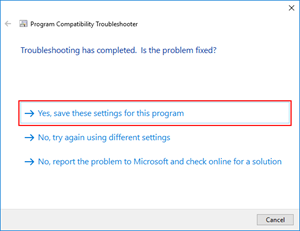
You will never face this problem again… at least at that client.
Enjoy and Stay tuned for new BizTalk Server Tips and Tricks!
Author: Sandro Pereira
Sandro Pereira is an Azure MVP and works as an Integration consultant at DevScope. In the past years, he has been working on implementing Integration scenarios both on-premises and cloud for various clients, each with different scenarios from a technical point of view, size, and criticality, using Microsoft Azure, Microsoft BizTalk Server and different technologies like AS2, EDI, RosettaNet, SAP, TIBCO etc. View all posts by Sandro Pereira
by Bill Chesnut | Jul 24, 2018 | BizTalk Community Blogs via Syndication
By Bill Chesnut
This is the 1st of a multipart series of Blog Posts to help companies understand Migrating BizTalk to Azure Integration Platform as a Service (IPaaS).
Should I be migrating from BizTalk to Azure iPaaS? This is a question I am being ask more and more lately for a couple of different reasons.
BizTalk development has always been a very specialized skill set with a limited number of resources available in the market, so companies are now starting to look at Azure iPaaS as a viable alternative to BizTalk in terms of finding developers with the correct skill sets.
There are 3 other reasons many companies are looking at moving from BizTalk to Azure iPaaS:
- cost, consumption pricing instead of product licensing;
- location of data, many companies are dealing with their consumers over the internet, so having their integration resources in Azure makes more sense;
- Infrastructure, companies are seeing the advantages of not having to maintain their own infrastructure and using Platform as a Service (PaaS) and Software as a Service (SaaS) offerings as a cost-effective alternative.
Unlike the BizTalk middleware products that covered most features required for all integration scenarios, Azure iPaaS is a collection of Azure services that may or may not be utilised for each scenario.
The base components that make up Azure iPaaS are Service Bus, Logic Apps, API Management and Event Grid. For some integration scenarios you may also use services like but not limited to: SQL Database, Storage, Function App, Web Site (hosing your WebAPI or WebJobs), Cosmos Db and Virtual Machines. In this series of blog posts, I will look at the different scenarios and the Azure services required.
Instead of spending time here to explain each of the Azure iPaaS services, I have included links to Azure documentation on each product/service mentioned:
All Azure Product/Services can be found here: https://docs.microsoft.com/en-us/azure/#pivot=products
Before you jump full steam into migrating from your on-premises (or cloud hosted) BizTalk to Azure iPaaS, there are a few things that you need to look at to see if the migration makes sense:
- Location of your data
- Sensitivity of your data
- Security Policies for accessing cloud-based resources
- Location of consumers/partners
Let’s look at each of these items in detail:
Location of your data, if most of your data currently used by BizTalk is located inside of your data center it would be hard to justify moving all of that data to and from Azure to use Azure iPaaS.
If your data is from your consumers/partners and it is coming in and going out via the internet, iPaaS can be a great solution in terms of cost, scalability and availability.
Sensitivity of your data, again this will relate back to the first item, if the data is coming in and going out over the internet, your company has already accepted the risk, so iPaaS will be a viable solution, otherwise, a risk assessment will need to be undertaken.
Security Policies for accessing cloud based resources can sometimes be one of the hardest nuts to crack, it requires educating your management to the benefits and security safe guards of Azure. It also means designing your iPaaS solution to use some of the additional security features available in Azure. The final point to look at is location of consumers/partners, again if everyone using the integration service of BizTalk are located inside of your data center, having them traverse to Azure and back for data does not make sense, but if many of your consumers/partners are outside of your offices or mobile users, Azure make perfect sense for availability and scale.
Once a company has decided that moving to Azure iPaaS makes sense, the next item to consider is the structure of their existing BizTalk integration solution, does the existing BizTalk solutions follow best practice:
- having incoming data mapped to an internal/canonical format
- processed in BizTalk using the internal/canonical format
- then mapped back to the outbound format before leaving BizTalk
if so, this will make the migration to Azure iPaaS a less disruptive and staged process.
This series will continue with the following blog posts:
- Migrating inbound messaging to Azure using Logic Apps, Event Grid, Service Bus and the BizTalk Claim Check Pipeline component that I have built.
- Migrating outbound messaging to Azure, using the same tooling as inbound
- Choices for message archiving in Azure
- End to End Monitoring of Azure iPaaS
- EDI (EDIFACT, X12 & AS2) Capabilities of Azure iPaaS
- Azure iPaaS CI/CD
Thanks for taking the time to view this blog post.
Cross Posted on: http://www.sixpivot.com.au
by Sandro Pereira | Jul 24, 2018 | BizTalk Community Blogs via Syndication
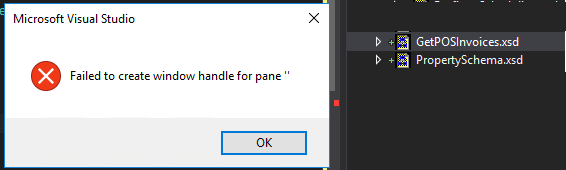
There are errors that we are familiar with, but I guess this you may never hear about it. I didn’t know it until today: Failed to create window handle for pane ”.
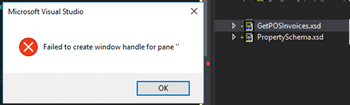
This happened today while I was trying to open a Schema from my BizTalk Server project. Every other artifact opened well in their designer/editor like Orchestrations, Maps, and Pipelines… with the exception of Schemas.
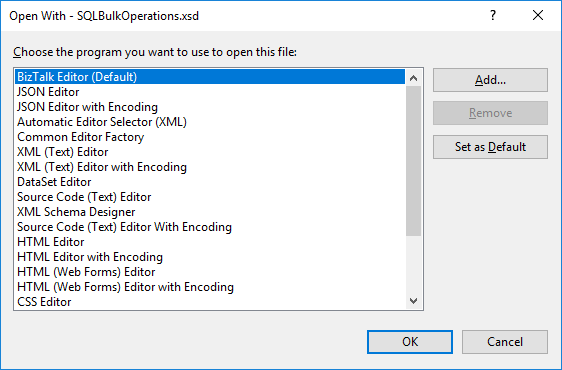
I try to force it open by the BizTalk Schema Editor by right-clicking on the schema, open with and select the BizTalk Editor (Default) without any result.
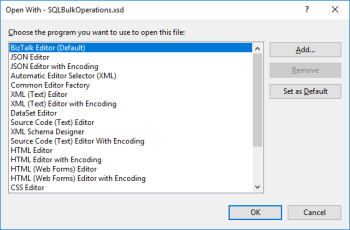
I even try to force it open with another editor like XML (Text) Editor – it worked by the way – and once again try to open by the Schema Editor, again, without any practical result.
Note: I had 3 visual studio instances opened with 3 different projects: 2 of them worked well and only one had this problem.
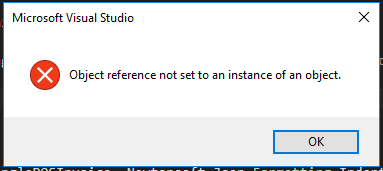
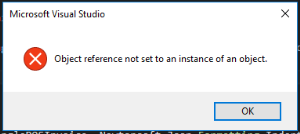
Also, when I try to close this particular Visual Studio instance, I got another error:
Microsoft Visual Studio: Object reference not set to an instance of an object
Cause
Honestly, I have no f*** idea… but I know the solution.
Solution
To solve this problem, you need to… do what we normally do when nothing works!
- Close the Visual Studio and open again
Problem solved!
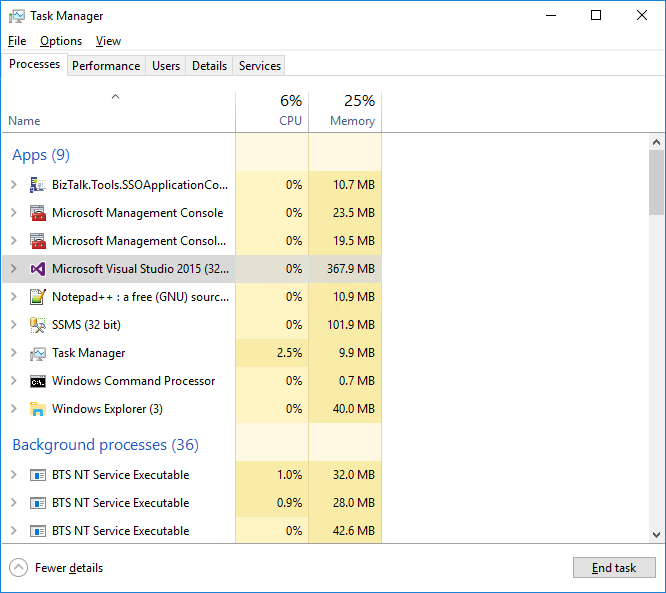
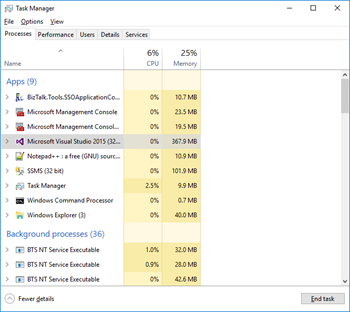
Because I was unable to close the Visual Studio – Object reference not set to an instance of an object – I terminated the Visual Studio task using the task manager.
Author: Sandro Pereira
Sandro Pereira lives in Portugal and works as a consultant at DevScope. In the past years, he has been working on implementing Integration scenarios both on-premises and cloud for various clients, each with different scenarios from a technical point of view, size, and criticality, using Microsoft Azure, Microsoft BizTalk Server and different technologies like AS2, EDI, RosettaNet, SAP, TIBCO etc. He is a regular blogger, international speaker, and technical reviewer of several BizTalk books all focused on Integration. He is also the author of the book “BizTalk Mapping Patterns & Best Practices”. He has been awarded MVP since 2011 for his contributions to the integration community. View all posts by Sandro Pereira
by Sandro Pereira | Jul 24, 2018 | BizTalk Community Blogs via Syndication
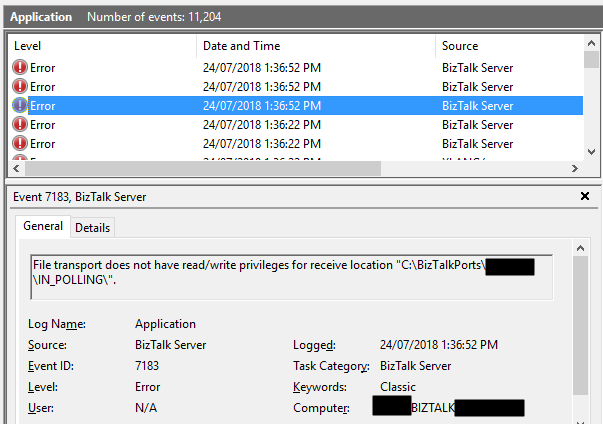
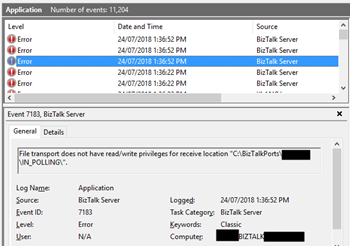
In the spirit of documenting all possible and imaginary errors, let’s address today a classic one: File transport does not have read/write privileges for receive location “DRIVE:FOLDER NAME”.
This happens more than you may think, and today after finish creating a backup port for testing a new process while I was trying to Enable the File receive location I got the following errors:
File transport does not have read/write privileges for receive location “C:BizTalkPortsIN_POLLING”.
Followed by other similar warning messages:
The Messaging Engine failed to add a receive location “POLLING_FILE” with URL “C:BizTalkPortsIN_POLLING*.xml” to the adapter “FILE”. Reason: “File transport does not have read/write privileges for receive location “C:BizTalkPortsIN_POLLING”. “.
The receive location “POLLING_FILE” with URL “C:BizTalkPortsIN_POLLING*.xml” is shutting down. Details:”The Messaging Engine failed while notifying an adapter of its configuration. “.
Cause
As I said before this is a classic error, the reason is quite obvious and the error message clearly identifies the origin of the problem.
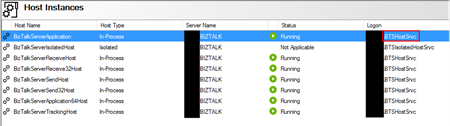
The problem is that the user that is running the BizTalk Server host instance(s) don’t have read/write privileges in that specific folder.
Solution
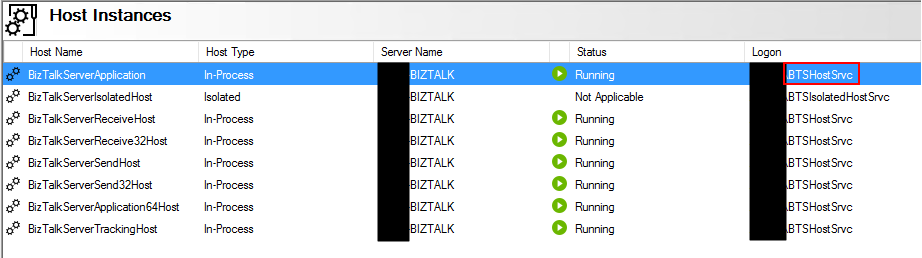
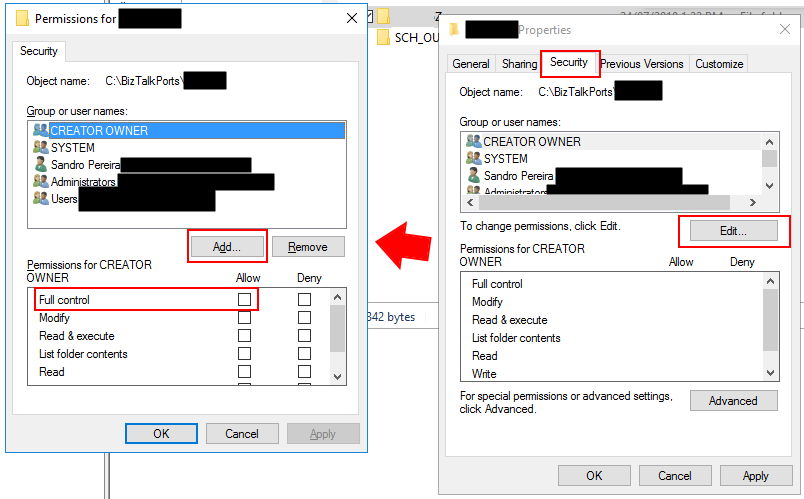
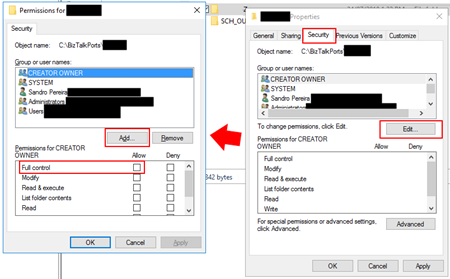
To solve this problem, you need to give readwrite privileges for the user that is running BizTalk Server Host Instance, in my case “BTSHostSrvc”, into that specific folder. For that you need to:
- From the file system, access to the folder in question and then right-click on the folder and select the “Properties” option;
- If attribute “Read-only (only applies to files in folder)” is enabled (selected), disable it (unselect);
- Then go to the “Security” tab and then click “Edit…” button and then “Add…” button
- Search for the user that is running the BizTalk Server Host Instance and then click “OK”;
- For that specific user give read and write access;
- In my case, because this was/is a “BizTalk process” folder, I gave “Full control”
- At the click “OK” and “OK” once again.
Once you give access to the user this classic problem is going away… until the next time!
Author: Sandro Pereira
Sandro Pereira lives in Portugal and works as a consultant at DevScope. In the past years, he has been working on implementing Integration scenarios both on-premises and cloud for various clients, each with different scenarios from a technical point of view, size, and criticality, using Microsoft Azure, Microsoft BizTalk Server and different technologies like AS2, EDI, RosettaNet, SAP, TIBCO etc. He is a regular blogger, international speaker, and technical reviewer of several BizTalk books all focused on Integration. He is also the author of the book “BizTalk Mapping Patterns & Best Practices”. He has been awarded MVP since 2011 for his contributions to the integration community. View all posts by Sandro Pereira