
by community-syndication | Sep 7, 2012 | BizTalk Community Blogs via Syndication
In the last couple of months I’ve been busy participating in several national and international events talking about Azure Service Bus EAI/EDI services, or as we now know: BizTalk as PaaS (BizTalk on the cloud). You can find it more information here. There are several tools available in Windows Azure Service Bus EAI & EDI […]
Blog Post by: Sandro Pereira

by community-syndication | Sep 5, 2012 | BizTalk Community Blogs via Syndication
I just release a new version of “BizTalk Mapper Extensions UtilityPack” project (available on CodePlex and Code Gallery) with a new set of functoids for BizTalk Server 2010 (I will soon publish for older versions). Project Description BizTalk Mapper Extensions UtilityPack is a set of libraries with several useful functoids to include and use it […]
Blog Post by: Sandro Pereira
by community-syndication | Sep 5, 2012 | BizTalk Community Blogs via Syndication
Monitoring is essential to keep your BizTalk environments healthy and running smoothly. With monitoring you have a couple of options. Either using System Center Operation Manager, a combination of SCOM and third party tooling or solely use third party tooling.
1. Monitoring the BizTalk environment with SCOM can be done with using the management pack for BizTalk Server or AVIcode .NET Application Management Pack.
2. An alternative monitoring solution is BizTalk360, which you can combine with using SCOM. This means you can have best of both worlds.
3. In case your enterprise does not have SCOM or is planning to deploy SCOM, BizTalk360 itself can be an excellent choice for monitoring BizTalk environments.
To efficiently monitor a BizTalk environment people with different roles are involved like:
%u00b7 System Administrator,
%u00b7 Database Administrator and
%u00b7 BizTalk Administrator.
Each has different needs for information to be able to resolve or prevent issues. BizTalk360 can aid in full filling the needs for a BizTalk administrator as it will give him/her the fine grained detail of the environment and in-depth information. Besides that it has many capabilities onboard that SCOM lacks. For instance fine grained governance, throttling analyzer, Message Box Viewer Reports and Graphical Message View. The productivity of a BizTalk administrator can be dramatically enhanced using BizTalk360. BizTalk360 is provided by Kovia ltd and about to release the fifth release. The new capabilities are:
Monitoring Dashboard
Backup – Disaster Recovery configuration visualizer
Process monitoring for receive locations and send ports (aka silence/inactivity monitoring)
HP Operation Manager Integration
Support for Message Box Viewer (MBV) 12
Run MBV anytime directly from UI
New Event Viewer notification channel Disable individual alerts
Performance Improvements
Better applications loading time
Improved Environment/Platform setting dashboard loading time
Improved monitoring service performance
The new capabilities and improvements represent another cycle of evolution this product is going under. Which means that it continues to grow to a fully-fledged product with an outstanding set of capabilities for monitoring your BizTalk environment. BizTalk360 supports BizTalk versions 2006 and up. You can download the BizTalk360 version 5 Beta now and try it yourself on your local or test BizTalk environment.
by community-syndication | Sep 5, 2012 | BizTalk Community Blogs via Syndication
I like to share a website I frequently use to format any code (C#, XML or T-SQL) to HTML for using on my blog. Other possibilities are to format VB, HTML or msh, but I haven’t used these myself yet.
You can also add things like line numbers, or use alternating backgrounds. And to modify the colors of the output, you’ll just need to change the css style sheet.
Also because everytime I need it, I’ll have to search the website again on google. So this way I’ll save some time for me too :).
Here’s the link: http://www.manoli.net/csharpformat/
by community-syndication | Sep 5, 2012 | BizTalk Community Blogs via Syndication
It isn’t that hard to create a flat file from XML file, but I had a bit of trouble to find out how to create a header line with the column names, so I thought I would write a short blog post to describe this.
The following steps are needed:
- Take a copy of your flat file schema. Remember to change the file name and type name of the schema
- Open the new schema and change the name of your root element or your target namespace. Otherwise you will get an error that BizTalk can’t find your schema as it might not have been added to the GAC. The reason for this error is that BizTalk needs a unique combination of target namespace and root element.
- For each element in your schema you have to set a default value (the name of the column) and it needed change the datatype of the element to string.
- In the send pipeline flat file assembler component you have to point this new schema that you have created.
- This should be it. Of cause you need to deploy, restart and so on, but you know this 😉
Now you have a flat file with header column names as some systems like.
by community-syndication | Sep 5, 2012 | BizTalk Community Blogs via Syndication
The SQL Server agent job “Backup BizTalk Server” will not delete the generated backup files automatically. The job does clear the backup history table in the database, but it will never delete the backup files from the disk. Which will of course result in the disk to fill up eventually and the backup job will fail from then on.
Here’s a simple stored procedure to call from the “Backup BizTalk Server” job in the “Clear Backup History” step. Just follow these steps:
- Open SQL Server management Studio
- Open a new query window and connect to the BizTalkMgmtDb database
- Execute this script to add a new stored procedure called sp_DeleteBackupHistoryAndFiles
USE [BizTalkMgmtDb]
GO
SET ANSI_NULLS ON
GO
SET QUOTED_IDENTIFIER ON
GO
ALTER PROCEDURE [dbo].[sp_DeleteBackupHistoryAndFiles] @DaysToKeep smallint = null, @UseLocalTime bit = 0

AS
 BEGIN

 set nocount on

  IF @DaysToKeep IS NULL OR @DaysToKeep <= 0
  RETURN

     /*
        Only delete full sets
        If a set spans a day such that some items fall into the deleted group and the other don't don't delete the set

        Delete history only if history of full Backup exists at a later point of time
        why: history of full backup is used in sp_BackupAllFull_Schedule to check if full backup of databases is required or not.
        If history of full backup is not present, job will take a full backup irrespective of other options (frequency, Backup hour)

    */

  declare @PurgeDateTime datetime

  if (@UseLocalTime = 0)
    set @PurgeDateTime = DATEADD(dd, -@DaysToKeep, GETUTCDATE())
  else
    set @PurgeDateTime = DATEADD(dd, -@DaysToKeep, GETDATE())

  DECLARE DeleteBackupFiles CURSOR

  FOR SELECT 'del "' + [BackupFileLocation] +  case right(BackupFileLocation,1) when '\' then '' else '\' end + [BackupFileName] + '"' FROM [adm_BackupHistory] [h1]
    WHERE     [BackupDateTime] < @PurgeDateTime
    AND    [BackupSetId] NOT IN ( SELECT [BackupSetId] FROM [dbo].[adm_BackupHistory] [h2] WHERE [h2].[BackupSetId] = [h1].[BackupSetId] AND [h2].[BackupDateTime] >= @PurgeDateTime)
    AND EXISTS( SELECT TOP 1 1 FROM [dbo].[adm_BackupHistory] [h2] WHERE [h2].[BackupSetId] > [h1].[BackupSetId] AND [h2].[BackupType] = 'db')

  DECLARE @cmd varchar(400)

  OPEN DeleteBackupFiles

   FETCH NEXT FROM DeleteBackupFiles INTO @cmd

  WHILE (@@fetch_status <> -1)
  BEGIN
            IF (@@fetch_status <> -2)
            BEGIN

                        EXEC master.dbo.xp_cmdshell @cmd, NO_OUTPUT

                        delete from [adm_BackupHistory] WHERE CURRENT OF DeleteBackupFiles

                        print @cmd
            END

            FETCH NEXT FROM DeleteBackupFiles INTO @cmd
  END

  CLOSE DeleteBackupFiles

  DEALLOCATE DeleteBackupFiles

  END
- 5.Modify the “Clear Backup History” step of the Backup BizTalk Server job to call sp_DeleteBackupHistoryAndFiles, instead of calling the stored procedure sp_DeleteBackupHistory
- Make sure xp_cmdshell for the SQL Server instance is enabled. this will be disabled by default. To enable this, execute following SQL script:
EXEC master.dbo.sp_configure 'show advanced options', 1

RECONFIGURE

EXEC master.dbo.sp_configure 'xp_cmdshell', 1

RECONFIGURE
This stored procedure is made for BizTalk Server 2010.
Because with the release of BizTalk 2010 there have been changes to the sp_DeleteBackupHistory stored procedures. They added a parameter to the stored procedure to use local time and changed the query to prevent the deletion of the history from the last full backup set forward.
For older versions of BizTalk you should use this script instead:
CREATE PROCEDURE [dbo].[sp_DeleteBackupHistoryAndFiles] @DaysToKeep smallint = null
AS
BEGIN
set nocount on
  IF @DaysToKeep IS NULL OR @DaysToKeep <= 0
  RETURN
/*
  Only delete full sets
  If a set spans a day such that some items fall into the deleted group and the other doesn't, do not delete the set
*/

DECLARE DeleteBackupFiles CURSOR
FOR SELECT 'del "' + [BackupFileLocation] + '\' + [BackupFileName] + '"' FROM [adm_BackupHistory]
WHERE  datediff( dd, [BackupDateTime], getdate() ) >= @DaysToKeep
AND [BackupSetId] NOT IN ( SELECT [BackupSetId] FROM [dbo].[adm_BackupHistory] [h2] WHERE [h2].[BackupSetId] = [BackupSetId] AND datediff( dd, [h2].[BackupDateTime], getdate() ) < @DaysToKeep )
DECLARE @cmd varchar(400)
OPEN DeleteBackupFiles
FETCH NEXT FROM DeleteBackupFiles INTO @cmd
WHILE (@@fetch_status <> -1)
BEGIN

            IF (@@fetch_status <> -2)
            BEGIN
                        EXEC master.dbo.xp_cmdshell @cmd, NO_OUTPUT
                        delete from [adm_BackupHistory] WHERE CURRENT OF DeleteBackupFiles
                        print @cmd
            END

            FETCH NEXT FROM DeleteBackupFiles INTO @cmd
END

CLOSE DeleteBackupFiles
DEALLOCATE DeleteBackupFiles
  END
GO
Source: http://www.biztalkbill.com/Home/tabid/40/EntryId/81/Update-to-Stored-Procedure-to-delete-Backup-BizTalk-Server-SQL-Agent-backup-files.aspx
by stephen-w-thomas | Sep 5, 2012 | Stephen's BizTalk and Integration Blog
Are you experienced with Microsoft Azure? Have you tried the Free 90-Day trial? Have you activated the Virtual Machine Preview Feature? Are you up and running with BizTalk Server 2010 R2 CTP in an Azure Virtual Machine?
If you answered NO to any of these questions then this video is for you!
If you are a BizTalk Developer and you are not using or looking at Microsoft Azure now is a great time to jump into what Azure has to offer!
Why? Because with the Azure Hosted Virtual Machines the days of downloading the right SQL version, Visual Studios version, CAB package, and other prerequisites are OVER! All the time consuming work has been done for you. All you need to do is select the BizTalk Gallery image and be on your way to running BizTalk in a dedicated. isolated environment.
This video is a follow up to my blog post yesterday on Setting Up BizTalk 2010 R2 CTP in an Azure Virtual Machine using the Gallery.
This video walks through the following:
- Creating a new Azure 90-day Free Trial Account
- Adding the Virtual Machine Preview Feature to your new account
- Creating a new Virtual Machine running BizTalk Server 2010 R2 CTP
- Downloading the Remote Desktop connection
- Connecting and using the new Virtual Machine
Watch the video now on YouTube or see below for other play options.
[View:http://www.youtube.com/watch?v=YfdyaZ1hWyI]
Click below to live play the video in your browser or download the video.
by stephen-w-thomas | Sep 4, 2012 | Videos
Are you experienced with Azure? Have you tried the Free 90-Day trial? Have you activated the Virtual Machine Preview? Are you up and running with BizTalk Server 2010 R2 CTP in an Azure Virtual Machine?
If you answered NO to any of these questions then this video is for you!
This video is a follow up to my blog post yesterday on Setting Up BizTalk 2010 R2 CTP in an Azure Virtual Machine using the Gallery.
This video walks through the following:
- Creating a new Azure 90-day Free Trial Account
- Adding the Virtual Machine Preview Feature to your new account
- Creating a new Virtual Machine running BizTalk Server 2010 R2 CTP
- Downloading the Remote Desktop connection
- Connecting and using the new Virtual Machine

by community-syndication | Sep 4, 2012 | BizTalk Community Blogs via Syndication
Since a couple of days Microsoft enabled Windows Azure users to create Virtual Machines, which are based on BizTalk 2010 R2 CTP. This is great, because it offers those users to have a preview at that release, combined with some of the new related products, like SQL Server 2012 and .NET 4.5.
However, given the screenshot below, which was taken from the BizTalk 2010 R2 Installation Wizard, it looks like Microsoft expected to release the next version of Visual Studio sooner 🙂

by stephen-w-thomas | Sep 3, 2012 | Stephen's BizTalk and Integration Blog
BizTalk 2010 R2 CTP is now publicly available as a template inside the Azure Virtual Machine Gallery. BizTalk 2010 R2 CTP supports Windows 8, Windows 8 Server, SQL 2012, and Visual Studio 2012 (this is the only supported version of Visual Studios).
What does having a Virtual Machine Gallery for BizTalk mean to you? If you have an Azure account you can be up and running with BizTalk 2010 R2 CTP in no time at all. Even if you do not have an account yet – it is simple to get a free 90-day trial. Here is what you need to do.
What you need:
- Windows Live Account – to log into Azure
- Mobile Phone (land line might work also) – to receive a verification code
- Valid Credit Card – to check identity, nothing will be charged to the card
Disclaimer: Links and images are valid as of 9-3-2012 and for a US based account sign up.
If you already have an Azure Account go to Step 2.
Step 1: Sign up for a free 90-day Azure trial account
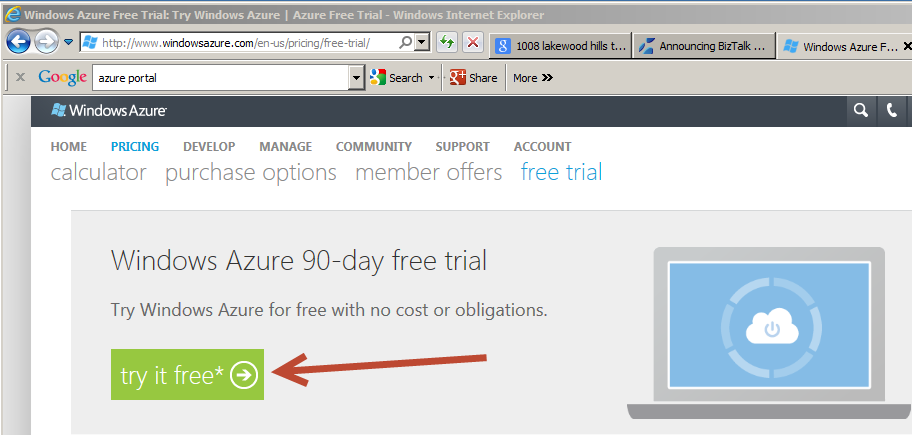
1. Go to: http://www.windowsazure.com/en-us/pricing/free-trial/
2. Click on the “try it free*” green box in the top left of the page
3. Sign in with your Windows Live Account
4. If you are new to Azure, you should get presented with a 90-Day Free Trial offer that includes Cloud Services, Storage, SQL Database, Data Transfer, and Websites. You will need a valid credit card and mobile phone to activate this trial.
5. Click on the arrow on the bottom right to continue to the next screen.
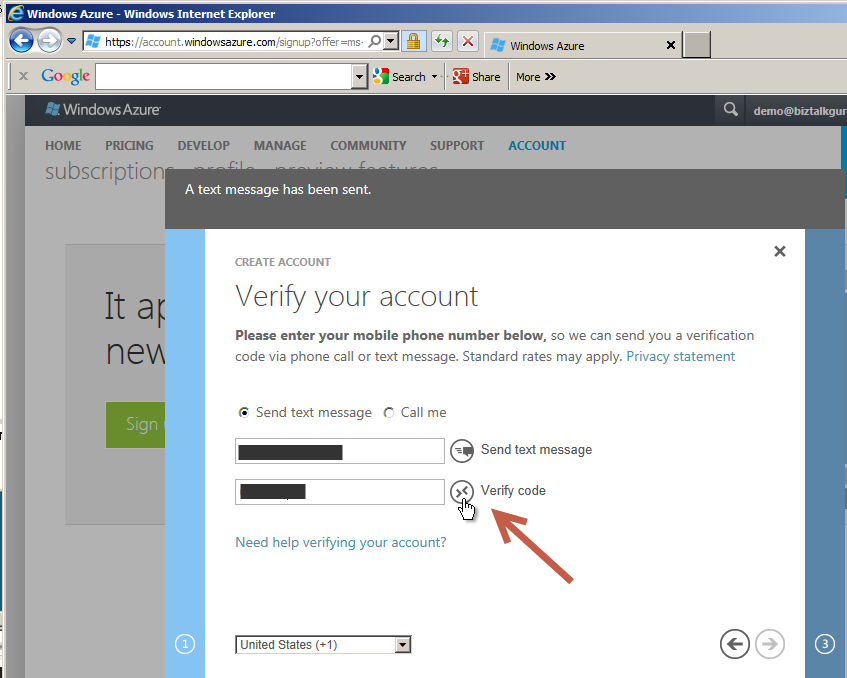
6. On this screen you will be asked to validate your mobile phone number. This can be done via text or voice. Click “Verify Code” once you enter the code to continue. Once validated, click the arrow on the bottom right to continue.
7. The next screen asks for credit card details. This is used for identification purposes. Enter your credit card details and check the arrow on the bottom right to continue.
8. In a few moments your subscription will be activated and you will be re-directed to the Main Azure Account page.
If you have already enabled Virtual Machine Preview go to Step 3.
Step 2: Enable Virtual Machine Preview for your Azure Account
1. As of this blog post, Virtual Machines are in Preview mode. This means it is not full production so strange things can happen like services can go up and down more often, but you are not charged for the features. Because of this, Virtual Machines need to be enabled for a specific subscription.
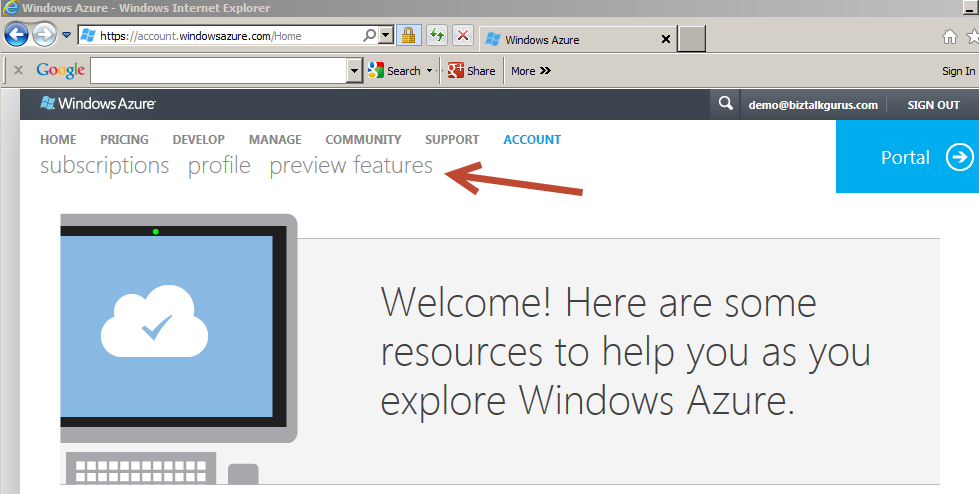
2. On the Main Azure Account page, click on the “preview features” link on the top middle of the screen.
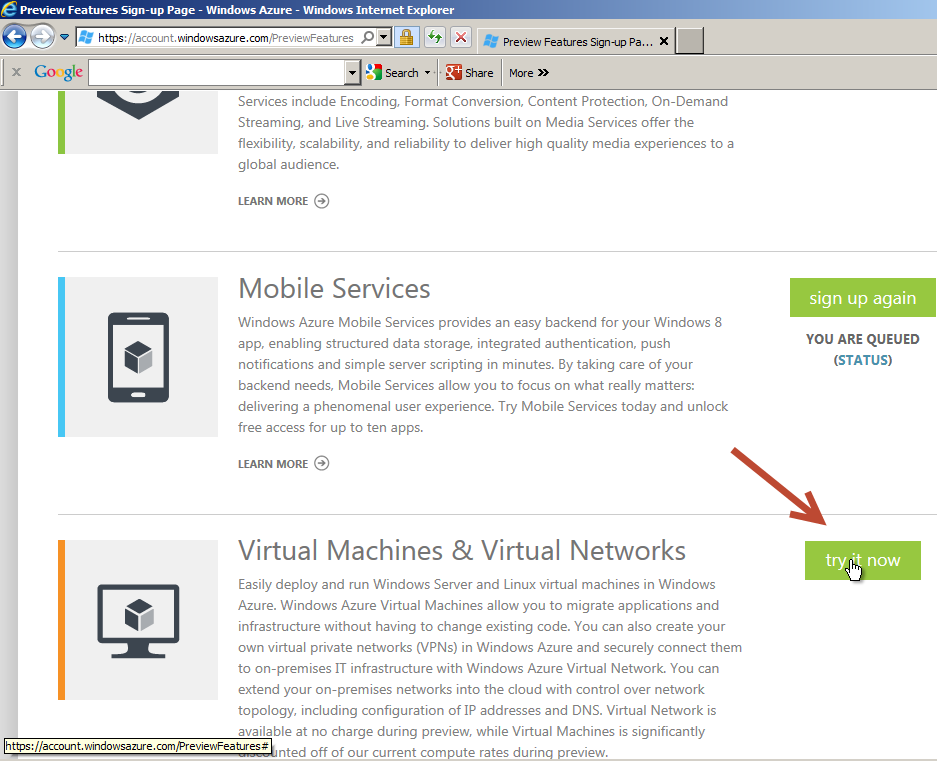
3. This lists all the available features that are in preview mode. Scroll down to the Virtual Machines & Virtual Networks section. Click on “try it now”. You will get a pop-up to select what subscription to apply this to. Select the 3-Month Trial Subscription. If you have more than one subscription, you need to enable Virtual Machines on each of the subscriptions you want to use them on.
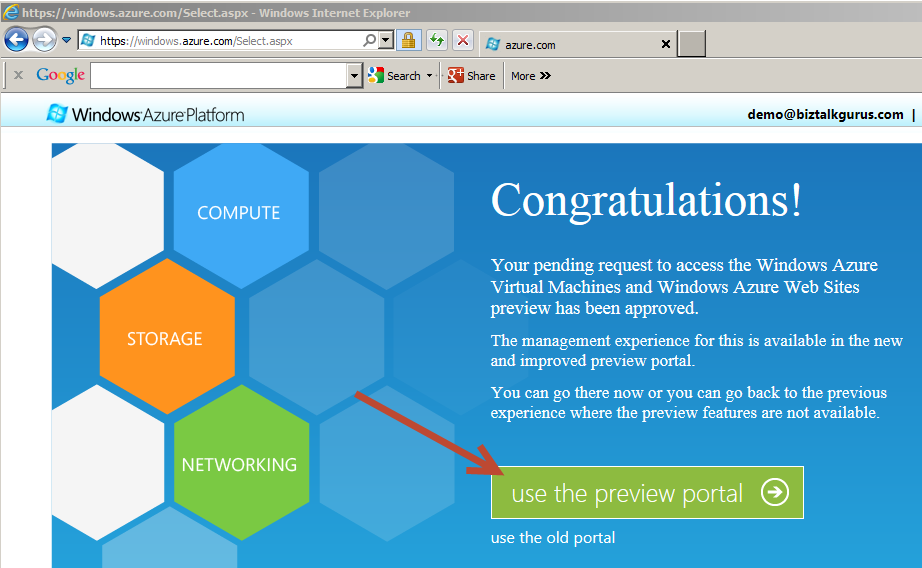
4. It will take a few moments for the process to complete. Once completed, the page will refresh. Select “Portal” on the top right.
5. You will see a screen about being redirected to the Preview Portal. This is the correct place to manage Virtual Machines. You will want to get back to classic Azure Portal for features already live in production like the Service Bus.
Step 3: Create a BizTalk 2010 R2 CTP Virtual Machine
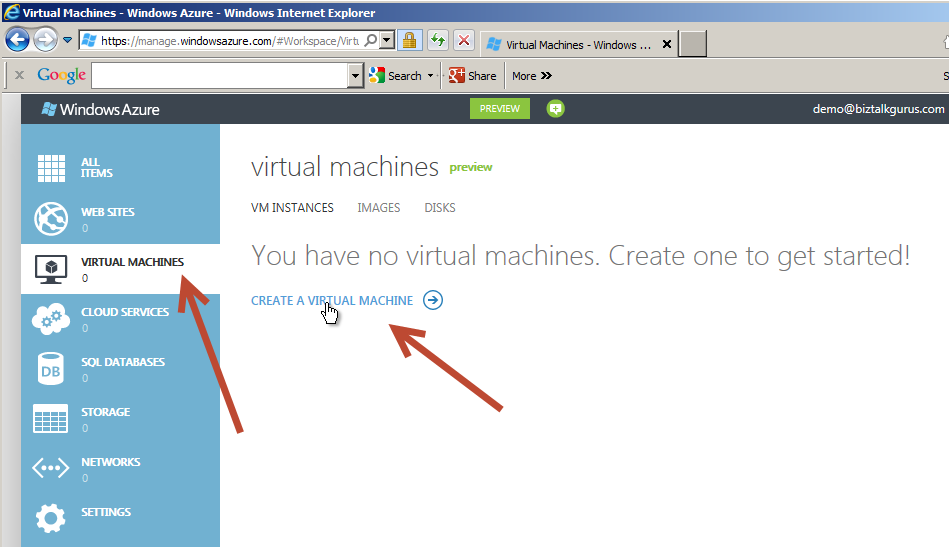
1. Once you are inside the Preview Portal, select Virtual Machines on the left. Then select “Create A Virtual Machine”.
2. On the New Virtual Machine window, select “From Gallery”.
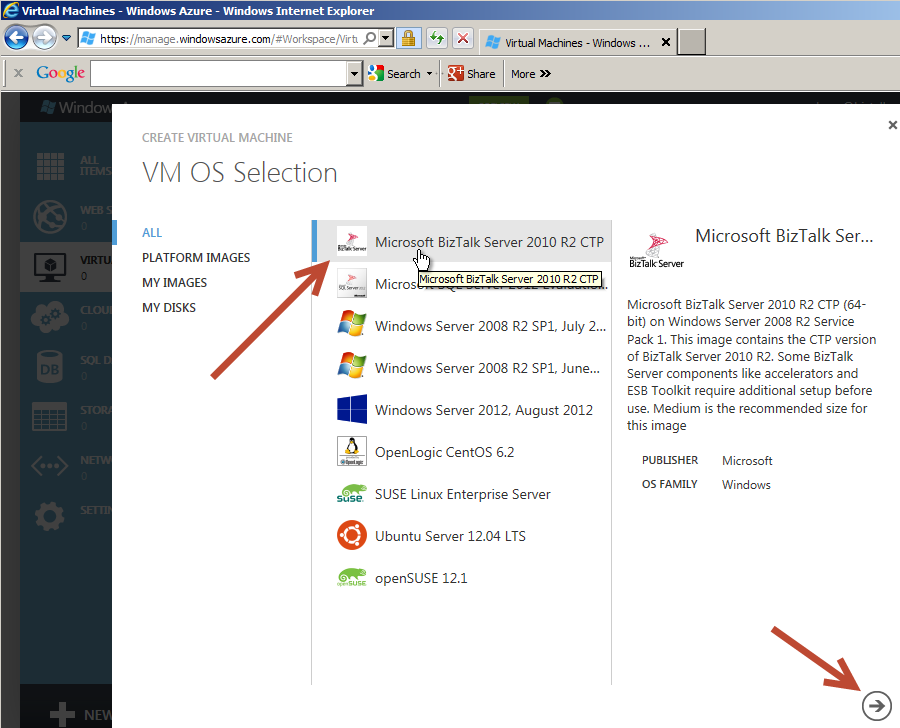
3. The Gallery lists pre-built templates for quickly creating Virtual Machines. Select “Microsoft BizTalk Server 2010 R2 CTP” and click the arrow on the bottom right to continue.
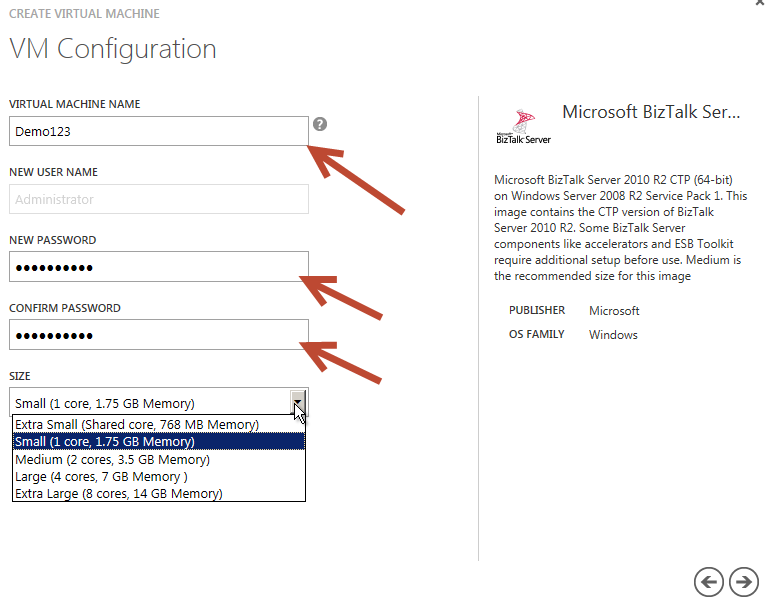
4. The next screen allows you to set the Virtual Machine Name, Admin Password, and select the Size. In this case, the name is Demo123. This does not need to be globally unique to all the Microsoft Virtual Machines. Since this is Preview, you are not charged for usage so the default Small Size is ok for now. Later, once you need to pay for usage you might want to adjust this as needed. Select the arrow on the bottom right to continue.
5. On the next screen, you need to set the Globally Unique DNS name. This is how you will connect to the Virtual Machine using Remote Desktop. In this case, the name is “demo123swt”. You also have the option to set the Region for the Virtual Machine if the default is not the best for you. Click the arrow on the bottom right to continue.
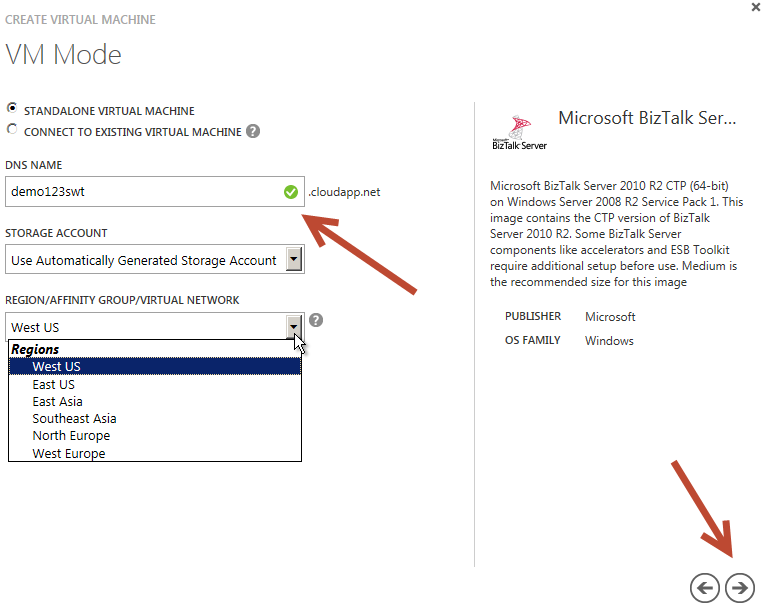
6. On the VM Options page, just leave the default of None. This setting could allow your Virtual Machine to be replicated to other datacenters, but since this is just a demo we want to keep it simple. Remember, once live you would be charged more for replication and redundancy. Click the check mark on the bottom right to complete the Virtual Machine setup.
7. You will now be redirected back to the Preview Portal page while the Virtual Machine is provisioned. This will take several minutes. Once complete, click on the Virtual Machine row and it should start automatically. If not, use the Restart link at the bottom to start the Virtual Machine. When the Connect link is available, click on it. This will download a pre-configured Remote Desktop link to this Virtual Machine.
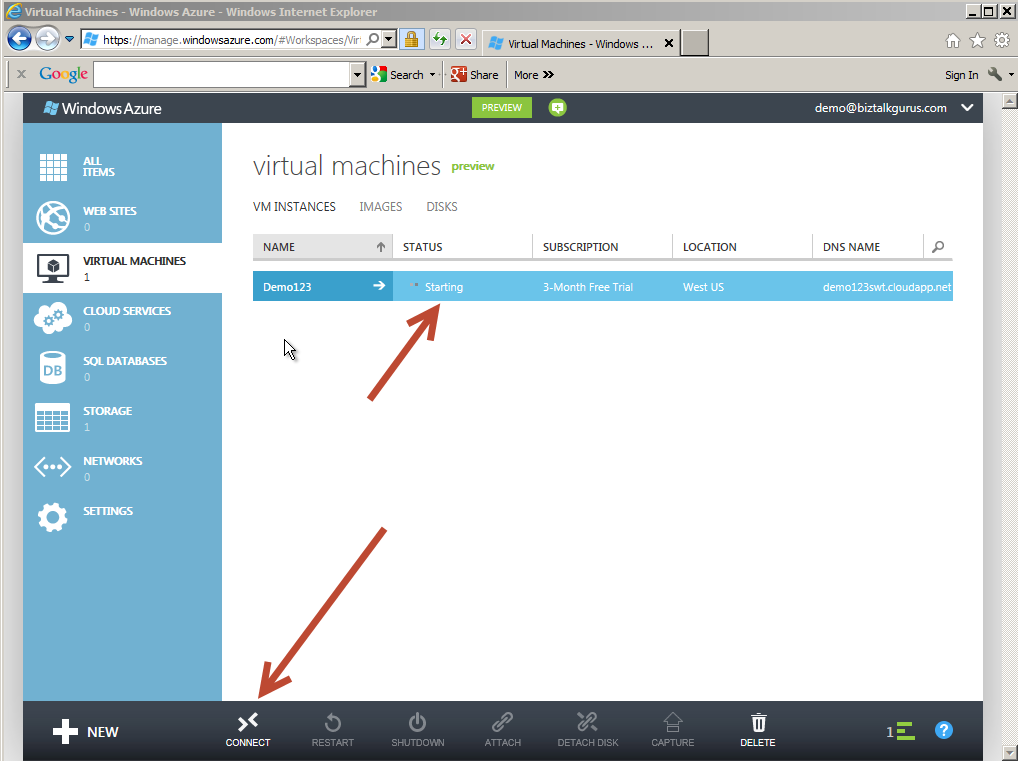
8. Launch the Remote Desktop connection to connect to the Virtual Machine. Use the Admin Password you created in item 4 above.
9. Once you connect to the Virtual Machine, BizTalk 2010 R2 CTP is installed but not configured. You will need to run through the configuration to create your BizTalk Server runtime environment. SQL 2012 and Visual Studios 2012 are already installed on your Virtual Machine. The design time of BizTalk inside Visual Studios is ready for use without any configuration.
10. That is it! Now you can enjoy your BizTalk 2010 R2 CTP Virtual Machine!
Watch for a quick How-To Video of setting up a BizTalk Sever 2010 R2 CTP Virtual Machine coming in the next few days.

