by community-syndication | Mar 28, 2011 | BizTalk Community Blogs via Syndication
Hi all, the BizTalk team has been busy and now the BizTalk 2010 exam has been officially
released.
http://www.microsoft.com/learning/en/us/exam.aspx?ID=70-595
I’m going to sit it in the next few weeks and get a taste of it.
Good luck all and what a great day this is – well done Team!
Snippet..
Audience Profile
Candidates for this exam typically work as a BizTalk developer in an organization
that has a need to integrate multiple disparate systems, applications, and data as
well as the need to automate business processes by using BizTalk Server.
Candidates should have a solid understanding of fundamental BizTalk concepts around
the core messaging engine and building business processes using orchestrations.
Candidates will have some exposure to larger-scale multi-server solutions and deployment/management
familiarity. This core knowledge is required for BizTalk 2006 R2, 2009, and 2010.
In addition, core knowledge of Windows Communication Foundation (WCF) and Electronic
Data Interchange (EDI) is also required.
Candidates should also have at least two years’ experience developing, deploying,
testing, troubleshooting, and debugging BizTalk Server 2006 and later solutions across
multiple projects and have experience using the Microsoft .NET Framework, XML, Microsoft
Visual Studio, Microsoft SQL Server, Web services, and WCF while developing BizTalk
integration solutions
Credit Toward Certification
When you pass Exam 70-595: TS: Developing Business Process and Integration Solutions
by Using Microsoft BizTalk Server 2010, you complete the requirements for the following
certification(s):
Microsoft Certified Technology Specialist (MCTS): Microsoft BizTalk Server
2010
Note This preparation guide is subject to change at any time without prior
notice and at the sole discretion of Microsoft. Microsoft exams might include adaptive
testing technology and simulation items. Microsoft does not identify the format in
which exams are presented. Please use this preparation guide to prepare for the exam,
regardless of its format.
Blog Post by: Mick Badran
by community-syndication | Mar 28, 2011 | BizTalk Community Blogs via Syndication
Recently I been helping Michael Stephenson on his article about BizTalk RFID and NServiceBus, which is published on Microsoft technet WIKI site,
http://social.technet.microsoft.com/wiki/contents/articles/biztalk-2010-amp-nservicebus.aspx
The article is mainly focused on how you can take advantage of NServiceBus along with BizTalk RFID capabilities on high volume scenarios, where you don’t want to waste BizTalk processing power for just routing from A to B.
Nandri!
Saravana
by community-syndication | Mar 28, 2011 | BizTalk Community Blogs via Syndication
by community-syndication | Mar 27, 2011 | BizTalk Community Blogs via Syndication
In this paper, BizTalk MVP Michael Stephenson discusses using NServiceBus to do multicast message distribution as part of a BizTalk RFID process.
by community-syndication | Mar 27, 2011 | BizTalk Community Blogs via Syndication
Whenever you get into a position where you are blogging about a subject matter just because you have a blog; you actually know it is time to quit. Well exactly this happened with my previous blog, I simply did not… Read more ›
Blog Post by: Ren%u00e9 Brauwers
by community-syndication | Mar 25, 2011 | BizTalk Community Blogs via Syndication
Ive just posted a paper on the technet wiki about BizTalk RFID and NServiceBus used as a publishing component
http://social.technet.microsoft.com/wiki/contents/articles/biztalk-2010-amp-nservicebus.aspx
by community-syndication | Mar 25, 2011 | BizTalk Community Blogs via Syndication
BizTalk Server team is excited to announce the availability of updated schemas and runtime to support HIPAA 5010 Errata in BizTalk Server 2009. The update is available as part of BizTalk Server 2009 Cumulative Update 2 (CU2) package.
The following 6 transactions are available in the update:
|
Transactions affected by the 5010 Errata
|
Base Version
ST03/GS08
|
Errata Version
ST03/GS08
|
|
270, 271 Health Care Eligibility Benefit Inquiry and Response
|
005010X279
|
005010X279A1
|
|
834 Benefit Enrollment and Maintenance
|
005010X220
|
005010X220A1
|
|
835 Health Care Claim Payment/Advice
|
005010X221
|
005010X221A1
|
|
837 Health Care Claim: Professional
|
005010X222
|
005010X222A1
|
|
837 Health Care Claim: Institutional
|
005010X223
|
005010X223A2
|
|
837 Health Care Claim: Dental
|
005010X224
|
005010X224A2
|
The CU2 download is available from the support location here: http://support.microsoft.com/kb/2497794.
Note:
-
For HIPAA 5010, run the MicrosoftEdiXSDTemplatesKb973415.exe file in the hotfix package to self-extract the latest set of HIPAA 5010 compliant schemas. Save them to the following suggested directory: <Drive:>\Program Files\Microsoft BizTalk Server 2009\XSD_Schema\EDI. The HIPAA 5010 support can also be downloaded from here http://support.microsoft.com/kb/973415
-
For HIPAA 5010 Errata, run MicrosoftEdiXSDTemplatesKb2510733.exe file in the hotfix package to self-extract the latest set of HIPAA 5010 Errata compliant schemas. Save them to the following suggested directory: <Drive:>\Program Files\Microsoft BizTalk Server 2009\XSD_Schema\EDI
Customers are encouraged to try the update and provide feedback.
Reference:
HIPAA 5010 Technical Reports Type 3 (TR3), commonly known as Implementation Guides, are available from the Washington Publishing Company http://www.wpc-edi.com/content/view/817/1
-Karthik Bharathy
Blog Post by: BizTalk Blog
by community-syndication | Mar 24, 2011 | BizTalk Community Blogs via Syndication
In a post yesterday I should a way to invoke a stored procedure in SQL Azure using WCF-SQL Adapter. There is another to invoke a stored procedure using AppFabric Connect for Services functionality in BizTalk Server 2010. This new feature feature brings together the capabilities of BizTalk Server and Windows Azure AppFabric thereby enabling enterprises to extend the reach of their on-premise Line of Business (LOB) systems and BizTalk applications to cloud. To be able to bridge the capabilities of BizTalk Server and Windows Azure AppFabric you will need Biztalk Server 2010 Feature Pack.
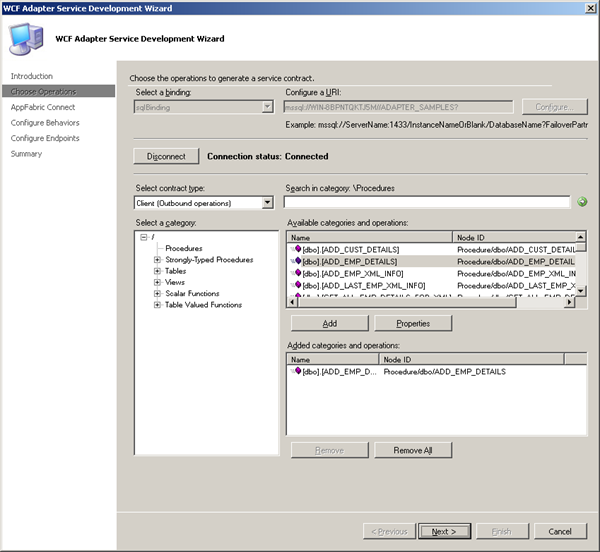
In this post I will show how to leverage BizTalk WCF-SQL Adapter to extend reach of stored procedure to the cloud. First I will create a service that will expose the stored-procedure. I create a VS Studio project and select WCF Adapter Service. Steps that follow are also described in an article called Exposing LOB Services on the Cloud Using AppFabric Connect for Services. I skip first page concerning and go to choose the operations to generate a service contract page.
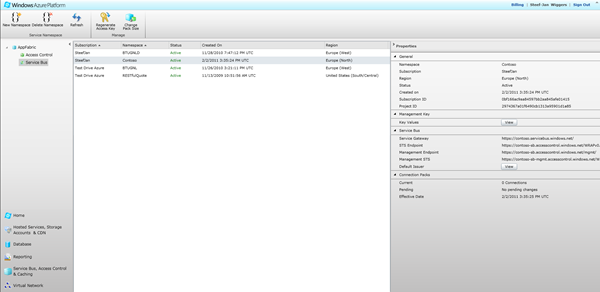
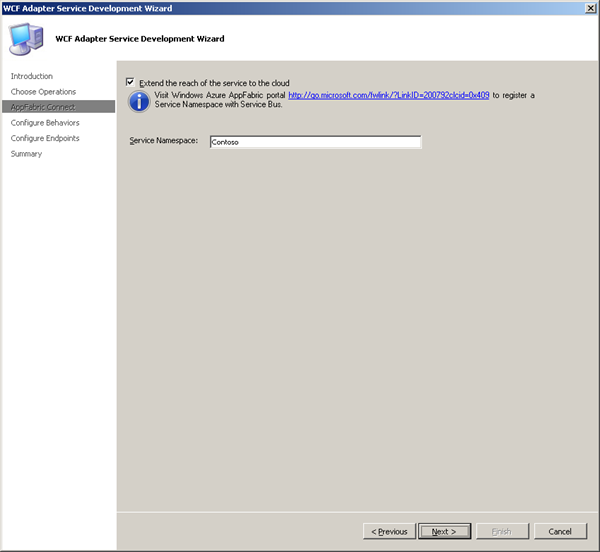
I choose local database, stored procedure ADD_EMP_DETAILS (same as in previous posts) and click Next. In AppFabric Connect page, select the Extend the reach of the service on the cloud checkbox. In the Service Namespace text box, enter the service namespace that you must have already registered with the Service Bus.
Next step is configure the service behavior. You will have to configure the service behavior (for both on-premises and cloud-based services) and the endpoint behavior (for only endpoints on the Service Bus).
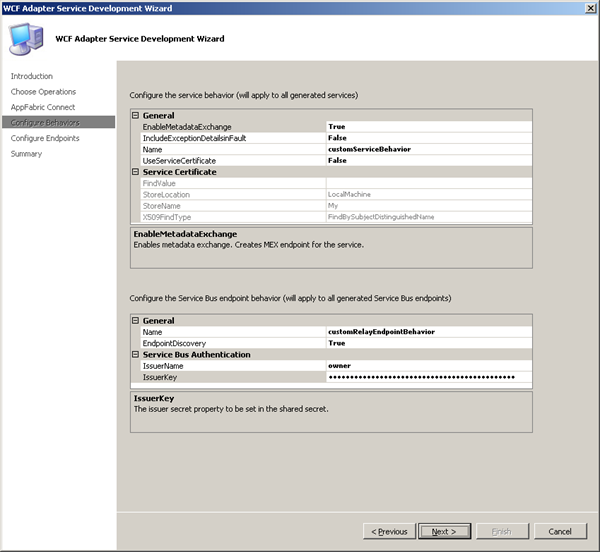
I enabled the EnableMetadatExchange to True, so the service metadata is available using standardized protocols, such as WS-Metadata Exchange (MEX). I not using security features as in certificates so the UseServiceCertificate is set to False. I enabled EndpointDiscovery, which makes the endpoints publicly discoverable. Next page is around configuring endpoints.
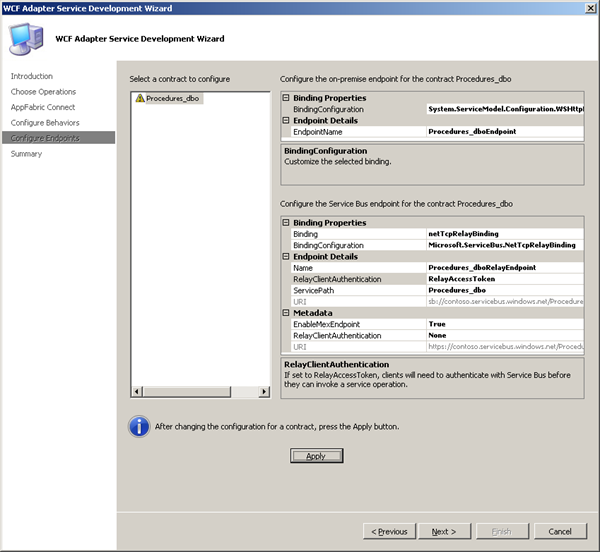
I accepted the the defaults for the on-premises endpoint and focus on configuring the Service Bus endpoints. I select netTcpRelayBinding for which the URL scheme is sb and set EnableMexEndPoint to True. Rest I accepted default values. After configuration you will have to click Apply. Then click and final screen will appear.
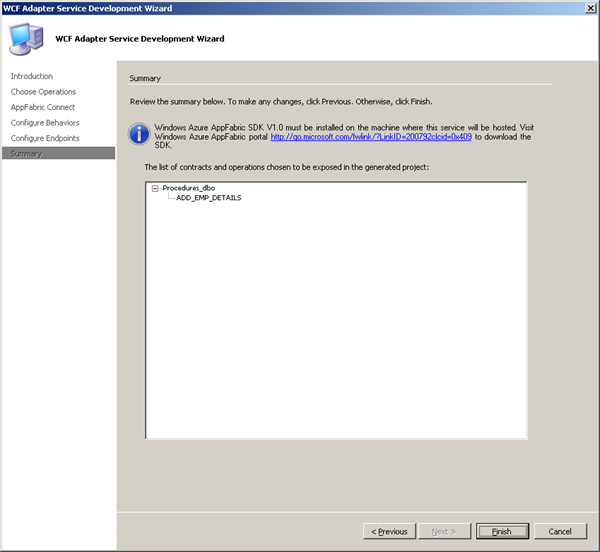
Finish and the wizard creates both on-premise and Service Bus endpoints for the WCF service.
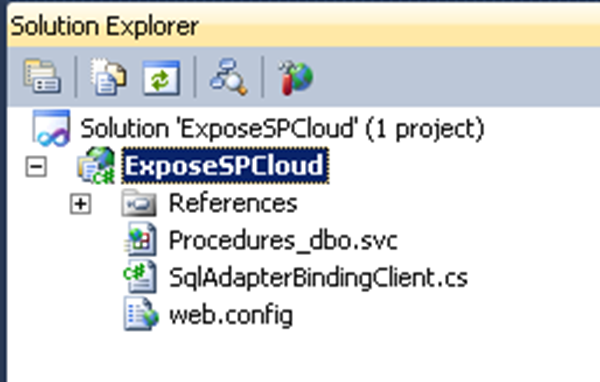
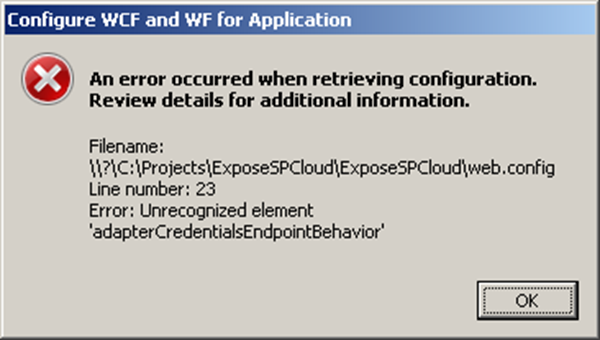
Next steps involve publishing the service. In the Visual Studio project for the service, right-click the project in Solution Explorer and click Properties. On the Properties page, in the Web tab, under Servers category, select the Use Local IIS Web Server option.The Project URL text box is automatically populated and then click Create Virtual Directory.In Solution Explorer, right-click the project again and then click Build. When service is build you will have to configure it in IIS for auto-start. By right clicking the service, Manage WCF and WF Service and then configure you might run into this error (which you can ignore a this element is not present in intellisense).
In Auto-Start you can set it to enable. Next step is to verify if the Service Bus endpoints for the WCF service are published. You will have to view all the available endpoints in the Service Bus ATOM feed page for the specified service namespace:
https://<namespace>.servicebus.windows.net
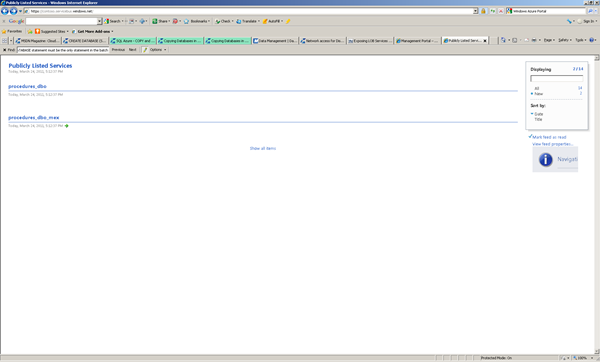
I typed this URL in a Web browser and saw a list of the all the endpoints available under the specified service bus namespace. To be able to consume the WCF service to able to invoke the procedure you will need to build a client. I create a Windows Application to consume WCF Service, so inside my project I created a new project a Windows Forms Application and added a service reference using the URL for the relay metadata exchange endpoint.
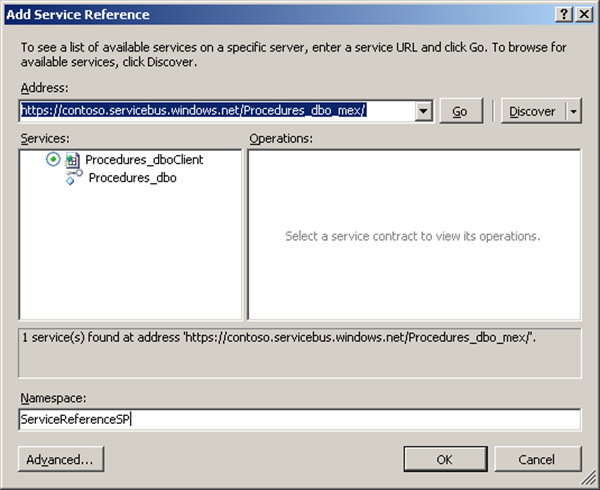
In ServiceBus Endpoint the RelayClientAuthentication was set to RelayAccessToken, which means that the client will need to pass the authentication token to authenticate itself to the Service Bus. Therefore you will have to add following section in app.config.
<behaviors>
<endpointBehaviors>
<behavior name=”secureService”>
<transportClientEndpointBehavior credentialType=”SharedSecret”>
<clientCredentials>
<sharedSecret issuerName=”<name>” issuerSecret=”<value>” />
</clientCredentials>
</transportClientEndpointBehavior>
</behavior>
</endpointBehaviors>
</behaviors>
You must get the values for issuerName and issuerSecret from the organization (e.g. your Azure account) that hosts the service. The endpoint configuration in app.config has to be changed to this:
<endpoint address=”sb://contoso.servicebus.windows.net/Procedures_dbo/”
binding=”netTcpRelayBinding” bindingConfiguration=”Procedures_dboRelayEndpoint”
contract=”ServiceReferenceSP.Procedures_dbo” name=”Procedures_dboRelayEndpoint” behaviorConfiguration=”secureService“/>
Code for making this work (implementation of invoke button).
using System;
using System.Collections.Generic;
using System.ComponentModel;
using System.Data;
using System.Drawing;
using System.Linq;
using System.Text;
using System.Windows.Forms;
using ExposeSPCloudTestClient.ServiceReferenceSP;
namespace ExposeSPCloudTestClient
{
public partial class Form1 : Form
{
public Form1()
{
InitializeComponent();
}
private void btnInvoke_Click(object sender, EventArgs e)
{
int returnValue = -1;
Procedures_dboClient client = new Procedures_dboClient(“Procedures_dboRelayEndpoint”);
client.ClientCredentials.UserName.UserName = “sa”;
client.ClientCredentials.UserName.Password = “B@rRy#06”;
try
{
Console.WriteLine(“Opening client…”);
Console.WriteLine();
client.Open();
client.ADD_EMP_DETAILS(“Steef-Jan Wiggers”, “Architect”, 20000, out returnValue);
}
catch (Exception ex)
{
MessageBox.Show(“Exception: ” + ex.Message);
}
finally
{
client.Close();
}
txtResult.Text = returnValue.ToString();
}
}
}
Query employee table before execution of code above results as depicted below:
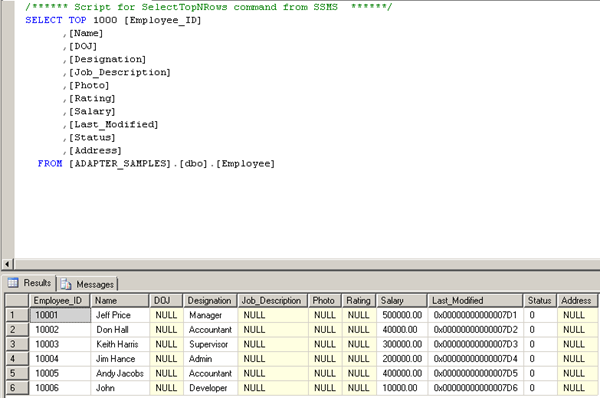
After invoking stored-procedure through consuming the service the new record is added.
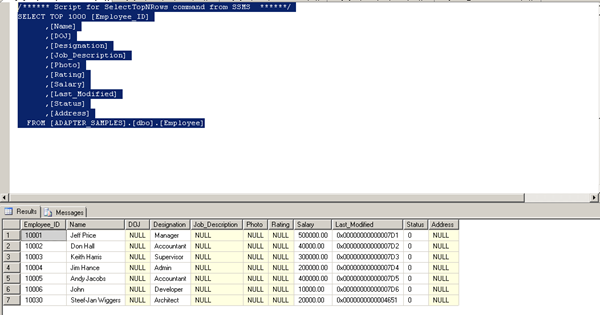
As you can see I am added to employees table through adapter service called by the client.As you can see there is another way of invoking a stored-procedure making use of BizTalk AppFabric Connect Feature.

by community-syndication | Mar 24, 2011 | BizTalk Community Blogs via Syndication
Have you played with OData much yet? The OData protocol allows you to interact with data resources through a RESTful API. But what if you want to securely expose that OData feed out to external parties? In this post, I’ll show you the very simple steps for exposing an OData feed through Windows Azure AppFabric. […]
Blog Post by: Richard Seroter
by community-syndication | Mar 23, 2011 | BizTalk Community Blogs via Syndication
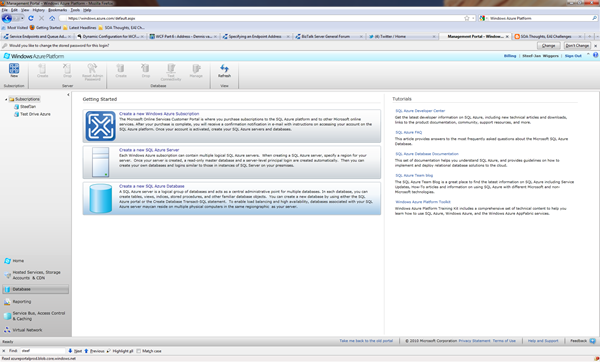
In previous post I explained how call stored procedure using WCF-SQL Adapter from BizTalk. I now want to do same thing, but instead of calling a stored-procedure in SQL Server I will call a stored procedure in SQL-Azure. If you want to do you will need a Windows Azure Account. If you do than you can sign in through Azure Management Portal and if you do not have SQL Azure database you can go database in portal and click Create a new SQL Database.
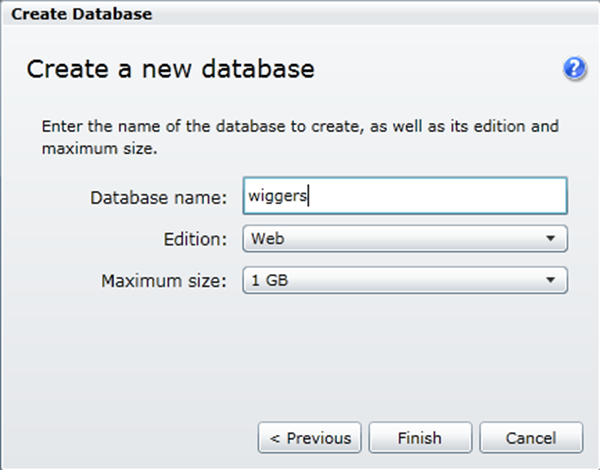
You will then go through set of steps (e.g. wizard), where you will have to select subscription and server, region (my case North Europe), credentials, firewall rules (I did not apply any), database name, edition (web), and size (1 Gb).
So I now have a database in the cloud and I can access it through SQL management studio 2008 R2 on my machine. That’s what I thought, but I got the message below stating I need a firewall rule.
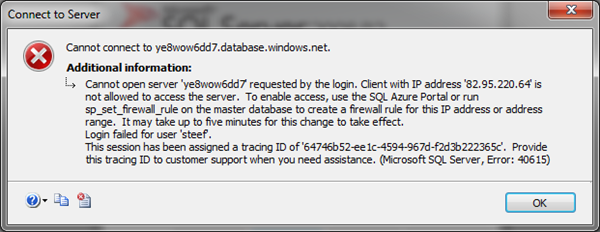
This meant I had to go back to the portal and create a firewall rule for IP address of my laptop. I dropped the database and started over again. And tried again and yes I could access the database instantly.

Now I needed to create a database with same tables and stored procedure as on-premise version. In SQL Azure you can create a new database by right clicking database and click new database. A script will appear that looks like below that needs to be executed.
CREATE DATABASE ADAPTER_SAMPLES;
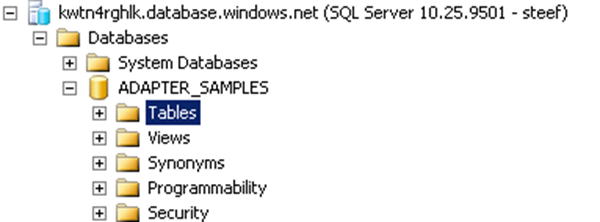
This may take a few seconds, but then you have a database. Next step was to execute the script for creating table (just Employee) and stored procedure. I right clicked tables and then new table a new query screen appears where I execute following statements:
CREATE TABLE [dbo].[Employee](
[Employee_ID] [int] IDENTITY(10001,1) NOT NULL,
[Name] [varchar](50) NOT NULL,
[DOJ] [datetime] NULL,
[Designation] [varchar](50) NOT NULL,
[Job_Description] [varchar](max) NULL,
[Photo] [image] NULL,
[Salary] [decimal](18, 2) NOT NULL,
[Last_Modified] [timestamp] NULL,
[Status] [int] NULL CONSTRAINT [DF_Employee_Status] DEFAULT ((0)),
[Address] [xml] NULL,
CONSTRAINT [PK_Employee] PRIMARY KEY CLUSTERED
(
[Employee_ID] ASC
))
GO
Now of course I needed to have some data in there.
INSERT INTO [Employee]([Name],[Designation],[Salary])VALUES(‘Jeff Price’,’Manager’,500000)
INSERT INTO [Employee]([Name],[Designation],[Salary])VALUES(‘Don Hall’,’Accountant’,40000)
INSERT INTO [Employee]([Name],[Designation],[Salary])VALUES(‘Keith Harris’,’Supervisor’,300000)
INSERT INTO [Employee]([Name],[Designation],[Salary])VALUES(‘Jim Hance’,’Admin’,200000)
INSERT INTO [Employee]([Name],[Designation],[Salary])VALUES(‘Andy Jacobs’,’Accountant’,400000)
And the stored procedure by navigate to stored-procedure and right click new new stored procedure. I deleted the preformatted stuff en pasted the code below:
CREATE PROCEDURE [dbo].[ADD_EMP_DETAILS]
— Add the parameters for the stored procedure here
@emp_name varchar(50),
@emp_desig varchar(50),
@salary decimal(18,2)
AS
BEGIN
— SET NOCOUNT ON added to prevent extra result sets from
— interfering with SELECT statements.
SET NOCOUNT ON;
— Insert statements for procedure here
INSERT INTO [ADAPTER_SAMPLES].[dbo].[Employee]
([Name]
,[Designation]
,[Salary])
VALUES
(@emp_name
,@emp_desig
,@salary)
SELECT [Employee_ID] FROM Employee where [Employee_ID] = (select IDENT_CURRENT(‘Employee’))
END
GO
I am fairly new to SQL Azure so some of steps or things can be done differently. You can find many information online, like this MSDN article Getting Started with SQL Azure Development. Now that I have got things set up I now go through same steps to invoke the stored-procedure in SQL Azure using WCF-SQL Adapter.First I fire up VS2010 and create a new BizTalk project and then through add generated items I choose Consume Adapter Service.
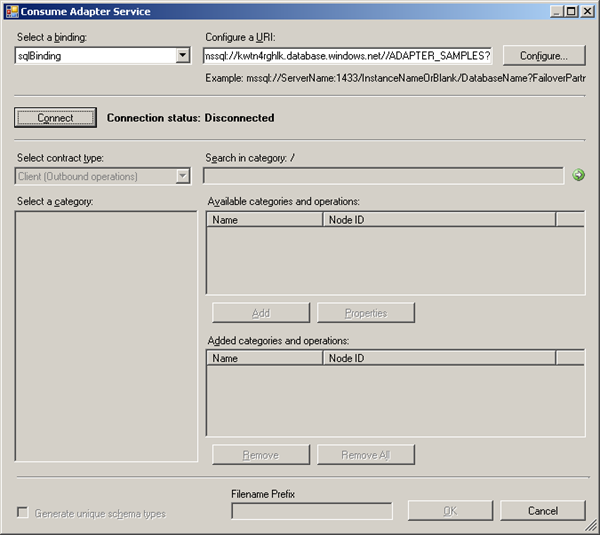
I configured the URI accordingly,click Configure in security tab name of database administrator and then password, URI Properties the InitialCatalog Name and Server and you will get URI like:
mssql://kwtn4rghlk.database.windows.net//ADAPTER_SAMPLES?
Connect and category will appear. You will then select Procedure and add procedure and click OK.
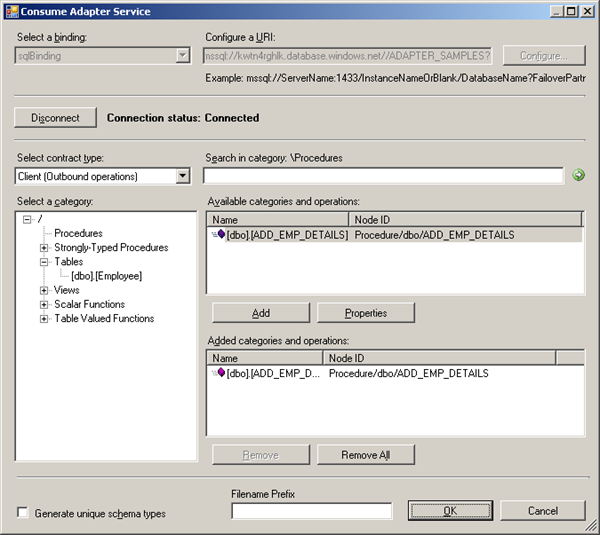
Once that is done then binding and schema’s are generated.
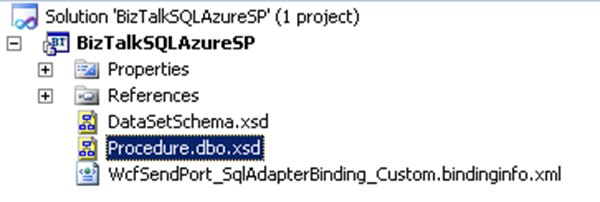
After deploying I imported the binding file accompanied with this sample called WcfSendPort_SqlAdapterBinding_Custom.bindinginfo.xml. Send port will be created and only thing I had to do is adding filter to this send ports. If you go to generated send port and click configure for custom-adapter you will see in general tab and others the details.
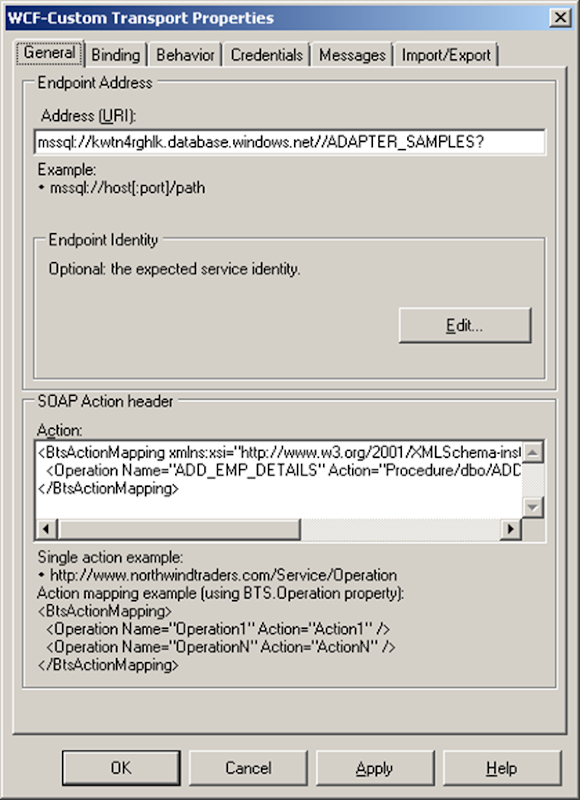
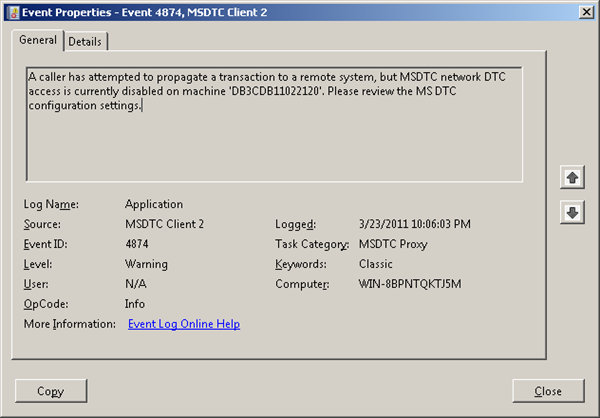
One important things to be noted here is that in binding the useAmbientTransaction has to be set to false! If not you will error message below:
You will need to fill in credentials in credential tab! Next step is to add a filter for message type.
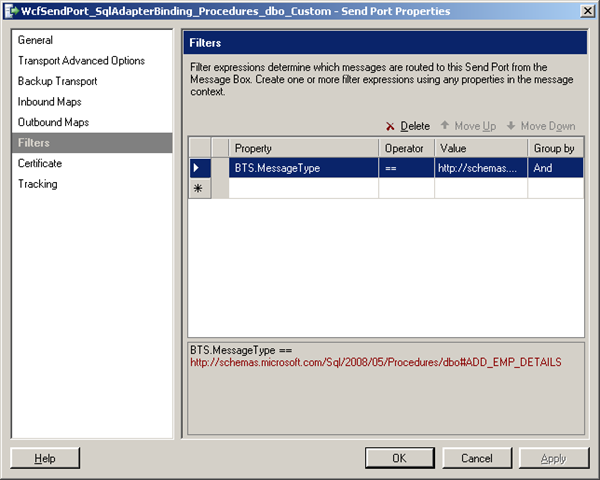
When this is done I created a receive location for incoming message that will look like this:
<ns0:ADD_EMP_DETAILS xmlns:ns0=”http://schemas.microsoft.com/Sql/2008/05/Procedures/dbo”>
<ns0:emp_name></ns0:emp_name>
<ns0:emp_desig></ns0:emp_desig>
<ns0:salary></ns0:salary>
</ns0:ADD_EMP_DETAILS>
And a send port that will send response message to a folder. Message that will placed in receive folder is:

As a result to follow message is returned:
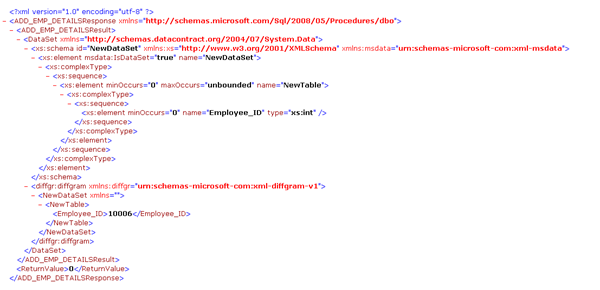
When I run the follow T-SQL command in SQL Azure I get the following result:
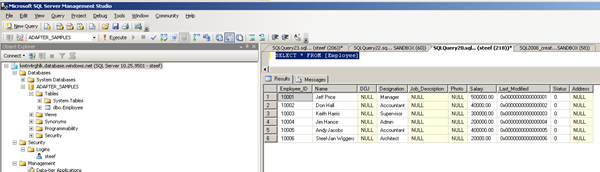
So as you can see I am in there now.I have showed you a way to invoke a stored procedure in SQL Azure using BizTalk Server with a messaging solution. Cool stuff.
Technorati: biztalk server 2010