by community-syndication | Nov 12, 2008 | BizTalk Community Blogs via Syndication
Ever wondered how you might implement “Hello World” in a non-domain
specific language such as in the roots of Oslo looks like………(I found a snippet
from one of the PDC Webcasts….)
(This is written in a tool/shell that ships as part of the Oslo SDK – Intellipad)
The left hand side is the instance document; the middle is the grammar or transformation;
and the right is the Output Graph.
This is a pretty specific sample – as in fact its very specific and only takes one
input – “Hello World” (as dictated on the syntax line)
What’s so special about all of this?? I hear you ask…..
There’s a huge amount of power in being able to ‘model’ your world/data and relationships.
Today we’re pretty comfortable with XML but we also have to tolerate
things like parsing ‘<‘ or attributes etc. Or if you’ve ever been given a schema
full 100s of fields when you needed to use just 5. XML is not perfect, but it certainly
has its need.
Storing this sort of XML in the DB I think is painful at best, while SQL 2005/2008
goes part way towards helping us, there’s still a bunch of specifics that the DB needs
to know about the XML and if that Schema changes, then that change goes all the way
to the DB….otherwise the alternative is Tables/Rows/Columns + invest in Stored Procs
to manipulate the data.
Enter the Modeling Language -M
We can basically define our world – if you’re dealing with a customer with 5 attributes,
that’s all you specify. You could take your V1.0 representation of a Customer and
extend it etc etc.
Deploying the model is deployed straight to the Database (known as a Repository) –
the deployment step actually creates one or more tables, and corresponding Views.
Access is never granted to the raw table, only to the View. That way when you extend
or upgrade your models, existing clients see just their original ‘View’ keeping the
new attributes separate.
So in terms of building a model of the information your systems are utilising ->
‘M’ is a very rich language, which decorates and defines a whole bunch of metadata
around your needed entities.
Digging a little deeper into M…. we have 3 main defining components:
1. M-Schema – defines the entities + metadata (e.g. unique values/ids
etc)
2. M-Grammar – defines the ‘Transformation’. How to transform the
source into the output. You could loosely look at this as: Y=fn(M) “Y
equals some Function of M”
3. M-Graph – a directed graph that defines the output (they use directed
graph to indicate through lexical parses, that something has a start and
definitely finishes.This is a check the compiler will do)
You’ll notice at the top of this shot, there are DSLs – these are Domain
Specific Languages. e.g. a language full of terms and expressions to define
for e.g How to work with You local surf clubs competitions; another
could be How to Manage and describe Santa’s Wish list.
You might be thinking….I go pretty well in C#, why should I look into M?? C#
is obviously a highly functional language that when you start coding you’ve got all
the language constructs and notation under the sun at your disposal – decorations
are done through attributes on methods/classes etc…..but modeling something still
in done in a pretty bland way e.g. structs, classes, datasets, typed datasets etc.
You’re starting with a wide open language that really without you creating a bunch
of classes/code doesn’t have methods like Club.StartCarnival…..
M – take what you’re describing, a carnival and model it. What entities are in a Carnival
(people, lifesavers, boats etc) – model this – give us a picture of what they look
like (data you’d like to hold and the relation ship), define a grammar (words, constructs
and operations) on how we can work with these entities – we now have a Surf
DSL (that of course can be extended to V2.0….)
Developing solutions against the Surf DSL – the compiler knows all the defined commands,
constructs and schemas (cause we defined them in our DSL). They’re the only operands
that you can use as a developer – this simplifies the picture immensely.
The beauty about M is that the DSL is simply deployed to a Repository (which at this
stage is SQL Server, but could be any DB as we get access to the TSQL behind the scenes)
As I dig a little deeper I’ll be illustrating with some samples going forward
– hope you enjoyed this post….for now 🙂
Lastly – it’s amazing that way back at Uni, I studied a subject called ‘The
Natural Language-L’ (and it was one of those things where I thought – I’d
never use this again….well guess what 15 years on….M is looking very close. How
I even remember this is even scarier!!!) – the subject was language agnostic and dealt
with what was required to create/specify a language that could be learnt, written
and interpreted.
Cheers…’L’
by community-syndication | Nov 11, 2008 | BizTalk Community Blogs via Syndication
Hi all
So, it is time for the second part of the series about using the FarPoint
BizTalk adapter for Excel spreadsheets. You can find my first post in the series,
which was about the installation of the component here.
So, this post is about the wizard that guides you through creating a schema for an
Excel spreadsheet.
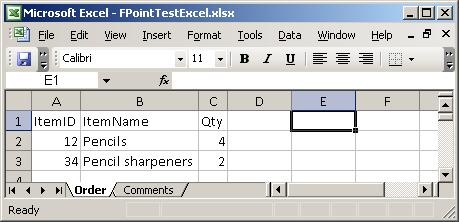
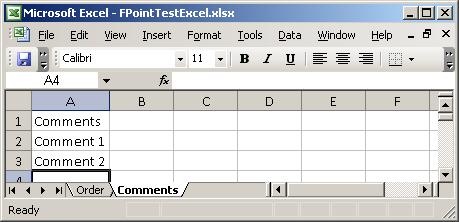
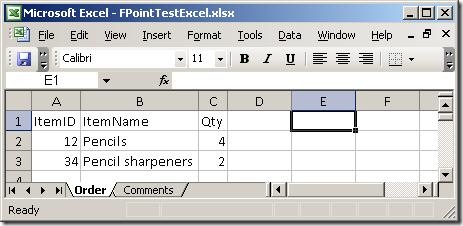
I created a simple spreadsheet to test with. It has two sheets, which you can see
here:
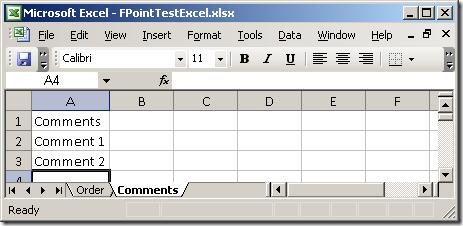
Basically, two sheets – one with order lines and one with comments. So, firing up
the wizard:
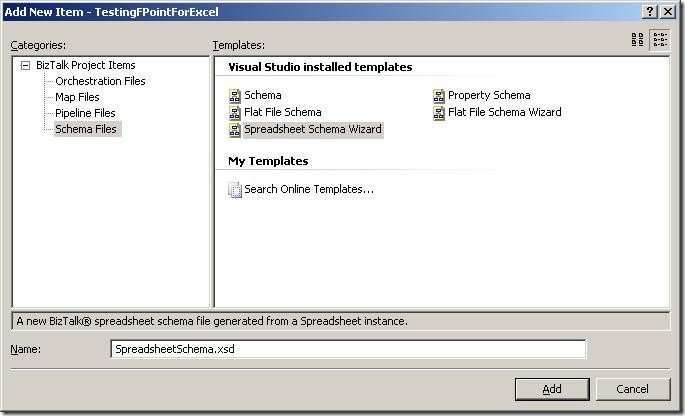
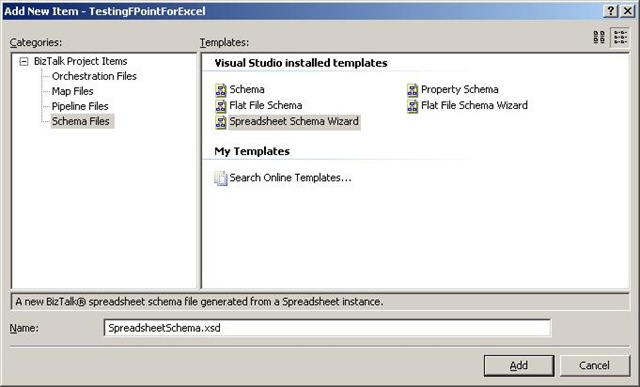
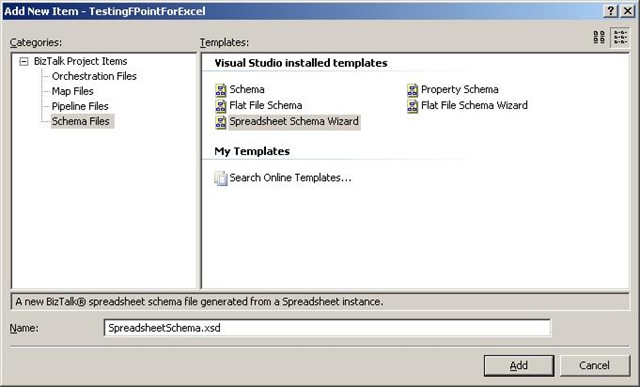
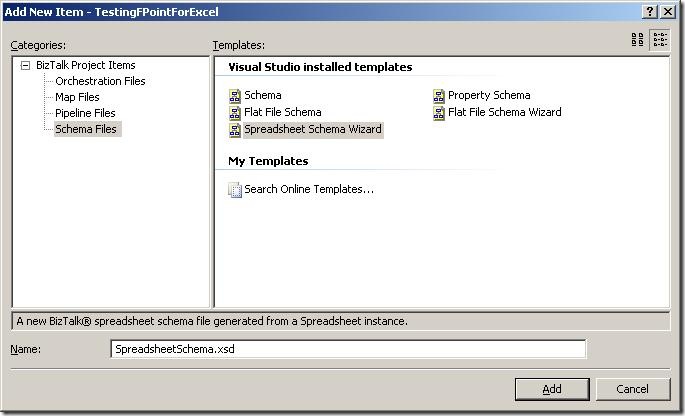
The first thing to do is to add a new item to your project, and choose the new schema
type “Spreadsheet Schema Wizard”. The wizard fires up automatically, when you click
“Add”.
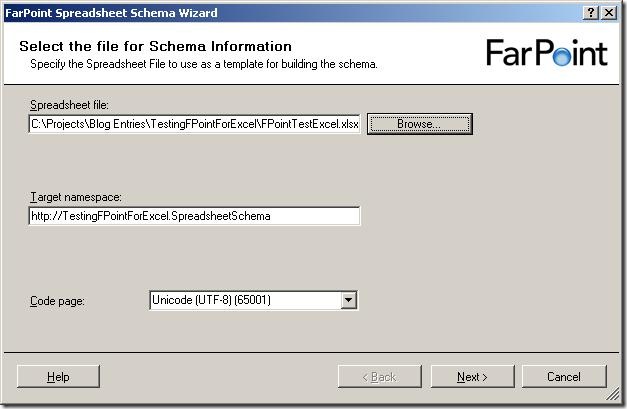
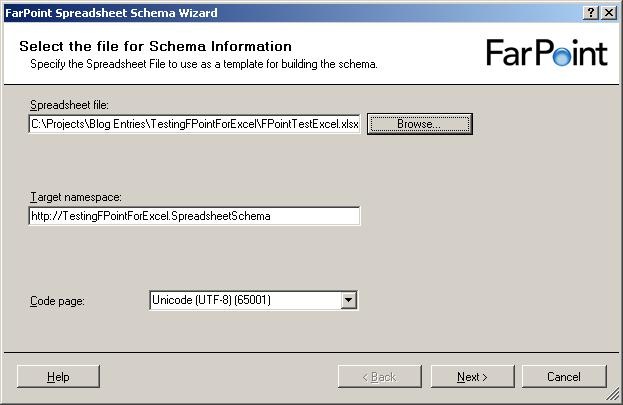
The first screen of the wizard isn’t really a surprise 🙂 It wants to you tell it
which file to use as a base for the schema, and give a target namespace and inform
it about what code page to use.
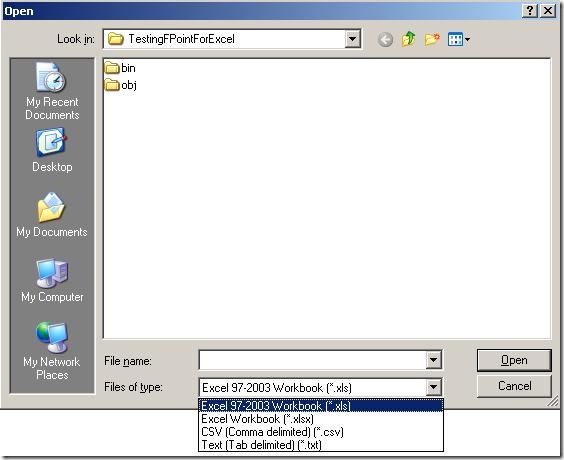
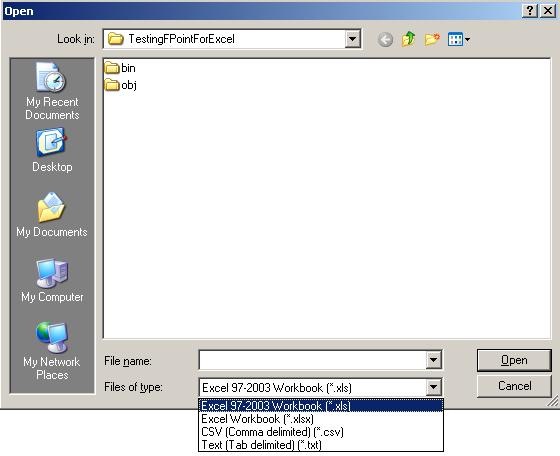
When browsing for files, I noticed that the components apparently not only deals with
spreadsheets (Excel 97-2003 as well as 2007) but also delimited files. So note to
my self: Look at that functionality later on – maybe it is better than BizTalks built-in
support for that, or perhaps more suitable in some situations. Maybe that’s a blog
post that will appear at some point 🙂
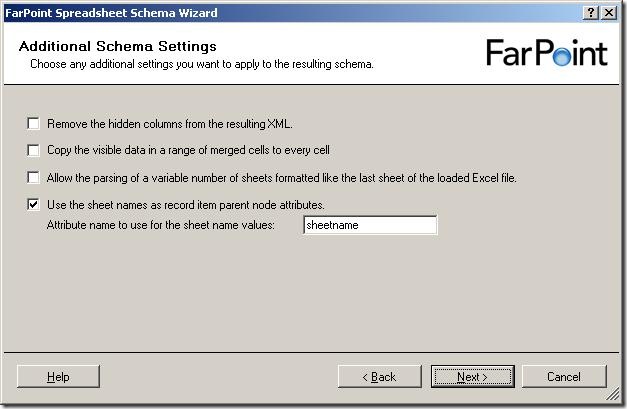
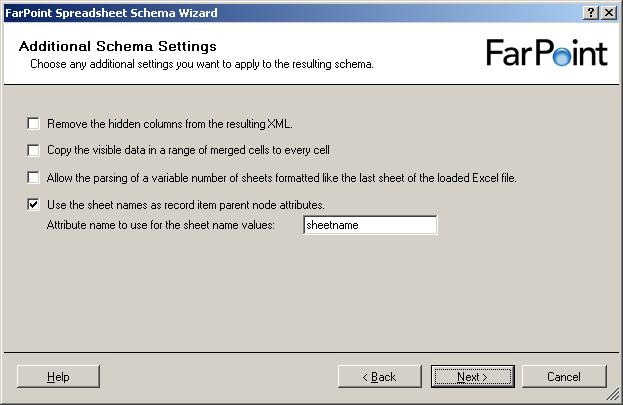
So, a few more settings to set, all of which are described in the documentation.
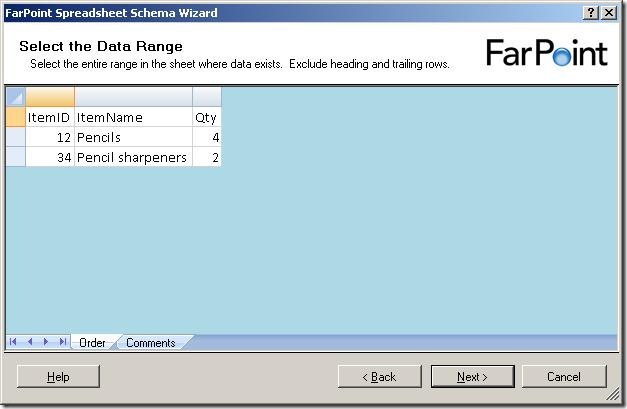
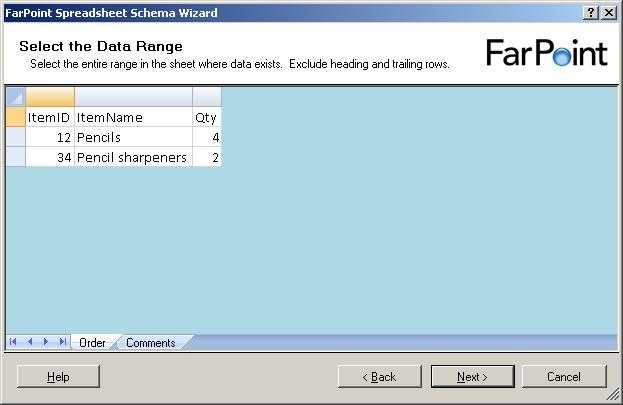
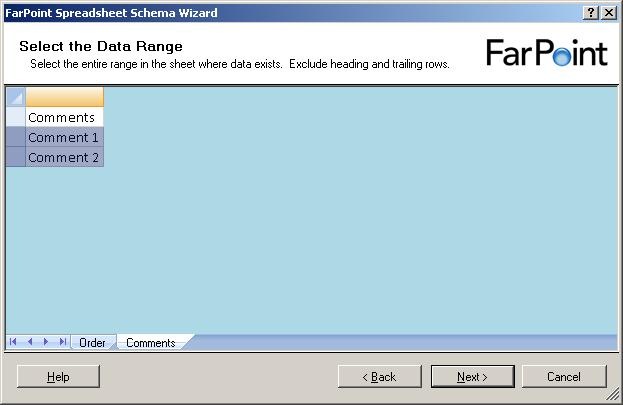
Now, it shows me the data in the first sheet of the spreadsheet. It has removed all
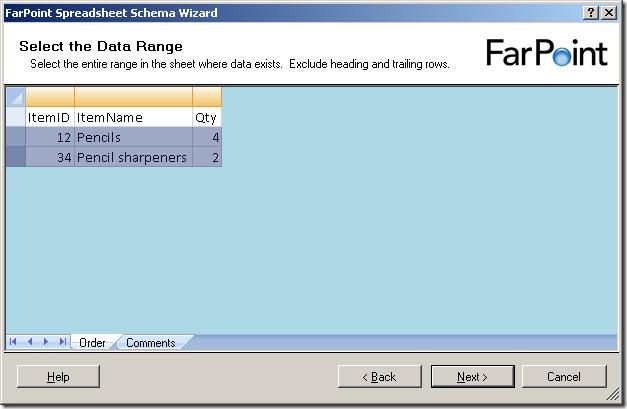
cells that it has decided are not used for data. Now, I need to select the cells with
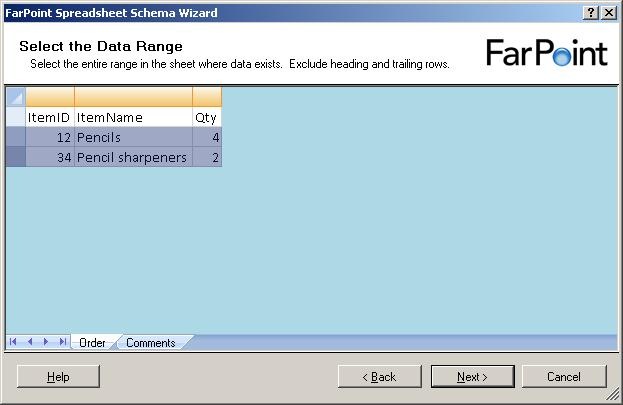
data in them, like this:
and when I click on the next sheet (Comments), I get to select data from that sheet
as well:
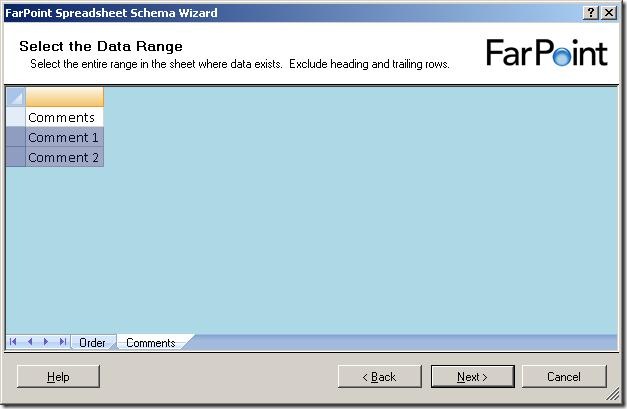
Notice, that I can only select rows – I can not select single cells or leave some
columns out.
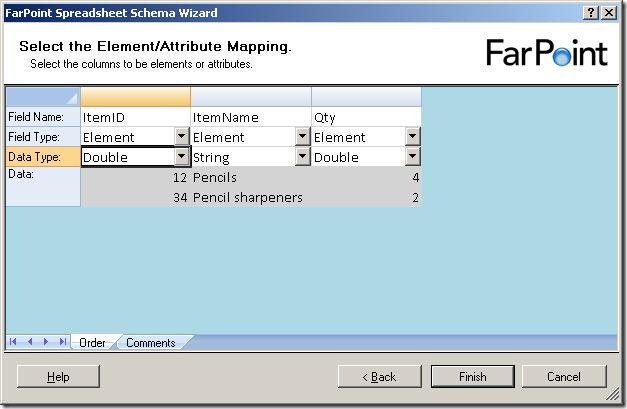
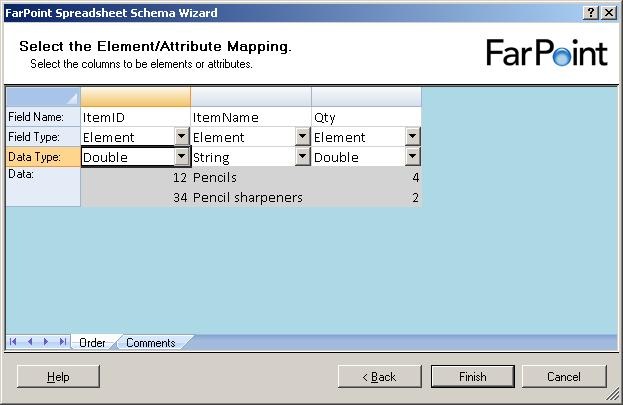
The next step is to select names for the columns, choose whether they should be elements
or attributes and also the data type of the columns.
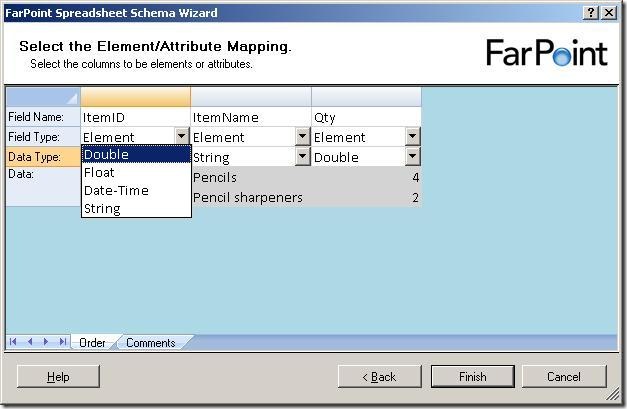
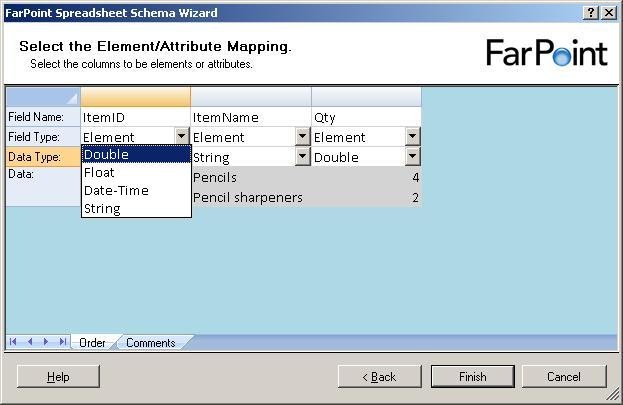
There are four data types available, double, float, datetime and string.
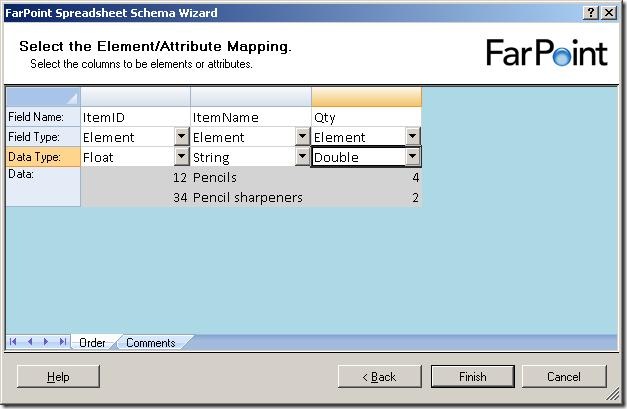
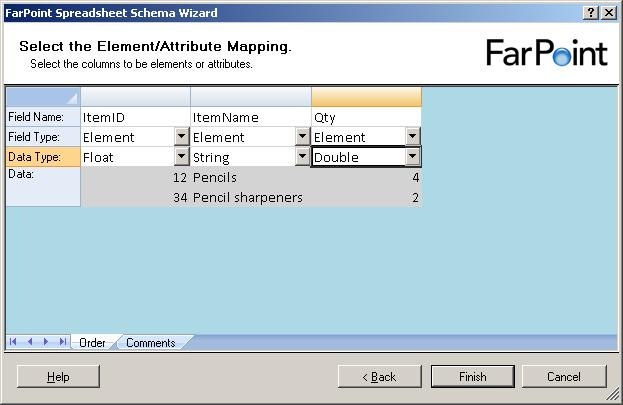
Just to find the difference between the float and double, I chose one of each in my
example and clicked “Finish”.
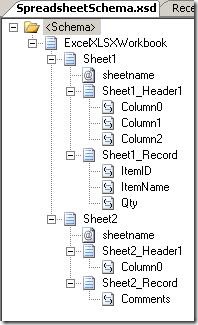
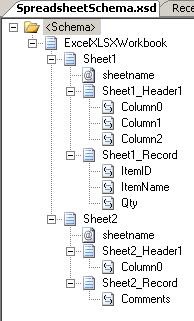
The resulting schema looks like the one above. For each sheet, there is a sheetname
attribute, a header record and a record for the data, which is reoccurring. The double
and float elements were translated into the xs:float and xs:double types… not really
surprising, you might say 🙂
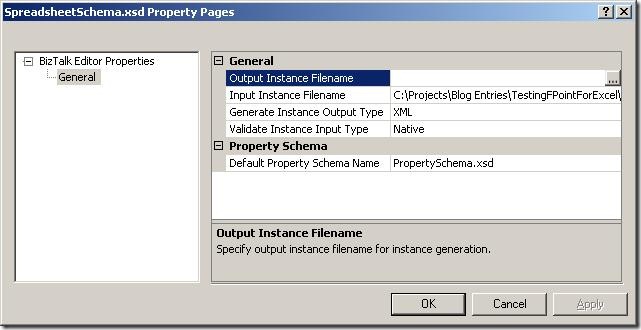
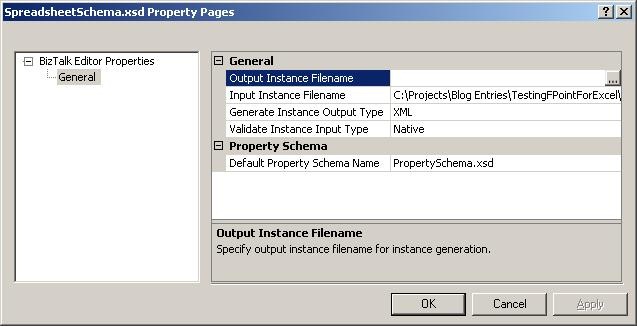
Looking at the properties of the schema, the path to the base spreadsheet has been
pre filled for you in the “Input Instance Filename” and the type is set to “Native”.
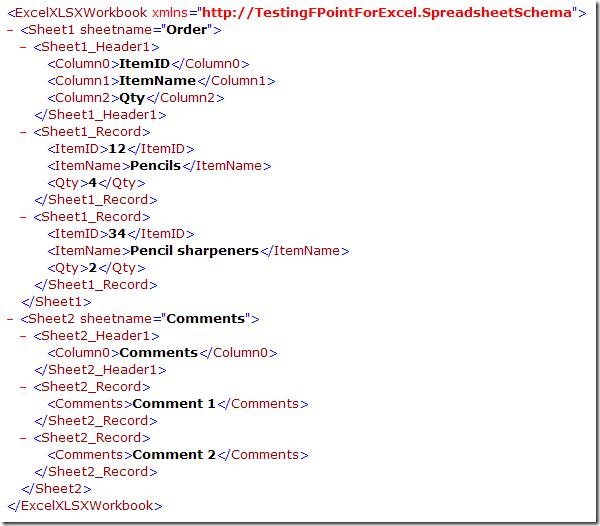
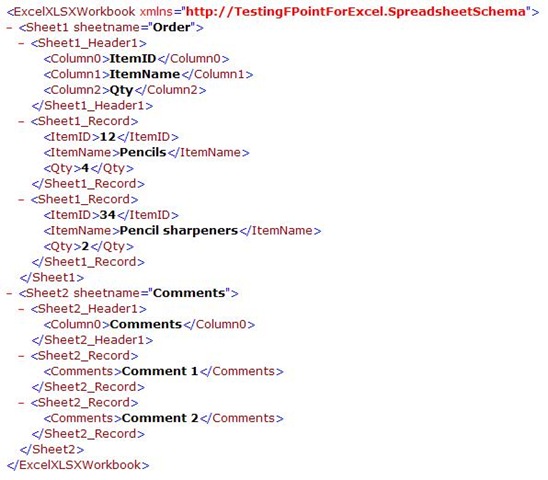
When validating the instance, I get this XML, which looks like I expected it to.
So, to sum up, the wizard is really simple to use and it takes basically no time to
create the schema.
The major thing I would like to see improved is that I can only have one type of data
in one sheet, meaning that the data in all rows must be for instance order lines,
inventory items, or something like that. I can’t have an order header and the order
lines in the same sheet, and I can’t have a sheet with an order header which spans
multiple lines. This really restricts the spreadsheets that can be parsed.
My next post in the series will be about the runtime, where I will setup a running
instance of my project and see how it functions at runtime.
You can dowload my project here.
—
eliasen
by community-syndication | Nov 11, 2008 | BizTalk Community Blogs via Syndication
I wrote a short article ona possible wayto deal with base64 encoded documents in a incoming XML message. The solution works by redirectinga stream from and to fileon the right moment.A sample (with source)is included.
You can find it here.
Hope you find this useful
by community-syndication | Nov 11, 2008 | BizTalk Community Blogs via Syndication
The Windows Azure Platform and other Microsoft cloud offerings were announced at the recent Professional Developer’s Conference in Los Angeles. This talk is an introduction to Microsoft’s cloud computing platform, including Windows Azure, SQL Data Services and .NET Services. We’ll explore the various components of the cloud computing platform, and describe their relationships and architectural significance. We’ll also walk through the tools and technologies used to connect and manage the various cloud components. In addition to an architectural walkthrough, we’ll also provide a number of demos that can be executed either on local developer machines or in the cloud after receiving a cloud account.
Speaker
Mickey Williams is the director of the Center of Excellence team at Neudesic. A Visual C# MVP, he has extensive experience building mission-critical applications on a wide variety of platforms, and has authored nine books on Windows programming.
When and Where
We’ll be meeting on the 4th floor of the Microsoft La Jolla office. Pizza will be available at 6:00 PM. The meeting will start at 6:30 and end at 9 o’clock.
Technorati Tags: cloud computing,azure,soa,Oslo
by stephen-w-thomas | Nov 11, 2008 | Stephen's BizTalk and Integration Blog
What is Correlation?
Correlation is when a process sends a message out and that same process is expecting a response to be returned to the same instance of that process. The complexity rises when the messaging patterns become asynchronous or the process becomes long running. Asynchronous and long running processes are a common scenario inside business processes today.
BizTalk Server is great at correlation inside Orchestrations given the publish and subscribe architecture of BizTalk Server. BizTalk supports both system based correlation (based on a Send Port or File Name) and content based correlation using specific values inside the message. Content based correlation fits a greater number of scenarios.
Workflow 4.0 has the ability to do content based correlation and it looks and feels a lot like BizTalk (which is a good thing).
I have put together a short screencast video to walk though setting up content based correction inside Workflow 4.0. To set up content based correlation in Workflow 4.0, you first create a correlation variable of type CorrelationHandle. Then, you set this variable and xpath on the corresponding send and receive shapes. This video takes you through the process step by step.
Watch the video live via Flash or download the Windows Media version.
by community-syndication | Nov 10, 2008 | BizTalk Community Blogs via Syndication
Hi all
For those of you, who use Togi as
a Twitter client, there is now a Danish translation of it available for download…
and, as you will notice on the page, I did the Danish translation 🙂 Although…
I use the English version myself… but that is besides the point 🙂
—
eliasen
by community-syndication | Nov 10, 2008 | BizTalk Community Blogs via Syndication
Hi all
So, I finally decided to try out the FarPoint
BizTalk adapter for Excel spreadsheets. It’s always nice to have tried as many
adapters as possible, so I can use this knowledge when talking to customers.
This post is the first of a series of posts about this product. The first post is
about installation and the basic functionality. The next posts will go deeper into
separate functionality.
Let me just make one thing clear before I begin: I am not in any way affiliated with
FarPoint Technologies, nor are they paying me anything to write these posts.
So, to begin; The installation was easy. Just a next-next-finish wizard. All the information
needed from you is the product code, a serial number, and the installation folder,
if you want to change that.
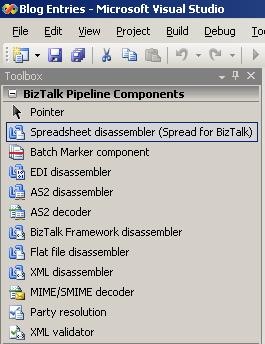
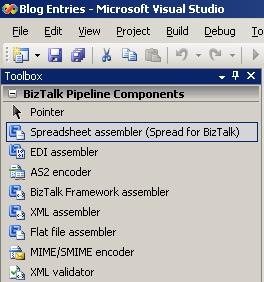
After installation, I have the functionality I would expect from this kind of product:
-
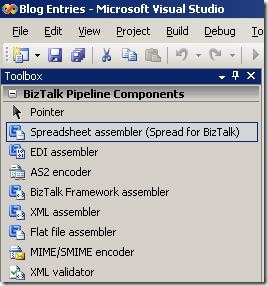
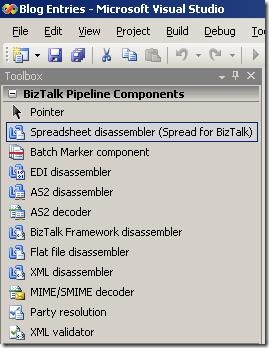
Pipeline components to use in pipelines
-
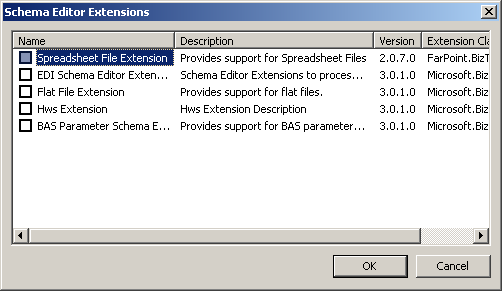
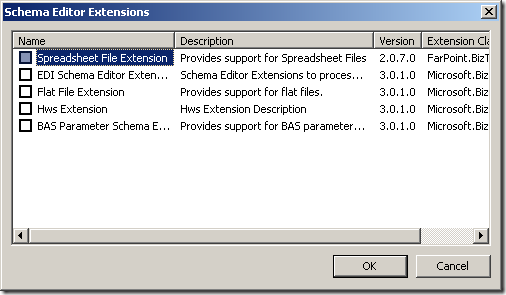
Schema extension for the schemas
-
Wizard to help me create the schemas
-
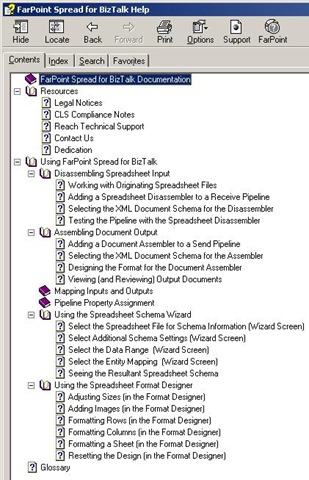
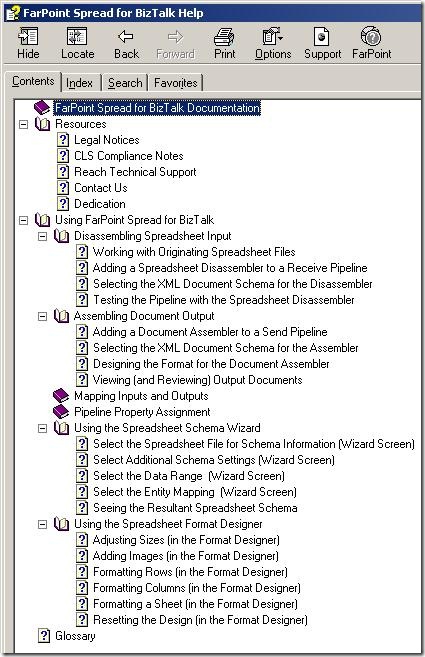
Documentation
So, to sum up:
-
The installation is easy.
-
The architecture of the solution seems to be exactly what I would expect, ie. pipeline
components, schema extensions and a wizard.
My next post in the series will take a deeper look at the wizard for creating schemas
for use by the pipeline disassembler and assembler.
—
eliasen
by stephen-w-thomas | Nov 10, 2008 | Stephen's BizTalk and Integration Blog
Make sure you check out the video content on Dublin available on BizTalkGurus.com:
First Look at Windows Application Server (Dublin)
Dublin is the code name for the new Windows Application Server components. At the core, Dublin is designed to be a hosting environment for Windows Workflow and Windows Communication Foundation based applications. It integrates into IIS and provides eight new features out of the box.
If you have worked with BizTalk Server 2006 in the past, as we walk through the next few screen shots keep saying to yourself…. “this is not BizTalk this is a new Application”. The likeness to BizTalk 2006 will make adoption by fellow BizTalkers straight forward.
Setup and server configuration of Dublin is done though the Windows Application Server Configuration tool. This is seen below.
Drilling down into a specific section on the left (such as Runtime) will show the specific configuration for that item. The look and feel of this configuration is just like it is inside BizTalk Server 2006.
Once setup and configured, Dublin is currently managed though IIS. The picture below shows these eight new features. These are added under the WCF/WF Services section.
We will take a closer look at each new feature.
Application Export – This is used to export an Application. You get a nice simple interface as seen below.
Application Import – This is used to import an Application. You have the ability to configure parameters during import as seen below.
Database Configuration – This is used to configure the default Persistence and Monitoring database for this instance of Dublin.
Diagnostics – This is used to set up Tracing and Message Logging.
Persisted Instances – Clicking the Persisted Instances icon launches the window below. This is an organized view of the count and status of workflows for a given application. All the items listed are links that can be clicked on to drill down into a specific section. This view is just like the BizTalk Server Admin tool.
Services – Based on the selected scope, this will show you the Services inside the Virtual Directory.
From the Services Pane you can drill down into more detail by right-clicking and selecting Persisted Instance from the context menu (this can also be done from within Persisted Instances view above). You have the ability to Suspend, Terminate, Abort, or view Tracking Data about specific instances as seen below.
Selecting View Tracking Data will view available tracking data for this workflow, as seen below. Double clicking on a specific tracking record will give more details on that specific item.
Tracking Configuration – Tracking configuration lists the available profiles that can be applied to an application. Out of the box are three profiles, Basic, Verbose WCF, and Verbose Workflow. In the picture below, BestPetServiceTracking is a custom tracking profile used to track user specific values.
Tracking Profiles – Custom tracking is just a few clicks away inside Dublin. Once a custom tracking profile is created, it can be uploaded and made available to use for tracking. Inside the labs, Microsoft provided a Tracking Profile Editor (just like the one in BizTalk) that can easily create custom tracking profiles based on a workflow.
I hope this gives you a quick overview of Dublin, Microsoft’s new Application Server. For anyone that has worked with BizTalk in the past, working with Dublin will come naturally. Enjoy.
by community-syndication | Nov 10, 2008 | BizTalk Community Blogs via Syndication
Here is where Bill Gates states he is serious about improving the software:
http://www.microsoft.com/whdc/maintain/WERHelp.mspx
Here is how it is done:
To be honest, I am excited for the rollout of the WE-SYP Projection module (shown at the end of the video).
So don’t just quickly click thru the error report!
LOL
by community-syndication | Nov 10, 2008 | BizTalk Community Blogs via Syndication
Hi all
In almost all multiple server installations of BizTalk I have encountered, there has
been issues with MSDTC. MSDTC is Microsofts product for handling distributed transactions,
meaning transactions that span multiple servers. BizTalk uses this in high scale,
when running transactions against SQL Server, to maintain consistency in BizTalks
databases.
All issues with MSDTC are solvable – sometimes it is just hard to figure out what
is wrong.
First of all, always use the DTCTester tool at http://support.microsoft.com/kb/293799 to
test your MSDTC installation. If this tool reports no errors and you are still having
issues, then most likely, MSDTC isn’t the cause of your issues.
If something is wrong with MSDTC, I have encountered four major issues:
-
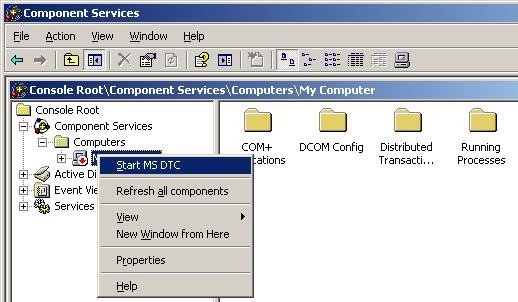
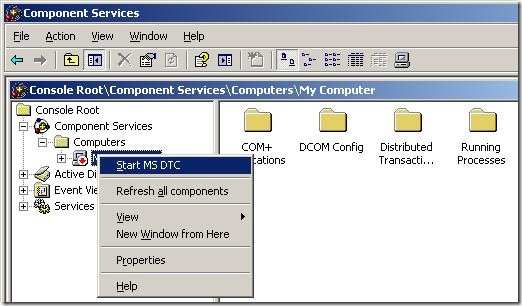
MSDTC doesn’t run on either of the server. Solve this by starting MSDTC. Steps to
start MSDTC (Note, that the MMC snapin is buggy, and it might appear that the “Component
Services” node has no children… but it does, trust me 🙂 ):
-
Go to “Administrative Tools” => “Component Services”
-
Go to “Component Services” => “Computers” => “My Computer”
-
Right click “My Computer” and choose “Start MS DTC”.
-
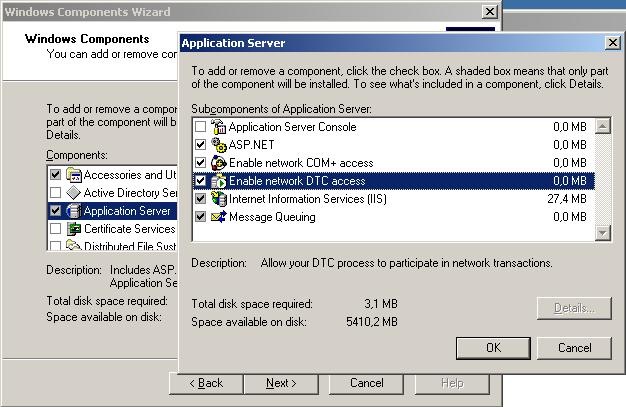
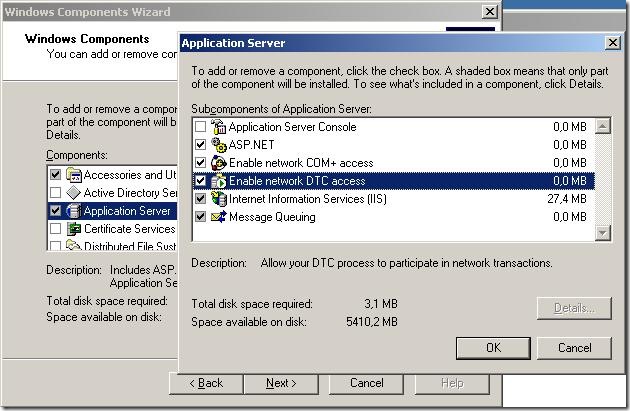
MSDTC isn’t configured for network access on both servers. Solve this in “add/remove
windows components” here:
-
The two servers have the same MS DTC ID. This ocurs if both servers are clones of
the same server or if one of the ervers is a clone of the other server. Usually, when
cloning servers, sysprep is used to clear out those errors, but in case it hasn’t
been used, here is how you fix it:
-
Run “msdtc -uninstall” from a command prompt
-
reboot
-
Run “msdtc -install” from a command prompt
-
reboot
-
You can’t ping the servers by hostname, which is required. This basically means, that
from both servers, you need to be able to ping the other server by hostname – pinging
by IP address isn’t enough. If you can’t ping by hostname, you have two options:
-
Get the network administrator to update your DNS
-
Enter new information into the hosts file in c:\windows\system32\drivers\etc
>
Hope this helps.
—
eliasen