IIS 7.0 Bit Rate Throttling Module Released

IIS 7.0 Bit Rate Throttling Module Released


Video on the web is now one of those common scenarios that every user takes for granted, and increasingly every major site is incorporating in some form (product videos, training videos, richer advertising scenarios, user generated content, customer testimonials, etc).


One of the challenges when adding video to a site, though, is delivering it in a way that doesn’t cost a fortune.  Network bandwidth costs a lot of money, and the cost of high quality video usage can quickly add up.


The blog post below provides a quick overview of some of the options you can use to reduce the cost of delivering video, and discusses a new free download – the IIS 7.0 Bit Rate Throttling Module – that was released a few days ago and which enables you to easily save money when serving video from an IIS web server using any video technology (including Silverlight, Windows Media Player and even Flash).


Option 1: Using a Video Hosting Service


One approach you can take to reduce video bandwidth costs is to use a video hosting service like YouTube or the free Microsoft Silverlight Streaming Service.  This allows you to use someone else’s network to deliver the video content, and avoid having to pay the bandwidth costs yourself.


If you aren’t familiar with the Silverlight Streaming service, it allows you to upload up to 10GB of videos and download 5 Terabytes/month of video content (at up to a 1.4 Mbps bit-rate) for free.  You can build any custom Silverlight client player application you want to embed the video within it.  This means it doesn’t require a specific video player look and feel, nor a service logo/watermark to play the video.  This allows you to fully integrate the video into your site and use whatever UI you want to host it.


Option 2: Hosting Video on Your Own Servers


Sometimes using a video hosting service doesn’t make sense (for example: you want to use custom authentication to grant/deny user’s access, you want to play really long video segments, or you want to serve up custom ads in your videos).  Instead you might want to serve the video up from your own servers and have complete control over it. 


There are typically two options you can use to deliver the video from your servers: using a streaming approach or a progressive video download approach:


Streaming Server Scenario


In a streaming scenario a client (like Silverlight, Windows Media Player, Flash or Real Networks) connects to a streaming server.  The streaming server then sends down the video stream to watch, and typically enables a user to dynamically skip ahead/behind, pause or stop the video stream.  When the user closes the browser or navigates away from the page the video stream automatically stops transmitting.


Windows Media Services (WMS) is a free streaming server download available for Windows, and can stream video to both Windows Media Player and cross-platform Silverlight browser clients.  It is generally regarded as the most server scalable and cost effective way to enable video streaming on the web, and handles both on-demand file streaming scenarios (for example: streaming a .wmv file) as well as live stream scenarios (for example: a sporting event like the Olympics that is happening live in real time).


Windows Media Services can be used on any version of Windows Server – including the new Windows Server 2008 Web Server edition (which only costs $469, enables up to 4 processors and 32GB of RAM, and supports IIS, ASP.NET, SharePoint, and Windows Media Services).


Progressive Download Scenario


In a progressive download scenario a client (like Flash or Silverlight) downloads a video directly off of a web-server, and begins playing it once enough video is downloaded for it to play smoothly.


The benefit of using a progressive download approach is that it is super easy to setup on a web-server. Just copy/ftp a video up to a web-server, obtain a URL to it, and you can wire it up to a video client player.  It doesn’t require any custom web-server configuration, nor require a streaming server to be installed, in order to enable.


The downside of using a progressive video download approach, though, is that web-servers are by default designed to download files as fast as possible.  So when a user clicks to watch a video on your site, your web-server will attempt to transmit it to the client as fast as possible.  This is fine if the user decides to watch the entire video.  But if the user stops watching the content half way through the video (or navigates to a different page), you will have downloaded a bunch of video content that will never be watched.


If the remaining un-watched video content is several megabytes (or even tens of megabytes) in size, you will end up over time spending a lot of money on bandwidth that is not benefiting your business/site at all….


IIS 7.0 Bit Rate Throttling Module


Last week the IIS team shipped a new free IIS 7.0 bit-rate throttling module that makes progressive video scenarios much cheaper in cost.


The bit rate throttling module enables you to easily configure bandwidth throttling rules for any type of media content downloaded from an IIS web server (including .WMV, .MOV, .FLV and .MP3 files).


Out of the box, the bit rate throttling module causes IIS to quickly transmit a burst of initial media content when a file is requested.  By default the rules are set to look at the mime-type and bit-rate encoding of the file, and send as fast as possible enough of the media file to play 20 seconds of it.  Once the video client has 20 seconds of the media to play, the IIS bit rate throttling module will then throttle down the transmit rate to equal the bit-rate encoding of the file.  It will then monitor whether the video player on the client ever closes or navigates to a different video, and automatically stop the remainder of the file being sent if the user goes away.


For example, if you are playing a 35MB video file that is encoded at a bit-rate of 500 Kbps, IIS will send a 20 second burst of the video (20 seconds @ a 500Kbps encoding == 1.25MB of content) as fast as possible to start the video client playing, and then download the remainder of the video at a download rate of only 500 Kbps (enough so that the user always has 20 seconds of video cached on the client so that they never get buffered).


If after a minute the user gets bored and either stops the video or navigates to a new page, IIS will detect that they went away and stop transmitting the remainder of the 35MB file.  Since IIS only downloaded 80 seconds of total video in this scenario (the 60 seconds that the user watched + the 20 second buffer window), only 5MB instead of 35MB of network bandwidth ended up being used.  30MB of bandwidth savings repeated hundreds or thousands of times a day can easily translate to thousands of dollars of bandwidth savings per year….


IIS 7.0 Bit Rate Throttling Module Download and Installation


You can download and learn more about the IIS 7.0 bit-rate throttling module here.


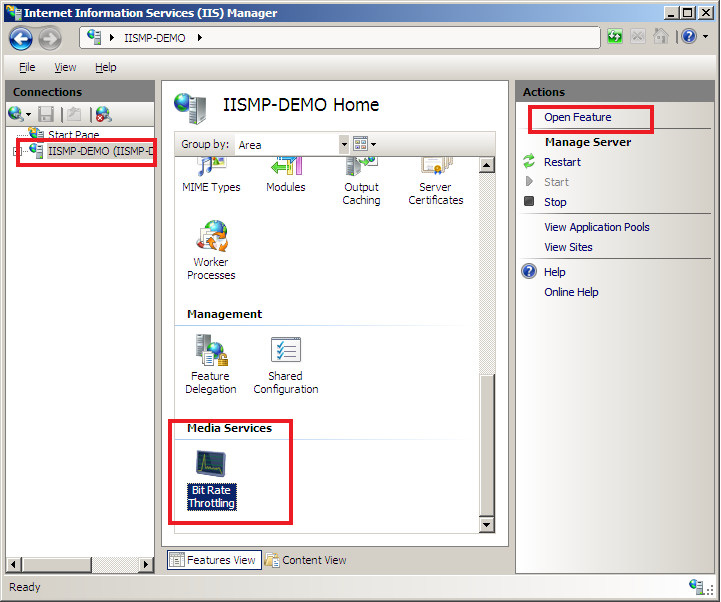
Once installed, you can click the “Bit Rate Throttling” node in the IIS admin tool:


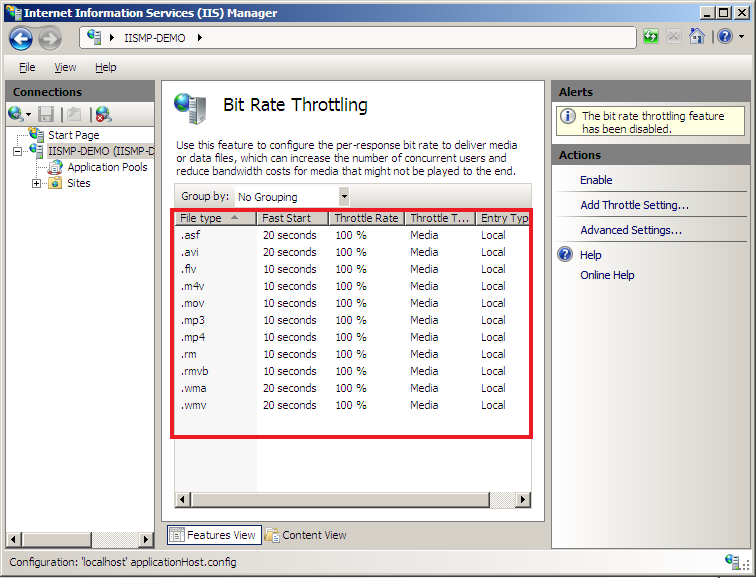
And then configure whatever bit-rate throttling rules you want on a per file or per file-type basis:


The below whitepapers describe how to enable and use it more:


Also check out Mike’s post here and Vishal’s post here and here for more details.


Hope this helps make your video scenarios more cost effective,


Scott

IIS 7.0 Bit Rate Throttling Module Released

IIS 7.0 Bit Rate Throttling Module Released


Video on the web is now one of those common scenarios that every user takes for granted, and increasingly every major site is incorporating in some form (product videos, training videos, richer advertising scenarios, user generated content, customer testimonials, etc).


One of the challenges when adding video to a site, though, is delivering it in a way that doesn’t cost a fortune.  Network bandwidth costs a lot of money, and the cost of high quality video usage can quickly add up.


The blog post below provides a quick overview of some of the options you can use to reduce the cost of delivering video, and discusses a new free download – the IIS 7.0 Bit Rate Throttling Module – that was released a few days ago and which enables you to easily save money when serving video from an IIS web server using any video technology (including Silverlight, Windows Media Player and even Flash).


Option 1: Using a Video Hosting Service


One approach you can take to reduce video bandwidth costs is to use a video hosting service like YouTube or the free Microsoft Silverlight Streaming Service.  This allows you to use someone else’s network to deliver the video content, and avoid having to pay the bandwidth costs yourself.


If you aren’t familiar with the Silverlight Streaming service, it allows you to upload up to 10GB of videos and download 5 Terabytes/month of video content (at up to a 1.4 Mbps bit-rate) for free.  You can build any custom Silverlight client player application you want to embed the video within it.  This means it doesn’t require a specific video player look and feel, nor a service logo/watermark to play the video.  This allows you to fully integrate the video into your site and use whatever UI you want to host it.


Option 2: Hosting Video on Your Own Servers


Sometimes using a video hosting service doesn’t make sense (for example: you want to use custom authentication to grant/deny user’s access, you want to play really long video segments, or you want to serve up custom ads in your videos).  Instead you might want to serve the video up from your own servers and have complete control over it. 


There are typically two options you can use to deliver the video from your servers: using a streaming approach or a progressive video download approach:


Streaming Server Scenario


In a streaming scenario a client (like Silverlight, Windows Media Player, Flash or Real Networks) connects to a streaming server.  The streaming server then sends down the video stream to watch, and typically enables a user to dynamically skip ahead/behind, pause or stop the video stream.  When the user closes the browser or navigates away from the page the video stream automatically stops transmitting.


Windows Media Services (WMS) is a free streaming server download available for Windows, and can stream video to both Windows Media Player and cross-platform Silverlight browser clients.  It is generally regarded as the most server scalable and cost effective way to enable video streaming on the web, and handles both on-demand file streaming scenarios (for example: streaming a .wmv file) as well as live stream scenarios (for example: a sporting event like the Olympics that is happening live in real time).


Windows Media Services can be used on any version of Windows Server – including the new Windows Server 2008 Web Server edition (which only costs $469, enables up to 4 processors and 32GB of RAM, and supports IIS, ASP.NET, SharePoint, and Windows Media Services).


Progressive Download Scenario


In a progressive download scenario a client (like Flash or Silverlight) downloads a video directly off of a web-server, and begins playing it once enough video is downloaded for it to play smoothly.


The benefit of using a progressive download approach is that it is super easy to setup on a web-server. Just copy/ftp a video up to a web-server, obtain a URL to it, and you can wire it up to a video client player.  It doesn’t require any custom web-server configuration, nor require a streaming server to be installed, in order to enable.


The downside of using a progressive video download approach, though, is that web-servers are by default designed to download files as fast as possible.  So when a user clicks to watch a video on your site, your web-server will attempt to transmit it to the client as fast as possible.  This is fine if the user decides to watch the entire video.  But if the user stops watching the content half way through the video (or navigates to a different page), you will have downloaded a bunch of video content that will never be watched.


If the remaining un-watched video content is several megabytes (or even tens of megabytes) in size, you will end up over time spending a lot of money on bandwidth that is not benefiting your business/site at all….


IIS 7.0 Bit Rate Throttling Module


Last week the IIS team shipped a new free IIS 7.0 bit-rate throttling module that makes progressive video scenarios much cheaper in cost.


The bit rate throttling module enables you to easily configure bandwidth throttling rules for any type of media content downloaded from an IIS web server (including .WMV, .MOV, .FLV and .MP3 files).


Out of the box, the bit rate throttling module causes IIS to quickly transmit a burst of initial media content when a file is requested.  By default the rules are set to look at the mime-type and bit-rate encoding of the file, and send as fast as possible enough of the media file to play 20 seconds of it.  Once the video client has 20 seconds of the media to play, the IIS bit rate throttling module will then throttle down the transmit rate to equal the bit-rate encoding of the file.  It will then monitor whether the video player on the client ever closes or navigates to a different video, and automatically stop the remainder of the file being sent if the user goes away.


For example, if you are playing a 35MB video file that is encoded at a bit-rate of 500 Kbps, IIS will send a 20 second burst of the video (20 seconds @ a 500Kbps encoding == 1.25MB of content) as fast as possible to start the video client playing, and then download the remainder of the video at a download rate of only 500 Kbps (enough so that the user always has 20 seconds of video cached on the client so that they never get buffered).


If after a minute the user gets bored and either stops the video or navigates to a new page, IIS will detect that they went away and stop transmitting the remainder of the 35MB file.  Since IIS only downloaded 80 seconds of total video in this scenario (the 60 seconds that the user watched + the 20 second buffer window), only 5MB instead of 35MB of network bandwidth ended up being used.  30MB of bandwidth savings repeated hundreds or thousands of times a day can easily translate to thousands of dollars of bandwidth savings per year….


IIS 7.0 Bit Rate Throttling Module Download and Installation


You can download and learn more about the IIS 7.0 bit-rate throttling module here.


Once installed, you can click the “Bit Rate Throttling” node in the IIS admin tool:


And then configure whatever bit-rate throttling rules you want on a per file or per file-type basis:


The below whitepapers describe how to enable and use it more:


Also check out Mike’s post here and Vishal’s post here and here for more details.


Hope this helps make your video scenarios more cost effective,


Scott
BizTalk Excel (XLS) pipeline component

I’ve created a BizTalk Excel File decoder pipeline. It accepts Excel 2003-2007 .xls files. It will parse each worksheet into a child node under the root node you specify.

Here are the Pipeline Component Properties.

Here is an example XLS file.

The resultant XML file creates the Root Node “SHEETS” as specified in the pipeline properties. The children of “SHEETS” are the worksheet names listed in alphabetical order. I dropped 1200 Excel spreadsheets into a receive location and BizTalk parsed each perfectly in less than 10 seconds.

<Sheets xmlns="http://your.name.space.here"> <First> <RowData> <Column1>row1column1</Column1> <Column2>row1column2</Column2> </RowData> <RowData> <Column1>row2column1</Column1> <Column2>row2column2</Column2> </RowData> <RowData> <Column1>row3column1</Column1> <Column2>row3column2</Column2> </RowData> </First> <Fourth> <RowData> <Column1>Fourth</Column1> </RowData> <RowData /> </Fourth> <Second> <RowData> <Column1>Second</Column1> </RowData> <RowData /> </Second> <Third> <RowData> <Column1>Third</Column1> </RowData> <RowData /> </Third> </Sheets>

To learn more about obtaining this Pipeline Component, go here.

Internet Explorer immediately closes when trying to open XML documents

Something recently changed on a development server that disabled the ability for IE to open xml documents.

I resolved it by following these steps:

1. From start menu select run

2. Type ‘regedit’ and press enter. This will bring registry editor.

3. From the regedit menu select Edit and then Find

4. Type “HKEY_CLASSES_ROOT\Mime\Database\Content Type\text/xml” in the ‘Find What’

5. Regedit will find the content that is related to that entry

6. Verify your classid CLSID={48123BC4-99D9-11D1-A6B3-00C04FD91555} ?

7. Verify your Extension=.xml ?

8. Verify your Encoding=hex:08,00,00,00 ?

If all those values are correct, but still not working, do the following:

1. From start menu select run
2. Type ‘regsvr32 msxml3.dll’
3. Click OK on the dialog box.

Gracefully Uploading to SharePoint 2007 From BizTalk Server 2006 R1

Scenario: I want to allow BizTalk Server 2006 (R1) to send XML (InfoPath forms) to a MOSS 2007 document library without resorting to hacks. 
Resolution: I can’t use the out-of-the-box BizTalk SharePoint adapter (only BizTalk Server 2006 R2 works natively with MOSS 2007) so I decided to utilize the available SharPoint web services to upload […]

Elegant Code Podcast

Last week I had the pleasure of teaching a class for Healthwise in Boise, and while there met David Starr.  David has a website called Elegant Code and we got a chance to sit down for a podcast during the week.  We chatted about WF, WCF, BizTalk, “Oslo” and being a Pluralsight instructor.  Have a listen if you are interested, and check out the rest of the site while you are there. 

David also organized the Boise Code Camp, which I, sadly, missed by just a day.  From the sound of it, this was a huge success and a pretty large event, even by west coast standards.  I’m sorry I missed it.