by community-syndication | Oct 11, 2005 | BizTalk Community Blogs via Syndication
The is the fifth of five entries talking about schema design patterns. After looking at each of these schema design patterns now we can look at how we can use these design patterns in the BizTalk Editor. So, lets create reusable structures. Open the editor by creating a new schema. When the schema appears in the Editor you get a Schema node and the Root Node. What we will do is to create our schema under the Root Node and then we add our global types at the same level as the Root Node.
So, lets create a global record, a global element and a global attribute – just to make sure we have all of our bases covered. Once these have been created then I will show you how we can use those within our schema.
Before we create these global items we need to keep in mind that you can create global types using records, elements or attributes. However, types created from elements can only be used in elements, records can only be used in records and attributes can only be used in attributes. This is especially important to keep in mind when importing a schema for reuse since you will need to know the types that are available for reuse since they will only be selectable for similar types.
First, lets create a global type. Create a record named Employee directly below the Schema node. Below the Employee record add three elements; EmployeeID, FirstName and LastName. Click on the Employee node and in the properties window, select the Data Structure Type and enter EmployeeType. This will be the name of the complex type that will be used when reusing this type.
Second, lets create a global element. Create an element named Company and place this directly below the Schema node as well. With elements and attributes you do not need to name it as you do with a Record (there is no Data Structure Type property on elements or attributes).
Third, lets create a global attribute. Create an attribute named EmployeeType directly below the Schema Node. Click the Derived By drop down in the properties window and select Restriction. This will expand the properties to include a Restriction Section. Set the Maximum Length to 1.
We have now created all of our reusable types, so now lets use them.
To begin with we will use our global element. Click on the Root node that was created with the Schema and add a Child Field Element. Click the Data Type drop down and in the list there will be an entry that says “Company (Reference)” – Select this value. We have now linked this element with the global element. Also, notice that the name of the element has changed to match the name of the global element.
Next, we will use our global records. Lets add two child records. The first will be named FTE and the second will be named Consultant. Lets start with the FTE record. Select the Data Structure Type drop down in the properties window and select EmployeeType (ComplexType). Repeat the same process for the Consultant Record. We now have two records re-using a the same global type.
Lastly, lets use the other global items that we created earlier to decorate the FTE record. The process is the same for attributes and elements. So on the FTE record add an attribute by right clicking on the FTE Record and selecting Child Field Attribute.
Once the attribute has been added, click the Data Type drop down in the properties window. At the bottom there will be an entry that says “EmployeeType(Reference)” – Select this value. We have now linked this attribute with the global attribute. Again, notice that the name of the attribute has changed to match the name of the global type. Here is a screen shot of what it looks like so far.
There is one last thing to look at while we are working on our attribute. You may have noticed that the properties for this attribute are read only. By changing the properties on the global definition we can affect the properties of the items that use these types. When we created the global attribute we selected Restriction and set the Maximum Length to 1. Change this value (or any other) and you will see the change flow through to be reflected in the attribute that points back to the global attribute.
What it really comes down to is that there are two different ways to select global types depending on what the type is. If the type is a record then select the globally defined type from the Data Structure Type property. If the type is a element or attribute then select the globally defined type from the Data Type property. Keep in mind that once the global type has been assigned then any changes to the globally defined type will appear in any of the locations in which the global type has been used.
So, now that you have seen the process all that you need to do is to follow any of the patterns described earlier in this series and create the schema you want..
There is one last gotcha to be aware of. If you are importing a schema in order to use global types defined in another schema file and there are promoted properties defined on any of the global types you will need to re-promote them in your schema for the promoted properties to take effect.
by community-syndication | Oct 11, 2005 | BizTalk Community Blogs via Syndication
In talking with others, it appears that the NAnt vs. MSI deployment camps are pretty much split down the middle. I tend to lean towards MSI deployments for several reasons.
When dealing with MSI packages, it is often necessary to go beyond the somewhat basic BTSInstaller project that comes with BizTalk. I have posted before on custom actions to fill in the gaps that come with using the BTSInstaller. Another thing to think about when using MSI deployment is what happens if BizTalk is not installed to the default install directory (it’s very common for enterprise clients to install software to a drive other than C:\). If you are deploying pipeline components, this is important as they have to be copied to the Pipeline Components directory of the BTS install directory. Another thing to keep in mind is if you create custom adapters. The tricky part with custom adapters is that they require registry settings. You can include a reg file for the installer to run, but it would be nicer to handle that for them. Additionally, one of those registry settings is the path to the custom adapter component. Again, you can’t be sure of the install directory of your components.
Luckily, it’s pretty easy to handle both of this situations following the steps below –
Determining the BizTalk install directory
This one turns out to be pretty easy as the BTS install directory gets stored in the registry. And, the MSI install project gives us the ability to search the registry, so we just need to know what to search for.
- In the install project, right click and choose View|Launch Conditions.
- Name the launch condition BizTalk Install Path.
- Enter BIZTALKINSTALLPATH for the Property property. We will use this property later.
- For the RegKey property, enter SOFTWARE\Microsoft\BizTalk Server\3.0.
- For the Root property, choose vsdrrHKLM from the dropdown.
- For the Value property, enter InstallPath.
Now that we have set up a launch condition to find the BizTalk install path, we can make use of that value in our install process. For pipeline components, I like to add a new folder to the File System section of the install project and name it Pipeline Components. In the DefaultLocation property of that folder, enter [BIZTALKINSTALLPATH]\Pipeline Components as the value. You will notice [BIZTALKINSTALLPATH] is how we get to our properties of the install project. It’s that easy.
Determining install path chosen during install process
For this section, I’m going to leave out most of the steps you need to take to add the registry settings to register your custom adapters. Contact me if you need that information. The easiest way to handle this is to run the wizard that creates the .reg file for you (you can find this tool on the web), and make sure you add all those keys in the Registry section of the install project.
Two properties to take particular note in are the AdapterMgmtAssemblyPath and the InboundAssemblyPath. These properties point to specific paths of your components (generally the same component). So, we need to somehow capture where the installer has chosen to install our components, and then make use of this value.
- Right click on the installer project, and choose View|File System.
- Select the Application Folder folder on the left side. Notice that the property (which is read only in this section) is set to TARGETDIR. This is similar to our BIZTALKINSTALLPATH property that we created.
- Right click on the installer project, and choose View|Registry. This is where you will enter all the keys and values you need for your custom adapters. When you get to the AdapterMgmtAssemblyPath and the InboundAssemblyPath properties, you will prepend you assembly name with [TARGETDIR] and enter that for the value of the key.
Remember, when creating install packages, we want to make the install process as “painless” for the installer as possible. These folks are typically not BizTalk people, and even worse, the process is usually automated. Hopefully these little tips will make your MSI package creation a little easier.
Cheers,
Todd
by community-syndication | Oct 10, 2005 | BizTalk Community Blogs via Syndication
Oliver Rist wrote a column in his blog titled “
What about BizTalk?” Historically I haven’t responded to these types of articles, but that’s what blogging is supposed to be for – expressing your opinions and this seemed like a good article to respond to so here we are. Starting at the beginning – I never really like the Michael Vaughan character on Alias. He kind of reminded of a secret agent for a certain European country and a Greenpeace incident in NZ a while back so I was happy to see him being written out of the script (assuming he doesn’t reincarnate).
Oliver asserts that for the vast majority of its implementations BizTalk will require plenty of time and money. When I started in this business 5 years ago integration products were sold by sales folks who owned boats, fancy cars and the type of houses with those cute Victorian layouts and views of large lakes. Why? The software was super duper expensive. Microsoft has been singularly responsible for reducing the price-point of integration software by over 100 times. Indeed we are still the price-leader in the space and in several deals that come to mind our competitors have dropped their catalog prices by 40% just to be within the realm of our pricing when they hear that the competitor is BizTalk Server. On the other hand, Oliver does have a point hooking up existing systems across multiple platforms is inherently a tricky proposition and for that reason BizTalk developers get paid more than Web developers and the projects tend to be more strategic to the very existence of enterprises.
Oliver talks about BizTalk Server being revved back – I’m not sure why. BizTalk Server is not being revved back in the slightest way – that won’t make sense as the business is doing very well. Indeed we have shipped more innovation more frequently than any other server product from Microsoft in the last 5 years, with 4 new versions, and that will continue. We now have 5000 customers making us the #1 in our space in terms of customers and we are growing strongly as a business due to the value that our customers find in our product. We are currently planning BizTalk Server vNext which will include Windows Communication Foundation, Windows Workflow Foundation and lots of specific BizTalk innovations.
According to Oliver BizTalk is a proprietary platform which costs money. I guess I could argue this both ways. One way would be to define the term proprietary. If he means that it isn’t open-source and it is a for cost product then that’s absolutely true and is equally applicable to IBM Web Sphere, SAP, Oracle and all the players in the integration and business process space. Another might be that it is somehow closed in the sense that it only supports “Microsoft stuff”. BizTalk Server provides the largest level of interop of any Microsoft product to numerous platforms and recently we acquired 9 adapters to help our customers broaden that through connectivity to Oracle, Siebel, TIBCO and so on..
So what about BizTalk and Windows Workflow Foundation? Did you bet on the wrong horse by choosing BizTalk Server? No you didn’t. BizTalk Server is, was, and will be the right architecture for business process and integration on Windows. To properly serve the needs of business process and integration you need a “man in the middle” server that adapts, routes, tracks, manages, scales and has all the appropriate BPM capabilities such as BAM. Windows Workflow Foundation gives you none of that. On the other hand there are many scenarios that Windows Workflow Foundation is useful outside of business process and integration such include page-flow in ASP.NET web applications, workflow within line of business applications that ISVs build, workflow within Office. By targeting ISVs primarily the Windows Workflow Foundation technology can be embedded within these applications.
Put simply:
A. Workflow within applications = Windows Workflow Foundation
B. Workflow across applications = BizTalk Server
I love working with the press, but on one or two occasions some “selective editing” has provided some out of context quotes. Let me reverse the situation and end on my favorite part of Oliver’s article “In fact, the synergy of [Windows Workflow Foundation] and BizTalk will probably make you look like a visionary”. You bet we are working hard to make that 100% a reality.
by community-syndication | Oct 9, 2005 | BizTalk Community Blogs via Syndication
In Microsoft’s Windows Workflow Foundation (WF), rules are executed through a sequential, rather than an ‘inferencing’ engine. Although WF rule processing bears a superficial resemblance to rule processing in the Microsoft Business Rules Engine (MS BRE), there are profound differences. This article attempts to explain the fundamental differences, and to provide some insight into the strengths and weaknesses of each approach.
by community-syndication | Oct 5, 2005 | BizTalk Community Blogs via Syndication
SSO -> RPC server is unavailable.
I had problems with the Single Sign On (SSO) to get authentication to execute a SOAP request (or so I thought)
In one of my actions of trying to resolve it, I tried to reset the SSO server name to the machine name. This is something I absolutely should not have done!
C:\Program Files\Common Files\Enterprise Single Sign-On>ssomanage.exe -serverall Namgang

C:\Program Files\Common Files\Enterprise Single Sign-On>ssomanage.exe -server Namgang
This did result in the error “The RPC server is unavailable” for almost all of the ssomanage.exe and ssoconfig.exe commands:
C:\Program Files\Common Files\Enterprise Single Sign-On>ssomanage.exe -displaydb
Using SSO server : sso

SQL Server                                               : namgang
SSO database                                             : ssodb

ERROR: 0x800706BA : The RPC server is unavailable.
The google searches on “RPC server is unavailable” and “BizTalk” or “SSO” did not give me any clue what kind of trouble I just created. So here is my little contribution for others:
I thought the SSO server name would be my machine name, but after hours (almost days) I found out that the original sso server name was not my machine name, but the IP address!
I found this by running the rpcdump.exe utility. After resetting the SSO server name to the IP address for -serverall and -server, I had it up and running again.
C:\Program Files\Common Files\Enterprise Single Sign-On>ssomanage.exe -server 192.168.1.101
The operation completed successfully.

C:\Program Files\Common Files\Enterprise Single Sign-On>ssomanage.exe -serverall 192.168.1.101
The operation completed successfully.


C:\Program Files\Common Files\Enterprise Single Sign-On>ssomanage.exe -displaydb
Using SSO server : 192.168.1.101

SQL Server                                               : namgang
SSO database                                             : ssodb
SSO secret server name                                   : NAMGANG
SSO Admin account name                                   : SSO Administrators
SSO Affiliate Admin account name                         : SSO Affiliate Administrators
Size of audit table for deleted applications             : 1000
Size of audit table for deleted mappings                 : 1000
Size of audit table for external credential lookups      : 1000
Ticket timeout (in minutes)                              : 2
Credential cache timeout (in minutes)                    : 60
SSO status                                               : Enabled
Tickets allowed                                          : No
Validate tickets                                         : Yes
Sent the rpddump.exe to a output.txt file, and you can examine the dump with notepad.
C:\Program Files\Resource Kit>rpcdump.exe /V > output.txt
Or look specific at an IP address and notice the SSO servers
C:\Program Files\Resource Kit>rpcdump.exe /s 192.168.1.101
Querying Endpoint Mapper Database...
78 registered endpoints found.

ncacn_ip_tcp(Connection-oriented TCP/IP)
  192.168.1.101[1030] [1b6a54d8-0f2a-47b2-b934-e876b711eb19] SSOSecretServer :NOT_PINGED
  192.168.1.101[1030] [87632da4-2f1c-4e92-953a-41306b36c095] SSOCSServer :NOT_PINGED
  192.168.1.101[1030] [87a18bff-b7a4-4d79-a996-b9811cd73c94] SSOLookupServer :NOT_PINGED
  192.168.1.101[1030] [416767be-be19-433e-91c3-4ad2ed88dede] SSOAdminServer :NOT_PINGED
  192.168.1.101[1030] [906b0ce0-c70b-1067-b317-00dd010662da]  :NOT_PINGED
  192.168.1.101[1030] [fe1bcf2e-700c-47ca-b47b-7d1c8688307f] SSOMappingServer :NOT_PINGED
  192.168.1.101[1025] [82ad4280-036b-11cf-972c-00aa006887b0]  :NOT_PINGED

              [deleted]

rpcdump.exe completed sucessfully after 1 seconds
by community-syndication | Oct 4, 2005 | BizTalk Community Blogs via Syndication
Service Pack 2 for Windows SharePoint Services 2003 has been released last week on September 27.
You can download the SP2 here .
You can download the full version of Windows SharePoint Services with SP2 integrated (slipstream) from here .
From my perspective, most interesting features added by this service pack are:
– Whidbey (.Net Framework 2.0) support: both side-by-side with .Net Framework 1.1 and also support for running against Whidbey
– Support for 64 bit – WSS with SP2 can run in 32-bit emulation mode on a 64-bit machine
Information for BizTalk 2006 Beta 1 Users
WSS adapter and BAS included with BizTalk Beta 1 require the preview build of WSS SP2 which has been made available through the BizTalk 2006 Beta program.
The RTM build of WSS SP2 seems to not work with BizTalk 2006 Beta 1 due to compatibility issues (they are compatible with different builds of .Net Framework 2.0).
BizTalk Beta 1 requires .Net Framework 2.0 Beta 2. WSS SP2 preview build is compatible with Beta 2 build of the .Net Framework where the RTM build of WSS SP2 seems that it’s not or at least I wasn’t able to get it to work.
BizTalk 2006 Beta 2, probably shipping sometime in November 2005, will most likely work with the RTM bits of WSS SP2 and .Net Framework 2.0.
Information for BAS feature users in BizTalk 2004
If you have installed WSS SP2 build on a SharePoint machine with BizTalk 2004 and BAS feature then you probably have to apply a BizTalk 2004 hotfix, otherwise the SharePoint messaging feature in BAS will be partially broken. For more details see KB article http://support.microsoft.com/kb/908359

by stephen-w-thomas | Oct 3, 2005 | Stephen's BizTalk and Integration Blog
The Biztalk Subscription viewer is an essential tool for analyzing and correcting subscription errors in Biztalk.
In Biztalk 2004, the subscription viewer was provided in the SDK.
In Biztalk 2006 Beta, the ability to view subscriptions has moved to the Biztalk Administration Console. But, finding it can be tricky for someone new to Biztalk 2006.
To view subscriptions in Biztalk 2006:
1. Open the Biztalk Administration Console
2. Click on the Biztalk Group your application is located in (you probably just have one group)
3. Click on the New Query tab
4. Select Field Name: Search For, Operator: Equals, Value: Subscriptions
5. Click Run Query
It will look like this:
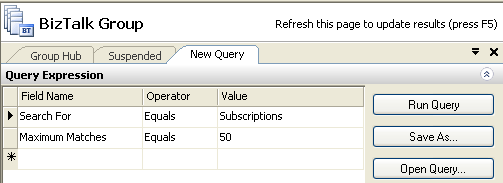
It is that easy!
by community-syndication | Sep 27, 2005 | BizTalk Community Blogs via Syndication
We had an issue, the DTA database was empty, nothing was being tracked, and we were seeing a weird error message that pointed at something else in the event log:
Either another TDDS is processing the same data or there is an orphaned session in SQL server holding TDDS lock. Either another TDDS is processing the same data or there is an orphaned session in SQL Server holding TDDS lock. SQL Server: \. Database: BizTalkDTADb
by community-syndication | Sep 27, 2005 | BizTalk Community Blogs via Syndication
Paul has a week of workflow web-casts on going for those of you who missed PDC or missed our sessions at PDC. The full detail and links to recordings are here: http://blogs.msdn.com/pandrew/articles/460630.aspx
They are at 10am PST every day this week.
Here’s the remaining ones:
Wednesday: Workflow + Messaging + Services: Developing Distributed Applications with Workflows
Thursday: Developing Event Driven State Machine Workflows
Friday: Extending Workflow Capabilities with Custom Activities
by community-syndication | Sep 26, 2005 | BizTalk Community Blogs via Syndication
I worked through a problem recently with a client that really took me by surprise
– because I would think that many BizTalk shops would be running into this issue regularly.
So! Here goes with an explanation and a solution.
We ran into this problem initially using the MSMQ (not MSMQT) adapter with BizTalk
2004. We had roughly 10 MSMQ receive locations, as well as a few send ports
that were using the loopback
adapter. These were all executing in the same host.
The initial symptom was that the loopback adapter appeared to not work – messages
were just not getting through! They sat in the “delivered, not consumed state”
for no good reason. But we quickly reproduced the problem with just MSMQ receive
locations (i.e. without the loopback adapter.)
On a single processor virtual machine, the repro looked like this: Create four
MSMQ receive locations, and one MSMQ send port (with the send port subscribed
to one of the receive ports, just to keep things easy.) No messages
will flow through the send port at all.
To repro: This
download has a binding file with receive ports/locations for local (non-tx) private
queues Q1-Q4, plus a send port for local private queue NONTXQ with a filter for the
first receive port. There is also a bit of VB script to put a message into a
queue…If you turn off one of the receive locations for Q2-Q4, you’ll find things
work just fine. If you don’t, then (reiterating) no messages will flow through
the send port.
What was the resolution? Well, with BizTalk 2004 Service Pack 1 installed,
you can create a “CLR Hosting” key under the registry service definition.
-
Open the registry key HKEY_LOCAL_MACHINE\SYSTEM\CurrentControlSet\Services
-
Under BTSSvc{some GUID}, create a key called ‘CLR Hosting’. (Note that there
will be a BTSSvc3.0 entry present…but you must add the key under a BTSSvc{some
GUID} key, where the GUID corresponds to the host you are dealing with, as shown by
the DisplayName value.). Example: BTSSvc{DDEF238B-2D21-4B1E-8845-C6C67C6A86C0}.
-
Under the “CLR Hosting” key (which you will create), create the following DWORD entries
with the following values:
-
MaxIOThreads – 75 (actual # tbd)
-
MaxWorkerThreads – 75 (actual # tbd)
-
MinIOThreads – 55 (actual # tbd)
-
MinWorkerThreads – 55 (actual # tbd)
-
Restart the BizTalk host service.
In our case, we actually had to increase these values – you should determine the values
you need through testing. Consider having min worker threads equal to 7x the
number of MSMQ receive locations, and max worker threads equal to 10x the
number of MSMQ receive locations. (More on these numbers later…)
Does the documentation address this? Good question. If you look at
the topic “Managing Multiple Receive Locations” in the MSMQ adapter documentation, you
will find some reference to this. It indicates you should create a “CLR Hosting”
key as described above…but no actual values are mentioned (clearly just
a documentation mishap.)
But why do these have to be tweaked at all? Good question. The
documentation for the MSMQ adapter has some unfortunate quotables, like:
To increase performance, Microsoft BizTalk® 2004 Adapter for MSMQ
is multi-threaded. If you have many receive locations, there may not be enough threads
available for all the receive locations. This prevents some of the receive locations
from picking up messages.
The reality is that you really shouldn’t have to starve any particular receive location
because of a lack of threads…you should just wind up with increased latency.
But, such is not the implementation of the MSMQ adapter (at least for BizTalk
2004.)
Some background: The MSMQ adapter has a “Batch Size” parameter and a “Serial
Processing” parameter that can be set per receive location. “Batch Size” determines
how many messages the adapter will attempt to read from the queue (and submit to the
message box) on each iteration. “Serial Processing” determines whether one thread
is engaged in the peek/get/submit activity per receive location (Serial Processing
= ‘true’) or multiple threads (Serial Processing = ‘false’). If “Serial
Processing” is true, the “Batch Size” is forced to one regardless of the actual setting.
So what is the execution flow for a given receive location? The internal class
MsmqReceiverEndpoint is instantiated per receive location, and when it initializes,
it calls ThreadPool.QueueUserWorkItem with
a reference to itself. If “Serial Processing” is false…it does this
exactly seven (7) times.
What does it do with the QueueUserWorkItem callback? Well, when MsmqReceiverEndpoint.ProcessWorkItem
is called, it enters into a do/while loop that doesn’t exit until the
endpoint (receive location) becomes invalid (i.e. the receive location is shut town.)
In other words, ProcessWorkItem sits on a .NET thread pool thread – and if Serial
Processing is false, it sits on seven of them. The do/while loop executes
a peek on the queue (with a hard-coded 10 second timeout), and if there are messages
waiting, it receives up to “Batch Size” and submits them to the message box. (It
will give up attempting to receive a “Batch Size” worth of messages if the 10 second
timeout is reached on any attempt within the batch receive loop – i.e. if you drop
a single message on a queue, and the batch size is greater than one, expect to wait
10 seconds before further activity begins…) The behavior of consuming seven
threads per queue leads to the recommendation of MinWorkerThreads = 7x MSMQ receive
locations provided above.
Now, I confess – I’m not a BizTalk adapter expert. But, this design
seems to be in conflict with the advice offered in “Writing
Effective BizTalk Server Adapters“, where it says:
Don’t starve the .NET thread pool: …While starving
the .NET thread pool is a risk to all asynchronous programming in .NET, it is particularly
important for the BizTalk Server adapter programmer to watch out for this. It
has impacted many BizTalk Server adapters: take great care not to starve the .NET
thread pool. The .NET thread pool is a limited but widely shared resource. It
is very easy to write code that uses one of its threads and holds onto it for ages
and in so doing blocks other work items from ever being executed….If you have multiple
pieces of work to do (for example copying messages out of MQSeries into BizTalk Server),
you should execute one work item (one batch of messages into BizTalk Server) and simply
requeue in the thread pool if there is more work to do. What ever you do, don’t
sit in a while loop on the thread.
Is this fixed in BizTalk 2006? Surely it is… And, in fact,
it sure seems to be in Beta 1. The design of the adapter is a bit different…First, “Serial
Processing” refers to whether additional messages will be received from
the queue prior to the “EndBatchComplete” event being set (downstream
of IBTDTCCommitConfirm.Done.) (This part of “Serial Processing” is
true for BizTalk 2004 as well, along with forcing the batch size to one.) “Serial
Processing” in BizTalk 2006 does not affect how many threads will be reading
from your queue – you will have just one (despite what the Beta 1 docs say…),
unless you have multiple host instances in play. (That one thread using
a large batch size and operating with serial processing set to ‘false’ – not
blocking on the actual message box submission – should keep up with a fairly
large message arrival rate, but multiple host instances might be needed for your particular
case.)
More importantly, the ProcessWorkItem implementation returns immediately after a single
peek/get/submit operation (and simply calls QueueUserWorkItem again, per the advice
cited above.) (Side note: There seems to be some room in the design for the
idea that you in fact woudn’t return immediately if more than a threshold number
of messages were received, but currently this condition is “if # of messages received
> BatchSize”, which won’t ever happen.)
So what should I do for now with BizTalk 2004? For those using the
MSMQ Adapter with BizTalk 2004…consider whether you can set “Serial Processing”
equal to true. Keep in mind this forces you to a batch size of 1, so this
might not work depending on your message arrival rate. If you test this configuration
and find an unacceptable performance loss, consider setting the MinWorkerThreads value
to 7x the number of MSMQ receive locations you are maintaining, and
MaxWorkerThreads to roughly 10x (to provide breathing room.)
As an alternative, spread your receive locations among multiple hosts (though avoid
an over-proliferation of hosts – that has its own issues.)
And never draw any conclusions until you have performance tested at load with your
final host configuration – that is, your final allocation of send handlers, receive
handlers, send ports, and receive locations among your hosts! Other adapters
may affect the outcome if they involve polling on the receive side, or polling on
the “response” side of a solit-response send port. (If they use a thread pool
thread to do their work, they can be affected by any adapter that consumes threads
whether they themselves are written correctly or not!) Finally, I’ve heard from
a gentlemen who has done extensive testing that the threading parameters above
are useful/necessary when using large numbers of MSMQT receive locations as well.
Never a dull day in BizTalk land…!
