by Sandro Pereira | Sep 21, 2021 | BizTalk Community Blogs via Syndication
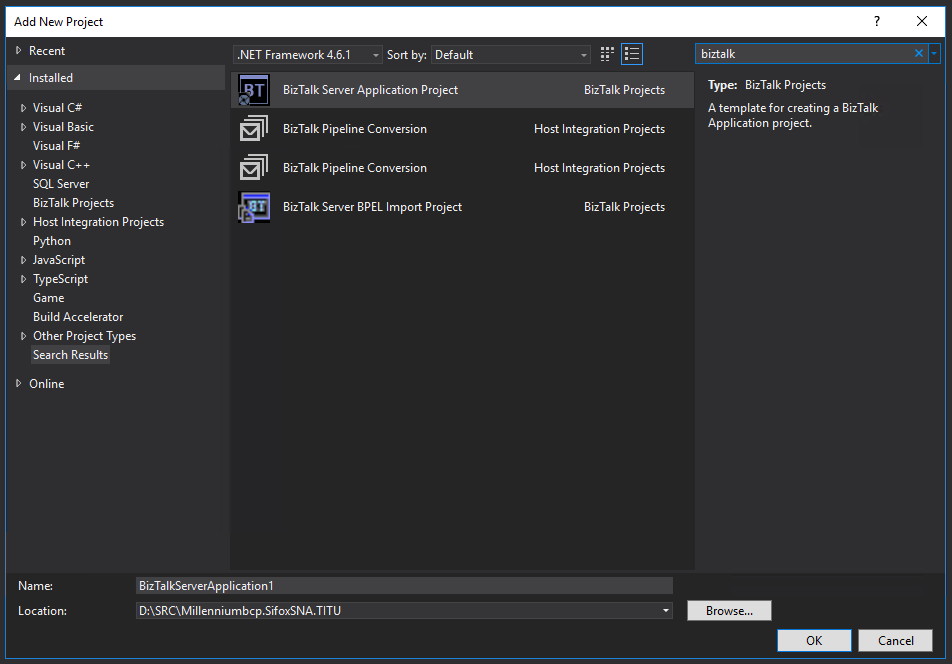
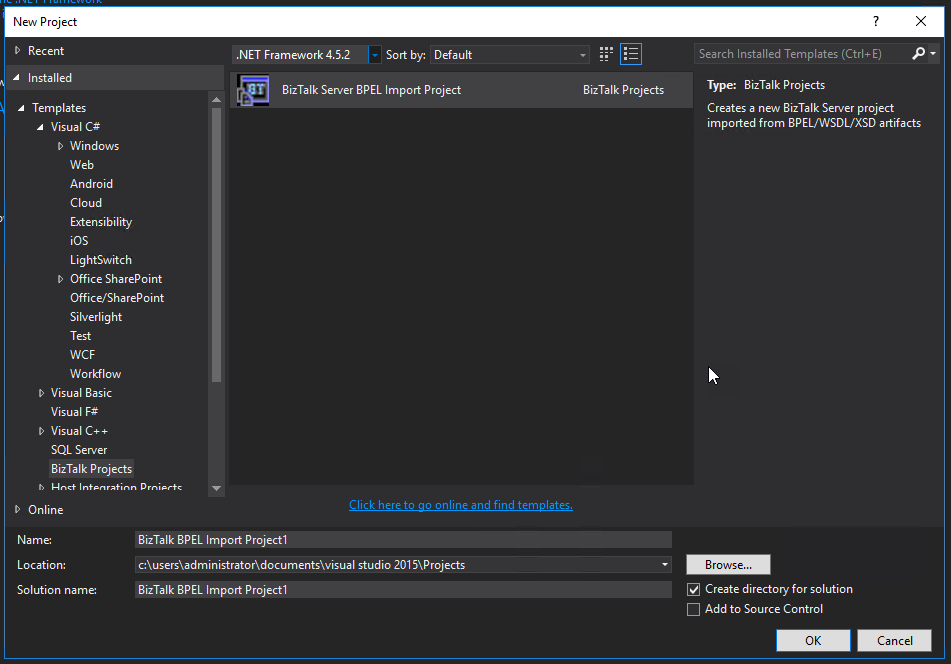
A few days ago, I wrote a blog post about a similar topic, but in that case, it was the BizTalk Server Application Project Visual Studio that was missing. In fact, at that point, the Empty BizTalk Server Project Visual Studio template was also missing in the development environment.
It is not a common situation in a BizTalk Server Development environment, but I cannot say that this is the first time I have found this issue.
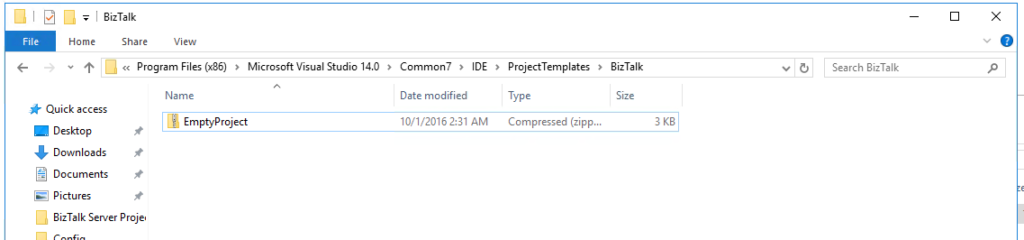
I tried to see if the project template was available on the local system. Normally VS stores the available templates at Program Files(x86) -> Microsoft Visual Studio 14.0 -> Common7 -> IDE -> ProjectTemplates, but the template was there:
Cause
I don’t know very precisely why Visual Studio was not loading the most critical BizTalk Server Visual Studio template, and it is hard to find the proper cause of this issue.
Of course, this problem was not related to the lack of installation of the development tools and the SDK. The Developer tools and SDK component was installed during the BizTalk Server installation.
On a quick search over this issue, I found several mentions that you could solve this issue by installing the template available on the Visual Studio Marketplace. According to the documentation, this template is available for Visual Studio 2015, 2017 (?), and 2019.
- Note: I don’t know any version of BizTalk Server that works on Visual Studio 2017
However, trying to install this template using the marketplace, I got a dependency alert for Visual Studio MPF 16.0. I try to follow the instructions provide by Microsoft to overcome this problem in which you can get more information here, but without any practical effect.
So, I went applying the traditional method to solve the problem of the missing template.
Solution
To fix this issue, the solution is quite simple:
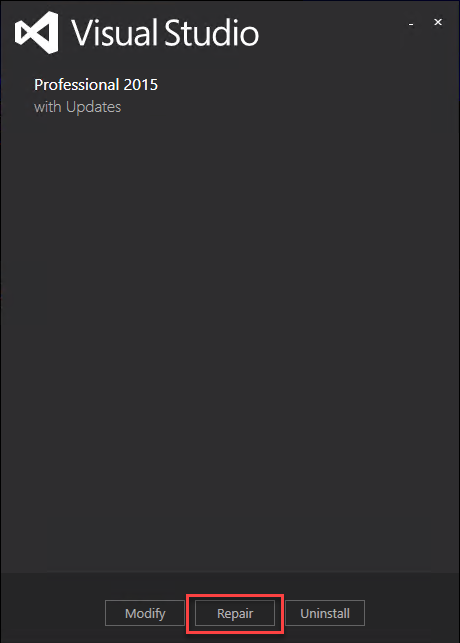
- You need to Repair the Visual Studio installation
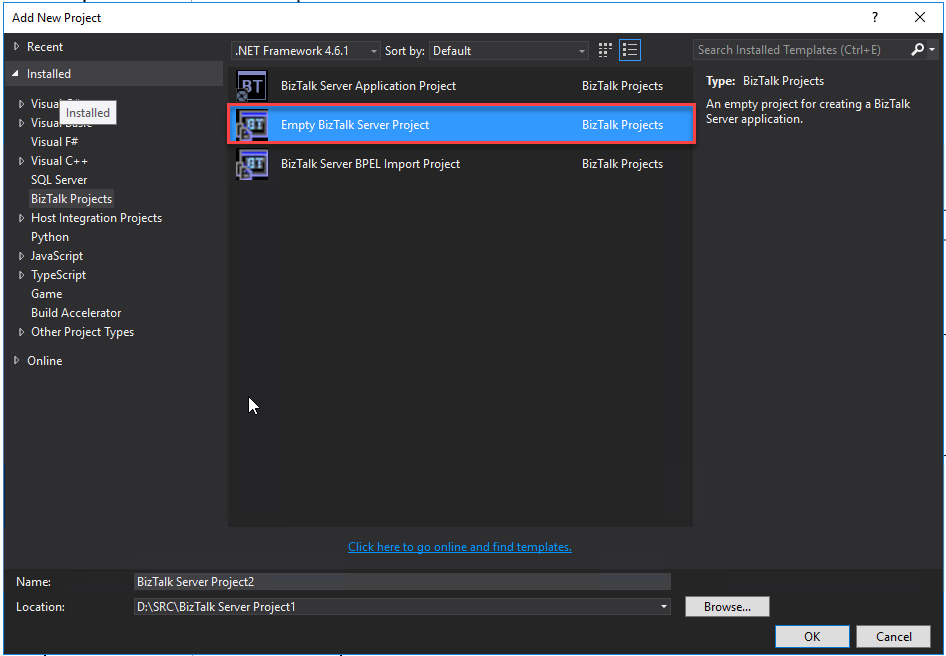
- After you repair the Empty BizTalk Server Project will be available
The post BizTalk Server 2016: “Empty BizTalk Server Project” Template missing from Visual Studio 2015 appeared first on SANDRO PEREIRA BIZTALK BLOG.
by Sandro Pereira | Sep 9, 2021 | BizTalk Community Blogs via Syndication
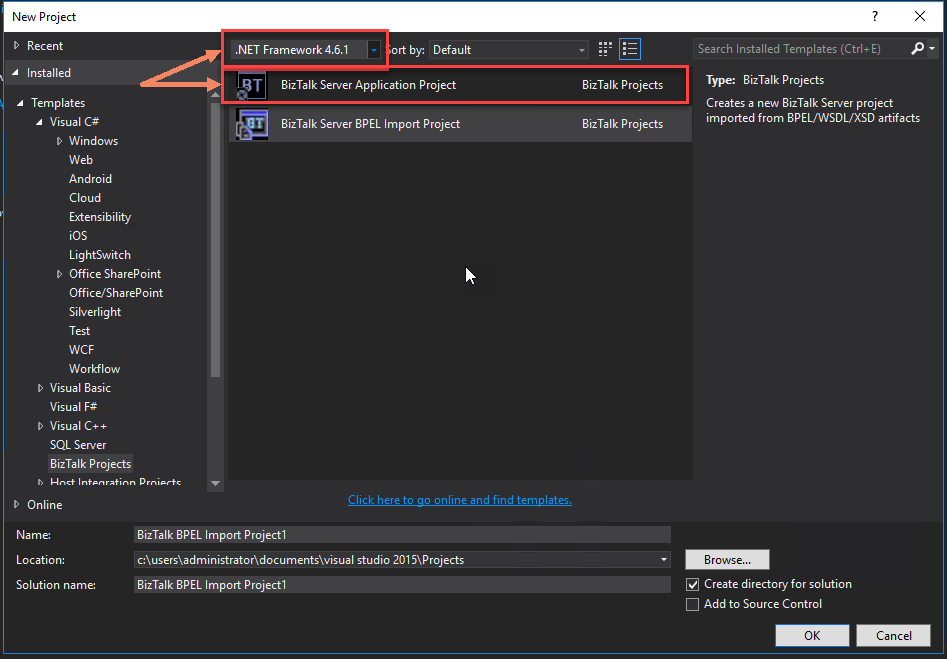
Today, I encountered a “strange behavior” on one of my BizTalk Server 2016 clients. When I opened Visual Studio to create a new BizTalk Server project, I realized that the “BizTalk Server Application Project” template was missing from the available list. Instead, I could only find “BizTalk Server BPEL Import Project”. This was the first time I encountered this behavior/issue.
That was a bit strange. I already had in the past situations where none of the Visual Studio BizTalk templates were present. So basically, we need or repair Visual Studio or repair BizTalk Server installation to solve the issue.
Cause
All Visual Studio BizTalk Server 2016 projects need to be compiled on .NET Framework 4.6.1 (minimum and by default) or .NET Framework 4.7.x (Starting with CU2) and .NET Framework 4.8 (Starting with CU7).
That means that the Visual Studio BizTalk Server Application Project template is only available if you select the .NET Framework 4.6.1 or above. In my case, the template was not missing. It wasn’t showing because, for any reason, I could find the selected .NET Framework when I opened VS was 4.5.2.
Solution
To fix this issue, the solution is quite simple:
- On the New Project window, on the .NET framework combo box present in the top of the windows, select the option .NET Framework 4.6.1
- And the project template will be available for you to use.
The post BizTalk Server 2016: “BizTalk Server Application Project” Template missing from Visual Studio 2015 appeared first on SANDRO PEREIRA BIZTALK BLOG.
by Sandro Pereira | Mar 21, 2020 | BizTalk Community Blogs via Syndication
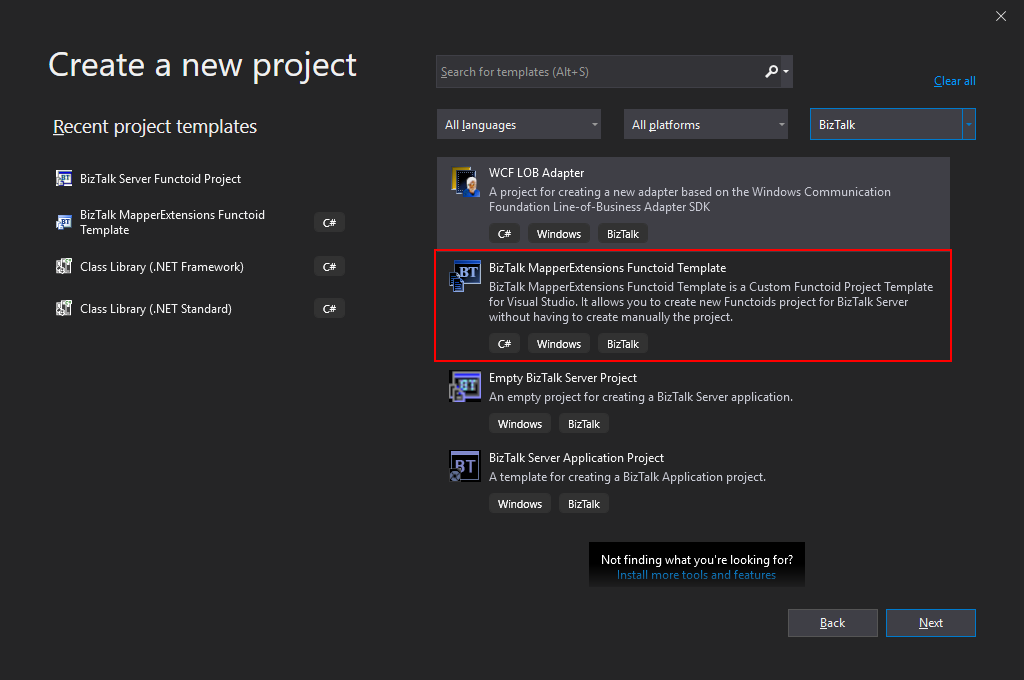
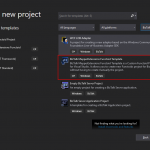
BizTalk Server 2020 – 20 days, 20 posts – day 6. In the last post, I published the BizTalk MapperExtensions Functoid Wizard to be compatible with BizTalk Server 2020 and Visual Studio 2019 but I reference that Visual Studio 2019 has a completely different look and fill and you will not be able to see this project under “BizTalk” projects in your Visual Studio 2019, instead, you need to search for it or scroll down to find it. So I decided to develop an alternative approach: BizTalk MapperExtensions Functoid Project Template.
BizTalk MapperExtensions Functoid Project Template
BizTalk MapperExtensions Functoid Project Template is a Custom Functoid Project Template for Visual Studio 2019. It allows you to create new Functoids project for BizTalk Server 2020 without having to create manually the project, in other words, having to manually create:
- A new class library project in Visual Studio;
- Add a reference to the Microsoft.BizTalk.BaseFunctoids assembly;
- Add New Class and having to code the entire class;
This Template will automatically create a project sample reference for you to create your custom Functoid. You them need to make the necessary changes and implement the required logic.
The difference between this resource (BizTalk MapperExtensions Functoid Project Template) and the BizTalk MapperExtensions Functoid Wizard are:
- You don’t required to install nothing, you just need to copy this resouce to a specific folder (explain bellow);
- There is no Wizard involved to customize the project, instead a sample project will be created and you need to implememet all the required changes;
- You can filter on the Visual Studio menu for BizTalk project and this template will appear, that doesn’t happen with the wizard;
Installation
To use this project template just download the BizTalk MapperExtensions Functoid Template.zip file (without unzip) and copy to the following location:
- C:Users<your-account>DocumentsVisual Studio 2019TemplatesProjectTemplates
Download
You can download the resource from:
 BizTalk MapperExtensions Functoid Project Template for BizTalk Server 2020
GitHub
The post BizTalk Server 2020 – 20 days, 20 posts: BizTalk MapperExtensions Functoid Project Template for BizTalk Server 2020 appeared first on SANDRO PEREIRA BIZTALK BLOG.
by Sandro Pereira | Mar 20, 2020 | BizTalk Community Blogs via Syndication
BizTalk Server 2020 – 20 days, 20 posts – day 5. I will finish my challenge regardless of all these constraints we are facing, and that limits our free time. So, while my wife was sleeping our cute little monster yesterday, I was able to migrate this tool and test it to be compatible with BizTalk Server 2020. Today while she is doing the same, I’m publishing this productivity tool for those that love BizTalk Mapper as I do: BizTalk MapperExtensions Functoid Wizard. Once again, I hope you enjoy and find this tool useful.
BizTalk MapperExtensions Functoid Wizard
BizTalk MapperExtensions Functoid Wizard is a Custom Functoid Project Wizard for Visual Studio 2019. It allows you to create new Functoids project for BizTalk Server 2020 without having to create manually the project, in other words, having to manually create:
- A new class library project in Visual Studio;
- Add a reference to the Microsoft.BizTalk.BaseFunctoids assembly;
- Add New Class and having to code the entire class;
This Wizard will do this process automatically, and used in conjunction with Item Template for Visual Studio: Custom BizTalk Functoid will facilitate and significantly expedite the development process of our projects.
BizTalk MapperExtensions Functoid Wizard Installation
To use this project template download the executable files available on the Installation Files folder and run the setup file.
Once you run the setup file follow these steps:
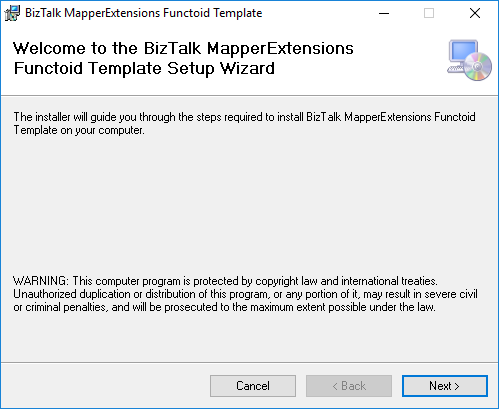
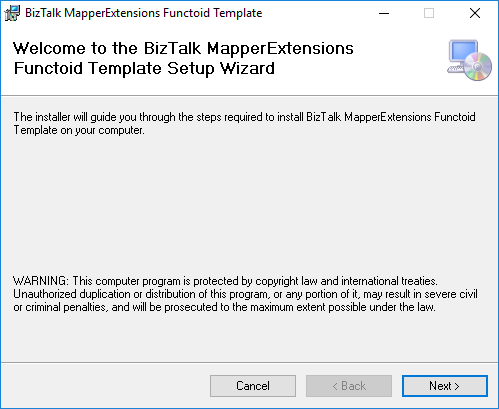
- On the Welcome to the BizTalk MapperExtensions Functoid Template Setup Wizard screen, click Next.
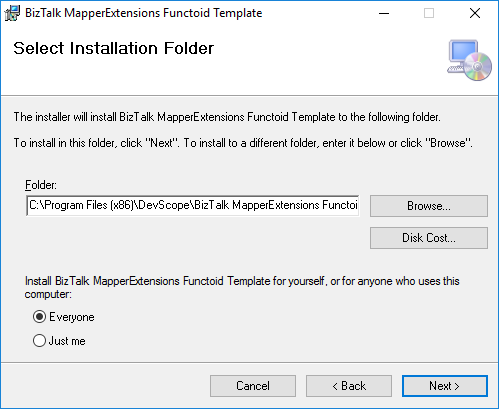
- On the Select Installation Folder screen, select the folder where you want to install the Wizard and select the option Everyone. Click Next to continue.
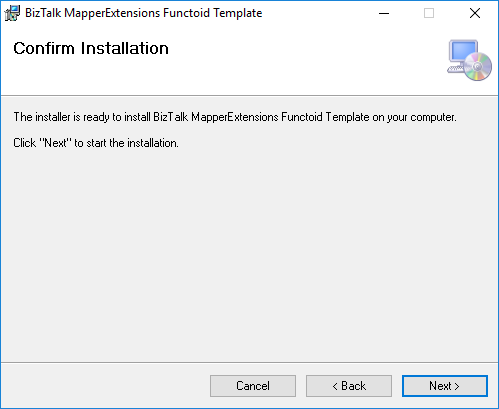
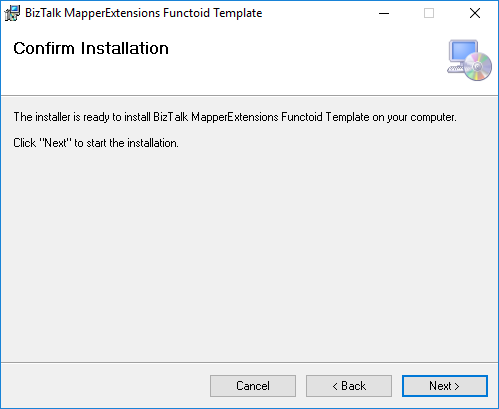
- On the Confirm Installation screen, confirm your intent to install by clicking Next.
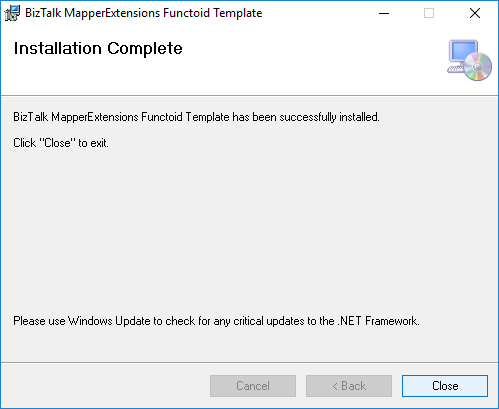
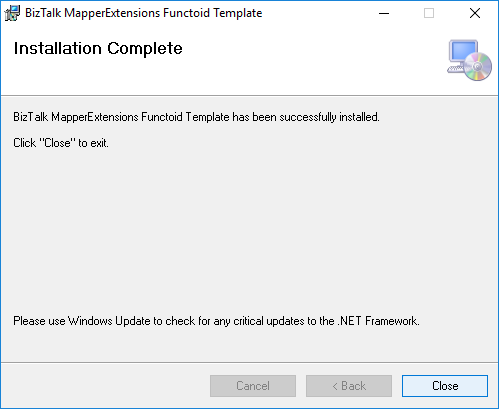
- On the Installation Complete screen, click close and the installation is complete.
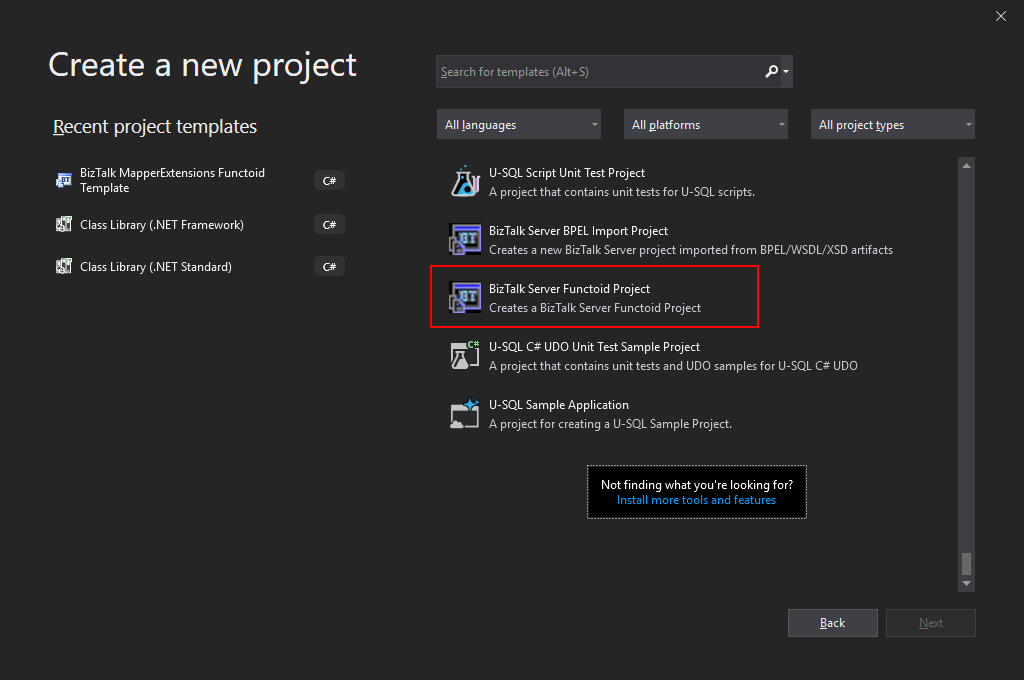
Now you can see a new BizTalk project Wizard on Visual Studio 2019. Unfortunately, Visual Studio 2019 has a completely different look and fill and you will not be able to see this project under “BizTalk” projects in your Visual Studio 2019, instead, you need to search for it or scroll down to find it.
I still need to find a way to solve this limitation or release a different approach to solve this issue and have a more friendly approach.
Create New Functoid Project
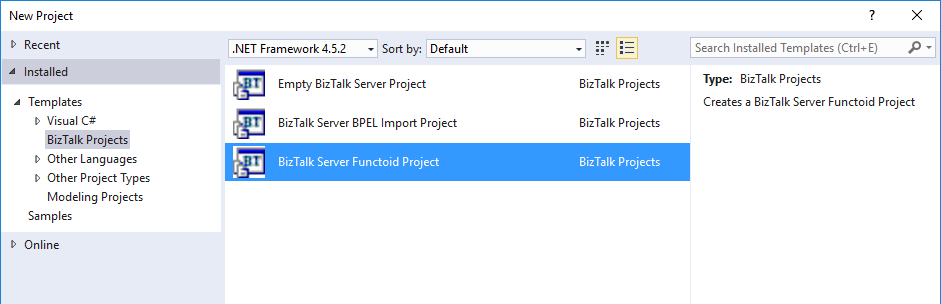
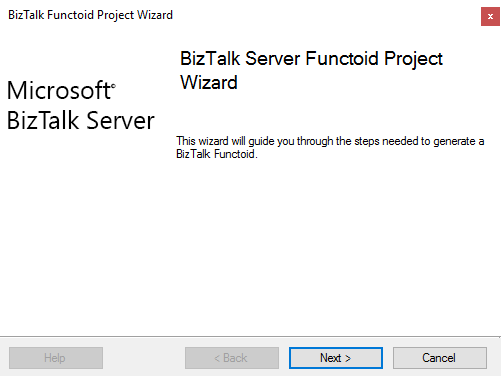
To create a new functoid using this project template choose the option BizTalk Server Functoid Project in Visual Studio 2019 and a Wizard will pop-up. Follow the requirements of this wizard to create the Functoid.
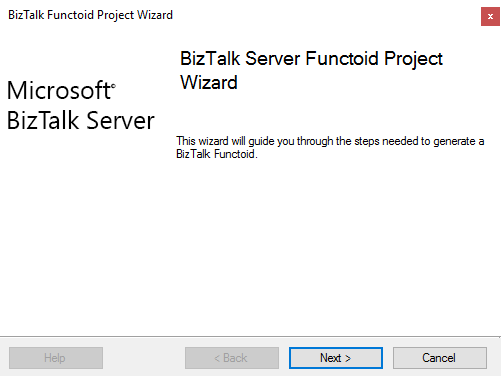
- In the Start screen, click Next to continue.
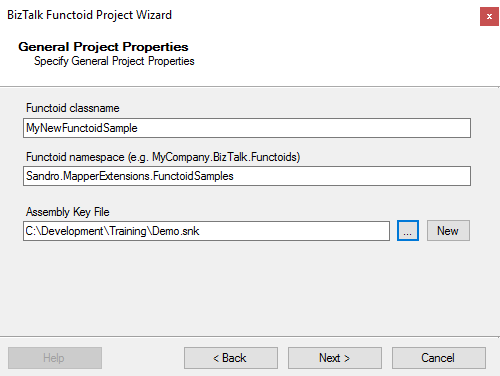
- In the General Project Properties screen, fill the Functoid class name, namespace and create or select a new Strong Key (you can use an existing one). Click Next to continue.
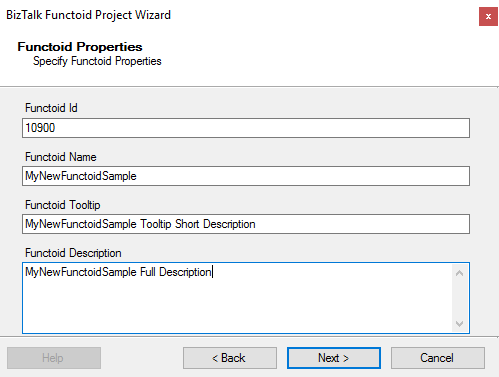
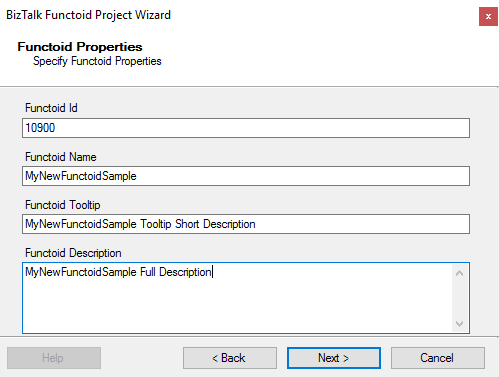
- In the Functoid Properties screen, define the Functoid ID (must be greater than 10000), the functoid name, the tooltip (short description) and description (full description). Click Next to continue.
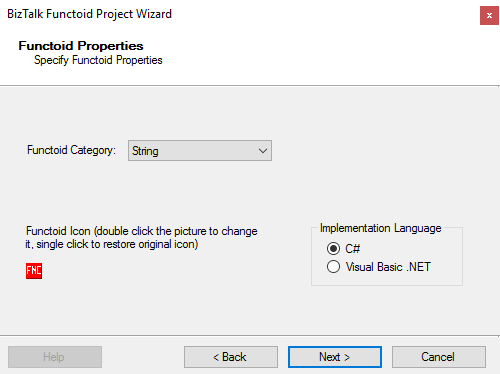
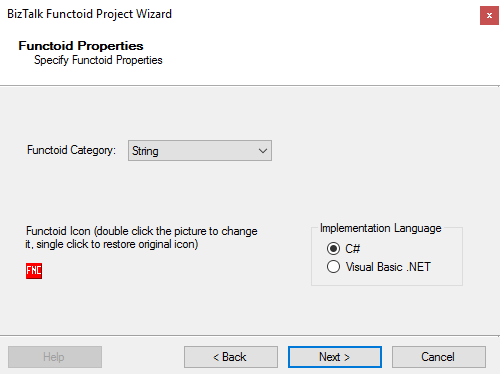
- In the second Functoid Properties screen, choose the functoid category and the implementation language (the language in which you want to implement your functoid behavior code): C# or VB.NET. Click Next to continue.
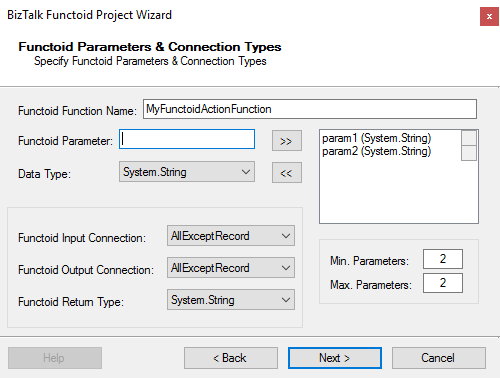
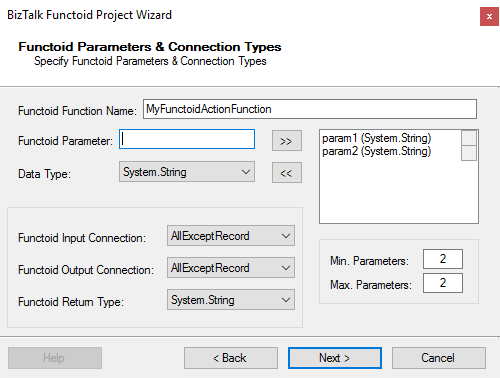
- In the Functoid Parameters and Connection Type” screen, define the functoid function name, function inputs and types and output and types. Click Next to continue.
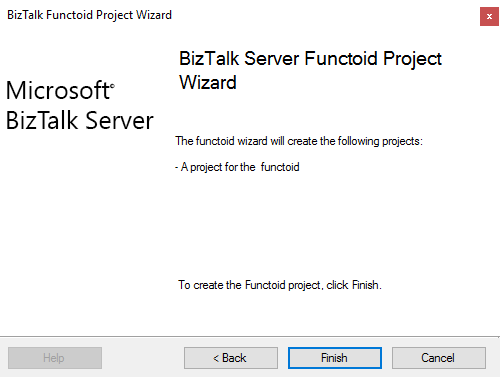
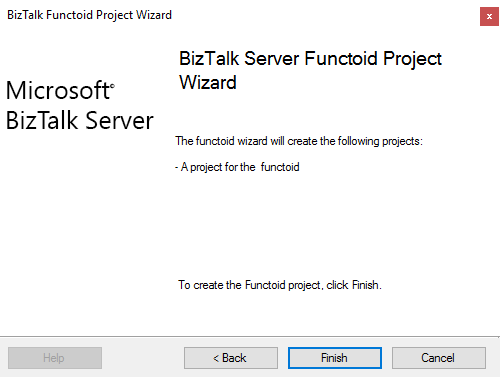
- On the final screen, click Finish to create the Visual Studio project.
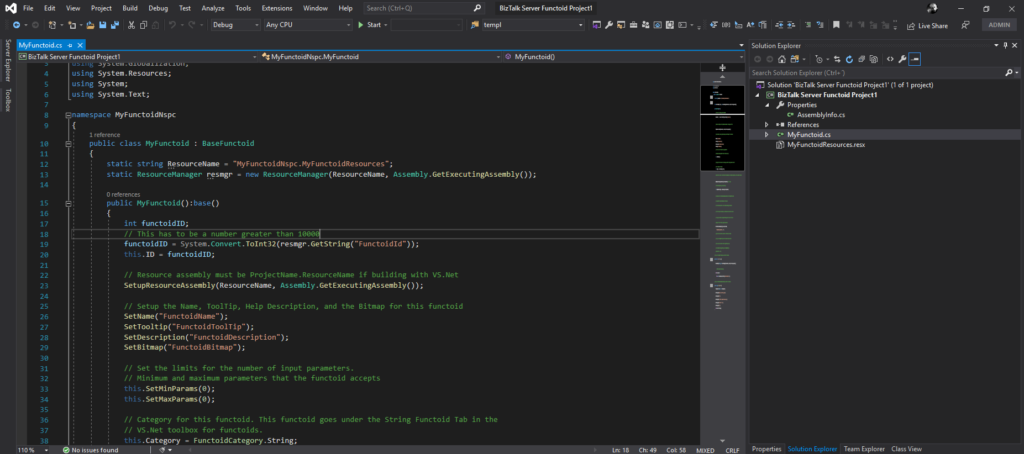
Visual Studio will create a new Project based on your implementation language and definitions provided in the Wizard.
- Open the generated class and implement your code
Other versions
This tool is also available for the following BizTalk Server versions:
Download
You can download the source code from:
BizTalk MapperExtensions Functoid Wizard for BizTalk Server 2020
GitHub
The post BizTalk Server 2020 – 20 days, 20 posts: BizTalk MapperExtensions Functoid Wizard for BizTalk Server 2020 appeared first on SANDRO PEREIRA BIZTALK BLOG.
by Sandro Pereira | Mar 27, 2017 | BizTalk Community Blogs via Syndication
Being an MVP, and a community leader, one of my roles is to motivate others members to start contributing to the community and at DevScope we have great new technicians that sometimes only need to be pushed and motivated… this time I challenged my coworker Rui Silva to collaborate with me on this small project and the result is here: BizTalk MapperExtensions Functoid Wizard for BizTalk Server 2016.
BizTalk MapperExtensions Functoid Wizard is a Custom Functoid Project Wizard for Visual Studio 2015. It allows you to create a new Functoid project for BizTalk Server 2016 without having to create manually the project, in other words, having to manually create:
- A new class library project in Visual Studio 2015;
- Add a reference to the Microsoft.BizTalk.BaseFunctoids assembly;
- Add New Class and having to code the entire class;
This Wizard will do this process automatically, and used in conjunction with BizTalk Server: Custom BizTalk Functoid item template for Visual Studio 2015 will facilitate and significantly expedite the development process of our projects. The only thing you will need to do is create a new Custom Functoid Project and a wizard will pop-up, fill in the required fields and when you finish the process a new Custom Functoid project is built. Just change the execution method with your own algorithms, build your project and it’s done. You’ll see your new Functoid in BizTalk Server 2015 Mapper once you import it to Visual Studio Toolbox.
BizTalk MapperExtensions Functoid Wizard Installation
To use this project template download the executable files available on “Installation Files” folder and run the setup file.
Once you run the setup file follow these steps:
- On the “Welcome to the BizTalk MapperExtensions Functoid Template Setup Wizard” screen, click “Next”.
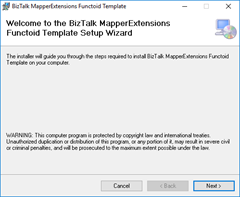
- On the “Select Installation Folder” screen, select the folder where you want to install the Wizard and select the option “Everyone”. Click “Next” to continue.
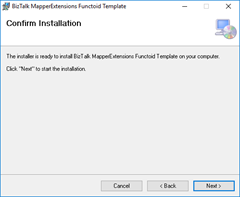
- On the “Confirm Installation” screen, confirm your intent to install by clicking “Next”
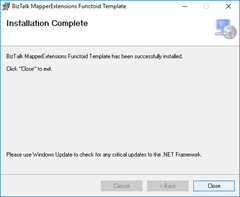
- On the “Installation Complete” screen, click close and the installation is complete
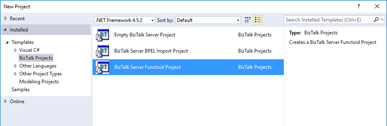
Now you can see a new BizTalk project template option under “BizTalk projects” in your Visual Studio 2015.
Create New Functoid Project
To create a new functoid using this project template choose the option “BizTalk Server Functoid Project” in Visual Studio 2015 and a Wizard will pop-up. Follow the requirements of this wizard to create the Functoid.
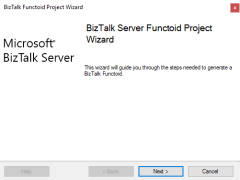
- In the “Start” screen, click “Next” to continue
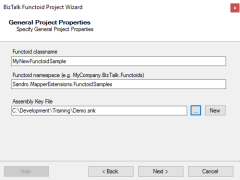
- In the “General Project Properties” screen, fill the Functoid class name, namespace and create or select a new Strong Key (you can use an existing one). Click “Next” to continue.
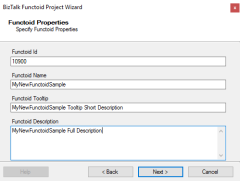
- In the “Functoid Properties” screen, define the Functoid ID (must be greater than 10000), the functoid name, the tooltip (short description) and description (full description). Click “Next” to continue.
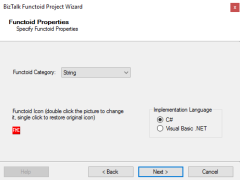
- In the second “Functoid Properties” screen, choose the functoid category and the implementation language (the language in which you want to implement your functoid behavior code): C# or VB.NET. Click “Next” to continue.
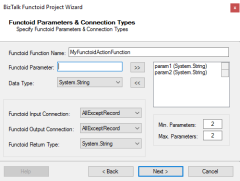
- In the “Functoid Parameters and Connection Types” screen, define the functoid function name, function inputs and types and output and types. Click “Next” to continue.
- On the final screen, click “Finish” to create the Visual Studio project.
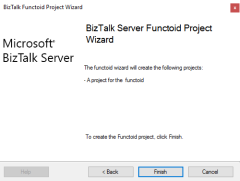
Visual Studio will create a new Project based on your implementation language and definitions provided in the Wizard.
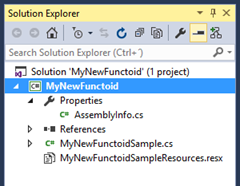
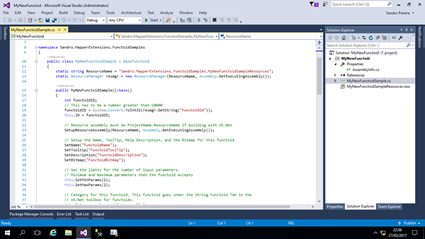
- Open the generated class and implement your code
Once again, special thanks to Rui Silva who accepted the challenge and collaborated with me in order to finalize this project.
You can download the Source Code or contribute to the project here:
BizTalk.MapperExtensions.Functoid.Wizard
GitHub
You can download the installation files (only executables) here:
BizTalk MapperExtensions Functoid Wizard: BizTalk Server 2016 Installation files (1.1 MB)
Microsoft | TechNet Gallery
Author: Sandro Pereira
Sandro Pereira lives in Portugal and works as a consultant at DevScope. In the past years, he has been working on implementing Integration scenarios both on-premises and cloud for various clients, each with different scenarios from a technical point of view, size, and criticality, using Microsoft Azure, Microsoft BizTalk Server and different technologies like AS2, EDI, RosettaNet, SAP, TIBCO etc. He is a regular blogger, international speaker, and technical reviewer of several BizTalk books all focused on Integration. He is also the author of the book “BizTalk Mapping Patterns & Best Practices”. He has been awarded MVP since 2011 for his contributions to the integration community. View all posts by Sandro Pereira