
by Eldert Grootenboer | May 16, 2016 | BizTalk Community Blogs via Syndication
Last week I attended Integrate 2016 in London, the biggest Microsoft integration event this year, organized by BizTalk360. The outcome was almost 400 attendees, and there were sessions from the Microsoft Product Group, industry leaders and MVP’s.
The major take-away I have from the event, is that Microsoft now has a great vision on the future of integration, which I felt was missing the last couple of years. Now though, they recognize that even though the cloud is a great asset, on premise is not going away for a long time. Also Microsoft has now officially announced that their on-premise integration solution will be BizTalk, which has not been getting a lot of love lately.
This means BizTalk will be getting adapters which will allow it to be easily integrated with the cloud, like Service Bus (which we already have) and Logic Apps, allowing it to consume Logic Apps and the cloud connectors.
Also we will be getting connectors in Azure which will allow us to easily connect from Logic Apps to BizTalk, giving us a true solid hybrid experience.
Microsoft has a very wide offering with Azure, and now with BizTalk and Logic Apps in the center of their integration offering, things are really starting to get together. We can use BizTalk for our on-premise applications and Logic Apps for our cloud applications, but there is much more. For example, we can use Azure Functions to create small re-usable pieces, which we can use stand-alone, or from Logic Apps. The Service Bus stack can be used for our messaging needs or IoT scenarios. For exposing and managing our API’s, including those provided by Azure Functions and Logic Apps, we have API Management to our disposal. And there’s many more services we can use to build and complement on our scenarios.
As for our B2B and EAI, Microsoft will introduce a premium pack on Logic Apps called Enterprise Integration Pack, which will be able to handle your EDI requirements, including TPM etc.
As you can tell from my blog posts, I am a big IoT fan, and I really think this will be one of the major growth enablers for us integrators. It was good to see that a lot of sessions at Integrate 2016 were on this subject as well, including announcements from the Service Bus team. For example the Premium tier has been announced for Service Bus, which will allow larger messages, isolation and dedicated resources. Also we heard that both Service Bus and Event Hubs will be coming to on-premise with the Azure Stack. Looking at the numbers for the Service Bus stack just keeps amazing me.
Integrate 2016 was once again an amazing event for me, I had a lot of fun catching up with old friends, making new friends, hearing all this great new news, and seeing love Microsoft is once again showing for us integrators. For anyone working in the Microsoft integration space, I can only recommend attending these events as well.
For those who want to read some more recaps, here are some of my favorites.
Steef-Jan Wiggers
A solid vision for integration – Day 1 Integrate 2016
Kent Weare
Integrate 2016 – Day 1 Recap
Integrate 2016 Wrap-up
Gijs in ‘t Veld
Integrate 2016 – highlights from the Microsoft product team sessions
Rob Fox
Integrate 2016 – Day 1 Recap
Wrapping up Integrate 2016
Codit
Integrate 2016 – Day 1
Integrate 2016 – Day 2
Integrate 2016 – Day 3
BizTalk360
INTEGRATE 2016 – A Recap of Day 1 & Announcements from the Product Group
Updates on Azure Service Bus – INTEGRATE 2016 Day 2
by Nick Hauenstein | May 4, 2016 | BizTalk Community Blogs via Syndication
I’m happy to announce that I’ve been asked to speak at the BizTalk 360 Integrate 2016 conference May 11th-13th in London. When brainstorming for the session topics I had lots of ideas of fun things that could be accomplished with Logic Apps and API Apps, but decided to take things in a slightly different direction.
Over the last few years, I’ve seen BizTalk Server developers who are skilled as general .NET developers, but who may not have the time or energy to keep up-to-date with the evolution of Logic Apps, API Apps – and all of the things that come with them Web API, node.js, Swagger, etc. That is perfectly understandable because as a developer building enterprise integrations exchanging X12 or EDIFACT data using BizTalk Server, you might not have needed to interact with JSON serialization in the past.
This Will Make Your Dreams Come True
This last year, my team and I have been working hard to stay on top of changes to Microsoft’s cloud-based integration technologies. Time and again we’ve fallen, and seen others do it as well, into the trap of looking at a tool and then trying to figure out how it can solve all of our problems – even to the point of searching out problems (imagined or otherwise) that it could tackle. It happens anytime there’s a sufficiently impressive tool, or sufficiently impressive salesperson (or both). Go ahead, click the link, I’ll wait. But if you do click that link, you will end up trying to find how you too could buy a 10 pack of vegetable peelers. Then you would be trying to figure out how to incorporate zucchini strands into dessert.
Getting Back on Track
Whenever that happens we’ve been able to course correct by forgetting about the tool and focusing on the problem we want to solve, or even better, the ideal solution to the problem. When describing the solution using Enterprise Integration Patterns as our vocabulary, we can quickly model an answer that works without assigning a particular tool or technology. Maybe a given solution needs a content enricher, or a resequencer, or guaranteed delivery, or whatever – not necessarily a specific technology applied.
As a BizTalk Developer, I know how to implement these patterns using BizTalk; the real question that we keep running into is can we implement these patterns using API Apps and/or Logic Apps – and better yet should we?
My session is designed to help BizTalk Developers learn how to answer those questions for themselves. Specifically, identifying the capabilities of the new additions to our toolset, and then showing how to use them without assumptions of in-depth knowledge of the underpinnings. In the talk, you will see API App that creates promoted properties from an XML document (just like BizTalk Server) so that we could then potentially reach out to other Azure capabilities and implement publish-subscribe in concert with content-based routing and correlation.
by Nick Hauenstein | Mar 9, 2016 | BizTalk Community Blogs via Syndication
Much has happened in the world of Logic Apps and API Apps since the original announcement back in December of 2014. We have seen the continued development of SaaS connectivity within the product, along with the overall expansion of integration capabilities. We have also seen the team responding to customer feedback actively while maintaining transparency in the process, and even providing a roadmap to give insight into what is coming and when we can expect to see the sweet moment that is GA.
Sometimes, customer feedback causes fairly large shifts in the underlying product. Such is the case seen in the latest updates for the product in the form of a completely overhauled designer, new feature support for triggering flows (i.e., any action can be a trigger), and an API deployment model that is more consistent with the rest of App Service and does not require a dedicated gateway.
New Designer
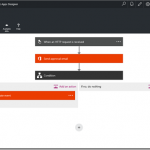
One of the most obvious changes that will stick out immediately as you go out to create a Logic App is the new designer that moved over into App Service from Power Apps.
The new designer supports editing workflows build using the updated workflow language (schema version: 2015-08-01-preview), and sports a vertical layout, rather than a horizontal layout, and conditions that appear to wrap around actions instead of being embedded inside actions (though the code view demonstrates that the underlying behavior is similar).
You might also notice that the experience of adding actions is much quicker, as this act no longer provisions a new instance of an API App within your own subscription. Instead in an interesting reversal, Microsoft hosts managed instances of out-of-the-box API Apps. The result is that configuration information is sent as part of the request, instead of stored inside the API App container, and you will have far more simplified ARM deployment templates given that your deployment will no longer need to take into account each API App used by your Logic Apps.
So how do my own custom API Apps end up in the list? Well, you can apply to have them registered in the Azure Marketplace, or you can use the Http + Swagger action in order to point to a custom API App that already exists. Of course that brings us to the question of what it looks like to actually build a custom API App in this refresh of the preview.
New API App Development Model
In the preview refresh, the process to develop and consume a custom API using the designer is quite a bit different. You still have the ability to use swagger extensions for a clean designer experience – but there are new extensions intended to take advantage of new designer capabilities. These capabilities include things like dynamic schemas for parameters / return types of API (imagine a different object shape depending on the type of entity within a CRM system, or a table within a database), and dynamic values for enumerations.
The biggest change here though is that we no longer have a gateway managing authentication, internal storage, or configuration for our APIs, and get to manage that ourselves, but as a side effect, we’re no longer constrained by where our APIs live – all APIs get the same first class experience.
I would definitely recommend taking some time to read each link within this article before starting out on building a new API. I’m working on building out updates to T-Rex to help with the metadata – while also providing a few example APIs to take advantage of all of the new capabilities – but if you want a head start, the knowledge is out there!
New Triggering Capabilities
What other changes are under the hood that you should know about? Well, you may have noticed the announcement of the availability of Webhooks for Logic apps for one, or even saw the x-ms-trigger extension called out in the article linked above. The end result of this is that any action within a Logic App can have a polling trigger style behavior, or even an async push style behavior, and the Logic App itself can be triggered manually at an endpoint that isn’t tied to a specific Azure subscription.
We can see some of these changes in action as we look at actions like the Send approval email action from the Office 365 connector/API. The action sends an email, and then notifies the Logic App what the response is when the response is available – without polling.
It even includes the shape of the notification as part of the swagger metadata that is exposed, so that the designer can support using the shape of that async output in later steps. The result is that as a developer, I can use the action to build what looks like a synchronous flow without the complexity of an async flow, and yet I’m benefitting from the performance characteristics of the async implementation (i.e., immediate notification when the event happens rather than polling at a fixed or variable interval).
What Are We Doing About It?
Reading about all of this might have you wondering what QuickLearn Training is doing about all of this, and/or what you should do about all of this.
Well, I (Nick Hauenstein) am hard at work on an update to QuickLearn’s T-Rex metadata library that takes into account the new way to build API Apps. I’m on target to wrap up the core code by end of week, and hopefully have some decent sample apps out there shortly thereafter.
We’re all busy learning everything we can about the new functionality so that we can rapidly integrate those changes into our Cloud-Based Integration Using Azure App Service course.
In the meantime, keep an eye out for announcements from the BizTalk 360 folks about Integrate 2016 Europe. You might be able to meet up with myself (Nick Hauenstein), Rob Callaway, or John Callaway to talk about BizTalk Server, or any of the things in this post. Also watch for the next release of TRex on NuGet which will include support for all of the new goodies we have available in Logic Apps.
In the meantime, take care, and have fun building great things!
by Nick Hauenstein | Jan 10, 2016 | BizTalk Community Blogs via Syndication
I’m finally settling back into the swing of things as we kick off the year 2016! It has been quite a relaxing break, spending Christmas and New Year’s with my family out in the woods of Snohomish, WA. Since getting back to the office, I’ve been catching up on quite the backlog of emails. Among them was an email that called out a file that was uploaded to the Microsoft download site at the end of last month – the long awaited BizTalk Server Roadmap for 2016 or should I say the Microsoft Integration Roadmap (more on that to below).
Continued Commitment to BizTalk Server
The document opens up with a bullet pointed summary of the core takeaways (I for one appreciate that it leads with the TLDR):
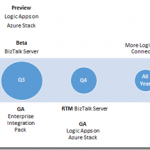
- Continuing commitment to BizTalk Server, with our 10th release of BizTalk Server in Q4 2016.
- Expansion of our iPaaS vision to provide a comprehensive and compelling integration offering spanning both traditional and modern integration requirements. Preview refresh in January 2016 and General Availability (GA) in April 2016.
- Deliver our iPaaS offering on premises through Logic Apps on Azure Stack in preview around Q3 2016 and GA around end of the year.
- Strong roadmap and significant investments to ensure we continue to be recognized as a market leader in integration.
- The next release of Host Integration Server is planned on the same timeline as BizTalk Server below.
That’s right; 2016 is the year where we start to see Microsoft’s integration investments in the cloud start to pay dividends on-premises – with two complementary offerings that each offer their own approach to solving integration challenges while still ensuring that you can build mission critical BizTalk Server integrations on the latest Microsoft platform. Though Microsoft is expanding the integration toolbox beyond just BizTalk Server, the focus is still firm on Integration, and the tools are built on proven platforms with a proven infrastructure.
BizTalk Server 2016 New Features
So what can we expect in BizTalk Server 2016?
- Platform alignment – SQL 2016, Windows Server 2016, Office 2016 and latest release of Visual Studio.
- BizTalk support for SQL 2016 AlwaysOn Availability Groups both on-premises and in Azure IaaS to provide high availability (HA).
- HA production workloads supported in Azure IaaS.
- Tighter integration between BizTalk Server and API connectors to enable BizTalk Server to consume our cloud connectors such as SalesForce.Com and O365 more easily.
- Numerous enhancements including
-
- Improved SFTP adapter,
- Improved WCF NetTcpRelay adapter with SAS support
- WCF-SAP adapter based on NCo (.NET library)
- SHA2 support
- Host Integration Server “2016”
-
- New and improved BizTalk adapters for Informix, MQ & DB2
- Improvements to PowerShell integration, and installation and configuration
I don’t know about you, but I’m fairly excited to see this listing. With the death of SHA1 certificates this year, it’s good to see SHA2 support finally coming into BizTalk Server 2016, if for nothing else, then for SHA2 a BizTalk Server 2016 upgrade is going to be a must.
Also, notice the tighter integration between BizTalk Server and API connectors. That’s fantastic! One thing that Logic Apps do really well is provide friendly connectivity to SaaS endpoints. One thing they don’t do as well is content-based correlation and long -running transactions. One thing that BizTalk Server doesn’t do too well is provide friendly connectivity to SaaS endpoints (there is generic REST connectivity, but you’re going to be wishing that you would have built/bought/downloaded an adapter once you start going down that road). One thing that BizTalk Server does really well is content-based correlation and long-running transactions. Here we’re seeing the best of Azure App Service Logic Apps meeting the best of BizTalk Server. That should make anyone happy.
An Integration Taxonomy
One interesting thing found in the roadmap is a brief discussion of an integration taxonomy that makes a distinction between “Modern Integration” – which is usually SaaS and web-centric, based in the cloud, and within the realm of Web and mobile developers — and “Enterprise Integration” – which includes support for industry standards (e.g., X12, EDIFACT, etc…), targets mission critical workloads, and caters more towards enterprise integration specialists.
In a way, this sets the context for the two core integration offerings of BizTalk Server and Logic Apps – defining the persona that might gravitate towards each. However, Logic Apps will offer an Enterprise Integration Pack for the pro developer that wants the power of BizTalk Server with the elasticity of a PaaS offering.
Where Is This Going?
Well, you might be reading this because you’re passionate about Logic Apps; you might be reading this if you’ve been working with BizTalk Server since the year 2000. Either way, you’re in the business of doing integration. MIcrosoft isn’t interested in building up cliques of developers, but instead catering to all while providing an easy to use location agnostic (cloud/on-prem) rock solid, highly scalable platform for mission critical integration.
The focus is on evolving capabilities, it doesn’t matter what brand name is slapped on the side of it (whether it’s Logic Apps, Power Apps, or BizTalk Server), Microsoft is committed to making the world of enterprise integration a better place!
by Rob Callaway | Nov 2, 2015 | BizTalk Community Blogs via Syndication
In conversations with students and other integration specialists, I’m discovering more and more how confused some people are about the evolution of cloud-based integration technologies. I suspect that cloud-based integration is going to be big business in the coming years, but this confusion will be an impediment to us all.
To address this I want to write a less technical, very casual, blog post explaining where we are today (November of 2015), and generally how we got here. I’ll try to refrain from passing judgement on the technologies that came before and I’ll avoid theorizing on what may come in the future. I simply want to give a timeline that anyone can use to understand this evolution, along with a high-level description of each technology.
I’ll only speak to Microsoft technologies because that’s where my expertise lies, but it’s worth acknowledging that there are alternatives in the marketplace.
If you’d like a more technical write-up of these technologies and how to use them, Richard Seroter has a good article on his blog that can be found here.
Way, way back in October of 2008 Microsoft unveiled Windows Azure (although it wouldn’t be until February of 2010 that Azure went “live”). On that first day, Azure wasn’t nearly the monster it has become.
It provided a service platform for .NET services, SQL Services, and Live Services. Many people were still very skeptical about “the cloud” (if they even knew what that meant). As an industry we were entering a brave new world with many possibilities.
From an integration perspective, Windows Azure .NET Services offered Service Bus as a secure, standards-based messaging infrastructure.
Over the years, Service Bus has been rebranded several times but the core concepts have stayed the same: reduce the barriers for building composite applications, even when their components have to communicate across organizational boundaries. Initially, Service Bus offered Topics/Subscriptions and Queues as a means for systems and services to exchange data reliably through the cloud.
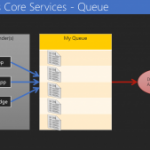
Service Bus Queues are just like any other queueing technology. We have a queue to which any number of clients can post messages. These messages can be received from the queue later by some process. Transactional delivery, message expiry, and ordered delivery are all built-in features.
I like to call Topics/Subscriptions “smart queues.” We have concepts similar to queues with the addition of message routing logic. That is, within a Topic I can define one or more Subscription(s). Each Subscription is used to identify messages that meet certain conditions and “grab” them. Clients don’t pick up messages from the Topic, but rather from a Subscription within the Topic. A single message can be routed to multiple Subscriptions once published to the Topic.
Sample Service Bus Topic and Subscriptions
If you have a BizTalk Server background, you can essentially think of each Service Bus Topic as a MessageBox database.
Interacting with Service Bus is easy to do across a variety of clients using the .NET or REST APIs. With the ability to connect on-premises applications to cloud-based systems and services, or even connect cloud services to each other, Service Bus offered the first real “integration” features to Azure.
Since its release, Service Bus has grown to include other messaging features such as Relays, Event Hubs, and Notification Hubs, but at its heart it has remained the same and continues to provide a rock-solid foundation for exchanging messages between systems in a reliable and programmable way. In June of 2015, Service Bus processed over 1 trillion (1,000,000,000,000) messages! (Starts at 1:20)
As integration specialists we know that integration problems are more complex than simply grabbing some data from System A and dumping it in System B.
Message transport is important but it’s not the full story. For us, and the integration applications we build, VETRO (Validate, Enrich, Transform, Route, and Operate) is a way of life. I want to validate my input data. I may need to enrich the data with alternate values or contextual information. I’ll most likely need to transform the data from one format or schema to another. Identifying and routing the message to the correct destination is certainly a requirement. Any integration solution that fails to deliver all of these capabilities probably won’t interest me much.
So, in a world where Service Bus is the only integration tool available to me, do I have VETRO? Not really.
I have a powerful, scalable, reliable, messaging infrastructure that I can use to transport messages, but I cannot transform that data, nor can I manipulate that data in a meaningful way, so I need something more.
I need something that works in conjunction with this messaging engine.
Microsoft’s first attempt at providing a more traditional integration platform that provided VETRO-esque capabilities was Microsoft Azure BizTalk Services (MABS) (to confuse things further, this was originally branded as Windows Azure BizTalk Services, or WABS). You’ll notice that Azure itself has changed its name from Windows Azure to Microsoft Azure, but I digress.
MABS was announced publicly at TechEd 2013.
Despite the name, Microsoft Azure BizTalk Services DOES NOT have a common code-base with Microsoft BizTalk Server (on second thought, perhaps the EDI pieces share some code with BizTalk Server, but that’s about all). In the MABS world we could create itineraries. These itineraries contained connections to source and destination systems (on-premises & cloud) and bridges. Bridges were processing pipelines made up of stages. Each stage could be configured to provide a particular type of VETRO function. For example, the Enrich stage could be used to add properties to the context of the message travelling through the bridge/itinerary.
Complex integration solutions could be built by chaining multiple bridges together using a single itinerary.
MABS was our first real shot at building full integration solutions in the cloud, and it was pretty good, but Microsoft wasn’t fully satisfied, and the industry was changing the approach for service-based architectures. Now we want Microservices (more on that in the next section).
The MABS architecture had some shortcomings of its own. For example, there was little or no ability to incorporate custom components into the bridges, and a lack of connectors to source and destination systems.
Over the past couple of years the trending design architecture has been Microservices. For those of you who aren’t already familiar with it, or don’t want to read pages of theory, it boils down to this:
“Architect the application by applying the Scale Cube (specifically y-axis scaling) and functionally decompose the application into a set of collaborating services. Each service implements a set of narrowly related functions. For example, an application might consist of services such as the order management service, the customer management service etc.
Services communicate using either synchronous protocols such as HTTP/REST or asynchronous protocols such as AMQP.
Services are developed and deployed independently of one another.
Each service has its own database in order to be decoupled from other services. When necessary, consistency is between databases is maintained using either database replication mechanisms or application-level events.”
So the shot-callers at Microsoft see this growing trend and want to ensure that the Azure platform is suited to enable this type of application design. At the same time, MABS has been in the wild for just over a year and the team needs to address the issues that exist there. MABS Itineraries are deployed as one big chunk of code, and that does not align well to the Microservices way of doing things. Therefore, need something new but familiar!
Azure App Service is a cloud platform for building powerful web and mobile apps that connect to data anywhere, in the cloud or on-premises. Under the App Service umbrella we have Web Apps, Mobile Apps, API Apps, and Logic Apps.
I don’t want to get into Web and Mobile Apps. I want to get into API Apps and Logic Apps.
API Apps and logic Apps were publicly unveiled in March of 2015, and are currently still in preview.
API Apps provide capabilities for developing, deploying, publishing, consuming, and managing RESTful web APIs. The simple, less sales-pitch sounding version of that is that I can put RESTful services in the Azure cloud so I can easily use them in other Azure App Service-hosted things, or call the API (you know, since it’s an HTTP service) from anywhere else. Not only is the service hosted in Azure and infinitely scalable, but Azure App Service also provides security and client consumption features.
So, API Apps are HTTP / RESTful services running in the cloud. These API Apps are intended to enable a Microservices architecture. Microsoft offers a bunch of API Apps in Azure App Service already and I have the ability to create my own if I want. Furthermore, to address the integration needs that exist in our application designs, there is a special set of BizTalk API Apps that provide MABS/BizTalk Server style functionality (i.e., VETRO).
This is all pretty cool, but I want more. That’s where Logic Apps come in.
Logic Apps are cloud-hosted workflows made up of API Apps. I can use Logic Apps to design workflows that start from a trigger and then execute a series of steps, each invoking an API App whilst the Logic App run-time deals with pesky things like authentication, checkpoints, and durable execution. Plus it has a cool rocket ship logo.
What does all this mean? How can I use these Azure technologies together to build awesome things today?
Service Bus provides an awesome way to get messages from one place to another using either Queues or Topics/Subscriptions.
API Apps are cloud-hosted services that do work for me. For example, hit a SaaS provider or talk to an on-premises system (we call these connectors), transform data, change an XML payload to JSON, etc.
Logic Apps are workflows composed of multiple API Apps. So I can create a composite process from a series of Microservices.
But if I were building an entire integration solution, breaking the process across multiple Logic Apps might make great sense. So I use Service Bus to connect the two workflows to each other in a loosely-coupled way.
Logic Apps and Service Bus working together
And as my integration solution becomes more sophisticated, perhaps I have need for more Logic Apps to manage each “step” in the process. I further use the power of Topics to control the workflow to which a message is delivered.
More Logic Apps and Service Bus Topics provide a sophisticated integration solution
In the purest of integration terms, each Logic App serves as its own VETRO (or subset of VETRO features) component. Decomposing a process into several different Logic Apps and then connecting them to each other using Service Bus gives us the ability to create durable, long-running composite processes that remain loosely-coupled.
Doing VERTO using Service Bus and Logic Apps
Today Microsoft Azure offers the most complete story to date for cloud-based integration, and it’s a story that is only getting better and better. The Azure App Service team and the BizTalk Server team are working together to deliver amazing integration technologies. As an integration specialist, you may have been able to ignore the cloud for the past few years, but in the coming years you won’t be able to get away with it.
We’ve all endeavored to eliminate those nasty data islands. We’ve worked to tear down the walls dividing our systems. Today, a new generation of technologies is emerging to solve the problems of the future. We need people like you, the seasoned integration professional, to help direct the technology, and lead the developers using it.
If any of this has gotten you at all excited to dig in and start building great things, you might want to check out QuickLearn Training’s 5-day instructor-led course detailing how to create complete integration solutions using the technologies discussed in this article. Please come join us in class so we can work together to build magical things.
by Nick Hauenstein | Nov 1, 2015 | BizTalk Community Blogs via Syndication
This blog post serves as a quick recap of and expansion on my October 19th Integration Monday talk titled Building Push Triggers for Logic Apps. You can view the session and look through the slides over at integrationusergroup.com.
In the talk, I explored the bare minimum requirements for building push triggers, expanding on my AzureCon 2015 talk about a specific push trigger for dealing with NFC tag reads. I showed how you could use the QuickLearn Push Trigger Tools and QuickLearn Push Trigger Client Tools to implement a simple interface for storing callbacks, and build a re-usable set of callback storage mechanisms.
I also introduced the Push-Button Push Trigger. A push trigger that responds to a button press on a Windows 10 IoT device (in this case a Raspberry PI 2), relying on Azure Storage for callback storage. In the remainder of this post, I’m going to show you how to get your own Push-Button Push Trigger up and running.
Where Do I Get a Push-Button Push Trigger?
At the moment, there are 2 ways that you can get one. You can come out to QuickLearn’s 5-day Cloud-Based Integration using Azure App Service course (or attend remotely), or you can build one for yourself!
Even if you’ve never worked with anything like this before — don’t panic. You can’t really get something simpler than this.
Essentially you’ll need a Windows 10 IoT device (Raspberry Pi 2, DragonBoard 410C, MinnowBoard Max, etc…), a momentary switch (button), some wiring to wire the button up to a GPIO port and ground, and optionally a breadboard for even more fun later. I went with a Raspberry Pi 2 for mine, but if I could do it again, I would have chosen a DragonBoard 410C given its built-in Wi-Fi capabilities that don’t require an additional accessory or external module.
To get started with developing, you will need some software on your own machine (Visual Studio, Windows 10 IoT Project Templates, etc…) and you will need to get Windows 10 IoT Core onto your device. Microsoft has provided a pretty decent write-up of that part of the procedure over here.
Assembling Your PusH-Button Push Trigger
You may or may not have a case to go along with your Push-Button Push Trigger. I ended up buying the cheapest case I could find on the internet. This was likely a poor choice as it quickly disintegrated and pieces chipped off. Since then, I’ve had a lot better luck with this one. Of course, you could always print/build your own custom enclosure as well.
First things first, make sure your device has Windows IoT by inserting a prepared MicroSD card into the device.
Next, place your device in its case (if applicable). Mine has a mini-breadboard mounted on top for easier portability of the device.
Now, on to the wiring. We’re going to wire up a wire to GPIO pin 4 (chosen randomly), and another wire up to ground. Eventually we’re going to put a momentary switch inbetween so that we can quickly toggle that connection between high/low.
Let’s get that switch up on the breadboard (and make sure we put on a nice and colorful cover).
You can see in the image above how the posts are reaching down into the board. To connect wires to those pins, you will simply plug in one of the jumper wires to the same row as one of the pins.
One connection down, one to go.
At this point, everything is wired up, and it’s time to get power and internet to the device.
How Do I Make The Sample Code Work?
First of all, you can find the sample code over at https://github.com/nihaue/PushButtonPushTrigger. You can either download it as a ZIP file if you’re not comfortable with Git, or if you are comfortable with Git, you can clone it directly from here: https://github.com/nihaue/PushButtonPushTrigger.git
Once you have the sample downloaded, you should immediately Build the code to restore NuGet packages, and make all of the references happy. Next, you should take some time to look through the CallbacksController class for the Push Trigger (the part actually hosted in Azure with which the Logic App registers its interest in certain data), and the StartupTask class for the Universal Windows App (the part that actually looks for and handles the button press):
After you have a decent understanding of what’s going on, you’ll realize that the CallbacksController is storing callbacks from interested Logic Apps in Azure Table Storage, and the StartupTask (think background service on the device) is reading callbacks from Azure Table Storage when the button is pressed (moving this code to initialization and caching/polling for updates would be a better choice – and something you’re free to implement). So in order to get this thing working, you’re going to need an Azure Storage account.
If you don’t already have an Azure Storage account, head over to the Azure Portal and create one.
The only thing you need from this storage account will be the connection string, which you can find after it’s created over here:
With those credentials in hand, you’ll need to visit the two files in the solution responsible for storing configuration. They’re both named AzureStorageConfig.cs.
Inside that file, you will see a line of code with a TODO comment indicating that you should paste your connection string for your Azure Storage account in that location. This is indeed your next step (make sure to do it in both the code for the API App that lives in Azure, and the code for the device itself).
Ultimately, this is a terrible way to handle configuration. You can get the sample working with a simple copy/paste in that file, but the intent is that you would simply decide for yourself how you’d like to manage the configuration and creation of the CloudStorageAccount instance, and make that instance available through the StorageAccount property of the AzureStorageConfig class. This instance is used in both the AzureStorageCallbackStore and the AzureStorageClientCallbackStore classes.
Publishing the Code to Azure
We’re now ready to get this code all in place and running. The first step toward that goal will be to publish the API App project. You can do this by right-clicking the QuickLearn.ButtonPress.PushTrigger project, and then clicking Publish.
Make sure to select Microsoft Azure API Apps (Preview) as the target.
In the Microsoft Azure API Apps window, select your Azure Subscription, and then click New… Fill out the form to create a new API App container into which you can deploy your code.
Once the creation of the container is complete, you will see the following status message appear in Visual Studio.
Then, you will once again right-click the project and then click Publish… This time, the form will be pre-filled with the settings from the publish profile of the Azure API App container that you just provisioned. You might find it helpful to deploy the Debug configuration of your API App (Settings > Configuration > Debug – Any CPU), but that is entirely up to you. Once you click Publish, your code will be deployed to the API App container, and the API App will be usable within a Logic App.
Next up, we will deploy code to the device, and configure it to run in the background.
Deploy the Code to the Device
First of all, you will need to edit the project properties for the QuickLearn.ButtonPress.App project so that it attempts deployment to the correct device. In this case, that will mean navigating to the Debug tab, setting the Target device to Remote machine, the Remote machine to the name of your Windows IoT Core device (default: minwinpc), and then unchecking the Use authentication box.
You will want to make sure to save the project properties, get your device connected to the same network as your development machine (laptop in my case). Next, you can right-click QuickLearn.ButtonPress.App, and click Deploy.
Once deployment is complete, head over to the Windows IoT Core Watcher utility that ended up on your system after installing everything that you needed to get your device setup initially. If you can’t find it, reboot your system and it will be there waiting for you. The Windows IoT Core Watcher utility finds IoT Core devices on your network and provides quick links to gain access and configure them.
In the utility, right-click your device, and then click Web Browser here.
Login using your user name and password (default is Administrator / p@ssw0rd).
Next, head over to the Apps tab, and verify that QuickLearn.ButtonPress shows up in the list. You will want to note the full name as it appears here because you will need it in a few minutes.
Since this app was created as a Startup Task rather than as a graphical application, you will need to register it with the device to be run on startup. At the moment, this is not something that you can accomplish in the browser. Instead, you will need to fire up PowerShell for this next bit.
In PowerShell, you will need to enter a remote session on your device. You can do this using the Enter-PSSession cmdlet like this:
The connection process will take a while. Just get a cup of coffee, and when you have it ready, the session should be connected. Once connected, you are in PowerShell on the device, and are executing commands against the device (not your own local machine).
On the device is a utility called iotstartup. This utility provides access to configure what tasks run at device startup. In this case, you want to configure the device to constantly be running the Push-Button Push Trigger code in the background.
At the prompt, type iotstartup add headless “QuickLearn.ButtonPress.*”
Verify that what the app added matches exactly what appeared in the list on the device web page that you examined earlier. At the prompt type, shutdown /r /t 0
This will cause the device to reboot and your application to start up. It may take 60-90 seconds for the reboot to complete.
Building and Testing a Logic App using the Push-Button Push Trigger
In the Azure Portal, create a new empty Logic App in the same resource group in which you deployed the Push Button Push Trigger API App (otherwise the API App won’t be available to select in the designer). In the Logic App designer, in the API Apps pane (which you may have to expand in order to see), click QuickLearn.ButtonPress.PushTrigger.
Configure the Push Trigger as shown, and then click the green check mark to save the settings.
After the push trigger, add any other actions to your Logic App that you wish. Maybe this triggers a build in TFS, maybe it connects to a device that opens a door, maybe it brews you coffee remotely, maybe it posts a message in a chat service, maybe it closes out the latest support ticket that you were working on in your help desk system – it’s up to you. For me, I’m going to add a simple HTTP action (since it’s built into the runtime), and have it POST a message to a requestb.in indicating that the button has been pressed.
Save the Logic App, and it’s all ready to go!
PUSH THE BUTTON
There’s only one thing left to do – push the button. If everything has been setup correctly, the Logic App’s callback should be invoked and magic should happen in the cloud.
What If It Didn’t Work?
Well, there’s a few troubleshooting things you can do. Using the Cloud Explorer window (part of the Azure SDK) in Visual Studio, you can navigate to your API App, right-click and then click Attach Debugger. You can set breakpoints within the callback registration method of the controller class, and step through looking for problems as the Logic App registers the callback. This only happens when the trigger is first added to the Logic App (after clicking Save), and then every hour or so after that (assuming it worked on the first try).
You can see past registrations of the callback by navigating to the trigger history for the Logic App. If you see a string of failures there, it’s likely a bug in the callback registration code, or your storage account credentials.
Clicking any one of those line items will bring up the details (inputs/outputs) for debugging. If you want to attempt a callback registration manually (so that you can do it on demand), you can use the Swagger UI page for the API App, and manually fire the callback registration method.
The above screenshots were generated by replacing the configuration details for the Cloud Storage account with completely invalid data.
If everything looks good as far as the API App in Azure is concerned, you may want to debug the Windows IoT Core task from within Visual Studio. This can be done by right-clicking the project and then clicking Start Debugging (nothing special there).
The End
That’s all for now. Stay-tuned for more samples, and course updates!
by Nick Hauenstein | Sep 8, 2015 | BizTalk Community Blogs via Syndication
This post is designed to serve as a companion to my AzureCon 2015 talk titled Processing NFC Tag Reads in a Logic App. As a result, I will be recapping the talk and digging a little bit deeper into the code behind the talk. If you’d like to jump straight into the code, you can find the completed source code here, or head down to the section titled Writing the Device Code.
By the time we’re through, we’ll see what it would look like to build a solution that reads vCard data (virtual business cards) from conference attendee badges, and uses those tag read events to trigger a Logic App which imports that information as Sales Lead records into both SugarCRM and Salesforce. Are you ready?
Let’s Start with a Story
Let’s imagine for a moment that you are working for a hot tech start-up and you’re showing off the full capabilities of your products at a trade show. You’re one of many booths on the exhibition floor hoping to have the opportunity to connect with customers so that you can tell them how their lives could be better with your products. What might those customer interactions look like?
You’re going to have attendees approaching the booth, not quite knowing what to expect – maybe hoping to grab some free swag. You might make eye contact, strike up a conversation, and mutually discover that they would benefit greatly from having your product in their lives. So you say “Hey can I scan your conference badge? Not only will I be able to get in touch with you later this week, but you’ll also be entered to win our super awesome contest!” At this point, everything looks really slick as you quickly tap their badge with a mobile device and their data is zapped into position.
But what really happens?
Well, in a lot of cases, after the conference, the data is removed from the scanning devices, loaded up into a CSV file, and returned to the exhibitors via email and/or through a dedicated purpose-built website. From there, it is up to mere mortal human beings to forget that data for a few days, before eventually downloading the attachment, navigating to the CRM website of choice (Dynamics, Salesforce, SugarCRM, etc…), and finally uploading the data where it actually belongs — just in time for it to be too late to make the sale. Your customer has gone with the competitors and will lead a far less fulfilling life.
There’s something a little barbaric in all of this. There’s a lot of ceremony going on over not a lot of bytes of data. While it looks really cool to the customer on the trade show floor, the experience doesn’t translate the second you’ve crammed your life back into two suitcases waiting for the moment that you can be home so that the trees can just stand still for a while.
There must be a better way.
A few years back, at the ALM Summit 3 conference in Redmond, WA, James Whittaker asserted that a new era of computing has begun – the Know and Do Era.
Before this era, we had the Store and Compute era, which drove how we interacted with data all the way up through the late 90’s. In the Store and Compute era, we focused our efforts as developers on building Applications that worked with Files. The early 2000’s through 2012 saw the dominance of the Search and Browse era, in which we built Web Pages, Web Services, and even Apps to extend the reach of that data, and make it more discoverable. The Know and Do era is one that is and will be focused on building Experiences. Experiences allow interactions with data that are painted on a canvas of time and space, agnostic of the device you have at your disposal. It’s an era where our devices become the agents of our will and use available signals to make things happen.
That sounds really cool, but seriously, how do I build it? Do I create an application? A web page? An app? Where’s the Visual Studio project template for “Experience”.
Well, here’s the thing about that – experiences don’t live in one place. They don’t deal with a small slice of data that lives in one place. They are integrations between smart things, with action brokers like Logic Apps, with data normalizers, and enrichers, and rules-based processing. They’re distributed applications that take smart devices with sensors and signals available to them, join them with data repositories (no matter how narrowly focused or curated) and make those devices seem magical.
So, what makes Logic Apps a good fit? Well, for one, they’re hosted in the cloud. I’m not going to write code for every device to be able to integrate with Salesforce, SugarCRM, Dropbox, SharePoint, Oracle databases, and a random file share back at my office – nor am I necessarily going to be able to anticipate the future integration needs of code already deployed. Instead of putting the burden on the device, I’m shifting those concerns to the cloud (you can argue whether or not that’s for better or worse amongst yourselves – in this scenario, I think it’s a good fit).
Second, with Logic Apps, I have the full Azure Marketplace full of connectors and actions at my disposal, and if I don’t find something there that meets my needs, then I’m free to write my own.
So, what does the same story we started earlier look like with a Logic App in play? We’re going to throw away all of the ceremony around manually juggling CSV files and instead focus directly on getting those hot sales leads into our CRM system directly. As the badges are scanned, the device that reads them will trigger a Logic App. That Logic App will do the work of parsing out the information read from the tag, and it will then pass that data along to the CRM system using the out of the box connectors.
How Does the Data Get to the Logic App as it Becomes Available?
That’s an excellent question! Logic Apps start processing whenever they’re triggered. They support manual invocation, invocation through a webhook, and through polling and push trigger API Apps (and yes, I have written about how to build a Polling Trigger API App). In this case, a push-style trigger would be a decent choice (not to discount something like an Event Hub or Service Bus in general, depending on application load).
A Push Trigger API App essentially sits waiting for a Logic App to indicate its interest in some event. The way that it does this is through an HTTP PUT request that includes both the URI and credentials of where to POST data, should it become available, as well as the configuration for the trigger (e.g., don’t send me the same tag read twice in a row, don’t send me tag reads if your GPS location is within the main company office, etc…) As the author of a Push Trigger API App, you get to decide the shape of that configuration data, and you define it simply as a .NET class. The Logic App designer will display this configuration data on the card for your trigger.
The Push Trigger API App will then take this information and store it somewhere, so that when data is available, it (or some other app) can use that URL and credentials to call the Logic App back. In the case of our NFC conference badge scenario, it’s going to be a device that will trigger the Logic App.
What about the storage mechanism? What shall we use for that? Well in the spirit of using as much of Azure App Service in a single demo as possible, I decided to go with an Azure Mobile App as my backend for both the Push Trigger API App and the Universal Windows app that will be running across devices.
Writing the Device Code
Let’s take a look at what we’re going to start with. We’re going to start with a set of projects that looks like this:
From top to bottom we have an API App project titled NfcPushTrigger, a Universal Windows 10 app titled NfcClientApp, and a shared portable class library called DataModels that will contain classes representing the shape of data in our Azure Mobile App, and the configuration / output of the trigger (currently empty).
Let’s crack open that device app and build out a really compelling UI:
Well, that’s enough XAML for me, let’s go write some C# instead. I’m going to switch over to the code, while you gaze upon this work of art.
Okay. Over in the code, things are going well. I have all the standard default stuff and I’m ready to start interacting with the NFC reader attached to my laptop. The class that I use to get access to the NFC Reader on my laptop – or really any device that supports it – is the ProximityDevice class that lives in the Windows.Networking.Proximity namespace. That class has a method called GetDefault that I can use to get an instance of the default NFC Reader.
From there, I can subscribe for messages (tag reads) by calling SubscribeForMessage passing it a parameter indicating the type of message and a parameter that serves as a callback for whenever a message (tag) arrives. The type of messages we’re dealing with are NDEF messages where the first record of the message is a vCard record containing conference attendees’ Given (First) name, Family (last) name, and Email Address. In this case, that means we want to use NDEF as the type of message.
So we have our callback readied (we’ll eventually be doing some async work, hence the async lambda), but what are we going to do when we get a tag read?
The raw tag data is available as an IBuffer member named Data on the second callback parameter. I’m going to write some code to convert that in a few different ways – (1) human readable ASCII text for my own benefit, so that I can see the name on the badge that was scanned while debugging, and (2) a base64 encoded string that can be passed cleanly to a Logic App, and passed around that Logic App further. While I’m at it, I’m also going to write some code to determine if we’re seeing the same tag twice in a row.
So, let’s set a breakpoint, deploy, and launch this application so that we can see what we have so far when I scan a tag. After launching it and scanning my test conference badge, we hit the breakpoint.
Looking good so far! However, there’s not yet a way for a Logic App to declare its interest in this data collected by the Universal Windows app. As a result, it is time to switch over to the NfcPushTrigger API App, so that we can enable Logic Apps to register their interest in the data, and provide callback details for use in this client app.
Building the Push Trigger API App
In the Push Trigger API App, I’m going to start by adding a few package references. I’m going to add a reference to the latest pre-release of the Mobile App SDK, so that we will have access to the MobileServicesClient class for interaction with our data store. I’m also going to add a package reference to both T-Rex and the QuickLearn Push Trigger Tools.
T-Rex provides us a painless way to decorate properties, methods, and parameters with attributes that help our API Apps look pretty within the Logic App designer without resorting to manually writing a bunch of Swashbuckle filters. The QuickLearn Push Trigger Tools on the server side really only provides us with a single interface, ICallbackStore, which you can see here. Using that, we can write our push trigger code against the interface to make sure we’re doing all the necessary things within the callback registration and then simply implement that interface for our callback storage mechanism.
Once I have those package references added, I’m going to start clearing out the ValuesController, so that it doesn’t contain code that I don’t need. Then, I’m going to write comments to remind myself what it is I’m trying to do:
Let’s start by renaming the ValuesController class to something more meaningful, like CallbacksController. Also, we have attributes routing. I don’t need to name my method “Put” when its purpose is to register a callback. Let’s adjust that a little bit.
Looks good so far. However, in the Logic App designer, this will show up as an action titled something awful like “CallbacksController_RegisterCallback” – and who will even know that has anything to do with starting the Logic App when an NFC tag is read on a device? We’ll want to use some of those attributes in the T-Rex Metadata Library to address that (also a good opportunity to add the c.ReleaseTheTRex() statement of code back in the SwaggerConfig.cs file).
You might be looking at that code, and thinking to yourself, “wait a minute, what’s a PushTriggerOutput?” That’s a fair question, we haven’t seen that class yet. It’s one that we actually still need to define. This just needs to be some class that represents the shape of the output that our trigger returns (or rather the shape of the input into the Logic App). In our case, it’s going to be a string that contains base64 encoded NFC tag read data. So, something like this might suffice (T-Rex metadata added for clarity).
Let’s go back to the RegisterCallback method now. This method is ultimately going to be receiving information about a URI to call back to the Logic App (with embedded credentials). Right now, that’s not represented in the parameters of the method.
In this case, we have a special class that comes with the Azure App Service SDK called TriggerInput. The TriggerInput class is actually a generic class that has us specify a class that is the shape of the configuration data that we want to use for the Logic App and a class that is the shape of the output we want to use for the Logic App. We already have the output, but what about the configuration? Let’s do something like this, so that we can make use of that duplication detection code that we wrote:
Now that we know the shape of both the configuration settings that we will be able to set for the trigger, as well as the shape of the output that the trigger can return, we’re in a good position to actually finish out the method signature of our RegisterCallback method and move on to implementation.
I’m going to go ahead and start writing against that ICallbackStore interface to store the callback data (we’ll worry about implementation a little bit later).
There might be a little bit of mystery at this point, particularly if you have never interacted with the TriggerInput class. TriggerInput looks something like this:
The TriggerInput class is passed into our RegisterCallback method as the parameter named parameters. That means when I’m typing parameters.inputs, it’s giving me an instance of my PushTriggerConfiguration class (the instance that described how the trigger’s card was configured in the Logic App designer). GetCallback() is a little more interesting. The object returned by that method looks like this:
The CallbackUri member contains not only the Uri to the Logic App, but also the credentials to send a request. Further, if I decided to invoke this callback directly from an application that had a package reference to the App Service SDK, then I could invoke the callback through this class as well. In this case, I want to avoid adding such a heavy dependency for such a small task.
Once the callback is stored, the only other thing the Push Trigger has to do is to report back to the Logic App that the callback was stored successfully. In this case, it’s going to be pretty straight-forward boilerplate code.
At this point, there are a few things sticking out. First, we’re returning an HttpResponseMessage through this boilerplate code (via an extension method on the Request object added by the App Service SDK) – but our RegisterCallback method doesn’t specify a return type. Second, we’ve called a method with Async in the name, but haven’t awaited it. We’re going to solve both at once by changing the method signature for the last time, and adding that missing await.
We still have a null callback store, but if we take a step back and look at this code for what it is, it’s demonstrating that we can write ANY push trigger in 3 lines of code (with heaps of attributes). In fact, the only scenario-specific items are the class names, and metadata providing the friendly name for the method. The hard part, then, lies in actually storing the callbacks.
So, let’s make the hard part easy, by just giving it to you directly over here. With that, the final implementation of the RegisterCallback method can be seen below:
I’m going to go ahead and publish that to Azure, and switch back to the device code, so that we can read in the callback and act on it.
Wrapping Up the Device Code
On the device, I’m also going to be adding a package reference to the Mobile App SDK because we will be interacting directly with that same Mobile App we used to store the callbacks in the push trigger API App. I’m also going to add a package reference to the QuickLearn Push Trigger Client Tools package.
That package provides us a Callback class that can be instantiated by providing the callback URI. Once instantiated, it can be used to invoke the Logic App from nearly any .NET app. As an aside, it does add some shape to the output by wrapping the content in a body object to be consistent with other triggers in the gallery, so you will want to take that into account when testing and writing expressions against its output.
That package also provides a very similar client-side interface for interacting with a storage location for push trigger callbacks. Feel free to use those classes directly and/or modify them for your purposes if you’d rather not take an external dependency over a few interfaces and classes.
With both those packages in place, I’m going to do the same thing that I did before, and provide an implementation of the callback store, so that I can go and write my code. The code I’m going to write will retrieve the callbacks from the store (wastefully, on every single tag read without caching), loop through those callbacks (Logic Apps awaiting tag reads), and check the configuration associated. If they’re configured to suppress duplicates, and I have a duplicate read, I’ll move on to the next awaiting Logic App. Otherwise, I’ll invoke the callback with a new PushTriggerOutput object:
At this point, all of the C# coding is done, and it’s off to build the Logic App.
Defining the Logic App
In my Logic App, I already have a few steps defined, but I don’t yet have any triggers defined.
Looking at that screenshot, you might be wondering, “where did the ndefparser API App come from?” Well, that’s a custom purpose-built API App for parsing vCard data out of NDEF formatted NFC tag reads – exactly what we have in the case of our conference badges. You can find a copy of that API App here, complete with a Deploy to Azure button, so that you can provision it directly into your Azure subscription without a fuss.
Anyway, the ndefparser API App starts the process. It is then followed by the built-in SugarCRM connector and Salesforce connector – each of which binds to the outputs of the ndefparser (Given Name, Family Name, and Email Address) — for various fields related to Create Lead(s) actions.
Let’s get the custom trigger in place and wire up the ndefparser to its output:
That’s much better. Now our Logic App is setup to be triggered by NFC tag reads from our app.
Testing the Process
Before we scan the tag, how do we know that the callback registration worked? Well, one good clue can be found in the Trigger History for our Logic App.
The Trigger History shows every call out to the push trigger to perform the callback registration, as well as the response from the push trigger API App for each of those calls. In fact, you’ll notice that the Logic App continually makes it known that it is still interested in that tag read data (calling into question whether or not we really need something as durable as an Azure Mobile App for storing callbacks).
Scanning The Final Badge
Now I’ve set aside a special conference badge for a moment such as this. One that I imagine that Scott Guthrie might wear if he were at a conference wearing a disguise (i.e., something other than a Red Polo).
Already, as I investigate the most recent run of the Logic App, I’m seeing good signs. I’m seeing on the outputs link (outputs of our push trigger) that the Logic App has received raw tag data from the tag. I can also see that all of the API Apps have succeeded (including those that talk to SugarCRM and Salesforce):
Further, as I look in both SugarCRM and Salesforce, I have a new Scott Guthrie lead:
Where Do We Go From Here?
We’ve seen quite a bit over the course of this post, but where do we take this solution from here if we want to make it even more of a Know and Do experience?
Maybe we look to enriching data with other signals (e.g., GPS location of the tag read to correlate with a specific conference, shakiness of the hand as read by the gyro inside the device which could be indicative of nerves induced by meeting a VIP).
Maybe we enrich the data with data from other systems we already have. For example, reaching out to look up company metrics for the conference attendee to potentially disqualify them as a lead if it turns out the cost of our product offering exceeds gross revenues of their organization, or our product offering isn’t suited to an enterprise as large as their organization.
Maybe we start long-running processes when we read their badge, like a drip marketing campaign. Maybe we use the power of BizTalk’s rule-based processing to make an intelligent decision about the lead based on all of the signals and data we have.
Above all, though, I want to you to remember, that even if you don’t care about lead generation or sales, this solution can be generalized. In my case, lead generation does not thrill me, but playing with NFC tags does. NFC is found everywhere. Tags are used in transit passes, room keys, loyalty cards, authentication mechanisms – I even have one in my ring to unlock my door. Think of all of the data that those types of scenarios need access to, and imagine if it really makes more sense to build all of that connectivity by hand, or to use an integration framework that does lots of the heavy lifting for you.
Maybe you don’t care about NFC, but you do see the value in triggering processes in the cloud whenever certain social event happens (e.g., someone tweets something nasty about your organization should open a case in CRM). Imagine you’re writing code for a logistics company and you want to trigger some actions in the cloud whenever a truck gets close to the destination. Imagine you have temperature, or humidity, or other sensors that should trigger actions in the cloud when certain thresh holds are met.
All of those are excellent opportunities to generalize this.
That’s All Folks!
If you’ve actually read this whole blog post, I salute you! This was a really long one, but it was designed to capture the entirety of my AzureCon 2015 session for those that prefer text over video, and prefer to take things at their own pace.
If you’d like to see even more, QuickLearn Training provides live instructor-led training all over the world (with remote connectivity available) on Logic Apps, BizTalk Server, and Team Foundation Server. We would love to see you in class.
I hope you found this post valuable and that you can go build great things!
As always, remember , this is a sample app, don’t use provided sample code directly in production. Shortcuts have been taken with storing credentials inline, not caching, ignoring the option of using event hubs or service bus – which might be better depending on anticipated load, not following the MVVM pattern while building our Universal app, etc…
by Nick Hauenstein | Jul 7, 2015 | BizTalk Community Blogs via Syndication
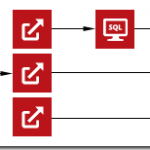
Earlier this week, I was revisiting a design for a Logic App that interacted with an event about a business entity that was represented as an XML message. It used data from this XML message to invoke actions later in the process, and relied on the XPath Extractor API App to provide access to the data contained within the XML. It looked something like this:
At the time, the choice to use XPath Extractor API Apps was an alright choice, given that there weren’t really any alternative API Apps in the marketplace that allowed one to cross the XML / JSON divide – JSON being the native tongue of Logic Apps. That has since changed, and upon revisiting the design, it became apparent that using the XPath Extractor was a poor choice.
I wasn’t doing anything complex (e.g., selecting the text inside an element only when that element had an attribute with a specific value and appeared nested inside an element beginning with a certain set of characters), I was just trying to retrieve the values stored within scalar elements within the same location in the XML document each time – elements that I would have simply treated as distinguished fields in BizTalk Server and happily dotted into while editing an expression.
Despite not doing something complex, the original design was using 3 separate API App executions just to read 3 separate values. That seems a little bit wasteful for something that the Logic App runtime would give me for free with JSON data.
Using the Right Tool to Bridge the XML / JSON Divide
So what API App was added into the mix since the original plan for this Logic App? The BizTalk JSON Encoder API App – which provides translation from/to XML/JSON.
It accomplishes this in a similar way to BizTalk Server’s own JSON Encoder / JSON Decoder pipeline components, and like those components also requires an XML schema in order to perform the conversion from JSON to XML. The schema can be written by hand, generated from JSON in the Azure Portal, generated from a Flat-file in the Azure Portal, or created using Visual Studio 2012 with the MABS SDK.
Once you have your schema, you can use the Components tile of the JSONEncoder API App within the Azure Portal to access an interface to upload and provide a name for the schema.
In the case of XML to JSON, the conversion can occur with or without a schema (i.e., a schema isn’t going to be used, but it won’t hurt anything if you upload one either).
Doing Simple Things with Simple Data
So how do we do something simple (e.g., access a few fields) with simple data? Thankfully, the answer is quite easily. First off, you will need to create an instance of the BizTalk JSON Encoder API App. This instance can be re-used for any XML to JSON conversions that you will require. Converting back to XML from JSON assumes that you have created the requisite schemas and uploaded them for the instance. One downside here is that you cannot share schemas between instances (as they are stored in local storage for the API App on the Gateway).
Once you have the API App, you can feed it any arbitrary XML payload and it will provide a nice JSON representation that you can dot into for any later actions in a Logic App. Unfortunately, its flexibility comes at the cost of rich metadata describing the shape of the output (i.e., the designer won’t be able to help you know which nodes will actually exist in the output, regardless of potentially having a schema available).
So let’s make it happen. I have an event about a business entity (product) that looks something like this as XML:
Let’s say that I want to retrieve the ProductName out of this message. In that case, the expression within a Logic App to retrieve the value would look something like this:
@body(‘jsonencoder’).OutputJSON.ProductEvent.ProductName
If the Remove Outer Envelope property on the BizTalk JSON Encoder API App was set to true, then it would look like this instead:
@body(‘jsonencoder’).OutputJSON.ProductName
As shown in the screenshot above, neither of these expressions are going to show up within my nice little drop-down list of values to select. Instead, I must dot into it in trust that it will be there. But how can we be a little bit more sure? We could couple it with an XML Validator, or add a condition on the action based on the logical existence of the node.
Does the simple case work though? Well, after updating the expression:
And then submitting the sample message to the source queue, this was the input/output set of the BizTalk JSON Encoder:
And this was the data that showed up in the request bin:
What If I Have More Complex Data?
What if the data that I have isn’t just a bunch of text in elements, but I have a complex structure with repeating nodes and attribute values? To find out, I loaded up the sample message with some sample data to see.
Running that through the JSON Encoder, I saw this output:
Attributes are represented as properties prefixed with @ and the text included in a node is represented as the value of a property named #text. Repeating nodes are collapsed into an array sharing the name of the node name – perfect for repeating an action against.
Then, When Is the XPath Extractor the Right Answer?
Simple data or complex data might not be the determining factor in the choice between using the XPath Extractor or JSON Encoder API Apps to access data locked up in an XML message. Instead, it looks like the determining factor is how hard it is to describe where that data lives (or doesn’t live) within the content. In all the cases we’ve seen thus far, we referenced by name / location in the document. XPath will shine when we don’t have that information, or when we want information about the content in the document, and as such still deserves a place in the toolbox.
However, just because you’re trying to get data out of XML, and all previous knowledge points to XPath as the answer, it might not be – instead, the answer might be to translate that message into the native tongue of the runtime that’s interacting with it.
What’s Next?
I currently owe all of you readers out there a post about push triggers. I have most of it written, but I’m not yet fully pleased with it. I’ll try to get that out as soon as possible. Additionally, there’s another post that I’m even more excited about, one that I’ve been thinking about for the last 3 years. I’m likely going to be posting that one shortly after WPC.
Stay tuned. There’s heaps that I want to share, but, alas, the constraints of the solar day and the capacity of my human flesh prevent it from happening all at once.
by Nick Hauenstein | May 1, 2015 | BizTalk Community Blogs via Syndication
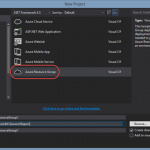
As shown today in Ilya Grebnov, and Stephen Siciliano’s Build 2015 Session titled simply “Logic Apps”, there is now (as of the 29th actually) a nice project template for creating a deployment project containing a Logic App with separate per-environment parameters files. The deployment project is really scoped higher than the Logic App itself, it is instead a definition for an Azure Resource Group to be provisioned by Azure Resource Manager.
Selecting the project template (found in the Cloud category as Azure Resouce Group) launches a dialog asking for the type of resource(s) that you would like the resource group project to start with. There are two resource types that include Logic Apps: Logic App, and Logic App and API App.
Once created, the project (like any other Cloud Deployment Project up to this point) contains a PowerShell script to perform the actual deployment, along with a helper executable named AzCopy.exe. However, in addition to that, we not only get a file describing the deployment of an App Service Plan, Gateway, API App, and Logic App, we also get a parameters file — initially for a dev environment, but it is a step in the right direction and shows how to make it happen.
How do we know that this parameters file will be used? Well the parameters file itself is actually a parameter within the Deploy-AzureResourceGroup.ps1 deployment script, and the default is to use dev:
Inside, you will find the parameters apiAppName, gatewayName, logicAppName, and svcPlanName.
The definition for the Logic App itself is contained deep within the LogicAppAndAPIApp.json file (starting around line 271 in my test shown here):
It consists of a recurrence trigger (polling very hour) that invokes an operation with id of getValues on the deployed API App and outputs an array containing the value of the readValues property on the body of the API App response. I guess that’s the “Hello World” of the Logic App world, eh?
Code where Code Belongs
This represents a big step in the right direction for the team building Logic Apps. It’s putting code where code belongs, in the best IDE ever made and backed by proper source control. It also cleanly separates logic and configuration, enabling multiple environments.
However, without a visual editor, and an/or an quick/easy way to resolve API App ids from the marketplace, it’s going to be tough to build more complex flows in this fashion. I would also like to see the deployment spread across files. Imagine a resource group with multiple Logic Apps (a receive pipeline style Logic App, a process orchestration-style Logic App and a send pipeline style Logic App), working with that in one giant file would be a little bit painful.
In theory, there is a concept of a definitionLink to the body of the workflow itself (so as to not include it directly within the deployment script), but that’s not what the project template will give you:
That’s All From Build
I know that I wrote a lot for each of the major BizTalk events over the last 6 months, but for Build 2015, I’m going to keep it short and sweet and to the point. I’m juggling a lot of really cool things right now that I’m excited to share with you as soon as they’re ready. So stay tuned!
As a side note, BizTalk Server on-premise is going to be getting some love over the next year as well. Another major version is in the works, and you’d better bet that I’m going to be all over that as well.

by Nick Hauenstein | Apr 26, 2015 | BizTalk Community Blogs via Syndication
In my first article recapping the BizTalk Summit 2015, I said I would revisit the topic of triggers for those of you wanting to build out custom API Apps that implemented either of those patterns.
After working through the official docs, and reviewing the code presented at the BizTalk Summit 2015 in anticipation of our upcoming Cloud-Based Integration Using Azure App Service class, I decided to take a little bit of a different direction.
Rather than do a write-up both here, and in hands-on-lab form within the class of writing a bunch of custom Swashbuckle operation filters for generating the appropriate metadata for a Logic App to properly consume an API App that’s trying to be a trigger, I decided to write up a library that just made it a little bit easier to create custom API Apps that are consumable from the Logic App designer.
How did I go about doing that? Well Sameer Chabungbam had mentioned in his presentation that a more elegant solution might be to use attributes for friendly names and the like. So I went in that direction, and made attributes for all of the stuff that the Logic App designer needs to have in a certain way (really anything that involved vendor extensions in the generated swagger). What do we do with all of those attributes? Well, we uh, read them in custom operation / schema filters of course! So yes, I did have to write some custom filters after all, but now you don’t have to!
Announcing QuickLearn’s T-Rex Metadata Library
I rolled all of the code into a library that I’ve named the T-Rex Metadata Library1. The library is available as a NuGet package as well that you can add directly to your API App projects within Visual Studio 2013.
So how can we use that to make custom triggers? I’m glad you asked. Let’s get right into it.
Creating Custom Polling Triggers
The easiest kind of trigger to implement is a polling trigger. A polling trigger is polled by a Logic App at a set polling interval, and is asked for data. When the trigger has data available, it is supposed to return a 200 OK status with the data contained in the response body. When there is not data available, a 202 Accepted status should be returned with an empty response body.
You can find an example of a polling trigger over here. This polling trigger takes in a single configuration parameter named “divisor” and when polled will return data if and only if the current minute is evenly divisible by the divisor specified (kind of silly, I know).
So, how do I separate sample from reality and actually build one?
Steps for Creating a Polling Trigger
- Create a new project in Visual Studio using the Web Application template
- Choose API App (Preview) as the type of Web Application you are creating
- Add the TRex NuGet package to your project
- In the SwaggerConfig.cs file, add a using directive for TRex.Metadata
- In the SwaggerConfig.cs file, just after the line showing how to use the c.SingleApiVersion add a line that reads c.ReleaseTheTRex();
- Add using directives for the Microsoft.Azure.AppService.ApiApps.Service, and TRex.Metadata namespaces.
- Microsoft.Azure.AppService.ApiApps.Service provides the EventWaitPoll andEventTriggered extension methods
- TRex.Metadata provides the T-Rex Metadata attribute, and the Trigger attribute
- Create an action that returns an HttpResponseMessage
- Decorate the action with the HttpGet attribute
- Decorate the action with the Metadata attribute and provide a friendly name, and description, for your polling action
- Decorate the action with the Trigger attribute passing the argument TriggerType.Poll to the constructor, as well as the type of model that will be sent when data is available (e.g.,typeof(MyModelClassHere))
- Make sure the action has a string parameter named triggerState
- This is a value that you can populate and pass back whenever polling data is returned to the Logic App, and the Logic App will send it back to you on the next poll (e.g., to let you know that it is finished with the last item sent)
- You do not need to decorate this parameter with any attributes. T-Rex looks for this property by name and automatically applies the correct metadata (friendly name, description, visibility, and default value)
- Optionally, add any other parameters that controls how it should poll (e.g., file name mask, warning temperature, target heart rate, etc…)
- Decorate these parameters with the Metadata attribute to control their friendly names, descriptions, and visibility settings
- Make sure that the action returns the value generated by calling Request.EventWaitPoll when no data is available
- You can also provide a hint to the Logic App as to a proper polling interval for the next request (if you anticipate data available at a certain time)
- You can also provide a triggerState value that you want the Logic App to send to you on the next poll
- Make sure that the action returns the value generated by calling Request.EventTriggered when data is available
- The first argument should be the data to be returned to the Logic App, followed by the newtriggerState value that you want to receive on the next poll, and optionally a new polling interval for the next request (if you anticipate data available at a certain time, or more likely that you know more data is immediately available and there isn’t a need to wait).
After you publish your API App, you should be able to use it as a trigger in a Logic App. Here’s what the sample looks like after being deployed:
Next Up
In my next post, I’ll turn my focus to custom push triggers. For now though, I need to rest a little bit to get ready for 2 days of teaching followed immediately by Build 2015! It’s going to a long, yet quite fun week this week!
Until next week, take care!
1It was named this so that it would comply with the latest trends of fanciful library names, and so that I could justify naming a method ReleaseTheTRex. If you believe the name too unprofessional, let me know and I may add a TRex.Enterprise.Extensions namespace that includes a more professional sounding method name which simply calls into the former.
