by Sriram Hariharan | Aug 23, 2017 | BizTalk Community Blogs via Syndication
You can really feel how time actually flies if you have attended the Azure Logic Apps Live webcast from the Logic Apps team. It feels just like yesterday when the team came online and presented a bunch of updates for the month of July and in no matter of time, here they were today (August 22) to present the next set of updates. I’ve always been fascinated by the commitment from the Logic Apps team in rolling out new features, organizing these monthly webcasts and responding to queries on the Twitter channel. Right, now on to the Jeff Hollan and Kevin Lam show!!! (Credits to Eldert Grootenboer for terming this during the webinar!)
What’s New in Azure Logic Apps?
- Azure Event Grid – The newest and hottest kid in town; technical preview version was released by Microsoft on August 16th.
What is Azure Event Grid??
Azure Event Grid is the event-based routing as a service offering from Microsoft that aligns with their “Serverless” strategy. Azure Event Grid simplifies the Event Consumption logic by making it more of a “Push” mechanism rather than a “Pull” mechanism – meaning, you can simply listen to and react to events from different Azure services and other sources without having to constantly poll into each service and look for events. Azure Event Grid is definitely a game changing feature from Microsoft in the #Serverless space.
The best example where you can use Azure Event Grid is to automatically get notified when any user makes a slight modification to the production subscription, or when you have multiple IoT devices pumping telemetry data.
Azure Event Grid Connectors for Logic Apps
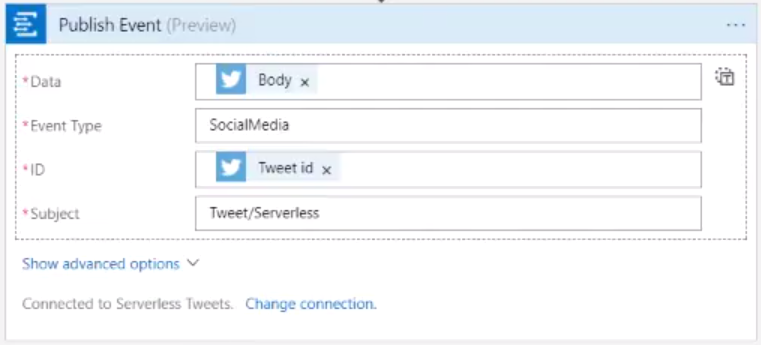
At present, there is a Azure Event Grid Connector with only one trigger – Azure Event Grid – When a resource event occurs. You can use this connector to trigger events whenever a resource event occurs.
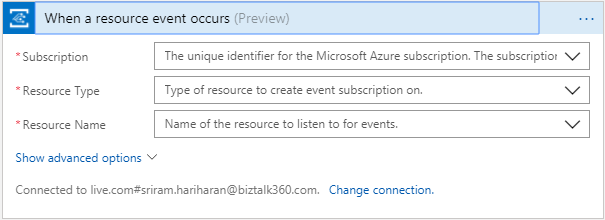
The Logic Apps team is also working on adding a new connector – Publish Event which will be rolled out shortly. Using this connector, users can publish events (e.g., all events related to Serverless) into the Event Grid.
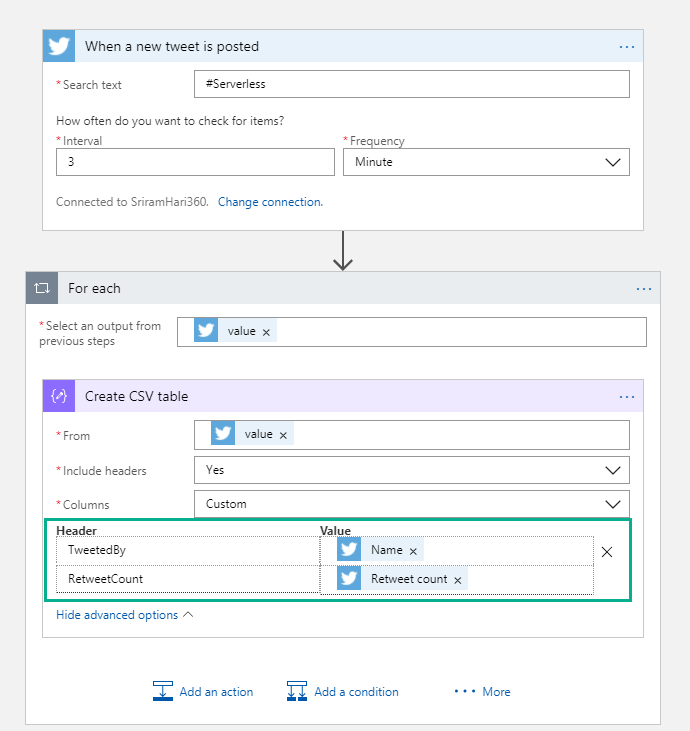
- Custom HTML and CSV headers – If you have an array of data (example, #Serverless on Twitter), you can easily convert the information into a CSV document or HTML table by using the “Create CSV Table” action. Later, you can pick up this CSV table and easily embed to an email.
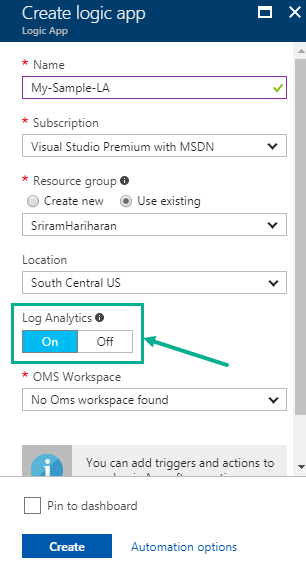
- Enable Log Analytics from Create – More easier way to enable Log Analytics by toggling the status while creating the Logic App. You no longer need to go to the Diagnostics section to enable Log Analytics. Check out this detailed blog post that shows how you can enable Log Analytics while creating the Logic App.
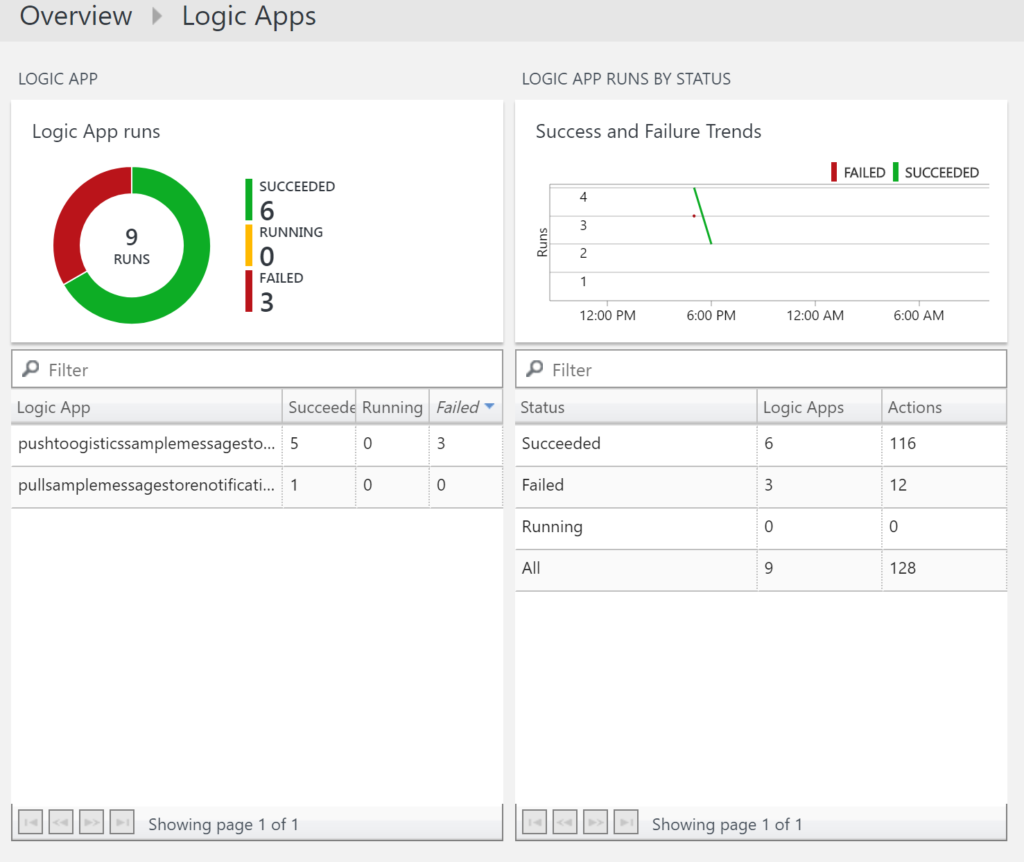
- OMS Workspace Dashboard – Create a global dashboard for all the available Logic Apps under your subscription. View the status of the Logic App, number of runs and additional details. Check out this blog post on how you can integrate Azure Logic Apps and Log Analytics.
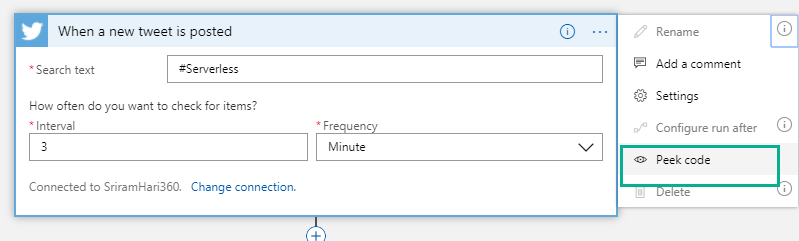
- Peek at code view – Say, you are working with Logic Apps and you add a connector. From now, you can easily switch between the code view and designer view by clicking “Peek code” from the Options drop down (….).
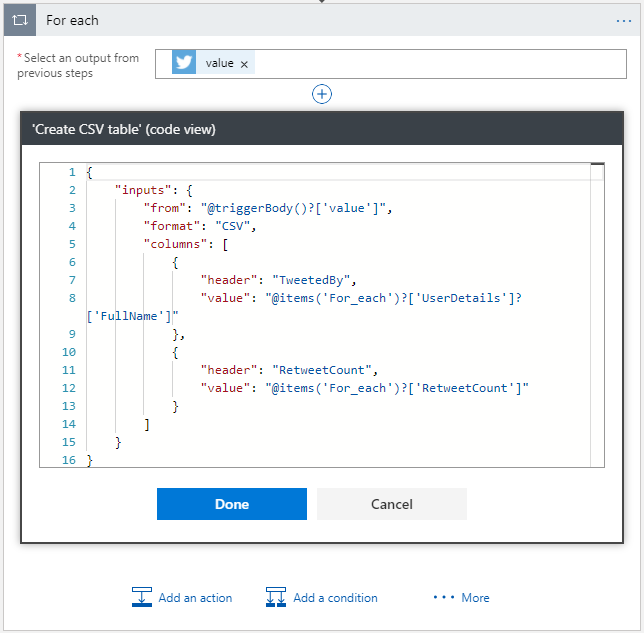
Note: At present, the Peek code is available only in Read-Only mode. If you wish you need to edit the code directly from here, you can send the Logic Apps team a feedback on Twitter or through User Voice.
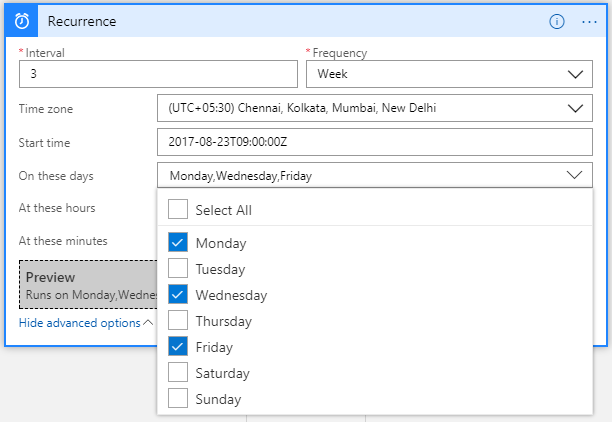
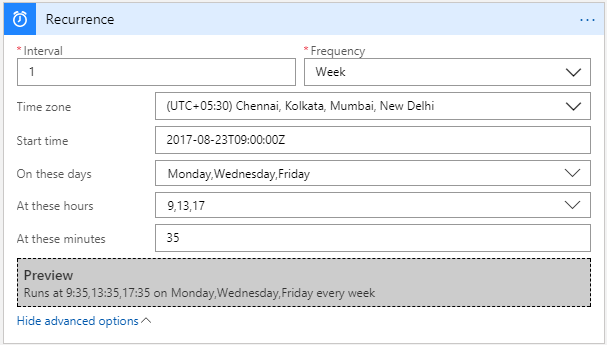
- Advanced Scheduling in the Logic Apps Designer – There are new options to schedule the Logic App execution on a Daily and Weekly basis. This was available in the code view but now you can get this experience right in the designer. Monthly update will be rolled out soon!
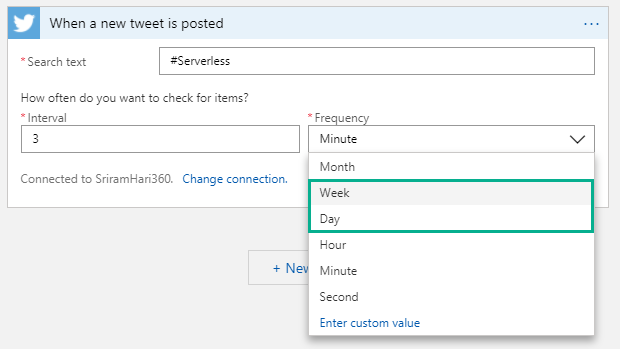
In the Schedule trigger, you will notice that when you click on Week, there are few advanced operations available for you to define when you want the trigger to execute during a week. Say, you want your trigger to execute every Monday, Wednesday, Friday at 9:35 AM, 1:35 PM; 5:35 PM. The below screenshot depicts the example. The preview section will display the actual Logic App trigger condition based on the previous selections.
New Connectors
- Azure Table Storage – This was one of the second most sought after connector from the community!
- Azure Event Grid
- Azure Log Analytics
- Azure SQL Data Warehouse
- Microsoft StaffHub
- MySQL (R/W)
- ServiceNow (East US 2 region)
- Amazon Redshift
- DocFusion 365
What’s in Progress?
As usual, another long list of features that the Logic Apps team is currently working on and should be available in the coming weeks.
- Concurrency Control (code-view live) – Say, your Logic App is executing in a faster way than you want it to actually work. In this case, you can make Logic Apps to slow down (restrict the number of Logic Apps running in parallel). This is possible today in the code-view where you can define say, only 10 Logic Apps can execute at a particular time in parallel. Therefore, when 10 Logic Apps are executing in parallel, the Logic Apps logic will stop polling until one of the 10 Logic Apps finish execution and then start polling for data.
NOTE: This works with the Polling Trigger (and not with Request Triggers such as Twitter connector etc) without SplitOn enabled.
- Custom Connectors – Get your own connector within your subscription so that your connector gets shown up on the list. This is currently in Private preview and should be available for public in the month of September.
- Large Files – Ability to move large files up to 1 GB (between) for specific connectors (blob, FTP). This is almost ready for release!
- SOAP – Native SOAP support to consume cloud and on-premise SOAP services. This is one of the most requested features on UserVoice.
- Variables (code-view live) – append capability to aggregate data within loops. The AppendToArray will be shipped soon, and AppendToString will come in the next few weeks.
- Expression intellisense – This functionality will go live on August 25th. Say, if you are typing an expression, you will see the same intelligent view that you see when you are typing in Visual studio.
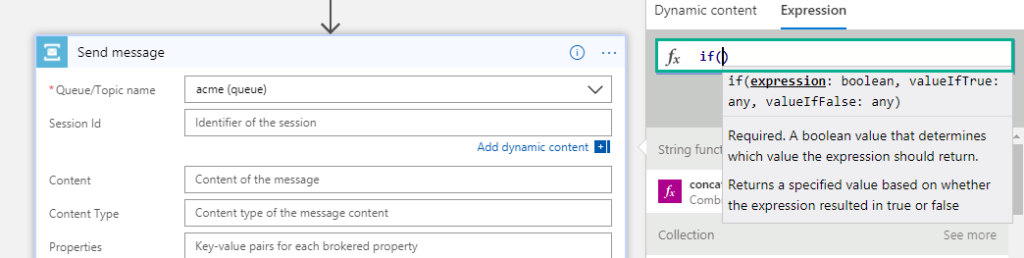
- Expression Tracing – You can actually get to see the intermediate values for complex expressions
- Foreach nesting in the designer – This capability will soon be incorporated into the designer in the coming few weeks.
- Foreach failure navigation – If there are 1000 iterations in the foreach loop and 10 of them failed; instead of having to look for which one actually failed, you can navigate to the next failed action inside a for each loop easily to see what happened.
- Functions + Swagger – You can automatically render the Azure functions annotated with Swagger. This functionality will be going live by end of August.
- Publish Logic Apps to PowerApps and Flow in a easy way
- Time based batching
- Upcoming Connectors
- Workday
- Feedly
- SQL Triggers (available in East US today but will be available across other regions in a few weeks)
Watch the recording of this session here
[embedded content]
Community Events Logic Apps team are a part of
- Integration Bootcamp on September 21-22, 2017 at Charlotte, North Carolina. This event will focus on BizTalk, Azure Logic Apps, Azure API Management and lots more.
- INTEGRATE 2017 USA – October 25 – 27, 2017 at Redmond. Register for the event today. Scott Guthrie, Executive Vice President at Microsoft will be delivering the keynote speech.
- New York Hackathon – September 5, 2017 – A first of its kind Hackathon event on September 5, 2017 at Microsoft Times Square office in Downtown, Washington. This hackathon will focus on Azure Functions, Azure Logic Apps, Azure App Services, API Management and more. If you are interested to attend this hackathon, send the Logic Apps team a Tweet (DM), email.
- Microsoft Ignite – September 25—29, 2017 at Orlando, Florida – Sessions on Logic Apps, APIs, Integration, and Serverless
Why attend INTEGRATE 2017 USA event?
Here’s a heads up as to why you have to attend INTEGRATE 2017 USA event.
Also check out this blog post that should get you convinced on why to attend INTEGRATE 2017 USA event: Read blog
Feedback
If you are working on Logic Apps and have something interesting, feel free to share them with the Azure Logic Apps team via email or you can tweet to them at @logicappsio. You can also vote for features that you feel are important and that you’d like to see in logic apps here.
The Logic Apps team are currently running a survey to know how the product/features are useful for you as a user. The team would like to understand your experiences with the product. You can take the survey here.
If you ever wanted to get in touch with the Azure Logic Apps team, here’s how you do it!

Previous Updates
In case you missed the earlier updates from the Logic Apps team, take a look at our recap blogs here –
Author: Sriram Hariharan
Sriram Hariharan is the Senior Technical and Content Writer at BizTalk360. He has over 9 years of experience working as documentation specialist for different products and domains. Writing is his passion and he believes in the following quote – “As wings are for an aircraft, a technical document is for a product — be it a product document, user guide, or release notes”. View all posts by Sriram Hariharan
by Steef-Jan Wiggers | Aug 21, 2017 | BizTalk Community Blogs via Syndication
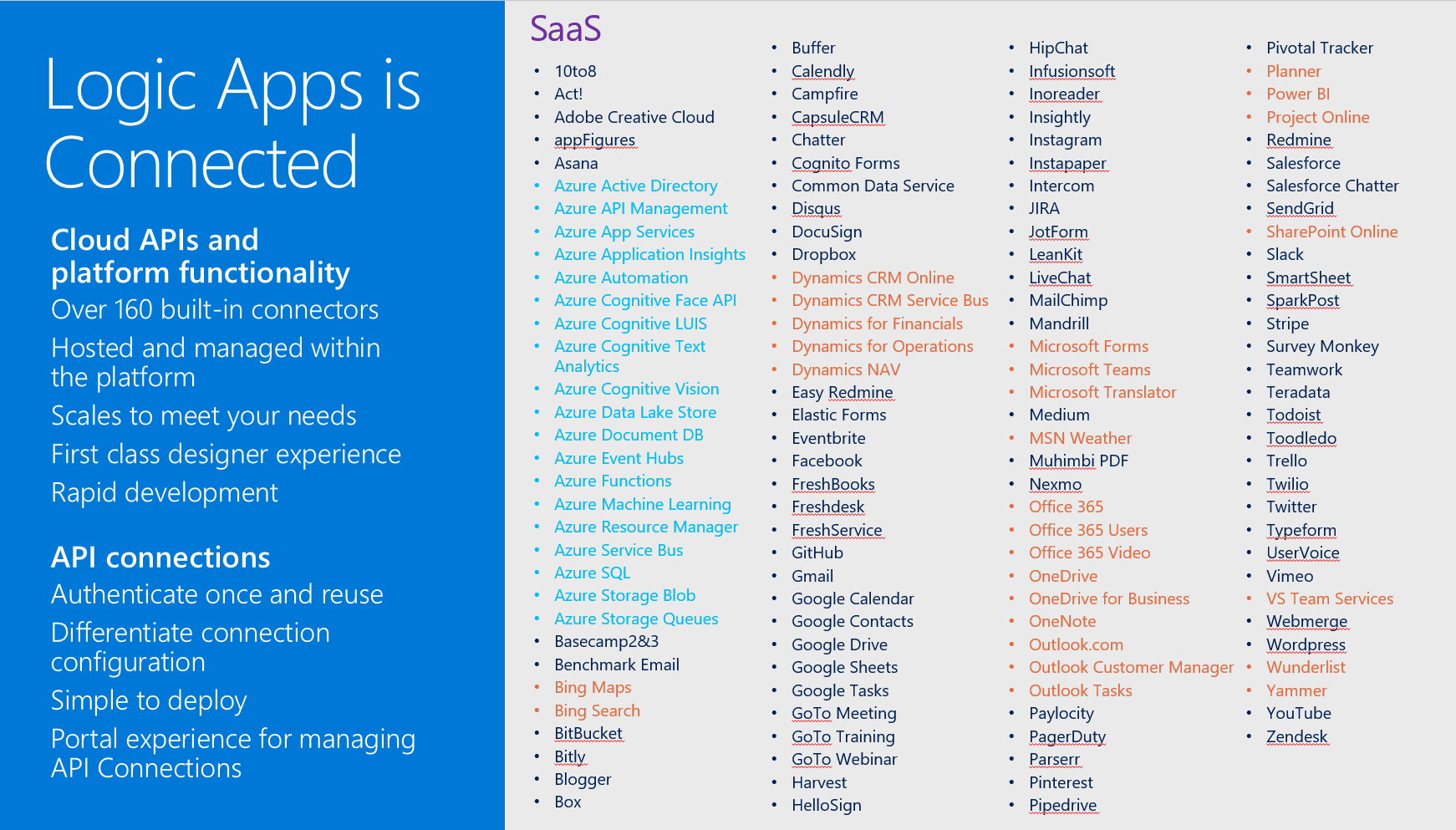
Microsoft’s iPaaS capability in Azure Logic Apps is little over a year old. And this service has matured immensely over the course of a year. If you look at what Gartner believes an iPaaS should have as essential features, Logic App has each of them. Multi-tenant, micro-billing (pay as you go), no development (connectors, see diagram below), deployment and manageability (Azure Portal) and monitoring (OMS).
Moreover, Logic Apps can be a part of your overall cloud solution, since they can play a critical part in connecting to data sources, syncing information or sending out notifications.
Scenario with Logic App
Suppose a business would like to know if the orders it sends through a carrier arrive at customer and in an expected state. The orders get picked in a warehouse and once a certain number of orders have been reached, they are scanned and loaded into a truck. Subsequently, the truck leaves the warehouse and drives it to route to various customers to deliver the orders.
Note: The calculation of the efficient route and number of orders that create an optimal load are separate processes. Therefore, see for instance the Fleet Management IOT sample.
In this scenario we will focus on the functional logic process, being order be made ready for shipment, leaving the warehouse with a truck (carrier) and arriving at a certain time at a customer. Subsequently, the customer on its turn will verify if the order is correct and not damaged.
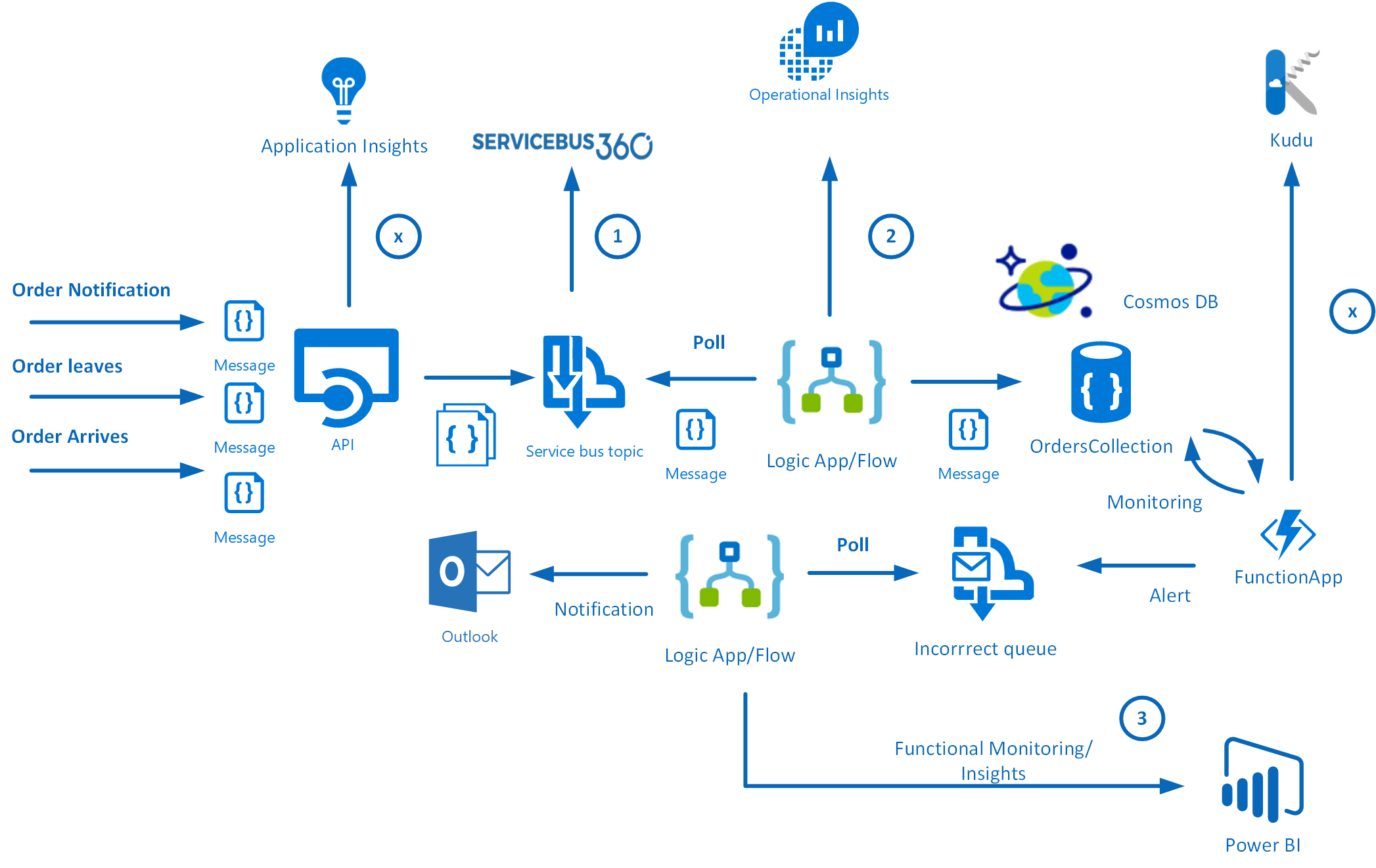
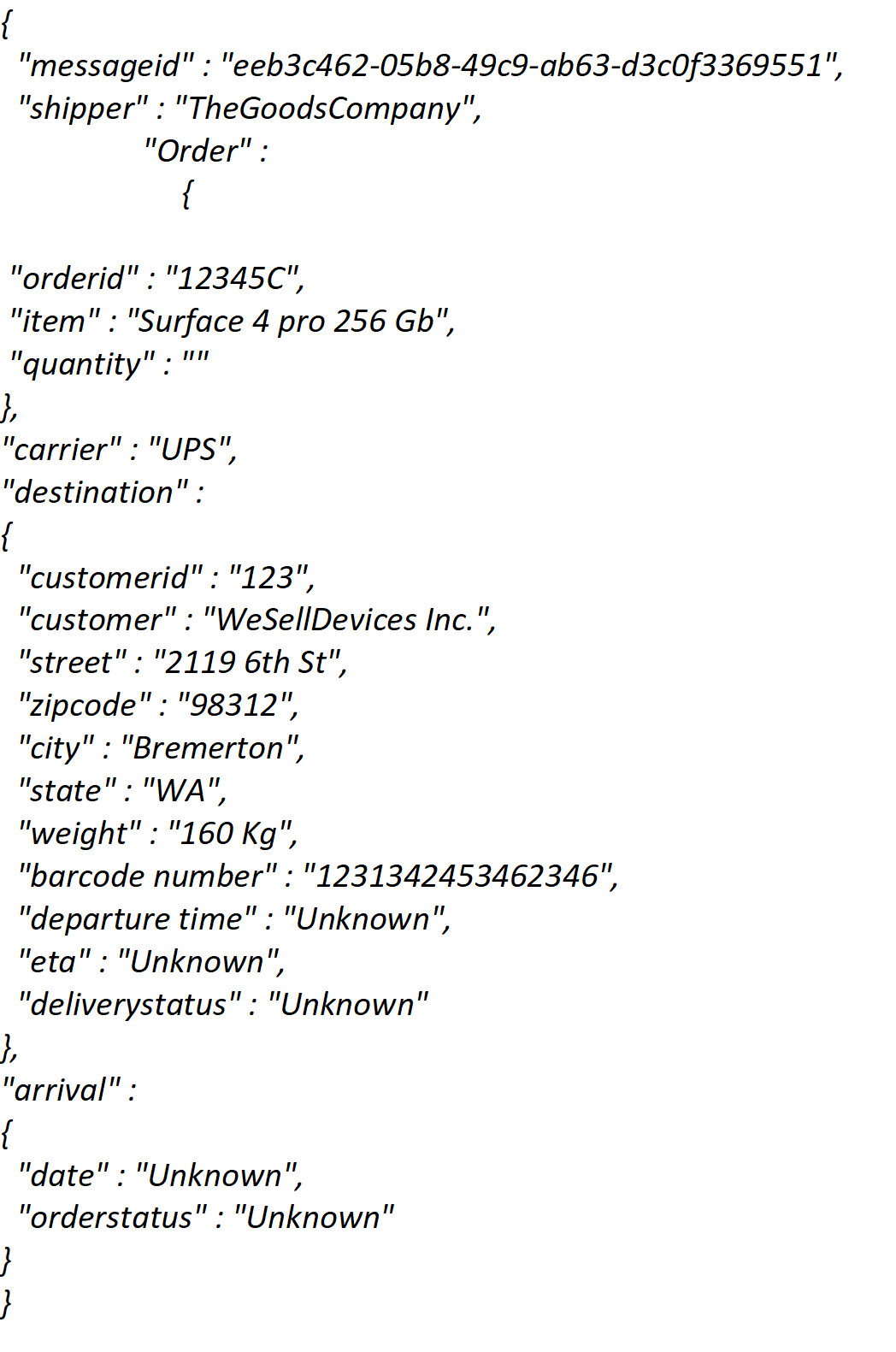
There are three messages going to generic API that pushes the messages to a Service Bus Topic. Subsequently, the messages are being picked up by a Logic App, which sends the messages to a Cosmos DB (Document DB). The first message is a notification that the order is picked, the second is that the order is en route and the third message contains arrival and verification of the order.
JSON Message example
The numbers in the diagram indicate the monitoring and diagnostic capability for the solution. ServiceBus360 is used to monitor the service bus queue and topic used in this scenario. Operations Management Suite (OMS) to monitor Logic Apps, Functions and Cosmos DB. And finally PowerBI for functional monitoring purposes.
Azure Services
In this scenario the solutions consist of several Azure Services (PaaS and SaaS) :
- PaaS
- Cosmos DB
- Service Bus
- Logic Apps
- Functions
- App Services
- SaaS
The PaaS services are all serverless, which means the infrastructure the services use, are abstracted away. You only specify what you need (consume), how much (scale) and pay for what you use.
Note: More on Serverless see serverless computing.
Building the solution
The implementation of a solution based on the scenario requires several services to be provisioned in Azure:
- a Service Bus namespace with a topic
- a WebApp for hosting the API
- a Cosmos DB instance (Document DB)
- Logic Apps
- a Function App
- Outlook and Power BI (part of Office365)
- ServiceBus360
The latter is a SaaS solution to manage your Service Bus Namespace(s). See ServiceBus360 for more information.
The WebApp will be hosting a simple API for which each party (shipper, carrier, customer) can be sent messages to. The message contract for each message is the same (as depicted earlier). The Service Bus Topic will be created in a Service Bus Namespace and a Logic App will poll at a certain interval.
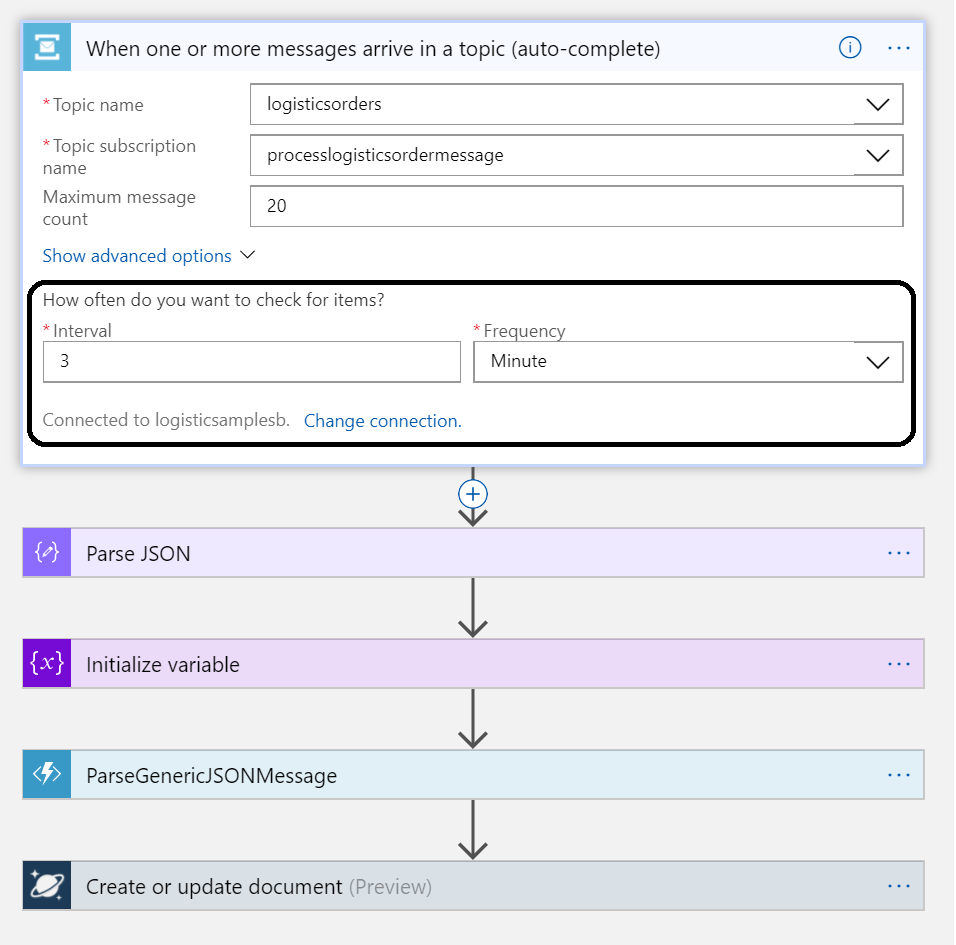
Once the Logic App receives the message it will parse it, and create a document with the body. A Function app will have a function for parsing the message body and for monitoring the document store. A second Logic App will poll a queue and send an email notification. It also will send data to PowerBI i.e. streamed dataset. These are all the nuts and bolts of this serverless solution.
Monitoring and management
The Logistics solution is in place and operational. So, how do I monitor and manage the solution as it consists of several services? The diagram shows three monitoring solutions:
Note: I leaving monitoring/management of WebApp hosting the API (Application Insights) and Azure Functions (Kudu) out of the scope of this blog.
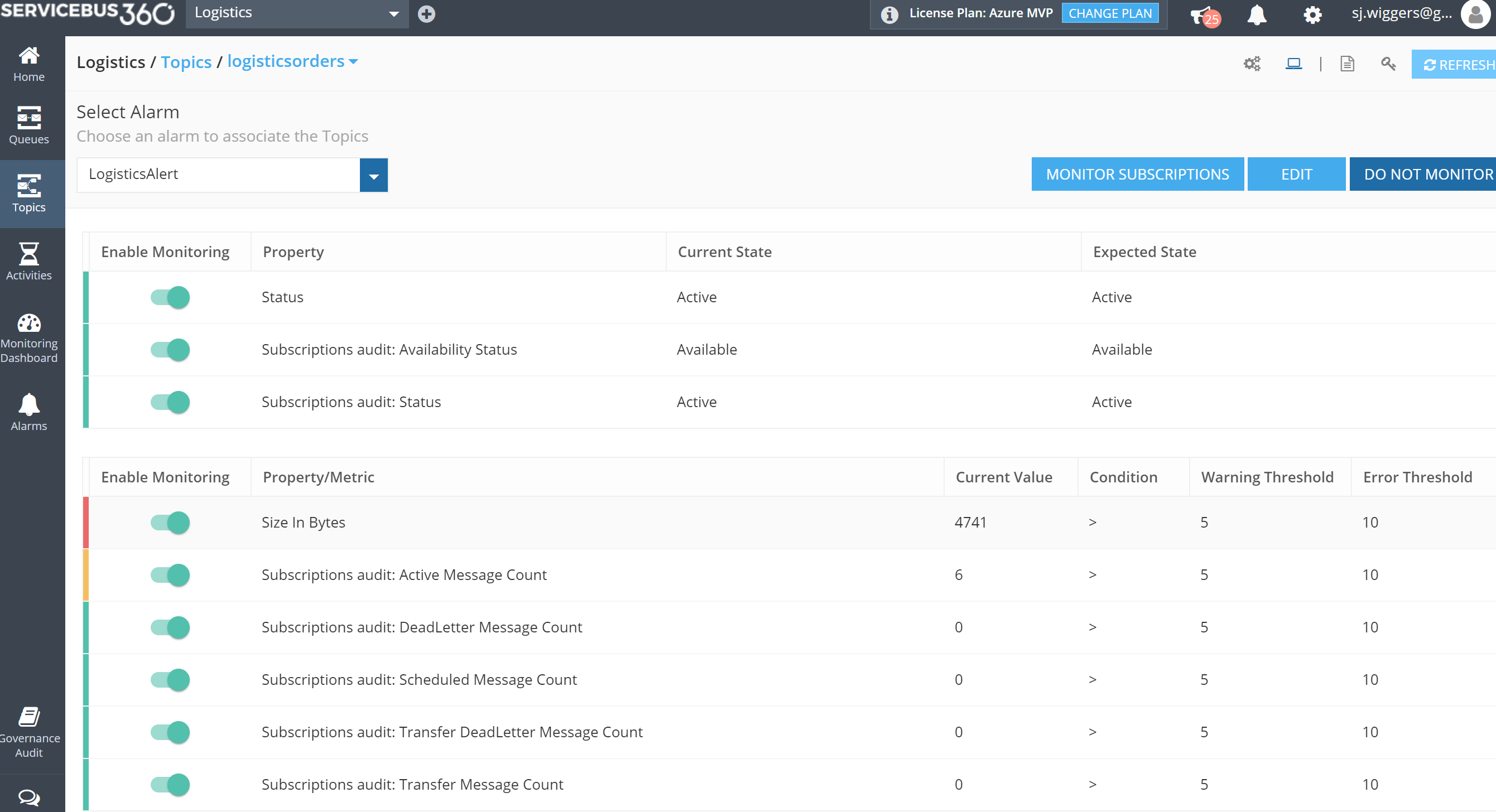
Each solution provides monitoring capabilities. With ServiceBus360 you can monitor and manage Service Bus entities Queues, Topics, Relays and Event Hubs. This cloud solution is developed by same company/team that built BizTalk360. The solution has Paolo Salvatori’s Service Bus Explorer as a foundation and extended it with new features like alarms, activities (testing purposes) and managing multiple namespaces.
Microsoft Operations Management Suite (OMS) offers a collection of management services. And within OMS you can add solutions like the Logic Apps Management (Preview), see my blog post Logic Apps solution for Log Analytics (OMS) strengthens Microsoft iPaaS monitoring capability in Azure.
PowerBI is used in our solution to create a report on delivered orders that are damaged. The report on this particular data could give the business a view of damaged orders. Below a screenshot of a simple report generated from data of the Logic App.
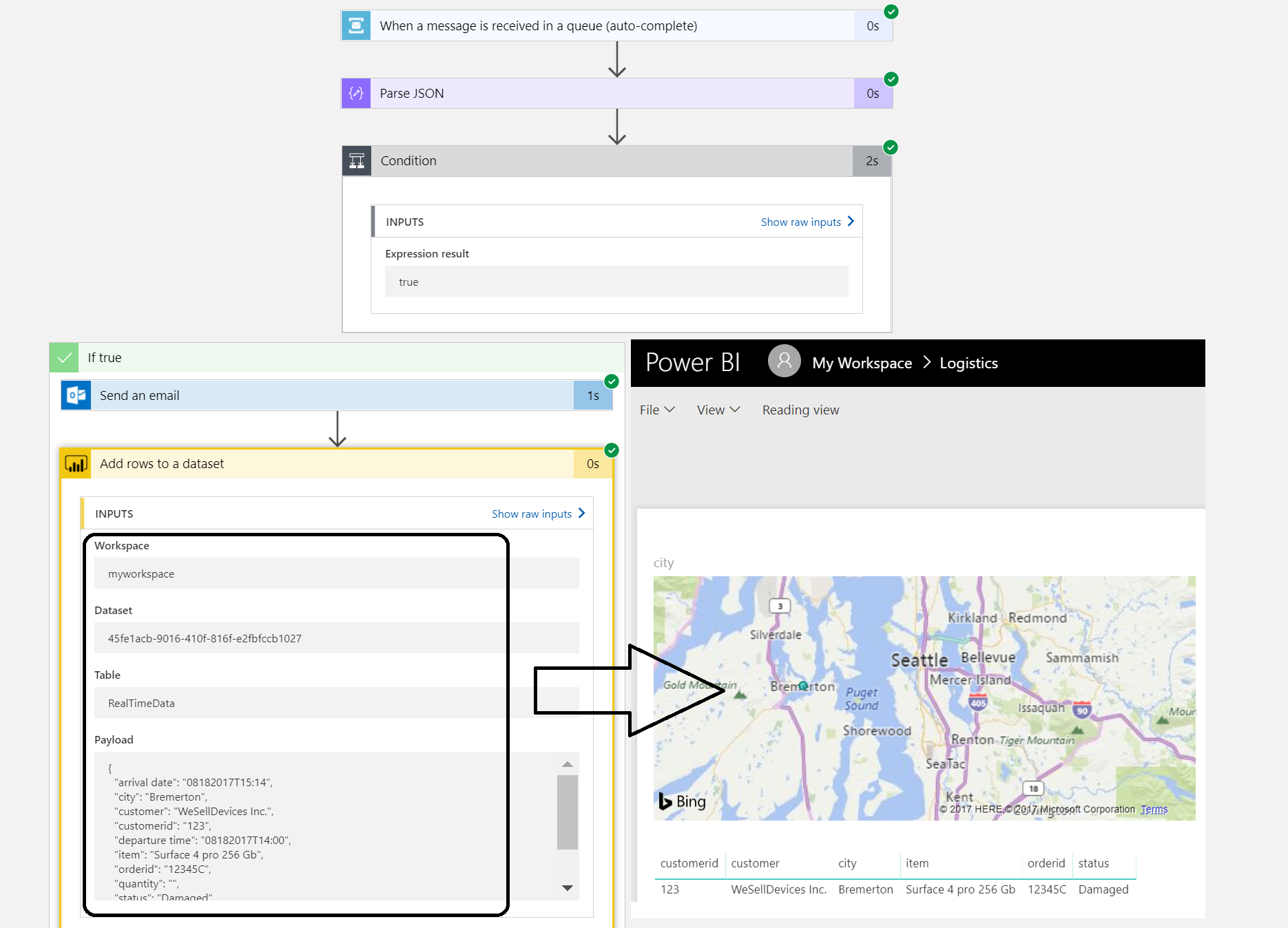
The streaming dataset configured in Power BI will receive data from the Logic App. The dataset leads to build a report like shown above.
Three different services each having their own characteristics and place in this scenario.
Considerations
The implementation of the serverless solution shows several services including monitoring and management. And of the monitoring services, I only touched three of them, excluding Kudu and Application Insights. The challenge to efficiently monitor and manage this solution or any serverless or multiple Azure services solutions is the fact that there are many moving parts. Each with their own features for diagnostics, monitoring (metrics) and hooks into either OMS or other services. Designing the functionality to solve a business problem with Azure Services can be just as complex as setting up proper operations.
To support your Azure solution means having the appropriate process in place and tooling or solutions. Hence this will bring the cost factor into the mix. Moreover, usage of tools (services) is not free, designing the process and configuring the services will likely bring consultancy cost and finally operations that will need to manage the solutions cost money too. These are some of my thoughts while building this solution in Azure. To conclude serverless is great, but do not forget aspects like monitoring.
What’s next
My intention with this blog post was to show the challenges with monitoring and management of a serverless cloud solution like our scenario. When you design a solution with multiple Azure Services you will face this challenge. You really need to take operations seriously when you design as they determine the running costs of supporting the solution. And there will be costs involved in the services you use like ServiceBus360, OMS, PowerBI or Application Insights. These services provide you the means to monitor your solution, yet none covers all the bases when it comes to monitoring and management of a complete solution to our scenario. Therefore, one overall solution to plug in the monitor/management of each service would be welcome.
Author: Steef-Jan Wiggers
Steef-Jan Wiggers has over 15 years’ experience as a technical lead developer, application architect and consultant, specializing in custom applications, enterprise application integration (BizTalk), Web services and Windows Azure. Steef-Jan is very active in the BizTalk community as a blogger, Wiki author/editor, forum moderator, writer and public speaker in the Netherlands and Europe. For these efforts, Microsoft has recognized him a Microsoft MVP for the past 5 years. View all posts by Steef-Jan Wiggers
by Steef-Jan Wiggers | Aug 16, 2017 | BizTalk Community Blogs via Syndication
Microsoft has released yet another service in its Azure Platform named Event Grid. This enables you to build reactive, event driven applications around this service routing capabilities. You can receive events from multiple source or have events pushed (fan out) to multiple destinations as the picture below shows.
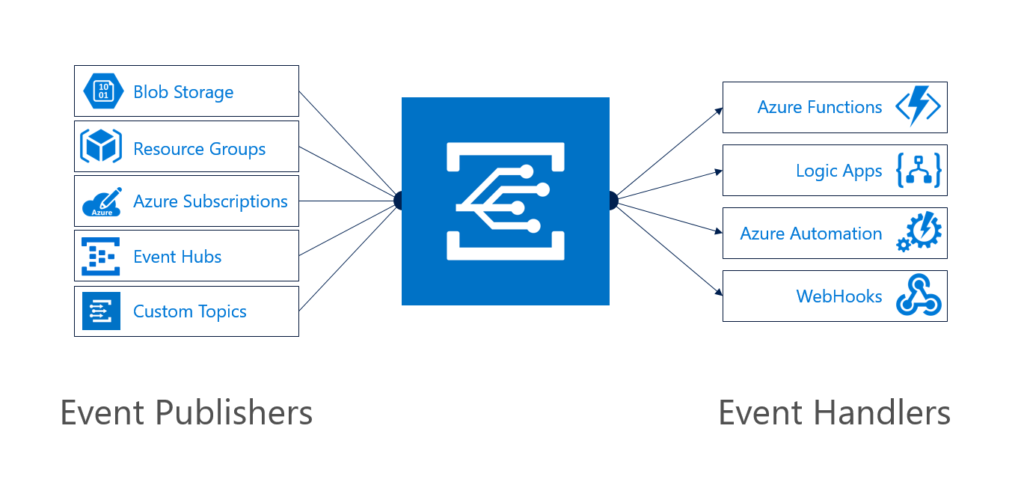
New possible solutions with Event Grid
With this new service there are some nifty serverless solution architectures possible, where this service has its role and value. For instance you can run image analysis on let’s say a picture of someone is being added to blob storage. The event, a new picture to blob storage can be pushed as an event to Event Grid, where a function or Logic App can handle the event by picking up the image from the blob storage and sent it to a Cognitive Service API face API. See the diagram below.

Another solution could involve creating an Event Topic for which you can push a workload to and an Azure function, or Logic App or both can process it. See the diagram below.
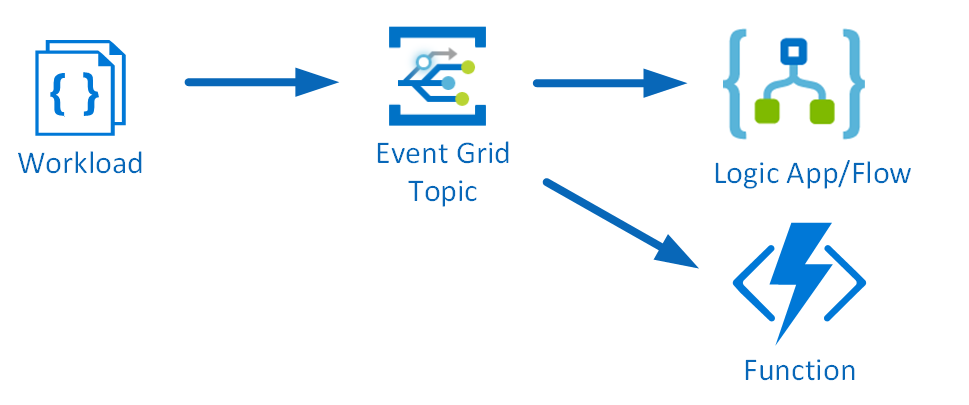
And finally the Event Grid offers professional working on operation side of Azure to make their work more efficient when automating deployments of Azure services. For instance a notification is send once one of the Azure services is ready. Let’s say once a Cosmos DB instance is ready a notification needs to be sent.
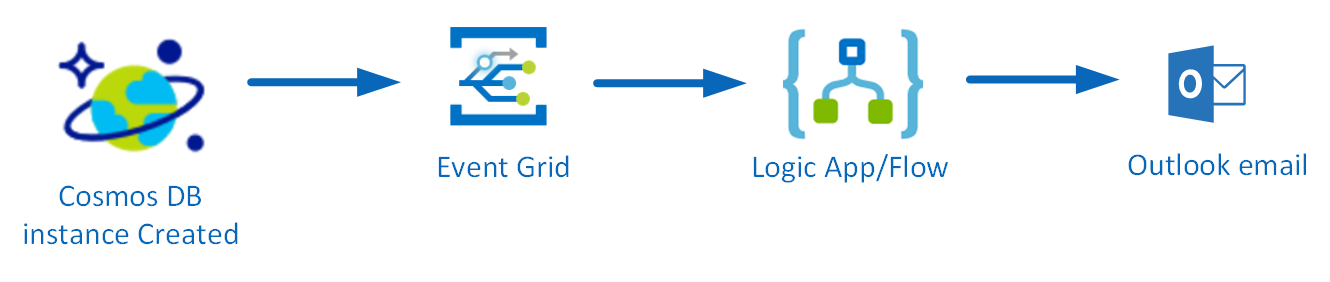
The last sample solution is something we will build using Event Grid, based on the only walkthrough provided in the documentation.
Sent notification when Cosmos DB is provisioned
To have a notification send to you by email once an Azure Service is created a Logic App is triggered by an event (raised once the service is created in a certain resource group). The Logic App triggered by the event will act upon it by sending an email. The trigger and action are the Logic and it’s easy to implement this. And the Logic App is subscribing to the event within the resource group when a new Azure Service is ready.
Building a Logic App is straight forward and once provisioned you can choose a blank template. Subsequently, you add a trigger, for our solution it’s the event grid once a resource is created (the only available action trigger currently).
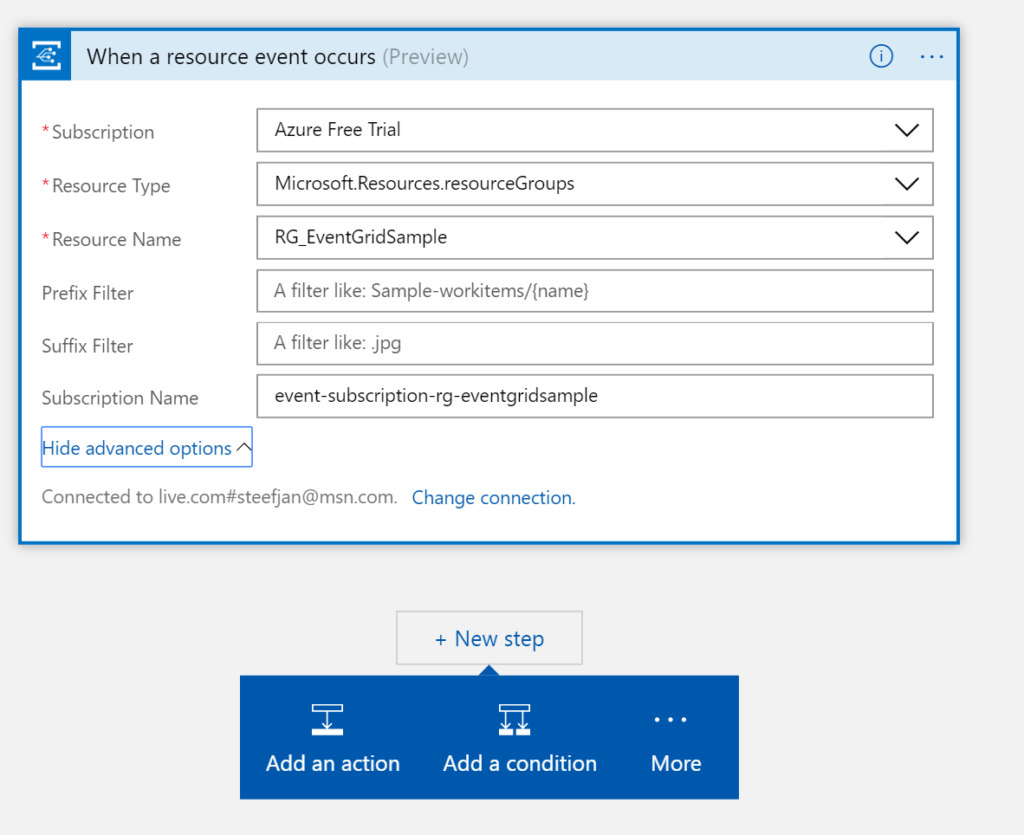
The second step is adding a condition to check the event in the body. In this condition in advanced mode I created : @equals(triggerBody()?[‘data’][‘operationName’], ‘Microsoft.DocumentDB/databaseAccounts’)
This expression checks the event body for a data object whose operationName property is the Microsoft.DocumentDB/databaseAccounts operation. See also Event Grid event schema.
The final step is to add an action in the true branch. And this is an action to sent an email to an address with a subject and body.
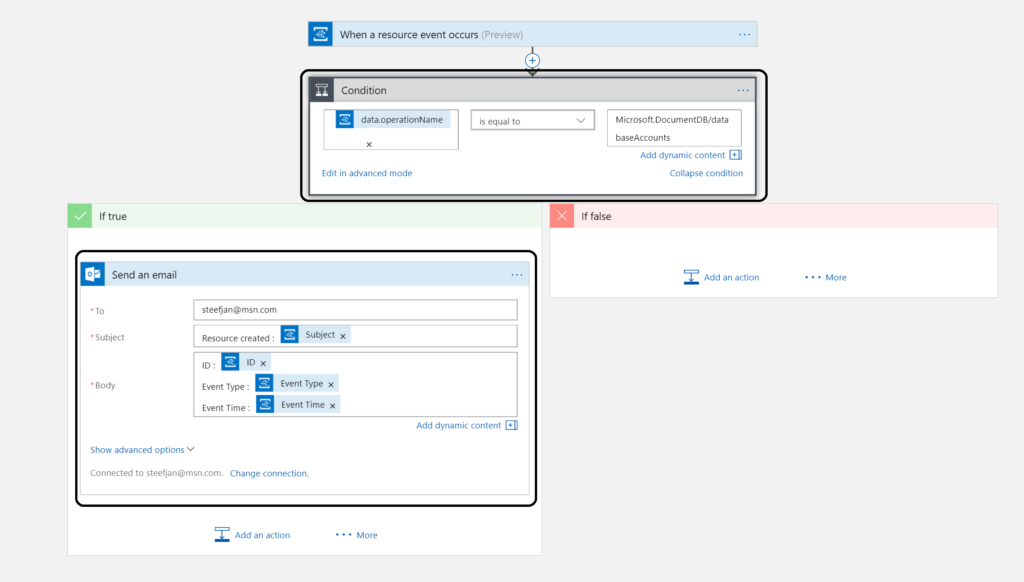
To test this create a Cosmos DB instance, wait until its provisioned and the email notification.
Note: Azure Resource Manager, Event Hubs Capture, and Storage blob service are launch publishers. Hence, this sample is just an illustration and will not actually work!
Call to action
Getting acquainted with this new service was a good experience. My feeling is that this service will be a gamechanger with regards to building serverless event driven solution. This service in conjunction with services like Logic Apps, Azure Functions, Storage and other services bring a whole lot of new set of capabilities not matched by any other Cloud vendor. I am looking forward to the evolution of this service, which is in preview currently.
If you work in the integration/IoT space than this is definitely a service you need to be aware and research. A good starting point is : Introducing Azure Event Grid – an event service for modern applications and this infoq article.
Author: Steef-Jan Wiggers
Steef-Jan Wiggers is all in on Microsoft Azure, Integration, and Data Science. He has over 15 years’ experience in a wide variety of scenarios such as custom .NET solution development, overseeing large enterprise integrations, building web services, managing projects, designing web services, experimenting with data, SQL Server database administration, and consulting. Steef-Jan loves challenges in the Microsoft playing field combining it with his domain knowledge in energy, utility, banking, insurance, health care, agriculture, (local) government, bio-sciences, retail, travel and logistics. He is very active in the community as a blogger, TechNet Wiki author, book author, and global public speaker. For these efforts, Microsoft has recognized him a Microsoft MVP for the past 7 years. View all posts by Steef-Jan Wiggers
by Sriram Hariharan | Aug 16, 2017 | BizTalk Community Blogs via Syndication
The Azure Logic Apps team announced the preview version for Azure Logic Apps OMS Monitoring. Microsoft terms this release as “New Azure Logic Apps solution for Log Analytics”. The basic idea behind this brand new experience is to monitor and get insights about the Logic App runs with Operations Management Suite (OMS) and Log Analytics.
The new solution is very similar to the existing B2B OMS portal solution. Azure Logic Apps customers can continue to monitor their Logic Apps easily either via the OMS portal, Azure or even on the move with the OMS app.
What’s new in the preview of Azure Logic Apps OMS Monitoring Portal?
- View all the Logic Apps run information
- Status of Logic Apps (Success or Failure)
- Details of failed runs
- With Log Analytics in place, users can also set up alerts to get notified if something is not working as expected
- Easily/quickly turn on Azure diagnostics in order to push the telemetry data from Logic App to the workplace
Enable OMS Monitoring for Azure Logic Apps
Follow the steps as listed below to enable OMS Monitoring for Logic Apps:
- Log in to your Azure Portal
- Search for “Log Analytics” (found under the list of services in the Marketplace), and then select Log Analytics.
- Click Create Log Analytics
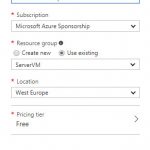
- In the OMS Workspace pane,
- OMS Workspace – Enter the OMS Workspace name
- Subscription – Select the Subscription from the drop down
- Resource Group – Pick your existing resource group or create a new resource group
- Location – Choose the data center location where you want to deploy the Log Analytics feature
- Pricing Tier – The cost of workspace depends on the pricing tier and the solutions that you use. Pick the right pricing tier from the drop down.
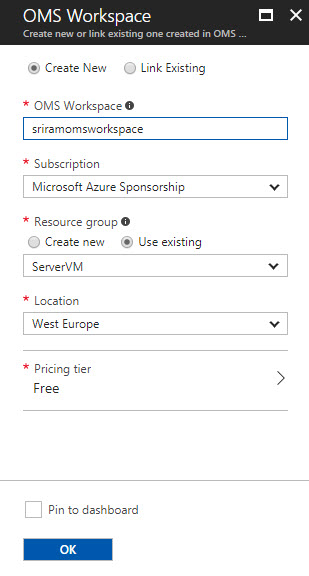
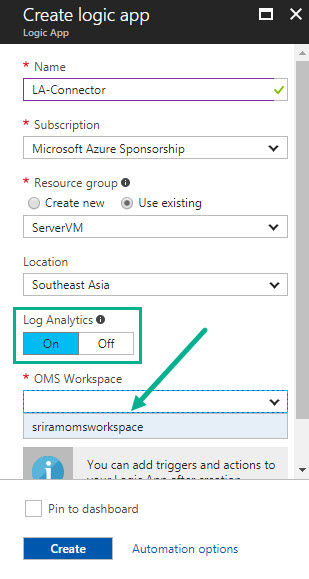
- Once you have created the OMS Workspace, create the Logic App. While creating the Logic App, enable Logic Analytics by pointing to the OMS workspace. For existing Logic Apps, you can enable OMS Monitoring from Monitoring > Diagnostics > Diagnostic settings.
- Once you have created the Logic App, execute the Logic App with some run information
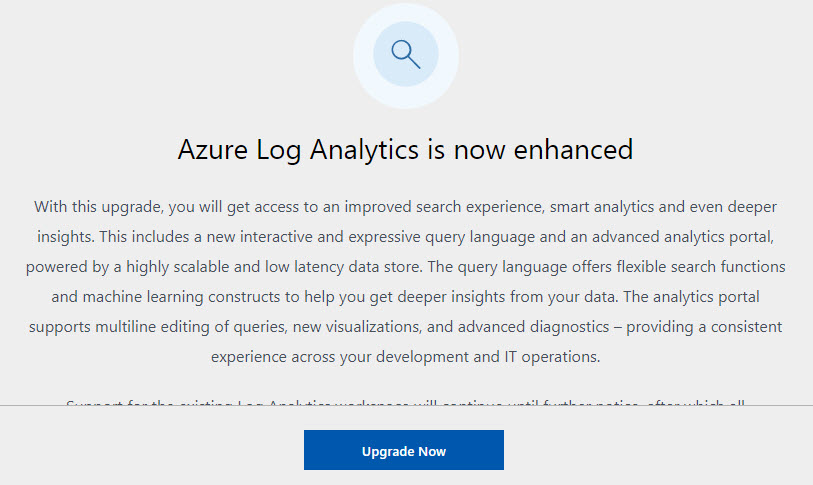
- Navigate back to the OMS Workspace that you created earlier. You will notice a message at the top of your screen asking you to upgrade the OMS workspace. Go ahead and do the upgrade process.
- Click Upgrade Now to start the Upgrade process
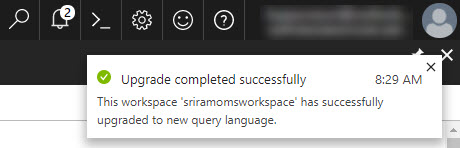
- Once the upgrade is complete, you will see the confirmation message in the notifications area.
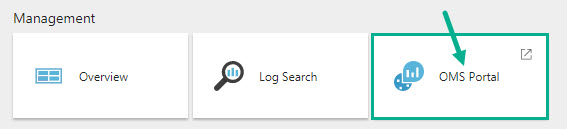
- Under Management section, click OMS Portal
- Click Solutions Gallery on the left menu

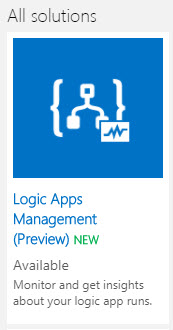
- In the solutions list, select Logic Apps Management solution
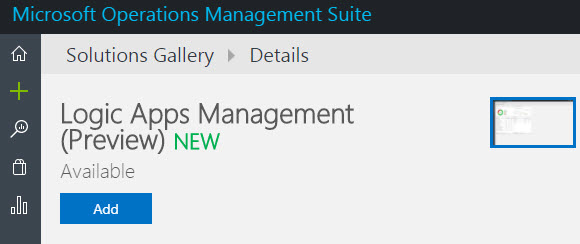
- Click Add to add the Logic Apps monitoring view to your OMS workspace. Note that this functionality is still in preview at the time of writing this blog.
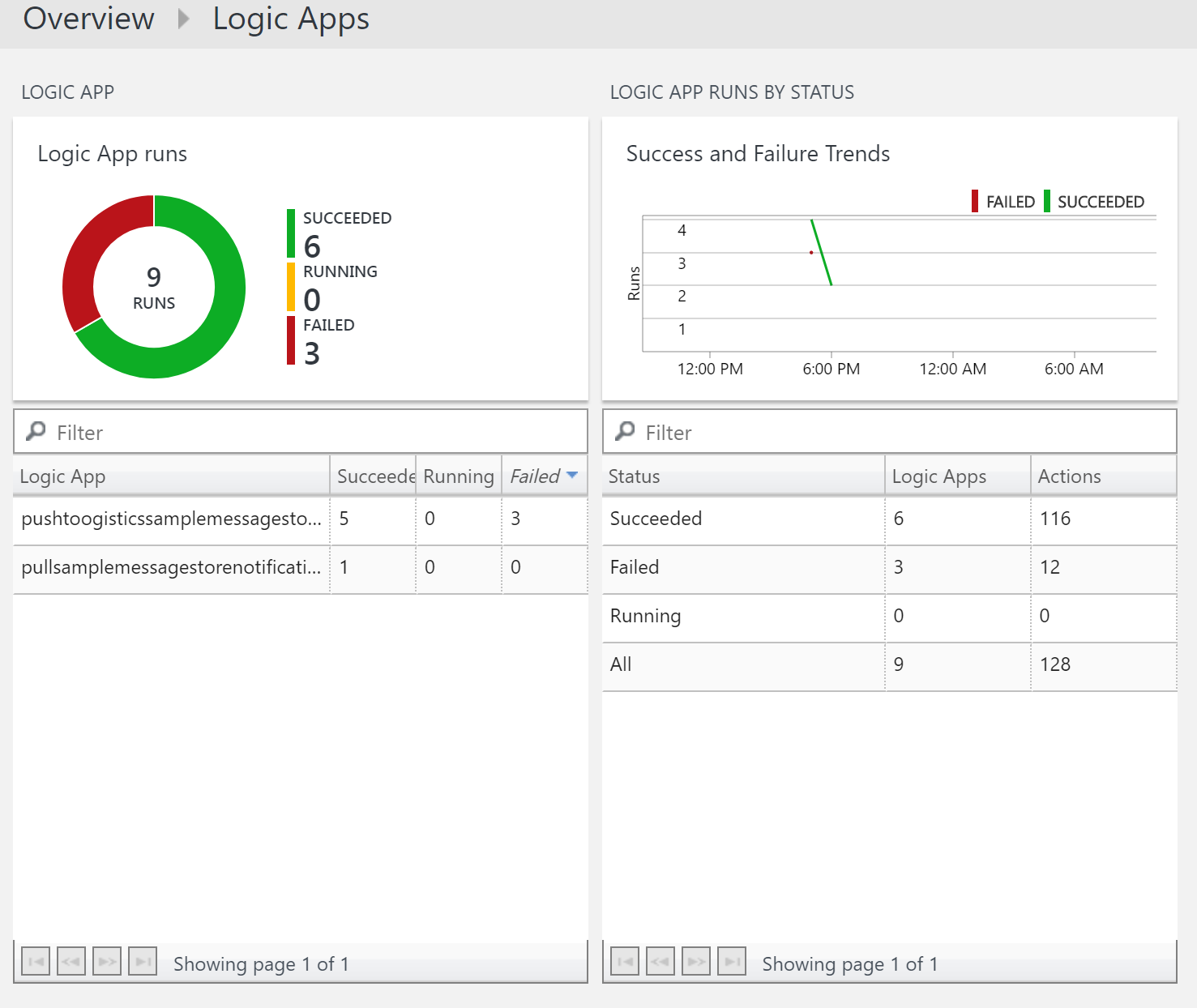
- You will see the status of your Logic App (No. of Runs, count of succeeded, running, and failed runs)
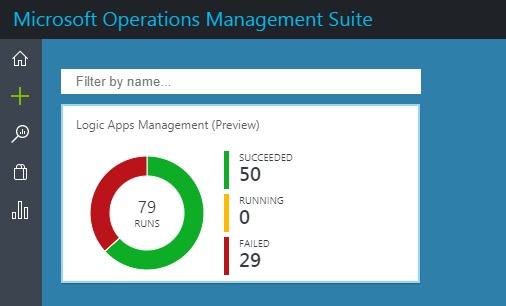
NOTE: The Logic Apps run data did not appear immediately for me. I could see this data only in my third attempt (after selecting the region as West Central US, thanks to the tip from Steef-Jan Wiggers). Steef has also written a blog post about the Logic Apps and OMS integration capabilities. Therefore, please be ready to wait for some time to see the Logic App status on the OMS dashboard.
- Click the Dashboard area to view the detailed information
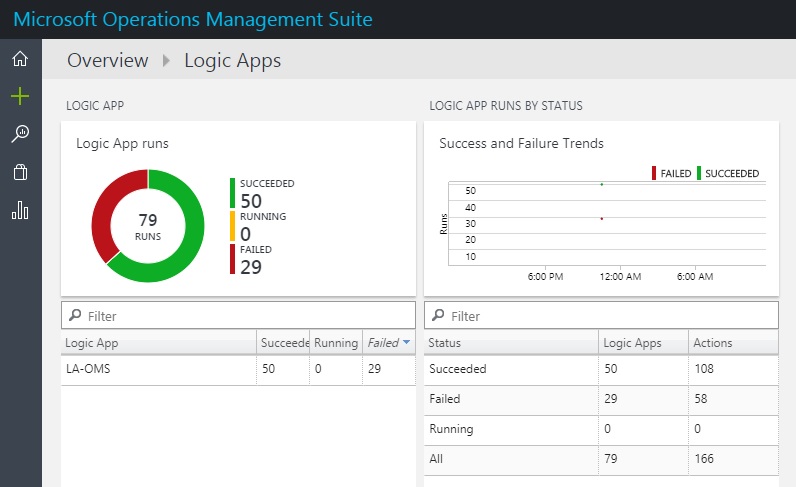
- You can drill down the report by clicking on a particular status and viewing the detailed information
- Click the record row to examine the run information in detail
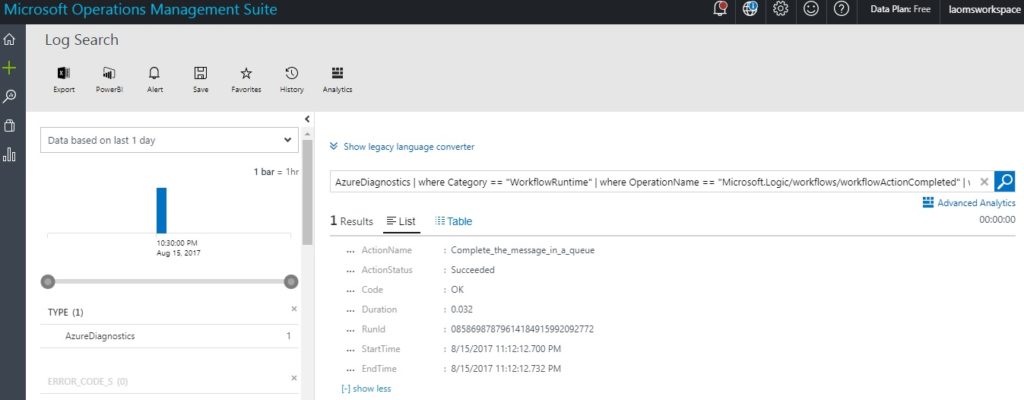
Therefore, you can now configure Monitoring and Diagnostics for Logic Apps directly into the OMS Portal which is very similar to the B2B messaging capabilities that existed earlier. I hope you found this blog useful in setting up Azure Logic Apps OMS Monitoring. I’m already excited for the next preview features to be rolled out from the Azure Logic Apps team.
Author: Sriram Hariharan
Sriram Hariharan is the Senior Technical and Content Writer at BizTalk360. He has over 9 years of experience working as documentation specialist for different products and domains. Writing is his passion and he believes in the following quote – “As wings are for an aircraft, a technical document is for a product — be it a product document, user guide, or release notes”. View all posts by Sriram Hariharan
by Gautam | Aug 14, 2017 | BizTalk Community Blogs via Syndication
Do you feel difficult to keep up to date on all the frequent updates and announcements in the Microsoft Integration platform?
Integration weekly update can be your solution. It’s a weekly update on the topics related to Integration – enterprise integration, robust & scalable messaging capabilities and Citizen Integration capabilities empowered by Microsoft platform to deliver value to the business.
If you want to receive these updates weekly, then don’t forget to Subscribe!
On-Premise Integration:
Cloud and Hybrid Integration:
Feedback
Hope this would be helpful. Please feel free to let me know your feedback on the Integration weekly series.
by Gautam | Aug 5, 2017 | BizTalk Community Blogs via Syndication
In this post, I will show you how to get started and build an EAI solution using Enterprise Integration Pack in Logic Apps. You can also refer my last blog post for Enterprise Integration Pack overview.
To build the EAI solution, we can use pre-built connectors to establish connection with different business applications.
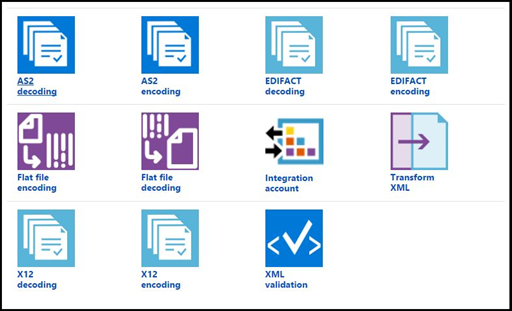
Integration Account Connector
Here are the basic steps required to build an enterprise workflow in Logic Apps as described in Azure documentation.

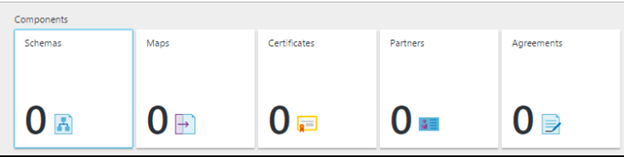
- Add schema, maps, certificates, partners and agreement to the integration account for the EAI/B2B solution
- Create a logic app and link the logic app to the integration account
- Now build the enterprise workflow in Logic App using the artifacts stored in the integration account.
We will begin with very simple scenario, to convert a flat file order message to XML message and insert the records in a SQL table.

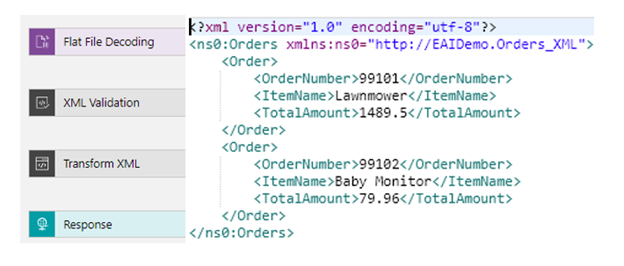
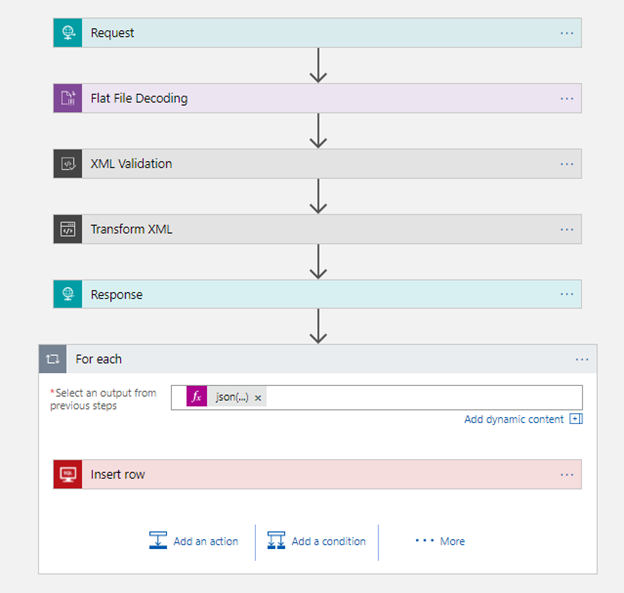
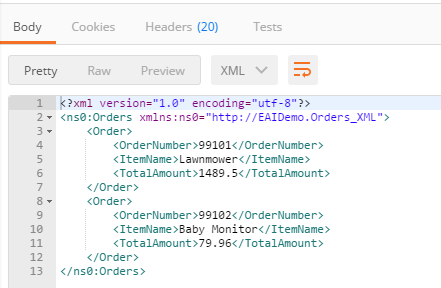
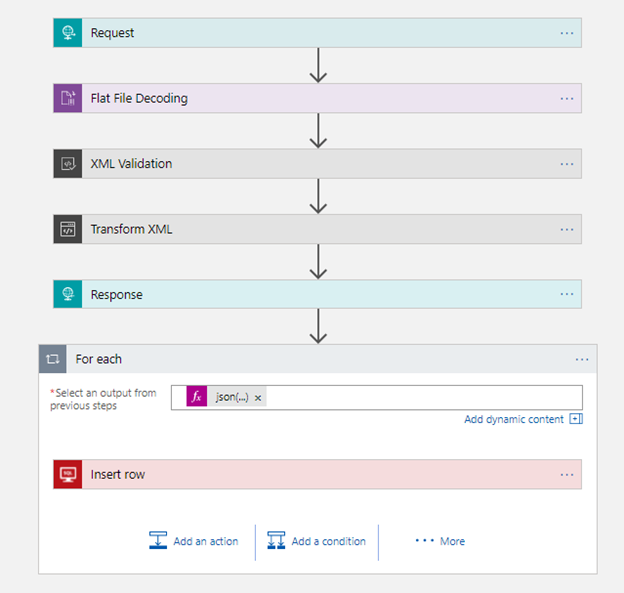
The workflow would use the Flat File Decoding, XML Validation, and Transform XML to produce the XML response with TotalAmount for each order as shown here:
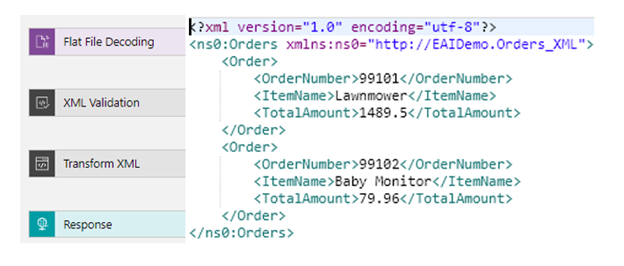
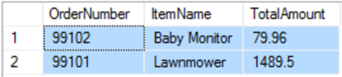
Workflow would then iterate through each order record and insert the order to the table HighOrder in Azure SQL.
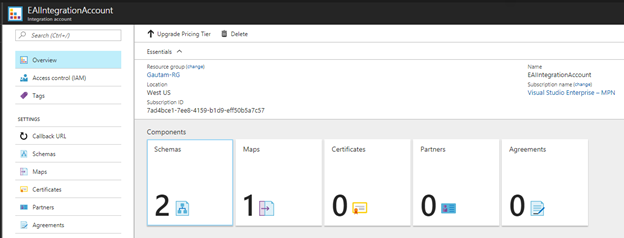
Create an Integration Account in the Azure portal
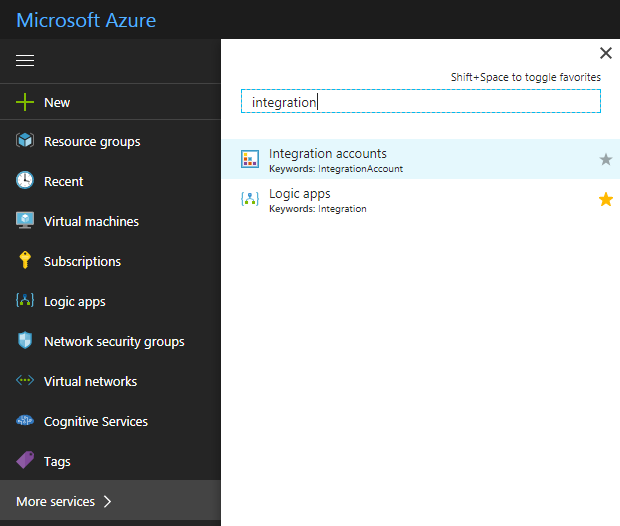
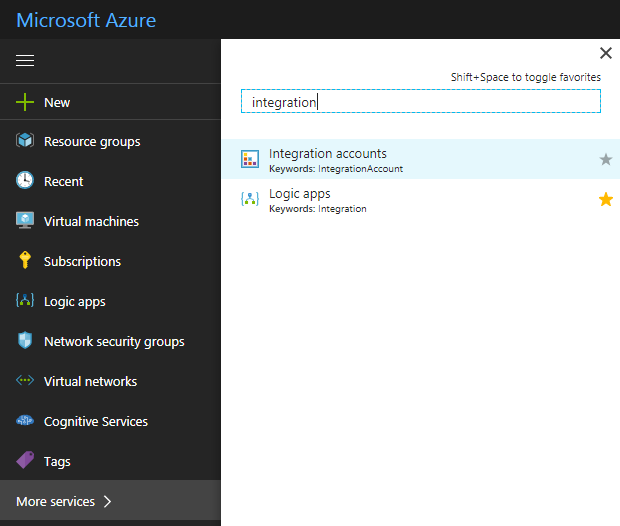
Log in to Azure portal and search for integration account.
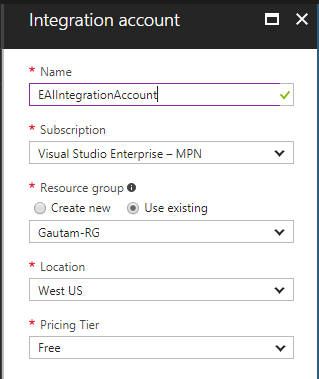
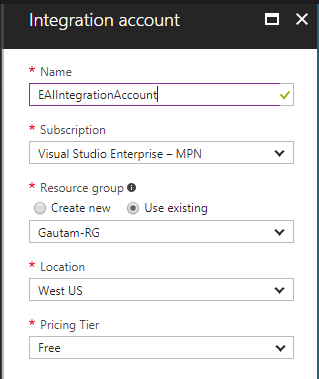
Now enter the Name for the integration account and select the Subscription, Resource group, and Location, as shown here. Click on the Create button.
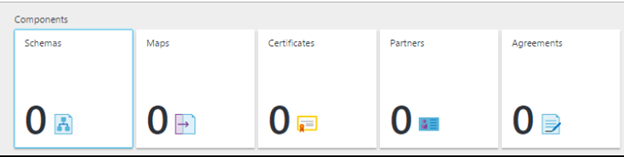
Create schema and maps
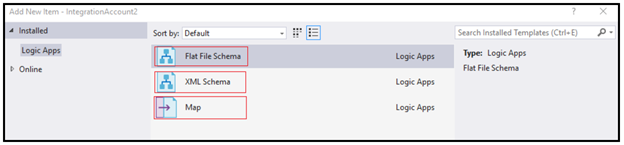
The next step would be to create schemas and maps for our solution and add them to integration account. We need to use an Enterprise Integration Tool, which is really just Visual Studio extensions that give you the BizTalk schema editor and mapper in Visual Studio 2015.
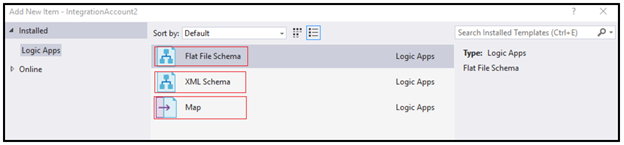
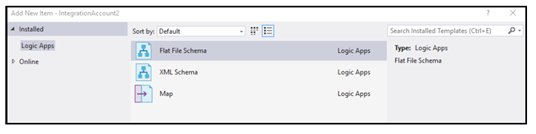
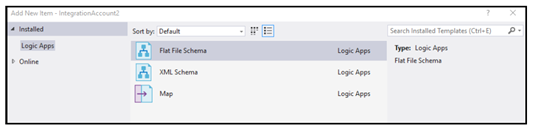
You need to use IntegrationFFSchema, IntegrationSchema, and IntegrationMap in Visual Studio 2015 to create enterprise-class schemas defining an order–one Flat File Schema, one XML schema, and a map converting one format to another.
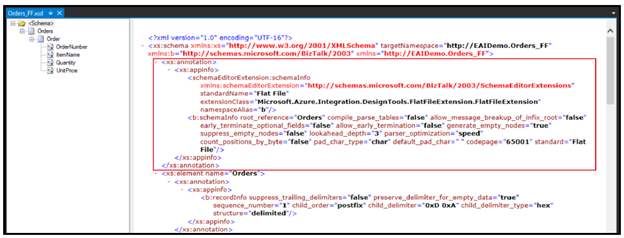
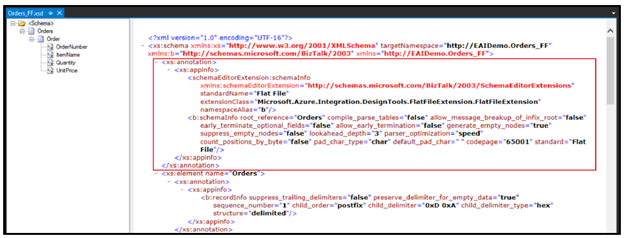
You would use Logic App Flat File Schema Wizard to develop the Flat File Schema.
IntegrationFFSchema: Orders_FF
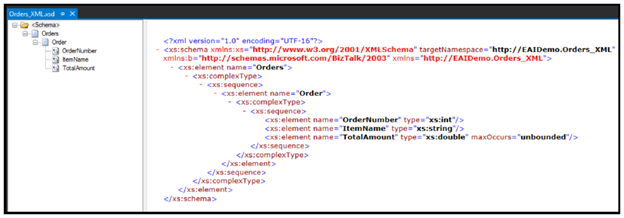
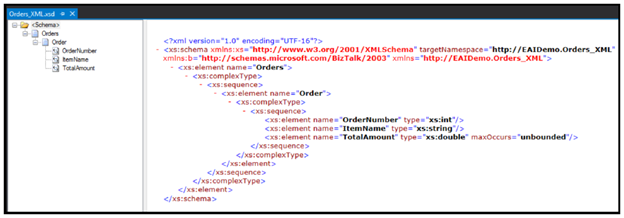
IntegrationSchema: Orders_XML
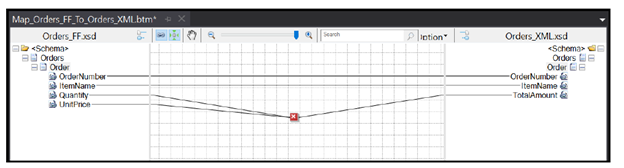
IntegrationMap: Map_Orders_FF_To_Orders_XML
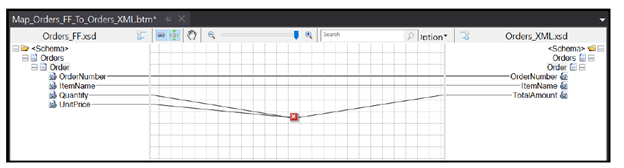
The map is very simple. It just multiplies Quantity and ItemName in the inbound message into the TotalAmount outbound field in the XML schema. The mapper includes the Functoids for basic calculations, logical conditions, and string manipulation.
Add schema, maps the integration account
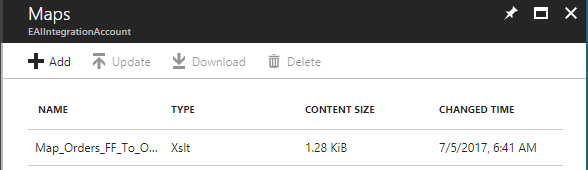
Now we need to upload the schemas and map to integration account so that we can use them in Logic Apps. Integration account does not take the DLLs, so we need to upload the raw XSD and XSLT maps.
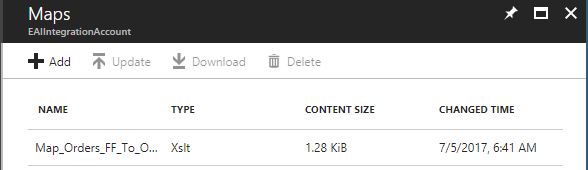
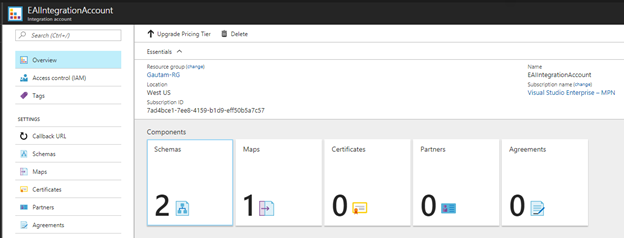
Create a Logic App and link the logic app to the integration account
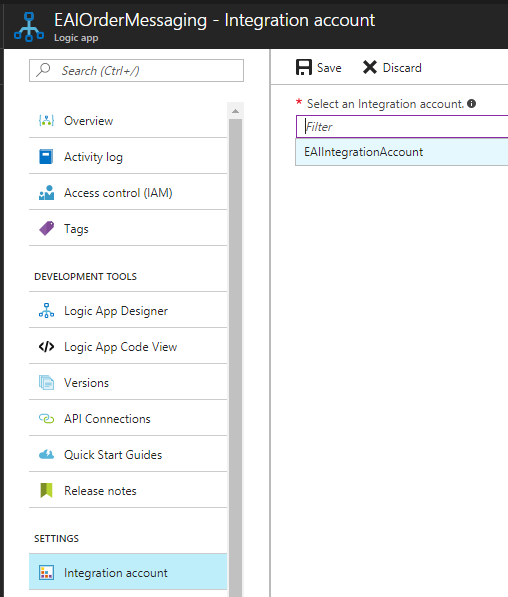
The next step is to create a Logic App and link the Logic App to the integration account. I have created a Logic App – EAIOrderMessaging.
To link it to the integration account, SampleIntegrationAccount, under Settings section of Logic App, click on Integration Account.
Build the enterprise workflow in Logic App using the artifacts stored in the integration account.
Now we can go back to Logic App and start using the integration account artifacts there.
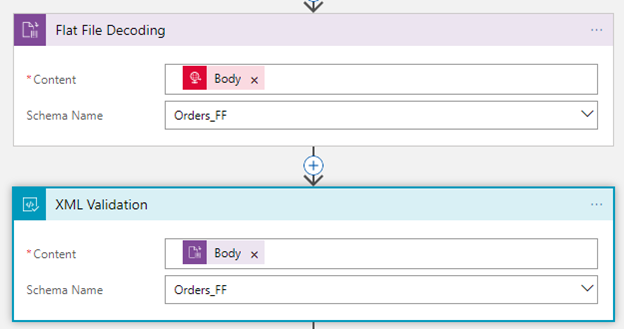
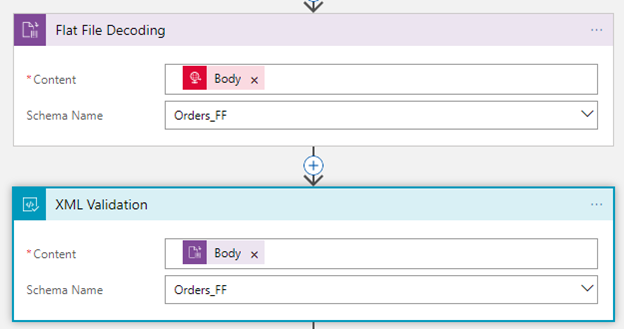
Select the Order_FF in Flat File Decoding and XML Validation actions respectively, as shown here:
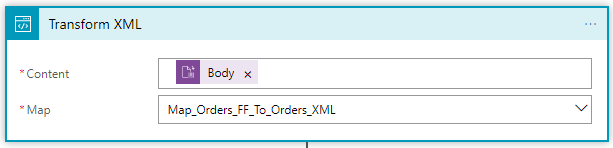
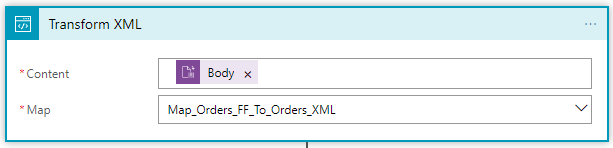
Once comma-separated order payload is decoded and validated, the next step would be to transform the order message using Transform XML action, as shown here:
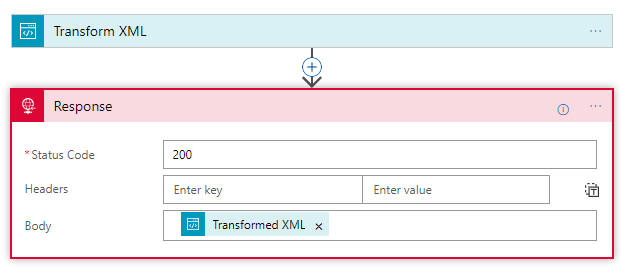
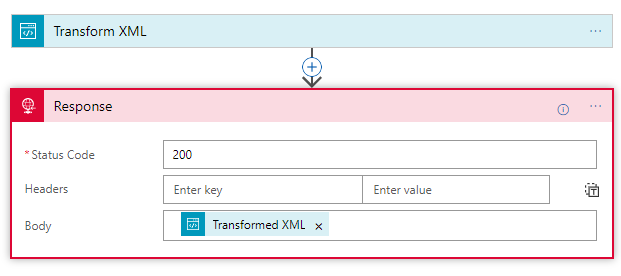
To get the XML response from the map, we are using the Response action, as follows:
Now save the Logic App to create the URL endpoint in the Request trigger, as follows:

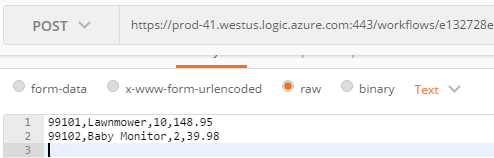
Copy the complete URL by clicking on the copy button as shown in the preceding screenshot. Now we can use this URL to test the workflow using the Postman application.
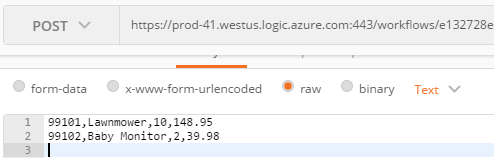
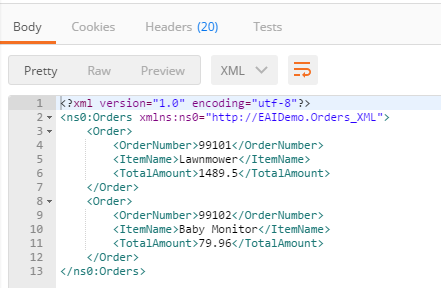
So, here is complete end-to-end workflow which takes in a flat file, validates the flat file using the Flat File Schema, uses a built-in check to see that it’s a decoded flat file, executes maps, and finally returns the XML response back.
This Logic App workflow now can be extended in various way. For example, instead of HTTP Request trigger, we can use FILE or FTP trigger, and the final XML response can be pushed to the Service Bus topic so that it can be subscribed by the on-premise line of business systems or any other downstream system.
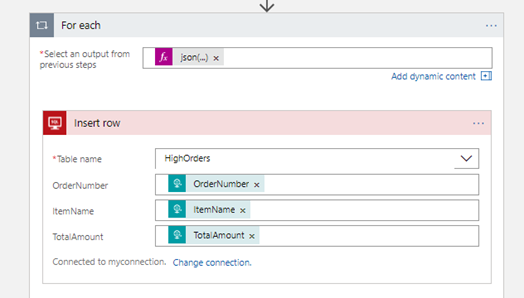
In our scenario, this workflow is inserting the order records in the Azure SQL table using SQL connector as shown below
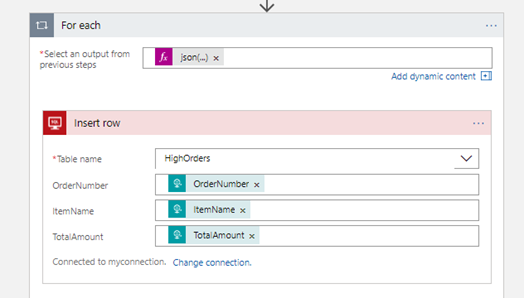
json(xml(body(‘Transform_XML’)))?[‘ns0:Orders’]?[‘Order’]
XML response of Transform XML action is being converted into JSON and then workflow is iterating through each order record and passing the values to Azure connector.
Summary
In this post we saw how to develop and EAI messaging scenario from the scratch by creating schemas and maps using visual studio and then uploading them to integration account and using them in Logic App work flow in integration account connectors.
by Nick Hauenstein | Jul 31, 2017 | BizTalk Community Blogs via Syndication
We’re living in exciting times, where releases of new functionality of all of our favorite software (e.g., Logic Apps, Visual Studio Team Services, and BizTalk Server) isn’t happening every 2 years, it’s happening every 2 weeks. With all of the benefits that such a release cadence brings, it also introduces the dilemma of how to both be productive with the technology, and keep up to date with all of the new features.
For example, while I was at the Integrate conference this year in London, many asked how it’s possible to keep our live 5-day Logic Apps class up-to-date. “Certainly it must be out-of-date if it’s not small recorded videos, right?” Actually, we update the class before each run to incorporate the latest product updates.
In this post, I want to share a strategy that we at QuickLearn have found works to stay on top of the latest technology changes, and give you the tools to implement it yourself.
Enabling Continuous Education
The first step in working towards staying up-to-date with the latest and greatest a technology offers will be locating the ever-evolving list of what’s new. Microsoft maintains a feed of new features for Logic Apps, and even a feed of new features for Visual Studio Team Services (another technology that we teach here). The feed for Logic Apps will be updated less frequently than the listing of features in the Azure Portal, however.
Let’s use one of those feeds, and build a Logic App that notifies us when there is a change by using the RSS trigger to queue up an instance of that Logic App whenever a new item is published to the RSS feed.
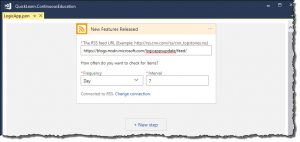
Creating a Learning Backlog
At QuickLearn, we add research items for continuous education as Product Backlog Items in VSTS. They sit alongside the core work of building products (in our case, courseware), but serve to carve out some capacity to build up the team itself. Each item carries with it the responsibility to quickly research and/or build a proof of concept using the new feature, or features, whilst also taking extensive notes to share with the team. I made all of my notes public for the release of BizTalk Server 2013 and BizTalk Server 2013 R2, and I wrote them directly in Live Writer to facilitate this. These days, I use OneNote for the same purpose.
Your organization might not want to allocate company time for such efforts. If so, you can always setup a personal VSTS account and do such research and experimentation on your own time.
Thankfully, Logic Apps has a connector for VSTS, which makes the task of building up a learning backlog an easy task to accomplish. The work items themselves will serve as our notifications of new product features:
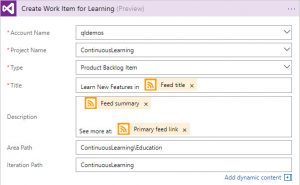
Working from the Continuous Learning Backlog
Once the Logic App runs (just the single trigger and single action), it produces backlog items to learn about new features in Logic Apps. In the way that I’ve configured it, it runs every 7 days and will automatically populate your backlog with any new features it finds. Your team can decide to investigate and/or not investigate these features further depending on what they are, and/or if they will help in future efforts on your projects.
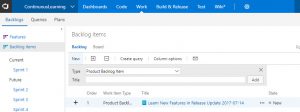
If any features in the release sound helpful and warrant further investigation, you can break out as many tasks as are required to investigate applicable features to see what value you can derive from them. I like taking the approach of building a 30-60 minute proof of concept for each feature, rather than just reading about it. Each team member can take a relevant feature for a test drive, and present it during sprint review.
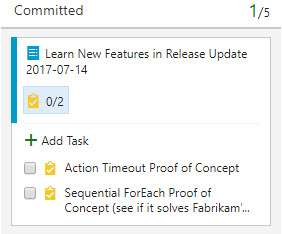
For QuickLearn, backlog items like this are a common occurrence. We update our Logic Apps class before each delivery to incorporate all of the latest and greatest features that we can fit. I always love the week of class, being able to share all of the fun and fresh goodies that the product team has cooked up.
I Need to Get Up to Speed Now
If you want a leg up, and a way to get up-to-speed quickly, there are some good opportunities coming up to do just that:
I’ll be speaking at each of those, and hope to see you there! Good luck on your continuously expanding cloud integration journey!
by Gautam | Jul 30, 2017 | BizTalk Community Blogs via Syndication
Do you feel difficult to keep up to date on all the frequent updates and announcements in the Microsoft Integration platform?
Integration weekly update can be your solution. It’s a weekly update on the topics related to Integration – enterprise integration, robust & scalable messaging capabilities and Citizen Integration capabilities empowered by Microsoft platform to deliver value to the business.
If you want to receive these updates weekly, then don’t forget to Subscribe!
On-Premise Integration:
Cloud and Hybrid Integration:
Feedback
Hope this would be helpful. Please feel free to let me know your feedback on this Integration weekly series.

by Sriram Hariharan | Jul 27, 2017 | BizTalk Community Blogs via Syndication
After the previous Logic Apps live webcast back in May 2017, the team were back just in time for their webcast on July 26, 2017 – a day before Logic Apps went Generally Available (GA) one year ago! Yes, Azure Logic Apps officially turns 1!! A huge round of applause and shout out to the team at Microsoft for giving a great product offering. This episode of Logic Apps live webcast had Jeff Hollan, Kevin Lam and Jon Fancey giving the recent updates that have rolled into the product.
Happy Birthday Logic Apps! You’ve turned 1 and have a long way to go!

New York Hackathon – September 5, 2017
The Logic Apps team is conducting a very unique, first of its kind Hackathon event on September 5, 2017 at Microsoft Times Square office in Downtown, Washington. This hackathon will focus on Azure Functions, Azure Logic Apps, Azure App Services, API Management and more. If you are interested to attend this hackathon, send the Logic Apps team a Tweet (DM), email.
What’s New in Azure Logic Apps?
- Export Logic App in Visual Studio – When you open a Logic App from Cloud Explorer in Visual Studio, you can export the Logic App to your Visual Studio project. This will create a file on your file system of the Logic App as an ARM template. You can import this template into the Visual Studio and start using your Logic App within Visual Studio.
- Webhooks in Foreach loop – Previously, it was possible to have Webhooks across the Logic App and now the functionality has been extended to the Foreach loop. You can have as many Webhooks in your foreach loop.
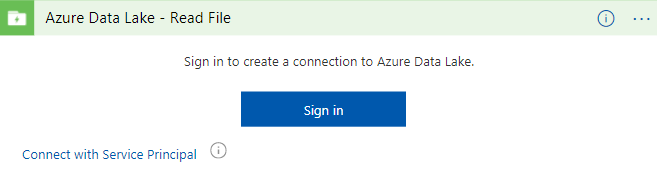
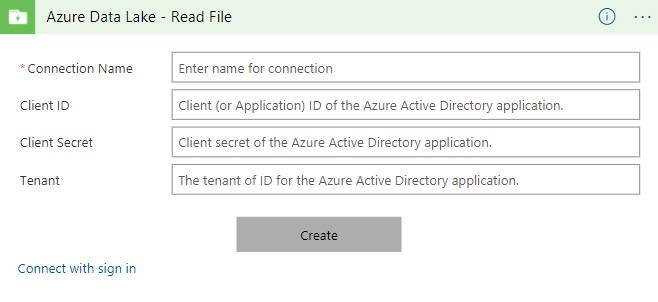
- Service Principal Authentication (Azure Data Lake and ARM) – If you are using any resource templates, one of the biggest challenges with some OAuth connectors is that you have to give your consent by signing up and giving Logic Apps the permission to access your connection details. This is a challenge when there are numerous deployments. Instead, now when you try to connect to Azure Resource Manager or Azure Data Lake, you can now connect using the Azure Application Service Principal. All you have to do is provide a secret key that has access to the application. Soon, this functionality will roll out to Office365 connectors, Dynamics connectors and SharePoint connectors.
- Array handling in designer – Let’s say you have a situation where you have an output from one of the Logic App steps and you want to input the actual array object instead of the actual elements, this operation is now possible in the Logic Apps designer. This is best implemented now in the “Send Email” step where you can add multiple attachments as an array.
- Batch Processing – Jon Fancey demonstrated this functionality at INTEGRATE 2017 where users can group things together (arbitrarily).
- Variable decrement – In addition to initialize and increment (discussed in the earlier Logic Apps Live webcast), and the Set functionality explained here, the Logic Apps team have added the “decrement” capability to variables. The team will be adding support for more variable types in the coming weeks/months.
- Run history compressed view – When you click the Run History section, you will see a compressed view of the actual run history that lists the failed runs for you to easily act upon.
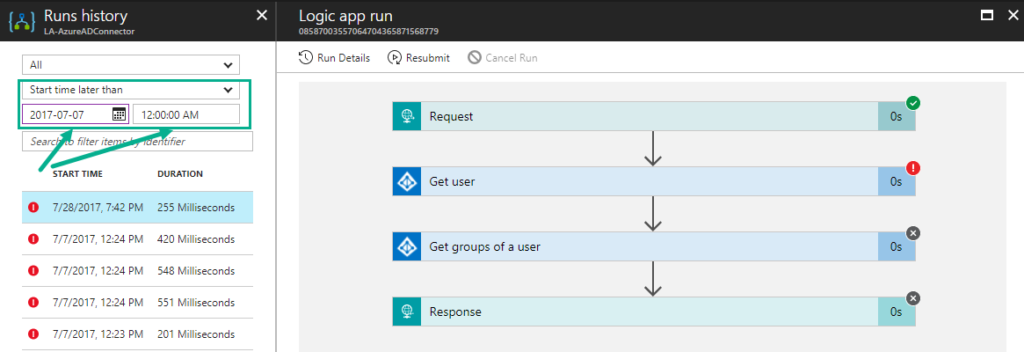
- Run API time-range filter – You can now filter the runs based on the time-range (say, between two date range times)
- Action Configuration settings (splitOn, retry policy, timeout, sequential flag, disable async polling) – All these operations (that are configurable) can now be performed right from the Logic Apps Designer in the Trigger Configuration settings.
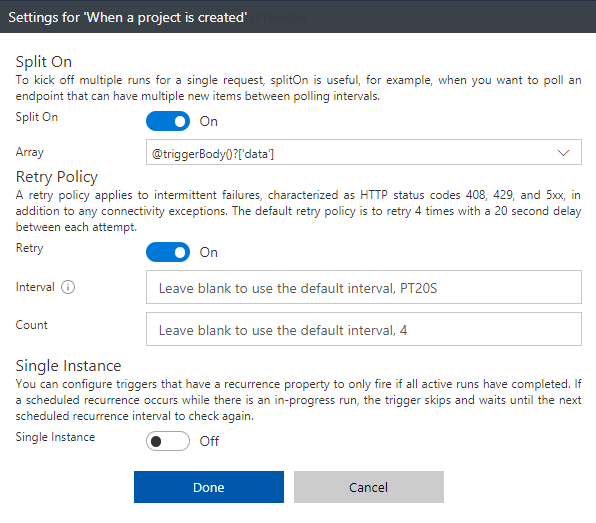
- Pan and zoom within the Designer
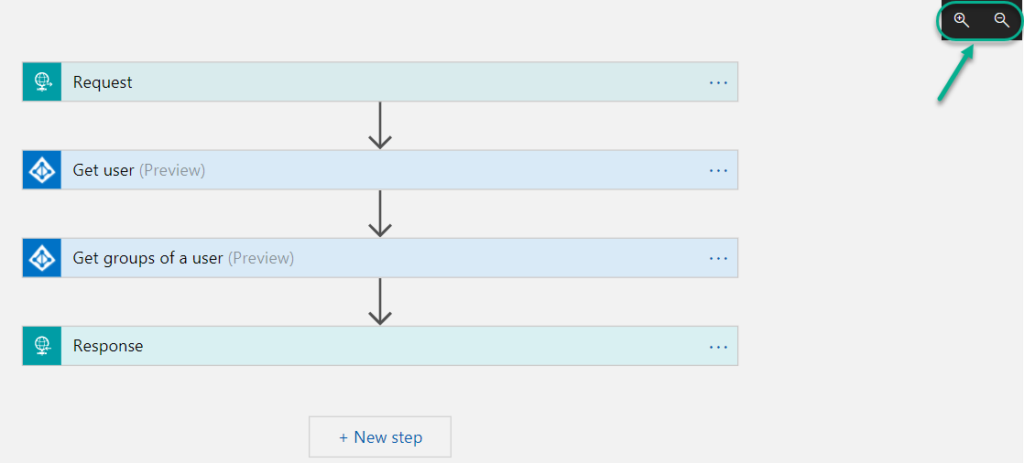
- Server side paging (eg., SQL) – For instance, SQL has a page size limit of 256 rows in a request. Say, when you query more than 256 rows, only the first 256 rows would be fetched from the database. Now you can enable Server Side Paging from the Designer where there is a configurable value and you can retrieve the number of rows depending on the value that is configured.
- Expression Authoring – You can build your expression functions from the designer, and all other expressions are listed right in the Designer. It becomes easy for you to find the expressions.
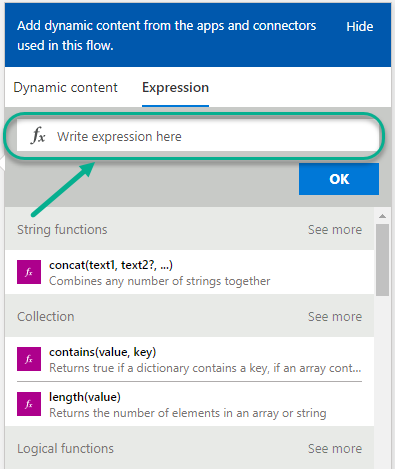
- Smart tips – There are hints now available in the Logic Apps Designer that will remind you to perform a very important action.

- XSLT Byte Order Mark config – When you use the Transform action, you will normally get back the XML and along with it, you will receive the byte order mark. The Logic Apps team has now in fact cleaned the code in such a way that you can now opt out from receiving those byte order mark in addition to the XML.
- Open Sourced Templates – You can submit New / update the existing Templates at github.com/azure/logicapps. The Logic Apps team will review the templates and publish them accordingly.
New Connectors
- Azure File Storage – You can now access your blob attached storage from/to your VM
- ARM Invoke and Service Principal – The ARM Invoke is super powerful. For any Azure Resource that you have access to, you can easily Start/Stop the VM, etc.
- Azure Application Insights – This connector allows you to queue up reports and run queries to get the App Insights report
- Video Indexer
- Microsoft Planner
- Microsoft Teams
- Microsoft Forms
- Bing Maps
- Bing Search
- Adobe Creative Cloud
- Parserr
- Calendly
- Teamwork
- JotForm
- Freshservice
- Pitney Bowes
- AWeber
- Cognito Forms
- Team Work
- PostreSQL
What’s in Progress?
- Large Files – Ability to move large files up to 1 GB (between) for specific connectors (blob, FTP)
- SOAP – One of the most requested features on UserVoice. Once available, you will be able to consume SOAP services (both cloud and on-premise)
- Expression Intellisense – Logic Apps workflow definitions will incorporate the same code used by Microsoft Visual Studio
- Expression tracing – With this capability, you can actually get to see the intermediate values for complex expressions
- Foreach nesting in the designer – This was a backend capability that was recently released but this capability will soon be incorporated into the designer.
- Foreach failure navigation – Say, you have about 1000 iterations in the foreach loop and 5 of them actually failed, you have to look for which one actually failed. Instead, you can navigate to the next failed action inside a for each loop easily to see what happened.
- Functions + Swagger
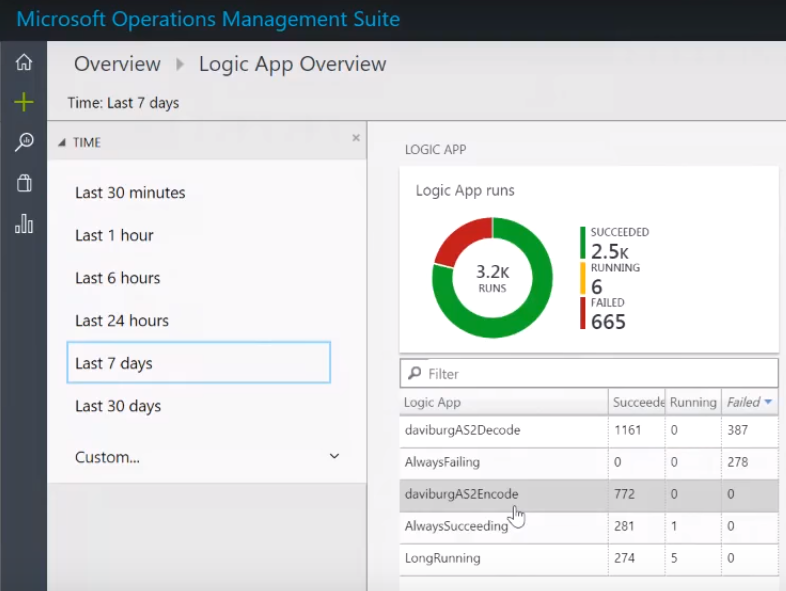
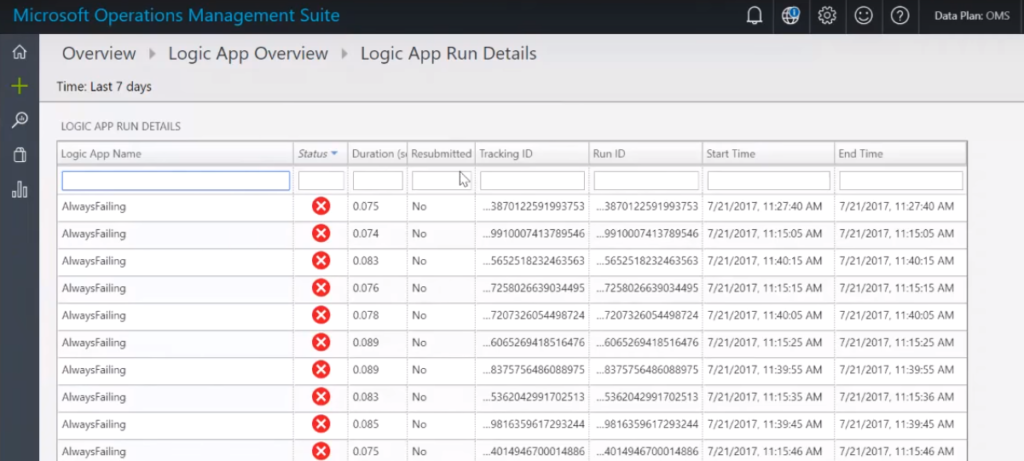
- Logic Apps OMS Package – You can monitor all the Logic Apps using a B2B solution within the Operations Management Suite (OMS). The preview of this OMS dashboard will be available within the next month (before next Logic Apps live webcast). You can bulk resubmit at the same time.
- Variables append (capability)
- Publish Logic Apps to PowerApps and Flow in a easy way
- Export Flow to Logic App ARM template
- Code view peek in the Action
- Time based batching
- Upcoming Connectors
- Azure Tables
- Azure SQL Data Warehouse
- Service Now
- Workday
- Feedly
- MySQL (RW)
- Amazon Redshift
You can watch the recording of this session here
[embedded content]
Community Events Logic Apps team are a part of
- Integration Bootcamp on September 21-22, 2017 at Charlotte, North Carolina. This event will focus on BizTalk, Azure Logic Apps, Azure API Management and lots more.
- INTEGRATE 2017 USA – October 25 – 27, 2017 at Redmond. Register for the event today.
Why attend INTEGRATE 2017 USA event?
Jim Harrer (Pro Integration Team Program Manager, Microsoft) and Saravana Kumar (Founder/CTO – BizTalk360) give you a heads up as to why you have to attend INTEGRATE 2017 USA event.
Feedback
If you are working on Logic Apps and have something interesting, feel free to share them with the Azure Logic Apps team via email or you can tweet to them at @logicappsio. You can also vote for features that you feel are important and that you’d like to see in logic apps here.
The Logic Apps team are currently running a survey to know how the product/features are useful for you as a user. The team would like to understand your experiences with the product. You can take the survey here.
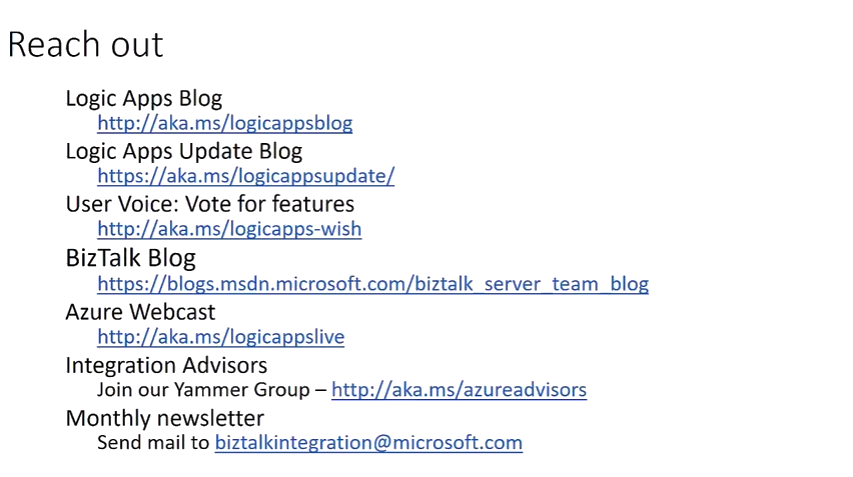
If you ever wanted to get in touch with the Azure Logic Apps team, here’s how you do it!
Previous Updates
In case you missed the earlier updates from the Logic Apps team, take a look at our recap blogs here –
Author: Sriram Hariharan
Sriram Hariharan is the Senior Technical and Content Writer at BizTalk360. He has over 9 years of experience working as documentation specialist for different products and domains. Writing is his passion and he believes in the following quote – “As wings are for an aircraft, a technical document is for a product — be it a product document, user guide, or release notes”. View all posts by Sriram Hariharan
by Rochelle Saldanha | Jul 17, 2017 | BizTalk Community Blogs via Syndication
Recently in one of our support tickets, a customer enquired on whether Microsoft Teams as a notification channel would be implemented in upcoming releases, as he heard of it in the INTEGRATE 2017 event, where Saravana introduced ServiceBus360 and Teams was one of the notification channels there.
Therefore, I thought if I could provide an alternate workaround to achieve the same in BizTalk360. This often occurs in Support where if we don’t have the functionality currently in the product, we do strive to provide a similar working functionality by discussing it with the development team. Here is my implementation of the feature request by using Logic Apps & WebHook Notification Channel.
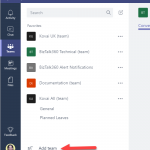
Create the Channel in Microsoft Teams
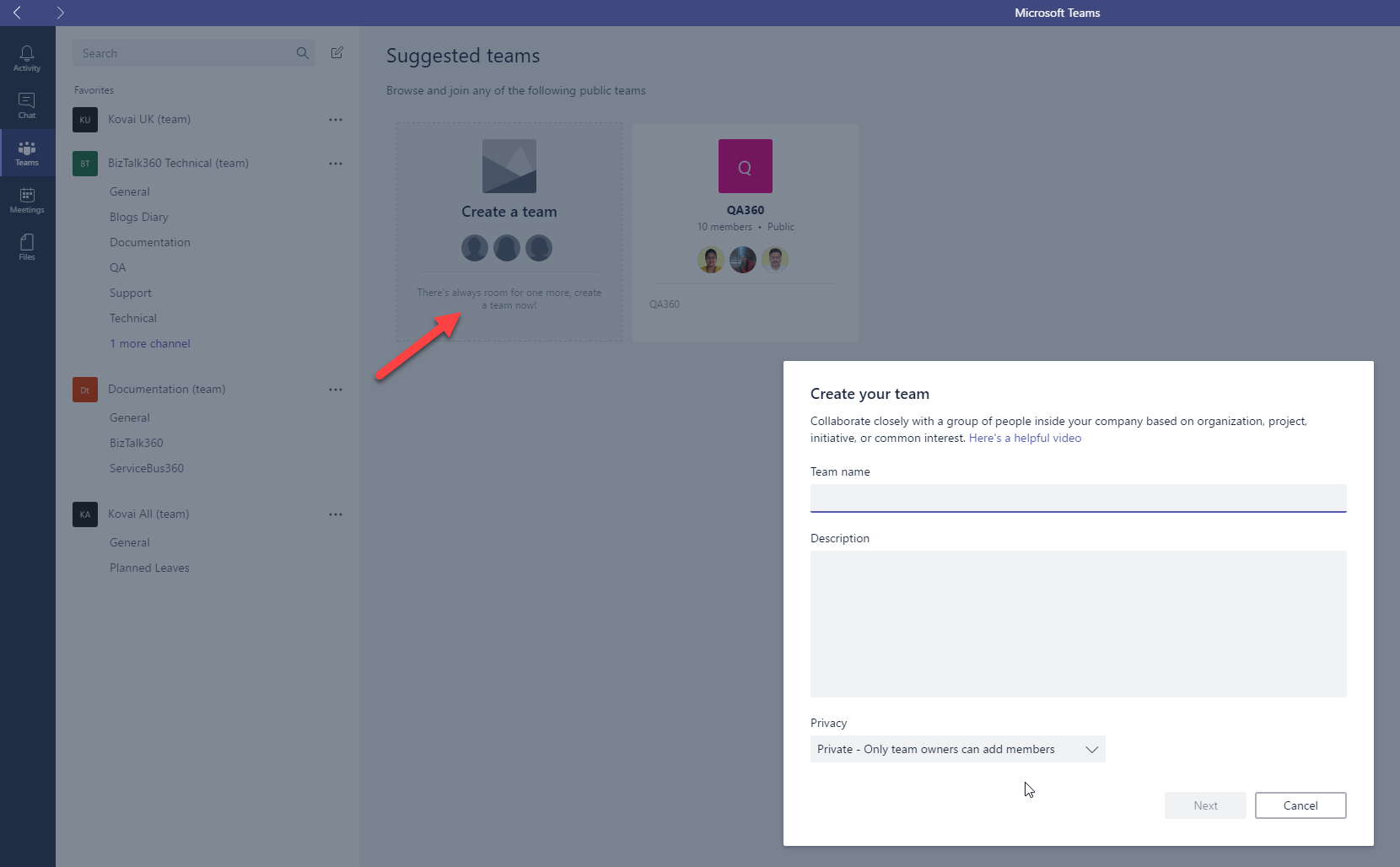
Once the Team has been given a suitable name and was successfully created, then we can create a new channel for that Team. (Click the … near the newly created Team and choose ‘Add channel’.
Once the Channel has been created we can use the Team name & Channel Name in the Azure portal as the destination for the Post Message (Teams).
This can be achieved via Logic Apps or by creating a custom Notification channel. We will have a quick look at both the implementations.
1. Implementation via Logic Apps
Configuration in Logic Apps:
So I created a Demo Logic App, and here is a screenshot of the design used.
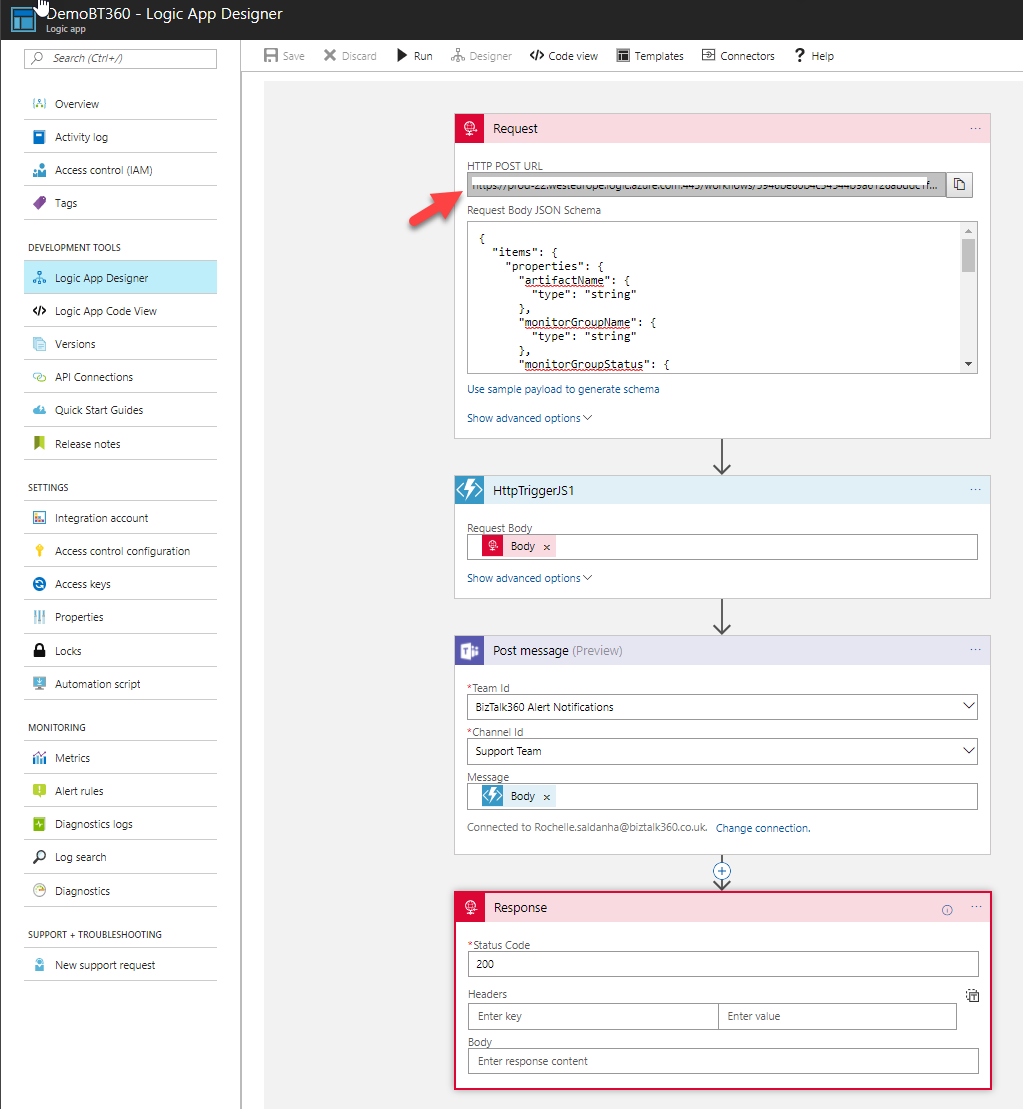
I’ve used a Request-Response and added an Azure function to help Parse the JSON response received from the BizTalk360 Notification channel and then passed that composed message to a Post message action for Microsoft Teams. Azure will ask you to authenticate your login (Teams) and then allow you to select the specific Team and Channel from Microsoft Teams.
In the 1st Request, you will also need to supply the Request Body JSON Schema or use sample Payload to generate the schema. Please refer to this code for the Schema I used.
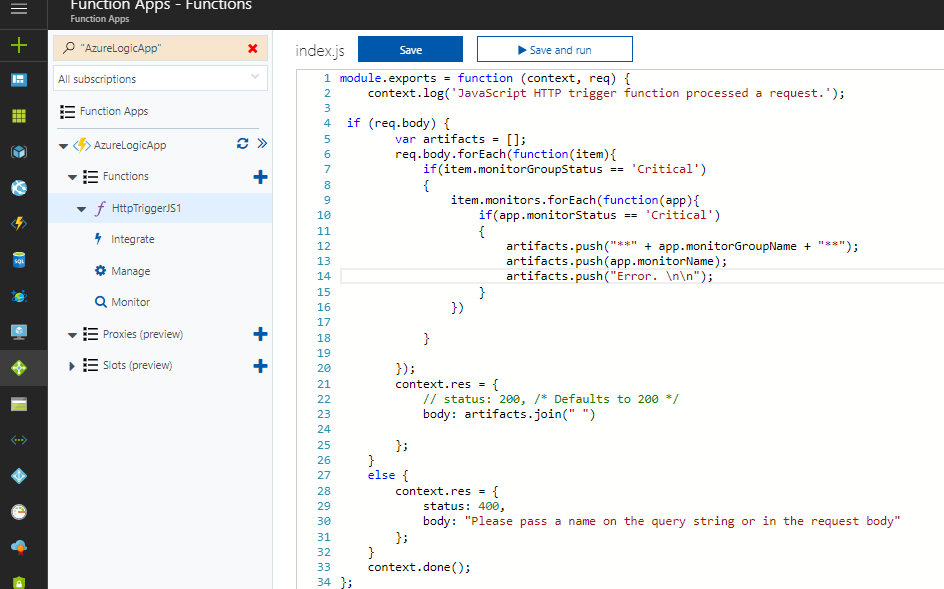
Azure Function Code implementation
To access the code used for the Azure function, please access this code at Github website.
Configuring BizTalk360 WebHook Notification Channel for the Logic App
Please refer to this article which describes how to set up Webhook notification Channel.
https://assist.biztalk360.com/support/solutions/articles/1000245561-adding-a-webhook-notification-channel
You can get the URL for the Web API from the Logic App – refer to the screenshot earlier provided and the arrows identify where to get the URL from. Use that in configuring the BT360 webhook notification channel.
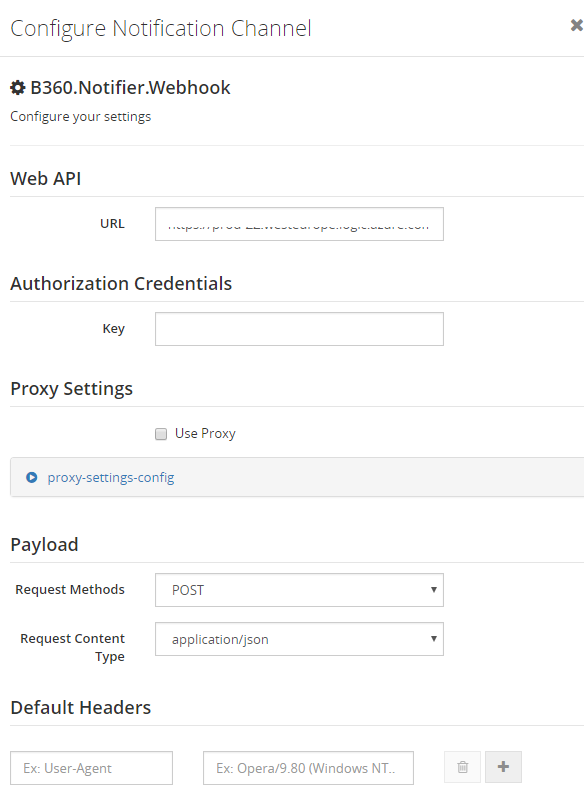
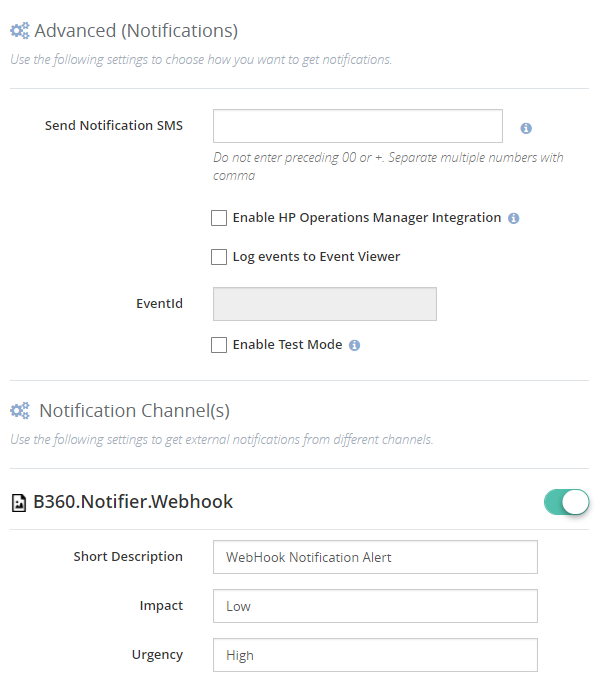
Once the WebHook Notification Channel is configured, you can select it as the notification option in the specific Alarm
Receiving the Notifications
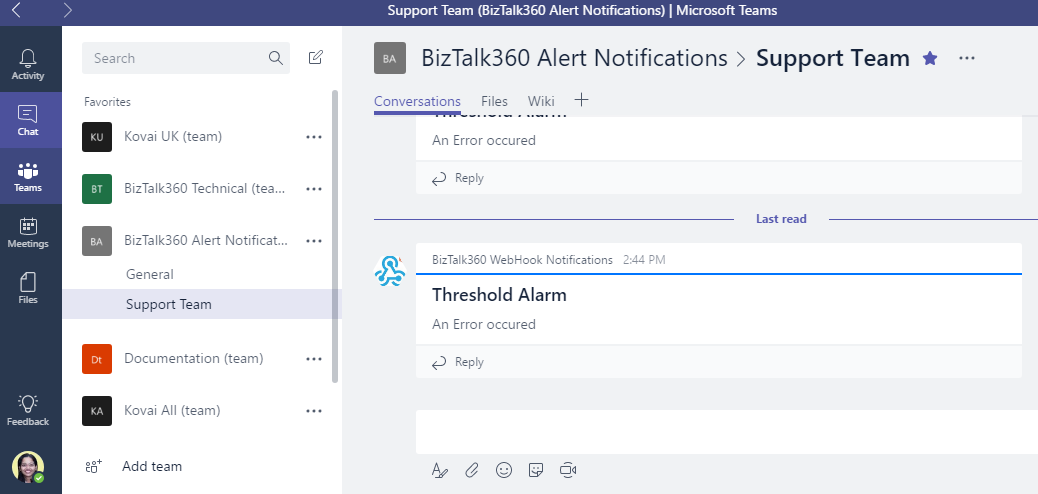
Once the Threshold is violated, similar to the Email notifications, you will now see a notification in Microsoft Teams.
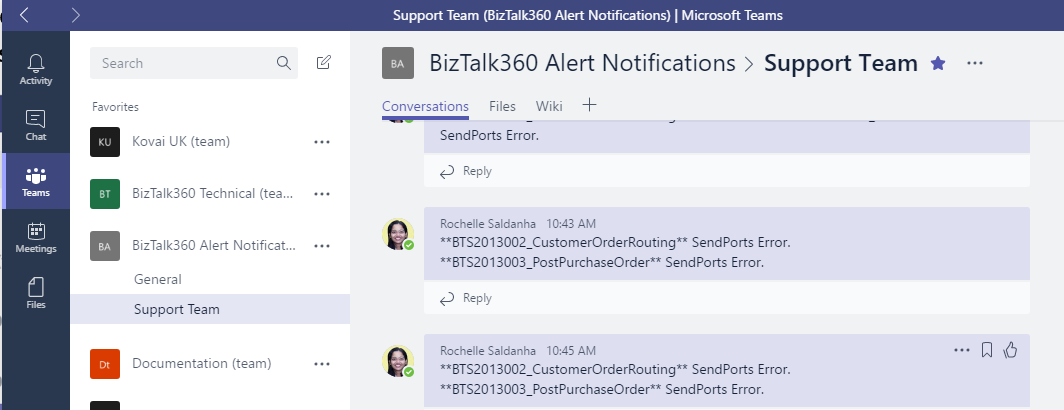
While I have parsed the JSON message and only displayed the Application Name & Artifact Name that has the error, you can choose and customize your error messages as required.
2. Implementation via Custom Notification Channel
You can read these articles which show how to create a custom notification channel.
https://blogs.biztalk360.com/introduction-custom-notification-channel-sdk-biztalk360/
https://assist.biztalk360.com/support/solutions/articles/1000217940-adding-a-new-custom-notification-channel
You need to select the WebHook Connector from Microsoft teams. You need to copy the WebHook URL which you will then enter the code in the custom notification channel.
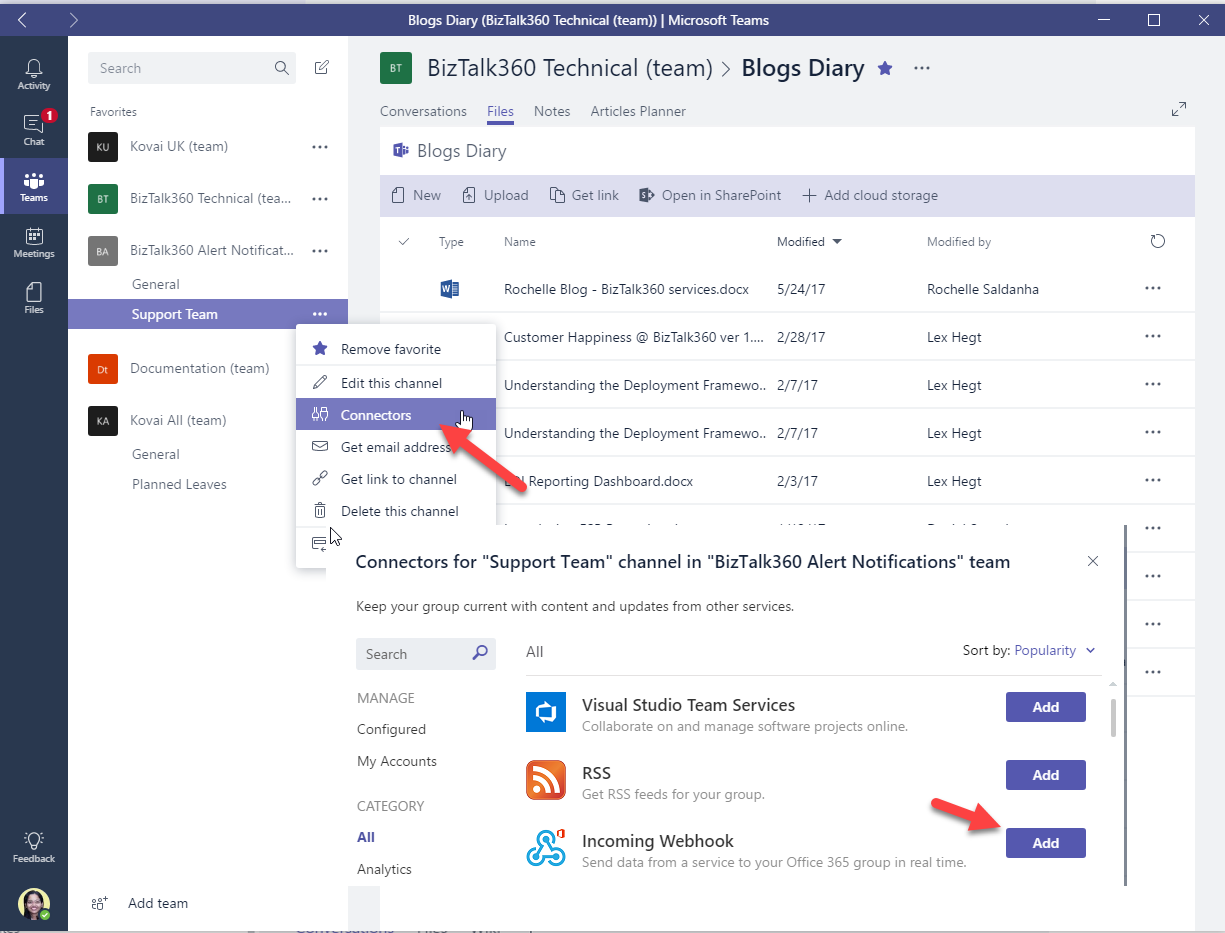
You then need to setup the Custom Notification Channel as mentioned in the blogs.
Then you only need to add this code to the FileChannel.cs file either instead of after the successful completion of File notification completed. Again I have only output Alarm Name and an Error string. Please customize as required.
So I hope this blog gave you a good idea as to how you can integrate Teams with BizTalk360 Notifications.