by Sandro Pereira | Nov 28, 2018 | BizTalk Community Blogs via Syndication
I’m currently migrating a BizTalk Server infrastructure from BizTalk Server 2013 R2 to BizTalk Server 2016, this is a simple task to do in terms of BizTalk Server Applications, or BizTalk Server solutions. However, migrating or in fact, creating a new environment always brings challenges in terms of connectivity and/or proper configurations. SAP.Middleware.Connector.RfcCommunicationException: LOCATION CPIC (TCP/IP) on local host BTSSERVERNAME with Unicode, ERROR service ‘?’ unknown error is one of this cases!
We indeed did more than a simple migration, we toked this opportunity to improve our solutions and/or BizTalk Server environment to update our applications to the new the new available features. In terms of WCF-SAP Adapter, we are no longer using traditional RFC and we will be starting using SAP .NET Connector (NCo). Despite WCF-SAP adapter will continue to support both the RFC SDK and the SAP .NET Connector, SAP has announced deprecation of its classic RFC SDK (no longer be supported after March 31, 2016) and because of that, it shouldn’t be used anymore.
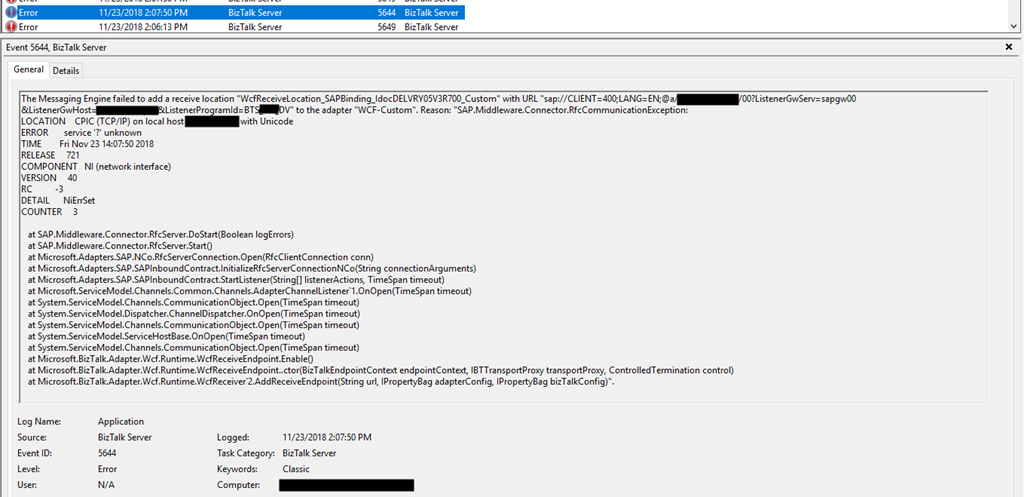
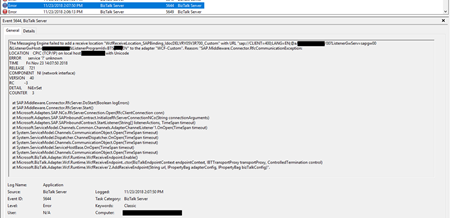
While trying to connect our BizTalk Server Receive Location to SAP in order to listen to incoming messages, we initial got this error message:
The Messaging Engine failed to add a receive location “IN_WCF_SAP_LISTENER_BTS” with URL “sap://CLIENT=400;LANG=EN;@a/SERVERNAME/00?ListenerGwServ=sapgw00&ListenerGwHost=LISTENERHOST&ListenerProgramId=BTS_LIST&RfcSdkTrace=False&AbapDebug=False” to the adapter “WCF-Custom”. Reason: “SAP.Middleware.Connector.RfcCommunicationException:
LOCATION CPIC (TCP/IP) on local host BTSSERVERNAME with Unicode
ERROR service ‘?’ unknown
TIME Fri Nov 23 13:47:22 2018
RELEASE 721
COMPONENT NI (network interface)
VERSION 40
RC -3
DETAIL NiErrSet
COUNTER 3
at SAP.Middleware.Connector.RfcServer.DoStart(Boolean logErrors)
at SAP.Middleware.Connector.RfcServer.Start()
at Microsoft.Adapters.SAP.NCo.RfcServerConnection.Open(RfcClientConnection conn)
at Microsoft.Adapters.SAP.SAPInboundContract.InitializeRfcServerConnectionNCo(String connectionArguments)
at Microsoft.Adapters.SAP.SAPInboundContract.StartListener(String[] listenerActions, TimeSpan timeout)
at Microsoft.ServiceModel.Channels.Common.Channels.AdapterChannelListener`1.OnOpen(TimeSpan timeout)
at System.ServiceModel.Channels.CommunicationObject.Open(TimeSpan timeout)
at System.ServiceModel.Dispatcher.ChannelDispatcher.OnOpen(TimeSpan timeout)
at System.ServiceModel.Channels.CommunicationObject.Open(TimeSpan timeout)
at System.ServiceModel.ServiceHostBase.OnOpen(TimeSpan timeout)
at System.ServiceModel.Channels.CommunicationObject.Open(TimeSpan timeout)
at Microsoft.BizTalk.Adapter.Wcf.Runtime.WcfReceiveEndpoint.Enable()
at Microsoft.BizTalk.Adapter.Wcf.Runtime.WcfReceiveEndpoint..ctor(BizTalkEndpointContext endpointContext, IBTTransportProxy transportProxy, ControlledTermination control)
at Microsoft.BizTalk.Adapter.Wcf.Runtime.WcfReceiver`2.AddReceiveEndpoint(String url, IPropertyBag adapterConfig, IPropertyBag bizTalkConfig)”.
The receive location “IN_WCF_SAP_LISTENER_BTS_ DV” with URL “sap://CLIENT=400;LANG=EN;@a/SERVERNAME/00?ListenerGwServ=sapgw00&ListenerGwHost=LISTENERHOST&ListenerProgramId=BTS_LIST&RfcSdkTrace=False&AbapDebug=False” is shutting down. Details:”The Messaging Engine failed while notifying an adapter of its configuration. “.
Cause
The first thing you need to know is that this error is not related to the fact that we are now using the SAP .NET Connector (NCo). This error will still occur if you change back to the classic RFC.
The basic steps if of course to see if we have connectivity and proper access to SAP, and because we were in DEV environment a good way to test this is to Add WCF-SAP Adapter Metadata to a BizTalk Project inside Visual Studio
- In your Visual Studio BizTalk project, in Solution Explorer, right-click your project, click Add, and then click Add Generated Items.
You will have the same look and fill as creating a Receive Port on the Administrative Console with the advantage of being able to navigate the under the SAP object structure. This way you can test connectivity and access to the proper resources.
In our case, everything worked well. We were able to connect and generate the schemas.
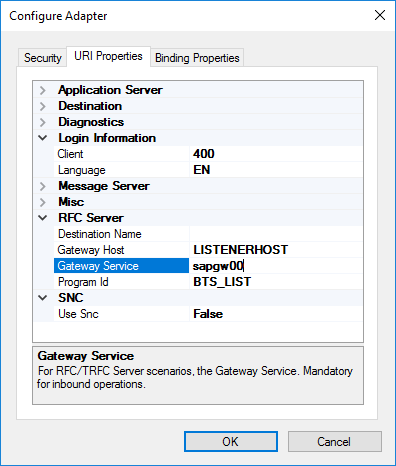
However, all of this is not enough. For the WCF-SAP adapter to work properly in runtime you also need to configure, somewhere in the BizTalk Server machine the TCP port where the SAP adapter will be looking for these connections, because this property is not exposed through the BizTalk Server WCF-SAP Adapter GUI port (send or receive) configuration.
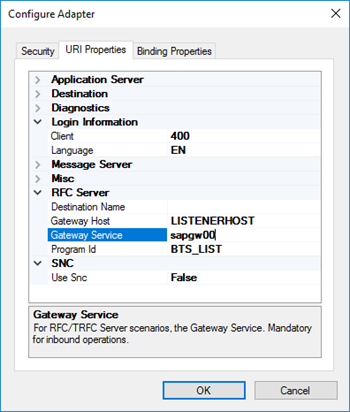
In our case, the .NET Connector need to know the port of the message server. This is also very common to happen in load balancing situations.
Solution
In order to specify this TCP port, you need to modify the ‘services’ file in each BizTalk Server machine, normally in:
- C:Windowssystem32driversetcservices
To include the following entry:
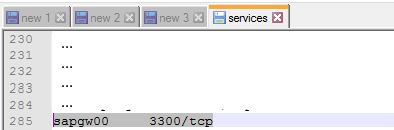
MSHOST 1234/tcp # SAP ENV System Message Server Port
Where:
- MSHOST is your Gateway server, in our case sapgw00
- And 1234 is your message server port, in our case: 3300
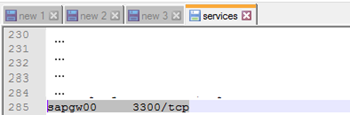
Just for curiosity, BizTalk isn’t the only that will use these values and this ‘services’ file. SAPGUI will also use these same values when connecting to SAP systems.
After we did this configuration, we were able to connect and start receiving messages from our SAP system.
Author: Sandro Pereira
Sandro Pereira lives in Portugal and works as a consultant at DevScope. In the past years, he has been working on implementing Integration scenarios both on-premises and cloud for various clients, each with different scenarios from a technical point of view, size, and criticality, using Microsoft Azure, Microsoft BizTalk Server and different technologies like AS2, EDI, RosettaNet, SAP, TIBCO etc. He is a regular blogger, international speaker, and technical reviewer of several BizTalk books all focused on Integration. He is also the author of the book “BizTalk Mapping Patterns & Best Practices”. He has been awarded MVP since 2011 for his contributions to the integration community. View all posts by Sandro Pereira
by Sandro Pereira | Nov 20, 2018 | BizTalk Community Blogs via Syndication
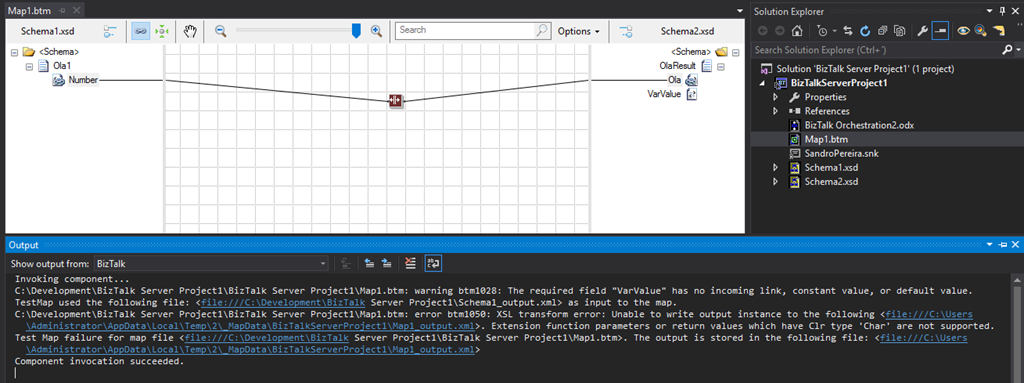
Back to Errors and Warnings, Causes and solutions, this time with a surprising error that I got while I was testing a custom Functoid that I had developer: Extension function parameters or return values which have Clr type ‘Char’ are not supported
The full error description was:
Invoking component…
C:DevelopmentBizTalk Server Project1BizTalk Server Project1Map1.btm: warning btm1028: The required field “VarValue” has no incoming link, constant value, or default value.
TestMap used the following file: <file:///C:DevelopmentBizTalk Server Project1Schema1_output.xml> as input to the map.
C:DevelopmentBizTalk Server Project1BizTalk Server Project1Map1.btm: error btm1050: XSL transform error: Unable to write output instance to the following <file:///C:UsersAdministratorAppDataLocalTemp2_MapDataBizTalkServerProject1Map1_output.xml>. Extension function parameters or return values which have Clr type ‘Char’ are not supported.
Test Map failure for map file <file:///C:DevelopmentBizTalk Server Project1BizTalk Server Project1Map1.btm>. The output is stored in the following file: <file:///C:UsersAdministratorAppDataLocalTemp2_MapDataBizTalkServerProject1Map1_output.xml>
Component invocation succeeded.
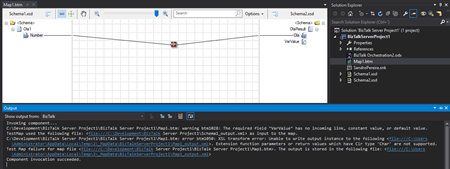
Again, I catch this error while I was trying to test my custom functoid inside Visual Studio.
The Custom Functoid was invoking the following code:
private string GetCSharpBuffer()
{
    StringBuilder builder = new StringBuilder();
    builder.Append("public string SplitText(string element, int pos, char splitter)n");
    builder.Append("{n");
    builder.Append("tstring[] listValues = element.Split(splitter);n");
    builder.Append("tif (listValues != null)n");
    builder.Append("ttif (listValues.Length > pos)n");
    builder.Append("tttreturn listValues[pos];n");
    builder.Append("treturn "";n");
    builder.Append("}n");
    return builder.ToString();
}
Or, to be easier to read in a clean C# code that would be like this:
public string SplitText(string element, int pos, char splitter)
{
   string[] listValues = element.Split(splitter);

   if (listValues != null)
      if (listValues.Length > pos)
         return listValues[pos];
   return "";
}
Cause
Unfortunately, this is a BizTalk mapper engine limitation. The type Char is not supported at least on built-in code inside the XSLT, in other words by using the Functoid SetScriptBuffer functionality:
SetScriptBuffer(ScriptType.CSharp, this.GetCSharpBuffer());
I didn’t test but it may work if you replace this functionality with the SetExternalFunctionName functionality:
SetExternalFunctionName(GetType().Assembly.FullName, GetType().FullName, "SplitText");
Note: This means that the code will not be inside the XSLT but instead you will be calling an external assembly that needs to be on GAC.
Solution
The simple solution, or let’s call I workaround, is to use strings instead, either on inputs as outputs parameters of the Functoid. For that we just need to replace the above code to this:
private string GetCSharpBuffer()
{
    StringBuilder builder = new StringBuilder();
    builder.Append("public string SplitText(string element, int pos, string splitter)n");
    builder.Append("{n");
    builder.Append("tstring[] listValues = element.Split(Convert.ToChar(splitter));n");
    builder.Append("tif (listValues != null)n");
    builder.Append("ttif (listValues.Length > pos)n");
    builder.Append("tttreturn listValues[pos];n");
    builder.Append("treturn "";n");
    builder.Append("}n");
    return builder.ToString();
}
Or again, in a simple C# form:
public string SplitText(string element, int pos, string splitter)
{
    string[] listValues = element.Split(Convert.ToChar(splitter));

    if (listValues != null)
       if (listValues.Length > pos)
          return listValues[pos];
    return "";
}
By doing that you will be able to successfully test the Functoid.
Author: Sandro Pereira
Sandro Pereira lives in Portugal and works as a consultant at DevScope. In the past years, he has been working on implementing Integration scenarios both on-premises and cloud for various clients, each with different scenarios from a technical point of view, size, and criticality, using Microsoft Azure, Microsoft BizTalk Server and different technologies like AS2, EDI, RosettaNet, SAP, TIBCO etc. He is a regular blogger, international speaker, and technical reviewer of several BizTalk books all focused on Integration. He is also the author of the book “BizTalk Mapping Patterns & Best Practices”. He has been awarded MVP since 2011 for his contributions to the integration community. View all posts by Sandro Pereira
by Sandro Pereira | Oct 9, 2018 | BizTalk Community Blogs via Syndication
And yes, this is just another “Login failed for user” SQL Server WCF-Adapter related error. In the past I wrote about a similar topic BizTalk WCF-SQL Error:
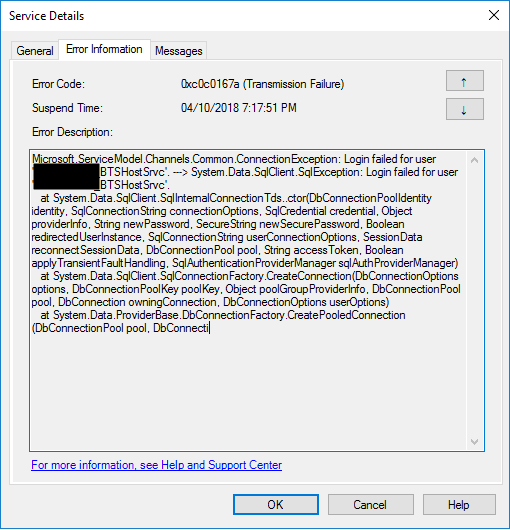
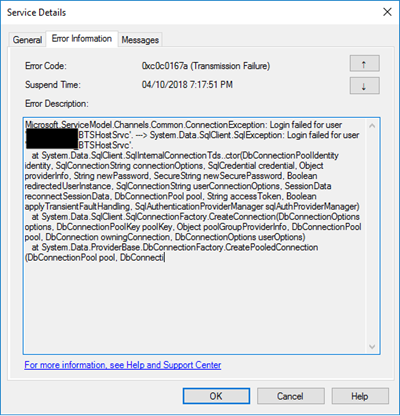
This time the error message, the cause, and the solution are slightly different. This time while trying to communicate to a brand-new SQL Server server/database to insert date on a table thru BizTalk WCF-SQL adapter I got the following error:
Microsoft.ServiceModel.Channels.Common.ConnectionException: Login failed for user ‘BTSHostSrvc’. —> System.Data.SqlClient.SqlException: Login failed for user ‘BTSHostSrvc’.
at System.Data.SqlClient.SqlInternalConnectionTds..ctor(DbConnectionPoolIdentity identity, SqlConnectionString connectionOptions, SqlCredential credential, Object providerInfo, String newPassword, SecureString newSecurePassword, Boolean redirectedUserInstance, SqlConnectionString userConnectionOptions, SessionData reconnectSessionData, DbConnectionPool pool, String accessToken, Boolean applyTransientFaultHandling, SqlAuthenticationProviderManager sqlAuthProviderManager)
at System.Data.SqlClient.SqlConnectionFactory.CreateConnection(DbConnectionOptions options, DbConnectionPoolKey poolKey, Object poolGroupProviderInfo, DbConnectionPool pool, DbConnection owningConnection, DbConnectionOptions userOptions)
at System.Data.ProviderBase.DbConnectionFactory.CreatePooledConnection(DbConnectionPool pool, DbConnection.
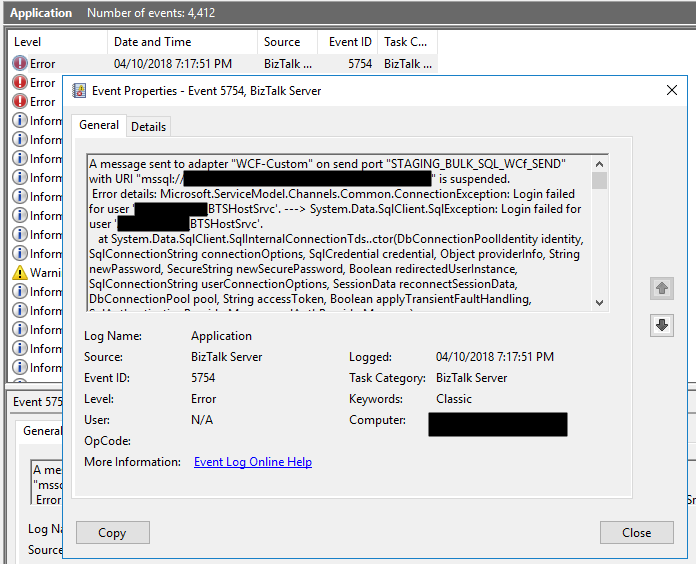
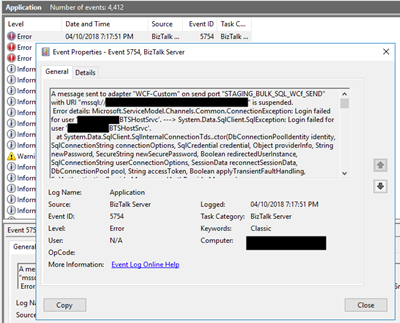
In the event viewer the message is pretty much the same:
A message sent to adapter “WCF-Custom” on send port “STAGING_BULK_SQL_WCf_SEND” with URI “mssql://SQLSRV/ /ESBAsync” is suspended.
Error details: Microsoft.ServiceModel.Channels.Common.ConnectionException: Login failed for user ‘DOMAIN BTSHostSrvc’. —> System.Data.SqlClient.SqlException: Login failed for user DOMAIN BTSHostSrvc’.
at System.Data.SqlClient.SqlInternalConnectionTds..ctor(DbConnectionPoolIdentity identity, SqlConnectionString connectionOptions, SqlCredential credential, Object providerInfo, String newPassword, SecureString newSecurePassword, Boolean redirectedUserInstance, SqlConnectionString userConnectionOptions, SessionData reconnectSessionData, DbConnectionPool pool, String accessToken, Boolean applyTransientFaultHandling, SqlAuthenticationProviderManager sqlAuthProviderManager)
at System.Data.SqlClient.SqlConnectionFactory.CreateConnection(DbConnectionOptions options, DbConnectionPoolKey poolKey, Object poolGroupProviderInfo, DbConnectionPool pool, DbConnection owningConnection, DbConnectionOptions userOptions)
at System.Data.ProviderBase.DbConnectionFactory.CreatePooledConnection(DbConnectionPool pool, DbConnection owningObject, DbConnectionOptions options, DbConnectionPoolKey poolKey, DbConnectionOptions userOptions)
at System.Data.ProviderBase.DbConnectionPool.CreateObject(DbConnection owningObject, DbConnectionOptions userOptions, DbConnectionInternal oldConnection)
at System.Data.ProviderBase.DbConnectionPool.UserCreateRequest(DbConnection owningObject, DbConnectionOptions userOptions, DbConnectionInternal oldConnection)
at System.Data.ProviderBase.DbConnectionPool.TryGetConnection(DbConnection owningObject, UInt32 waitForMultipleObjectsTimeout, Boolean allowCreate, Boolean onlyOneCheckConnection, DbConnectionOptions userOptions, DbConnectionInternal& connection)
at System.Data.ProviderBase.DbConnectionPool.TryGetConnection(DbConnection owningObject, TaskCompletionSource`1 retry, DbConnectionOptions userOptions, DbConnectionInternal& connection)
at System.Data.ProviderBase.DbConnectionFactory.TryGetConnection(DbConnection owningConnection, TaskCompletionSource`1 retry, DbConnectionOptions userOptions, DbConnectionInternal oldConnection, DbConnectionInternal& connection)
at System.Data.ProviderBase.DbConnectionInternal.TryOpenConnectionInternal(DbConnection outerConnection, DbConnectionFactory connectionFactory, TaskCompletionSource`1 retry, DbConnectionOptions userOptions)
at System.Data.ProviderBase.DbConnectionClosed.TryOpenConnection(DbConnection outerConnection, DbConnectionFactory connectionFactory, TaskCompletionSource`1 retry, DbConnectionOptions userOptions)
at System.Data.SqlClient.SqlConnection.TryOpenInner(TaskCompletionSource`1 retry)
at System.Data.SqlClient.SqlConnection.TryOpen(TaskCompletionSource`1 retry)
at System.Data.SqlClient.SqlConnection.Open()
at Microsoft.Adapters.Sql.SqlAdapterConnection.OpenConnection()
— End of inner exception stack trace —
Server stack trace:
at Microsoft.Adapters.Sql.SqlAdapterConnection.OpenConnection()
at Microsoft.Adapters.Sql.ASDKConnection.Open(TimeSpan timeout)
at Microsoft.ServiceModel.Channels.Common.Design.ConnectionPool.GetConnection(Guid clientId, TimeSpan timeout)
at Microsoft.ServiceModel.Channels.Common.Design.ConnectionPool.GetConnectionHandler[TConnectionHandler](Guid clientId, TimeSpan timeout, MetadataLookup metadataLookup, String& connectionId)
at Microsoft.ServiceModel.Channels.Common.Channels.AdapterRequestChannel.OnOpen(TimeSpan timeout)
at System.ServiceModel.Channels.CommunicationObject.Open(TimeSpan timeout)
at Microsoft.BizTalk.Adapter.Wcf.Runtime.OneWayOperationSendPortRequestChannel`1.OnOpen(TimeSpan timeout)
at System.ServiceModel.Channels.CommunicationObject.Open(TimeSpan timeout)
at System.ServiceModel.Channels.ServiceChannel.OnOpen(TimeSpan timeout)
at System.ServiceModel.Channels.CommunicationObject.Open(TimeSpan timeout)
at System.ServiceModel.Channels.CommunicationObject.Open()
Exception rethrown at [0]:
at System.Runtime.Remoting.Proxies.RealProxy.HandleReturnMessage(IMessage reqMsg, IMessage retMsg)
at System.Runtime.Remoting.Proxies.RealProxy.PrivateInvoke(MessageData& msgData, Int32 type)
at System.ServiceModel.ICommunicationObject.Open()
at Microsoft.BizTalk.Adapter.Wcf.Runtime.WcfClient`2.GetChannel[TChannel](IBaseMessage bizTalkMessage, ChannelFactory`1& cachedFactory)
at Microsoft.BizTalk.Adapter.Wcf.Runtime.WcfClient`2.SendMessage(IBaseMessage bizTalkMessage)
MessageId: {84B22A22-13F7-47C7-91B5-A863E64E268E}
Cause
Once again, sometimes is not quite true, the cause of the problem is simple to diagnose, and the error message gives a very good intel in the cause of the problem.
This problem occurs because the user account that you used to access the database, in my case the BizTalk Host Instance Account, don’t have permissions to connect… the SQL Server or SQL Server instance.
Just to be clear, this is not having permission to insert, read or event full permission to do operation on a specific database, that is completely different – I check all of that and the user have the correct access/permission. What I forget was to give access to connect to the SQL Server/SQL Server Instance.
Solution
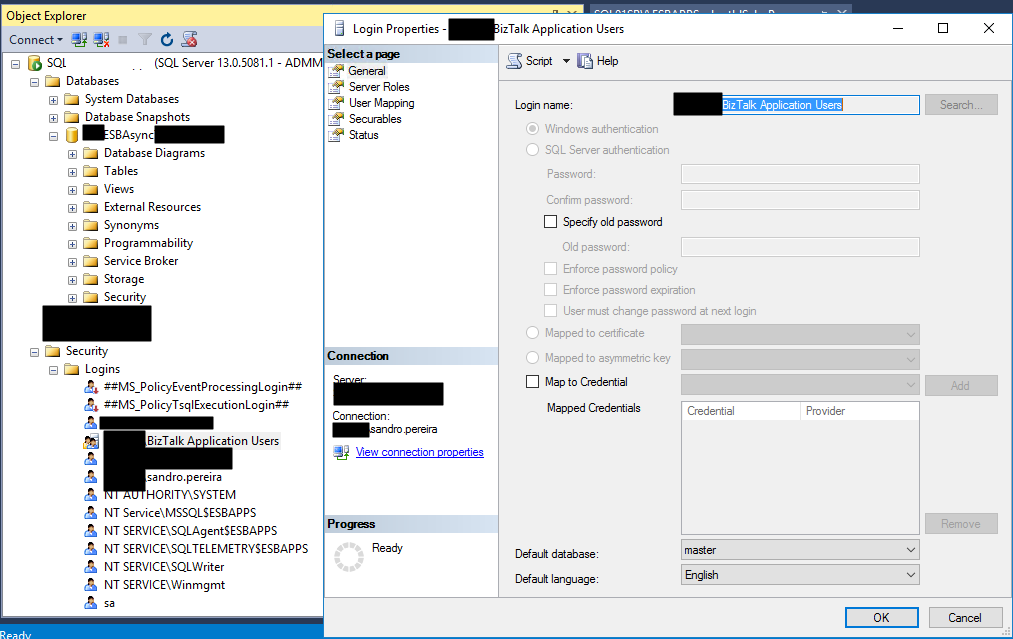
To solve this issue, you must give access to the user, in my case BizTalk Host Instance Account to connect to the SQL Server and for that, you must:
- Open SQL Server Management Studio and connect to your server.
- In the Object Explorer, expand the “Security” folder under the server.
- Right click on the “Logins” folder and choose “New Login…”
- Add the username or group in the format “DomainUserNameOrGroup”
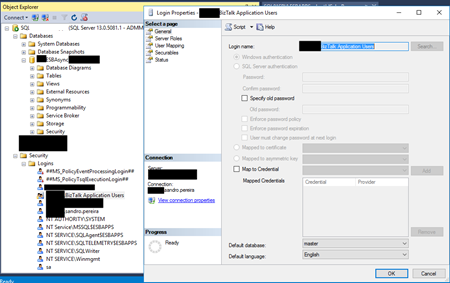
- Choose the “Securables” tab and make sure that you grant “Connect SQL” permission to the SQL Server/SQL Server instance
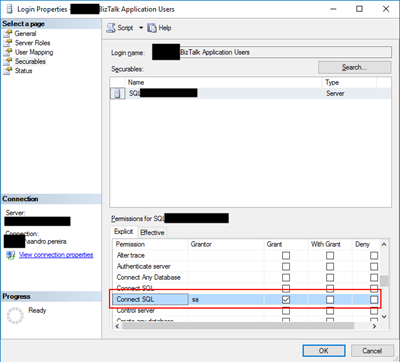
- Click “OK” and your user will be created and have access to connect to your SQL Server.
Author: Sandro Pereira
Sandro Pereira lives in Portugal and works as a consultant at DevScope. In the past years, he has been working on implementing Integration scenarios both on-premises and cloud for various clients, each with different scenarios from a technical point of view, size, and criticality, using Microsoft Azure, Microsoft BizTalk Server and different technologies like AS2, EDI, RosettaNet, SAP, TIBCO etc. He is a regular blogger, international speaker, and technical reviewer of several BizTalk books all focused on Integration. He is also the author of the book “BizTalk Mapping Patterns & Best Practices”. He has been awarded MVP since 2011 for his contributions to the integration community. View all posts by Sandro Pereira
by Sandro Pereira | Sep 25, 2018 | BizTalk Community Blogs via Syndication
PIP name specified does not match the PIP specification, this is the last RosettaNet error that tries to make my life a little bit difficult.
Fortunately, to date, Microsoft documentation has significantly improved, moving to DOCS was a good approach and community members now have the availability to help to improve the product documentation. Nevertheless, there are still some topics that the existing the documentation is obsolete, scarce or simply non-existent. One of these topics is Microsoft BizTalk Accelerator for RosettaNet.
I was receiving this error on the PublicResponderProcess orchestration, for those who are not familiar with Microsoft BizTalk Accelerator for RosettaNet (BTARN), this is a default artifact developer by Microsoft that compose a BizTalk Solution that handles PIP messages:
- When a responder receives a request message, BTARN routes the request message from the public-process orchestration, to the private-process orchestration, to the line-of-business (LOB) program. The responder requires the response service content from the LOB program to generate a RosettaNet response message back to the initiator. Many of the elements in the response message are populated using the values from the request message. As a result, you can incorporate a map in the responder private-process orchestration to help the LOB program generate the response service-content message in the required format.
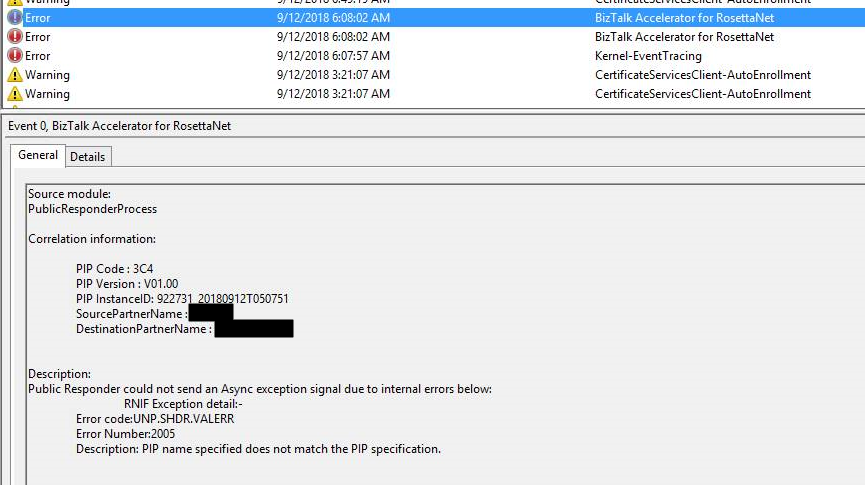
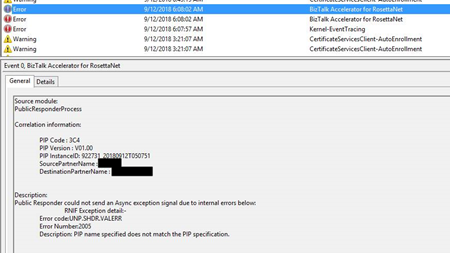
The difficult part is to “debug”/track these errors to understand what and why this is happening. The full error message in the event log was:
Source module:
PublicResponderProcess
Correlation information:
PIP Code : 3C4
PIP Version : V01.00
PIP InstanceID : 922731_20180912T050751
SourcePartnerName :
DestinationPartnerName:
Description:
Public Responder could not send an Async exception signal due to internal errors bellow:
RNIF Exception detail:-
Error code:UNP.SHDR.VALERR
Error Number:2005
Description: PIP name specified does not match the PIP specification.
Note: this same error can occur in previous or new versions of BizTalk Server.
Cause
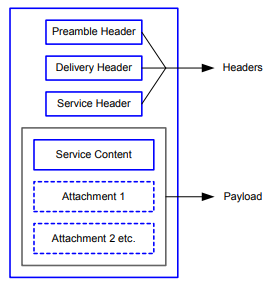
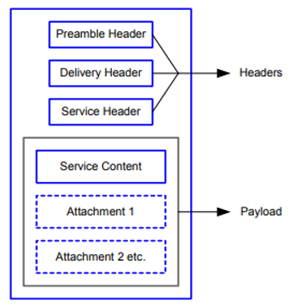
Again, it was difficult to understand all the internal behaviors developed by Microsoft for BTARN but basically, when you receive a PIP message you will end up receiving 4 parts:
- The Preamble:
- All RosettaNet messages must have a Preamble. It is specified with a DTD that is common across all messages.
- The Preamble section of the MIME message contains elements that are global to the RosettaNet service and others that are common to the Service Header and Service Content; for example, the message standard and version used in the message.
<Preamble xmlns="http://schemas.microsoft.com/biztalk/btarn/2004/Preamble_MS_V02_00.dtd">
    <standardName>
        <GlobalAdministeringAuthorityCode>
            RosettaNet
        </GlobalAdministeringAuthorityCode>
    </standardName>
    <standardVersion>
        <VersionIdentifier>
            V02.00
        </VersionIdentifier>
    </standardVersion>
</Preamble>
- The Delivery Header
- The delivery header is new in RNIF 2.0 and facilitates the routing of messages through hubs. It contains the following attributes:
- Elements for the sending and receiving of trading partner identities
- Message date and time stamp
- Globally unique tracking ID
<DeliveryHeader xmlns="http://schemas.microsoft.com/biztalk/btarn/2004/DeliveryHeader_MS_V02_00.dtd">
    <isSecureTransportRequired>
        <AffirmationIndicator>
            Yes
        </AffirmationIndicator>
    </isSecureTransportRequired>
    <messageDateTime>
        <DateTimeStamp>
            20180912T050743.000Z
        </DateTimeStamp>
    </messageDateTime>
    <messageReceiverIdentification>
        <PartnerIdentification>
            <GlobalBusinessIdentifier>
                xxxx
            </GlobalBusinessIdentifier>
        </PartnerIdentification>
    </messageReceiverIdentification>
    <messageSenderIdentification>
        <PartnerIdentification>
            <GlobalBusinessIdentifier>
                yyyyy
            </GlobalBusinessIdentifier>
        </PartnerIdentification>
    </messageSenderIdentification>
    <messageTrackingID>
        <InstanceIdentifier>
            922730_20180912T050744**00**
        </InstanceIdentifier>
    </messageTrackingID>
</DeliveryHeader>
-
- The Service Header is specified with a DTD that is common across all messages. A separate DTD and/or XML schema for each message validates the body of the messages.
- The Service Header helps identify the following items:
- The PIP
- The activity and the action to which the message belongs
- The PIP instance
- Information about the sender of the message
- Information about the recipient of the message
- The date and time at which the message was sent
- Whether the message is a Test message or a Production message
- Whether the sender is to be treated as an “unknown partner”
- The Service Header format is fixed and independent of the specifics of the message contained in the payload. However, the Service Content could change based on the variance in the business content.
<ServiceHeader xmlns="http://schemas.microsoft.com/biztalk/btarn/2004/ServiceHeader_MS_V02_00.dtd">
    <ProcessControl>
        <ActivityControl>
            <BusinessActivityIdentifier>
                Notify Of Invoice Reject
            </BusinessActivityIdentifier>
            <MessageControl>
                <fromRole>
                    <GlobalPartnerRoleClassificationCode>
                        Invoice Reject Provider
                    </GlobalPartnerRoleClassificationCode>
                </fromRole>
                <fromService>
                    <GlobalBusinessServiceCode>
                        Invoice Reject Provider Service
                    </GlobalBusinessServiceCode>
                </fromService>
                <Manifest>
                    <numberOfAttachments>
                        <CountableAmount>
                            0
                        </CountableAmount>
                    </numberOfAttachments>
                    <ServiceContentControl>
                        <ActionIdentity>
                            <GlobalBusinessActionCode>
                                Invoice Reject Notification Action
                            </GlobalBusinessActionCode>
                        </ActionIdentity>
                    </ServiceContentControl>
                </Manifest>
                <toRole>
                    <GlobalPartnerRoleClassificationCode>
                        Invoice Reject Receiver
                    </GlobalPartnerRoleClassificationCode>
                </toRole>
                <toService>
                    <GlobalBusinessServiceCode>
                        Invoice Reject Receiver Service
                    </GlobalBusinessServiceCode>
                </toService>
            </MessageControl>
        </ActivityControl>
        <GlobalUsageCode>
            Test
        </GlobalUsageCode>
        <pipCode>
            <GlobalProcessIndicatorCode>
                3C4
            </GlobalProcessIndicatorCode>
        </pipCode>
        <pipInstanceId>
            <InstanceIdentifier>
                922730_20180912T050744
            </InstanceIdentifier>
        </pipInstanceId>
        <pipVersion>
            <VersionIdentifier>
                V01.00
            </VersionIdentifier>
        </pipVersion>
        <KnownInitiatingPartner>
            <PartnerIdentification>
                <GlobalBusinessIdentifier>
                    XXXXXX
                </GlobalBusinessIdentifier>
            </PartnerIdentification>
        </KnownInitiatingPartner>
    </ProcessControl>
</ServiceHeader>
- And the Service Content
- Service Content is specified in individual PIPs. Each PIP has one or more business actions that are described by means of individual DTDs or schema.
- The payload part of a RosettaNet Business Message—that is, the actual business content—is a message in XML format.
For this problem, the things you need to know about the PublicResponderProcess orchestration is that:
- It will call a method “GetRuntimeConfig” on the “GetRNConfig” shape that will get the process/agreement configuration;
rnConfig = Microsoft.Solutions.BTARN.ConfigurationManager.RuntimeConfigGenerator.GetRuntimeConfig
  (destinationPartyID, sourcePartyID, pipCode, pipVersion,
    false, true
 );
- And it will call a method “IsActionMessageValid” on the “ValidateMessage” shape that will validate if the message received a match to any process/agreement active in the system
rnConfig.IsActionMessageValid( inRNIFMessage, out exceptionInfo );
-
- This last method calls an additional method call “ValidateActionServiceHeader”, here a piece of the code:
...
if (propertyValue != base.GetPIPConfigValue("PIP_Name"))
{
   str = str + StringResources.GetString(StringResourceIDNames.rtcV11InvalidPipName);
}
...
-
-
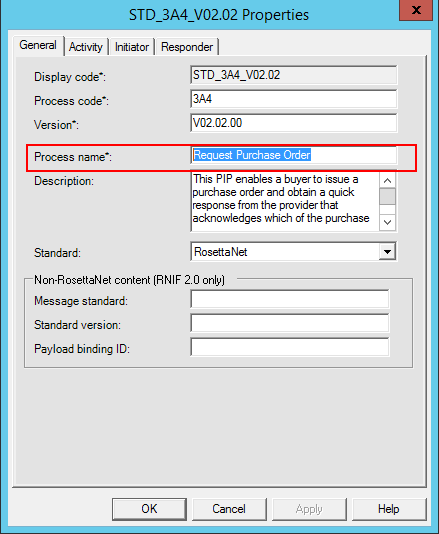
- “GetPIPConfigValue(“PIP_Name”)” comes from the RosettaNet process
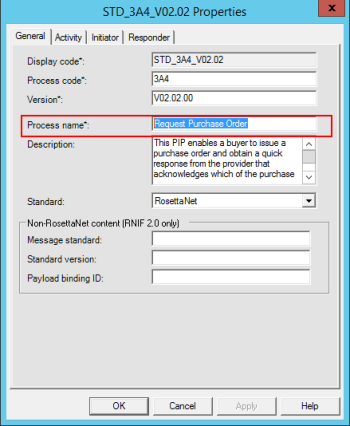
-
-
- The other comes from the Service Header message part in the BusinessActivityIdentifier element
- Both need to be equal – case sensitive!
My problem was that:
- the RosettaNet process name was: Notify of Invoice Reject
- and the Service Header was: Notify Of Invoice Reject
Solution
To solve this issue you must.
- Ensure that the process name is equal to the BusinessActivityIdentifier element in the Service Header message part
Author: Sandro Pereira
Sandro Pereira lives in Portugal and works as a consultant at DevScope. In the past years, he has been working on implementing Integration scenarios both on-premises and cloud for various clients, each with different scenarios from a technical point of view, size, and criticality, using Microsoft Azure, Microsoft BizTalk Server and different technologies like AS2, EDI, RosettaNet, SAP, TIBCO etc. He is a regular blogger, international speaker, and technical reviewer of several BizTalk books all focused on Integration. He is also the author of the book “BizTalk Mapping Patterns & Best Practices”. He has been awarded MVP since 2011 for his contributions to the integration community. View all posts by Sandro Pereira
by Sandro Pereira | Sep 21, 2018 | BizTalk Community Blogs via Syndication
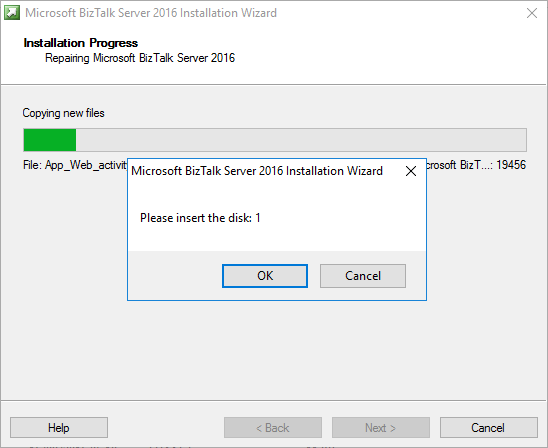
A funny error I found out on December 4, 2017, that I’m now recovering from my backlog to be published. While trying to repair a BizTalk Server 2016 installation on a virtual machine I got this annoying, funny and strange error: Please insert the disk: 1.
Microsoft BizTalk Server 2016 Installation Wizard
Please insert the disk: 1
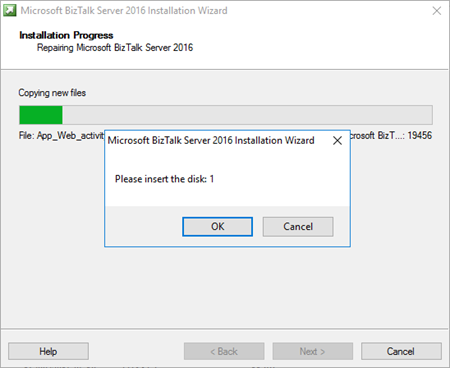
and regardless of what I did back then, like running the execution file as an administrator, I was getting this error every time I was trying to repair the BizTalk Server installation.
And what I did back then was:
- Attach the BizTalk Server ISO file in the DVD drive of Virtual Machine that was running in the Hyper-V;
- And execute the installation file from the DVD drive of the VM;
Cause
Unfortunately, this message may appear if you are trying to repair the product from the CD/DVD drive and the reason is not clear for me.
I don’t know if this error occurred by the fact that in the original installation the ISO that was locally on the machine or it is just a coincidence.
Solution
The solution, however, is very simple:
- Copy content of the BizTalk Server 2016 ISO to the local hard drive of the Virtual Machine – but I believe that this can be the same to other BizTalk Server versions;
- And execute from the local Hard Drive the BizTalk Server setup file has an Administrator;
By doing that you will definitely solve the “Please insert the disk: 1” issue and you will be able to repair the existing installation.
Author: Sandro Pereira
Sandro Pereira lives in Portugal and works as a consultant at DevScope. In the past years, he has been working on implementing Integration scenarios both on-premises and cloud for various clients, each with different scenarios from a technical point of view, size, and criticality, using Microsoft Azure, Microsoft BizTalk Server and different technologies like AS2, EDI, RosettaNet, SAP, TIBCO etc. He is a regular blogger, international speaker, and technical reviewer of several BizTalk books all focused on Integration. He is also the author of the book “BizTalk Mapping Patterns & Best Practices”. He has been awarded MVP since 2011 for his contributions to the integration community. View all posts by Sandro Pereira
by Sandro Pereira | Sep 10, 2018 | BizTalk Community Blogs via Syndication
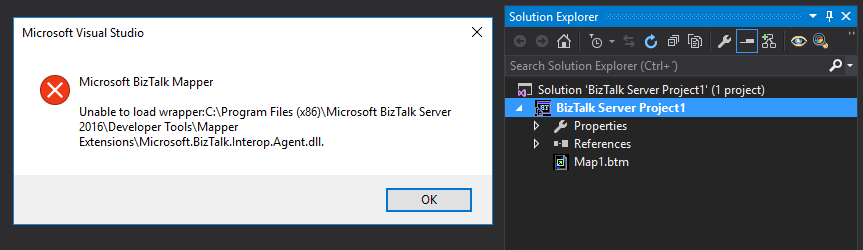
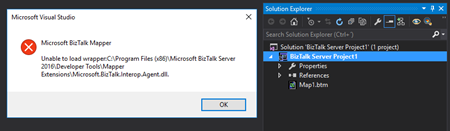
Sometimes errors seem to find me, sometimes it fills that I’m chasing errors! And because someone did something that you shouldn’t do, configuring the build folder of a Functoid project to be <BizTalk Server installation folder>Developer ToolsMapper Extensions directory, I got a new and strange error while trying to open a BizTalk map inside Visual Studio: Microsoft BizTalk Mapper Unable to load wrapper. Here is the full error message:
Microsoft BizTalk Mapper
Unable to load wrapper <BizTalk Server installation folder>Developer ToolsMapper ExtensionsMicrosoft.BizTalk.Interop.Agent.dll
Of course, at that time I was quite curious to know the cause of this problem because I didn’t do anything wrong, just building a custom Functoid project and a few minutes before I actually was working in a map and I was able to open without any kind of problems.
Cause
When you build a project, by default any kind of project it will add the project assemblies as well as the dependencies to the binDebug – again this is the default behavior.
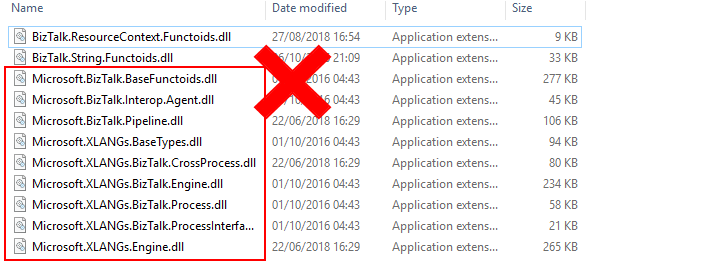
In this case, by changing this behavior in a Custom Functoid project to the <BizTalk Server installation folder>Developer ToolsMapper Extensions directory, was causing the problem, because it was adding not only the custom Functoid assembly but also some BizTalk internal assemblies, in this case the Microsoft.BizTalk.Interop.Agent.dll, that are incompatible with the internal BizTalk Mapper wrapper.
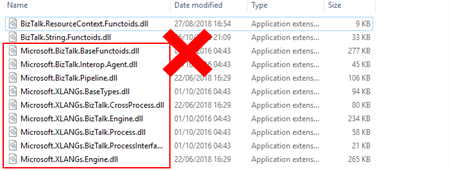
Note: BizTalk Server installation folder>Developer ToolsMapper Extensions directory is where Visual Studio BizTalk project looks for custom functoids to be added to the Toolbox.
Solution
Once again, the solution is simple, you should delete all the unnecessary assemblies, especially the internal ones of the product.
Once you delete all the unnecessary assemblies, in this case, the Microsoft.BizTalk.Interop.Agent.dll, and I also advise to delete all the ones that are selected on the above picture, the Unable to load wrapper problem will be solved and you can once again open the BizTalk Mapper without any kind of problems inside Visual Studio
Author: Sandro Pereira
Sandro Pereira lives in Portugal and works as a consultant at DevScope. In the past years, he has been working on implementing Integration scenarios both on-premises and cloud for various clients, each with different scenarios from a technical point of view, size, and criticality, using Microsoft Azure, Microsoft BizTalk Server and different technologies like AS2, EDI, RosettaNet, SAP, TIBCO etc. He is a regular blogger, international speaker, and technical reviewer of several BizTalk books all focused on Integration. He is also the author of the book “BizTalk Mapping Patterns & Best Practices”. He has been awarded MVP since 2011 for his contributions to the integration community. View all posts by Sandro Pereira
by Sandro Pereira | Sep 3, 2018 | BizTalk Community Blogs via Syndication
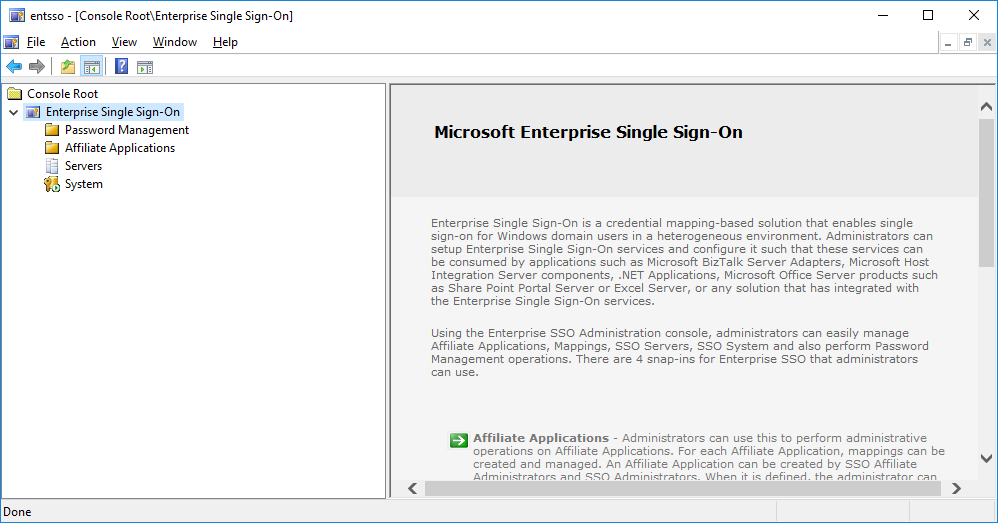
Have you ever noticed that your SSO Administration Console tool doesn’t open in BizTalk Server 2016? Fortunately for Microsoft BizTalk Server team this tool is not heavily used by the customer, nevertheless, this is an existing and valid tool that needs to be working properly.
What is this tool?
You can install the Enterprise Single Sign-On (SSO) Administration component as a stand-alone feature. This is useful if you need to administer the SSO system remotely. The hardware and software requirements are the same as for a typical Enterprise SSO installation.
After you install the administration component, you must use either ssomanage.exe or the SSO Administration MMC snap-in to specify the SSO server that will be used for management. Both processes are included in the procedure that follows.
Of course, with this tool, SSO Administration, you can do more than just configure the SSO server that will be used for management. Using the Enterprise SSO Administration console, administrators can easily manage Affiliate Applications, Mappings, SSO Servers, SSO System and also perform Password Management operations. There are 4 snap-ins for Enterprise SSO that administrators can use.
- Affiliate Applications – Administrators can use this to perform administrative operations on Affiliate Applications. For each Affiliate Application, mappings can be created and managed. An Affiliate Application can be created by SSO Affiliate Administrators and SSO Administrators. When it is defined, the administrator can optionally specify an Application Administrators account that contains users who can perform administrative operations on that Affiliate Application. In addition, an Application Users account must be specified that contains Windows domain users for whom mappings can be created. Other operations such as enabling or disabling Affiliate Applications, configuring SSO tickets for the Affiliate Application, and enabling or disabling mappings can also be performed by administrators using this snap-in.
- Password Management – Administrators can use this snap-in to perform administrative operations on Password Synchronization Adapters and Password Filters. Administrative operations need to be performed by the SSO Administrators. A filter rule can also be defined within an Adapter configuration. Once an Adapter or Filter is created, an administrator can associate Affiliate Applications with the Adapter or Filter so that the synchronization and filter rules defined are applied to that application.
- Servers – Administrators can build a list of SSO Servers to perform certain administrative operations and to view their status. Within an SSO system, an administrator can also perform a discovery process to automatically discover and add all the SSO Servers within the SSO system.
- System – Administrators can view SSO System level settings. These settings are stored in the centralized SSO Credential Database. Modifying these settings will apply to all SSO Servers that are using this SSO Credential Database. In addition, administrators can manage the Master Secret Server and perform tasks such as generate, backup and restore the secret. The system-level administrative operations can be performed only by the SSO Administrators.
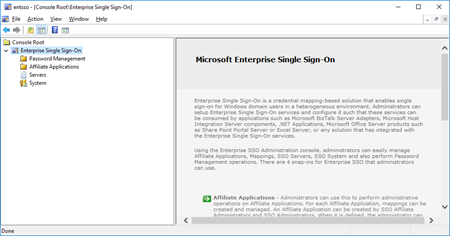
However, SSO Administration shortcut that points to the Microsoft.EnterpriseSingleSignOn.StartMMC.exe executable file is not working properly in BizTalk Server 2016.
Cause
The reason why this problem is happening is that with BizTalk Server 2016 there is a bug and the installation wizard doesn’t create all the necessary keys in the Register.
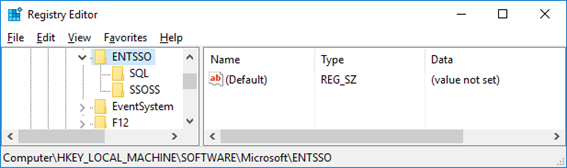
Also, if you look at the properties of the “SSO Administration” shortcut, this is pointing to the Microsoft.EnterpriseSingleSignOn.StartMMC.exe executable file. I don’t know the reason why Microsoft decided to create this strategy but in reality, this executable file is just “an easy way” (or dummy way) to open the “ENTSSO.msc”, normally present in the “C:Program FilesCommon FilesEnterprise Single Sign-On” folder and this executable reads the “ENTSSO.msc” installation path from the Register:
…
key = Registry.LocalMachine.OpenSubKey(@"SoftwareMicrosoftENTSSO");
object obj2 = key.GetValue("InstallPath") as string;
…
string str2 = """ + str + "entsso.msc"";
ProcessStartInfo startInfo = new ProcessStartInfo("mmc.exe") {
    Arguments = str2
};
Process.Start(startInfo);
…
However, this is the aspect of the keys within BizTalk Server 2016:
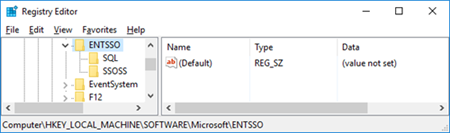
Solution
The solution is easy, and you have very different ways to do it.
If you want to open the SSO Administration snap-in, you can:
- Go to the Enterprise Single Sign-On installation folder
- Normally, “C:Program FilesCommon FilesEnterprise Single Sign-on”
- And directly execute the “ENTSSO.msc” (double click)
If you want to fix the SSO Administration shortcut to work properly, you can:
- Open the Register
- And on the HKWY_LOCAL_MACHINESOFTWAREMicrosoftENTSSO add
- the following string: InstallPath
- with the value: C:Program FilesCommon FilesEnterprise Single Sign-On
BizTalk Server 2016: PowerShell to fix the SSO Administration Console
Because in a normal situation there are more keys (strings) present in the Register. I decided to create a simple PowerShell script that you can use to fix all these bugs and put everything working normally again:
...
Set-ItemProperty -Path $registryPath -Name InstallPath -Value "C:Program FilesCommon FilesEnterprise Single Sign-On"
Set-ItemProperty -Path $registryPath -Name ProductCode -Value "{F89B22BC-2768-4237-B300-5CFA52D9AC84}"
...
THIS POWERSHELL IS PROVIDED “AS IS”, WITHOUT WARRANTY OF ANY KIND.
 BizTalk Server 2016: PowerShell to fix the SSO Administration Console (2 KB)
Microsoft | TechNet Gallery
Author: Sandro Pereira
Sandro Pereira lives in Portugal and works as a consultant at DevScope. In the past years, he has been working on implementing Integration scenarios both on-premises and cloud for various clients, each with different scenarios from a technical point of view, size, and criticality, using Microsoft Azure, Microsoft BizTalk Server and different technologies like AS2, EDI, RosettaNet, SAP, TIBCO etc. He is a regular blogger, international speaker, and technical reviewer of several BizTalk books all focused on Integration. He is also the author of the book “BizTalk Mapping Patterns & Best Practices”. He has been awarded MVP since 2011 for his contributions to the integration community. View all posts by Sandro Pereira
by Sandro Pereira | Aug 30, 2018 | BizTalk Community Blogs via Syndication
My blog backlog is full of precious things and I stop counting the number of pages I have on my OneNote to be published. Today I randomly selected this Unable to find transmitPipeline.vstemplate error that I got on December 4, 2017, in a client when I try to do something – unfortunately I don’t remember what I was trying to do – on Visual Studio. The full error message was:
Unable to find “C:program Files (x86)Microsoft Visual Studio 14.0Common7IDEItemTemplatesCacheBizTalkPipeline FilesTransmitPipeline.ziptransmitPipeline.vstemplate”.
Please repair the product to fix this issue.
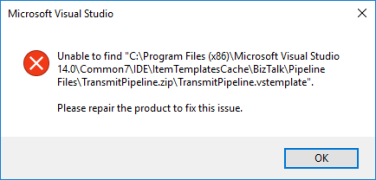
Cause
Well, I don’t know the exact reasons why this happened or why these files were missing from the development machine.
However, and that is clear from the error message description. The visual studio templates, in this case, the Transmit Pipeline template was missing from the expected directory.
Solution
The easy solution for this problem is quite simple: use the BizTalk Server ISO file to repair the BizTalk Server installation.
This will “install/copy” all the files, including all BizTalk Server visual studio templates to the development machine.
Author: Sandro Pereira
Sandro Pereira lives in Portugal and works as a consultant at DevScope. In the past years, he has been working on implementing Integration scenarios both on-premises and cloud for various clients, each with different scenarios from a technical point of view, size, and criticality, using Microsoft Azure, Microsoft BizTalk Server and different technologies like AS2, EDI, RosettaNet, SAP, TIBCO etc. He is a regular blogger, international speaker, and technical reviewer of several BizTalk books all focused on Integration. He is also the author of the book “BizTalk Mapping Patterns & Best Practices”. He has been awarded MVP since 2011 for his contributions to the integration community. View all posts by Sandro Pereira
by Sandro Pereira | Aug 29, 2018 | BizTalk Community Blogs via Syndication
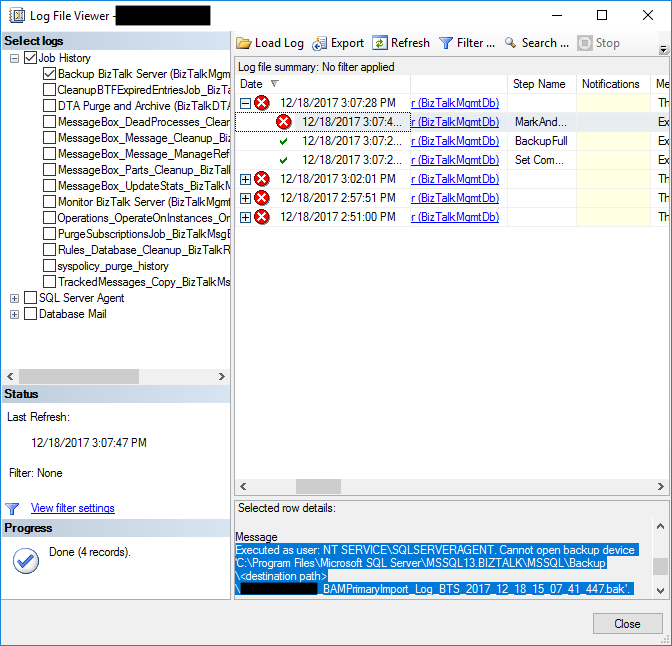
Another day, another error to report directly retrieved from my backlog to be published. Today is about another error that can happen on the Backup BizTalk Server job: “Executed as user NT SERVICESQLSERVERAGENT. Cannot open backup device destination pathdatabase name“. I got this error a few months ago in a client while doing an installation assessment:
Executed as user: NT SERVICESQLSERVERAGENT. Cannot open backup device ‘C:Program FilesMicrosoft SQL ServerMSSQL13.BIZTALKMSSQLBackup<destination path>NAME_BAMPrimaryImport_Log_BTS_2017_12_18_15_07_41_447.bak’. Operating system error 123(The filename, directory name, or volume label syntax is incorrect.). [SQLSTATE 42000] (Error 3201) BACKUP LOG is terminating abnormally. [SQLSTATE 42000] (Error 3013). The step failed.
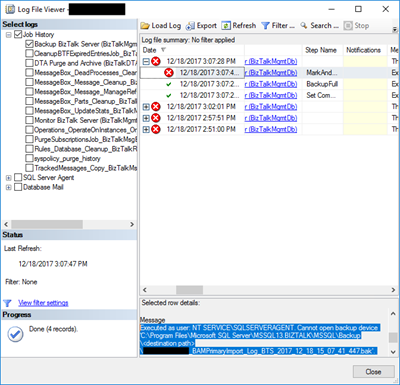
This error was occurring on the third step of the Backup BizTalk Server job: MarkAndBackupLog.
Cause
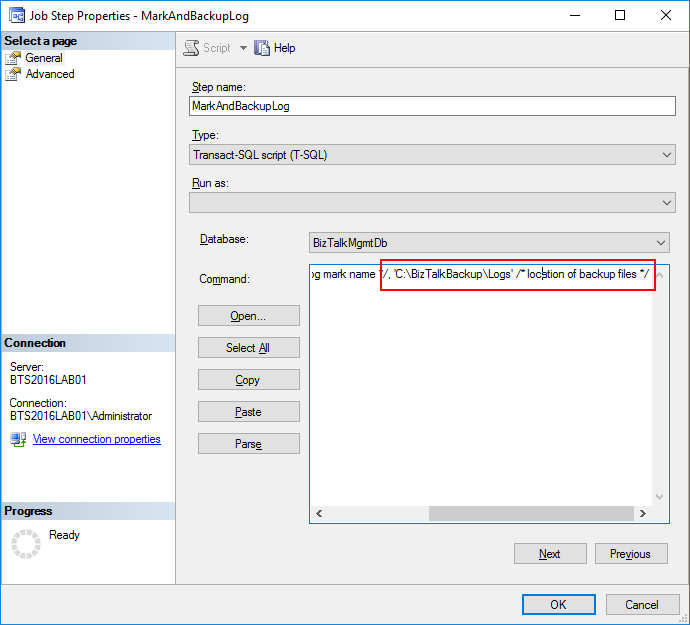
On the third step, MarkAndBackupLog, of the Backup BizTalk Server job, if you check in input parameters of the stored procedure that is invoked there: the “sp_MarkAll” stored procedure. You will find out that the second parameter is the location of backup files and this location must exist in the file system.
The reason for this error to occur may be related for one of these reasons:
- This step is not properly configured, and you still have “<destination path>” set as the value for the location of backup files – second parameter;
- Or the folder/path that you define as the location of backup doesn’t exist;
Solution
You must remember that you need to ensure that all the paths specified in the BizTalk jobs must exist in the file system.
But in this case and as you will see in the error description, the backup job was not properly configured and still have “<destination path>” set as the value for the location of backup files.
To solve this problem, you need to:
- Press the “Windows key” type “SQL Management” or “SQL” and click in “SQL Server Management Studio”.
- In Object Explorer panel, connect to the SQL Server instance and expand the server tree.
- Expand the “SQL Server Agent” node
- Expand the “Jobs” node
- Double click “Backup BizTalk Server (BizTalkMgmtDb)” to open the job properties window.
- In the Job Properties – Backup BizTalk Server (BizTalkMgmtDb) dialog box, under “Select a page”, click “Steps”.
- In the “Job step list”, click on the job you want to edit, in this case, “MarkAndBackupLog”, and then click “Edit”
- On the “Command” property correctly specify a path for the backup files
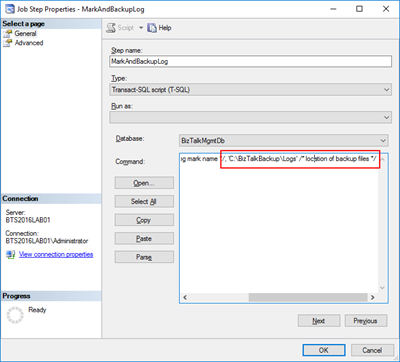
After I properly configure the job this error was solved and I was successfully able to run the Backup BizTalk Server job.
Author: Sandro Pereira
Sandro Pereira lives in Portugal and works as a consultant at DevScope. In the past years, he has been working on implementing Integration scenarios both on-premises and cloud for various clients, each with different scenarios from a technical point of view, size, and criticality, using Microsoft Azure, Microsoft BizTalk Server and different technologies like AS2, EDI, RosettaNet, SAP, TIBCO etc. He is a regular blogger, international speaker, and technical reviewer of several BizTalk books all focused on Integration. He is also the author of the book “BizTalk Mapping Patterns & Best Practices”. He has been awarded MVP since 2011 for his contributions to the integration community. View all posts by Sandro Pereira
by Sandro Pereira | Aug 24, 2018 | BizTalk Community Blogs via Syndication
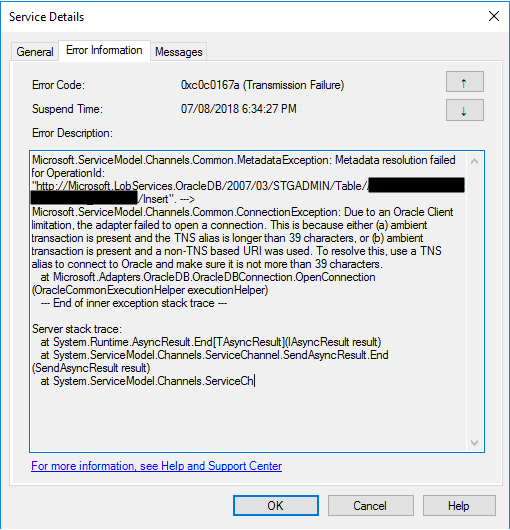
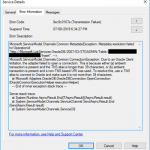
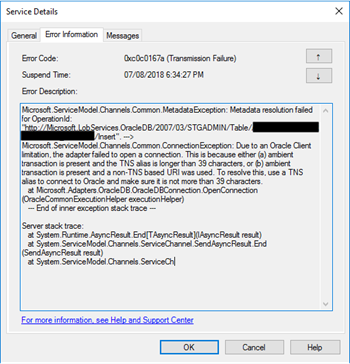
Another day, another error to report – still have plenty of them in my backlog to be published, they are an “easy and quick way” to publish something in my blog when I really don’t have much free time to write something different. Today is about “This is because either (a) ambient transaction is present and the TNS alias is longer than 39 characters” error message that I got when I was initially trying to connect for the first time to ORACLE database to insert some data:
Microsoft.ServiceModel.Channels.Common.MetadataException: Metadata resolution failed for OperationId: “http://Microsoft.LobServices.OracleDB/2007/03/STGADMIN/Table/TRANSACTIONS/Insert”. —> Microsoft.ServiceModel.Channels.Common.ConnectionException: Due to an Oracle Client limitation, the adapter failed to open a connection. This is because either (a) ambient transaction is present and the TNS alias is longer than 39 characters, or (b) ambient transaction is present and a non-TNS based URI was used. To resolve this, use a TNS alias to connect to Oracle and make sure it is not more than 39 characters.
at Microsoft.Adapters.OracleDB.OracleDBConnection.OpenConnection(OracleCommonExecutionHelper executionHelper)
— End of inner exception stack trace —
Server stack trace:
at System.Runtime.AsyncResult.End[TAsyncResult](IAsyncResult result)
at System.ServiceModel.Channels.ServiceChannel.SendAsyncResult.End(SendAsyncResult result)
at System.ServiceModel.Channels.ServiceCh.
Followed by other similar warning messages:
A message sent to adapter “WCF-Custom” on send port “INSERT_PAYMENTS_WCFORACLE” with URI “oracledb://IP-ADDRESS:PORT-NUMBER/PATH” is suspended.
Error details: Microsoft.ServiceModel.Channels.Common.MetadataException: Metadata resolution failed for OperationId: “http://Microsoft.LobServices.OracleDB/2007/03/STGADMIN/Table/PAYMENTS/Insert”. —> Microsoft.ServiceModel.Channels.Common.ConnectionException: Due to an Oracle Client limitation, the adapter failed to open a connection. This is because either (a) ambient transaction is present and the TNS alias is longer than 39 characters, or (b) ambient transaction is present and a non-TNS based URI was used. To resolve this, use a TNS alias to connect to Oracle and make sure it is not more than 39 characters.
at Microsoft.Adapters.OracleDB.OracleDBConnection.OpenConnection(OracleCommonExecutionHelper executionHelper)
— End of inner exception stack trace —
Server stack trace:
at System.Runtime.AsyncResult.End[TAsyncResult](IAsyncResult result)
at System.ServiceModel.Channels.ServiceChannel.SendAsyncResult.End(SendAsyncResult result)
at System.ServiceModel.Channels.ServiceChannel.EndCall(String action, Object[] outs, IAsyncResult result)
at System.ServiceModel.Channels.ServiceChannel.EndRequest(IAsyncResult result)
Exception rethrown at [0]:
at System.Runtime.Remoting.Proxies.RealProxy.HandleReturnMessage(IMessage reqMsg, IMessage retMsg)
at System.Runtime.Remoting.Proxies.RealProxy.PrivateInvoke(MessageData& msgData, Int32 type)
at System.ServiceModel.Channels.IRequestChannel.EndRequest(IAsyncResult result)
at Microsoft.BizTalk.Adapter.Wcf.Runtime.WcfClient`2.RequestCallback(IAsyncResult result)
MessageId: {DE7ABF70-D6B7-4FC8-A570-5AAE4FFACBB9}
InstanceID: {5842C3C7-6746-4A56-8707-FF53123A4101}
Cause
Non-TNS based URI is not supported under an ambient transaction. If you have to use transactions, you should use the TNS alias.
Note: TNS Alias needs to be less than 39 characters.
Solution
To solve this problem, you need to:
- Open the send port properties, by double-clicking on the port;
- Click on “Configure…” button under Transport
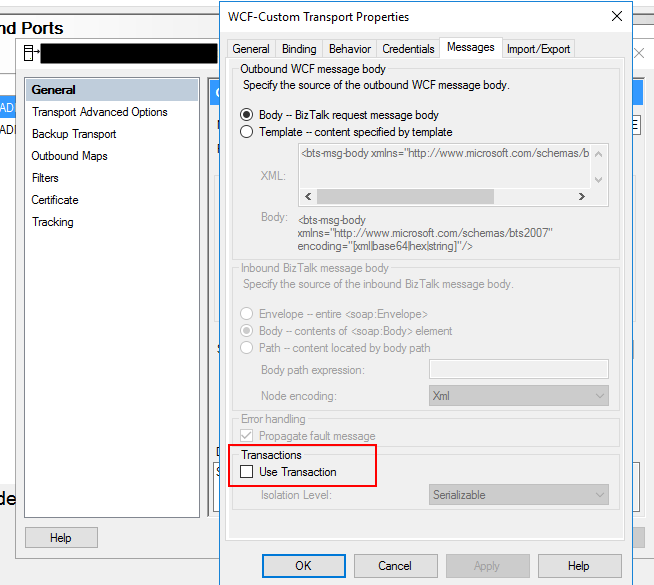
- On the Transport Properties window, select the “Message” tab and then uncheck the “Use Transaction” box under Transactions
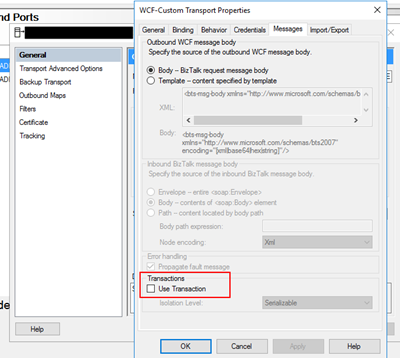
If you try to resend the message this problem should be solved. Additionally, if this error still persists, you should change the following properties in the oracleDBbinding:
- “enableBizTalkCompatibilityMode” = True (this is set to false per default)
- And/or “useAmbientTransaction” = False
Author: Sandro Pereira
Sandro Pereira lives in Portugal and works as a consultant at DevScope. In the past years, he has been working on implementing Integration scenarios both on-premises and cloud for various clients, each with different scenarios from a technical point of view, size, and criticality, using Microsoft Azure, Microsoft BizTalk Server and different technologies like AS2, EDI, RosettaNet, SAP, TIBCO etc. He is a regular blogger, international speaker, and technical reviewer of several BizTalk books all focused on Integration. He is also the author of the book “BizTalk Mapping Patterns & Best Practices”. He has been awarded MVP since 2011 for his contributions to the integration community. View all posts by Sandro Pereira