by Sandro Pereira | Nov 1, 2019 | BizTalk Community Blogs via Syndication
Recently a
friend of mine that is working with me in a project send me an email reporting
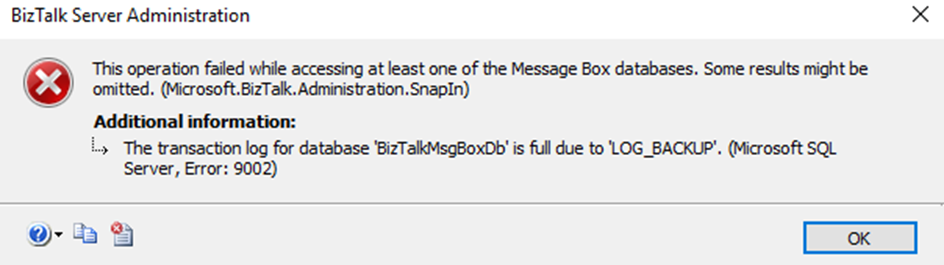
a quite curious issue that I found while accessing the BizTalk Server
Administration console in our development environment:
This operation failed while accessing at least one of the Message Bix databases. Some results might be omitted. (Microsoft.Biztalk.Administration.SnapIn)
Additional information:
The transaction log for database ‘BizTalkMsgBoxDb’ is full due to ‘LOG_BACKUP’. (Microsoft SQL Server, Error: 9002)
Immediately I point out to the team that this issue
was related to lack of disk space.
Cause
The official cause of
this issue is that when the transaction log becomes full, SQL Server Database
Engine issues a 9002 error. The log can fill when the database is online, or in
recovery. If the log fills while the database is online, the database remains
online but can only be read, not updated.
And for us to know the exact cause for what is
preventing log truncation, we can use the log_reuse_wait and log_reuse_wait_desc
columns of the sys.database catalog view.
In our case, it was indeed a problem with disk
space and what happened was that the disk to where we were doing backup went out
of disk space, because we cannot do the backups the transaction log grow until
the point that disk (that contain the log file) also went out of disk space.
Solution
When you know the issue, the solution is quite easy. In this case, freeing disk space from both hard drives immediately solves the problem. Nevertheless, because the log file got quite big you should think of stopping your BizTalk Server environment and do maintenance in your databases in special reduce the size of the transaction log.
For that you should:
- Perform
a full back of your databases;
- Stop
all BizTalk Server services (host instances and enterprise Single Sign-on)
- And
run the following SQL Script
ALTER DATABASE BizTalkMsgBoxDb
SET RECOVERY SIMPLE;
GO

DBCC SHRINKFILE (BizTalkMsgBoxDb_log, 2048);
GO

ALTER DATABASE BiztalkMsgBoxDb
SET RECOVERY FULL
GO
- Do
about the same steps for other databases whose transaction logs are also quite large.
The post BizTalk Server: The transaction log for database ‘BizTalkMsgBoxDb’ is full due to ‘LOG_BACKUP’. appeared first on SANDRO PEREIRA BIZTALK BLOG.
by Sandro Pereira | May 20, 2019 | BizTalk Community Blogs via Syndication
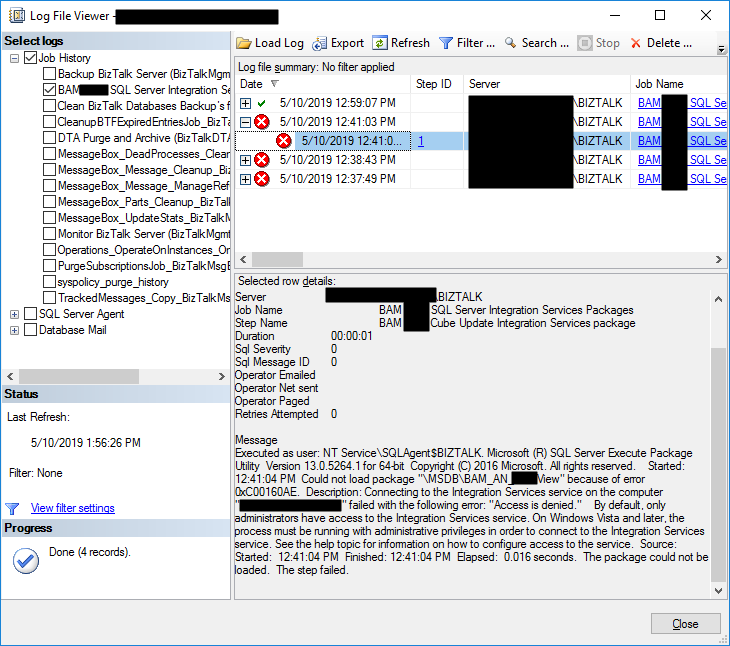
Last blog post I wrote about an “Access is denied” error while trying to connect with SQL Server Integration Services (SSIS). Today’s post is about the same problem but in a different situation/context, of course with a different cause and solution, this time I got this error while trying to execute a SQL Server Job to run the BAM_AN_<name>View and BAM_DM_<name> to import BAM data to Analysis Server and maintaining the BAMPrimaryImport BAM tables:
Date 5/10/2019 12:41:03 PM
Log Job History (BAM <name> SQL Server Integration Services Packages)
Step ID 1
Server localhost
Job Name BAM <name> SQL Server Integration Services Packages
Step Name BAM <name> Cube Update Integration Services package
Duration 00:00:01
Sql Severity 0
Sql Message ID 0
Operator Emailed
Operator Net sent
Operator Paged
Retries Attempted 0
Message
Executed as user: NT ServiceSQLAgent$BIZTALK. Microsoft (R) SQL Server Execute Package Utility Version 13.0.5264.1 for 64-bit Copyright (C) 2016 Microsoft. All rights reserved. Started: 12:41:04 PM Could not load package “MSDBBAM_AN_<name>View” because of error 0xC00160AE. Description: Connecting to the Integration Services service on the computer “localhost” failed with the following error: “Access is denied.” By default, only administrators have access to the Integration Services service. On Windows Vista and later, the process must be running with administrative privileges in order to connect to the Integration Services service. See the help topic for information on how to configure access to the service. Source: Started: 12:41:04 PM Finished: 12:41:04 PM Elapsed: 0.016 seconds. The package could not be loaded. The step failed.
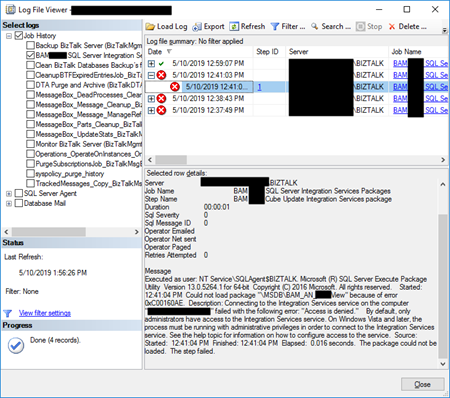
To better contextualize this issue, I got this error after:
- I give permissions to my user to connect to SSIS (see how in my previous blog post)
- I successfully created the SQL JOB to import and maintain BAM data, so I was able to navigate in SSIS to select the correct packages
Cause
Again, the description says that by default, only administrators have access to the Integration Services service. On Windows Vista and later, the process must be running with administrative privileges to connect to the Integration Services service. That, in other words, means:
- insufficient rights to connect to SSIS.
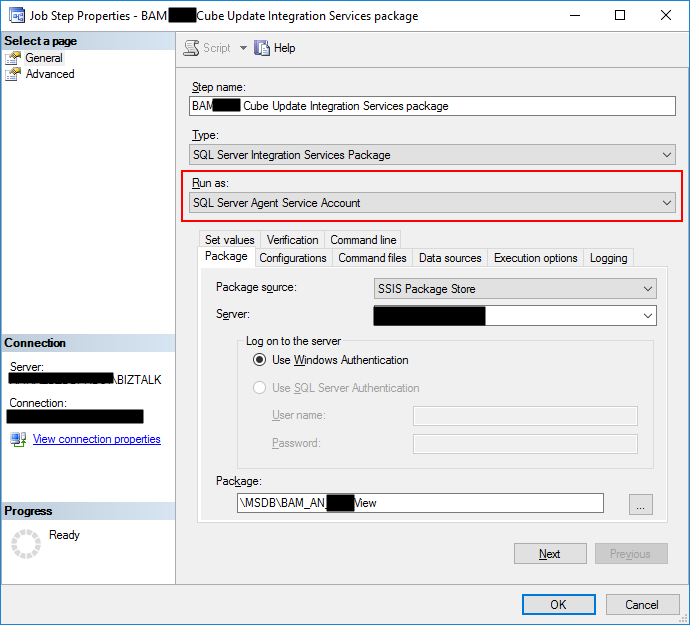
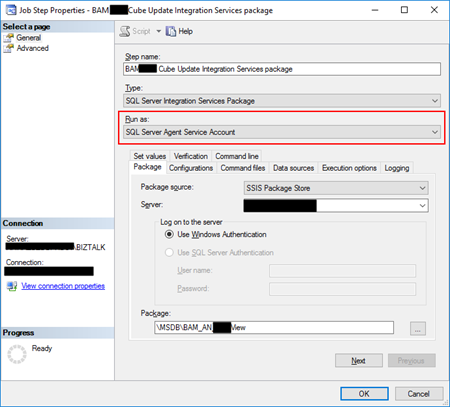
And the reason behind that is that the tasks are by default running under (Run as) SQL Server Agent Service Account that is typically a different user that the user that is configuring/creating the importation Jobs. Usually, it will run under a service account or NT Service like: “NT SERVICEMSSQLSERVER” or in my case “NT ServiceSQLAgent$BIZTALK” and this may not have access to SSIS.
Solution
The solution to this issue is:
- to give permission to the SQL Server Agent Service Account
- or for better control, you should set up a Proxy Account to run SSIS packages.
To set up a Proxy Account to run SSIS packages you should:
- Note: I will assume that there a Login for the user is already created/configured in SQL Server and that will also have access to BAMPrimaryImport database;
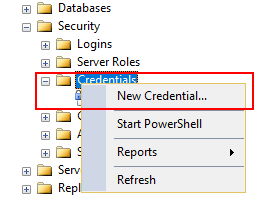
- The first step is to create the credentials which will be then used in the Proxy Account. To do this, we need to:
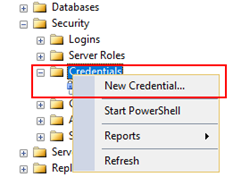
- In SQL Server Management Studio, click on Security and then right click on Credentials, click on New Credential…
-
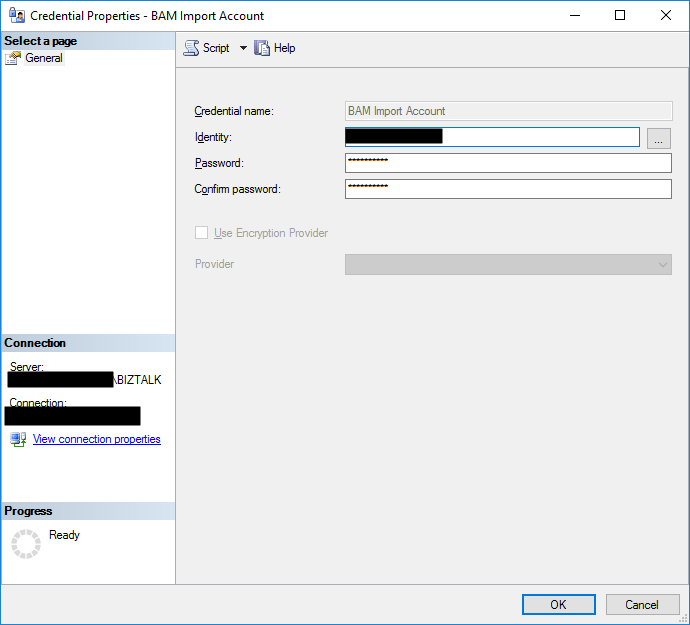
- On the New Credential window
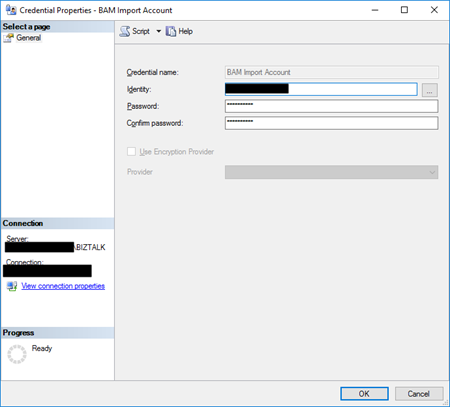
- Put a Credential name. You can put the same name as the domain name or a meaningful name. In my case, I add “BAM Import Account”
- Click on Identity, which will open the Select User or Group window to ensure you select the correct user or Group;
- And then you will need to put in the password for the Domain account you selected and confirm the password in another text box
-
-
- Then click Ok to create your new Credential
- The second step will be creating a proxy to be used within the SQL Server Agent. To do that you should:
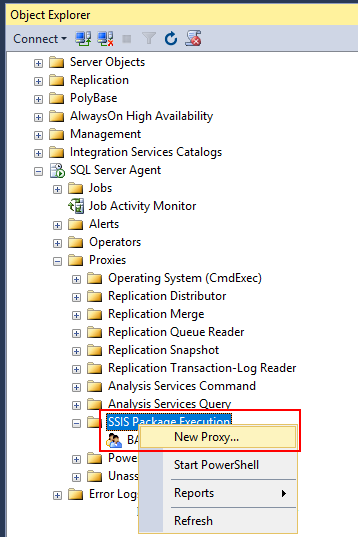
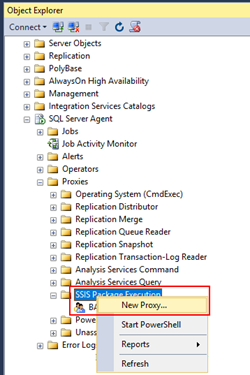
- In SSMS, click on SQL Server Agent, then Proxies and then SSIS Package Execution.
- Right-click and select New Proxy…
-
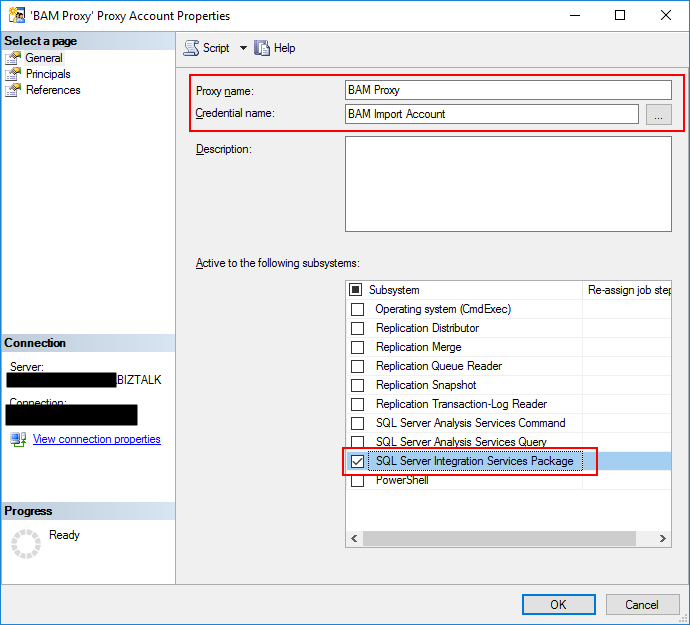
- On the New Proxy account window
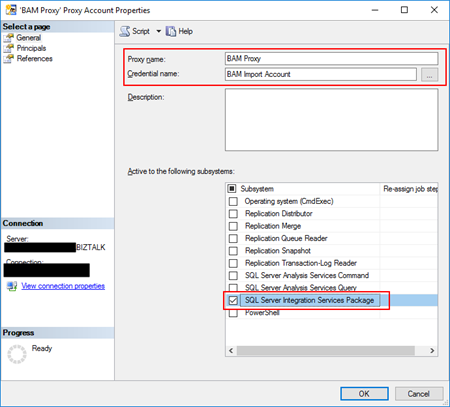
- Give your Proxy a meaningful name, in my case, “BAM Proxy”
- Under Credential Name select the credential you should use to execute the packages, in my case, “BAM Import Account”
- And activate the following subsystems from the list:
- “SQL Server Integration Services Package”
-
-
- Then click Ok to create your new Proxy.
- The third and final step is to associate this proxy on your job execution. To do that you should:
- In SSMS go to SQL Server Agent, right click on the BAM importation Jobs and select Properties
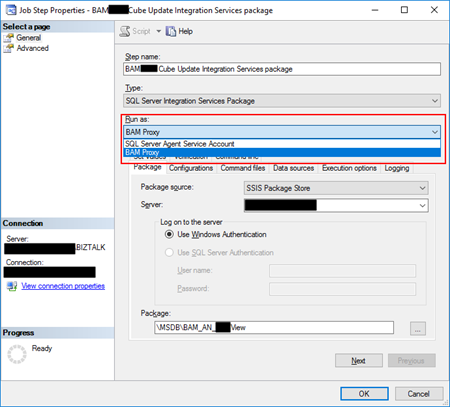
- Select the steps tab and for edit all the steps that are executing the SSIS packages
- On the “Run as” combo box, you will now be able to see the Proxy created earlier. Select that option. And click OK.
Now, and assuming that you configured adequately, if you manually run the job, or wait for the next scheduled execution, it will run successfully… we hope.
The post BizTalk Server 2016 and SQL Server Integration Services (SSIS) 2016: Connecting to the Integration Services service on the computer “localhost” failed with the following error: “Access is denied.” – PART II: Could not load package BAM_AN_<name> appeared first on SANDRO PEREIRA BIZTALK BLOG.
by Sandro Pereira | May 19, 2019 | BizTalk Community Blogs via Syndication
Let’s stay on the topic of my last blog post “BizTalk Server 2016 and SQL Server Integration Services (SSIS) 2016” and described another issue that I recently faced while trying to connect with SQL Server Integration Services (SSIS): “Access is denied“. The full error description was:
TITLE: Connect to Server
——————————
Cannot connect to localhost.
——————————
ADDITIONAL INFORMATION:
Failed to retrieve data for this request. (Microsoft.SqlServer.Management.Sdk.Sfc)
For help, click: http://go.microsoft.com/fwlink?ProdName=Microsoft%20SQL%20Server&LinkId=20476
——————————
Connecting to the Integration Services service on the computer “localhost” failed with the following error: “Access is denied.”
By default, only administrators have access to the Integration Services service. On Windows Vista and later, the process must be running with administrative privileges in order to connect to the Integration Services service. See the help topic for information on how to configure access to the service.
For help, click: http://go.microsoft.com/fwlink/?LinkId=506689
——————————
Connecting to the Integration Services service on the computer “localhost” failed with the following error: “Access is denied.”
By default, only administrators have access to the Integration Services service. On Windows Vista and later, the process must be running with administrative privileges in order to connect to the Integration Services service. See the help topic for information on how to configure access to the service.
——————————
BUTTONS:
OK
——————————
Cause
Well, the description says that by default, only administrators have access to the Integration Services service. On Windows Vista and later, the process must be running with administrative privileges in order to connect to the Integration Services service. However, I was a local administrator and a BizTalk Administrator
But still, the cause is clear: insufficient rights to connect to SSIS. When using SQL Server 2012 or later, when a user without enough rights attempts to connect to an instance of Integration Services on a remote server, the server responds with an “Access is denied” error message. You can avoid this error message by ensuring that users have the required DCOM permissions.
Solution
So, to solve this issue, you should:
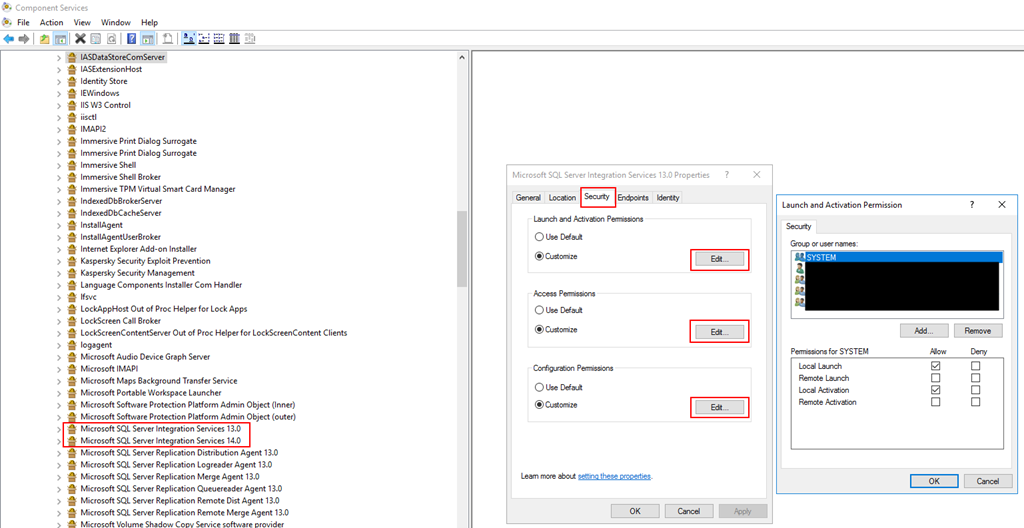
- Open Component Services; from a Run dialog, you can enter “dcomcnfg“, with Administrator permissions.
- On the left-hand tree, navigate to Component Services | Computers | My Computer | DCOM Config.
- Find “Microsoft SQL Server Integration Services 13.0“, right-click and select “Properties“
- On the Properties windows, select the “Security” tab and for each type of permission click “Edit” and add an appropriate AD group or user.
- Select “Allow” to all options.
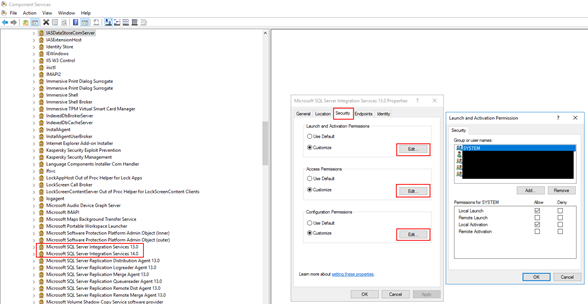
Once you have completed, you will be required to restart the SSIS service.
- From the start menu, navigate to the “SQL Servers Configuration Manager“, right-click on “SQL Server Integration Services“, and “Restart“.
The post BizTalk Server 2016 and SQL Server Integration Services (SSIS) 2016: Connecting to the Integration Services service on the computer “localhost” failed with the following error: “Access is denied.” appeared first on SANDRO PEREIRA BIZTALK BLOG.
by Sandro Pereira | May 10, 2019 | BizTalk Community Blogs via Syndication
I’m back to writing! With so many talks in recent times and those who still come, and with it all the time necessary to prepare them; with so much work and new projects ongoing (thankfully); with 3 kids at home and recently married… it has been difficult to arrange a free time to concentrate on the writing. But I’m back, and for starting with a smooth topic that I like: “Errors and Warnings, Causes and Solutions” on a problem that actually I faced today while trying to connect with SQL Server Integration Services (SSIS): “The specified service does not exist as an installed service.”
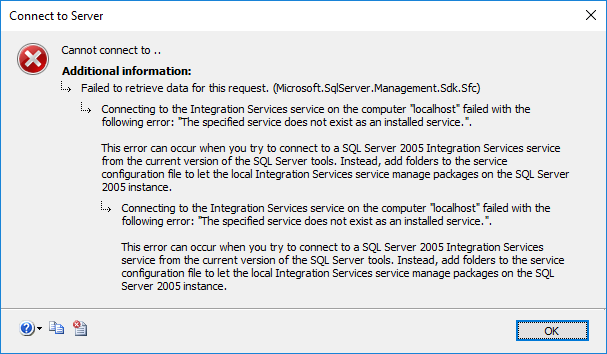
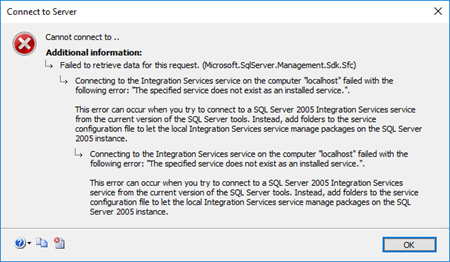
Today, while I was trying to access SSIS from SQL Server 2016 Server, that host and support BizTalk Server 2016 I got the following and bizarre error:
TITLE: Connect to Server
——————————
Cannot connect to ..
——————————
ADDITIONAL INFORMATION:
Failed to retrieve data for this request. (Microsoft.SqlServer.Management.Sdk.Sfc)
For help, click: http://go.microsoft.com/fwlink?ProdName=Microsoft%20SQL%20Server&LinkId=20476
——————————
Connecting to the Integration Services service on the computer “localhost” failed with the following error: “The specified service does not exist as an installed service.”.
This error can occur when you try to connect to a SQL Server 2005 Integration Services service from the current version of the SQL Server tools. Instead, add folders to the service configuration file to let the local Integration Services service manage packages on the SQL Server 2005 instance.
Cause
This was bizarre because again I was trying to access to SSIS directly from SQL Server machine and I was sure that I had Integration Services installed and running on the server as I was able to confirm access to the services (services.msc).

I’m not a SQL Server specialist, but after careful research into the SSIS documentation it says:
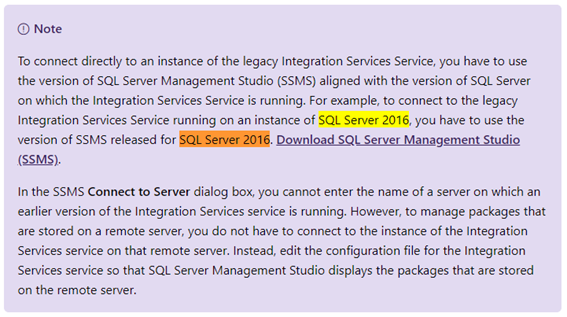
“To connect directly to an instance of the legacy Integration Services Service, you have to use the version of SQL Server Management Studio (SSMS) aligned with the version of SQL Server on which the Integration Services Service is running. For example, to connect to the legacy Integration Services Service running on an instance of SQL Server 2016, you have to use the version of SSMS released for SQL Server 2016.”
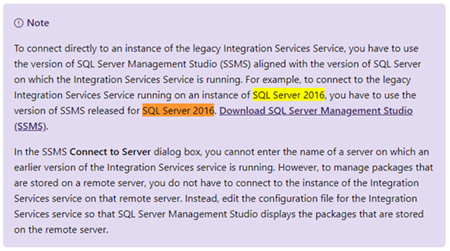
That triggered some red lights on my head because:
- I knew that this was a recent installation and we were using a current version of SQL Server Management Studio (v17.9.1);
- and I also knew that for example during the BizTalk Server configuration we may face some issues configuring some features if we are using a recent version of SSMS, you should use a compatible and recommended version: SSMS 16.5.3.
Solution
So, to solve this issue, you should:
In my case, I was able to connect to SSIS without any problem from SSMS installed in BizTalk Server 2018 machine because I always installed from day one SSMS 16.5.3 on BizTalk Servers machines.
The post BizTalk Server 2016 and Install SQL Server Integration Services (SSIS) 2016: The specified service does not exist as an installed service appeared first on SANDRO PEREIRA BIZTALK BLOG.
by Sandro Pereira | Mar 14, 2019 | BizTalk Community Blogs via Syndication
I think in the past I told that do not try to configure anything in BizTalk Server if you are tired. My advice, go to sleep for one hour and come back… unless the client is eager and demands or request things to be done… then the error happens. This was one of these errors in which I usually say that the problem was between the chair and the keyboard. This week I returned to work, after my little honeymoon leave, that I spent part of it working and another part of it with my little kid a little sick (I need to compensate my wife with a proper vacation for being so understanding). So, as you can imagine I return a little tired and the first day was one of those days that I had several clients requiring my presence for several small things at the same time.
One of them was configuring correctly, according to best practices and security the IIS application pools that were being used to run Web Sites with some orchestrations exposed as Web Services that initial was running with BizTalk Server Administration account.
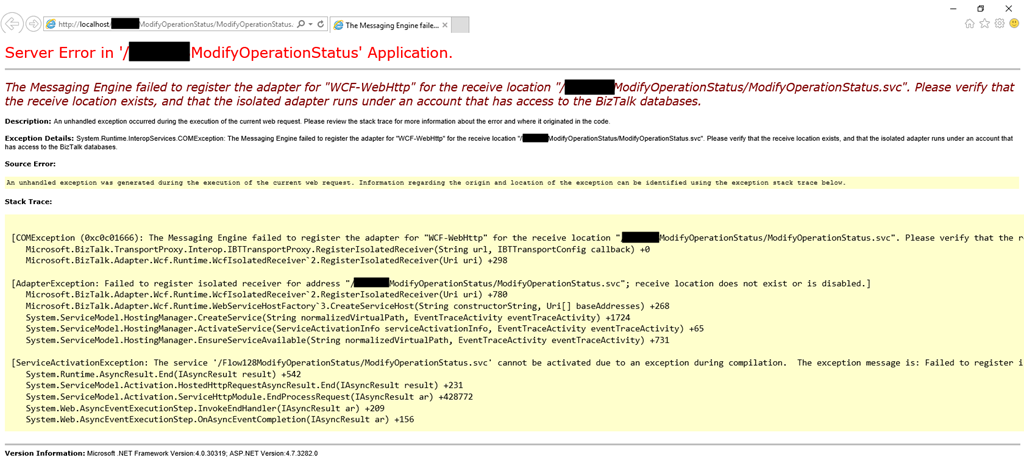
Once I finished configuring the applications pools, I started receiving the following error:
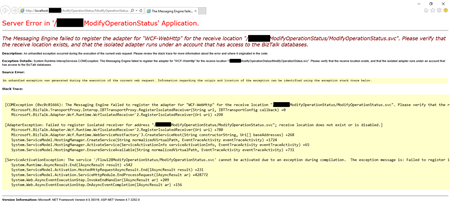
The Messaging Engine failed to register the adapter for “WCF-WebHttp” for the receive location “/ModifyOperationStatus/ModifyOperationStatus.svc”. Please verify that the receive location exists, and that the isolated adapter runs under an account that has access to the BizTalk databases~
Cause
Usually, this can happen for two reasons:
- There isn’t a receive location created and enabled listening to this web service;
- Or this is a permission issue! And is typically related by the fact that the account or service account specified on the application pool that the web service is running is not… a member of the BizTalk Isolated Host Users group.
In my case, and because the names of the service accounts were very identical, I improperly configured the application pool to run with the service account that was a member of the BizTalk Host Users group (btsapphostsrv) instead of the service account member of the BizTalk Isolated Host Users group (btsiapphostsrv).
Solution
To solve this issue, you first should check and double-check if the IIS Application Pool Identities are correctly configured.
If yes, guarantee that the user or service account is part of the BizTalk Isolated Host Users group. If not:
- Make sure you add that user or service account into the BizTalk Isolated Host Users group.
- Or change the IIS Application Pool Identity for an account that is already a member of the BizTalk Isolated Host Users Group.
And then make sure that there is a receive location configured and to listen to this web service and if it is enabled.
In my case, changing to the BizTalk Isolated Host Instance Account that is, of course, a member of BizTalk Isolated Host Users group solved my issue.
The post BizTalk Server WCF-* Adapter: Please verify that the receive location exists, and that the isolated adapter runs under an account that has access to the BizTalk databases. appeared first on SANDRO PEREIRA BIZTALK BLOG.

by Sandro Pereira | Dec 9, 2018 | BizTalk Community Blogs via Syndication
There are simple BizTalk Server installations and then there are some quite annoying BizTalk Server topologies and complex configurations which tend to give rise to the appearance of diverse types of errors: SQLNCLI11 ole db provider not found in the system. It’s one of the most recent I’ve found.
Let me contextualize the appearance of this error.
To simplify I have 5 machines in my environment:
- 2 SQL Server’s in a cluster and SSO Master Secret Server in a cluster
- 2 BizTalk Server’s
- And 1 IBM WebSphere MQ Server and with only BizTalk Server 2016 MQSeries Agent installed
I successfully installed:
- BizTalk Server 2016 Cumulative Update 5 (CU5) in the SSO Master Secret Server’s
- And BizTalk Server Feature Pack 3 with CU5 on BizTalk Server’s
Nevertheless, while I was trying to install BTS2016 CU5 on the MQ Server I got the following error:
Ole db providers : SQLOLEDB, MSDataShape, ADsDSOObject, MSDASQL, MSDASQL Enumerator, SQLOLEDB Enumerator, MSDAOSP
SQLNCLI11 ole db provider not found in the system.
TLS1.2 support requires SQL Server 2012 Native client 11.0 must be installed on all BizTalk machines. Install SQL Server Native client 11.0 before applying the update.
To download and install Microsoft SQL Server 2012 Native Client 11.0, see this Microsoft Download Center webpage. https://www.microsoft.com/en-us/download/details.aspx?id=50402&751be11f-ede8-5a0c-058c-2ee190a24fa6=True
Aborting installation of this update.
Please try after installing SQL Server 2012 Native client 11.0.
Cause
Unfortunately, to install BizTalk Server CU5 and I guess previous ones there is this default requirement that you need to have: SQL Server 2012 Native client 11.0 installed in the server.
In fact, for the BizTalk Server 2016 MQSeries Agent to work properly this component is not required. This is a validation requirement of the CU5.
Solution
The solution is quite simple:
After you install the SQL client you will be able to successfully apply the BizTalk Server 2016 CU5.
Author: Sandro Pereira
Sandro Pereira lives in Portugal and works as a consultant at DevScope. In the past years, he has been working on implementing Integration scenarios both on-premises and cloud for various clients, each with different scenarios from a technical point of view, size, and criticality, using Microsoft Azure, Microsoft BizTalk Server and different technologies like AS2, EDI, RosettaNet, SAP, TIBCO etc. He is a regular blogger, international speaker, and technical reviewer of several BizTalk books all focused on Integration. He is also the author of the book “BizTalk Mapping Patterns & Best Practices”. He has been awarded MVP since 2011 for his contributions to the integration community. View all posts by Sandro Pereira
by Sandro Pereira | Dec 7, 2018 | BizTalk Community Blogs via Syndication
There is something special when you find a solution or possible solution to an annoying error message (for not using another type of language) and this is one of these cases: There is a problem with this Windows Installer package!
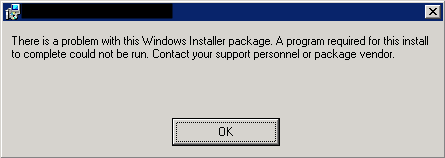
This error occurred each time my team was trying to install a BizTalk Application on a non-developer environment: Test or QA. And the full error description was:
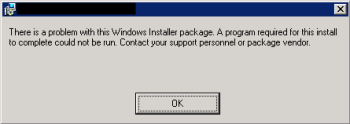
There is a problem with this Windows Installer package. A program run as part of the setup did not finish as expected. Contact your support personnel or package vendor.
And “Contact your support personnel or package vendor”? What a ****, It is me! I am the support personnel and package vendor/creator… you still write these kinds of error messages?
Cause
Unfortunately, this error may be caused by several reasons, but some places may tell you that this problem can be related to:
- The package is actually corrupted, you should export again and import it – not really like to a happen or solve it
- The fact of the destination location does not exist – that is not true, because the installation will create the directories;
- Invalid drive letter – again it is not true because the MSI will not go further on the wizard if that happens
To correctly diagnose the problem and find the cause of the problem you should consult the Event Viewer of the BizTalk Server in which you are trying to install the MSI. Normally you will find more details about the cause of the error.
The most common will be:
- The Installation Path that you are providing in the wizard along with the name of the assemblies will have more than 256 characters.
By default, the installation folder will be:
- C:Program Files (x86)Generated by BizTalkname of the BizTalk Application
That is:
- 46 characters for the default folder “C:Program Files (x86)Generated by BizTalk”
- Adding, more or less, 15 characters for the BizTalk Application name folder
Will give you a total of 195 characters to be used in the assembly’s names. Which normally is enough.
Solution
Once again, in this case, the solution is very simple:
- ·Change the installation folder to a small path like:
By providing a small path, my team was able to successfully install the MSI.
Author: Sandro Pereira
Sandro Pereira lives in Portugal and works as a consultant at DevScope. In the past years, he has been working on implementing Integration scenarios both on-premises and cloud for various clients, each with different scenarios from a technical point of view, size, and criticality, using Microsoft Azure, Microsoft BizTalk Server and different technologies like AS2, EDI, RosettaNet, SAP, TIBCO etc. He is a regular blogger, international speaker, and technical reviewer of several BizTalk books all focused on Integration. He is also the author of the book “BizTalk Mapping Patterns & Best Practices”. He has been awarded MVP since 2011 for his contributions to the integration community. View all posts by Sandro Pereira
by Sandro Pereira | Dec 6, 2018 | BizTalk Community Blogs via Syndication
This week I installed on a BizTalk Server 2016 environment Host Integration Server 2016 (HIS), and to my surprise, I was receiving this quite unusual and annoying error: String was not recognized as a valid DateTime.
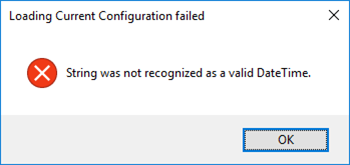
Each time I try to open the HIS Configuration Console.
Nevertheless, this error did not occur the first time I ran the configuration console, in other words, after I install the HIS, the first time I executed the Configuration console everything worked ok. Even, if I close and open again, everything was still working fine. The problem only occurred once I actually configure something.
This error only occurred If:
- I configure let’s say all the HIS features;
- Close the HIS Configuration console
- And then try to open the Configuration console again
Cause
As far as I know, there is no other reason, this is a bug!
Solution
The solution is very simple:
- Install Host Integration Server Cumulative Update 1
But in fact, there is already Host Integration Server Cumulative Update 2 available so I will recommend you installing this one instead:
After installing HIS CU2, everything worked as expected.
Author: Sandro Pereira
Sandro Pereira lives in Portugal and works as a consultant at DevScope. In the past years, he has been working on implementing Integration scenarios both on-premises and cloud for various clients, each with different scenarios from a technical point of view, size, and criticality, using Microsoft Azure, Microsoft BizTalk Server and different technologies like AS2, EDI, RosettaNet, SAP, TIBCO etc. He is a regular blogger, international speaker, and technical reviewer of several BizTalk books all focused on Integration. He is also the author of the book “BizTalk Mapping Patterns & Best Practices”. He has been awarded MVP since 2011 for his contributions to the integration community. View all posts by Sandro Pereira
by Sandro Pereira | Dec 3, 2018 | BizTalk Community Blogs via Syndication
I was thinking in calling these post series “Note to myself”, only not to be always looking for these solutions whenever these problems not related to BizTalk Server or other integration products or technologies occur. But I decided to call it “A fish out of water” that basically is what I feel sometimes. And to start this post series I choose an occurrent “issue” that happens a lot when I’m trying to do something whit in SQL Server Management Console: Saving changes is not permitted.
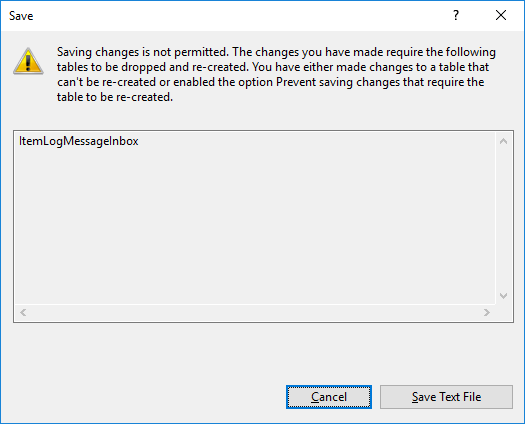
The full warning message would be:
Saving changes is not permitted. The changes that you have made require the following tables to be dropped and re-created. You have either made changes to a table that can’t be re-created or enabled the option Prevent saving changes that require the table to be re-created.
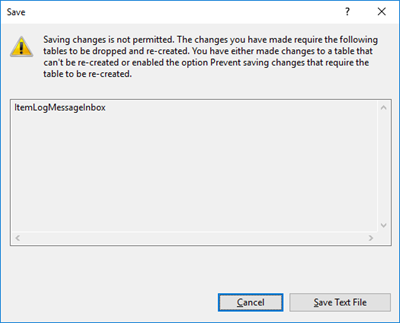
This behavior is very simple to solve and is well documented here: Error message when you try to save a table in SQL Server: “Saving changes is not permitted”. Once again, this is just for helping me not always to look at this “problem” again. My Blog is the first place I look, it is my personal notes.
Cause
This problem occurs when the Prevent saving changes that require the table re-creation option is enabled, and you make one or more of the following changes to the table:
- You change the Allow Nulls setting for a column.
- You reorder columns in the table.
- You change the column data type.
- You add a new column.
When you change a table so that you alter the metadata structure of the table, and then you save the table, the table must be re-created based on these changes. This may result in the loss of metadata and in a direct loss of data during the re-creation of the table. If you enable the Prevent saving changes that require the table re-creation option in the Designer section of the SQL Server Management Studio (SSMS) Options window, you receive the error message: Saving changes is not permitted. The changes that you have made require the following tables to be dropped and re-created.
Solution
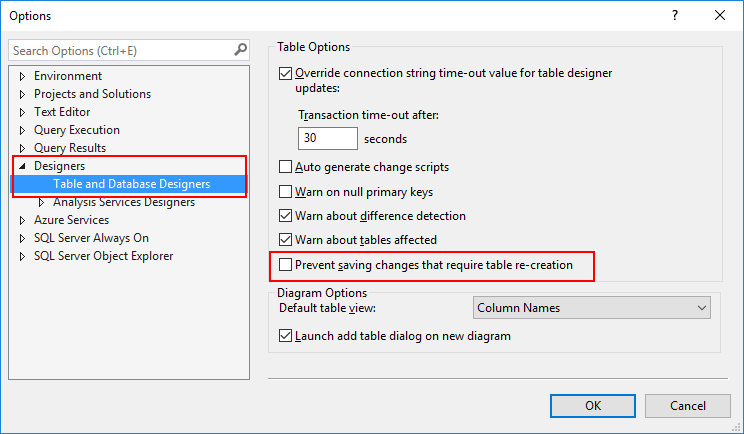
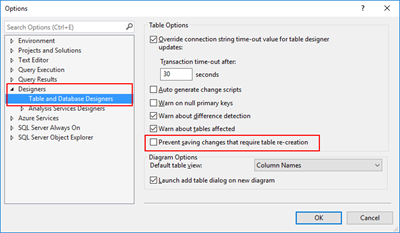
To change the Prevent saving changes that require the table re-creation option, follow these steps:
- Open SQL Server Management Studio (SSMS).
- On the Tools menu, click Options.
- In the navigation pane of the Options window, click Designers.
- Uncheck (clear) the Prevent saving changes that require the table re-creation check box, and then click OK.
Author: Sandro Pereira
Sandro Pereira lives in Portugal and works as a consultant at DevScope. In the past years, he has been working on implementing Integration scenarios both on-premises and cloud for various clients, each with different scenarios from a technical point of view, size, and criticality, using Microsoft Azure, Microsoft BizTalk Server and different technologies like AS2, EDI, RosettaNet, SAP, TIBCO etc. He is a regular blogger, international speaker, and technical reviewer of several BizTalk books all focused on Integration. He is also the author of the book “BizTalk Mapping Patterns & Best Practices”. He has been awarded MVP since 2011 for his contributions to the integration community. View all posts by Sandro Pereira
by Sandro Pereira | Nov 30, 2018 | BizTalk Community Blogs via Syndication
Following my last post and continuing on the pain points of BizTalk Server infrastructure tasks migration, I end up founding another interesting error: WCF-Custom Reason: System.ArgumentException: An item with the same key has already been added.
Again, we indeed did more than a simple migration, we take this opportunity to improve our solutions and/or BizTalk Server environment to update our applications to the new the new available features. In terms of WCF-SAP Adapter, we are no longer using traditional RFC and we will be starting using SAP .NET Connector (NCo). Despite WCF-SAP adapter will continue to support both the RFC SDK and the SAP .NET Connector, SAP has announced deprecation of its classic RFC SDK (no longer be supported after March 31, 2016) and because of that, it should be used anymore.
While trying to connect our BizTalk Server Receive Location to SAP in order to listen to incoming messages, we initially got this error message:
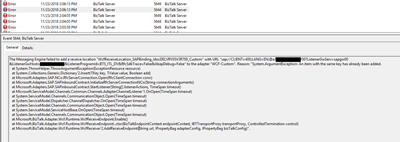
The Messaging Engine failed to add a receive location “WcfReceiveLocation_SAPBinding_IdocDELVRY05V3R700_Custom” with URL “sap://CLIENT=400;LANG=EN;@a/SERVERNAME/00?ListenerGwServ=sapgw00&ListenerGwHost=LISTENERHOST&ListenerProgramId=BTS_LIST&RfcSdkTrace=False&AbapDebug=False ” to the adapter “WCF-Custom”. Reason: “System.ArgumentException: An item with the same key has already been added.
at System.ThrowHelper.ThrowArgumentException(ExceptionResource resource)
at System.Collections.Generic.Dictionary`2.Insert(TKey key, TValue value, Boolean add)
at Microsoft.Adapters.SAP.NCo.RfcServerConnection.Open(RfcClientConnection conn)
at Microsoft.Adapters.SAP.SAPInboundContract.InitializeRfcServerConnectionNCo(String connectionArguments)
at Microsoft.Adapters.SAP.SAPInboundContract.StartListener(String[] listenerActions, TimeSpan timeout)
at Microsoft.ServiceModel.Channels.Common.Channels.AdapterChannelListener`1.OnOpen(TimeSpan timeout)
at System.ServiceModel.Channels.CommunicationObject.Open(TimeSpan timeout)
at System.ServiceModel.Dispatcher.ChannelDispatcher.OnOpen(TimeSpan timeout)
at System.ServiceModel.Channels.CommunicationObject.Open(TimeSpan timeout)
at System.ServiceModel.ServiceHostBase.OnOpen(TimeSpan timeout)
at System.ServiceModel.Channels.CommunicationObject.Open(TimeSpan timeout)
at Microsoft.BizTalk.Adapter.Wcf.Runtime.WcfReceiveEndpoint.Enable()
at Microsoft.BizTalk.Adapter.Wcf.Runtime.WcfReceiveEndpoint..ctor(BizTalkEndpointContext endpointContext, IBTTransportProxy transportProxy, ControlledTermination control)
at Microsoft.BizTalk.Adapter.Wcf.Runtime.WcfReceiver`2.AddReceiveEndpoint(String url, IPropertyBag adapterConfig, IPropertyBag bizTalkConfig)”.
Cause
What I found out was that this error was somehow related to the error reported in my previous post: BizTalk Server WCF-SAP Adapter: SAP.Middleware.Connector.RfcCommunicationException: LOCATION CPIC (TCP/IP) on local host BTSSERVERNAME with Unicode, ERROR service ‘?’ unknown.
The reason why I’m saying that is that each time I restarted the BizTalk Server Host Instances, the error that I got the first time I try to enable the port was this service ‘?’ unknown error. Afterward, whenever I tried to enable this port, I would receive this new error:
- System.ArgumentException: An item with the same key has already been added
Why this is happening for me is a mix of a small bug and consistency, let me explain better:
- Why consistency? This because in fact, you cannot have two SAP Receive Locations listening to the same SAP endpoint/SAP Listener Program Id.
- Actually, this should be when this error would normally occur.
- Why a small bug? Because in fact there isn’t any Receive location enable for that specific SAP endpoint/SAP Listener Program Id. What is happening is that despite the error and the receive location became automatically disable it somehow stores in memory that SAP endpoint/SAP Listener Program Id
Solution
The solution is very simple and stupid:
- Restart the host instance that is running that Receive Location
After that, this problem goes away, but make sure you solve all the problems, or this may happen again.
Author: Sandro Pereira
Sandro Pereira lives in Portugal and works as a consultant at DevScope. In the past years, he has been working on implementing Integration scenarios both on-premises and cloud for various clients, each with different scenarios from a technical point of view, size, and criticality, using Microsoft Azure, Microsoft BizTalk Server and different technologies like AS2, EDI, RosettaNet, SAP, TIBCO etc. He is a regular blogger, international speaker, and technical reviewer of several BizTalk books all focused on Integration. He is also the author of the book “BizTalk Mapping Patterns & Best Practices”. He has been awarded MVP since 2011 for his contributions to the integration community. View all posts by Sandro Pereira