It is always fun to return to one of my favorite topics: Errors and warnings, causes and solutions – aka Troubleshooting! Regardless of the technology, language, or service we are using. Today’s problem was another classic (and annoying) issue that happened while I was migrating an old BizTalk Server 2013 solution into a recent version of the BizTalk Server.
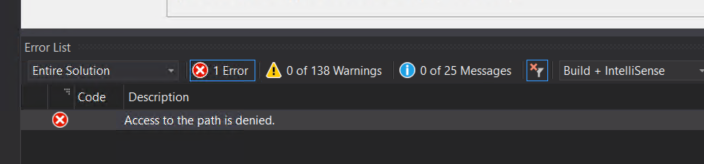
While trying to deploy a BizTalk Server Visual Studio solution that I copied from the old developer server environment into the new environment using, of course, Visual Studio, I got the following error message:
Access to the path is denied.
Causes
As the error clearly mentions, Visual Studio is trying to access somewhere that it does not have access to, even if you are an admin and you open in admin mode. The reason for that is that many times, when we copy the files between servers, they may become read-only for various reasons/situations. Maybe the files already were in read-only mode before we copied them.
Solutions
The solution is quite simple to accomplish:
Go to the project folder of your solution.
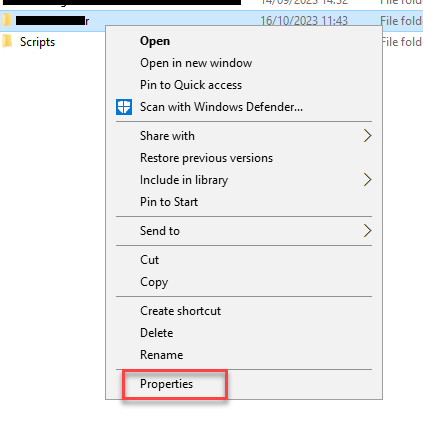
Right-click on the project folder and choose Properties from the menu.
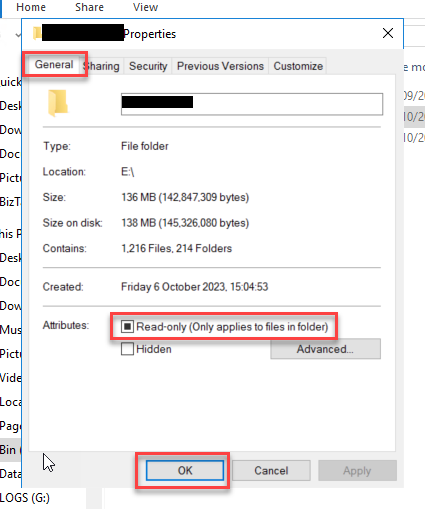
Now, On the Properties window, go to the Attributes panel under the General tab and turn off the Read-only option. Click on the OK to apply the changes.
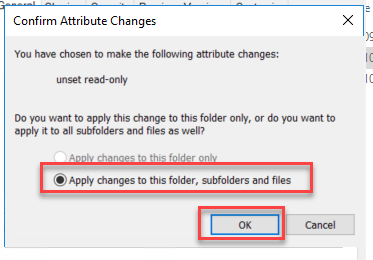
A new Confirm Attribute Changes window may rise, asking if you to confirm. Make sure you select the option Apply changes to this folder, subfolders and files and click OK.
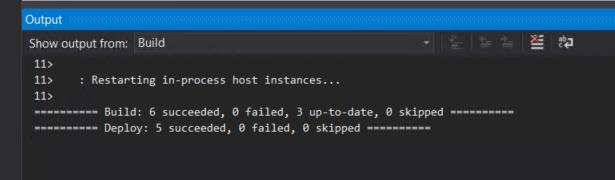
After that, if you go to your BizTalk Server Visual Studio solution you will be able to successfully deploy it to the new environment.
Hope you find this helpful! So, if you liked the content or found it helpful and want to help me write more content, you can buy (or help buy) my son a Star Wars Lego!
Author: Sandro Pereira
Sandro Pereira lives in Portugal and works as a consultant at DevScope. In the past years, he has been working on implementing Integration scenarios both on-premises and cloud for various clients, each with different scenarios from a technical point of view, size, and criticality, using Microsoft Azure, Microsoft BizTalk Server and different technologies like AS2, EDI, RosettaNet, SAP, TIBCO etc.
He is a regular blogger, international speaker, and technical reviewer of several BizTalk books all focused on Integration. He is also the author of the book “BizTalk Mapping Patterns & Best Practices”. He has been awarded MVP since 2011 for his contributions to the integration community.
View all posts by Sandro Pereira
It is always fun to return to one of my favorite topics: Errors and warnings, causes and solutions – aka Troubleshooting! Regardless of the technology, language, or service, we are using. In this case, this problem occurred when configuring the SFTP adapter in BizTalk Server 2020, which means BizTalk Server and WinSCP.
After installing and configuring the pre-requirements of the SFTP adapter according to the official documentation and using the BizTalk WinSCP PowerShell Installer, you can find it here. In our case, the latest official WinSCP version 5.19.2. We got the following error while trying to send a test message using the SFTP adapter:
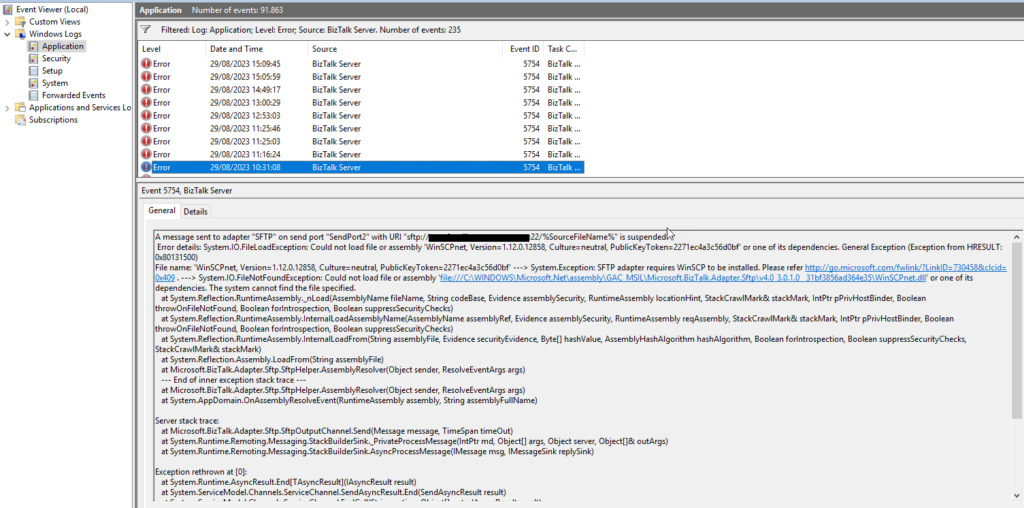
A message sent to adapter “SFTP” on send port “SendPort2” with URI “sftp:/FTP-SERVER:22/%SourceFileName%” is suspended.
Error details: System.IO.FileLoadException: Could not load file or assembly ‘WinSCPnet, Version=1.12.0.12858, Culture=neutral, PublicKeyToken=2271ec4a3c56d0bf’ or one of its dependencies. General Exception (Exception from HRESULT: 0x80131500)
File name: ‘WinSCPnet, Version=1.12.0.12858, Culture=neutral, PublicKeyToken=2271ec4a3c56d0bf’ —> System.Exception: SFTP adapter requires WinSCP to be installed. Please refer http://go.microsoft.com/fwlink/?LinkID=730458&clcid=0x409 . —> System.IO.FileNotFoundException: Could not load file or assembly ‘file:///C:WINDOWSMicrosoft.NetassemblyGAC_MSILMicrosoft.BizTalk.Adapter.Sftpv4.0_3.0.1.0__31bf3856ad364e35WinSCPnet.dll‘ or one of its dependencies. The system cannot find the file specified.
at System.Reflection.Assembly.LoadFrom(String assemblyFile)
at Microsoft.BizTalk.Adapter.Sftp.SftpHelper.AssemblyResolver(Object sender, ResolveEventArgs args)
— End of inner exception stack trace —
at Microsoft.BizTalk.Adapter.Sftp.SftpHelper.AssemblyResolver(Object sender, ResolveEventArgs args)
at System.AppDomain.OnAssemblyResolveEvent(RuntimeAssembly assembly, String assemblyFullName)
Server stack trace:
at Microsoft.BizTalk.Adapter.Sftp.SftpOutputChannel.Send(Message message, TimeSpan timeOut)
at System.Runtime.Remoting.Messaging.StackBuilderSink._PrivateProcessMessage(IntPtr md, Object[] args, Object server, Object[]& outArgs)
at System.Runtime.Remoting.Messaging.StackBuilderSink.AsyncProcessMessage(IMessage msg, IMessageSink replySink)
Exception rethrown at [0]:
at System.Runtime.AsyncResult.End[TAsyncResult](IAsyncResult result)
at System.ServiceModel.Channels.ServiceChannel.SendAsyncResult.End(SendAsyncResult result)
at System.ServiceModel.Channels.ServiceChannel.EndCall(String action, Object[] outs, IAsyncResult result)
Exception rethrown at [1]:
at System.Runtime.Remoting.Proxies.RealProxy.HandleReturnMessage(IMessage reqMsg, IMessage retMsg)
at System.Runtime.Remoting.Proxies.RealProxy.PrivateInvoke(MessageData& msgData, Int32 type)
at System.ServiceModel.Channels.IOutputChannel.EndSend(IAsyncResult result)
at Microsoft.BizTalk.Adapter.Wcf.Runtime.WcfClient`2.SendCallback(IAsyncResult result)
I was surprised by the error because this wasn’t the first time I had installed the SFPT Adapter. I have successfully performed this configuration in many clients and never found myself in a WinSCP DLL version nightmare.
Cause
As mentioned, I never had a version issue with the WinSCP DLLs if I installed it according to the documentation. That means depending on the BizTalk Server version and cumulative we have installed, we have to select the proper WinSCP version, for example:
With BizTalk Server 2020 (no CU installed), we need to use WinSCP 5.15.4
With BizTalk Server 2020 with CU1 and/or CU2 we need to use WinSCP 5.17.6
With BizTalk Server 2020 with CU3 and/or CU4 we need to use WinSCP 5.19.2
To put the SFTP Adapter, we need to copy the WinSCP.exe and WinSCPnet.dll to the BizTalk installation folder, normally C:Program Files (x86)Microsoft BizTalk Server. So, by the error description, this issue was clearly a DLL version issue.
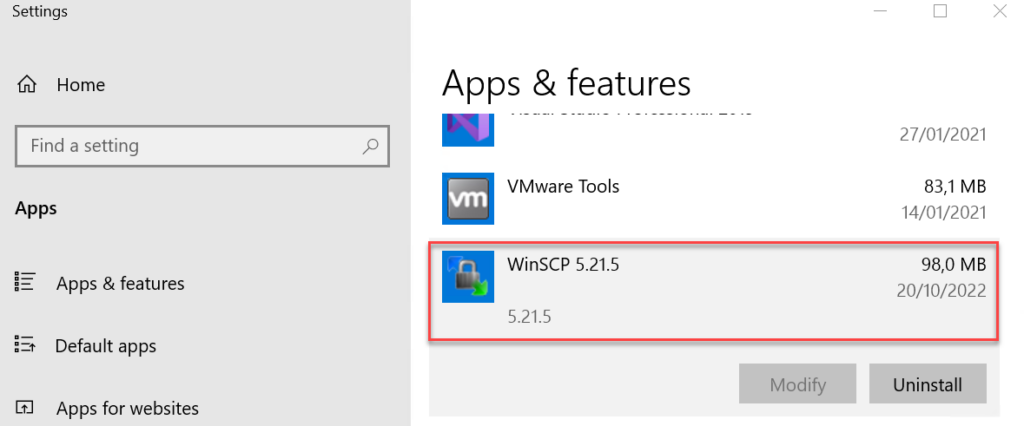
In our case, we had BizTalk Server 2020 with CU4 and correctly installed the WinSCP 5.19.2. However, this version of WinSCP brings version 1.8.3.11614 of WinSCPnet.dll instead of version 1.12.0.12858, which is asking for. WinSCPnet.dll version 1.12.0.12858 is only available in WinSCP 5.21.5.
After some investigation, we detected that WinSCP version 5.21.5 was installed on the server, and because of that, the BizTalk Server SFTP adapter was trying to look for this version on C:WINDOWSMicrosoft.NetassemblyGAC_MSILMicrosoft.BizTalk.Adapter.Sftpv4.0_3.0.1.0__31bf3856ad364e35.
Notice that you don’t need to install any WinSCP software or GAC any WinSCP DLL on the BizTalk Server machine.
Solution
In the end, this is an issue that can be fixed easily. And there are many ways to solve this:
First approach: This may be the correct approach, is to:
Uninstall the WinSCP 5.21.5 version or any other version installed on the machine.
Make sure that there aren’t any WinSCPnet.dll in the GAC.
Note: We didn’t apply this approach because we were unsure who and what was using this WinSCP version.
Second approach: This second approach may not be 100% supported, but it still works like a charm.
We maybe also solve this problem by using an assembly redirect on the machine.config but I didn’t try it out.
Hope you find this helpful! So, if you liked the content or found it helpful and want to help me write more content, you can buy (or help buy) my son a Star Wars Lego!
Author: Sandro Pereira
Sandro Pereira lives in Portugal and works as a consultant at DevScope. In the past years, he has been working on implementing Integration scenarios both on-premises and cloud for various clients, each with different scenarios from a technical point of view, size, and criticality, using Microsoft Azure, Microsoft BizTalk Server and different technologies like AS2, EDI, RosettaNet, SAP, TIBCO etc.
He is a regular blogger, international speaker, and technical reviewer of several BizTalk books all focused on Integration. He is also the author of the book “BizTalk Mapping Patterns & Best Practices”. He has been awarded MVP since 2011 for his contributions to the integration community.
View all posts by Sandro Pereira
Last night when I was about to deliver my Logic Apps Data Mapper session at Azure Logic Apps Community Day 2023, more or less 15 minutes earlier, I decided to do a last test run on my demos – it is always good for you to do a last-minute validation – but to be fair, I have been developing and testing my demos for about a week, so I knew that except something extremely unpredictable happens, my solution and my local environment were good to go: solutions and samples were working, and I have everything properly configured. Hey, what could happen wrong if I even had performed the same test an hour ago with success?
… really! really! F****!!! I almost s*** myself!
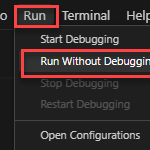
When you expect less, something weird will happen! One of my demos – the critical one – needs me to emulate the Logic App execution locally on my machine, so when I try to run my Logic App Standard locally by:
Select the Run menu option and click Run Without Debugging
I got the following error:
Failed to verify “AzureWebJobsStorage” connection specified in “local.settings.json”. Is the local emulator installed and running?
With 15 minutes to go for a live demo, your brain freezes immediately, and the adrenaline kicks you! You do not read all the error messages, or you will not read them properly :):)… no matter how experienced you are! That first minute is terrifying!
Then experience jumps in… Sandro, you still have 15 minutes. Relax!
Cause
The reason for this error is simple, to run Logic App Standard, you must have a storage emulator. In the earlier days, you could use the following:
Microsoft Azure Storage Emulator 5.10 tool. This tool is necessary to have full Logic Apps designer support in VS Code.
Nowadays, you can use the Azurite emulator for local Azure Storage development. This is a lightweight server clone of Azure Storage that simulates most of the commands supported by it with minimal dependencies.
Not only do you need to have it installed, but also running!
Unfortunately, when starting the debug, it does not start all the dependencies. The emulator is one of these dependencies. You need to do it manually first. However, Azurite cannot be run from the command line if you only installed the Visual Studio Code extension. Instead, use the Visual Studio Code command palette.
Solution
Luckily for us, the extension supports the following Visual Studio Code commands.
Azurite: Clean – Reset all Azurite services persistence data
Azurite: Clean Blob Service – Clean blob service
Azurite: Clean Queue Service – Clean queue service
Azurite: Clean Table Service – Clean table service
Azurite: Close – Close all Azurite services
Azurite: Close Blob Service – Close blob service
Azurite: Close Queue Service – Close queue service
Azurite: Close Table Service – Close table service
Azurite: Start – Start all Azurite services
Azurite: Start Blob Service – Start blob service
Azurite: Start Queue Service – Start queue service
Azurite: Start Table Service – Start table service
To open the command palette, press F1 in Visual Studio Code. In our case, then we need to execute the following command:
Azurite: Start
And there you go! Problem solved and demos delivered!
Hope you find this helpful! So, if you liked the content or found it helpful and want to help me write more content, you can buy (or help buy) my son a Star Wars Lego!
Author: Sandro Pereira
Sandro Pereira lives in Portugal and works as a consultant at DevScope. In the past years, he has been working on implementing Integration scenarios both on-premises and cloud for various clients, each with different scenarios from a technical point of view, size, and criticality, using Microsoft Azure, Microsoft BizTalk Server and different technologies like AS2, EDI, RosettaNet, SAP, TIBCO etc.
He is a regular blogger, international speaker, and technical reviewer of several BizTalk books all focused on Integration. He is also the author of the book “BizTalk Mapping Patterns & Best Practices”. He has been awarded MVP since 2011 for his contributions to the integration community.
View all posts by Sandro Pereira
I have been testing Data Mapper for almost maybe 4 months since the first private previews. Still, I have usually tried the Data Mapper capabilities and not the interaction between Logic Apps Standard workflow and the Data Mapper. Now that I’m preparing and finalizing my session for the Azure Logic Apps Community Day 2023, I’m finding these little headaches in trying to put these pieces working together. You also need to be aware that this behavior and experience may change in the future since DaTa Mapper is still in preview.
So, while I was trying to call a transformation created by the new Data Mapper, in this case, a JSON to JSON transformation, running locally in my machine, I was always getting this really annoying and non-sense error since it doesn’t provide any real and valuable help or insight on the issue we are facing:
undefined. undefined
Sometimes I think the Microsoft developer team likes that I write all these Errors and Warnings, Causes and Solutions blog posts, or they are just teasing us.
I was surprised to see this error since I just finished developing my map, and I had successfully tested it on the Data Mapper editor.
And that you can see in action in this video of Kent Weare:
Solution
For the map to run successfully in runtime, within your local.settings.json file in your logic apps standard project, ensure you have the following property configuration:
FUNCTIONS_WORKER_RUNTIME property set to dotnet-isolated.
And add the AzureWebJobsFeatureFlags property with the value: EnableMultiLanguageWorker
Hope you find this helpful! So, if you liked the content or found it helpful and want to help me write more content, you can buy (or help buy) my son a Star Wars Lego!
Author: Sandro Pereira
Sandro Pereira lives in Portugal and works as a consultant at DevScope. In the past years, he has been working on implementing Integration scenarios both on-premises and cloud for various clients, each with different scenarios from a technical point of view, size, and criticality, using Microsoft Azure, Microsoft BizTalk Server and different technologies like AS2, EDI, RosettaNet, SAP, TIBCO etc.
He is a regular blogger, international speaker, and technical reviewer of several BizTalk books all focused on Integration. He is also the author of the book “BizTalk Mapping Patterns & Best Practices”. He has been awarded MVP since 2011 for his contributions to the integration community.
View all posts by Sandro Pereira
Always funny returning to an old BizTalk Server solution I did in the past! Today while modifying an existing solution for the first time in 3 years! – you have to love BizTalk Server for that consistency and reliability that is difficult to find in any other platform or service! – I got a weird issue while trying to rebuild the solution:
The operation could not be completed. The parameter is incorrect.
with no more details! which is always lovely!
Cause
It has been a constant these days, but that is honestly true: I don’t know exactly the reason why. And the solutions describing this type of issue are not consistent and range from restarting visual studio, and deleting files to restarting the machine!
But my feeling is that is more related to Visual Studio security execution permissions and user permissions.
Solution
To solve this issue you should run Visual Studio as an administrator. To do that you need:
Select the Start button, and then in the Search box, type Visual Studio.
Next, right-click either Visual Studio , and then select More > Run as administrator.
Open your BizTalk Visual Studio Solution and try to build it. It worked for me!
Build started…
Build succeeded
Hope you find this helpful! So, if you liked the content or found it helpful and want to help me write more content, you can buy (or help buy) my son a Star Wars Lego!
Author: Sandro Pereira
Sandro Pereira lives in Portugal and works as a consultant at DevScope. In the past years, he has been working on implementing Integration scenarios both on-premises and cloud for various clients, each with different scenarios from a technical point of view, size, and criticality, using Microsoft Azure, Microsoft BizTalk Server and different technologies like AS2, EDI, RosettaNet, SAP, TIBCO etc.
He is a regular blogger, international speaker, and technical reviewer of several BizTalk books all focused on Integration. He is also the author of the book “BizTalk Mapping Patterns & Best Practices”. He has been awarded MVP since 2011 for his contributions to the integration community.
View all posts by Sandro Pereira
I have been developing Logic App Standard for a long time and never had an issue running them locally, as far as I remember, until a few months ago. I never pay too much attention because I was not running them locally, and I didn’t block my ability to develop my solutions or workflows.
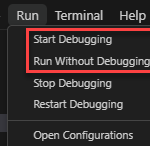
However, this week, while developing my demos for the Azure Logic Apps Community Day 2023 event, I had the need to test them locally, and every time I try to run them locally by either:
Start Debugging
Or Run Without Debugging
I was getting the following error:
Failed to find “func host start” task.
Cause
To be honest, I don’t know because I had all the pre-requirements installed, but I guess, and this is just me guessing, that some Azure Function extension update broke some configuration between these to extensions.
Solution
I know that you probably will not like it… but after spending a few hours, I give up and when to a drastic approach – this one – that solved the problem.
To solve this issue, you need to:
Uninstall all Azure Functions extension dependencies.
In my case, the Azure Logic Apps – Data Mapper and Azure Logic Apps (Standard) extensions
Uninstall the Azure Functions extension.
Restart Visual Studio Code
Install all the extensions again, in my case:
Azure Function
Azure Logic Apps (Standard)
Azure Logic Apps – Data Mapper
Just to be in a safe state, restart Visual Studio Code again.
After that I was able to run my workflow locally without any issue.
Hope you find this helpful! So, if you liked the content or found it helpful and want to help me write more content, you can buy (or help buy) my son a Star Wars Lego!
Author: Sandro Pereira
Sandro Pereira lives in Portugal and works as a consultant at DevScope. In the past years, he has been working on implementing Integration scenarios both on-premises and cloud for various clients, each with different scenarios from a technical point of view, size, and criticality, using Microsoft Azure, Microsoft BizTalk Server and different technologies like AS2, EDI, RosettaNet, SAP, TIBCO etc.
He is a regular blogger, international speaker, and technical reviewer of several BizTalk books all focused on Integration. He is also the author of the book “BizTalk Mapping Patterns & Best Practices”. He has been awarded MVP since 2011 for his contributions to the integration community.
View all posts by Sandro Pereira
Yesterday while troubleshooting a BizTalk Server developer environment at a client, I encountered an unusual error while trying to configure the BizTalk Server Backup job:
Could not find server ‘server name’ in sys.servers.
Based on the error description, and by the fact that I was trying to run a SQL Server job, I knew that the error should be on the SQL Server side, some incorrect configurations,
Cause
Why this problem start to happen is unclear to me, and at the time I didn’t have all the information available to understand that. However, after investigating a little this error type I realize that we can execute a SQL query to check out what is your linked server:
select * from sys.servers
Or
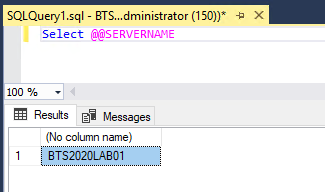
Select @@SERVERNAME
The problem was that once I run these scripts, I realize the server name was not the expected one, it was incorrect! For example:
I was expecting BTS2020LAB01.
But instead, I was seeing VMIMAGE01.
And that was causing the failure on the Backup job and other BizTalk server jobs.
Solution
To solve this issue we need to fix that server name and for that, we can apply the following SQL script:
sp_dropserver 'VMIMAGE01'
GO
sp_addserver  'BTS2020LAB01',local
GO
After applying this script, make sure you restart the SQL Server service.
Once you have done these steps, you can successfully start your BizTalk Backup job.
Author: Sandro Pereira
Sandro Pereira lives in Portugal and works as a consultant at DevScope. In the past years, he has been working on implementing Integration scenarios both on-premises and cloud for various clients, each with different scenarios from a technical point of view, size, and criticality, using Microsoft Azure, Microsoft BizTalk Server and different technologies like AS2, EDI, RosettaNet, SAP, TIBCO etc.
He is a regular blogger, international speaker, and technical reviewer of several BizTalk books all focused on Integration. He is also the author of the book “BizTalk Mapping Patterns & Best Practices”. He has been awarded MVP since 2011 for his contributions to the integration community.
View all posts by Sandro Pereira
And yet another Logic App Consumption Deployment issue, and more to come! Like the previous posts, while trying to deploy an existing Logic App Consumption thru Visual Studio 2019 in our development environment, I got the following error message:
Resource Microsoft.Logic/workflows ‘LA-NAME’ failed with message ‘{ “error”: { “code”: “CannotDisableTriggerConcurrency”, “message”: “The trigger ‘When_one_or_more_messages_arrive_in_a_topic_(peek-lock)’ of current version of workflow ‘LA-NAME’ has concurrency runtime configuration specified. Trigger concurrency runtime configuration cannot be removed once specified.” } }’
This error happened because I tried to modify the Logic App Consumption Trigger from When one or more messages arrive in a topic (peek lock) to When one or more messages arrive in a topic (auto-complete).
Cause
The cause of the problem is simple to understand based on the error message. The trigger of the currently deployed version of the Logic App has Concurrency Control settings enabled. We can validate that by:
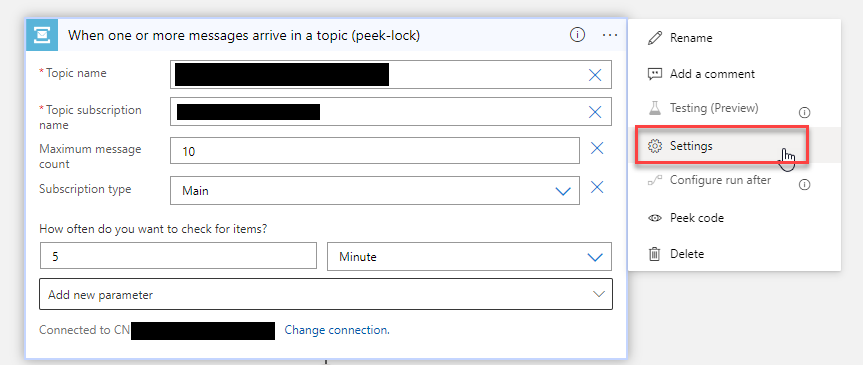
Right-click on the 3 dots on the Trigger and select the Settings option.
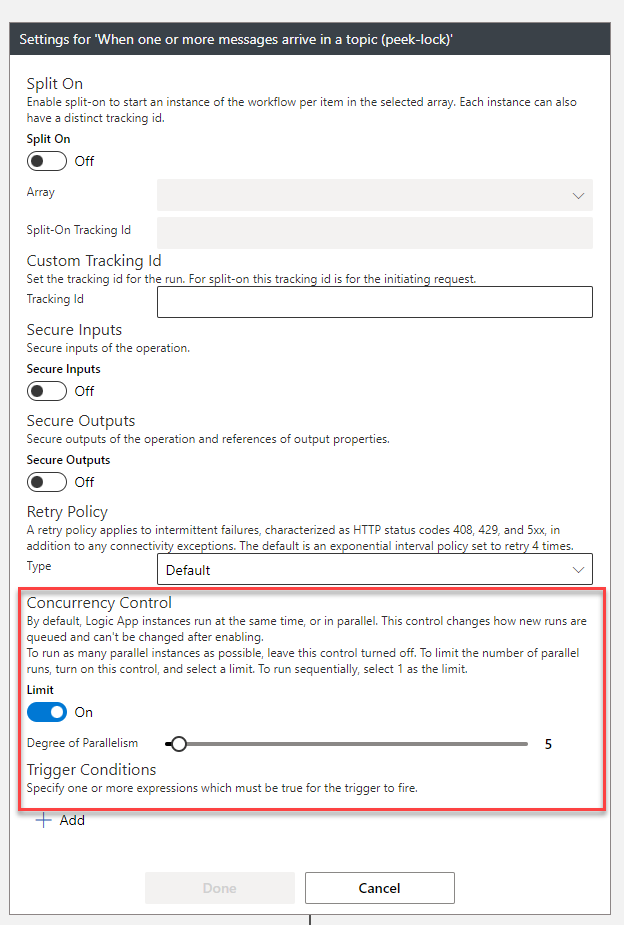
On the Settings windows of the trigger, we can validate that the Concurrency Control option is enabled and defined to have a Degree of Parallelism of 5.
Saying that, and despite the cause of the problem being easy to understand, the reason why this happens is not that clear. Still, it seems for some internal reason in the Logic App Runtime, after you set up the trigger to have Concurrency Control enabled, you cannot revert that configuration. You cannot do it while trying to deploy a new version of the Logic App thru Visual Studio, nor go directly to the Azure Portal and perform the same actions.
From Azure Portal or Visual Studio (it doesn’t matter the tool you use), if you try to:
Update the existing trigger to disable the Concurrency Control option and try to save it. It doesn’t work.
Delete the current trigger and add a new one. It doesn’t work, either.
Again, this seems to be a limitation that exists at the moment in the Logic App Consumption Runtime – not sure at this point if you will have the same limitation/issue in Logic App Standard.
Solution
Fixing this issue is not that simple. We can’t fix it, but we can apply two workarounds:
Workaround 1: if you don’t need to keep the run history of the existing Logic App.
Workaround 2: if you need to keep the run history of the existing Logic App.
Workaround 1
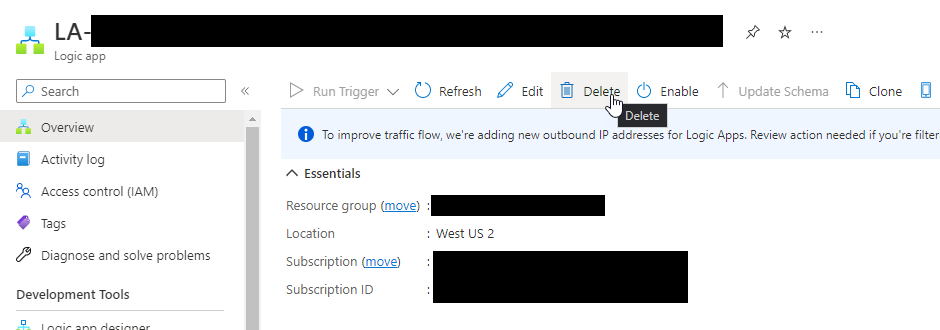
Delete from the Azure Portal the existing Logic App by selecting the Logic App and then, on the top menu, click the Delete option.
And then redeploy the Logic App.
This will solve the deployment problem, but again you will lose the run history.
Workaround 2
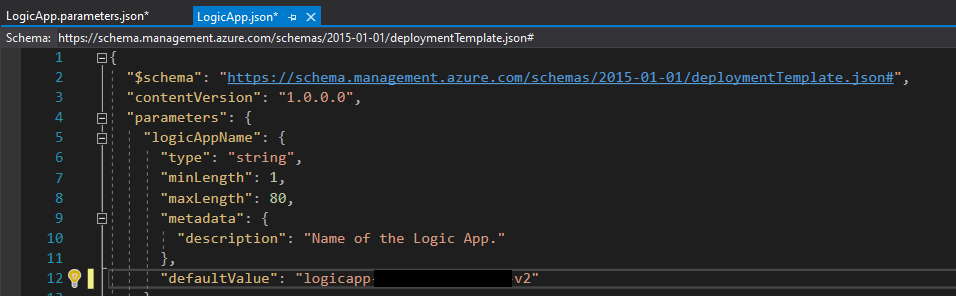
If you need to keep the run history, then unfortunately, the only option you have is to provide a different name to your Logic App, something like:
LA-NAME-V2
Make sure you change that, at least in the LogicApp.parameters.json file, but I suggest you change that also in the LogicApp.json file.
Just make sure you disable the “old” one – LA-NAME – and create a TAG specifying that it is deprecated.
After you validate everything is working fine and you don’t need the run history of the old one anymore, delete this Logic App to avoid confusion and to be simple to manage the overall solution.
Author: Sandro Pereira
Sandro Pereira lives in Portugal and works as a consultant at DevScope. In the past years, he has been working on implementing Integration scenarios both on-premises and cloud for various clients, each with different scenarios from a technical point of view, size, and criticality, using Microsoft Azure, Microsoft BizTalk Server and different technologies like AS2, EDI, RosettaNet, SAP, TIBCO etc.
He is a regular blogger, international speaker, and technical reviewer of several BizTalk books all focused on Integration. He is also the author of the book “BizTalk Mapping Patterns & Best Practices”. He has been awarded MVP since 2011 for his contributions to the integration community.
View all posts by Sandro Pereira
Like the previous post, while trying to deploy an existing Logic App Consumption thru Visual Studio 2019 in our development environment, I got the following error message:
Template deployment returned the following errors:
Error: Code=InvalidTemplate;
Message=Deployment template validation failed: ‘The template parameters ‘name-of-the-parameter’ in the parameters file are not valid; they are not present in the original template and can therefore not be provided at deployment time. The only supported parameters for this template are ‘list-of-parameters-present-in-the-LogicApp’. Please see https://aka.ms/arm-pass-parameter-values for usage details.’.
The deployment validation failed.
Cause
The cause of the problem is once again quite simple, and the error description is really good, not only describing the problem but providing the solution also.
In my case, the error says that “arm_ServiceBus_Subscription_A” doesn’t exist – is not valid – in the template parameter file that I’m using to deploy the Logic App Consumption thru Visual Studio. And it also says that the only supported parameters for this template are:
arm_ServiceBus_Subscription_ABC
arm_ServiceBus_Connection_Name
arm_ServiceBus_Connection_DisplayName
arm_ServiceBus_Topic
arm_LA_InitialState
…
Solution
Fixing this issue is simple, and you have three options that you need to choose according to your scenario:
Remove/delete this template parameter from the parameters file.
Rename this parameter to a valid one.
Or add this ARM parameter in the LogicApp.json file
Perhaps this last option is the most unlikely to happen since this would mean that you would have to change the code to include this parameter in some content or configuration of the actions or settings of the Logic App – what is the point of having an ARM parameter defined if you don’t really need it.
Author: Sandro Pereira
Sandro Pereira lives in Portugal and works as a consultant at DevScope. In the past years, he has been working on implementing Integration scenarios both on-premises and cloud for various clients, each with different scenarios from a technical point of view, size, and criticality, using Microsoft Azure, Microsoft BizTalk Server and different technologies like AS2, EDI, RosettaNet, SAP, TIBCO etc.
He is a regular blogger, international speaker, and technical reviewer of several BizTalk books all focused on Integration. He is also the author of the book “BizTalk Mapping Patterns & Best Practices”. He has been awarded MVP since 2011 for his contributions to the integration community.
View all posts by Sandro Pereira
Today while trying to deploy an existing Logic App Consumption thru Visual Studio 2019 in our development environment, I got the following error message:
"error": {
     "code": "InvalidTemplate",
     "message": "The template validation failed: 'The inputs of template action 'name_of_the_action_with_error' at line '1 and column '5938' cannot reference action 'name_of_the_action_that_is_being_referenced'. Action 'name_of_the_action_that_is_being_referenced' must either be in 'runAfter' path or within a scope action on the 'runAfter' path of action 'name_of_the_action_with_error', or be a Trigger.'."
}
The template validation failed: ‘The inputs of template action ‘name_of_the_action_with_error’ at line ‘1 and column ‘5938’ cannot reference action ‘name_of_the_action_that_is_being_referenced’. Action ‘name_of_the_action_that_is_being_referenced’ must either be in ‘runAfter’ path or within a scope action on the ‘runAfter’ path of action ‘name_of_the_action_with_error’, or be a Trigger.
Cause
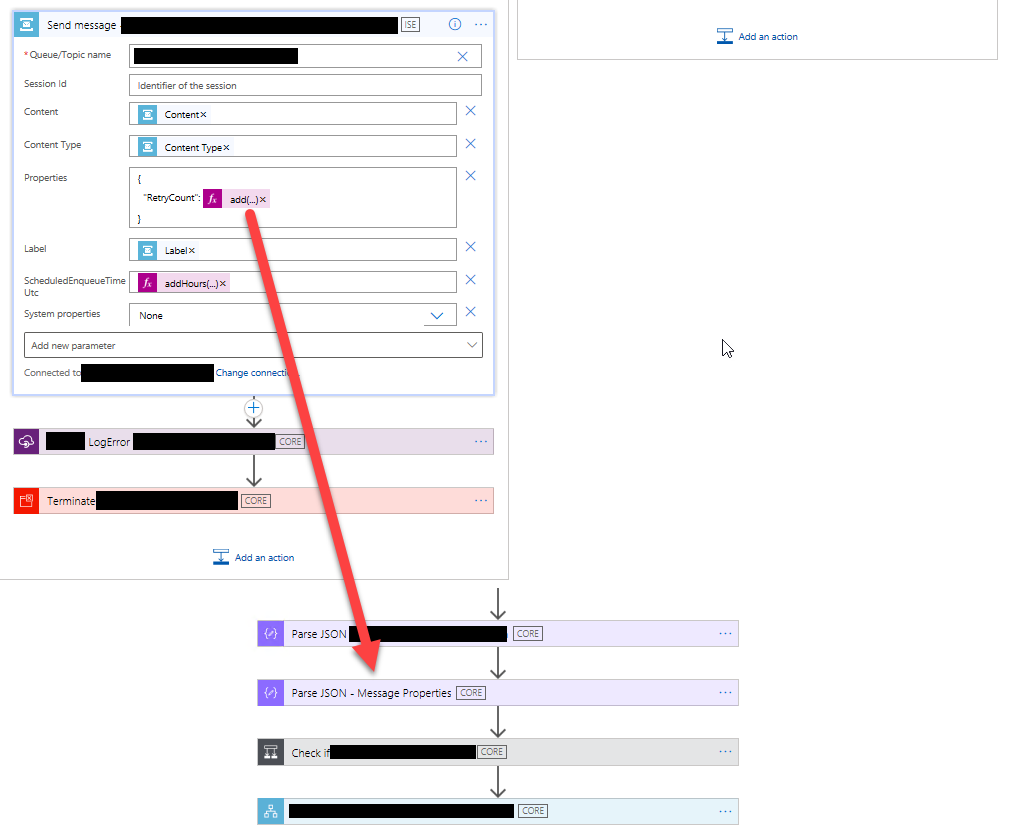
The cause of the problem is quite simple, once you check the underline code in your Logic App workflow. In my case, because I copied and pasted the properties from another action below into this one, I unintentionally was referring inside the add expression, an action that at that point didn’t exist in that workflow step – the action was only created four steps below as you see in the picture:
And indeed, the error message is correct. You can only reference actions that exist before the current action – within a scope action on the ‘runAfter’ path – or from the trigger.
Solution
Fixing this issue is simple. In my case, this Parse JSON – Message Properties action is trying to parse the existing Properties of the trigger – so I had two options:
Move the Parse JSON – Message Properties action just below the trigger or above the Send Message action.
Or modify the add expression to not reference the Parse JSON – Message Properties action.
Author: Sandro Pereira
Sandro Pereira lives in Portugal and works as a consultant at DevScope. In the past years, he has been working on implementing Integration scenarios both on-premises and cloud for various clients, each with different scenarios from a technical point of view, size, and criticality, using Microsoft Azure, Microsoft BizTalk Server and different technologies like AS2, EDI, RosettaNet, SAP, TIBCO etc.
He is a regular blogger, international speaker, and technical reviewer of several BizTalk books all focused on Integration. He is also the author of the book “BizTalk Mapping Patterns & Best Practices”. He has been awarded MVP since 2011 for his contributions to the integration community.
View all posts by Sandro Pereira