Recently, a client asked me for help rectifying some existing logic apps in their environment because their resource had left the company. Not only to rectify the project but to put it in a better shape and use all good best practices.
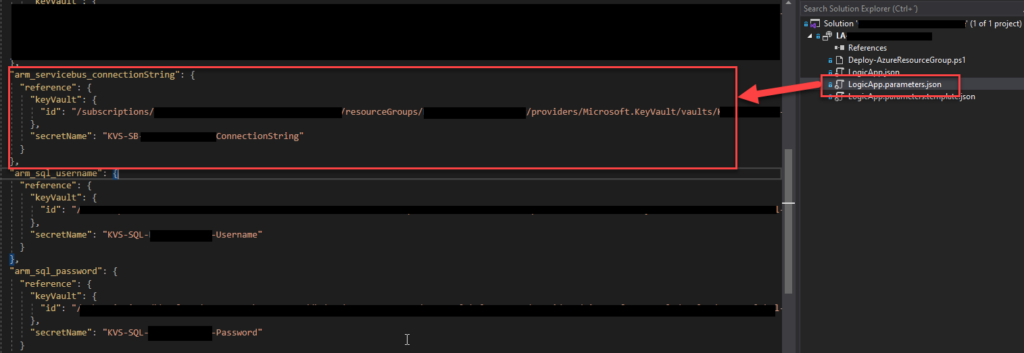
One of the tasks we decided to do was reference secrets in Key Vault for the deployment process, whether through CI/CD or directly through Visual Studio. We had administrator access to the Key Vault in the dev environment, so we were able to easily create those secrets and reference them in the Logic App parameter file, for example, an Azure Service Bus connection string. For those who are not aware, we can archive that by using the code below:
The problem was that when we tried to deploy the solution through Visual Studio, we got the following error:
Logic app visual studio deployment Multiple error occurred: Forbidden,Forbidden,Forbidden. Please see details.
Without any more detail. After some analysis, we realized that the number of Forbidden words in the messages matched the number of key vault secrets we were trying to reference. When we commented on them all and only left one, then we got an error message with more detail:
The secret of KeyVault parameter ‘name’ cannot be retrieved. Http status code: ‘Forbidden’. Error message: ‘Access denied to first party service. Caller: name=ARM;tid=;appid=… Vault:;location=’. Please see https://aka.ms/arm-keyvault for usage details.
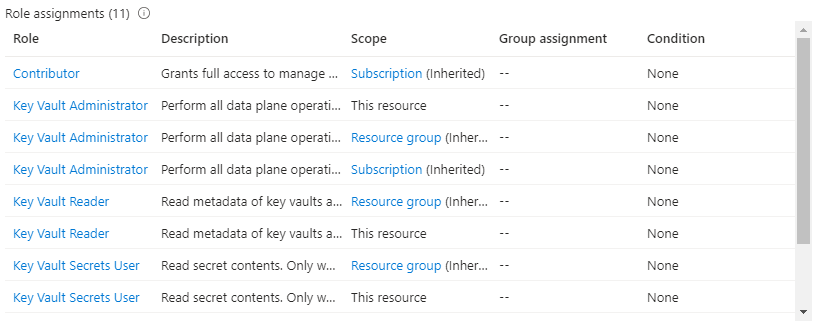
Initially, I thought that was a Key Vault access permission issue, even though I was a Key Vault administrator. However, sometimes, we also need some RBAC permission. In the end, I ended up giving Administrator, Reader, and Secret User permission access at the key vault, resource group, and subscription level:
Still, I was getting the same error!
Cause
When you are developing a Logic App Consumption, this is, in fact, an ARM template project and an ARM template deployment. So, when we reference a Key Vault secret in the LogicApp.parameters.json file, we are referencing a secure parameter that will be used during the ARM template deployment.
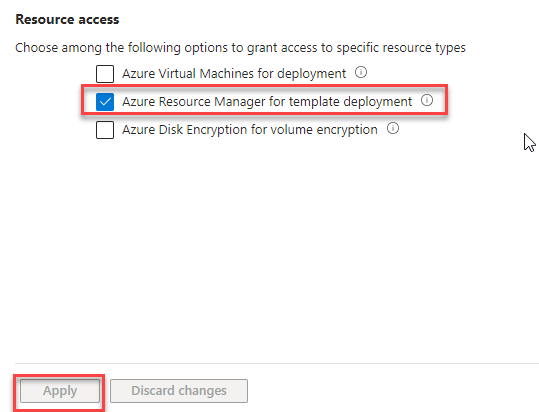
The problem is that to be able to access the key vault by the resource manager, you need to change the access policy to allow Azure Resource Manager for template deployment.
You can see this on the official documentation here:
When you need to pass a secure value (like a password) as a parameter during deployment, you can retrieve the value from an Azure Key Vault. To access the Key Vault when deploying Managed Applications, you must grant access to the Appliance Resource Provider service principal. The Managed Applications service uses this identity to run operations. To successfully retrieve a value from a Key Vault during deployment, the service principal must be able to access the Key Vault.
Solution
To solve this issue is quite very simple:
Sign in to the Azure Portal.
Open your key vault. Enter key vaults in the search box or select Key vaults.
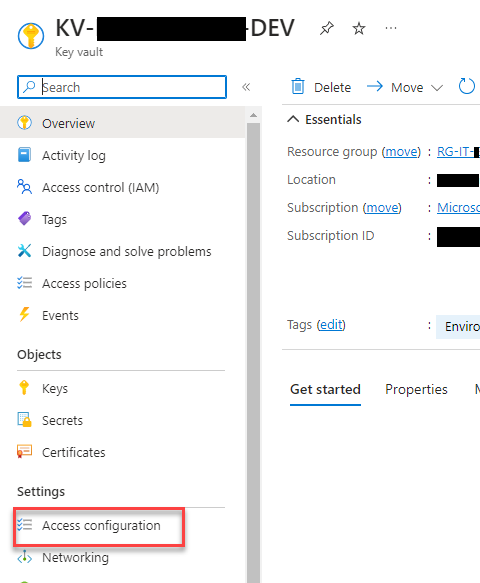
On the Key Vault, select Access configuration under the Settings section
Select Azure Resource Manager for template deployment under Resource access. Then, select Apply.
Now, you will be able to successfully reference the Key Vault secure parameter and deploy the Logic App Consumption solution from Visual Studio.
Hope you find this helpful! So, if you liked the content or found it useful and want to help me write more, you can buy (or help me buy) my son a Star Wars Lego!
Author: Sandro Pereira
Sandro Pereira lives in Portugal and works as a consultant at DevScope. In the past years, he has been working on implementing Integration scenarios both on-premises and cloud for various clients, each with different scenarios from a technical point of view, size, and criticality, using Microsoft Azure, Microsoft BizTalk Server and different technologies like AS2, EDI, RosettaNet, SAP, TIBCO etc.
He is a regular blogger, international speaker, and technical reviewer of several BizTalk books all focused on Integration. He is also the author of the book “BizTalk Mapping Patterns & Best Practices”. He has been awarded MVP since 2011 for his contributions to the integration community.
View all posts by Sandro Pereira
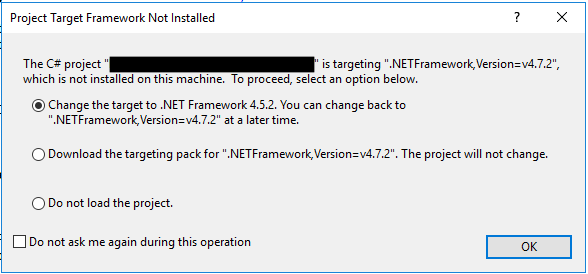
Yesterday while I was trying to configure a new BizTalk Server RosettaNet project in a client, I found a curious new error/issue while copying the BizTalk Server solution into the client development environment. After I copied the project to the development environment, I tried to open the BizTalk Server Visual Studio solution, and I got the following warning:
The C# project “ is targeting “.NETFramework, Version=v4.7.2”, which is not installed on this machine. To proceed, select an option below.
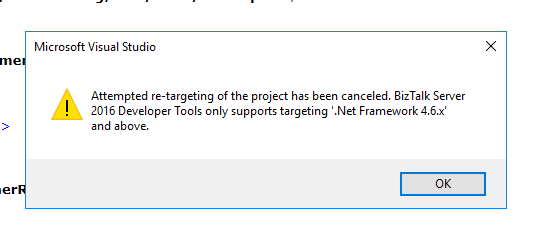
Knowing that we didn’t have .NET Framework 4.7.2, I chose the first option, but we endup getting the following error:
Attempted re-targeting of the project has been canceled. BizTalk Server 2016 Developer Tools only supports targeting ‘.Net.Framework 4.6.x’ and above.
Cause
This error/issue first happened because I thought our environment (client environment) was already using BizTalk Server 2020, and I developed the project locally using that version. BizTalk Server 2020 uses .NET Framework 4.7.3 or above by default. This was not the case. Our environment is still BizTalk Server 2016, and that is why when I tried to open the BizTalk Server Visual Studio solution, it asked me to re-target the project.
Normally, we don’t have a problem doing this if we can move from a previous version to a higher version, like, for example, from BizTalk Server 2016 to BizTalk Server 2020. In this case, it was a downgrade, and I don’t really know why he presented me with 4.5.2 instead of 4.6, which is the “official” version of BizTalk Server 2016.
Nevertheless, I was not able to do it or workaround this directly on Visual Studio.
Solution
To solve this issue is quite very simple:
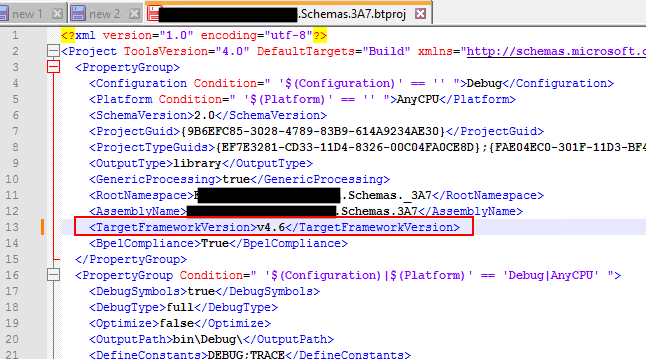
Go to the project folder and open the *.btproj file with Notepad or Notepad++
And change the TargetFrameworkVersion from 4.7.2 to 4.6.
After these steps, I was able to open the BizTalk Server Visual Studio solution in our dev environment.
Hope you find this helpful! So, if you liked the content or found it useful and want to help me write more, you can buy (or help me buy) my son a Star Wars Lego!
Author: Sandro Pereira
Sandro Pereira lives in Portugal and works as a consultant at DevScope. In the past years, he has been working on implementing Integration scenarios both on-premises and cloud for various clients, each with different scenarios from a technical point of view, size, and criticality, using Microsoft Azure, Microsoft BizTalk Server and different technologies like AS2, EDI, RosettaNet, SAP, TIBCO etc.
He is a regular blogger, international speaker, and technical reviewer of several BizTalk books all focused on Integration. He is also the author of the book “BizTalk Mapping Patterns & Best Practices”. He has been awarded MVP since 2011 for his contributions to the integration community.
View all posts by Sandro Pereira
Today while I was developing a new BizTalk Server solution that communicates with the Oracle database, I encountered a familiar issue that I forgot to document in the past:
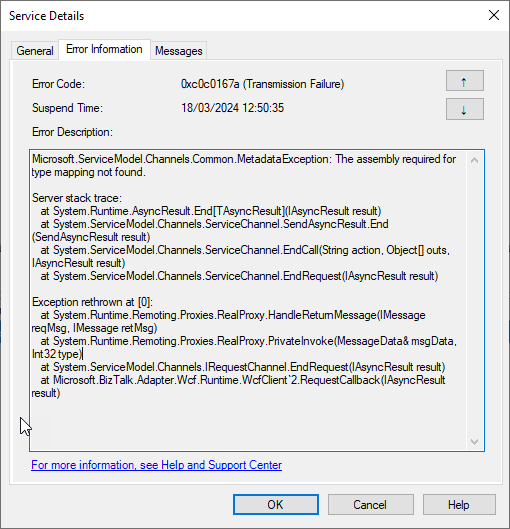
Microsoft.ServiceModel.Channels.Common.MetadataException: The assembly required for type mapping not found.
That forced me to once again lose time not only to remember but to find how I could solve this.
Cause
This error happens when you try to call an Oracle Procedure, function, or package that contains User-Defined Types or UDTs. The UDTs can be present in the following artifacts:
Interface tables and interface views containing UDT columns.
Database tables and views containing UDT columns.
Packages, stored procedures, and functions containing UDT parameters.
Oracle UDTs help represent complex entities as a “single” object that can be shared among the applications.
BizTalk Server supports Oracle UDTs, but unlike what happens with SQL Server, which natively supports these types, in Oracle, we need to configure some more properties and generate a UDT DLL.
When this error occurs, two things may happen or maybe the reason:
You forgot to configure, in the Schema generation, the following properties:
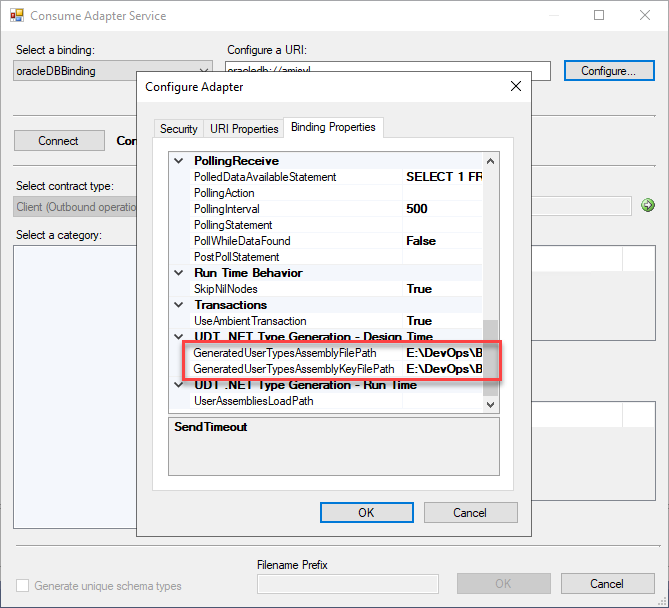
GeneratedUserTypesAssemblyFilePath
GeneratedUserTypesAssemblyKeyFilePath
Or you forgot in runtime (aka receive location or send port) to configure the following property:
userAssembliesLoadPath
Solution
To solve this issue, we need to guarantee to perform the following steps:
It is necessary to create a signed assembly (DLL) of the User-Defined Types (UDTs) created in Oracle and that correspond to those interpreted by the WCF-Oracle Adapter. To do this, when creating the schemas from the Consume Adapter Service option, these assemblies must be created specifying:
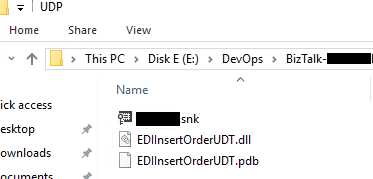
On the GeneratedUserTypesAssemblyFilePath property, we need to provide a full path and name of the DLL that the wizard will create for us.
And on the GeneratedUserTypesAssemblyKeyFilePath property, the strong name key (.snk) path that the wizard will use to sign the DLL.
Both these properties are present in the UDT .NET Type Generation – Design Time section of the Binding Properties.
Once again, this will create for us a UDT DLL on the path we define and that we need to use in runtime:
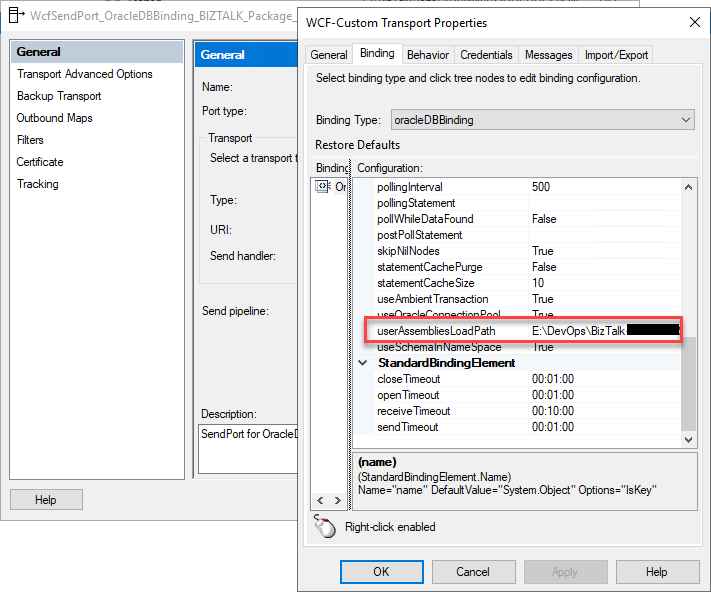
Once we deploy our schemas and create the receive location or send port, we then need to make sure that we configure the following property with the path to the UDT DLL:
userAssembliesLoadPath
Notice: even if you deploy the UDT DLL to GAC (what is advisable), you still need to configure the path to the UDT DLL in this property,
After these steps, you can successfully communicate with Oracle using an Oracle Procedure, function, or package that contains User-Defined Types.
Hope you find this helpful! So, if you liked the content or found it useful and want to help me write more, you can buy (or help me buy) my son a Star Wars Lego!
Author: Sandro Pereira
Sandro Pereira lives in Portugal and works as a consultant at DevScope. In the past years, he has been working on implementing Integration scenarios both on-premises and cloud for various clients, each with different scenarios from a technical point of view, size, and criticality, using Microsoft Azure, Microsoft BizTalk Server and different technologies like AS2, EDI, RosettaNet, SAP, TIBCO etc.
He is a regular blogger, international speaker, and technical reviewer of several BizTalk books all focused on Integration. He is also the author of the book “BizTalk Mapping Patterns & Best Practices”. He has been awarded MVP since 2011 for his contributions to the integration community.
View all posts by Sandro Pereira
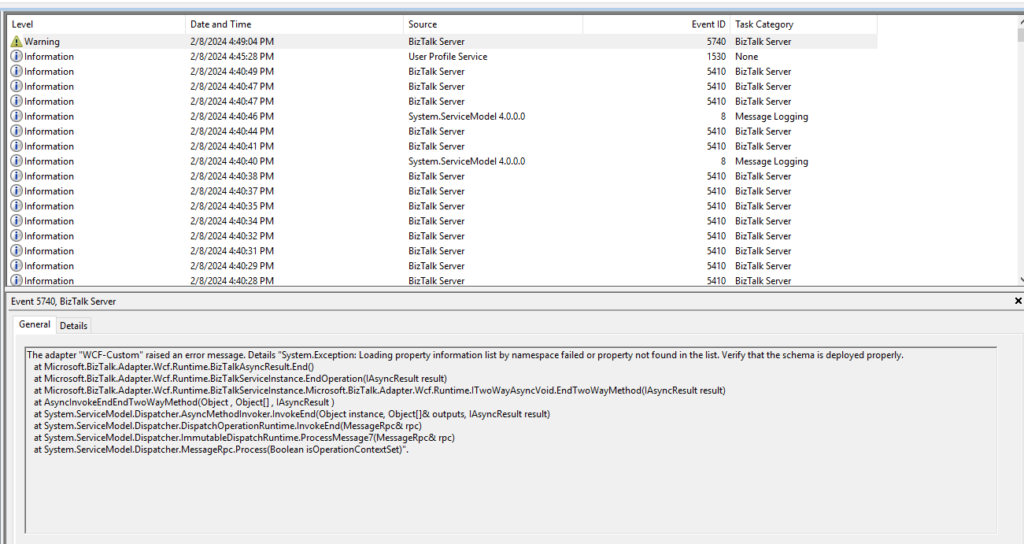
A client reported to me an error that we were getting in our BizTalk Server production environment this week. We had deployed a new orchestration and a new SAP receive port to handle a new partner, something we had done several times with success, but this time, we were getting the following warning each time we sent a message from SAP to BizTalk Server:
The adapter “WCF-Custom” raised an error message. Details “System.Exception: Loading property information list by namespace failed or property not found in the list. Verify that the schema is deployed properly.
at Microsoft.BizTalk.Adapter.Wcf.Runtime.BizTalkAsyncResult.End() at Microsoft.BizTalk.Adapter.Wcf.Runtime.BizTalkServiceInstance.EndOperation(IAsyncResult result) at Microsoft.BizTalk.Adapter.Wcf.Runtime.BizTalkServiceInstance.Microsoft.BizTalk.Adapter.Wcf.Runtime.ITwoWayAsyncVoid.EndTwoWayMethod(IAsyncResult result) at AsyncInvokeEndEndTwoWayMethod(Object , Object[] , IAsyncResult ) at System.ServiceModel.Dispatcher.AsyncMethodInvoker.InvokeEnd(Object instance, Object[]& outputs, IAsyncResult result) at System.ServiceModel.Dispatcher.DispatchOperationRuntime.InvokeEnd(MessageRpc& rpc) at System.ServiceModel.Dispatcher.ImmutableDispatchRuntime.ProcessMessage7(MessageRpc& rpc) at System.ServiceModel.Dispatcher.MessageRpc.Process(Boolean isOperationContextSet)”.
First, it was strange to be logged as a warning since the BizTalk Server did not receive or process the message.
Also, the message can be misleading because the “error” message says Verify that the schema is deployed properly. These types of errors typically indicate that the schema or specific schema versions are not deployed in the environment, although when that happens, the error message clearly specifies the schema name and version, which is not the case in this error message.
Cause
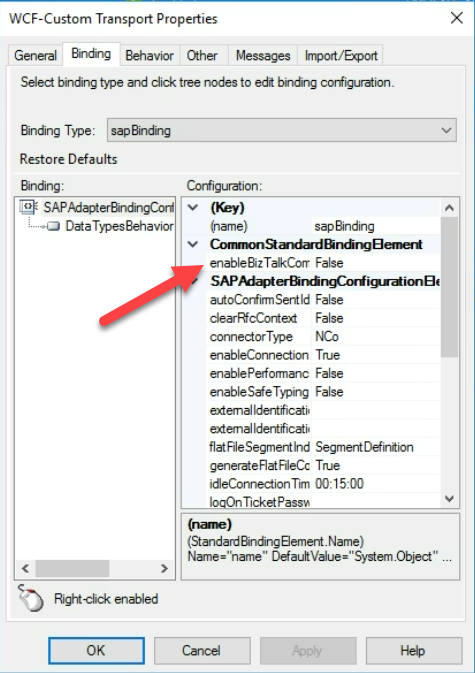
Official documentation states that the following exception is encountered while receiving an IDOC with the EnableBizTalkCompatibilityMode binding property set to true. And if the binding property EnableBizTalkCompatibilityMode is set to true, you must add the BizTalk property schema DLL for the SAP adapter as a resource in your BizTalk application, that is, the application in which your project is deployed.
However, our receive location didn’t have the EnableBizTalkCompatibilityMode set to true. Instead, it was set to false.
With a lack of better ideas, we decided to try to apply the same solution and add the BizTalk property schema DLL for the SAP adapter as a resource in your BizTalk application, and it solved all of our problems,
Solution
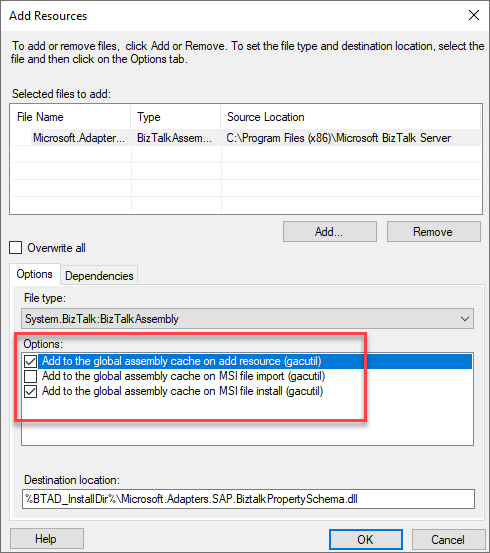
So, to solve this issue, we need to add BizTalk property schema DLL for the SAP adapter called Microsoft.Adapters.SAP.BiztalkPropertySchema.dll as a resource in our BizTalk application. This DLL can be found Microsoft BizTalk Adapter Pack folder that normally is under:
: Program FilesMicrosoft BizTalk Adapter Packbin
or in BizTalk Server 2020 under:
:Program Files (x86)Microsoft BizTalk Server
You must perform the following tasks to add this assembly as a resource in your BizTalk application:
Start the BizTalk Server Administration console.
In the console tree, expand BizTalk Group, expand Applications, and then the application to which you want to add a BizTalk assembly.
Expand Applications and the application to which you want to add a BizTalk assembly.
Right-click Resources, point to Add, and then click BizTalk Assemblies.
Click Add, navigate to the folder containing the BizTalk assembly file, select the BizTalk assembly file, and then click Open.
In Options, specify the options for installing the BizTalk assembly to the GAC, and then click OK.
Hope you find this helpful! So, if you liked the content or found it useful and want to help me write more, you can buy (or help me buy) my son a Star Wars Lego!
Author: Sandro Pereira
Sandro Pereira lives in Portugal and works as a consultant at DevScope. In the past years, he has been working on implementing Integration scenarios both on-premises and cloud for various clients, each with different scenarios from a technical point of view, size, and criticality, using Microsoft Azure, Microsoft BizTalk Server and different technologies like AS2, EDI, RosettaNet, SAP, TIBCO etc.
He is a regular blogger, international speaker, and technical reviewer of several BizTalk books all focused on Integration. He is also the author of the book “BizTalk Mapping Patterns & Best Practices”. He has been awarded MVP since 2011 for his contributions to the integration community.
View all posts by Sandro Pereira
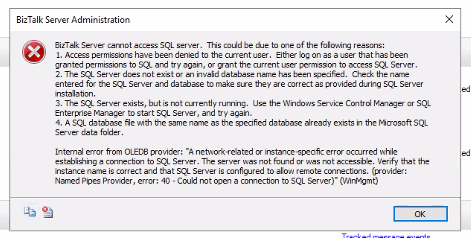
A client called me this week to help with their BizTalk Server production environment. BizTalk was not running, and they needed to know the reason why. Quickly, while we investigated the issue, we saw on the BizTalk Server administration console the following error:
BizTalk Server cannot access SQL Server. This could be due to one of the following reasons:
Access permissions have been denied to the current user. Either log on as a user that has been granted permissions to SQL and try again, or grant the current user permission to access SQL Server.
The SQL Server does not exist, or an invalid database name has been specified. Check the name entered for the SQL Server and database to make sure they are correct as provided during SQL Server installation.
The SQL Server exists, but is not currently running. Use the Windows Service Control Manager or SQL Enterprise Manager to start SQL Server, and try again.
A SQL database file with the same name as the specified database already exists in the Microsoft SQL Server data folder.
Internal error from OLEDB provider: “A network-related or instance-specific error occurred while establishing a connection to SQL Server. The server was not found or was not accessible. Verify that the instance name is correct and that SQL Server is configured to allow remote connections. (provider: Named Pipes Provider, error: 40 – Could not open a connection to SQL Server)” (WinMgmt)
Cause
In this case, the error message clearly specifies perfect paths to troubleshoot and fix the issue. We knew that the first two and the last one didn’t fit our issue because SQL Server exists, and now one has changed access permission.
So, we immediately focus on point number three: The SQL Server exists, but is not currently running. We had the SQL Server Management Console open, and it appeared to be running, but when we checked the services, we realized that the SQL Server (BIZTALK) was not running but Starting.
But any attempt on our part to quickly try to get the service running was futile. Even restarting the machine was unsuccessful.
This SQL Server behavior surprised me – to be clear, at this point, we knew that this was not a BizTalk Server issue but a SQL Server issue that was affecting BizTalk Server – and that forced me to investigate one of the obvious reasons that everyone says they monitor, but… the free space on the hard drive! And guess what? We had 0 free space on C drive.
And that was the main reason for this issue in our case.
Solution
So, to solve this issue, we had to:
First, of course, the quick win approach was to free some space on the hard drive – we were able to clean 5GB.
Then, start the SQL Server (BIZTALK) service and dependencies again. After freeing up disk space, we didn’t find any issues in getting this started.
And, of course, we asked the IT team to increase the C drive with extra disc space.
Hope you find this helpful! So, if you liked the content or found it useful and want to help me write more, you can buy (or help me buy) my son a Star Wars Lego!
Author: Sandro Pereira
Sandro Pereira lives in Portugal and works as a consultant at DevScope. In the past years, he has been working on implementing Integration scenarios both on-premises and cloud for various clients, each with different scenarios from a technical point of view, size, and criticality, using Microsoft Azure, Microsoft BizTalk Server and different technologies like AS2, EDI, RosettaNet, SAP, TIBCO etc.
He is a regular blogger, international speaker, and technical reviewer of several BizTalk books all focused on Integration. He is also the author of the book “BizTalk Mapping Patterns & Best Practices”. He has been awarded MVP since 2011 for his contributions to the integration community.
View all posts by Sandro Pereira
Last week, I was helping a client start their footprint on Azure by deploying our very first services: an Azure Function and a few Logic Apps Consumption. Because this was the first introduction to Azure to this client, we decided for a start small and get bigger approach. So, they have created a pay-per-use subscription and gave me access to it.
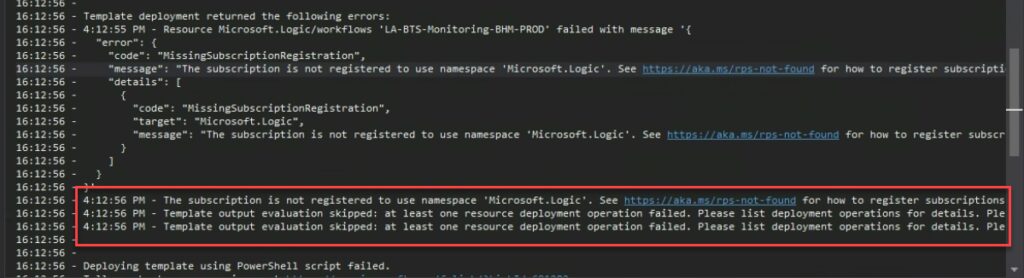
If we didn’t find any issue deploying our Azure Function, the same cannot be said for the Logic Apps. And when we were trying to deploy it from Visual Studio, the same solution that we had deployed without issue in other subscriptions, we were surprised to encounter the following error:
The subscription is not registered to use namespace ‘Microsoft.Logic’. See https://aka.ms./rps-not-found for how to register subscriptions.
Causes
Basically, this error means that the service you are trying to use is not currently registered in your Azure subscription.
You can change this at any point by allowing or prohibiting using specific namespace (services) in our Azure Subscription. Of course, as with everything in Azure, you need permissions on the subscription to execute these actions.
Solutions
The solution to this problem is quite simple to accomplish. You just need to:
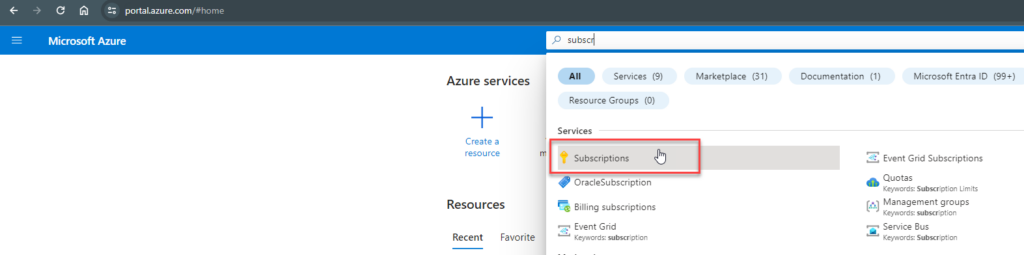
From the list of subscriptions page, select the subscription you want to use for registering the resource provider.
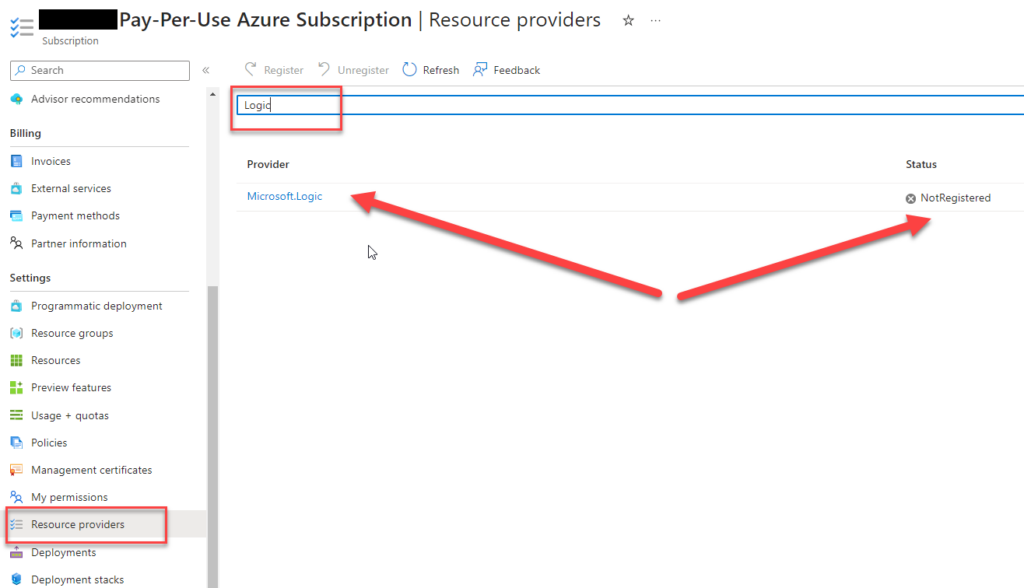
On the Subscription page, from the left menu, select the Resource providers option under the Settings section.
On the Resource providers page, on the search type Logic.
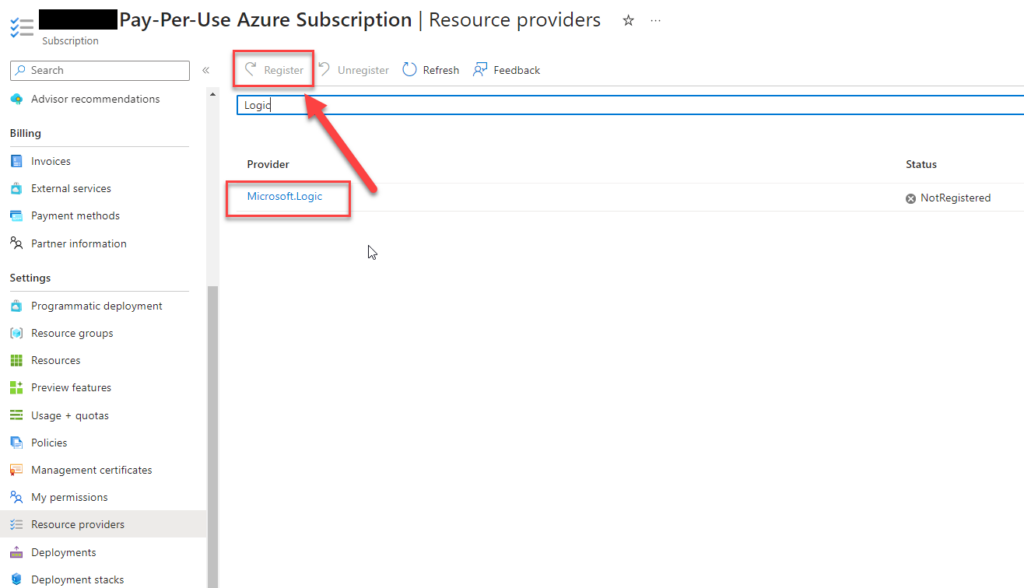
Click on the Microsft.Logic row, and that will enable the Register button. Click on the Register button.
After you click register, the provider will be registered, and you should be able to use the Logic App Service.
After these steps, we were able to deploy our Logic Apps from Visual Studio.
Hope you find this helpful! So, if you liked the content or found it helpful and want to help me write more content, you can buy (or help buy) my son a Star Wars Lego!
Author: Sandro Pereira
Sandro Pereira lives in Portugal and works as a consultant at DevScope. In the past years, he has been working on implementing Integration scenarios both on-premises and cloud for various clients, each with different scenarios from a technical point of view, size, and criticality, using Microsoft Azure, Microsoft BizTalk Server and different technologies like AS2, EDI, RosettaNet, SAP, TIBCO etc.
He is a regular blogger, international speaker, and technical reviewer of several BizTalk books all focused on Integration. He is also the author of the book “BizTalk Mapping Patterns & Best Practices”. He has been awarded MVP since 2011 for his contributions to the integration community.
View all posts by Sandro Pereira
It is always fun to return to one of my favorite topics: Errors and warnings, causes and solutions, this time on Azure. It was not a fun night yesterday! And all of that because of the nightmare that sometimes I needed to prepare our developer tools to be fit to develop Azure Services.
Some time ago, November 14, 2023, to be exact, Microsoft announced the global availability of Azure Functions supports .NET 8 in the isolated worker model. Support is available for Windows and Linux on the Consumption, Elastic Premium, and App Service plan hosting options.
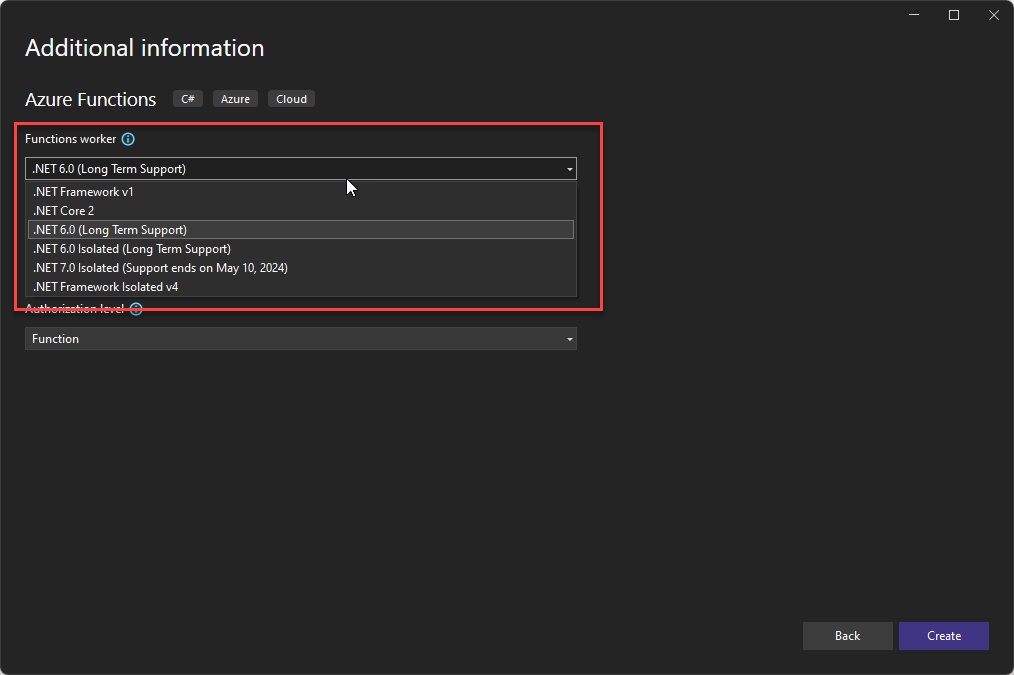
So, last night, I decided to create an Azure Function using .NET 8, and to my surprise, the .NET 8 Isolated (Long Term Support) Function worker was missing from the Azure Function project in Visual Studio 2022.
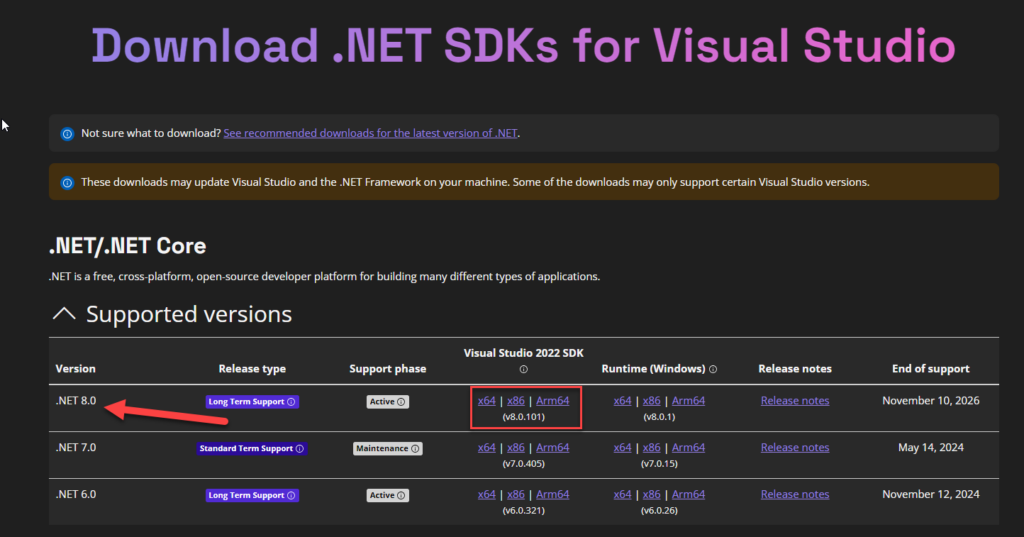
Of course, the first assumption I made was I didn’t have the .NET 8 installed. And, in fact, it wasn’t! So I went to the Download .NET SDKs for Visual Studio page and installed the .NET 8.0.
However, after installing and restarting everything, including the laptop, the .NET 8 Function worker was still missing from the Azure Function project in Visual Studio 2022.
Causes
The cause of this problem or behavior is related to having currently installed obsolete Azure Function tools and/or Visual Studio version on your machine.
Solutions
The solution to this problem is not quite as intuitive as we like it but nevertheless simple to accomplish once you know what to do.
To resolve this issue/behavior, you need to perform several steps.
Step 1: As I mentioned above, make sure you have installed in your machine the .NET 8.0 SDK.
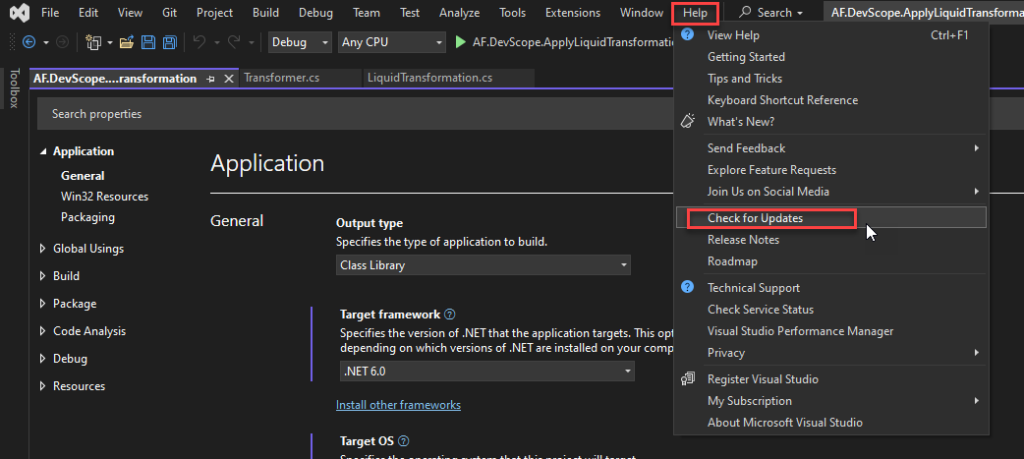
Step 2: Visual Studio version matters! You need to upgrade your Visual Studio 2020 to version 17.8 or above. (I am not sure if the first version to support this Function Worker is 17.8, but I believe so). To upgrade Visual Studio you need to:
Open Visual Studio 2022 and access the following menu option: Help > Check for Updates.
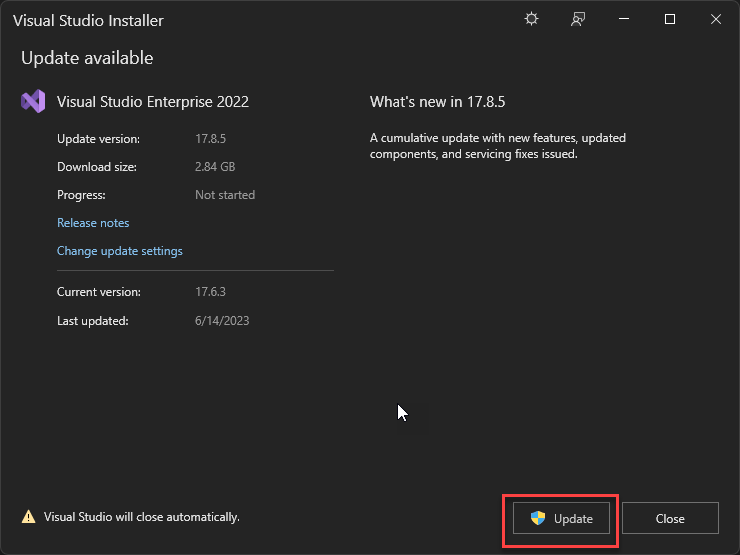
In my case, I had an old version, 17.6.3, that does not support .NET 8.0 Function worker. Click Update.
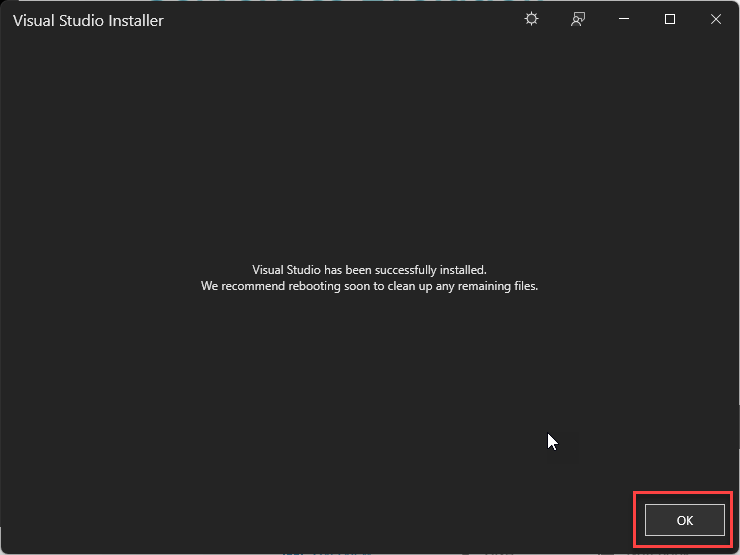
Once the update is complete, click OK.
Step3: Install the latest Azure Functions toolsets and templates. After upgrading the Visual Studio, we also need to make sure that we have the latest Azure Functions toolsets and templates. To do that, we need to:
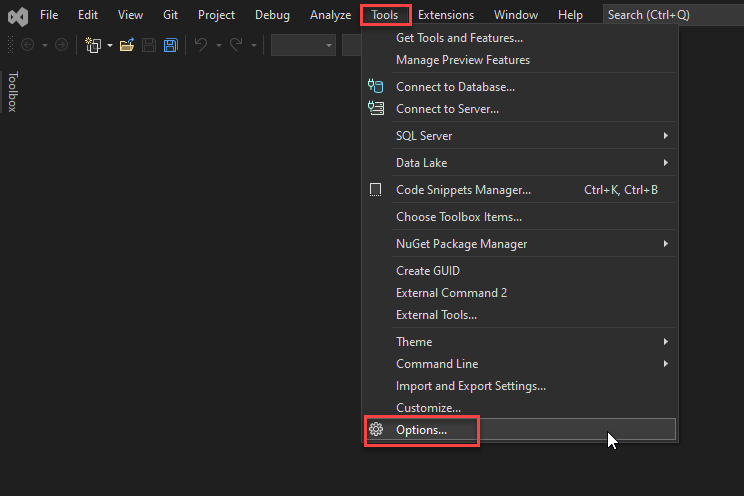
Open Visual Studio 2022 and access the following menu option: Tools> Options...
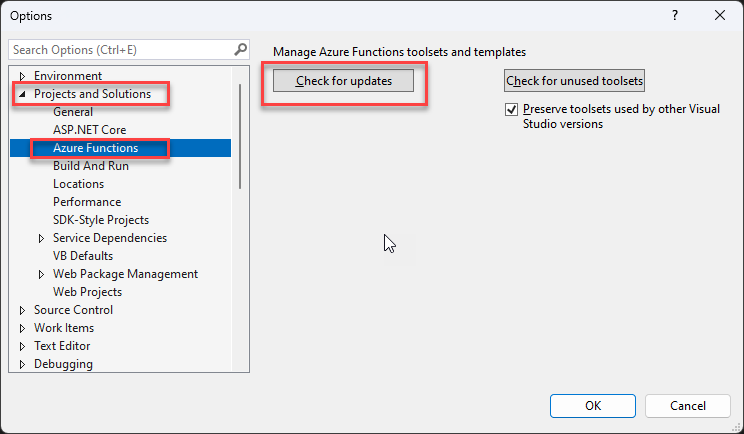
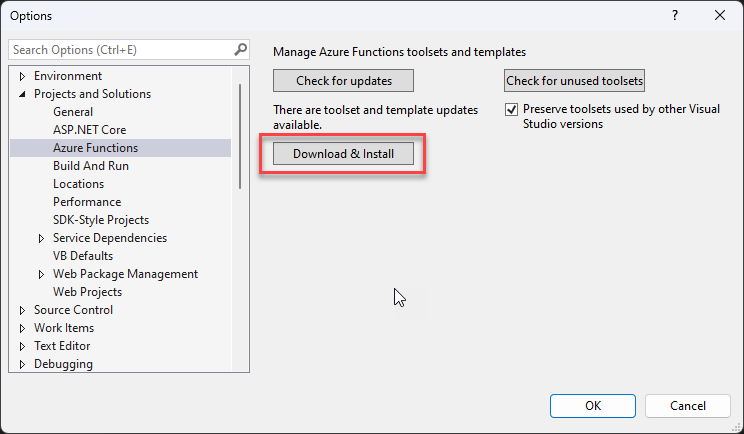
In the Options window, on the left menu three, select the option Projects and Solutions > Azure Functions. And then click Check for updates.
If it exists updates, click on Download & Install.
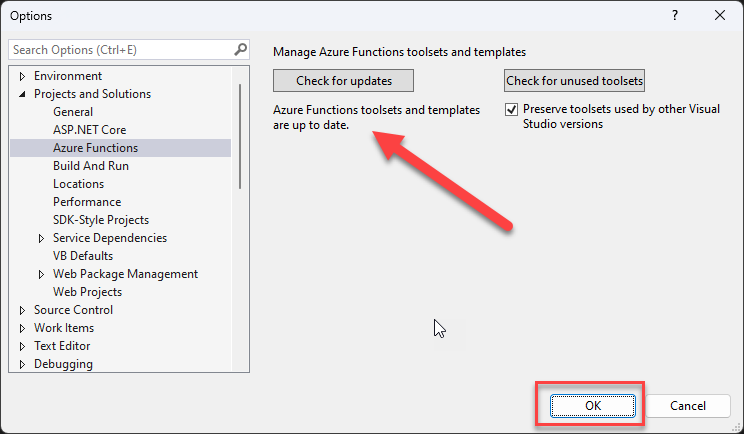
Once the version is installed or if there isn’t any update, a message will appear saying Azure Functions toolsets and templates are up to date. Click OK.
Close Visual Studio.
Step4: (optional but recommended) Remove AzureFunctionsTools folder from LocalAppData
Maybe this step is not required, but after all the failed attempts, this “recipe” worked, at least for me. That being said, I also recommend carrying out all the optional steps.
To accomplish this, you need to:
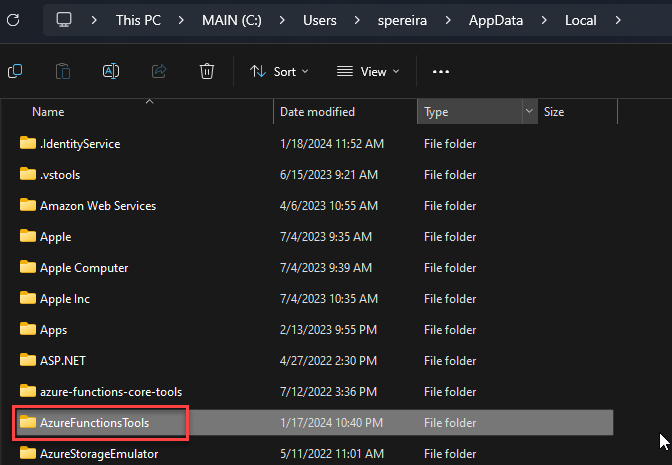
On the file system, access to: %LocalAppData%
And delete the AzureFunctionTools folder.
Step5: Restart the machine
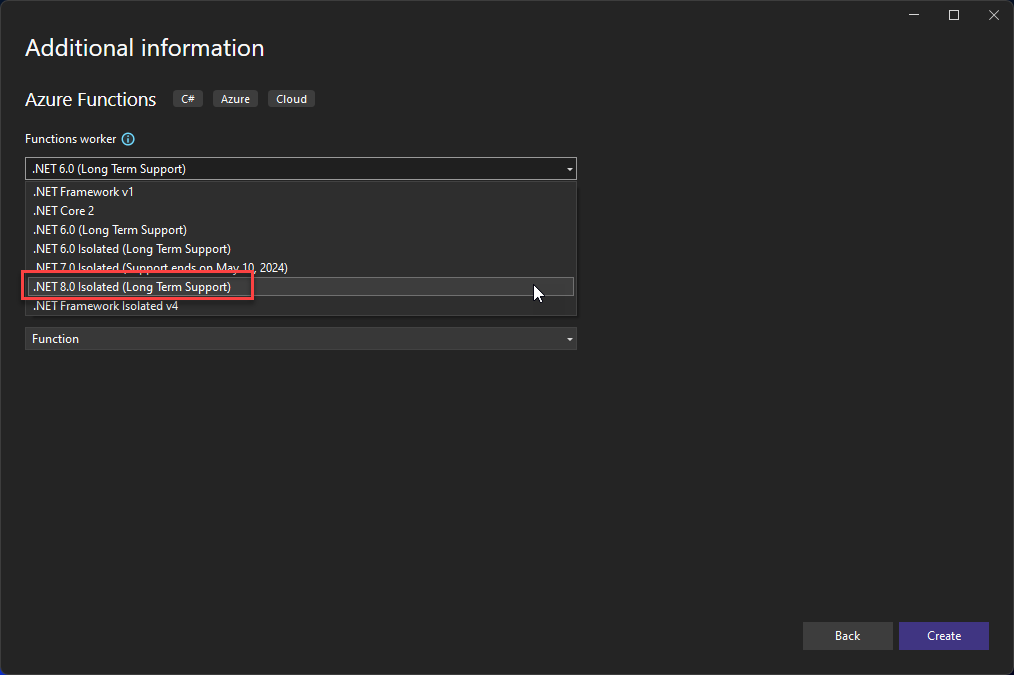
I try to access Visual Studio before restarting the machine without success. Once I restarted everything, including the machine, I once again tried to access Visual Studio to create an Azure Function project, and the .NET 8 Isolated (Long Term Support) Function worker was finally available for me to use:
Hope you find this helpful! So, if you liked the content or found it helpful and want to help me write more content, you can buy (or help buy) my son a Star Wars Lego!
Author: Sandro Pereira
Sandro Pereira lives in Portugal and works as a consultant at DevScope. In the past years, he has been working on implementing Integration scenarios both on-premises and cloud for various clients, each with different scenarios from a technical point of view, size, and criticality, using Microsoft Azure, Microsoft BizTalk Server and different technologies like AS2, EDI, RosettaNet, SAP, TIBCO etc.
He is a regular blogger, international speaker, and technical reviewer of several BizTalk books all focused on Integration. He is also the author of the book “BizTalk Mapping Patterns & Best Practices”. He has been awarded MVP since 2011 for his contributions to the integration community.
View all posts by Sandro Pereira
This is not the first time I have worked with the FTP adapter. Almost all my clients have a File transfer solution, and FTP is used in many of them. But today was probably the first time I had the need to configure an After Put command on the FTP channel. Basically, we need to upload the file as .tmp, and after it is uploaded to the FTP we need to rename it to .xml.
The BizTalk Server FTP adapter contains an After Put property that allows you to specify the FTP commands to run after the file PUT. You can provide a chain of commands by separating each one with a semicolon (;).
So, yes, this is what I want to use. On the first approach, I try to add the following command:
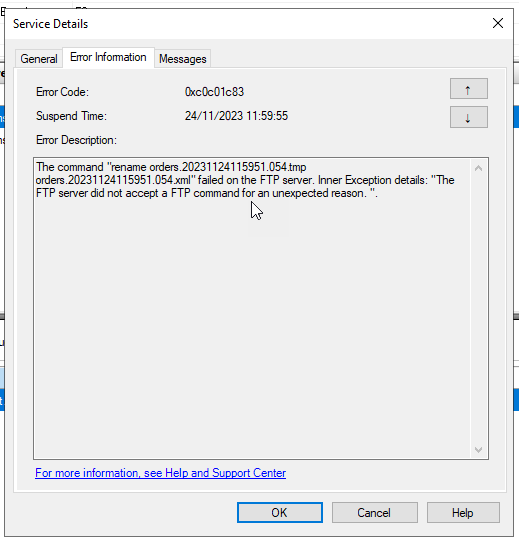
The command “rename orders.20231124115951.054.tmp orders.20231124115951.054.xml” failed on the FTP server. Inner Exception details: “The FTP server did not accept a FTP command for an unexpected reason. “.
To troubleshoot the adapter, I defined a log file and tried it again, and I got the following traces:
> CWD /inbox
 PWD
 TYPE I
 PORT 10,0,0,224,228,205
 STOR orders.20231124115951.054.tmp
< 150 Opening BINARY mode data connection for orders.20231124115951.054.tmp
 rename orders.20231124115951.054.tmp orders.20231124115951.054.xml
 QUIT
< 221 Goodbye.
After a quick look at this error, I saw a post saying that mv command instead of the rename:
> PWD
 TYPE I
 PORT 10,0,0,224,229,79
 STOR orders.20231124120624.055.tmp
< 150 Opening BINARY mode data connection for orders.20231124120624.055.tmp
 mv -- -orders.20231124120624.055.tmp orders.20231124120624.055.xml
 QUIT
< 221 Goodbye.
Causes
While using and troubleshooting the FTP adapter, it is always good to set the Log file. This will contain all the instructions made by the adapter. By doing so, I realized that the traditional commands we use, like dir, delete, or rename, are not supported in the FTP adapter.
The logs show that the commands used are CWD and STOR, which are the equivalent of dir and put or PWD to display the current directory.
CWD is the Net::FTP method name; CD is the standard FTP and shell command for changing directories. That means that the BizTalk Server FTP adapter uses Net::FTP commands.
Solutions
The solution is quite simple to accomplish:
Replace the rename command with the equivalent in Net::FTP that is:
RNFR FTP command: The RNFR command is issued when an FTP client wants to rename a file on the server. The client specifies the name of the file to be renamed along with the command. After issuing an RNFR command, an RNTO command must immediately follow.
RNTO FTP command: The RNTO command is used to specify the new name of a file specified in a preceding RNFR (Rename From) command.
So that means that the After Put property needs to be set as:
Hope you find this helpful! So, if you liked the content or found it helpful and want to help me write more content, you can buy (or help buy) my son a Star Wars Lego!
Author: Sandro Pereira
Sandro Pereira lives in Portugal and works as a consultant at DevScope. In the past years, he has been working on implementing Integration scenarios both on-premises and cloud for various clients, each with different scenarios from a technical point of view, size, and criticality, using Microsoft Azure, Microsoft BizTalk Server and different technologies like AS2, EDI, RosettaNet, SAP, TIBCO etc.
He is a regular blogger, international speaker, and technical reviewer of several BizTalk books all focused on Integration. He is also the author of the book “BizTalk Mapping Patterns & Best Practices”. He has been awarded MVP since 2011 for his contributions to the integration community.
View all posts by Sandro Pereira
When we work with multiple clients and, in some cases, with restricted access to their servers or environments, sometimes we have the need to copy the source code from our machines into their developer environment. This happened recently when I needed to transfer some modifications I made in a BizTalk Server Visual Studio solution into the client developer environment. I couldn’t connect a USB device for security reasons, so I decided to copy it to OneDrive and download it from the server.
However, by doing this, some of the files, especially the project and solution files, got marked as Mark of the Web (MOTW). By default, the mark of the web is added to files only from the Internet or restricted site zones. (you can know more about it here: Mark of the Web and zones) By the way, according to MSFT documentation, Mark of the Web only applies to files saved on an NTFS file system, not files saved to FAT32 formatted devices.
The main problem with MotW is that it will cause problems while trying to compile your Visual Studio solutions:
Error Couldn't process file .resx due to its being in the Internet or Restricted zone or having the mark of the web on the file. Remove the mark of the web if you want to process these files.
There are many ways to remove the Mark of the Web (MOTW) flag. Ideally, this needs to be done with Visual Studio closed. Here are two options:
Option 1: Using the File Properties
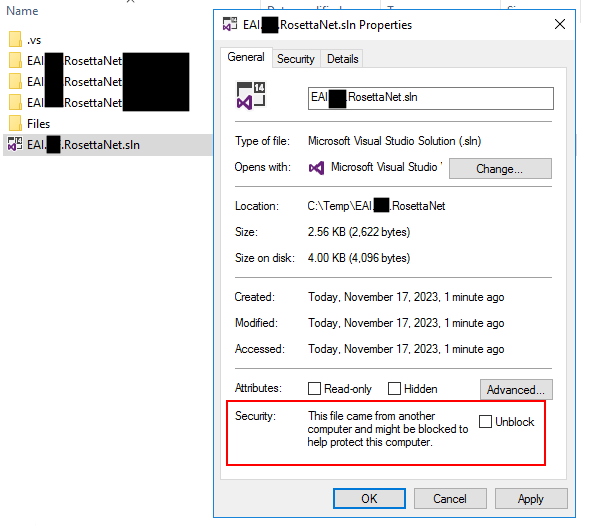
Right-click on the file in Windows Explorer and select properties.
On the properties window, on the bottom, select the check box Unblock and click OK.
Note: The problem with this solution is that you need to do it manually for all the marked files.
Option 2: Using PowerShell
Using a simple PowerShell to go through all the files and unblock them. You can accomplish that, for example, by using the following script:
Get-ChildItem -Path . -Recurse | Unblock-File
Download
THIS POWERSHELL SCRIPT IS PROVIDED “AS IS” WITHOUT WARRANTY OF ANY KIND.
You can download PowerShell scripts to unblock files from GitHub here:
If you liked the content or found it helpful and want to help me write more content, you can buy (or help buy) my son a Star Wars Lego!
Author: Sandro Pereira
Sandro Pereira lives in Portugal and works as a consultant at DevScope. In the past years, he has been working on implementing Integration scenarios both on-premises and cloud for various clients, each with different scenarios from a technical point of view, size, and criticality, using Microsoft Azure, Microsoft BizTalk Server and different technologies like AS2, EDI, RosettaNet, SAP, TIBCO etc.
He is a regular blogger, international speaker, and technical reviewer of several BizTalk books all focused on Integration. He is also the author of the book “BizTalk Mapping Patterns & Best Practices”. He has been awarded MVP since 2011 for his contributions to the integration community.
View all posts by Sandro Pereira
Errors rarely appear alone; from time to time, it’s as if a project is determined to challenge you. But I find it rather enjoyable. It offers me inspiration and creative material for writing! Today’s U found an unfamiliar (or rare) problem that happened while I was migrating an old BizTalk Server 2013 solution into a recent version of the BizTalk Server.
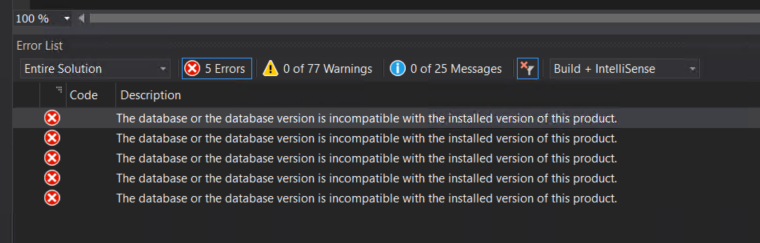
Following the migration of the Visual Studio solution to a newer version, which also involved changing the target .NET framework, I encountered the following error when attempting to deploy the BizTalk Server Visual Studio solution:
The database or the database version is incompatible with the installed version of this product.
Causes
Normally, when we are migrating side-by-side BizTalk Server solutions, that means that we are creating a new BizTalk Server developer environment that, most of the time, does not have access to the previous environment. But you must know that if you copy a BizTalk Server Visual Studio folder solution from the old environment to the new one, it will also copy the *.btproj.user files. This is an XML file that contains not only the BizTalk deployment Settings but also several personal user settings like References path, test file names, and so on.
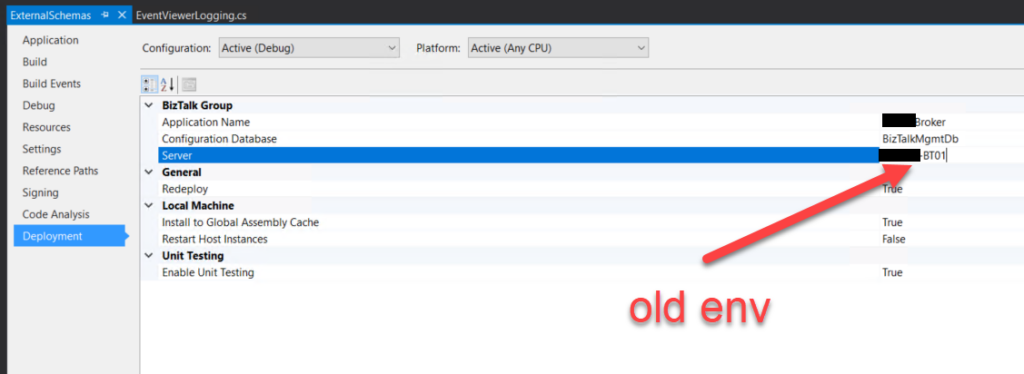
Regarding BizTalk deployment properties, all this setting are stored in the “*.btproj.user” file:
Application Name (ApplicationName): This is the name of the BizTalk application that we want to deploy the assemblies in this project. If the application already exists, the assemblies will be added to it when you deploy the project. If the application does not exist, the application will be created. If this field is blank, the assemblies will be deployed to the default BizTalk application in the current group (“BizTalk Application 1”). Names that include spaces must be enclosed in double quotation marks (“).
Configuration Database (ConfigurationDatabase): This is the name of the BizTalk Management database for the group. The default value is “BizTalkMgmtDb”.
Server (Server): This is the name of the SQL Server instance that hosts the BizTalk Management database on the local computer. By default, this is usually the name of the local computer.
Redeploy (Redeploy): Boolean property that indicates if you want to allow redeployments from within Visual Studio. Setting this to “True” (the default) enables you to redeploy the BizTalk assemblies without changing the version number.
Install to Global Assembly Cache (Register): Setting this to “True” (the default) installs the assemblies to the Global Assembly Cache (GAC) on the local computer when you install the application. Set this to False only if you plan to use other tools for this installation, such as gacutil.
Restart Host Instances (RestartHostInstance): Setting this to “True” automatically restarts all host instances running on the local computer when the assembly is redeployed. If set to False (the default), you must manually restart the host instances when redeploying an assembly.
Well, if you do not change, it will contain the previous SQL Server name and instance.
So, if this SQL Server is accessible by this machine and if you try to deploy the solution, you will get an error saying that the database version is incompatible because now you are using a higher version of the product.
Solutions
The solution is quite simple to accomplish:
Access the Deployment tab of the Properties of each BizTalk Server project inside the solution.
And make sure that you set correctly at least the Server name (or name and instance)
If you want to play safe, it will give you a little bit of more work, but you can:
Close the solution.
2Open Explorer and delete *.btproj.user files.
Reopen the solution, reconfigure the Deployment properties – this time mainly the Application name, because the rest will be properly configured by default – rebuild and deploy the solution.
Both these options will fix this problem.
Hope you find this helpful! So, if you liked the content or found it helpful and want to help me write more content, you can buy (or help buy) my son a Star Wars Lego!
Author: Sandro Pereira
Sandro Pereira lives in Portugal and works as a consultant at DevScope. In the past years, he has been working on implementing Integration scenarios both on-premises and cloud for various clients, each with different scenarios from a technical point of view, size, and criticality, using Microsoft Azure, Microsoft BizTalk Server and different technologies like AS2, EDI, RosettaNet, SAP, TIBCO etc.
He is a regular blogger, international speaker, and technical reviewer of several BizTalk books all focused on Integration. He is also the author of the book “BizTalk Mapping Patterns & Best Practices”. He has been awarded MVP since 2011 for his contributions to the integration community.
View all posts by Sandro Pereira