by Sandro Pereira | Aug 27, 2018 | BizTalk Community Blogs via Syndication
It’s been a while since I don’t make any changes to one of my favorite pet projects: BizTalk Mapper Extensions UtilityPack! Today I’m happy to announce the release of a new BizTalk Functoid: Convert to a Number Functoid.
Note: And it will not be the only one, soon I will release two new Functoids that I’m working on.
Today I was working on a map that I had the need to transform several numbers delivers in a string with a decimal format:
to an Oracle NUMBER(x) – without decimals.
Initial, I thought in create a Scripting Functoid and reuse it inside the map for each element. However, I realize that I will have to use the same transformation in different maps… so I end up creating this simple Functoid.
Convert to a Number Functoid
This functoid allows you to convert a string to a number (integer)
Parameters
The functoid takes three mandatory input parameters:
- The input value to be converted to a number;
- A character that describes what is the decimal separator (can be empty);
- A character that describes what is the group separator (can be empty);
The output of the functoid will be a Number (integer), example: 1234
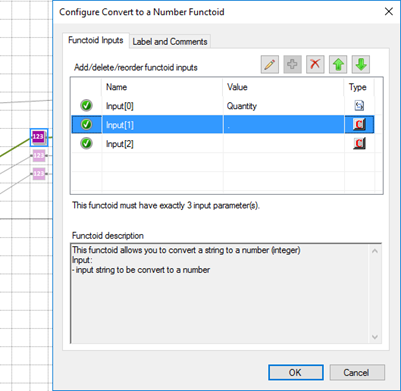
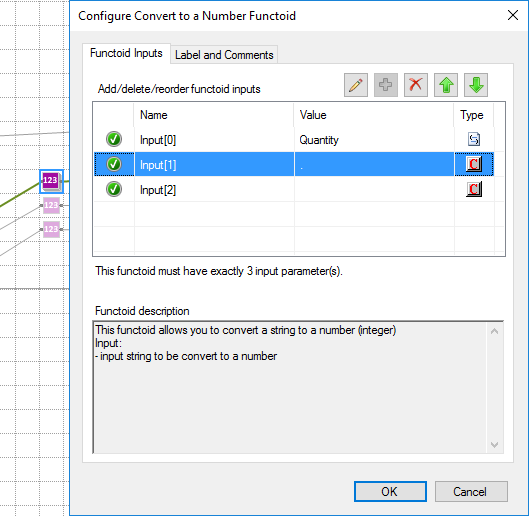
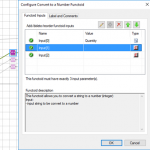
In this sample described in the picture above we are receiving a string with a decimal: “1.000” and we want to transform into “1”. So, in this case, the functoid configuration will be:
- the first input will be our value;
- the second input will be “.” (dot) that describe the decimal separator;
- and the third input will be “” (empty) because there isn’t any group separator (delimitator);
BizTalk Mapper Extensions UtilityPack: Project Description
BizTalk Mapper Extensions UtilityPack is a set of libraries with several useful functoids to include and use it in a map, which will provide an extension of BizTalk Mapper capabilities.
Where to download?
You can download this functoid along with all the existing one on the BizTalk Mapper Extensions UtilityPack here:
 BizTalk Server Community Extensions Utility Packs GitHub Repository
GitHub
Author: Sandro Pereira
Sandro Pereira lives in Portugal and works as a consultant at DevScope. In the past years, he has been working on implementing Integration scenarios both on-premises and cloud for various clients, each with different scenarios from a technical point of view, size, and criticality, using Microsoft Azure, Microsoft BizTalk Server and different technologies like AS2, EDI, RosettaNet, SAP, TIBCO etc. He is a regular blogger, international speaker, and technical reviewer of several BizTalk books all focused on Integration. He is also the author of the book “BizTalk Mapping Patterns & Best Practices”. He has been awarded MVP since 2011 for his contributions to the integration community. View all posts by Sandro Pereira

by Sandro Pereira | Feb 28, 2018 | BizTalk Community Blogs via Syndication
BizTalk Mapper Extensions UtilityPack is a set of libraries with several useful functoids to include and use it in a map, which will provide an extension of BizTalk Mapper capabilities.
This particular version is optimized for BizTalk Server 2016
Functoids
Conversion Functoids
- Convert from human readable to epoch date Functoid: This functoid allows you to convert a traditional date (Human Readable Date) into a Unix date (Epoch Date).
- Convert from epoch to human readable date Functoid: This functoid allows you to convert a Unix date (Epoch Date) into a traditional date (Human Readable Date).
- Convert DateTime format Functoid: This functoid allows you to convert DateTime format.
Dynamic Generators Functoids
- Password Generator Functoid: Use this functoid to build a random password.
- Guid Generator Functoid: This functoid allows you to generate a new Guid.
- Tiny Id Generator Functoid: This functoid allows you to generate a new Tiny Id.
Encoder Functoids
- Base64 Decoder Functoid: This functoid allows you to decode Base64-encoded text strings.
- Base64 Encoder Functoid: This functoid allows you to convert string object into base64 encoded string.
Configuration Functoids
- BTSNTSvc Config Get Functoid: This functoid allows you to get configuration parameters from BTSNTsvc.exe.config. If there is no section specified, the functoid reads from the AppSettings.
- System Environment Variable Get Functoid: This functoid allows you to get configuration parameters from machine System Environment Variable.
- Custom Config Get Functoid: This functoid allows you to get configuration parameters from a custom configuration file.
- Windows Registry Config Get Functoid: This functoid allows you to get configuration parameters from Windows Registry.
- SSO Config Get Functoid: This functoid allows you to get configuration parameters from SSO Database.
- Rule Engine Config Get Functoid: This functoid allows you to obtain a definition value from a Vocabulary in the Business Rules Engine.
CRM Functoids
- CRM Lookup Functoid: This functoid allows you to retrieve a value from CRM lookup field. This functoid is able to perform a lookup operation using two different approaches: Accessing the CRM database (read-only), for local CRM integration or through the CRM web services if you want to avoid giving access to the database or if you have to integrate CRM online.
- MSCRM Map Helper Base Types Functoid: Use this functoid when you want map CRM base data types such as “xs:string”, “xs:int” and so on.
- MSCRM Map Helper Guid Functoid: Use this functoid when you want map CRM guid type.
- MSCRM Map Helper Money Functoid: Use this functoid when you want map CRM money type.
- MSCRM Map Helper Option Value Functoid: Use this functoid when you want map CRM option value type.
- MSCRM Map Helper References Functoid: Use this functoid when you want map CRM reference type.
String Functoids
- String Constant functoid: This functoid allows you to set constant values (strings) inside de maps.
- String ToTitleCase functoid: This functoid allows you to Converts the specified string to title case (except for words that are entirely in uppercase, which are considered to be acronyms).
- String Advance Compare Functoid: This functoid allows you to compare two specified String objects, ignoring or honoring their case, and returns a boolean that indicates if they are equal or not.
- String Replace Functoid: This functoid returns a new string in which all occurrences of a specified string (second parameter) found in the first string are replaced with another specified string (third parameter).
- String Normalize Functoid: This functoid allows you to normalize the text. It will remove two or more consecutive spaces and replace them with a single space, remove two or more consecutive newlines and replace them with a single newline and “condense” multiple tabs into one.
- String PadLeft Functoid: This functoid allows you to set a new string that right-aligns the characters in this instance by padding them on the left with a specified Unicode character, for a specified total length.
- String PadRight Functoid: This functoid allows you to set a new string that left-aligns the characters in this string by padding them on the right with a specified Unicode character, for a specified total length.
- String Remove Leading Zeros Functoid: This functoid allows you to remove any leading zeros from an input string.
Custom Advanced Functoids
- Default Value Mapping functoid: The Default Value Mapping have a similar but different behavior. You can use the Default Value Mapping functoid to return a value from one of two input parameters. If the value of the first input parameter is Null or Empty, then the value of the second input parameter is returned, otherwise, the first input is returned.
XPath Functoids
- XPath Functoid: This functoid natively integrates custom XPath queries in the BizTalk Mapper.
SharePoint Functoids
Logical Functoids
- Advance Logical AND Functoid: Use the Advance Logical AND functoid to return the logical AND of input parameters. This functoid requires two to one hundred input parameters.
- Advance Equal Functoid: Use the Advance Equal functoid to return the value “true” if the first input parameter is equal to the second input parameter. This functoid requires two input parameters.
- Advance Greater Than Functoid: Use the Advance Greater Than functoid to return the value “true” if the first input parameter is greater than the second input parameter. This functoid requires two input parameters.
- Advance Greater Than or Equal To Functoid: Use the Advance Greater Than or Equal To functoid to return the value “true” if the first input parameter is greater than or equal to the second input parameter. This functoid requires two input parameters.
- Advance Less Than Functoid: Use the Advance Less Than functoid to return the value “true” if the first input parameter is less than the second input parameter. This functoid requires two input parameters.
- Advance Less Than or Equal To Functoid: Use the Advance Less Than or Equal To functoid to return the value “true” if the first input parameter is less than or equal to the second input parameter. This functoid requires two input parameters.
- Advance Not Equal Functoid: Use the Advance Not Equal functoid to return the value “true” if the first input parameter is not equal to the second input parameter. This functoid requires two input parameters.
- Advance Logical NOT Functoid: Use the Advance Logical NOT functoid to return the logical inversion of the input parameter. This functoid requires one input parameter only.
- Advance Logical OR Functoid: Use the Advance Logical OR functoid to return the logical OR of input parameters. The input parameters have to be Boolean or numeric. This functoid requires two to one hundred input parameters.
- If-Then-Else Functoid: Use the If-Then-Else Functoid to return a value from one of two input parameters based on a condition. If the condition (first input) is True, then the value of the second input parameter is returned, otherwise, the Third input is returned.
Conversion Functoids
Description
This library includes a suit of functoids that make data conversions that you can use inside BizTalk Mapper.
Convert from human readable to epoch date Functoid
This functoid allows you to convert a traditional date (Human Readable Date) into a Unix date (Epoch Date).
What is epoch time?
The Unix epoch (or Unix time or POSIX time or Unix timestamp) is the number of seconds that have elapsed since January 1, 1970 (midnight UTC/GMT), not counting leap seconds (in ISO 8601: 1970-01-01T00:00:00Z). Literally speaking the epoch is Unix time 0 (midnight 1-1-1970), but ‘epoch’ is often used as a synonym for ‘Unix time’. Many Unix systems store epoch dates as a signed 32-bit integer, which might cause problems on January 19, 2038 (known as the Year 2038 problem or Y2038).
| Human readable time |
Seconds |
| 1 minute |
60 seconds |
| 1 hour |
3600 seconds |
| 1 day |
86400 seconds |
| 1 week |
604800 seconds |
| 1 month (30.44 days) |
2629743 seconds |
| 1 year (365.24 days) |
31556926 seconds |
Parameters
The functoid takes two mandatory input parameters:
- The input date or DateTime
- A string describing the input format of the first parameter
The output of the functoid is a long, Example: 1289427321
Convert from epoch to human readable date Functoid
This functoid allows you to convert a Unix date (Epoch Date) into a traditional date (Human Readable Date).
Parameters
The functoid takes two mandatory input parameters:
- The input date or DateTime
- A string describing the input format of the first parameter
The output of the functoid is a DateTime, Example: 10-11-2010 22:15:21
Dynamic Generators Functoids
Description
This library includes a suit of functoids that generate dynamic data; you can use this inside BizTalk Mapper.
Password Generator Functoid
This functoid allows you to build a random password.
Parameters
The functoid takes five mandatory input parameters:
- A Boolean that describing if you want to use Lower Case chars
- “a”, “b”, “c”, “d”, “e”, “f”, “g”, “h”, “i”, “j”, “k”, “l”, “m”, “n”, “o”, “p”, “q”, “r”, “s”, “t”, “u”, “v”, “w”, “x”, “y”, “z”
- A Boolean that describing if you want to use Upper Case chars
- “A”, “B”, “C”, “D”, “E”, “F”, “G”, “H”, “I”, “J”, “K”, “L”, “M”, “N”, “O”, “P”, “Q”, “R”, “S”, “T”, “U”, “V”, “W”, “X”, “Y”, “Z”
- A Boolean that describing if you want to use Numbers
- “1”, “2”, “3”, “4”, “5”, “6”, “7”, “8”, “9”, “0”
- A Boolean that describing if you want to use Symbols
- “!”, “@”, “#”, “$”, “%”, “&”, “*”, “?”
- An integer that represents the length of the password
The output of the functoid is a string, Example: 6FcUw7RBFi
Guid Generator Functoid
This functoid allows you to generate a new Guid.
Parameters
The functoid takes no parameters
The output of the functoid is a string, Example: 8fe5cee8-279b-4f1b-96f2-450cff2c846c
Tiny Id Generator Functoid
This functoid allows you to generate a new Tiny Id.
Parameters
The functoid takes no parameters
The output of the functoid is a string, Example: _2ZgiIhjCECNxi9QwU96FA
Encoder Functoids
Description
This library includes a suit of functoids that make data encoder that you can use inside BizTalk Mapper.
Base64 Encoder Functoid
This functoid allows you to convert string object into base64 encoded string.
Parameters
The functoid takes one mandatory input parameters:
- String that represents the text that you want to encode to Base 64
The output of the functoid is a string, Example: U2FuZHJvIFBlcmVpcmE=
Base64 Decoder Functoid
This functoid allows you to decode Base64-encoded text strings.
Parameters
The functoid takes one mandatory input parameters:
- Base 64 string representation that you want to decode to text string
The output of the functoid is a string, Example: Sandro Pereira
Configuration Functoids
Description
This library includes a suit of functoids that make read configuration parameter values from different locations and that you can use inside BizTalk mapper
BTSNTSvc Config Get Functoid
This functoid allows you to get configuration parameters from BTSNTsvc.exe.config. If there is no section specified, the functoid reads from the AppSettings.
Parameters
The functoid takes two mandatory input parameters:
- String that represents the keyname that you want to read from BTSNTsvc.exe.config
- A string that represents the section (can be an empty String) from the BTSNTsvc.exe.config that you want to read the keyname.
The output of the functoid is a string with the value of the configuration parameters from BTSNTsvc.exe.config
System Environment Variable Get Functoid
This functoid allows you to get configuration parameters from machine System Environment Variable.
Parameters
The functoid takes one mandatory input parameters:
- String that represents the key that you want to read from System Environment Variable
The output of the functoid is a string with the value of the configuration parameters from System Environment Variable of the machine
Custom Config Get Functoid
This functoid allows you to get configuration parameters from a custom configuration file.
Parameters
The functoid takes two mandatory input parameters:
- String that represents the key (variable name)that you want to read from a custom configuration file
- A string that represents the path to the custom configuration file that you want to read the key.
The output of the functoid is a string with the value of the configuration parameters from a custom configuration file.
SSO Config Get Functoid
This functoid allows you to get configuration parameters from SSO Database.
Parameters
The functoid takes two mandatory input parameters:
- String that represents the name of the affiliate application to represent the configuration container to access
- A string that represents the property name to read from the affiliate application.
The output of the functoid is a string with the value of the configuration parameters from SSO
Windows Registry Config Get Functoid
This functoid allows you to get configuration parameters from Windows Registry.
Parameters
The functoid takes two mandatory input parameters:
- A string that represents the name or path of the subkey to open.
- A string that represents the name of the value to retrieve from the registry. This string is not case-sensitive.
The output of the functoid is a string with the value of the configuration parameters from the registry.
Rule Engine Config Get Functoid
This functoid allows you to obtain a definition value from a Vocabulary in the Business Rules Engine.
Parameters
The functoid takes two mandatory input parameters:
- A string that represents the definition name (e.g. Value1)
- A string that represents the vocabulary name (i.e. Config).
The output of the functoid is a string with the value of the definition name from a specify vocabulary on the Business Rule Engine.
CRM Functoids
Description
This library includes a suit of functoids that help you to wok easily in CRM integration solution; you can use this inside BizTalk Mapper.
CRM Lookup Functoid
This functoid allows you to retrieve a value from CRM lookup field. This functoid is able to perform a lookup operation using two different approaches:
- Accessing the CRM database (read-only), for local CRM integration
- Through the CRM web services if you want to avoid giving access to the database or if you have to integrate CRM online.
Parameters
The functoid takes five mandatory input parameters:
- SSO Application Name: the connection parameters are stored inside SSO. Here you have to specify the application name where you decide to store the settings. This allows you to have multiple CRM environments that you can integrate;
- CRM Guid Field Name: key field name of which you want to get the value;
- CRM Entity Name: CRM entity name on which the resolution will be performed
- CRM Input Field Name: imagining having a “code” as input and you want to know the CRM physical key, in this attribute should specify the name of the “code” field.
- CRM Input Value: value from source system to resolve
The output of the functoid is a string, Example: 6erg5r-sdrf56-4dfgt5-6ty5r4-456trt
Installation
Create an SSO application.
SQL Server Lookup: Create the following SSO configuration parameters
- CrmConnectionType: “sql”
- CrmDatabaseConnectionString: specify the CRM database connection string
Open SQL Server management console, connect to CRM database and execute the script under CRMLookup.sql file in the project folder.
Local CRM web services lookup: Create the following SSO configuration parameters:
- CrmConnectionType: “ws”
- CrmUserName: specify a valid CRM username
- CrmUserDomain: specify a user active directory domain name
- CrmUserPassword: specify the user password
- CrmUri: specify the CRM web service url (ex: http://MyCrmServer/MyCrmInstance/XRMServices/2011/Organization.svc)
CRM Online web services lookup: Create the following SSO configuration parameters:
- CrmConnectionType: “ws”
- CrmUserName: specify a valid CRM username (ex: [email protected]
- CrmUserPassword: specify the user password
- CrmUri: specify the CRM web service url (ex: https://mydomain.crm4.dynamics.com/XRMServices/2011/OrganizationData.svc )
MSCRM Map Helper Base Types Functoid
Use this functoid when you want map CRM base data types such as “xs:string”, “xs:int” and so on.
Parameters
The functoid takes three mandatory input parameters:
- Source Field: Link from source schema field value.
- Target Field Name: CRM target field name.
- Target Field Type: CRM target field type (Example: “xs:dateTime”).
The output of this functoid should be linked to:
- “/<Schema>/<CRM_Operation>/entity/Attributes/KeyValuePairOfstringanyType/key”.
MSCRM Map Helper Guid Functoid
Use this functoid when you want map CRM guid type.
Parameters
The functoid takes two mandatory input parameters:
- Source Field: Link from source schema field value.
- Target Field Name: CRM target field name
The output of this functoid should be linked to:
- “/<Schema>/<CRM_Operation>/entity/Attributes/KeyValuePairOfstringanyType/key”.
You may use this functoid in combination with CRM Lookup functoid, where first find for entity guid and then use the result to map to the destination schema.
MSCRM Map Helper Money Functoid
Use this functoid when you want map CRM money type.
Parameters
The functoid takes two mandatory input parameters:
- Source Field: Link from source schema field value.
- Target Field Name: CRM target field name.
The output of this functoid should be linked to:
- “/<Schema>/<CRM_Operation>/entity/Attributes/KeyValuePairOfstringanyType/key
MSCRM Map Helper Option Value Functoid
Use this functoid when you want map CRM option value type.
Parameters
The functoid takes two mandatory input parameters:
- Source Field: Link from source schema field value.
- Target Field Name: CRM target field name.
The output of this functoid should be linked to:
- “/<Schema>/<CRM_Operation>/entity/Attributes/KeyValuePairOfstringanyType/key”.
MSCRM Map Helper References Functoid
Use this functoid when you want map CRM reference type.
Parameters
The functoid takes three mandatory input parameters:
- Source Field: Link from source schema field value.
- Target Field Name: CRM target field name.
- Entity Name: CRM referenced entity.
The output of this functoid should be linked to:
- “/<Schema>/<CRM_Operation>/entity/Attributes/KeyValuePairOfstringanyType/key”.
String Functoids
Description
This library includes a suit of functoids that provides many methods for safely creating, manipulating, and comparing strings that you can use this inside BizTalk Mapper.
String Constant functoid
This functoid allows you to set constant values (strings) inside de maps.
Parameters
The functoid takes one mandatory input parameters:
- String value to be returned out
The output of the functoid is the string set in the output, Example: “P0011”
String ToTitleCase functoid
This functoid allows you to Converts the specified string to title case (except for words that are entirely in uppercase, which are considered to be acronyms)
Parameters
The functoid takes one mandatory input parameters:
- The string to convert to title case
The output of the functoid is a string converted to title case., Example: “Sandro Augusto Sousa Pereira”
String Advance Compare Functoid
This functoid allows you to compare two specified String objects, ignoring or honoring their case, and returns a boolean that indicates if they are equal or not.
Parameters
The functoid takes three mandatory input parameters:
- The first string to compare
- The second string to compare
- True to ignore case during the comparison; otherwise, False.
The output of the functoid is a boolean that indicates if they are equal or not, Example: True
String Replace Functoid
This functoid returns a new string in which all occurrences of a specified string (second parameter) found in the first string are replaced with another specified string (third parameter).
Parameters
The functoid takes three mandatory input parameters:
- String where we will replace the values
- The string to be replaced.
- The string to replace all occurrences of oldValue.
The output of the functoid is a string that is equivalent to the current string except that all instances of oldValue are replaced with newValue. If oldValue is not found in the current instance, the method returns the current instance unchanged, Example: “Sandro Pereira: BizTalk”
String Normalize Functoid
This functoid allows you to normalize the text. It will remove two or more consecutive spaces and replace them with a single space, remove two or more consecutive newlines and replace them with a single newline and “condense” multiple tabs into one.
Parameters
The functoid takes one mandatory input parameters:
- The string to normalize
The output of the functoid is a string normalize without consecutive spaces, lines or tabs, Example: “Sandro Augusto Sousa Pereira”
String PadLeft Functoid
This functoid allows you to set a new string that right-aligns the characters in this instance by padding them on the left with a specified Unicode character, for a specified total length.
Parameters
The functoid takes three mandatory input parameters:
- String that will be pad on the left with a specified Unicode character
- The number of characters in the resulting string, equal to the number of original characters plus any additional padding characters.
- A Unicode padding character.
The output of the functoid is a new string that is equivalent to this instance, but right-aligned and padded on the left with as many paddingChar characters as needed to create a length of totalWidth. However, if totalWidth is less than the length of this instance, the method returns a reference to the existing instance. If totalWidth is equal to the length of this instance, the method returns a new string that is identical to this instance, Example: “*****BTS”
String PadRight Functoid
This functoid allows you to set a new string that left-aligns the characters in this string by padding them on the right with a specified Unicode character, for a specified total length.
Parameters
The functoid takes three mandatory input parameters:
- String that will be pad on the left with a specified Unicode character
- The number of characters in the resulting string, equal to the number of original characters plus any additional padding characters.
- A Unicode padding character.
The output of the functoid is a new string that is equivalent to this instance, but left-aligned and padded on the right with as many paddingChar characters as needed to create a length of totalWidth. However, if totalWidth is less than the length of this instance, the method returns a reference to the existing instance. If totalWidth is equal to the length of this instance, the method returns a new string that is identical to this instance, Example: “BTS******”
String Remove Leading Zeros Functoid
This functoid allows you to remove any leading zeros from an input string.
Parameters
The functoid has one mandatory parameter:
- Input string which contains leading zeros which need to be removed.
The output of the functoid is an integer which is equal to the input instance but then with the leading zeros removed.
Custom Advanced Functoids
Description
This library includes a suit of functoids that provides methods for Conditional mapping that you can use this inside BizTalk Mapper.
Default Value Mapping functoid
The Value Mapping and Value Mapping (Flattening) functoids are used to provide a conditional mapping from an input instance message to an output instance message. When their first input parameter is true, the second input parameter is put into the specified element or attribute in the output instance message; otherwise, that element or attribute is not created in the output instance message.
The Default Value Mapping have a similar but different behavior. You can use the Default Value Mapping functoid to return a value from one of two input parameters. If the value of the first input parameter is Null or Empty, then the value of the second input parameter is returned, otherwise, the first input is returned.
Parameters
he functoid takes one mandatory input parameters:
- A string value tested as Null or Empty.
- A string value that will act as Default Value in case of the first input will be Null or empty.
If the value of the first input parameter is Null or Empty, then the value of the second input parameter is returned, otherwise, the first input is returned, Example: “P0011”
Authentication Functoids
Description
This library currently includes one functoid. This functoid enables you to obtain an authentication token from the Windows Azure Access Control Service.
Get Windows Azure ACS Wrap Token Functoid
This functoid allows you to obtain an ACS WRAP access token in order to access a Windows Azure BizTalk Services Bridge or Windows Azure Service Bus resources. Note this token needs to be added to the outbound request message Http Header. In order to do so use the Authorization key and assign its value as ‘WRAP access_token={RECEIVED TOKEN}’
Parameters
The functoid takes four mandatory input parameters:
- A string issuerName – IssuerName belonging to the BizTalk Service namespace or Windows Azure Service Bus namespace
- A string issuerKey – Issuerkey belonging to the BizTalk Service namespace or Windows Azure Service Bus namespace
- A string endPoint – Full Uri pointing to the BizTalk Service Bridge or Windows Azure Service Bus queue/topic
- A string windowsAzureACSNamespace – BizTalk Service or Service Bus ACS namespace name
The output of the functoid is a string, Example:
net.windows.servicebus.action=Listen%2cManage%2cSend&http%3a%2f%2fschemas.microsoft.com%2faccesscontrolservice%2f2010%2f07%2fclaims%2fidentityprovider=https%3a%2f%2facsnamespace-bts.accesscontrol.windows.net%2f&Audience=http%3a%2f%2fnamespace.biztalk.windows.net%2fdefault%2f%2fRCVINBOUND&ExpiresOn=1390169379&Issuer=https%3a%2f%2fnamespace2786-bts.accesscontrol.windows.net%2f&HMACSHA256=pHxuXvfPSkvq4TRyB5F%2fj%1fUtC1m3TyQKEJ6%2bkO8mhQg%3
The output should then be added to the Authorization HTTP header of the outbound message. Example
[“Authorization”] = String.Format(“WRAP access_token=”{0}””, <YOUR TOKEN>);
XPath Functoids
Description
This library includes a suit of functoids that provides XPath methods that you can use this inside BizTalk Mapper.
XPath Functoid
This functoid natively integrates custom XPath queries in the BizTalk Mapper. This unique functoid which is a powerful competitor to the ScripterFunctoid or a custom XSLT stylesheet and mixes exceptionally well with other functoids.
Parameters
The functoid takes one mandatory input parameter and one optional parameter:
- The first parameter specifies an absolute or relative XPath expression, which becomes a native part of the generated XSLT.
- The (optional) second parameter is a link to the source tree node that becomes the (looping) context for the XPath expression.
This defines the current context node for the XPath expression and allows the use of relative XPath expressions. Additionally, the mapper will generate a looping construct for that linked node where appropriate.
The functoid output can be linked to a destination schema node or serve as input to other functoids
SharePoint Functoids
Description
This library includes a suit of functoids that help you to wok easily in SharePoint integration solution; you can use this inside BizTalk Mapper.
Add SharePoint 2013 Document Set Functoid
Creates a Document Set in an existing SharePoint 2013 List. It is a requirement that the SharePoint list contains a custom content-type of type document set.
Parameters
The following parameters are required:
- string siteUrl = SharePoint Site Url
- string listName = SharePoint List Name containing the custom content-type Document Set
- string docSetContentTypeName = Document Set Content Type name
- string newDocSetName=Name of the to document set to created
Comment: An custom content-type of type documentset needs to be available in SharePoint.
Logical Functoids
This library includes a suit of functoids to perform a variety of logical operations, often controlling whether a particular element or attribute is created in an output instance message. Most of the Logical Functoids are a replica of the existent Logical Functoids that came with BizTalk Server with the advantage that these will allow you to connect with others Custom String Functoids. They are fully compatible with existing functoids and don’t produce any more additional code.
Advance Logical AND Functoid
Use the Advance Logical AND functoid to return the logical AND of input parameters. It determines whether all of the specified input parameters are true.
Parameters
This functoid requires a minimum of two input parameters and a maximum of one hundred:
- Parameter 1: A value that can be evaluated as either True or False.
- Parameters 2 – 100: Values that can be evaluated as either True or False.
Returns the logical AND of parameters. True if all of the specified input parameters evaluate to True; False otherwise.
Advance Equal Functoid
Use the Advance Equal functoid to return the value “true” if the first input parameter is equal to the second input parameter. It tests whether the two input parameters are equal.
Parameters
This functoid requires two input parameters:
- Parameter 1: A value to be tested for equality with the parameter 2.
- Parameter 2: A value to be tested for equality with the parameter 1.
Returns “True” if the values of the two input parameters are equal; “False” otherwise.
Advance Greater Than Functoid
Use the Advance Greater Than functoid to return the value “true” if the first input parameter is greater than the second input parameter. It tests whether the first input parameter is greater than the second input parameter.
Parameters
This functoid requires two input parameters:
- Parameter 1: A value to be tested to determine whether it is greater than parameter 2.
- Parameter 2: A value to be tested to determine whether it is greater than parameter 1.
Returns “True” if the value of the first input parameter is greater than the value of the second input parameter; “False” otherwise.
Advance Greater Than or Equal To Functoid
Use the Advance Greater Than or Equal To functoid to return the value “true” if the first input parameter is greater than or equal to the second input parameter. It tests whether the first input parameter is greater than or equal to the second input parameter.
Parameters
This functoid requires two input parameters:
- Parameter 1: A value to be tested to determine whether it is greater than or equal to parameter 2.
- Parameter 2: A value to be tested to determine whether it is greater than or equal to parameter 1.
Returns “True” if the value of the first input parameter is greater than or equal to the value of the second input parameter; “False” otherwise.
Advance Less Than Functoid
Use the Advance Less Than functoid to return the value “true” if the first input parameter is less than the second input parameter. It tests whether the first input parameter is less than the second input parameter.
Parameters
This functoid requires two input parameters:
- Parameter 1: A value to be tested to determine whether it is less than parameter 2.
- Parameter 2: A value to be tested to determine whether it is less than parameter 1.
Returns “True” if the value of the first input parameter is less than the value of the second input parameter; “False” otherwise.
Advance Less Than or Equal To Functoid
Use the Advance Less Than or Equal To functoid to return the value “true” if the first input parameter is less than or equal to the second input parameter. It tests whether the first input parameter is less than or equal to the second input parameter.
Parameters
This functoid requires two input parameters:
- Parameter 1: A value to be tested to determine whether it is less than or equal to parameter 2.
- Parameter 2: A value to be tested to determine whether it is less than or equal to parameter 1.
Returns “True” if the value of the first input parameter is less than or equal to the value of the second input parameter; “False” otherwise.
Advance Not Equal Functoid
Use the Advance Not Equal functoid to return the value “true” if the first input parameter is not equal to the second input parameter. It tests whether the two input parameters are not equal.
Parameters
This functoid requires two input parameters:
- Parameter 1: A value to be tested for inequality with parameter 2.
- Parameter 2: A value to be tested for inequality with parameter 1.
Returns “True” if the values of the two input parameters are not equal; “False” otherwise.
Advance Logical NOT Functoid
Use the Advance Logical NOT functoid to return the logical inversion of the input parameter. Use to logically negate the value of the Boolean input parameter.
Parameters
This functoid requires one input parameter only:
- Parameter 1: A value that can be evaluated as either True or False.
Returns “True” if the specified input parameter evaluates to False; “False” otherwise.
Advance Logical OR Functoid
Use the Advance Logical OR functoid to return the logical OR of input parameters. The input parameters have to be Boolean or numeric. It determines whether any of the specified input parameters are true.
Parameters
This functoid requires a minimum of two input parameters and a maximum of one hundred:
- Parameter 1: A value that can be evaluated as either True or False.
- Parameters 2 – 100: Values that can be evaluated as either True or False.
Returns “True” if any of the specified input parameters evaluate to True; “False” otherwise.
If-Then-Else Functoid
Use the If-Then-Else Functoid to return a value from one of two input parameters based on a condition. If the condition (first input) is True, then the value of the second input parameter is returned, otherwise, the Third input is returned.
Parameters
This functoid requires three input parameters:
- Boolean representing the result of a previous condition
- The value to be returned if the condition is True.
- The value to be returned if the condition is False.
If the condition is True, then the value of the second input parameter is returned, otherwise th, Third input is returned.
Installation
Installation in a production environment
In a production environment you just need to install the DLL in the GAC
- gacutil /i assemblyPath
Installation in a development environment
In a development environment you should install the DLL in two places
- For using inside the Visual Studio BizTalk Mapper, you need to copy the dll file to the “%BTS%Developer ToolsMapping Extensions” folder, where %BTS% is the installation folder of BizTalk.
- Start Visual Studio.NET and go to “Tools” => “Choose Toolbox Items” and then go to the “Functoids” pane. Check the functoids that should be available in the toolbox.
- You must also install the assembly into the GAC so that the functoid is available to BizTalk at runtime.
- gacutil /i assemblyPath
PowerShell
Installation in a production environment
In a production environment copy the deployment directory and the PowerShell directory from the build environment and place it on the production server
- Ensure you are using the latest version of PowerShell, or download it here
- Rename the deploymentSettings_Production.xml file to deploymentSetting.xml
- Ensure you have compiled the BizTalk Mapper Extensions UtilityPack Solution using the RELEASE option
- Execute the InstallAndRegisterFunctoids.ps1 script
Installation in a development environment
In a development environment go to the PowerShell directory
- Ensure you are using the latest version of PowerShell, or download it here
- Rename the deploymentSettings_Other.xml file to deploymentSetting.xml
- Ensure you have compiled the BizTalk Mapper Extensions UtilityPack Solution using the DEBUG option
- Execute the InstallAndRegisterFunctoids.ps1 script
You can download Runtime BizTalk Mapper Extensions UtilityPack DLLs for BizTalk Server 2016 from:
BizTalk Mapper Extensions UtilityPack for BizTalk Server 2016 (45 KB)
Microsoft | TechNet Gallery
You can download the BizTalk Mapper Extensions UtilityPack source code from:
BizTalk Server Community Extensions Utility Packs GitHub Repository
GitHub
Author: Sandro Pereira
Sandro Pereira lives in Portugal and works as a consultant at DevScope. In the past years, he has been working on implementing Integration scenarios both on-premises and cloud for various clients, each with different scenarios from a technical point of view, size, and criticality, using Microsoft Azure, Microsoft BizTalk Server and different technologies like AS2, EDI, RosettaNet, SAP, TIBCO etc. He is a regular blogger, international speaker, and technical reviewer of several BizTalk books all focused on Integration. He is also the author of the book “BizTalk Mapping Patterns & Best Practices”. He has been awarded MVP since 2011 for his contributions to the integration community. View all posts by Sandro Pereira
by Sandro Pereira | Mar 27, 2017 | BizTalk Community Blogs via Syndication
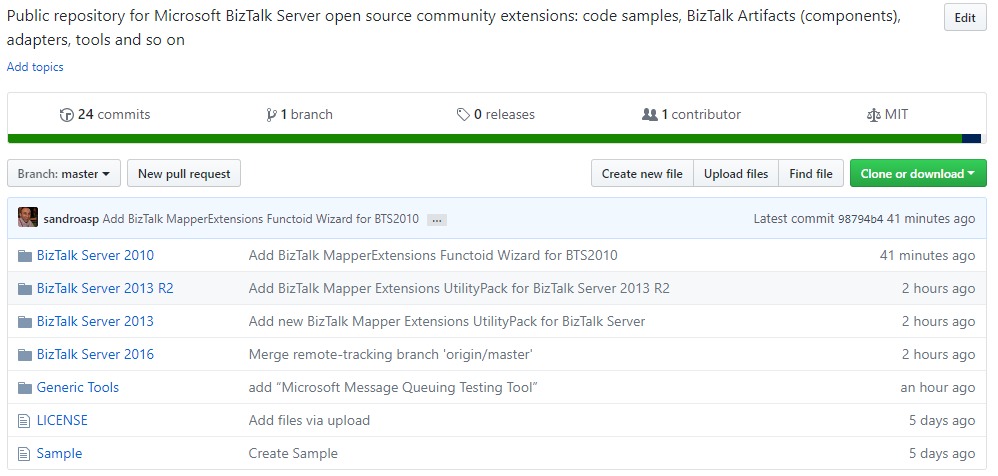
Being an MVP, and a community leader, one of my roles is to motivate others members to start contributing to the community and at DevScope we have great new technicians that sometimes only need to be pushed and motivated… this time I challenged my coworker Rui Silva to collaborate with me on this small project and the result is here: BizTalk MapperExtensions Functoid Wizard for BizTalk Server 2016.
BizTalk MapperExtensions Functoid Wizard is a Custom Functoid Project Wizard for Visual Studio 2015. It allows you to create a new Functoid project for BizTalk Server 2016 without having to create manually the project, in other words, having to manually create:
- A new class library project in Visual Studio 2015;
- Add a reference to the Microsoft.BizTalk.BaseFunctoids assembly;
- Add New Class and having to code the entire class;
This Wizard will do this process automatically, and used in conjunction with BizTalk Server: Custom BizTalk Functoid item template for Visual Studio 2015 will facilitate and significantly expedite the development process of our projects. The only thing you will need to do is create a new Custom Functoid Project and a wizard will pop-up, fill in the required fields and when you finish the process a new Custom Functoid project is built. Just change the execution method with your own algorithms, build your project and it’s done. You’ll see your new Functoid in BizTalk Server 2015 Mapper once you import it to Visual Studio Toolbox.
BizTalk MapperExtensions Functoid Wizard Installation
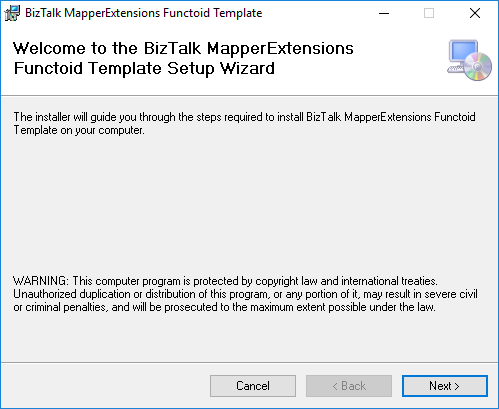
To use this project template download the executable files available on “Installation Files” folder and run the setup file.
Once you run the setup file follow these steps:
- On the “Welcome to the BizTalk MapperExtensions Functoid Template Setup Wizard” screen, click “Next”.
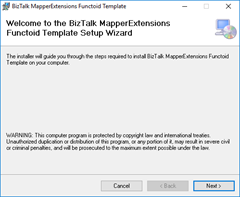
- On the “Select Installation Folder” screen, select the folder where you want to install the Wizard and select the option “Everyone”. Click “Next” to continue.
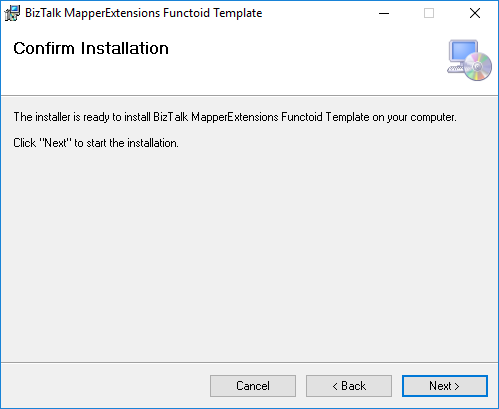
- On the “Confirm Installation” screen, confirm your intent to install by clicking “Next”
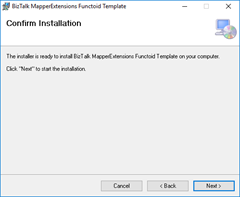
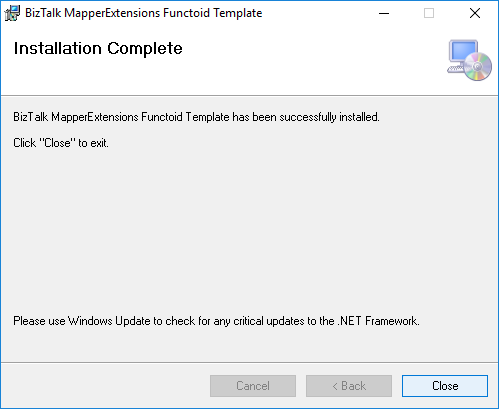
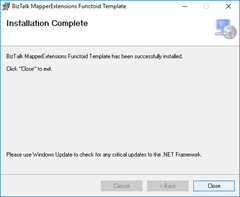
- On the “Installation Complete” screen, click close and the installation is complete
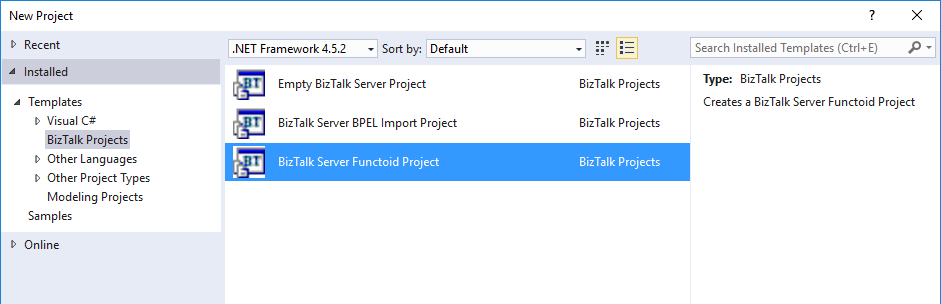
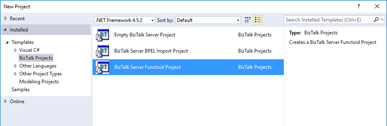
Now you can see a new BizTalk project template option under “BizTalk projects” in your Visual Studio 2015.
Create New Functoid Project
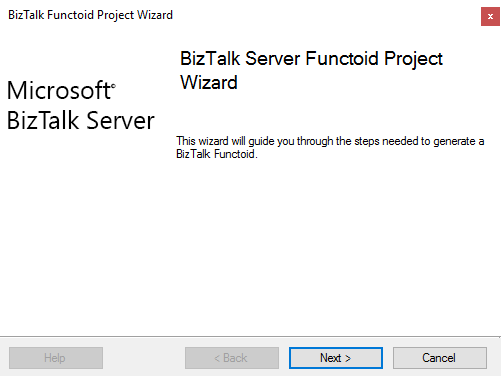
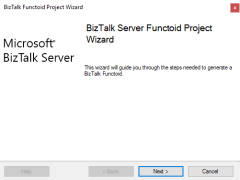
To create a new functoid using this project template choose the option “BizTalk Server Functoid Project” in Visual Studio 2015 and a Wizard will pop-up. Follow the requirements of this wizard to create the Functoid.
- In the “Start” screen, click “Next” to continue
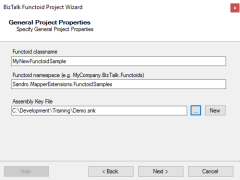
- In the “General Project Properties” screen, fill the Functoid class name, namespace and create or select a new Strong Key (you can use an existing one). Click “Next” to continue.
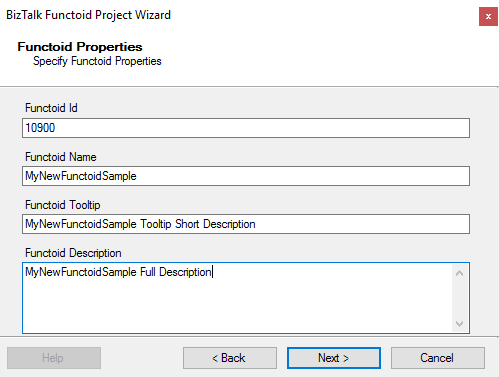
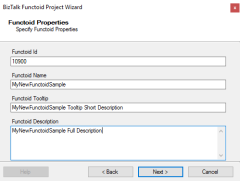
- In the “Functoid Properties” screen, define the Functoid ID (must be greater than 10000), the functoid name, the tooltip (short description) and description (full description). Click “Next” to continue.
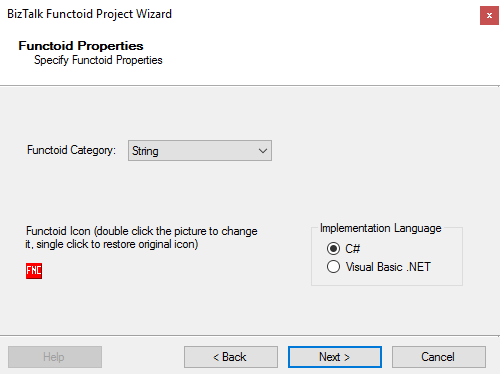
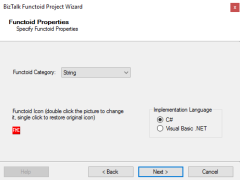
- In the second “Functoid Properties” screen, choose the functoid category and the implementation language (the language in which you want to implement your functoid behavior code): C# or VB.NET. Click “Next” to continue.
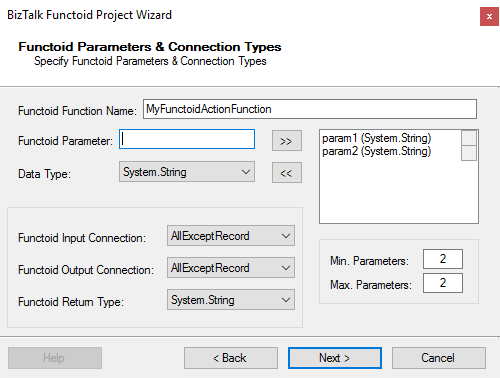
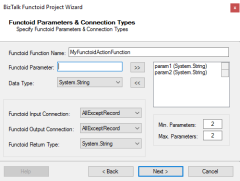
- In the “Functoid Parameters and Connection Types” screen, define the functoid function name, function inputs and types and output and types. Click “Next” to continue.
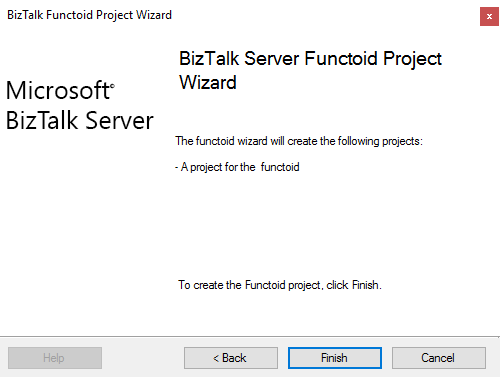
- On the final screen, click “Finish” to create the Visual Studio project.
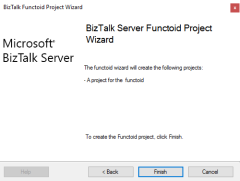
Visual Studio will create a new Project based on your implementation language and definitions provided in the Wizard.
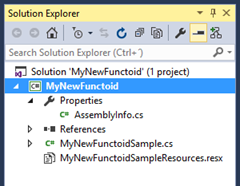
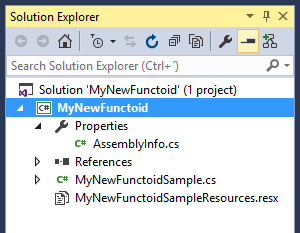
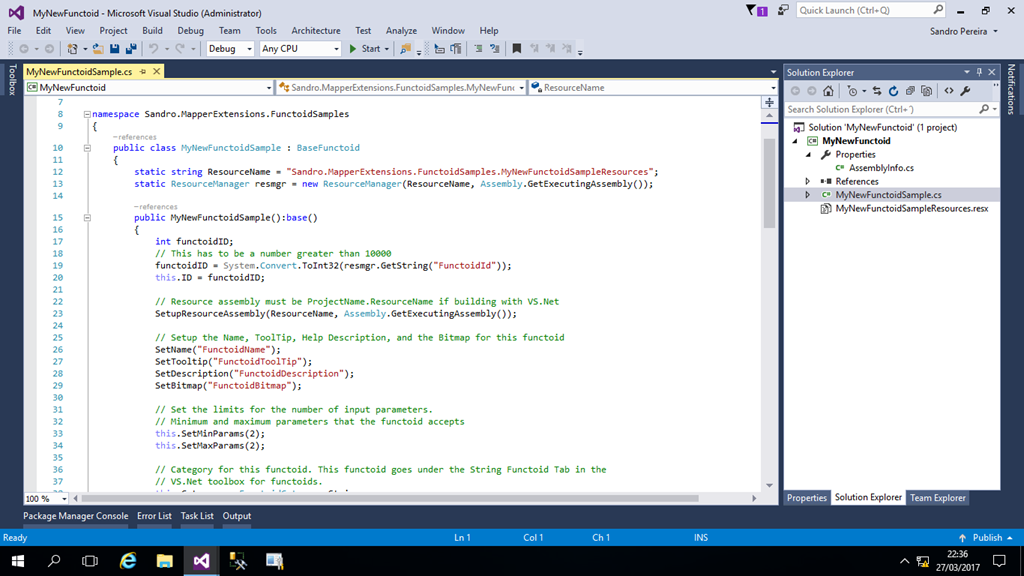
- Open the generated class and implement your code
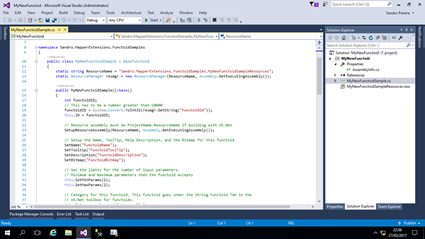
Once again, special thanks to Rui Silva who accepted the challenge and collaborated with me in order to finalize this project.
You can download the Source Code or contribute to the project here:
BizTalk.MapperExtensions.Functoid.Wizard
GitHub
You can download the installation files (only executables) here:
BizTalk MapperExtensions Functoid Wizard: BizTalk Server 2016 Installation files (1.1 MB)
Microsoft | TechNet Gallery
Author: Sandro Pereira
Sandro Pereira lives in Portugal and works as a consultant at DevScope. In the past years, he has been working on implementing Integration scenarios both on-premises and cloud for various clients, each with different scenarios from a technical point of view, size, and criticality, using Microsoft Azure, Microsoft BizTalk Server and different technologies like AS2, EDI, RosettaNet, SAP, TIBCO etc. He is a regular blogger, international speaker, and technical reviewer of several BizTalk books all focused on Integration. He is also the author of the book “BizTalk Mapping Patterns & Best Practices”. He has been awarded MVP since 2011 for his contributions to the integration community. View all posts by Sandro Pereira