by Sandro Pereira | Apr 30, 2020 | BizTalk Community Blogs via Syndication
Let’s continuing the BizTalk Mapper Extensions UtilityPack project migration and do an overview on another set of libraries available for BizTalk Server 2020: Encoder Functoids.
Encoder Functoids
This library includes a suite of functoids that make data encoder that you can use inside BizTalk mapper.
The main purpose of encoding is to transform data so that it can be properly and somehow safely consumed by a different type of system. Don’t get wrong here the goal is not to keep information secret, but rather to ensure that it’s able to be properly consumed.
Encoding transforms data into another format using a scheme that is publicly available so that it can easily be reversed. It does not require a key as the only thing required to decode it is the algorithm that was used to encode it, like, encoding/decoding to ASCII, BASE64, or UNICODE.
And of course, decoding is the opposite, it is the process of converting an encoded format back into the original sequence of characters.
This project includes the following Custom Functoids:
- BASE64 Encoder Functoid: This functoid allows you to convert a string type into BASE64 encoded string.
- The functoid takes one mandatory input parameters:
- A string that represents the text that you want to encode to BASE64
- The output of the functoid is a string, Example: U2FuZHJvIFBlcmVpcmE=
- BASE64 Decoder Functoid: This functoid allows you to decode BASE64-encoded text strings into the original sequence of characters.
- The functoid takes one mandatory input parameters:
- BASE64 string representation that you want to decode to a text string
- The output of the functoid is a string, Example: Sandro Pereira
BizTalk Mapper Extensions UtilityPack
BizTalk Mapper Extensions UtilityPack is a set of libraries with several useful functoids to include and use it in a map, which will provide an extension of BizTalk Mapper capabilities.
Where to download?
You can download this functoid along with all the existing one on the BizTalk Mapper Extensions UtilityPack here:
 BizTalk Mapper Extensions UtilityPack
GitHub
The post BizTalk Mapper Extensions UtilityPack: Encoder Functoids for BizTalk Server 2020 appeared first on SANDRO PEREIRA BIZTALK BLOG.

by Sandro Pereira | Apr 28, 2020 | BizTalk Community Blogs via Syndication
Continuing the BizTalk Mapper Extensions UtilityPack project migration this time we will ve focusing on the available Dynamic Generators Functoids. that will be present for BizTalk Server 2020.
Dynamic Generators Functoids
This library includes a suite of functoids that generate dynamic data; you can use this inside BizTalk mapper. Dynamic Generators functoids are used to generate a specific type of data in runtime, for example, generate a new Globally Unique Identifier (GUID).
This project includes the following Custom Functoids:
- Password Generator Functoid: Use this functoid to build a random password.
- The functoid takes five mandatory input parameters:
- A Boolean that describing if you want to use Lower Case chars
- “a”, “b”, “c”, “d”, “e”, “f”, “g”, “h”, “i”, “j”, “k”, “l”, “m”, “n”, “o”, “p”, “q”, “r”, “s”, “t”, “u”, “v”, “w”, “x”,
“y”, “z”
- A Boolean that describing if you want to use Upper Case chars
- “A”, “B”, “C”, “D”, “E”, “F”, “G”, “H”, “I”, “J”, “K”, “L”, “M”, “N”, “O”, “P”, “Q”, “R”, “S”, “T”, “U”, “V”,
“W”, “X”, “Y”, “Z”
- A Boolean that describing if you want to use Numbers
- “1”, “2”, “3”, “4”, “5”, “6”, “7”, “8”, “9”, “0”
- A Boolean that describing if you want to use Symbols
- “!”, “@”, “#”, “$”, “%”, “&”, “*”, “?”
- An integer that represents the length of the password
- The output of the functoid is a string, for example, 6FcUw7RBFi
- GUID Generator Functoid: This functoid allows you to generate a new GUID.
- The functoid takes no parameters
- The output of the functoid is a string, for example, 8fe5cee8-279b-4f1b-96f2-450cff2c846c
- Tiny Id Generator Functoid: This functoid allows you to generate a new Tiny Id.
- The functoid takes no parameters
- The output of the functoid is a string, for example, _2ZgiIhjCECNxi9QwU96FA
BizTalk Mapper Extensions UtilityPack
BizTalk Mapper Extensions UtilityPack is a set of libraries with several useful functoids to include and use it in a map, which will provide an extension of BizTalk Mapper capabilities.
Where to download?
You can download this functoid along with all the existing one on the BizTalk Mapper Extensions UtilityPack here:
BizTalk Mapper Extensions UtilityPack
GitHub
The post BizTalk Mapper Extensions UtilityPack: Dynamic Generators Functoids for BizTalk Server 2020 appeared first on SANDRO PEREIRA BIZTALK BLOG.

by Sandro Pereira | Apr 26, 2020 | BizTalk Community Blogs via Syndication
After migrating the BizTalk Pipeline Components Extensions Utility Pack, now is time to dedicate my time to another one: BizTalk Mapper Extensions UtilityPack. And to start I have chosen the Conversion Functoids.
Conversion Functoids
Conversion functoids are used to convert one type of data to another type, for example between windows date into Unix date. Or use to convert between one format of a specific type of data into another format of that type, for example converting DateTime (Short Time Pattern, Short Date Pattern, Full DateTime Pattern, Universal Sortable DateTime Pattern, …) .
This project includes the following Custom Functoids:
- Convert from human-readable to epoch date Functoid: This functoid allows you to convert a traditional date (Human Readable Date) into a Unix date (Epoch Date).
- Convert from epoch to human readable date Functoid This functoid allows you to convert a Unix date (Epoch Date) into a traditional date (Human Readable Date).
- Convert DateTime format Functoid: This functoid allows you to convert DateTime format.
- Convert to a Number Functoid: This functoid allows you to convert a string to a number (integer).
BizTalk Mapper Extensions UtilityPack
BizTalk Mapper Extensions UtilityPack is a set of libraries with several useful functoids to include and use it in a map, which will provide an extension of BizTalk Mapper capabilities.
Where to download?
You can download this functoid along with all the existing one on the BizTalk Mapper Extensions UtilityPack here:
BizTalk Mapper Extensions UtilityPack
GitHub
The post BizTalk Mapper Extensions UtilityPack: Conversion Functoids for BizTalk Server 2020 appeared first on SANDRO PEREIRA BIZTALK BLOG.
by Sandro Pereira | Mar 21, 2020 | BizTalk Community Blogs via Syndication
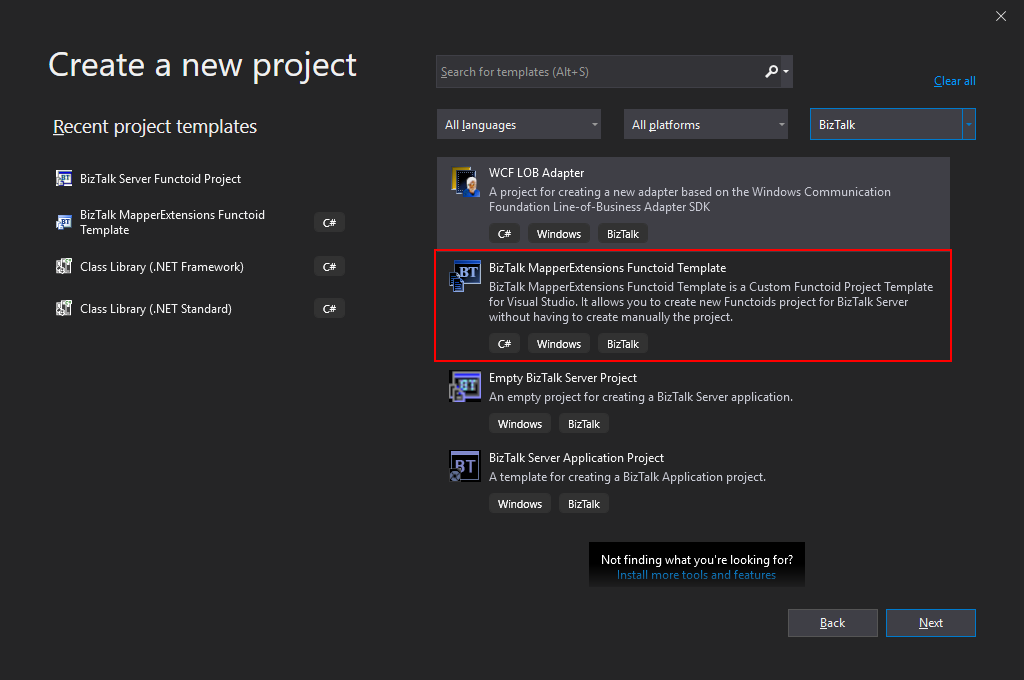
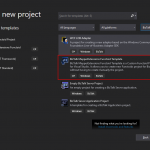
BizTalk Server 2020 – 20 days, 20 posts – day 6. In the last post, I published the BizTalk MapperExtensions Functoid Wizard to be compatible with BizTalk Server 2020 and Visual Studio 2019 but I reference that Visual Studio 2019 has a completely different look and fill and you will not be able to see this project under “BizTalk” projects in your Visual Studio 2019, instead, you need to search for it or scroll down to find it. So I decided to develop an alternative approach: BizTalk MapperExtensions Functoid Project Template.
BizTalk MapperExtensions Functoid Project Template
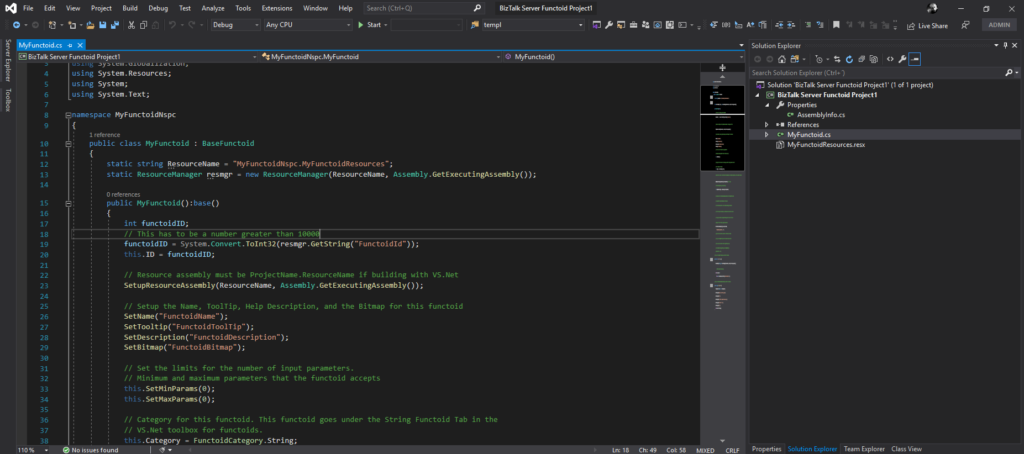
BizTalk MapperExtensions Functoid Project Template is a Custom Functoid Project Template for Visual Studio 2019. It allows you to create new Functoids project for BizTalk Server 2020 without having to create manually the project, in other words, having to manually create:
- A new class library project in Visual Studio;
- Add a reference to the Microsoft.BizTalk.BaseFunctoids assembly;
- Add New Class and having to code the entire class;
This Template will automatically create a project sample reference for you to create your custom Functoid. You them need to make the necessary changes and implement the required logic.
The difference between this resource (BizTalk MapperExtensions Functoid Project Template) and the BizTalk MapperExtensions Functoid Wizard are:
- You don’t required to install nothing, you just need to copy this resouce to a specific folder (explain bellow);
- There is no Wizard involved to customize the project, instead a sample project will be created and you need to implememet all the required changes;
- You can filter on the Visual Studio menu for BizTalk project and this template will appear, that doesn’t happen with the wizard;
Installation
To use this project template just download the BizTalk MapperExtensions Functoid Template.zip file (without unzip) and copy to the following location:
- C:Users<your-account>DocumentsVisual Studio 2019TemplatesProjectTemplates
Download
You can download the resource from:
BizTalk MapperExtensions Functoid Project Template for BizTalk Server 2020
GitHub
The post BizTalk Server 2020 – 20 days, 20 posts: BizTalk MapperExtensions Functoid Project Template for BizTalk Server 2020 appeared first on SANDRO PEREIRA BIZTALK BLOG.
by Sandro Pereira | Mar 20, 2020 | BizTalk Community Blogs via Syndication
BizTalk Server 2020 – 20 days, 20 posts – day 5. I will finish my challenge regardless of all these constraints we are facing, and that limits our free time. So, while my wife was sleeping our cute little monster yesterday, I was able to migrate this tool and test it to be compatible with BizTalk Server 2020. Today while she is doing the same, I’m publishing this productivity tool for those that love BizTalk Mapper as I do: BizTalk MapperExtensions Functoid Wizard. Once again, I hope you enjoy and find this tool useful.
BizTalk MapperExtensions Functoid Wizard
BizTalk MapperExtensions Functoid Wizard is a Custom Functoid Project Wizard for Visual Studio 2019. It allows you to create new Functoids project for BizTalk Server 2020 without having to create manually the project, in other words, having to manually create:
- A new class library project in Visual Studio;
- Add a reference to the Microsoft.BizTalk.BaseFunctoids assembly;
- Add New Class and having to code the entire class;
This Wizard will do this process automatically, and used in conjunction with Item Template for Visual Studio: Custom BizTalk Functoid will facilitate and significantly expedite the development process of our projects.
BizTalk MapperExtensions Functoid Wizard Installation
To use this project template download the executable files available on the Installation Files folder and run the setup file.
Once you run the setup file follow these steps:
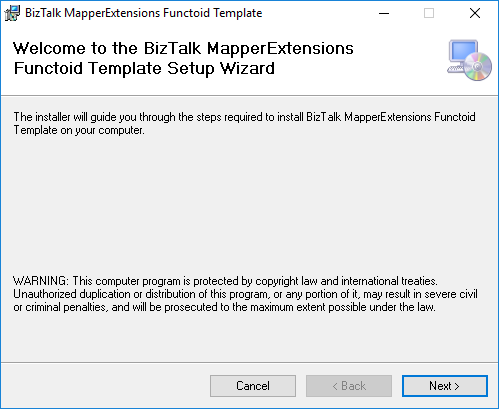
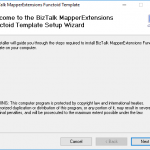
- On the Welcome to the BizTalk MapperExtensions Functoid Template Setup Wizard screen, click Next.
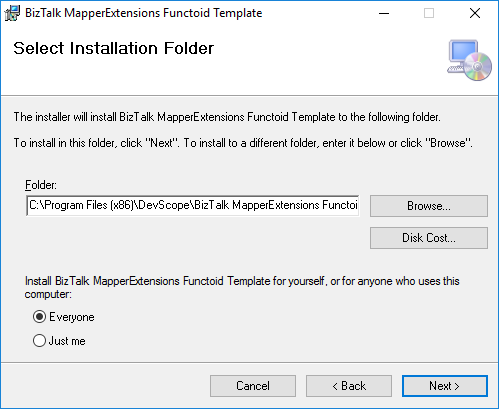
- On the Select Installation Folder screen, select the folder where you want to install the Wizard and select the option Everyone. Click Next to continue.
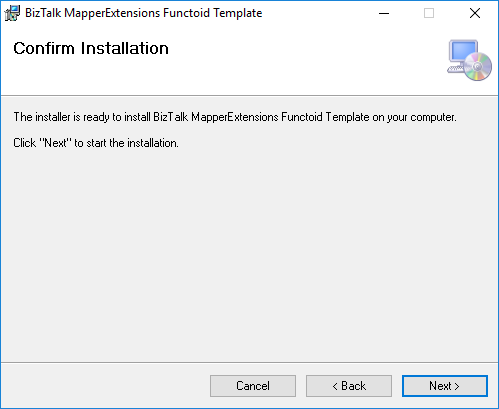
- On the Confirm Installation screen, confirm your intent to install by clicking Next.
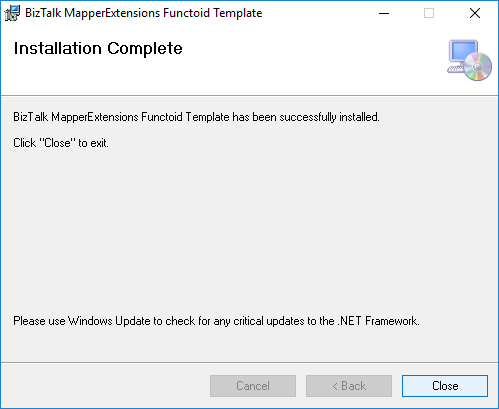
- On the Installation Complete screen, click close and the installation is complete.
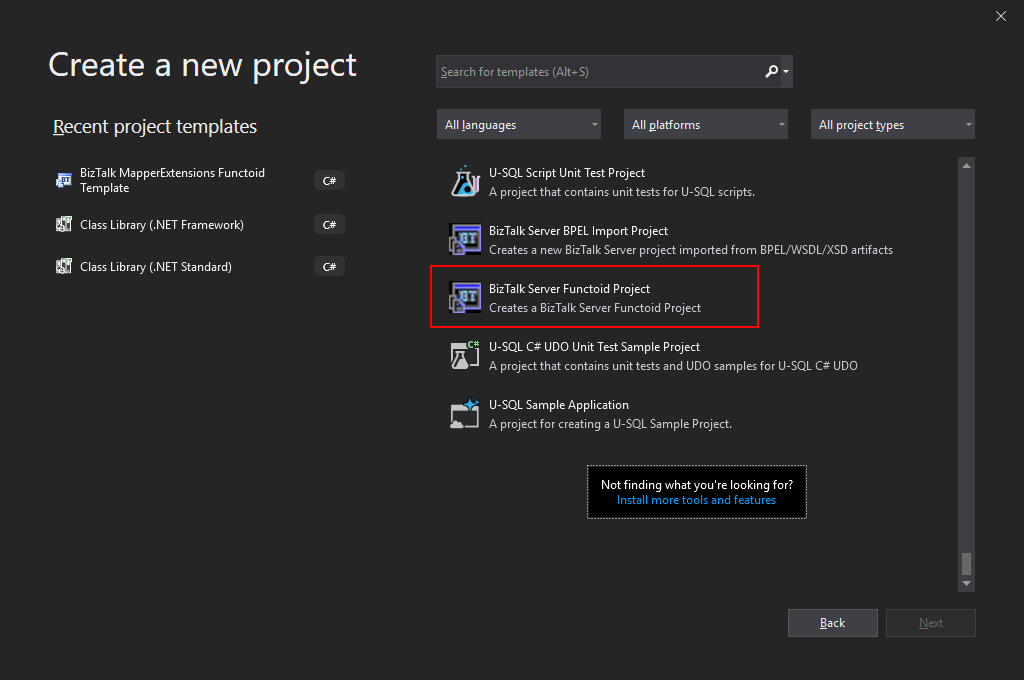
Now you can see a new BizTalk project Wizard on Visual Studio 2019. Unfortunately, Visual Studio 2019 has a completely different look and fill and you will not be able to see this project under “BizTalk” projects in your Visual Studio 2019, instead, you need to search for it or scroll down to find it.
I still need to find a way to solve this limitation or release a different approach to solve this issue and have a more friendly approach.
Create New Functoid Project
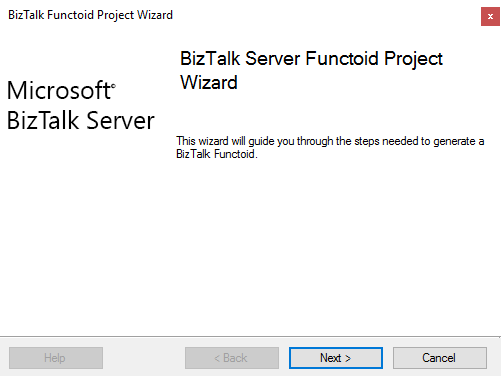
To create a new functoid using this project template choose the option BizTalk Server Functoid Project in Visual Studio 2019 and a Wizard will pop-up. Follow the requirements of this wizard to create the Functoid.
- In the Start screen, click Next to continue.
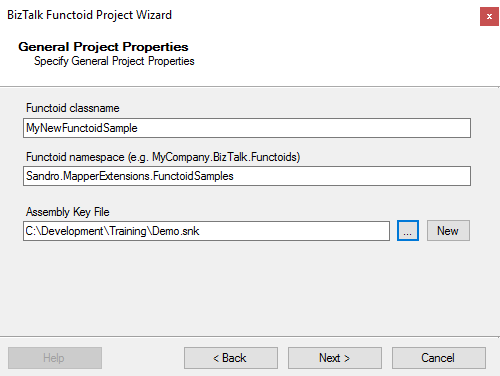
- In the General Project Properties screen, fill the Functoid class name, namespace and create or select a new Strong Key (you can use an existing one). Click Next to continue.
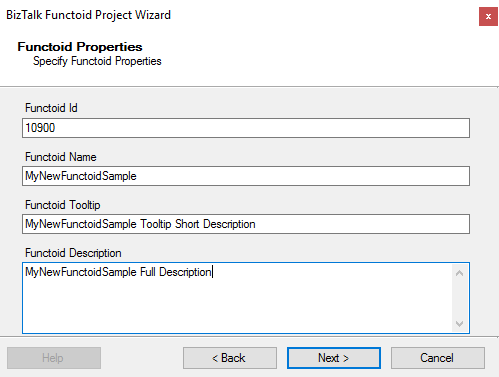
- In the Functoid Properties screen, define the Functoid ID (must be greater than 10000), the functoid name, the tooltip (short description) and description (full description). Click Next to continue.
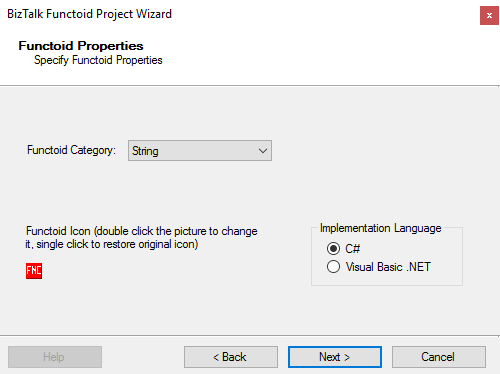
- In the second Functoid Properties screen, choose the functoid category and the implementation language (the language in which you want to implement your functoid behavior code): C# or VB.NET. Click Next to continue.
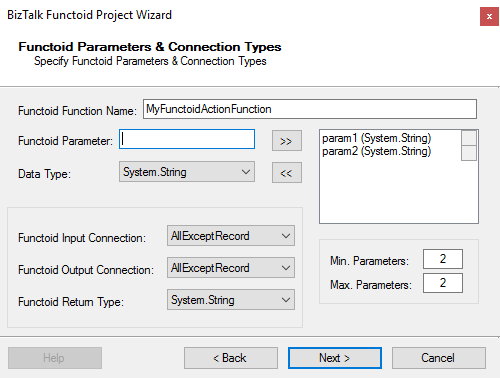
- In the Functoid Parameters and Connection Type” screen, define the functoid function name, function inputs and types and output and types. Click Next to continue.
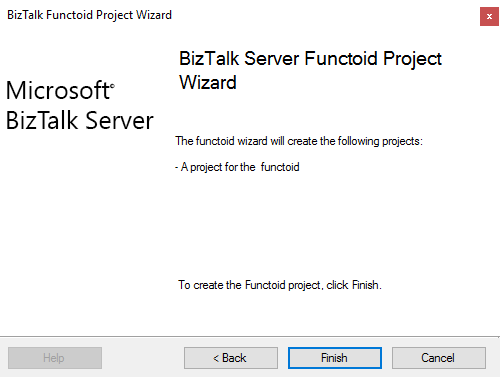
- On the final screen, click Finish to create the Visual Studio project.
Visual Studio will create a new Project based on your implementation language and definitions provided in the Wizard.
- Open the generated class and implement your code
Other versions
This tool is also available for the following BizTalk Server versions:
Download
You can download the source code from:
BizTalk MapperExtensions Functoid Wizard for BizTalk Server 2020
GitHub
The post BizTalk Server 2020 – 20 days, 20 posts: BizTalk MapperExtensions Functoid Wizard for BizTalk Server 2020 appeared first on SANDRO PEREIRA BIZTALK BLOG.
by Sandro Pereira | Nov 20, 2018 | BizTalk Community Blogs via Syndication
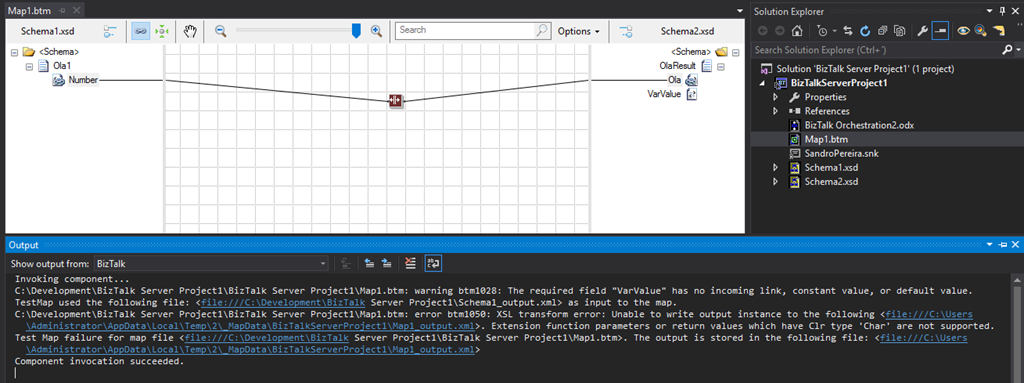
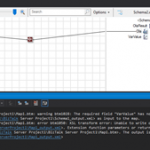
Back to Errors and Warnings, Causes and solutions, this time with a surprising error that I got while I was testing a custom Functoid that I had developer: Extension function parameters or return values which have Clr type ‘Char’ are not supported
The full error description was:
Invoking component…
C:DevelopmentBizTalk Server Project1BizTalk Server Project1Map1.btm: warning btm1028: The required field “VarValue” has no incoming link, constant value, or default value.
TestMap used the following file: <file:///C:DevelopmentBizTalk Server Project1Schema1_output.xml> as input to the map.
C:DevelopmentBizTalk Server Project1BizTalk Server Project1Map1.btm: error btm1050: XSL transform error: Unable to write output instance to the following <file:///C:UsersAdministratorAppDataLocalTemp2_MapDataBizTalkServerProject1Map1_output.xml>. Extension function parameters or return values which have Clr type ‘Char’ are not supported.
Test Map failure for map file <file:///C:DevelopmentBizTalk Server Project1BizTalk Server Project1Map1.btm>. The output is stored in the following file: <file:///C:UsersAdministratorAppDataLocalTemp2_MapDataBizTalkServerProject1Map1_output.xml>
Component invocation succeeded.
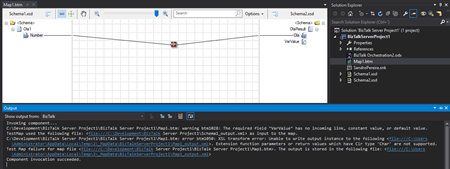
Again, I catch this error while I was trying to test my custom functoid inside Visual Studio.
The Custom Functoid was invoking the following code:
private string GetCSharpBuffer()
{
    StringBuilder builder = new StringBuilder();
    builder.Append("public string SplitText(string element, int pos, char splitter)n");
    builder.Append("{n");
    builder.Append("tstring[] listValues = element.Split(splitter);n");
    builder.Append("tif (listValues != null)n");
    builder.Append("ttif (listValues.Length > pos)n");
    builder.Append("tttreturn listValues[pos];n");
    builder.Append("treturn "";n");
    builder.Append("}n");
    return builder.ToString();
}
Or, to be easier to read in a clean C# code that would be like this:
public string SplitText(string element, int pos, char splitter)
{
   string[] listValues = element.Split(splitter);

   if (listValues != null)
      if (listValues.Length > pos)
         return listValues[pos];
   return "";
}
Cause
Unfortunately, this is a BizTalk mapper engine limitation. The type Char is not supported at least on built-in code inside the XSLT, in other words by using the Functoid SetScriptBuffer functionality:
SetScriptBuffer(ScriptType.CSharp, this.GetCSharpBuffer());
I didn’t test but it may work if you replace this functionality with the SetExternalFunctionName functionality:
SetExternalFunctionName(GetType().Assembly.FullName, GetType().FullName, "SplitText");
Note: This means that the code will not be inside the XSLT but instead you will be calling an external assembly that needs to be on GAC.
Solution
The simple solution, or let’s call I workaround, is to use strings instead, either on inputs as outputs parameters of the Functoid. For that we just need to replace the above code to this:
private string GetCSharpBuffer()
{
    StringBuilder builder = new StringBuilder();
    builder.Append("public string SplitText(string element, int pos, string splitter)n");
    builder.Append("{n");
    builder.Append("tstring[] listValues = element.Split(Convert.ToChar(splitter));n");
    builder.Append("tif (listValues != null)n");
    builder.Append("ttif (listValues.Length > pos)n");
    builder.Append("tttreturn listValues[pos];n");
    builder.Append("treturn "";n");
    builder.Append("}n");
    return builder.ToString();
}
Or again, in a simple C# form:
public string SplitText(string element, int pos, string splitter)
{
    string[] listValues = element.Split(Convert.ToChar(splitter));

    if (listValues != null)
       if (listValues.Length > pos)
          return listValues[pos];
    return "";
}
By doing that you will be able to successfully test the Functoid.
Author: Sandro Pereira
Sandro Pereira lives in Portugal and works as a consultant at DevScope. In the past years, he has been working on implementing Integration scenarios both on-premises and cloud for various clients, each with different scenarios from a technical point of view, size, and criticality, using Microsoft Azure, Microsoft BizTalk Server and different technologies like AS2, EDI, RosettaNet, SAP, TIBCO etc. He is a regular blogger, international speaker, and technical reviewer of several BizTalk books all focused on Integration. He is also the author of the book “BizTalk Mapping Patterns & Best Practices”. He has been awarded MVP since 2011 for his contributions to the integration community. View all posts by Sandro Pereira
by Sandro Pereira | Nov 12, 2018 | BizTalk Community Blogs via Syndication
I love this project! I have much fun doing it, and I use it a lot in my clients. So for me is what I call a win-win situation. So today I update BizTalk Mapper Extensions UtilityPack project with one new Functoid that you can use on your BizTalk Server maps Functoid: String Splitter Functoid.
Last week I had the needed to use a particular mapping functionality several times in different maps:
- Extract one specific subset of a concatenated string;
- For example “AA.123.SANDRO.312” and I need to extract the third position: “SANDRO”
My first strategy was to create a Scripting Functoid, but because I have to use it in different maps, I quickly change my approach and created this new Functoid that now you can use inside your BizTalk Server maps.
String Splitter Functoid
This functoid allows you to convert a string to a number (integer)
Parameters
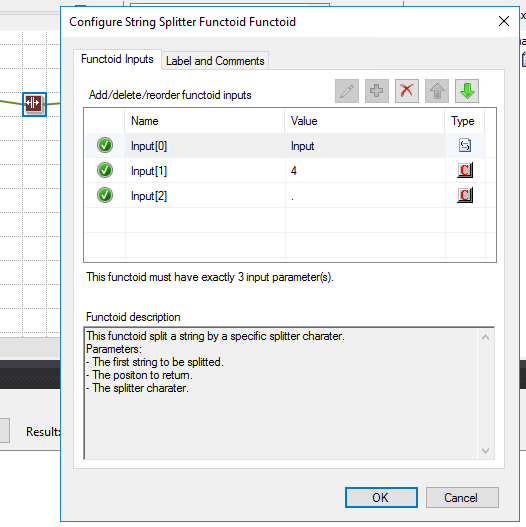
This functoid split a string by a specific splitter character, and it accepts 3 inputs:
- The first parameter is the input value to be split;
- AA.123.SANDRO.312
- AA-123-SANDRO-3122.
- The second parameter is the position to be returned (the subset of the string to be retrieved);
- The third parameter is the splitter character;
The output of the functoid will be a string present in the split array, example: SANDRO
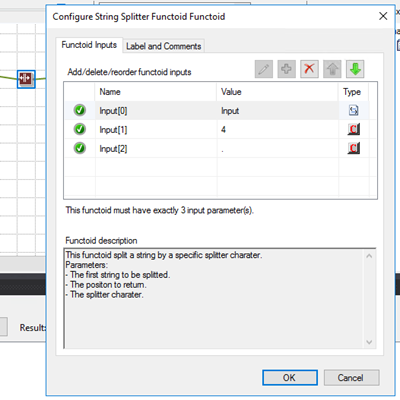
In this In sample described in the above picture, we are receiving a string: “AA.123.SANDRO.312.1” and we want to retrieve the fourth subset of the concatenated string delimited by “.” character. So, in this case, the functoid will return: “1”.
BizTalk Mapper Extensions UtilityPack: Project Description
BizTalk Mapper Extensions UtilityPack is a set of libraries with several useful functoids to include and use it in a map, which will provide an extension of BizTalk Mapper capabilities.
Where to download?
You can download this functoid along with all the existing one on the BizTalk Mapper Extensions UtilityPack here:
BizTalk Mapper Extensions UtilityPack
GitHub
Author: Sandro Pereira
Sandro Pereira lives in Portugal and works as a consultant at DevScope. In the past years, he has been working on implementing Integration scenarios both on-premises and cloud for various clients, each with different scenarios from a technical point of view, size, and criticality, using Microsoft Azure, Microsoft BizTalk Server and different technologies like AS2, EDI, RosettaNet, SAP, TIBCO etc. He is a regular blogger, international speaker, and technical reviewer of several BizTalk books all focused on Integration. He is also the author of the book “BizTalk Mapping Patterns & Best Practices”. He has been awarded MVP since 2011 for his contributions to the integration community. View all posts by Sandro Pereira
by Sandro Pereira | Nov 7, 2018 | BizTalk Community Blogs via Syndication
And once again I decide to publish another release on my Mapper Extensions UtilityPack project adding new functionalities to this toolset. This time I decided to release 2 new BizTalk Math Functoids:
- Negate Number Functoid: You can use the Negate Number functoid to return the input number (double) in its negated form.
- If it’s positive, it will return as negative and vice-versa.
- If zero, of course, will return zero.
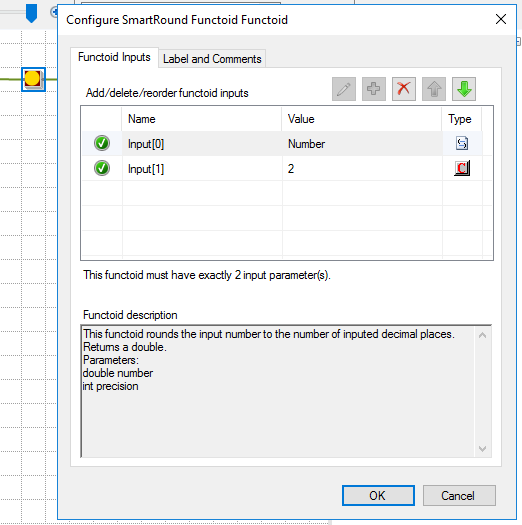
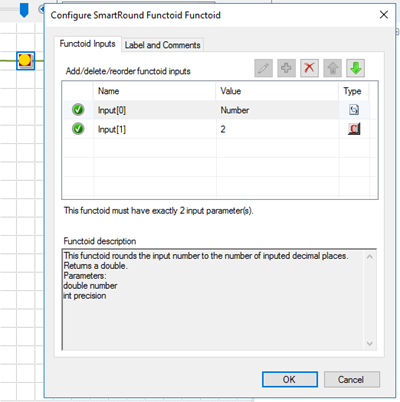
- SmartRound Functoid: You can use the SmartRound Functoid to return any number (int or double) rounded up or down to any decimal place, specified by the second parameter of this functoid.
Negate Number Functoid
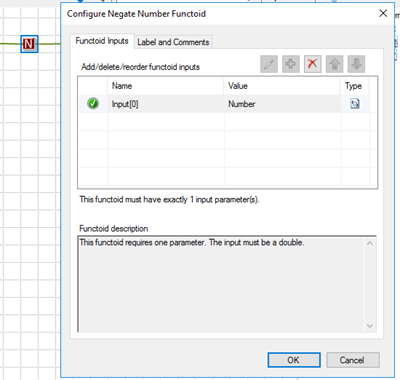
Use the Negate Number functoid to return the input number (double) in its negated form.
Parameters
The functoid takes one mandatory input parameter:
- Parameter 1: Number to be negated (double or int).
The output of the functoid will be the input number in is negative form. For example:
- Input 1 –> Output = -1
- Input -23,09 –> Output = 23,09
- Input 0 –> Output = 0
SmartRound Functoid
Use the SmartRound Functoid to return any number (int or double) rounded up or down to any decimal place, specified by the second parameter of this functoid.
Parameters
The functoid takes two mandatory input parameters:
- Parameter 1: Number to be rounded (double or int)
- Parameter 2: Number to decimals places
The output of the functoid will be the input number rounded up or down to the specified decimal places. For example:
- Input 23 rounded to 2 –> Output = 23,00
- Input 24,005900 rounded to 3 –> Output = 24,006
BizTalk Mapper Extensions UtilityPack: Project Description
BizTalk Mapper Extensions UtilityPack is a set of libraries with several useful functoids to include and use it in a map, which will provide an extension of BizTalk Mapper capabilities.
Where to download?
You can download this functoid along with all the existing one on the BizTalk Mapper Extensions UtilityPack here:
BizTalk Mapper Extensions UtilityPack
GitHub
Author: Sandro Pereira
Sandro Pereira lives in Portugal and works as a consultant at DevScope. In the past years, he has been working on implementing Integration scenarios both on-premises and cloud for various clients, each with different scenarios from a technical point of view, size, and criticality, using Microsoft Azure, Microsoft BizTalk Server and different technologies like AS2, EDI, RosettaNet, SAP, TIBCO etc. He is a regular blogger, international speaker, and technical reviewer of several BizTalk books all focused on Integration. He is also the author of the book “BizTalk Mapping Patterns & Best Practices”. He has been awarded MVP since 2011 for his contributions to the integration community. View all posts by Sandro Pereira
by Sandro Pereira | Oct 17, 2018 | BizTalk Community Blogs via Syndication
Happy to announce that today I decided to publish another release on my Mapper Extensions UtilityPack project. This time I decided to release 2 new BizTalk Database Functoids:
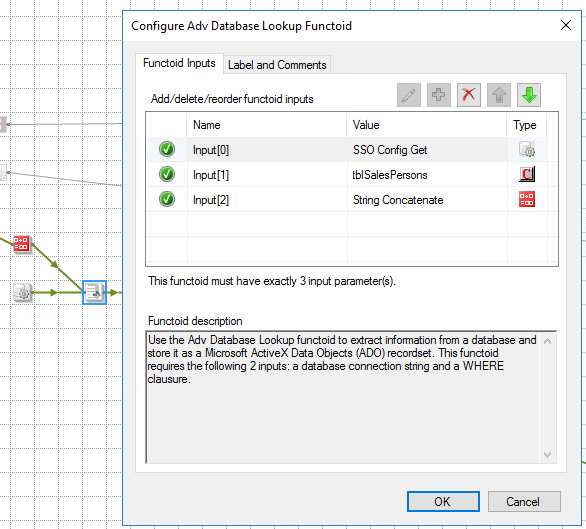
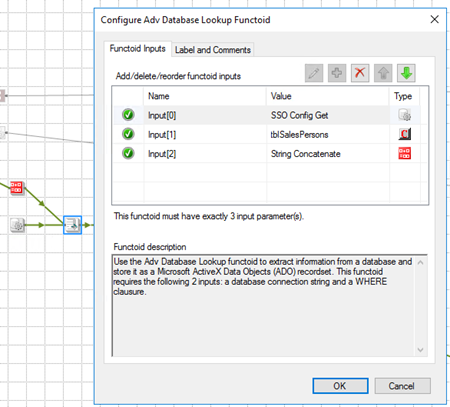
- Adv Database Lookup Functoid: Use the Adv Database Lookup functoid to extract information from a database and store it as a Microsoft ActiveX Data Objects (ADO) recordset. This functoid requires the following 3 inputs: a database connection string, table name and a WHERE clause.
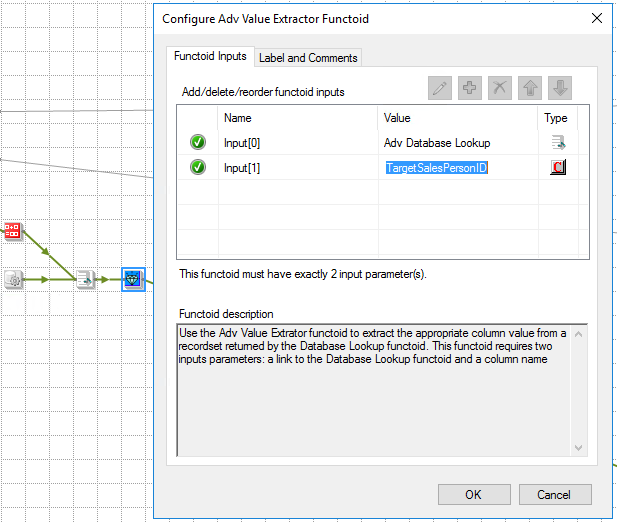
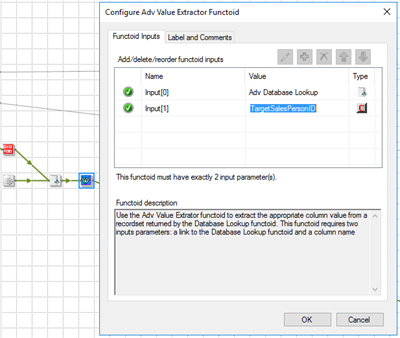
- Adv Value Extractor: Use the Adv Value Extrator functoid to extract the appropriate column value from a recordset returned by the Adv Database Lookup functoid. This functoid requires two inputs parameters: a link to the Database Lookup functoid and a column name.
Basically, they have the same functionality as the default Database Lookup Functoid and Value Extractor Functoid but they have a slightly different implementation.
Unlike the default Database Lookup Functoid that have 4 input parameters
- A lookup value
- A database connection string
- A table name
- A column name for the lookup value.
The limitation of this Functoid is that you cannot have multiple conditions, like WHERE SalesPersonID = “A” and System = “B” because of the nature of how this functoid was created
The Adv Database Lookup Functoid have the goal to suppress this limitation, it will allow 3 inputs:
- A database connection string
- A table name
- A WHERE clause.
In the where condition you will be able to set all the conditions you want, including a combination of AND’s and OR’s.
The Adv Value Extractor Functoid has the exact same functionality that the default Value Extractor Functoid but prepared and optimized to work with the Adv Database Lookup Functoid.
Adv Database Lookup Functoid
Use the Adv Database Lookup functoid to extract information from a database and store it as a Microsoft ActiveX Data Objects (ADO) recordset.
Parameters
The functoid takes three mandatory input parameters:
- Parameter 1: An ActiveX Data Objects .NET (ADO.NET) connection string for a compliant data source in which to search. ODBC data sources (including DSN sources) are not supported.
- Provider=SQLOLEDB.1;Integrated Security=SSPI;Persist Security Info=False;Initial Catalog=DatabaseName;Data Source=SQLServerName
- Parameter 2: The name of the table in the database in which to search;
- Parameter 3: WHERE clause (without the WHERE)
- SourceSystemID like ‘A’ AND SSSalesPersonID = 1
The output of the functoid will be an ADO recordset.
Adv Value Extractor Functoid
Use the Adv Value Extrator functoid to extract the appropriate column value from a recordset returned by the Adv Database Lookup functoid. This functoid requires two inputs parameters: a link to the Database Lookup functoid and a column name.
Parameters
The functoid takes two mandatory input parameters:
- Parameter 1: An ADO recordset, which is the output of the Database Lookup functoid. This recordset never contains more than one database row.
- Parameter 2: The name of a column from which to extract a value for output.
The output of the functoid will be the value of that column on the database table.
BizTalk Mapper Extensions UtilityPack: Project Description
BizTalk Mapper Extensions UtilityPack is a set of libraries with several useful functoids to include and use it in a map, which will provide an extension of BizTalk Mapper capabilities.
Where to download?
You can download this functoid along with all the existing one on the BizTalk Mapper Extensions UtilityPack here:
BizTalk Mapper Extensions UtilityPack
GitHub
Author: Sandro Pereira
Sandro Pereira lives in Portugal and works as a consultant at DevScope. In the past years, he has been working on implementing Integration scenarios both on-premises and cloud for various clients, each with different scenarios from a technical point of view, size, and criticality, using Microsoft Azure, Microsoft BizTalk Server and different technologies like AS2, EDI, RosettaNet, SAP, TIBCO etc. He is a regular blogger, international speaker, and technical reviewer of several BizTalk books all focused on Integration. He is also the author of the book “BizTalk Mapping Patterns & Best Practices”. He has been awarded MVP since 2011 for his contributions to the integration community. View all posts by Sandro Pereira
by Sandro Pereira | Sep 10, 2018 | BizTalk Community Blogs via Syndication
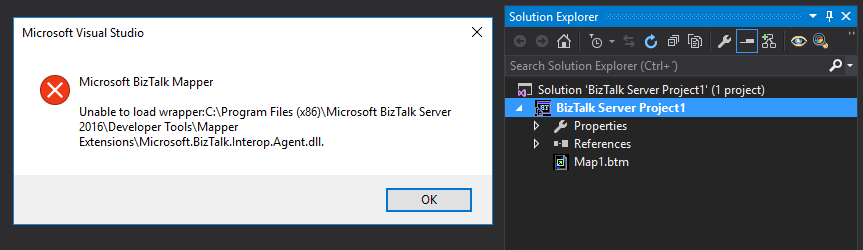
Sometimes errors seem to find me, sometimes it fills that I’m chasing errors! And because someone did something that you shouldn’t do, configuring the build folder of a Functoid project to be <BizTalk Server installation folder>Developer ToolsMapper Extensions directory, I got a new and strange error while trying to open a BizTalk map inside Visual Studio: Microsoft BizTalk Mapper Unable to load wrapper. Here is the full error message:
Microsoft BizTalk Mapper
Unable to load wrapper <BizTalk Server installation folder>Developer ToolsMapper ExtensionsMicrosoft.BizTalk.Interop.Agent.dll
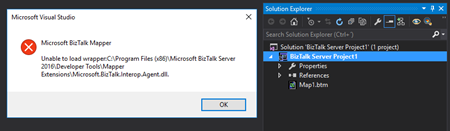
Of course, at that time I was quite curious to know the cause of this problem because I didn’t do anything wrong, just building a custom Functoid project and a few minutes before I actually was working in a map and I was able to open without any kind of problems.
Cause
When you build a project, by default any kind of project it will add the project assemblies as well as the dependencies to the binDebug – again this is the default behavior.
In this case, by changing this behavior in a Custom Functoid project to the <BizTalk Server installation folder>Developer ToolsMapper Extensions directory, was causing the problem, because it was adding not only the custom Functoid assembly but also some BizTalk internal assemblies, in this case the Microsoft.BizTalk.Interop.Agent.dll, that are incompatible with the internal BizTalk Mapper wrapper.
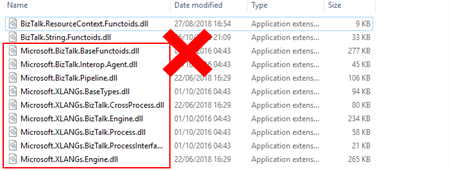
Note: BizTalk Server installation folder>Developer ToolsMapper Extensions directory is where Visual Studio BizTalk project looks for custom functoids to be added to the Toolbox.
Solution
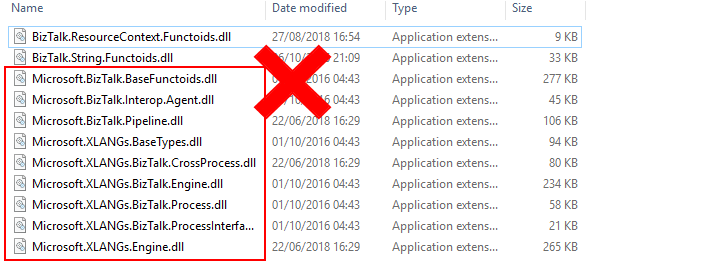
Once again, the solution is simple, you should delete all the unnecessary assemblies, especially the internal ones of the product.
Once you delete all the unnecessary assemblies, in this case, the Microsoft.BizTalk.Interop.Agent.dll, and I also advise to delete all the ones that are selected on the above picture, the Unable to load wrapper problem will be solved and you can once again open the BizTalk Mapper without any kind of problems inside Visual Studio
Author: Sandro Pereira
Sandro Pereira lives in Portugal and works as a consultant at DevScope. In the past years, he has been working on implementing Integration scenarios both on-premises and cloud for various clients, each with different scenarios from a technical point of view, size, and criticality, using Microsoft Azure, Microsoft BizTalk Server and different technologies like AS2, EDI, RosettaNet, SAP, TIBCO etc. He is a regular blogger, international speaker, and technical reviewer of several BizTalk books all focused on Integration. He is also the author of the book “BizTalk Mapping Patterns & Best Practices”. He has been awarded MVP since 2011 for his contributions to the integration community. View all posts by Sandro Pereira