by Srinivasa Mahendrakar | Jun 22, 2017 | BizTalk Community Blogs via Syndication
I was working on a POC which involved sending a message from BizTalk send port to a logic app with message’s HTTP header enriched to have a unique tracking id. Achieving this was not straight forward. In this article, I will explain the issue I faced and resolution.
Problem explained
I have a simple logic app with an HTTP request trigger and dumps the received message into a Google drive folder.
My BizTalk application has an FTP receive port and a send port configured to use Logic Apps adapter. send port subscribes to messages from FTP receive port and sends them out to a logic app.
As we are aware logic apps provide an option to send a client tracking id in the form of a custom HTTP header x-ms-client-tracking-id. Refer the article https://docs.microsoft.com/en-us/azure/logic-apps/logic-apps-monitor-your-logic-apps to know more about monitoring and tracking in Logic apps.
The static logic app sends adapter provides an option to configure the custom HTTP headers in the port configuration as shown below.
Since I want to send a unique tracking id per message, I cannot set a static value in port configuration. Hence I did what any other BizTalk developer would do. tried to look for a property schema specific to Logic Apps adapter. However, I could not find one in the list of property schemas deployed in my BizTalk environment. This put me in a situation where I don’t have the option to send unique tracking id per message.
Solution
I started to contemplate on how a dynamic send port would send messages to logic apps without any property schema related to logic app adapter is deployed. With a little bit of research, I came to know that the Logic Apps adapter internally leverages WCF Web Http binding. This directed me toward WCF property schema.
So I wrote a HttpHeaders context property in a custom pipeline component in send port.
inMsg.Context.Write("HttpHeaders", "http://schemas.microsoft.com/BizTalk/2006/01/Adapters/WCF-properties", "x-ms-client-tracking-id: " + trackingId);
This made the trick! Now I am able to view the tracking id in my logic apps run history.
However, when I send another message, I saw that google drive connector was failing due to duplicate file name. I used the tracking Id as the file name. This means somehow tracking id which I have set is same for subsequent runs. This was again a setback for me as I was still not able to receive unique tracking id per message.
Again with a little bit of research, I understood that this is the normal behavior for a static WCF send port to cache the headers set using context properties. The option was to create a dynamic port. Since I do not want to create a dynamic port, I just tried to set a context property related to dynamic ports. So I added an additional line to my code in pipeline component.
inMsg.Context.Write("HttpHeaders", "http://schemas.microsoft.com/BizTalk/2006/01/Adapters/WCF-properties", "x-ms-client-tracking-id: " + trackingId);

inMsg.Context.Write("IsDynamicSend", "http://schemas.microsoft.com/BizTalk/2003/system-properties", true);
This solved the issue! I am now able to send a unique tracking id per message using Logic Apps adapter in BizTalk static send port.
Summary
In summary, we need to remember following points
- Logic app provides an option to send client tracking id using a custom HTTP header “x-ms-client-tracking-id”
- Logic Apps send adapter leverages WCF web HTTP binding behind the scene.
- If you want a static Logic Apps port to send the tracking id per message then you need to promote two properties HttpHeader and IsDynamicSend
Author: Srinivasa Mahendrakar
Technical Lead at BizTalk360 UK – I am an Integration consultant with more than 11 years of experience in design and development of On-premises and Cloud based EAI and B2B solutions using Microsoft Technologies. View all posts by Srinivasa Mahendrakar

by Senthil Palanisamy | Jun 20, 2017 | BizTalk Community Blogs via Syndication
Introduction
On a day to day basis, a BizTalk administrator must perform few monotonous activities such as terminating instances, enabling receive locations, ensuring the status of SQL jobs etc. BizTalk360 has few powerful features which help you to automate such monotonous tasks. These features are hidden gems and are overlooked by many BizTalk360’s users, despite the availability of a good documentation. That prompted me to start my new blog series called “Automating BizTalk administration tasks using BizTalk360”. In this blog series, I will be explaining these automation capabilities which BizTalk360 brings to its users.
To start off with in this first blog I am focusing on “Data Monitoring Actions”.
What is Data Monitoring in BizTalk360?
As we are aware, BizTalk collects a diverse set of data into message box database, tracking database, BAM primary import and ESB databases. BizTalk360 brings all these data into a single console and on top of that provides a powerful capability to set alerts based on various thresholds. This feature is called data monitoring. Below is a screenshot that shows all different data sets which can be used in data monitoring feature.
Below table briefly explains various types of data items which could be monitored.
|
Data monitoring category
|
Explanation |
| Process Monitoring |
With process monitoring you will be able to monitor the number of messages being processed by receive ports, send ports. This is popularly also called as “non-event monitoring”
Ex: if you want to alert when less than 50 messages received in an hourly window during business hours, then process monitoring is the best fit.
Refer the assist article Process Monitoring for more information.
|
| Message Box Data monitoring |
With this you will be able to set alerts on the number of suspended, running, dehydrated messaging instance.
Refer the assist article Message Box Data Monitoring for more information.
|
| Tracking Data Monitoring |
With this you can set alerts on tracked messaging events and tracked service instances.
Refer the assist article Tracking Data Monitoring for more information.
|
| BAM Data Monitoring |
With this you can set alerts on the data stored in BAM tables.
Refer the assist article BAM Data Monitoring for more information.
|
| EDI Data Monitoring |
With this you can set alerts on the EDI and AS2 reporting data stored in BAM tables.
Refer the assist article EDI Data Monitoring for more information.
|
| ESB Data Monitoring |
With this you can set alerts on the ESB data and exceptions stored in BAM and ESB tables.
Refer the assist article ESB Data Monitoring for more information
|
| Logic Apps Metrics Monitoring |
With this you can set alerts on metrics emitted by Logic apps.
Refer the assist article Logic Apps Metrics Monitoring for more information
|
Message Box Data Monitoring Actions
In Message Box Data Monitoring, the user can configure the queries to monitor service instances and messages. Monitoring service will send the notification to the users whenever the service instances/Messages count violates the threshold condition.
Message Box Data Schedule can be configured in Data Monitoring > Message Box Data. It can be scheduled at the different frequencies (Daily, Weekly, and Monthly) based on the volume and priority to take the action on service instances/messages.
Query Condition
BizTalk360 provides Highly advanced query builders for selecting the precise and expected suspended instances based data-result. While querying the suspended/All In-Progress Service Instances you can apply the filters like Error Code, Application, Service Class, Service Name etc.
Context Properties
A Message-Context based query is been provided by BizTalk360 for higher business-friendly scenarios. In Message payload, context/promoted properties can be selected to know the transactional message. In Data monitoring schedule the user can choose which context promoted properties to be in an email alert.
Action on Service Instances
The operational user must closely watch the suspended service instances to act on. It is a tedious process to look after all the time. Message Box data monitoring feature will take automatic action on service instances when the set actions are configured in our schedule. The monitoring service will Terminate/Resume the service instances based on either error or warning condition which doesn’t require any manual intervention.
Archiving & Downloading the Message Instances
Message content & context is required for auditing or other purposes of reconciliation. If you have not enabled the tracking option, it is not possible to get hold of the data again. Keeping this in mind, we have implemented archiving the message context when setting the action is taken on instances. In BizTalk360 Settings>System Settings, Archive and Download location of message instances must be configured to archive and download the message instances. Automatic actions with desired backup steps are been taken to make sure all the data are preserved before taking any action.
Note: In order take action on suspended service instances the monitoring service account has to be created as superuser in BizTalk360.
In Data Monitoring dashboard, every monitoring cycle status is shown. When the user clicks on the status tab, it will bring the details about the Query result, Task Action and Exception summary.
In Task Action tab, you can download each instance separately or by using “Click here” button you can download all the instances to the server location. Service Instances messages are download in server location as Zip file with activity ID for the monitoring run cycle.
Conclusion
Data Monitoring, an Auto-Monitoring feature of BizTalk Administration which can take corrective actions with all backup steps in the event of any threshold violations. With just a one-time setting we have our BizTalk360 to make sure all your routine tasks are addressed without a manual intervention. Also, BizTalk360 offers much more monitoring features which will enable all administrators to be pro-actively monitoring the BizTalk environment(s). Next article will see the Auto correction on BizTalk Artifacts and Logic Apps.
Author: Senthil Palanisamy
Senthil Palanisamy is the Technical Lead at BizTalk360 having 12 years of experience in Microsoft Technologies. Worked various products across domains like Health Care, Energy and Retail. View all posts by Senthil Palanisamy

by Sandro Pereira | Jun 6, 2017 | BizTalk Community Blogs via Syndication
During my sessions about BizTalk Server Tips and Tricks, I normally ask: What RosettaNet, ESB or UDDI have in common? And the answer is: they all are BizTalk optional features that are not part of the primary installation process, you need to execute “secondary” installation processes to add theses features. These installation processes will create BizTalk custom databases for supporting all of these new optional features. But the big questions here are: do you think that these databases are being backed up? And if not, how to backup (other) BizTalk Custom Databases?
Do you think that these databases are being backed up?
To respond this first question, the answer is: No!
Because these BizTalk custom databases (we are calling “custom databases” because they are supporting optional features that are not part of the primary installation process) are not installed by default with BizTalk Server, they are not included in the default list of databases to be marked and backed up by the Backup BizTalk Server job. The default list of databases that are, normally, being backed up by the Backup BizTalk Server job are:
- BAMAlertsApplication
- BAMPrimaryImport
- BizTalkDTADb
- BizTalkMgmtDb
- BizTalkMsgBoxDb
- BizTalkRuleEngineDb
- SSODB
How to Backup (other) BizTalk Custom Databases?
If you want the Backup BizTalk Server job to back up these additional BizTalk custom databases, you must manually add the databases to the Backup BizTalk Server job.
You can achieve this by:
- Taking Windows Explorer and browse to the “Schema” directory on the BizTalk installation folder, normally:
- C:Program Files (x86)Microsoft BizTalk Server <version>Schema
- Run “Backup_Setup_All_Tables.sql” and next “Backup_Setup_All_Procs.sql” against all your BizTalk custom databases that you want to back up. This creates the necessary table, procedures, roles and assigns permissions to the stored procedures.
- After that you need need to modify the adm_OtherBackupDatabases table, in the BizTalk Management (BizTalkMgmtDb) database, to include a row for each of the new BizTalk custom databases
- Type the new server and database names in the corresponding columns, as shown in the following tab
- DefaultDatabaseName: The friendly name of your custom database.
- DatabaseName: The name of your custom database.
- ServerName: The name of the computer running SQL Server.
- BTSServerName: The name of the BizTalk Server. This value is not used, but it must contain a value nonetheless.
To complete the process, you, mandatory, need to force Backup BizTalk Server (BizTalkMgmtDb) job to perform a full backup of the databases, otherwise you will receive the following error:
- BACKUP LOG cannot be performed because there is no current database backup. [SQLSTATE 42000] (Error 4214) BACKUP LOG is terminating abnormally. [SQLSTATE 42000] (Error 3013)
To do that you need:
- Execute the “sp_ForceFullBackup” stored procedure present in the BizTalkMgmtDb database.
The next time you run the Backup BizTalk Server job, it will back up all your BizTalk custom databases.
Note: I will not recommend you to add any of your application support custom databases to the Backup BizTalk Server job since they may interfere with the execution times of this job. If the Backup BizTalk Server job starts to take a long time to execute, it may also affect the overall performance of the BizTalk platform.
Stay tuned for new BizTalk Server Tips and Tricks!
Check out the first blog of the series BizTalk Server Tips and Tricks: Enabling BAM Add-In for Excel 2016.
Author: Sandro Pereira
Sandro Pereira is an Azure MVP and works as an Integration consultant at DevScope. In the past years, he has been working on implementing Integration scenarios both on-premises and cloud for various clients, each with different scenarios from a technical point of view, size, and criticality, using Microsoft Azure, Microsoft BizTalk Server and different technologies like AS2, EDI, RosettaNet, SAP, TIBCO etc. View all posts by Sandro Pereira
by Sandro Pereira | Jun 5, 2017 | BizTalk Community Blogs via Syndication
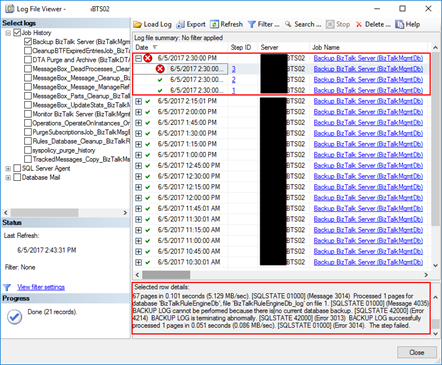
Recently, I was writing a new article “BizTalk Server Tips and Tricks: How to Backup (other) BizTalk Custom Databases” (that will be release soon as a guest post in BizTalk360 Blog) that explain you how you can configure the Backup BizTalk Server (BizTalkMgmtDb) job to back up additional BizTalk custom databases (RosettaNet, ESB Toolkit, …), when I got an error message on the job saying: BACKUP LOG cannot be performed because there is no current database backup. [SQLSTATE 42000] (Error 4214). The full error was this:
Date 6/5/2017 2:30:00 PM
Log Job History (Backup BizTalk Server (BizTalkMgmtDb))
Step ID 3
Server BTS02
Job Name Backup BizTalk Server (BizTalkMgmtDb)
Step Name MarkAndBackupLog
Duration 00:00:01
Sql Severity 16
Sql Message ID 3014
Operator Emailed
Operator Net sent
Operator Paged
Retries Attempted 0
Message
Executed as user: domain/username. Processed 1 pages for database ‘BAMPrimaryImport’, file ‘BAMPrimaryImport_log’ on file 1. [SQLSTATE 01000] (Message 4035) BACKUP LOG successfully processed 1 pages in 0.037 seconds (0.118 MB/sec). [SQLSTATE 01000] (Message 3014) Processed 12 pages for database ‘BizTalkDTADb’, file ‘BizTalkDTADb_log’ on file 1. [SQLSTATE 01000] (Message 4035) BACKUP LOG successfully processed 12 pages in 0.051 seconds (1.790 MB/sec). [SQLSTATE 01000] (Message 3014) Processed 9 pages for database ‘BizTalkMgmtDb’, file ‘BizTalkMgmtDb_log’ on file 1. [SQLSTATE 01000] (Message 4035) BACKUP LOG successfully processed 9 pages in 0.054 seconds (1.283 MB/sec). [SQLSTATE 01000] (Message 3014) Processed 67 pages for database ‘BizTalkMsgBoxDb’, file ‘BizTalkMsgBoxDb_log’ on file 1. [SQLSTATE 01000] (Message 4035) BACKUP LOG successfully processed 67 pages in 0.101 seconds (5.129 MB/sec). [SQLSTATE 01000] (Message 3014) Processed 1 pages for database ‘BizTalkRuleEngineDb’, file ‘BizTalkRuleEngineDb_log’ on file 1. [SQLSTATE 01000] (Message 4035) BACKUP LOG cannot be performed because there is no current database backup. [SQLSTATE 42000] (Error 4214) BACKUP LOG is terminating abnormally. [SQLSTATE 42000] (Error 3013) BACKUP LOG successfully processed 1 pages in 0.051 seconds (0.086 MB/sec). [SQLSTATE 01000] (Error 3014). The step failed.
Cause
If you take attention to the error message, you will notice that the job failed in the third task: MarkAndBackupLog, that is responsible for performing the backup’s the BizTalk Server databases logs.
You need to remember that by default Backup BizTalk Server (BizTalkMgmtDb) job only makes a full backup of the databases once a day and each 15 minutes a backup of the databases logs. However, to be able to perform a back up of the log from a particular database, it needs that a previous full backup has been performed and register in the “adm_BackupHistory” table in the BizTalkMgmtDb database. You can validate by executing the following script:
USE [BizTalkMgmtDb]

SELECT DISTINCT [DatabaseName]
FROM [BizTalkMgmtDb].[dbo].[adm_BackupHistory]
In my case, I was configuring an additional database to be backed up via the Backup BizTalk Server (BizTalkMgmtDb) job, and at that time, the full backup of the BizTalk Databases had already occurred.
Solution
To fix the problem of BACKUP LOG cannot be performed by the Backup BizTalk Server job, you need to:
- Execute the “sp_ForceFullBackup” stored procedure present in the BizTalkMgmtDb database.
USE [BizTalkMgmtDb]

EXEC sp_ForceFullBackup
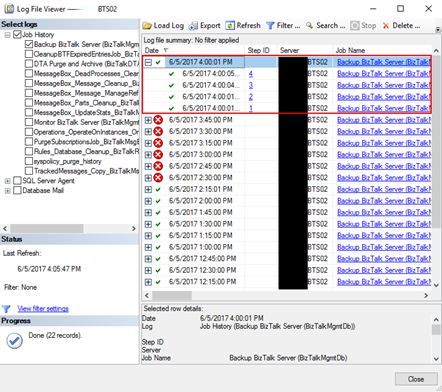
The next time you run the Backup BizTalk Server job, it will back up all BizTalk databases including all your BizTalk custom databases and it will be able them to execute the third task: MarkAndBackupLog, and therefore execute successfully the job once again.
Author: Sandro Pereira
Sandro Pereira lives in Portugal and works as a consultant at DevScope. In the past years, he has been working on implementing Integration scenarios both on-premises and cloud for various clients, each with different scenarios from a technical point of view, size, and criticality, using Microsoft Azure, Microsoft BizTalk Server and different technologies like AS2, EDI, RosettaNet, SAP, TIBCO etc. He is a regular blogger, international speaker, and technical reviewer of several BizTalk books all focused on Integration. He is also the author of the book “BizTalk Mapping Patterns & Best Practices”. He has been awarded MVP since 2011 for his contributions to the integration community. View all posts by Sandro Pereira

by Rochelle Saldanha | May 30, 2017 | BizTalk Community Blogs via Syndication
At BizTalk360, we provide some essential services which benefit the customers and our partners immensely. Businesses trust and use our expertise to assist them on a wide range of projects relating to their BizTalk needs. This includes, but is not limited to:
- Setting up our monitoring product BizTalk360 and integrating their BizTalk servers.
- Advising on the best practices used in the community for monitoring.
- Helping in BizTalk migration projects via support and licensing discounts.
- In-Depth training and advice on end to end BizTalk solutions.
There are 3 types of services we offer, namely:
- Product Demos
- Best Practice and Installation service
- In-Depth Training for BizTalk360
Product Demos
Demos can turn prospects into customers. They combat client concerns and provide proof what the product can do for you (our customers). Customers often want to see it in action before they commit to a purchase. We also offer a Free Trial as well.
Free Trial of BizTalk360
It gives the customer the best opportunity to experience what it would be like to own the product
Most of the times, we are approached by the customers themselves who googled and came across our product BizTalk360 and want to know more about it.
Sometimes we are approached by consultants who say “We love your product and need your help to convince Management to get it for our company”.
We also give Demos to our Partners as well to keep them well-equipped and confident in the product.
BizTalk360 Demo – Request one today!
We avoid giving generic demos. We try to learn about our audience’s specific challenges and what they want to achieve and tailor the demo accordingly. We want customers to feel empowered and be confident of the product they are going to be purchasing. The customer should be happy that BizTalk360 is going to be a good fit for their requirements.
We have also printed some documentation which outlines all the main features of BizTalk360 – What’s the business value of using Biztalk360, which we will be giving out at our upcoming INTEGRATE 2017 event.
Best Practice installation and configuration
Customers like hearing about best practices, especially if they’re easy to implement and will result in an immediate benefit. We provide this service to help set up BizTalk360 at the customer site. While the actual setup can be quite simple and quick to setup, depending on your environment you might face some issues. We provide a 2-hour service (chargeable) where we set up the product (via a web call) and go through a few basic setup tasks
- SMTP settings – These are the first thing to setup to ensure that the notifications for any alarm are successfully sent.
- User access policy – Add user specific permissions to view different parts of the product.
- Setting up Alarms/Monitoring Dashboard – Monitoring artifacts is the core of our product. We explain the types of alarms available, which are more suited to certain scenarios. The dashboard helps you to see all the status of artifacts mapped in 1 look.
- Monitoring of SQL Servers
- Event Log setup – This will enable you to view Windows logs across multiple BizTalk servers
- Purging Policy – This will help set up purging to avoid bloating of the database.
Often a simple task can also turn out to be complex when dealing with multiple environments. A lot of our customers also take this opportunity for their BizTalk administrators to get a quick crash course in the product to see how they can utilize the product in the best way possible.
Some important troubleshooting steps during installation
- Try to run the MSI using logs, so if any issues occur they are detailed in the logs.
- Once the installation is complete successfully, if the home page is not displayed and you see any errors like Icons/images missing – Check the ‘Static content’ tickbox is activated under ‘IIS’ in Server Manager -> Add Roles & Features
- If you are Installing BizTalk360 on a complete standalone server and there is no trace of the remote BizTalk environment we are going to configure. Simply enter the corresponding values for BizTalkMgmtSqlInstanceName and BizTalkMgmtDb columns as shown below.
- If it doesn’t help, kindly run the troubleshooter tool on the machine where BizTalk360 is installed. Troubleshooter will help you to find any permissions missed.
We are soon releasing a ‘User Guide’ of around 400 pages for the basic setup tasks required when you install BizTalk360 – written by Eva De Jong and Lex Hegt. Please look out for it at our ‘INTEGRATE 2017’ event.
BizTalk360 Training
BizTalk360 has a lot of features which can be quite overwhelming for someone new. Many companies appreciate an in-depth intensive BizTalk360 training. This is an 8-hour training that we provide and is given by our BizTalk Server & BizTalk360 Product experts.
This session is covered over 4 days in 2-hour slots (or as desired by customer). The main idea is for customers to get a better understanding of how the product can help them achieve certain scenarios. Our experts interact with the audience and understand the environment and architecture and what customizations they want to achieve.
Initially, they go through the various features available in BizTalk360, then on subsequent days the trainer does a deep dive and goes through more technical complicated scenarios and how the customer can benefit from the product. Many customers use this as a training session for their technical staff. This is conducted via a remote webinar session (GoToMeeting) and is a very interactive and a good learning experience for most customers. The session is not a straightforward monologue but it provides plenty of space for the customer to pose questions regarding their own circumstances.
Exciting upcoming Services/Training
We also have a new training for ‘BizTalk Server Administrators’ run by our very own BizTalk expert Lex Hegt.
The audience would be Systems Administrators who deploy and manage (multi-server) BizTalk Server environments, SQL Server DBA’s who are responsible for maintaining the BizTalk Server databases or BizTalk Developers who need to support a BizTalk environment.
During this course, attendees will get a thorough training for everything they need to know to properly administer BizTalk Server.
Some of the course topics are:
- Installing and configuring BizTalk Groups
- Operating and monitoring BizTalk Server
- Deployment of BizTalk applications
- Periodical administrative tasks and best practices.
Keep tuned to our website for more such information or contact [email protected] to arrange the same.

by Sandro Pereira | May 26, 2017 | BizTalk Community Blogs via Syndication
Once again, my Microsoft Integration Stencils Pack was updated with new stencils. This time I added near 193 new shapes and additional reorganization in the shapes by adding two new files/categories: MIS Power BI and MIS Developer. With these new additions, this package now contains an astounding total of ~1287 shapes (symbols/icons) that will help you visually represent Integration architectures (On-premise, Cloud or Hybrid scenarios) and Cloud solutions diagrams in Visio 2016/2013. It will provide symbols/icons to visually represent features, systems, processes and architectures that use BizTalk Server, API Management, Logic Apps, Microsoft Azure and related technologies.
- BizTalk Server
- Microsoft Azure
- BizTalk Services
- Azure App Service (API Apps, Web Apps, Mobile Apps and Logic Apps)
- API Management
- Event Hubs
- Service Bus
- Azure IoT and Docker
- Virtual Machines and Network
- SQL Server, DocumentDB, CosmosDB, MySQL, …
- Machine Learning, Stream Analytics, Data Factory, Data Pipelines
- and so on
- Microsoft Flow
- PowerApps
- Power BI
- Office365, SharePoint
- DevOpps: PowerShell, Containers
- And much more…
Microsoft Integration Stencils Pack v2.5
The Microsoft Integration Stencils Pack v2.5 is composed by 13 files:
- Microsoft Integration Stencils v2.5
- MIS Apps and Systems Logo Stencils v2.5
- MIS Azure Portal, Services and VSTS Stencils v2.5
- MIS Azure SDK and Tools Stencils v2.5
- MIS Azure Services Stencils v2.5
- MIS Deprecated Stencils v2.5
- MIS Developer v2.5 (new)
- MIS Devices Stencils v2.5
- MIS IoT Devices Stencils v2.5
- MIS Power BI v2.5 (new)
- MIS Servers and Hardware Stencils v2.5
- MIS Support Stencils v2.5
- MIS Users and Roles Stencils v2.5
These are some of the new shapes you can find in this new version:

You can download Microsoft Integration Stencils Pack for Visio 2016/2013 from:
 Microsoft Integration Stencils Pack for Visio 2016/2013 (10,1 MB)
Microsoft | TechNet Gallery
Author: Sandro Pereira
Sandro Pereira lives in Portugal and works as a consultant at DevScope. In the past years, he has been working on implementing Integration scenarios both on-premises and cloud for various clients, each with different scenarios from a technical point of view, size, and criticality, using Microsoft Azure, Microsoft BizTalk Server and different technologies like AS2, EDI, RosettaNet, SAP, TIBCO etc. He is a regular blogger, international speaker, and technical reviewer of several BizTalk books all focused on Integration. He is also the author of the book “BizTalk Mapping Patterns & Best Practices”. He has been awarded MVP since 2011 for his contributions to the integration community. View all posts by Sandro Pereira
by Srinivasa Mahendrakar | May 26, 2017 | BizTalk Community Blogs via Syndication
In my previous blog, I explained about installing BTS 2016 feature pack 1 and configuring it for Application Insights integration. In this article, I want to go a bit deeper and try to demonstrate,
- Nature of tracking data sent to Application Insights
- Structure of the data
- Querying data in Application Insights
- Some practical examples of getting sensible analytics for BizTalk interfaces.
I am hoping to give a jump start to someone who wants to use the Application Insights for BizTalk Server 2016.
Tracking data
As you know the term tracking data in BizTalk refers to different types of data emitted from different artifacts. It could be in/out events from ports and orchestrations, pipeline components, it could be system context properties, could be custom properties tracked from custom property schemas, could be message body in various artifacts, could be events fired from rule engine etc. So we would like to know, whether we will be able to get all this data in Application Insights or is it just a subset. I will try to answer this question based on the POC I have created.
POC I created is pretty simple. It has one receive port which receives an order XML file, processes that in an orchestration and send it to two different send ports. It can be pictorially represented as below.
- I have enabled pipeline tracking on XML receive and XML transport pipelines.
- Enabled track message body and analytics in Receive ports (If you want to know about Analytics option please refer to my first article.
- Enabled the Track Events, Track Message Bodies, and Analytics on orchestration.
- Enabled the Analytics on Send Port
Note: I enabled a different level of tracking at different artifacts to see if it has an impact on the analytics data sent to Application Insights. Later I realized that different tracking levels do not have any impact on the analytics data.
Analytics Data in Application Insights
I placed a single file into the receive location and started observing the events pushed to Application Insights. In general, Applications integrated with Application Insights can send data belonging to various categories, such as traces, customEvents, pageViews, requests, dependencies, exceptions, availabilityResults, customMetrics, band browserTimings. With BizTalk, I have observed that data belongs to “CustomEvents” category. Following are the custom events which are ingested from my BizTalk interface.
- There are two events for a receive port.
- There is an event for every logical port inside the orchestration. And hence we can see three events in total for orchestration.
- There are two events for each send port.
All these events can be related to events logged into “Tracked events” query results which are shown below.
Structure of a BizTalk custom event
In the previous section, we saw that our BizTalk interface emitted various custom events for ports and orchestration. In this section, we will look into the structure of data which is captured in a custom event.
Event Metadata
Event metadata is the list of values which defines an event. Following are the event metadata in one of the custom events.
Custom Dimensions
Custom dimensions consist of the service instance details and context properties promoted in the messaging instance. Hence we can observe two different kinds of data under custom dimensions.
Service instance properties: These are the values specific to service instance associated with the messaging event.
Context properties: All the context properties which are non-integer type will be listed under the custom dimensions.
Custom Measurements
As per my observation, custom measurements only contain the context properties of integer type.
Since there is no proper documentation regarding this, I tried to prove this theory by creating three custom properties in a property schema and promoted the fields in the incoming message. Following is the property schema that I defined.
I observed that PartyID and AskPrice properties which are of type string and decimal respectively are moved to Custom Dimensions section. Property Quantity which is of type integer is moved to Custom measurement.
Querying data
As discussed in above section all the BizTalk events are tracked under the customEvents category. Hence our query will start with customEvents.
Query language in Application Insights is very straightforward and yet very powerful. If you want to find out all the construct of this query language please refer this link Application Insights Analytics Reference.
In this section, I would like to cover some concepts or techniques which are relevant for querying BizTalk events.
Convert the context property values to specific types
In Application Insights, the context property values are stored as dynamic types. When you directly use them into queries especially in aggregations, you will receive a type casting exception as shown below.
To overcome this error, you will need to convert the context property to a specific type as shown below.
Easy way to bring a context property key into the query
Since context properties are a combination of namespace and property name, it will be a bit of an effort to type them in the queries that we create. To bring the context property on to the query page easily, follow steps as below.
- Query for custom events and navigate to the property you are interested in the results section.
- When you hover the mouse on the desired property, we will get two buttons. ‘+’ for inclusion and ‘-’ for exclusion.
Selecting specific fields
If you already know app insights query language, this tip is not so special. But if you are new to it and trying to find out how to select a column, you will face some difficulty as I did. The main reason for this is there is no construct called “select”. Instead, you will have to use something called “project”. Below is an example query.
Some useful sample queries.
In this section, I will try to list some queries which I found useful.
Message count by port names
query
customEvents
| where customDimensions.Direction == "Receive"
| summarize count() by tostring(customDimensions.["PortName (http_//schemas.microsoft.com/BizTalk/2003/messagetracking-properties)"])
Chart
Messaging Volume by schema
Query
customEvents
| where customDimensions.Direction == "Receive"
| summarize count() by tostring(customDimensions.["MessageType (http_//schemas.microsoft.com/BizTalk/2003/system-properties)"])
Chart
Analytics with custom context properties.
Ability to generate analytics reports based on the custom promoted properties is a very powerful feature which really makes using application insights interesting. As I explained in previous sections I have created a custom property schema to track PartId, Quantity and AskPrice fields. Now we will see some example reports based on this.
Total quantity by part id
Query
customEvents
| where customDimensions.PortType == "ReceivePort"
| where customDimensions.Direction == "Send"
|summarize sum(toint(customMeasurements.["Quantity (https_//SampleBizTalkApplication.PropertySchema)"])) by PartId = tostring(customDimensions.["PartID (https_//SampleBizTalkApplication.PropertySchema)"])
Chart
Total sales over period of time
Query
customEvents
| where customDimensions.PortType == "ReceivePort"
| where customDimensions.Direction == "Send"
| summarize sum(todouble(customDimensions.["AskPrice (https_//SampleBizTalkApplication.PropertySchema)"])) by bin( timestamp,10m)
Chart
Pinning charts to Azure dashboard
All the charts that you have created can be pinned to an Azure dashboard and you can club these charts with other application dashboards as well. My dashboard with the charts that we created looks as below.
Summary
In summary BizTalk analytics option which is introduced in BizTalk Server 2016 Feature Pack 1 is useful to get analytics out of tracking data. I would like to conclude by stating following points.
- Only the tracked messaging events, service instance information and context properties of associated service instance are sent to App iInsightsby analytics feature. Message body, pipeline events, business rule engine events etc. are not being pushed out.
- Under messaging events, I was unable to find the Transmission Failure events for send ports. This will be useful for getting metrics on failure rates. If you agree with this observation please vote here.
- The different level of tracking on ports and orchestrations does not have an impact on the data being transmitted to app insights.
- Orchestration failures/suspended events are not pushed to application insights. It would be good if Microsoft provides an extensible feature to push exceptions from orchestrations. If you agree please vote here
- There is no control on what context properties published to app insights. It is all or nothing scenario. It would be good to have control on it. Especially when you are promoting and tracking business data. If you agree please vote here.
- Ability to perform analytics based on context property values can turn out to be a powerful feature for BizTalk implementations.
Author: Srinivasa Mahendrakar
Technical Lead at BizTalk360 UK – I am an Integration consultant with more than 11 years of experience in design and development of On-premises and Cloud based EAI and B2B solutions using Microsoft Technologies. View all posts by Srinivasa Mahendrakar

by Sandro Pereira | May 24, 2017 | BizTalk Community Blogs via Syndication
Last Monday I presented, once again, a session in the Integration Monday series. This time the topic was BizTalk Server: Teach me something new about Flat Files (or not). This was my fifth session that I deliver:
And I think will not be the last! However, this time was different for many aspects and in a certain way it was a crazy session… Despite having some post about BizTalk Server: Teach me something new about Flat Files on my blog, I didn’t have time to prepare this session (sent to a crazy mission for a client and also because I had to organize the integration track on TUGA IT event), I had a small problem in my BizTalk Server 2016 machine in which I had to switch to my BizTalk Server 2013 R2 VM, interrupted by the kids in the middle of the session because the girls wanted me to have dinner with them (worthy of being in this series)… but it all ended well and I think it was a very nice session with two great real case samples:
- Removing headers from a flat file (CSV) using only the schema (without any custom pipeline component)
- And removing empty lines from a delimited flat file, again, using only the schema (without any custom pipeline component)
For those who were online, I hope you have enjoyed it and sorry for all the confusion. And for those who did not have the chance to be there, you can now view it because the session is recorded and available on the Integration Monday website. I hope you like it!
Session Name: BizTalk Server: Teach me something new about Flat Files (or not)

Session Overview: Despite over the year’s new protocols, formats or patterns emerged like Web Services, WCF RESTful services, XML, JSON, among others. The use of text files (Flat Files ) as CSV (Comma Separated Values) or TXT, one of the oldest common patterns for exchanging messages, still remains today one of the most used standards in systems integration and/or communication with business partners.
While tools like Excel can help us interpret such files, this type of process is always iterative and requires few user tips so that software can determine where there is a need to separate the fields/columns as well the data type of each field. But for a system integration (Enterprise Application Integration) like BizTalk Server, you must reduce any ambiguity, so that these kinds of operations can be performed thousands of times with confidence and without having recourse to a manual operator.
In this session we will first address: How we can easily implement a robust File Transfer integration in BizTalk Server (using Content-Based Routing in BizTalk with retries, backup channel and so on).
And second: How to process Flat Files documents (TXT, CSV …) in BizTalk Server. Addressing what types of flat files are supported? How is the process of transforming text files (also called Flat Files) into XML documents (Syntax Transformations) – where does it happen and which components are needed. How can I perform a flat file validation?
Integration Monday is full of great sessions that you can watch and I will also take this opportunity to invite you all to join us next Monday.
Author: Sandro Pereira
Sandro Pereira lives in Portugal and works as a consultant at DevScope. In the past years, he has been working on implementing Integration scenarios both on-premises and cloud for various clients, each with different scenarios from a technical point of view, size, and criticality, using Microsoft Azure, Microsoft BizTalk Server and different technologies like AS2, EDI, RosettaNet, SAP, TIBCO etc. He is a regular blogger, international speaker, and technical reviewer of several BizTalk books all focused on Integration. He is also the author of the book “BizTalk Mapping Patterns & Best Practices”. He has been awarded MVP since 2011 for his contributions to the integration community. View all posts by Sandro Pereira
by Sandro Pereira | May 23, 2017 | BizTalk Community Blogs via Syndication
After some request by the community and after I publish in my blog as a season of blog posts, Step by step configuration to publish BizTalk operational data on Power BI is available as a whitepaper!
Recently, the Microsoft Product team released a first feature pack for BizTalk Server 2016 (only available for Enterprise and Developer edition). This whitepaper will help you understand how to install and configure one of the new features of BizTalk Server 2016:
- Leverage operational data – View operational data from anywhere and with any device using Power BI, works and how we can configure it.
What to expect about Step by step configuration to publish BizTalk operational data on Power BI
This whitepaper will give a step-by-step explanation of what component or tools you need to install and configure to enable BizTalk operational data to be published in a Power BI report.
Table of Contents
- About the Author
- Introduction
- What is Operational Data?
- System Requirements to Enable BizTalk Server 2016 Operational Data
- Step-by-step Configuration to Enable BizTalk Server 2016 Operational Data Feed
- First step: Install Microsoft Power BI Desktop
- Second step: Enable operational data feed
- Third step: Use the BizTalk Server Operational Data Power BI template to publish the report to Power BI
- Fourth step: Connect Power BI BizTalkOperationalData dataset with your on-premise BizTalk environment
Where I can download it
You can download the whitepaper here:
I would like to take this opportunity also to say thanks to my amazing team of BizTalk360 for the proofreading and for once again join forces with me to publish for free another white paper.
I hope you enjoy reading this paper and any comments or suggestions are welcome.
Author: Sandro Pereira
Sandro Pereira lives in Portugal and works as a consultant at DevScope. In the past years, he has been working on implementing Integration scenarios both on-premises and cloud for various clients, each with different scenarios from a technical point of view, size, and criticality, using Microsoft Azure, Microsoft BizTalk Server and different technologies like AS2, EDI, RosettaNet, SAP, TIBCO etc. He is a regular blogger, international speaker, and technical reviewer of several BizTalk books all focused on Integration. He is also the author of the book “BizTalk Mapping Patterns & Best Practices”. He has been awarded MVP since 2011 for his contributions to the integration community. View all posts by Sandro Pereira

by Sivaramakrishnan Arumugam | May 12, 2017 | BizTalk Community Blogs via Syndication
Every year BizTalk360 releases with 3 or 4 major versions (with few minor patch releases addressing critical bugs) with new key features with every major release. From Version 8.2.2385.2511, we started to support BizTalk Server 2016 RTM. Once after the release, we faced a strange case that the customers were not able to view the Context properties and Message Content in BizTalk360, but the customer is able to view the properties and content in the BizTalk Server Administration Console.
Strange enough, before BizTalk Server 2016 RTM, we were able to view the Content properties and Message content in BizTalk360 with the BizTalk Server customer preview versions. Once after the upgrade to the RTM release, we started to face this case.
From the exception message, we found that some DLL is missing and when we asked to check that dll at the customer’s end, we found that it was missing. Then we proceeded the case on how the DLL was eliminated, we found that the DLL, Microsoft.BizTalk.Message.Interop.CompressionStreams, was removed by BizTalk itself.
Use of Microsoft.BizTalk.Message.Interop.CompressionStreams.dll
Let’s have a look at the use of Microsoft.BizTalk.Message.Interop.CompressionStreams. By default, BizTalk server stores the message body parts in the Parts table and context in the Spool table in the BizTalkMessageBoxDb. The message is inserted in the tables through the bts_InsertMessage Stored Procedure. The values in these columns of the message part and context are respectively encrypted or they might be compressed. The messages stay in the Spool table only while they’re in flight being processed by BizTalk. Then they are removed and optionally moved to the tracking database. If you stop the send port or orchestration that is subscribing to the messages (but leave them enlisted) they will sit on the Spool and Parts tables for you to check them out. There are also a few messages that stay in the Spool table that are for the messaging agent cache and not the usual BizTalk messages.
As the XML is compressed, the clue is to use a Microsoft.BizTalk.Message.Interop.CompressionStreams.Decompress method. From the Microsoft.BizTalk.Pipeline.dll the message body content and context can be retrieved and viewed. The bts_GetTrackedMessageParts stored procedure inside the tracking database expects the message GUID and will return the compressed message data back. We can then use reflection to invoke the Decompress method of the Microsoft.BizTalk.Message.Interop.CompressionStreams class inside Microsoft.BizTalk.Pipeline.dll to decompress the data returned from SQL.
Where the Microsoft.BizTalk.Message.Interop.CompressionStreams.dll went?
When we deeply investigated the case why the DLL is missing, we are able to find that the methods of the Microsoft.BizTalk.Message.Interop.CompressionStreams DLL were moved under Microsoft.BizTalk.StreamProcessing.
Use of Microsoft.BizTalk.StreamProcessing.dll
Stream processing saves programs from having to load data entirely into memory.
Instead, a program gets a hold on a stream instead of the actual data. The program then starts asking the stream to send a chunk of the data. BizTalk implements a forward-only streaming design. Forward-only means that the stream can only be read, and cannot be sought back. Out of the box pipelines are stream-based; they utilize streaming when fetching data from the adapter and as data passes from one stage to another. For example, out-of-the-box components such as the Flat-File Disassembler and the XML Disassembler, are built with streaming in mind.
We changed in the BizTalk360 source code to support BizTalk Server 2016 and refer to Microsoft.BizTalk.StreamProcessing.
If you have any suggestions or feedback, you can write to us at [email protected]. Have a try at our latest version by downloading a 14-day free trial of BizTalk360.
Read: BizTalk360 Supports for BizTalk Server 2016
Author: Sivaramakrishnan Arumugam
Sivaramakrishnan is our Support Engineer with quite a few certifications under his belt. He has been instrumental in handling the customer support area. He believes Travelling makes happy of anyone. View all posts by Sivaramakrishnan Arumugam