by Sandro Pereira | Aug 15, 2018 | BizTalk Community Blogs via Syndication
One more year and one more BizTalk Server session delivered in London: “BizTalk Server: Lessons from the Road“. INTEGRATE 2018 was an amazing conference and for that, we once again need to thank you BizTalk360 team and Saravana Kumar for being able to assemble not only another great event but keeping improve it each year which is not an easy task.
About my session: “BizTalk Server: Lessons from the Road”
I was asked, once again, by the event’s organizers to deliver a session about BizTalk Server, I topic that I love and like to talk but I must confess that this time I was a bit afraid. Because of the huge success of my previous session that I presented last year, it would not be easy to keep me on the same level. But life is full of challenges that we should not be afraid, but rather face them with frontality and confidence, so I decide to deliver a session about “BizTalk Server: Lessons from the Road“.
Abstract: The session will cover small pieces of stories with practical real examples from the field to address certain scenarios/requirements. See real techniques been used is some of the most important features of BizTalk Server, some of them are out-of-the-box capabilities others are custom extensions been made in the platform. Topics include BizTalk migration strategy, content-based routing techniques, Mapping, JSON support, BizTalk administration tips, extending BizTalk out-of-the-box capabilities and many more.
You can download the PowerPoint presentation here: BizTalk Server: Lessons from the Road (slides)
And see the video session online here: BizTalk Server: Lessons from the Road (video)
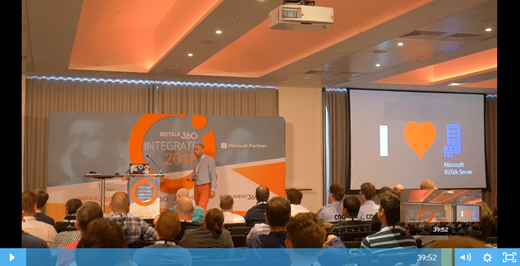
Hope you enjoy! But that is not all, you can also see the rest of the amazing sessions delivered by Microsoft Product group and Microsoft Most Valuable Professionals (MVP’s) at the event also online here: https://www.biztalk360.com/integrate-2018-resources/
Author: Sandro Pereira
Sandro Pereira lives in Portugal and works as a consultant at DevScope. In the past years, he has been working on implementing Integration scenarios both on-premises and cloud for various clients, each with different scenarios from a technical point of view, size, and criticality, using Microsoft Azure, Microsoft BizTalk Server and different technologies like AS2, EDI, RosettaNet, SAP, TIBCO etc. He is a regular blogger, international speaker, and technical reviewer of several BizTalk books all focused on Integration. He is also the author of the book “BizTalk Mapping Patterns & Best Practices”. He has been awarded MVP since 2011 for his contributions to the integration community. View all posts by Sandro Pereira
by Sandro Pereira | Aug 9, 2018 | BizTalk Community Blogs via Syndication
We all know that the WCF-SQL adapter enables BizTalk Server to perform composite operations on any SQL Server database. A composite operation can include any number of the following operations, and in any order:
- The Insert, Update and Delete operations on the tables and views
- Stored procedures that are surfaced as operations in the adapter
It can also execute Transact-SQL and CLR:
- Stored procedures in an SQL Server database
- Scalar and table-valued functions in an SQL Server database
- And so on
In resume operations at the Tables, Views, Procedures, Scalar Functions, and Table-Valued Functions, levels will be supported.
Stored Procedure permissions
I personally like to use Stored Procedures instead of directly accessing the tables which are available in the database.
Regarding the required access permission in SQL Server for BizTalk Server, to connect to a particular database to extract or store data, or in this case, be able to call stored procedures, what teams normally do is creating:
- A new SQL user with “db_owner” privileges
- Or they give “db_owner” privileges to the service account that is running the BizTalk Server host instance, for example, “BTSHostSrvs” (BizTalk Host Instance Account)
Why? Because this is simple and quick, and they don’t need to worry about lack of permissions or the proper permissions.
GDPR considerations
But sometimes these tables contain sensitive data or personal data, and nowadays with General Data Protection Regulation (GDPR) in the European Union (EU), this sometimes can be a backdoor for other possible problems. Teams need to start thinking in concepts like “Privacy by Design” and “Privacy by Default” for their solutions:
- “Privacy by Designs” holds that organizations need to consider privacy at the initial design stages and throughout the complete development process of new products, processes or services that involve processing personal data
- “Privacy by default” means that when a system or service includes choices for the individual on how much personal data he/she shares with others, the default settings should be the most privacy-friendly ones
So, companies should be more careful and more strict in:
- Who has access to what?
- Limit the number of persons that can access that information to the strictly essential persons
- Define a better access granularity and restrict access, once again, to the essential tasks
- A service account that consumes or store new data shouldn’t be a database owner or a sysadmin.
Secure Stored Procedure permissions
Of course, giving “sysadmin” or “db_owner” would solve all our problems but it goes against security best practices.
One way, or -personally- the best way, for you to properly define a better access granularity and restrict access to the essential tasks or in other words, the essential stored procedures, is to create a new server role, for that particular database, in SQL Server. Follow below steps to create such a server role:
- Open SQL Server Management Studio and connect to your SQL server
- In the Object Explorer, access to your database and expand it
- Expand the Security folder
- Right-click the “Database Roles” folder and select “New Database Role…”
- In the “New Database Role” window
- On the “Role name” property, on the General page, enter a name for the new database role, for example, “db_spexecution”
- At the Securables page, under Securables, click the “Search” button
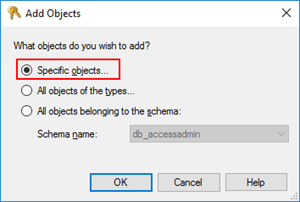
- On “Add Objects” window, select “Specific objects…” and click “OK”
-
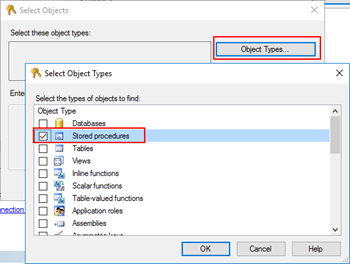
- On “Select Objects” windows, click “Object Types…” and then select “Stored Procedures”
-
- After selecting the object type, click “Browse…” and from the “Browser for Objects” window, select the stored procedures you want to invoke(only the one that you need)
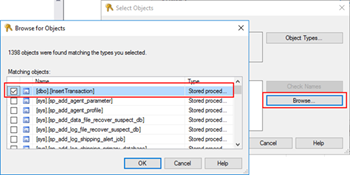
-
- Click “Ok” and again “OK” to return to the main “New Database Role” window
- The last step, on the Securables page, is to give Execute permissions “Grant” and “Grant with”
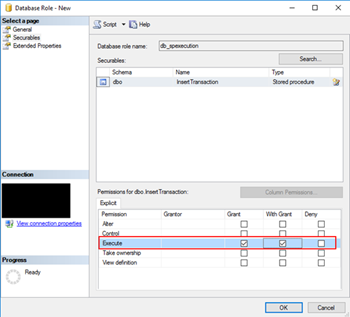
- Finally, on the General tab, add the service account that is running the host instance to the Role Members for that role
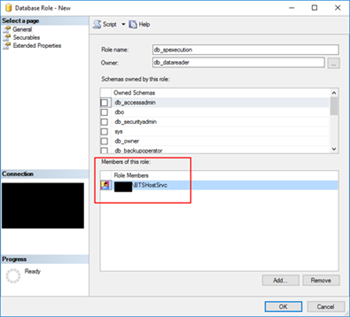
It gives you more work, that is for sure, but now you will have a properly access granularity defined, with the minimum rights defined for the actually necessary tasks. Nothing more, nothing less… as things should be.
Author: Sandro Pereira
Sandro Pereira is an Azure MVP and works as an Integration consultant at DevScope. In the past years, he has been working on implementing Integration scenarios both on-premises and cloud for various clients, each with different scenarios from a technical point of view, size, and criticality, using Microsoft Azure, Microsoft BizTalk Server and different technologies like AS2, EDI, RosettaNet, SAP, TIBCO etc. View all posts by Sandro Pereira

by Gautam | Jul 30, 2018 | BizTalk Community Blogs via Syndication
Do you feel difficult to keep up to date on all the frequent updates and announcements in the Microsoft Integration platform?
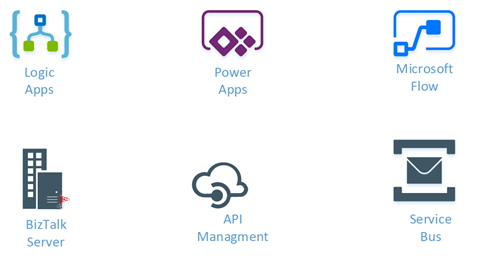
Integration weekly update can be your solution. It’s a weekly update on the topics related to Integration – enterprise integration, robust & scalable messaging capabilities and Citizen Integration capabilities empowered by Microsoft platform to deliver value to the business.
If you want to receive these updates weekly, then don’t forget to Subscribe!
Feedback
Hope this would be helpful. Please feel free to reach out to me with your feedback and questions.
by Sandro Pereira | Jul 27, 2018 | BizTalk Community Blogs via Syndication
In the last post, we try to demystify the reason and cause of the error: Invalid type name. The root node type has to be a valid C# identifier when you are working with a schema with a single root node.
In this second part of the post, we will address what happens If we are working with a schema with multiple root nodes, and two or more root nodes contains hyphens (-) or any other punctuation characters?
Let’s take the following example, where we have:
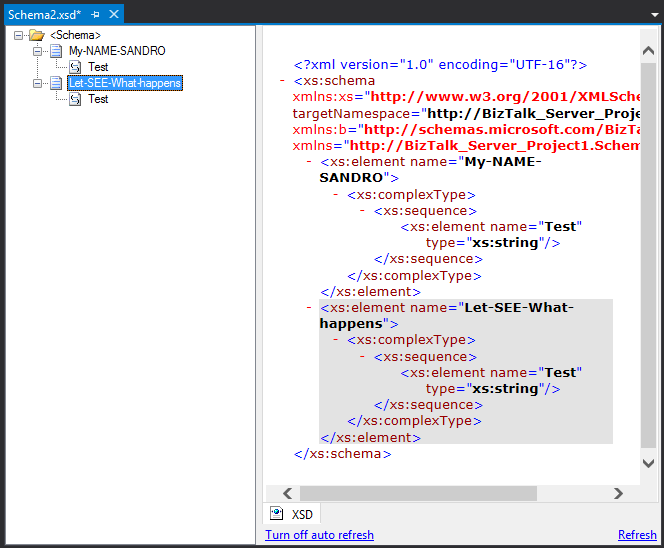
- The root node “My-NAME-SANDRO” with the “RootNode TypeName” property set as “My-NAME-SANDRO”
- And the root node “Let-SEE-What-happens” with the “RootNode TypeName” property set as “Let-SEE-What-happens”
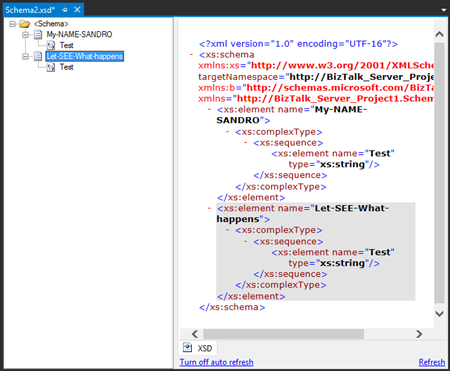
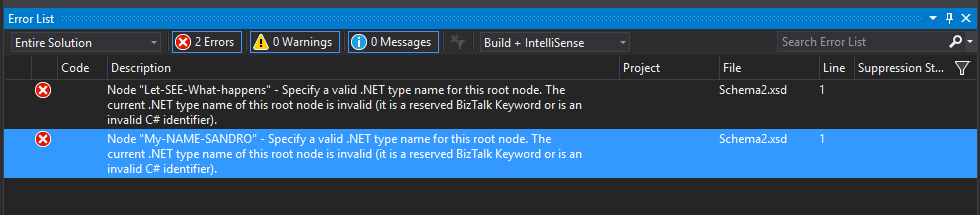
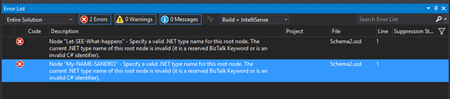
If we try to build our BizTalk Server solution within Visual Studio it will fail with the following errors:
| Severity |
Code |
Description |
Project |
File |
Line |
Suppression State |
| Error |
|
Node “My-NAME-SANDRO” – Specify a valid .NET type name for this root node. The current .NET type name of this root node is invalid (it is a reserved BizTalk Keyword or is an invalid C# identifier). |
|
c:users…documentsvisual studio 2015ProjectsBizTalk Server Project1BizTalk Server Project1Schema2.xsd |
1 |
|
| Error |
|
Node “Let-SEE-What-happens” – Specify a valid .NET type name for this root node. The current .NET type name of this root node is invalid (it is a reserved BizTalk Keyword or is an invalid C# identifier). |
|
c:users…documentsvisual studio 2015ProjectsBizTalk Server Project1BizTalk Server Project1Schema2.xsd |
1 |
|
Cause
Official Microsoft documentation state that The Type Name property of this schema file is not valid. Because the value of the Type Name property is used as the name of an automatically generated C# class name, it must be a valid C# identifier and cannot be a reserved BizTalk keyword.
And in this case – when working with multiple root nodes in a single schema – it is not allowed the use of hyphens or other punctuations like “.”, “!” and so on, with the exception for the underscore (_).
We saw in the previous post that we could work around this “limitation” in schemas with a single root node by open the Schema with XML (Text) Editor and fix the “rootTypeName” for the value you want. In this case, it will not work.
Solution
As hyphens, or any other punctuation characters, are not allowed, the only solution you have is to change it from the “RootNode TypeName” property. For example:
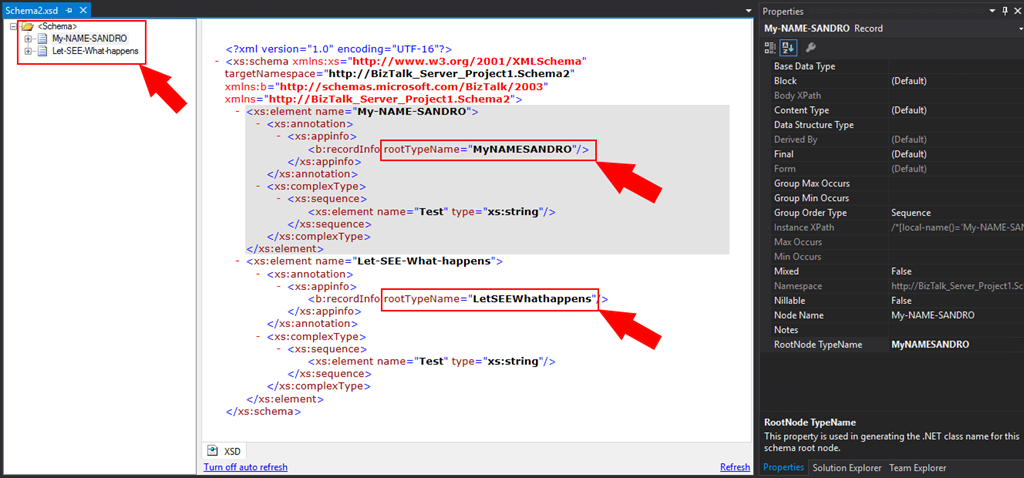
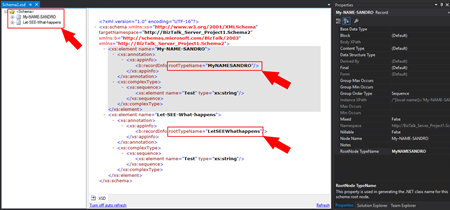
- For the node “My-NANE-SANDRO” the “RootNode TypeName” value can be “MyNAMESANDRO” or “My_NAME_SANDRO” instead of “My-NAME-SANDRO”
- And for the node “Let-SEE-What-happens” the “RootNode TypeName” value can be “LetSEEWhathappens” or “Let_SEE_What_happens” instead of “My-NAME-SANDRO
By removing all hyphens, or any other punctuation characters, from this property in all schemas you will guarantee that you will not face this issue again at least in this project.
Conclusion
As a best practice you should use hyphens, or any other punctuation characters in the “RootNode TypeName”, nevertheless:
- The use of hyphens or any other punctuation characters is allowed in schemas with a single root node;
- The use of hyphens or any other punctuation characters is not allowed in schemas with multiple single root node;
And by the way, can my root node name still contain hyphens or any other punctuation characters?
Yes, it can. In all scenarios as long the root “RootNode TypeName” property doesn’t contain any of them as you will see in the picture below:
Author: Sandro Pereira
Sandro Pereira lives in Portugal and works as a consultant at DevScope. In the past years, he has been working on implementing Integration scenarios both on-premises and cloud for various clients, each with different scenarios from a technical point of view, size, and criticality, using Microsoft Azure, Microsoft BizTalk Server and different technologies like AS2, EDI, RosettaNet, SAP, TIBCO etc. He is a regular blogger, international speaker, and technical reviewer of several BizTalk books all focused on Integration. He is also the author of the book “BizTalk Mapping Patterns & Best Practices”. He has been awarded MVP since 2011 for his contributions to the integration community. View all posts by Sandro Pereira
by Sandro Pereira | Jul 26, 2018 | BizTalk Community Blogs via Syndication
A few days ago, while trying to compile a BizTalk Server solution I got the following error: Invalid type name. The root node type has to be a valid C# identifier. I end up solving this problem but while I was preparing this post the reason I realize that the cause and respective solution that I thought to be behind this error was, in fact, incomplete and not accurate.
Most of the documentation available state that:
- The .Net framework doesn’t allow the “-” within TypeNames because the “-” is reserved.
- The use of a hyphen (-) in RootNode TypeName is not allowed.
And that statement is incorrect or at least incomplete!
1) What happens if I create a root node with hyphens (-)?
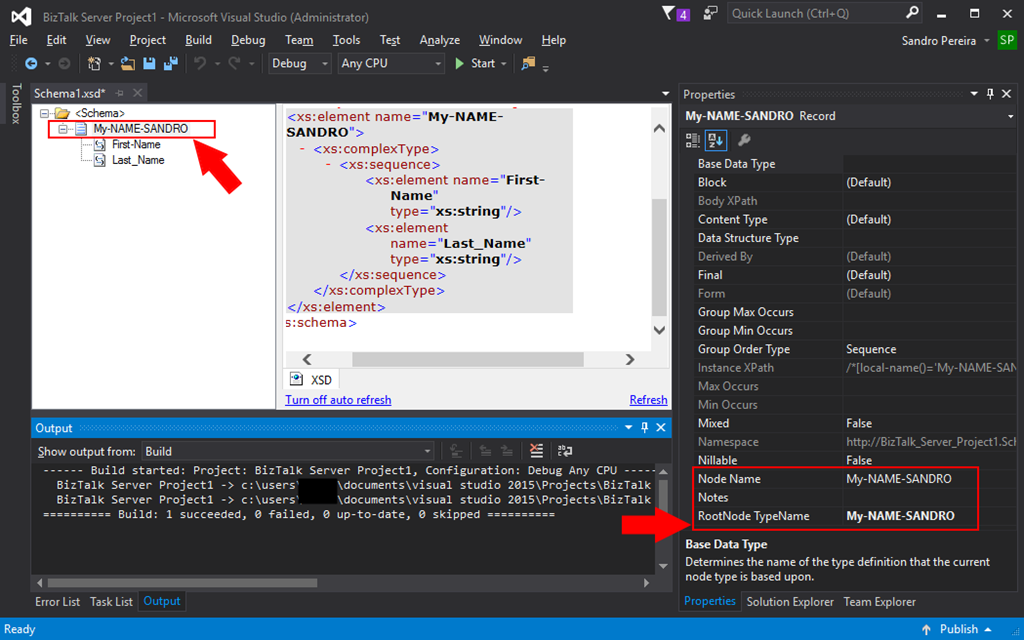
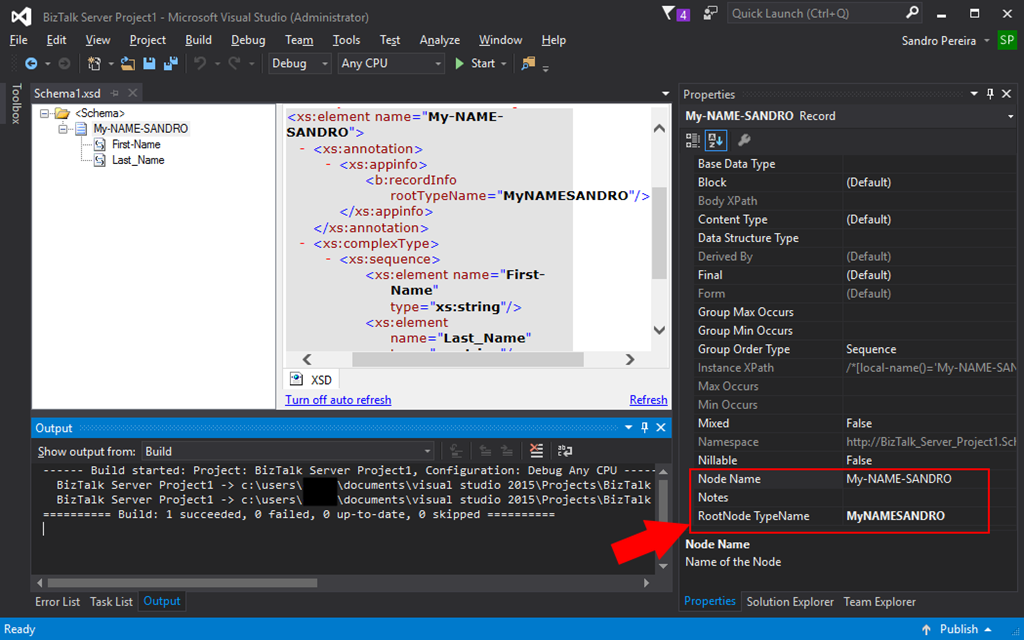
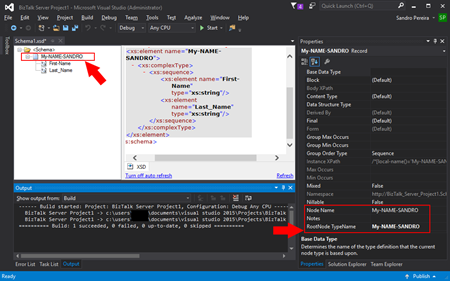
If we create a root node with hyphens, let’s say “My-NAME-SANDRO”, by default the:
- The “NodeName” property will be set as “My-NAME-SANDRO”;
- And the “RootName TypeName” property will also be set as “My-NAME-SANDRO”;
And as you can see in the picture below, you will be able to create a schema with a one or more hyphens (-) on the root node name and type name, in fact, they should be the same if you only have one root node in the schema.
And again, as you see in the picture you will be able to build and deploy it with success.
But, let’s play a little in order to demystify this Invalid type error that sometimes happens.
2) What happens if we try to change the “RootNode TypeName” property to other value like “MyNAMESANDRO” – without any hyphens (-)?
Nothing will happen, we will still be able to compile and successfully deploy our schema.
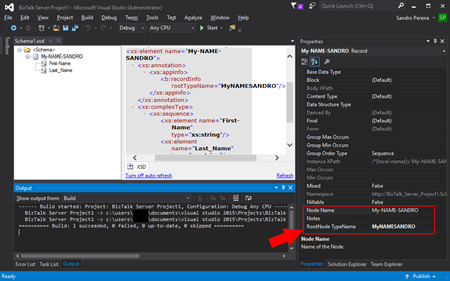
In fact, this is the best approach.
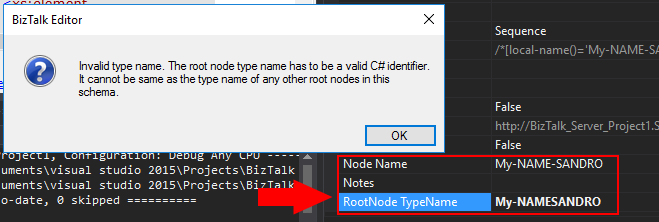
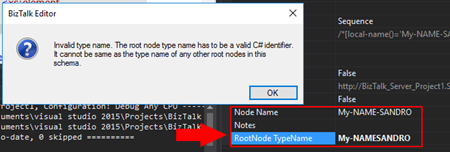
3) Now, what happens if we try to change the “RootNode TypeName” property to other value like “My-NAMESANDRO” – with hyphens (-)?
Note, that we are changing to a “RootNode TypeName” property to a different value than the “Node Name” but this time including one or more hyphens (-).
If we try to do that we will receive the following error:
Invalid type name. The root node type name has to be a valid C# identifier. It cannot be same as the type name of any other root nodes in this schema
Cause
Official Microsoft documentation state that the Type Name property of this schema file is not valid. Because the value of the Type Name property is used as the name of an automatically generated C# class name, it must be a valid C# identifier and cannot be a reserved BizTalk keyword.
In fact, it will not allow, any hyphens or other punctuations like “.”, “!” and so on with the exception of the underscore (_)… directly from the BizTalk Editor – we will get that sorted out (properly cleared) later.
Solution
As hyphen, or any other punctuation characters, are “not allowed”, you should “removed it” from the “RootNode TypeName” property. For example:
- For the node “My-NANE-SANDRO” the “RootNode TypeName” value can be “MyNAMESANDRO” or “My_NAME-SANDRO” instead of “My-NAMESANDRO” or event “My-NAME_SANDRO”
By removing all hyphens, or any other punctuation characters, from this property in all schemas you will guarantee that you will not face this issue again at least in this project.
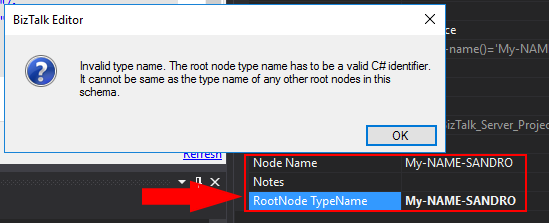
4) I change to “MyNAMESANDRO”, what happens if we try to roll back and change the “RootNode TypeName” property again to the original “My-NAME-SANDRO”?
Here’s where the story becomes funny, it will fail!
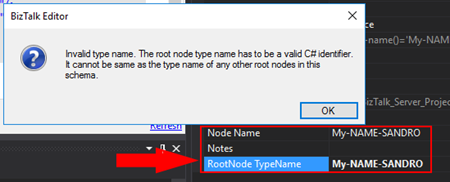
Humm… what? How that’s possible if in point 1 we saw that if the root node name and type name is the same it should work, and it did work before?
Cause
Again, official Microsoft documentation state that the Type Name property of this schema file is not valid. Because the value of the Type Name property is used as the name of an automatically generated C# class name, it must be a valid C# identifier and cannot be a reserved BizTalk keyword.
In fact, once you change the name for something else without hyphens or any other punctuation characters, you cannot rollback to the origin (or default) RootName TypeName “My-NAME-SANDRO”.
Solution
The same solution here, as a hyphen, or any other punctuation characters, are “not allowed”, you should “removed it” from the “RootNode TypeName” property. For example:
- For the node “My-NANE-SANDRO” the “RootNode TypeName” value can be “MyNAMESANDRO” instead of “My-NAMESANDRO” or event “My-NAME_SANDRO”
However, if you want to rollback to the default RootNode TypeName value, you need to delete the root node and recreate from the scratch, at least directly from the BizTalk Schema Editor.
What is actually the Cause
I think at some point in the past this was a limitation, or maybe a limitation in certain scenarios (we will check this on Part II later on in a different blog) but not really at the moment or in this case: a schema with a single root node.
So, if it worked in the first approach – point 1 – why doesn’t work in the other approaches – point 3 and 4?
Well, in this case, this is just a BizTalk Schema Editor limitation or bug, but let’s call it a limitation.
What is actually the Solution
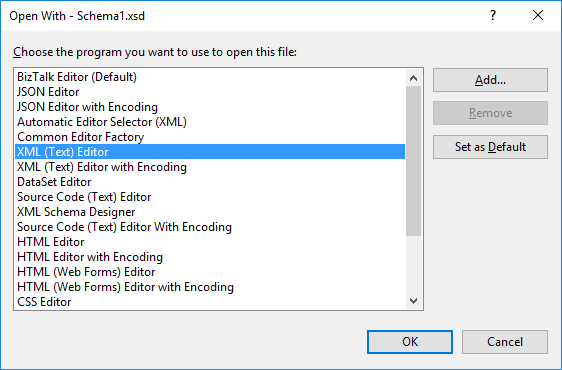
To solve point 3 and 4 you just need to open the Schema with XML (Text) Editor:
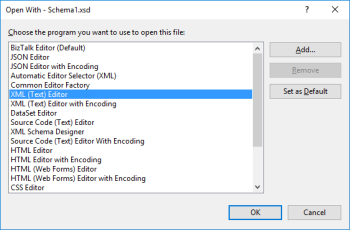
And fix the “rootTypeName” for the value you want: “My-NAMESANDRO” or back to “My-NAME-SANDRO”
<?xml version="1.0" encoding="utf-16"?>
<xs:schema xmlns="http://BizTalk_Server_Project1.Schema1" xmlns:b="http://schemas.microsoft.com/BizTalk/2003" targetNamespace="http://BizTalk_Server_Project1.Schema1" xmlns:xs="http://www.w3.org/2001/XMLSchema">
  <xs:element name="My-NAME-SANDRO">
    <xs:annotation>
      <xs:appinfo>
        <b:recordInfo rootTypeName="My-NAMESANDRO" />
      </xs:appinfo>
    </xs:annotation>
    <xs:complexType>
      <xs:sequence>
        <xs:element name="First-Name" type="xs:string" />
        <xs:element name="Last_Name" type="xs:string" />
      </xs:sequence>
    </xs:complexType>
  </xs:element>
</xs:schema>
Save it, you now can open it again with BizTalk Schema Editor, compile it and deploy it with any problem.
Keep posted for Part II of this blog post.
Author: Sandro Pereira
Sandro Pereira lives in Portugal and works as a consultant at DevScope. In the past years, he has been working on implementing Integration scenarios both on-premises and cloud for various clients, each with different scenarios from a technical point of view, size, and criticality, using Microsoft Azure, Microsoft BizTalk Server and different technologies like AS2, EDI, RosettaNet, SAP, TIBCO etc. He is a regular blogger, international speaker, and technical reviewer of several BizTalk books all focused on Integration. He is also the author of the book “BizTalk Mapping Patterns & Best Practices”. He has been awarded MVP since 2011 for his contributions to the integration community. View all posts by Sandro Pereira
by Sandro Pereira | Jul 26, 2018 | BizTalk Community Blogs via Syndication
With all these new security features present on the latest Microsoft operating systems, don’t get me wrong they are good, sometimes our life as BizTalk Developers seems like it’s reversing and becoming a nightmare, especially if you are a consultant working with multiple different clients, environments, and projects.
Most of the times I start developing a new project at a new client, the first time I try to deploy a solution I get an “Error 87 Access is denied. (Exception from HRESULT: 0x80070005 (E_ACCESSDENIED))…” error message.
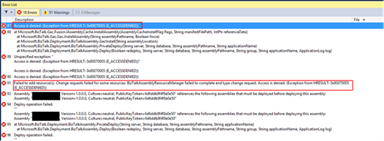
There are several possible causes for you to get such Access Denied errors when deploying BizTalk solutions directly from Visual Studio. Most common is that you don’t have the right BizTalk privileges to deploy artifacts, or in other words, you are not a local Administrator.
But most of the time is simpler than that and indeed is related with these additional securities setting present in recent Windows Server versions. For you to be able to successfully deploy a BizTalk Server solution directly from Visual Studio, you must run Visual Studio as an Administrator, or with elevated permissions, because BizTalk assemblies need to be deployed into the GAC. What normally happens, is that if you have User Account Control (UAC) activated, or sometimes even deactivated, there are some additional securities setting present in recent Windows Server versions that, by default, doesn’t run Visual Studio with elevated permissions.
The quick solution is for you to run Visual Studio as an Administrator by simply run below step:
- Right-click under Visual Studio and choose “Run as administrator” option.
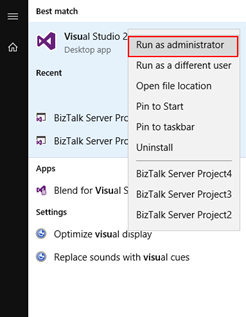
The problem with this approach is that you need to remember yourself to do it every time you want to run Visual Studio, otherwise the next time you try to deploy the solution it will fail again with the same error.
How to properly address this problem?
Actually, this problem can be simply addressed by:
- Access the devenv.exe file on the file system, which is by default installed in: “C:Program Files (x86)Microsoft Visual Studio 14.0Common7IDE”
- Right-click devenv.exe and select “Troubleshoot compatibility”
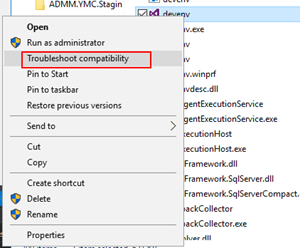
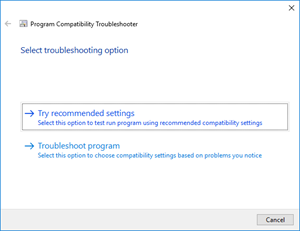
- On the “Select troubleshooting option” page, select “Troubleshoot compatibility” option
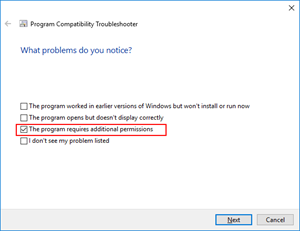
- On the “What problems do you notice?” page, select the “The program requires additional permissions” option and then click “Next”
- On the “Test compatibility settings for the program” page, click “Test the program…”, wait for the program to launch and then click “Next”
- Select “Yes, save these settings for this program”
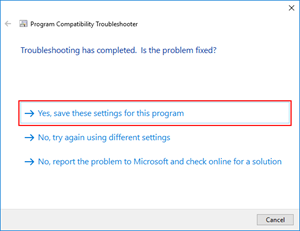
You will never face this problem again… at least at that client.
Enjoy and Stay tuned for new BizTalk Server Tips and Tricks!
Author: Sandro Pereira
Sandro Pereira is an Azure MVP and works as an Integration consultant at DevScope. In the past years, he has been working on implementing Integration scenarios both on-premises and cloud for various clients, each with different scenarios from a technical point of view, size, and criticality, using Microsoft Azure, Microsoft BizTalk Server and different technologies like AS2, EDI, RosettaNet, SAP, TIBCO etc. View all posts by Sandro Pereira
by Sandro Pereira | Jul 24, 2018 | BizTalk Community Blogs via Syndication
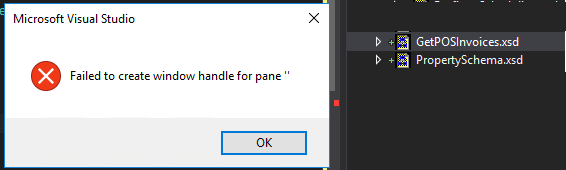
There are errors that we are familiar with, but I guess this you may never hear about it. I didn’t know it until today: Failed to create window handle for pane ”.
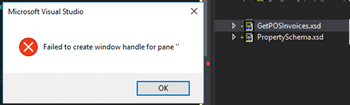
This happened today while I was trying to open a Schema from my BizTalk Server project. Every other artifact opened well in their designer/editor like Orchestrations, Maps, and Pipelines… with the exception of Schemas.
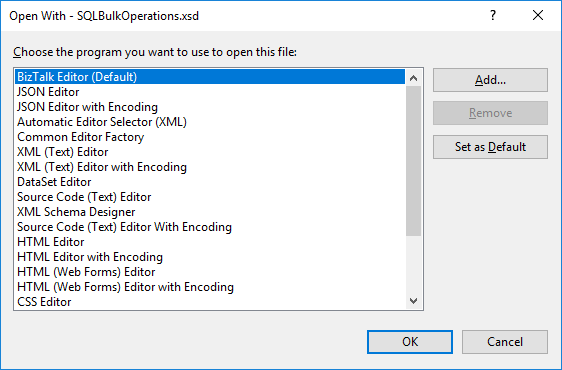
I try to force it open by the BizTalk Schema Editor by right-clicking on the schema, open with and select the BizTalk Editor (Default) without any result.
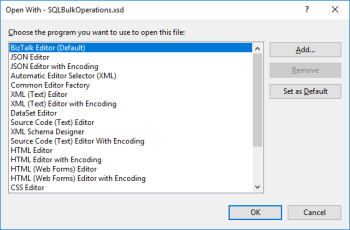
I even try to force it open with another editor like XML (Text) Editor – it worked by the way – and once again try to open by the Schema Editor, again, without any practical result.
Note: I had 3 visual studio instances opened with 3 different projects: 2 of them worked well and only one had this problem.
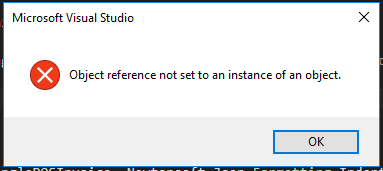
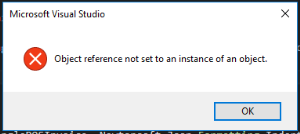
Also, when I try to close this particular Visual Studio instance, I got another error:
Microsoft Visual Studio: Object reference not set to an instance of an object
Cause
Honestly, I have no f*** idea… but I know the solution.
Solution
To solve this problem, you need to… do what we normally do when nothing works!
- Close the Visual Studio and open again
Problem solved!
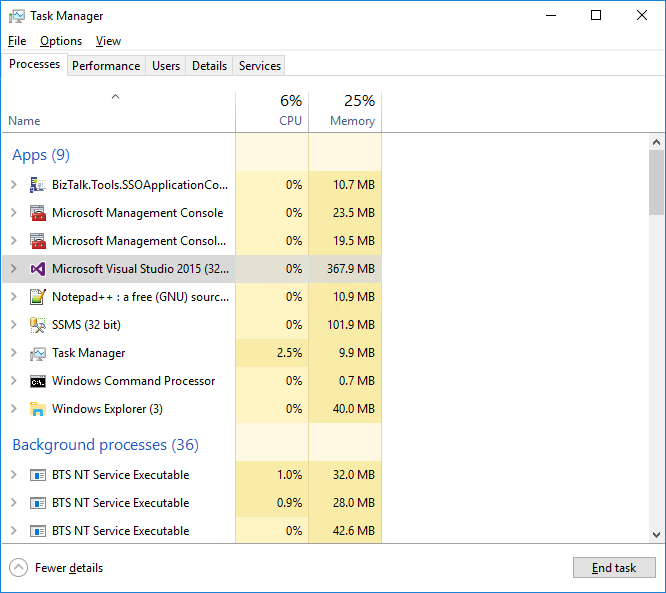
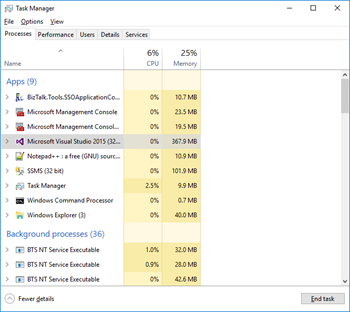
Because I was unable to close the Visual Studio – Object reference not set to an instance of an object – I terminated the Visual Studio task using the task manager.
Author: Sandro Pereira
Sandro Pereira lives in Portugal and works as a consultant at DevScope. In the past years, he has been working on implementing Integration scenarios both on-premises and cloud for various clients, each with different scenarios from a technical point of view, size, and criticality, using Microsoft Azure, Microsoft BizTalk Server and different technologies like AS2, EDI, RosettaNet, SAP, TIBCO etc. He is a regular blogger, international speaker, and technical reviewer of several BizTalk books all focused on Integration. He is also the author of the book “BizTalk Mapping Patterns & Best Practices”. He has been awarded MVP since 2011 for his contributions to the integration community. View all posts by Sandro Pereira
by Sandro Pereira | Jul 24, 2018 | BizTalk Community Blogs via Syndication
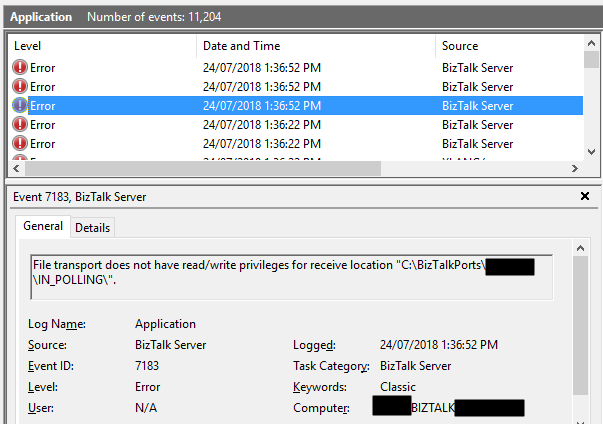
In the spirit of documenting all possible and imaginary errors, let’s address today a classic one: File transport does not have read/write privileges for receive location “DRIVE:FOLDER NAME”.
This happens more than you may think, and today after finish creating a backup port for testing a new process while I was trying to Enable the File receive location I got the following errors:
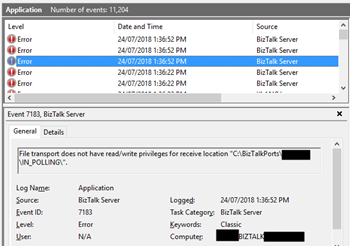
File transport does not have read/write privileges for receive location “C:BizTalkPortsIN_POLLING”.
Followed by other similar warning messages:
The Messaging Engine failed to add a receive location “POLLING_FILE” with URL “C:BizTalkPortsIN_POLLING*.xml” to the adapter “FILE”. Reason: “File transport does not have read/write privileges for receive location “C:BizTalkPortsIN_POLLING”. “.
The receive location “POLLING_FILE” with URL “C:BizTalkPortsIN_POLLING*.xml” is shutting down. Details:”The Messaging Engine failed while notifying an adapter of its configuration. “.
Cause
As I said before this is a classic error, the reason is quite obvious and the error message clearly identifies the origin of the problem.
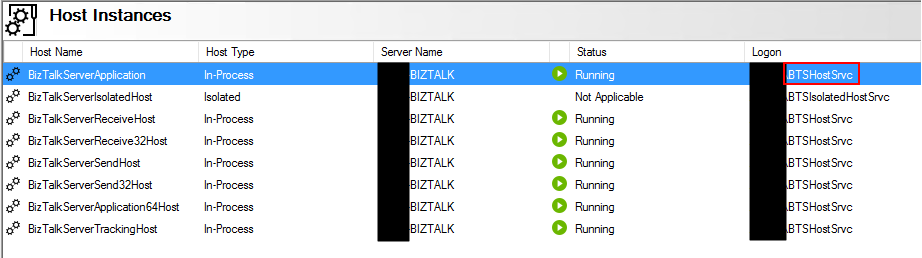
The problem is that the user that is running the BizTalk Server host instance(s) don’t have read/write privileges in that specific folder.
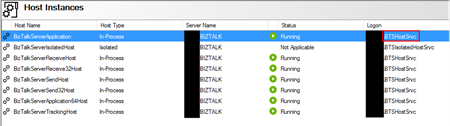
Solution
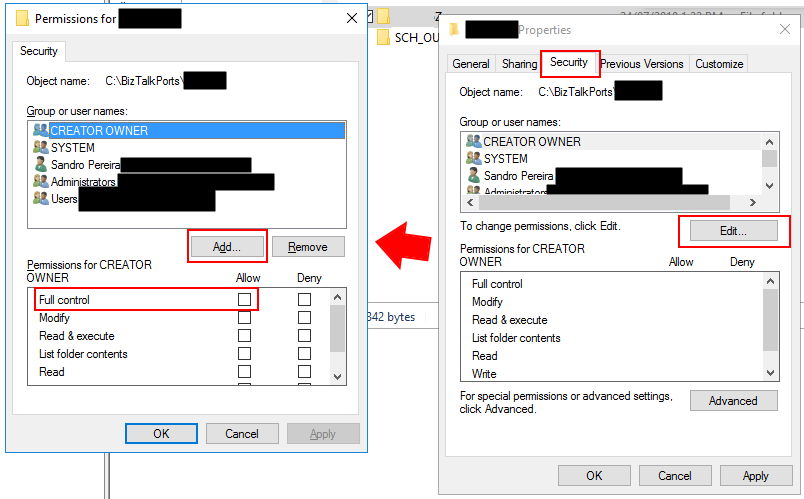
To solve this problem, you need to give readwrite privileges for the user that is running BizTalk Server Host Instance, in my case “BTSHostSrvc”, into that specific folder. For that you need to:
- From the file system, access to the folder in question and then right-click on the folder and select the “Properties” option;
- If attribute “Read-only (only applies to files in folder)” is enabled (selected), disable it (unselect);
- Then go to the “Security” tab and then click “Edit…” button and then “Add…” button
- Search for the user that is running the BizTalk Server Host Instance and then click “OK”;
- For that specific user give read and write access;
- In my case, because this was/is a “BizTalk process” folder, I gave “Full control”
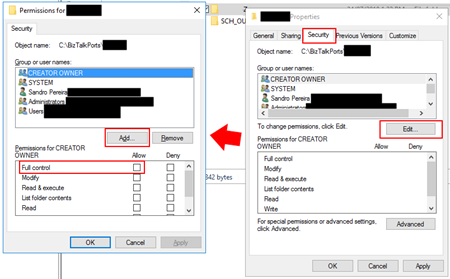
- At the click “OK” and “OK” once again.
Once you give access to the user this classic problem is going away… until the next time!
Author: Sandro Pereira
Sandro Pereira lives in Portugal and works as a consultant at DevScope. In the past years, he has been working on implementing Integration scenarios both on-premises and cloud for various clients, each with different scenarios from a technical point of view, size, and criticality, using Microsoft Azure, Microsoft BizTalk Server and different technologies like AS2, EDI, RosettaNet, SAP, TIBCO etc. He is a regular blogger, international speaker, and technical reviewer of several BizTalk books all focused on Integration. He is also the author of the book “BizTalk Mapping Patterns & Best Practices”. He has been awarded MVP since 2011 for his contributions to the integration community. View all posts by Sandro Pereira

by Gautam | Jul 23, 2018 | BizTalk Community Blogs via Syndication
Do you feel difficult to keep up to date on all the frequent updates and announcements in the Microsoft Integration platform?
Integration weekly update can be your solution. It’s a weekly update on the topics related to Integration – enterprise integration, robust & scalable messaging capabilities and Citizen Integration capabilities empowered by Microsoft platform to deliver value to the business.
If you want to receive these updates weekly, then don’t forget to Subscribe!
Feedback
Hope this would be helpful. Please feel free to reach out to me with your feedback and questions.

by Sandro Pereira | Jul 19, 2018 | BizTalk Community Blogs via Syndication
After many requests and many postponements, due to my unavailability and free time to take these tasks, BizTalk Scheduled Task Adapter is finally officially available and optimized for BizTalk Server 2016 on GitHub!
This became more critical because Codeplex closed and community members were not finding mainly the installation files so I was getting a lot of emails requesting them. Note that despite Codeplex is closed you can still download the source code from the archive.
At the moment is only available the installation files of BizTalk Scheduled Task Adapter v6.0 for BizTalk Server 2016 and the following reported issue was solved:
- In some scenarios, in the first trigger event, multiple messages were sent at the same time – Solved
You can download this “new” version of the adapter in BizTalk Scheduled Task Adapter from GitHub:
The BizTalk Scheduled Task Adapter is an in-process receive adapter that executes a prescribed task on a daily, weekly or monthly schedule. The adapter is configured entirely within BizTalk, all configurations are stored within the SSODB and can be exported and imported via binding files.
Soon I will add the source code for BizTalk Server 2016 and the same for previous versions: BizTalk Server 2013 R2, BizTalk Server 2013, BizTalk Server 2010, and so on.
Question?
Should I do a BizTalk Scheduled Task Adapter commercial version that will guarantee full support to this adapter (reported bugs and/or issues quietly fixed) and new features?
 BizTalk Scheduled Task Adapter for BizTalk Server 2016 available on GitHub
Microsoft | GitHub
Author: Sandro Pereira
Sandro Pereira lives in Portugal and works as a consultant at DevScope. In the past years, he has been working on implementing Integration scenarios both on-premises and cloud for various clients, each with different scenarios from a technical point of view, size, and criticality, using Microsoft Azure, Microsoft BizTalk Server and different technologies like AS2, EDI, RosettaNet, SAP, TIBCO etc. He is a regular blogger, international speaker, and technical reviewer of several BizTalk books all focused on Integration. He is also the author of the book “BizTalk Mapping Patterns & Best Practices”. He has been awarded MVP since 2011 for his contributions to the integration community. View all posts by Sandro Pereira