This is a collection of 5 different image formats of the new UnofficialBizTalk Server 2020 logo (or logotype), three of them are available in vector format (ai, eps and pdf) that will allow you to use and resize without losing quality:
BizTalkServer2020-linhas.ai
BizTalkServer2020-linhas.eps
BizTalkServer2020-linhas.pdf
BizTalkServer2020-linhas-01.jpg
BizTalkServer2020-linhas-01.png
You can be used to customize a banner for your blog, an article, making flyers, stickers, brochure or rollups for BizTalk Server or integration events/conferences and much more – your imagination is the limit!
Again, this is not the official logo because the product is not yet available, so I don’t know what Microsoft will do. This is made by taking into consideration the previous logos of the product. Remember that in BizTalk Server 2016 Microsoft decided to drop the fancy Server icon from the logo and the version identification, it is a simple generic logo with just Text with the intention to be consistent in this and further versions of BizTalk Server. But people still prefer to use the “old” format just because it is easier to visual specify the version of BizTalk Server… for that reason only, there you have this new logo with 2020!
Thanks to Cristovão Silva (UX/UI DESIGNER at DevScope) for helping me creating these resources.
BizTalk Server 2020 logo in vector format (3.1 MB) Microsoft | TechNet Gallery
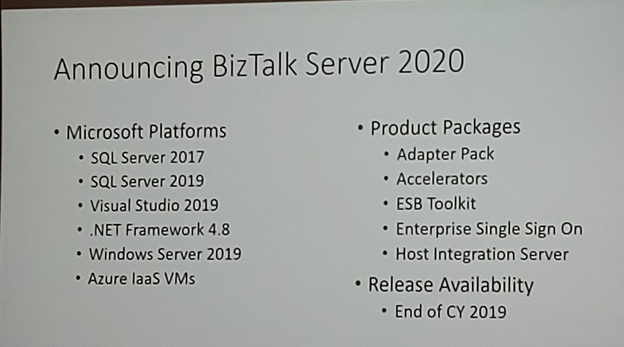
After once again many speculations and controversy caused in INTEGRATE 2018 London event about the vNext release of BizTalk Server, promptly denied two weeks after the event with a formal announcement from the Microsoft Integration team, finally some excellent news for the Microsoft Integration community and all the clients out there that still consider MSFT Integration Stack the best in the market. Paul Larson announced in his session at INTEGRATE 2019 London event the release of BizTalk Server 2020 to be scheduled for the end of this year.
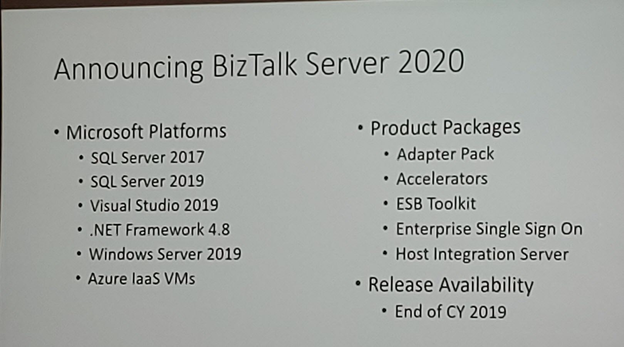
Of course, one of the main reasons for this new version is about Platform Alignment. This new version will support:
SQL Server 2019 and SQL Server 2017 (still not sure if SQL Server 2016 will be also supported)
Windows Server 2019 and I’m almost sure that Windows Server 2016 will still be supported
What can we expect… more in BizTalk Server 2020 release?
One of the greatest things for customers that are running BizTalk Server Standard Edition is that BizTalk Server 2020 already comes built-in with all BizTalk Server 2016 Feature Pack Features, that means that all these features are now part of the product in all versions:
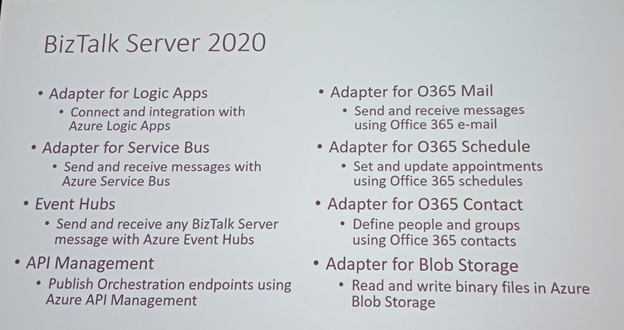
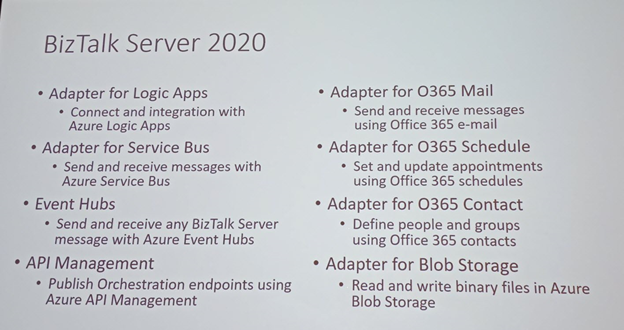
A new set of cloud adapters:
Logic Apps adapter: that will allow you to easily connect and easily extend part of your integration with Azure Logic Apps, making it easier to implement robust hybrid solutions;
Service Bus adapter: that will allow you to send and receive messages with Azure Service Bus;
Event Hubs adapter: that will allow you to send and receive messages with Azure Event Hubs;
Office 365 Mail adapter: that will allow you to send and receive messages using Office 365 e-mail;
Office 365 Schedule adapter: that will allow you to set and update appointments using Office 365 schedules;
Office 365 Contact adapter: that will allow you to define people and groups using Office 365 contacts;
Blob Storage adapter: that will allow you to read and write binary files in Azure Blob Storage;
API Management connectivity: the availability to publish an Orchestration endpoint directly on Azure API Management;
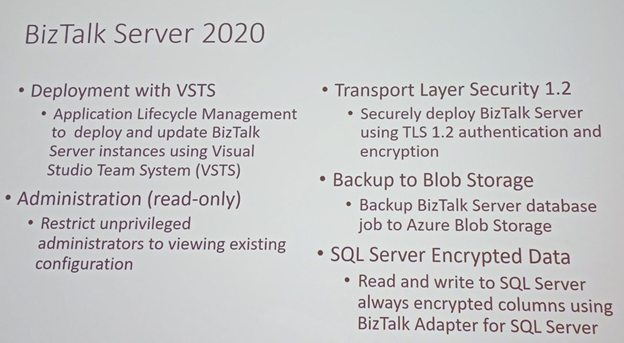
Deployments with VSTS: Application Life cycle Management feature will help you to perform automatic deployments in an improved and easy way using Visual Studio Team System (VSTS);
Security features:
Transport Layer Security 1.2: TLS 1.2 is now fully supported in BizTalk Server. This includes all the adapters and accelerators. You can also disable SSL, TLS 1.0, and TLS 1.1 in BizTalk Server;
SQL Server Encrypted Data: You will be able to read and write to SQL Server always encrypted columns using BizTalk Server WCF-SQL adapter. The ColumnEncryptionSetting binding property is used to enable or disable the functionality to get decrypted/encrypted column values from an Always Encrypted database;
BizTalk Database Backup to Blob Storage: the availability to backup BizTalk Server databases, using the default backup job directly to an Azure Blob Storage;
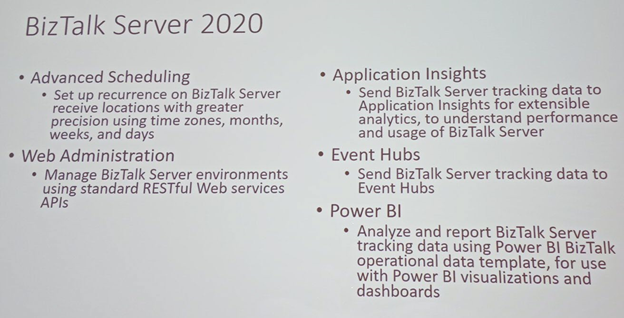
Advanced Scheduling: the availability to set up recurrence on BizTalk Server receive locations with greater precision using times zones, months, weeks, and days;
Application Insights: the availability to send BizTalk Server tracking data to Application Insights for extensible analytics, to understand performance and usage of BizTalk Server;
Power BI operational data feed in BizTalk Server: Analyze and report BizTalk Server tracking data template, for use with Power Bi visualizations and dashboards;
Tracking data to Azure: the availability to send BizTalk tracking data to Azure Application Insights or Event Hubs
BizTalk Server Rest Management API’s: you will able to manage BizTalk Server environments using standard RESTful Web Services APIs. You will have now available REST-based API for pretty much for any management activities like retrieving Applications, Hosts, Send Ports, Receive Ports, Receive Locations, Orchestrations, Schemas, Maps, EDI specific things like Agreements, Batches, Parties, Policies, and so on.
But you may expect some small improvements like:
Administration (read-only): New set of privileged to access to the BizTalk Server Administration Console by allowing you to restrict unprivileged administrators to viewing existing configurations
Enterprise Single Sign-On 2020
and others not publicly available yet… let’s wait.
Along BizTalk Server 2020, we will also have a new version of Host Integration Server (HIS) with the same platform alignment that BizTalk Server but also with:
With this release, Microsoft continues to deliver a mature, reliable and stable integration server that honors the trust of the thousands of customers who run their mission-critical business processes on BizTalk Server.
It was again time for the most awaited conference in the Microsoft Integration space and the execution happened successfully! INTEGRATE is a global annual conference organized by BizTalk360 for people working in the Microsoft Integration space. Here, we bring the highlights of all the BizTalk sessions at the #INTEGRATE 2019 UK.
The Value of Hybrid integration – Paul Larsen
Paul Larsen, a Principal Program Manager for the Microsoft Corporation in Redmond, presented the session “The Value of Hybrid Integration” by explaining about the legacy of BizTalk Server and he gave meaning to the word Hybrid with some examples. He made the big announcement “BizTalk Server 2020” and confirmed that it will be released at the end of 2019.
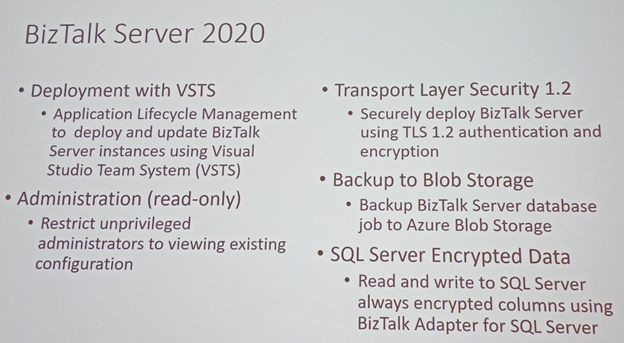
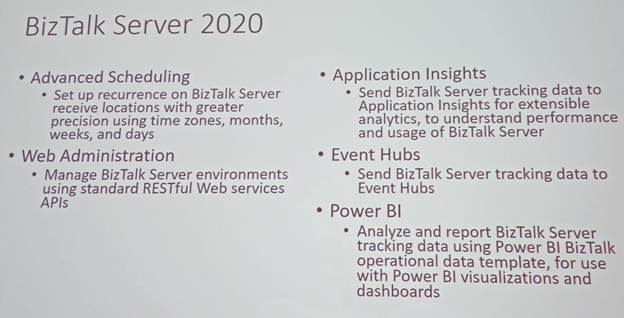
Paul announced the important feature updates in BizTalk Server 2020:
This version of BizTalk Server will have capabilities to deploy BizTalk Server applications using VSTS, make backups to Blob Storage and so on. It will also have integration with App Insights, Event Hubs, Power BI, etc.
Migration Tool
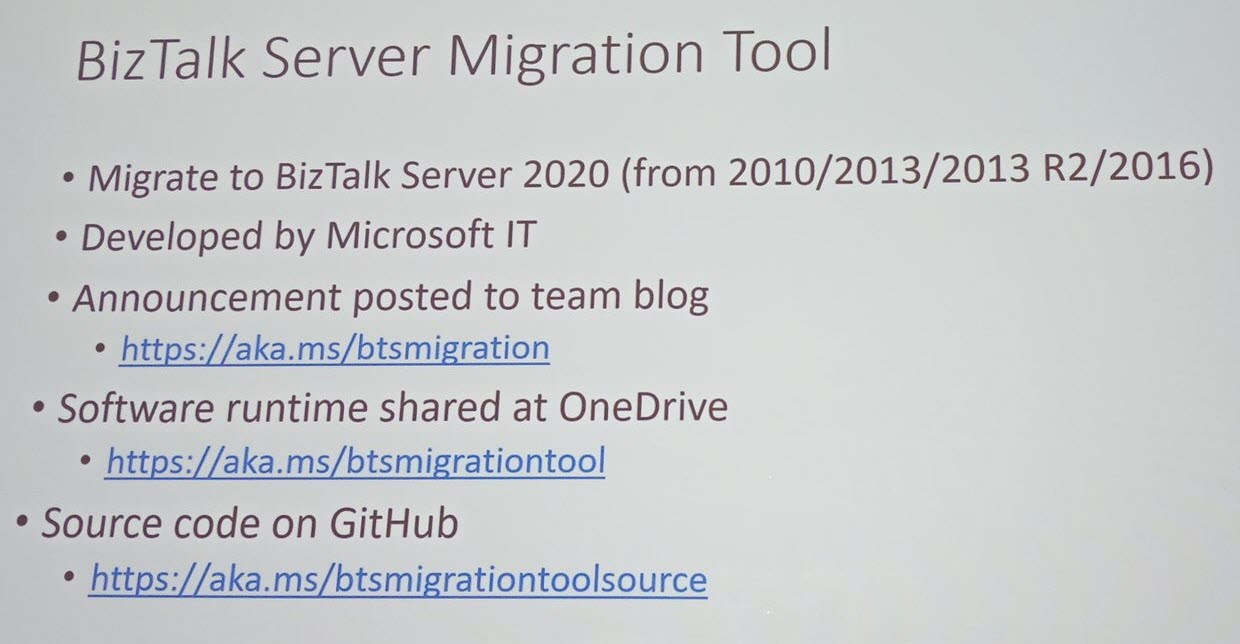
Paul talks about the BizTalk Server Migration tool and Host Integration Server 2020. This Migration tool will be helpful on dehydrating our configuration on old BizTalk Server environments and rehydrate that configuration to new Azure IaaS VM’s or local VM’s. Microsoft IT developed the BizTalk Server Migration tool which they use to migrate their own BizTalk environments. Because the architecture of BizTalk Server is kept common between BizTalk Server 2010, 2013, 2013 R2 and 2016, the migration does not affect the underlying layer of BizTalk Components.
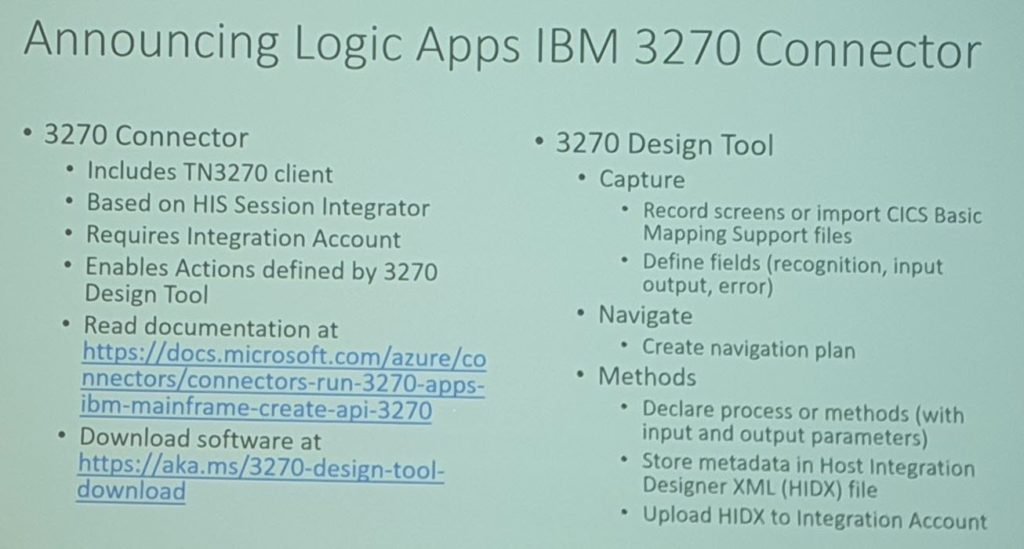
Logic Apps IBM 3270 Connector
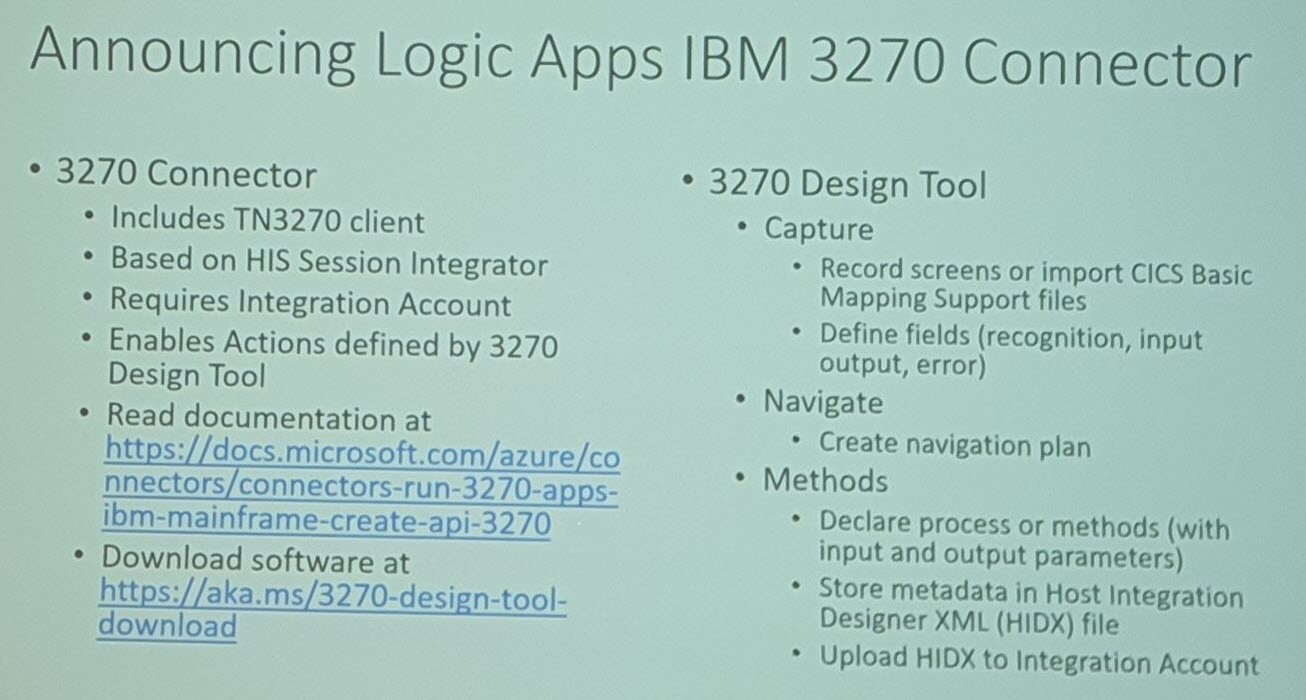
Next, Paul made an announcement on the Logic Apps connectors for 3270 screen scraping which is available in preview. During an entertaining demo, Paul explained how the 3270 screens are used and how the 3270 Logic Apps connectors can be used.
BizTalk Server Fast & Loud Part II: Optimizing BizTalk – Sandro Pereira
Sandro Pereira, as usual, sets the scene of the session by comparing BizTalk Server Performance to different types of cars like Formula 1 cars, BMW cars, and Truck Cars. He explained the different parameters that affect the performance of BizTalk Server with the functioning of a car (Memory, Network, Disk Space, BizTalk Server, SQL Server).
Next, Sandro provided different tips to optimize the performance:
What is your requirement?
To improve the performance of the BizTalk environment, choose the right set of infrastructure to manage your business requirement
Message Processing (Slowing Down)
BizTalk message processing can be slowed down when there are quite huge volumes of messages. In that case, use queues to process the messages
Techniques to optimize the performance
Sandro explained the different techniques which can be used to fix the performance issue
Observation
Analysis
Apply Fixes
Redesign the system
If an existing BizTalk solution is a bottleneck in the performance, you can suggest redesigning the solution to meet the business requirement and space, to scale the solution for future challenges.
Move to Historic Data (Tracking)
Sandro explained how to manage historical data. Storing the data is important, but use the minimum tracking necessary, to avoid database and disk performance issues.
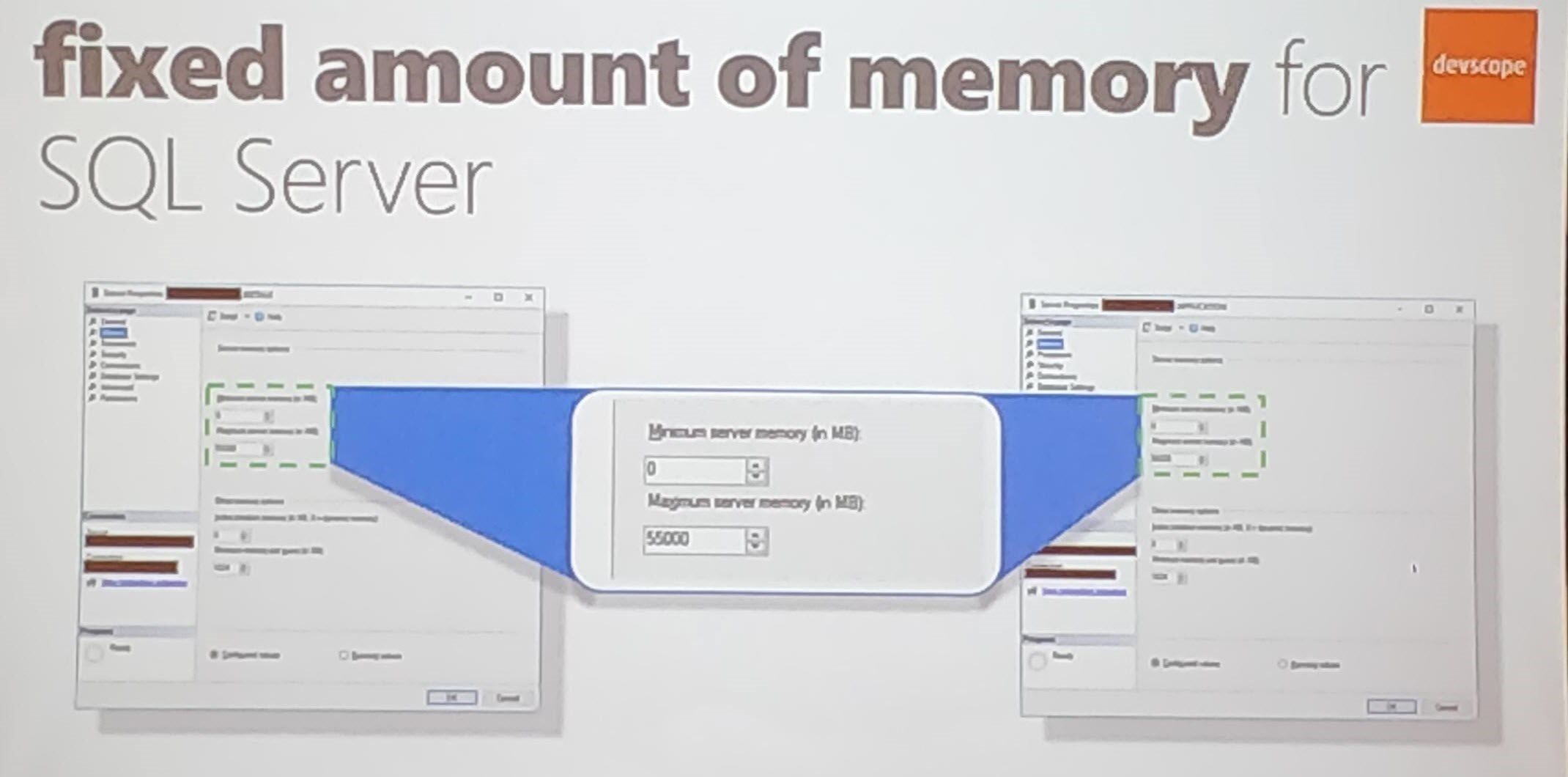
SQL Server Memory optimization
Use SQL Server memory configuration to optimize the performance of the message processing.
Sandro then explained two real-time solutions in which performance improvement was achieved;
Cock Sector World Leader
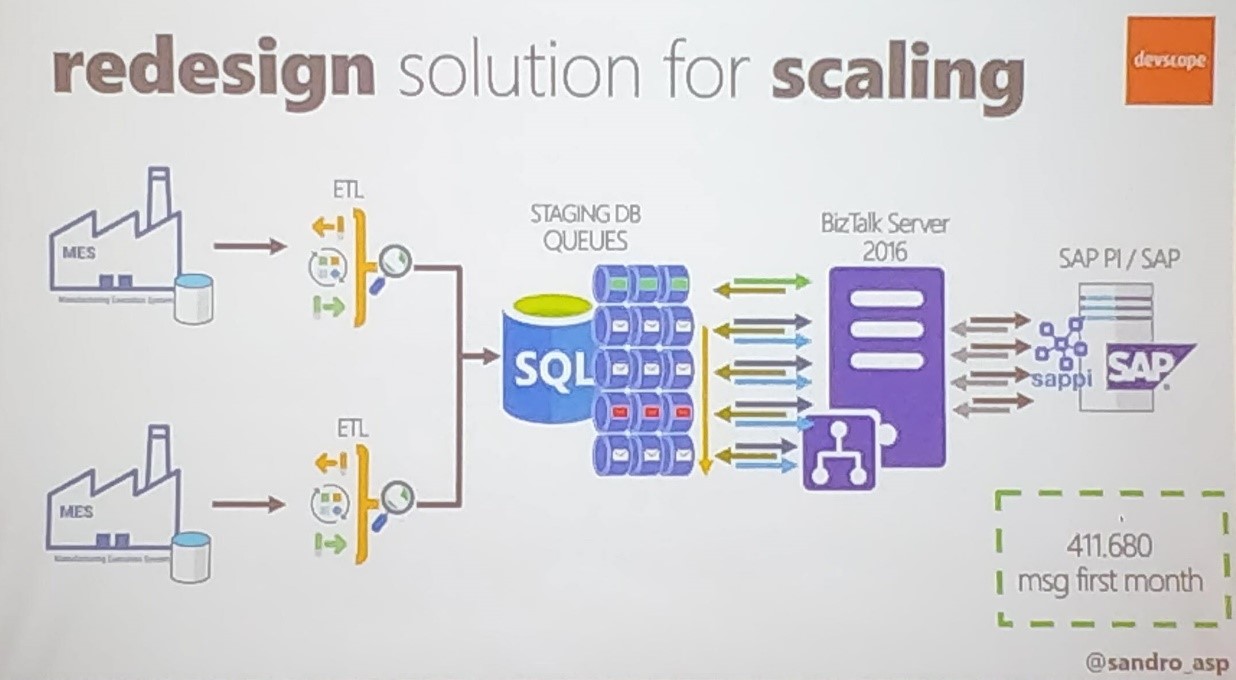
Sandro told about how the BizTalk Team scaled the solution when the performance was hit in one of the manufacturing sections;
Follow the sequences based on the number of messages (5 million messages)
Dividing the process – Parallel process (Queues)
Scaling up the SQL Server Tier
Move data to Historic (Enable the Minimum tracking)
Banking System
Sandro explained how his team provided the solution with a Banking system, with an example of opening a Banking Account scenario. He gave various techniques used in the Banking Solution;
Azure
API Management
Composite Orchestrations
To process the data to open a banking account takes more than 1 min to process the data. Sandro explained the factors that affect the performance;
Network/LDAP
Composite Orchestration Expression shape
Resources Unload (Slow First hit)
He continued to be telling about fine-tuning the performance to process the creating bank account by;
Improving warming up by Recycling BizTalk and IIS
Memory
IIS Application Pool
MQ Agent Recycling
He then explains various solutions to optimize performance;
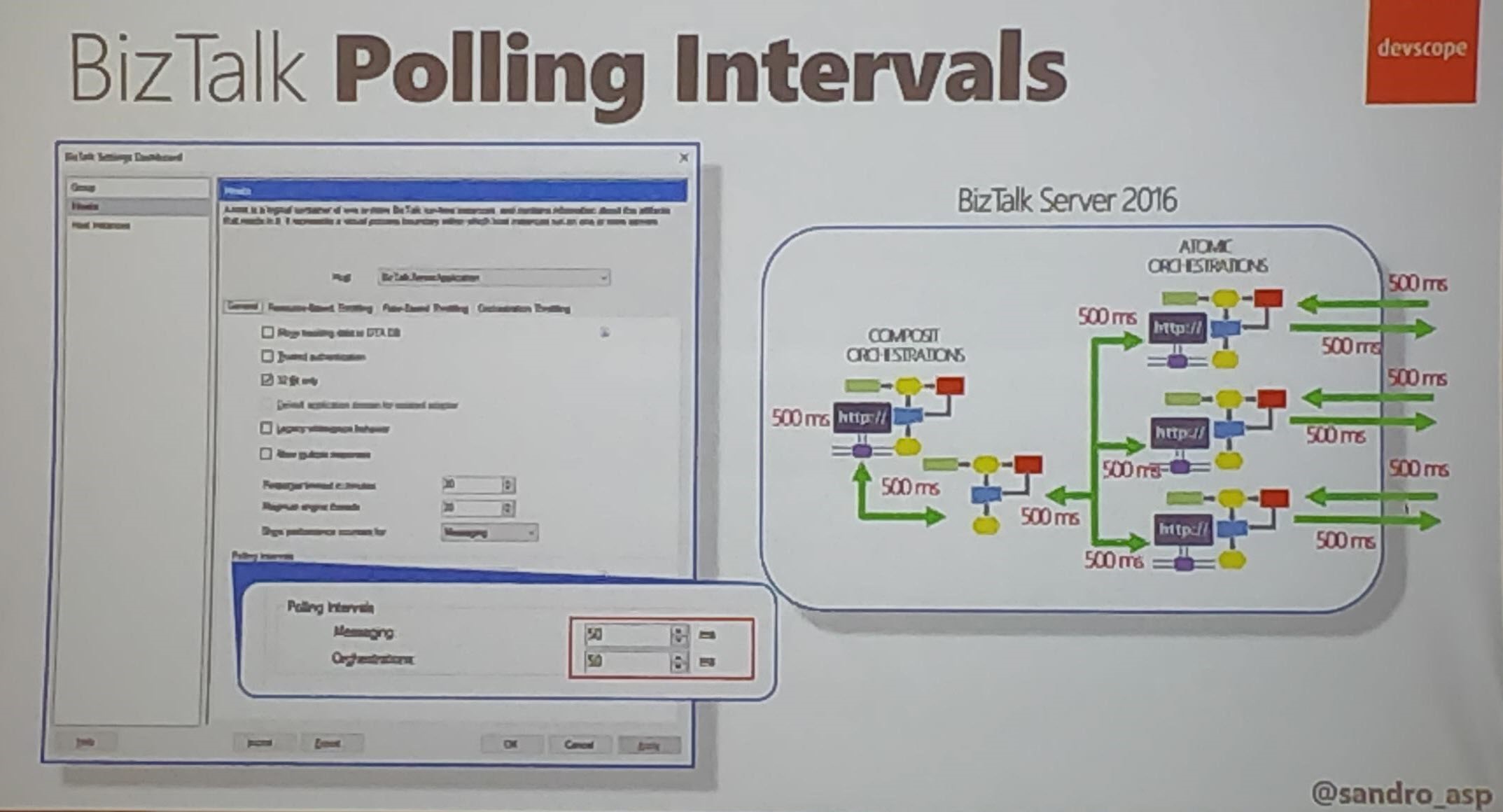
BizTalk Polling Intervals in MQ Agent (Careful on the set the polling)
Priority in BizTalk: Set Priority Send port priority (10 lowest – 1 Faster)
Scripting a BizTalk Server installation – Samuel Kastberg
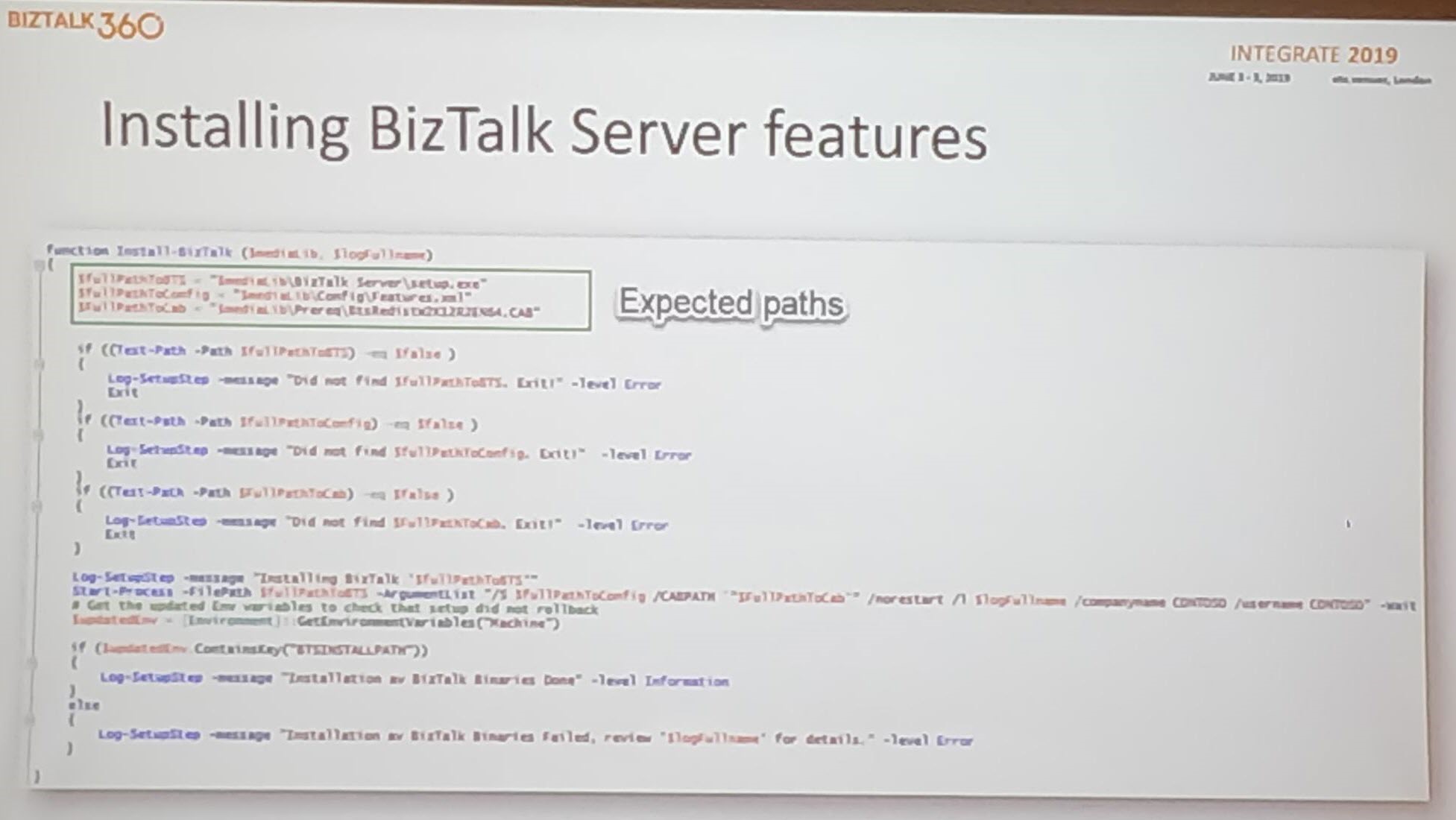
Installing and configuring BizTalk server is not straightforward, and it can take a lot of time. It is useful to have scripts to run in a different environment and get everything in place. Samuel, Senior Premier Field Engineer at Microsoft, explains the importance of scripting BizTalk Server installation and during his session, he provides all kind of tips and tricks for scripting such an installation.
He listed what you should script:
Things you can control
Things you want to do it repeatedly
Good Candidates
Windows Features
Provision VM’s in Azure (if the environment needs to be created in Azure)
BizTalk features and group configurations
MSDTC settings, Hosts, Host Instances
Visual Studio, SQL server
Your favorite Monitoring tool
Bad candidate-Things which are going to change over time
Samuel advised considering below points before you start scripting;
Decide what your main drivers are, repetition and control are the drivers to automate, standardized developer machines, disaster recovery preparation, and test environments
Decide what your baseline is and document it, think what could change in 6 months or a year
Document the execution process, scripting is not a replacement for the documentation
Use the Server Manager to check for the installed features
Ensure the features and configurations you need are in place and use PowerShell cmdlets to install the required Windows features.
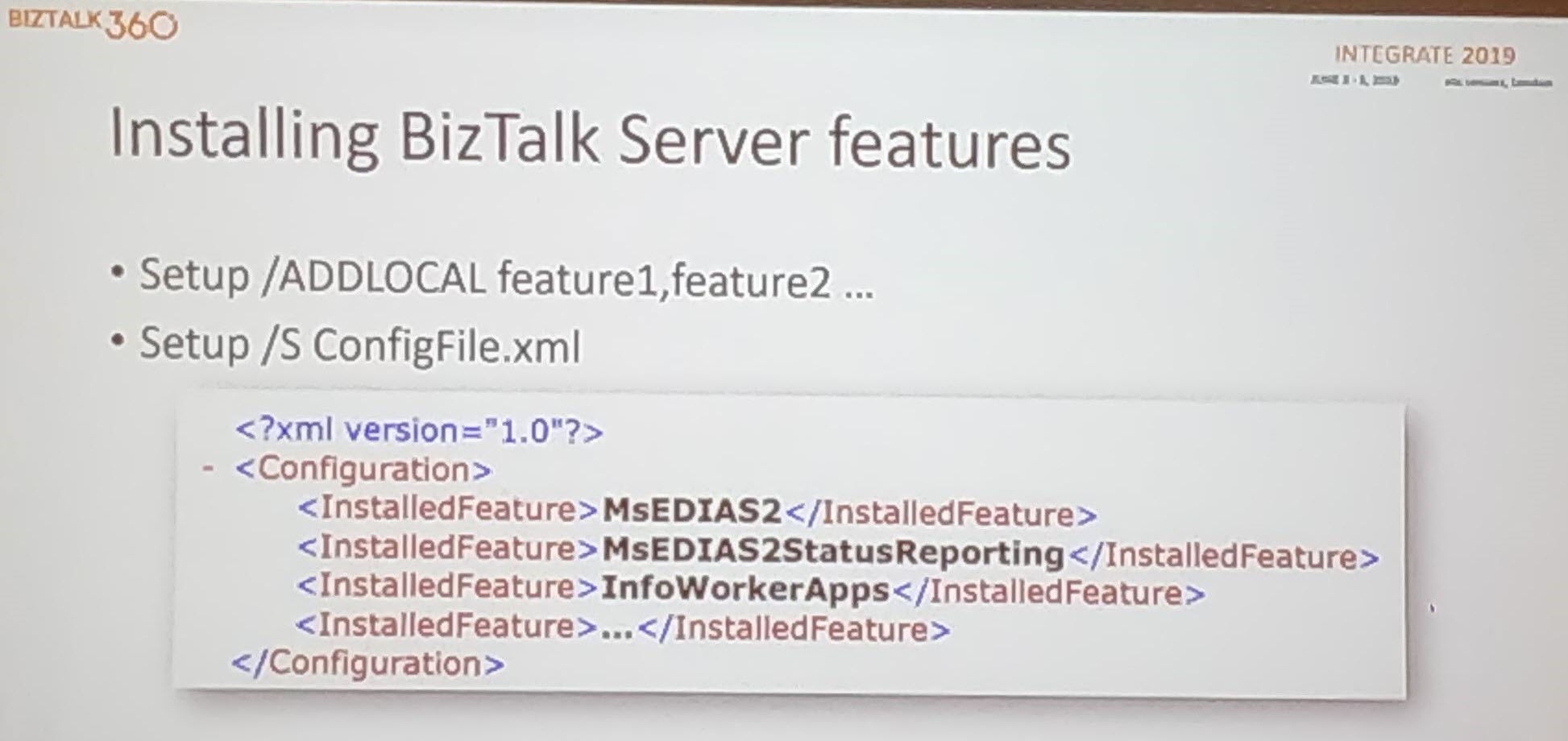
BizTalk Server Feature Installation
Setting up the BizTalk Server product consists of installation and configuration. Installation adds the binaries to the system, while configuration enables you to create or join a BizTalk Group and enable/configure other features as Rules Engine, BAM and EDI.
Setup/Add Local – Export configuration .xml file (select the required features).
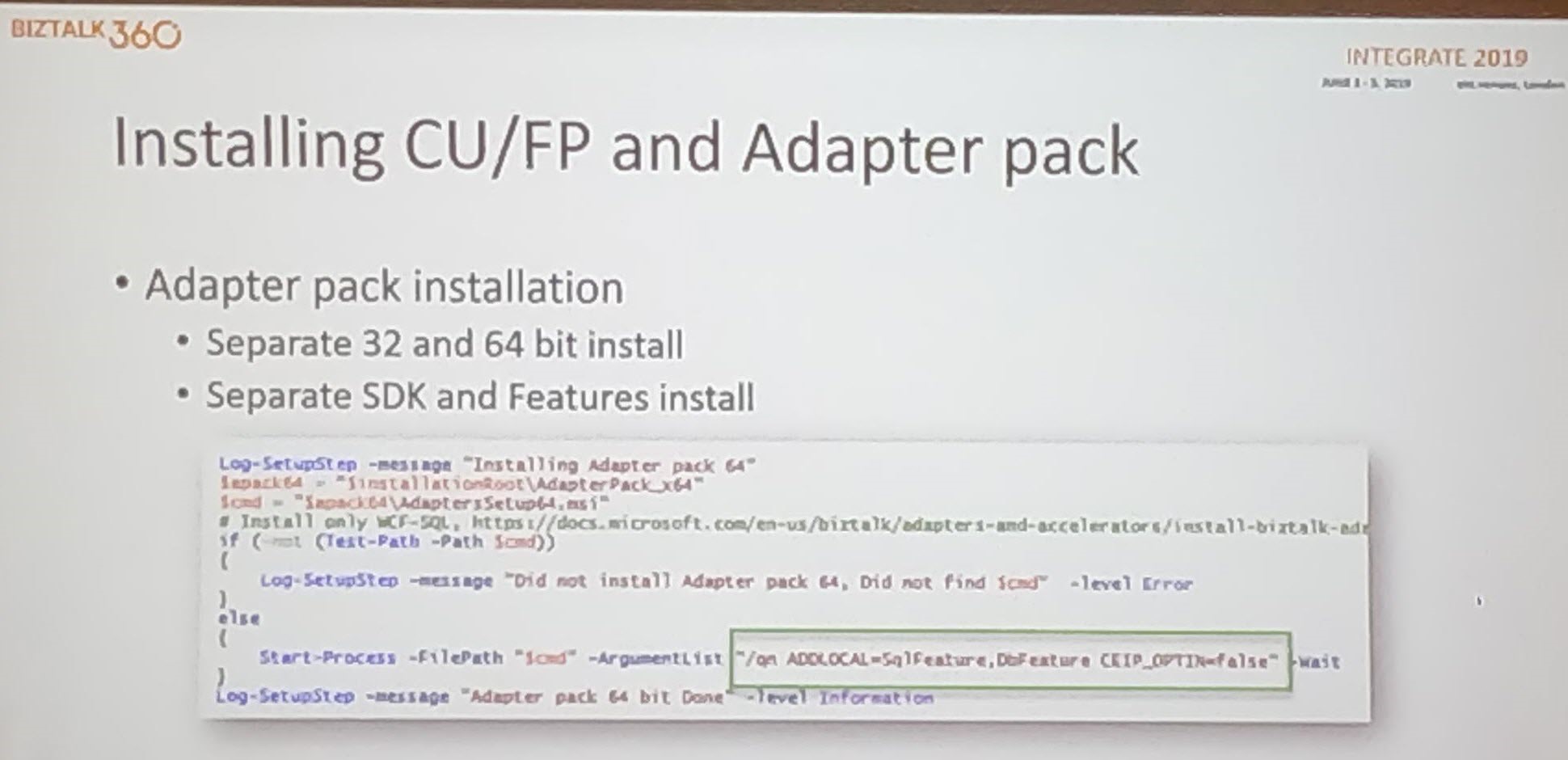
Installing CU/Adapter pack – More complex
Configuration File – Used for providing the required parameters
Consists of feature element – Each one maps to specific sections in the configuration tool
Each feature contains one or more questions – Answer attribute selected = True
Export from config.exe
Edit the export to be a template- Replace the real values at configuration time. You need one file while creating a group
Configure Host and instances – Use WMI or PowerShell provider
Create handlers – Use WMI and PowerShell
Handling secrets – Use KeyPass, Key Vault. KeyPass to use when no internet access is available.
Before using it in the real world: Test the Script in your environment!!!
Conclusion
Do you want to hear about the latest and greatest in Microsoft Integration? It’s not yet too late! By the end of the month, Integrate also comes to the USA and there are still tickets available! Check the web site!
Integrate is the premier integration conference for everyone working in the Microsoft Integration Space. Integrate happens annually in London and this year it happened from 3 to 5 June. The 3-day event, with speakers from the Microsoft Product Group and from the Global Integration Community, is the ideal event to listen to leading Integration Specialists and learn what is coming next in Microsoft integration. This year a lot of newer people were joining the event. Initially, the event used to be a BizTalk Server focused event however, from last few years it expanded the scope to general integration technologies in Microsoft space, including Azure Integration capabilities.
The Value of Hybrid Integration
Paul Larsen, a Principal Program Manager for the Microsoft Corporation in Redmond, presented a session on “The Value of Hybrid Integration”. At Microsoft, Paul leads the Host Integration engineering team to deliver and support Azure, BizTalk Server, SQL Server, Office, and Windows connectors to existing IBM systems. At Integrate, he started the session by explaining the legacy of BizTalk Server and explained the meaning of the word Hybrid with some examples.
BizTalk Server 2020 Announcement
After that, Paul made the big announcement of “BizTalk Server 2020” and he also announced it will be released at the end of 2019.
Important feature updates in BizTalk Server 2020 are:
Integrate cloud Services with built-in adapters for cloud, Logic Apps to On-Premise Gateway, Service Bus, Event Hubs, API Management, O365 Mail, O365 Schedule, O365 Contact, Blob Storage (Dev) API management to all the resources (On-Premise and Cloud)
Manage BizTalk Server environments by using the new BizTalk Server REST API’s
The Blob Storage adapter is still under development. Using File adapters which are published as a UNC Endpoint is not straight forward, as pluggable. Using Blob storage adapter will be a useful feature that will help administrators to, for example, have the Backup BizTalk Server job write the backups to Azure Blob storage
Secure the BizTalk Server Infrastructure settings with Read-only administrator view
Deployment with VSTS – Application Life Cycle Management to deploy and update BizTalk Server instances using Visual Studio Team System
Transport Layer Security 1.2– Securely deploy BizTalk Server using TLS 1.2 authentication and encryption
SQL Server Encrypted Data– Read and write to SQL Server with Always encrypted columns using BizTalk Adapter for SQL Server
Advanced Scheduling -Set up recurrence on BizTalk Server receive locations with greater precision using time zones, months, weeks, and days
Application Insights– Send BizTalk Server tracking data to Application Insights for extensible analytics, to understand performance and usage of BizTalk Server
Event Hubs – Send BizTalk Server tracking data to Event Hubs
Power BI Integration – Analyze and report BizTalk Server tracking data using Power BI. BizTalk operational data template, for use with Power BI visualizations and dashboards
.NET components continue to evolve over the last release of the .NET MQ Client.
A new version of Enterprise Single Sign-On
Host Integration Services
Host Integration Services has improved a lot in this version of BizTalk Server 2020. In short, most of the packages in BizTalk Server are getting updated in this version:
HIS as add on to BizTalk licensing
New Microsoft platforms
New IBM platforms – integrated feature packs
BizTalk Server Migration Tool
Microsoft IT develops the BizTalk Server Migration tool which they use to migrate their own BizTalk environments. Because the architecture of BizTalk Server is kept common between BizTalk Server 2010,2013, 2013 R2 and 2016, the migration does not affect the underlying layer of BizTalk Components. In addition, as Microsoft makes this tool available to BizTalk users, this tool will be helpful for them on dehydrating the configuration on an old BizTalk server and re-hydrate that configuration to new Azure IAAS or VM.
Currently, the Logic Apps connector for IBM 3270 emulation is available in preview. In short, the Microsoft Connector for 3270 integrates Azure applications with resources available via TN 3270 Screen Scraping.
Robotic Process Automation (RPA) is an Industrial trend in cloud computing which offers screen scraping capabilities. Host Integration Server extends the Integration to the TN3270 connector with Telnet or TCP protocol to connect to IBM Mainframe systems. However, you require an Integration account to be able to connect the IBM 3270 adapters.
After that, Paul demonstrated the Integration of IBM mainframe programs and Azure Cloud application with 3270 Logic App connector. After the Demo, he made a couple of announcements about CICS, IMS screen clients for 3270/5050 connectors and VSAM, DDM .NET clients for IBM file systems.
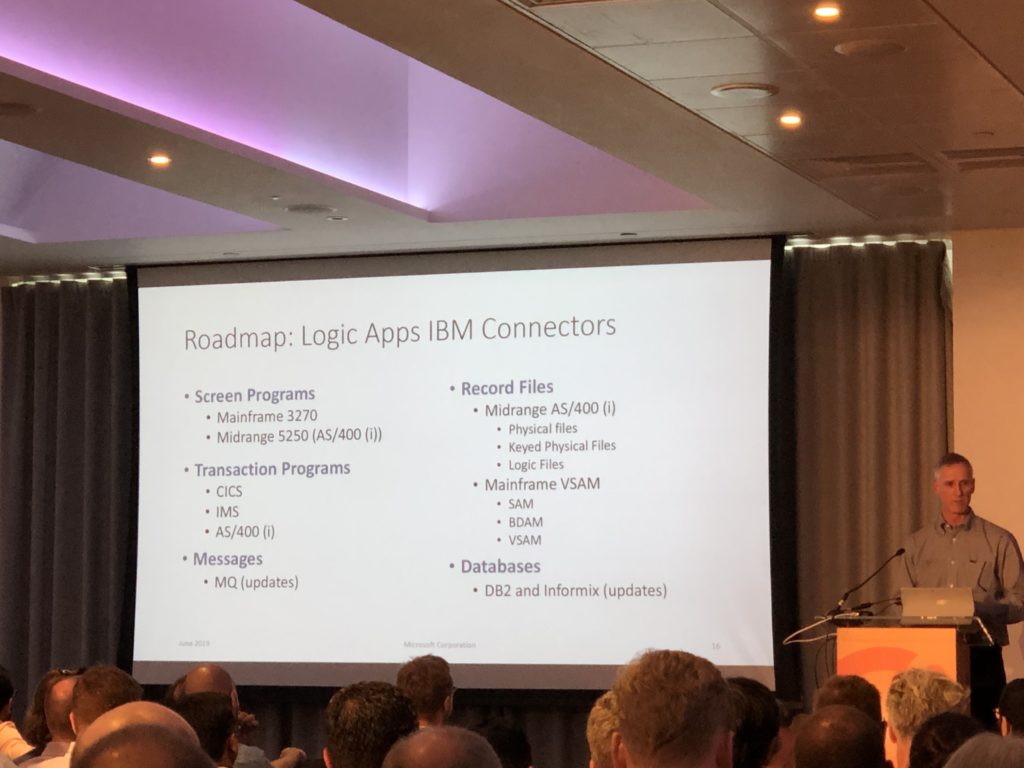
Logic Apps IBM Connectors Road Map
In conclusion, Paul touched base on the Logic Apps IBM Connectors Road Map beyond the 2020 version. For instance, BizTalk Server vNext version will include improvement on a number of Logic Apps connectors:
3270 IBM Connector Improvement
Midrange 5250 AS connector
Mainframe SAM Connectors
DB2 and Informix Support
Conclusion
The well-informed reader might have noticed that several BizTalk Server 2020 features also appear in the so-called Feature Packs for BizTalk Server 2016 which have been released by Microsoft. However, BizTalk Server 2020 also helps in aligning with the latest versions of the platform products. So, this release of BizTalk Server will be of use for all BizTalk Server customers.
Secondly, the release of BizTalk Server 2020 is good news for all existing BizTalk users, as it indicates that Microsoft covers them for the next couple of years. Similarly, we notice that customers who are just starting their integration journey, also choose for Microsoft BizTalk Server. In other words, this new release will be very helpful for them as it will help them with both their on-premise integrations, as well with their hybrid integrations.
The announcement of BizTalk Server 2020 was done during Integrate 2019 in London. However, in case you missed the event, there is no need to worry, because at the end of this month, Integrate will also come to the US! So, if you are still not sure if you should attend Integrate 2019 US, then this blog post, written by our CEO Saravana Kumar, might convince you to participate in the world-wide premier Microsoft Integration event.
From time to time, in conversations we have with our prospects and customers, the question pops up if additional licenses needed for BizTalk components on separate servers. You can install BizTalk360 on a BizTalk server, but also on a separate server on which no BizTalk processing takes place. Normally, we recommend to install BizTalk360 on a separate server. This has advantages like not using resources which BizTalk can use for processing and (equally important) to prevent not able to access BizTalk360 when the BizTalk server goes down.
For BizTalk360 to work, it needs the so-called BizTalk Server Administration Tools. You need to install these tools on the server which will run BizTalk360, as they contain the APIs which BizTalk360 uses to access BizTalk Server.
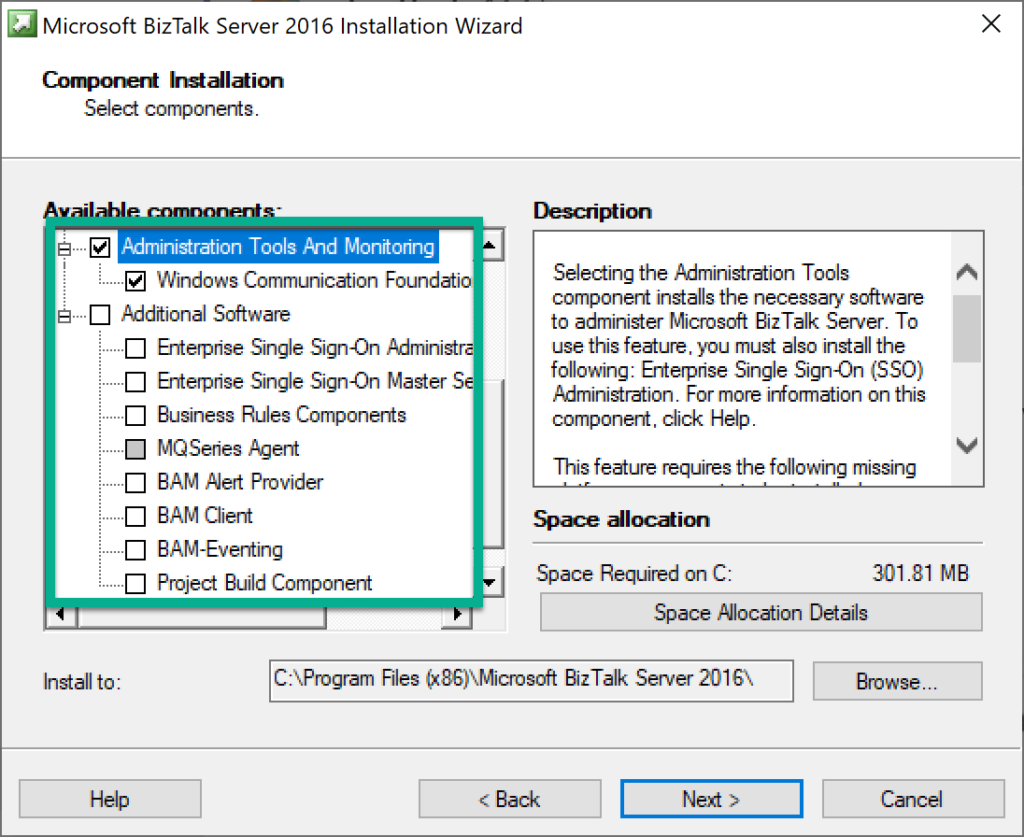
These APIs, being used by third party products like BizTalk360, is not the only reason why an organisation might want to install these components. These APIs are part of a set of components and tools, you might want to install on a separate server. In the BizTalk Server installer, this set can be found under the category Administration Tools and Monitoring and Additional software, as you can seen in below screenshot.
The set of Additional BizTalk Server software
The Administration Tools and Monitoring and Additional software contain the following components and tools:
Administration and Monitoring Tools
Development Tools
Software Development Kit(s)
HTTP Receive Adapter
SOAP Receive Adapter
Windows SharePoint Services Adapter Web Service
Windows Communication Foundation Adapters
Business Activity Monitoring (“BAM”) Event APIs and Interceptors & Administration Tools
BAM Alert Provider for SQL Notification Services
BAM Client
BizTalk Server Related Schemas and Templates
Business Activity Services
Master Secret Server/Enterprise Single Sign-On
MQHelper.dll
ADOMD.NET
MSXML
SQLXML
Business Rules Component
MQSeries Agent
Why would you need these components/tools
So, given the list with available components/tools, an organisation could have several reasons to install them, depending on the purpose of the component. You could think of BizTalk users who might want to achieve, for example, the following:
use the BizTalk APIs as this is a requirement for third party software
use the BizTalk Server APIs for self-developed software or scripts
provide the Business Rules Composer to the desktop computer of (functional) users
make the Enterprise Single Sign-On (ESSO) tools highly available by installing them on separate servers
use the Developer tools on a build server for BizTalk
use the BAM tools on a separate server
Hence, it makes sense to be sure whether (or not) you require additional BizTalk Server licenses for the server(s) on which such components will be installed.
The hunt for information
We have been trying to find that information somewhere on the internet. However, as Microsoft is the supplier of the product, we searched for a formal statement from their side. Therefore, we checked web sites like the BizTalk Server product web site and the BizTalk Server Core Documentation. However, we were not able to find that information.
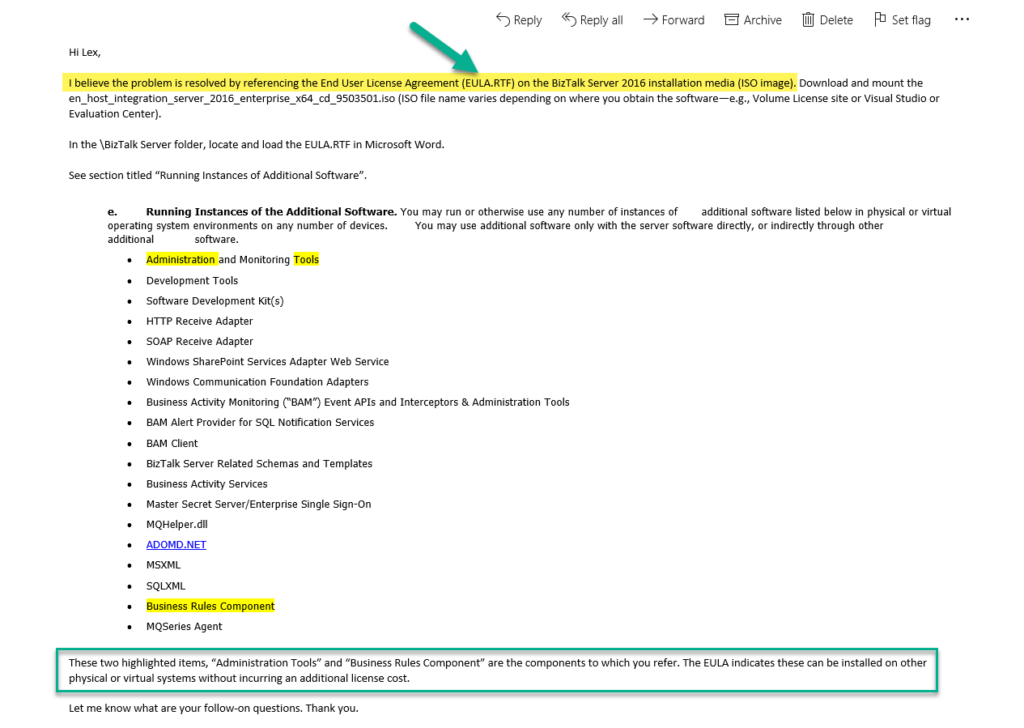
As we want to give our customers clarity about this matter, we decided to reach out to the Product Group directly. After a couple of emails, the Product Group informed us where to find the information we were looking for. See below, the email we received from the Product Group.
No additional licenses required for Administration Tools etc.
The email from the Product Group mentions that:
These two highlighted items, “Administration Tools” and “Business Rules Component” are the components to which you refer. The EULA indicates these can be installed on other physical or virtual systems without incurring an additional license cost.
For people who are working with BizTalk Server for some time, it is no surprise that no additional license costs are involved in installing these tools on separate machines. Main reason for this, is that by only installing these tools, the machines are not a part of the BizTalk Group and no additional BizTalk processing is taking place (like receiving/sending messages or processing orchestrations).
However, it has always been a bit frustrating that we could not back this by a statement from Microsoft. So, we are glad that we can now refer to an official resource which gives clarity about this matter.
How to find the End User License Agreement(EULA)
Now we know where to find that information, let’s have a look on how to find the EULA, including the section where the clarity is given.
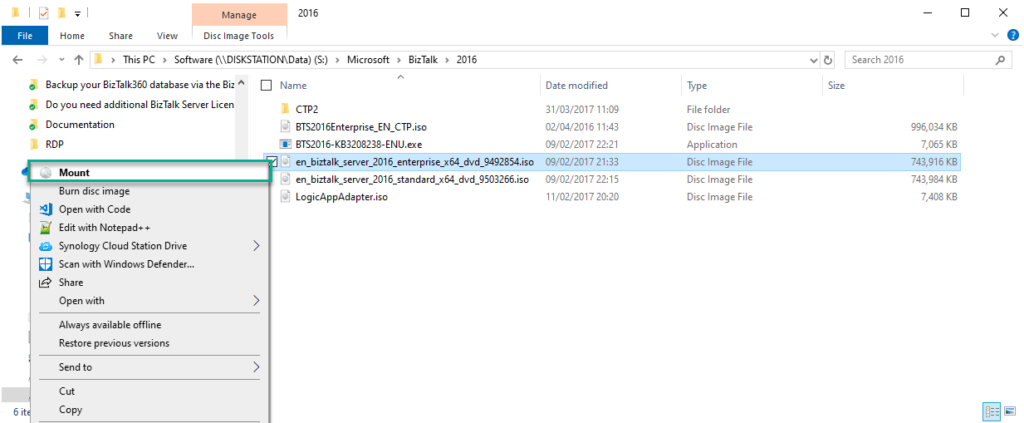
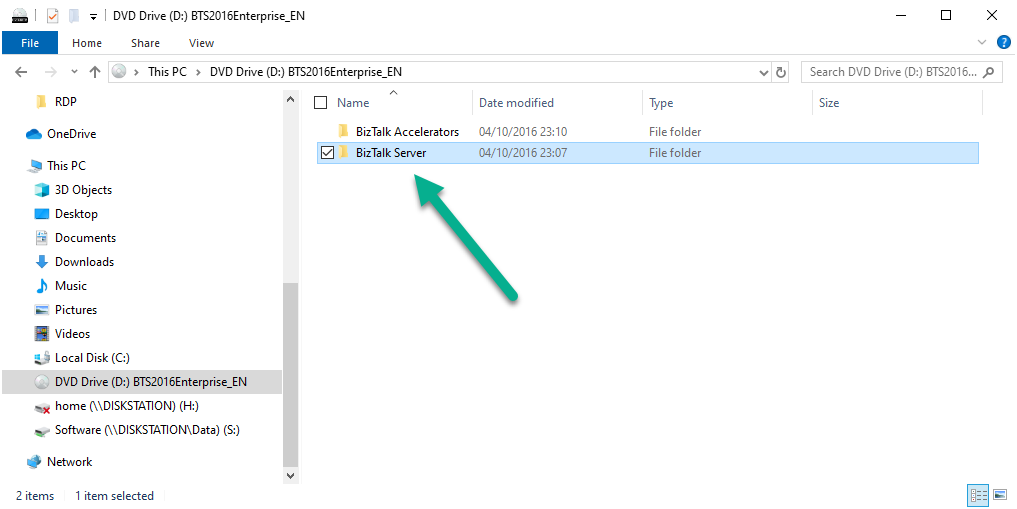
1. Download and mount the en_host_integration_server_2016_enterprise_x64_cd_9503501.iso (ISO file name varies depending on where you obtain the software—e.g., Volume License site or Visual Studio or Evaluation Center)
2. Start a Windows Explorer and navigate to the BizTalk Server folder
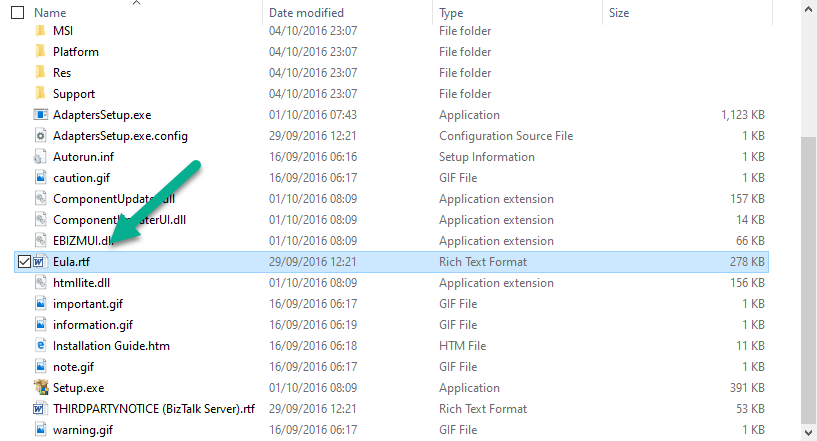
3. Locate and load the EULA.RTF in Microsoft Word
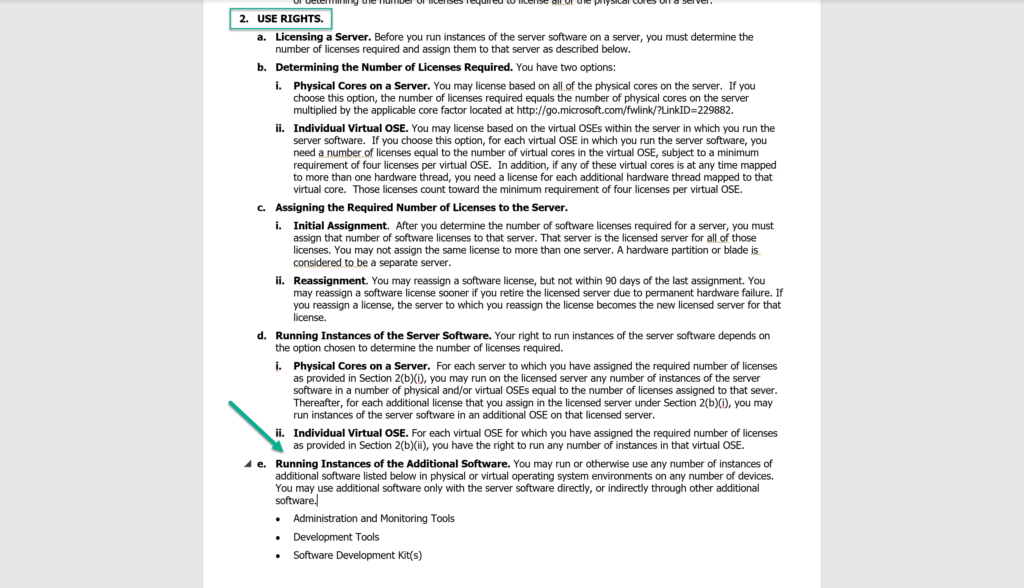
4. See section “2. Use Rights” titled “e. Running Instances of Additional Software”
There you have it, written in black on white! No license costs will be incurred for installing the Administration Tools etc. on a separate server!
Conclusion
We, as a company, are glad to be able to give clarity to our customers, prospects and partners about the matter that no additional license costs will be incurred in case of installing the Administration Tools etc. at separate servers. However, also organisations who are using BizTalk Server, resellers of Microsoft products and consultancy companies who advice their customers about BizTalk Server, are now able to safely say that no additional license costs are involved in case of installing these components and tools as they are backed by the EULA from Microsoft.
From this place, we also like to thank the BizTalk Server Product Group to help in giving the clarity.
Finally, the last blog post on this series about BizTalk Bindings Exportation with PowerShell:
How can we easily export a binding file from a BizTalk Application?
How can we easily export a binding file from a specify assembly?
Using the fully qualified name (FQName) of the assembly.
Using only the assembly name
How can we easily export a binding file from a Receive Port?
How can we easily export a binding file from a Send Port?
How can we easily export a binding file from a list of assemblies?
By fully qualified name (FQName);
By assembly names;
Today’s blog post will be about: How to Export BizTalk Server Bindings by a List of Port Names with PowerShell.
In other words, instead of generating a specific binding file for each port: Receive Port and/or Send Port, we will include all of the receive ports and send ports bindings in a unique binding file, so it can easily be handled.
This functionality should be something that should exist in the BizTalk Server Administration Console, but it is impossible to be addressed using the out-of-the-box tool BizTalk Server Administration Console or even with the BTSTask command-line tool which is included with BizTalk Server.
As always, and like the previous samples, we could fully automate this Binding generation for each environment, but once again let’s keep it simple. With this PowerShell sample, we will be able to generate a unique binding file for a list of specific assemblies deployed in my BizTalk Server environment. The script will perform the following tasks:
Generate a Binding file for 3 environments DEV, QA and PRD
Generate a unique binding file, instead of having separated binding files for each Port name (receive port and/or send port)
Let’s continue with some deep dive scripts about exporting BizTalk Server bindings, addressing some useful and unsupported scenarios that are impossible to be addressed using out-of-the-box with the standard tools BizTalk Server Administration Console or even with the BTSTask command-line tool included with BizTalk Server.
How can we easily export a binding file from a list of assemblies?
How can we easily export a binding file from a Receive Port?
How can we easily export a binding file from a Send Port?
And many more
Also recapitulating some of the default scenarios/functionalities already addressed previously done in a different way and with small improvements with PowerShell:
How can we easily export a binding file from a BizTalk Application?
How can we easily export a binding file from a specify assembly?
Using the fully qualified name (FQName) of the assembly.
Using only the assembly name
Today’s blog post will be about: How to Export BizTalk Server Send Port Binding with PowerShell.
Like Receive Ports, this functionality should be something that should exist in the BizTalk Server Administration Console, but it doesn’t. In some cases we can achieve this in the developing phase using the Visual Studio, while we generate the schemas for LOB systems, for example:
In the Solution Explorer, right-click a BizTalk project, point to Add, and then click Add Generated Items
In the Add Generated Items… – <BizTalk ProjectName> dialog box, in the Templates section, click Consume Adapter Service and then click Add
You should then select the binding you want to use, configure the parameters and the operations you want to do
Along with the LOB Schemas, this will also generate the binding files for the receive port or send port.
So, again, the question that we may ask is: Is there any way that we can easily accomplish this? The response is yes, again, all of this can be fully automated using, for example, PowerShell scripts.
This script, combined with the Receive Ports, is extremely useful if:
you use several cases of content-based routing (without orchestrations)
you create new send ports, for example with filters
new receive port in your environment
and if you don’t want to export/import the full application binding that may affect something that you already have in production.
Like the previous samples, we could fully automate this Binding generation for each environment, but once again, let’s keep it simple and address what is mandatory and easily forgotten. With this PowerShell sample we will be able to generate a binding file for a specific assembly name deployed in my BizTalk Server environment. The script will perform the following tasks:
Generate a Binding file for 3 environments DEV, QA and PRD
Changing the NT Group Name for each different environment
Generate a specific Send Port deployed in your environment
Until now we have seen some default functionalities, except for the last sample, done in a different way and with small improvements with PowerShell:
How can we easily export a binding file from a BizTalk Application?
How can we easily export a binding file from a specify assembly?
Using the fully qualified name (FQName) of the assembly.
Using only the assembly name
From now on we will deep dive in this topic, addressing some useful unsupported scenarios, which are impossible to be addressed using the out-of-the-box tools BizTalk Server Administration Console or even with the BTSTask command-line tool included with BizTalk Server.
How can we easily export a binding file from a list of assemblies?
How can we easily export a binding file from a Receive Port?
How can we easily export a binding file from a Send Port?
And many more
Today’s blog post will be about: How to Export BizTalk Server Receive Port Binding with PowerShell.
This functionality should be something that should exist in the BizTalk Server Administration Console; in some cases, we can achieve this in the developing phase using the Visual Studio while we generate the schemas for LOB system, for example:
In the Solution Explorer, right-click a BizTalk project, point to Add, and then click Add Generated Items.
In the Add Generated Items… – <BizTalk ProjectName> dialog box, in the Templates section, click Consume Adapter Service and then click Add
You should then select the binding you want to use, configure the parameters and the operations you want to do
Along with the LOB Schemas, this will also generate the binding files for the receive port or send port.
Why we don’t have this option in the BizTalk Server Administration Console for me is unclear, it should be there since day one in my opinion.
So, again, the question that we may ask is: Is there any way that we can easily accomplish this? The response is yes, again, all of this can be fully automated using, for example, PowerShell scripts.
Like the previous samples, we could fully automate this Binding generation for each environment, but once again let’s keep it simple and address what is mandatory and easily forgotten. With this PowerShell sample, we will be able to generate a binding file for a specific assembly name which is deployed in my BizTalk Server environment. The script will perform the following tasks:
Generate a Binding file for 3 environments DEV, QA and PRD
Changing the NT Group Name for each different environment
Generate a specific Receive Port deployed in your environment
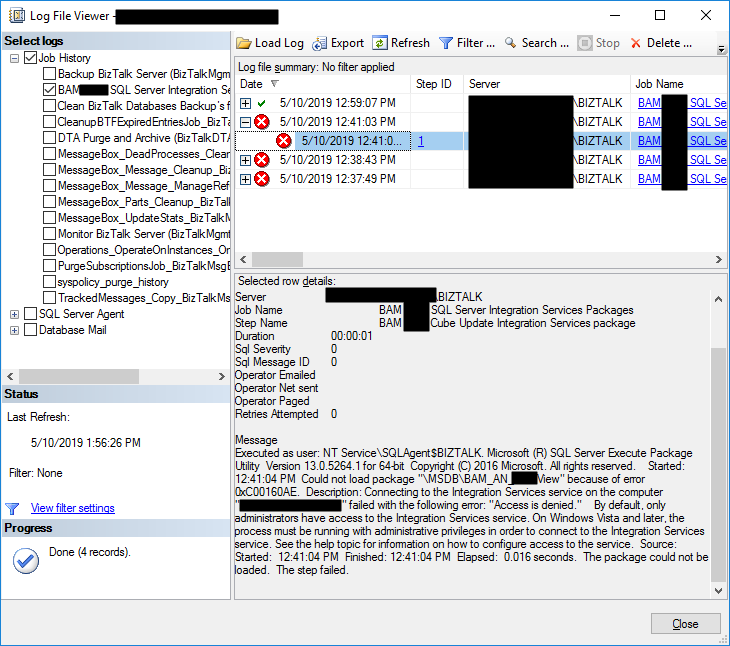
Last blog post I wrote about an “Access is denied” error while trying to connect with SQL Server Integration Services (SSIS). Today’s post is about the same problem but in a different situation/context, of course with a different cause and solution, this time I got this error while trying to execute a SQL Server Job to run the BAM_AN_<name>View and BAM_DM_<name> to import BAM data to Analysis Server and maintaining the BAMPrimaryImport BAM tables:
Date 5/10/2019 12:41:03 PM
Log Job History (BAM <name> SQL Server Integration Services Packages)
Step ID 1
Server localhost
Job Name BAM <name> SQL Server Integration Services Packages
Step Name BAM <name> Cube Update Integration Services package
Duration 00:00:01
Sql Severity 0
Sql Message ID 0
Operator Emailed
Operator Net sent
Operator Paged
Retries Attempted 0
Message
Executed as user: NT ServiceSQLAgent$BIZTALK. Microsoft (R) SQL Server Execute Package Utility Version 13.0.5264.1 for 64-bit Copyright (C) 2016 Microsoft. All rights reserved. Started: 12:41:04 PM Could not load package “MSDBBAM_AN_<name>View” because of error 0xC00160AE. Description: Connecting to the Integration Services service on the computer “localhost” failed with the following error: “Access is denied.” By default, only administrators have access to the Integration Services service. On Windows Vista and later, the process must be running with administrative privileges in order to connect to the Integration Services service. See the help topic for information on how to configure access to the service. Source: Started: 12:41:04 PM Finished: 12:41:04 PM Elapsed: 0.016 seconds. The package could not be loaded. The step failed.
To better contextualize this issue, I got this error after:
I give permissions to my user to connect to SSIS (see how in my previous blog post)
I successfully created the SQL JOB to import and maintain BAM data, so I was able to navigate in SSIS to select the correct packages
Cause
Again, the description says that by default, only administrators have access to the Integration Services service. On Windows Vista and later, the process must be running with administrative privileges to connect to the Integration Services service. That, in other words, means:
insufficient rights to connect to SSIS.
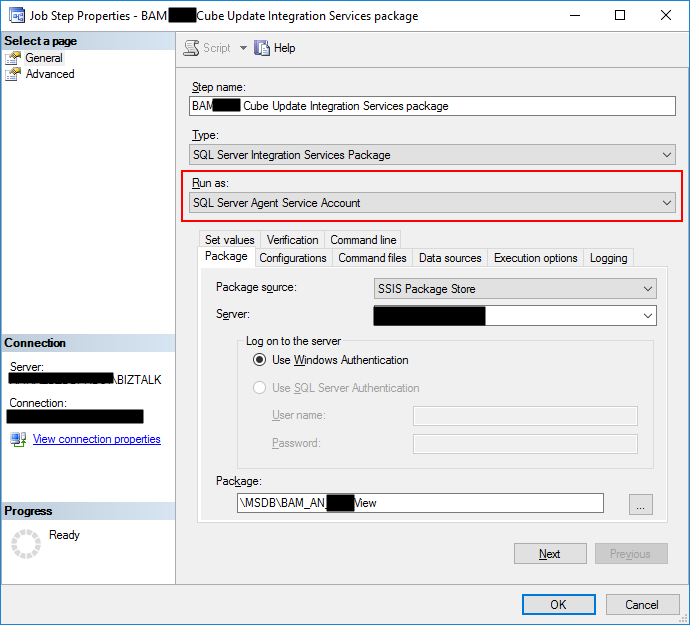
And the reason behind that is that the tasks are by default running under (Run as) SQL Server Agent Service Account that is typically a different user that the user that is configuring/creating the importation Jobs. Usually, it will run under a service account or NT Service like: “NT SERVICEMSSQLSERVER” or in my case “NT ServiceSQLAgent$BIZTALK” and this may not have access to SSIS.
Solution
The solution to this issue is:
to give permission to the SQL Server Agent Service Account
or for better control, you should set up a Proxy Account to run SSIS packages.
To set up a Proxy Account to run SSIS packages you should:
Note: I will assume that there a Login for the user is already created/configured in SQL Server and that will also have access to BAMPrimaryImport database;
The first step is to create the credentials which will be then used in the Proxy Account. To do this, we need to:
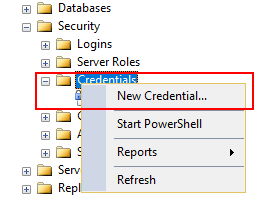
In SQL Server Management Studio, click on Security and then right click on Credentials, click on New Credential…
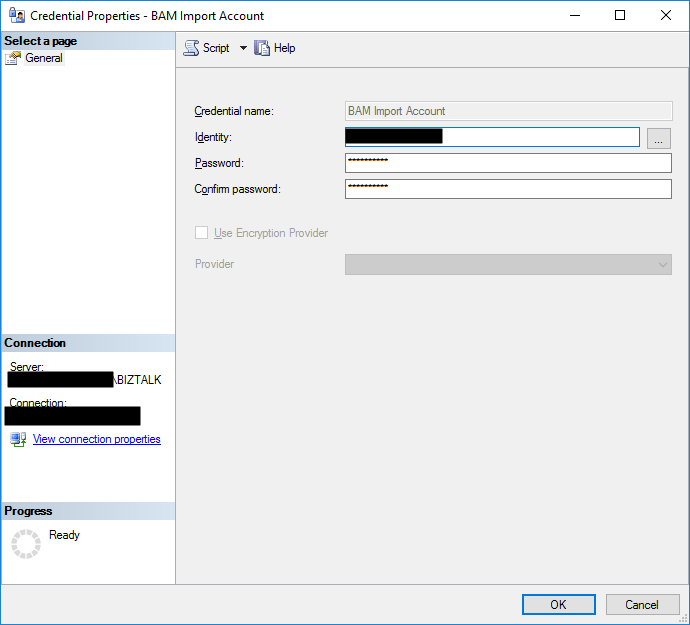
On the New Credential window
Put a Credential name. You can put the same name as the domain name or a meaningful name. In my case, I add “BAM Import Account”
Click on Identity, which will open the Select User or Group window to ensure you select the correct user or Group;
And then you will need to put in the password for the Domain account you selected and confirm the password in another text box
Then click Ok to create your new Credential
The second step will be creating a proxy to be used within the SQL Server Agent. To do that you should:
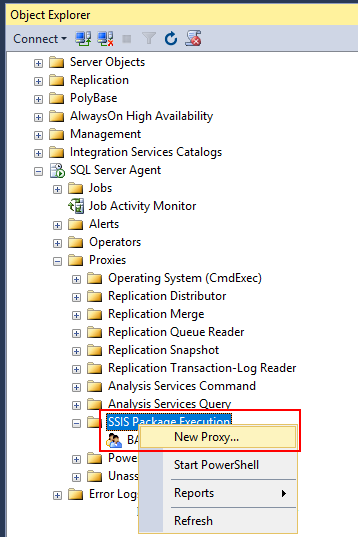
In SSMS, click on SQL Server Agent, then Proxies and then SSIS Package Execution.
Right-click and select New Proxy…
On the New Proxy account window
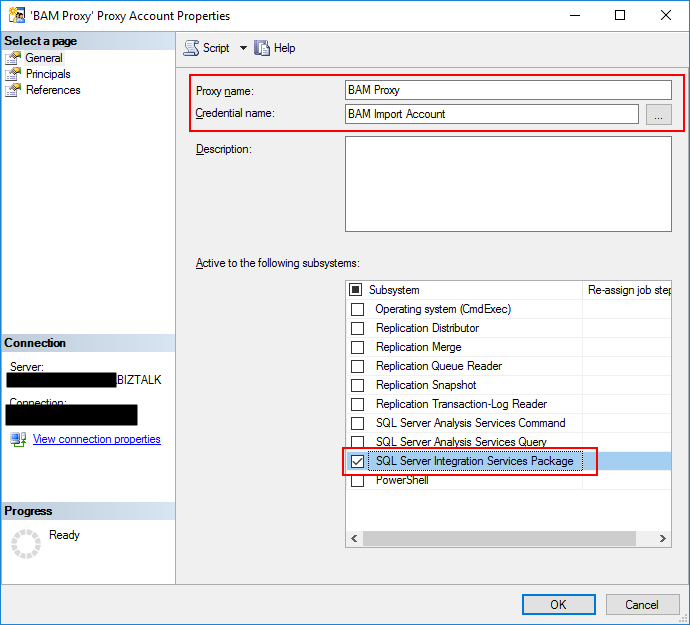
Give your Proxy a meaningful name, in my case, “BAM Proxy”
Under Credential Name select the credential you should use to execute the packages, in my case, “BAM Import Account”
And activate the following subsystems from the list:
“SQL Server Integration Services Package”
Then click Ok to create your new Proxy.
The third and final step is to associate this proxy on your job execution. To do that you should:
In SSMS go to SQL Server Agent, right click on the BAM importation Jobs and select Properties
Select the steps tab and for edit all the steps that are executing the SSIS packages
On the “Run as” combo box, you will now be able to see the Proxy created earlier. Select that option. And click OK.
Now, and assuming that you configured adequately, if you manually run the job, or wait for the next scheduled execution, it will run successfully… we hope.
Let’s stay on the topic of my last blog post “BizTalk Server 2016 and SQL Server Integration Services (SSIS) 2016” and described another issue that I recently faced while trying to connect with SQL Server Integration Services (SSIS): “Access is denied“. The full error description was:
TITLE: Connect to Server
——————————
Cannot connect to localhost.
——————————
ADDITIONAL INFORMATION:
Failed to retrieve data for this request. (Microsoft.SqlServer.Management.Sdk.Sfc)
For help, click: http://go.microsoft.com/fwlink?ProdName=Microsoft%20SQL%20Server&LinkId=20476
——————————
Connecting to the Integration Services service on the computer “localhost” failed with the following error: “Access is denied.”
By default, only administrators have access to the Integration Services service. On Windows Vista and later, the process must be running with administrative privileges in order to connect to the Integration Services service. See the help topic for information on how to configure access to the service.
For help, click: http://go.microsoft.com/fwlink/?LinkId=506689
——————————
Connecting to the Integration Services service on the computer “localhost” failed with the following error: “Access is denied.”
By default, only administrators have access to the Integration Services service. On Windows Vista and later, the process must be running with administrative privileges in order to connect to the Integration Services service. See the help topic for information on how to configure access to the service.
——————————
BUTTONS:
OK
——————————
Cause
Well, the description says that by default, only administrators have access to the Integration Services service. On Windows Vista and later, the process must be running with administrative privileges in order to connect to the Integration Services service. However, I was a local administrator and a BizTalk Administrator
But still, the cause is clear: insufficient rights to connect to SSIS. When using SQL Server 2012 or later, when a user without enough rights attempts to connect to an instance of Integration Services on a remote server, the server responds with an “Access is denied” error message. You can avoid this error message by ensuring that users have the required DCOM permissions.
Solution
So, to solve this issue, you should:
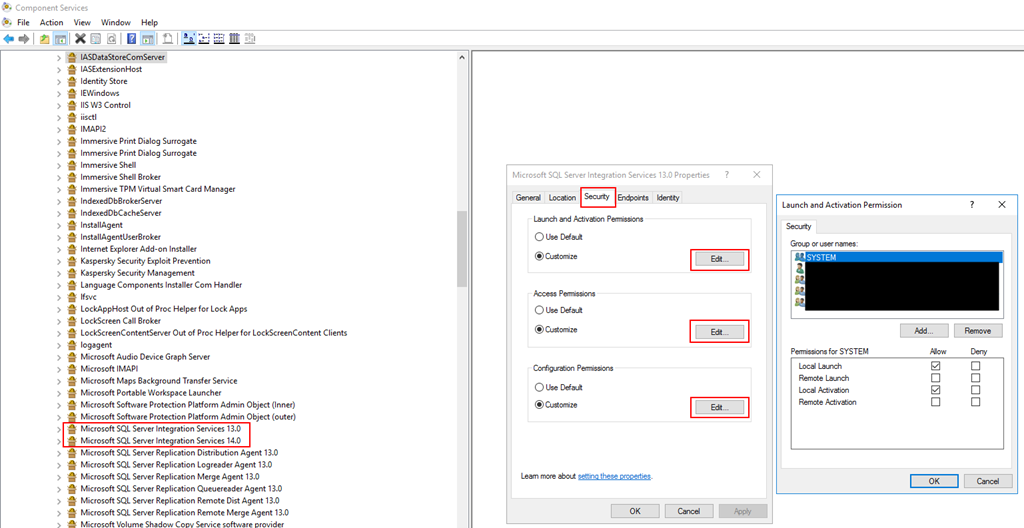
Open Component Services; from a Run dialog, you can enter “dcomcnfg“, with Administrator permissions.
On the left-hand tree, navigate to Component Services | Computers | My Computer | DCOM Config.
Find “Microsoft SQL Server Integration Services 13.0“, right-click and select “Properties“
On the Properties windows, select the “Security” tab and for each type of permission click “Edit” and add an appropriate AD group or user.
Select “Allow” to all options.
Once you have completed, you will be required to restart the SSIS service.
From the start menu, navigate to the “SQL Servers Configuration Manager“, right-click on “SQL Server Integration Services“, and “Restart“.



 BizTalk Server 2020 logo in vector format (3.1 MB)