String functions are used to manipulate strings in standard ways, such as conversions to all uppercase or all lowercase, string concatenation, determination of string length, white space trimming, etc. If you come from the BizTalk Server background or are migrating BizTalk Server projects, they are the equivalent of String Functoids inside BizTalk Mapper Editor.
Available Functions
The String functoids are:
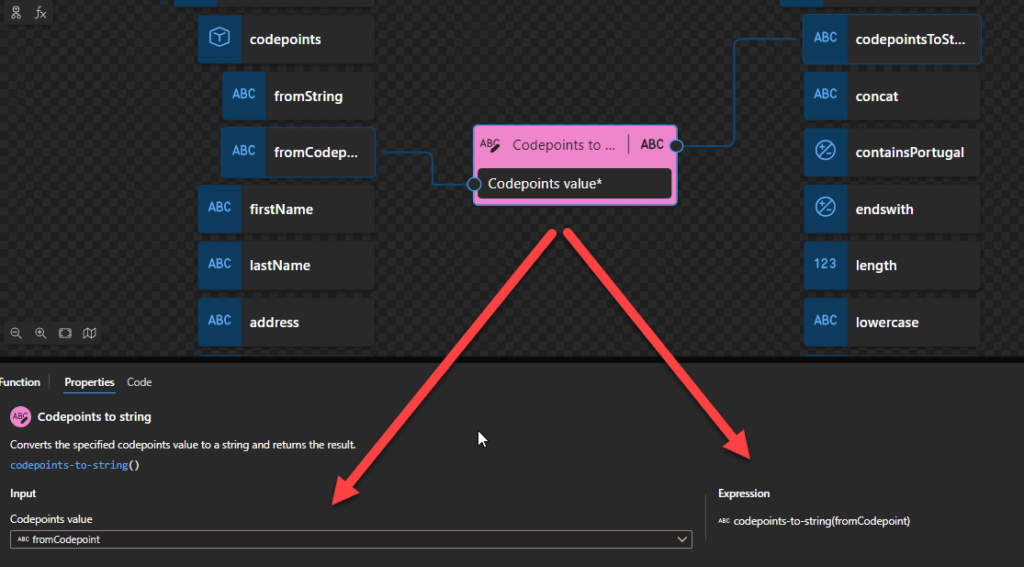
Codepoints to string: Converts the specified codepoints value to a string and returns the result.
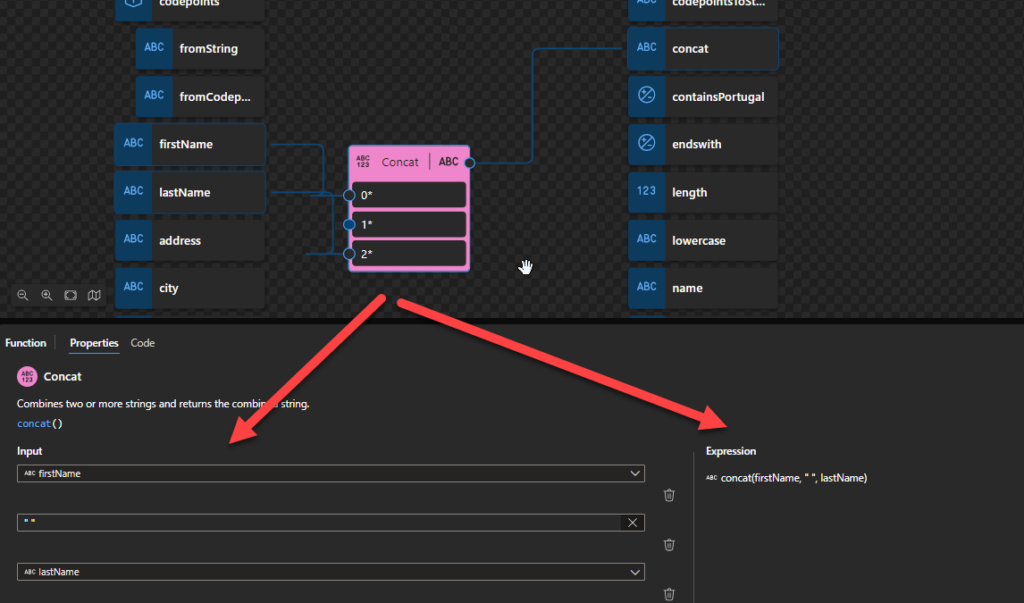
Concat: Combines two or more strings and returns the combined string.
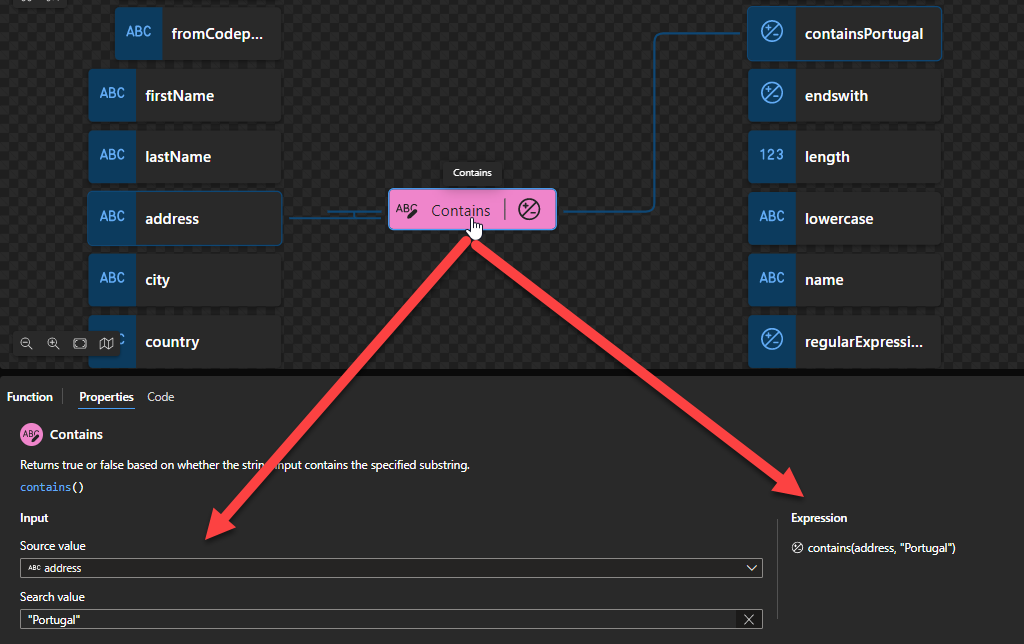
Contains: Returns true or false based on whether the string input contains the specified substring.
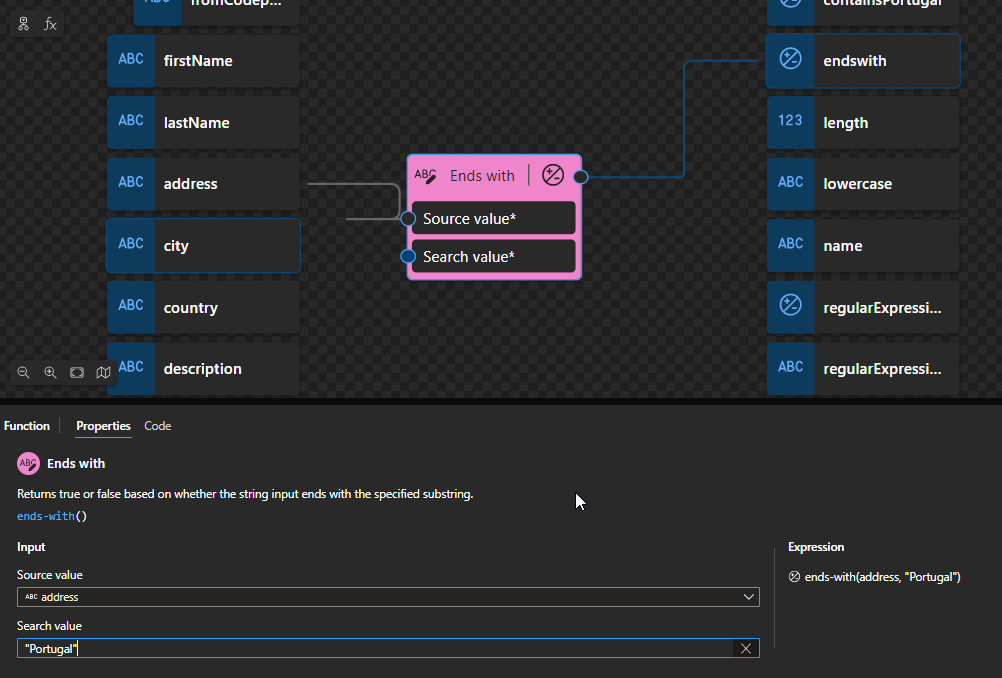
Ends with: Returns true or false based on whether the string input ends with the specified substring.
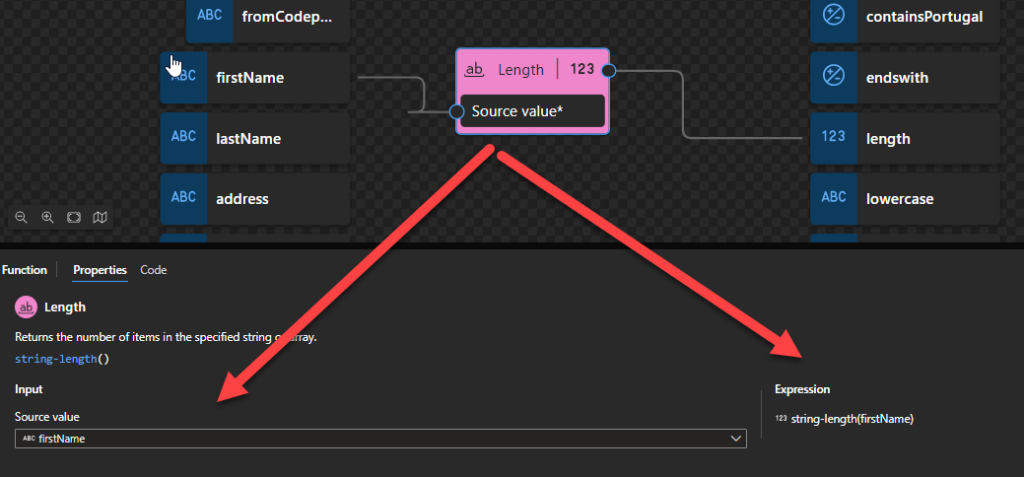
Length: Returns the number of items in the specified string or array.
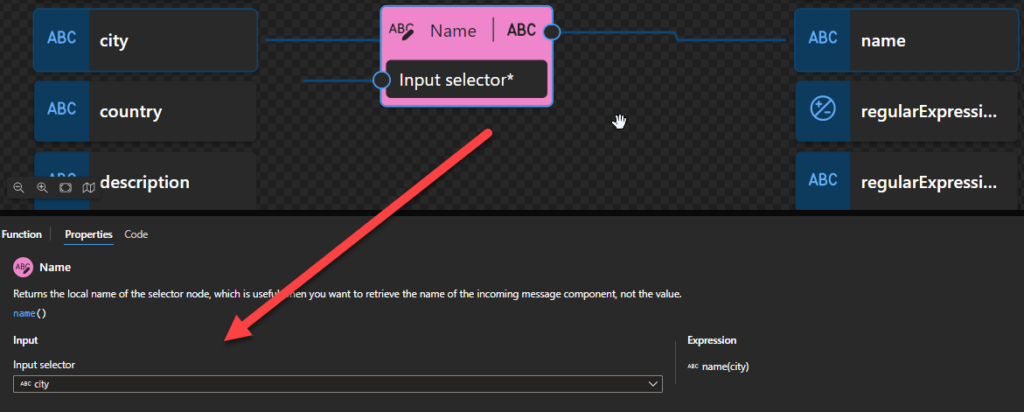
Name: Returns the local name of the selector node, which is useful when you want to retrieve the name of the incoming message component, not the value.
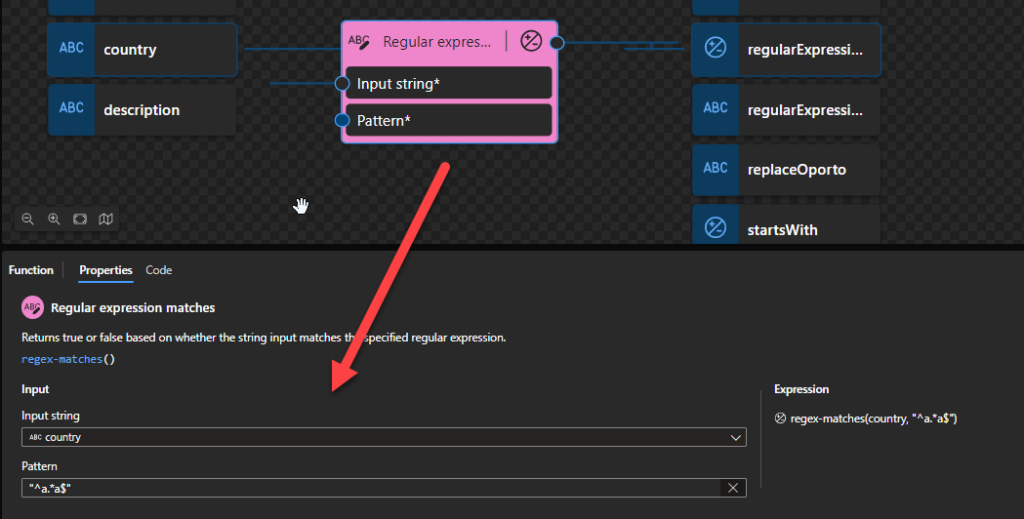
Regular expression matches: Returns true or false based on whether the string input matches the specified regular expression.
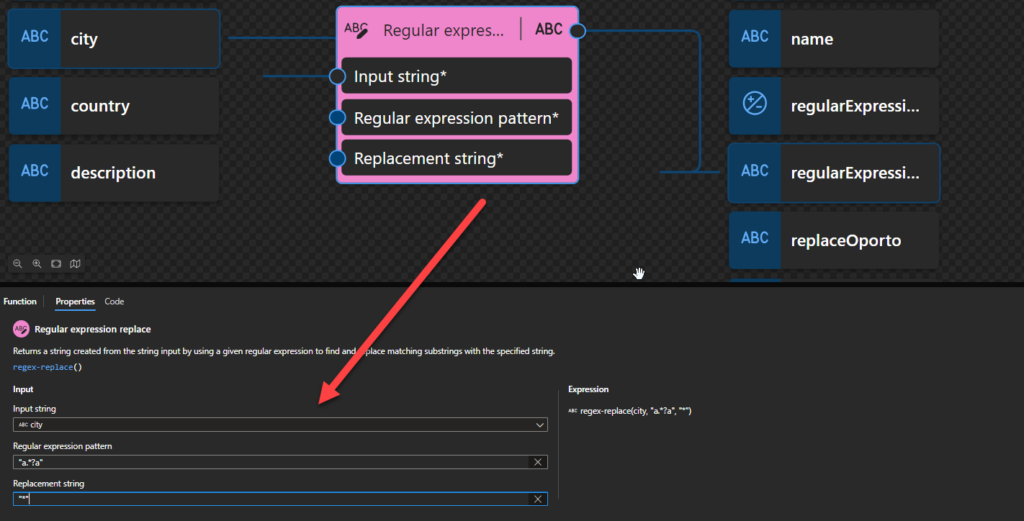
Regular expression replace: Returns a string created from the string input by using a given regular expression to find and replace matching substrings with the specified string.
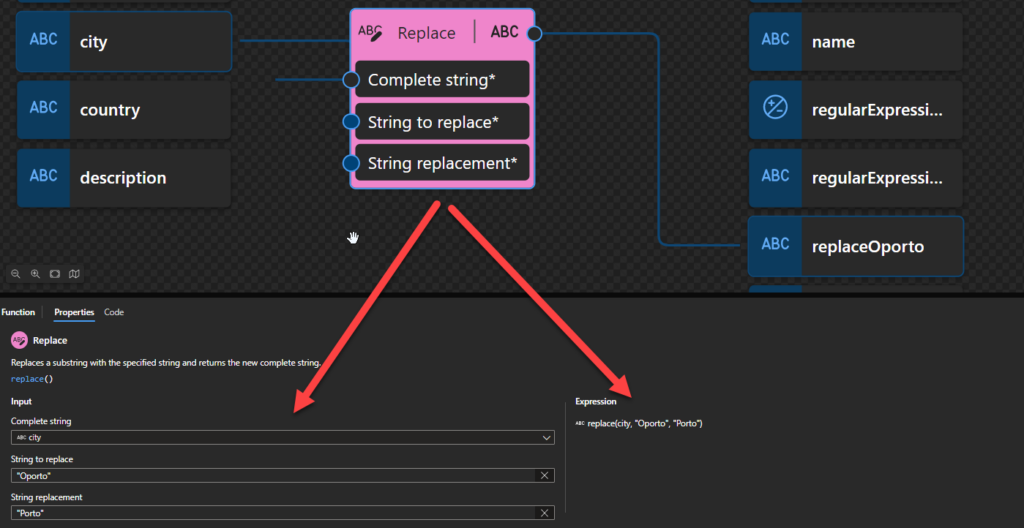
Replace: Replaces a substring with the specified string and return the new complete string.
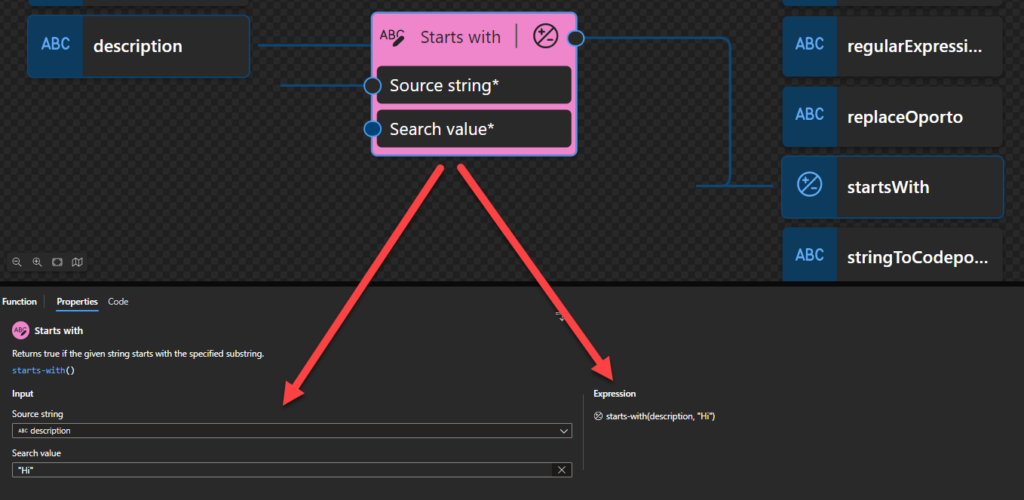
Starts with: Returns true if the given string starts with the specified substring.
This function states that you can convert the specified codepoints value to a string and returns the result. but first, we need to understand what is a codepoint! In character encoding terminology, a code point, codepoint, or code position is a numerical value that maps to a specific character. Code points usually represent a single grapheme, usually a letter, digit, punctuation mark, or whitespace but sometimes represent symbols, control characters, or formatting. You can check and learn more about codepoint here: https://codepoints.net/. For example, the codepoint 65 is the letter A.
Behind the scenes, this function is translated to the following XPath function: codepoints-to-string()
codepoints-to-string($arg as xs:string) as xs:string
Concat
This function states that you can combine two or more strings and returns the combined string.
Behind the scenes, this function is translated to the following XPath function: concat()
concat( $arg1 as xs:anyAtomicType?, $arg2 as xs:anyAtomicType?, … ) as xs:string
Rules:
This function accepts two or more xs:anyAtomicType arguments and casts each one to xs:string. The function returns the xs:string that is, the concatenation of the values of its arguments after conversion. If any argument is the empty sequence, that argument is treated as the zero-length string.
The concat function is specified to allow two or more arguments, which are concatenated together. This is the only function specified in this document that allows a variable number of arguments.
Contains
This function states that it returns true or false based on whether the string input (argument 1) contains the specified substring (argument 2).
Behind the scenes, this function is translated to the following XPath function: contains()
contains($arg1 as xs:string?, $arg2 as xs:string?) as xs:boolean
Rules:
If the value of $arg1 or $arg2 is the empty sequence or contains only ignorable collation units, it is interpreted as the zero-length string.
If the value of $arg2 is the zero-length string, then the function returns true.
If the value of $arg1 is the zero-length string, the function returns false.
Ends with
This function states that it returns true or false based on whether the string input ends with the specified substring.
Behind the scenes, this function is translated to the following XPath function: ends-with()
ends-with($arg1 as xs:string?, $arg2 as xs:string?) as xs:boolean
Rules:
If the value of $arg1 or $arg2 is the empty sequence or contains only ignorable collation units, it is interpreted as the zero-length string.
If the value of $arg2 is the zero-length string, then the function returns true.
If the value of $arg1 is the zero-length string, and the value of $arg2 is not the zero-length string, then the function returns false.
The function returns an xs:boolean indicating whether or not the value of $arg1 ends with a sequence of collation units that provides a match to the collation units of $arg2 according to the collation that is used.
Length
This function states that it returns the number of items in the specified string or array.
Behind the scenes, this function is translated to the following XPath function: string-lenght()
string-length($arg as xs:string?) as xs:integer
Rules:
The function returns an xs:integer equal to the length in characters of the value of $arg.
If the value of $arg is the empty sequence, the function returns the xs:integer value zero (0).
Lowercase
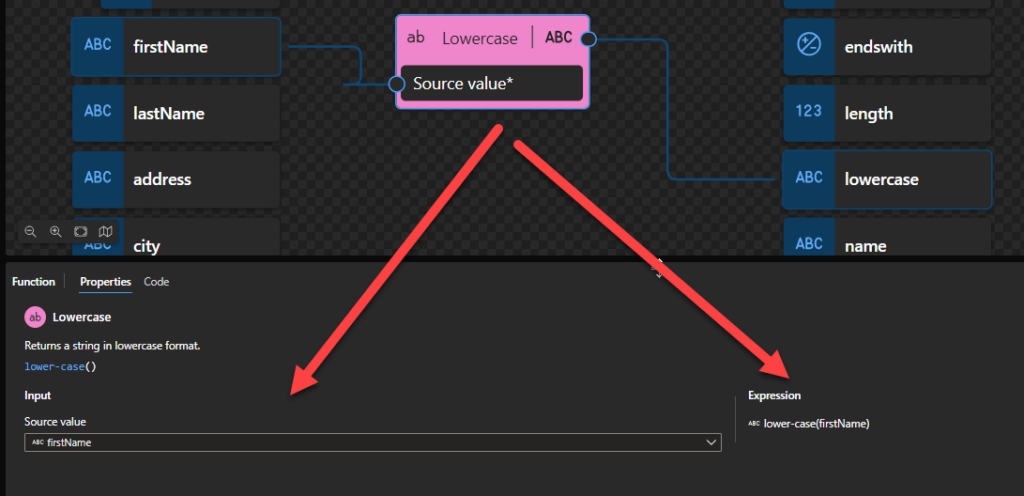
This function states that it returns a string in lowercase format.
Behind the scenes, this function is translated to the following XPath function: lower-case()
lower-case($arg as xs:string?) as xs:string
Rules:
If the value of $arg is the empty sequence, the zero-length string is returned.
Otherwise, the function returns the value of $arg after translating every character to its lower-case correspondent as defined in the appropriate case mappings section in the Unicode standard.
Name
This function states that it returns the local name of the selector node, which is useful when you want to retrieve the name of the incoming message component, not the value.
Behind the scenes, this function is translated to the following XPath function: local-name-from-QName()
local-name-from-QName($arg as xs:QName?) as xs:NCName
Rules:
If $arg is the empty sequence, the function returns the empty sequence.
Otherwise, the function returns a xs:NCName representing the local part of $arg.
Regular expression matches
This function states that it returns true or false based on whether the string input matches the specified regular expression.
Behind the scenes, this function is translated to the following XPath function: matches()
matches($input as xs:string?, $pattern as xs:string) as xs:boolean
Rules:
If $input is the empty sequence, it is interpreted as the zero-length string.
The function returns true if $input or some substring of $input matches the regular expression supplied as $pattern. Otherwise, the function returns false.
Regular expression replace
This function states that it returns a string created from the string input by using a given regular expression to find and replace matching substrings with the specified string.
Behind the scenes, this function is translated to the following XPath function: replace()
replace($input as xs:string?, $pattern as xs:string, $replacement as xs:string) as xs:string
Rules:
If $input is the empty sequence, it is interpreted as the zero-length string.
The function returns the xs:string that is obtained by replacing each non-overlapping substring of $input that matches the given $pattern with an occurrence of the $replacement string.
If two overlapping substrings of $input both match the $pattern, then only the first one (that is, the one whose first character comes first in the $input string) is replaced.
In this sample above, if the city element from the source message has the value abracadabra then the output will be *c*bra
Replace
This function states that it replaces a substring with the specified string and returns the new complete string.
Behind the scenes, this function is translated to the following XPath function: replace()
replace($input as xs:string?, $pattern as xs:string, $replacement as xs:string) as xs:string
This will be exactly the same as the previous one, but instead of using a regular expression pattern, we use a string to be replaced.
Starts with
This function states that it returns true if the given string starts with the specified substring.
Behind the scenes, this function is translated to the following XPath function: starts-with()
starts-with($arg1 as xs:string?, $arg2 as xs:string?) as xs:boolean
Rules:
If the value of $arg1 or $arg2 is the empty sequence, or contains only ignorable collation units, it is interpreted as the zero-length string.
If the value of $arg2 is the zero-length string, then the function returns true. If the value of $arg1 is the zero-length string, and the value of $arg2 is not the zero-length string, then the function returns false.
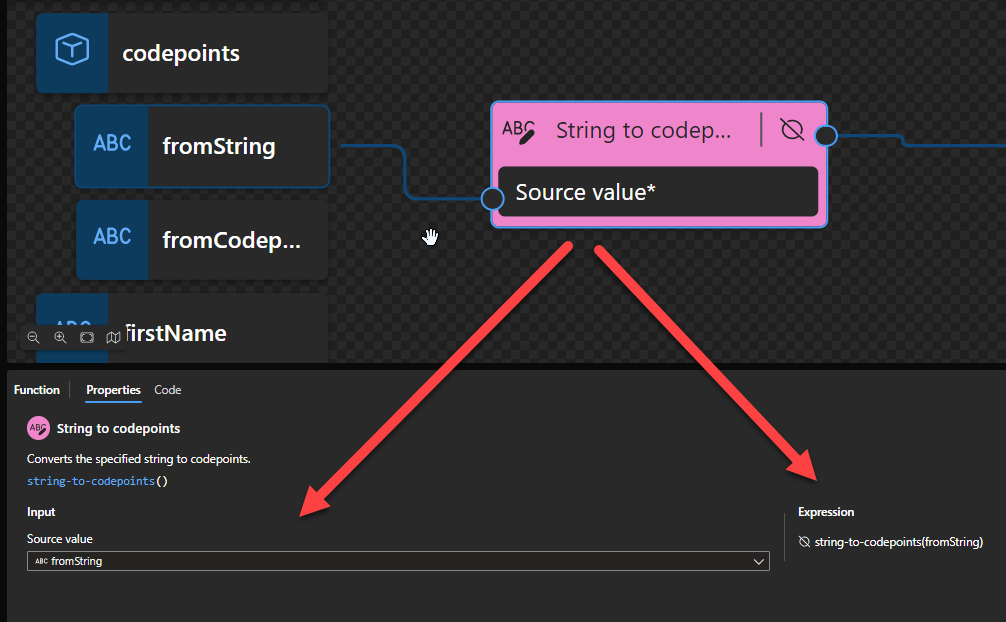
String to codepoints
This function states that it converts the specified string to codepoints. But first, we need to understand what is a codepoint! In character encoding terminology, a code point, codepoint, or code position is a numerical value that maps to a specific character. Code points usually represent a single grapheme, usually a letter, digit, punctuation mark, or whitespace but sometimes represent symbols, control characters, or formatting. You can check and learn more about codepoint here: https://codepoints.net/. For example, the letter A is the codepoint 65.
Behind the scenes, this function is translated to the following XPath function: string-to-codepoints()
fn:string-to-codepoints($arg as xs:string?) as xs:integer
Rules:
The function returns a sequence of integers, each integer being the Unicode codepoint of the corresponding character in $arg.
If $arg is a zero-length string or the empty sequence, the function returns the empty sequence.
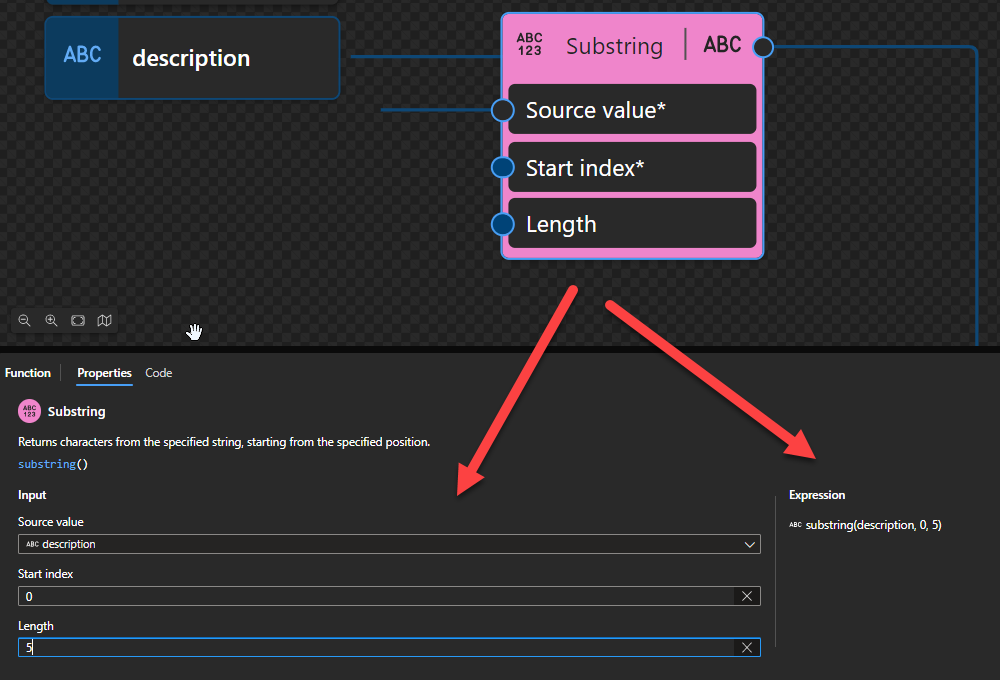
Substring
This function states that it returns characters from the specified string, starting from the specified position.
Behind the scenes, this function is translated to the following XPath function: substring()
substring($sourceString as xs:string?, $start as xs:double, $length as xs:double) as xs:string
or
substring($sourceString as xs:string?, $start as xs:double) as xs:string
Rules:
If the value of $sourceString is the empty sequence, the function returns the zero-length string.
Otherwise, the function returns a string comprising those characters of $sourceString whose index position (counting from one) is greater than or equal to the value of $start (rounded to an integer), and (if $length is specified) less than the sum of $start and $length (both rounded to integers).
The characters returned do not extend beyond $sourceString. If $start is zero or negative, only those characters in positions greater than zero are returned.
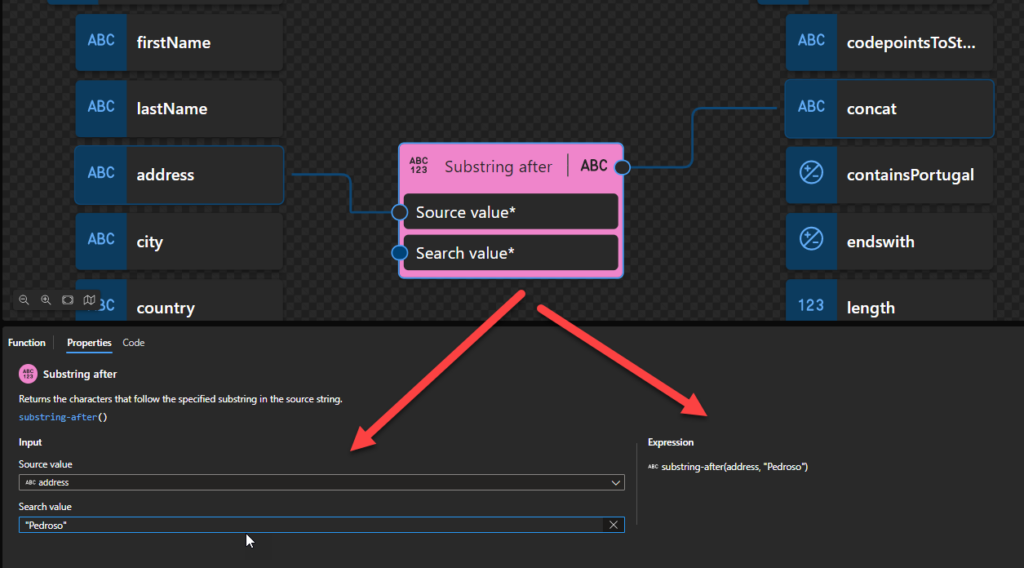
Substring after
This function states that it returns the characters that follow the specified substring in the source string.
Behind the scenes, this function is translated to the following XPath function: substring-after()
substring-after($arg1 as xs:string?, $arg2 as xs:string?) as xs:string
Rules:
If the value of $arg1 or $arg2 is the empty sequence or contains only ignorable collation units, it is interpreted as the zero-length string.
If the value of $arg2 is the zero-length string, then the function returns the value of $arg1.
If the value of $arg1 does not contain a string that is equal to the value of $arg2, then the function returns the zero-length string.
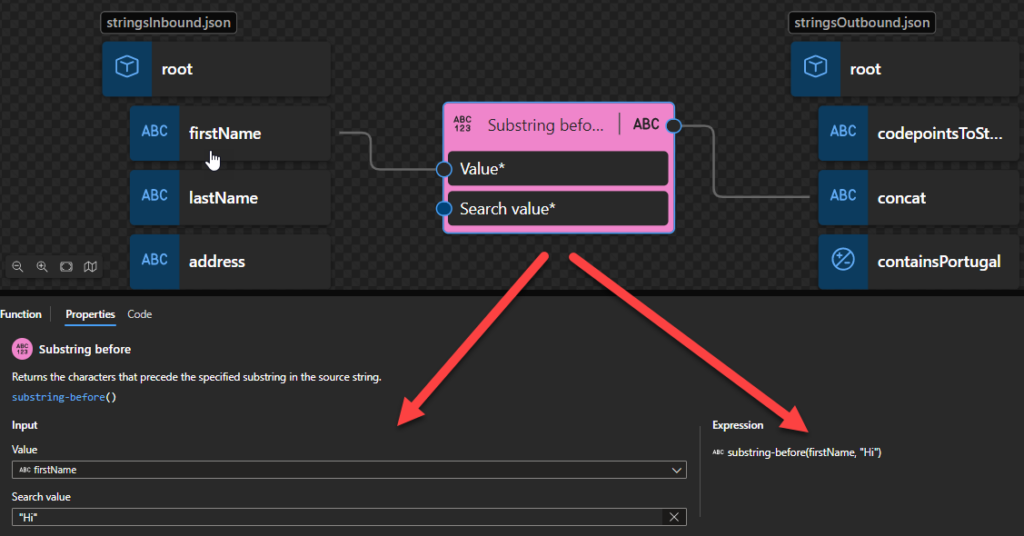
Substring before
This function states that it returns the characters that precede the specified substring in the source string.
Behind the scenes, this function is translated to the following XPath function: substring-before()
substring-before($arg1 as xs:string?, $arg2 as xs:string?) as xs:string
Rules:
If the value of $arg1 or $arg2 is the empty sequence or contains only ignorable collation units, it is interpreted as the zero-length string.
If the value of $arg2 is the zero-length string, then the function returns the zero-length string.
If the value of $arg1 does not contain a string that is equal to the value of $arg2, then the function returns the zero-length string.
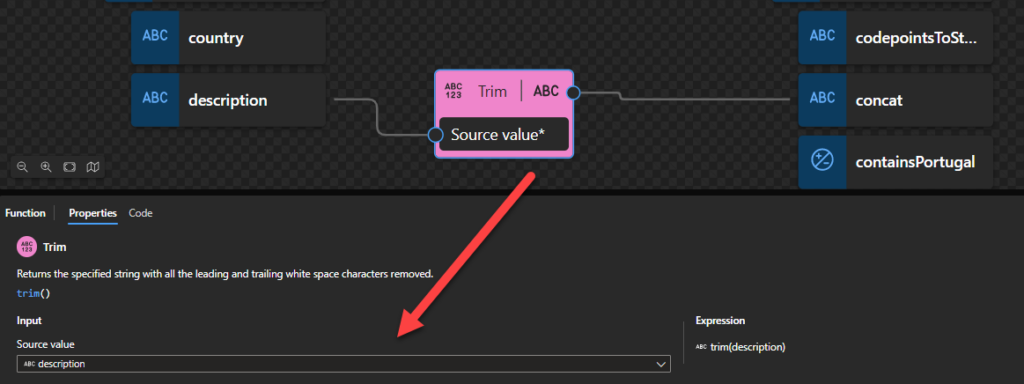
Trim
This function states that it returns the specified string with all the leading and trailing white space characters removed.
Behind the scenes, this function is translated to the following XPath function: replace()
replace($input as xs:string?, ‘^s*|s*$’, ”)
This is a specific call to the replace() function where the second and third arguments are already specified behind the scenes. Trim functoid is an abstraction of this replace() function call.
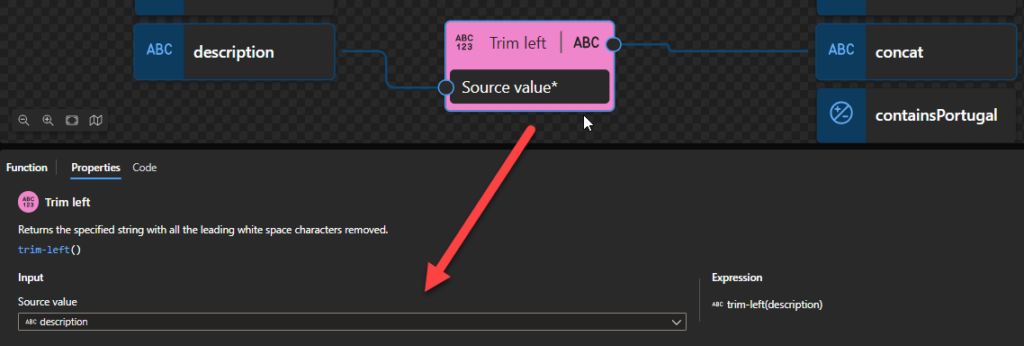
Trim left
This function states that it returns the specified string with all the leading white space characters removed.
Behind the scenes, this function is translated to the following XPath function: replace()
replace($input as xs:string?, ‘^s+’, ”)
This is a specific call to the replace() function where the second and third arguments are already specified behind the scenes. Trim functoid is an abstraction of this replace() function call.
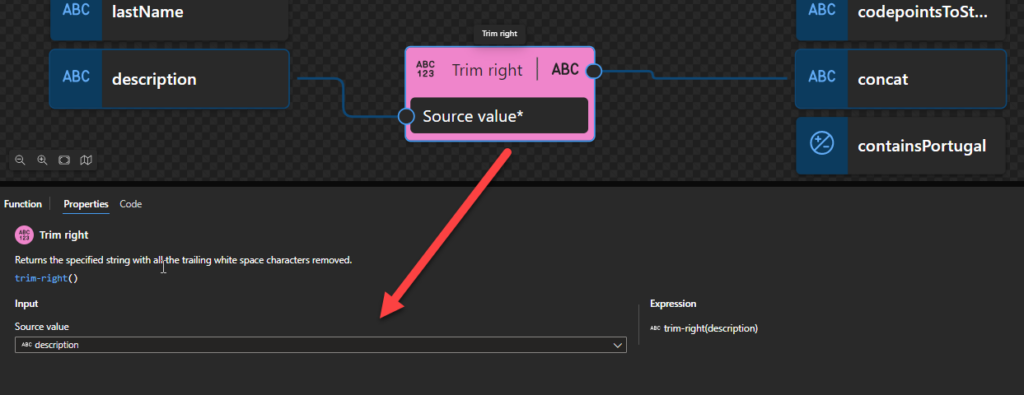
Trim right
This function states that it returns the specified string with all the trailing white space characters removed.
Behind the scenes, this function is translated to the following XPath function: replace()
replace($input as xs:string?, ‘s+$’, ”)
This is a specific call to the replace() function where the second and third arguments are already specified behind the scenes. Trim functoid is an abstraction of this replace() function call.
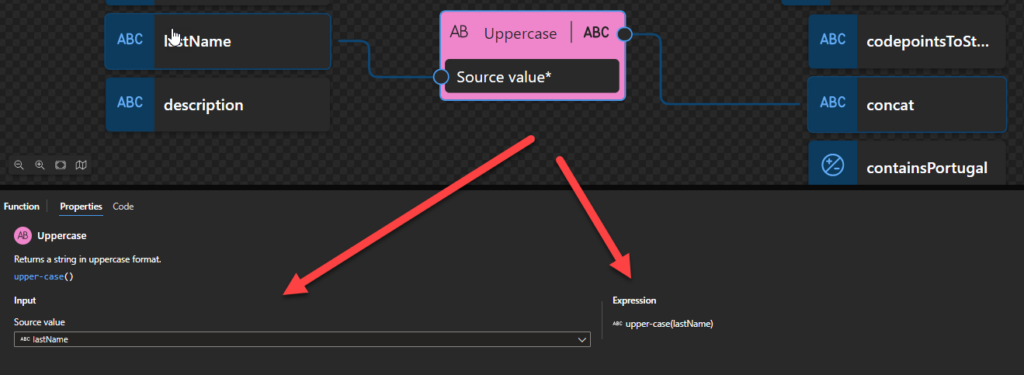
Uppercase
This function states that it returns a string in uppercase format.
Behind the scenes, this function is translated to the following XPath function: upper-case()
upper-case($arg as xs:string?) as xs:string
Rules:
If the value of $arg is the empty sequence, the zero-length string is returned.
Otherwise, the function returns the value of $arg after translating every character to its upper-case correspondent as defined in the appropriate case mappings section in the Unicode standard.
Hope you find this helpful! So, if you liked the content or found it useful and want to help me write more, you can buy (or help buy) my son a Star Wars Lego!
Author: Sandro Pereira
Sandro Pereira lives in Portugal and works as a consultant at DevScope. In the past years, he has been working on implementing Integration scenarios both on-premises and cloud for various clients, each with different scenarios from a technical point of view, size, and criticality, using Microsoft Azure, Microsoft BizTalk Server and different technologies like AS2, EDI, RosettaNet, SAP, TIBCO etc.
He is a regular blogger, international speaker, and technical reviewer of several BizTalk books all focused on Integration. He is also the author of the book “BizTalk Mapping Patterns & Best Practices”. He has been awarded MVP since 2011 for his contributions to the integration community.
View all posts by Sandro Pereira
And the most expected email arrived once again on July 6th. I’m delighted to share that I was renewed as a Microsoft Azure MVP (Microsoft Most Valuable Professional). Thanks, Microsoft, for this amazing award. I’m always honored and humbled to receive it, and this is my 13th straight year in the MVP Program, an amazing journey and experience that started in 2011 back then as a BizTalk MVP. This program gave me the opportunity and still does, to travel the world for speaking engagements, share knowledge, and meet the most amazing and skilled people in our industry.
This longevity in the program currently makes me the “Godfather” of the Portuguese MVPs alongside my dear friend Rodrigo Pinto (but I am a few months older :)). And that could not be possible without the huge support of my beautiful wife Fernanda and my amazing 3 kids!
Jokes apart, I want to send a big thanks to Cristina González Herrero for all the fantastic work managing the program in my region. To Microsoft Portugal and to Microsoft for empowering us to support the technical communities. To my coworkers and team at DevScope, all my blog readers, friends, and Microsoft Enterprise Integration Community members, and in special to my beautiful family – THANKS! Thanks for your support during these years.
It’s a big honor to be in the program and be one of this fantastic worldwide group of technicians and community leaders who actively share their high-quality and real-world expertise with other users and Microsoft. I’m looking forward to another great year!
Author: Sandro Pereira
Sandro Pereira lives in Portugal and works as a consultant at DevScope. In the past years, he has been working on implementing Integration scenarios both on-premises and cloud for various clients, each with different scenarios from a technical point of view, size, and criticality, using Microsoft Azure, Microsoft BizTalk Server and different technologies like AS2, EDI, RosettaNet, SAP, TIBCO etc.
He is a regular blogger, international speaker, and technical reviewer of several BizTalk books all focused on Integration. He is also the author of the book “BizTalk Mapping Patterns & Best Practices”. He has been awarded MVP since 2011 for his contributions to the integration community.
View all posts by Sandro Pereira
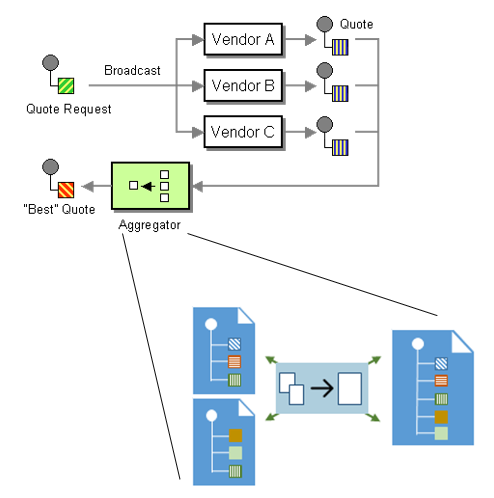
Basically, the Aggregation Pattern could also be another example or a subset of the Content Enricher Pattern (you can know more about this here: BizTalk Mapping Patterns & Best Practices), but sometimes when we exchange messages between different systems, we will need to gather information from multiple external sources, this is also known as Scatter-Gather Pattern (https://www.enterpriseintegrationpatterns.com/patterns/messaging/BroadcastAggregate.html), and once a complete set of messages has been received, we need to process them as a whole and combine or merge parts of information from each correlated message to create the expected message by the target system.
So the main difference between the Aggregation Pattern and the Content Enricher one is that in this last one, we’re normally talking about mapping one-to-one messages, and in the Aggregator pattern, we are dealing with multiple inbound messages that were collected from the original request and need to be mapped and aggregated into a single outbound request. For example, we want to bill the client’s order after all items have been pulled from the financial system or warehouse. Also, Content Enricher can happen inside the Aggregation Pattern along with other types of patterns.
Reference to this pattern:
In this video, you can see and learn how to apply the Aggregation Pattern inside the new Data Mapper available for Logic Apps (Standard)
Hope you find this helpful! So, if you liked the content or found it useful and want to help me write more, you can buy (or help buy) my son a Star Wars Lego!
Author: Sandro Pereira
Sandro Pereira lives in Portugal and works as a consultant at DevScope. In the past years, he has been working on implementing Integration scenarios both on-premises and cloud for various clients, each with different scenarios from a technical point of view, size, and criticality, using Microsoft Azure, Microsoft BizTalk Server and different technologies like AS2, EDI, RosettaNet, SAP, TIBCO etc.
He is a regular blogger, international speaker, and technical reviewer of several BizTalk books all focused on Integration. He is also the author of the book “BizTalk Mapping Patterns & Best Practices”. He has been awarded MVP since 2011 for his contributions to the integration community.
View all posts by Sandro Pereira
In Google Web UI Perspective, we have the option to download the Google Docs (word) files in terms of the formats. From the Logic App perspective, we can easily list files from the folder, but converting that .gdoc files into Onedrive word files (.docx extension) using Azure Logic App is not a straightforward task since we don’t have a suitable connector to achieve it.
For this reason, we decide to create the Azure Function that will act as our connector to archive this transformation.
Google Documents (.gdoc) into Word Documents (.docx) Converter Azure Function
This is a simple function that will be able to convert a .gdoc file inside Google Drive into a base64 .docx encoded file.
The Azure Function will include the following NuGet packages:
Google.Apis.Auth (Version 1.58.0 or later): This package provides authentication and authorization functionality for accessing Google APIs.
Google.Apis.Docs.v1 (Version 1.58.0 or later): This package provides the Google Docs API client library, allowing you to interact with Google Docs.
Google.Apis.Drive.v3 (Version 1.58.0 or later): This package provides the Google Drive API client library, enabling you to interact with Google Drive.
And basically, what this function will do is:
The Azure Function is triggered from the Logic App (can be another method) by an HTTP POST request ([HttpTrigger(AuthorizationLevel.Anonymous, “post”, Route = null)]).
The function expects the fileId to be provided as a query parameter in the request URL and the X-Secret-Google-Credentials header to contain the Google service account credentials in JSON format.
If either the fileId or X-Secret-Google-Credentials is missing or empty, the function returns a BadRequest response indicating the missing information.
If the required parameters are provided, the function loads the service account credentials from the provided JSON file (GoogleCredential.FromJson(googleCredentialsJson)).
The function creates Drive and Docs services using the service account credentials.
It then makes a request to export the specified Google Docs file (service.Files.Export(googleDocsFileId, “application/vnd.openxmlformats-officedocument.wordprocessingml.document”)) and retrieves the resulting document as a stream.
The stream is used to create an HttpResponseMessage with the exported document as the content.
The response headers are set to indicate that the response content should be treated as a downloadable attachment with the file name “converted.docx” and the MIME type “application/vnd.openxmlformats-officedocument.wordprocessingml.document”.
Overall, the Azure Function converts a Google Docs file to a DOCX file format using the Google Docs API and returns the converted file in base64 in the HTTP response.
To use this function, you need to:
Pass the fileID as a query parameter to the Azure Function.
fileId=
And then, set the X-Secret-Google-Credentials header with this JSON format containing the Google credentials -> you can find this info when you create a private key on your Google service account.
You can download the complete Azure Functions source code here:
Hope you find this helpful! So, if you liked the content or found it helpful and want to help me write more content, you can buy (or help buy) my son a Star Wars Lego!
Big thanks to my team member Luís Rigueira for realizing this idea.
Author: Sandro Pereira
Sandro Pereira lives in Portugal and works as a consultant at DevScope. In the past years, he has been working on implementing Integration scenarios both on-premises and cloud for various clients, each with different scenarios from a technical point of view, size, and criticality, using Microsoft Azure, Microsoft BizTalk Server and different technologies like AS2, EDI, RosettaNet, SAP, TIBCO etc.
He is a regular blogger, international speaker, and technical reviewer of several BizTalk books all focused on Integration. He is also the author of the book “BizTalk Mapping Patterns & Best Practices”. He has been awarded MVP since 2011 for his contributions to the integration community.
View all posts by Sandro Pereira
Last night when I was about to deliver my Logic Apps Data Mapper session at Azure Logic Apps Community Day 2023, more or less 15 minutes earlier, I decided to do a last test run on my demos – it is always good for you to do a last-minute validation – but to be fair, I have been developing and testing my demos for about a week, so I knew that except something extremely unpredictable happens, my solution and my local environment were good to go: solutions and samples were working, and I have everything properly configured. Hey, what could happen wrong if I even had performed the same test an hour ago with success?
… really! really! F****!!! I almost s*** myself!
When you expect less, something weird will happen! One of my demos – the critical one – needs me to emulate the Logic App execution locally on my machine, so when I try to run my Logic App Standard locally by:
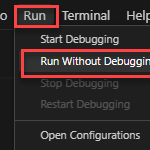
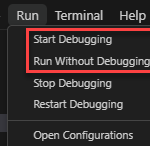
Select the Run menu option and click Run Without Debugging
I got the following error:
Failed to verify “AzureWebJobsStorage” connection specified in “local.settings.json”. Is the local emulator installed and running?
With 15 minutes to go for a live demo, your brain freezes immediately, and the adrenaline kicks you! You do not read all the error messages, or you will not read them properly :):)… no matter how experienced you are! That first minute is terrifying!
Then experience jumps in… Sandro, you still have 15 minutes. Relax!
Cause
The reason for this error is simple, to run Logic App Standard, you must have a storage emulator. In the earlier days, you could use the following:
Microsoft Azure Storage Emulator 5.10 tool. This tool is necessary to have full Logic Apps designer support in VS Code.
Nowadays, you can use the Azurite emulator for local Azure Storage development. This is a lightweight server clone of Azure Storage that simulates most of the commands supported by it with minimal dependencies.
Not only do you need to have it installed, but also running!
Unfortunately, when starting the debug, it does not start all the dependencies. The emulator is one of these dependencies. You need to do it manually first. However, Azurite cannot be run from the command line if you only installed the Visual Studio Code extension. Instead, use the Visual Studio Code command palette.
Solution
Luckily for us, the extension supports the following Visual Studio Code commands.
Azurite: Clean – Reset all Azurite services persistence data
Azurite: Clean Blob Service – Clean blob service
Azurite: Clean Queue Service – Clean queue service
Azurite: Clean Table Service – Clean table service
Azurite: Close – Close all Azurite services
Azurite: Close Blob Service – Close blob service
Azurite: Close Queue Service – Close queue service
Azurite: Close Table Service – Close table service
Azurite: Start – Start all Azurite services
Azurite: Start Blob Service – Start blob service
Azurite: Start Queue Service – Start queue service
Azurite: Start Table Service – Start table service
To open the command palette, press F1 in Visual Studio Code. In our case, then we need to execute the following command:
Azurite: Start
And there you go! Problem solved and demos delivered!
Hope you find this helpful! So, if you liked the content or found it helpful and want to help me write more content, you can buy (or help buy) my son a Star Wars Lego!
Author: Sandro Pereira
Sandro Pereira lives in Portugal and works as a consultant at DevScope. In the past years, he has been working on implementing Integration scenarios both on-premises and cloud for various clients, each with different scenarios from a technical point of view, size, and criticality, using Microsoft Azure, Microsoft BizTalk Server and different technologies like AS2, EDI, RosettaNet, SAP, TIBCO etc.
He is a regular blogger, international speaker, and technical reviewer of several BizTalk books all focused on Integration. He is also the author of the book “BizTalk Mapping Patterns & Best Practices”. He has been awarded MVP since 2011 for his contributions to the integration community.
View all posts by Sandro Pereira
We just released another version of our Azure Function JSON Schema Validation, adding support to another feature. In this case, a very basic one, required fields.
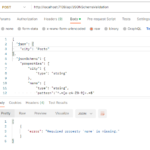
In order to specify the mandatory properties or elements, we need to use the required keyword, where you can specify a list of strings that need to be present as key names in the list of key:value pairs that appear in a JSON document. Each of these strings must be unique.
JSON Schema Validation Function
The JSON Schema Validation is a simple Azure Function that allows you to validate your JSON message against a JSON Schema, enabling you to specify constraints on the structure of instance data to ensure it meets the requirements.
The function receives a JSON payload with two properties:
Or a 400 Bad Request if there are validation errors/issues.
Where can I download it?
You can download the complete Azure Functions source code here:
Hope you find this helpful! So, if you liked the content or found it helpful and want to help me write more content, you can buy (or help buy) my son a Star Wars Lego!
Big thanks to my team members Luís Rigueira and Diogo Formosinho for testing and adding this new feature.
Author: Sandro Pereira
Sandro Pereira lives in Portugal and works as a consultant at DevScope. In the past years, he has been working on implementing Integration scenarios both on-premises and cloud for various clients, each with different scenarios from a technical point of view, size, and criticality, using Microsoft Azure, Microsoft BizTalk Server and different technologies like AS2, EDI, RosettaNet, SAP, TIBCO etc.
He is a regular blogger, international speaker, and technical reviewer of several BizTalk books all focused on Integration. He is also the author of the book “BizTalk Mapping Patterns & Best Practices”. He has been awarded MVP since 2011 for his contributions to the integration community.
View all posts by Sandro Pereira
I have been testing Data Mapper for almost maybe 4 months since the first private previews. Still, I have usually tried the Data Mapper capabilities and not the interaction between Logic Apps Standard workflow and the Data Mapper. Now that I’m preparing and finalizing my session for the Azure Logic Apps Community Day 2023, I’m finding these little headaches in trying to put these pieces working together. You also need to be aware that this behavior and experience may change in the future since DaTa Mapper is still in preview.
So, while I was trying to call a transformation created by the new Data Mapper, in this case, a JSON to JSON transformation, running locally in my machine, I was always getting this really annoying and non-sense error since it doesn’t provide any real and valuable help or insight on the issue we are facing:
undefined. undefined
Sometimes I think the Microsoft developer team likes that I write all these Errors and Warnings, Causes and Solutions blog posts, or they are just teasing us.
I was surprised to see this error since I just finished developing my map, and I had successfully tested it on the Data Mapper editor.
And that you can see in action in this video of Kent Weare:
Solution
For the map to run successfully in runtime, within your local.settings.json file in your logic apps standard project, ensure you have the following property configuration:
FUNCTIONS_WORKER_RUNTIME property set to dotnet-isolated.
And add the AzureWebJobsFeatureFlags property with the value: EnableMultiLanguageWorker
Hope you find this helpful! So, if you liked the content or found it helpful and want to help me write more content, you can buy (or help buy) my son a Star Wars Lego!
Author: Sandro Pereira
Sandro Pereira lives in Portugal and works as a consultant at DevScope. In the past years, he has been working on implementing Integration scenarios both on-premises and cloud for various clients, each with different scenarios from a technical point of view, size, and criticality, using Microsoft Azure, Microsoft BizTalk Server and different technologies like AS2, EDI, RosettaNet, SAP, TIBCO etc.
He is a regular blogger, international speaker, and technical reviewer of several BizTalk books all focused on Integration. He is also the author of the book “BizTalk Mapping Patterns & Best Practices”. He has been awarded MVP since 2011 for his contributions to the integration community.
View all posts by Sandro Pereira
I have been developing Logic App Standard for a long time and never had an issue running them locally, as far as I remember, until a few months ago. I never pay too much attention because I was not running them locally, and I didn’t block my ability to develop my solutions or workflows.
However, this week, while developing my demos for the Azure Logic Apps Community Day 2023 event, I had the need to test them locally, and every time I try to run them locally by either:
Start Debugging
Or Run Without Debugging
I was getting the following error:
Failed to find “func host start” task.
Cause
To be honest, I don’t know because I had all the pre-requirements installed, but I guess, and this is just me guessing, that some Azure Function extension update broke some configuration between these to extensions.
Solution
I know that you probably will not like it… but after spending a few hours, I give up and when to a drastic approach – this one – that solved the problem.
To solve this issue, you need to:
Uninstall all Azure Functions extension dependencies.
In my case, the Azure Logic Apps – Data Mapper and Azure Logic Apps (Standard) extensions
Uninstall the Azure Functions extension.
Restart Visual Studio Code
Install all the extensions again, in my case:
Azure Function
Azure Logic Apps (Standard)
Azure Logic Apps – Data Mapper
Just to be in a safe state, restart Visual Studio Code again.
After that I was able to run my workflow locally without any issue.
Hope you find this helpful! So, if you liked the content or found it helpful and want to help me write more content, you can buy (or help buy) my son a Star Wars Lego!
Author: Sandro Pereira
Sandro Pereira lives in Portugal and works as a consultant at DevScope. In the past years, he has been working on implementing Integration scenarios both on-premises and cloud for various clients, each with different scenarios from a technical point of view, size, and criticality, using Microsoft Azure, Microsoft BizTalk Server and different technologies like AS2, EDI, RosettaNet, SAP, TIBCO etc.
He is a regular blogger, international speaker, and technical reviewer of several BizTalk books all focused on Integration. He is also the author of the book “BizTalk Mapping Patterns & Best Practices”. He has been awarded MVP since 2011 for his contributions to the integration community.
View all posts by Sandro Pereira
An Integration Account allows you to build Logic Apps with enterprise B2B capabilities by adding various necessary artifacts. It serves as a central repository for managing various integration assets such as schemas, maps, certificates, and trading partner agreements.
While nowadays, Logic App Standard natively supports Schemas and maps (without the need for an Integration Account), and there is a new transformation editor called Data Mapper (still in preview). Logic App Consumption still requires us to use the Integration Account and still uses the “old kind of related BizTalk Server Mapper”.
Pre-requirements
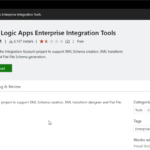
So, for us to create, in our developer environment, Schemas and Maps for Logic App Consumption to be used inside an Integration Account we need to install Azure Logic Apps Enterprise Integration Toolsextension for Visual Studio 2019 – unfortunately, there is no support for recent versions of Visual Studio. To do that, we need to:
Download and Install the extension from the Visual Studio Marketplace:
Or install it directly on Visual Studio by:
Open Visual Studio 2019, and on the Extensions menu, select the option Manage Extensions.
Search for Logic App, and then from the list, select todownload and install the Azure Logic Apps Enterprise Integration Tools.
You will probably need to restart Visual Studio.
Create an Integration Account Project
Now that we have installed everything that we need to create a new Integration Account Project, we need to:
Open Visual Studio 2019 and on the What would you like to do? window select the Create a new project option.
On the Create a new project window, search for Integration Account, and from the list below, select the Integration Account template, then click Next.
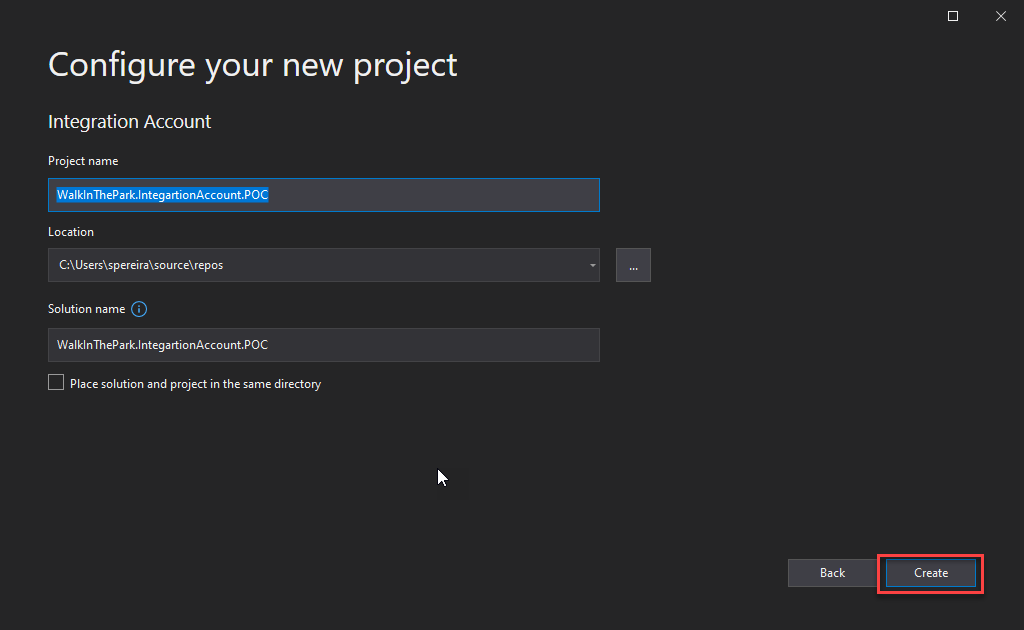
On the Configure your new project window, do the following configurations and then click Create:
On the Project name property, set a proper name for your project.
On the Location property, set the path where you want to create the project.
On the Solution name property, set a proper name for your project.
Note that a solution is a container for one or more projects in Visual Studio.
After that, a new Integration Account project is created where you can create your Schemas, Flat File Schemas, and Maps. To do that, you just need to:
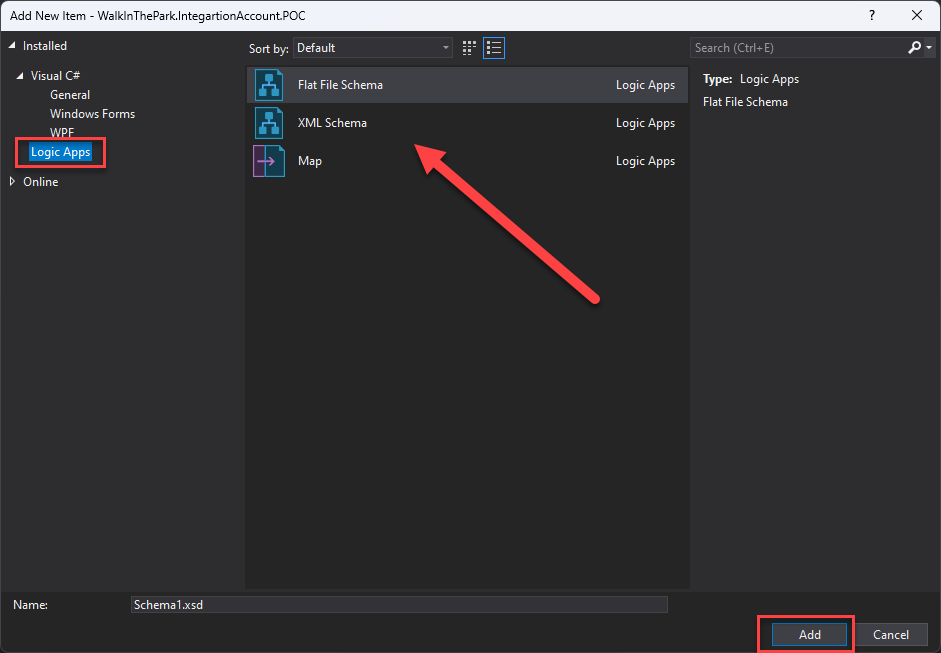
Right-click on the project name and then select the option Add > New Item…
On the Add New Item window, on the left tree, select the option Logic Apps, and all the possible artifacts for you to create will be present.
Select the type.
Give it a proper name.
And click Add.
Hope you find this helpful! So, if you liked the content or found it helpful and want to help me write more content, you can buy (or help buy) my son a Star Wars Lego!
Some of the various artifacts that can be added with an integration account are: Schemas: These are standard . xsd files containing the definition of an XML message
Author: Sandro Pereira
Sandro Pereira lives in Portugal and works as a consultant at DevScope. In the past years, he has been working on implementing Integration scenarios both on-premises and cloud for various clients, each with different scenarios from a technical point of view, size, and criticality, using Microsoft Azure, Microsoft BizTalk Server and different technologies like AS2, EDI, RosettaNet, SAP, TIBCO etc.
He is a regular blogger, international speaker, and technical reviewer of several BizTalk books all focused on Integration. He is also the author of the book “BizTalk Mapping Patterns & Best Practices”. He has been awarded MVP since 2011 for his contributions to the integration community.
View all posts by Sandro Pereira
With INTEGRATE 2023 London concluded, time to shift gears to the next big event on cloud integration: Azure Logic Apps Community Day 2023, sometimes called LogicAppsAviators Community Day, which will take place on Thursday, June 22nd at 9 AM (Pacific) or 5 PM (UTC). The event is free and will be streamed on YouTube/Twitch, so be sure to subscribe to the Azure Developers YouTube to stay up to date.
Azure Logic Apps Community Day 2023will be the must-attend event for anyone who wants to learn more about Logic Apps and how it can help to solve real-life integration problems. It will be a full day of learning from the basics of getting started to deep dives into advanced automation with Logic Apps presented by the Logic Apps product group, Microsoft MVPs, and expert community members. In the end, will be a Round Table Discussion – Ask Me Anything with the Product Group and Community – this will be your opportunity to make “hard” questions.
I will have the pleasure of delivering a session about the new Data Mapper at this event and also be part of the panel on the Round Table Discussion!
About my session
Session Name: A walk in the park with the new Logic App Data Mapper
Abstract: In this session, we will present the new Data Mapper experience for Logic Apps Standard and how we can apply XML to XML transformations or XML to JSON transformations using a visual designer. Here, we will also address how to implement well-known mapping patterns like direct translation, Data translation, content enricher, or aggregator patterns alongside many others.
Hope you find this helpful! So, if you liked the content or found it helpful and want to help me write more content, you can buy (or help buy) my son a Star Wars Lego!
Author: Sandro Pereira
Sandro Pereira lives in Portugal and works as a consultant at DevScope. In the past years, he has been working on implementing Integration scenarios both on-premises and cloud for various clients, each with different scenarios from a technical point of view, size, and criticality, using Microsoft Azure, Microsoft BizTalk Server and different technologies like AS2, EDI, RosettaNet, SAP, TIBCO etc.
He is a regular blogger, international speaker, and technical reviewer of several BizTalk books all focused on Integration. He is also the author of the book “BizTalk Mapping Patterns & Best Practices”. He has been awarded MVP since 2011 for his contributions to the integration community.
View all posts by Sandro Pereira