by community-syndication | May 7, 2009 | BizTalk Community Blogs via Syndication
I dealt with an interesting, if arcane, issue today at a client’s site.The client is in the process of deploying an early version of a BizTalk application to their test environment for the first time. The test environment is hosted by another company, and BizTalk Server 2006 R2 had been installed and configured by that company.They are using the 64 bit version on Windows 2003 R2 with SP2. The BizTalk application publishes a WCF endpoint, hosted in IIS6.
The hosting company has quite correctly created a set of domain accounts and groups and configured BizTalk to use these. Unfortunately, when doing the initial deployment yesterday, we didn’t have, and couldn’t get, the password for the configured BizTalk Isolated Host user account. We did, however, have the password for another domain account, and we were able to add that account to the BizTalk Isolated Host Users domain group. So, having done that, we configured this second account as the identity of the app pool.
To begin with, nothing worked. Every time we tried to access the WCF endpoint, IIS returned a 404 – Service unavailable message. However, at some point, the whole thing started working OK. I forget, now, the exact sequence of steps, but that is not important.
At some point yesterday, the BizTalk developer created a local account called ‘BizTalk Isolated Host Users’.I can’t remember, now, why we thought this would be a good idea. Our BizTalk Server is configured to use a domain group of the same name, and is not aware of the local group. The important point, though, is that this group was not deleted.
Roll forward to today. Everything was working nicely until the BizTalk developer decided, very sensibly, to tidy things up by removing the unneeded local group. Shortly after removing this group, we noticed that the dreaded 404 response had returned.The only change we had made was the removal of the local group, so we recreated it. We didn’t add any accounts to it. After an IIS restart, the endpoint sprang back into life. We deleted the group, and everything stopped working. We recreated it again, checked that the endpoint was working, renamed the group and tested. Sure enough, we got a 404.We changed the name back, and the endpoint worked.
At this point, I felt very confused at several levels. We checked the configuration of BizTalk carefully, and satisfied ourselves that it had indeed been configured to use only domain accounts and groups.The only thing that was unusual about our environment was that, while the BizTalk isolated host instance we were using was configured to use one domain account for its logon credentials, the IIS app pool was configured to use another, set up with equivalent group membership and permissions.
I have always, as a natural path of least resistance, configured app pools to use the same identity as the corresponding isolated host instance. I realised that I have never consciously asked the question about what happens if you use different accounts.I phoned a colleague who has far more practical experience of deploying BizTalk than I do, and discussed this with him. He confirmed that he also always uses the same account, and like me, he had never stopped to wonder what happens if you use different accounts. So, I turned to the Internet and did some searching. Eventually, I discovered, embedded half-way through a BizTalk help page on MSDN (see http://65.55.11.235/en-us/library/aa561505.aspx), an explicit statement that the app pool should always be configured with the same account as the isolated host instance. In the grand tradition of BizTalk documentation there was, of course, absolutely no effort expended on explaining why. However, the help page also stated mysteriously that if you change the password on the account in the app pool configuration, there is no need to make a corresponding change to the credentials configured on BizTalk’s isolated host instance. Bizarre. This seems to imply that the credentials you configure in BizTalk are not actually used for any kind of authentication.
We talked to the hosting company, and managed to get the password we needed. We re-configured the IIS app pool to use the same account configured for the BizTalk isolated host instance. Having deleted the local group, we restarted IIS and…success…everything worked OK.
So, the moral of the story is that you really need to ensure that your app pool identity is the same as the account you configure on the BizTalk isolated host instance. Don’t worry about keeping the password up to date in BizTalk. I strongly recommend you always use this approach. If you really, really , really have to live with different accounts, create an empty local group on you BizTalk box with an identical name to the domain group you are using as BizTalk isolated host users group, and by some magic, everything will work. Avoid this weird ‘work-around’ at all costs in production.
Maybe this is some strange side-effect of Windows pass-through authentication (I don’t really think that is the case), or maybe it is the result of some undocumented logic deep in the message agent or transport layer. I can’t say. I do remember that when BTS 2004 first shipped, there was a suggestion that MS might at some point extend the isolated host feature to support additional hosts, and not just IIS. This has never happened, but it may be the explanation for what you configure an account and password on your isolated host instances even if, in the case of IIS, it is the app pool configuration which is all-important.

by community-syndication | May 7, 2009 | BizTalk Community Blogs via Syndication
My company has been evaluating (and in some cases, selecting) SaaS offerings and one of the projects that I’m currently on has us considering such an option as well. So, I started considering the technology-specific evaluation criteria (e.g. not hosting provider’s financial viability) that I would use to determine our organizational fit to a particular […]
by community-syndication | May 7, 2009 | BizTalk Community Blogs via Syndication
Since it is using OLE, you can connect to whatever data source you want.
Below is a brief list of sources to connect to:
| Data Source |
Sample Connection String |
| UDL |
File Name={path.udl} |
| Sybase |
Provider=Sybase.ASEOLEDBProvider;Server Name=thisservername,5000;Initial Catalog=thisdb;User Id=thisusername;Password=thispassword |
| SQL Server |
Provider=sqloledb;Data Source=thisservername;Initial Catalog=thisdb;User Id=thisusername;Password=thispassword;
Provider=sqloledb;Data Source=thisservername;Initial Catalog=thisdb;Integrated Security=SSPI; |
| Oracle |
Provider=msdaora;Data Source=thisdb;User Id=thisusername;Password=thispassword;
Provider=msdaora;Data Source=thisdb;Persist Security Info=False;Integrated Security=Yes; |
| MySQL |
Provider=MySQLProv;Data Source=thisdb;User Id=thisusername;Password=thispassword; |
| Informix |
Provider=Ifxoledbc.2;User ID=thisusername;password=thispassword;Data Source=thisdb@thisservername;Persist Security Info=true |
| FoxPro |
Provider=vfpoledb.1;Data Source=c:\directory\thisdb.dbc;Collating Sequence=machine |
| Firebird |
User=SYSDBA;Password=thispassword;Database=thisdb.fdb;DataSource=localhost;Port=3050;Dialect=3;Charset=NONE;Role=;Connection lifetime=15;Pooling=true;MinPoolSize=0;MaxPoolSize=50;Packet Size=8192;ServerType=0 |
| Exchange |
oConn.Provider = “EXOLEDB.DataSource” oConn.Open = “http://thisservername/myVirtualRootName” |
| Excel |
Provider=Microsoft.Jet.OLEDB.4.0;Data Source=C:\thisspreadsheet.xls;Extended Properties='”Excel 8.0;HDR=Yes;IMEX=1″‘ |
| DBase |
Provider=Microsoft.Jet.OLEDB.4.0;Data Source=c:\directory;Extended Properties=dBASE IV;User ID=Admin;Password= |
| DB2 |
Provider=IBMDADB2;Database=thisdb;HOSTNAME=thisservername;PROTOCOL=TCPIP;PORT=50000;uid=thisusername;pwd=thispassword; |
| Access |
Provider=Microsoft.Jet.OLEDB.4.0;Data Source=\directory\thisdb.mdb;User Id=admin;Password=; |
You can access a lot more sources. Here is a list of sources you can check against:
Connection Strings
Another thing is that if you wanted to put a where clause in your statement to limit the data that is being returned, the forth argument in the Database Lookup functiod is the place to put it. BEWARE, you need to make sure that the column that you are matching with the first argument is correct.
by community-syndication | May 6, 2009 | BizTalk Community Blogs via Syndication
I have just submitted my chapters for the new Pro BizTalk 2009 book from APress. You can also find information about the book on Amazon.
I am co-authoring along with George Dunphy, Harold Campos, Peter Kelcey, Sergei Moukhnitski and David Peterson.
The book will be available this summer.
by community-syndication | May 6, 2009 | BizTalk Community Blogs via Syndication
In my previous post I explained how you can make use of the Lists.asmx web service of SharePoint, to load list items by using the jQuery Javascript library. The example discussed in that post is simple and easy to understand, but very, very boring. Let’s try to do something useful with that technique: display fancy, unobtrusive notifications for open tasks, when a user visits a SharePoint site. The screenshot below shows the result, but it’s static. In real life the user would see the yellow boxes popping up, and after a couple of seconds they would disappear again (they don’t block the user interface at all).
To display these notifications I’ll use the excellent jGrowl extension for jQuery. So to make use of this demo, you’ll need to upload both the jquery.jgrowl_minimized.js and jquery.jgrowl.css files to SharePoint (check the download at the end of this post to get the files). The code below assumes that those two files, and the jQuery library itself, are uploaded to a document library called Shared Documents (which is created by default in a Team Site).
<script type=”text/javascript” src=”Shared Documents/jquery-1.3.2.min.js”></script>
<script type=”text/javascript” src=”Shared Documents/jquery.jgrowl_minimized.js”></script>
<link href=”Shared Documents/jquery.jgrowl.css” rel=”Stylesheet”></link>
<script type=”text/javascript”>
$(document).ready(function() {
var soapEnv =
“<soapenv:Envelope xmlns:soapenv=’http://schemas.xmlsoap.org/soap/envelope/’> \
<soapenv:Body> \
<GetListItems xmlns=’http://schemas.microsoft.com/sharepoint/soap/’> \
<listName>Tasks</listName> \
<viewFields> \
<ViewFields> \
<FieldRef Name=’Title’ /> \
<FieldRef Name=’Body’ /> \
</ViewFields> \
</viewFields> \
<query> \
<Query><Where> \
<And> \
<Eq> \
<FieldRef Name=’AssignedTo’ /> \
<Value Type=’Integer’><UserID Type=’Integer’ /></Value> \
</Eq> \
<Neq> \
<FieldRef Name=’Status’ /> \
<Value Type=’Choice’>Completed</Value> \
</Neq> \
</And> \
</Where> \
</Query>\
</query> \
</GetListItems> \
</soapenv:Body> \
</soapenv:Envelope>”;
$.ajax({
url: “_vti_bin/lists.asmx”,
type: “POST”,
dataType: “xml”,
data: soapEnv,
complete: processResult,
contentType: “text/xml; charset=\”utf-8\””
});
});
function processResult(xData, status) {
$.jGrowl.defaults.position = “bottom-right”;
$.jGrowl.defaults.life = 10000;
var firstMessage = true;
$(xData.responseXML).find(“z\\:row”).each(function() {
if(firstMessage)
{
firstMessage = false;
$.jGrowl(“<div class=’ms-vb’><b>You have open tasks on this site.</b><div>”,
{
life: 5000
}
);
}
var messageHtml =
“<div class=’ms-vb’>” +
“<a href=’Lists/Tasks/DispForm.aspx?ID=” + $(this).attr(“ows_ID”)
+ “&Source=” + window.location + “‘>” +
“<img src=’/_layouts/images/ITTASK.GIF’ border=’0′ align=’middle’> ” +
$(this).attr(“ows_Title”) + “</a>” +
“<br/>” + $(this).attr(“ows_Body”) +
“</div>”;
$.jGrowl(messageHtml);
});
}
</script>
Since we’d like to display those notifications when a user visits the site, we need to put a Content Editor Web Part of the home page (typically /default.aspx). In this content editor web part, copy and paste the Javascript code from above. In this code once again, first the SOAP envelope message is constructed. Notice that both the Title and Description fields are requested (the internal name of the Description field is Body). In the query element two conditions are set; the AssignedTo field should be equal to the currently logged on user, and the Status field can’t be equal to Completed. The message is POST-ed to the Lists.asmx web service by using jQuery’s ajax function.
The response of the web service call is processed in the processResult function. For every row element in the result, the jGrowl function is called to display a notification. The contents of such a notification are a small HTLM string containing a link to the task, and the body of the task. So that’s the story of how a small piece of Javascript code can have a pretty nice result in SharePoint! 🙂
You can download the source code for this demo here. The zip file contains the necessary libraries and CSS files (which you have to upload to the Shared Documents document library for example) and the code you have to copy/past in a Content Editor Web Part (using the Source Editor button!). Additionally you can also find an exported web part (.dwp file) in the zip file, which you can very easily import or add to the web part gallery of a site (so you don’t have to copy/past the code yourself).
by community-syndication | May 6, 2009 | BizTalk Community Blogs via Syndication
Hi all
Today I encountered something I have never seen before, when creating a map.
The issue occurs because my customer had a schema that imports two other schemas,
both of which have an element called “metadata” – but naturally the two schemas have
different target namespaces.
The main schema imports both, and has two records just below the root, and these two
records reference each of the two metadata elements in the two imported schemas.
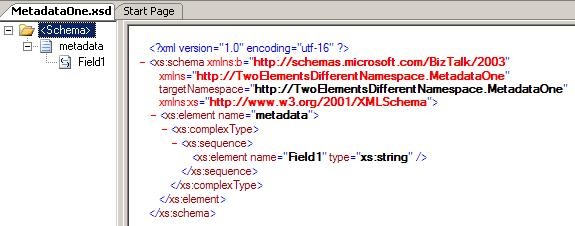
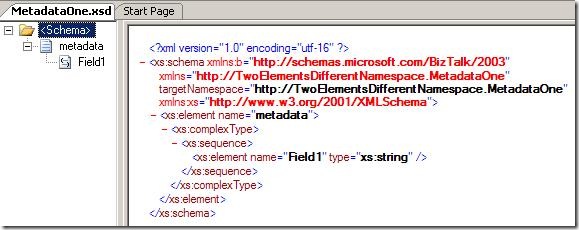
So the first schema could look like this:
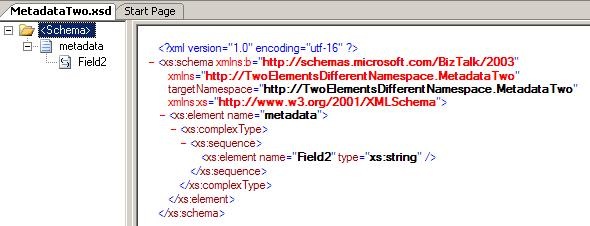
And the second schema could look like this:
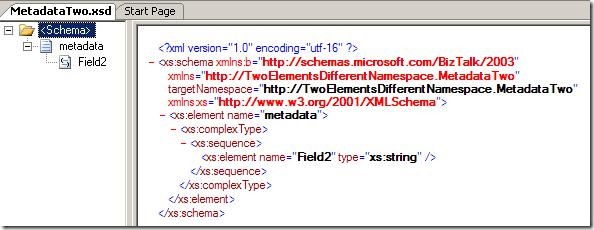
So both have an element named “metadata” but one is in the namespace “http://TwoElementsDifferentNamespace.MetadataOne”
and the other is in the namespace “http://TwoElementsDifferentNamespace.MetadataTwo”.
After that, I create the schema that impors both:
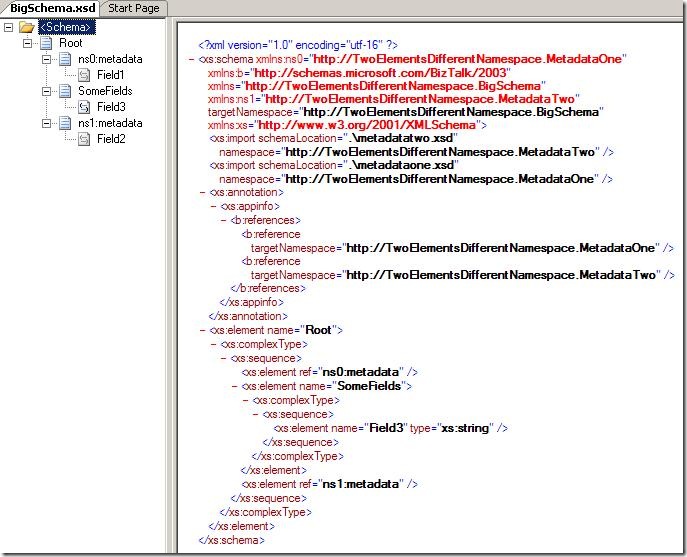
As you can see it imports the first two schemas, and has to elements that reference
each of the metadata elements form the two first schemas.
Also, I crated an output schema that just has three elements and then I created this
map:
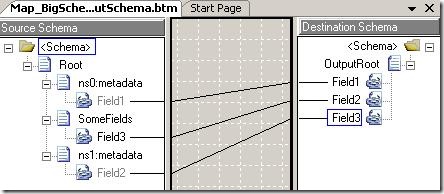
Pretty simple. Now, the issue comes when compiling, because I get this error:
Exception Caught: The map contains a reference to a schema node that is not valid.
Perhaps the schema has changed. Try reloading the map in the BizTalk Mapper.
The XSD XPath of the node is: /*[local-name()='<Schema>’]/*[local-name()=’Root’]/*[local-name()=’metadata’]/*[local-name()=’Field2′]
o the first try was to reload the schema – but that didn’t help – it just broke one
of my links.
In he end I found out, that the issue is that the links are stored like this in the
.BTM file:
<Link LinkID="1" LinkFrom="/*[local-name()=’<Schema>’]/*[local-name()=’Root’]/*[local-name()=’metadata’]/*[local-name()=’Field1′]"
LinkTo="/*[local-name()=’<Schema>’]/*[local-name()=’OutputRoot’]/*[local-name()=’Field1′]"
Label="" />
<Link LinkID="2" LinkFrom="/*[local-name()=’<Schema>’]/*[local-name()=’Root’]/*[local-name()=’SomeFields’]/*[local-name()=’Field3′]"
LinkTo="/*[local-name()=’<Schema>’]/*[local-name()=’OutputRoot’]/*[local-name()=’Field2′]"
Label="" />
<Link LinkID="3" LinkFrom="/*[local-name()=’<Schema>’]/*[local-name()=’Root’]/*[local-name()=’metadata’]/*[local-name()=’Field2′]"
LinkTo="/*[local-name()=’<Schema>’]/*[local-name()=’OutputRoot’]/*[local-name()=’Field3′]"
Label="" />
So. basically, the .BTM file saves links as XPath expressions WITHOUT the namespaces.
So naturally, this has to go wrong, when there are two “metadata” elements on the
same level in the schema.
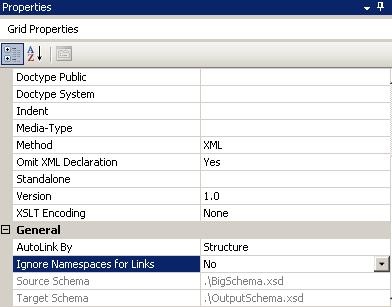
The way to solve this is to choose the properties of the map and disable the “Ignore
Namespaces for Links” like this:
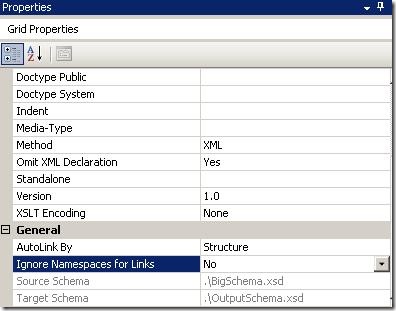
After setting this property, the links change having namespaces inside the .BTM file
and everything is just fine.
One might wonder why the namespaces are not enabled as the default, since they do
make the solution more robust. Well, the reason is simple; If the namespaces are in
all the links, and you change for instance the namespace of the root node, then ALL
links in the map gets broken. So actually, not having the namespaces in the links
make the solution more robust.
So I hope this can help someone.
You can download the solution here:
—
eliasen
by community-syndication | May 6, 2009 | BizTalk Community Blogs via Syndication
Great news folks with the Adapter pack now released.
This is a WCF .NET based set of ’adapters’ that can be used within BizTalk or in any
.NET process – such as SharePoint.
(The visual studio extensions allows you to rapidly create a WCF based Service to
host your adapters)
The Adapter pack has:
– SQL Adapter (faster, newer, improved bionic adapter)
– Siebel
– SAP
– Oracle DB
– Oracle ES
Here’s the links that you’ll need – enjoy!
|
Item
|
Link
|
|
Product
|
|
|
WCF
LOB Adapter SDK SP2(pre-req for BAP 2.0)
|
http://go.microsoft.com/fwlink/?LinkId=147367
|
|
Adapter
Pack 2.0 120 day Evaluation Version
|
120
day eval
|
|
SQL
Adapter SKU Download(For BizTalk branch edition customers)
|
http://go.microsoft.com/fwlink/?LinkId=147379
|
|
Documentation
and Samples
|
|
|
MSDN
Location of Adapter Pack 2.0 docs
|
http://go.microsoft.com/fwlink/?LinkId=149364
|
|
Download
location for individual CHMs in Adapter Pack 2.0
|
http://go.microsoft.com/fwlink/?LinkId=147355
|
|
Download
location for Adapter Pack 2.0 Installation Guide
|
http://go.microsoft.com/fwlink/?LinkId=147364
|
|
Download
location for SQL Adapter Installation Guide and CHM
|
http://go.microsoft.com/fwlink/?LinkId=147377
|
|
Download
location for all the samples for Adapter Pack 2.0
|
http://go.microsoft.com/fwlink/?LinkID=145144
|

by community-syndication | May 6, 2009 | BizTalk Community Blogs via Syndication
I’ll be 35 miles from home next week while attending Microsoft TechEd in Los Angeles. In exchange for acting as eye candy during a few shifts at Microsoft’s BizTalk booth and pimping my new book, I get to attend any other sessions that I’m interested in. Not a bad deal.
You can find me in the […]
by community-syndication | May 6, 2009 | BizTalk Community Blogs via Syndication
Due to popular demand I’ve created another sample of how you can make use of the jQuery Javascript library in your SharePoint sites. This example uses SharePoint’s Lists.asmx web service to retrieve all the list items of a specific list. In my previous posts I showed how you could use jQuery in SharePoint Site Pages (regular .aspx pages uploaded to a Document Library), so let’s do something different now; let’s use jQuery in a plain Content Editor Web Part.
To try this sample navigate to the home page (usually /default.aspx) of a SharePoint site that has a list with some list items in it, in my code I’ll use the Task list of a plain vanilla Team Site. Switch the page to Edit mode (Site Actions, Edit Page), and add a new instance of the Content Editor Web Part to the page. In the properties of that web part, copy and paste the following code using the Source Editor button.
<script type=”text/javascript” src=”http://jqueryjs.googlecode.com/files/jquery-1.3.2.min.js”></script>
<script type=”text/javascript”>
$(document).ready(function() {
var soapEnv =
“<soapenv:Envelope xmlns:soapenv=’http://schemas.xmlsoap.org/soap/envelope/’> \
<soapenv:Body> \
<GetListItems xmlns=’http://schemas.microsoft.com/sharepoint/soap/’> \
<listName>Tasks</listName> \
<viewFields> \
<ViewFields> \
<FieldRef Name=’Title’ /> \
</ViewFields> \
</viewFields> \
</GetListItems> \
</soapenv:Body> \
</soapenv:Envelope>”;
$.ajax({
url: “_vti_bin/lists.asmx”,
type: “POST”,
dataType: “xml”,
data: soapEnv,
complete: processResult,
contentType: “text/xml; charset=\”utf-8\””
});
});
function processResult(xData, status) {
$(xData.responseXML).find(“z\\:row”).each(function() {
var liHtml = “<li>” + $(this).attr(“ows_Title”) + “</li>”;
$(“#tasksUL”).append(liHtml);
});
}
</script>
<ul id=”tasksUL”/>
On the first line the jQuery library is loaded from googlecode.com. To make this your, your client browser needs to have Internet access of course. Alternativly you can host the jQuery library yourself (see my previous examples) or even load the jQuery library in every page using the SmartTools.jQuery component. After that a function is attached to the jQuery document ready event. In this function the SOAP envelope message is constructed (the soapEnv variable). If you’d like to see the code getting list items from another list than the Task list, you’d have to change the listName element. The second part POST-ing the SOAP envelope to the web service by using jQuery’s ajax function. When the web service comes back with the result, the processResult method is called. In this function a loop is created over every row element (in the namespace z). Notice that “z:row“ escapes in Javascript to “z\\:row“. For every row element a new li HTML element is added to the ul element with ID tasksUL. And that’s it! You can see the result in the screenshot below.
by community-syndication | May 6, 2009 | BizTalk Community Blogs via Syndication
For the last few months I have been planning to start blogging about the new addition to our Architecture team at Tellago . One of our goals when we started Tellago , around a year ago, was to hire the best and the brightest and provide them with an environment…(read more)