
by community-syndication | Mar 1, 2010 | BizTalk Community Blogs via Syndication
This morning I found myself in need of the SQL Server management studio on a new box I built a few months ago. So far, I’ve only installed Visual Studio 2010 RC and the SQL Server 2008 Express that came with it. I was first directed to use the Web Platform Installer which, while it is a great tool, didn’t provide any details with the installation ultimately failed. After trying to run the installer as an administrator directly (outside the Web PI) I was warned that I needed to re-apply SQL Server 2008 Service Pack 1. No biggie, I hit run anyway. Then the real problem. The installer kept failing saying that it required .NET 3.5 with Service Pack 1. Windows 7, as you may know, comes with .NET 3.5 SP 1 installed by default. Well, sort of.
While Windows 7 basically has 3.5 SP 1 on it, it really has a comparable version of the .NET framework installed. Most machines (pre-win7) with 3.5 SP 1 have a framework version of something like 3.5.30729.1 . On Windows 7, the framework version is: 3.5.30729.4926. If you look in the registry, under HKLM\Software\Microsoft\.NET Framework Setup\NDP\v3.5\ you will find this version number, but also a key named SP. On Windows 7 that value is zero (0).
Solution, change the registry entry for the SP key from 0 to 1 (one) and then run the installer. Voila, installs with no problem. Now I just need to reapply SP1 (well, after actually walking through the less-than-intuitive installer to apply the management studio) and I’m good to go.
Hope this saves someone else some time.

by community-syndication | Mar 1, 2010 | BizTalk Community Blogs via Syndication
We are excited to announce that the Beta 2 release of Windows Server AppFabric is now available for download via http://msdn.microsoft.com/appfabric . This is the Windows Server AppFabric build that works with the RC (Release Candidate) build of Visual Studio 2010/.NET 4. Windows Server AppFabric is a set of application services focused on improving the speed, scale, and management of Web, Composite, and Enterprise applications. We encourage developers and IT professionals building ASP.NET applications or applications that use WCF or WF and run on IIS to download the Beta and provide feedback at http://connect.microsoft.com/dublin/feedback or via our forum at http://social.msdn.microsoft.com/Forums/en-US/dublin/threads/.
This build represents our “feature complete” milestone. That is, it contains all the features that we plan to ship in Windows Server AppFabric v1 by Q3 of 2010. For this release we focused on building a provider model for persistence, monitoring, and cache configuration stores. In our Beta 1 release we supported only the SQL Server based persistence and monitoring providers that we shipped and supported only an XML file based or SQL Server based cache configuration store. In Beta 2 we now also support providers for other database platforms or for other types of stores, in the case of persistence and cache configuration.
New features and changes in Hosting and Service Management include:
%u00b7 For Monitoring, now when an application is configured at the Health Monitoring level (the default level) the Event Collector aggregates the WCF Operation Completed events instead of writing the individual events to the database. The OperationCompleted event is the most common event because it is fired whenever a WCF call succeeds. The Event Collector now aggregates these events that it receives over a 10 second window. It groups the OperationCompleted events by virtual path and operation name and records one AggregateOperationCompleted event instead of the raw OperationCompleted events. You can disable the aggregation at the Health Monitoring level by changing a flag in the Event Collector’s configuration file. The Release Notes document explains how to do that.
On the Dashboard in IIS Manager you will still see the total count of completed calls. However, when you drill into the Tracked Events page you’ll see the AggregateOperationCompleted events, assuming that you’re looking at an application set to the Health Monitoring level. On this page we have added “Operation Name” and “Call Duration (ms)” columns when WCF events are shown. The individual call duration or the average duration property, depending on whether the event is raw or aggregated, is shown in the “Call Duration (ms)” column.
%u00b7 Windows Server AppFabric now takes advantage of three new WCF events that are available for custom tracing-a user defined information, user defined warning, and user defined error event. There is a sample posted at http://msdn.microsoft.com/en-us/library/ee667248(VS.100).aspx that shows how to emit these events from your WCF service. In the AppFabric Dashboard in the WCF Calls section we’ve made the Errors header more general to include Service Model errors and any user defined errors that your services emit. On the Tracked Events page we show all three types of user defined events, with the name of the event that you’ve defined (suffixed with the actual event type name in parentheses) shown in the Event Type column.
%u00b7 In IIS Manager we now fully support the “tagless service” feature that .NET 4 provides. This feature allows you to omit explicit service definitions in the web.config files for WCF or WF services. When there is no <service> tag the runtime makes some assumptions about your service-it applies default endpoints and the “nameless” (name=“”) behavior configuration. See http://msdn.microsoft.com/en-us/library/ee354381.aspx for more details.
The Endpoints list in IIS Manager now shows you the endpoints that are explicitly defined inside <service> tags in your web.config files and also those that are applied by the runtime. This includes the service endpoints for tagless services and the standard endpoints (like the MEX endpoint and the workflow control endpoint).
The application and service configuration modules in IIS Manager now support “behavior merge”. This .NET 4 feature merges the configuration for the nameless behavior across various scopes in the IIS tree. For example, when you install Windows Server AppFabric we create the nameless behavior at the root of your server (in the web.config file inside the .NET configuration files directory). In that behavior we enable monitoring at the Health Monitoring level. This means that any service on the machine (as long as it does not use a named behavior configuration) will get this behavior by default. If you want a particular application to use a different monitoring level you can use the configuration tools (in IIS Manager or PowerShell) to change the configuration for that application. When the tools write the configuration change into the application’s web.config file they write a local nameless behavior that contains only the different monitoring setting. At runtime the system level nameless behavior gets merged with the local one defined at the application level. The net effect is that your application gets all the system defaults + the different monitoring level.
%u00b7 In .NET 4 some changes were made to how workflow persistence is configured. Some of the settings (like “Unload instances when Idle” and “Action on Unhandled Exception”) were moved from the instance provider behavior to separate host-related behaviors. The IIS Manager configuration tools have been updated accordingly. You will see that some of the settings that were under the “Workflow Persistence” tab in Beta 1 have been moved to a “Workflow Host Management” tab.
%u00b7 We replaced the System Services, Persistence Databases, and Monitoring Databases modules in IIS Manager with a Configuration wizard. As before, you use the Setup wizard to select which features you want to install. The features are grouped into a “Runtime Features” category and an “Administration Tools” category. When it has finished, the Setup wizard launches the Configuration wizard, but you can also run the Configuration wizard whenever you want to change your monitoring, persistence, or cache settings.
New features in Distributed Cache include:
%u00b7 We have added PowerShell cmdlets for configuring cache clusters. The commands are New-CacheCluster, Add-CacheHost, Get-CacheClusterInfo, Register-CacheHost, Remove-CacheCluster, Remove-CacheHost, and Unregister-CacheHost. These commands give you granular control of cluster deployment.
%u00b7 The Cache service now throttles when it is under memory pressure. When it is in the throttling state the service will allow all “read” and “delete” requests but will reject all “write” and “update” operations. This prevents the service from engaging in excessive paging. Throttling events get logged to the Event Log and allow administrators to free available memory, add nodes to the cluster, or change the expiration or deletion policy of cached items, for example.
%u00b7 The Cache service now logs information to two ETW channels. The Admin channel is enabled by default and collects all events like Start Cache Service and Stop Cache Service and any unhandled exceptions. The Operational channel is disabled by default. When it is enabled it captures all warnings from the Cache service. The Event Viewer shows the collected data under Applications and Services Logs -> Microsoft -> Windows -> Application Server – System Services.
We are excited about our Beta 2 release and would love to hear what you think.
by community-syndication | Mar 1, 2010 | BizTalk Community Blogs via Syndication
During this past MVP summit there was an abundance of trash talk regarding Olympic Hockey. Mikael Hakanssons and I made a Blog bet with the loser of the bet dedicating a post to the winning country. As I am sure you have heard, Canada beat USA in overtime 3-2 on Sunday. I will give Mikael credit for being a good sport even though he jumped on the USA bandwagon as soon as Sweden was eliminated. You can find his post here.
by community-syndication | Mar 1, 2010 | BizTalk Community Blogs via Syndication
Apparently, this post has no relevance to BizTalk or any related technology
While under the influence of alcohol. Kent Weare had me convinced we should have this ridiculous bet (but it seamed reasonable at the time), where if Sweden would win the gold medal in the Olympics, he would post a picture of the Swedish hockey team, and if Canadayou get the pointso here it is
and yes -I’m humiliated!
by community-syndication | Mar 1, 2010 | BizTalk Community Blogs via Syndication
Anyone who has ever worked with Business Rules and with the Business Rule Composer has had it’s share of problems when you want to perform a small modification to their policy or vocabulary.
Normally, when in production or QA phase, you would copy/paste your old version to a new version of the policy/vocabulary and then modify what was needed. The tool does not allow you to change already published policies or vocabularies. This to make absolutely sure that the same version of the policy/vocabulary would not result in different results.
Now this is all fine unless you are actually developing everything from scratch….
Now, most of the time you would work with a vocabulary and would build this along the way. Publishing a new version every time you add a new entry to your vocabulary is a common thing, but at the end of your work you end up with several versions (sometimes up to 10/20). This makes it quite difficult to maintain.
What makes it worse is that your rules depend on specific versions of your vocabulary…
At the end of your business rules development you would most likely want just one version of your vocabulary and one version of your ruleset (most likely v1.0).
This means that you would need to update all your rules and all your vocabularies which is again a very time consuming process.
Now, we found a little trick that enables you to “un-publish” a vocabulary and even a ruleset while you are developing them. Off course this is something you would only do while actually developing it from scratch. It would definitely be a bad practice to execute this on production vocabularies and/ or policies!!
Here’s how you do it for vocabularies:
- Publish your vocabulary and use it in your ruleset to test your rules.
- When you need additional changes to your vocabulary, go to “SQL Server Management Studio” and open the contents of the DB table “re_vocabulary” in the DB “BizTalkRuleEngineDB”.
- Check your vocabulary name in the “strName” column (second column in the table), together with the “nMajor” and “nMinor” columns which together make up your version number of your vocabulary.
- Once you found your particular vocabulary, set the “nStatus” column to 0 instead of 1 to “un-publish” your vocabulary.
- Reload your Business Rule Composer view (Press F5).
Be aware that you need to be able to save your rulesets/vocabularies without errors to be able to do so.
- Perform the necessary changes to your vocabulary set…
- Republish, but not using the Business Rule Composer, but via setting “nStatus” to 1 again.
Although I know that this is not a best practice, it has really save me hours of work!
Be aware though, because there are some pitfalls:
- If you add new items to your vocabulary, the above will work flawlessly.
- If you edit existing items in your vocabulary, you will need to update your rules where you used the vocabulary with the “updated” vocabulary.
I haven’t found yet why this is, but it can create some problems. They are easy to find though, since your friendly name will be replaced with an xPath function.
By the way: you can do the same for policies: take a look at the re_ruleset table in the same database (BizTalkRuleEngineDB)..
Good luck!
Pieter Vandenheede
by community-syndication | Feb 27, 2010 | BizTalk Community Blogs via Syndication
We are just putting together the details for the SBUG meeting in April, the registration page is already open on the following link
http://sbugapril2010.eventbrite.com/
by community-syndication | Feb 27, 2010 | BizTalk Community Blogs via Syndication
We have an SBUG meeting in may planned where Udi Dahan (nServiceBus) will join us.
Check out the following for details:
http://sbugmay2010.eventbrite.com/

by community-syndication | Feb 27, 2010 | BizTalk Community Blogs via Syndication
I recently built a POC that wrapped an SAP RFC call in a WCF Service exposed by BizTalk. I exposed schemas as WCF services instead of opting for exposing the Orchestration as a WCF Service. The purpose of the Service was to validate a utility meter’s status inside of SAP. Some of the statuses may include active/inactive/meter not found. The RFC that I used is called RFC_Read_Table. This is a pretty generic, out of box, RFC that allows you to query SAP tables. The RFC is fairly complex due to a lack of good documentation available. Perhaps I am just not part of the secret SAP consultant’s club where you can actually get useful documentation. I plan on documenting my findings in an upcoming post so that other people do not have to endure the pain I went through in order to get it working.
One of the benefits of InfoPath is the ability to consume a web service (asmx). I was pleasantly surprised that InfoPath can also consume some WCF endpoints(.svc). The endpoint type that I exposed was based on the basicHttpbinding which happens to be one of the more interoperable bindings. At this point, the SOAP adapter has been identified as an Adapter that will be removed in an upcoming release of BizTalk. The idea behind this is that people should be moving to the WCF adapter. There are some gaps between the SOAP and WCF adapter, which is outside the scope of this post, but my advice would be if you can use the WCF Adapter then you should. If you cannot, due to a limitation, then you should provide this feedback to Microsoft so they can either enhance the WCF adapter or hold off on removing the SOAP adapter.
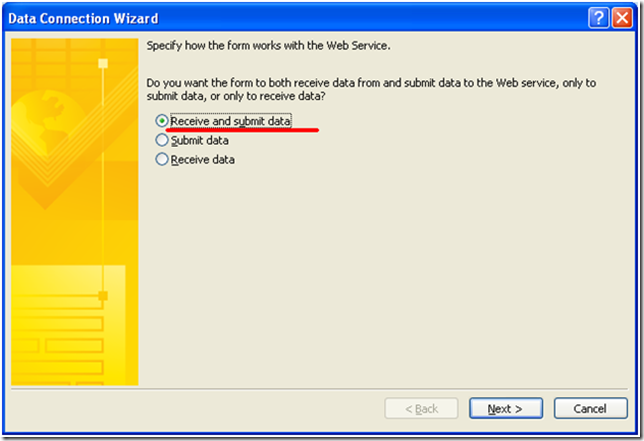
The InfoPath service consumption wizard is fairly straight forward with the exception of “how the form works with the Web Service”. The 3 options that you do have include:
- Receive and submit data
- Submit data
- Receive data
When I think of a client consuming a Web Service, I think in terms of the client providing a Request message and the Server providing a Response. With this in mind, I decided to use the “Submit data” option. What I ran into is that I could submit data to my BizTalk Service, BizTalk would process the request and provide a response but nothing was being updated in my form. I discovered that I needed to use the “Receive and submit data” option instead. The description is counter intuitive as it implies I am receiving data first then I am submitting it. Perhaps if Microsoft would have called this option “Submit and receive data” this would have been a little clearer.
I have recently been teased by a few colleagues and friends about the amount of detail and screen shots that I have put in my blog posts. At the risk of more torture, here is a step by step guide of how I got this all working.
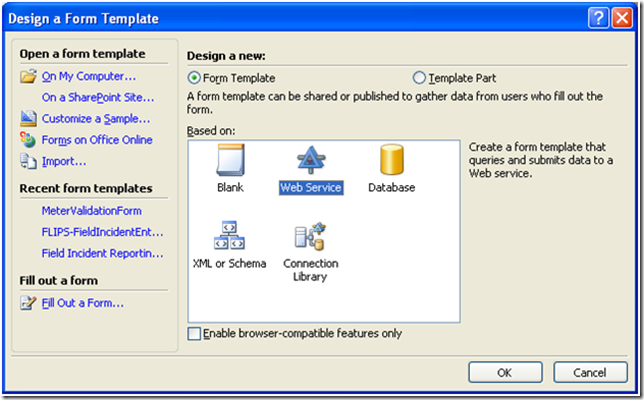
- Select “Web Service’” and click OK
- If you want to submit data to a service and use the response data in your form, select “Receive and submit data’”
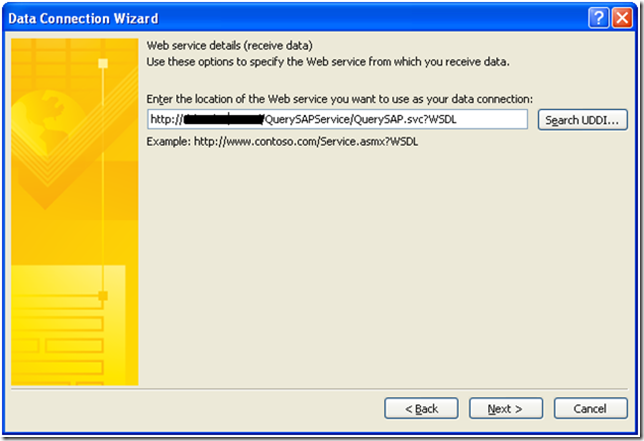
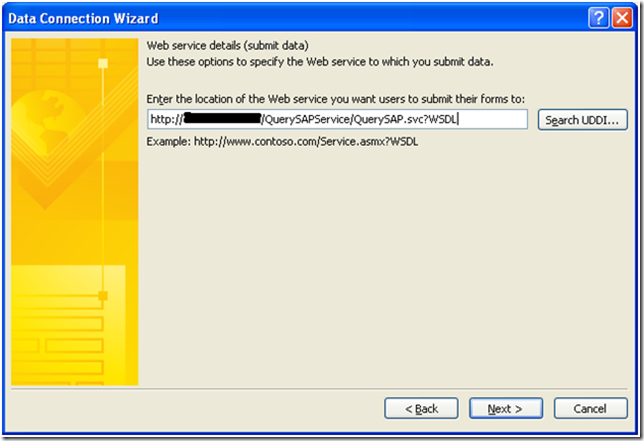
- Provide the destination of your WSDL and click “Next”
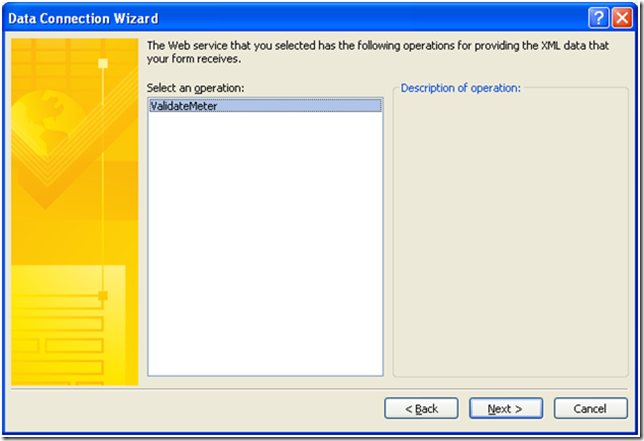
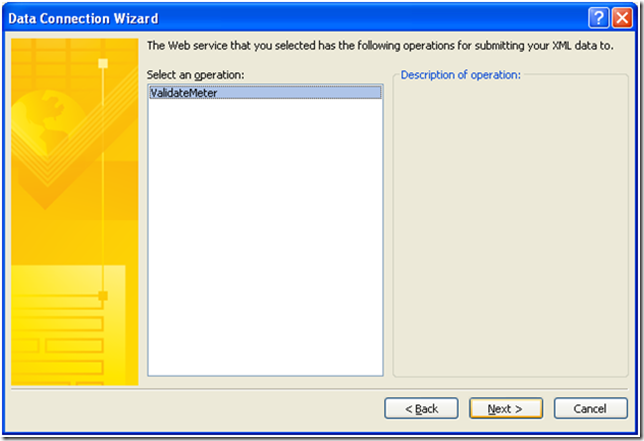
- The name of my operation is “ValidateMeter”, click “Next”
- Thus far, the information that has been provided is related to the Web Service response so I have provided a name for this data connection that reflects this.
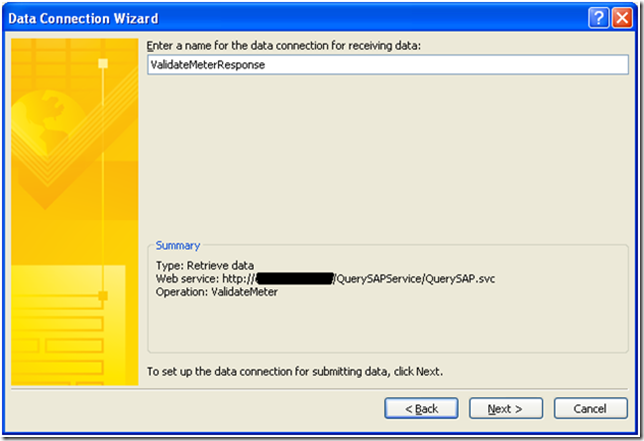
- Since I am submitting data to this same service, I need to provide the WSDL URL again.
- Once again I need to provide the operation that I will be communicating with.
- The “ValidateMeter” operation has a single input parameter. I need to specify which field from the request schema will be sent to the Web Service. To do this I want to click on the following button:

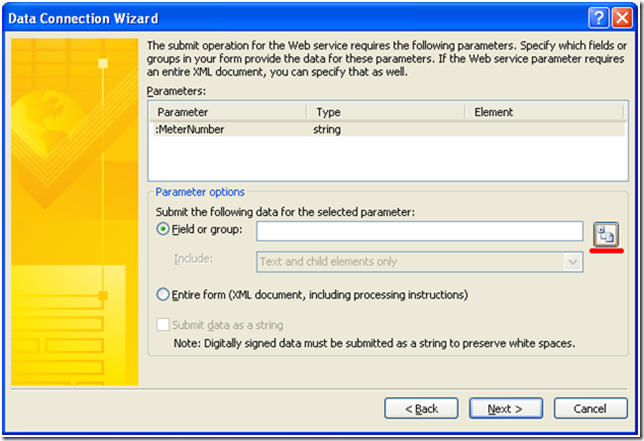
- Select the field from Schema
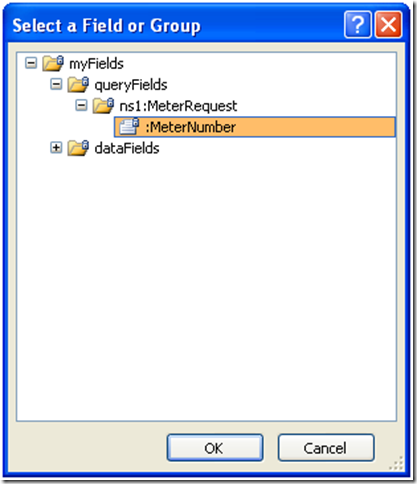
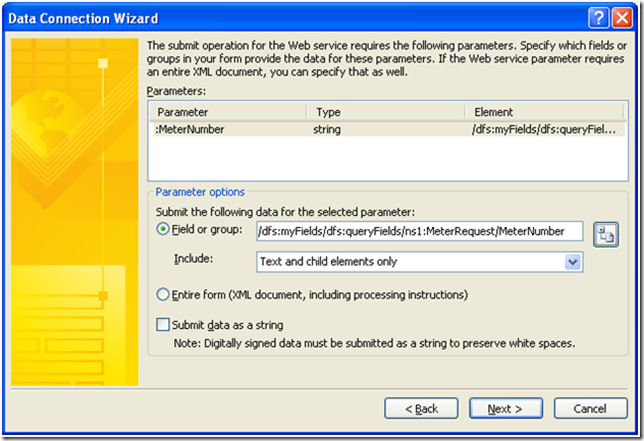
- I now need to provide a name for this data connection
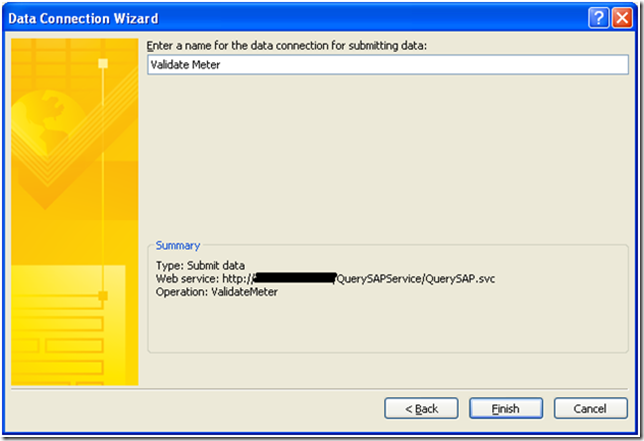
- At this point I have a blank canvas and I also have the ability to start dragging and dropping fields from my Web Service Request and Response schemas onto the canvas.
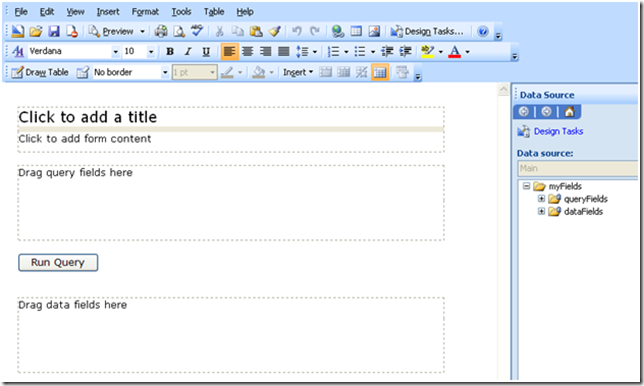
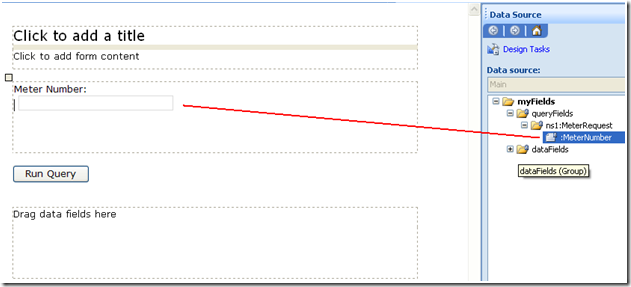
- I have expanded, the “queryFields” node and have dragged the “MeterNumber” element onto the canvas. If you recall the value that will be populated in this field will be sent as part of the Request message to the ValidateMeter Service.
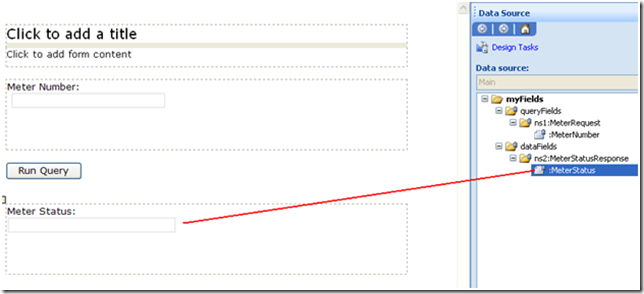
- When BizTalk provides the response from SAP, I want to display this value on the form. In order to do this, I need to expand the “dataFields” node and select “MeterStatus” from the Web Service Response schema.
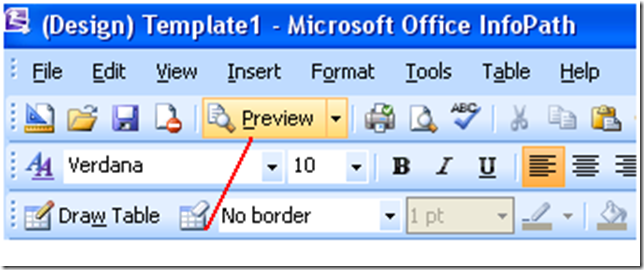
- To test my form, I can click on the “Preview” button
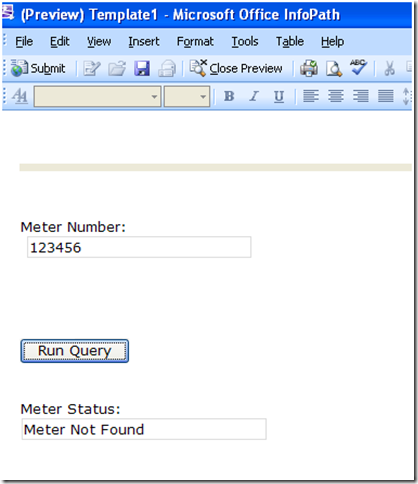
- I can now provide a Meter Number and click the “Run Query” button. Within a couple seconds I will see my Meter Status text get populated. In this particular instance, the Meter Number 123456 does not exist so the Meter Status text box is updated to reflects this.
by community-syndication | Feb 27, 2010 | BizTalk Community Blogs via Syndication
[In addition to blogging, I am also now using Twitter for quick updates and to share links. Follow me at: twitter.com/scottgu]
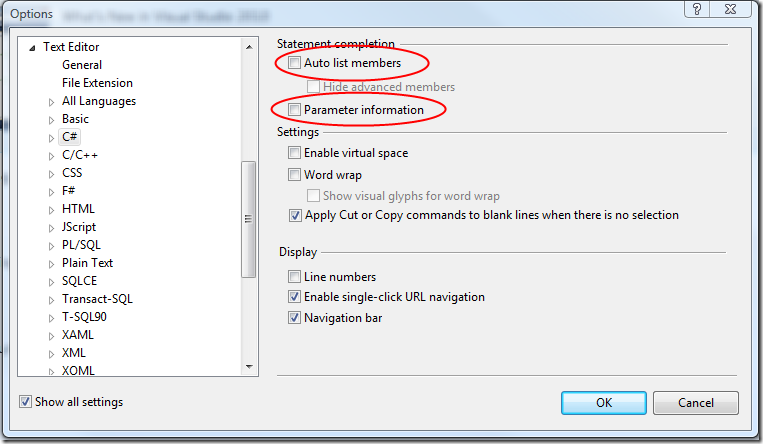
Patrick recently posted about something he found odd when installing the VS 2010 RC – which was that code intellisense for C# wasn’t working. When he pulled up Tools->Options and checked under the Text Editor->C# settings he noticed that the reason Intellisense wasn’t working was because his profile had them turned off – and he couldn’t understand why it was configured to be off by default:
Why does this happen?
The above situation occurs because:
1) When you run VS 2010 the first time on a machine that has had VS 2008 installed on it, it asks you if you want to import your existing VS 2008 profile settings. By default this checkbox is checked – which means you by default automatically import your existing settings.
2) Some VS plugins – for example Resharper – turn off the built-in C# code intellisense within VS and instead replace it with their own implementation. If you’ve installed Resharper on VS 2008, the above VS code intellisense profile settings are turned off. When you import your existing profile during VS 2010’s first time run experience the code intellisense settings import over in a disabled state. If you haven’t installed Resharper on VS 2010 (which is a separate install) – then by default you’ll end up with intellisense turned off.
How to Fix this?
Fixing this situation with the VS 2010 RC is pretty easy. Just do one of two things:
1) Use the Tools->Options menu command, select the Text Editor->C# settings, and then check the two circled check boxes above (Auto-list members and Parameter information). Intellisense will then be turned on and work fine.
or:
2) Install the version of Resharper that works with the VS 2010 RC. It then enables intellisense using its own mechanism.
We are modifying the profile import behavior in the final release of VS 2010
We’ve heard reports of a few people running into this – and since the behavior is pretty confusing we are modifying the profile import behavior with the final release of VS 2010 to avoid it. If a plugin has turned intellisense off with VS 2008, by default when you import the profile into VS 2010 we will re-enable it. This will ensure that on a clean VS 2010 install intellisense always works by default.
Hope this helps,
Scott
by community-syndication | Feb 26, 2010 | BizTalk Community Blogs via Syndication
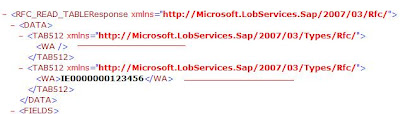
I ran into a situation where I needed to get the last value from a re-occurring node that SAP was returning.
In order to extract the last record, I utilized the Record Count functoid and fed that value into the Index functoid. The Index functoid is also fed with the value from the “WA” element that I am really interested in. The result is then passed to a String Concatenate functoid where the data is enriched before being assigned to the destination document.




