by community-syndication | May 4, 2010 | BizTalk Community Blogs via Syndication
This is the twenty-third in a series of blog posts I’m doing on the VS 2010 and .NET 4 release.
Today’s blog post covers some of the extensibility improvements made in VS 2010 – as well as a cool new "PowerCommands for Visual Studio 2010” extension that Microsoft just released (and which can be downloaded and used for free).
[In addition to blogging, I am also now using Twitter for quick updates and to share links. Follow me at: twitter.com/scottgu]
Extensibility in VS 2010
VS 2010 provides a much richer extensibility model than previous releases. Anyone can build extensions that add, customize, and light-up the Visual Studio 2010 IDE, Code Editors, Project System and associated Designers.
VS 2010 Extensions can be created using the new MEF (Managed Extensibility Framework) which is built-into .NET 4. You can learn more about how to create VS 2010 extensions from this this blog post from the Visual Studio Team Blog.
VS 2010 Extension Manager
Developers building extensions can distribute them on their own (via their own web-sites or by selling them).
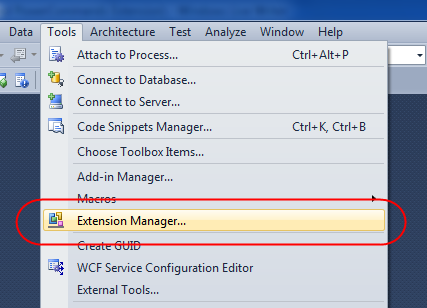
Visual Studio 2010 also now includes a built-in “Extension Manager” within the IDE that makes it much easier for developers to find, download, and enable extensions online. You can launch the “Extension Manager” by selecting the Tools->Extension Manager menu option:
This loads an “Extension Manager” dialog which accesses an “online gallery” at Microsoft, and then populates a list of available extensions that you can optionally download and enable within your copy of Visual Studio:
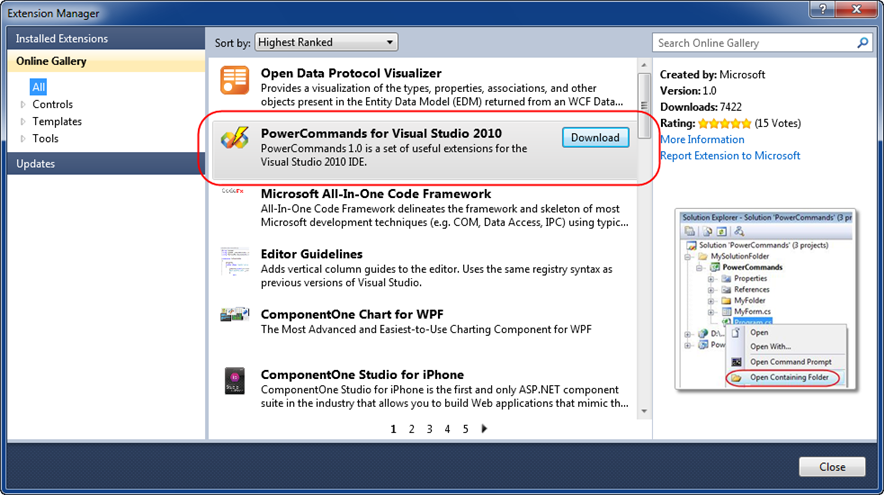
There are already hundreds of cool extensions populated within the online gallery. You can browse them by category (use the tree-view on the top-left to filter them). Clicking “download” on any of the extensions will download, install, and enable it.
PowerCommands for Visual Studio 2010
This weekend Microsoft released the free PowerCommands for Visual Studio 2010 extension to the online gallery. You can learn more about it here, and download and install it via the “Extension Manager” above (search for PowerCommands to find it).
The PowerCommands download adds dozens of useful commands to Visual Studio 2010. Below is a screen-shot of just a few of the useful commands that it adds to the Solution Explorer context menus:

Below is a list of all the commands included with this weekend’s PowerCommands for Visual Studio 2010 release:
-
Enable/Disable PowerCommands in Options dialog
This feature allows you to select which commands to enable in the Visual Studio IDE. Point to the Tools menu, then click Options. Expand the PowerCommands options, then click Commands. Check the commands you would like to enable.
Note: All power commands are initially defaulted Enabled.
- Format document on save / Remove and Sort Usings on save
The Format document on save option formats the tabs, spaces, and so on of the document being saved. It is equivalent to pointing to the Edit menu, clicking Advanced, and then clicking Format Document. The Remove and sort usings option removes unused using statements and sorts the remaining using statements in the document being saved.
Note: The Remove and sort usings option is only available for C# documents. Format document on save and Remove and sort usings both are initially defaulted OFF.
- Clear All Panes
This command clears all output panes. It can be executed from the button on the toolbar of the Output window.
- Copy Path
This command copies the full path of the currently selected item to the clipboard. It can be executed by right-clicking one of these nodes in the Solution Explorer:
The solution node; A project node; Any project item node; Any folder.
- Email CodeSnippet
To email the lines of text you select in the code editor, right-click anywhere in the editor and then click Email CodeSnippet.
- Insert Guid Attribute
This command adds a Guid attribute to a selected class. From the code editor, right-click anywhere within the class definition, then click Insert Guid Attribute.
- Show All Files
This command shows the hidden files in all projects displayed in the Solution Explorer when the solution node is selected. It enhances the Show All Files button, which normally shows only the hidden files in the selected project node.
- Undo Close
This command reopens a closed document , returning the cursor to its last position. To reopen the most recently closed document, point to the Edit menu, then click Undo Close. Alternately, you can use the CtrlShiftZ shortcut.
To reopen any other recently closed document, point to the View menu, click Other Windows, and then click Undo Close Window. The Undo Close window appears, typically next to the Output window. Double-click any document in the list to reopen it.
- Collapse Projects
This command collapses a project or projects in the Solution Explorer starting from the root selected node. Collapsing a project can increase the readability of the solution. This command can be executed from three different places: solution, solution folders and project nodes respectively.
- Copy Class
This command copies a selected class entire content to the clipboard, renaming the class. This command is normally followed by a Paste Class command, which renames the class to avoid a compilation error. It can be executed from a single project item or a project item with dependent sub items.
- Paste Class
This command pastes a class entire content from the clipboard, renaming the class to avoid a compilation error. This command is normally preceded by a Copy Class command. It can be executed from a project or folder node.
- Copy References
This command copies a reference or set of references to the clipboard. It can be executed from the references node, a single reference node or set of reference nodes.
- Paste References
This command pastes a reference or set of references from the clipboard. It can be executed from different places depending on the type of project. For CSharp projects it can be executed from the references node. For Visual Basic and Website projects it can be executed from the project node.
- Copy As Project Reference
This command copies a project as a project reference to the clipboard. It can be executed from a project node.
- Edit Project File
This command opens the MSBuild project file for a selected project inside Visual Studio. It combines the existing Unload Project and Edit Project commands.
- Open Containing Folder
This command opens a Windows Explorer window pointing to the physical path of a selected item. It can be executed from a project item node
- Open Command Prompt
This command opens a Visual Studio command prompt pointing to the physical path of a selected item. It can be executed from four different places: solution, project, folder and project item nodes respectively.
- Unload Projects
This command unloads all projects in a solution. This can be useful in MSBuild scenarios when multiple projects are being edited. This command can be executed from the solution node.
- Reload Projects
This command reloads all unloaded projects in a solution. It can be executed from the solution node.
- Remove and Sort Usings
This command removes and sort using statements for all classes given a project. It is useful, for example, in removing or organizing the using statements generated by a wizard. This command can be executed from a solution node or a single project node.
- Extract Constant
This command creates a constant definition statement for a selected text. Extracting a constant effectively names a literal value, which can improve readability. This command can be executed from the code editor by right-clicking selected text.
- Clear Recent File List
This command clears the Visual Studio recent file list. The Clear Recent File List command brings up a Clear File dialog which allows any or all recent files to be selected.
- Clear Recent Project List
This command clears the Visual Studio recent project list. The Clear Recent Project List command brings up a Clear File dialog which allows any or all recent projects to be selected.
- Transform Templates
This command executes a custom tool with associated text templates items. It can be executed from a DSL project node or a DSL folder node.
- Close All
This command closes all documents. It can be executed from a document tab.
How to temporarily disable extensions
Extensions provide a great way to make Visual Studio even more powerful, and can help improve your overall productivity. One thing to keep in mind, though, is that extensions run within the Visual Studio process (DevEnv.exe) and so a bug within an extension can impact both the stability and performance of Visual Studio.
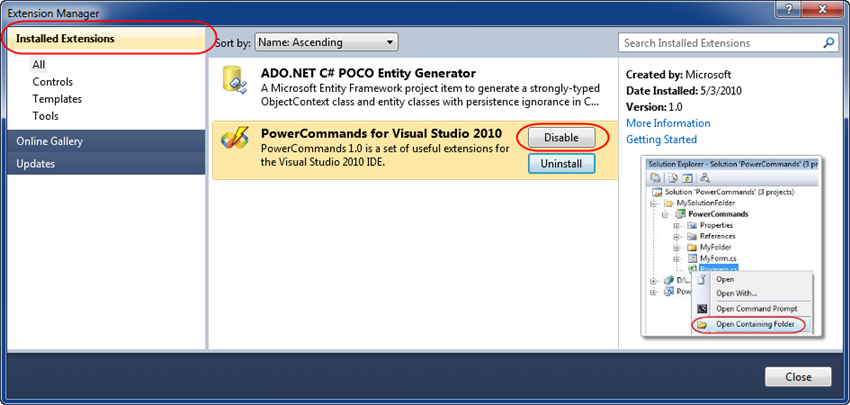
If you ever run into a situation where things seem slower than they should, or if you crash repeatedly, please temporarily disable any installed extensions and see if that fixes the problem. You can do this for extensions that were installed via the online gallery by re-running the extension manager (using the Tools->Extension Manager menu option) and by selecting the “Installed Extensions” node on the top-left of the dialog – and then by clicking “Disable” on any of the extensions within your installed list:
Hope this helps,
Scott

by community-syndication | May 3, 2010 | BizTalk Community Blogs via Syndication
Although BizTalk is in many respects ‘contract driven’ (with the emphasis on first setting up the XSDs for the messages etc), WSDL First development has, IMO, always been a bit’iffy’. The purpose of this post is two-fold. One is to (re) start the discussion around Contract First development with BizTalk and the other is , […]

by community-syndication | May 3, 2010 | BizTalk Community Blogs via Syndication
I’m doing a little groundwork for the team that is now developing and maintaining the BizTalk LoadGen tool. The team is planning for vNext and we would like to know from BizTalk developers what your thoughts are on features/functionality that could be added on. This will be added to the planning list and depending on […]

by community-syndication | May 3, 2010 | BizTalk Community Blogs via Syndication
The WF team has released samples and source code for a state machine (with designer) and some ADO.NET activities. These are not fully supported code, but do provide you with a glimpse of what Microsoft is planning in these areas, and provide you the ability to give feedback on the implementation. I’m interested to check these out as I’ve got my own runtime, but not design-time state machine implementation that I like. It will be fun to see how it compares.
http://wf.codeplex.com/


by community-syndication | May 3, 2010 | BizTalk Community Blogs via Syndication
Microsoft is holding a virtual launch event on May 20th related to many connected systems technologies including AppFabric (on-premise and cloud) and BizTalk Server. If you are interested in hearing more about these technologies and how Microsoft feels the on-premise solutions align with the cloud, you should check out this event. Follow the link for details, calendar link, etc.
Application Infrastructure: Cloud Benefits Delivered
http://www.appinfrastructure.com
Want to bring the benefits of the cloud to your current IT environment? Cloud computing offers a range of benefits, including elastic scale and never-before-seen applications. While you ponder your long-term investment in the cloud, you can harness a number of cloud benefits in your current IT environment now.
Join us on May 20 at 8:30 A.M. Pacific Time to learn how your current IT assets can harness some of the benefits of the cloud on-premises-and can readily connect to new applications and data running in the cloud. As part of the Virtual Launch Event, Gartner vice president and distinguished analyst Yefim Natis will discuss the latest trends and biggest questions facing the Application Infrastructure space. He will also speak about the role Application Infrastructure will play in helping businesses benefit from the cloud. Plus, you’ll hear some exciting product announcements and a keynote from Abhay Parasnis, GM of Application Server Group at Microsoft. Parasnis will discuss the latest Microsoft investments in the Application Infrastructure space aimed at delivering on-demand scalability, highly available applications, a new level of connectivity, and more. Save the date!


by community-syndication | May 3, 2010 | BizTalk Community Blogs via Syndication
Troubleshooting applications in production is always a challenge. With AppFabric monitoring your workflows and services, you get great information about exactly what is happening, including notices about unhandled exceptions. In this episode, Michael McKeown will show you more about how you can use these features to troubleshoot problems with your applications.
Be sure to check out the AppFabric Wiki for more great tips, and to share yours as well.
by community-syndication | May 3, 2010 | BizTalk Community Blogs via Syndication
There are quite a a few cases where it is useful to have a duplex communications. An obvious candidate is allowing a service to notify the user interface application of the progress so the user knows what is happening. Normally, when using plain WCF, you would use a ServiceContract attribute with a CallbackContract that specified the service uses duplex communications. For example something like the following code on the server:
[ServiceContract(CallbackContract = typeof(IService1Callback))]
public interface IService1
{
[OperationContract]
string GetData(int value);
}
[ServiceContract]
public interface IService1Callback
{
[OperationContract]
void Reply(string message);
}
along with a client like this:
class Program
{
static void Main(string[] args)
{
var callback = new Service1Callback();
var proxy = new Service1Client(new InstanceContext(callback));
Console.WriteLine(proxy.GetData(42));
Console.ReadLine();
}
}
class Service1Callback : IService1Callback
{
public void Reply(string message)
{
Console.WriteLine(message);
}
}
But with a workflow service this doesn’t work because, without the ServiceContract attribute, there is no way to specify the CallbackContract. Yet workflows support duplex communications. So if we can’t use a CallbackContract how can we do so?
Workflow Services and Durable Duplex
Instead of the normal WCF duplex services workflow services use a mechanism that is called durable duplex. This is a more disconnected way of doing duplex communications that has a big advantage in that both communications work independently of each other. And that means the usual drawbacks of duplex communications don’t apply here. We can even use a completely different binding on the callback than on the original request. There is however a downside as the client has to create its own ServiceHost and act as a complete WCF service, a little more involved than a normal duplex request. Also settings a workflow, and the client, up for durable duplex takes a bit more configuring. So lets take a look how to do so.
Creating the Workflow Service
First step is to create the workflow service. This starts just like any other WCF Workflow Service Application. The durable duplex mechanism requires a context binding so the first change to the project is to use the wsHttpContextBinding. An easy change using the WCF protocolMapping:
<?xml version="1.0" encoding="utf-8" ?>
<configuration>
<system.serviceModel>
<protocolMapping>
<add scheme="http" binding="wsHttpContextBinding" />
</protocolMapping>
<!-- Remainder deleted -->
</system.serviceModel>
</configuration>
Next step is adding a client console application and making sure we can call the workflow service. Add a console application, add a service reference to the workflow service and add the following code to the Main() function:
static void Main(string[] args)
{
var proxy = new ServiceClient();
Console.WriteLine(proxy.GetData(42));
Console.ReadLine();
}
No big deal so far. Now lets add the duplex part.
First of all we need to add a ServiceHost to the client exposing a callback contract and a callback service definition for the workflow service to call back to. Unlike a normal duplex service, where you define the contract on the service, we need to define this contract on the client using the following definition:
[ServiceContract]
interface IServiceCallback
{
[OperationContract(IsOneWay = true)]
void Update(string message);
}
[ServiceBehavior(InstanceContextMode= InstanceContextMode.Single)]
class ServiceCallback : IServiceCallback
{
public void Update(string message)
{
Console.WriteLine(message);
}
}
Next step is to update the Main() function to host this service:
static void Main(string[] args)
{
var address = "http://localhost:8080/ServiceCallback";
var serviceCallback = new ServiceCallback();
var host = new ServiceHost(serviceCallback, new Uri(address));
host.Open();
var proxy = new ServiceClient();
Console.WriteLine(proxy.GetData(42));
Console.ReadLine();
proxy.Close();
host.Close();
}
Note that this looks just like a service would when self hosting.
Next step is to get the workflow service to call back to the client. For this we need to do a could of things. First of all we need to let the workflow service know where to call back to. This is done by adding a CallbackContextMessageProperty with the callback address to the request header.
This can be done with an OperationContextScope by replacing the proxy.GetDate() call with the following code in the Main() function:
var proxy = new ServiceClient();
using (new OperationContextScope((IContextChannel)proxy.InnerChannel))
{
var context = new CallbackContextMessageProperty(address, new Dictionary<string, string>());
OperationContext.Current.OutgoingMessageProperties.Add(CallbackContextMessageProperty.Name, context);
Console.WriteLine(proxy.GetData(42));
}
Next we need to update the workflow itself.
The first thing we need to add is a CorrelationHandle variable to hold the callback correlation.
Next we need to initialize the callbackHandle using the CorrelationInitializer on the GetData Receive activity.
Next we need a Send activity to send the response to the client setting its CorrelatesWith to the same callbackHandle just initialized.
Finally we set the Send activity properties to match the client callback service as follows:
Note that we leave both the AddressUri and EndpointAddress empty, there is no config either, because this is provide through the request context and the callback correlation handle. We are also setting and set the binding to basicHttpBinding because that was what the client was using.
And finally we need to add a message to pass back like this:
So with all this complete we can run our client and service and have the service call back into the client.
A few things that might trip you up.
Forgetting to set the callback CorrelationHandle results in no messages being sent to the client. In fact an InvalidOperationException occurs with message "Endpoint with Name='<not specified>' and ServiceContract '<not specified>' has a null or empty Uri property. A Uri for this Endpoint must be provided.". This is caused by the Send activity not being able to find its callback address.
Not passing an empty context from the client. The CallbackContextMessageProperty has a few constructor overloads, one just taking a single EndpointAddress and no context parameter. Seems like a good choice as we don’t need to specify any context. Unfortunately this results in an ArgumentNullException with message "Value cannot be null. Parameter name: context". Again when the Send activity tries to find its callback address
How about Silverlight?
And the is of course the biggest problem of them all: what if you can’t create a ServiceHost on the client? In that case you are done for and there is no way to use this durable duplex mechanism. And I guess that rules Silverlight out as a possible client [:(]
Conclusion
All in all this works but it is kind of hard to setup the first time because of all the intricacies with the CallbackContextMessageProperty and the callback correlation handle.
Sample project DuplexDemo.zip
Enjoy
www.TheProblemSolver.nl
Wiki.WindowsWorkflowFoundation.eu

by community-syndication | May 3, 2010 | BizTalk Community Blogs via Syndication
WSCFblue v1 has been a really successful project and we’ve had some great discussions on the forums, feature requests (most of which we have been able to provide) and so on. For a long time the team has been thinking about the next generation of WSCF tooling, taking what we have now to the next […]

by community-syndication | May 2, 2010 | BizTalk Community Blogs via Syndication
Welcome to the 20th interview in my series of discussions with “connected technology” thought leaders. This month we have the distinct pleasure of harassing Aaron Skonnard who is a Microsoft MVP, blogger, co-founder of leading .NET training organization Pluralsight, MSDN magazine author and target of probably 12 other accolades that I’m not aware of. Q: […]

by community-syndication | May 2, 2010 | BizTalk Community Blogs via Syndication
In a BizTalk environment it is sometimes necessary to create a custom adapter to implement functionality that is not available with the out-of-the-box adapters. This article will handle a small part in the process of implementing your custom adapter, the deployment part. Also, this article only applies to adapters that use strong named assemblies. Using […]



