by community-syndication | May 13, 2010 | BizTalk Community Blogs via Syndication
I was pushing data from a SQL table to an Informix table using an openquery statement in a trigger and would get the following error.
Msg 7343, Level 16, State 2, Procedure MyProcedure, Line 166
The OLE DB provider “Ifxoledbc” for linked server “INFORMIX” could not INSERT INTO table “[Ifxoledbc]”.
The following is an example of the T-SQL I was trying to insert. Its been generalized.
insert into openquery(INFORMIX,'select column1,column2,column3,column4,column5,column6,column7,column8,column9,column10,column11,column12,column13,column14,column15,column16,column17,column18,column19,column20,column21,column32, column33 from mytable')
Values ('somedata'
           ,'somedata'
           ,'anumber'
           ,'anumber'
           ,NULL
           ,'2010-03-16 00:00:00.000'
           ,'1'
           ,NULL
           ,NULL
           ,NULL
           ,'2010-03-17 19:00:00.000'
           ,'aname'
           ,'B%u00c3KER'
           ,'an address'
           ,NULL
           ,'acity'
           ,'astate'
           ,'azipcode'
           ,NULL
           ,NULL
           ,NULL
           ,NULL
           ,'astatuscode')
I narrowed it down to value:’B%u00c3KER’. I did a little more testing and Informix won’t accept the following characters.
I grabbed this table from the following link.
http://www.addressmunger.com/hex_ascii_tables/
Does anyone know why Informix won’t accept these characters? I don’t have access to the informix side of things, and I have only an basic knowledge of Informix so input on this problem would be nice.
by community-syndication | May 13, 2010 | BizTalk Community Blogs via Syndication
I recently had an opportunity to attend the Microsoft Canadian Leadership Summit in Redmond and thought I would share some of my findings. The Leadership Summit allows Microsoft Canada to invite key customers and partners to discuss technology trends that are relevant to the Canadian business climate. Below is a recap of some ad hoc notes that I made through-out the presentations.
Why use Microsoft products?
- Standardization allows you to reduce costs
- Flexibility is required to change directions as the economy demands it
- Microsoft technologies allow you to manage costs and have agility
- Microsoft provides building blocks that allows you to fill the gaps between legacy applications, 3rd party and core Microsoft offerings no matter whether they are on-premise or in the cloud.
Pressures continue to Intensify
- New generation of workers
- Security and Compliance continues to be a challenge as more and more integration occurs
- Mobile and Distributed Workforces are increasing in numbers
- Innovate without additional resources
Consumerization of IT
We use to go to work to have a more advanced IT Experience
- Fast network download speeds
- Stable email environments
Now people at home have more IT capabilities at home than in the office
- Video conferencing
- IM
- Facebook
- Wireless Access points
Customers can use Microsoft products to provide a balance between improved collaboration while implementing security and management of those services. Some examples of these technologies include the Social networking features in SharePoint 2010 and Office Communication Server (OCS).
The Cloud
- Decision to move to the cloud should be a business decision and not a technology decision
- Need to trust in enterprise-class services that Microsoft provides
- Delivering consistent connected experience across devices (PC, Mobile phone, Laptop, Consumer devices)
- Microsoft has had success with a lot of large “house hold” companies moving their assets to the Azure cloud. Announcements will be made shortly
- Understanding Canadian Federal and Provincial privacy laws continue to create challenges
Low Cost Computing
- More companies are able to leverage low cost platforms for mission critical applications. Windows Server is an enterprise ready OS that is much more affordable than other enterprise offerings. Migrating your traditional AIX/Oracle environments is feasible , and achievable , on the Windows Platform
- Technology exists to maximize the efficiency of your IT infrastructure
- Take advantage of new ways to acquire and deliver technology
Microsoft’s Commitment to Customers
- Over 1 Billion active Windows Users
- 500 Million Office users
- $9.5 Billion invested in R&D
- Long Term, tenacious and Partner-Centric
Business climates are changing faster than they have before
- Every minute on YouTube, 24 hours of video is uploaded by users
- Starbucks – Office Online
- Growth through stores
- More cross selling and up selling
- needed to extend technology into the store level
- Microsoft Online Services – Email and SharePoint Team sites available to 19000 employees in-store to allow employees to collaborate on how to grow the company$
Deep investments in infrastructure
- $2.3 Billion invested in cloud infrastructure
- Geo-replicated data to multiple data centres
- public and private cloud flexibility
- 30 000 engineers working on cloud services
Microsoft’s Commitment to services excellence
- Financially backed uptime guarantees
- SAS 70 and ISO 27001 compliant
- carbon footprint innovation
- Rapid innovation model
Office 2010 launch
Some key features:
- Ignore conversation – will remove current user from all future Distribution Lists emails and place related emails into the deleted folder
- Pictures of email recipient, from “My Site” show up in the bottom of compose email message
- click on the picture and you see additional context from Facebook, LinkedIn and SharePoint
- SharePoint 2010 Search –
- refined search and meta data
- filter by author, date and other meta data
- Specify content in links i.e. PowerPoint
- Preview slides before opening document
- People Search
- PowerPoint over the web
- high fidelity without the need of Live Meeting
- SharePoint – My Site
- status updates, similar to Facebook
- tagging competencies allows you to easily search and identify an expert in the related competency
- Post on “Note board’ – much like Facebook’s “wall”
- Enriched Org chart including pictures and metadata
- surfaced using Silver Light
- Improved Blogging capabilities
- Tags and Notes
- tag pretty much anything in SharePoint – blogs, documents which create a Tag Cloud
- follow tags via newsfeed
- Offline capabilities – use SharePoint workspace
- SharePoint 2010 wide scale adoption – early adopters include:
- Global Crossing
- Sony
- Associated Press
- Six Flags
- Telus
- Constellation Energy
- Energizer
- 8.6 Million Beta Downloads
- 80 % Beta users encouraged others to download
- 450 Customers in early adoption program
- Edmonton Oilers (Professional Hockey) use SharePoint to collaborate on potentials players by aligning video with meta data and statistics
- Player Dashboard
- Current prospects
- Player video page
- Oiler organization feels that SharePoint 2010 is very intuitive and straight forward to use
- leverage messaging and collaboration features
- 1000 Microsoft Partners are developing SharePoint 2010 solutions
- 20 000 Microsoft Partners partners trained
- 500 000 developers are using SharePoint
Microsoft Online Services
Why Customers are embracing the cloud:
- Reduce CAPEX & OPEX
- Predictable & Pay per use subscriptions
- Focus on Market differentiation
- Energy Efficiency
- Latest versions with no server upgrades
- Choice, Flexibility and Resource Agility
- Merger, Acquisition and Divestitures
- Up and Running quickly
Interesting quote from a Gartner reference":
“By 2012, 20% of businesses will own no IT Assets”. Quite frankly I have a hard time believing this statement.
Microsoft Azure data canters include: Chicago, San Antonio, Northern Virgina, Dublin, Amsterdam, Singapore
No plans for Canada to have a data centre
- Concerns about privacy and laws due to provincial jurisdiction
Customers moving to cloud
- McDonalds
- Rexel
- Staples
- Eddie Bauer
- Phillips
- GlaxoSmithKline
- Blockbuster
Microsoft Online Services
- 40 million Online paid seats
- more than 5oo government agencies
- Over 50% of the fortune 500
- 9000 business customers
by community-syndication | May 13, 2010 | BizTalk Community Blogs via Syndication
This post discusses how to fix a broken Enterprise Single Sign-On (ESSO) installation following an install of Visual Studio 2010 Team Explorer.

by community-syndication | May 13, 2010 | BizTalk Community Blogs via Syndication
Invoking Concurrent programs and working with BizTalk Oracle E-Business Adapter In my current project I had to call a concurrent program in the Oracle E-Business Suite which would generate a report of all the employs payroll of the month. We were automating the payroll process in our organization and the whole solution involved getting and […]
by community-syndication | May 13, 2010 | BizTalk Community Blogs via Syndication
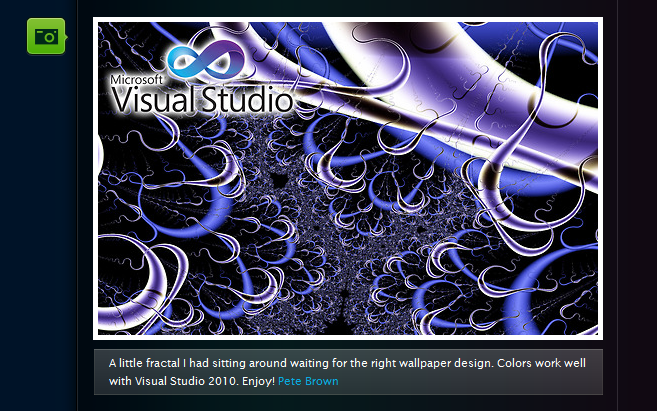
Two weeks ago I blogged about a cool new site that allows you to download and customize the Visual Studio code editor background and text colors (for both VS 2008 and VS 2010 version). The site also allows you to submit and share your own Visual Studio color schemes with others.
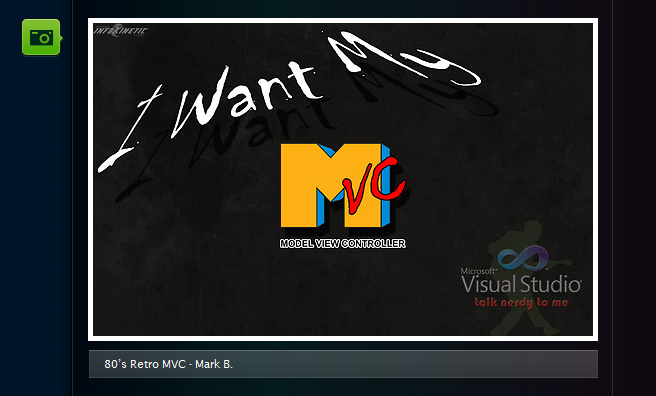
Another new community site has recently launched that allows you to download Visual Studio 2010 themed images that you can use for your Windows desktop background. You can visit the site here: http://vs2010wallpapers.com/ In addition to browsing and downloading Visual Studio themed wallpapers, you can also submit your own into the gallery to share with others.
[In addition to blogging, I am also now using Twitter for quick updates and to share links. Follow me at: twitter.com/scottgu]
Browsing Wallpaper Images
The site has dozens of wallpaper images that you can browse through and choose from. They range from the cool and abstract:
To the fun and silly:


Enabling the Wallpaper Images as your Windows Desktop
You can zoom in on any image (hover over the image and then click the “zoom” button that appears over it) and then download it to be your Windows desktop image. If you visit the site using Internet Explorer, you can also zoom in on the image, then right click on the image and choose the “Set as Background” context menu item to enable it as your Windows desktop.
Note: you want to make sure you download the zoomed-in/high resolution version of the wallpaper to make sure it looks good as the wallpaper on your desktop.
Hope this helps,
Scott
by community-syndication | May 12, 2010 | BizTalk Community Blogs via Syndication
Alright I have been working on a remote server connected via VPN on Cisco’s VPN client.
I noticed early on that I couldn’t browse to any page when connected to the VPN. I would always get something like the following:
This was usually preceded by a login for the proxy server.
After banging my head against a wall for way too long I went into IE LAN settings and unchecked “Automatically detect settings.”
And I can now browse to anything I want. Nothing like a stupid VPN to ruin the internet for you.
by community-syndication | May 12, 2010 | BizTalk Community Blogs via Syndication
Wow! I’m finally through the other side… what a quest and I thought I’d share some
of the details with you.
RFC_READ_TABLE rfc can be used to call into SAP and retrieve table
data – *sort of* (and that’s a big sort of) like a ‘DataSet’.
Using it requires a little work and understanding.
In your either BizTalk project or other project from VS.NET:
-
Add the SAP bits to your VS.NET project – ready for action
-
select ‘Add Adapter Service Reference’ (for BTS projects -> Add New Generated
Item->Consume Service Adapter…)
-
On the Binding Wizard Screen select sapBinding and configure the
appropriate connection string details such as:
string
sapUri = “sap://CLIENT=800;LANG=EN;@A/sapsrv/00?GWHOST=sapsrv&GWSERV=sapgw00&RfcSdkTrace=true”;
<You need to stick your own sapURI above – that is more or less a sample>>
-
Click on the Connect and under RFC->OTHER , select RFC_READ_TABLE (or
you can type it in the box to search)
-
Click Ok to generate the proxy and other details.
-
Either your BizTalk Project or your non-BTS project has now all the relevant details
to communicate to SAP.
I tend to build out all this functionality first in a Console App just
so I know what is needed within the BTS environment, also I find it much quicker to
test/debug etc. here.
-
Ok – onto the code. I’ve got 2 routines for you, one that uses the Proxy Classes built
by the wizard in the last step, and a routine from ‘first principles’.
One of the things that I really like about the BTS Adapter Pack and
certainly in this case, is that depending on the shape of the XML you pass to the
adapter, it determines the table and type of operation that it is to do.
Both of these examples below you could wrap into a functoid/helper/whatever and use
directly from code.
-
Proxy Code – version 1 – here I define some parameters and make a straight call to
the table CSKS.
NOTE: Use FieldNames not Field Labels (took me a
few hrs on that one 😉
using
LOBTYPES = microsoft.lobservices.sap._2007._03.Types.Rfc;>
private
static void GetDataFromSAP()
{
RfcClient clnt
= new RfcClient();
//myproxy client
string[]
data = GetAppDetailsForCurrentUser(“SAP”);
clnt.ClientCredentials.UserName.UserName = data[0];
clnt.ClientCredentials.UserName.Password = data[1];
LOBTYPES.TAB512[]
rfcData = new microsoft.lobservices.sap._2007._03.Types.Rfc.TAB512[0];
LOBTYPES.RFC_DB_OPT[]
rfcOps = new microsoft.lobservices.sap._2007._03.Types.Rfc.RFC_DB_OPT[0];
LOBTYPES.RFC_DB_FLD[]
rfcFlds = new microsoft.lobservices.sap._2007._03.Types.Rfc.RFC_DB_FLD[]
{
new LOBTYPES.RFC_DB_FLD()
{
FIELDNAME = “KOSTL”,
LENGTH=10
},
new LOBTYPES.RFC_DB_FLD()
{
FIELDNAME = “DATBI”,
LENGTH=8
},
new LOBTYPES.RFC_DB_FLD()
{
FIELDNAME = “DATAB”,
LENGTH=8
}
};
try
{
clnt.Open();
clnt.RFC_READ_TABLE(“;”, string.Empty, “CSKS”,
50, 0,ref rfcData, ref rfcFlds, ref rfcOps);
Console.WriteLine(“RFC
RESPONSE\r\n\r\nData:” + rfcData.Length.ToString());
}
catch (Exception ex)
{
Console.WriteLine(“ERROR:
“ + ex.Message);
}
}>
-
More from first principles so this is to give you more of a BTS picture.
NOTE: The use of the ‘%’ sign to get a wildcard match on a KOSTL
field, despite in the SAP Client UI the users enter a ‘*’
private
static void GetDataFromSAPV1()
{
string[]
data = GetAppDetailsForCurrentUser(“SAP”);
SAPBinding binding
= new SAPBinding();
//A reference to Microsoft.Adapters.Sap is needed.
//set
up an endpoint address
string sapUri
= “sap://CLIENT=800;LANG=EN;@A/sapsrv/00?GWHOST=sapsrv&GWSERV=sapgw00&RfcSdkTrace=true”;
EndpointAddress address
= new EndpointAddress(sapUri);
try
{
ChannelFactory<IRequestChannel>
fact = new ChannelFactory<IRequestChannel>(binding as Binding,
address);
// add credentials
fact.Credentials.UserName.UserName
= data[0];
fact.Credentials.UserName.Password = data[1];
// Open client
fact.Open();
//get a channel from the factory
IRequestChannel irc = fact.CreateChannel();
//open the channel
irc.Open();
string inputXml = “<RFC_READ_TABLE
xmlns=’http://Microsoft.LobServices.Sap/2007/03/Rfc/’ xmlns:ns1=’http://Microsoft.LobServices.Sap/2007/03/Types/Rfc/’>”
+ “<DELIMITER>|</DELIMITER>”
+ “<QUERY_TABLE>CSKS</QUERY_TABLE>”
+ “<ROWCOUNT>10</ROWCOUNT><ROWSKIPS>0</ROWSKIPS>”
+ “<DATA
/><FIELDS>”
+ “<ns1:RFC_DB_FLD><ns1:FIELDNAME>KOSTL</ns1:FIELDNAME></ns1:RFC_DB_FLD>”
+ “<ns1:RFC_DB_FLD><ns1:FIELDNAME>DATAB</ns1:FIELDNAME></ns1:RFC_DB_FLD>”
+ “<ns1:RFC_DB_FLD><ns1:FIELDNAME>DATBI</ns1:FIELDNAME></ns1:RFC_DB_FLD>”
+ “</FIELDS>”
+ “<OPTIONS>”
+ “<ns1:RFC_DB_OPT><ns1:TEXT>KOSTL
LIKE ‘1234%’ AND BUKRS EQ ’63’ AND KOKRS EQ ‘APPL'</ns1:TEXT></ns1:RFC_DB_OPT>”
+ “</OPTIONS>”
+ “</RFC_READ_TABLE>”;
//create an XML reader from the input XML
XmlReader reader = XmlReader.Create(new MemoryStream(Encoding.Default.GetBytes(inputXml)));
//create a WCF message from our XML reader
Message inputMessge = Message.CreateMessage(
MessageVersion.Soap11,
http://Microsoft.LobServices.Sap/2007/03/Rfc/RFC_READ_TABLE,
reader);
//send the message to SAP and obtain a reply
Message replyMessage = irc.Request(inputMessge);
//create a new XML document
XmlDocument xdoc = new XmlDocument();
//load the XML document with the XML reader from the output message received from
SAP
xdoc.Load(replyMessage.GetReaderAtBodyContents());
XmlNodeList nds = xdoc.DocumentElement.SelectNodes(“//*[local-name()=’WA’]”);
foreach (XmlNode nd in nds)
{
string[] parts = nd.InnerText.Split(‘|’);
Console.WriteLine(“CC={0}
From: {1} To: {2}”, parts[0], parts[1], parts[2]);
}
xdoc.Save(@”d:\sapout.xml”);
irc.Close();
fact.Close();
}>
catch (Exception ex)
{
Console.WriteLine(“ERROR:
“ + ex.Message);
}
}>
by community-syndication | May 11, 2010 | BizTalk Community Blogs via Syndication
This Thursday (May 13th) I’m going to be doing another online LIDNUG chat session. The chat will be from 10:00am to 11:30am Pacific Time. You can learn more about it here and join the chat at the appropriate time with this link.
I do these chats a few times a year and they tend to be pretty fun. Attendees can listen to me talk live via LiveMeeting, and can submit any questions they want to me. I then answer as many of them as I can in the 90 minutes.
We’ll probably talk a lot about the new features in VS 2010, .NET 4, Silverlight 4, Windows Phone 7, ASP.NET 4 and ASP.NET MVC 2 this week.
Hope to get a chance to chat with some of you there!
Scott
P.S. In addition to blogging, I am also now using Twitter for quick updates and to share links. Follow me at: twitter.com/scottgu
by community-syndication | May 11, 2010 | BizTalk Community Blogs via Syndication
During a recent setup of BizTalk setup, I was getting a failure that the setup could not connect to the SSODB.
I thought it was odd, because the SSODB had not been created.
It appears that the SSOSQL.dll was properly registered during the install.
To register the SSOSQL.dll, open up the Visual Studio Command prompt and path to the SSOSQL.dll directory (C:\Program Files\Common Files\Enterprise Single Sign-On) and key in regasm SSOSQL.dll
by community-syndication | May 10, 2010 | BizTalk Community Blogs via Syndication
This is the twenty-fourth in a series of blog posts I’m doing on the VS 2010 and .NET 4 release.
Today’s blog post covers a very small, but still useful, feature of VS 2010 – the ability to “pin” projects and solutions to both the Windows 7 taskbar as well VS 2010 Start Page. This makes it easier to quickly find and open projects in the IDE.
[In addition to blogging, I am also now using Twitter for quick updates and to share links. Follow me at: twitter.com/scottgu]
VS 2010 Jump List on Windows 7 Taskbar
Windows 7 added support for customizing the taskbar at the bottom of your screen. You can “pin” and re-arrange your application icons on it however you want.
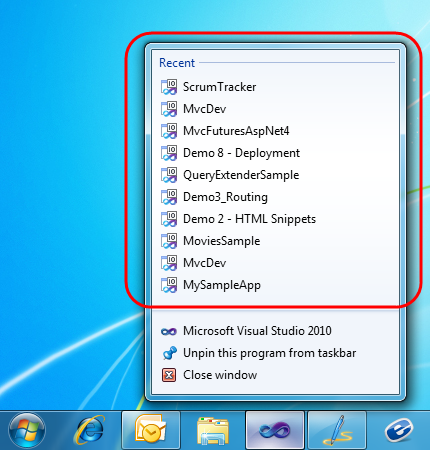
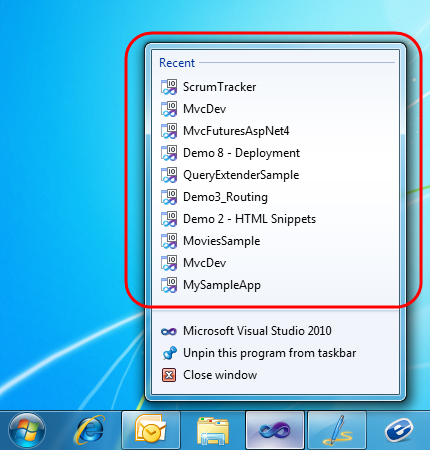
Most developers using Visual Studio 2010 on Windows 7 probably already know that they can “pin” the Visual Studio icon to the Windows 7 taskbar – making it always present. What you might not yet have discovered, though, is that Visual Studio 2010 also exposes a Taskbar “jump list” that you can use to quickly find and load your most recently used projects as well.
To activate this, simply right-click on the VS 2010 icon in the task bar and you’ll see a list of your most recent projects. Clicking one will load it within Visual Studio 2010:
Pinning Projects on the VS 2010 Jump List with Windows 7
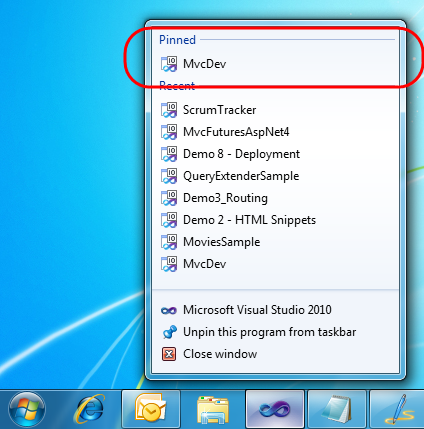
One nice feature also supported by VS 2010 is the ability to optionally “pin” projects to the jump-list as well – which makes them always listed at the top. To enable this, simply hover over the project you want to pin and then click the “pin” icon that appears on the right of it:

When you click the pin the project will be added to a new “Pinned” list at the top of the jumplist:
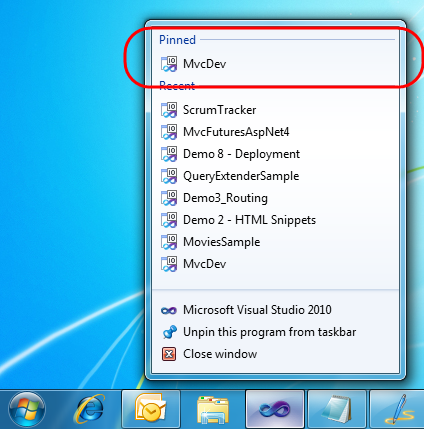
This enables you to always display your own list of projects at the top of the list. You can optionally click and drag them to display in any order you want.
Cool Keyboard Trick with Windows 7 Jump Lists
A cool trick that Scott Cate taught me about is the ability to activate Windows 7 jumplists from the keyboard without having to use a mouse.
Simply press the Windows key + the Alt key + [task tray icon index] and the jump list will appear. For example, above VS 2010 is the 4th program icon from the left on my machine – so if I press the Windows Key + Alt + 4 at the same time then the VS jumplist will appear. You can then use the up and down arrows on your keyboard to select the project you want to load from the jumplist.
VS 2010 Start Page and Project Pinning
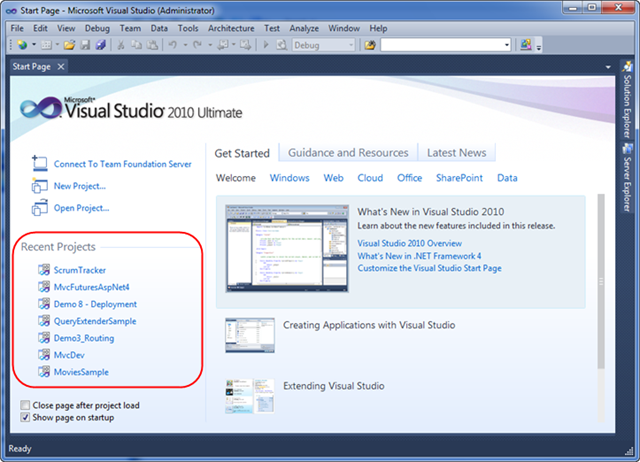
VS 2010 has a new “start page” that displays by default each time you launch a new instance of Visual Studio. In addition to displaying learning and help resources, it also includes a “Recent Projects” section that you can use to quickly load previous projects that you have recently worked on:

The “Recent Projects” section of the start page also supports the concept of “pinning” a link to projects you want to always keep in the list – regardless of how recently they’ve been accessed.
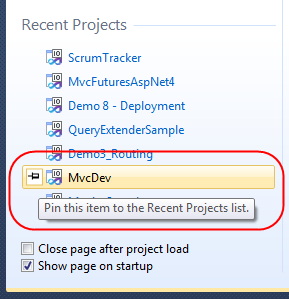
To “pin” a project to the list you simply select the “pin” icon that appears when you hover over an item within the list:
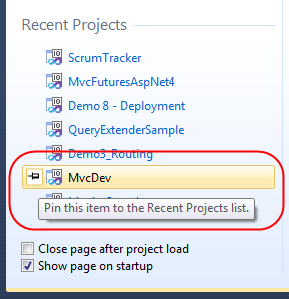
Once you’ve pinned a project to the start page list it will always show up in it (at least until you “unpin” it).
Summary
This project pinning support is a small but nice usability improvement with VS 2010 and can make it easier to quickly find and load projects/solutions. If you work with a lot of projects at the same time it offers a nice shortcut to load them.
Hope this helps,
Scott