by community-syndication | Dec 17, 2010 | BizTalk Community Blogs via Syndication
This is another in a series of posts I’m doing that cover some of the new ASP.NET MVC 3 features:
In today’s post I’m going to discuss how Razor enables you to both implicitly and explicitly define code nuggets within your view templates, and walkthrough some code examples of each of them.
Fluid Coding with Razor
ASP.NET MVC 3 ships with a new view-engine option called “Razor” (in addition to the existing .aspx view engine). You can learn more about Razor, why we are introducing it, and the syntax it supports from my Introducing Razor blog post.
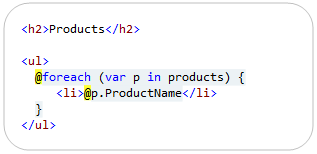
Razor minimizes the number of characters and keystrokes required when writing a view template, and enables a fast, fluid coding workflow. Unlike most template syntaxes, you do not need to interrupt your coding to explicitly denote the start and end of server blocks within your HTML. The Razor parser is smart enough to infer this from your code. This enables a compact and expressive syntax which is clean, fast and fun to type.
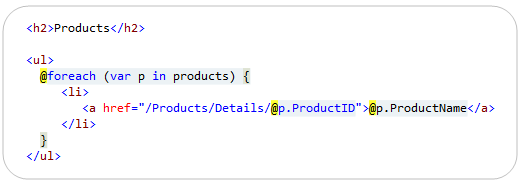
For example, the Razor snippet below can be used to iterate a collection of products and output a <ul> list of product names that link to their corresponding product pages:
When run, the above code generates output like below:
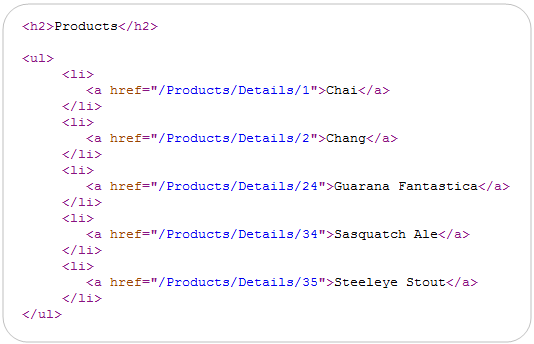
Notice above how we were able to embed two code nuggets within the content of the foreach loop. One of them outputs the name of the Product, and the other embeds the ProductID within a hyperlink. Notice that we didn’t have to explicitly wrap these code-nuggets – Razor was instead smart enough to implicitly identify where the code began and ended in both of these situations.
How Razor Enables Implicit Code Nuggets
Razor does not define its own language. Instead, the code you write within Razor code nuggets is standard C# or VB. This allows you to re-use your existing language skills, and avoid having to learn a customized language grammar.
The Razor parser has smarts built into it so that whenever possible you do not need to explicitly mark the end of C#/VB code nuggets you write. This makes coding more fluid and productive, and enables a nice, clean, concise template syntax. Below are a few scenarios that Razor supports where you can avoid having to explicitly mark the beginning/end of a code nugget, and instead have Razor implicitly identify the code nugget scope for you:
Property Access
Razor allows you to output a variable value, or a sub-property on a variable that is referenced via “dot” notation:

You can also use “dot” notation to access sub-properties multiple levels deep:

Array/Collection Indexing:
Razor allows you to index into collections or arrays:

Calling Methods:
Razor also allows you to invoke methods:

Notice how for all of the scenarios above how we did not have to explicitly end the code nugget. Razor was able to implicitly identify the end of the code block for us.
Razor’s Parsing Algorithm for Code Nuggets
The below algorithm captures the core parsing logic we use to support “@” expressions within Razor, and to enable the implicit code nugget scenarios above:
- Parse an identifier – As soon as we see a character that isn’t valid in a C# or VB identifier, we stop and move to step 2
- Check for brackets – If we see "(" or "[", go to step 2.1., otherwise, go to step 3
- Parse until the matching ")" or "]" (we track nested "()" and "[]" pairs and ignore "()[]" we see in strings or comments)
- Go back to step 2
- Check for a "." – If we see one, go to step 3.1, otherwise, DO NOT ACCEPT THE "." as code, and go to step 4
- If the character AFTER the "." is a valid identifier, accept the "." and go back to step 1, otherwise, go to step 4
- Done!
Differentiating between code and content
Step 3.1 is a particularly interesting part of the above algorithm, and enables Razor to differentiate between scenarios where an identifier is being used as part of the code statement, and when it should instead be treated as static content:

Notice how in the snippet above we have ? and ! characters at the end of our code nuggets. These are both legal C# identifiers – but Razor is able to implicitly identify that they should be treated as static string content as opposed to being part of the code expression because there is whitespace after them. This is pretty cool and saves us keystrokes.
Explicit Code Nuggets in Razor
Razor is smart enough to implicitly identify a lot of code nugget scenarios. But there are still times when you want/need to be more explicit in how you scope the code nugget expression. The @(expression) syntax allows you to do this:

You can write any C#/VB code statement you want within the @() syntax. Razor will treat the wrapping () characters as the explicit scope of the code nugget statement. Below are a few scenarios where we could use the explicit code nugget feature:
Perform Arithmetic Calculation/Modification:
You can perform arithmetic calculations within an explicit code nugget:

Appending Text to a Code Expression Result:
You can use the explicit expression syntax to append static text at the end of a code nugget without having to worry about it being incorrectly parsed as code:

Above we have embedded a code nugget within an <img> element’s src attribute. It allows us to link to images with URLs like “/Images/Beverages.jpg”. Without the explicit parenthesis, Razor would have looked for a “.jpg” property on the CategoryName (and raised an error). By being explicit we can clearly denote where the code ends and the text begins.
Using Generics and Lambdas
Explicit expressions also allow us to use generic types and generic methods within code expressions – and enable us to avoid the <> characters in generics from being ambiguous with tag elements.
One More Thing.Intellisense within Attributes
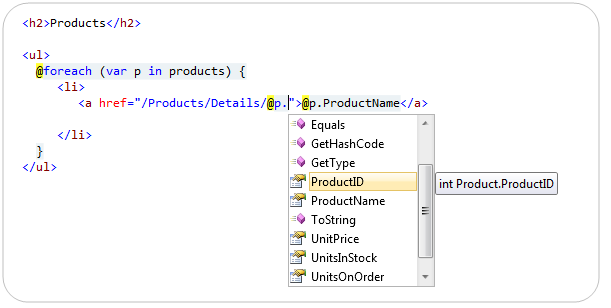
We have used code nuggets within HTML attributes in several of the examples above. One nice feature supported by the Razor code editor within Visual Studio is the ability to still get VB/C# intellisense when doing this.
Below is an example of C# code intellisense when using an implicit code nugget within an <a> href=”” attribute:

Below is an example of C# code intellisense when using an explicit code nugget embedded in the middle of a <img> src=”” attribute:

Notice how we are getting full code intellisense for both scenarios – despite the fact that the code expression is embedded within an HTML attribute (something the existing .aspx code editor doesn’t support). This makes writing code even easier, and ensures that you can take advantage of intellisense everywhere.
Summary
Razor enables a clean and concise templating syntax that enables a very fluid coding workflow. Razor’s ability to implicitly scope code nuggets reduces the amount of typing you need to perform, and leaves you with really clean code.
When necessary, you can also explicitly scope code expressions using a @(expression) syntax to provide greater clarity around your intent, as well as to disambiguate code statements from static markup.
Hope this helps,
Scott
P.S. In addition to blogging, I am also now using Twitter for quick updates and to share links. Follow me at: twitter.com/scottgu
by community-syndication | Dec 16, 2010 | BizTalk Community Blogs via Syndication
Andrew Zhu works for Microsoft in Shanghai and has been using WF4 since the very early days. He frequently answers questions on our internal mailing list and on the WF Forums so when I heard that he was writing a book about WF4 I knew it would be a good one.
I just got my electronic copy and I have to say it looks great. Of course it covers the basics but also gets into great detail especially in the chapter on rehosting the WF designer, it’s definitely on my recommended list.
Check it out – Windows Workflow Foundation 4 Cookbook
by community-syndication | Dec 16, 2010 | BizTalk Community Blogs via Syndication
This is another in a series of posts I’m doing that cover some of the new ASP.NET MVC 3 features:
In today’s post I’m going to discuss two useful syntactical features of the new Razor view-engine – the @: and <text> syntax support.
Fluid Coding with Razor
ASP.NET MVC 3 ships with a new view-engine option called “Razor” (in addition to the existing .aspx view engine). You can learn more about Razor, why we are introducing it, and the syntax it supports from my Introducing Razor blog post.
Razor minimizes the number of characters and keystrokes required when writing a view template, and enables a fast, fluid coding workflow. Unlike most template syntaxes, you do not need to interrupt your coding to explicitly denote the start and end of server blocks within your HTML. The Razor parser is smart enough to infer this from your code. This enables a compact and expressive syntax which is clean, fast and fun to type.
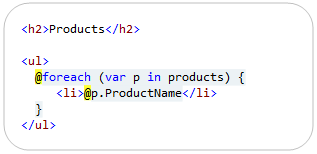
For example, the Razor snippet below can be used to iterate a list of products:
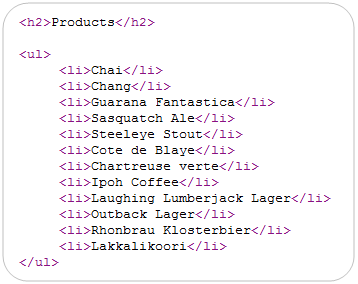
When run, it generates output like:
One of the techniques that Razor uses to implicitly identify when a code block ends is to look for tag/element content to denote the beginning of a content region. For example, in the code snippet above Razor automatically treated the inner <li></li> block within our foreach loop as an HTML content block because it saw the opening <li> tag sequence and knew that it couldn’t be valid C#.
This particular technique – using tags to identify content blocks within code – is one of the key ingredients that makes Razor so clean and productive with scenarios involving HTML creation.
Using @: to explicitly indicate the start of content
Not all content container blocks start with a tag element tag, though, and there are scenarios where the Razor parser can’t implicitly detect a content block.
Razor addresses this by enabling you to explicitly indicate the beginning of a line of content by using the @: character sequence within a code block. The @: sequence indicates that the line of content that follows should be treated as a content block:

As a more practical example, the below snippet demonstrates how we could output a “(Out of Stock!)” message next to our product name if the product is out of stock:
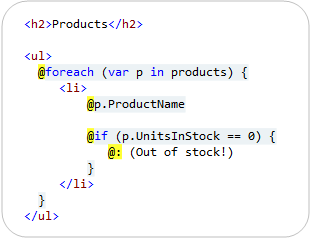
Because I am not wrapping the (Out of Stock!) message in an HTML tag element, Razor can’t implicitly determine that the content within the @if block is the start of a content block. We are using the @: character sequence to explicitly indicate that this line within our code block should be treated as content.
Using Code Nuggets within @: content blocks
In addition to outputting static content, you can also have code nuggets embedded within a content block that is initiated using a @: character sequence.
For example, we have two @: sequences in the code snippet below:
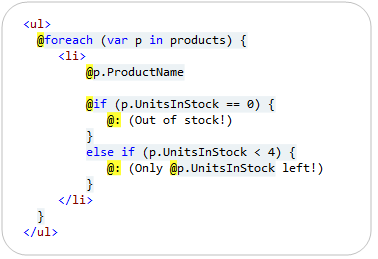
Notice how within the second @: sequence we are emitting the number of units left within the content block (e.g. – “(Only 3 left!”). We are doing this by embedding a @p.UnitsInStock code nugget within the line of content.
Multiple Lines of Content
Razor makes it easy to have multiple lines of content wrapped in an HTML element. For example, below the inner content of our @if container is wrapped in an HTML <p> element – which will cause Razor to treat it as content:
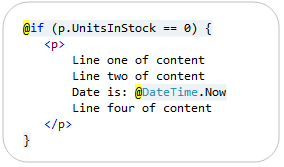
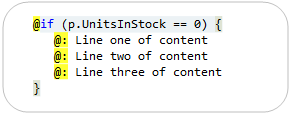
For scenarios where the multiple lines of content are not wrapped by an outer HTML element, you can use multiple @: sequences:
Alternatively, Razor also allows you to use a <text> element to explicitly identify content:
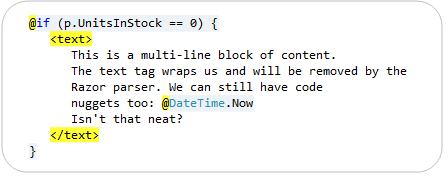
The <text> tag is an element that is treated specially by Razor. It causes Razor to interpret the inner contents of the <text> block as content, and to not render the containing <text> tag element (meaning only the inner contents of the <text> element will be rendered – the tag itself will not). This makes it convenient when you want to render multi-line content blocks that are not wrapped by an HTML element.
The <text> element can also optionally be used to denote single-lines of content, if you prefer it to the more concise @: sequence:
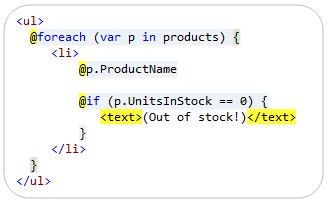
The above code will render the same output as the @: version we looked at earlier. Razor will automatically omit the <text> wrapping element from the output and just render the content within it.
Summary
Razor enables a clean and concise templating syntax that enables a very fluid coding workflow. Razor’s smart detection of <tag> elements to identify the beginning of content regions is one of the reasons that the Razor approach works so well with HTML generation scenarios, and it enables you to avoid having to explicitly mark the beginning/ending of content regions in about 95% of if/else and foreach scenarios.
Razor’s @: and <text> syntax can then be used for scenarios where you want to avoid using an HTML element within a code container block, and need to more explicitly denote a content region.
Hope this helps,
Scott
P.S. In addition to blogging, I am also now using Twitter for quick updates and to share links. Follow me at: twitter.com/scottgu