by community-syndication | May 24, 2011 | BizTalk Community Blogs via Syndication
It has been a while ago I did a series of posts on monitoring tools for BizTalk solutions. Back then I discussed the following tools:
- BizMon now named Integration Platform Monitor (IPM);
- Minotaur currently it’s second release;
- Frends Helium.
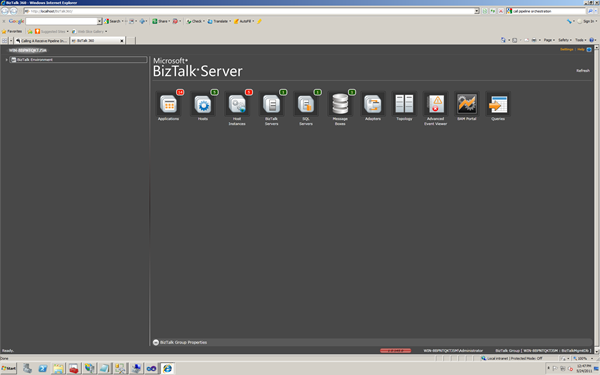
And now there is a new tool made by Saravana Kumar, who I met last MVP summit in person, called BizTalk360. During bus ride from summit back to hotel he demoed me this monitoring tool and I was impressed by functionality and look and feel. Finally there is way for administrators to have a tool similar to administration console, but now web based. The other tools also have a web interface and I still cannot understand why Microsoft hasn’t thought of bringing administration console also in web version (like SCOM 2007 R2!). BizTalk360 is feature rich and I suggest to look at it.
I am impressed by work Saravana has put into it and provided the tool with such a nice UI. User experience in my view is an important factor for a tool to be adopted.I definitely recommend developers and administrators to have a look at this tool and see if it fit for purpose in their environments.It can be download easily from the site after registering. Installation and configuration is easy and straight forward.
Above you have a screenshot of BizTalk360 in my VM, a single box installation of BizTalk Server 2010. In near future I hope a do a new comparison between current offerings for monitoring BizTalk solutions.

by community-syndication | May 23, 2011 | BizTalk Community Blogs via Syndication
The content from the BizTalk training course from Microsoft has now been publically released. You can download this video content and the VMs for learning BizTalk 2010 here: http://www.microsoft.com/downloads/en/details.aspx?FamilyID=38c2ccfc-510c-4627-a33c-95e9d19f3478. Enjoy!
Blog Post by: clineer
by community-syndication | May 23, 2011 | BizTalk Community Blogs via Syndication
Last week I presented two sessions at Microsoft Teched USA. This year my sessions were focus on Real World Windows Workflow Foundation and WCF Patterns. Do I like challenges or what? 😉 Well, both sessions received were jammed packed and received an amazing…(read more)
Blog Post by: gsusx
by community-syndication | May 23, 2011 | BizTalk Community Blogs via Syndication
All,
If in case you haven’t noticed Kevin Smith has released BizUnit 4.0 yesterday. Look like Kevin was hard at work during the weekend. It’s a stable release after an alpha and beta phase.
Go get it at http://bizunit.codeplex.com/releases/view/66850
BizUnit 4.0 introduced some fundamental changes around writing coded tests and XML tests. XML tests are now based on XAML.
Nandri!
Saravana
by community-syndication | May 22, 2011 | BizTalk Community Blogs via Syndication
Thanks to everyone attending my TechEd session on Thursday. You can find the scripts I was running here (sorry I didn’t put them up earlier). Let me know if you have any trouble.
If you didn’t attend, you can view the session online here.
Good luck
//Mikael
Blog Post by: wmmihaa

by community-syndication | May 22, 2011 | BizTalk Community Blogs via Syndication
I know I am late (probably will be the last) in taking BizTalk 2006 R2 (70-241) exam (Released in October 2009) and will be now retired on June 30 2011 with BizTalk 2006 (70-235) which I passed in June 2008. So I am heads up with BizTalk 2010 (70-595) exam which just released on March […]
Blog Post by: Abdul Rafay

by community-syndication | May 20, 2011 | BizTalk Community Blogs via Syndication
A little while back I did a blog post that showed how to query and create Dynamics CRM 2011 records from BizTalk Server. This post will demonstrate how to handle more complex scenarios including creating fields that use option sets (list of values) or entity references (fields that point to another record). To start with, […]
Blog Post by: Richard Seroter
by community-syndication | May 19, 2011 | BizTalk Community Blogs via Syndication
One of the strengths of BizTalk 360 is its fine grained authorization module. It allows administrators to set fine grained authorization policy to users.
The below screen shots shows the various areas you can either grant or deny access to the user profiles. As soon as the user login, he can check his authorization level right on the home dashboard.
In this article, we will take a look at how a super user can restrict an user to access only selected applications in the environment. In our test environment there are 5 BizTalk applications deployed as shown in the below picture, in addition to the default BizTalk.System and BizTalk Application 1.
The task we are going to show here is, Mike Watson is one of the application support person and he only need access to LoanProcessorApplication and MortgageProcessorApplication. To accomplish this task, a super user (administrator) will access BizTalk 360, and click on the "setting" link at the top right hand corner, which will bring the settings home screen as shown below.
Depending on whether its he is going to modify the existing user or assigning a new user, he will select one of the options under "User Access Policy". For this demo, we are going to select "Add New" which will bring the below screen.
The administrator can then enter the name of the domain and the user name (which is Mike Watson in our case) and select the applications (example LoanProcessorApplication and MortgageProcessorApplication) from the list and save the settings.
Now, when Mike Watson access BizTalk 360, on the home screen he can check his rights. As shown in the below picture, he is restricted to access only LoanProcessorApplication and MortgageProcessorApplication. And he also got very restricted access in the environment, he is not granted permission to access other parts of the system like BAM, Topology, Advanced Event Viewer etc.
His object navigator is going to look as shown below. As you can see one two applications are listed for his access and other parts of the system are not visible.
Summary:
Fine grained authorization brings lot of advantages for the enterprise. The foremost reason is, security, the users can only view and operate (if granted) on applications (and suspended instances) they got access to. Also on the other hand it makes life easy for application support people, they are hidden away from unnecessary things, which are not related to their task.
Social:
twitter: @biztalk360
facebook: http://facebook.com/biztalk360
support: http://getsatisfaction.com/biztalk360
Note: If in case you haven’t noticed BizTalk 360 is a web based (RIA) application, built using Microsoft SilverLight. The above screens are accessible via browser. There is no necessity to install anything on the client PC except Microsoft SilverLight.
Nandri!
Saravana
by community-syndication | May 18, 2011 | BizTalk Community Blogs via Syndication
As a continuation of my Keyed Cumulative Sum post, where I did a key based summation using an xslt call template in a BizTalk map I got two main points of feedback worth repeating and showing.
Questions
- If I use Sum on a decimal number it gives me all sort of weird decimals in the Sum although it shouldn’t; ie a sum of 1.1 and 1.1 could result in 2.199999999999. How do I solve that?
- What if I am in Sweden (or Germany or some other country) and I want to use a comma (,) as a decimal separator instead of a period (.). How can I do that?
Answers
- You can use the xslt format-number function to remove erroneous decimal digits that are the result of using Sum on a decimal number.
- You can use the xpath translate function to replace a period with a comma. However this does not conform to an xsd:decimal, so make sure that the target schema does not have this field defined as a decimal if you wish to be compliant.
This will make the outlook of the xslt instead look like this (code is edited to improve readability):
<xsl:template name="OutputSum">
  <xsl:param name="param1" />
  <xsl:param name="param2" />
  <xsl:element name="Compensation_Amount">
    <xsl:variable name="SumOfNodes" select="//row[Compensation_SubCode=$param1 and
                                            Compensation_Level=$param2]/Compensation_Amount)"/>
    <xsl:variable name="FormattedSum" select="format-number($SumOfNodes,'0.00')"/>
    <xsl:value-of select="translate($FormattedSum, '.', ',')" />
  </xsl:element>
</xsl:template>
The use of several variables are for maintainability only, and are not required. You could jam it all into the value-of select statement if you really want to.
/Johan
Blog Post by: Johan Hedberg
by community-syndication | May 18, 2011 | BizTalk Community Blogs via Syndication
Thanks to everyone attending my session on integration with
Office365 and on-prem applications.
All demos can be downloaded from here: http://blogical.se/files/folders/downloads/entry25152.aspx
I recommended you to start downloading the AppFabric SDK CTP,
in which you’ll find the ClientAccessPolicyPublisher sample I was running in
the last sample: http://www.microsoft.com/downloads/en/details.aspx?FamilyID=d89640fc-c552-446e-aead-b1e0d940f31b
Good luck and let me know if you need any
additional help.
Blog Post by: wmmihaa

