by community-syndication | Jul 11, 2013 | BizTalk Community Blogs via Syndication
We recently introduced BizTalk360 version 6.5 with bunch of new monitoring capabilities. One of them is the ability to monitor your SQL Servers using BizTalk360. The heart of BizTalk server is underlying SQL server layer, which host all the core BizTalk system databases like Message Box, Management, SSO, Rules, BAM, Tracking etc. So it’s inevitable […]
The post How To Monitor SQL Servers using BizTalk360 appeared first on BizTalk360 Blog.
Blog Post by: Saravana Kumar
by community-syndication | Jul 10, 2013 | BizTalk Community Blogs via Syndication
This post gives a overview on some of the most important SAP Transaction codes you as a BizTalk developer need to know.

by community-syndication | Jul 10, 2013 | BizTalk Community Blogs via Syndication
I was recently confronted with an interesting problem where I was asked to design a BizTalk schema which contained a complex type that must contain at least one instance of some of its child elements or optionally some or all of them. Upon questioning the business requirement it turned out that I didn’t actually have […]
Blog Post by: Johann

by community-syndication | Jul 8, 2013 | BizTalk Community Blogs via Syndication
I recently went through my second implementation of BizTalk360 and ran into a feature that I wasn’t previously aware of. Typically I have installed BizTalk360 on a BizTalk Server itself which posses a bit of a risk if you only install it on one BizTalk Server and that BizTalk Server happens to be offline.
My current environment consists of a multi-node cluster (an actual cluster with Failover Cluster Services). I recently asked the question to Saravana Kumar if this was the way to go when looking for a redundant monitoring solution. He indicated that my idea would work and is completely supported however I may want to look into a new feature called Monitoring Service High Availability. When using this feature, BizTalk360 itself is maintaining its state by storing it in the database. In my case, One node will be active and the second node will be passive – much like a service being managed by Windows Failover clustering.
To access this feature click on the Settings link in the top right hand corner of the screen.
Next, click on the Monitoring Service High Availability link.
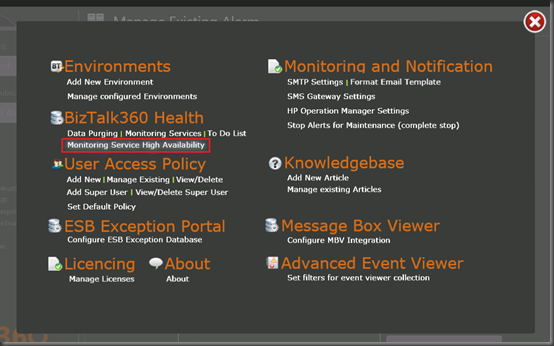
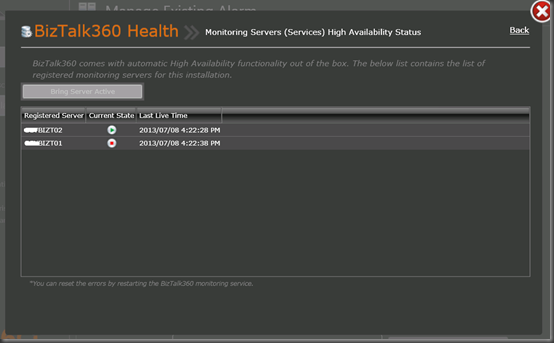
Even though the BizTalk360 Service is actively running on both Servers (in my case), BizTalk360 is designating one of the servers as being the primary.
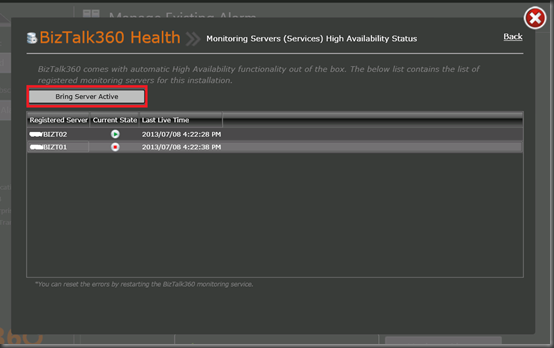
We have the ability to change the primary server by selecting it and then clicking on the Bring Server Active button.
Instantly our primary will switch to becoming a secondary and vice-versa. This was very quick. Much quicker than I have experienced failing over a service using Windows Failover Clustering.
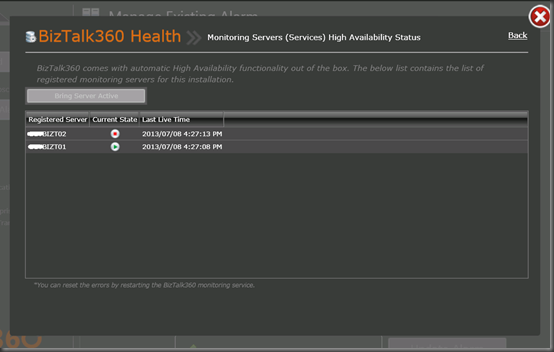
The next test is to take our primary Service (or Server Offline). To do this I will just stop the BizTalk360 service. By doing so I am simulating what would occur if our service stopped or we lost our entire primary server. To make this test even more real I am going to enable a test alert, make sure I receive the first alert and then stop the BizTalk360 Service. My expectation is that my second node will become primary and I should receive another test alert. This time the alert will be generated from the newly activated node.
Below I have configured an existing alarm to function in TEST MODE.
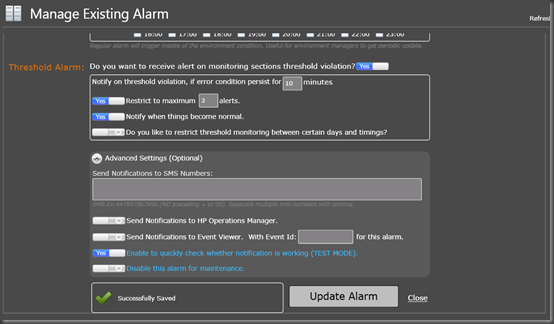
I have received my alert as expected.
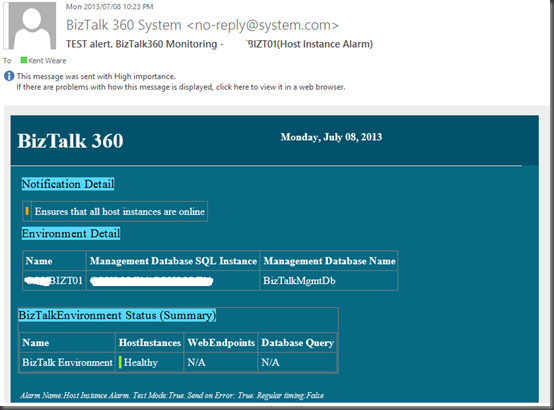
I will now stop the BizTalk360 Service on Node 1.

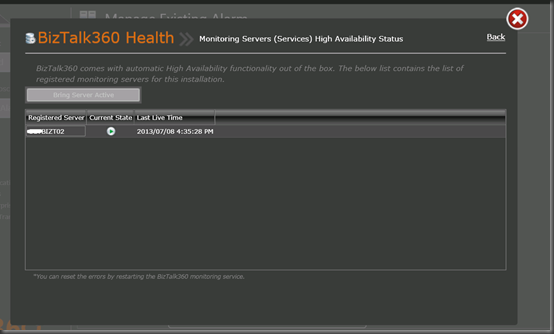
If I navigate back to the Monitoring Services High Availability screen I find that my “Node 2” is now the active server and my “Node 1” is no longer participating as it is offline.
If I check my inbox, I find that I continue to receive these “TEST Alerts” from BizTalk360. This time the alerts are coming from my 2nd Node.

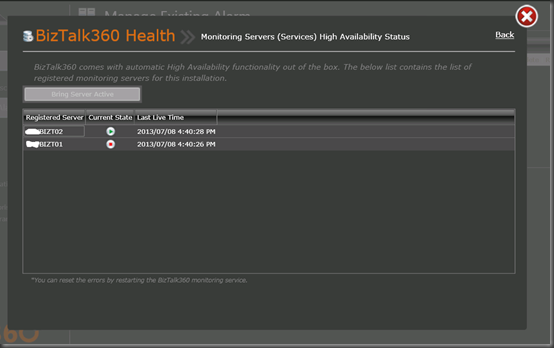
If we now go back to my 1st Node and start the BizTalk360 Service, we will discover that BizTalk360 has recognized that the service is back online but is in a passive state.
Conclusion
I have been around Windows Fail-over Clustering for quite some time and am comfortable working within that environment. The BizTalk environments that I have used in the past also tend to leverage Windows Failover Clustering in order to support Cluster Host Instances for adapters such as S/FTP, POP3 and Database Polling. Using Windows Failover Clustering is an option for ensuring BizTalk 360 is online and redundant, but it is not a pre-requisite. As I have demonstrated in this post; BizTalk360 provides this functionality out of the box. This is great news, especially for those who have multi-node BizTalk environments but do not have (or need) Windows Failover Clustering. This allows you piece of mind in the event one of your BizTalk Servers goes offline, that you can have BizTalk360 installed on another node your coverage will not be interrupted. Kudos to the BizTalk360 team for building such an important feature and making it very easy to use!
by community-syndication | Jul 7, 2013 | BizTalk Community Blogs via Syndication
In 2012 I created a TestTool to test Business Rules that you can use in the ESB Toolkit for BizTalk 2010. (See the post: Testing ESB Toolkit 2.1 Business Rules for BizTalk 2010) The sample was downloaded over 350 times so I thought maybe it would be nice to port it to BizTalk 2013 and add some features to the tool!
The following changes and additions have been made:
- The sample project ported to the .NET framework 4.5 with Visual Studio 2012.
- Show trace output from the BRE engine in the Tool.
- Test if the Itinerary that is resolved with Business Rules also exists in the Itinerary Store database and display it in the Tool.
- Test if the Map that is resolved with Business Rules also exists in the GAC, execute it and display the result in the Tool.
- Some small changes in the user interaction.
Using the Tool
With the sample Tool policies can be tested that have one of the following vocabularies from the ESB Toolkit:
- ESB.EndPointInfo
- Set the Outbound Transport Location properties of a Send Port.
- ESB.TransformInfo
- ESB.Itinerary
Specifying Itineraries
How to dynamically select an itinerary based on the content of a received message and how to test it. |
| |
| Create a Policy with the specific Business Rules in the Business Rule Composer which select an itinerary. |
|
| |
| How to test Specifying an itinerary |
|
Open the XML file in the TestTool and specify the following properties:
- Select the “ESB.Itinerary” Fact.
- Enter the name of the Policy in containing the Business Rules.
- Enter the Document Type of the message.
|
|
| |
|
When you click on the “Test” button, the policy is executed against the BRE engine.
- The trace output of the BRE engine is displayed on the Trace tab.
- The Action tab is automatically selected and shown when the test result of one of the rules is true.
- The tool tests if the itinerary exists in the Itinerary Store database.
- When this is the case it is shown in the Tool otherwise you get an warning message.
|
|
| On the Trace tab are the Test results of the BRE engine displayed. |
| |
|
| On the Action tab the resolved itinerary name. The resolved itinerary is displayed on the Itinerary tab. |
| |
| How to use the Policy |
| Configure the Itinerary Selector pipeline component to use a business rules policy to select the appropriate itinerary. |
|
| |
| |
Dynamic Transformation
How to dynamically select a map based on the content of a message and how to test it. |
| |
| Create a Policy with the specific Business Rules in the Business Rule Composer which select the map. |
|
| |
| How to test Dynamic transformation |
|
Open the XML file in the TestTool and specify the following properties:
- Select the “ESB.TransformInfo” Fact.
- Enter the name of the Policy in containing the Business Rules.
- Enter the Document Type of the message.
|
| |
|
When you click on the “Test” button, the policy is executed against the BRE engine.
- The trace output of the BRE engine is displayed on the Trace tab.
- The Action tab is automatically selected and shown when the test result of one of the rules is true.
- The tool tests if the Map exists in the GAC.
- When this is the case it is executed and shown otherwise you get an warning message.
|
|
| |
| How to use the Policy |
| Configure the properties of the Resolver to use a business rules policy to select the appropriate map. |
|
| |
| |
Dynamic Routing
How to dynamically select a destination based on the content of a message and how to test it. |
| |
| Create a Policy with the specific Business Rules in the Business Rule Composer which select the destination. |
|
| |
| How to test Dynamic Routing |
|
Open the XML file in the TestTool and specify the following properties:
- Select the “ESB.EndPointInfo” Fact.
- Enter the name of the Policy in containing the Business Rules.
- Enter the Document Type of the message.
|
|
| |
| How to use the Policy |
| Configure the properties of the Resolver to use a business rules policy to select the appropriate destination. |
|
| |
| |
Conclusion
The sample is designed for BizTalk 2013 but if you want to use it for BizTalk 2010 you can change the target framework and remove the custom MapHelper class that performs the BizTalk transformations. Add a reference again to the ESB.TransformServices.dll assembly from the ESB Toolkit and use these classes to call a BizTalk map.
You can download the sample tool with the source code here:
Testing Business Rules in ESB toolkit 2.2 for BizTalk 2013

by community-syndication | Jul 5, 2013 | BizTalk Community Blogs via Syndication
This post is the seventh in a weekly series intended to briefly spotlight those things that you need to know about new features in BizTalk Server 2013. This post will focus on a feature that is technically present in BizTalk Server 2010, but was not installed by default. This feature was a subtle enhancement to […]
Blog Post by: Nick Hauenstein
by community-syndication | Jul 4, 2013 | BizTalk Community Blogs via Syndication
In the first post
on BizTalk Services I discussed setting up the service in Windows
Azure. One of the first steps in the setup was specifying the database
settings, access control and monitoring. In this post I like to discuss
the tracking and monitoring of BizTalk Services and deployed solutions.
The SQL database is setup for tracking
purposes. This database is provisioned in Windows
by community-syndication | Jul 4, 2013 | BizTalk Community Blogs via Syndication
Setting up and getting started
With the release of BizTalk Server on Windows Azure Infrastructure Services, a whole new set of possibilities has opened up for BizTalk customers. Infrastructure as a Service (IaaS) is a model in which an organization outsources the equipment used to support operations, including storage, hardware, servers and networking components. In this post, we will be focusing on Setting up BizTalk Server 2013 on IaaS via the Windows Azure Portal. The same can be done via PowerShell scripts and the whole process can be automated as well which will be covered in a later post.
Pre-Requisites:-
- The first and foremost requirement for this would be to have a Windows Azure subscription. In case you don’t have an azure subscription, you can sign up for a free trial account here.
Create a BizTalk Server 2013 Standard Virtual Machine
1. In the Windows Azure Management Portal , Click on New->Compute->Virtual Machine->From Gallery
2. Click on Platform Images. You will see a list of Platform images that Windows Azure offers.
Specific to BizTalk Server 2013, you will see three versions of it
- BizTalk Server 2013 Enterprise
- BizTalk Server 2013 Evaluation
- BizTalk Server 2013 Standard
3. Select one of the BizTalk images (for example select BizTalk Server 2013 Evaluation)
4. A dialog box will appear asking about the configuration of the new BizTalk Machine that you are about to create.
You are required to give a unique name to this machine. Also select the size of the virtual machine – the size varies from Small (1.75GB) to A7 (56GB). For pricing refer here. MSDN subscribers can also make use of the new MSDN benefits in Windows Azure.
You are also required to give an administrator user name and password, which you can later use to log-in to this machine.
After providing the required details, proceed to the next page
5. In this page we will configure the virtual machine mode. You could either create a stand-alone virtual machine or connect to an existing virtual machine.
In this case, however, we are going to create a stand-alone instance. Select a name for the Storage account and also choose the region in which the virtual machine will be deployed.
6. Proceed further and let the availability set be none and the “Remote PowerShell” option be enabled. Proceed further and the process of creating your virtual machine and provisioning it will be started. This will take a few minutes.
Once the Virtual Machine is created, it will be shown in your portal with a status of “Running”.
You can now use Remote Desktop Protocol (RDP) to login to the machine using the credentials stated while creating this machine.
Once you log into the machine, everything that is required for BizTalk Server to be functional, including its pre-requisites are already available. Configuration can be done on BizTalk Server 2013 virtual machine the same way it is done on a BizTalk Server Software installed on a physical machine. Proper documentation regarding manual configuration of a BizTalk Machine can be found here.
By this point you should hopefully have the virtual machine running and configured. This should help you get started on BizTalk Server 2013 in Windows Azure Infrastructure Services. You can find the full MSDN documentation for BizTalk Server 2013 here.
Blog Post by: BizTalk Blog

by community-syndication | Jul 4, 2013 | BizTalk Community Blogs via Syndication
I was asked to help today when a new BizTalk 2013 server just stopped processing messages. I have decided to talk about it here because there are some good lessons can be learnt. Nothing was happening on the server but there was about 5000 active instances just sitting in the message box. After a while […]
Blog Post by: mbrimble
by community-syndication | Jul 4, 2013 | BizTalk Community Blogs via Syndication
BizTalk Servicesprovides a great way to build hybrid solutions. It broadens the number of options you have as an architect, developer to design and build integration solution. This new service in Windows Azure offers B2B in the Cloud supporting EDI, Integration with SaaS solutions and create bridges between Line-Of-Business(LOB) systems and the Cloud through various protocols.
This service is



