by stephen-w-thomas | Apr 18, 2013 | Stephen's BizTalk and Integration Blog
If you are planning to attend TechEd North America this June in New Orleans, LA and are looking for information on BizTalk Server running in Windows Azure IaaS then my session is for you!
With the general release of Windows Azure IaaS and BizTalk 2013 Pay-Per-Hour pricing yesterday I figured now is a great time to plug my session. The abstract is below.
Abstract: This session looks at the architecture of three new integration infrastructure scenarios that are made possible with BizTalk Server 2013 on Windows Azure IaaS. These scenarios include: Small Scale All Cloud, Hybrid Cloud Burst, and Near-Infinite Scale All Cloud. This session walks through each scenario in detail and explains the best use for each, including a cost analysis. Demos are provided to show key aspects of each scenario.
I’m excited about the opportunity to get to speak again at TechEd. My last TechEd presentation was in 2007 covering BizTalk Orchestrations.
One thing to note about the speakers this year at TechEd, I see both a Stephen Thomas and a Steve Thomas. How funny! Make sure if you want to learn more about BizTalk you attend the Stephen Thomas session – although I’m sure the other Thomas’s sessions will be good as well.
Look forward to seeing you at TechEd!
by stephen-w-thomas | Apr 16, 2013 | Stephen's BizTalk and Integration Blog
Today Microsoft released to General Availability the Infrastructure as a Service (IaaS) side of Windows Azure. This includes Virtual Machines and Virtual Networking. Read complete details of the release here.
This is a huge milestone for BizTalk’ers because with the GA release we now have available on a per-per-hour basis both BizTalk Server 2013 Standard and Enterprise Editions. This opens up a whole new spectrum of scenarios using this per-per-use model.
We now have 3 new pre-built images for BizTalk 2013 available in the Image Gallery. They include a BizTalk Evaluation, BizTalk Standard, and BizTalk Enterprise editions. As best I can tell, the BizTalk Evaluation is just charged at the base rate of the VM. The other two editions are more expensive. They are priced as shown in the table below but they include the license to BizTalk.
|
COMPUTE INSTANCE NAME
|
VIRTUAL CORES
|
RAM
|
STANDARD
|
ENTERPRISE
|
|
Small (A1)
|
1
|
1.75 GB
|
$0.75/hr
(~$558/month)
|
$2.99/hr
(~$2,225/month)
|
|
Medium (A2)
|
2
|
3.5 GB
|
$0.84/hr
(~$625/month)
|
$3.08/hr
(~$2,292/month)
|
|
Large (A3)
|
4
|
7 GB
|
$1.02/hr
(~$759/month)
|
$3.26/hr
(~$2,425/month)
|
|
Extra Large (A4)
|
8
|
14 GB
|
$2.04/hr
(~$1,518/month)
|
$6.52/hr
(~$4,851/month)
|
|
COMPUTE INSTANCE NAME
|
VIRTUAL CORES
|
RAM
|
STANDARD
|
ENTERPRISE
|
|
A6
|
4
|
28 GB
|
$1.68/hr
(~$1,250/month)
|
$3.92/hr
(~$2,916/month)
|
|
A7
|
8
|
56 GB
|
$3.36/hr
(~$2,500/month)
|
$7.84/hr
(~$5,833/month)
|
Pricing current as of 4-16-13 per the Azure Pricing Page.
I have already played around with the Enterprise Edition running as a Small VM. I would say, don’t even bother with this size. If you want to give it a run, go right to the Large. The few cents I saved per hour was more than eaten up with latency and overall general slowness of the small VM instance. Giving the few cents price difference between Small and Large, I’ve surprised Small and Medium are even an option. I also do not know how this pricing relates to any free usage you might get in the 90 day trial or MSDN.
CRITICAL – please remember you are charged for a VM even when it is STOPPED. So if you create a Large BizTalk Enterprise VM you are charged until you DELETE the VM.
Let me know if you have played around with these new VM’s and what you think of them! More to come on BizTalk and IaaS in the upcoming months.
by stephen-w-thomas | Apr 3, 2013 | Stephen's BizTalk and Integration Blog
I have put together a quick 10 minute video that introduced Windows Azure IaaS and walks you through creating your first Windows Azure Virtual Machine!
I put a lot of time into adding cool animations and fun dialog, or so I think.
[View:http://www.youtube.com/watch?v=zeNb6LDvVzQ]
Download this video from BizTalkGurus.com or view on YouTube.
Enjoy and let me know what you think!
by stephen-w-thomas | Apr 3, 2013 | Videos
This 10 minute video walks through the new IaaS features of Microsoft Azure. It shows how simple it is to create a new Virtual Machine.
by stephen-w-thomas | Mar 21, 2013 | Stephen's BizTalk and Integration Blog
Today Microsoft announced BizTalk Server 2013 is now Released to Manufacturing (RTM).
The software is now available for download through MSDN in English only. Just do a search for “BizTalk 2013” to find it.
This release brings new adapters, better Azure integration, enhanced SharePoint integration, support for SQL and Visual Studios 2012, and more.
Enjoy!
by stephen-w-thomas | Feb 12, 2013 | Stephen's BizTalk and Integration Blog
Did you know you are charged for a Windows Azure Virtual Machine every hour it is deployed even if it is not running? I would guess many people are not using their Virtual Machines at night when they sleep so shouldn’t we have a simple way to take them offline? Wouldn’t it be nice to have a simple GUI interface to view Virtual Machines (VM) and Virtual Hard Disks (VHD)?
This tool solves all those problems! This tool can be used to easily reduce your monthly Windows Azure compute usage and SAVE YOU MONEY!
I am pleased to announce the release of a community project called the Windows Azure Virtual Machine and Virtual Hard Disk Management Tool. I have put over 300 hours into researching, building, and testing this tool.
Download Link: Windows Azure Virtual Machine and Virtual Hard Disk Management Tool
Read the current list of Known Issues: Known Issues
The list of issues currently relates to Virtual Machines, Disks, and Virtual Networks that were created more than a few months ago.
The purpose of this tool is to make working with Windows Azure Virtual Machines and Virtual Hard Disk easier to use, easier to understand, and more cost effective. Take a look at the feature list below.
Sure – things like taking a VM offline can be done via PowerShell, but I have made it so easy using a simple WinForm even my mom could take a VM offline (if she only knew what offline meant)! Better yet, setting up and configuring PowerShell for Azure is not required to run this tool. All you need is .Net 4.0 or higher, a management certificate installed in Azure, and your subscription ID.
Features:
- Virtual Machines
- View the Service Name, Deployment Name, Virtual Machine Name, and Location of online Virtual Machines
- Take a Virtual Machine offline to save on compute time charges (they are stored on your local file system as XML)
- Bring a local Virtual Machine online to use it again
- Virtual Hard Disks
- View all the VHD’s in the Source and Destination storage account container
- Copy a VHD from one account to another account, even in a different data center
- View the Lease status of VHD’s in the Source or Destination storage account
- Break the Lease of a VHD in the Source or Destination storage account (for orphaned VHDs)
- Delete a VHD in the Source or Destination storage account
- Download a VHD in the Source storage account (this is slow – do not close the form)
- View all the Disks and Disk Details associated with a single Azure subscription
- View all the Images and Image Details associated with a single Azure subscription
- Prevents you from making a copy of a vhd with an existing Lease
See the download link or ReadMe.txt for more details and basic How To’s.
Please keep in mind this is a free tool without support or warranty of any kind. In the event of “bad things happening” I store a backup of the raw exported XML in the local folder. I also do not touch the underlying VHDs when taking a VM offline. Worse case, the VMs would need to be recreated using the Windows Azure portal.
If you run into any issues, please use the Email Me link inside the form to let me know so I can research the issue. I want this to be the best tool possible.
Stay current with the latest information on Windows Azure Virtual Machines Management by joining our Windows Azure Virtual Machine and Virtual Hard Disk Management Newsletter.
To use this tool you need to setup on values in the App.Config file.
<!-- Enter the Source Storage Account Details here. -->
<add key="SourceStorageConnection" value="DefaultEndpointsProtocol=https;AccountName=NAME;AccountKey=KEY" />
<!-- Uncomment and Enter the Destination Storage Account Details here. To work with only one account leave commented out.
To copy to the same store set this to the same as Source Account above. -->
<add key="DestinationStorageConnection" value="DefaultEndpointsProtocol=https;AccountName=NAME;AccountKey=KEY" />
<!-- Select to enable REST API Advanced Features - Subscription ID and Certificate are Required for this feature. true | false -->
<add key='EnableRESTApi' value='true' />
<!-- Enter the full path to the -->
<add key='CertificatePath' value='--Required for REST API not for File Copy--'/>
<!-- Your Windows Azure Subscription ID -->
<add key='SourceSubscriptionID' value='--Required for REST API not for File Copy--' />
<!-- Local folder for exported VMs -->
<add key='LocalVMLocation' value='--Required for REST API not for File Copy--' />
.csharpcode, .csharpcode pre
{
font-size: small;
color: black;
font-family: consolas, “Courier New”, courier, monospace;
background-color: #ffffff;
/*white-space: pre;*/
}
.csharpcode pre { margin: 0em; }
.csharpcode .rem { color: #008000; }
.csharpcode .kwrd { color: #0000ff; }
.csharpcode .str { color: #006080; }
.csharpcode .op { color: #0000c0; }
.csharpcode .preproc { color: #cc6633; }
.csharpcode .asp { background-color: #ffff00; }
.csharpcode .html { color: #800000; }
.csharpcode .attr { color: #ff0000; }
.csharpcode .alt
{
background-color: #f4f4f4;
width: 100%;
margin: 0em;
}
.csharpcode .lnum { color: #606060; }
Basic Steps to take a Virtual Machine Offline – Note – the Disk and VHD are not touched in this process
- Ensure the 4 REST related configuration values are set in the App.config file
- Make sure you have clicked Start Query on the Manage and Copy VHD tab
- On the Manage Virtual Machines, select the VMs you want to take offline
- Click Take Selected VMs Offline
- Process will run in more than one thread unless you have more than one operation on the same service, those will queue
- Output is stored on the file system in the Local VM Location defined in the App.config
- Watch for Status and Error messages in the Status window
Basic Steps to take a Virtual Machine Online – Note – the Disk and VHD are not touched in this process
- Launch the tool and click on the Manage Virtual Machine tab
- Select the VMs you want to bring online
- Click Restore Selected VMs
- Process will run in more than one thread unless you have more than one operation on the same service, those will queue
- Watch for Status and Error messages in the Status window
Download Link: Windows Azure Virtual Machine and Virtual Hard Disk Management Tool
by stephen-w-thomas | Feb 7, 2013 | Stephen's BizTalk and Integration Blog
While I call this post “tricks” for deleting a Windows Azure Virtual Machine it really is not a trick. It does require a little deeper understanding of how Windows Azure creates and hosts Virtual Machines in order to use the REST API to delete them.
Let us start with some background. When you use the Windows Azure Portal to create a new Virtual Machine, a hidden service is created for you that will host the virtual machine role. This will allow more than one Role (i.e. Virtual Machine) to be connected to this service to allow for the automatic round-robin of calls made to the exposed ports.
Below is a list of the Services in one of my Azure Account.
Using the REST API to list all Services, I see that not all of the services returned are shown on the screen in the portal. The service named Test0206D is not listed inside the portal.
<HostedService>
<Url>https://management.core.windows.net/<subscription-id>/services/hostedservices/Test0206D</Url>
<ServiceName>Test0206D</ServiceName>
<HostedServiceProperties>
<Description>Implicitly created hosted service2013-02-07 01:20</Description>
<Location>West US</Location>
<Label>VGVzdDAyMqZE</Label>
<Status>Created</Status>
<DateCreated>2013-02-07T01:20:58Z</DateCreated>
<DateLastModified>2013-02-07T01:21:32Z</DateLastModified>
<ExtendedProperties />
</HostedServiceProperties>
</HostedService>
.csharpcode, .csharpcode pre
{
font-size: small;
color: black;
font-family: consolas, “Courier New”, courier, monospace;
background-color: #ffffff;
/*white-space: pre;*/
}
.csharpcode pre { margin: 0em; }
.csharpcode .rem { color: #008000; }
.csharpcode .kwrd { color: #0000ff; }
.csharpcode .str { color: #006080; }
.csharpcode .op { color: #0000c0; }
.csharpcode .preproc { color: #cc6633; }
.csharpcode .asp { background-color: #ffff00; }
.csharpcode .html { color: #800000; }
.csharpcode .attr { color: #ff0000; }
.csharpcode .alt
{
background-color: #f4f4f4;
width: 100%;
margin: 0em;
}
.csharpcode .lnum { color: #606060; }
In this case the Description clearly tells us this was created for us and when. When we delete a Virtual Machine, the service will start to show up inside the portal. If you never want to deploy a new Virtual Machine to that service again, it can be deleted. Otherwise, keeping the service allows the DNS Name to be reserved and allows a new Virtual Machine Role to be added to this service at a later point.
In order to Add a new Role (i.e. Virtual Machine) to an existing service, use the From Gallery option to create the Virtual Machine. Then, on step 4, Virtual Machine mode, select the Connect To An Existing Virtual Machine option. You will get a drop down of available options.
This background leads to the reason it might be tricky to delete a Virtual Machine using the REST API.
To Delete a stand-alone Virtual Machine
In an earlier blog post I listed the way to delete a Virtual Machine was to do an HTTP DELETE to the following URL.
https://management.core.windows.net/<Subscription-ID>/services/hostedservices/<Service-Name>/deploymentslots/Production
.csharpcode, .csharpcode pre
{
font-size: small;
color: black;
font-family: consolas, “Courier New”, courier, monospace;
background-color: #ffffff;
/*white-space: pre;*/
}
.csharpcode pre { margin: 0em; }
.csharpcode .rem { color: #008000; }
.csharpcode .kwrd { color: #0000ff; }
.csharpcode .str { color: #006080; }
.csharpcode .op { color: #0000c0; }
.csharpcode .preproc { color: #cc6633; }
.csharpcode .asp { background-color: #ffff00; }
.csharpcode .html { color: #800000; }
.csharpcode .attr { color: #ff0000; }
.csharpcode .alt
{
background-color: #f4f4f4;
width: 100%;
margin: 0em;
}
.csharpcode .lnum { color: #606060; }
While this work, it only works in the case of a strand-alone Virtual Machine. If you do not know if the Virtual Machine is stand-along or attached, do an HTTP GET to the URL above. If you only have one <Role> element than it is a stand-alone Virtual Machine.
To Delete a Virtual Machine that is attached to another Virtual Machine
In order to Delete a Virtual Machine that is part of another service, you need to Remove the PersistentVMRole. This is done by an HTTP DELETE to the following URL.
https://management.core.windows.net/<subscription-id>/services/hostedservices/<service-name>/deployments/<deployment-name>/roles/<vm-name>
.csharpcode, .csharpcode pre
{
font-size: small;
color: black;
font-family: consolas, “Courier New”, courier, monospace;
background-color: #ffffff;
/*white-space: pre;*/
}
.csharpcode pre { margin: 0em; }
.csharpcode .rem { color: #008000; }
.csharpcode .kwrd { color: #0000ff; }
.csharpcode .str { color: #006080; }
.csharpcode .op { color: #0000c0; }
.csharpcode .preproc { color: #cc6633; }
.csharpcode .asp { background-color: #ffff00; }
.csharpcode .html { color: #800000; }
.csharpcode .attr { color: #ff0000; }
.csharpcode .alt
{
background-color: #f4f4f4;
width: 100%;
margin: 0em;
}
.csharpcode .lnum { color: #606060; }
The service name and virtual machine name are straight forward but the deployment name is tricky. The deployment name is usually the Service Name but it can also be the name of the first virtual machine you put into the service. To find out for sure, do an HTTP GET to the following URL to get the details of the service deployment.
https://management.core.windows.net/<subscription-id>/services/hostedservices/<service-name>/deploymentslots/Production
.csharpcode, .csharpcode pre
{
font-size: small;
color: black;
font-family: consolas, “Courier New”, courier, monospace;
background-color: #ffffff;
/*white-space: pre;*/
}
.csharpcode pre { margin: 0em; }
.csharpcode .rem { color: #008000; }
.csharpcode .kwrd { color: #0000ff; }
.csharpcode .str { color: #006080; }
.csharpcode .op { color: #0000c0; }
.csharpcode .preproc { color: #cc6633; }
.csharpcode .asp { background-color: #ffff00; }
.csharpcode .html { color: #800000; }
.csharpcode .attr { color: #ff0000; }
.csharpcode .alt
{
background-color: #f4f4f4;
width: 100%;
margin: 0em;
}
.csharpcode .lnum { color: #606060; }
This will return an XML response that looks like the following.
<Deployment xmlns="http://schemas.microsoft.com/windowsazure" xmlns:i="http://www.w3.org/2001/XMLSchema-instance">
<Name>Test0202A</Name>
<DeploymentSlot>Production</DeploymentSlot>
...removed...
</Deployment>
.csharpcode, .csharpcode pre
{
font-size: small;
color: black;
font-family: consolas, “Courier New”, courier, monospace;
background-color: #ffffff;
/*white-space: pre;*/
}
.csharpcode pre { margin: 0em; }
.csharpcode .rem { color: #008000; }
.csharpcode .kwrd { color: #0000ff; }
.csharpcode .str { color: #006080; }
.csharpcode .op { color: #0000c0; }
.csharpcode .preproc { color: #cc6633; }
.csharpcode .asp { background-color: #ffff00; }
.csharpcode .html { color: #800000; }
.csharpcode .attr { color: #ff0000; }
.csharpcode .alt
{
background-color: #f4f4f4;
width: 100%;
margin: 0em;
}
.csharpcode .lnum { color: #606060; }
The Name element is the name of the Deployment.
In summary, a single call can be made to delete a stand-alone Virtual Machine. For scenarios that join several Virtual Machines together inside a single service it takes a deeper understanding of that service’s properties in order to remove a Virtual Machine from that service.
Looking for a simple tool to work with the Windows Azure REST APIs? I have a free tool here that greatly simplifies making REST calls.
by stephen-w-thomas | Dec 12, 2012 | Stephen's BizTalk and Integration Blog
Windows Azure Virtual Machines now has a pre-built image for BizTalk Server 2013. This will enable you to get up and running with BizTalk 2013 in just a few minutes. Configuration is needed once you create a new virtual machine using this image.
The pre-built Image includes the following:
- Windows Server 2012
- SQL 2012
- Visual Studios 2012 Professional RC (I think this does not support the Windows Azure SDK)
- BizTalk 2013 Beta Enterprise Edition
I was able to create a new virtual machine using this image and configure BizTalk. The Rules Engine failed to configure, but I did not look into why.
Let me know if you run into any issues with the Image.
by stephen-w-thomas | Nov 14, 2012 | Stephen's BizTalk and Integration Blog
I noticed today that the Platform Images for Windows Azure Virtual Machines has been updated to include a Windows Server 2008 R2 and Windows Server 2012 Image for October.
The great news is I re-tested installing BizTalk Server 2013 Beta on the new Windows Server 2012 Image and everything installed and is running without issues! This time I used a Medium Virtual Machine as compared to the Small to do the initial software installation. I noticed a huge difference in performance and installation time. Since I am not using the VM now, I have bumped it down to an extra-small that costs just over $0.01 per hour.
If you want to get BizTalk 2013 running before the official image is available, make sure you use the October Images. Best of luck.

by stephen-w-thomas | Nov 12, 2012 | Stephen's BizTalk and Integration Blog
A few days ago BizTalk 2013 Beta was announced and released for download. The plan is to make this available as a Windows Azure Virtual Machine Image just like the CTP but it has not yet been released.
Since the prebuilt image is not available, I wanted to try to manually install BizTalk Server 2013 Beta on a Windows Azure Virtual Machine. I did the same thing with the BizTalk 2010 R2 CTP without any issues. Below is a quick overview of BizTalk 2013 and my experience trying to get this running in an Azure Virtual Machine.
Some of the top improvements I am excited about with BizTalk 2013 include:
- Slick and clean integration with Windows Azure Service Bus including the ability to follow meta data across the exchange
- Easy ESB installation (I am already counting the hours per developer this will save in the future)
- New adapters for calling and exposing REST Services and SFTP
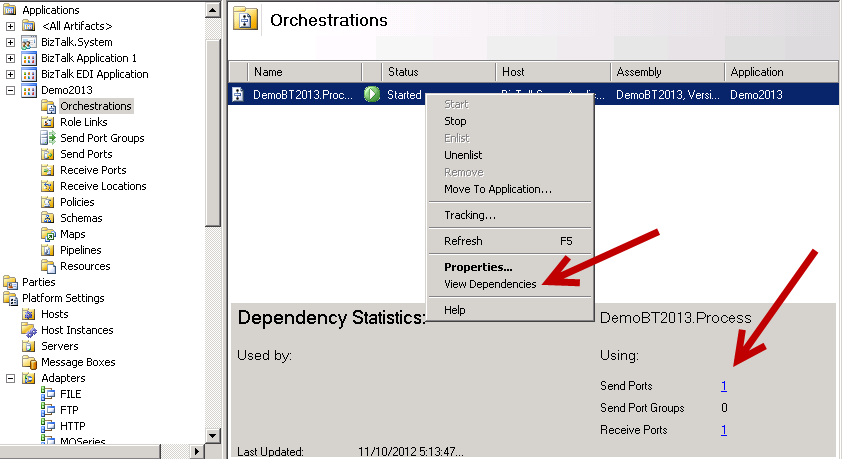
- Dependency tracking through BizTalk Admin Console
Below is what the Dependency Tracking looks like. It is somewhat basic but will be very helpful for someone new looking at an Application for the first time.
Below is my experience trying to get BizTalk 2013 running in a Windows Azure Virtual Machine.
Issues with Windows Server 2012 – End Result: Failure
I started off trying to get BizTalk 2013 to run on a Windows Server 2012 Image provided in the Image Gallery. While I admit I am still totally lost on the new Windows layout I figured no better way to learn than just jumping in.
I got SQL 2012 and Visual Studios 2012 installed without any issues. I installed and configured BizTalk 2013 Beta and also installed the ESB 2.2 from the main menu. Everything seemed fine, except the ESB 2.2 installation gave me a silent completion. That is, the install box just went away. I never got confirmation it was complete or if it had any errors.
I did not know anything was wrong until I tried to create my first project inside Visual Studios. Visual Studios was unable to find the BizTalk Template to create the project although the BizTalk Project was available as a selection. I have seen this in the past with other versions of BizTalk. I then went into the BizTalk Server Admin Console and got an error that it was unable to load the MMC.
I tried to do a BizTalk Repair, but that did not fix the issues, in fact I do not think it ever completed. I deleted the Virtual Machine and associated Virtual Hard Disk. I will give it a try again later when I have more time.
Issues with Windows Server 2008 R2 – End Result: Success, after fixing the issue
After already being in a down mood after my Windows 2012 experience I set out to try installing BizTalk on a Windows Server 2008 R2 Image. Like before, everything installed and configured fine. This time, I was able to create a new BizTalk project in Visual Studios. I was even able to deploy.
I ran into an issue when I tried to create a new Receive Port inside the BizTalk Admin Console. I received an error that pointed me to the Enterprise Single Sign-on Service. Sure enough, it was not started. I tried to start it and received the following error message. The error message was from source SideBySide:
“ Activation context generation failed for "C:\Program Files\Common Files\Enterprise Single Sign-On\ENTSSO.exe".Error in manifest or policy file "C:\Windows\WinSxS\manifests\amd64_microsoft.vc80.atl_1fc8b3b9a1e18e3b_8.0.50727.6195_none_8a1dd9552ed7f8d8.manifest" on line 5. Component identity found in manifest does not match the identity of the component requested. Reference is Microsoft.VC80.ATL,processorArchitecture="amd64",publicKeyToken="1fc8b3b9a1e18e3b",type="win32",version="8.0.50727.6195". Definition is Microsoft.VC80.ATL,processorArchitecture="amd64",publicKeyToken="1fc8b3b9a1e18e3b",type="win32",version="8.0.50727.42". Please use sxstrace.exe for detailed diagnosis.”
I was able to find the file named amd64_microsoft.vc80.atl_1fc8b3b9a1e18e3b_8.0.50727.6195_none_8a1dd9552ed7f8d8.manifest inside the above directory but the file was blank. This seems to be related to something in Visual Studios 2005. After an hour or two of research I found Johan fixed a similar issue related to SQL. I followed the same process to fix this issue.
To fix this issue I did the following :
1. From a command prompt I ran:
dropown C:\Windows\WinSxS\manifests\amd64_microsoft.vc80.atl_1fc8b3b9a1e18e3b_8.0.50727.6195_none_8a1dd9552ed7f8d8.manifest
icacls C:\Windows\WinSxS\manifests\amd64_microsoft.vc80.atl_1fc8b3b9a1e18e3b_8.0.50727.6195_none_8a1dd9552ed7f8d8.manifest /grant Administrators:F
.csharpcode, .csharpcode pre
{
font-size: small;
color: black;
font-family: consolas, “Courier New”, courier, monospace;
background-color: #ffffff;
/*white-space: pre;*/
}
.csharpcode pre { margin: 0em; }
.csharpcode .rem { color: #008000; }
.csharpcode .kwrd { color: #0000ff; }
.csharpcode .str { color: #006080; }
.csharpcode .op { color: #0000c0; }
.csharpcode .preproc { color: #cc6633; }
.csharpcode .asp { background-color: #ffff00; }
.csharpcode .html { color: #800000; }
.csharpcode .attr { color: #ff0000; }
.csharpcode .alt
{
background-color: #f4f4f4;
width: 100%;
margin: 0em;
}
.csharpcode .lnum { color: #606060; }
2. Open the file and update as follows – I got this from a virtual machine running BizTalk Server 2010.
<?xml version="1.0" encoding="UTF-8" standalone="yes"?>
<!-- Copyright %u00a9 1981-2001 Microsoft Corporation -->
<assembly xmlns="urn:schemas-microsoft-com:asm.v1" manifestVersion="1.0">
<noInheritable/>
<assemblyIdentity type="win32" name="Microsoft.VC80.ATL" version="8.0.50727.6195" processorArchitecture="amd64" publicKeyToken="1fc8b3b9a1e18e3b"/>
<file name="ATL80.dll" hash="c7e340d6abcbb023cbfd848a292f6583f4227105" hashalg="SHA1"/>
</assembly>
.csharpcode, .csharpcode pre
{
font-size: small;
color: black;
font-family: consolas, “Courier New”, courier, monospace;
background-color: #ffffff;
/*white-space: pre;*/
}
.csharpcode pre { margin: 0em; }
.csharpcode .rem { color: #008000; }
.csharpcode .kwrd { color: #0000ff; }
.csharpcode .str { color: #006080; }
.csharpcode .op { color: #0000c0; }
.csharpcode .preproc { color: #cc6633; }
.csharpcode .asp { background-color: #ffff00; }
.csharpcode .html { color: #800000; }
.csharpcode .attr { color: #ff0000; }
.csharpcode .alt
{
background-color: #f4f4f4;
width: 100%;
margin: 0em;
}
.csharpcode .lnum { color: #606060; }
I am now up and running with BizTalk Server 2013 Beta on a Windows Azure Virtual Machine!
Has anyone else tried to install the new BizTalk 2013 Beta on a Windows 2008 R2 or Windows 2012 Azure Virtual Machine?
I would love to hear about your experience.
