Errors rarely appear alone; from time to time, it’s as if a project is determined to challenge you. But I find it rather enjoyable. It offers me inspiration and creative material for writing! Today’s U found an unfamiliar (or rare) problem that happened while I was migrating an old BizTalk Server 2013 solution into a recent version of the BizTalk Server.
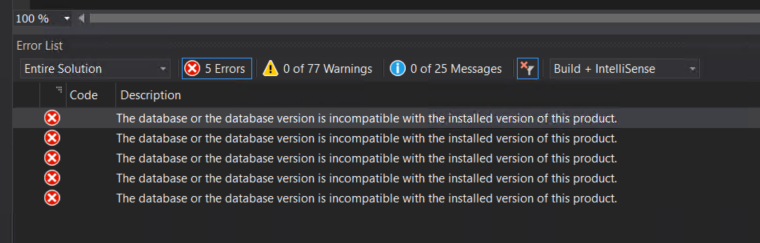
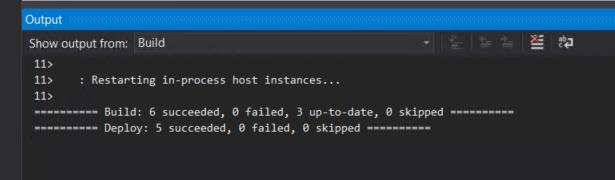
Following the migration of the Visual Studio solution to a newer version, which also involved changing the target .NET framework, I encountered the following error when attempting to deploy the BizTalk Server Visual Studio solution:
The database or the database version is incompatible with the installed version of this product.
Causes
Normally, when we are migrating side-by-side BizTalk Server solutions, that means that we are creating a new BizTalk Server developer environment that, most of the time, does not have access to the previous environment. But you must know that if you copy a BizTalk Server Visual Studio folder solution from the old environment to the new one, it will also copy the *.btproj.user files. This is an XML file that contains not only the BizTalk deployment Settings but also several personal user settings like References path, test file names, and so on.
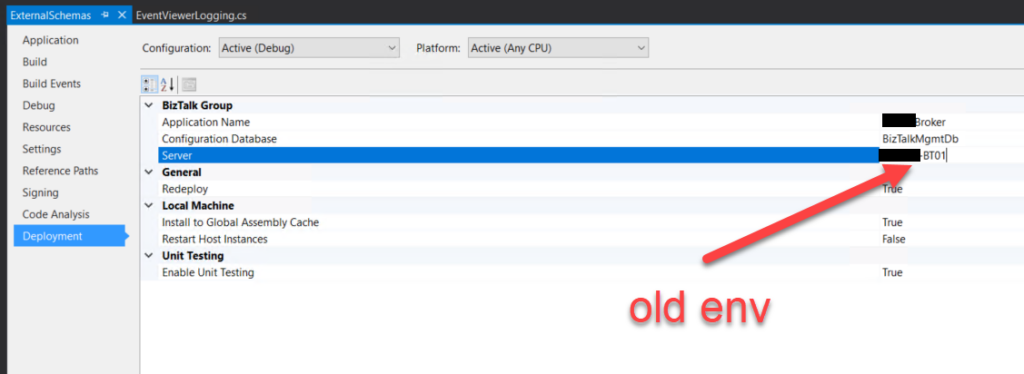
Regarding BizTalk deployment properties, all this setting are stored in the “*.btproj.user” file:
Application Name (ApplicationName): This is the name of the BizTalk application that we want to deploy the assemblies in this project. If the application already exists, the assemblies will be added to it when you deploy the project. If the application does not exist, the application will be created. If this field is blank, the assemblies will be deployed to the default BizTalk application in the current group (“BizTalk Application 1”). Names that include spaces must be enclosed in double quotation marks (“).
Configuration Database (ConfigurationDatabase): This is the name of the BizTalk Management database for the group. The default value is “BizTalkMgmtDb”.
Server (Server): This is the name of the SQL Server instance that hosts the BizTalk Management database on the local computer. By default, this is usually the name of the local computer.
Redeploy (Redeploy): Boolean property that indicates if you want to allow redeployments from within Visual Studio. Setting this to “True” (the default) enables you to redeploy the BizTalk assemblies without changing the version number.
Install to Global Assembly Cache (Register): Setting this to “True” (the default) installs the assemblies to the Global Assembly Cache (GAC) on the local computer when you install the application. Set this to False only if you plan to use other tools for this installation, such as gacutil.
Restart Host Instances (RestartHostInstance): Setting this to “True” automatically restarts all host instances running on the local computer when the assembly is redeployed. If set to False (the default), you must manually restart the host instances when redeploying an assembly.
Well, if you do not change, it will contain the previous SQL Server name and instance.
So, if this SQL Server is accessible by this machine and if you try to deploy the solution, you will get an error saying that the database version is incompatible because now you are using a higher version of the product.
Solutions
The solution is quite simple to accomplish:
Access the Deployment tab of the Properties of each BizTalk Server project inside the solution.
And make sure that you set correctly at least the Server name (or name and instance)
If you want to play safe, it will give you a little bit of more work, but you can:
Close the solution.
2Open Explorer and delete *.btproj.user files.
Reopen the solution, reconfigure the Deployment properties – this time mainly the Application name, because the rest will be properly configured by default – rebuild and deploy the solution.
Both these options will fix this problem.
Hope you find this helpful! So, if you liked the content or found it helpful and want to help me write more content, you can buy (or help buy) my son a Star Wars Lego!
Author: Sandro Pereira
Sandro Pereira lives in Portugal and works as a consultant at DevScope. In the past years, he has been working on implementing Integration scenarios both on-premises and cloud for various clients, each with different scenarios from a technical point of view, size, and criticality, using Microsoft Azure, Microsoft BizTalk Server and different technologies like AS2, EDI, RosettaNet, SAP, TIBCO etc.
He is a regular blogger, international speaker, and technical reviewer of several BizTalk books all focused on Integration. He is also the author of the book “BizTalk Mapping Patterns & Best Practices”. He has been awarded MVP since 2011 for his contributions to the integration community.
View all posts by Sandro Pereira
It is always fun to return to one of my favorite topics: Errors and warnings, causes and solutions – aka Troubleshooting! Regardless of the technology, language, or service we are using. Today’s problem was another classic (and annoying) issue that happened while I was migrating an old BizTalk Server 2013 solution into a recent version of the BizTalk Server.
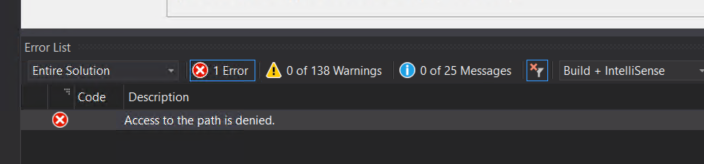
While trying to deploy a BizTalk Server Visual Studio solution that I copied from the old developer server environment into the new environment using, of course, Visual Studio, I got the following error message:
Access to the path is denied.
Causes
As the error clearly mentions, Visual Studio is trying to access somewhere that it does not have access to, even if you are an admin and you open in admin mode. The reason for that is that many times, when we copy the files between servers, they may become read-only for various reasons/situations. Maybe the files already were in read-only mode before we copied them.
Solutions
The solution is quite simple to accomplish:
Go to the project folder of your solution.
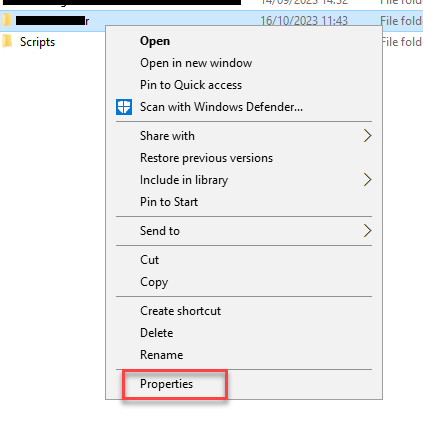
Right-click on the project folder and choose Properties from the menu.
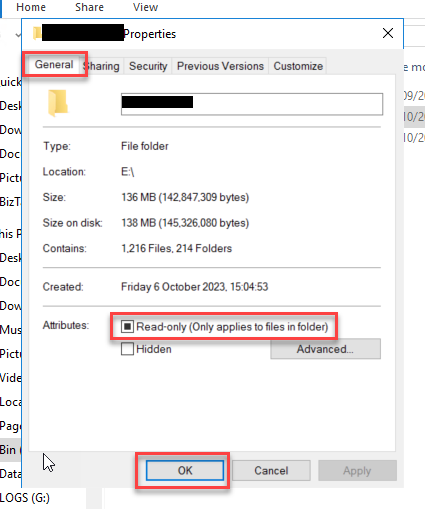
Now, On the Properties window, go to the Attributes panel under the General tab and turn off the Read-only option. Click on the OK to apply the changes.
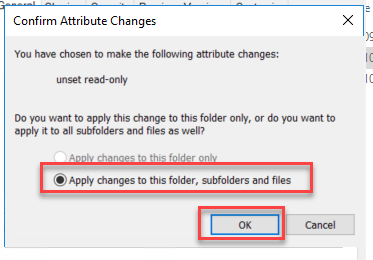
A new Confirm Attribute Changes window may rise, asking if you to confirm. Make sure you select the option Apply changes to this folder, subfolders and files and click OK.
After that, if you go to your BizTalk Server Visual Studio solution you will be able to successfully deploy it to the new environment.
Hope you find this helpful! So, if you liked the content or found it helpful and want to help me write more content, you can buy (or help buy) my son a Star Wars Lego!
Author: Sandro Pereira
Sandro Pereira lives in Portugal and works as a consultant at DevScope. In the past years, he has been working on implementing Integration scenarios both on-premises and cloud for various clients, each with different scenarios from a technical point of view, size, and criticality, using Microsoft Azure, Microsoft BizTalk Server and different technologies like AS2, EDI, RosettaNet, SAP, TIBCO etc.
He is a regular blogger, international speaker, and technical reviewer of several BizTalk books all focused on Integration. He is also the author of the book “BizTalk Mapping Patterns & Best Practices”. He has been awarded MVP since 2011 for his contributions to the integration community.
View all posts by Sandro Pereira
This is just another post for the sake of my mental sanity because I’m always tired of looking up for this over and over again. While working on BizTalk Server projects and in many other scenarios, like optimizing the BizTalk Server environment, I want to check how many SQL Server Jobs I have in my SQL Server Instance in order to optimize and properly configure the maximum job history log. This way, I know that none of the jobs is going to be without execution history on the logs, and I can easily monitor and troubleshoot them.
Normally, I have a few SQL Server Jobs, and it is easy to count them manually, nevertheless annoying! But sometimes I get SQL Server Instances hosting applications databases used by BizTalk Server with more than 60 jobs… and counting them manually is not an annoying task but instead an insane task!
So the million dollar question is, How to easily count the number of Jobs in SQL Server Agent Jobs?
To easily count the number of SQL Server Agent Jobs in your SQL Server instance, you can use a simple SQL query. Here’s how you can do it:
SELECT COUNT(*) AS NumberOfJobs
FROM msdb.dbo.sysjobs;
This query counts the number of rows in the msdb.dbo.sysjobs table, which contains information about SQL Server Agent Jobs. The result will be the total number of jobs.
Keep in mind that you need the necessary permissions to query the msdbdatabase, which is where SQL Server Agent Jobs are stored. Typically, users with administrative roles or appropriate permissions can access this information.
Author: Sandro Pereira
Sandro Pereira lives in Portugal and works as a consultant at DevScope. In the past years, he has been working on implementing Integration scenarios both on-premises and cloud for various clients, each with different scenarios from a technical point of view, size, and criticality, using Microsoft Azure, Microsoft BizTalk Server and different technologies like AS2, EDI, RosettaNet, SAP, TIBCO etc.
He is a regular blogger, international speaker, and technical reviewer of several BizTalk books all focused on Integration. He is also the author of the book “BizTalk Mapping Patterns & Best Practices”. He has been awarded MVP since 2011 for his contributions to the integration community.
View all posts by Sandro Pereira
Last September 28, I had the pleasure of speaking at the BizTalk To Azure event, which focused on ‘The Migration Journey‘ and was organized by Contica in Gothenburg, Sweden. I’d like, once again, to take this opportunity to thank Contica for the kind invitation and express my appreciation to all the attendees for their warm reception and valuable feedback.
My second presentation at the event (see my first presentation here), which I’m bringing you today, was entitled: Azure Integration in Action – BizTalk to Azure Transition Case Studies.
BizTalk To Azure The Migration Journey: Azure Integration in Action – BizTalk to Azure Transition Case Studies
In this session, we bring Azure Integration Services to life by migrating simple real-world BizTalk Server case samples like:
Through these exercises, you’ll gain practical insights, strategies, and tips to ensure a smooth BizTalk Server migration while embracing Azure’s agility, scalability, and cost-efficiency. Take advantage of this opportunity to see Azure Integration Services in action, guiding your path toward a seamless and future-ready integration landscape.
Hope you find this helpful! So, if you liked the content or found it helpful and want to help me write more content, you can buy (or help buy) my son a Star Wars Lego!
Author: Sandro Pereira
Sandro Pereira lives in Portugal and works as a consultant at DevScope. In the past years, he has been working on implementing Integration scenarios both on-premises and cloud for various clients, each with different scenarios from a technical point of view, size, and criticality, using Microsoft Azure, Microsoft BizTalk Server and different technologies like AS2, EDI, RosettaNet, SAP, TIBCO etc.
He is a regular blogger, international speaker, and technical reviewer of several BizTalk books all focused on Integration. He is also the author of the book “BizTalk Mapping Patterns & Best Practices”. He has been awarded MVP since 2011 for his contributions to the integration community.
View all posts by Sandro Pereira
Last September 28, I had the pleasure of speaking at the BizTalk To Azure event, which focused on ‘The Migration Journey‘ and was organized by Contica in Gothenburg, Sweden. I’d like to take this opportunity to thank Contica for the kind invitation and express my appreciation to all the attendees for their warm reception and valuable feedback.
My first presentation at the event, which I’m bringing you today, was entitled: Elevating Integration – The Roadmap from BizTalk Server.
BizTalk Server to Azure, The Migration Journey: Elevating Integration – Roadmap from BizTalk Server to Azure
If you are embracing the journey to move your current BizTalk Server environment to the cloud, in this session, we’ll guide you through the steps, strategies, and best practices needed to successfully transition your integration solutions to the cloud.
On this talk we will address topics like:
What phases in your migration journey are crucial?
Which tools and technologies should you use?
What to do in this migration journey
And what not to do in this migration journey!
After this session, you’ll know about the dos and don’ts, as well as the key considerations that will empower the agility and scalability of Azure Integration Services.
Hope you find this helpful! So, if you liked the content or found it helpful and want to help me write more content, you can buy (or help buy) my son a Star Wars Lego!
Author: Sandro Pereira
Sandro Pereira lives in Portugal and works as a consultant at DevScope. In the past years, he has been working on implementing Integration scenarios both on-premises and cloud for various clients, each with different scenarios from a technical point of view, size, and criticality, using Microsoft Azure, Microsoft BizTalk Server and different technologies like AS2, EDI, RosettaNet, SAP, TIBCO etc.
He is a regular blogger, international speaker, and technical reviewer of several BizTalk books all focused on Integration. He is also the author of the book “BizTalk Mapping Patterns & Best Practices”. He has been awarded MVP since 2011 for his contributions to the integration community.
View all posts by Sandro Pereira
Before we focus on the goal of this blog post topic, let’s first understand the distinction between Query Parameters and URI Parameters in API Design, this is crucial for you to know. URI Parameters, also known as Path Parameters, are primarily used to identify specific resources, while Query Parameters are utilized for the sorting and filtering of these resources.
For instance, imagine a scenario where you need to identify a book by its ISBN (also known as the book ID); in this case, you’d make use of the URI parameter, something like:
GET /books/{book_id}
An example of this call should be GET /books/978-1-3999-0861-0
However, if your aim is to retrieve all the books categorized by genre, such as novels, then we should use a Query parameter, something like:
GET /books?gender={type}
An example of this call should be GET /books?gender=novels
Now that we know the key difference between Query Parameters and URI Parameters, let’s see how we can read these parameters inside Azure API Management policies.
How to read URI parameters inside Azure API Management policies
Taking the sample above, for us to read the URI parameter, we have to use the following expression:
Hope you find this helpful! So, if you liked the content or found it helpful and want to help me write more content, you can buy (or help buy) my son a Star Wars Lego!
Author: Sandro Pereira
Sandro Pereira lives in Portugal and works as a consultant at DevScope. In the past years, he has been working on implementing Integration scenarios both on-premises and cloud for various clients, each with different scenarios from a technical point of view, size, and criticality, using Microsoft Azure, Microsoft BizTalk Server and different technologies like AS2, EDI, RosettaNet, SAP, TIBCO etc.
He is a regular blogger, international speaker, and technical reviewer of several BizTalk books all focused on Integration. He is also the author of the book “BizTalk Mapping Patterns & Best Practices”. He has been awarded MVP since 2011 for his contributions to the integration community.
View all posts by Sandro Pereira
In my previous update, I discussed my intention to release a new major version of my stencils. However, I’ve opted for a gradual approach, releasing minor updates along the way. This way, it becomes easier for me because I don’t need to spend long periods allocated to this task, and at the same time, all of you can start enjoying these new icons.
Keeping my promise, I’m presenting another update. I hope it meets your expectations! If you have any specific requests, don’t hesitate to share them with me.
What’s new in this version? (for now)
The main goal of this release was to provide the new icons present in the Azure Portal, on the Power Platform, and new existing Services. In this version, the changes and additions are:
New stencil packages: Additional stencil packages were incorporated into this project to enhance the discoverability of shapes:
MIS Azure Integration Services: this file contains shapes related to Azure Integration Service and messaging.
MIS Microsoft Fabric: this file contains shapes related to Microsoft Fabric – This was actually a request made by a community member. And credits to Sam Debruyn for these Microsoft SVG files. I only had the work to “convert” them into proper Visio stencils.
Move some shapes: I reorganized and relocated certain shapes to other files within this package.
SVG Files: Add new SVG files;
Special Highlights: API Center, Policy fragments, Event Grid, Event Grid: Namespace, Partner namespaces and Partner registrations or APIM Schemas
Microsoft Integration, Azure, Power Platform, Office 365, and much more Stencils Pack
Microsoft Integration, Azure, Power Platform, Office 365, and much more Stencils Pack it’s a Visio package that contains fully resizable Visio shapes (symbols/icons) that will help you to visually represent On-premise, Cloud or Hybrid Integration and Enterprise architectures scenarios (BizTalk Server, API Management, Logic Apps, Service Bus, Event Hub…), solutions diagrams and features or systems that use Microsoft Azure and related cloud and on-premises technologies in Visio 2016/2013:
BizTalk Server
Microsoft Azure
Integration
Integration Service Environments (ISE)
Logic Apps and Azure App Service in general (API Apps, Web Apps, and Mobile Apps)
Azure API Management
Messaging: Event Hubs, Event Grid, Service Bus, …
Azure IoT and Docker
AI, Machine Learning, Stream Analytics, Data Factory, Data Pipelines
SQL Server, DocumentDB, CosmosDB, MySQL, …
and so on
Microsoft Power Platform
Microsoft Flow
PowerApps
Power BI
Office365, SharePoint,…
DevOps and PowerShell
Security and Governance
And much more…
… and now non-related Microsoft technologies like:
SAP Stencils
The Microsoft Integration Stencils Pack is composed of 29 files:
Microsoft Integration Stencils
MIS Additional or Support Stencils
MIS AI and Machine Learning Stencils
MIS Apps and Systems Logo Stencils
MIS Azure Additional or Support Stencils
MIS Azure Integration Services
MIS Azure Mono Color
MIS Azure Old Versions
MIS Azure Others Stencils
MIS Azure Stencils
MIS Buildings Stencils
MIS Databases and Analytics Stencils
MIS Deprecated Stencils
MIS Developer Stencils
MIS Devices Stencils
MIS Files Stencils
MIS Generic Stencils
MIS Infrastructure Stencils
MIS Integration Fun
MIS Integration Patterns Stencils
MIS IoT Devices Stencils
MIS Microsoft Fabric
MIS Office365
MIS Power BI Stencils
MIS PowerApps and Flows Stencils
MIS SAP Stencils
MIS Security and Governance
MIS Servers (HEX) Stencils
MIS Users and Roles Stencils
You can use and resize without losing quality.
Download
You can download Microsoft Integration, Azure, BAPI, Office 365, and much more Stencils Pack for Visio from GitHub here:
Hope you find this helpful! So, if you liked the content or found it helpful and want to help me write more content, you can buy (or help buy) my son a Star Wars Lego!
Author: Sandro Pereira
Sandro Pereira lives in Portugal and works as a consultant at DevScope. In the past years, he has been working on implementing Integration scenarios both on-premises and cloud for various clients, each with different scenarios from a technical point of view, size, and criticality, using Microsoft Azure, Microsoft BizTalk Server and different technologies like AS2, EDI, RosettaNet, SAP, TIBCO etc.
He is a regular blogger, international speaker, and technical reviewer of several BizTalk books all focused on Integration. He is also the author of the book “BizTalk Mapping Patterns & Best Practices”. He has been awarded MVP since 2011 for his contributions to the integration community.
View all posts by Sandro Pereira
Welcome back to yet another post, driven by my desire to maintain my mental well-being, as I’ve become exhausted from the constant need to look this up. I often conduct demonstrations and proof-of-concepts for my clients and during my sessions, resulting in the creation of multiple Azure services. However, I don’t always use them extensively, and sometimes it can take months before I revisit them. One such example is Azure SQL databases. The predominant dilemma I face in this specific database context is my consistent forgetfulness when it comes to passwords! While I recognize the necessity of storing them safely, such as in Keypass, these resources are usually generated during live demonstrations, and safeguarding this information isn’t always our immediate concern.
So, the main question is: How to reset the Azure SQL Server admin account password?
Actually, this is a very simple task to accomplish. For that, you need to:
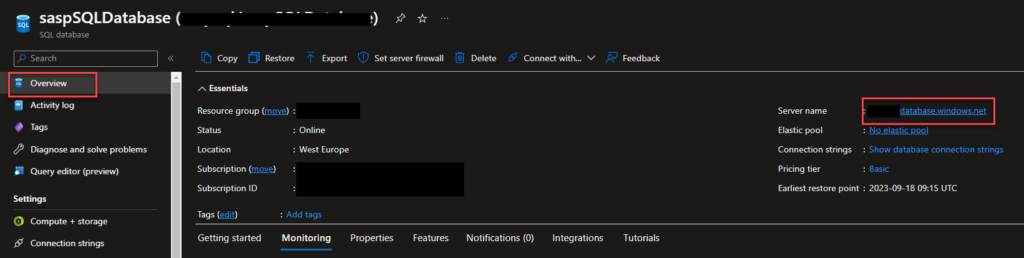
Go to the Azure portal. From there search for SQL databases, and select the database from the list.
On the Overview page, under Essentials panel, click on the Server name link.
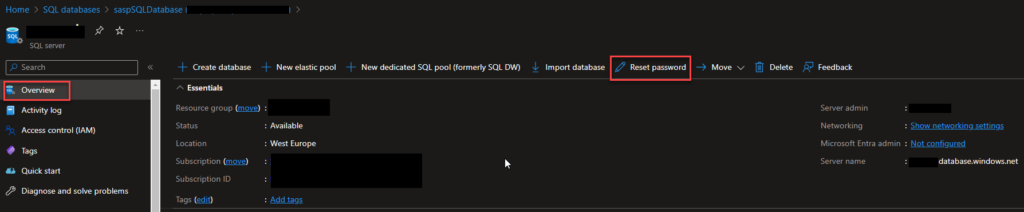
On the SQL Server Overview page, on the top menu click Reset Password.
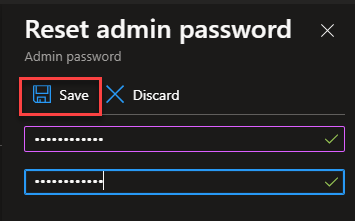
On the Reset admin password panel, enter a new password and then click Save.
Your password must be at least 8 characters in length.
Your password must contain characters from three of the following categories – English uppercase letters, English lowercase letters, numbers (0-9), and non-alphanumeric characters (!, $, #, %, etc.).
Alternatively, if you know i the SQL Server name you can accomplish the same by:
Go to the Azure portal. From there search for SQL Servers, and select the SQL Server name from the list.
On the SQL Server Overview page, on the top menu click Reset Password.
On the Reset admin password panel, enter a new password and then click Save.
The primary task ahead is to rectify all the services that rely on a connection string to access any database residing on this SQL Server.
Hope you find this helpful! So, if you liked the content or found it helpful and want to help me write more content, you can buy (or help buy) my son a Star Wars Lego!
Author: Sandro Pereira
Sandro Pereira lives in Portugal and works as a consultant at DevScope. In the past years, he has been working on implementing Integration scenarios both on-premises and cloud for various clients, each with different scenarios from a technical point of view, size, and criticality, using Microsoft Azure, Microsoft BizTalk Server and different technologies like AS2, EDI, RosettaNet, SAP, TIBCO etc.
He is a regular blogger, international speaker, and technical reviewer of several BizTalk books all focused on Integration. He is also the author of the book “BizTalk Mapping Patterns & Best Practices”. He has been awarded MVP since 2011 for his contributions to the integration community.
View all posts by Sandro Pereira
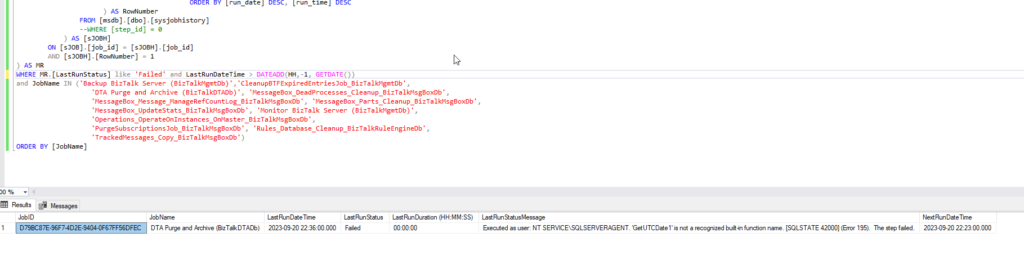
Within those blog posts, I also provided at least one SQL script for monitoring the status of jobs – whether they were disabled or running as anticipated, such as every minute, every fifty minutes, and so forth. However, it has come to my attention this week that even though they were enabled and running as planned, some of them were not finishing with success, and I was not notified. For this reason, I decided to create a second SQL script to enhance the functionality of the earlier one. This new script is designed to search for any failures that have occurred in the last hour. It will then present me with the most recent failure details, including the error message, for each of the Jobs in an error state.
THIS SQL SCRIPT IS PROVIDED “AS IS” WITHOUT WARRANTY OF ANY KIND.
Hope you find this helpful! So, if you liked the content or found it helpful and want to help me write more content, you can buy (or help buy) my son a Star Wars Lego!
Author: Sandro Pereira
Sandro Pereira lives in Portugal and works as a consultant at DevScope. In the past years, he has been working on implementing Integration scenarios both on-premises and cloud for various clients, each with different scenarios from a technical point of view, size, and criticality, using Microsoft Azure, Microsoft BizTalk Server and different technologies like AS2, EDI, RosettaNet, SAP, TIBCO etc.
He is a regular blogger, international speaker, and technical reviewer of several BizTalk books all focused on Integration. He is also the author of the book “BizTalk Mapping Patterns & Best Practices”. He has been awarded MVP since 2011 for his contributions to the integration community.
View all posts by Sandro Pereira
Lately, I’ve been engaged in the process of cleaning and reorganizing my hard drives. The sheer volume of resources I’ve accumulated over the years is quite substantial. However, there are occasions when I find myself a bit frustrated in my quest to locate them. Additionally, I’ve been revisiting a few of my online profiles and initiating the process of consolidating my resources on GitHub.
As I embarked on this quest, I stumbled upon some of my vintage articles originally crafted for Microsoft TechNet Wiki. Astonishingly, I recognized that a handful of these articles had laid the foundation for my first book: BizTalk Mapping Patterns and Best Practices.
Considering the product’s inherent characteristics, they all remain exceptionally current and relevant, so I decided to add them to my GitHub repo.
BizTalk Server: Basic Principles of Maps
Maps or transformations are among the most common components in the integration processes. They act as essential translators in the decoupling between the different systems to connect. In this article, as we explore the BizTalk Mapper Designer, we will explain its main concepts, covering slight themes such as product architecture, BizTalk Schemas, and some of the mo st widely used standards in the translation of messages.
This whitepaper aims to serve as an introductory guide for individuals embarking on their initial journey with this technology.
Maps or transformations are a cornerstone of integration processes, functioning as essential translators that facilitate the seamless exchange of information among different systems. This whitepaper is aimed at demystifying how maps are processed internally by the engine of the product as we explore the map editor BizTalk Server.
Microsoft BizTalk Server seen by the programmer’s eyes
Originally featured in the Portuguese magazine ‘Programar’, this whitepaper has since been translated into English. Its primary objective is to explore the advantages that the BizTalk Server platform offers to developers.
Hope you find this helpful! So, if you liked the content or found it helpful and want to help me write more content, you can buy (or help buy) my son a Star Wars Lego!
Author: Sandro Pereira
Sandro Pereira lives in Portugal and works as a consultant at DevScope. In the past years, he has been working on implementing Integration scenarios both on-premises and cloud for various clients, each with different scenarios from a technical point of view, size, and criticality, using Microsoft Azure, Microsoft BizTalk Server and different technologies like AS2, EDI, RosettaNet, SAP, TIBCO etc.
He is a regular blogger, international speaker, and technical reviewer of several BizTalk books all focused on Integration. He is also the author of the book “BizTalk Mapping Patterns & Best Practices”. He has been awarded MVP since 2011 for his contributions to the integration community.
View all posts by Sandro Pereira