I have done these thousands of times and it is a very straightforward task once you know how to communicate with Oracle system but this time I got the following error:
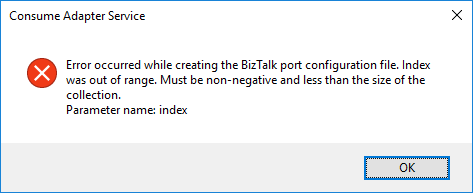
Error occurred while creating the BizTalk port configuration file. Index was out of range. Must be non-negative and less than the size of the collection. Parameter name: index
A curiosity is that the Wizard was able to successfully generate the Oracle Schemas. The problem occurred while it was trying to generate the Binding file.
Cause
Unfortunately, I don’t know exactly the cause reason for this error. In my view, the same occurred due to some special character coming from the Oracle resources that are being consumed or incompatibilities between Oracle data types and .NET data types and that are used to generate the Binding file.
Nevertheless, this is not a stopping issue. You still have all the necessary BizTalk resources generated by the wizard: the Oracle schemas. The only thing that is not generated is the binding file, which is extremely useful to create the receive or send port in the BizTalk Server Administration Console. However, despite this constraint, you are still able to manually create the port without requiring the binding file.
Solution
Well, you know me, it is possible to manually create the ports without requiring the binding files, however, this is an accelerator that I prefer not to lose. So, I had to investigate and solve this problem, before it appears more often.
And in fact, the solution is quite easy:
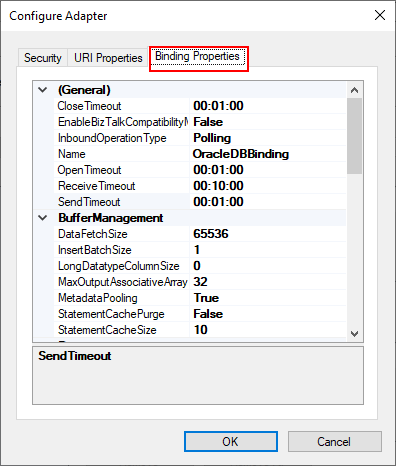
On the Consume Adapter Service Schema Generator Wizard, while you are configuring the connection string to Oracle, configure the URI, select the Binding Properties tab.
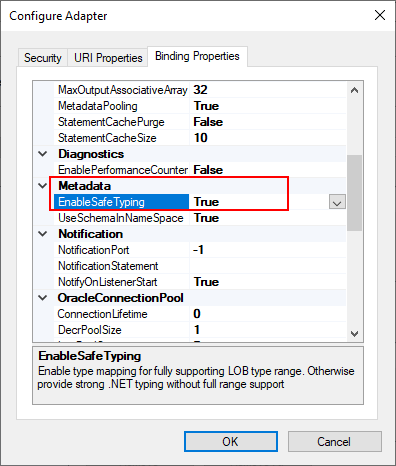
On the Binding Properties tab, scroll down to the Metadata section. There you will find a property called: EnableSafeTyping.
This feature controls how the adapter surfaces certain Oracle data types and by default this value is false.
To solve this issue you need to change the EnableSafeTyping value to true.
Since not all .NET and Oracle types are created equally, we occasionally need to set the value true for this property to handle some constraints around data types.
This is not a unique Oracle issue, this same error may happen when you are trying to generate schemas from SAP also.
I am a regular speaker at the Integration User Group community, however this time on May 4th, celebration mode, I invited two of my DevScope Power Platform Jedi masters to join me in this session.
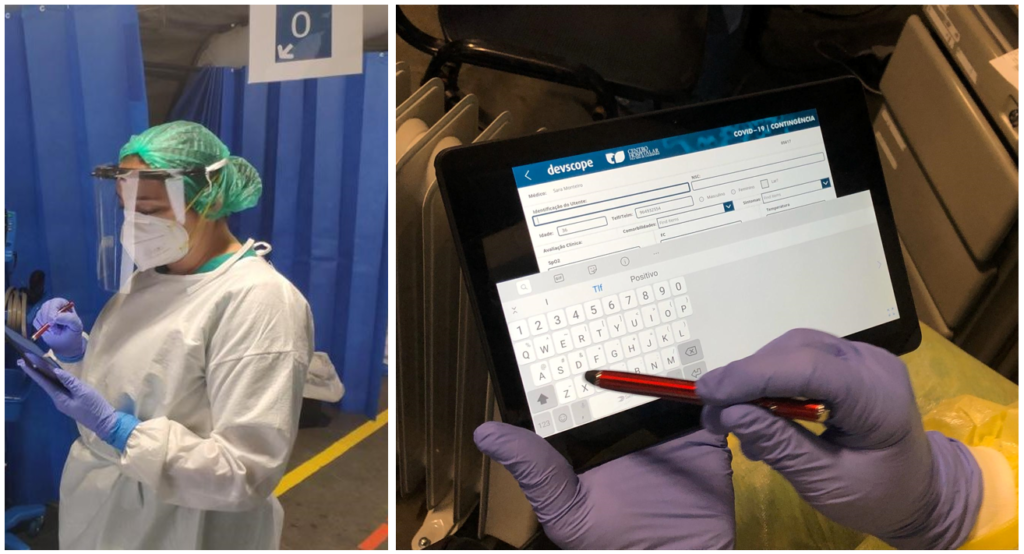
We will also present a real case scenario wherein less than two days, where we implemented a Power App for Centro Hospitalar Gaia Espinho to help fight the battle against the current COVID-19 pandemic. Starting with the diagnosis phase, where health professionals can track patients in the Covid-19 tent. In addition to the patient record, clinical values, symptoms, and other relevant information are sent to the hospital so that their admission is carried out with the greatest possible security for everyone.
All these COVID-19 patient data, with complete anonymity (GDPR compliant), are later analyzed in a Microsoft Power BI report to give healthcare professionals a clear view of the problem at hand.
About the session
Session Name: Microsoft Power Platform: Power BI + PowerApps + Power Automate + Office 365
Session Overview: The Power Platform (Power BI, Power Apps, Power Automate, Power Virtual Agents) alongside with Office365 (Forms, SharePoint Online, …) is probably the best ecosystem in the world for a complete digital transformation in your company, and maybe you are already paying for them without any usage. JIn this session you can learn how to leverage all these tools with a focus on Power BI integration!
Today we will address the last suite of functoids that are part of the BizTalk Mapper Extensions UtilityPack project available for BizTalk Server 2020: Math Functoids. And with this blog post, we finally arrive to the end of this project migration.
Math Functoids
This library includes a suite of functoids to perform a variety of basic mathematical operations that you can use this inside BizTalk mapper.
This project includes the following Custom Functoids:
Negate Number Functoid: Use Negate Functoif to return the input double as its negated form.
This functoid requires one input parameter:
A number (double or int) to be negated;
The output result will be the input value in his negative form. If it’s positive, it will return as negative and vice-versa.
Examples:
Input 1 >>> Output = -1
Input -23,09 >>> Output = 23,09
Input 0 >>> Output = 0
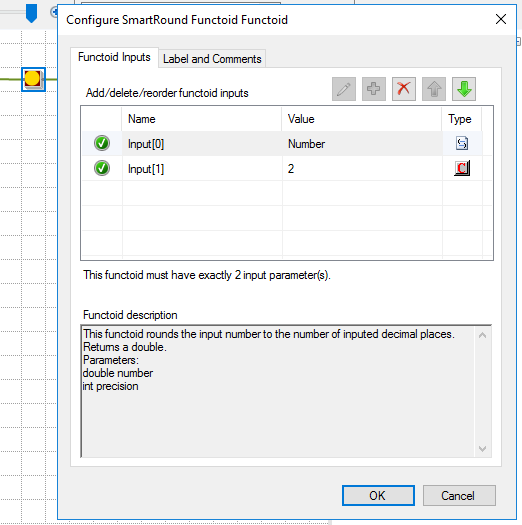
SmartRound Functoid: Use SmartRound to return the rounded double, by the second parameter input.
The functoid takes two mandatory input parameters:
Parameter 1: Number to be rounded (double or int)
Parameter 2: Number to decimals places
The output of the functoid will be the input number rounded up or down to the specified decimal places.
Examples:
Input 23 rounded to 2 >>> Output = 23,00
Input 24,005900 rounded to 3 >>> Output = 24,006
BizTalk Mapper Extensions UtilityPack
BizTalk Mapper Extensions UtilityPack is a set of libraries with several useful functoids to include and use it in a map, which will provide an extension of BizTalk Mapper capabilities.
Where to download?
You can download this functoid along with all the existing one on the BizTalk Mapper Extensions UtilityPack here:
This library includes a suite of functoids to perform a variety of database operations, mainly to extract data from a database for use in an output instance message.
This project includes the following Custom Functoids:
Adv Database Lookup Functoid: Use the Adv Database Lookup functoid to extract information from a database and store it as a Microsoft ActiveX Data Objects (ADO) recordset.
This functoid requires the following 3 inputs:
a database connection string;
A table name;
and a WHERE clause.
Returns a recordset containing the result records.
Adv Value Extractor: Use the Adv Value Extractor functoid to extract the appropriate column value from a recordset returned by the Adv Database Lookup function.
This functoid requires two inputs parameters:
a link to the Adv Database Lookup functoid;
and a column name.
Returns a string with the value of the specified column;
BizTalk Mapper Extensions UtilityPack
BizTalk Mapper Extensions UtilityPack is a set of libraries with several useful functoids to include and use it in a map, which will provide an extension of BizTalk Mapper capabilities.
Where to download?
You can download this functoid along with all the existing one on the BizTalk Mapper Extensions UtilityPack here:
In the last blog post, we analysed two of the basic features of BizTalk NoS Ultimate – Expand solution and Wild Card Search. Today, we will continue to analyze the list of available features present in this Visual Studio extension, focusing on the report capabilities of BizTalk NoS Ultimate.
Reflector
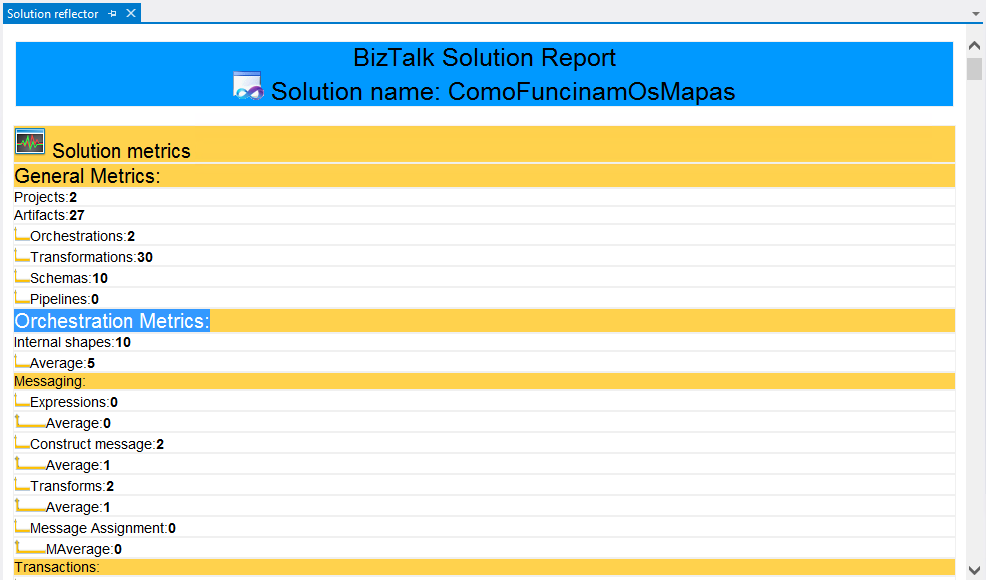
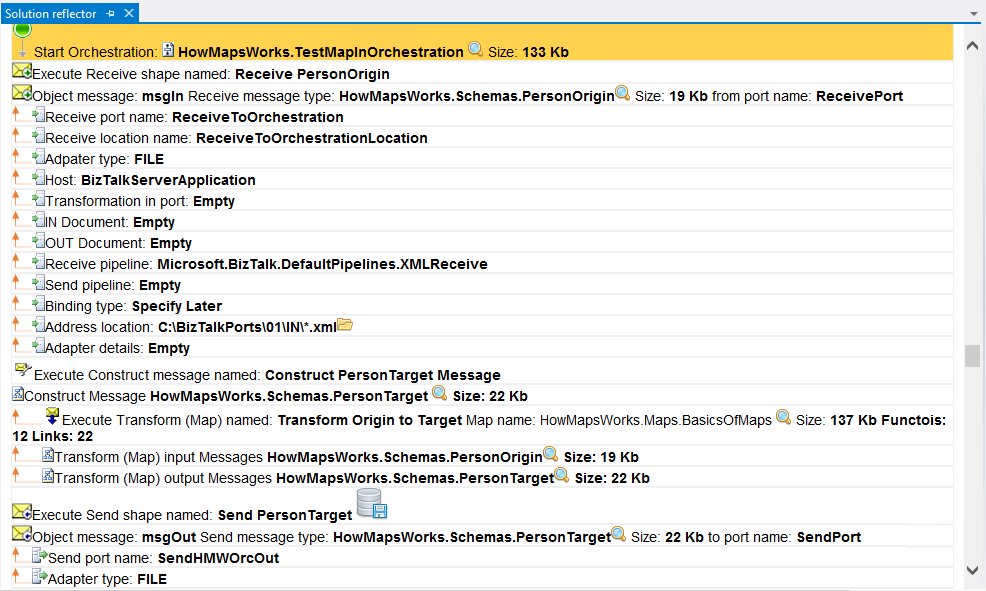
This feature will create a report with a lot of useful information about your entire solution or for a particular project for analysis. It will provide some statistics and metrics, for example:
Solution metrics – number of projects, artifacts, orchestrations, transformation, schemas, and pipelines
Artifact metrics – Information about the average Kilo bytes used by the artifact in memory or some metrics to understand the complexity of the artifact (orchestration, map and so on)
But, also information about:
Which artifact is using this artifact or what is this artifact doing (very useful with orchestrations)
Show all the information like:
Artifact dependencies
Which port(s) is/are using this orchestration or schema or map?
How many shapes exist in the orchestration or how many Transactions (Atomic, Long-Running) exist, Compensation, or Error handling?
How many Construct messages or even how many transformations?
How many Functoids or links exist inside a transformation?
And so on
This is basically an interactive report or documentation of your solution. Interactive, because you can interact with the report and it will automatically open the artifact while you are reading it. You can open the directory, maps, orchestrations, schemas, and so on directly from the report.
The reflector can be used at all levels of your solution, from a simple artifact, a single project or just to produce a full report of your entire solution. The last means that you will have a report of all of the artifacts in the solution).
This also can be used to produce good documentation of your BizTalk Projects.
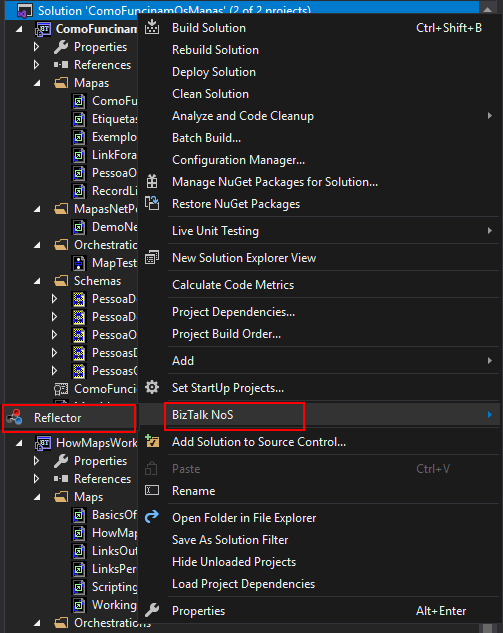
You can access this feature by:
Right-click on your solution/project or artifact name, expand BizTalk NoS and select the Reflector option
Refactor
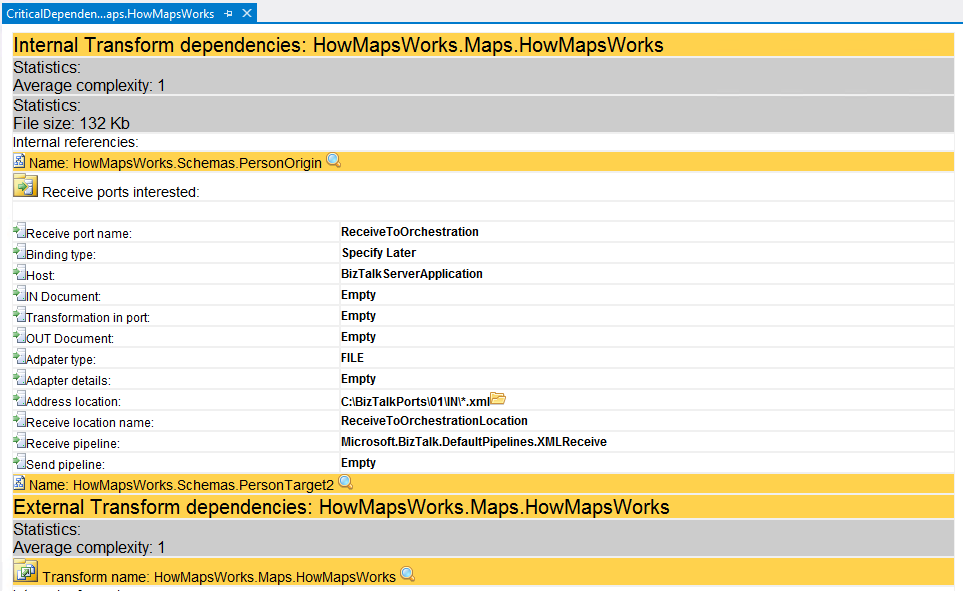
Similar to the Reflector feature, however, the Refactory will create a more simple report with a circular reference (internal and external) with other artifacts that can be very useful to understand the refactory strategy to use.
Another difference is that this report can only be made at the artifact level (orchestrations, pipelines, maps, and schemas). It isn’t available at the solution or project level.
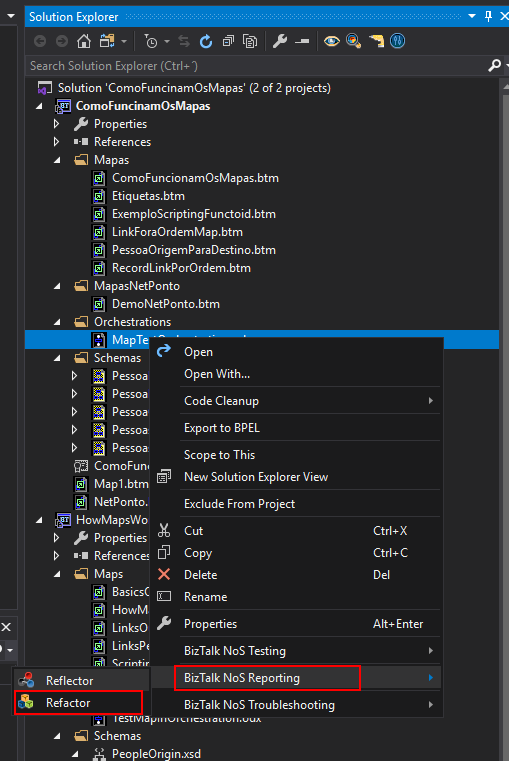
You can accomplish this by access this feature by:
Right-click on your artifact (Orchestration, map, schema…), expand the BizTalk NoS Reporting and select the Refactor option
This feature will provide some statistics and information about:
Which artifact(s) is/are using this artifact
Which artifact(s) is/are consumed by this resource
Some general information like complexity, persistence points and error handling (in orchestrations), and so on.
Todas we will address one of my favorites suite of functoids that will be available for BizTalk Server 2020: Logical Functoids. This is part of the BizTalk Mapper Extensions UtilityPack project migration task I been doing in the last few days.
Logical Functoids
This library includes a suite of functoids to perform a variety of logical operations, often controlling whether a particular element or attribute is created in an output instance message. Most of the Logical Functoids are a replica of the existent Logical Functoids that came with BizTalk Server with the advantage that these will allow you to connect with others Custom String Functoids. They are fully compatible with existing functoids and don’t produce any more additional code.
This project includes the following Custom Functoids:
Advance Logical AND Functoid: Use the Advance Logical AND functoid to return the logical AND of input parameters. It determines whether all of the specified input parameters are true.
This functoid requires a minimum of two input parameters and a maximum of one hundred:
Parameter 1: A value that can be evaluated as either True or False.
Parameters 2 – 100: Values that can be evaluated as either True or False.
Returns the logical AND of parameters. True if all of the specified input parameters evaluate to True; False otherwise.
Advance Equal Functoid: Use the Advance Equal functoid to return the value “true” if the first input parameter is equal to the second input parameter. It tests whether the two input parameters are equal.
This functoid requires two input parameters:
Parameter 1: A value to be tested for equality with parameter 2.
Parameter 2: A value to be tested for equality with parameter 1.
Returns True if the values of the two input parameters are equal; False otherwise.
Advance Greater Than Functoid: Use the Advance Greater Than functoid to return the value “true” if the first input parameter is greater than the second input parameter. It tests whether the first input parameter is greater than the second input parameter.
This functoid requires two input parameters:
Parameter 1: A value to be tested to determine whether it is greater than parameter 2.
Parameter 2: A value to be tested to determine whether it is greater than parameter 1.
Returns True if the value of the first input parameter is greater than the value of the second input parameter; False otherwise.
Advance Greater Than or Equal To Functoid: Use the Advance Greater Than or Equal To functoid to return the value “true” if the first input parameter is greater than or equal to the second input parameter. It tests whether the first input parameter is greater than or equal to the second input parameter.
This functoid requires two input parameters:
Parameter 1: A value to be tested to determine whether it is greater than or equal to parameter 2.
Parameter 2: A value to be tested to determine whether it is greater than or equal to parameter 1.
Returns True if the value of the first input parameter is greater than or equal to the value of the second input parameter; False otherwise.
Advance Less Than Functoid: Use the Advance Less Than functoid to return the value “true” if the first input parameter is less than the second input parameter. It tests whether the first input parameter is less than the second input parameter.
This functoid requires two input parameters:
Parameter 1: A value to be tested to determine whether it is less than parameter 2.
Parameter 2: A value to be tested to determine whether it is less than parameter 1.
Returns True if the value of the first input parameter is less than the value of the second input parameter; False otherwise.
Advance Less Than or Equal To Functoid: Use the Advance Less Than or Equal To functoid to return the value “true” if the first input parameter is less than or equal to the second input parameter. It tests whether the first input parameter is less than or equal to the second input parameter.
This functoid requires two input parameters:
Parameter 1: A value to be tested to determine whether it is less than or equal to parameter 2.
Parameter 2: A value to be tested to determine whether it is less than or equal to parameter 1.
Returns True if the value of the first input parameter is less than or equal to the value of the second input parameter; False otherwise.
Advance Not Equal Functoid: Use the Advance Not Equal functoid to return the value “true” if the first input parameter is not equal to the second input parameter. It tests whether the two input parameters are not equal.
This functoid requires two input parameters:
Parameter 1: A value to be tested for inequality with parameter 2.
Parameter 2: A value to be tested for inequality with parameter 1.
Returns True if the values of the two input parameters are not equal; False otherwise.
Advance Logical NOT Functoid: Use the Advance Logical NOT functoid to return the logical inversion of the input parameter. Use to logically negate the value of the Boolean input parameter.
This functoid requires one input parameter only:
Parameter 1: A value that can be evaluated as either True or False.
Returns True if the specified input parameter evaluates to False; False otherwise.
Advance Logical OR Functoid: Use the Advance Logical OR functoid to return the logical OR of input parameters. The input parameters have to be Boolean or numeric. It determines whether any of the specified input parameters are true.
This functoid requires a minimum of two input parameters and a maximum of one hundred:
Parameter 1: A value that can be evaluated as either True or False.
Parameters 2 – 100: Values that can be evaluated as either True or False.
Returns True if any of the specified input parameters evaluate to True; False otherwise.
If-Then-Else Functoid: Use the If-Then-Else Functoid to return a value from one of two input parameters based on a condition. If the condition (first input) is True, then the value of the second input parameter is returned, otherwise, the Third input is returned.
This functoid requires three input parameters:
A boolean representing the result of a previous condition
The value to be returned if the condition is True.
The value to be returned if the condition is False.
If the condition is True, then the value of the second input parameter is returned, otherwise, the third input is returned.
BizTalk Mapper Extensions UtilityPack
BizTalk Mapper Extensions UtilityPack is a set of libraries with several useful functoids to include and use it in a map, which will provide an extension of BizTalk Mapper capabilities.
Where to download?
You can download this functoid along with all the existing one on the BizTalk Mapper Extensions UtilityPack here:
Let’s continuing the BizTalk Mapper Extensions UtilityPack project migration and do an overview on another set of libraries available for BizTalk Server 2020: SharePoint Functoids that if I’m not mistaken was created René Brauwers.
SharePoint Functoids
This library includes a suite of functoids that you can use this inside BizTalk mapper to help you to easily integrate with SharePoint.
This project includes the following Custom Functoids:
Add SharePoint 2013 Document Set Functoid: Creates a Document Set in an existing SharePoint 2013 List. It is a requirement that the SharePoint list contains a custom content-type of type document set.
The following parameters are required:
string siteUrl = SharePoint Site Url
string listName = SharePoint List Name containing the custom content-type Document Set
string docSetContentTypeName = Document Set Content Type name
string newDocSetName=Name of the to document set to created
Comment: An custom content-type of type documentset needs to be available in SharePoint.
BizTalk Mapper Extensions UtilityPack
BizTalk Mapper Extensions UtilityPack is a set of libraries with several useful functoids to include and use it in a map, which will provide an extension of BizTalk Mapper capabilities.
Where to download?
You can download this functoid along with all the existing one on the BizTalk Mapper Extensions UtilityPack here:
Today we will focus on another set of libraries available for BizTalk Server 2020: XPath Functoids. This library was created a few years ago by Martijn Schiedon and is part of the BizTalk Mapper Extensions UtilityPack project that now is being migrate to BizTalk Server 2020.
XPath Functoids
This library includes a suite of functoids that provides XPath methods that you can use this inside BizTalk mapper.
This project includes the following Custom Functoids:
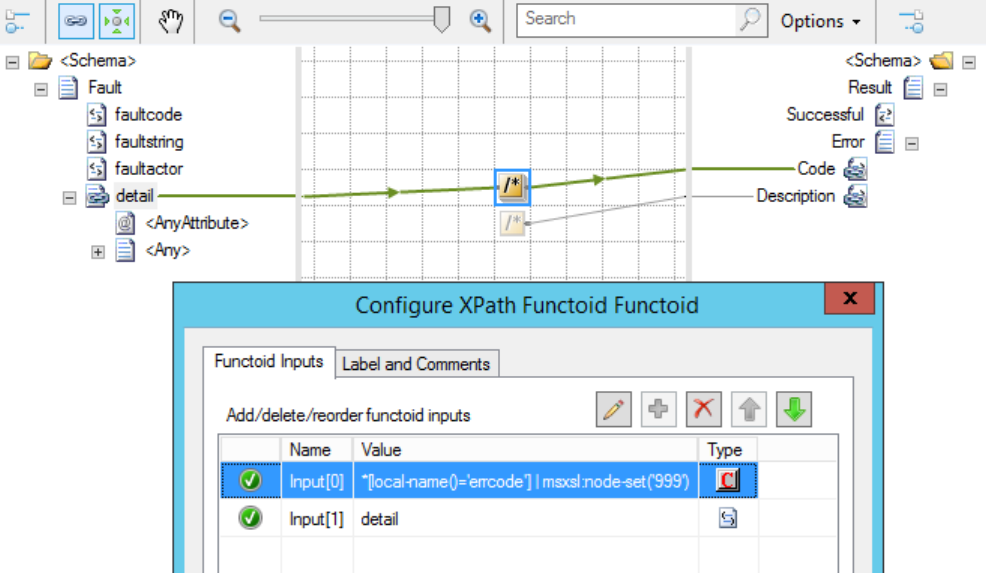
XPath Functoid: This functoid natively integrates custom XPath queries in the BizTalk mapper. This unique functoid which is a powerful competitor to the Scripting Functoid or a custom XSLT stylesheet and mixes exceptionally well with other functoids.
The functoid takes one mandatory input parameter and one optional parameter:
The first parameter specifies an absolute or relative XPath expression, which becomes a native part of the generated XSLT.
The (optional) second parameter is a link to the source tree node that becomes the (looping) context for the XPath expression.
This defines the current context node for the XPath expression and allows the use of relative XPath expressions.
Additionally, the mapper will generate a looping construct for that linked node where appropriate.
The functoid output can be linked to a destination schema node or serve as input to other functoids.
BizTalk Mapper Extensions UtilityPack
BizTalk Mapper Extensions UtilityPack is a set of libraries with several useful functoids to include and use it in a map, which will provide an extension of BizTalk Mapper capabilities.
Where to download?
You can download this functoid along with all the existing one on the BizTalk Mapper Extensions UtilityPack here:
The purpose of the BizTalk NoS Ultimate Visual Studio (VS) extension (or Visual Studio Add-in in previous versions) is to help all BizTalk Developer, why not, all BizTalk Administrator too in a lot of different situations, by improving the developer experience and why not reduce the development time in new or existent BizTalk projects.
This extension will extend the existing Visual Studio functionalities associated with BizTalk Server projects by providing several new or improved functionalities like:
Quick search inside artifacts
Fast DLL register/unregister in GAC
Find critical, internal or external dependencies
JackHammering, which will compare your VS artifact with the artifact deployed in the BizTalk environment
With this feature, you can also extract the artifact (Orchestration, map, schema and so on) from BizTalk environment and put it in the VS solution
Test your pipeline in VS simply
And, many more functionalities that will be useful in our day by day work and a time saver in a lot of situations.
BizTalk NoS Ultimate is available for the following BizTalk Server versions:
BizTalk Server 2020 – Visual Studio 2019
BizTalk Server 2016 – Visual Studio 2015
BizTalk Server 2013 R2 – Visual Studio 2013
BizTalk Server 2013 – Visual Studio 2012
How to Get Started with the BizTalk NoS Ultimate?
After installing the extension, the first thing you need to do is to request a license (free). To do that you need to:
Open a BizTalk Server solution on Visual Studio
On the Solution Explorer window menu, select the BizTalk NoS Settings option
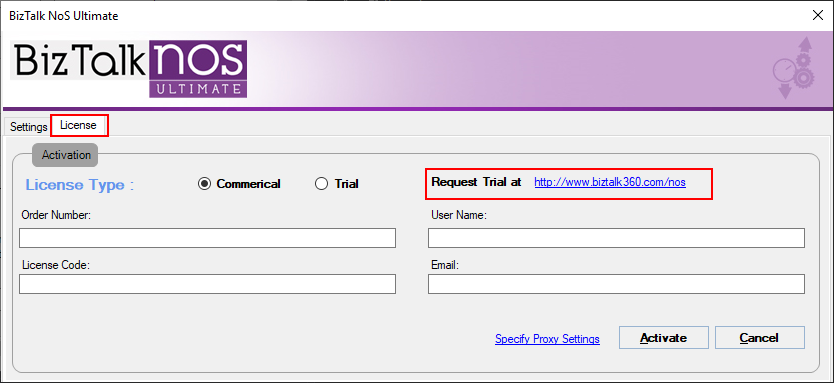
This will open a BizTalk NoS Ultimate window
On the BizTalk NoS Ultimate window, select the License tab and then click on the Request a trial link
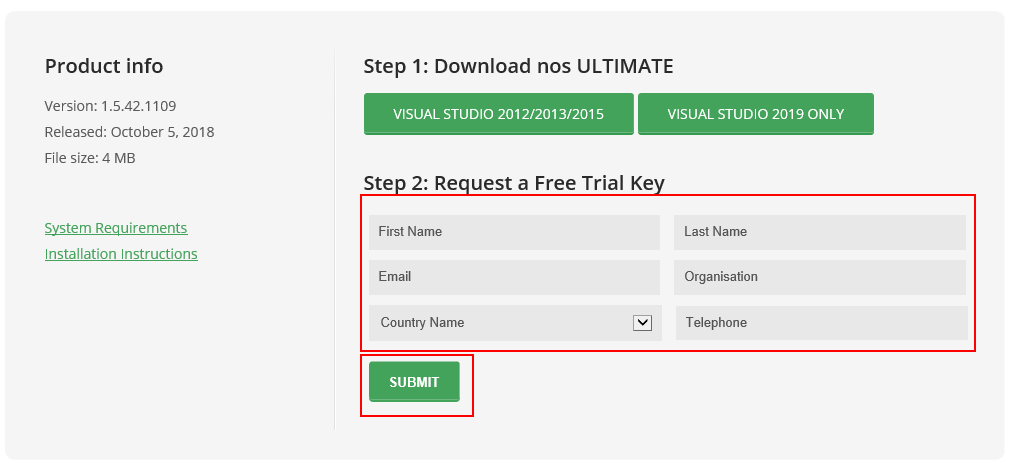
This will open a browser on the page, where you can request a free license. You just need to fill and submit the Request a Free Trial Key form
Later on, you will be receiving an email with the Key and necessary information for you to activate the extension
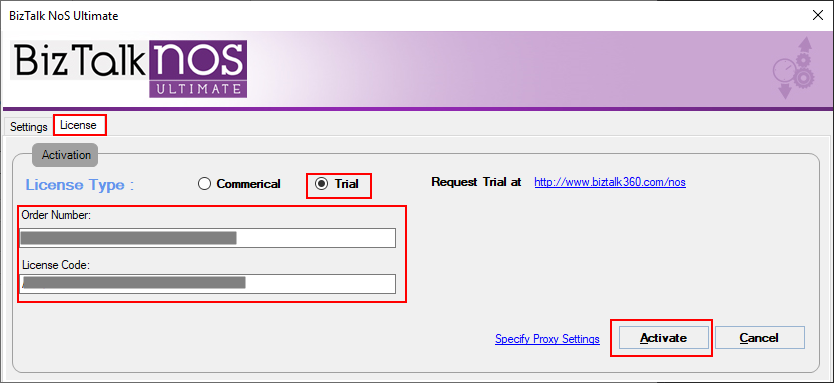
Once, you receive the Key, you need to go back to the License screen, select the Trial option, fulfill the form with the Order Number and License Code, and then click on the Activate button
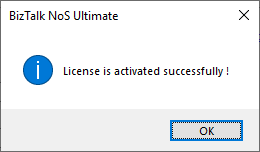
A window will be prompted if you successfully activated the license.
Click OK. And you will notice on the Solution Explorer window menu that the BizTalk NoS Ultimate features are now enabled
List of Available Features
In this section we will have an overview of all features available with this Visual Studio add-in and how can you use them:
Dependencies – You can deal with the dependencies between BizTalk artifacts through the different options available in this extension:
External Dependencies – get a clear sense of where the changes that we need to do can have impacts. For example, if I need to change a schema, will these changes will have an impact on my maps or in my orchestration?
Internal Dependencies – this will be the opposite to the previous one. In this case, we want to know what this artifact is using (or which artifacts are consuming). For example, I need to modify the schema, or the schemas, used by a map
Heuristics – this is basically the same as the above dependencies features (internal and external) but more useful during refactoring or before to do an update in an artifact. For example, you need to modify an artifact and you want to know what will be the artifact update impact in the entire solution
Heuristic Internal Propagation – this feature is basically the same as the “Internal Dependencies” but with the difference that we will also go ahead and will also the sub-levels of dependencies, i.e., the sub-artifacts
Wild Card Search – Perform a full-textual search across all the artifacts within your solution
This feature will perform a full-text search in all the artifacts of your entire solution, which means that for example, in schemas will search for elements, records, and attributes but also properties of the map itself, in orchestrations will search for shape names, messages names, variable names and so on. The best way to explain the mode of how this operation works or to find an analogy is: inside the Visual Studio open the artifact (schema, map, orchestration, and so on) with XML (text) Editor and make a search inside that artifact.
Reflector – Reporting capabilities with information such as statistics, solution & artifact metrics, artifact dependencies, number of shapes in the orchestration, and so on. The reports are also interactive – you can open the artifacts as you read the reports!
Build Project – When your solution file is huge with lots of projects, building a single project can be a time-consuming operation given the internal dependencies between projects. With this improved feature, you have the option of building only the required project.
Register/unregister in the Global Assembly Cache (GAC) – How many times have you thought of having an easy way to register/unregister a DLL into GAC. This is now possible with BizTalk NoS Ultimate through register/unregister in GAC functionality. You can now do this through the Visual Studio window.
This feature is very useful to deploy for example Support C# Libraries that you will use inside Orchestrations or Maps.
Deploy Assembly – Deploy a BizTalk assembly directly from the bin directory in Visual Studio. This is very similar to adding/updating a resource from the BizTalk server administration console.
Test Pipeline Component – Similar to testing a pipeline, you can now test a custom pipeline component through Visual Studio. In just 2-3 steps, you can configure and test (debug) your pipeline component.
Test Pipeline – You have the option to test your pipeline right within the Visual Studio developer environment. You need not use a separate BizTalk Pipeline Framework or use the Pipeline.exe tool anymore!
JackHammering – the infamous JackHammering. one of my favorite features. You can jackhammer BizTalk in order to compare the artifacts in your development environment with that in production. It’s a very useful feature for BizTalk developers & administrators.
Refactor – Creates a more simple report with circular (internal & external) references with other artifacts. You will receive a piece of detailed statistics information about who’s using the artifact, which other artifacts are the current artifact consuming, and so on.
This library includes a suite of functoids that provides methods for Conditional mapping that you can use this inside BizTalk mapper.
This project includes the following Custom Functoids:
Default Value Mapping functoid: The Value Mapping and Value Mapping (Flattening) functoids are used to provide a conditional mapping from an input instance message to an output instance message. When their first input parameter is true, the second input parameter is put into the specified element or attribute in the output instance message; otherwise, that element or attribute is not created in the output instance message. The Default Value Mapping has similar but different behavior. You can use the Default Value Mapping functoid to return a value from one of two input parameters. If the value of the first input parameter is Null or Empty, then the value of the second input parameter is returned, otherwise, the first input is returned.
The functoid takes two mandatory input parameters:
String value to tested as Null or Empty
String value that will act as Default Value in case of the first input will be Null or empty.
If the value of the first input parameter is Null or Empty, then the value of the second input parameter is returned, otherwise, the first input is returned, Example: P0011
BizTalk Mapper Extensions UtilityPack
BizTalk Mapper Extensions UtilityPack is a set of libraries with several useful functoids to include and use it in a map, which will provide an extension of BizTalk Mapper capabilities.
Where to download?
You can download this functoid along with all the existing one on the BizTalk Mapper Extensions UtilityPack here: