by community-syndication | May 18, 2014 | BizTalk Community Blogs via Syndication
Published by: Bill Chesnut
Once you have created a Azure IaaS machine using the BizTalk Server 2013 Developer Azure Gallery Image, there is still a bit off configuration that needs to be done:
This is what your new Desktop will look like
Below are Install instruction specific to this Azure Gallery Image and my method of configuration, see the BizTalk 2013 Installation guides for complete installation instructions
Finish SQL Server Configuration
Update the SQL Server name
Open Microsoft SQL Server Management Studio and verify the SQL Server Name:
Update the SQL Server name to the name you gave your image:
using script:
sp_dropserver ;
GO
sp_addserver , local;
GO
.csharpcode, .csharpcode pre
{
font-size: small;
color: black;
font-family: consolas, “Courier New”, courier, monospace;
background-color: #ffffff;
/*white-space: pre;*/
}
.csharpcode pre { margin: 0em; }
.csharpcode .rem { color: #008000; }
.csharpcode .kwrd { color: #0000ff; }
.csharpcode .str { color: #006080; }
.csharpcode .op { color: #0000c0; }
.csharpcode .preproc { color: #cc6633; }
.csharpcode .asp { background-color: #ffff00; }
.csharpcode .html { color: #800000; }
.csharpcode .attr { color: #ff0000; }
.csharpcode .alt
{
background-color: #f4f4f4;
width: 100%;
margin: 0em;
}
.csharpcode .lnum { color: #606060; }
Example:
Set SQL Agent to Automatically Start
Open the SQL Server Configuration Manager, Verify the SQL Server Agent is set to Manual
Right Click on the SQL Server Agent and Select Properties
Click the Service Tab
Click the Start Mode and Select Automatic, Click OK
Right Click on SQL Server Agent, Click Start
Verify the SQL Server Agent is Running
Update SQL Client Protocols
In the SQL Server Configuration Manager, Disable Shared Memory for both 32 and 64 Client
In Protocols for MSSQLSERVER, enable Named Pipes and TCP/IP and disable Shared Memory
Restart SQL Server to complete changes
Configure BizTalk
Double Click on Configuration – Shortcut on the desktop, enter User Name and Password, Click Configure
Click Next, Wait for Configuration to Complete
Check the Launch Custom Configuration, if needed, Click Finish
Install LOB Adapters
From c:\BizTalkServer2013_Developer run Setup.exe, Select Install BizTalk Adapters
Install Microsoft WCF LOB Adapter SDK, by Clicking the Link and following the Wizard
Install Microsoft BizTalk Adapter Pack, by Clicking the Link and following the Wizard
Install Microsoft BizTalk Adapter Pack(x64), by Clicking the Link and following the Wizard
Install Microsoft BizTalk Adapters for Enterprise Applications (if required), by Clicking the Link and following the Wizard
Exit when complete, Add New Adapters in the Adapters section of the Platform Setting in the BizTalk Server Administration Console
Option Installation and Configuration
ESB Toolkit
From c:\BizTalkServer2013_Developer run Setup.exe, Select Install BizTalk ESB Toolkit, follow the wizard
Select the ESB Configuration from the Windows Start Screen, Enter the Database Server (name of your machine), the User Account and Password and Click ESB BizTalk Applications
Check the Enable ESB Core Components in the BizTalk Server and Click Apply Configuration
Database SQL Agent Jobs
On a developer machine I typically set all the BizTalk Databases to simple recover mode so I don’t have to configure the BizTalk Server Backup Job
DTA Purge and Archive SQL Agent Job
To keep the developer machine clean I also use the following script to just purge the DTA (Tacking) Database, This keeps 10 days of Tracking Data
declare @dtLastBackup datetime
set @dtLastBackup = GetUTCDate()
exec dtasp_PurgeTrackingDatabase 1, 10, 11, @dtLastBackup
finished the basic Then Enable the DTA Purge and Archive Job
Conclusion
This finished the basic configuration with a few extra, if you are using BizTalk Unit, BTDF or any other tools, you will need to install them now.
I hope this instruction and screen shots help you get your BizTalk Server 2013 Developer Azure Gallery Image up and running smoothly
.csharpcode, .csharpcode pre
{
font-size: small;
color: black;
font-family: consolas, “Courier New”, courier, monospace;
background-color: #ffffff;
/*white-space: pre;*/
}
.csharpcode pre { margin: 0em; }
.csharpcode .rem { color: #008000; }
.csharpcode .kwrd { color: #0000ff; }
.csharpcode .str { color: #006080; }
.csharpcode .op { color: #0000c0; }
.csharpcode .preproc { color: #cc6633; }
.csharpcode .asp { background-color: #ffff00; }
.csharpcode .html { color: #800000; }
.csharpcode .attr { color: #ff0000; }
.csharpcode .alt
{
background-color: #f4f4f4;
width: 100%;
margin: 0em;
}
.csharpcode .lnum { color: #606060; }
.csharpcode, .csharpcode pre
{
font-size: small;
color: black;
font-family: consolas, “Courier New”, courier, monospace;
background-color: #ffffff;
/*white-space: pre;*/
}
.csharpcode pre { margin: 0em; }
.csharpcode .rem { color: #008000; }
.csharpcode .kwrd { color: #0000ff; }
.csharpcode .str { color: #006080; }
.csharpcode .op { color: #0000c0; }
.csharpcode .preproc { color: #cc6633; }
.csharpcode .asp { background-color: #ffff00; }
.csharpcode .html { color: #800000; }
.csharpcode .attr { color: #ff0000; }
.csharpcode .alt
{
background-color: #f4f4f4;
width: 100%;
margin: 0em;
}
.csharpcode .lnum { color: #606060; }
More …
by community-syndication | May 17, 2014 | BizTalk Community Blogs via Syndication
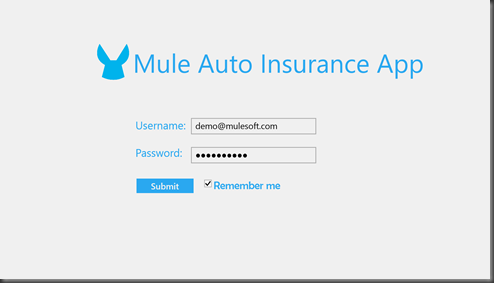
On May 27th-29th, in San Francisco, MuleSoft is hosting one of the largest integration events of the year called Connect. There is an impressive list of speakers including:
- Greg Schott, CEO MuleSoft
- Ross Meyercord, CIO Salesforce
- John Collison, Co-Founder Stripe
- Ross Mason, Founder MuleSoft
- Ben Haines, CIO BOX
- Uri Sarid, CTO MuleSoft
I am fortunate to have the opportunity to participate in the event. I am speaking in the Insurance track and also co-presenting on Integrating heterogeneous environments.
In the Integrating heterogeneous environments session will be demonstrating some of the investments that MuleSoft has been making in the area of Microsoft integration and more specifically some of the work we have been doing with WCF and .Net.
Without giving up too many details, there will be a healthy dose of RAML, APIs, SalesForce, .Net, REST/JSON, WCF and Mobile in the demos.
So if you haven’t signed up, there are still some spots available. You can do so here.
by community-syndication | May 16, 2014 | BizTalk Community Blogs via Syndication
How to create an itinerary is well documented but what is the best way to test your itinerary? In a production environment you normally have an On-Ramp that gets the itinerary from the Itinerary Store database so you first have to create a Receive Port with a Receive Location and you also have to configure the Pipeline with the Itinerary name or Business Rule Policy. It’s no rocket science but if you just want to test the itinerary you don’t want to do all those steps. Luckily you don’t have to because the ESB Toolkit comes with four types of Web-Based Itinerary On-Ramps. These On-Ramps were created at the installation of the ESB Toolkit and are designed to receive any XML message. Note that these On-Ramps are ideal for testing but are less suited for a production environment because the message is described with an anyType Type in the WSDL and most of the clients require a typed message.
Web-Based Itinerary On-Ramps in ESB Toolkit:
One-way ASMX
One-way WCF
Request/Response ASMX
Request/Response WCF
The ASMX on-ramps expect the ESB itinerary content in the SOAP header. You have two kind of WCF on-ramps. One that expects a reference to the ESB itinerary in the SOAP header and the Generic WCF on-ramp that expects only the request message. In a production environment you only want to sent the message but for testing it’s more convenient to also send the itinerary with the message because in that case you don’t have to configure the Pipeline in the Receive Location and you don’t have to deploy the itinerary to the Itinerary Store database.
The ESB Toolkit also comes with a Itinerary Test Client tool to test itineraries. It’s provided as a sample so to use it you first have to uncompress the ESBSource.zip file from the installation folder into the C:\Projects\Microsoft.Practices.ESB folder. In “..\Source\Samples\Itinerary\Source\ESB.Itinerary.Test” is the tool located.
Exporting an Itinerary as XML for Testing
Exporting the itinerary as XML enables you to test the itinerary using the Itinerary Test Client.
In the Itinerary Model properties window:
- Set the Model Export property to XML Itinerary Exporter
- Set the Itinerary XML File property to the location and name of your choice
- Right-click the designer surface, and then click Export Model
Testing an Itinerary Using the Itinerary Test Client
To test an itinerary using the Itinerary Test Client:
- Unselect the Web service options to select the ASMX web service.
- Click the Load Itinerary button to provide the itinerary that you have saved to a .XML file.
- Click the Load Message button to select a test message.
- Click the Submit Request button to submit the test message.
’
Note that when you send a message to an On-Ramp, you get the following message box. This only means that the message is successfully sent and not that it’s successfully processed by BizTalk!
Have fun with testing!
Tomasso Groenendijk
by community-syndication | May 15, 2014 | BizTalk Community Blogs via Syndication
Microsoft announced today the Release to Manufacturing (RTM) of BizTalk Server 2013 R2, with and expected General Availability (GA) in June.
From the Microsoft Announcement:
For over a decade, Microsoft customers and partners have deployed thousands of mission-critical integration solutions using BizTalk. Microsoft’s latest integration platform, including BizTalk Server 2013 R2, delivers improvements in performance, reliability, and functionality. Prepare to upgrade to this latest version on premises. http://Microsoft.com/BizTalk.
Please see, What’s New in BizTalk Server 2013 and 2013 R2: http://msdn.microsoft.com/en-us/library/jj248703(v=bts.80).aspx for more information.
Today @ TechEd 2014 in Houston we have 3 sessions to communicate the announcement of BizTalk Server 2013 R2 RTM, and to reinforce the strength of our comprehensive On-Premises and Cloud Integration Platform capabilities.
DEV-B364 How to Architect and Implement Hybrid Integration Solutions with Microsoft BizTalk Server and Microsoft Azure BizTalk Services, Thursday, May 15 10:15 AM – 11:30 AM Room: 381A
DEV-B307-R Announcing Hybrid Connections: Building Amazing Hybrid Web Sites and Mobile Apps in Minutes (repeated from May 12 at 1 pm), Thursday, May 15 1:00 PM – 2:15 PM Room: Hilton L2 Ballroom C
DEV-B377 Integration in the Cloud: Deep Dive into the Architecture of BizTalk Services, Thursday, May 15 2:45 PM – 4:00 PM Room: 352D
More …



