by community-syndication | May 25, 2015 | BizTalk Community Blogs via Syndication
Published By: Bill Chesnut
Over the years working with BizTalk Server I have discovered a couple of things that have been left out of the base BizTalk Server Product, the 1st and foremost is that the Backup BizTalk Server SQL Agent job does not delete the backup files, it has a step to delete the backup history from the database, but not the files from the file system. The other 2 things that can cause issues are related to BAM, when a BAM activity is deployed into BizTalk, it creates a SSIS package that does the Archiving and Deleting of the BAM data, but if you don’t remember to schedule this SSIS package it never happens, the last BAM related one is Scheduled Aggregations. If you are using SQL Server Standard Edition, you cannot enable Real Time Aggregation in your BAM Activity and you must schedule the created Scheduled Aggregation SSIS package to run.
Now that we have discussed these 3 missing components to the base BizTalk Server product, lets look at how to solve these issues.
SSIS Package to Delete BizTalk Server Database Backups
In the past I have created a replace stored procedure that will delete the history and files created by the BizTalk Server Backup SQL agent job, the issue with this SQL Stored Procedure was that it required SQL Command Exec to be enabled on the SQL Server and this is considered a security risk by many SQL DBAs.
So to please the SQL DBAs I decided that an SSIS package could do the same thing, without needing SQL Command Exec to be enabled, this SSIS package uses that same SQL query as the Clear Backup History step of the default Backup BizTalk Server SQL Agent Job. Below are the instructions to install the SSIS package:
- Download the DeleteBackupHistoryAndFiles SSIS package for your version of BizTalk and SQL from here
- Import SSIS Package into SQL Integration Services
- Select the SSIS Package from your download location
- Change the Protection Level to “Rely on server storage and roles for access control”, Click OK
- Open the Backup BizTalk Server SQL Agent Job, Click Steps, Click Clear Backup History, Configure as Shown (replace Server name with your SQL Server Name), Click Data Sources
- In the Data Sources update the name of the SQL Server, Click Set values
- In the Set values, enter the following 2 values (UseLocalTime should set to the value in Backup Full, DaysToKeep is up to you), Click OK
- \Package.Variables[User::UseLocalTime].Properties[Value]
- \Package.Variables[User::DaysToKeep].Properties[Value]
- The Backup BizTalk Server is now updated, test to make sure it is working
- Trouble Shooting
- make sure the account the SQL Agent is running under has permissions to delete the backup files
- Make sure the Backup BizTalk Server is creating full backups, the job will not delete any files newer than the last full backup
SSIS Package to run All BAM Archive Packages
This package was created to ease the efforts on the BizTalk Administrators, the recommend procedure in BizTalk Server is that every time a BAM activity is deployed the BizTalk Administrators need to create a SQL Agent job to run the BAM_DM_ SSIS Package, this can easily be forgotten and can result in a large performance impact on BizTalk Server, the worse case and the reason I wrote this SSIS package was 20,000,000 rows for a Single BAM Activity.
This package once install will run the BAM_DM_ SSIS Package for each BAM Activity that is currently deployed in the BizTalk Server, by reading the bam_Metadata_Activities table in the BAMPrimaryImport database.
- Download the Run All BAM SSIS Packages from here
- Import SSIS Package into SQL Integration Services
- Select the SSIS Package from your download location
- Change the Protection Level to “Rely on server storage and roles for access control”, Click OK
- Create a new job in the SQL Agent Jobs, Set the Job Name and Click Steps
- In Steps, Click New, configure as Shown (replace Server name with your SQL Server Name), Click Data Sources
- Update Data Sources with your SQL Server Name, Click OK, Click Schedules, Click New
- Enter Your Schedule Details (My recommendation is once a week on Sunday Morning), Click OK, Click OK
- The Run All BAM Archive Packages Job is now created, test to make sure it is working
- Trouble Shooting
- Make sure the account the SQL Agent is running under has permissions to read the bam_Metadata_Activities table.
- Make sure the account the SQL Agent is running under has permissions to run SSIS Packages
SSIS Package to run All Schedule Aggregation Packages
This package was again create to ease the workload on BizTalk Administrators, very similar to the package above, if you have SQL Standard Edition in your BizTalk Server Environment you cannot use Real Time Aggregation, you must use Scheduled Aggregations to update SQL Analysis Services for your BAM Views. This again requires your BizTalk Administrator to create a SQL Agent Job to run the BAM_AN_ SSIS Package, this can be easily forgotten and your views will not have the most current data.
This package once install will run the BAM_AN_ SSIS Package for each BAM View that is currently deployed in the BizTalk Server, by reading the bam_Metadata_AnalysisTasks table in the BAMPrimaryImport database.
- Download the RunAllScheduledAggregations SSIS package for your version of BizTalk from here
- Import SSIS Package into SQL Integration Services
- Select the SSIS Package from your download location
- Change the Protection Level to “Rely on server storage and roles for access control”, Click OK
- Create a new job in the SQL Agent Jobs, Set the Job Name and Click Steps, Click New
- On Steps, configure as Shown (replacing you SQL Server Name), Click Data Sources
- Update Data Sources with your SQL Server Name, Click OK, Click Schedules, Click New
- Enter Your Schedule Details (This depends on your data, I will show every 5 minutes during business hours), Click OK, Click OK
- The Run All BAM Scheduled Aggregations Job is now created, test to make sure it is working
- Trouble Shooting
- Make sure the account the SQL Agent is running under has permissions to read the bam_Metadata_AnalysisTasks table.
- Make sure the account the SQL Agent is running under has permissions to run SSIS Packages
I hope this post helps reduce the load on your BizTalk Administrators and keeps your BizTalk Server running efficiently.
More …
Tags: BizTalk SSIS

by community-syndication | May 24, 2015 | BizTalk Community Blogs via Syndication
Ihave just got through a rather difficult project that involved BizTalk calling on a mixture of SOAP/REST services, and also exposing multiple RESTFul services as well. The project had a very short time frame and we had many technical hurdles to cross. One of the toughest challenges was communicating appropriate details when we were having […]
Blog Post by: Johann
by community-syndication | May 19, 2015 | BizTalk Community Blogs via Syndication
Recently Microsoft announced that support for Microsoft AppFabric 1.1 for Windows Server will end on April 2, 2016. Let’s take a closer look at the impact of this announcement. What is Windows Server AppFabric? Windows Server AppFabric is an application […]
Blog Post by: AxonOlympus

by community-syndication | May 18, 2015 | BizTalk Community Blogs via Syndication
I just ran into one weird problem in the BTDF project where there was a need to Create Virtual Directory. This post is for myself to remember when encounter the error “Cannot create a file when that file already exists” while executingCreateVirtualDirectory in BTDF project. When looked into the Default Web Site on IIS the […]
Blog Post by: shadabanwer

by community-syndication | May 18, 2015 | BizTalk Community Blogs via Syndication
I realized that I forgot to add some shapes, or I hadn’t addressed certain features/functionalities, so I decided to make an upgrade to my Microsoft Integration Stencils for Visio 2013 resource, that I published 10 days ago, adding this time 43 new shapes – in a total of 301 symbols/icons that will help you to […]
Blog Post by: Sandro Pereira
by community-syndication | May 17, 2015 | BizTalk Community Blogs via Syndication
I’m here in Coimbatore, India for our brand new office opening. Over 5000 sq.ft capacity that can comfortably take about 60 people. Thanks to many of our friends, family and well wishers who congratulated us whole heartedly, appreciating our growth. Here is our little story, that summarizes our India operations journey so far. Our journey […]
The post A Big Step Forward, Our Brand New Office Opening & Our Journey So Far appeared first on BizTalk360 Blog.
Blog Post by: Saravana Kumar

by community-syndication | May 15, 2015 | BizTalk Community Blogs via Syndication
Is very common in integration scenarios to see messages being archived locally into the hard drive – either by using a pipeline component like BizTalk Archiving – SQL and File or by simple using the default functionalities in BizTalk like filters: Create a Send Port with a filter expression equal to the name of Receive […]
Blog Post by: Sandro Pereira

by community-syndication | May 14, 2015 | BizTalk Community Blogs via Syndication
Every time I try to configure the BizTalk Accelerator for RosettaNet in BizTalk Server 2013 or BizTalk Server 2013 R2 of course using Windows Server 2012 or Windows Server 2012 R2 I encounter this error in the configuration logfile [2015-05-14 16:37:40:0043 Error ConfigHelper] Failed to add member ’user’ to NT Group IIS_WPG Error code: -2147022676 […]
Blog Post by: Sandro Pereira

by community-syndication | May 14, 2015 | BizTalk Community Blogs via Syndication
I’m proud and thrilled to announce that I will be for the first time in Belgium to present a session in the Integration Day 2015 on June 4th, 2015 about BizTalk Server: “BizTalk Server Deep Dive Tips & Tricks for Developers and Admins” that is being organized by the Belgian BizTalk User group (BTUG.be). The […]
Blog Post by: Sandro Pereira

by community-syndication | May 11, 2015 | BizTalk Community Blogs via Syndication
In the past I have blogged about /n Software and their SFTP Adapter here and here. Hard to believe one of those posts goes back to 2007. One thing that /nSoftware continues to do is add new adapters to their suite. In this case it is the Powershell Adapter.
Can’t say that a Powershell Adapter previously was on my radar until a scenario was brought to me. We have a very specialized piece of software that does “analysis” (I will leave at that for now). This software is essentially a library that has been wrapped around an exe. This exe will receive a series of parameters including a path to a file that it will use to perform its analysis on.
A suggestion was brought up about calling this exe using Powershell. While I am sure we could call this from .Net the Powershell warranted some investigation. So sure enough in a web search, /nSoftware comes up with an offering and sure enough we had it installed in all of our environments.
Since BizTalk is going to deliver the flat file used as an input to this process, I decided to check out the Powershell Adapter and allow BizTalk to orchestrate the entire process. For the purpose of this blog post I will over-simplify the process and focus more on a POC than the original use case.
As part of the POC I am going to receive an xml file that represents our Parameter data. We will then send this same message out through a Send Port that is bound to the /nSoftware Powershell adapter.
In order to help illustrate this POC, I have a console application that will simply receive 3 parameters and then write the contents to a file in my c:temp folder. The reason why I am writing to a file is that when I call this exe from Powershell I don’t see the console window being displayed. Perhaps there is a way to do that but I didn’t look for a solution for that.
namespace PowerShellPOC
{
class Program
{
static void Main(string[] args)
{
string[] lines = { args[0], args[1], args[2] };
// WriteAllLines creates a file, writes a collection of strings to the file,
// and then closes the file.
string filename = DateTime.Now.ToString(“ddMMyyyymmhhss”) + “.txt”;
System.IO.File.WriteAllLines(@”C:\temp\” + filename, lines);
}
}
}
In hindsight, I should have just built a send port subscription but here is my orchestration.
Using a standard FILE – receive location

On the Send things start to get a little more interesting. We will create a Static One-Way port and select the nSoftware.PowerShell.v4 Adapter.
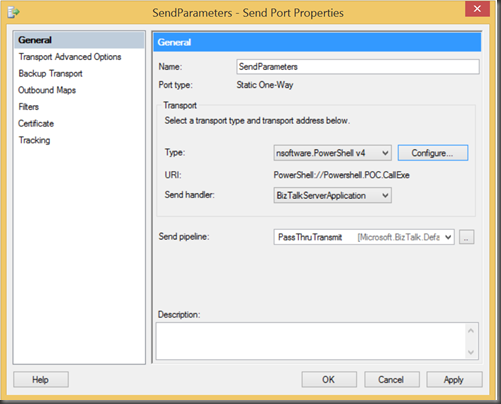
Within our configuration we need to provide a Port Name (which can be anything) and our script.

If we click on the Script ellipses we can write our PowerShell script. In this case we are able to retrieve our message that is moving through our Send Port and pass it into our executable.

If we only wanted some data elements we can also use $param3 = $xml.arguments.ReturnType
In this case “arguments” is our root node of our BizTalk Message and “ReturnType” is a child node in our XML Document.
When we go to process a file we will find that our text file has been created and it contains our 3 parameters; 2 that are hard coded and our BizTalk Messsage Payload.

Conclusion
When I think of BizTalk, I don’t necessarily think of Powershell. But there will always be times when you need to perform some function that is a little bit off mainstream. What I do like about this approach that there was no additional custom dev required to support the solution and we can use the actual BizTalk message in our Powershell script.
I am still exploring the capabilities of the adapter but after a dialog with the /nSoftware team I understand that remote Powershell scripts can be run and we can also use Dynamic ports and Solicit Response ports if we want to return messages from our PowerShell script to BizTalk.
For more details please check out the /nSoftware website.



