by community-syndication | Sep 14, 2012 | BizTalk Community Blogs via Syndication
One of the great new features included in Visual Studio 2012 is the ability to create professional looking storyboards using Microsoft PowerPoint. Storyboards allow you to create very realistic mock-ups of an application using shape libraries designed for the particular type of application you are proposing. Examples include Windows application, Web application, Windows Phone 7 applications and more.
Microsoft has released a number of new storyboarding shapes for people wanting to create Storyboards for iOS, iPad or iPhone applications.
NOTE: To get the Storyboarding feature in PowerPoint, you must have one of the following products installed.
- Visual Studio Premium 2012 with MSDN
- Visual Studio Ultimate 2012 with MSDN
- Visual Studio Test Professional 2012 with MSDN
How to get the new shapes
- Download the Storyboard shapes you want from the Visual Studio Gallery
- Open Microsoft PowerPoint and select the Storyboarding tab
- Select Import Shapes
- Locate the “*.SBSX” file you downloaded in step 1 and click Open.
Your new storyboard shapes will appear in the Storyboard Shapes toolbox.
If you want to learn more about how to use the Storyboarding features, consider taking our Managing Projects with Team Foundation Server 2012course. We have an entire module devoted to getting up to speed quickly.

by community-syndication | Sep 14, 2012 | BizTalk Community Blogs via Syndication
It’s hard to write technical books nowadays. First off, technology changes so fast that there’s nearly a 100% chance that by the time a book is published, its subject has undergone some sort of update. Secondly, there is so much technical content available online that it makes books themselves feel downright stodgy and out-dated. So […]
Blog Post by: Richard Seroter
by community-syndication | Sep 14, 2012 | BizTalk Community Blogs via Syndication
A few days ago I received an error while restarting the BizTalk host instances on one of the BizTalk servers here after an update. Seems like changes to BizTalk config file were to blame and this article shows how to fix this error.
by community-syndication | Sep 14, 2012 | BizTalk Community Blogs via Syndication
As preparation for our 5.0 release in October we are presenting BizTalk360 in various live user group presentations this month. Here are the list of event during the month of September. Norwegian user group (NoBug), September 18th, Gothenburg, Sweden Norwegian BizTalk User group (NoBug): NoBug is community for BizTalk users and developers in the Nordic […]
The post BizTalk360 at Norwegian user group and BizTalk Innovation day appeared first on BizTalk360 Blog.
Blog Post by: Saravana Kumar
by community-syndication | Sep 13, 2012 | BizTalk Community Blogs via Syndication
As an BizTalk Administrator/Technical Application Engineer, I regularly need to fix problems with BizTalk that I am not able to fix easily with the out-of-the-box tools. For example, at the moment we experience an issue which leads to suspended messages on a particular receive location. To fix that issue I need easy access to these suspended messages and their content. Off course I can get to the content with the BizTalk Administration Console, but because I need to fix about 50 of those messages per day (awaiting a structural solution), I need easier access to the MessageBoxDb to save time and to prevent myself from RSI, due to so many mouse clicks.
Since a couple of years I maintain BTSDecompress on CodePlex. This tool enables me to query the BizTalk databases and retrieve message content and context. Although this tool works fine for me, the main disadvantage is that, until now, it only supported BizTalk 2006. Therefore only a limited group of BizTalk users could potentially benefit of this software.
Because of the issue I mentioned in the first paragraph, lately I’ve been working a lot on that tool. It has reached version 1.5 and in this version a number of important improvements have been applied. Here follows a list of the most important changes:
Support of BizTalk releases
– BizTalk 2006
– BizTalk 2010
– BizTalk 2010 R2 CTP
I expect BTSDecompress to work with the other major BizTalk releases as well (2004, 2006 R2, 2009), but I did not (yet) test it, so I don’t mention these versions here.
Support of Windows versions
– Windows Server 2003
– Windows Server 2008 R2
– Windows 7
I expect BTSDecompress to work with the other major Windows versions as well (XP, Vista, 2008), but I did not (yet) test it, so I don’t mention these versions here.
Query maintenance
It is now possible to Create, Open, Save and Save As queries. This makes it a lot easier to maintain multiple queries.
ebXML support
It was already possible to fire XPath queries on the message content, but you can now do that as wel upon ebXML headers and envelopes.
Where to find
BTSDecompress is Open Source software and can be found here:
btsdecompress.codeplex.com
by community-syndication | Sep 13, 2012 | BizTalk Community Blogs via Syndication
We recently announced the availability of BizTalk Server 2010 R2 CTP. BizTalk Server 2010 R2 comes with a lot of features to take advantage of the whole cloud push. In the last post, we have shown how you could leverage the power of the Azure IaaS cloud to get your BizTalk deployments up and running in no time. In this post, we will talk another feature which will help you take advantage of the cloud – the Service Bus Messaging adapter. The Service Bus Messaging adapter, in a nutshell, allows BizTalk Server to read and send messages to Azure Service Bus Queues and Topics/Subscriptions.
The presence of a messaging infrastructure on the cloud has many advantages – which is not the subject of this blog, but is well documented elsewhere. Let us take a simple scenario: Our customer is an insurance company and it deals with multiple partners who help in administering insurances to the end customers. An on-premise BizTalk Server would handle insurance claims coming from multiple partners. Each of the partners submits these claims to an incoming Service Bus queue. BizTalk Server picks up these claims from the incoming queue and processes them. Once it is done, BizTalk Server would publish the status of the claims to an outgoing topic. The partners could create a subscription on the topic to receive the claim status. Such a scenario that leverages Azure Service Bus can now be easily integrated with BizTalk Server with the new Service Bus Messaging adapter. Let us have a quick walk through of this adapter.
Getting Started
In order to get started, you will need two things: A Windows Azure Service Bus namespace and BizTalk Server 2010 R2 CTP. You can get both of these on Windows Azure – sign up for a free trial here if you do not have one. Now, as outlined in this article, you can create your queue/topic. And as outlined here you can quickly create an instance of BizTalk Server 2010 R2 CTP running in a Windows Azure Virtual Machine.
Receiving messages from a Queue or a Subscription
BizTalk Server 2010 R2 provides a receive adapter to fetch messages from a Windows Azure Service Bus queue or a subscription. The receive adapter is one-way and will work with messages that you post on the queue. The adapter is simple to set up and configure. You just need to provide the URL of the Service Bus queue or subscription from where you need to pick the messages from and the credentials for authenticating with Service Bus. To set up a receive adapter for Service Bus Queue:
(1) Create a one-way receive port in your BizTalk application.
(2) Create a new receive location and select “SB-Messaging” as the Transport Type as shown below.
(3) Click on “Configure” to configure the properties of the receive location. In the transport properties General Tab, specify the URL for the queue or subscription from where BizTalk Server needs to fetch message from. You could also configure connection properties like open/close/receive timeout as well as the prefetch count. The Prefetch Count specifies the number of messages that BizTalk Server will fetch at a time. This can help increase the throughput of the adapter as well.
(4) On the Authentication Tab, you need to specify how BizTalk Server will fetch the required ACS Token for authenticating with Service Bus. You can read on how Service Bus uses Access Control Service for authentication here. In a nutshell, you will need to specify the Access Control Service URL for the service namespace. It is usually derived from the service bus namespace (suffixed with “-sb”) and you will only need to update the service namespace in the default template. You can find this in the Azure management portal as well. You also need to specify an issuer name and issuer key. You will need to ensure that the service identity has a Listen claim. If you are using the default service identity (“owner”), it will have the necessary claims.
(5) Click on “OK” or “Apply” to create the Receive Location.
You can then start your Receive Location and BizTalk Server will now start to fetch messages from the Queue or subscription. Easy!
Handling Brokered Message Properties in Receive Adapter
The SB-Messaging receive adapter understands BrokeredMessage properties. This means two things. First, BizTalk Sever 2010 R2 comes with a predefined property schema for all the standard properties of a BrokeredMessage. The adapter will also promote these properties automatically for you. Second, the adapter can write custom user-defined Brokered Message properties in the BizTalk message context. And, if you desire, you could also promote them. Promoting them will allow you to use them in your routing filters. For example, for our insurance claims applications, different applications could be routed based on who the type of insurance, the partner, the claim amount, etc. These properties could be defined as Brokered Message properties and passed on with the incoming message. These properties could be used to route the message to different backend systems or workflows/orchestrations in BizTalk Server. To promote the properties though, you need to create and add a property schema in your BizTalk application. Then, on the properties Tab of the adapter, you could specify the namespace for your schema and check the option to promote the property.
Sending messages to a Queue or a Topic
BizTalk Server 2010 R2 also provides a send side adapter for posting messages to a Service Bus Queue or Topic. This is a one-way send adapter. To set up a send port for posting messages to a Service Bus Queue or a Topic:
(1) Create a Send Port and select SB-Messaging as the Transport Type. Click Configure to configure the properties of the adapter.
(2) Click “Configure” to configure the transport properties of the send adapter. You need to specify the URL of the Service Bus Queue or Topic where the message should be posted.
(3) On the Authentication Tab, you enter the credentials for authenticating with Service Bus. This is the same as you see on the receive adapter.
(4) Click on “OK” to save the transport properties of the adapter.
(5) Specify the other properties of your Send port like pipeline, handler, Filters, etc.
(6) Click “OK” to finish creating your Send port.
Now, you can enlist and start the send port. The adapter will now post outgoing BizTalk message to the Service Bus queue or topic.
Handling Brokered Message Properties in Send Adapter
As in the case of receive adapter, the send adapter is aware of Brokered Message properties. If the outgoing BizTalk message has any of the standard Brokered Message in its context, the adapter will automatically set them as Brokered Message property. In addition, you could also specify defaults as part of the Send port properties. For custom user defined Brokered Message, you could specify a namespace as part of the adapter configuration. The adapter will take any property in that namespace and set them as Brokered Message Properties.
Finally, a note on serialization
When you start using the adapter, you may find that the message you receive in BizTalk Server is garbled – especially if you are using the Service Bus .NET API. Let me explain why this happens and what the adapter expects.
The Service Bus messaging adapter just fetches the stream in the incoming message and submits it to BizTalk Server. While sending out a BizTalk message, it simply uses the content as a stream. We preserve the message format on the wire. So, if you write or read the stream directly in your code, say using the Service Bus REST API, you would see the same data in the payload as you would expect. However, if you are using the Service Bus .NET API, you may find that there is a serialization issue if you use the default serializer (DataContractSerializer with binary XmlDictionaryWriter). This is because the default serializer in the Brokered Message .NET API uses Binary encoding. To avoid this issue, you will need to use Text by explicitly provide your own serializer, instead of the default serializer.
For sending message:
// For sending message using DataContractSerializer with Text encoding
var message = new BrokeredMessage(data, new DataContractSerializer(typeof(MyDataType)));
While reading the message:
// For receiving message using a DataContractSerializer with Text encoding
var data = message.GetBody<MyDataType>(new DataContractSerializer(typeof(MyDataType)));
You could, of course, directly read the stream as well. For a detailed write-up on the content serialization of Service Bus messages, you can refer to this blog post.
Next Steps
This post provides an overview of the new Service Bus messaging adapter in BizTalk Server 2010 R2. This is one of the new features that we have enabled with BizTalk Server 2010 R2. With this adapter, BizTalk Server can seamlessly integrate with your applications that leverage the Windows Azure Service Bus Queues and Topics. We encourage you to try out this feature and provide your comments and feedback. You can use the BizTalk forum to post your questions/queries as well.
Thanks
BizTalk Server Team
Blog Post by: BizTalk Blog

by community-syndication | Sep 13, 2012 | BizTalk Community Blogs via Syndication
Often ignored, but a really important, persistence points in Biztalk are the key issue in dealing with Orchestration Performance. Many applicative problem come from a misunderstanding of this concept. Sandro perreira (a great biztalk MVP) wrote a great article about it :http://sandroaspbiztalkblog.wordpress.com/2009/10/23/biztalk-orchestration-%E2%80%93-understanding-persistence-points/ You should read it, All BizTalk developper must be careful to those concepts […]
Blog Post by: Jeremy Ronk
by community-syndication | Sep 12, 2012 | BizTalk Community Blogs via Syndication
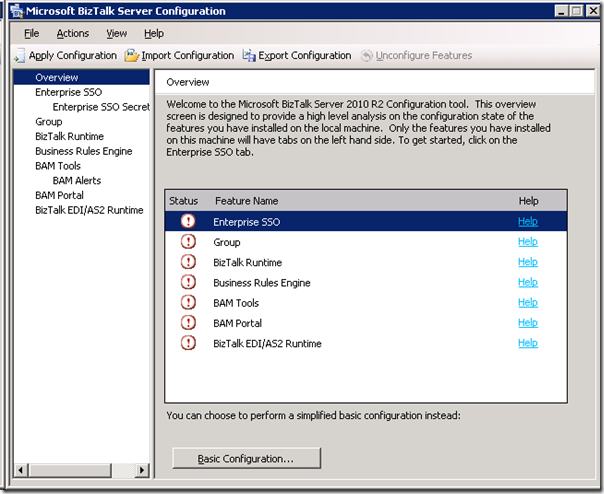
In my previous post I discussed ways to setup a BizTalk Server 2010 R2 CTP Virtual Machine in Azure. The post demonstrates how a VM with the BizTalk Server 2010 R2 is provisioned using CREATE CREATE. However the BizTalk Server 2010 R2 is installed on the VM, but not yet configured!
Ergo you have to do that yourself!
This is pointed out in Getting started with BizTalk Server 2010 R2 CTP in Windows Azure Virtual Machines post by BizTalk Server Team. However, it explains to do a basic configuration, while I choose to do a custom configuration of the all the features.
Note: On first logon, a few start up tasks will be executed. Wait until the SQL Server – Getting Started link is created on desktop.
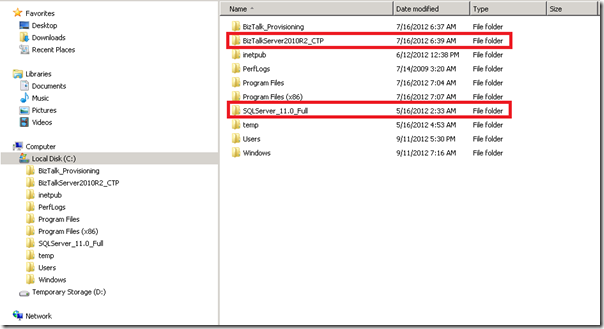
The configuration is the same as for BizTalk Server 2010 setting up SSO, Group, Runtime and so on. Some of the other BizTalk components like adapter pack are not installed on this Virtual Machine either. This explains presence of the BizTalk Server 2010 R2 CTP folder and SQLServer_11.0_Full folders with the install bits.
For configuration of BizTalk I used the administrator account that I use to login to the machine. I configured all the features, yet I can image one not configuring all the features.
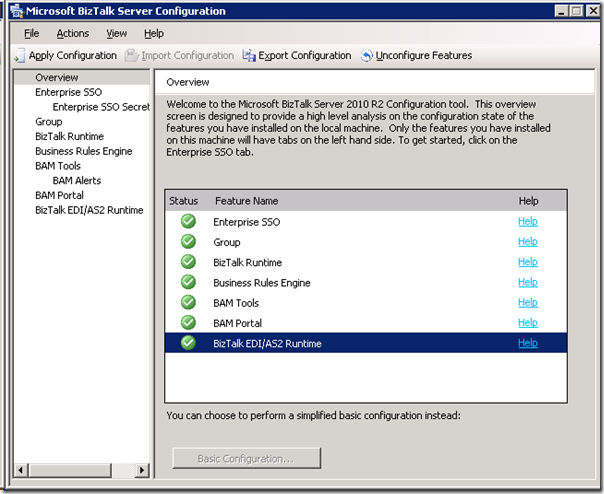
The feature I did not configure was BAM Alerts, which was greyed out and not possible. To use that feature you will need to have the prerequisites for BAM Alerts installed. To check the configuration I started the BizTalk Administration Console and look at the adapters.
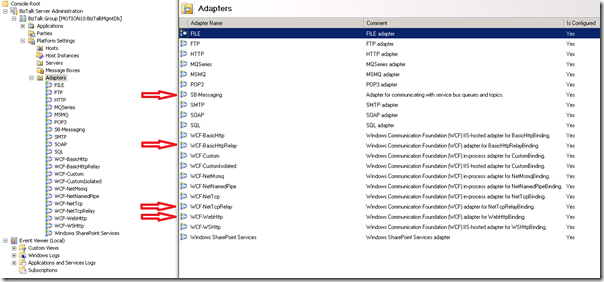
There all installed and configured. Notice the new ones like:
- WCF-WebHttp adapter, to consume REST service or expose REST service
- SB-Messaging adapter, for sending/pulling data from Service Bus Queues/Topics
- WCF-NetTCPRelay adapter, for hosting relays or sending data to NetTCPRelay end points
- WCF-BasicHttpRelay adapter, for hosting relays or sending data to BasicHttpRelay end points
The adapters are not the only new feature, see the post Announcing Microsoft BizTalk Server 2010 R2 CTP Release! from BizTalk Server Team for the other.
The Virtual Machine in Azure I have now is ready for some experimenting, developing and testing of BizTalk Server 2010 R2 CTP.
by community-syndication | Sep 12, 2012 | BizTalk Community Blogs via Syndication
First I need to apologies to my readers for couple of things. One you might have noticed lot of updates recently in your readers with old posts, that’s mainly due to the migration process and second I had to delete 100′s of comments that’s been left in the blog for over 7 years now. […]
The post Migrating your blog from any BlogML based platform to WordPress appeared first on BizTalk360 Blog.
Blog Post by: Saravana Kumar
by community-syndication | Sep 12, 2012 | BizTalk Community Blogs via Syndication
One of the benefits of my job and role as MVP is that I have the opportunity to meet a lot of BizTalk community members, MVP’s and Microsoft professionals around the world. Some of them became good friends. One of them is Sandro Pereira, who I met for the first time during MVP summit beginning 2011. He is very active in the community through for instance blogs, forums, and the TechNet Wiki. Many of you will probably recognize him through on of his contributions.
Sandro Pereira is 34 years old and lives in Crestuma, a small village in the beautiful region of Oporto in Portugal (known worldwide for its wine: Port wine and also classified as World Heritage by UNESCO). At end of this year he will begin a life together with his beautiful girlfriend L%u00edgia, a big support in his life.
Sandro started his professional career as a Java, C++ and C# developer and then as a Web project manager. In 2005 he decided it was time to accept a new challenge and joined DevScope as BizTalk consultant. Currently he is also as Project Manager with focus on systems integration using BizTalk Server and Windows Azure Service Bus. DevScope is a company specializing in business intelligence solutions, systems integration, CRM and collaborative portals based on Microsoft technology and predominantly active in the industrial, financial and public sector.
Portugal is a small country with a small community of specializing technicians in BizTalk, this allows Sandro to have the versatility to perform a bit of all BizTalk roles:
- as a BizTalk Architect he advises his clients about BizTalk infrastructure environments and design integration solutions;
- as a BizTalk Developer he implements integration scenarios (EIA, B2B and BPM);
- and often as BizTalk Administrator he performs BizTalk administration and audit environments, depending on the client in question.
Personally I consider myself more as BizTalk Architect and BizTalk Developer probably less, but I’ll always play the role of developer, because I love it!
Sandro has like many other BizTalk community members I interviewed before has an opinion/view on the product:
Like all products, BizTalk Server has its advantages and disadvantages; there are those who love the product and those who simply hates; BizTalk Server is one of the most mature and stable products from Microsoft and in my personal opinion is one of the best platforms that I know to work in integration scenarios (EIA, B2B and BPM). Of course, these platform, can still be improved and continue to grow, this is what is expected with the planned launch of the new version BizTalk Server 2010 R2.
Some of his friends say Sandro is a workaholic (or Bizaholic :)) because one of the activities he loves doing in his spare time is to write technical articles about BizTalk. He writes for his blog and contributes to a number of communities as he is member of:
Seem like too much work but I couldn’t disagree more, I just don’t consider this work, this is simply a hobby that I enjoy do it. Besides being a healthy hobby, that helps me improve day after day and it has allowed me to be awarded, since 2011, Most Valuable Professional (MVP) for BizTalk Server, travel and have the pleasure to meet excellent technicians worldwide.
To BizTalk community Sandro would like to say the following: I would like to thank all and also leave a challenge: not to restrict themselves only to consume information but also to start sharing the knowledge they have, I’m sure that they will bring additional value to the community.
Beside being a Bizaholic Sandro loves spending time with my family, going out at night for a drink with his friends, going to the cinema, traveling with his girlfriend and play a variety of sports. He is active in snowboarding, snooker, karting, biking, soccer, but his favorite is futsal (indoor soccer).
The only sport I like to watch is soccer, and to specify in more detail, only the matches of best team in the world: Futebol Clube do Porto.
I would like to thank Sandro for his contributions and time for this interview. He is a great inspiration to many, one of the most productive community members and above all a good friend.