by community-syndication | May 13, 2013 | BizTalk Community Blogs via Syndication
Just like me if you have created the host instances for all the hosts on every machine ( 2 in thisexample ) in BizTalk group and still wondering why you are not getting the count of host instance equal to number of host multiplied by the BizTalk server (in above case 17*2=34) then this could be the answer.- In this example there were 3 isolated hosts; BizTalk360 was not considering

by community-syndication | May 13, 2013 | BizTalk Community Blogs via Syndication
Hey everybody, Just for fun, some relations told me about their biztalks servers issues during load test sessions. They rans too much slowly and get a lot of dead lock on the messagebox. I start by analyzing job agent state. And here it is, the SQL agent is not RUNNING since along time. Consequence : […]
Blog Post by: Jeremy Ronk

by community-syndication | May 12, 2013 | BizTalk Community Blogs via Syndication
Microsoft Office Excel is required for using the Business Activity Monitoring (BAM) feature in BizTalk Server. You use the BAM Office Excel Workbook to define the business processes you want to monitor. You also use the BAM Excel Workbook to define the way in which business users see the data collected by BAM. Note: BizTalk […]
Blog Post by: Sandro Pereira
by community-syndication | May 12, 2013 | BizTalk Community Blogs via Syndication
In BizTalk 2009 and BizTalk 2010, there are often problems when installing the ESB Toolkit but then it (almost) always works well. In BizTalk 2013 The BizTalk Server installer now provides the option of installing ESB Toolkit as well. The configuration process is also much simpler so you would think it’s now more integrated with BizTalk Server 2013. Unfortunately, that is not entirely true. Installation has indeed become easier but also there are some new bugs added!
A great feature of the ESB Toolkit is that you can use business rules to select an itinerary based on the content of a received message. But when you have configured an Itinerary Selector pipeline component in BizTalk 2013 to use a business rules policy to select the appropriate itinerary, you get the following error:
| “Exception has been thrown by the target of an invocation.” |
|
| |
| On the BizTalk ESB Toolkit Forum you can see that other users also have this problem so it’s starting to seem that this is a bug! |
| |
Identifying the exact error
The error “Exception has been thrown by the target of an invocation.” is to generic and doesn’t help very much but combined with Error StackTrace you see which .dll file, the method and the object that creates the error. As is often your best friend is Reflector so let’s have a closer look at the “ResolverFactory.Create” method in the Microsoft.Practices.ESB.Resolver.dll.
|
| |
| Yeah but what now? Let’s try to copy that piece of code into a new solution in Visual Studio and run and debug it. |
|
| |
| Ok, I can now see that an instance of the “Microsoft.Practices.ESB.Resolver.Unity.ResolveProvider” object is going to be created. That’s a bit more information but combined with the Inner Exception, we know what’s really going on. |
| |
| InnerException: “Unrecognized element ‘typeConfig’. (C:\Program Files (x86)\Microsoft BizTalk ESB Toolkit\esb.config line 153)” |
|
| |
How to fix the bug
The “Microsoft.Practices.ESB.Resolver.Unity.ResolveProvider” object in the ESB Toolkit 2.2 uses the Microsoft Enterprise Library 5.0 and Unity 2.0. When you google/bing on “Unrecognized element ‘typeConfig’.” and Unity, it becomes clear that Unity 2.0 uses a new streamlined configuration schema for configuring Unity. Therefore, the esb.config file from the ESB Toolkit must be modified.
The following adjustments should be made:
- Remove the <typeConfig> element
- Change the <typeAlias> element to <alias>
- Change the <type> element to <register>.
- Remove the <containers> elements and <types> elements.
For more information see The Unity Configuration Schema in Unity 2.0.
| Changes in file: C:\Program Files (x86)\Microsoft BizTalk ESB Toolkit\esb.config |
|
| |
Testing the changes in the esb.config
I used the sample How to: Select an Itinerary Using a Business Rules Policy to test the changes, but first I changed the machine.config file to be able to see BizTalk ESB Toolkit trace output.
| To enable the BizTalk ESB Toolkit trace switch, add the following <switches> element to the system.diagnostics section of the Machine.config file. |
<system.diagnostics>
      <switches>
          <add name="BizTalkESBToolkit" value="4"/>
      </switches>
 </system.diagnostics>
.csharpcode, .csharpcode pre
{
font-size: small;
color: black;
font-family: consolas, “Courier New”, courier, monospace;
background-color: #ffffff;
/*white-space: pre;*/
}
.csharpcode pre { margin: 0em; }
.csharpcode .rem { color: #008000; }
.csharpcode .kwrd { color: #0000ff; }
.csharpcode .str { color: #006080; }
.csharpcode .op { color: #0000c0; }
.csharpcode .preproc { color: #cc6633; }
.csharpcode .asp { background-color: #ffff00; }
.csharpcode .html { color: #800000; }
.csharpcode .attr { color: #ff0000; }
.csharpcode .alt
{
background-color: #f4f4f4;
width: 100%;
margin: 0em;
}
.csharpcode .lnum { color: #606060; } |
| |
| Now when you receive a message in BizTalk you can see the trace output from the ESB Toolkit. In the last line you can see that the itinerary is found and added to the cache! |
|
| |
Conclusion
These adjustments in the esb.config file are not exactly rocket science yet it has taken me a long time to find the exact error and make the proper adjustments because the original error message was to generic and you have to perform a lot of work to find out what’s going wrong!
You can download the updated esb.config file here:
modified_EsbConfig.zip
by community-syndication | May 11, 2013 | BizTalk Community Blogs via Syndication
SAP supports a few different architectures when it comes to scaling out. In some environments, mainly smaller environments, the components that facilitate sending and receiving messages (such as IDOCs, BAPIs or RFCs) may be co-hosted on an Application Server. In some larger environments a dedicated Messaging Server(s) may be provided. We can also use a named destination that we define in our saprfc.ini file.
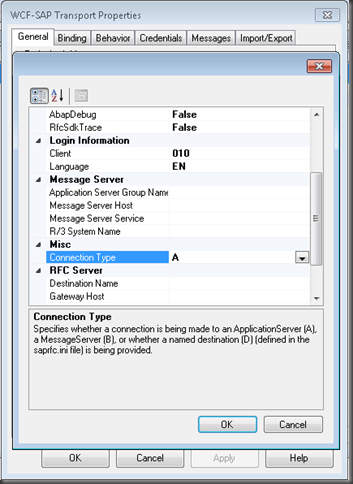
Up until this point all of my experience integrating with SAP has occurred through an Application Server. This is the default Connection Type that is populated in the Send Port configuration of a WCF-SAP send port.
Recently I ran into a situation where the SAP environment was not using Application Servers. Instead a Messaging Server was being used. The end result was that I received the following error
A message sent to adapter “WCF-SAP” on send port “SendGetSAPEquipment” with URI “sap://CLIENT=010;LANG=EN;@b/*SAPSERVER*/*ENV*?RfcSdkTrace=False&AbapDebug=False” is suspended.
Error details: Microsoft.ServiceModel.Channels.Common.ConnectionException: Details: ErrorCode=RFC_OK. ErrorGroup=RFC_ERROR_COMMUNICATION. SapErrorMessage=Connect to message server failed
Connect_PM MSHOST=*MSHOSTValue*, R3NAME=*ENV*, GROUP=PUBLIC
LOCATION CPIC (TCP/IP) on local host with Unicode
ERROR service *SAPSERVER* unknown
TIME Tue Apr 23 09:38:18 201
RELEASE 700
COMPONENT NI (network interface)
VERSION 38
RC -3
MODULE nixxhsl.cpp
LINE 776
DETAIL NiHsLGetServNo: service name cached as unknown
COUNTER 1. AdapterErrorMessage=. —> Microsoft.Adapters.SAP.RFCException: Details: ErrorCode=RFC_OK. ErrorGroup=RFC_ERROR_COMMUNICATION. SapErrorMessage=Connect to message server failed
Connect_PM MSHOST=*MSHOSTValue*, R3NAME=*ENV*, GROUP=PUBLIC
Microsoft.ServiceModel.Channels.Common.ConnectionException: Details:
ErrorCode=RFC_OK. ErrorGroup=RFC_ERROR_COMMUNICATION.
SapErrorMessage=Connect to message server
ailed
Connect_PM MSHOST=*MSHOSTValue*, R3NAME=*ENV*, GROUP=*MyOrganization*
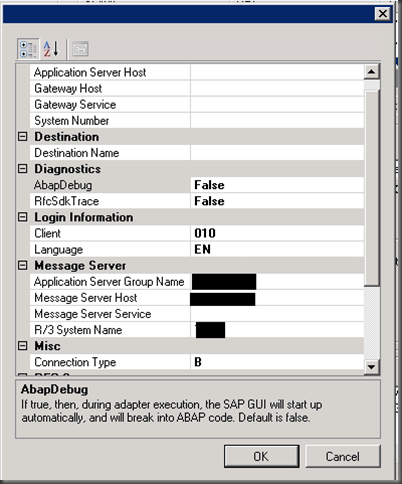
Since the SAP environment was actually using Messaging Server(s), In order to successfully make a connection to SAP, here is the correct configuration that I needed to provide:
- Application Server Group Name
- Message Server Host
- R/3 System Name
- Connection Type B
These properties will be specific to your environment and therefore I have blacked them out. You will need to get this information from your BASIS admin.
However, this is not enough and this is where I got hung up. You also need to specify TCP port where SAP will be looking for these connections. This property is not exposed through the BizTalk GUI. In order to specify this TCP port you need to modify the following file:
C:\Windows\System32\drivers\etc\services
Within this file you will want to add an entry like:
MSHOST 1234/tcp # SAP ENV System Message Server Port
Once again these values will be specific to your environment. I have added fictitious values here. You may see something like SAPMS<ENV> but once again your mileage may vary. In all likelihood your TCP Port will not be 1234 (that I made up). It will likely be 4 digits though.
The most important thing to recognize is that the value in this file (that I have called MSHOST) must match the value that we see in the error message below. This value will not match any values within your Send Port.
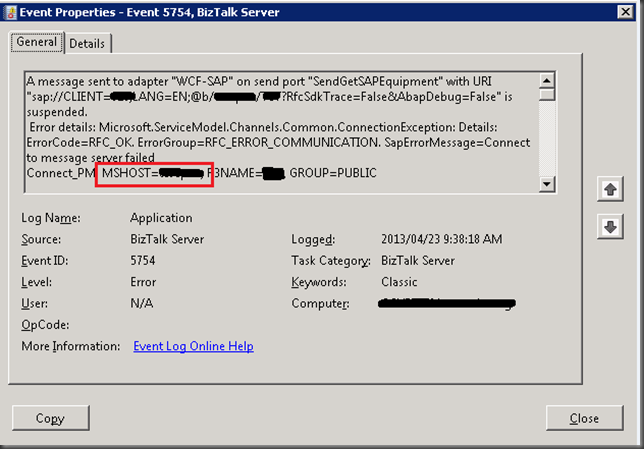
It isn’t only BizTalk that will use these values. Your SAPGUI will also use these same values when connecting to SAP systems. So if you are stuck, my recommendation is to find a machine that is running the SAPGUI and then copy over those values to the file that exists on your BizTalk Server(s). I have no idea how this MSHOST value is looked up as the BizTalk Send Port has no knowledge of it. My guess is that at runtime the R3Name in combination of the Message Server Host is somehow used to lookup this MSHOST from this file.
Conclusion
Hopefully this blog post will save you some time. I know that I had a tough time finding information that clearly painted the picture for me…especially in the area of the port# that is found in our services file.

by community-syndication | May 10, 2013 | BizTalk Community Blogs via Syndication
This is a continuation from two other blog posts about upgrading from BizTalk 2010 to BizTalk 2013. Mike who I mentioned previously has given the following tip if you are having trouble getting the Alerting service in the Exception Management Service working in BizTalk 2013. “.make sure: 1) BizTalk ESB Exception Notification.exe has updated assembly […]
Blog Post by: mbrimble

by community-syndication | May 9, 2013 | BizTalk Community Blogs via Syndication
Again in the previous step “Enable Internet Information Services” I mentioned that we should install the SMTP Server feature, why? If you wish to configure BAM Alerts, you must have configured SQL Server Database Mail feature (we will see how to accomplish that afterwards) and I will intend to configure this features using your local […]
Blog Post by: Sandro Pereira
by community-syndication | May 9, 2013 | BizTalk Community Blogs via Syndication
With the latest release of a BizTalk administration white paper by Tord G. Nordahl the story of running and maintaining BizTalk is complete. Through BizTalk360 site you can obtain the white paper: Proactively keep an eye on health of your Microsoft BizTalk Server Environments. This paper will you learn how to pro-actively avoid some of the scenarios like unplanned downtime, data loss or crippled
by community-syndication | May 8, 2013 | BizTalk Community Blogs via Syndication
In the past week I have had the opportunity to speak at two events. On May 1st I spoke at the Phoenix Connected Systems User Group and on May 6th I gave two presentations at the BizTalk Bootcamp in Charlotte.
It was a lot of fun putting these demos together and I received a lot of good feedback so hopefully you will also benefit from them. You can find the slide deck here: http://sdrv.ms/12fBU53
Note: Some of the Service Bus slides were borrowed from Clemens Vasters’ deck which he has made freely available here.

by community-syndication | May 8, 2013 | BizTalk Community Blogs via Syndication
In the previous step “Enable Internet Information Services” I mentioned that we should install the Windows Identity Foundation 3.5 feature, why? If we plan to use/configure SharePoint Services adapter or SharePoint Online when used with SharePoint Services Client Side Object Model (CSOM), then Windows Identity Foundation (WIF) feature is required. WIF is required if you […]
Blog Post by: Sandro Pereira



