I have been developing Logic App Standard for a long time and never had an issue running them locally, as far as I remember, until a few months ago. I never pay too much attention because I was not running them locally, and I didn’t block my ability to develop my solutions or workflows.
However, this week, while developing my demos for the Azure Logic Apps Community Day 2023 event, I had the need to test them locally, and every time I try to run them locally by either:
Start Debugging
Or Run Without Debugging
I was getting the following error:
Failed to find “func host start” task.
Cause
To be honest, I don’t know because I had all the pre-requirements installed, but I guess, and this is just me guessing, that some Azure Function extension update broke some configuration between these to extensions.
Solution
I know that you probably will not like it… but after spending a few hours, I give up and when to a drastic approach – this one – that solved the problem.
To solve this issue, you need to:
Uninstall all Azure Functions extension dependencies.
In my case, the Azure Logic Apps – Data Mapper and Azure Logic Apps (Standard) extensions
Uninstall the Azure Functions extension.
Restart Visual Studio Code
Install all the extensions again, in my case:
Azure Function
Azure Logic Apps (Standard)
Azure Logic Apps – Data Mapper
Just to be in a safe state, restart Visual Studio Code again.
After that I was able to run my workflow locally without any issue.
Hope you find this helpful! So, if you liked the content or found it helpful and want to help me write more content, you can buy (or help buy) my son a Star Wars Lego!
Author: Sandro Pereira
Sandro Pereira lives in Portugal and works as a consultant at DevScope. In the past years, he has been working on implementing Integration scenarios both on-premises and cloud for various clients, each with different scenarios from a technical point of view, size, and criticality, using Microsoft Azure, Microsoft BizTalk Server and different technologies like AS2, EDI, RosettaNet, SAP, TIBCO etc.
He is a regular blogger, international speaker, and technical reviewer of several BizTalk books all focused on Integration. He is also the author of the book “BizTalk Mapping Patterns & Best Practices”. He has been awarded MVP since 2011 for his contributions to the integration community.
View all posts by Sandro Pereira
An Integration Account allows you to build Logic Apps with enterprise B2B capabilities by adding various necessary artifacts. It serves as a central repository for managing various integration assets such as schemas, maps, certificates, and trading partner agreements.
While nowadays, Logic App Standard natively supports Schemas and maps (without the need for an Integration Account), and there is a new transformation editor called Data Mapper (still in preview). Logic App Consumption still requires us to use the Integration Account and still uses the “old kind of related BizTalk Server Mapper”.
Pre-requirements
So, for us to create, in our developer environment, Schemas and Maps for Logic App Consumption to be used inside an Integration Account we need to install Azure Logic Apps Enterprise Integration Toolsextension for Visual Studio 2019 – unfortunately, there is no support for recent versions of Visual Studio. To do that, we need to:
Download and Install the extension from the Visual Studio Marketplace:
Or install it directly on Visual Studio by:
Open Visual Studio 2019, and on the Extensions menu, select the option Manage Extensions.
Search for Logic App, and then from the list, select todownload and install the Azure Logic Apps Enterprise Integration Tools.
You will probably need to restart Visual Studio.
Create an Integration Account Project
Now that we have installed everything that we need to create a new Integration Account Project, we need to:
Open Visual Studio 2019 and on the What would you like to do? window select the Create a new project option.
On the Create a new project window, search for Integration Account, and from the list below, select the Integration Account template, then click Next.
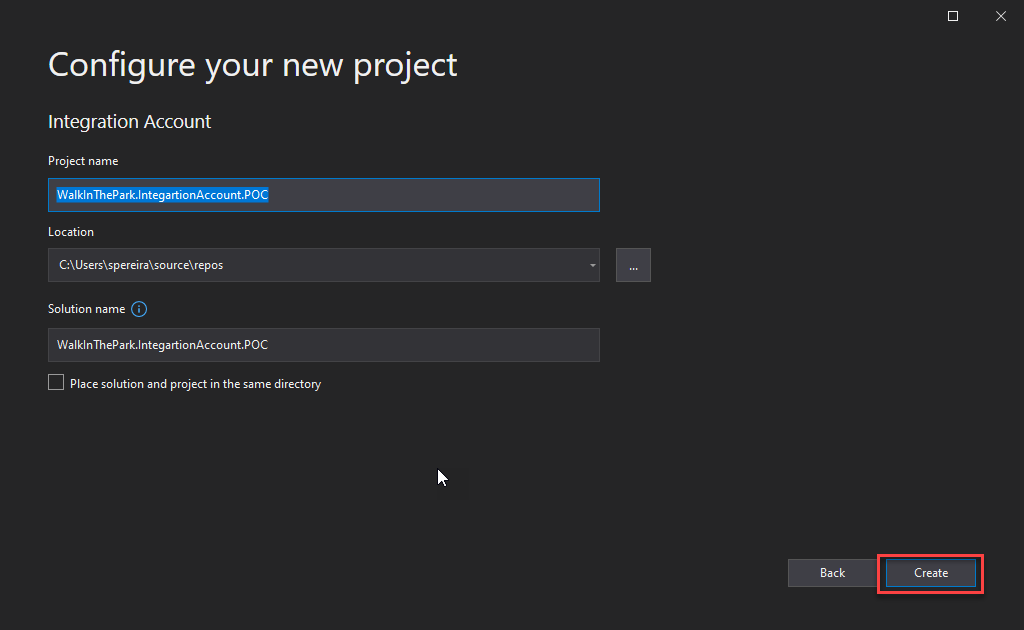
On the Configure your new project window, do the following configurations and then click Create:
On the Project name property, set a proper name for your project.
On the Location property, set the path where you want to create the project.
On the Solution name property, set a proper name for your project.
Note that a solution is a container for one or more projects in Visual Studio.
After that, a new Integration Account project is created where you can create your Schemas, Flat File Schemas, and Maps. To do that, you just need to:
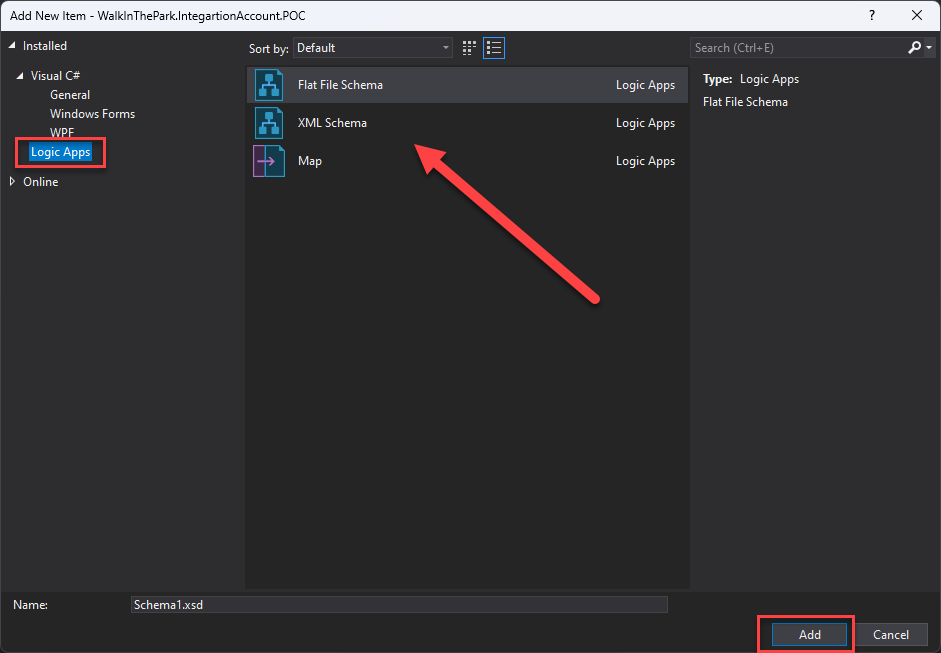
Right-click on the project name and then select the option Add > New Item…
On the Add New Item window, on the left tree, select the option Logic Apps, and all the possible artifacts for you to create will be present.
Select the type.
Give it a proper name.
And click Add.
Hope you find this helpful! So, if you liked the content or found it helpful and want to help me write more content, you can buy (or help buy) my son a Star Wars Lego!
Some of the various artifacts that can be added with an integration account are: Schemas: These are standard . xsd files containing the definition of an XML message
Author: Sandro Pereira
Sandro Pereira lives in Portugal and works as a consultant at DevScope. In the past years, he has been working on implementing Integration scenarios both on-premises and cloud for various clients, each with different scenarios from a technical point of view, size, and criticality, using Microsoft Azure, Microsoft BizTalk Server and different technologies like AS2, EDI, RosettaNet, SAP, TIBCO etc.
He is a regular blogger, international speaker, and technical reviewer of several BizTalk books all focused on Integration. He is also the author of the book “BizTalk Mapping Patterns & Best Practices”. He has been awarded MVP since 2011 for his contributions to the integration community.
View all posts by Sandro Pereira
With INTEGRATE 2023 London concluded, time to shift gears to the next big event on cloud integration: Azure Logic Apps Community Day 2023, sometimes called LogicAppsAviators Community Day, which will take place on Thursday, June 22nd at 9 AM (Pacific) or 5 PM (UTC). The event is free and will be streamed on YouTube/Twitch, so be sure to subscribe to the Azure Developers YouTube to stay up to date.
Azure Logic Apps Community Day 2023will be the must-attend event for anyone who wants to learn more about Logic Apps and how it can help to solve real-life integration problems. It will be a full day of learning from the basics of getting started to deep dives into advanced automation with Logic Apps presented by the Logic Apps product group, Microsoft MVPs, and expert community members. In the end, will be a Round Table Discussion – Ask Me Anything with the Product Group and Community – this will be your opportunity to make “hard” questions.
I will have the pleasure of delivering a session about the new Data Mapper at this event and also be part of the panel on the Round Table Discussion!
About my session
Session Name: A walk in the park with the new Logic App Data Mapper
Abstract: In this session, we will present the new Data Mapper experience for Logic Apps Standard and how we can apply XML to XML transformations or XML to JSON transformations using a visual designer. Here, we will also address how to implement well-known mapping patterns like direct translation, Data translation, content enricher, or aggregator patterns alongside many others.
Hope you find this helpful! So, if you liked the content or found it helpful and want to help me write more content, you can buy (or help buy) my son a Star Wars Lego!
Author: Sandro Pereira
Sandro Pereira lives in Portugal and works as a consultant at DevScope. In the past years, he has been working on implementing Integration scenarios both on-premises and cloud for various clients, each with different scenarios from a technical point of view, size, and criticality, using Microsoft Azure, Microsoft BizTalk Server and different technologies like AS2, EDI, RosettaNet, SAP, TIBCO etc.
He is a regular blogger, international speaker, and technical reviewer of several BizTalk books all focused on Integration. He is also the author of the book “BizTalk Mapping Patterns & Best Practices”. He has been awarded MVP since 2011 for his contributions to the integration community.
View all posts by Sandro Pereira
We just released a new version of our Azure Function JSON Schema Validation, adding support for more complex schema validations. In this case, we add support for applying subschemas validation conditionally.
The if, then and else keywords allow the application of a subschema based on the outcome of another schema, much like the if/then/else constructs you’ve probably seen in traditional programming languages.
If if is valid, then must also be valid (and else is ignored.) If if is invalid, else must also be valid (and then is ignored).
If then or else is not defined, if behaves as if they have a value of true.
If then and/or else appear in a schema without if, then and else are ignored.
JSON Schema Validation Function
The JSON Schema Validation is a simple Azure Function that allows you to validate your JSON message against a JSON Schema, enabling you to specify constraints on the structure of instance data to ensure it meets the requirements.
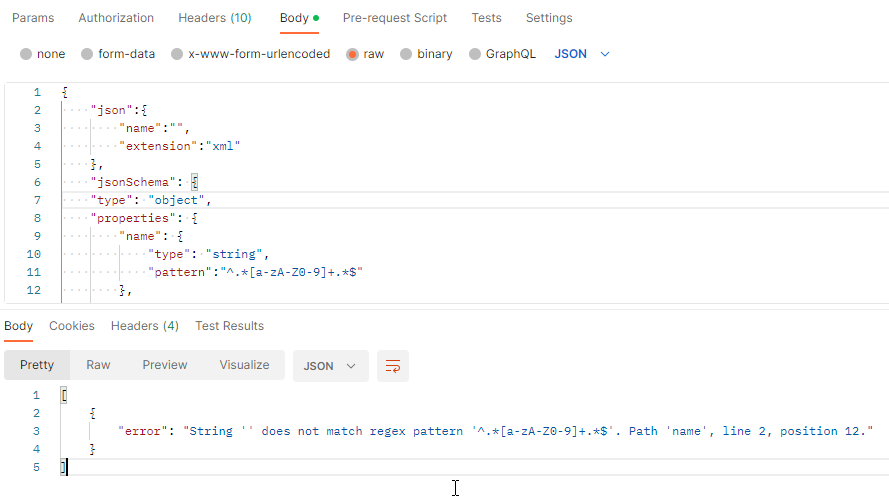
The function receives a JSON payload with two properties:
Hope you find this helpful! So, if you liked the content or found it helpful and want to help me write more content, you can buy (or help buy) my son a Star Wars Lego!
Big thanks to my team member Luís Rigueira for adding this new feature.
Author: Sandro Pereira
Sandro Pereira lives in Portugal and works as a consultant at DevScope. In the past years, he has been working on implementing Integration scenarios both on-premises and cloud for various clients, each with different scenarios from a technical point of view, size, and criticality, using Microsoft Azure, Microsoft BizTalk Server and different technologies like AS2, EDI, RosettaNet, SAP, TIBCO etc.
He is a regular blogger, international speaker, and technical reviewer of several BizTalk books all focused on Integration. He is also the author of the book “BizTalk Mapping Patterns & Best Practices”. He has been awarded MVP since 2011 for his contributions to the integration community.
View all posts by Sandro Pereira
The last time I released a new version of my stencil, it was on January 26 of 2022. A long time ago indeed, so it is fair to say that I do need to release a new major version of my stencils, and that will be a long work and process. However, I decided to do this task progressively and release minor updates during this “journey”. This way, it becomes easier for me because I don’t need to spend long periods allocated to this task, and at the same time, all of you can start enjoying these new icons.
What’s new in this version? (for now)
The main goal of this release was to provide the new icons present in the Azure Portal, on the Power Platform, and new existing Services. In this version, the changes and additions are:
New shapes: New shapes added on MIS Databases and Analytics Stencils, MIS Azure Additional or Support Stencils, Microsoft Integration Stencils, MIS Azure Stencils, and MIS Power Platform Stencils;
SVG Files: Add new SVG files;
Special Highlights: Microsoft Fabric and the new Logic App Data Mapper
Microsoft Integration, Azure, Power Platform, Office 365, and much more Stencils Pack
Microsoft Integration, Azure, Power Platform, Office 365, and much more Stencils Pack it’s a Visio package that contains fully resizable Visio shapes (symbols/icons) that will help you to visually represent On-premise, Cloud or Hybrid Integration and Enterprise architectures scenarios (BizTalk Server, API Management, Logic Apps, Service Bus, Event Hub…), solutions diagrams and features or systems that use Microsoft Azure and related cloud and on-premises technologies in Visio 2016/2013:
BizTalk Server
Microsoft Azure
Integration
Integration Service Environments (ISE)
Logic Apps and Azure App Service in general (API Apps, Web Apps, and Mobile Apps)
Azure API Management
Messaging: Event Hubs, Event Grid, Service Bus, …
Azure IoT and Docker
AI, Machine Learning, Stream Analytics, Data Factory, Data Pipelines
SQL Server, DocumentDB, CosmosDB, MySQL, …
and so on
Microsoft Power Platform
Microsoft Flow
PowerApps
Power BI
Office365, SharePoint,…
DevOps and PowerShell
Security and Governance
And much more…
… and now non-related Microsoft technologies like:
SAP Stencils
The Microsoft Integration Stencils Pack is composed of 27 files:
Microsoft Integration Stencils
MIS Additional or Support Stencils
MIS AI and Machine Learning Stencils
MIS Apps and Systems Logo Stencils
MIS Azure Additional or Support Stencils
MIS Azure Mono Color
MIS Azure Old Versions
MIS Azure Others Stencils
MIS Azure Stencils
MIS Buildings Stencils
MIS Databases and Analytics Stencils
MIS Deprecated Stencils
MIS Developer Stencils
MIS Devices Stencils
MIS Files Stencils
MIS Generic Stencils
MIS Infrastructure Stencils
MIS Integration Fun
MIS Integration Patterns Stencils
MIS IoT Devices Stencils
MIS Office365
MIS Power BI Stencils
MIS PowerApps and Flows Stencils
MIS SAP Stencils
MIS Security and Governance
MIS Servers (HEX) Stencils
MIS Users and Roles Stencils
That you can use and resize without losing quality, in particular, the new shapes.
Download
You can download Microsoft Integration, Azure, BAPI, Office 365, and much more Stencils Pack for Visio from GitHub here:
Hope you find this helpful! So, if you liked the content or found it helpful and want to help me write more content, you can buy (or help buy) my son a Star Wars Lego!
Author: Sandro Pereira
Sandro Pereira lives in Portugal and works as a consultant at DevScope. In the past years, he has been working on implementing Integration scenarios both on-premises and cloud for various clients, each with different scenarios from a technical point of view, size, and criticality, using Microsoft Azure, Microsoft BizTalk Server and different technologies like AS2, EDI, RosettaNet, SAP, TIBCO etc.
He is a regular blogger, international speaker, and technical reviewer of several BizTalk books all focused on Integration. He is also the author of the book “BizTalk Mapping Patterns & Best Practices”. He has been awarded MVP since 2011 for his contributions to the integration community.
View all posts by Sandro Pereira
In one of my previous documents, I spoke about how to configure ChatGPT to be used with Azure Logic Apps. At that time, my team and I decided to create that blog post just for fun, but we didn´t yet have in mind a good idea of how to use it in a real-case integration scenario or to help build integration projects.
During a break at INTEGRATE 2023 conference, Mike Stephenson show me an idea that he had while listening to one of the talks about putting ChatGPT to do transformation using natural language, thereby replacing the maps. Needless to say, it was a fascinating and fun conversation. You can see his blog post here:
This put me thinking about where else we could apply ChatGPT in use to help develop, implement, or process our integration needs. Despite having a few ideas, one quickly stood out, and that somehow follows Mike’s idea: Messages Validation! In other words, have a Logic App which is processing some data, and then we use ChatGPT to validate the data for us by describing the schema validation in natural language text.
So I ended up creating this small sample scenario where we have the following JSON Message:
And we want to validate the incoming message if it is valid or not based on the following rules:
The OrderID must exist and be an Integer.
The ClientName can not be empty or null.
The Quantity must exist, and it is an Integer.
The value of the Company field can only be “SP” or “LZ”.
The Operation field must exist.
Of course, this task can be made by creating a JSON schema with all the rules and then validating the message against the schema. However, some of these rules are not natively supported by Logic Apps like the use of regular expressions or patterns.
But the main idea here on this post is to provide a simplified way to do this task and use natural language to replace the Schemas.
You can watch my coworker Luís Rigueira describing all the process in this video:
So how do we achieve this?
First, as you already know, you should create a Logic App. It can be Consumption or Standard. We will be using Consumption, and then you should give it a proper name because starting using proper names from the day one rule never gets old!
And then create a Logic App that has the following structure:
When a HTTP request is received trigger.
A Compose action.
An HTTP action.
And finally, a Response action.
Leave the When a HTTP request is received trigger as his. And on the Compose action, add the following configurations with all the actions to apply the validation of the message:
Check if the Json Input is valid or invalid by these rules:

The OrderID must exist and be an Integer
The client name can not be empty or null
The Quantity must exist and it is an Integer
Company can only be "SP" or "LZ"
Operation must exist

If it is valid return a message saying "body is valid"
If it is invalid return a message saying the "body is invalid" and explain why.

Json input: @{triggerBody()}
As the JSON input, we dynamically select the Body property from the Trigger, which contains the JSON we send via Postman.
Next, on the HTTP call, we need to perform the call to the ChatGPT API to perform or try to perform the JSON message validation. To do that, we need to specify the following body:
If you want to know or understand a little bit about this – How to call ChatGPT from a Logic App – see my previous blog post: Using Logic Apps to interact with ChatGPT.
Finally, we need to configure the Response action to use the following expression in the response:
This way, we only send the message content as a response. Now if you test your logic app with Postman, this should be the result:
If the rules we added to the Compose action are met, we will get the following response:
The body will be valid.
Otherwise, the body is invalid, and ChatGPT gives the reason why.
Of course, I think at this stage maybe AI is still not a reliable option to be used in data transformation or data validation, but it shows potential.
Once again, thank my team member Luis Rigueira for helping me with this always crazy scenarios.
Hope you find this helpful! So, if you liked the content or found it helpful and want to help me write more content, you can buy (or help buy) my son a Star Wars Lego!
Author: Sandro Pereira
Sandro Pereira lives in Portugal and works as a consultant at DevScope. In the past years, he has been working on implementing Integration scenarios both on-premises and cloud for various clients, each with different scenarios from a technical point of view, size, and criticality, using Microsoft Azure, Microsoft BizTalk Server and different technologies like AS2, EDI, RosettaNet, SAP, TIBCO etc.
He is a regular blogger, international speaker, and technical reviewer of several BizTalk books all focused on Integration. He is also the author of the book “BizTalk Mapping Patterns & Best Practices”. He has been awarded MVP since 2011 for his contributions to the integration community.
View all posts by Sandro Pereira
JSON Schema is a declarative language that allows you to annotate. It provides a format for what JSON data is required for a given application and how to interact with it and validate JSON documents to ensure it meets the requirements.
Applying JSON Schemas validation in your solutions will let you enforce consistency and data validity across similar JSON data.
If you are not familiar with JSON Schema, you will then notice that the JSON Schema itself is written in JSON-based format. It’s just a declarative format for “describing the structure of other data”. This is both its strength and its weakness (which it shares with other similar schema languages). It is easy to concisely describe the surface structure of data, and automate validating data against it. However, since a JSON Schema can’t contain arbitrary code, certain constraints exist on the relationships between data elements that can’t be expressed. JSON Schema is a proposed IETF standard.
JSON Schema Validation Function
The JSON Schema Validation is a simple Azure Function that allows you to validate your JSON message against a JSON Schema, enabling you to specify constraints on the structure of instance data to ensure it meets the requirements.
The function receives a JSON payload with two properties:
Or a 400 Bad Request if there are validation errors/issues.
Where can I download it?
You can download the complete Azure Functions source code here:
Hope you find this helpful! So, if you liked the content or found it helpful and want to help me write more content, you can buy (or help buy) my son a Star Wars Lego!
Big thanks to my team member Diogo Formosinho for testing and helping me develop this function with me!
Author: Sandro Pereira
Sandro Pereira lives in Portugal and works as a consultant at DevScope. In the past years, he has been working on implementing Integration scenarios both on-premises and cloud for various clients, each with different scenarios from a technical point of view, size, and criticality, using Microsoft Azure, Microsoft BizTalk Server and different technologies like AS2, EDI, RosettaNet, SAP, TIBCO etc.
He is a regular blogger, international speaker, and technical reviewer of several BizTalk books all focused on Integration. He is also the author of the book “BizTalk Mapping Patterns & Best Practices”. He has been awarded MVP since 2011 for his contributions to the integration community.
View all posts by Sandro Pereira
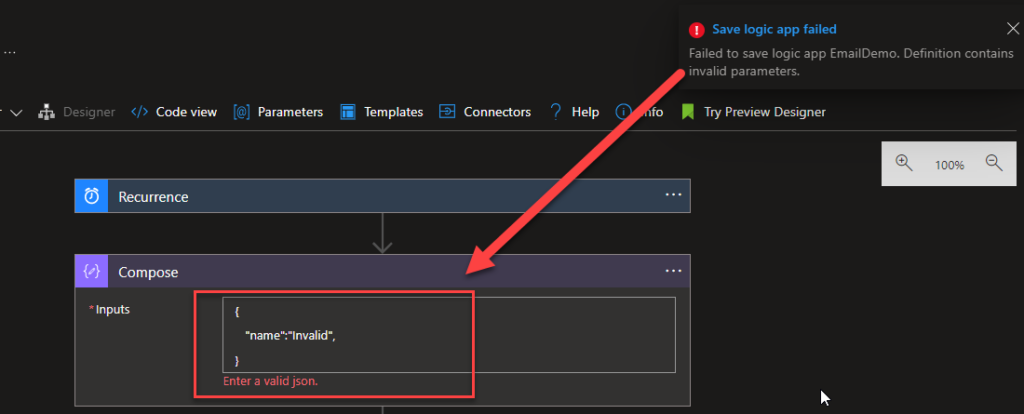
Another common task for us developers inside Azure Integration Services, especially inside Logic Apps, is manually creating a JSON message, either inside a Parse JSON action, Compose action, or directly in the connectors (or any other way), but there is a catch…
If you work in the Azure Portal and create an invalid JSON message inside an action or connector, the editor will not allow you to save the Logic App. Instead, it will give you an error saying that the definition contains invalid parameters.
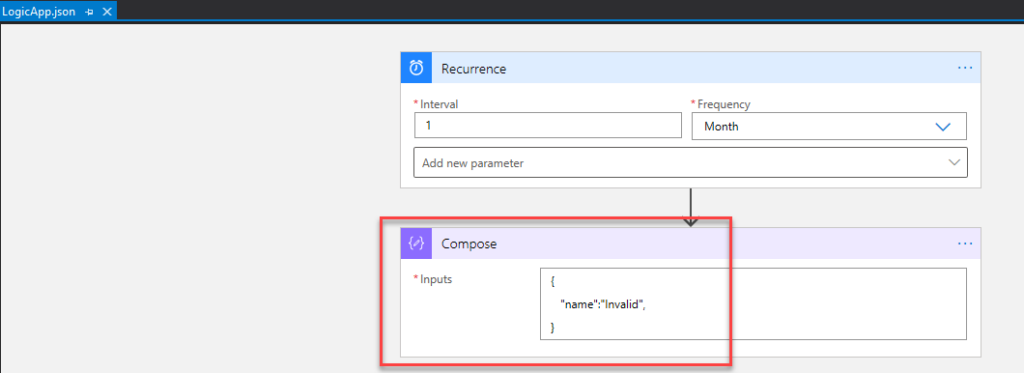
However, if you are creating the same Logic App Consumption inside Visual Studio:
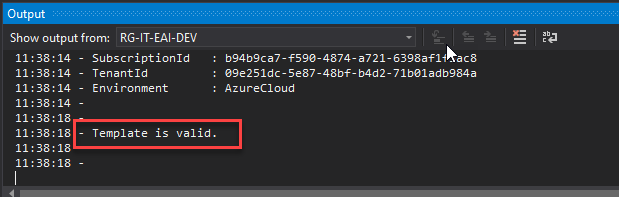
We can successfully validate this Logic App:
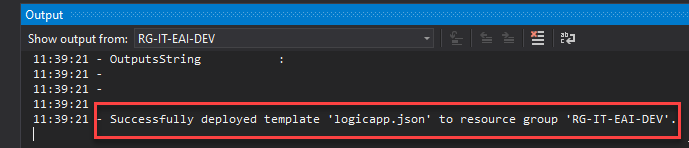
And we can actually successfully deploy this Logic App:
And that will become a problem once we run our Logic App. For this reason, it is always good for you to guarantee that the JSON message is well formatted before you deploy your business processes.
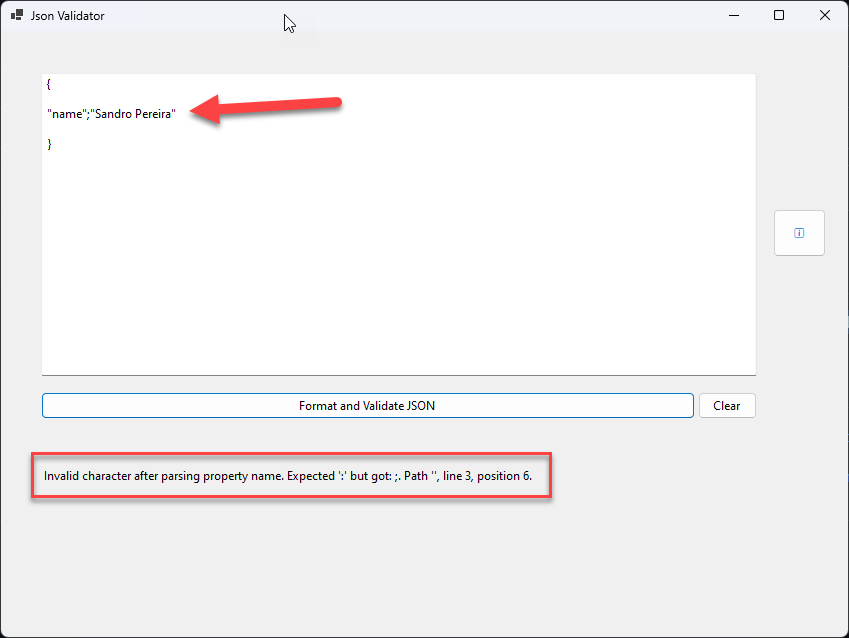
And yes, I know many only tools exist to perform this task, so why a Windows tool? Again, for the same reasons I described in my previous tools: security and privacy.
I’m starting to become a freak in terms of security. Nothing is free, and the problem with these online tools is that we never know behind the scenes what they are doing. Are you sure that they are not keeping logs of the inputs we provide and the result outputs? And don’t say, but Sandro, this is just a simple message. Well, many messages have sensitive (private) information from users or companies that sometimes you are not aware of, so it is better to play safe than sorry. It is wise to be careful now so that problems do not occur later on and protect yourself against risk rather than be careless.
JSON Validator Tool
JSON Validator Tool is a lightweight Windows tool that allows you to validate and reformat a JSON message.
To not raise the same suspicions about this tool, the source code is available on GitHub!
Download
Hope you find this useful! So, if you liked the content or found it useful and want to help me write more content, you can buy (or help buy) my son a Star Wars Lego!
Credits
Diogo Formosinho | Member of my team and one of the persons responsible for developing this tool.
Author: Sandro Pereira
Sandro Pereira lives in Portugal and works as a consultant at DevScope. In the past years, he has been working on implementing Integration scenarios both on-premises and cloud for various clients, each with different scenarios from a technical point of view, size, and criticality, using Microsoft Azure, Microsoft BizTalk Server and different technologies like AS2, EDI, RosettaNet, SAP, TIBCO etc.
He is a regular blogger, international speaker, and technical reviewer of several BizTalk books all focused on Integration. He is also the author of the book “BizTalk Mapping Patterns & Best Practices”. He has been awarded MVP since 2011 for his contributions to the integration community.
View all posts by Sandro Pereira
Today, after almost 3 years since I did the last update on the package, I updated it with a new suite of functoids that are now part of the BizTalk Mapper Extensions UtilityPack project available for BizTalk Server 2020: DateTime Functoids.
DateTime Functoids
This library includes a suite of functoids to perform several DateTime operations that you can use inside the BizTalk mapper.
This project, for now, only contains a single custom Functoid:
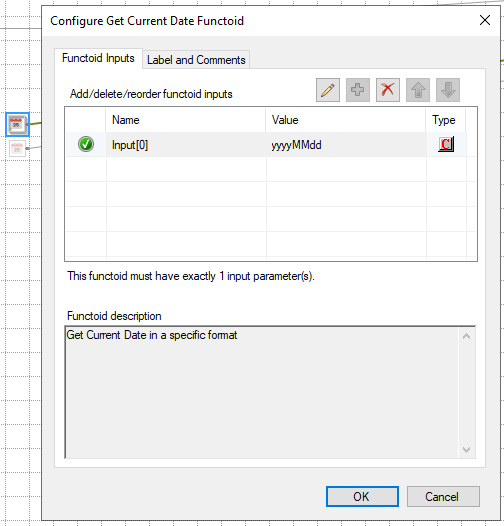
Get Current Date Functoid: This functoid allows you to get the current date and/or time in a specific format.
This functoid requires one input parameter:
date, time, or DateTime format;
Examples:
Input yyyyMMdd >>> Output = 20230526
Input HHmm >>> Output = 1519
BizTalk Mapper Extensions UtilityPack
BizTalk Mapper Extensions UtilityPack is a set of libraries with several useful functoids to include and use it in a map, which will provide an extension of BizTalk Mapper capabilities.
Where can I download it?
You can download the complete Azure Function source code here:
Hope you find this helpful! So, if you liked the content or found it helpful and want to help me write more content, you can buy (or help buy) my son a Star Wars Lego!
Author: Sandro Pereira
Sandro Pereira lives in Portugal and works as a consultant at DevScope. In the past years, he has been working on implementing Integration scenarios both on-premises and cloud for various clients, each with different scenarios from a technical point of view, size, and criticality, using Microsoft Azure, Microsoft BizTalk Server and different technologies like AS2, EDI, RosettaNet, SAP, TIBCO etc.
He is a regular blogger, international speaker, and technical reviewer of several BizTalk books all focused on Integration. He is also the author of the book “BizTalk Mapping Patterns & Best Practices”. He has been awarded MVP since 2011 for his contributions to the integration community.
View all posts by Sandro Pereira
Today I was helping a BizTalk Server customer migrate their process from using the FTP adapter to the SFTP adapter. And if you are familiar with the BizTalk SFTP adapter, you will be aware of the painful process of choosing the correct version of WinSCP and how that hell we need to do to work correctly with the BizTalk Server, which is quite simple in general:
Download WinSCP and the .net Library, ensuring you get the correct version!
Copy the .exe and .dll to the BizTalk installation folder
DO NOT gac anything. If you GAC the .net library, it will not work because it expects WinSCP.exe to be in the same path, so that’s why they both go into the BizTalk installation folder.
However, the biggest issue is: what is the correct WinSCP version I need for my version of BizTalk Server 2016 or 2020?
And for that reason, Thomas E. Canter, on his day as a Phidiax consultant, decided to create this fantastic PowerShell script BizTalk WinSCP Installer, which during the years, has evolved and was improved by several people like Michael Stephenson, Nicolas Blatter, Niclas Öberg and myself.
If your environment has access to the internet, then I will recommend you use that script to install WinSCP! However, my client didn’t have access to the internet from the production server, and to complicate it a little bit, it didn’t have the same Build version. Let’s say in the test environment, it did have BizTalk Server 2016 with Feature Pack 3 and Cumulative Update 9, but in production, we would find BizTalk Server 2016 with Feature Pack 3 and Cumulative Update 5. That means we couldn’t copy the files from other environments to production. We had to use a different WinSCP version.
To address this scenario, I created a simple PowerShell version that you could choose the version you want to download and that you can run on any machine with access to the internet without checking the Build version you have in your environment.
This is a simple abstract of the PowerShell script:
$checkExeExists = Test-Path $targetNugetExe
if(-not $checkExeExists)
{
    if ($PSCmdlet.ShouldProcess("$sourceNugetExe -OutFile $targetNugetExe", "Run Invoke-WebRequest ")) {
        Invoke-WebRequest $sourceNugetExe -OutFile $targetNugetExe
        $targetNugetExeExists = Test-Path $targetNugetExe
        if (-not $targetNugetExeExists) {
            $Continue = $false
            Write-Error "`n$bangString";
            Write-Error "The download of the Nuget EXE from";
            Write-Error $sourceNugetExe;
            Write-Error "did not succeed";
            Write-Error "$bangString";
        }
        else{
            Write-Success "nuget.exe download successfully."
        }
    }
}

if ($PSCmdlet.ShouldProcess("$getWinSCP", "Run Command")) {
    Invoke-Expression "& $getWinSCP";
    $WinSCPEXEExists = Test-Path $WinSCPEXEDownload
    $WinSCPDLLExists = Test-Path $WinSCPDllDownload
    if (-not $WinSCPDLLExists) {
        $Continue = $false
        Write-Error "`n$bangString";
        Write-Error "WinSCP $winSCPVersion was not properly downloaded.";
        Write-Error "Check the folder and error messages above:";
        Write-Error "$nugetDownloadFolder";
        Write-Error "And determine what files did download or did not download.";
        Write-Error "$bangString";
    }
    else{
        Write-Success "WinSCP $winSCPVersion was properly downloaded."
    }
}
THESE POWERSHELL SCRIPTS ARE PROVIDED “AS IS”, WITHOUT WARRANTY OF ANY KIND.
Where can I download it?
You can download the complete Azure Function source code here:
Hope you find this helpful! So, if you liked the content or found it helpful and want to help me write more content, you can buy (or help buy) my son a Star Wars Lego!
Author: Sandro Pereira
Sandro Pereira lives in Portugal and works as a consultant at DevScope. In the past years, he has been working on implementing Integration scenarios both on-premises and cloud for various clients, each with different scenarios from a technical point of view, size, and criticality, using Microsoft Azure, Microsoft BizTalk Server and different technologies like AS2, EDI, RosettaNet, SAP, TIBCO etc.
He is a regular blogger, international speaker, and technical reviewer of several BizTalk books all focused on Integration. He is also the author of the book “BizTalk Mapping Patterns & Best Practices”. He has been awarded MVP since 2011 for his contributions to the integration community.
View all posts by Sandro Pereira