by Saravana Kumar | Jan 29, 2018 | BizTalk Community Blogs via Syndication

This blog is a part of the series of blog articles we are publishing on the topic “Why we built XYZ feature in BizTalk360”. Read the main article here.
Why do we need this feature?
In a BizTalk Server support scenario, one of the common things that happen is people accessing the BizTalk System and some custom databases regularly using tools like SQL Management Studio to run some reporting queries. Some of the system databases will include BizTalk Message Box (BizTalkMsgBoxDb), BizTalk Management (BizTalkMgmtDb), BizTalk Tracking (BizTalkDTADb), Business Activity Monitoring – BAM (BizTalkPrimaryImport). BizTalk Administrator and support people access these databases for a variety of requirements such as to check tables like spool or host tables in Message Box, Message In-out table in tracking database, looking for some values in BAM database tables, cross reference data, check for large messages etc.
What are the current challenges?
Performance Impact: Some of the BizTalk databases can grow extremely bigger. It’s not uncommon to have over 1 million records in certain tables (ex: MessageInOut table in Tracking Database). Executing some queries like just a plain “SELECT * ..” on those tables without any query optimization or locks can have serious performance impact during business hours.
Productivity Improvement: BizTalk Support Team will typically have a bunch of standard SQL queries they run on a regular basis to get some reporting on BizTalk databases. Each individual team members will have their own set of SQL queries and they manage it in their local machines. This basically results in two things, useful reporting queries are not shared between team members and maintaining the queries in SQL files and accessing different files for different environment is not productive.
No consolidated tooling: If BizTalk Administrator or support person needs to run some reporting queries, they need to use an external tool like SQL management studio.
What is the current limitation in standard BizTalk Admin Console?
The standard BizTalk Admin Console does not come with any capabilities related to accessing SQL data. This leaves the support people to rely on external SQL tools like SQL Server Management Studio (SSMS). Tools like SSMS are designed for DBA’s and Developers and it’s not particularly friendly when it comes to pure support and management – a level of technical expertise is required to use SSMS.
How BizTalk360 solves the problem?
We understood the practical challenges of not having an integrated SQL data access tool along with BizTalk Administration and the challenges it exposes (as explained above). This resulted in building “Secure SQL Queries” platform in BizTalk360.
The principles are quite simple — a DBA or someone who understands SQL well writes optimized SQL queries and store them with friendly names in BizTalk360. Ex: “Depth of Message Box Spool Table”. Then, assign who will have permissions to run the queries. May be not all the queries are required for every support person. BizTalk360 can then work like a reporting tool for these custom SQL queries and display them in the web interface directly.
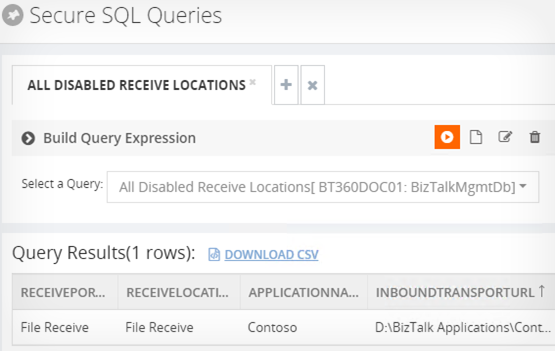
This approach eliminates people from directly running non-optimized queries in production environments and it also simplifies having access to SQL data within a single web console instead of switching tools.
One of the biggest advantage is that useful SQL reporting queries in your BizTalk environment can be centrally stored and shared between team members.
NOTE: The platform is very generic; you can store and execute SQL queries across any databases and not necessarily just BizTalk Server databases as long as the service account has right privileges to access the data.
What is the business value?
The business benefits are very obvious. Providing a secure web based platform for accessing SQL sever data (which is critical to the day-to-day operations of any BizTalk Server solution) increases the productivity of support/BizTalk Admin people and makes it extremely secure. In general, you can keep your database administrators (DBA’s) happy in the organisation.
Get started with a Free Trial today!
Download and try BizTalk360 on your own environments free for 30 days. Installation will not take more than 5-10 minutes.

Author: Saravana Kumar
Saravana Kumar is the Founder and CTO of BizTalk360, an enterprise software that acts as an all-in-one solution for better administration, operation, support and monitoring of Microsoft BizTalk Server environments. View all posts by Saravana Kumar
by Gautam | Jan 28, 2018 | BizTalk Community Blogs via Syndication
Do you feel difficult to keep up to date on all the frequent updates and announcements in the Microsoft Integration platform?
Integration weekly update can be your solution. It’s a weekly update on the topics related to Integration – enterprise integration, robust & scalable messaging capabilities and Citizen Integration capabilities empowered by Microsoft platform to deliver value to the business.
If you want to receive these updates weekly, then don’t forget to Subscribe!
Feedback
Hope this would be helpful. Please feel free to provide any feedback on this Integration weekly series.

by Saravana Kumar | Jan 26, 2018 | BizTalk Community Blogs via Syndication

This blog is a part of the series of blog articles we are publishing on the topic “Why we built XYZ feature in BizTalk360”. Read the main article here.
Why do we need this feature?
Microsoft BizTalk Server being a middleware platform sitting right in the middle of the organisation connecting all the systems together, it’s inevitable there will be some regular operational challenges. When you are talking to multiple systems, it’s hard to control every end systems. Some of the common problem you encounter will be a partner sending the message that contains some unknown characters, having the format of the date in wrong format etc.
In BizTalk Admin console, when such problems occur and depending on how the exceptions are handled most of the time, it will result in some form of suspended service instances with some error code. Typically a BizTalk support person will start analysing it within the BizTalk Admin console or via the Event Viewers in BizTalk Servers and find a relevant solution.
Over a period, the BizTalk support team will know the answers for pretty much all the known issues and they will be able to solve the problem quickly. However, what happens if someone leaves the team or you bring someone new to the team. It will take equal amount of time for that new person to pick up all the known issues.
Few organisations maintain some kind of internal wiki or SharePoint documents to cover all the known issues, however they are not always updated and in sync, multiple documents, and no one actively look into those documents for solution. They always tend to start from scratch and end up spending time diagnosing the problem.
To address this particular challenge we have built “Team Knowledgebase” capability within BizTalk360.
What is the current limitation in BizTalk Server Admin Console?
BizTalk Server Admin console doesn’t come with any such capability to address this real world challenge. BizTalk Admin Console is designed more for hard-core technical BizTalk people and it expects a level of BizTalk knowledge, it only displays the technical error descriptions whenever there are suspended instance. There is no option for team collaboration and ability to store solutions to the problem.
How does BizTalk360 solve this problem?
We identified this feature could be a huge time saver when it comes to BizTalk Solutions support and also it helps to bring non-BizTalk people into supporting BizTalk solutions easily.
BizTalk360 provides a platform to store team knowledge base articles for known issues. Example: If an instance gets suspended with some error code “0x34564” for a particular application, the support person can easily write a short knowledge base article saying this particular error happens due to “Known issue with our partner Contoso, their internal systems are not capable of sending date time in the format our system is expecting”, the support person can also set the rules saying this is applicable for Application XYZ, the instance status should be “Suspended-Non resumable”, the Environment should be “Production”, the error description text should contain “Contoso”.
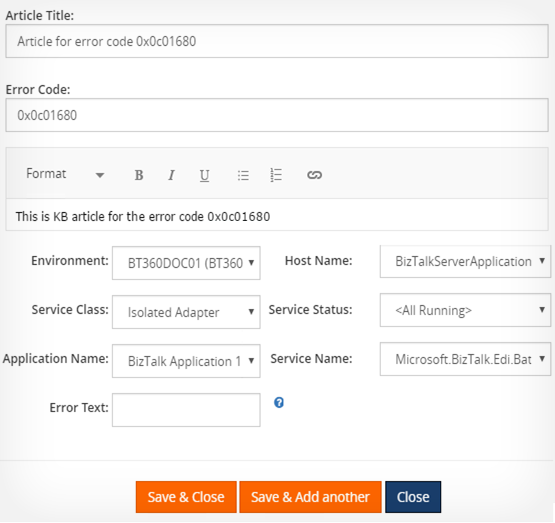
Once the knowledge base article is created with set of rules, BizTalk360 will keep watching for any errors that happens in the system and if it matches an existing knowledge base condition, it will show a small book icon next to the error. This helps the support person to quickly realize it’s a known issue and also see the solution to the issue.
The team knowledge base capability is available for Suspended Instances, Event Viewer, ESB Errors, Throttling Conditions in BizTalk360.
What is the business value?
As you can see the business value of the team knowledgebase feature is huge, it drastically reduces the time taken to troubleshoot the problem, especially for the repeated ones. The feature also helps to mitigate the risk of good people leaving the organisation with the knowledge and also helps to on-board new people into the team and bring them up-to speed pretty quickly.
Get started with a Free Trial today!
Download and try BizTalk360 on your own environments free for 30 days. Installation will not take more than 5-10 minutes.

Author: Saravana Kumar
Saravana Kumar is the Founder and CTO of BizTalk360, an enterprise software that acts as an all-in-one solution for better administration, operation, support and monitoring of Microsoft BizTalk Server environments. View all posts by Saravana Kumar

by Lex Hegt | Jan 25, 2018 | BizTalk Community Blogs via Syndication

This blog is a part of the series of blog articles we are publishing on the topic “Why we built XYZ feature in BizTalk360”. Read the main article here.
Why do we need this feature?
To be able to do his job, a BizTalk administrator needs to know what kind of processes flow through the BizTalk environment. This insight can be used for a number of purposes, like:
- analysis and/or debugging of issues
- learning/training purposes
- documentation purposes
One of the features which can be used to better understand the processes in BizTalk is the Tracking queries which can be accessed through the BizTalk Administration Console. These queries provide insight on which messages and orchestrations have been processed by BizTalk. From the Tracking queries, it is also possible to have some insight on the message flow.
What are the current challenges?
The major problem with the message flow which can be shown in BizTalk Admin console is that it is very textual and doesn’t allow you to show the entire flow. This makes understanding the processes in BizTalk a time-consuming task.
Another disadvantage is that when somebody accesses the tracking queries in the BizTalk Admin console, confidential information might be revealed to unauthorized people.
How BizTalk360 solves this problem?
BizTalk360 offers a lot of features to provide insight in BizTalk processes. One of these features is the Graphical Message Flow viewer.
As with the Tracking queries in the BizTalk Admin console, the Graphical Message Flow viewer depends on tracking data. So, to start using the Graphical Message Flow viewer, you start with creating a Tracking query in BizTalk360.
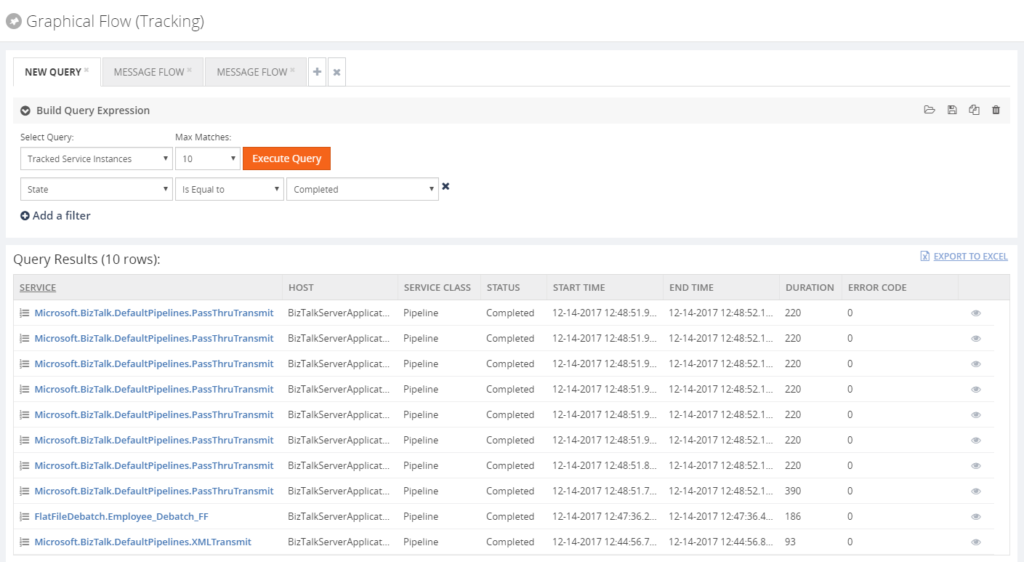
As you can see from the Build Query Expression part of the screen, you can create the same kind of queries as in the BizTalk Administration console. You can also save your tracking queries for later use. These queries are stored in the BizTalk360 database, so you always have them at hand. Whereas with the BizTalk Admin console, your queries are stored to the file system which can make it harder to retrieve them, especially when you have multiple BizTalk servers.
Details of the tracked service instances can be viewed by simply clicking the eye icon in the most right column of the grid.
The first column of the results grid shows the name of the service as a hyperlink. By clicking the hyperlink, the Graphical Message Flow for the service instance will be shown.
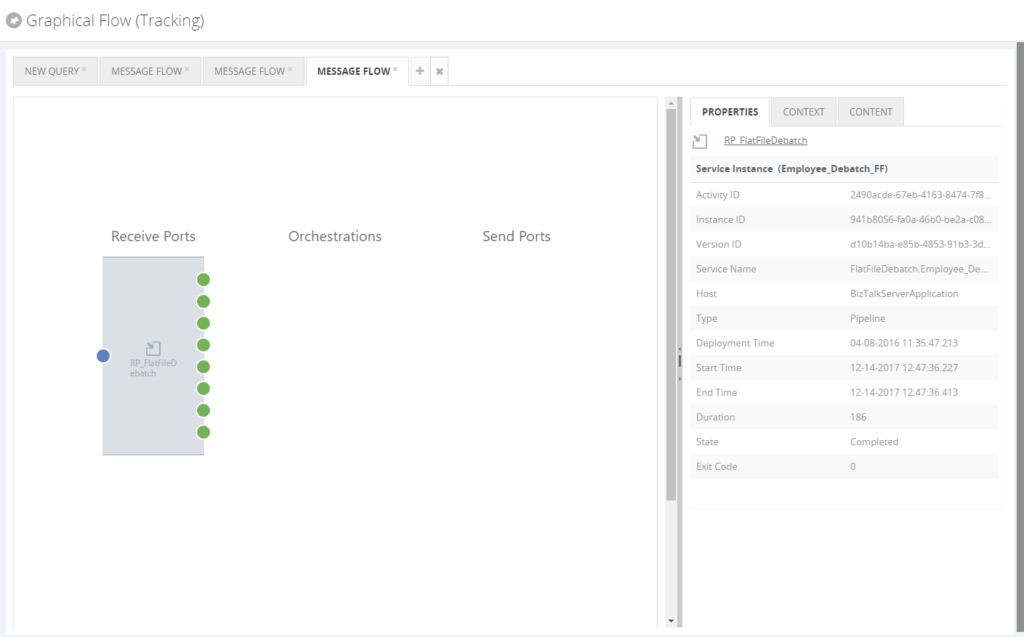
The Graphical Message Flow viewer shows the service instance as a shape and depending on the type of artifact, then it will appear under the Receive Port, Orchestration or Send Port label. The blue dot in the shape reflects the receive side of a message at the artifact, while the green dots reflect that the message has been sent out of the artifact. In the above screenshot, one message has been received and multiple messages have been sent out, depicting a debatching scenario.
Besides the graphical shape of the service instance, also all kind of properties of the service instance is shown. You can even directly navigate to the BizTalk artifact in its BizTalk application, by simply clicking the provided hyperlink.
Also, the related service instances can be viewed, depicting the complete message flow. This can be done by clicking the subsequent green dots.
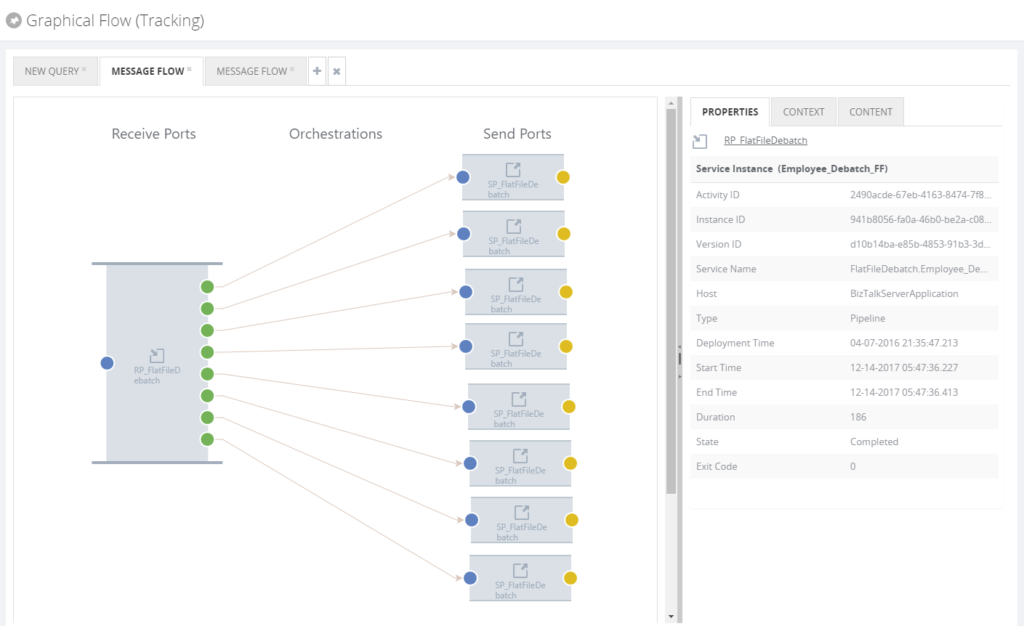
Depending on the amount of tracking turned on for the artifacts and whether the user is authorized in BizTalk360, message context and content information can be viewed in the pane at the right of the screen.
The Graphical Message Flow viewer is a very useful feature and it is likely that BizTalk administrators will use it on a near day to day basis.
Get started with a Free Trial today!
Download and try BizTalk360 on your own environments free for 30 days. Installation will not take more than 5-10 minutes.

Author: Lex Hegt
Lex Hegt works in the IT sector for more than 25 years, mainly in roles as developer and administrator. He works with BizTalk since BizTalk Server 2004. Currently he is a Technical Lead at BizTalk360. View all posts by Lex Hegt

by Lex Hegt | Jan 24, 2018 | BizTalk Community Blogs via Syndication
This blog is a part of the series of blog articles we are publishing on the topic “Why we built XYZ feature in BizTalk360”. Read the main article here.
Why do we need this feature?
In their day to day operations, BizTalk administrators will regularly need to check the status of different BizTalk artifacts. There might be multiple reasons to do so, amongst which are:
- Artifacts being in the wrong state (a Receive Location being Disabled, instead of Enabled)
- The configuration of an artifact needs to be checked for analysis of an issue
- The state of artifacts needs to be persisted, because of an upcoming deployment
To access the actual state and configuration of BizTalk artifacts, BizTalk administrators need to use a Remote Desktop connection to access the BizTalk server and start the BizTalk Server Administrator Console. The BizTalk Administrator console is not very helpful in finding the needed artifact(s) as the console has no or only limited search functionality.
What are the current challenges?
Besides the fact that BizTalk administrators will not always have access to RDP, because they might not be at their own desk, the Administration console is not very helpful, when certain artifact(s) need to be found. For example, the Admin console has:
- no or limited search feature (depending on the BizTalk Server version)
- no state persisting feature
No or limited search feature
In versions older than BizTalk Server 2016, there are just browse features per artifact type, which can make it quite time-consuming to find the artifact(s) you are looking for.
With BizTalk Server 2016, Microsoft introduced a Search feature. However, that feature is limited to search only for the name of any artifact. So for example, it is not possible to search for the URI or the transport type of an artifact.
No state persisting feature
Besides taking screenshots, there is no feature to store the status of the artifacts. Taking screenshots will help a bit, but it is not very practical. Reason for that is because not all artifacts (of the same type) for which you want to persist the state might fit on the same screen. Therefore, you’ll have to make multiple screen shots and store them in for example a Word document, which decreases the usability.
How BizTalk360 solves this problem?
To address all the mentioned problems, BizTalk360 has the Search Artifacts feature. The Search Artifacts feature allows you to search for BizTalk artifacts in one single screen. Depending on the kind of artifact, you can search and filter for different properties of that kind of artifact. For example, for Receive Locations and Send ports, you can search and filter for:
- Name of the artifact
- The URI of the artifact
- Application where the artifact resides
- The status of the artifact (Enabled/Disabled or Started/Stopped/Unenlisted)
- Host name which processes the artifact
- Transport Type of the artifact
When you have searched for certain artifacts, BizTalk360 shows the results in a grid. Depending on the kind of artifact, this result grid will show the most important data for that kind of artifact.
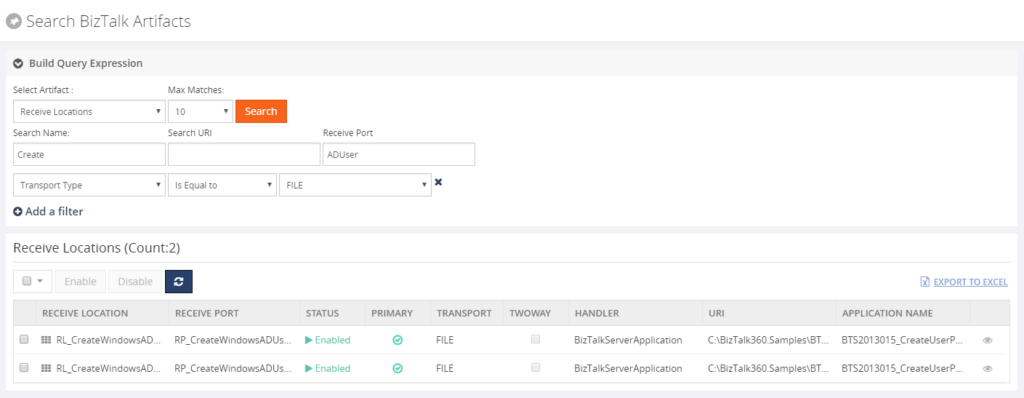
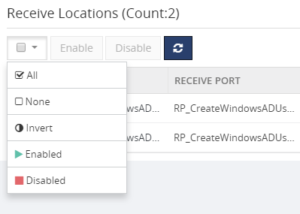
You can also, directly, action on a single artifact or on multiple artifacts. In case of Receive Locations for example, you can immediately Enable or Disable one or multiple Receive Locations from the grid. BizTalk360 shows a handy drop down box to select artifacts, depending on their state.
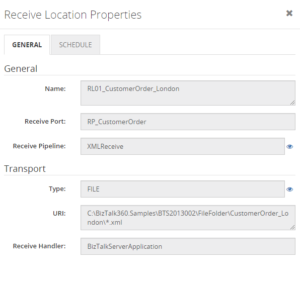
Further, you can access the properties of a certain artifact by clicking the eye icon which appears in the last column of the grid.
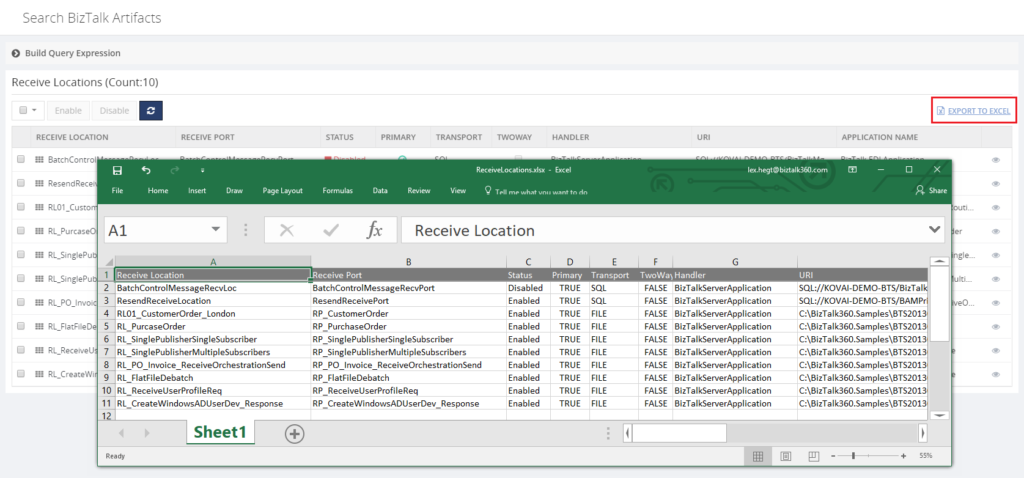
Another handy feature is the ability to export the entire result grid to Excel. This feature is especially handy in case you are preparing the deployment of BizTalk application(s) and you want to persist the current state of the artifacts, as the state might be changed by the deployment package(s).
 All in all, the Search feature in BizTalk360 not only saves time in the day to day operations of a BizTalk administrator, but it will also make him or her look better, when a business user arrives at his or her desk with a quick question on the state of a particular artifact!
Get started with a Free Trial today!
Download and try BizTalk360 on your own environments free for 30 days. Installation will not take more than 5-10 minutes.

Author: Lex Hegt
Lex Hegt works in the IT sector for more than 25 years, mainly in roles as developer and administrator. He works with BizTalk since BizTalk Server 2004. Currently he is a Technical Lead at BizTalk360. View all posts by Lex Hegt

by Sandro Pereira | Jan 23, 2018 | BizTalk Community Blogs via Syndication
One of my main goals last year in Portugal was to introduce PowerApps and Microsoft Flow in several Portuguese communities: SharePoint, CRM, .NET and Integration communities. Finally, I was also invited to presented that session on Integration Monday community – I think it was the perfect scenario to deliver one last time that session – don’t get me wrong I will still be talking about these topics in the future but with different demos and context – and you can watch the video recording of the previous session here: How can PowerApps and Microsoft Flow allow your Power Users to quickly build Enterprise Mobile Apps.
That was the eighth session that I deliver for that community:
About my session
Session Name: How can PowerApps and Microsoft Flow allow your Power Users to quickly build Enterprise Mobile Apps

Session Overview: Every organization faces constant pressure to do more with less. While technology is often the key to operating more effectively and efficiently, cost and complexity have often prevented organizations from taking maximum advantage of the potential benefits. The growth of SaaS (software as a service) has lowered barriers – no need to deploy servers or to install and configure complex software systems. Just sign up and go.
Microsoft Flow and Microsoft PowerApps will help these people (normally business users) achieve more.
We know not every business problem can be solved with off-the-shelf solutions. But developing custom solutions has traditionally been too costly and time-consuming for many of the needs teams and departments face, especially those projects that integrate across multiple data sources or require delivery across multiple devices from desktop to mobile. As a result, too many technology needs end up unsolved or under-optimized. We piece together spreadsheets, email chains, SharePoint or/and manual processes to fill in the gaps.
PowerApps and Microsoft Flow are both aimed squarely at these gaps. They give people who best understand their needs and challenges the power to quickly meet them, without the time, complexity and cost of custom software development.
In this session, we will look at these two new offering from Microsoft: PowerApps and Flow. What are they? How can I use it? But special we will walk through and create from scratch some live demos showing how to create Enterprise Mobile Application that easily connects with all your enterprise platforms like Office365, SharePoint Online, Dynamic CRM, on-premise SQL, Social Networks and much more and also how they can automate some common tasks using the new Microsoft Flow.
You can watch the video recording of this session here: How can PowerApps and Microsoft Flow allow your Power Users to quickly build Enterprise Mobile Apps.
About Integration Monday
Integration Monday is full of great sessions that you can watch and I will also take this opportunity to invite you all to join us next Monday.
Author: Sandro Pereira
Sandro Pereira lives in Portugal and works as a consultant at DevScope. In the past years, he has been working on implementing Integration scenarios both on-premises and cloud for various clients, each with different scenarios from a technical point of view, size, and criticality, using Microsoft Azure, Microsoft BizTalk Server and different technologies like AS2, EDI, RosettaNet, SAP, TIBCO etc. He is a regular blogger, international speaker, and technical reviewer of several BizTalk books all focused on Integration. He is also the author of the book “BizTalk Mapping Patterns & Best Practices”. He has been awarded MVP since 2011 for his contributions to the integration community. View all posts by Sandro Pereira

by Saravana Kumar | Jan 23, 2018 | BizTalk Community Blogs via Syndication

This blog is a part of the series of blog articles we are publishing on the topic “Why we built XYZ feature in BizTalk360”. Read the main article here.
Why do we need this feature?
In the previous article “Why did we built User Access Policy to Manage BizTalk Server Security?”, we looked at the importance of securing the BizTalk Server environments, what are the limitations of existing security mechanisms in BizTalk Server and how BizTalk360 User Access Policy mechanism helps to address the gaps. The other important aspect that’s more closely related to security is the governance & auditing.
In a nutshell, Governance and Auditing simply means recording all the activities performed by a BizTalk Administrator or Operations person in your BizTalk Server environments. Auditing is such a crucial part for any enterprise software. Let’s take some example scenarios and see how the impact of such activities can cause huge business disruption.
Let’s imagine you have an integration scenario picking up purchase orders from a FTP location, processing it via a BizTalk Orchestration and finally sending it to the SAP system. In this simplest scenario, a BizTalk Administrator can potentially do the following 5 activities intentionally or accidentally —
- Disabling the BizTalk FTP Receive Location
- Unenlisting the BizTalk Orchestration
- Stopping the BizTalk SAP Send Port
- Stopping the Host Instances that run receive location, send port and orchestration
- Terminate a BizTalk Service Instance that’s processing the purchase order
Any one of the above activity would have resulted in a business impact of not processing that purchase order.
When such incidents happen, you must have the system in place to look at the audit logs and see who actually performed such activity and take necessary steps. In critical industries like Healthcare and Financial institutions, Auditing and Governance are mandatory and governed by industry bodies like SOX and HIPAA.
What is the current limitation in BizTalk Server?
The standard BizTalk Server Admin console doesn’t come with any in-built auditing capabilities for user activities. Once someone has access to BizTalk Admin Console (i.e pretty much your entire BizTalk support team), they are free to perform any activities without a trace.
As mentioned in the previous section, pretty much every single activity the BizTalk Server administrator or support person performs in a controlled environment like Production will have significant consequences.
It’s a very common scenario in large teams for no one taking the blame when things go wrong. Question like “Do you know who stopped that host instance?” are common. The difficult part is you probably don’t know how long that particular host instance was in stopped state, since you don’t have the audit trace.
How does BizTalk360 solve this problem?
Once we built the web based BizTalk Server Admin console, the first top most priority we addressed in the product is sorting out the Security and Audit capabilities for administrative activities. As you can see from the below picture, all the actions performed by the BizTalk Administrators are logged/audited.
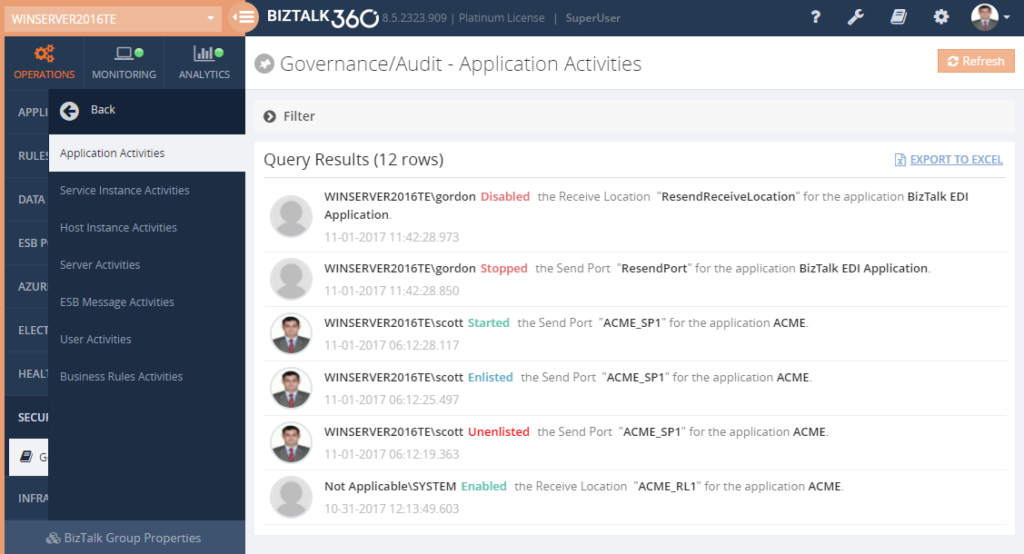
The actions could be something related to BizTalk Applications like starting/stopping Receive Locations, Send Port, Orchestration, it could be related BizTalk Host Instance like starting/stopping host instances, Service Instance activities like terminating, resuming, suspending, ESB management activities like resubmitting messages, and so on.
For every new feature we add to BizTalk360, we make sure auditing capabilities are also taken care of. The organisations can keep the audit data for however long they want based on their corporate policy; you can easily configure the data retention period in BizTalk360.
In order for us to build a system that’s capable of auditing user activities, we need to make sure BizTalk Administrators can use BizTalk360 instead of the standard BizTalk Admin console, that means covering each and every feature that’s available in BizTalk Admin Console needs a counter part in BizTalk360. Apart from deployment and configuration changes (ex: changing the password of FTP receive location), BizTalk Administrators can perform every activity in BizTalk360 that can be performed in the standard BizTalk Admin Console.
Can we audit user activities if it’s performed via BizTalk Admin Console?
This is one of the common questions we receive when we talk about Governance and Auditing. Unfortunately we cannot capture activities that’s performed outside BizTalk360. The idea is you restrict access to standard BizTalk Admin Console to very few people (super users) and force majority of the people to use BizTalk360 for controlled environments.
Get started with a Free Trial today!
Download and try BizTalk360 on your own environments free for 30 days. Installation will not take more than 5-10 minutes.

Author: Saravana Kumar
Saravana Kumar is the Founder and CTO of BizTalk360, an enterprise software that acts as an all-in-one solution for better administration, operation, support and monitoring of Microsoft BizTalk Server environments. View all posts by Saravana Kumar
by Bill Chesnut | Jan 22, 2018 | BizTalk Community Blogs via Syndication
Martin Abbott, Dan Toomey, Wagner Silveira, Rene Brauwers and myself have decide we need a Australian/New Zealand time zone Integration focused webcast similar to Integration Mondays from the UK.
Out 1st webcast will be February 8th at 8pm ADST to register – https://register.gotowebinar.com/register/4469184202097473281
Thanks to SixPivot for providing the GoToWebinar
We will spend some time introducing the leaders of the group and then each person will present a short presentation
Bill Chesnut – API Management REST to SOAP
Martin Abbott – In this session, Martin will walk through the new visual tooling available in Azure Data Factory v2. He’ll look at what you can do, set up source control, install an Integration Runtime for on premises fun, and do a simple data copy to give a flavour of how quick and easy it is to get going.
Wagner Silveira – A Lap around Azure Functions Proxy, Azure Functions Proxy is a simple API Toolkit embedded in Azure Functions, enable quick composition of APIs from various sources. In this lightning talk, Wagner Silveira will show the main features and how to quickly compose an API from various sources.
Dan Toomey – Microsoft recently released the public preview of Azure Event Grid – a hyper-scalable serverless platform for routing events with intelligent filtering. No more polling for events – Event Grid is a reactive programming platform for pushing events out to interested subscribers. Support for massive scalability and minimal latency makes this an ideal solution for a number of scenarios, including monitoring, governance, IoT, or general integration. This talk will demonstrate how easy it is to configure the capture of events with Azure Event Grid.
Rene Brauwers – a reactive integration primer

by Howard Edidin | Jan 22, 2018 | BizTalk Community Blogs via Syndication
Recently I was designing a Cosmos DB SQL API solution for a client. During testing we were constantly getting http status code 429 – Too many Requests errors. We manually had to increase the Throughput for a collection. This got to be tedious.
In production, this was unacceptable.
We needed to automate the setting of the Cosmos DB Collection Throughput.
Architecture
The solution architecture I built looks like the diagram below and utilizes the Throttling Cloud Design Pattern.

Steps
- Create an Cosmos DB Azure Alert for
http status code 429 – Too many Requests. The collection has exceeded the provisioned throughput limit.
- When the condition is met, an Alert is sent to a Function App.
- Function App increases the Request Units for the Collection by 100.
- Update Cosmos DB Collection Offer (Request Units).
Throughput SLA
“Throughput Failed Requests” are requests which are throttled by the Azure Cosmos DB Collection resulting in an Error Code, before Consumed RUs have exceeded the Provisioned RUs for a partition in the Collection for a given second.
NOTE: The Metric we want to check for is Status Code 429 – Too many Requests . The collection has exceeded the provisioned throughput limit.
Create a new Azure Cosmos DB Alert
We need to create an Alert for our Azure Cosmos DB Database as shown in the following figure.
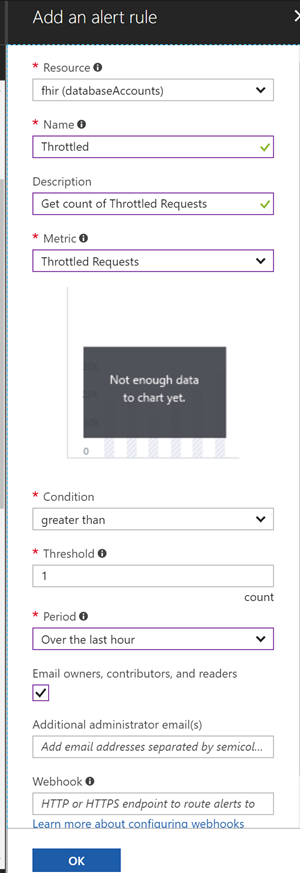
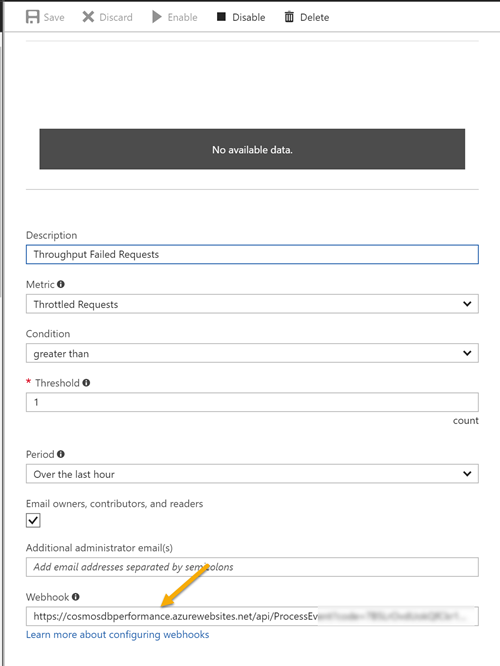
The following are the configuration settings.
- Select our Resource.
- Name for our Alert Rule.
- Description of our Alert Rule.
- Select
Throttled Requests for the Metric.
- The condition, threshold, and period that determine when the alert activates.
- Condition set to
greater than.
- Threshold Count set to
1.
- For Period we will start with
Over the last hour.
- Check if the service administrator and co administrators are emailed when the alert fires.
NOTE: We will configure our WebHook setting later.
Create our Function App
We will create our Function App using the Azure Portal. Optionally we could do this in Visual Studio 2017. I choose the Portal because I had planned on add additional functionality.
INFO: We could download the Function App code with a Visual Studio project File. This will allow us to modify the source code, use Visual Studio Team Services (VSTS) for source control, and incorporate a CI/CD pipeline.
The Azure Function App template I used is a genericJson Webhook. Application Insights was added.
The following is the code from the ProcessEvent Function App.
using System;
using System.Net;
using Newtonsoft.Json;
using Microsoft.Azure.Documents;
using Microsoft.Azure.Documents.Client;
using Microsoft.Azure.Documents.Linq;
using System.Configuration;
using System.Collections.Generic;

public static async Task<object> Run(HttpRequestMessage req, TraceWriter log)
{
    log.Info($"Webhook was triggered!");

    var endPoint = ConfigurationManager.AppSettings["Endpoint"];
    var authKey = ConfigurationManager.AppSettings["AuthKey"];
    var databaseId = ConfigurationManager.AppSettings["databaseName"];

    var list = new Dictionary<string, int>();
    var newThroughput = 0;

    string jsonContent = await req.Content.ReadAsStringAsync();
    dynamic data = JsonConvert.DeserializeObject(jsonContent);


    DocumentClient client = new DocumentClient(
        new Uri(endPoint),
                authKey,
                new ConnectionPolicy
                {
                    ConnectionMode = ConnectionMode.Direct,
                    ConnectionProtocol = Protocol.Tcp
                });

    var colls = await client.ReadDocumentCollectionFeedAsync(UriFactory.CreateDatabaseUri(databaseId));

    foreach (var coll in colls)
    {
        Microsoft.Azure.Documents.Offer offer = client.CreateOfferQuery().Where(r => r.ResourceLink == coll.SelfLink)
                    .AsEnumerable().SingleOrDefault();

        //Get the current Throughput for the collection
        var result = ((OfferV2) offer).Content.OfferThroughput;

        // Increase the Throughput by 100
        newThroughput = result + 100;

        // Modify the offer
        offer = new OfferV2(offer, newThroughput);


        list.Add(coll.Id, result);

        await client.ReplaceOfferAsync(offer);
    }

    // format the response content
    var results = string.Join("; ", list.Select(x => x.Key + "=" + x.Value));

    var res = new HttpResponseMessage(HttpStatusCode.OK)
    {

        Content = new StringContent($"Collection(s): {results} Request Units increased to {newThroughput}")
    };

    return res;

}
NOTE: We are not using the ‘HttpRequestMessage’ data in our Function App. It is only triggered when an Event is received.
The following is an example of an Offer
offer {{
  "id": "gCK7",
  "_rid": "gCK7",
  "_self": "offers/gCK7/",
  "_etag": ""00002b01-0000-0000-0000-5a5d0b6f0000"",
  "offerVersion": "V2",
  "resource": "dbs/jdUKAA==/colls/jdUKAIUe1QA=/",
  "offerType": "Invalid",
  "offerResourceId": "jdUKAIUe1QA=",
  "content": {
    "offerThroughput": 10600,
    "offerIsRUPerMinuteThroughputEnabled": false
  },
  "_ts": 1516047215
}}  Microsoft.Azure.Documents.Offer {Microsoft.Azure.Documents.OfferV2}
Next we need to set our Azure Cosmos DB Connection settings
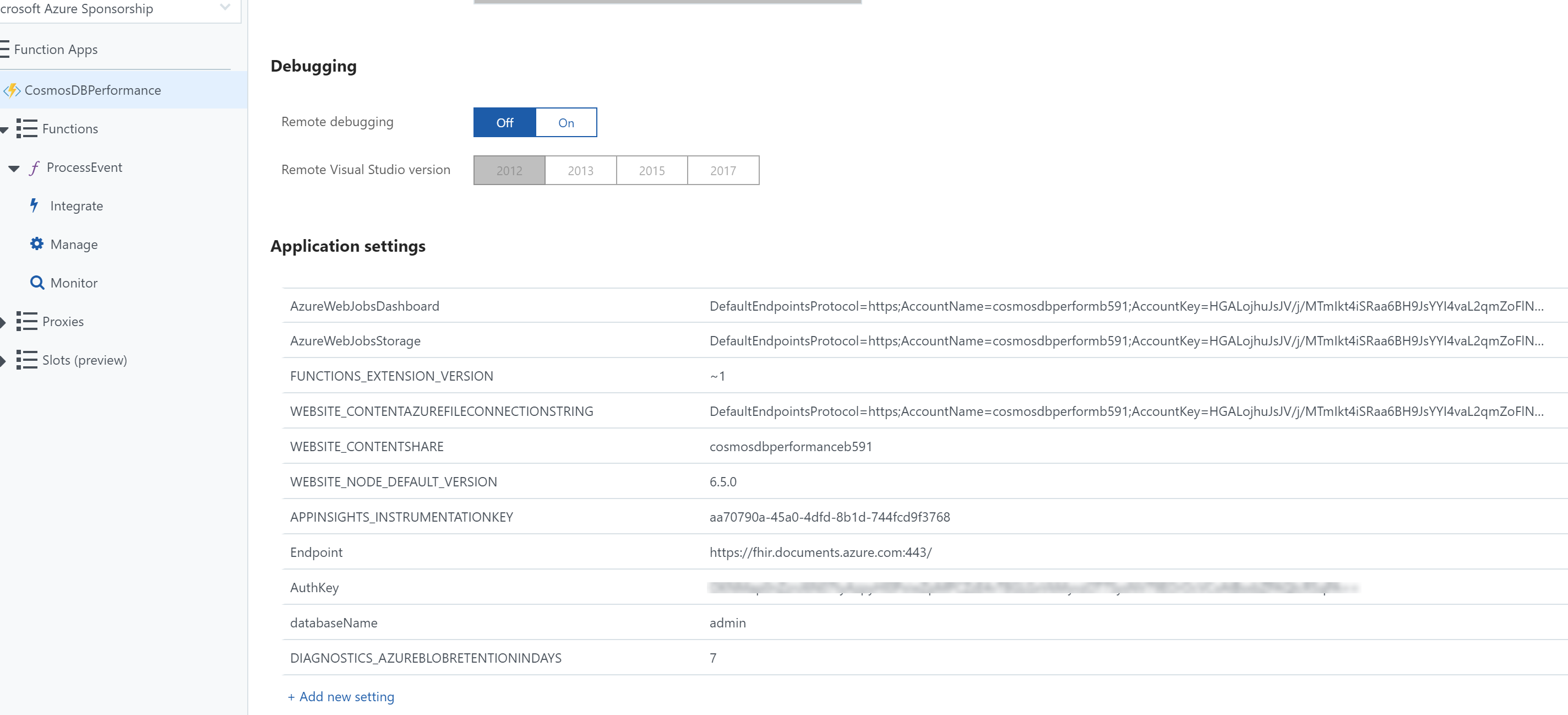
We need to modify the Function App Application Setting. The Cosmos DB connection settings need to be added.
* Endpoint
* AuthKey
* databaseName
The following figure shows the these settings.
Next we will test our Function App as shown in the following figure.
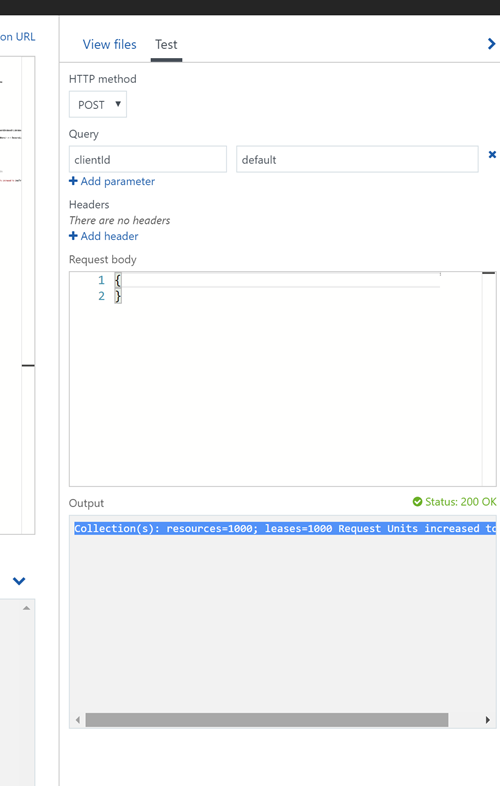
Our response is Collection(s): resources=1000; leases=1000 Request Units increased to 1100
We can see that the Collections resources and leases request units have been increased to 1100.
When we run it again, the request units increase by 100.
Modify Event Rule
Finally, we need modify our event rule.
- We first need to copy our Function App URL, as shown in the following figure.
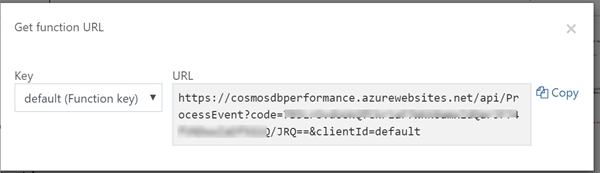
2. We then edit our Event Rule by pasting the Function App URL into the Webhook text box, as shown below.
3. Save the Event Rule.
Summary
- Azure Event Rules can be used to send events to a Function App
- Using Azure Cosmos DB SQL Api
Microsoft.Azure.Documents.Offer builtin functionality to Get and Set the OfferThroughput is easy to use.
- Increased the Request Units for all Collections in a Database.
- We were able to provide the client with an automated process.
Next Steps
- Extend functionality by using Logic Apps
- Include Unlimited Collections
- Add ability to lower Throughput
- Use the Event data to get the collection Id.
Related

by Sandro Pereira | Jan 22, 2018 | BizTalk Community Blogs via Syndication
Last year I presented several sessions on Integration Monday community but I never had the chance, for several and different reasons, to proper highlight on my personal blog. The second session that I delivered last year was the second part of the topic BizTalk Server: Teach me something new about Flat Files (or not) Part II.
In that session I tried to address and solve the following questions:
- How to suppress Empty Lines everywhere (end or middle)?
- My positional flat-file contains data that does not match the length expected (and they are not filled with empty spaces). How can I handle that?
- What if we don’t want to remove Headers but… in fact we want to deal with Headers and Trailers?
- Do I need to always create a custom pipeline for dealing with Flat-Files? Or it is possible to create a Generic Pipeline?
That was the sixth session that I deliver for that community:
About my session
Session Name: BizTalk Server: Teach me something new about Flat Files (or not) Part II
Session Overview: This is the second part of Sandro Pereira’s earlier presentation on flat files on Integration Monday. You can watch the video recording of the previous session here.
Despite over the year’s new protocols, formats or patterns emerged like Web Services, WCF RESTful services, XML, JSON, among others. The use of text files (Flat Files) as CSV (Comma Separated Values) or TXT, one of the oldest common patterns for exchanging messages, still remains today one of the most used standards in systems integration and/or communication with business partners.
While tools like Excel can help us interpret such files, this type of process is always iterative and requires few user tips so that software can determine where there is a need to separate the fields/columns as well the data type of each field. But for a system integration (Enterprise Application Integration) like BizTalk Server, you must reduce any ambiguity, so that these kinds of operations can be performed thousands of times with confidence and without having recourse to a manual operator.
You can see the recording session here: BizTalk Server: Teach me something new about Flat Files (or not) Part II.
About Integration Monday
Integration Monday is full of great sessions that you can watch and I will also take this opportunity to invite you all to join us next Monday.
Author: Sandro Pereira
Sandro Pereira lives in Portugal and works as a consultant at DevScope. In the past years, he has been working on implementing Integration scenarios both on-premises and cloud for various clients, each with different scenarios from a technical point of view, size, and criticality, using Microsoft Azure, Microsoft BizTalk Server and different technologies like AS2, EDI, RosettaNet, SAP, TIBCO etc. He is a regular blogger, international speaker, and technical reviewer of several BizTalk books all focused on Integration. He is also the author of the book “BizTalk Mapping Patterns & Best Practices”. He has been awarded MVP since 2011 for his contributions to the integration community. View all posts by Sandro Pereira