by community-syndication | Mar 4, 2013 | BizTalk Community Blogs via Syndication
A few days ago I released a new version of the BRE Pipeline Framework with a few improvements. Below are a couple of features I am thinking of for the next version of the framework which I am targeting for a May/June release. Thus far every time you use the BRE Pipeline Framework pipeline component […]
Blog Post by: Johann

by community-syndication | Mar 2, 2013 | BizTalk Community Blogs via Syndication
A couple of months ago I released the BRE Pipeline Framework project onto codeplex, the goal of the project being to make it much easier to inspect or manipulate messages in pipelines making use of the Business Rules Engine in BizTalk. Today I have released v1.2.0 of the framework and you can download the new […]
Blog Post by: Johann

by community-syndication | Mar 1, 2013 | BizTalk Community Blogs via Syndication
The thing I like best about working on group projects is the fact that you get to pick up some really good tricks from others that you didn’t previously know about but they might just take for granted. On my current project I had my young and bright colleague ShikharBhagat show me a trick with […]
Blog Post by: Johann
by community-syndication | Mar 1, 2013 | BizTalk Community Blogs via Syndication
If you want to know how to
executeBTAHL72XSendPipeline in an orchestration or are facing
error”Body schema is
missing” while executing theBTAHL72XSendPipelinein
orchestration then do download the code sample “How
to execute BTAHL72XSendPipeline in an orchestration”
Cheers
Rohit Sharma
by community-syndication | Mar 1, 2013 | BizTalk Community Blogs via Syndication
The support for REST has been anticipated for a long time by BizTalk developers. A majority of the services in the cloud these days is REST based. When exposing a public API over the internet to handle CRUD operations on data REST has now generally been considered the best option. Twitter, Google, Salesforce, eBay, Amazon all offer REST API’s to use their services. Not only these, but many more
by community-syndication | Feb 28, 2013 | BizTalk Community Blogs via Syndication
The registration site for the BizTalk Saturday – BizTalk 2013 Hands on Day – Perth on Thursday 14th March – is now open
http://www.eventbrite.com.au/event/325730268
Any question please post a comment
More …

by community-syndication | Feb 28, 2013 | BizTalk Community Blogs via Syndication
Exciting news for all the BizTalk Community! Once again you will be able to interact with BizTalk Product Team, this time in Oporto BizTalk Innovation Day. Akshat Sharma from BizTalk Product Team will make the event keynote and will be also in the Q&A panel! 10:00 KEYNOTE: BIZTALK SERVER 2013 AND FUTURE VISION Many of […]
Blog Post by: Sandro Pereira
by community-syndication | Feb 28, 2013 | BizTalk Community Blogs via Syndication
We are going to repeat the same statement "New release every 4-5 months once". Our last release (v5.0) was back in 10th October (Release history). Once the product gets matured and start addressing the pain points then the users (customers, prospects, community members) drive the growth of the product. Whenever we give a presentation/demo we […]
The post What’s new in BizTalk360 v6.0? appeared first on BizTalk360 Blog.
Blog Post by: Saravana Kumar
by community-syndication | Feb 27, 2013 | BizTalk Community Blogs via Syndication
What’s under the hood of the cumulative concatenate functoid in the BizTalk mapper. Analytics of current code, compared with an xslt file, optimalisations and profiling.
by community-syndication | Feb 27, 2013 | BizTalk Community Blogs via Syndication
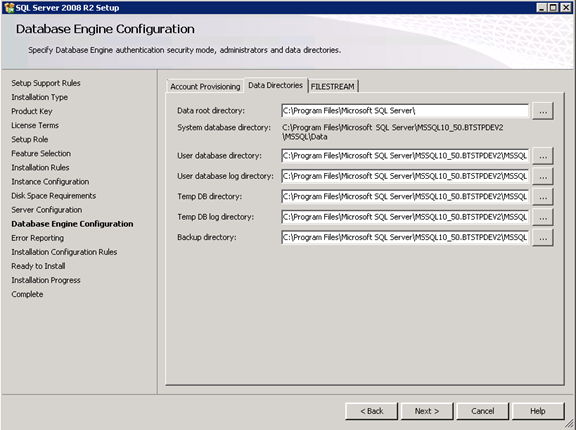
During the installation of a SQL instance, you’ll have the ability to define some folders
These locations can be defined:
- User database directory
- User database lof directory
- Temp DB directory
- Temp DB log directory
- Backup directory
%ufeff
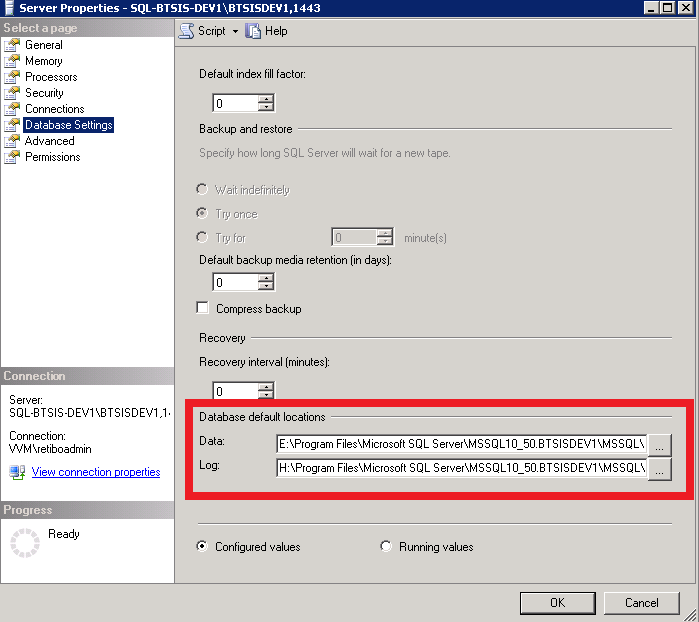
Within SQL Server Management Studio you have the ability to change the default location for your Data and Log files for all new databases. Just %ufeff right click on the server name and select properties, navigate to the Database Settings page. Here you can find a section Database default locations for changing the data and log directories.
%ufeff
But if you search through all of the pages under Database Settings you will not find anything that shows the default backup directory. To find this we need to look in the registry.
Open the registry tool REGEDIT and navigate to following key:
HKEY_LOCAL_MACHINE\SOFTWARE\Microsoft\Microsoft SQL Server\MSSQL10_50.BTSTPTST1\MSSQLServer
Or something similar for your instance of SQL server. The registry key BackupDirectory is the one you’ll need to change to set another default Backup Directory.
%ufeff
Changing the registry can also be done with a T-SQL query command. To do so, you’ll be using the extended stored procedures XP_REGREAD and XP_REGWRITE.
Reading the falue in registry can be done by using this command:
DECLARE @BackupDirectory VARCHAR(100)
EXEC master..xp_regread @rootkey=‘HKEY_LOCAL_MACHINE’,
@key=‘SOFTWARE\Microsoft\Microsoft SQL Server\MSSQL10_50.BTSTPTST1\MSSQLServer’,
@value_name=‘BackupDirectory’,
@BackupDirectory=@BackupDirectory OUTPUT SELECT @BackupDirectory
This will result in something similar as this:
Changing the default folder can be done by using the following command
EXEC master..xp_regwrite
@rootkey=‘HKEY_LOCAL_MACHINE’,
@key=‘SOFTWARE\Microsoft\Microsoft SQL Server\MSSQL10_50.BTSTPTST1\MSSQLServer’,
@value_name=‘BackupDirectory’,
@type=‘REG_SZ’,
@value=‘C:\Program Files\Microsoft SQL Server\MSSQL10_50.BTSTPTST\MSSQL\Backup’