by community-syndication | Jul 15, 2013 | BizTalk Community Blogs via Syndication
The Microsoft Business Rules Engine (BRE), part of Microsoft BizTalk Server, allows for the creation of rich easily readable business rules which can be applied by a BizTalk solution, or any .NET code. Out of the box, BRE and the main interface Business Rules Composer (BRC) have many different predicates that can be used within […]
Blog Post by: Kevin Morillo

by community-syndication | Jul 14, 2013 | BizTalk Community Blogs via Syndication
I know this is old stuff but sometimes we find customers with solutions running in older versions of BizTalk that need to be fixed or improved while the client studying the possibility of migrating this project to newer versions of BizTalk Server. After the challenge of putting my BizTalk Server 2004 development machine running on […]
Blog Post by: Sandro Pereira

by community-syndication | Jul 12, 2013 | BizTalk Community Blogs via Syndication
This post is the eighth in a weekly series intended to briefly spotlight those things that you need to know about new features in BizTalk Server 2013. It is also the second part of a two-part series on the Service Bus Relay features in BizTalk Server 2013 (Click here for part 1). Last week, we […]
Blog Post by: Nick Hauenstein
by community-syndication | Jul 12, 2013 | BizTalk Community Blogs via Syndication
Hello Everyone,
I’ve been doing the tutorials from the new Windows Azure BizTalk Services, and I wanted to share a few things I’ve discovered with the new mapper.
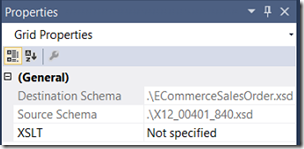
The new transform capability is XAML based by default, not XSLT. There is however XSLT support by separately creating your XSLT and referencing it from the TRFM by clicking in the empty space of the mapping surface and setting the XSLT property:
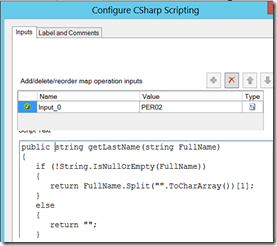
Next, the CSharp Scripting “Map Operation”. The “Text” field is where you put your custom C# method, and it must be public in scope, or you will get a compilation error:
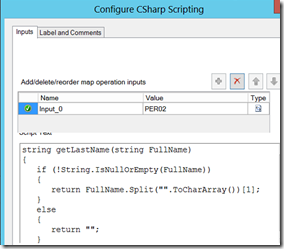
“Compilation failed during XAML generation. Error(s) encountered while validating the generated activity :
The private implementation of activity ‘1: DynamicActivity’ has the following validation error: Compiler error(s) encountered processing expression “genScriptInstance.getLastName(TypeConverter.ToString(ObjectHelper.GetPathValue(srcRoot1, wfPfc23)))”.
‘getLastName’ is not a member of ‘Microsoft.ApplicationServer.Integration.Transforms.GeneratedScriptClass’.”
Making the method public results in a successful compile.

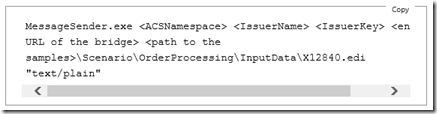
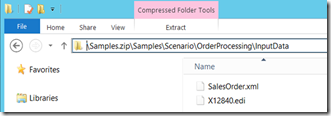
Finally, if you are doing the first Tutorial (“Create the Agreement” – Step 4), you will need to extract the sample EDI file from the old April 2012 Release, as I can’t seem to find it anywhere in the SDK samples from the July 2013 release.
I’m sure there will be more, so if I find more, I’ll post additional information.
Cheers,
Dan

by community-syndication | Jul 11, 2013 | BizTalk Community Blogs via Syndication
Are you planning to install BizTalk360 on a Windows Server 2012 machine? Check out Installing and Configuring BizTalk360 on Windows Server 2012 / BizTalk Server 2013 (user guide) available for download on BizTalk36o website. This user guide will explain how to install and configure BizTalk360 in an existing Microsoft BizTalk Server 2013 standalone machine (single […]
Blog Post by: Sandro Pereira
by community-syndication | Jul 11, 2013 | BizTalk Community Blogs via Syndication
Background
Each BizTalk Services deployment gets a unique URL like https://contoso.biztalk.windows.net where <contoso> is a globally unique name input by the user. The https session traffic for this deployment will be encrypted using a SSL .pfx certificate. Since the biztalk.windows.net URLs are HTTPS based either a self-signed certificate or a certificate issued by a Certificate Authority is required. Few customers prefer to use their existing domain-friendly URLs like app.contoso.com instead of biztalk.windows.net URLs. The certificate in this case can either be for a generic sub-domain *.contoso.com or for app.contoso.com. All certificates are uploaded to the BizTalk Services deployment during service creation and the Common Name (CN) in the certificate will be validated against the custom domain URL.
Default Domain
The BizTalk Service deployment with the default domain works as follows:
- Customer creates BizTalk Services deployment and uploads self-signed certificate for contoso.biztalk.windows.net.
- When a application wants to connect with a bridge/agreement endpoint, its first gets the token from ACS
- ACS will have the relying party information to return token for contoso.biztalk.windows.net
- The application also queries the DNS to determine the IP of the deployment
- Azure DNS has a CNAME for contoso.biztalk.windows.net mapping it to contosoXXX.cloudapp.net. The client would get the cloudapp.net URL
- Azure DNS also has A record to map the cloudapp.net name to the IP address (VIP) where the service is hosted. The client would get the IP of the deployment
- Client application connect to the service at the IP along with the ACS Token
- Steps 1-6 are the same if BizTalk Portal queries for data similar to the client application
DNS Records
You can use a CNAME record or an A record in DNS to configure custom domains. Both operations require access to the domain’s DNS controller. Any changes to the records requires the changes to be propagated across all servers.
CNAME record
A CNAME is a canonical name aliasing one domain name for another. For example, you can map app.contoso.com to contoso.biztalk.windows.net. Customers can use app.conotos.com for all operations on the corresponding biztalk.net url. Adding this entry is specific to the DNS server (see example later):
app.contoso.com IN CNAME contoso.biztalk.windows.net
It is assumed that contoso.com is already owned by the user.
CNAME with HTTPS
Incase of HTTPS the client/browser will lookup the address and also the certificate of app.contoso.com. The certificate should be available in contoso.biztalk.windows.net since the HTTPS session is established with the latter and the browser requests are being serviced using app.contoso.com URL. For example, if there is a mismatch with the certificate names, the browser would indicate a warning in the address bar.
A or AAAA record
A record is the address record that maps a DNS domain or a subdomain to its IP Address. While A record is for IP4 addresses, AAAA record is used for IPv6 addresses.
contoso.biztalk.windows.net IN A 1.2.3.4
Custom Domain with BizTalk Services
There are 3 key steps to getting custom domain working correctly – create the domain name and its SSL certificate, use the certificate and name while deploying BizTalk Services and finally mapping the DNS entries so all calls get routed correctly.
Create Custom Domain and its SSL certificate
- You need to register a domain name and create a corresponding SSL certificate as part of the process or using your existing domain name and SSL certificate. If you are purchasing a certificate, it can be for a specific sub-domain like app.contoso.com or generic *.contoso.com
- If the SSL certificate is a .pem certificate, you would need to convert it into a .pfx certificate (this is the same as pkcs12 version)
Configure BizTalk Services
- Create BizTalk Services deployment with app.contoso.com as custom domain name
2. Upload the .pfx certificate in the BizTalk Services creation wizard
Configure DNS
- Log into to you DNS server to manage your DNS entries.
- Add a CNAME record mapping app.contoso.info to contoso.biztalk.windows.net
How this works
The BizTalk Service deployment with custom domain works as follows:
- When a client application wants to connect with a bridge/agreement endpoint, its addresses app.contoso.com domain
- Client application first gets the token from ACS for app.contoso.com
- ACS will have the relying party information to return token for app.contoso.com not contoso.biztalk.windows.net
- Client application also queries the Customer DNS, which responds back with contoso.biztalk.windows.net
- Client then queries the Azure DNS for contoso.biztalk.windows.net and gets back contosoXXX.cloudapp.net
- Client again queries the Azure DNS for contosoXXX.cloudapp.net and determines the IP as 1.2.3.4
- Client connects to this IP address and passes the ACS token
- Steps 2-7 are the same if BizTalk Portal queries for data similar to client application
Verification
After custom domain has been successfully configured you can check the settings in the following places:
- From the Azure portal, check Service URL in the dashboard quick glance information
- For EAI, the bridge configuration surface in Visual Studio should be set to the domain URL after installing the relevant client certificate.
- The Output window would indicate the custom domain bridge URL during deployment
- For EDI, all deployed agreements will have the domain URL as part of the inbound URL in send side and transport of the receive side in X12 and AS2 agreements.
FAQ
- Can I use more than one custom domain name per BizTalk Services deployment?
No, currently we support only one domain certificate with a single name for each deployment
- How do I use certificates with extensions other than .pfx?
You would have to convert certificates with extensions like .pem, .p7b to .pfx. There are tools available to have this conversion as long as the private key of the certificate is available
- How do update an expired certificate of a domain name?
From the Azure portal, navigate to the dashboard page and you have an option to update the domain certificate of your BizTalk Services deployment
- Can I change the domain name for a deployment after the BizTalk Service has been created?
In v1, the domain name with its certificate cannot be changed after the BizTalk Services deployment has been created.
References
Blog Post by: BizTalk Blog
by community-syndication | Jul 11, 2013 | BizTalk Community Blogs via Syndication
We recently introduced BizTalk360 version 6.5 with bunch of new monitoring capabilities. One of them is the ability to monitor your SQL Servers using BizTalk360. The heart of BizTalk server is underlying SQL server layer, which host all the core BizTalk system databases like Message Box, Management, SSO, Rules, BAM, Tracking etc. So it’s inevitable […]
The post How To Monitor SQL Servers using BizTalk360 appeared first on BizTalk360 Blog.
Blog Post by: Saravana Kumar
by community-syndication | Jul 10, 2013 | BizTalk Community Blogs via Syndication
This post gives a overview on some of the most important SAP Transaction codes you as a BizTalk developer need to know.

by community-syndication | Jul 10, 2013 | BizTalk Community Blogs via Syndication
I was recently confronted with an interesting problem where I was asked to design a BizTalk schema which contained a complex type that must contain at least one instance of some of its child elements or optionally some or all of them. Upon questioning the business requirement it turned out that I didn’t actually have […]
Blog Post by: Johann

by community-syndication | Jul 8, 2013 | BizTalk Community Blogs via Syndication
I recently went through my second implementation of BizTalk360 and ran into a feature that I wasn’t previously aware of. Typically I have installed BizTalk360 on a BizTalk Server itself which posses a bit of a risk if you only install it on one BizTalk Server and that BizTalk Server happens to be offline.
My current environment consists of a multi-node cluster (an actual cluster with Failover Cluster Services). I recently asked the question to Saravana Kumar if this was the way to go when looking for a redundant monitoring solution. He indicated that my idea would work and is completely supported however I may want to look into a new feature called Monitoring Service High Availability. When using this feature, BizTalk360 itself is maintaining its state by storing it in the database. In my case, One node will be active and the second node will be passive – much like a service being managed by Windows Failover clustering.
To access this feature click on the Settings link in the top right hand corner of the screen.
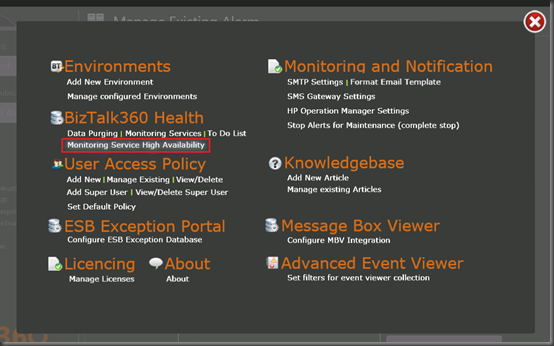
Next, click on the Monitoring Service High Availability link.
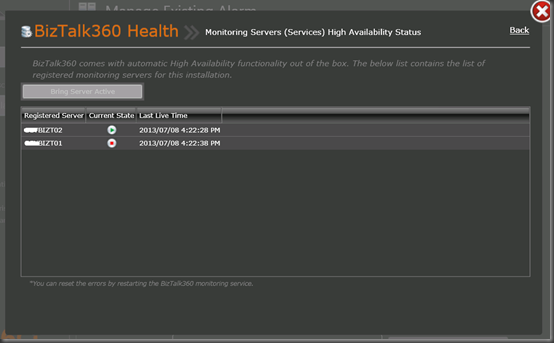
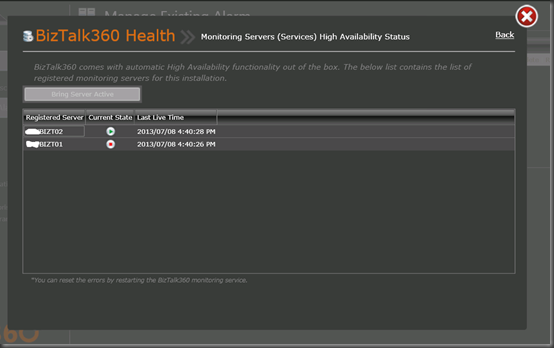
Even though the BizTalk360 Service is actively running on both Servers (in my case), BizTalk360 is designating one of the servers as being the primary.
We have the ability to change the primary server by selecting it and then clicking on the Bring Server Active button.
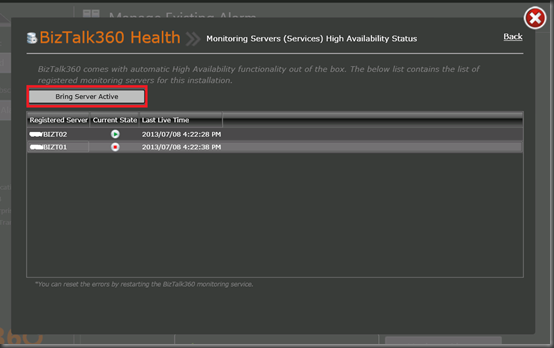
Instantly our primary will switch to becoming a secondary and vice-versa. This was very quick. Much quicker than I have experienced failing over a service using Windows Failover Clustering.
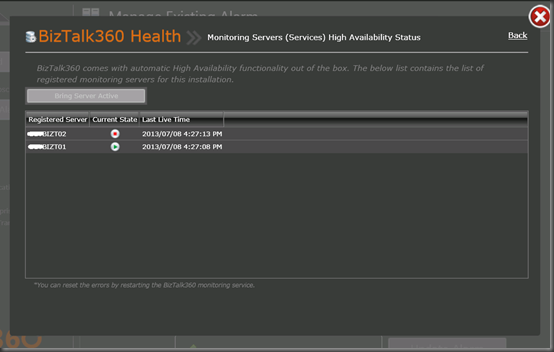
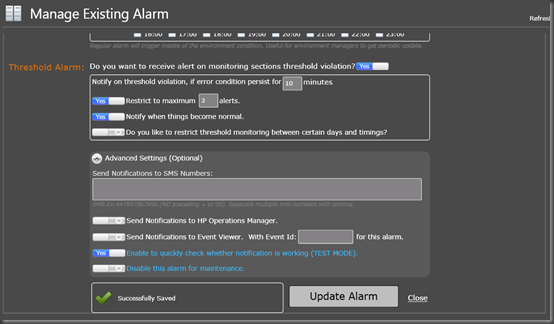
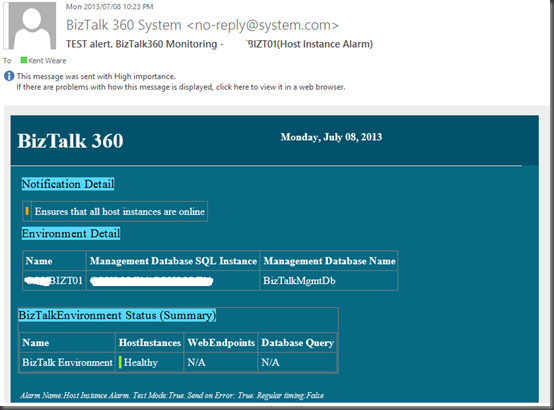
The next test is to take our primary Service (or Server Offline). To do this I will just stop the BizTalk360 service. By doing so I am simulating what would occur if our service stopped or we lost our entire primary server. To make this test even more real I am going to enable a test alert, make sure I receive the first alert and then stop the BizTalk360 Service. My expectation is that my second node will become primary and I should receive another test alert. This time the alert will be generated from the newly activated node.
Below I have configured an existing alarm to function in TEST MODE.
I have received my alert as expected.
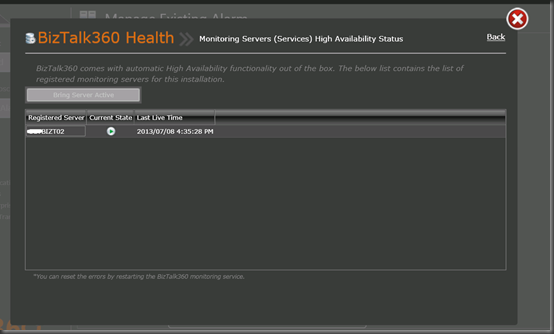
I will now stop the BizTalk360 Service on Node 1.

If I navigate back to the Monitoring Services High Availability screen I find that my “Node 2” is now the active server and my “Node 1” is no longer participating as it is offline.
If I check my inbox, I find that I continue to receive these “TEST Alerts” from BizTalk360. This time the alerts are coming from my 2nd Node.

If we now go back to my 1st Node and start the BizTalk360 Service, we will discover that BizTalk360 has recognized that the service is back online but is in a passive state.
Conclusion
I have been around Windows Fail-over Clustering for quite some time and am comfortable working within that environment. The BizTalk environments that I have used in the past also tend to leverage Windows Failover Clustering in order to support Cluster Host Instances for adapters such as S/FTP, POP3 and Database Polling. Using Windows Failover Clustering is an option for ensuring BizTalk 360 is online and redundant, but it is not a pre-requisite. As I have demonstrated in this post; BizTalk360 provides this functionality out of the box. This is great news, especially for those who have multi-node BizTalk environments but do not have (or need) Windows Failover Clustering. This allows you piece of mind in the event one of your BizTalk Servers goes offline, that you can have BizTalk360 installed on another node your coverage will not be interrupted. Kudos to the BizTalk360 team for building such an important feature and making it very easy to use!



