
by community-syndication | Oct 20, 2010 | BizTalk Community Blogs via Syndication
BizTalk Server provides the capability to specify a business process and also a mechanism by which the applications used in that business process can communicate with each other. SQL Server is the main repository for this communication mechanism. You must install SQL Server 2008 R2/SP1 (Enterprise Edition is recommended). Important BAM real-time aggregation (RTA) is […]

by community-syndication | Oct 20, 2010 | BizTalk Community Blogs via Syndication
Hi all
Just to let you all know that on the 18’th November I’ll be speaking at the Swedish
BizTalk User Group about transactions in orchestrations.
I’ll be talking about transactions, exception handling and compensating – feel free
to join us 
You can find information about the event here: http://swebug20101118.eventbrite.com/
—
eliasen
by community-syndication | Oct 20, 2010 | BizTalk Community Blogs via Syndication
Hi all
Today a customer asked me for the Custom Functoid Wizard. Before today I had never
heard of it. I searched lots of places, and found several bog entries with links to
the 2004 source code, installer, 2006 source code, installer and what not – but none
of the links checked out.
So finally the customer found it himself, and just for the benefit of the rest of
the world, I have placed the installer for the BizTalk 2009 version of the Custom
Functoid Wizard at http://www.eliasen.dk/files/FunctoidWizardSetupInstaller.zip.
—
eliasen

by community-syndication | Oct 20, 2010 | BizTalk Community Blogs via Syndication
The BizTalk Server development tools are based on Visual Studio 2010. Therefore, at a minimum, you must have the Microsoft Visual C#%u00ae .NET portion of Visual Studio 2010 installed on your computer before installing the BizTalk Server Developer Tools and SDK component. Visual Studio 2010 is not required if you are installing BizTalk Server on […]

by community-syndication | Oct 20, 2010 | BizTalk Community Blogs via Syndication
We have recently hosted Quoc Bui from the AppFabric Customer Advisory Team at the Auckland Connected Systems User Group taking about BizTalk Patterns. The slides are downloadable from the attachments section of the meeting page (scroll to the bottom). While here we discussed potential blog posts and decided that a series of them on the […]

by community-syndication | Oct 20, 2010 | BizTalk Community Blogs via Syndication
I’ve written a few times about the Amazon Web Services (AWS) offerings and in this post, want to briefly show you the new web-based interface for configuring the Simple Notification Services (SNS) product. I’m really a fan of the straightforward simplicity of the AWS service interfaces, and that principle applies to their web console as […]
by community-syndication | Oct 20, 2010 | BizTalk Community Blogs via Syndication
Two weeks ago we shipped the ASP.NET MVC 3 Beta Release. It supports “go live” deployments, and includes a bunch of nice improvements/enhancements. You can see a summary of the new ASP.NET MVC 3 features in my beta announcement post. Also read my original ASP.NET MVC 3 Preview post to learn about other ASP.NET MVC 3 features that showed up with that initial preview release.
This post is the first of several “mini-posts” I’m going to do that talk about a few of the new ASP.NET MVC 3 Beta features in more detail. In today’s post I’m going to discuss the new @model directive that is now supported with the new Razor view-engine, and which helps make view files more concise and cleaner.
Razor Basics
ASP.NET MVC 3 ships with a new view-engine option called “Razor” (in addition to continuing to support/enhance the existing .aspx view engine).
You can learn more about Razor, why we are introducing it, and the syntax it supports from my Introducing Razor blog post. If you haven’t read that post yet, take a few minutes and read it now (since the rest of this post will assume you have read it).
Once you’ve read the Introducing Razor post, also read my ASP.NET MVC 3 Preview post and look over the ASP.NET MVC 3 Razor sample I included in it.
New @model directive
Let’s now look at a new feature we added with the ASP.NET MVC 3 Beta – the @model directive. The @model directive provides a cleaner and more concise way to reference strongly-typed models from view files.
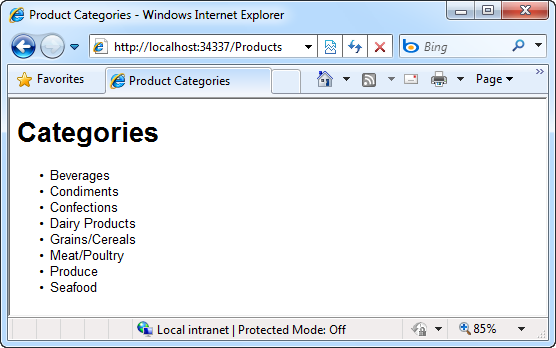
To see this in action, let’s look at a (super) simple scenario where we want to implement a /Products URL that lists product categories from a database:
Below is a simple ProductsController implementation that implements the /Products URL. It retrieves a list of product categories from a database, and then passes them off to a view file to render an appropriate HTML response back to the browser:
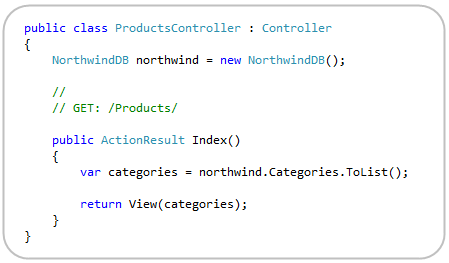
Referencing the Model with the first ASP.NET MVC 3 Preview
If we had used Razor with the first ASP.NET MVC 3 Preview, our Index.cshtml view file would have had an @inherits statement at the top of the file that indicated that we wanted to derive the view from the “System.Web.Mvc.WebViewPage<TModel>” class. We’d then indicate that we wanted our view file to be strongly-typed by passing the type of the view model to it:
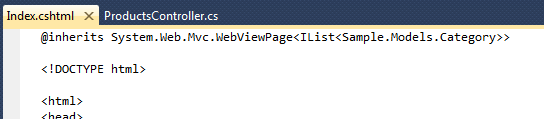
This works (and is still supported with ASP.NET MVC 3) – but is a little verbose.
Referencing the Model using the ASP.NET MVC 3 Beta and new @model syntax
We’ve added a new @model directive with the ASP.NET MVC 3 Beta that provides a cleaner and more concise way to indicate you want to use strongly-typed model classes within your view files. You can now just write @model StrongModelType at the top of your Razor view file, and you do not need to have an @inherits or specify a view base class anymore:
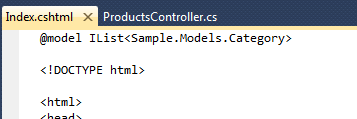
The above syntax is conceptually the same as before (except with a lot fewer characters). It is easier to read and type.
Below is what a complete Index.cshtml view implementation might look like to render our original screen-shot above:

One question you might ask is – so what does my view file derive from then if it isn’t specified? By default, Razor will derive the view from the System.Web.Mvc.WebViewPage<TModel> base class. You can optionally override this default base class (as well as the list of code namespaces that are imported by default within view files) by modifying the web.config file of your \Views directory. This enables you to keep a clean (and DRY) syntax within your view files even if you have created a custom View base class that you want to use.
Note: Visual Studio Code/Markup Intellisense and Colorization within Razor files aren’t enabled yet with the Beta earlier this month. You’ll see this show up in a few weeks though – and it will support full code intellisense for HTML, JavaScript, CSS and C#/VB code within Razor files.
Summary
One of the themes we’ve focused on with the ASP.NET MVC 3 and Razor releases has been to make the code you write cleaner and more concise. The above @model keyword is a small feature, but contributes nicely towards making view files even easier to read and write. I’ll be covering other nice improvements like this that are new to the ASP.NET MVC 3 Beta in future posts.
Hope this helps,
Scott

by community-syndication | Oct 20, 2010 | BizTalk Community Blogs via Syndication
This is the second part.
Part 1: BizTalk: Timeline: Development Tools.
As you can see, the last version of the BizTalk 2010 shifts the platform support to new versions of the .NET, SQL Server, and Visual Studio, and finish support for the previous platform versions.
High-quality picture in PDF format.

by community-syndication | Oct 20, 2010 | BizTalk Community Blogs via Syndication
This is the second part.
Part 1: BizTalk: Timeline: Development Tools.
As you can see, the last version of the BizTalk 2010 shifts the platform support to new versions of the .NET, SQL Server, and Visual Studio, and finish support for the previous platform versions.
High-quality picture in PDF format.
by community-syndication | Oct 19, 2010 | BizTalk Community Blogs via Syndication
Using reference data in StreamInsight is a very common scenarios; some examples would be:
- Monitoring process control event streams for values that exceed a given threshold (for example, a valve’s pressure exceeding a certain safety threshold).
- Enriching utility usage information in a smart metering scenario with user and geography information (for example, to allow visualization of power usage by geography).
This reference data is commonly held in some form of repository, such as SQL Server, a process historian’s metadata store (e.g. OSIsoft’s PI Asset Framework), which then needs to be integrated into a StreamInsight query.
In my previous post, I showed how to use the TimeImport capability on streams to synchronize a slow moving reference stream with a fast moving data stream. I did not, however, walk through the process of creating a reference stream from a relatively static source (such as a database table or file). I intend to now correct that minor, and somewhat deliberate oversight
The project referenced in this blog post, along with the source data files is available here.
Reference data can be integrated into StreamInsight in a couple of different ways, each with their own pros and cons:
| Technique |
Pros |
Cons |
- User-defined lookup function
|
- Relatively simple to implement
|
- Not suitable for large dynamic data sets or data that changes over time
- Cumbersome to import more than one data element
- Cannot take advantage of or incorporate stream data
|
|
|
- Seamless integration with StreamInsight query experience
- Very performant and flexible
|
- Additional work required to import and maintain the stream
|
Let’s look at an example of each technique, step by step.
The Scenario
For this illustration, let’s consider the following scenario:
- Stream of data events, each containing a user ID, an activity code and a status (user 7, logged in, success).
- Set of user metadata, contained in a file (for the purposes of illustration – a database would be a more likely source). This metadata contains information such as user ID, user name, etc.
- Want to annotate the data events with the user metadata.
We’ll use the following data sets:
Data Events
| Start Time |
End Time |
User Id |
Activity Code |
Status |
|
6/25/2009 0:00:00
|
|
1 |
Logon |
Success |
|
6/25/2009 0:00:01
|
|
2 |
Logon |
Fail |
|
6/25/2009 0:00:05
|
|
1 |
Browse |
Success |
|
6/25/2009 0:00:06
|
|
2 |
Logon |
Success |
Or, in the .csv format that we’ll use:
StartTime,EndTime,UserId,ActivityCode,Status
6/25/2009 0:00:00,,1,Logon,Success
6/25/2009 0:00:01,,2,Logon,Fail
6/25/2009 0:00:05,,1,Browse,Success
6/25/2009 0:00:06,,2,Logon,Success
|
Reference Events
| Start Time |
End Time |
User Id |
User Name |
Location |
|
6/25/2009 0:00:00
|
|
1 |
Fred Jones |
Seattle |
|
6/25/2009 0:00:01
|
|
2 |
Bob Murphy |
Portland |
Or, in the .csv format that we’ll use:
StartTime,EndTime,UserId,UserName,Location
6/24/2009 0:00:00,,1,Fred Jones,Seattle
6/24/2009 0:00:01,,2,Bob Murphy,Portland
|
User-Defined Lookup Function
With a user defined lookup function, we need to load the list of metadata into an associative array (i.e. a hashtable), and create a lookup function that allows us to grab user metadata from the dictionary on demand.
Note: Why did I use the hard coded dictionary rather than reading from a file? I wanted to illustrate the technique of a truly static data source. If you want to see the code that parses a .csv file into a dictionary object suitable for using in a lookup function, this is covered in the appendix section of the blog).
Note: Why didn’t I simply join the dictionary with the data stream? StreamInsight needs to join streams both relationally and temporally. Since a dictionary isn’t a stream (and has no concept of time, it’s not possible to directly join. Converting a reference source into a stream and joining is the other technique covered in the next section.
Code Snippet
- static Query CreateUserDefinedFunction(Application cepApp)
- {
- var dataStream = CepStream<DataEvent>.Create("dataStream",
- typeof(TextFileReaderFactory), new TextFileReaderConfig()
- {
- InputFileName = "dataEvents.csv",
- CtiFrequency = 1,
- CultureName = CultureInfo.InvariantCulture.Name,
- Delimiter = ‘,’
- }, EventShape.Point);
-
- // Populate the reference data statically
- refData.Add(1, new ReferenceData()
- { UserId = 1, UserName = "Fred Jones", Location = "Seattle" } );
- refData.Add(2, new ReferenceData()
- { UserId = 2, UserName = "Bob Murphy", Location = "Portland" } );
-
- // Create a stream with the user name added to the query
- var joinedStream = from e in dataStream
- select new
- {
- UserId = e.UserId,
- Activity = e.ActivityCode,
- Status = e.Status,
- // Use a static lookup function to retrieve the name
- Name = LookupName(e.UserId),
- // Use a static lookup function to retrieve the location
- Location = LookupLocation(e.UserId)
- };
-
- // Attach a trace output adapter to the stream
- var query = joinedStream.ToQuery(cepApp, "outputLookup", "",
- typeof(TracerFactory), new TracerConfig()
- {
- DisplayCtiEvents = false,
- SingleLine = false,
- TraceName = "REF",
- TracerKind = TracerKind.Console
- }, EventShape.Point, StreamEventOrder.FullyOrdered);
-
- return query;
- }
-
- public static string LookupName(int userId)
- {
- if (refData.ContainsKey(userId))
- return refData[userId].UserName;
- else
- return "Unknown";
- }
-
- public static string LookupLocation(int userId)
- {
- if (refData.ContainsKey(userId))
- return refData[userId].Location;
- else
- return "Unknown";
- }
Upon running this function with the supplied data files, we observe the merged output:
Press <enter> to close application
REF,Point,12:00:00.000
        Activity = Logon
        Location = Seattle
        Name = Fred Jones
        Status = Success
        UserId = 1
REF,Point,12:00:01.000
        Activity = Logon
        Location = Portland
        Name = Bob Murphy
        Status = Fail
        UserId = 2
REF,Point,12:00:05.000
        Activity = Browse
        Location = Seattle
        Name = Fred Jones
        Status = Success
        UserId = 1
REF,Point,12:00:06.000
        Activity = Logon
        Location = Portland
        Name = Bob Murphy
        Status = Success
        UserId = 2
|
Reference Data Stream (static data)
Using the more robust reference data stream approach, we:
- Use a TextFileInputFactory to import the contents of the text file
- Convert the series of point events into “infinite” signals.
- Join the reference stream with the data stream.
Note: this addresses conditions where the reference data DOES NOT CHANGE. This is not a very real-world scenario – we’ll cover the additions required to incorporate changing data in the next blog post, showing how to pull data from SQL Server.
Note: I don’t use the CTI import technique in this example. This is due to the text file input adapter sending an “infinite time” CTI when it reaches the end of the file. If we were using a continuous or changing reference data source (such as SQL Server), I’d need to employ that technique.
Code Snippet
- static Query CreateThresholdStream(Application cepApp)
- {
- // Pull the data events from the dataEvents.csv file
- var dataStream = CepStream<DataEvent>.Create("dataStream",
- typeof(TextFileReaderFactory), new TextFileReaderConfig()
- {
- InputFileName = "dataEvents.csv",
- CtiFrequency = 1,
- CultureName = CultureInfo.InvariantCulture.Name,
- Delimiter = ‘,’
- }, EventShape.Point);
-
- // Create a reference stream using the datastream as a time reference
- var refStream = CepStream<ReferenceData>.Create("refStream",
- typeof(TextFileReaderFactory), new TextFileReaderConfig()
- {
- InputFileName = "refEvents.csv",
- CtiFrequency = 1,
- CultureName = CultureInfo.InvariantCulture.Name,
- Delimiter = ‘,’
- }, EventShape.Point);
-
- // Stretch the ref stream points events out to infinity (i.e. must have
- // relational and temporal matches to join, and for this example, the data
- // doesn’t change.
- var referenceEvents = from e in refStream.AlterEventDuration(
- e => TimeSpan.MaxValue)
- select e;
-
- // Join the two streams
- var joinedStream = from e1 in dataStream
- join e2 in referenceEvents
- on e1.UserId equals e2.UserId
- select new
- {
- UserId = e1.UserId,
- Activity = e1.ActivityCode,
- Status = e1.Status,
- // Use the reference stream to retrieve the name
- Name = e2.UserName,
- // Use the reference stream to retrieve the location
- Location = e2.Location
- };
-
- var query = joinedStream.ToQuery(cepApp, "outputStream", "",
- typeof(TracerFactory), new TracerConfig()
- {
- DisplayCtiEvents = false,
- SingleLine = false,
- TraceName = "STREAM",
- TracerKind = TracerKind.Console
- }, EventShape.Point, StreamEventOrder.FullyOrdered);
-
- return query;
- }
Upon running this query with the supplied data sets, we observe:
STREAM,Point,12:00:00.000
        Activity = Logon
        Location = Seattle
        Name = Fred Jones
        Status = Success
        UserId = 1
STREAM,Point,12:00:01.000
        Activity = Logon
        Location = Portland
        Name = Bob Murphy
        Status = Fail
        UserId = 2
STREAM,Point,12:00:05.000
        Activity = Browse
        Location = Seattle
        Name = Fred Jones
        Status = Success
        UserId = 1
STREAM,Point,12:00:06.000
        Activity = Logon
        Location = Portland
        Name = Bob Murphy
        Status = Success
        UserId = 2
|



